Daily job alerts: email each tech their jobs from Google Sheets with n8n
A free one-page cheat sheet: at 7am n8n reads today's jobs from Google Sheets, skips unassigned ones and emails each job to its tech.
Daily job alerts: email each tech their jobs from Google Sheets with n8n
No AI, just a clean first automation. At 7am the workflow reads the sheet, drops jobs with no tech and emails each job to its tech.
The sheet
- Today's Jobs, tab Jobs: Customer, Address, Job, Time, Tech and Tech Email.
- Tech Email is looked up from a Techs tab, so the office only types a first name.
Build it
- Create workflow. Before anything else: ···, Settings, Timezone, pick yours (the lesson uses America/Chicago), Save.
- Add first step, On a schedule. Keep every 1 day and set Trigger at Hour to 7am.
- +, Google Sheets: Get row(s) in sheet. Pick the credential, Document Today's Jobs, Sheet Jobs. Test step shows six items.
- +, Filter. In value1 use
{{ $json.Tech }}, then under String pick is not empty. Six in, five out. - +, Gmail: Send a message. Create new credential, Sign in with Google, pick the office account.
Write the email
- To
{{ $json["Tech Email"] }}, in brackets and quotes because the name has a space.- Subject
- Expressions for the time and customer, like "8:00 AM job: Hannah Ortiz".
- Email Type
- Text. Simpler, and it reads fine on a phone.
- Message
- Hi to the tech, then job, address, time and customer, each from its column.
- Footer
- Add option, Append n8n Attribution, switch it off.
Test and publish
- Click Test workflow. One Gmail step runs five times: two emails to Dave, two to Luis, one to Tasha.
- Check the office account's Sent folder, then click Publish.
- It sends every assigned row every day, so keep the sheet to today's jobs.
Remember: Set the timezone before the schedule, and make To an expression. Otherwise 7am is the wrong 7am, or every job goes to one person.
Practice it free: Daily Job Alerts: Email Each Tech Their Jobs from Google Sheets with n8n at learn.ynteractive.com/modules/job-alerts. This sheet: learn.ynteractive.com/content/cheat-sheets/daily-job-alerts-n8n. Rapid Flow Plumbing is a made-up business from the lesson. By Robert Breen, October 1, 2026.
Practice it in the free lesson
Daily Job Alerts: Email Each Tech Their Jobs from Google Sheets with n8n. Every morning at 7, n8n reads a plumbing company's jobs sheet, skips anything not assigned yet, and emails each job to the tech it's assigned to — customer, address, time and what's wrong. No AI… You do every step yourself in a practice copy of n8n, it checks your work as you go, and “Do it for me” finishes any step you get stuck on. Free, and nothing touches your real accounts.
Start the free lessonRelated terms
Plain-English definitions, each with an example from a free lesson.
Related prompts
- Tech daily job briefing prompt: Turn today's job schedule and office notes into a short morning briefing for each technician, in time order, with unassigned…
- Appointment reminder text prompt: Write day-before reminder texts for each job on tomorrow's schedule: the time window, who's coming, one prep step and an easy…
- Automation time savings estimate prompt: Estimate what one automation saves from your own numbers only: minutes before and after, setup and upkeep, costs you look up…
- Rental property repair coordination prompt: Coordinate a repair at a rental: a clear email to the owner or property manager about approval and billing, and a short access…
More cheat sheets
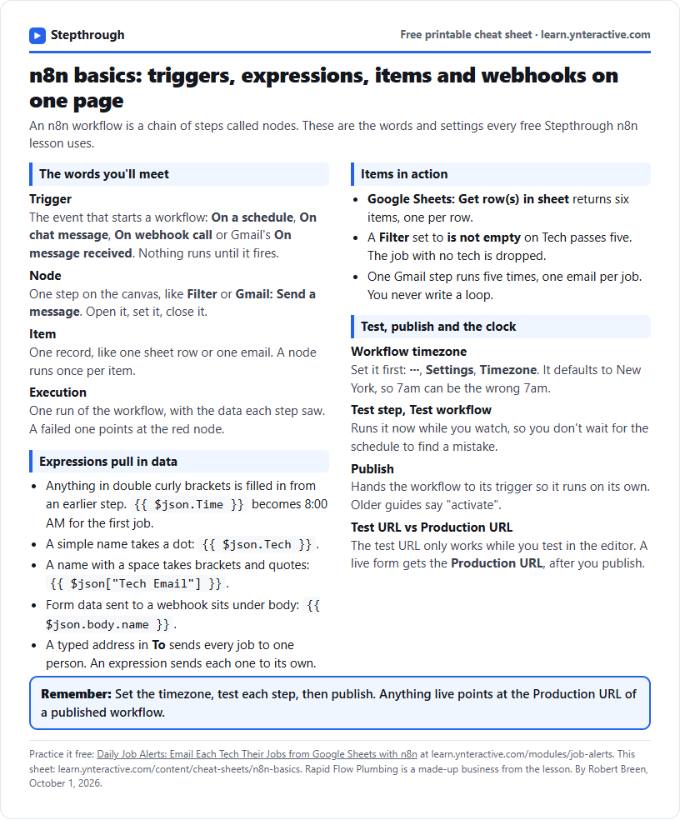 n8n Basics Cheat Sheet: Triggers, Items, Webhooks
A free one-page cheat sheet of n8n basics: triggers, expressions, items, executions, the workflow timezone and webhook test vs production URLs.
Tool cheat sheet Free PDF
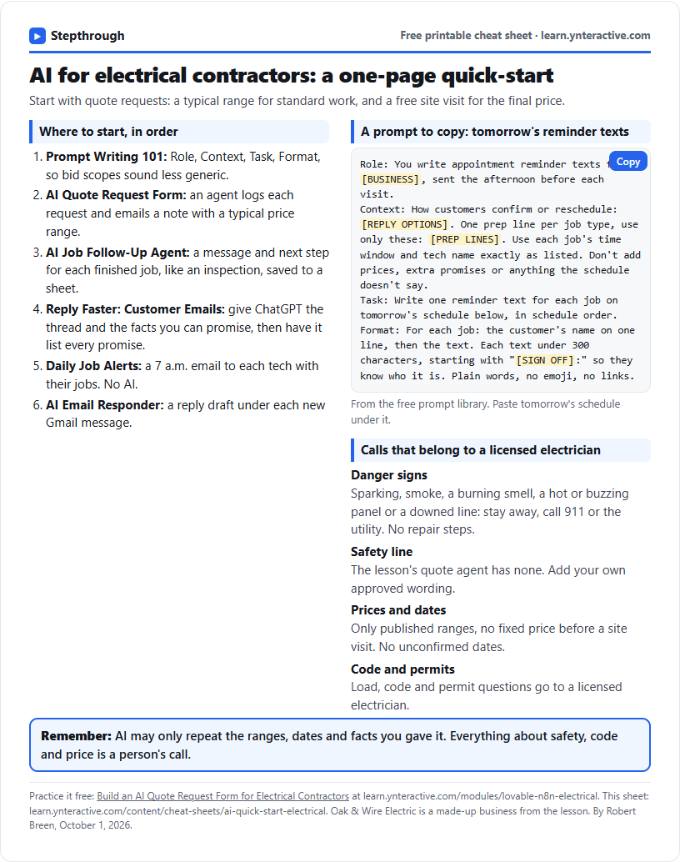 AI Quick-Start for Electricians: Cheat Sheet
A free one-page cheat sheet for electrical contractors: the free AI lessons in order, a reminder-text prompt and the calls AI must never make.
Industry quick-start Free PDF
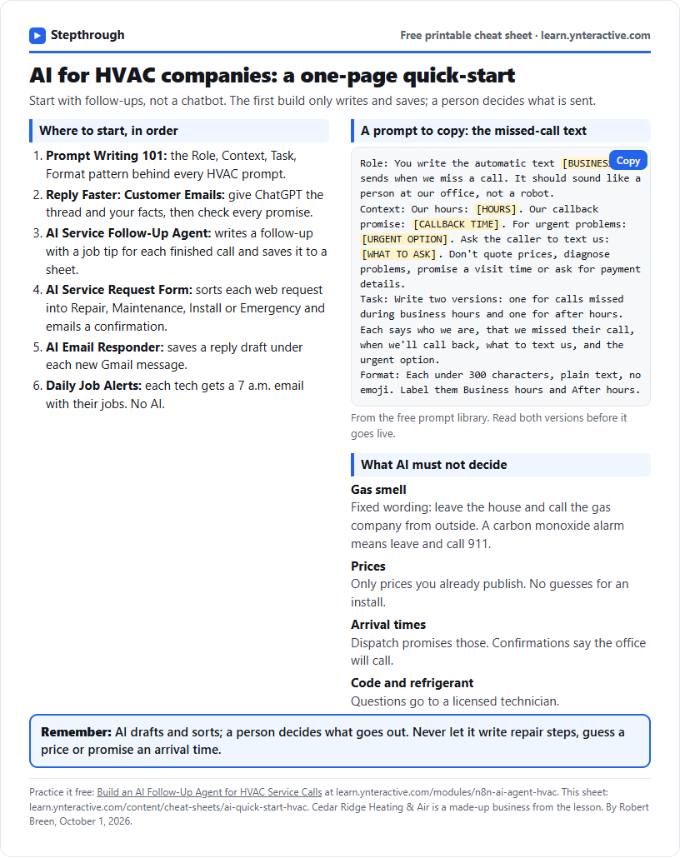 AI Quick-Start for HVAC Companies: Cheat Sheet
A free one-page cheat sheet for HVAC offices: the free AI lessons to take in order, a missed-call text prompt and what AI must never decide.
Industry quick-start Free PDF