Updated . Built against the tool’s current screens and checked step by step. How we check this lesson
The problem: a new hire pastes a client's payroll export, Social Security numbers and all, into a personal ChatGPT account. Most small offices have no plan, so the first hour goes on panic while the chat sits there. This free, hands-on lesson is the plan: stop and record, delete the chat, delete the memory it left behind, check shared links and turn off training, then have ChatGPT write the incident note, the client email and a new policy rule, without ever pasting the client data again. You follow a one-hour incident log and catch the two things ChatGPT got wrong when we tested it.
At a glance
| Question | Answer |
|---|---|
| What you build | A new hire pasted a client payroll export into ChatGPT. Delete the chat, delete the memory it left behind, turn off training, then write the incident note, the client email and a new policy rule. |
| Tools | ChatGPT |
| Time | About 9 minutes, 24 steps in 3 parts |
| Level | Beginner, no coding needed |
| Cost | Free |
| Ways to learn it | Practice it step by step |
The 3 parts, in short
- Stop and record: Stop and write it down.
- Contain it in ChatGPT: Open Jordan’s ChatGPT, Open the chat’s menu, Choose Delete, Confirm: Delete chat, and 10 more steps.
- Write it down, tell people: Back to the chat, Turn on Temporary chat, Ask for the incident note, Send it, and 5 more steps.
Start here first: Start Here: How Stepthrough Works (module 1 of AI Basics)
Part of: AI at Work: Start Here (step 6 of 14). Next up: Prompt Writing 101: Role, Context, Task, Format
Part of: AI for Accounting & Bookkeeping Firms (step 3 of 24). Next up: Turn a Client Meeting into Action Items and a Follow-Up Email (Accounting Firms)
The one-hour incident log
This is the log the lesson opens on, one row per step. time is when the step happened, so the client and the owner can see how fast you moved. step is what was done. who is the person who did it (the office manager sits with the person who pasted). done is ticked as you go; the first row is the incident itself.
| time | step | who | done |
|---|---|---|---|
| 10:05 | Payroll export (names, pay, SSNs) pasted into a personal ChatGPT account | Jordan | ! |
| 10:10 | Stop: no more pasting. Write down what, when, which account | Priya | |
| 10:20 | Delete the chat (and any shared link) | Priya + Jordan | |
| 10:30 | Check saved memories, delete the one about the client | Priya + Jordan | |
| 10:40 | Turn off Improve the model for everyone | Jordan | |
| 10:50 | Write the incident note (no client data in it) | Priya | |
| 11:00 | Tell the owner, email the client, add a policy rule | Priya |
Download the incident log (CSV) To use it, open Google Sheets and choose File, Import, Upload, clear the example times and names, and keep a blank copy with your AI policy.
The printable one-hour checklist
Every click path from the lesson, the things people forget (memory, shared links, uploaded files, other AI tools), the incident-note prompt with blanks to fill in, and a line on when to call your lawyer or insurer.
Download the one-hour checklist (.txt) Print it and keep it with your AI policy, so nobody has to search for it on the day.
What you need before you start
- Nothing for the practice copy: it needs no account, deletes nothing and sends nothing.
- For a real incident: the ChatGPT account the data went into, with the person who pasted it sitting next to you.
- The owner's phone number, and your AI policy if you have one.
Minutes 0 to 10: stop and record
Stop any more pasting, but don't start deleting in a rush. Write down what kind of data went in (not the data itself), when, which tool and which account, personal or work. That record is what the owner, the client and, if it comes to it, your insurer will ask for. Thank the person for reporting it quickly; you want the next one reported just as fast.
Minutes 10 to 40: contain it in ChatGPT
Open the chat, click the three dots at the top right, choose Delete, then Delete chat. ChatGPT warns that it will permanently delete the chat. OpenAI says deleted chats are removed from its systems within 30 days.
Then the step most people miss: deleting a chat does not delete what ChatGPT saved to memory. In our real test the memory "Hale Dental Studio is a payroll client, and Tasha Greene works there" was still in the saved memories list after the chat was gone. Click your name at the bottom left, Personalization, then the saved memories link, and delete only that one memory. Never use Delete all chats: you only need the one chat gone.
Finally, Settings, Data controls: check Shared links (click Manage and delete any link to that chat), and switch off Improve the model for everyone so new chats aren't used for training. For the full cleanup routine with archive and export, see Clear Client Data Out of ChatGPT.
Minutes 40 to 60: write it down and tell people
Open a Temporary chat and give ChatGPT the times and the steps, never the client data again. In our test it wrote a clean note under four headings, but "Who we will tell" named nobody ("appropriate internal management, privacy/security personnel"). Replace it with names and a time: the owner now, the client by noon.
The client email ChatGPT drafted was honest and short, with one slip: in an email going to the client, it said "a saved memory relating to the client". Read every line as the client will. The policy rule it suggested was solid: client confidential data never goes into a personal or unapproved AI account. Add it to your AI acceptable use policy.
How the interactive lesson works
Each step is shown in the Watch panel with a short explanation, then you do it yourself in Your turn on a practice copy of the incident log and of ChatGPT. Nothing is deleted and no email is sent. Every name and number in the example is made up. This is a practical routine, not legal advice; if the data is regulated, ask your lawyer or insurer about notification duties.
Try it yourself, free
Reading the steps is a start. Doing them is how it sticks. The interactive module walks you through every click in a practice copy of ChatGPT, checks each step, and never touches your real accounts.
Start “Someone Pasted Client Data into AI: Contain It in One Hour using ChatGPT”Step by step: Someone Pasted Client Data into AI: Contain It in One Hour using ChatGPT
All 24 steps of the interactive module, in order. In the module you watch each one, then do it yourself in a practice copy that checks your work.
1. Stop and record
- Stop and write it down. This is the one-hour incident log. Row 1 is what happened at 10:05. Click row 2, Stop, to start the clock.
It's ten oh five at Harbor and Pine Bookkeeping. Jordan, a new hire, just pasted a client's payroll export into his personal ChatGPT account. Names, pay rates and Social Security numbers. You are Priya, the office manager, and you have one hour. This log is your plan, one row per step. First, stop. No more pasting, and write down what was pasted, when, and on which account.
2. Contain it in ChatGPT
- Open Jordan’s ChatGPT. Sit with Jordan at his screen. Click the ChatGPT tab.
Sit with Jordan at his screen, so he learns how.
- Open the chat’s menu. This is the chat with the payroll in it. At the top right, click ···.
There's the chat, with the payroll right in it. At the top right, click the three dots.
- Choose Delete. Click Delete, in red.
- Confirm: Delete chat. Read the warning, then click Delete chat.
It says this will permanently delete the chat. That's what you want. OpenAI says deleted chats are removed from its systems within thirty days.
- Open the account menu. The chat is gone. But Jordan also asked ChatGPT to remember the client. At the bottom left, click Jordan.
The chat is gone. But deleting a chat does not delete what ChatGPT saved to memory. Jordan also asked it to remember the client.
- Open Personalization. Click Personalization.
- Open saved memories. Under ChatGPT memory, click the saved memories link.
- Find the client memory. There it is, still saved after the chat was deleted. Point at Hale Dental Studio is a payroll client… and click its ···.
There it is. Hale Dental Studio is a payroll client, and Tasha Greene works there. Still saved, even though the chat is gone.
- Delete that one memory. Click Delete.
Only this one. Leave the others alone.
- Confirm. The dialog quotes the memory. Click Delete.
Check the dialog quotes the right memory, then click Delete.
- Close the list. The client memory is gone, the others are still there. Click the ×.
The client memory is gone, and the others are still there. Close the list.
- Open Data controls. In the left menu, click Data controls.
Now the account settings. In the left menu, click Data controls.
- Check for a shared link. Top row: Shared links. Click it. (For real, click Manage and delete any link to that chat.)
Top row, shared links. If Jordan had shared the chat, a public link would still work after the chat was deleted. For real, click Manage and delete any link to it. Jordan never shared it.
- Turn off Improve the model for everyone. It’s on. Click the switch to turn it off. (Practice copy: nothing really changes.)
Improve the model for everyone is on. That means his chats could be used for training. Turn it off. It covers new chats, so do it now, and log the time. Leave Delete all chats alone. You only need the one chat gone.
3. Write it down, tell people
- Back to the chat. At the top left, click Back to app.
Contained, in about thirty five minutes. Now write it down.
- Turn on Temporary chat. At the top right, click the Temporary chat icon (the dashed circle).
Use a Temporary chat for the write up.
- Ask for the incident note. Paste in the request. It has the times and steps, and no client names or numbers.
It has the times and what you did. Notice what it doesn't have. No client name, no employee names, no numbers.
Write a short internal incident note for my office. Don't ask me for any client names or numbers. Facts: today at 10:05 a staff member pasted a client's payroll export (employee names, pay rates and Social Security numbers) into a personal ChatGPT account to summarize it. At 10:40 we deleted the chat, deleted one saved memory about the client, and confirmed no shared link existed. Model training was on for that account and is now off. Use these headings: What happened, What we did, Who we will tell, What changes now. Keep it under 200 words.
- Send it. Click the send arrow.
Send it.
- Fix the vague part. This is ChatGPT’s real answer. Click Who we will tell: it doesn’t name anyone.
This is the note ChatGPT really wrote when we tried it. Mostly good. But read Who we will tell. Appropriate management, privacy personnel, other parties. That's nobody. Before you file it, replace it with names and a time. The owner, today. The client, by noon.
- Ask for the client email and a policy rule. Paste in the request.
Now ask for two things. An honest email to the client, and one new rule for your AI policy.
Now two more things. 1) A short, honest email from me to the client (call them [CLIENT]) telling them what happened, what we did within the hour, and that we're happy to talk it through. No legal promises. 2) One new rule for our AI policy so this doesn't happen again.
- Send it. Click the send arrow.
Send it.
- Catch the wrong word. The email is going to the client, but one line says “a saved memory relating to the client”. Click that line.
Honest and short. But read the third line. A saved memory relating to the client. This email is going to the client. Change it to, a saved note about your company. Then read the rule underneath. That one goes straight into your AI policy.
- Back to the log. Click the Incident log tab.
Every row is done, inside the hour. Save the log with the incident note. Then send the email yourself, after the owner has read it. Download the log and the checklist from the lesson page, so the next person knows the plan before they need it.
Frequently asked questions
- I accidentally put confidential information into ChatGPT. What do I do first?
- Stop, and write down what kind of data went in, when, and which account. Then delete the chat (three dots, Delete, Delete chat), check saved memories in Personalization and delete any about the client, check Shared links, and turn off Improve the model for everyone.
- Does deleting a ChatGPT chat delete its memories?
- No. Memories are stored separately. In our test a memory about the client was still listed after the chat was deleted. Delete it in Settings, Personalization, saved memories.
- How long does OpenAI keep a deleted chat?
- OpenAI says deleted chats are removed from its systems within 30 days, unless it must keep them for legal or security reasons. Temporary chats may also be kept for up to 30 days for safety.
- Should I tell the client?
- Tell your owner first and agree who contacts the client and when. A short, honest email that says what happened and what you did within the hour usually protects the relationship. For regulated data, ask your lawyer or insurer whether you must notify.
- Can ChatGPT write the incident note?
- Yes, if you give it the times and steps only, in a Temporary chat. Never paste the client data again to write about the leak. Then make "who we will tell" specific and read the client email line by line.
- Is this lesson free?
- Yes. Stepthrough is completely free and the practice copy needs no account.
More in AI Basics
Try the practice in under two minutes: watch a step, click, type, get unstuck with Do it for me, and finish.
Free · Live ~2 min Beginner
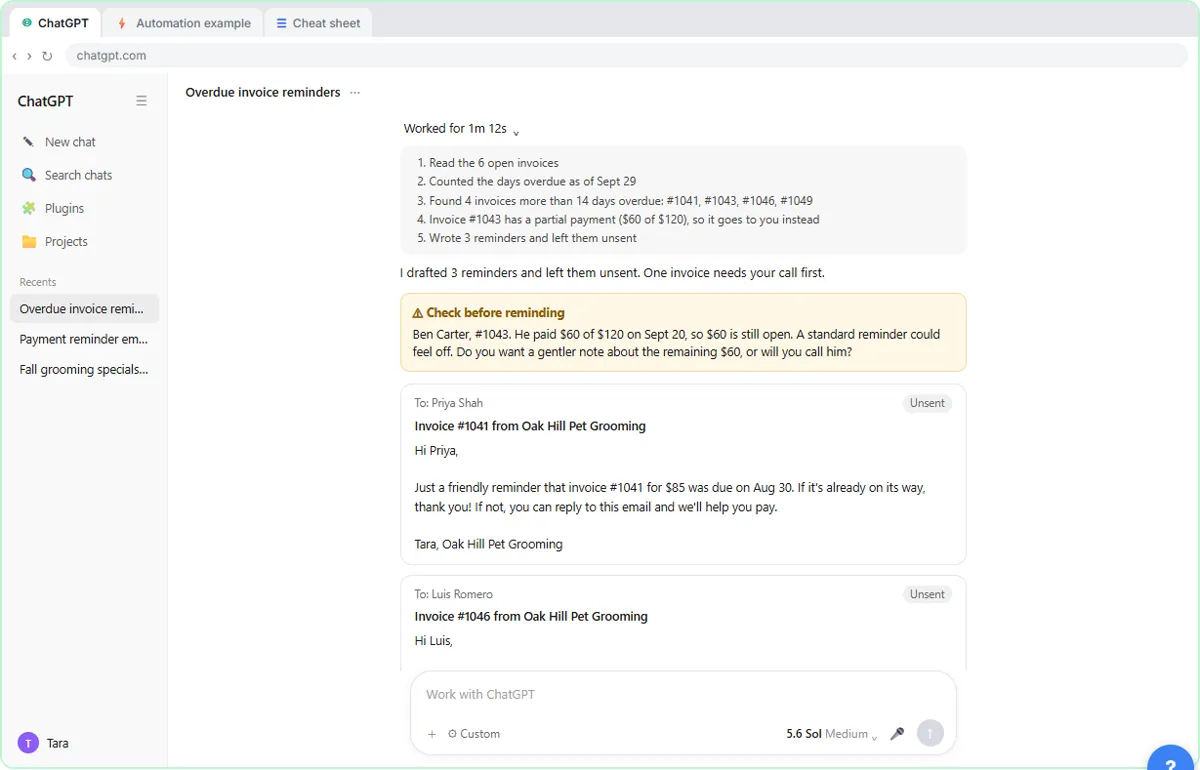 AI Agent vs Chatbot vs Automation: One Job Done Three Ways
Chase six unpaid invoices three ways: a chatbot writes a template, an automation follows a rule, and an AI agent works out the steps and flags the tricky one.
Free · Live ~7 min Beginner
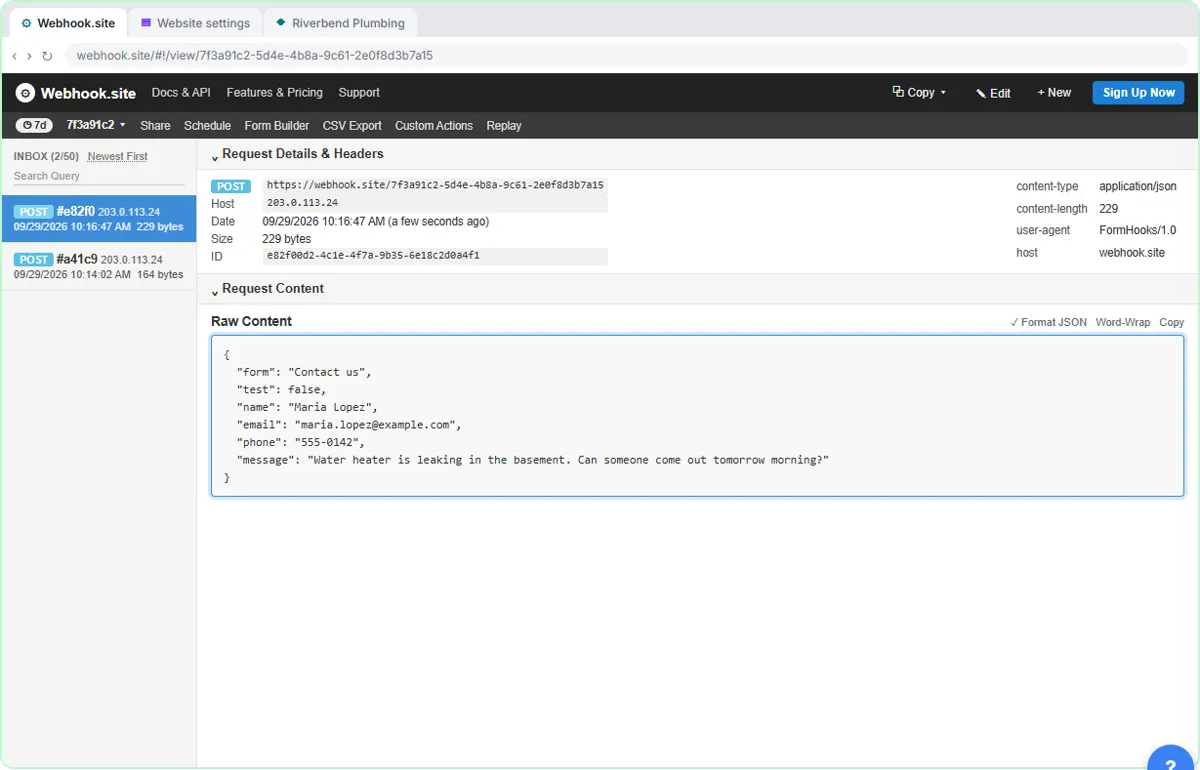 What Is a Webhook? Send a Test and Watch the Data Arrive
Point a plumber's website contact form at a free webhook tester, send a test and a real message, and watch the data arrive the moment it's sent.
Free · Live ~6 min Intermediate
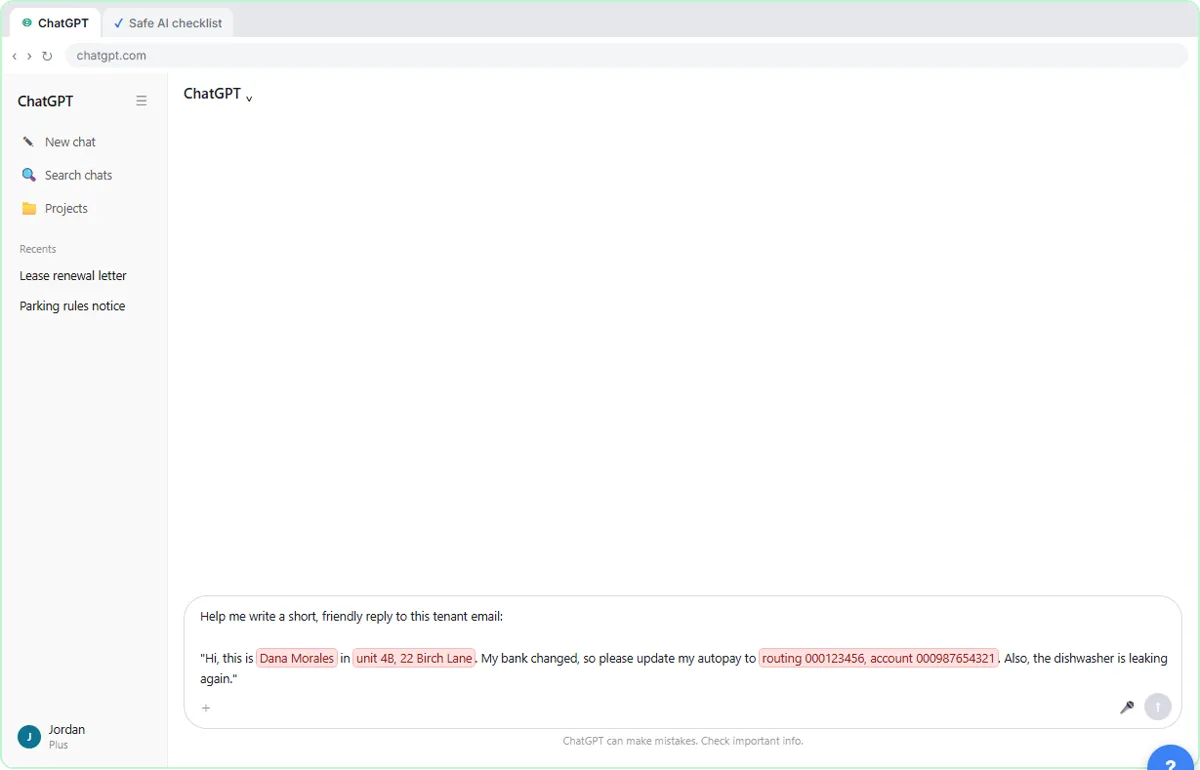 Use AI at Work Without Leaking Client Data using ChatGPT
Turn off model training, strip a tenant's bank details and address out of a prompt, then catch the two promises ChatGPT made up before the reply goes out.
Free · Live ~7 min Beginner
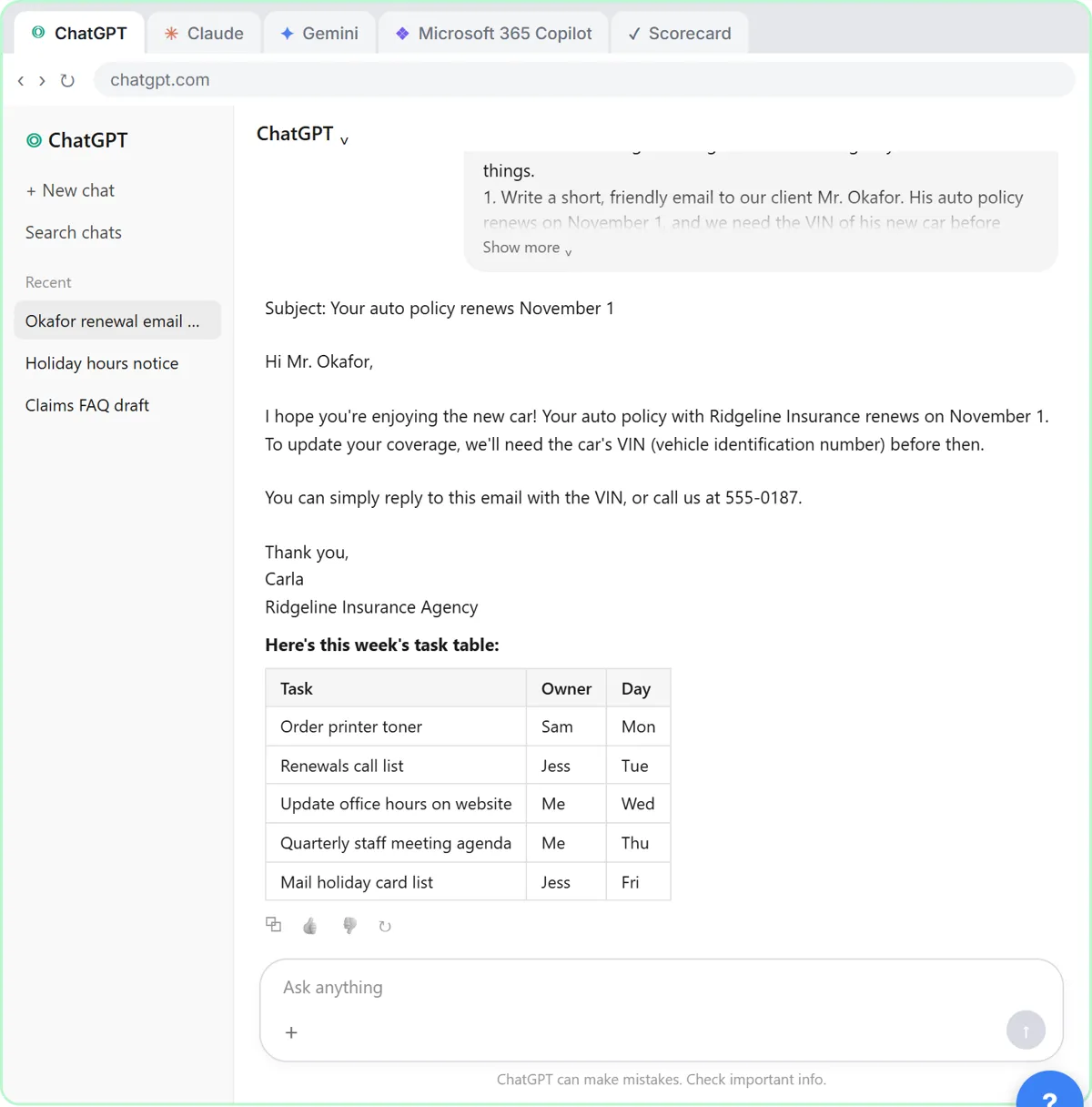 Choose the AI Assistant Your Team Should Use, Tested on ChatGPT, Claude, Gemini and Copilot
Give one real office task to ChatGPT, Claude, Gemini and Microsoft Copilot, check each answer on the facts, and pick the one to use at work.
Free · Live ~8 min Beginner
◷ChatGPT: Keep Client Data Safe, Set Up Your Team's Data Controls in 10 MinutesA client asks if their files go into ChatGPT. Answer with confidence: set the data controls, memory, Temporary Chat and shared links, then hand your team a one-page AI…
Free · Live ~10 min Beginner
More ChatGPT tutorials
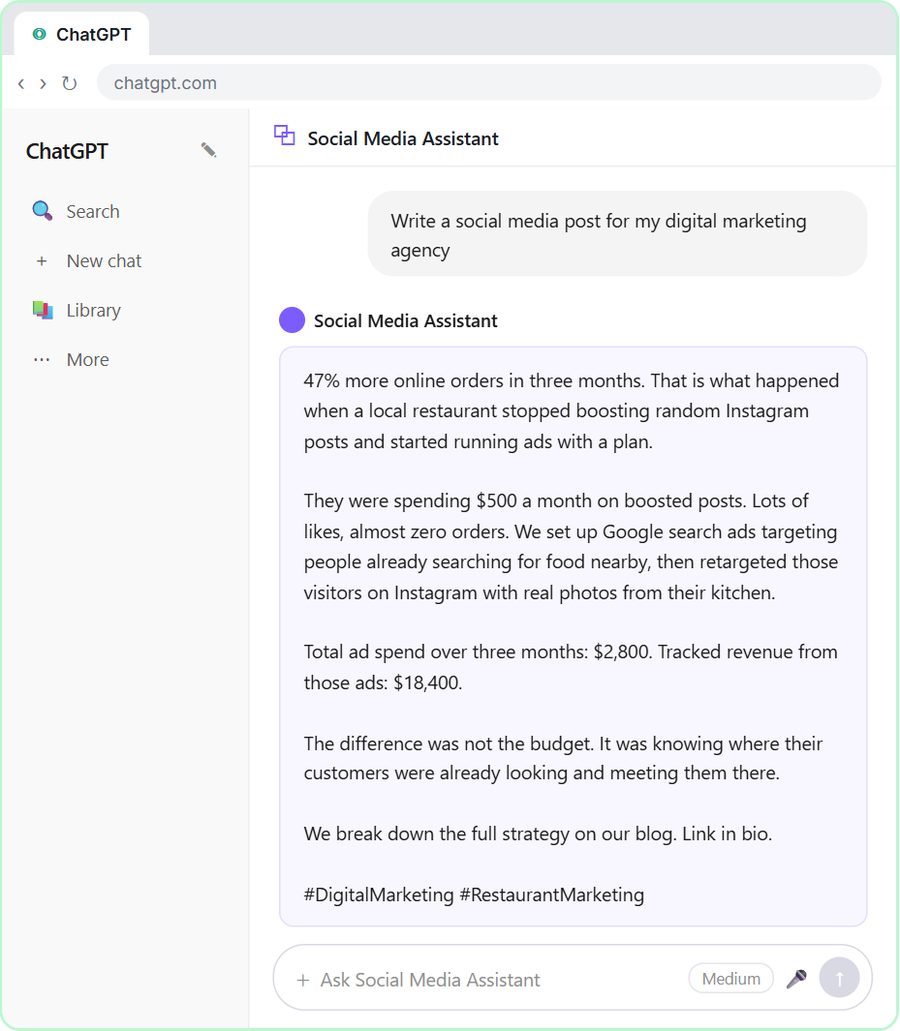 Get On-Brand Social Posts Every Time using a ChatGPT Custom GPT
See why generic prompts give generic results, then build a Custom GPT loaded with your brand voice and watch the output transform.
Free · Live ~8 min Beginner
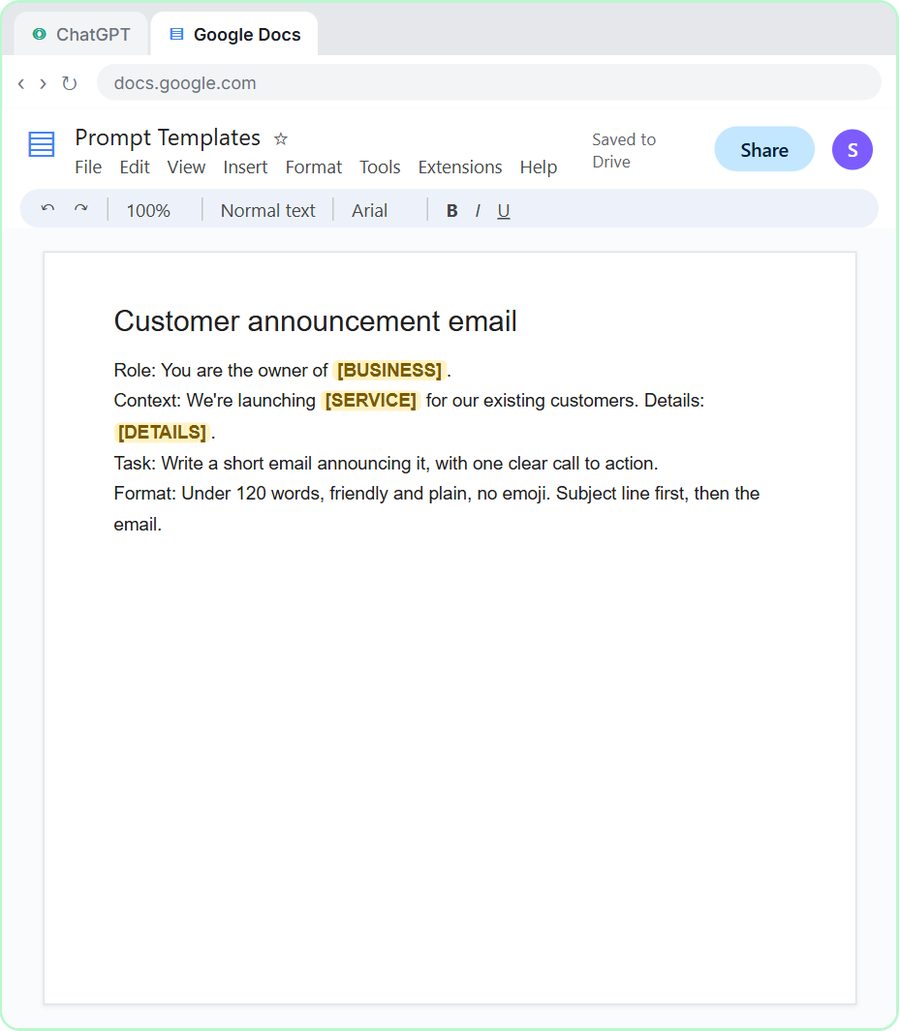 Prompt Writing 101: Role, Context, Task, Format
Ask ChatGPT for the same customer email twice, once vaguely and once with a four-part prompt, and see exactly why structure gets a better answer.
Free · Live ~8 min Beginner
◷Send a Same-Day Follow-up After Every Discovery Call using ChatGPTTurn a discovery call transcript into the decisions, the next steps with owners and dates, deal notes for your CRM, and a follow-up email the prospect gets the same…
Free · Live ~7 min Beginner
◷Hold Your Price When a Prospect Asks for a Discount using ChatGPTA prospect wants 30% off and a free month to sign this week. Give ChatGPT the thread and your pricing rules, catch the discount you can't approve, and send a reply that…
Free · Live ~9 min Beginner
 Get Your Business Recommended by ChatGPT
Ask ChatGPT who it recommends in your town, see which pages it trusts, then use it to write an FAQ page and Business Profile copy that answer real customer questions.
Free · Live ~10 min Intermediate
◷Run a Weekly Ops Review Where Every Task Has an Owner using ChatGPTTurn a weekly operations and vendor review into the decisions, the next steps with owners and dates, the risks to watch and a team recap, without turning a vendor's…
Free · Live ~7 min Beginner
Terms in this lesson
Plain-English definitions, each with an example from a free lesson.