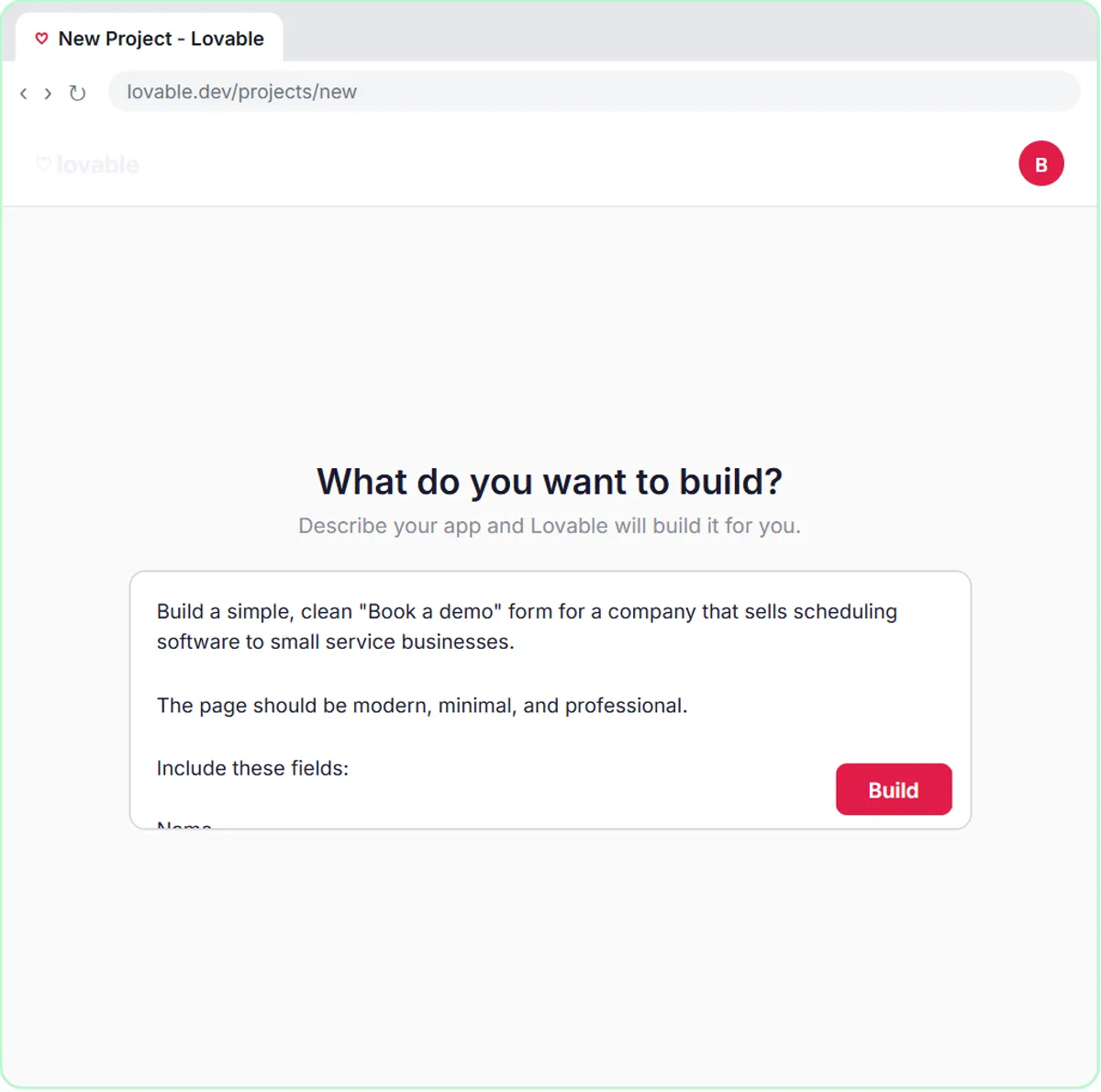
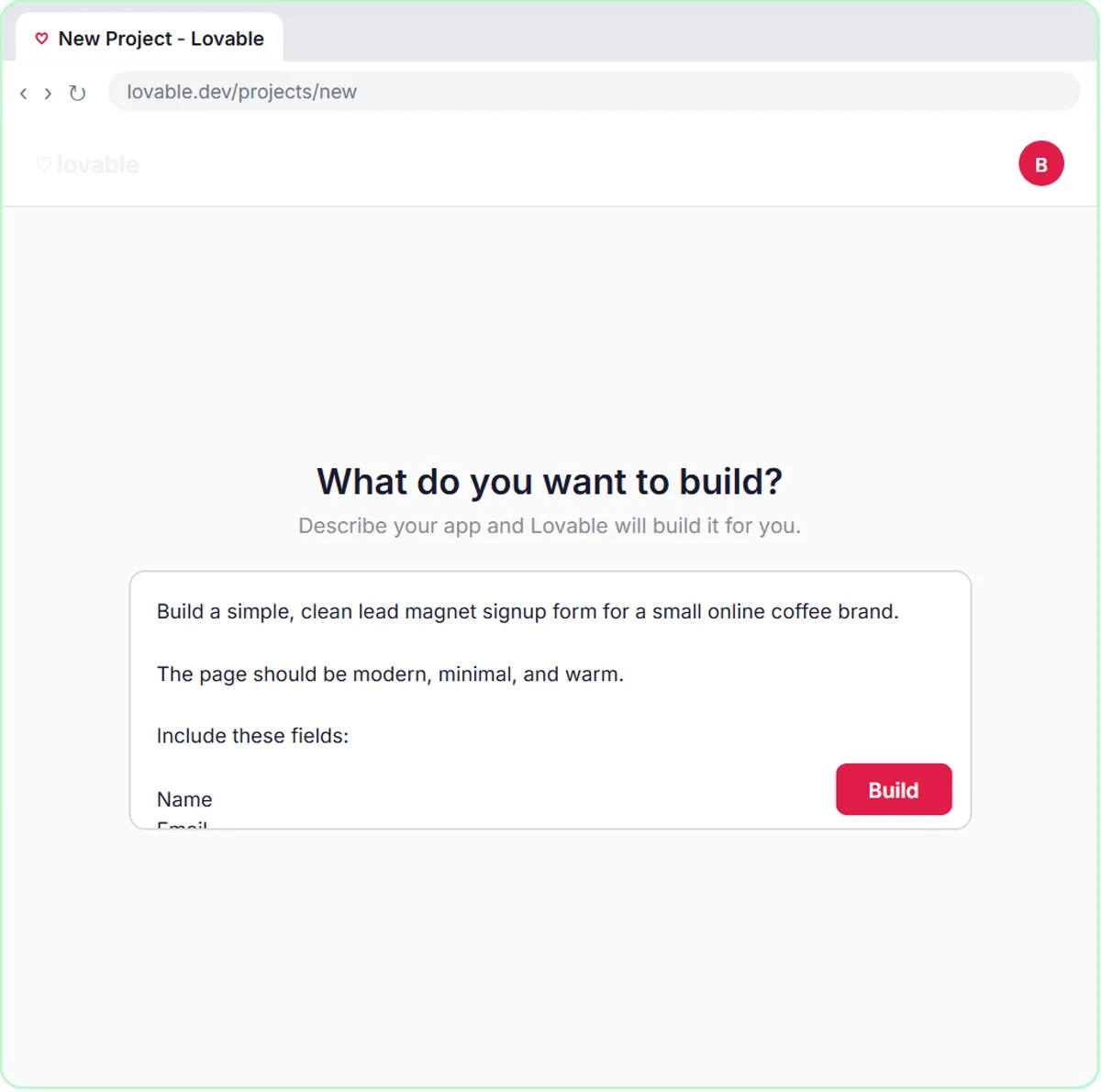
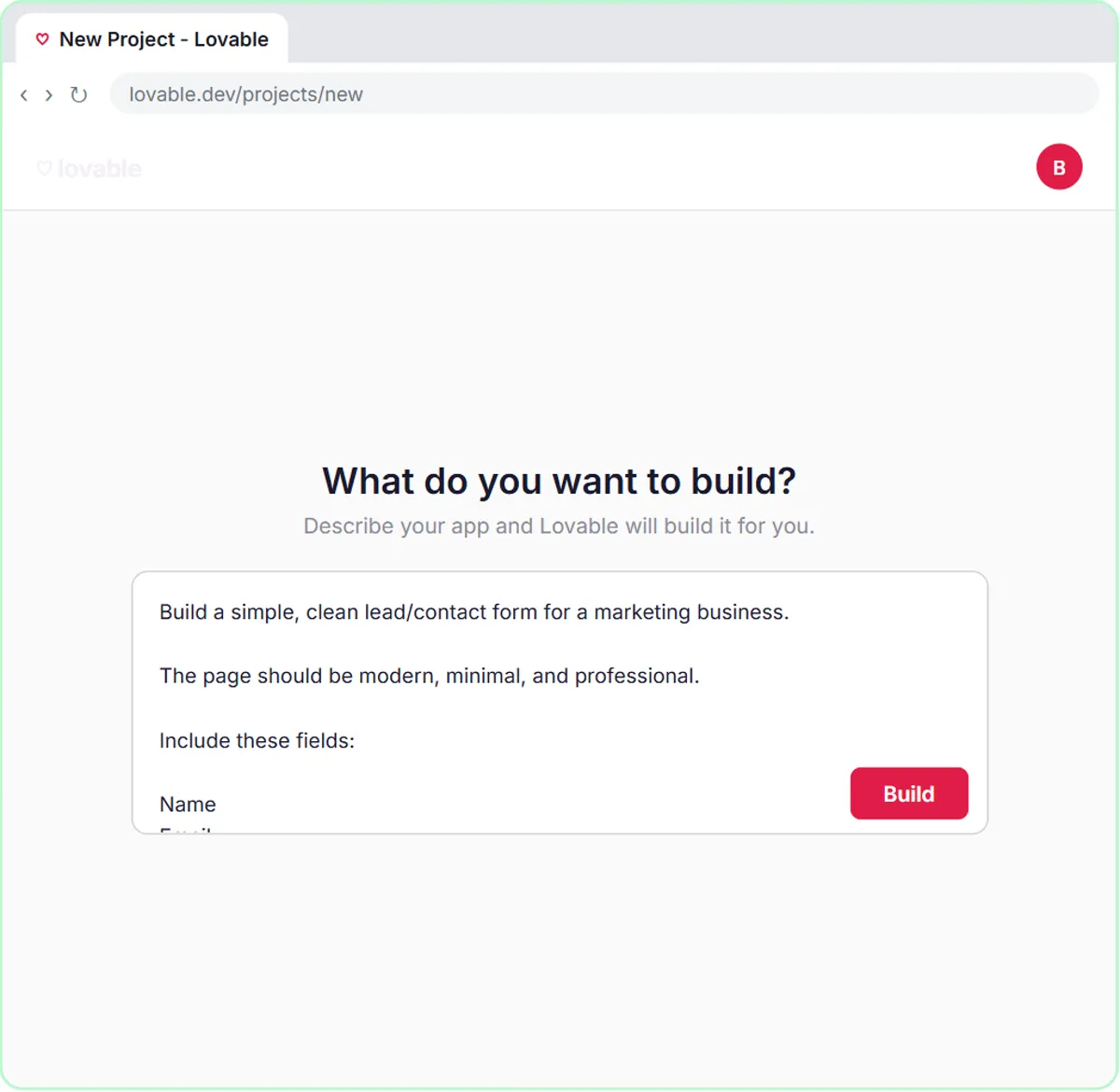
In Lovable you click Start with a prompt, paste the description and click Build. The more you describe, the less Lovable has to guess.
What goes in a Lovable form prompt?
Every form prompt in the Stepthrough lessons has the same eight parts, in the same order. Here they are, with the contact form's wording from the lesson:
- Purpose and look: "Build a simple, clean lead/contact form for a marketing business. The page should be modern, minimal, and professional."
- Fields: Name, Email, Question, Feedback.
- Heading and supporting line: "Have a Question?" and "Send us your question or feedback and we'll get back to you."
- WEBHOOK: send the data as a POST request, as JSON, with exact keys.
- SUBMISSION STATES: "Sending...", a success message and a friendly error.
- VALIDATION: which fields are required, plus email format.
- Scope: responsive for desktop and mobile, and "Do not add unnecessary sections, navigation, pricing, testimonials, or other marketing content."
- IMPORTANT: don't hard-code the webhook URL; use the N8N_WEBHOOK_URL secret.
Capitalized labels like WEBHOOK aren't required syntax; they just make a long prompt easy to scan.
How do you describe the fields and heading?
List each field on its own line, using the label the visitor will see, and give the heading and supporting line as examples. The lessons write "Use a clear heading such as:" and "Add a short supporting line like:", which leaves Lovable a little room while keeping the meaning.
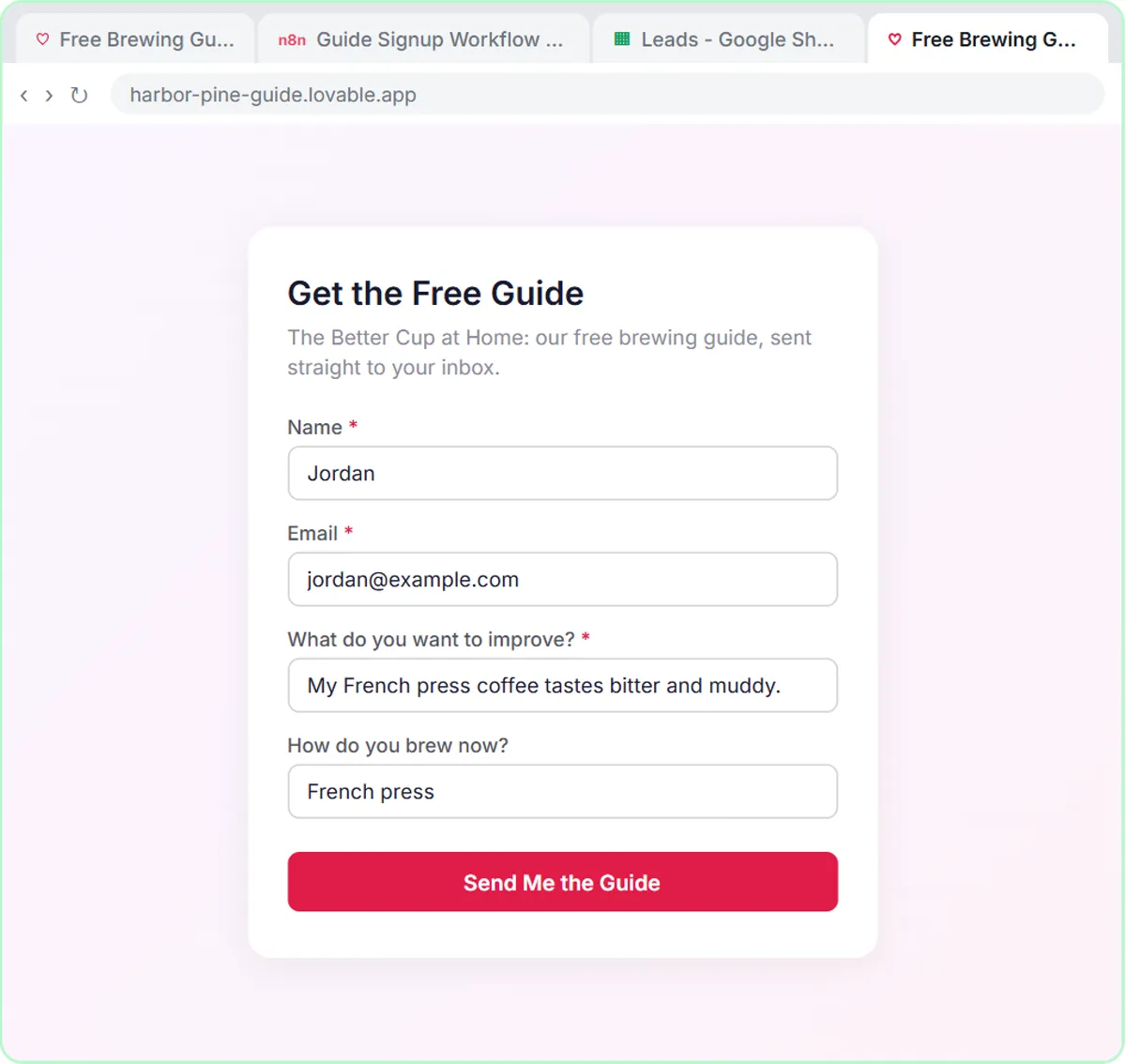
Field labels can be questions. The AI Demo Request Form lesson uses "What do you need help with?" and the AI Lead Magnet Signup Form lesson uses "How do you brew now?" A question tells the visitor what kind of answer you want. Every lesson form has exactly four fields.
What does the WEBHOOK section do?
The WEBHOOK section tells Lovable where the data goes and in what shape. The lesson's version:
WEBHOOK
When the form is submitted, send the data as a POST request to the n8n webhook URL.
The data should be sent as JSON with keys: name, email, question, feedback.
Do not ask me to paste the webhook URL into the page or source code.
The keys line is the most important sentence in the whole prompt. The labels the visitor sees can be anything, but the keys are what n8n reads. Each lesson picks short keys that match its fields:
| Form | Visible fields | JSON keys |
|---|---|---|
| Contact (lovable-n8n) | Name, Email, Question, Feedback | name, email, question, feedback |
| Book a Demo (sales) | Name, Email, What do you need help with?, Team size | name, email, need, teamSize |
| Get the Free Guide (marketing) | Name, Email, What do you want to improve?, How do you brew now? | name, email, interest, brewMethod |
If you're new to the idea, What Is a Webhook? explains what the form is sending and why.
Why must the keys match the n8n prompt template?
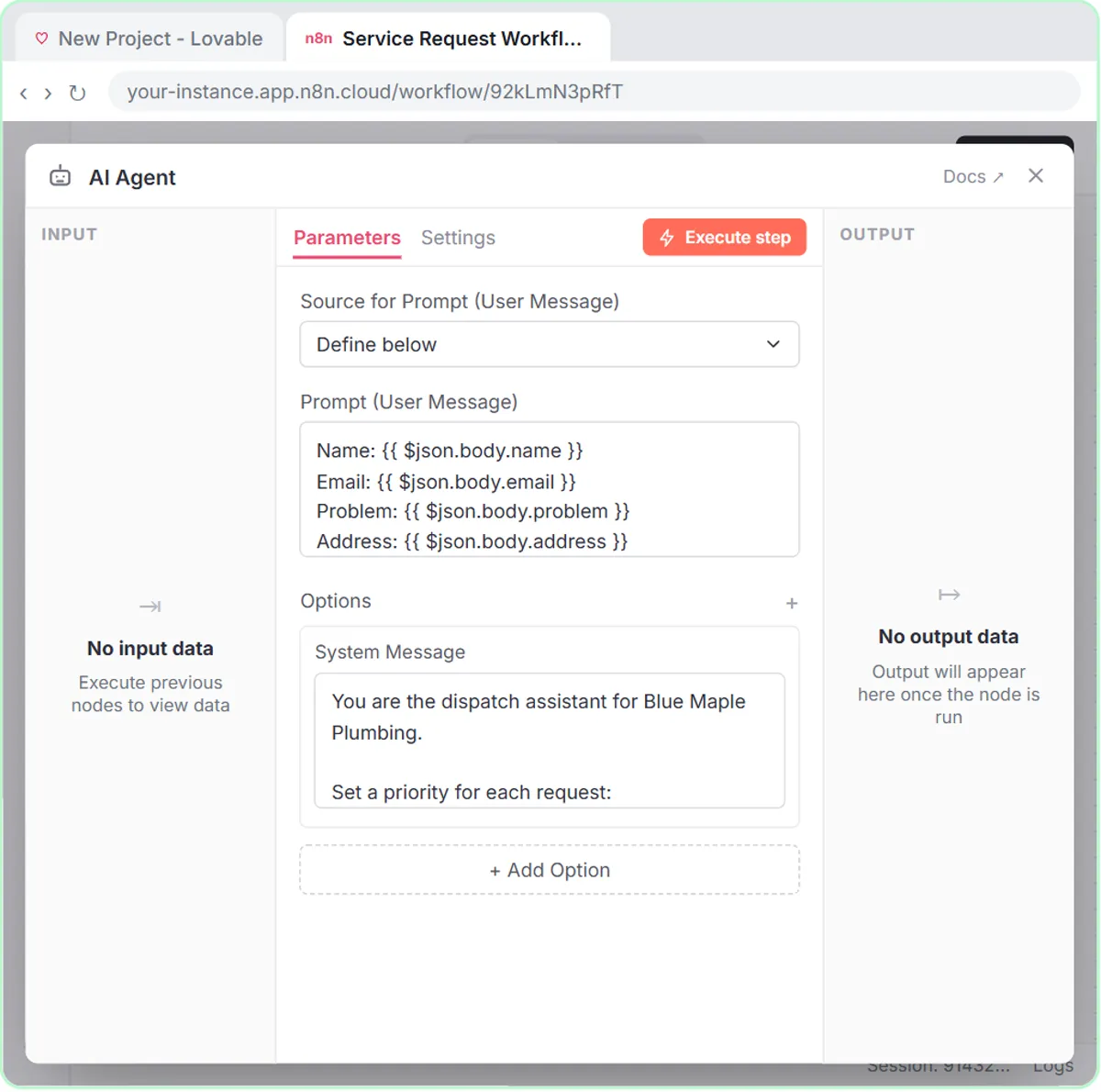
n8n finds each answer by its key, so a mismatch leaves a blank. The AI Agent's prompt template in n8n reads the same keys from the webhook body. For the demo form:
Name: {{ $json.body.name }}
Email: {{ $json.body.email }}
Need: {{ $json.body.need }}
Team size: {{ $json.body.teamSize }}
The keys must match character for character, including capitals. teamSize in the Lovable prompt means $json.body.teamSize in n8n; teamsize or team_size would come through empty. Decide the keys once, write them in the Lovable prompt, and copy them into the n8n template.
Try it free, step by step
Lovable + n8n: Build a Web App with an AI Backend. Build a contact form in Lovable and connect it to an n8n workflow — webhook trigger, AI Agent, Google Sheets, Gmail, and a Respond node that ties it all together. You do every step yourself in a practice copy of Lovable and n8n, it checks your work as you go, and “Do it for me” finishes any step you get stuck on. Free, and nothing touches your real accounts.
Start the free lessonWhat are submission states, and why spell them out?
Submission states are what the visitor sees after clicking the button: a "Sending..." label while it works, a success message when it's done, and a friendly error if it fails. Spelling them out means the form tells the truth about what happened.
Each lesson writes its own messages to fit the form:
- Contact: "Thanks! Your message has been received." / "Something went wrong. Please try again."
- Book a Demo: "Request received! Check your email for your next step."
- Free guide: "Check your inbox! Your free guide is on its way."
Success should say what happens next; the error should give the visitor something to do. On the n8n side, setting the webhook's Respond option to Using 'Respond to Webhook' Node makes the form wait for the real result before choosing which message to show.
How should validation be written?
Say which fields are required, which are optional, and ask for email format checking. Short, explicit lines work best:
- Contact: "Require Name, Email, and Question. Feedback is optional. Validate the email format."
- Book a Demo: "All four fields are required. Validate the email format."
- Free guide: "Require Name, Email, and What do you want to improve. How do you brew now is optional."
Make a field optional when a good lead might not know the answer. A coffee beginner may not know what to call their brewing setup, and you'd rather have the signup.
Why tell Lovable what not to add?
The lessons' line "Do not add unnecessary sections, navigation, pricing, testimonials, or other marketing content" keeps the page to one job, and keeps Lovable from inventing testimonials or prices you'd have to delete. A one-sentence purpose, such as "The main purpose of this project is to send demo requests from Lovable to an n8n webhook," settles anything you didn't specify.
Where does the webhook URL go?
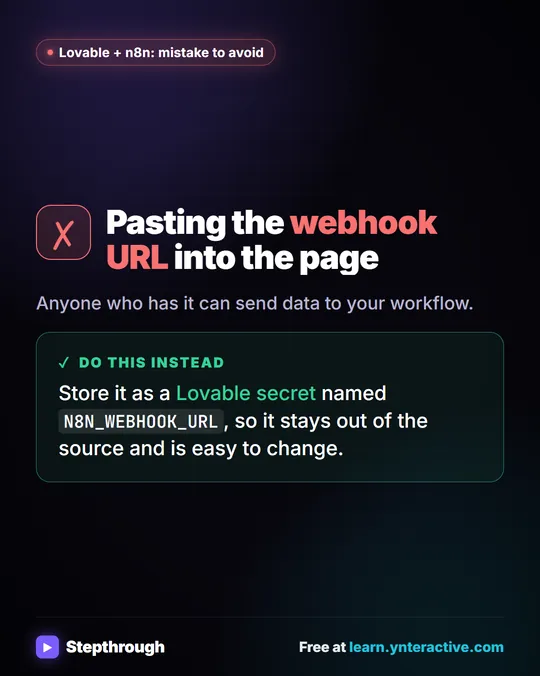
In a Lovable secret named N8N_WEBHOOK_URL, never in the page code. The lessons' IMPORTANT section says:
IMPORTANT
Do not hard-code any webhook URL.
Reference the N8N_WEBHOOK_URL secret/config value when sending the form submission.
The actual secret will be added manually later through Lovable Settings.
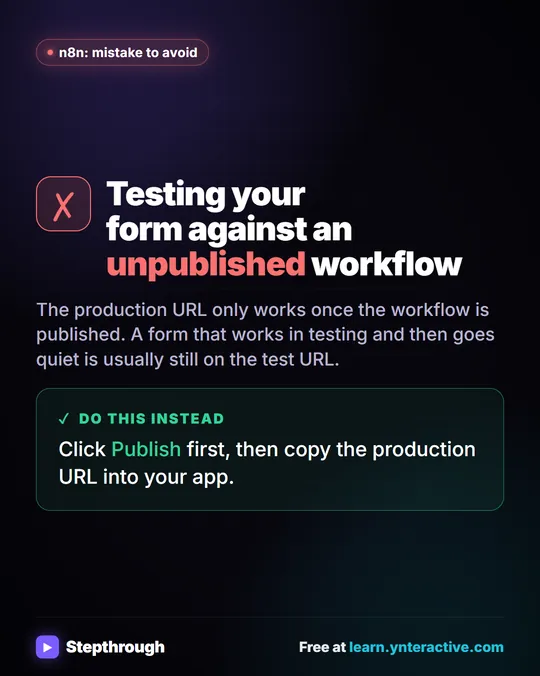
After building and publishing the n8n workflow, you copy its Production URL, click More in the Lovable toolbar, add the secret with that exact name and click Save. Connect a Lovable Form to n8n with a Webhook walks through the wiring.
How do you adapt the prompt for your own form?
Copy the structure and change only the parts that are about your business. A checklist:
- Rewrite the purpose line: what kind of form, for what kind of business.
- Pick three to five fields, with the labels visitors will see.
- Choose short, lowercase-first keys for each field and write them in the WEBHOOK line.
- Write a heading, a supporting line, and success and error messages in your own voice.
- Mark required and optional fields.
- Keep the "do not add" line and the IMPORTANT section exactly as they are.
- Copy the keys into the n8n prompt template as
{{ $json.body.yourKey }}.
Then click Build, open Preview and submit a test entry with your own email. The lessons are free and run in practice copies. A real build needs Lovable (free and paid plans), n8n (n8n Cloud is paid after a free trial, or self-host it) and, for an AI agent, an OpenAI API key, which is pay-as-you-go and billed separately from ChatGPT plans. More lessons are on the Lovable tool page.
Key takeaways
- A Lovable form prompt works best with eight parts: purpose and look, fields, heading, WEBHOOK, SUBMISSION STATES, VALIDATION, scope limits and the IMPORTANT secret rule.
- The JSON keys in the WEBHOOK line, such as name, email, need and teamSize, must match the n8n prompt template exactly, including capitals.
- Spelled-out submission states make the form show "Sending...", a success message that says what's next, and a friendly error.
- The line "Do not add unnecessary sections, navigation, pricing, testimonials, or other marketing content" keeps the page to one job.
- The webhook URL belongs in a Lovable secret named N8N_WEBHOOK_URL, not in the page code.
Frequently asked questions
- Do I need to know code to write a Lovable form prompt?
No. The prompt is plain English. The only technical parts are the JSON keys and the secret name, and you can copy those patterns from the lessons.
- Can I change the form after Lovable builds it?
Yes. You can describe changes to Lovable in more prompts. If you change a key, change it in the n8n prompt template too.
- Why don't I paste the webhook URL into the prompt?
So it's not hard-coded into the page. Storing it as the N8N_WEBHOOK_URL secret keeps it out of the code and lets you change it without rebuilding.
- How many fields should a form have?
Only what you need. Each lesson form has four, and some are optional.