Quick answer
In n8n, click Add first step (or the plus at the top right, then Add another trigger) and choose On webhook call. Set the HTTP Method to POST, replace the random Path with your own, click Listen for test event and send a test to the Test URL. Add a step such as Google Sheets Append row in sheet, then click Publish and give your app the Production URL.
Last updated · Last checked
Updated . Built against the tool’s current screens and checked step by step. How we check this lesson
Most automations start with data arriving from somewhere. In n8n, two triggers cover most of it. The n8n Form Trigger gives you a form n8n hosts for you, and the Webhook node gives you a web address any other app can send data to. In this free n8n webhook and form trigger tutorial you build both in one workflow, test each with its Test URL, save every entry to Google Sheets and publish so the Production URLs run on their own.
At a glance
| Question | Answer |
|---|---|
| What you build | Stop losing quote requests between inboxes. Build a form n8n hosts for you, catch entries from your own website with a webhook, and save every request to one Google Sheet. |
| Tools | n8n |
| Time | About 12 minutes, 51 steps in 6 parts |
| Level | Intermediate |
| Cost | Free |
| Ways to learn it | Practice it step by step |
The 6 parts, in short
- Build the form: Add the first step, On form submission, Give it a title, Add a question, and 5 more steps.
- Test the form: Execute step, Fill in the test form, Add an email, Submit, and 2 more steps.
- Save to Google Sheets: Add the next step, Search for Google Sheets, Google Sheets, Append row in sheet, and 8 more steps.
- Add a webhook: Open the nodes panel, Add another trigger, On webhook call, HTTP Method, and 2 more steps.
- Test the webhook: Listen for test event, Copy the Test URL, Go to the website editor, Paste the Test URL, and 3 more steps.
- Save website entries too: Add the next step, Search for Google Sheets, Google Sheets, Append row in sheet, and 7 more steps.
Start here first: n8n: What Is n8n? Build Your First Workflow (module 1 of n8n Automation Toolkit)
In the course: Part 9 · n8n Automation Toolkit (Module 86 of the full course)
Part of: Webhooks & Website Forms (step 5 of 9). Next up: n8n: Reply to a Web Form Instantly with Respond to Webhook
Part of: n8n Jump Start (step 9 of 26). Next up: n8n: Reply to a Web Form Instantly with Respond to Webhook
Part of: n8n Intermediate: Real Business Workflows (step 11 of 20). Next up: n8n: Reply to a Web Form Instantly with Respond to Webhook
What you will build
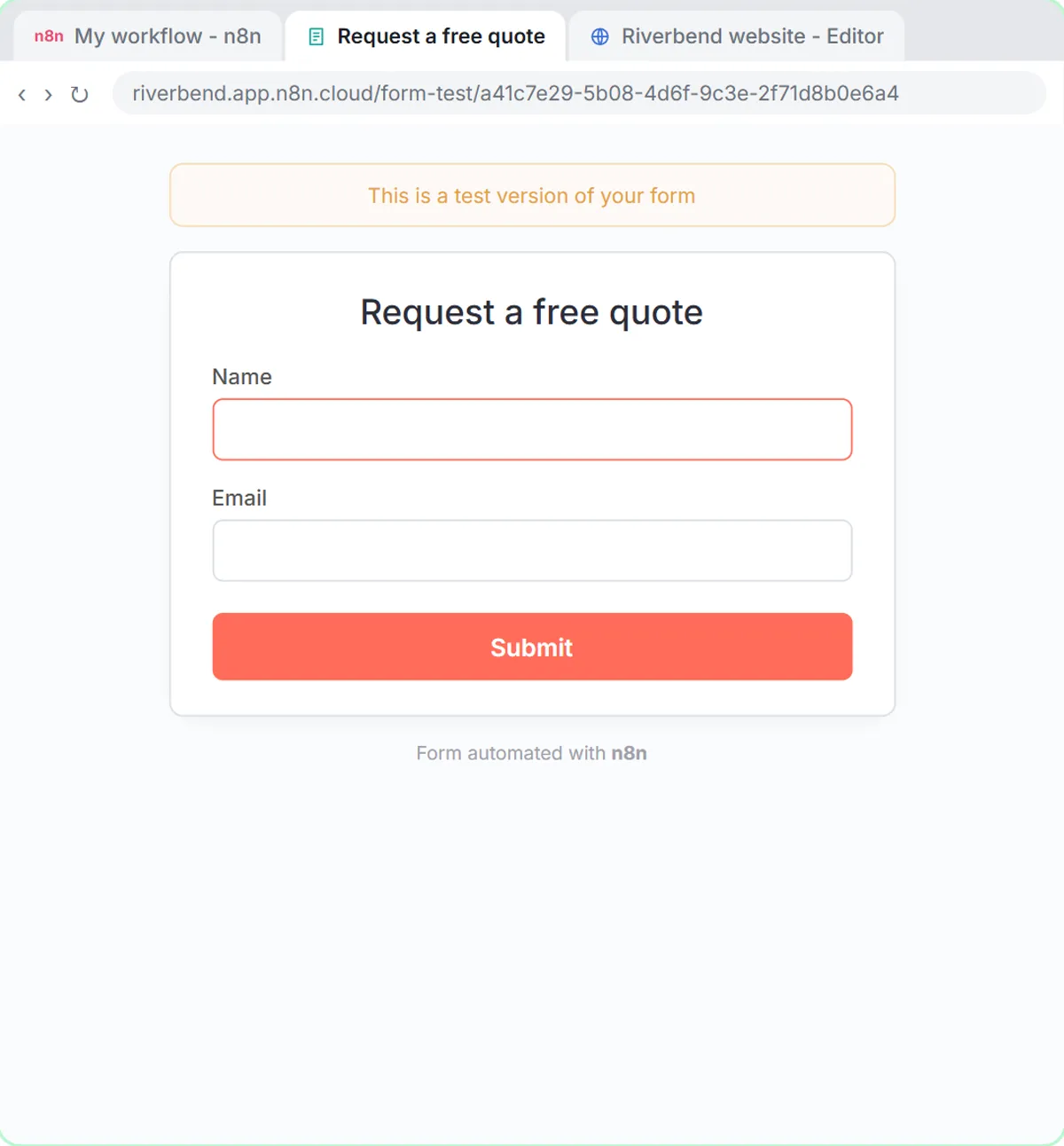
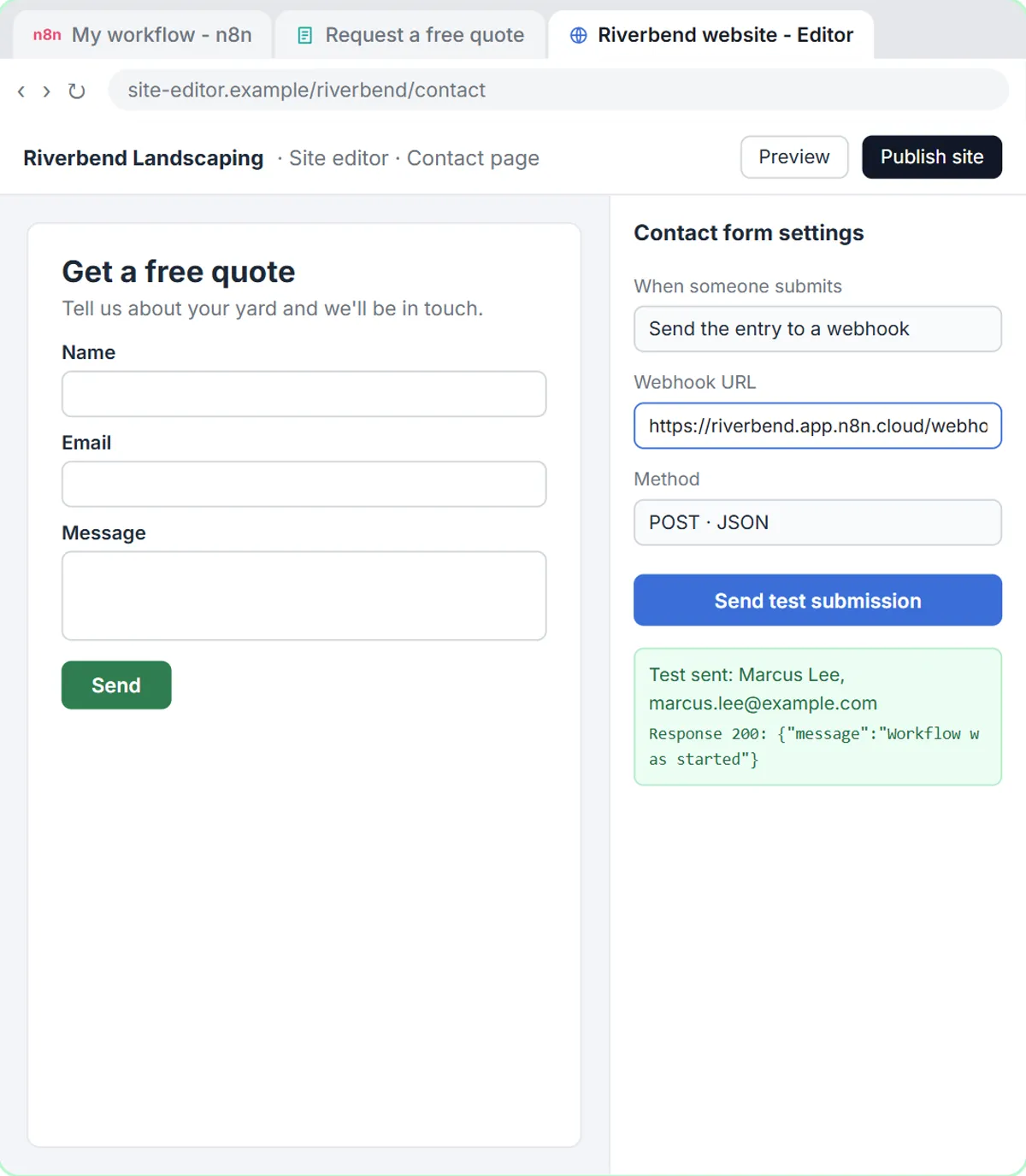
You will build one workflow for Riverbend Landscaping, a small landscaping business that gets quote requests in two places. The first is a Request a free quote form that n8n builds and hosts, with a Name field and an Email field. The second is the contact form on the business's own website, which sends each entry to an n8n webhook.
Both paths end in the same Google Sheet, Riverbend Quote Requests, where each request becomes a new row. Once you publish it, it keeps running when you close the editor.
n8n form trigger: a form that n8n hosts for you
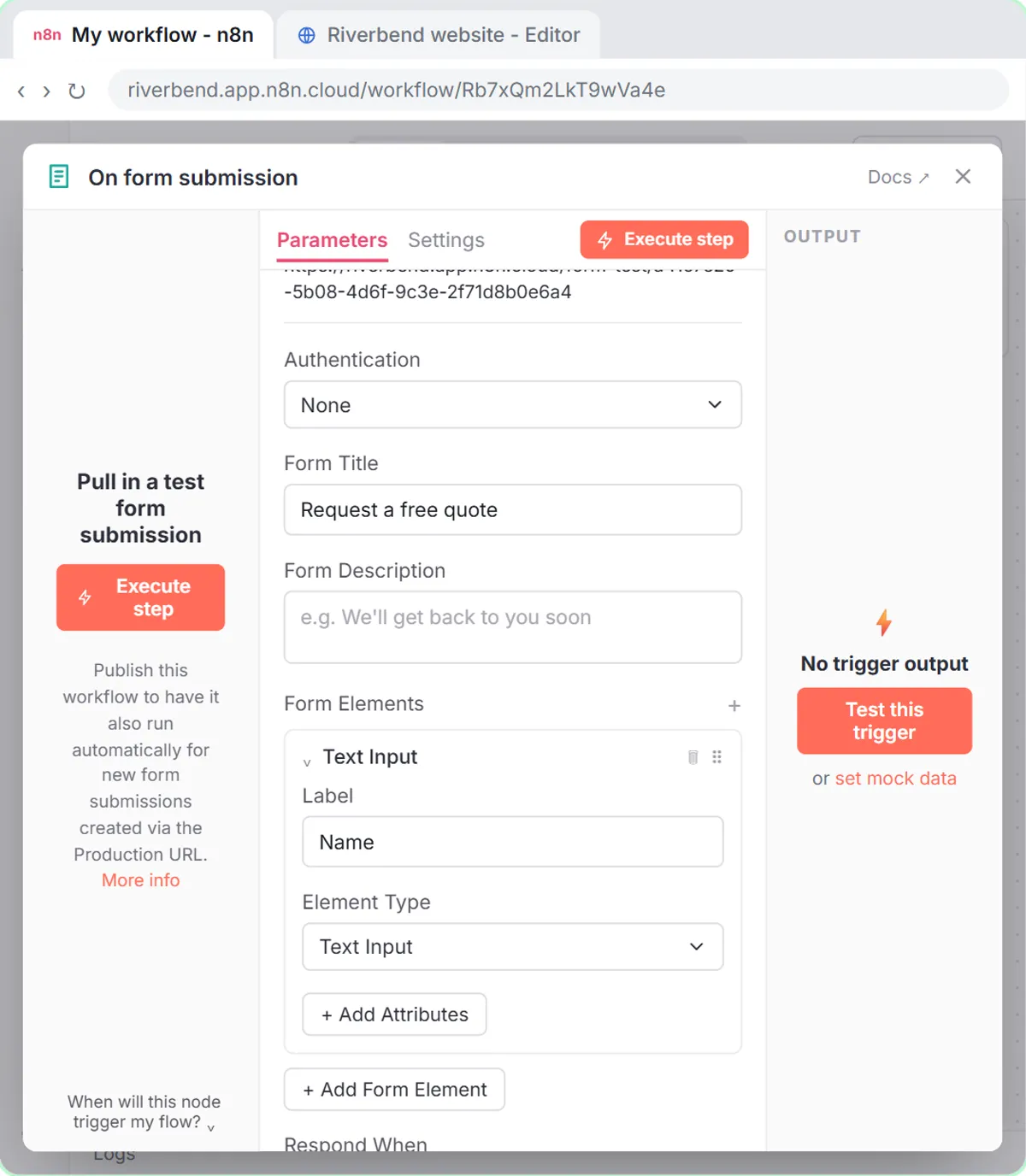
The n8n form trigger, called On form submission in the editor, builds and hosts a form page for you and starts the workflow each time someone submits it. You type a Form Title, add form elements such as Name and Email, and n8n hands the answers to the next node under the labels you chose. Use it when you need a simple form and have no website to put one on. If you want a form tool to build the form for you from one sentence, see How to Create a Form in Jotform with AI. Use the Webhook node instead when another app or your own site sends the data.
Who this n8n webhook tutorial is for
This module is for small business owners, office managers and anyone who has heard that n8n can "catch data from anywhere" but never quite understood webhooks. You do not need to code or have an n8n account to practice. The lesson starts from an empty workflow and explains each screen as you go.
Test URL vs Production URL, explained
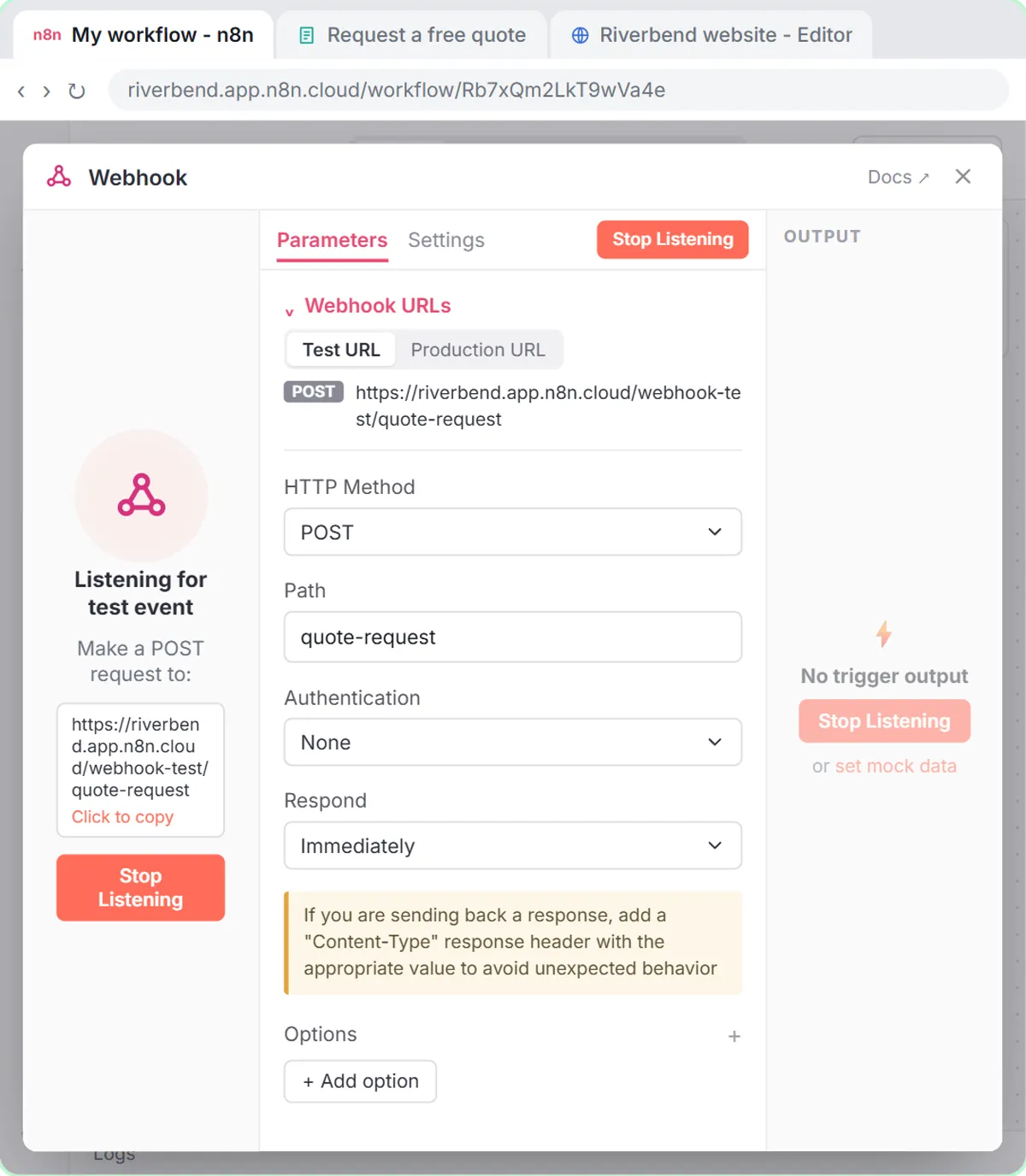
Every n8n webhook and form has two addresses. The Test URL has webhook-test or form-test in it, and it only works while you are listening in the editor: after you click Listen for test event on a webhook, or Execute step on a form trigger. Test runs show up right inside the editor.
The Production URL has plain webhook or form in it, and it only works once the workflow is published. Those runs do not appear in the editor; you find them in the executions list. The most common beginner mistake is putting the Test URL into a website, then closing n8n. To see what Execute step, Execute workflow and Publish each do, see How to Activate a Workflow in n8n.
Why a webhook's data sits inside body
A form trigger hands n8n fields named after your labels, so Name and Email drag straight onto your sheet. A webhook receives a whole HTTP request instead: headers, params, query and body. The fields a website sends live inside body, which is why the copied sheet step is remapped to body name and body email, and why the HTTP Method is POST: forms send their data in the body of a POST request.
How to use this in your business
Use the n8n form when you want a quick intake, booking or feedback form without paying for a separate form tool: share its Production URL in an email or behind a button. Use a webhook when the data already lives somewhere else. Many website builders, form tools, payment systems and CRMs can send each new entry to a webhook URL, and n8n can then save it, send an alert or start a follow-up. With both triggers in one workflow, every request ends up in one place.
How the interactive lesson works
Every step is shown first on the left, in the Watch panel, with a short voice-over. Then you do it yourself on the right, in Your turn, on a practice copy of n8n, the test form and a simple website editor. Each click is checked, so you know right away if you picked the right button. If you get stuck, press Do it for me and the step is done for you. Nothing goes online, so you can make mistakes freely, then build it for real.
Try it yourself, free
Reading the steps is a start. Doing them is how it sticks. The interactive module walks you through every click in a practice copy of n8n, checks each step, and never touches your real accounts.
Start “How to Create a Webhook in n8n and a Form That Saves to Google Sheets”Step by step: How to Create a Webhook in n8n and a Form That Saves to Google Sheets
All 51 steps of the interactive module, in order. In the module you watch each one, then do it yourself in a practice copy that checks your work.
1. Build the form
- Add the first step. This is a new, empty workflow. Click Add first step…
Riverbend Landscaping wants every quote request in one Google Sheet, whether it comes from a form or from their website. In a new workflow, click Add first step.
- On form submission. In What triggers this workflow?, pick On form submission.
Pick On form submission. n8n builds and hosts the form for you, so you need no other form tool.
- Give it a title. The Form Title is required and shows as the heading of the form. Type Request a free quote.
The form needs a title. It becomes the heading people see.
- Add a question. Each question on the form is a form element. Click Add Form Element.
Now the questions. Every question is a form element.
- Label it. New elements start as a Text Input, which suits a name. In Label, type Name.
New elements start as a Text Input, which is right for a name. In Label, type Name.
- Add another. Add a second element for the email address: click Add Form Element again.
Add a second element, for the email address.
- Label it Email. In the new element's Label, type Email.
Label this one Email.
- Element Type. Open its Element Type drop-down.
- Choose Email. Choose Email.
The form will then check that people type a real email address before they can submit.
2. Test the form
- Execute step. At the top, Form URLs shows the Test URL and the Production URL. Test first: on the left, click Execute step.
At the top are two addresses. The Test URL is for trying things out. The Production URL is the one you share, once the workflow is published. On the left, click Execute step.
- Fill in the test form. The test form opened in a new tab. Fill it in like a customer: type Dana Whitfield as the name.
The test form opened in a new tab. Fill it in like a customer would.
- Add an email. Type an email, for example dana.whitfield@example.com.
And an email address.
- Submit. Click Submit.
- Back to n8n. The form says Form Submitted. Switch back to the n8n tab.
Form Submitted. Switch back to the n8n tab.
- Look at the output. The OUTPUT shows one item: Name, Email, submittedAt and formMode. Close the node with the ×.
There's the submission: the name, the email, and when it came in. Close this window.
3. Save to Google Sheets
- Add the next step. Click the + on the right of On form submission.
Now save each submission to a sheet.
- Search for Google Sheets. In Search nodes..., type sheets.
Search for sheets.
- Google Sheets. Click Google Sheets.
- Append row in sheet. Under Sheet Within Document Actions, click Append row in sheet.
It adds a new row for every submission.
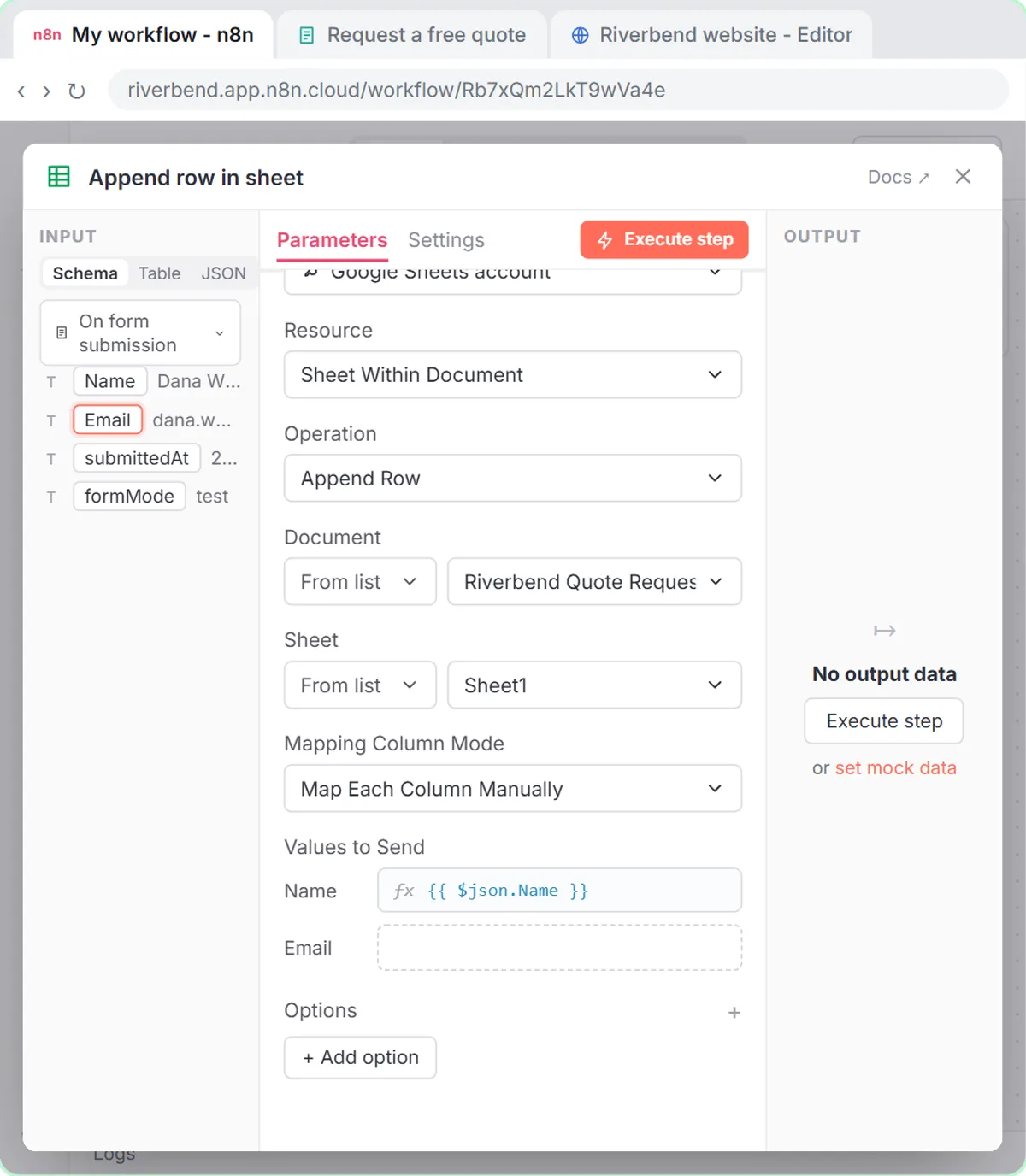
- Choose the spreadsheet. Under Credential, your Google Sheets account is already picked if you connected it before (if not, create the credential and sign in with Google). Open the Document list.
Your Google Sheets account is already picked, if you connected it before. If not, create it here and sign in with Google.
- Pick the sheet. Pick Riverbend Quote Requests.
Pick Riverbend Quote Requests. It has a Name column and an Email column.
- Choose the tab. Open the Sheet list.
- Sheet1. Choose Sheet1.
n8n reads its columns and lists them under Values to Send.
- Map the name. Drag Name from the INPUT on the left onto the Name field under Values to Send. (Here, click it.)
Now map the answers.
- Map the email. Drag Email onto the Email field.
- Test the step. Click Execute step.
n8n adds Dana's answers as a new row in the sheet.
- Close the node. The row went in. Close the node with the ×.
The row is in. The form is done. Close this window.
4. Add a webhook
- Open the nodes panel. Riverbend's website has its own contact form. Click the + at the top right of the canvas.
Now the website. Riverbend's site has its own contact form, and it can send each entry to n8n through a webhook.
- Add another trigger. A workflow can have more than one trigger. At the bottom, click Add another trigger.
- On webhook call. Choose On webhook call.
- HTTP Method. A webhook is a web address that waits for data. Open HTTP Method.
A webhook is a web address that waits for data to arrive. First, open HTTP Method.
- POST. Choose POST.
That's how website forms send their data. GET is mostly for asking for data.
- Path. The Path is the end of the address, and n8n started it with a random ID. Replace it with quote-request.
The Path is the end of the address. n8n started it with a random ID. Replace it with quote-request, so you can recognize it later.
5. Test the webhook
- Listen for test event. Under Webhook URLs, the Test URL has webhook-test in it; the Production URL just webhook. Click Listen for test event.
Look at the Webhook URLs. The Test URL has webhook-test in it. The Production URL just says webhook.
- Copy the Test URL. n8n is waiting for one POST request to the Test URL. Click the URL to copy it.
n8n is now waiting for one request to the Test URL.
- Go to the website editor. Switch to the Riverbend website tab.
Switch to the tab with Riverbend's website editor.
- Paste the Test URL. The contact form can send each entry to a webhook. Paste the Test URL into Webhook URL.
This contact form can send each entry to a webhook.
- Send a test. Click Send test submission.
The website posts a sample entry to n8n.
- Back to n8n. n8n answered Workflow was started. Switch back to the n8n tab.
The website got a reply: Workflow was started. Now go back to the n8n tab.
- Look at the request. The OUTPUT shows the request. The form fields are inside body: name, email and message. Close the node.
Here's the request. The website's fields are inside body: name, email and message. Close this window.
6. Save website entries too
- Add the next step. Website entries should land in the same sheet. Click the + on the right of Webhook.
Website entries should land in the same sheet.
- Search for Google Sheets. In Search nodes..., type sheets.
Search for sheets again.
- Google Sheets. Click Google Sheets.
- Append row in sheet. Click Append row in sheet. n8n names this one Append row in sheet1 and connects it to the Webhook.
n8n calls this one Append row in sheet 1, and it is already connected to the Webhook.
- Choose the spreadsheet. Open the Document list.
Same sheet as before.
- Pick the sheet. Pick Riverbend Quote Requests.
- Choose the tab. Open the Sheet list.
- Sheet1. Choose Sheet1. Name and Email appear under Values to Send, both empty for now.
Name and Email appear under Values to Send.
- Map name. On the left, the INPUT opens with a long headers list. Scroll down to body, where the website's fields are, and drag name onto the empty Name field.
On the left, the input starts with a long list of headers.
- Map email. Drag email onto Email.
- Close the node. Close the node with the ×.
Close this window.
Screenshots
Frequently asked questions
- Where do I find my n8n webhook URL?
- Open the Webhook node. It shows a Test URL, with webhook-test in it, and a Production URL, with plain webhook in it. Copy the Test URL while you click Listen for test event, and the Production URL once the workflow is published.
- What is a webhook in n8n?
- A webhook is a web address that waits for data. When another app sends a request to it, the Webhook node starts your workflow with that request, including anything the app sent in the body.
- What is the difference between the n8n Form Trigger and the Webhook node?
- The Form Trigger builds and hosts a form page for you and passes each submission to the workflow. The Webhook node has no page; it gives other apps an address to send data to, such as your website's own contact form.
- Why does my n8n webhook stop working when I close the editor?
- You are probably using the Test URL, which only works while n8n is listening for a test event. Publish the workflow and use the Production URL instead.
- Is this course really free?
- Yes. Stepthrough is completely free, and the practice copy needs no accounts. To build it for real you need your own n8n and Google accounts, and some of those cost money once you use them for real work.
More in n8n Automation Toolkit
 n8n: What Is n8n? Build Your First Workflow
What n8n is and how it thinks, then your first workflow: a client inquiry form that catches every request and writes a one-line summary. No code, no accounts to connect.
Free · Live ~8 min Beginner
 How to Do n8n Automation for Beginners: Sort Inquiries and Draft Replies with AI
AI workflow automation for beginners: a form catches each client inquiry, an AI step sorts it and drafts the reply, and an If rule flags the urgent ones. Real n8n, free…
Free · Live ~12 min Beginner
 n8n: Items, JSON and Expressions, Explained by Doing
See how n8n holds data: pin five fake invoices, read them as items, Table and JSON, then write one reminder per invoice and a late fee with drag-and-drop expressions.
Free · Live ~9 min Beginner
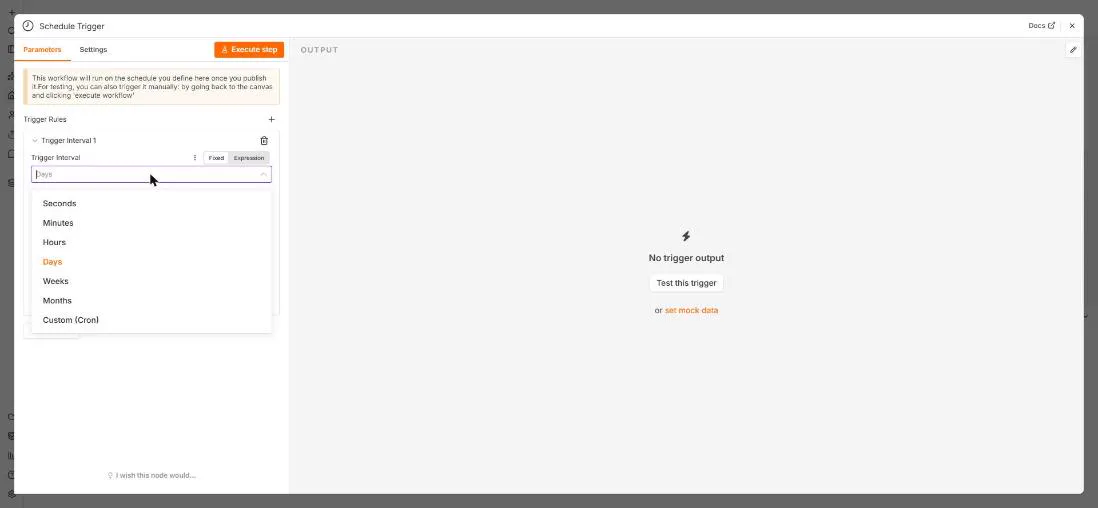 n8n: Run a Workflow on a Schedule (Every Monday at 8am)
Use the n8n Schedule Trigger to run a workflow by itself: every Monday at 8am, a timesheet reminder. Set the interval, test it now, and check the time zone.
Free · Live ~6 min Beginner
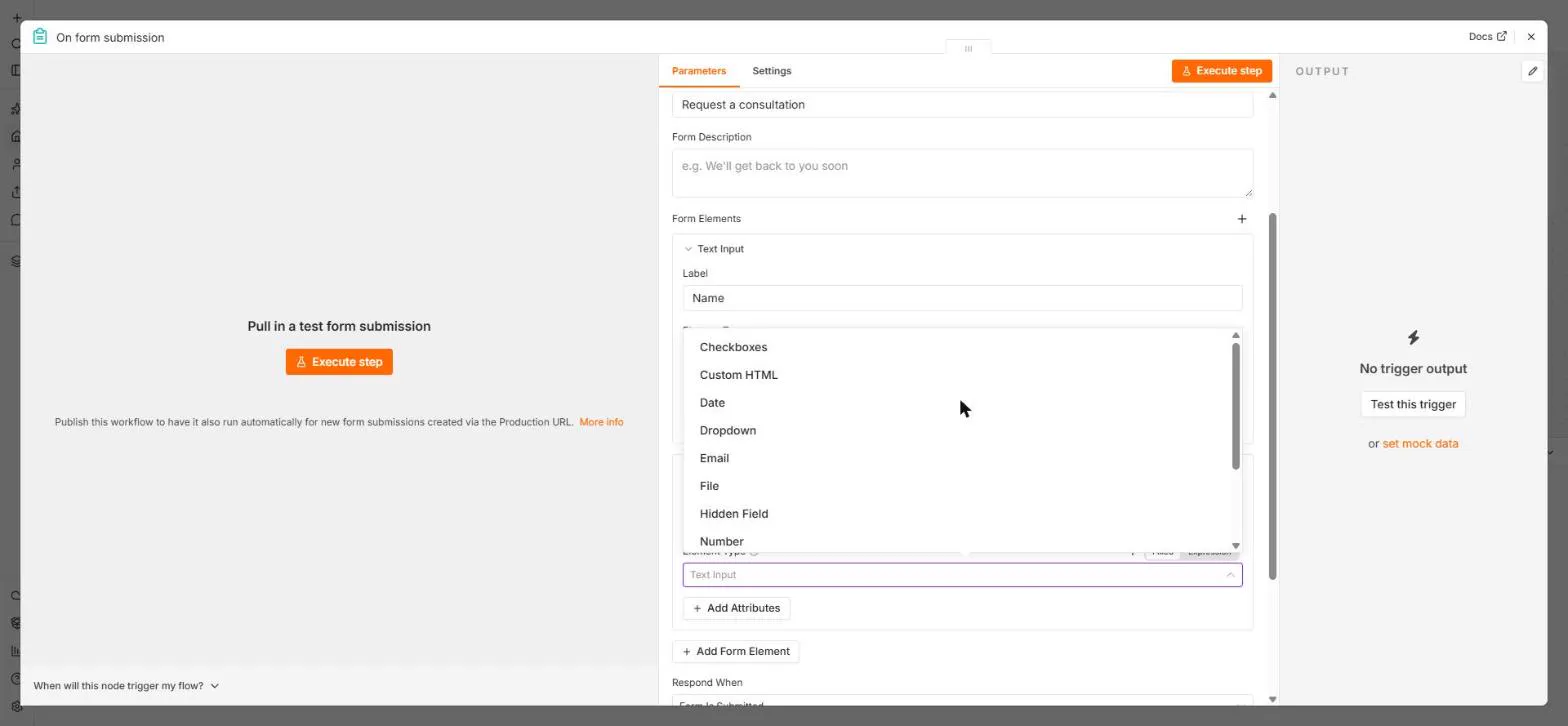 n8n: Send Form Answers Straight to Google Sheets
Build a consultation request form in n8n (required fields, email, dropdown), test it, and add every answer as a new row in Google Sheets. No webhook, no form tool to…
Free · Live ~10 min Beginner
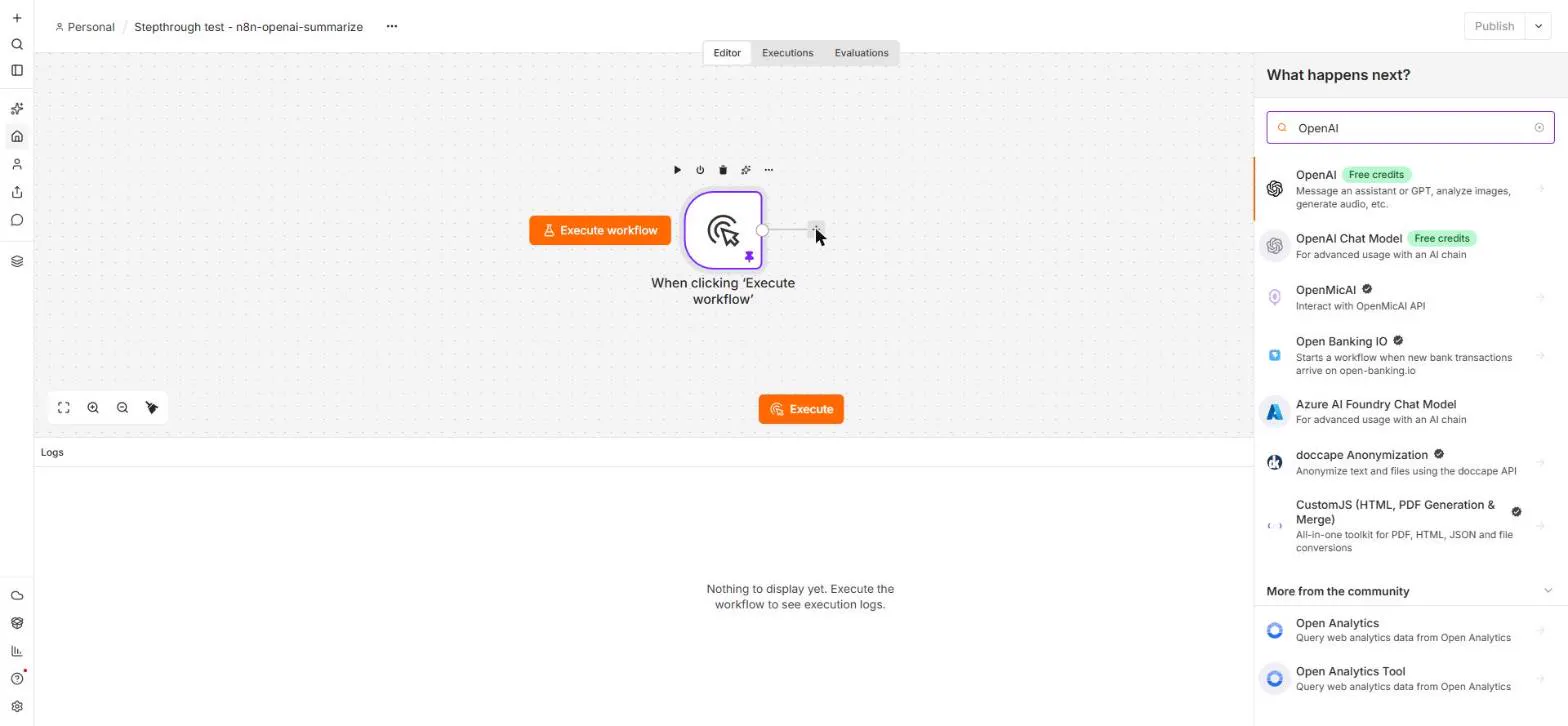 n8n: Summarize Customer Emails with OpenAI
Your first AI step in n8n: send each customer email to OpenAI with one prompt and get a one-line summary plus the next step. No agent needed, about a cent of API use.
Free · Live ~9 min Beginner
All 28 modules in n8n Automation Toolkit
More n8n tutorials
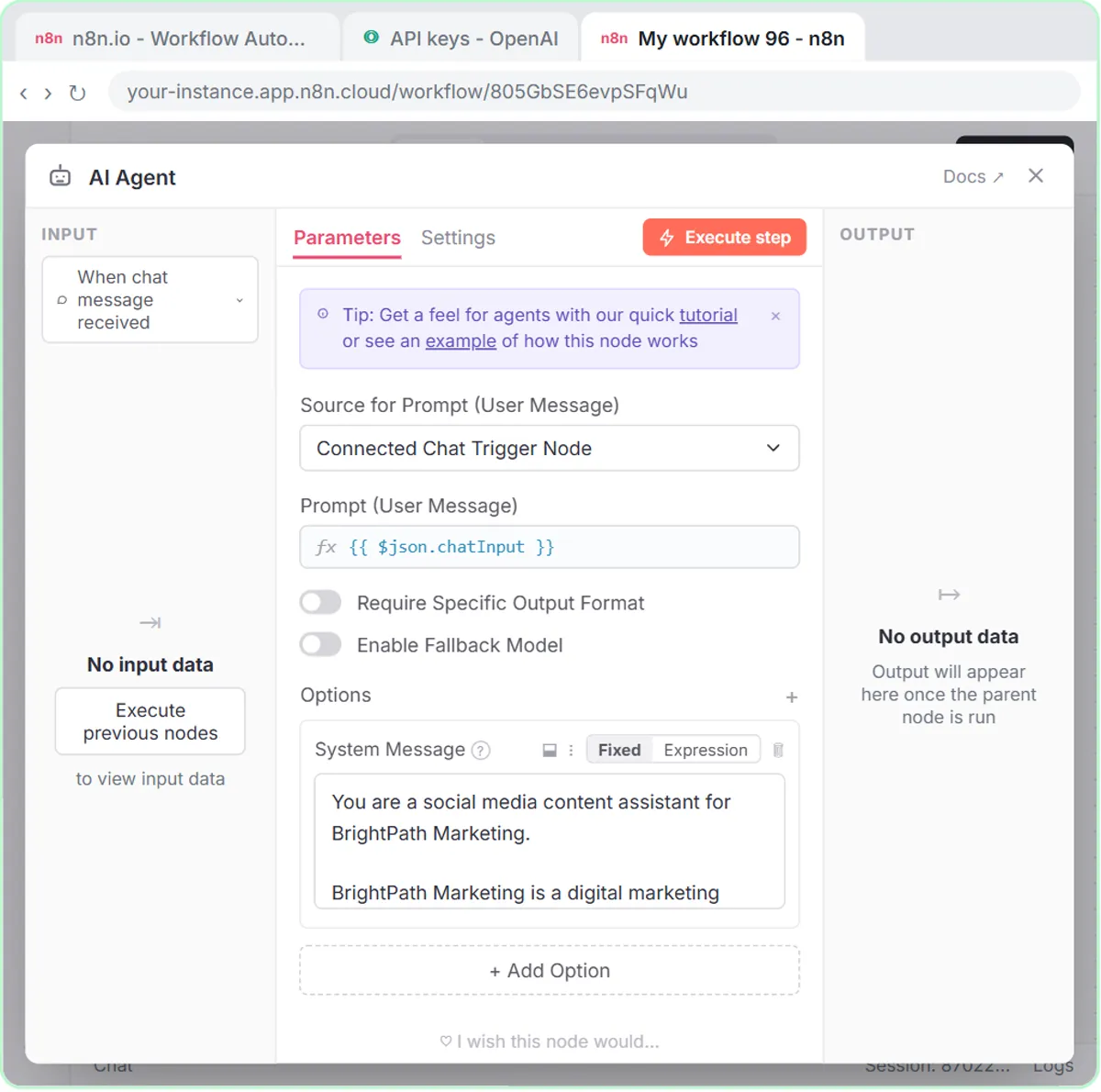
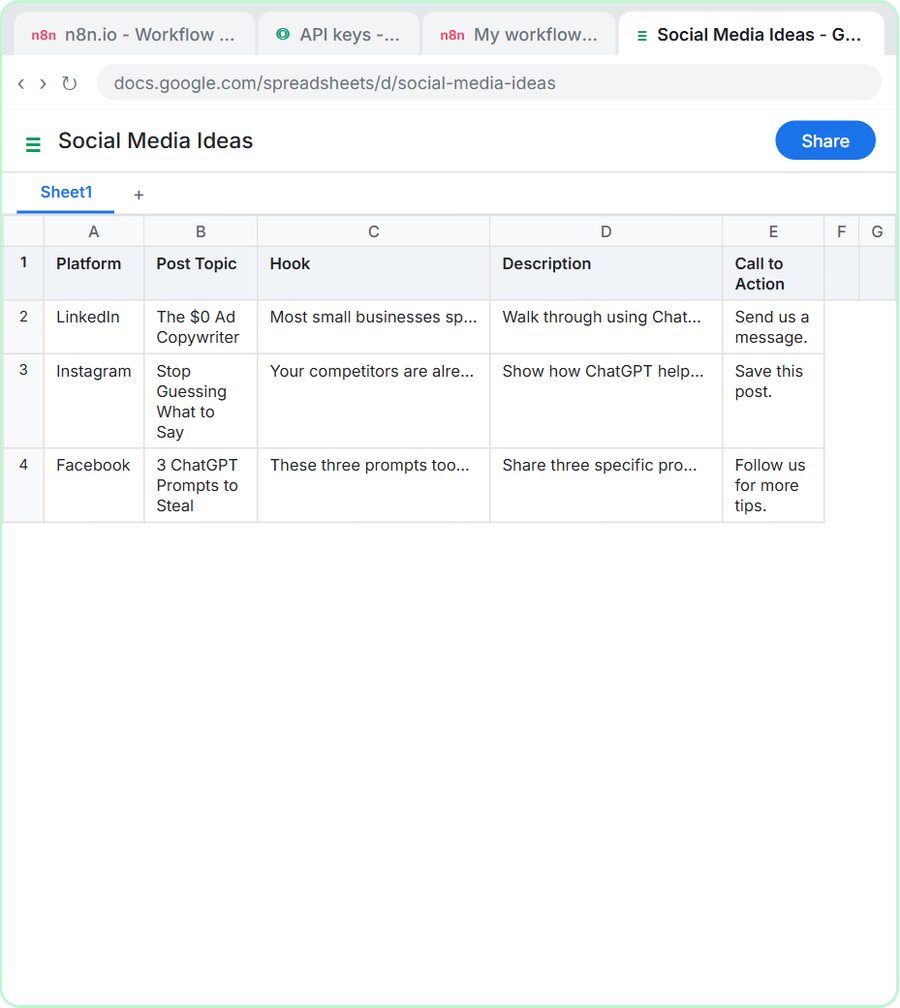 How to Create an AI Agent in n8n That Saves Ideas to Google Sheets
Build an AI agent for BrightPath Marketing that generates social media post ideas and saves them to Google Sheets — chat trigger, AI Agent, system prompt, model…
Free · Live ~12 min Intermediate
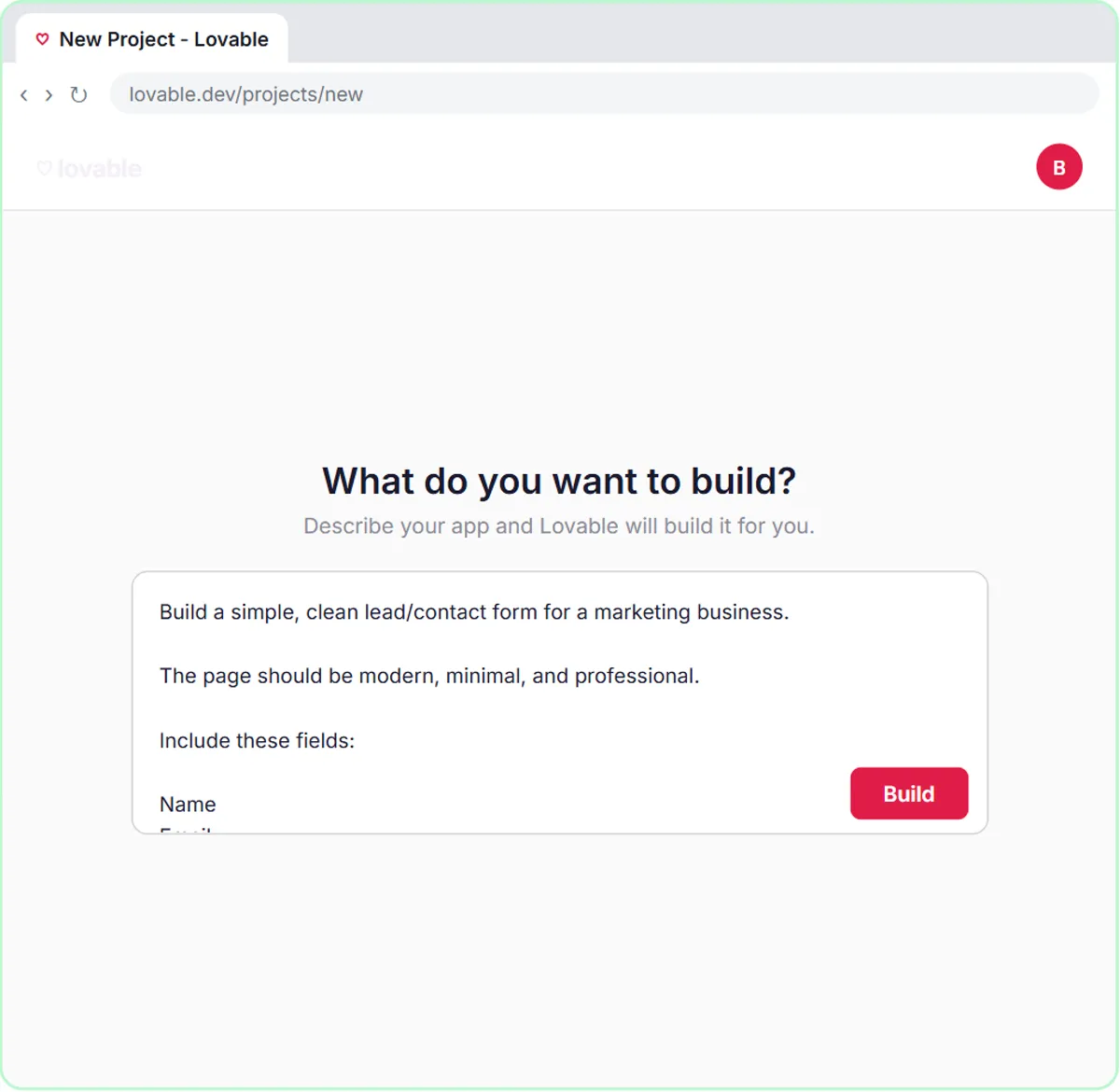
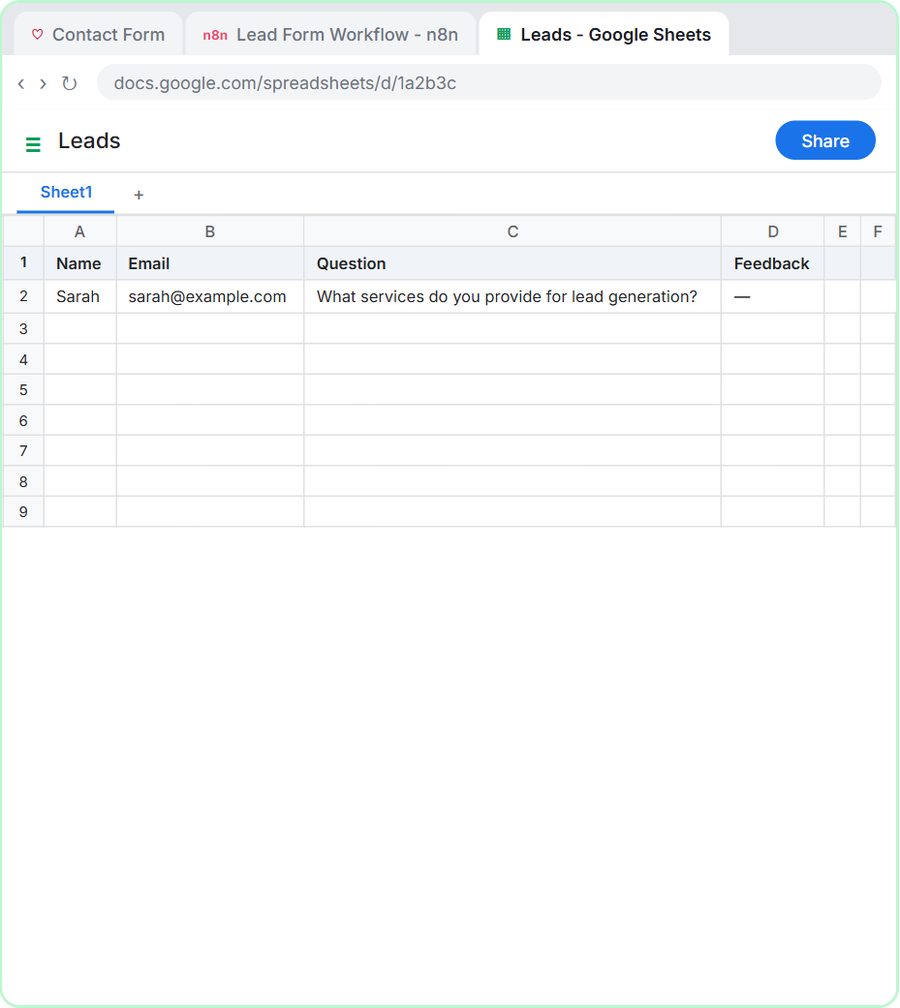 How to Build in Lovable: A Web App with an n8n AI Backend
Build a contact form in Lovable and connect it to an n8n workflow — webhook trigger, AI Agent, Google Sheets, Gmail, and a Respond node that ties it all together.
Free · Live ~15 min Advanced
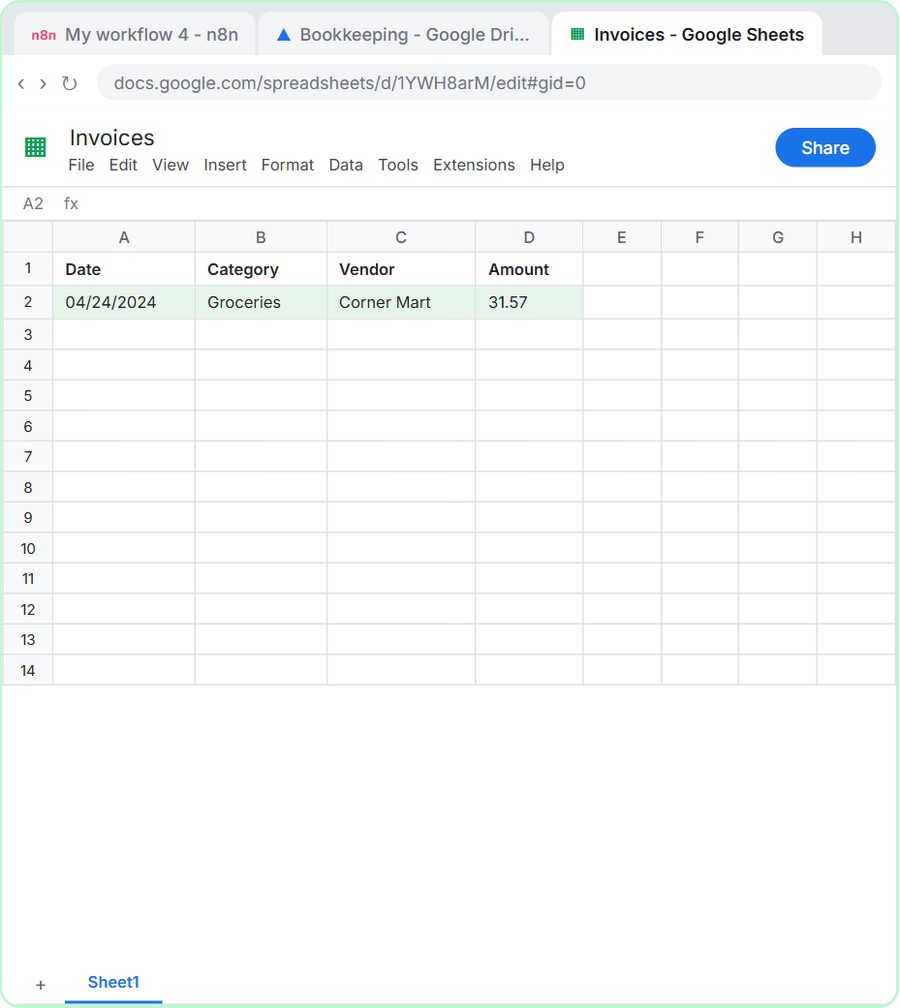 How to Do OCR in n8n: Read Receipt Photos into Google Sheets with AI
Drop a photo of a receipt into an n8n chat. An AI agent reads it, pulls out the date, vendor and amount, picks a category, and adds a row to Google Sheets.
Free · Live ~12 min Intermediate
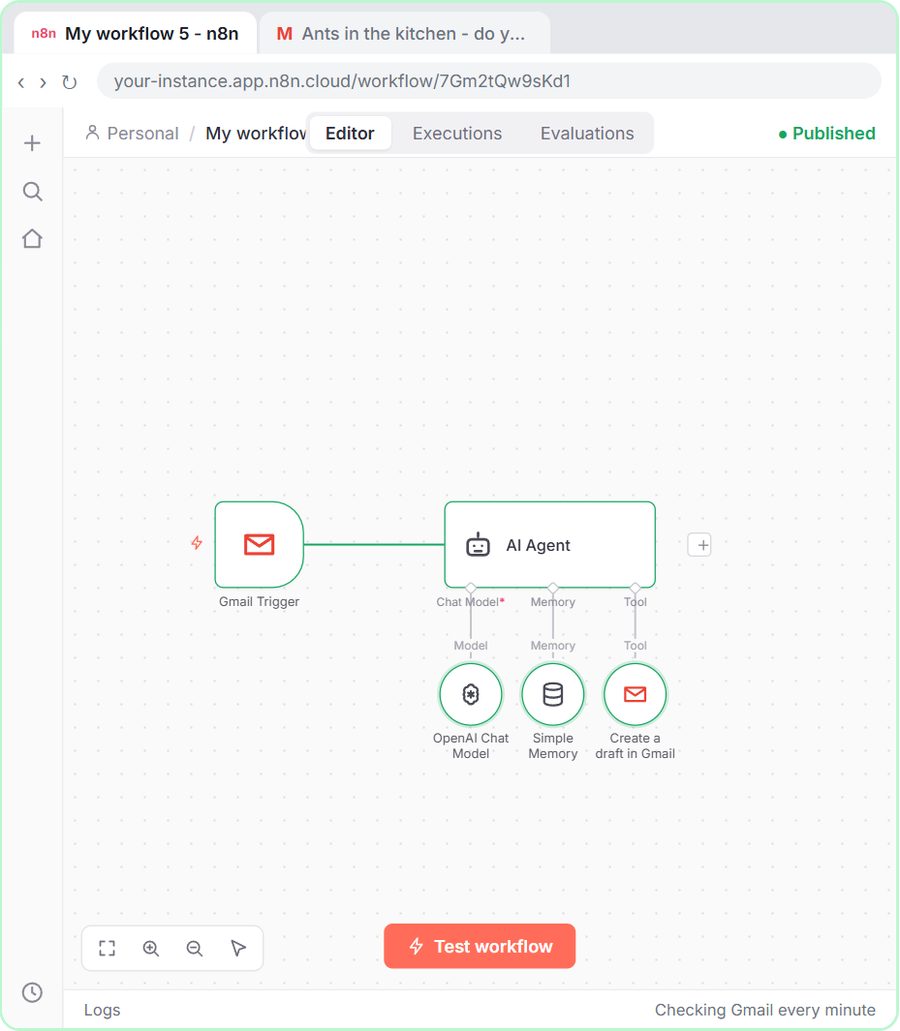 n8n AI Email Responder: Draft Gmail Replies Automatically
Build an n8n agent that watches your Gmail, reads each new customer email, and writes a reply as a draft in the same thread, ready for you to check and send.
Free · Live ~12 min Intermediate
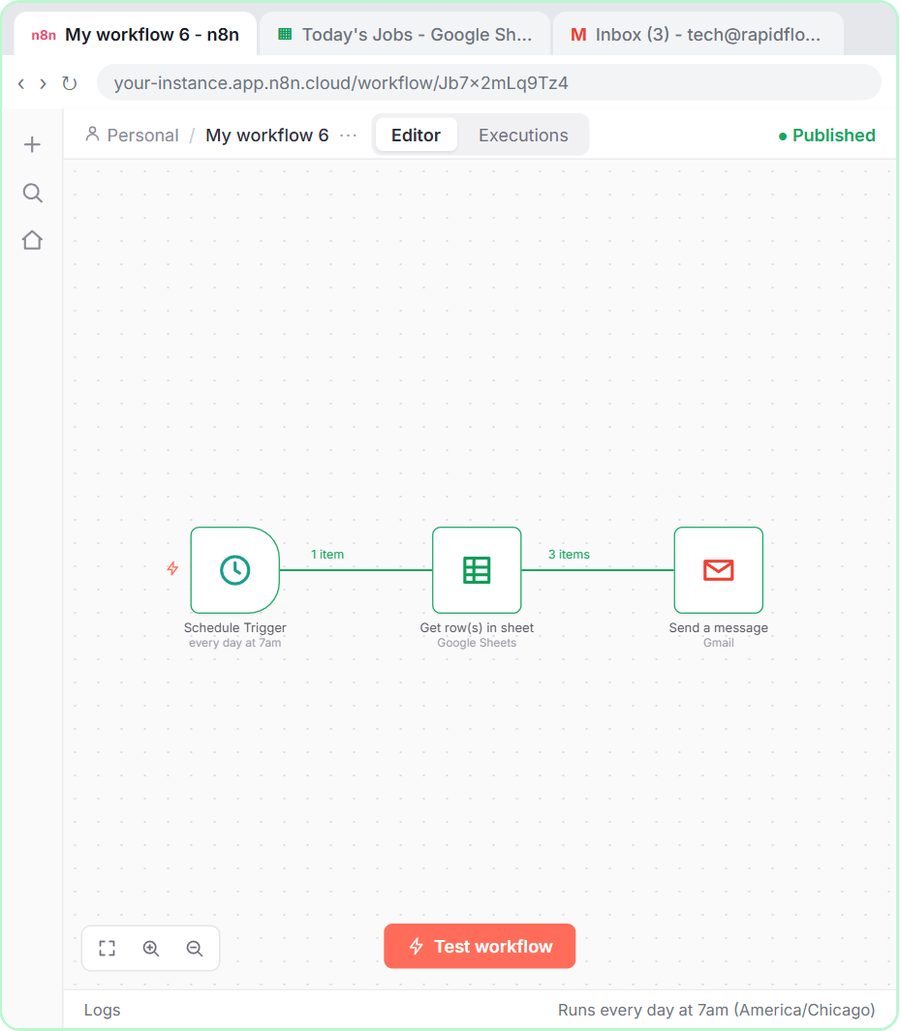 How to Make an n8n Workflow That Emails Each Tech Their Jobs from Sheets
Every morning at 7, n8n reads a plumbing company's jobs sheet, skips anything not assigned yet, and emails each job to the tech it's assigned to — customer, address…
Free · Live ~10 min Intermediate
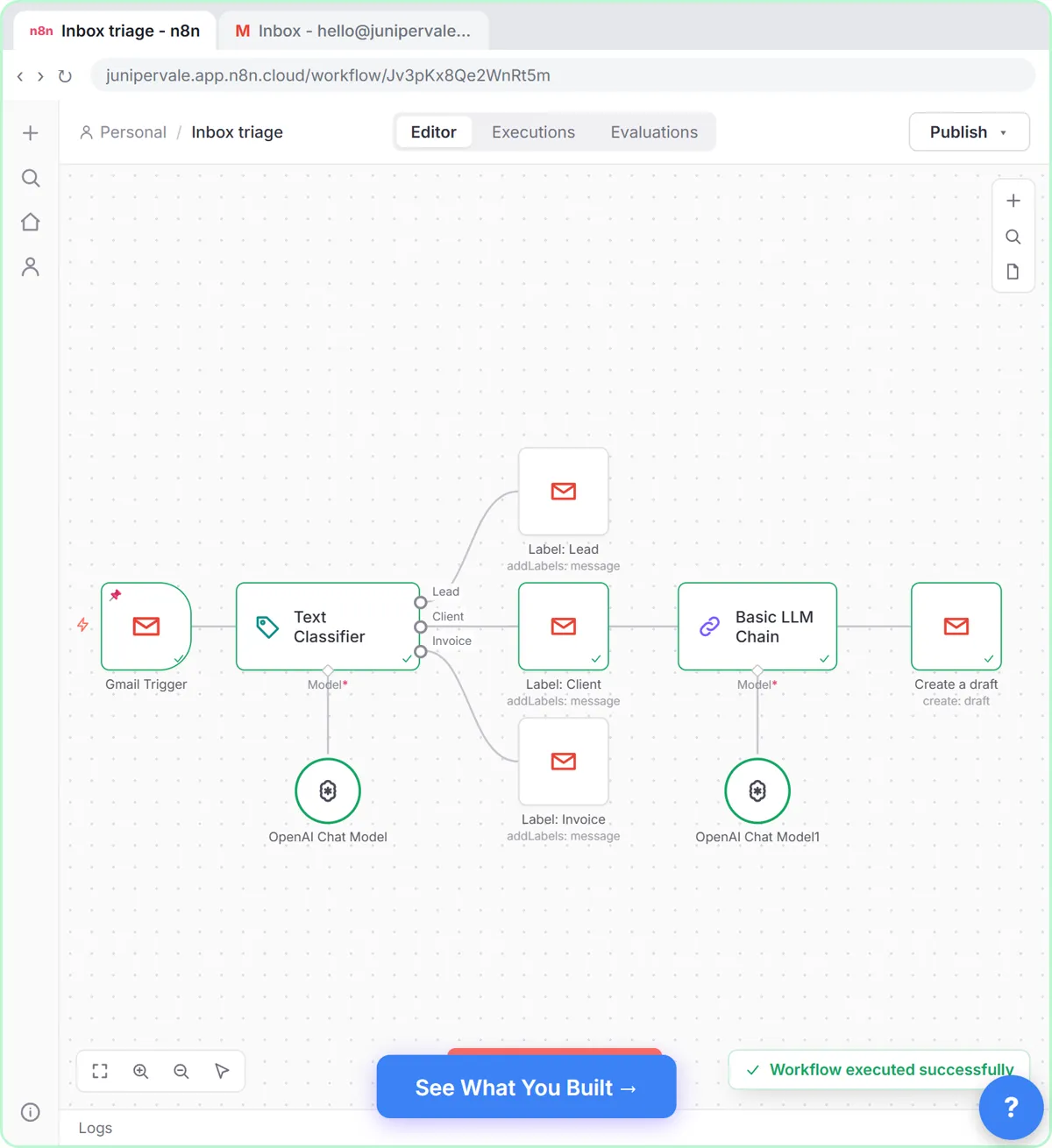 Gmail AI Triage: Auto-Label Every Email and Draft Replies
Build an n8n workflow that reads each new email, sorts it as a lead, a client or an invoice with a Text Classifier, adds the matching Gmail label, and drafts a reply to…
Free · Live ~18 min Advanced
From the blog
 How to Hire an n8n Developer (and What to Scope First)
How to hire an n8n developer for a paid project: what to write in the brief, questions to ask, red flags, and what you can build yourself first.
Oct 22, 2026 6 min read
 HTTP Status Codes in n8n: 200, 401, 404, 429, 500
What HTTP status codes mean when an n8n HTTP Request node fails: 200, 400, 401, 403, 404, 429 and 500, with the fix for each.
Oct 16, 2026 6 min read
Free cheat sheet
Print it or save the PDF: the key steps and checks from this lesson on one page, free.
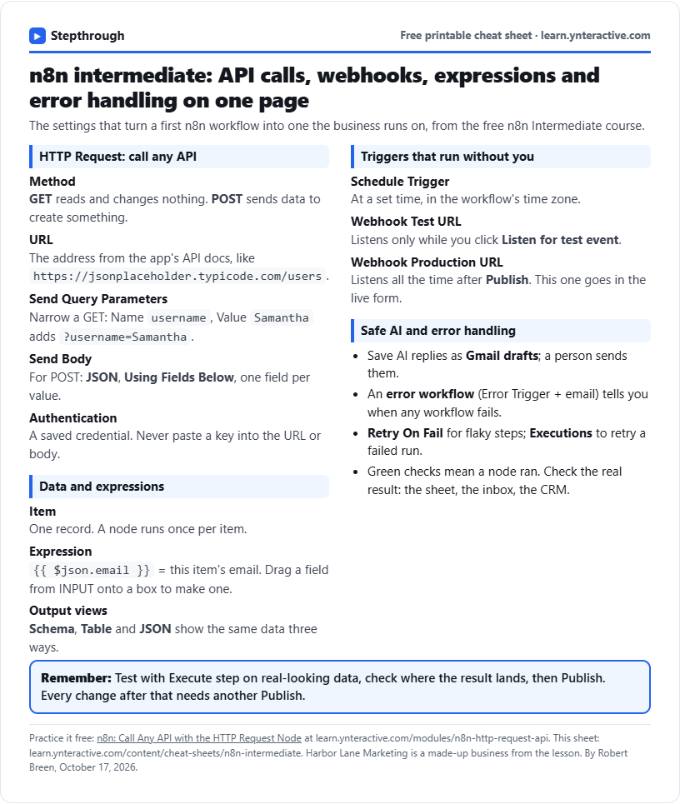 n8n Intermediate Cheat Sheet: APIs, Webhooks, Errors
A free one-page n8n intermediate cheat sheet: HTTP Request settings, GET vs POST, webhook URLs, expressions, items, AI approval and error handling.
Tool cheat sheet Free PDF
All free printable cheat sheets
Terms in this lesson
Plain-English definitions, each with an example from a free lesson.
Related prompts
- Automation project brief prompt: Copy this ChatGPT prompt to turn rough notes into a one-page brief for an n8n developer: trigger, apps, rules, test cases and…