Updated . Built against the tool’s current screens and checked step by step. How we check this lesson
A client inbox in the morning mixes an outage with invoices, meeting requests and newsletters, and read in order the urgent one can wait an hour. In this free lesson, captured from a real SPIRITT workspace on 13 November 2026, you ask a SPIRITT agent to sort six made-up client emails into Urgent today, Reply this week and No reply needed, with a one-line reason each, and to draft every reply as a file without sending anything. Then you check the sorting, catch the agent writing about the wrong month, and add the one thing the urgent draft is missing. 9 steps, about six minutes, no account needed to practice.
At a glance
| Question | Answer |
|---|---|
| What you build | Ask an AI agent to sort the client inbox into Urgent today, Reply this week and No reply needed, with a reason for each, and draft every reply without sending anything. Built in a real SPIRITT workspace on made-up emails. |
| Tools | SPIRITT |
| Time | About 6 minutes, 9 steps in 3 parts |
| Level | Beginner, no coding needed |
| Cost | Free |
| Ways to learn it | Practice it step by step |
The 3 parts, in short
- Describe the morning inbox job: Start a new chat, Describe the job, Send it.
- Check the sorting: Check nothing went out, Is the urgent one on top?, Check the No reply pile, Catch the wrong month.
- Check the draft before anyone sends it: Read the urgent draft, Know where everything is.
Start here first: Build an n8n AI Agent That Writes Deal Follow-Ups (module 1 of AI Automation for Sales)
Part of: AI for Sales Teams (step 28 of 29). Next up: ChatData Sync: Follow Up on Every Trial Class at a Fitness Studio
Part of: AI Apps Worth Knowing (step 152 of 157). Next up: ChatData Sync: Track Referral-Partner Outreach for a Dental Clinic
The business case: the urgent email under the newsletter
Picture the account manager at Halden IT Partners, a made-up IT services firm. Overnight, one client's phones and booking system went down, another has an invoice question, a third wants a check-in, a fourth asks about a renewal, and there is a newsletter and a thank-you note. Read top to bottom, the outage waits behind the rest.
An agent can sort the inbox by urgency with a reason for each email and draft the replies, so the account manager starts the day on the outage with a reply already written, and still sends every reply personally.
Who this is for, and what you need
Account managers, client service leads, office managers and founders who answer client email. The practice runs in your browser with no account. To do it for real you need a SPIRITT account and a Gmail inbox to connect with read-only controls.
What happened in our run
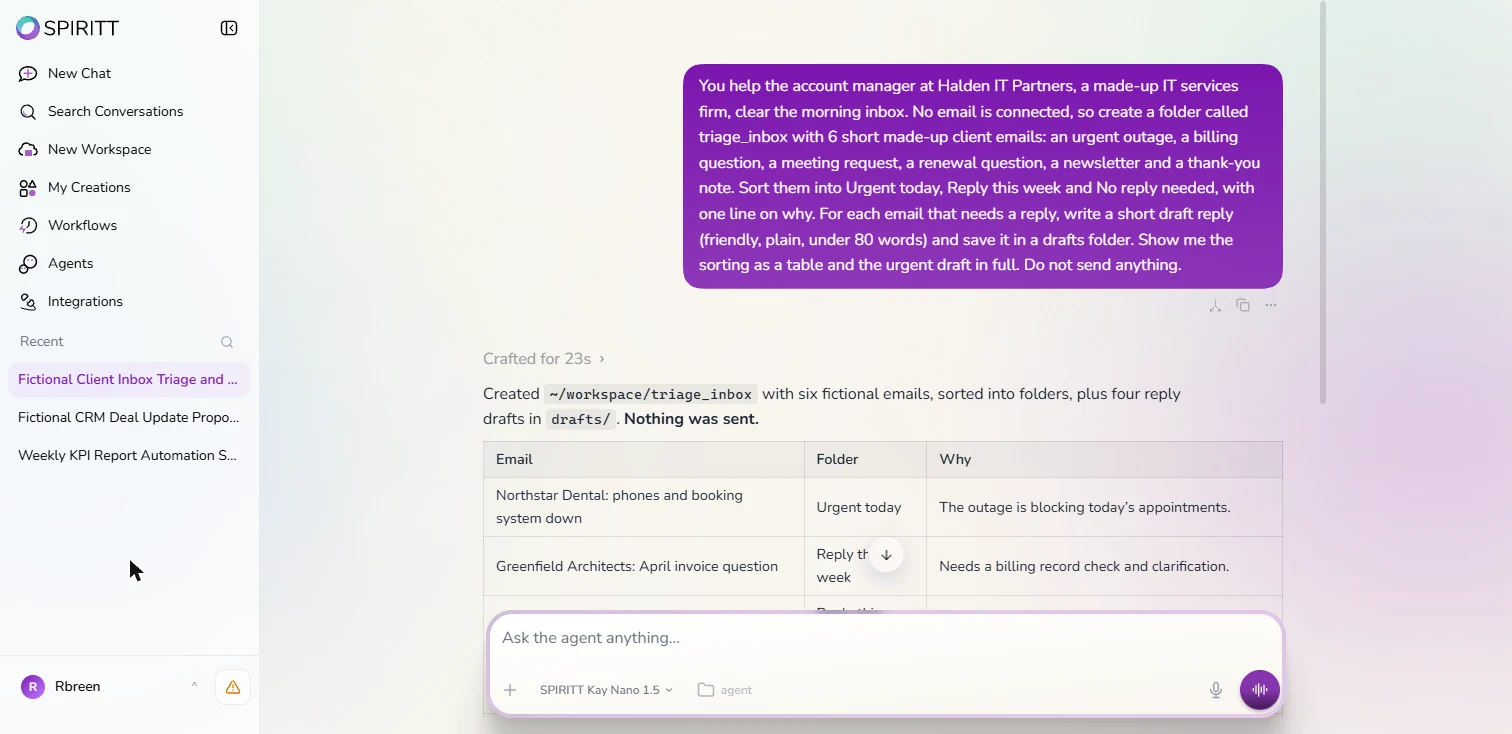
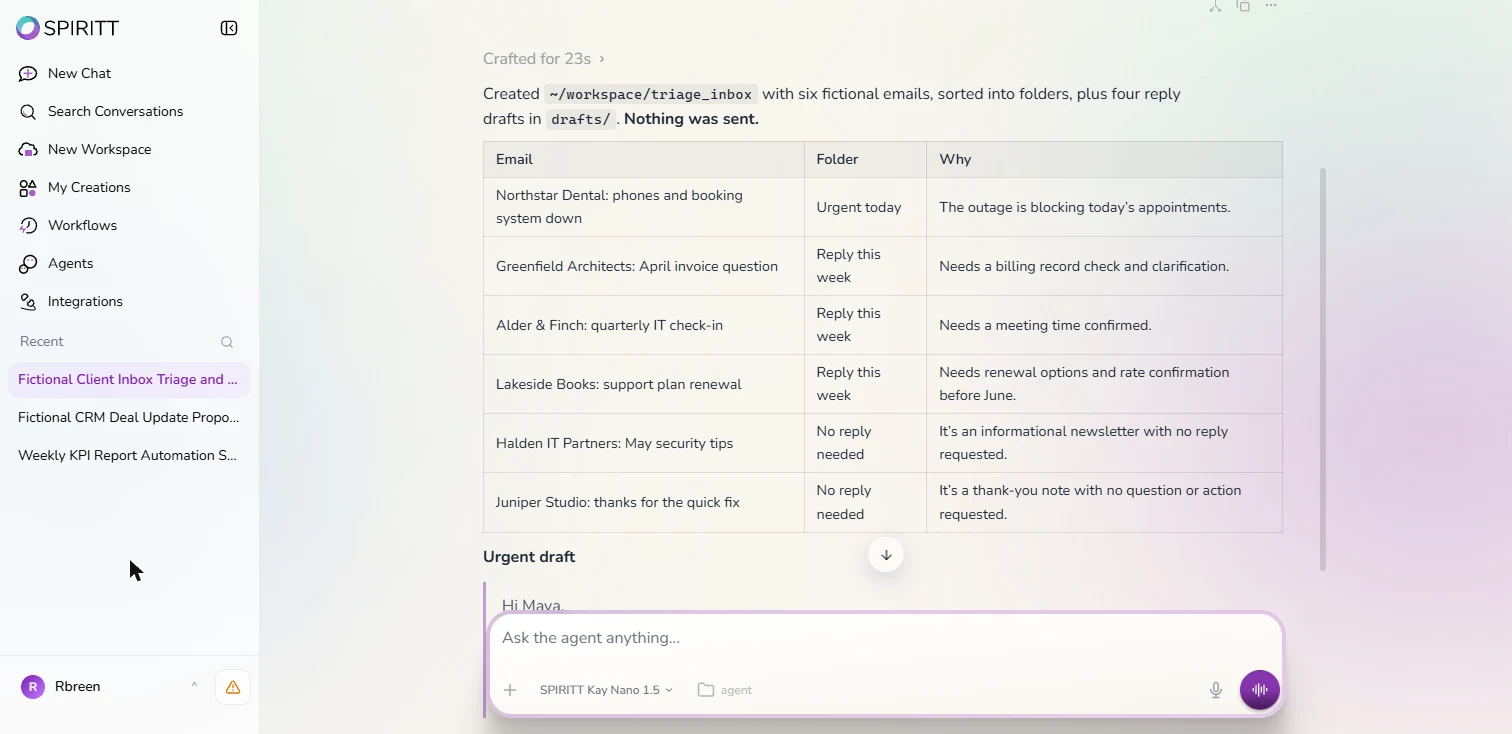
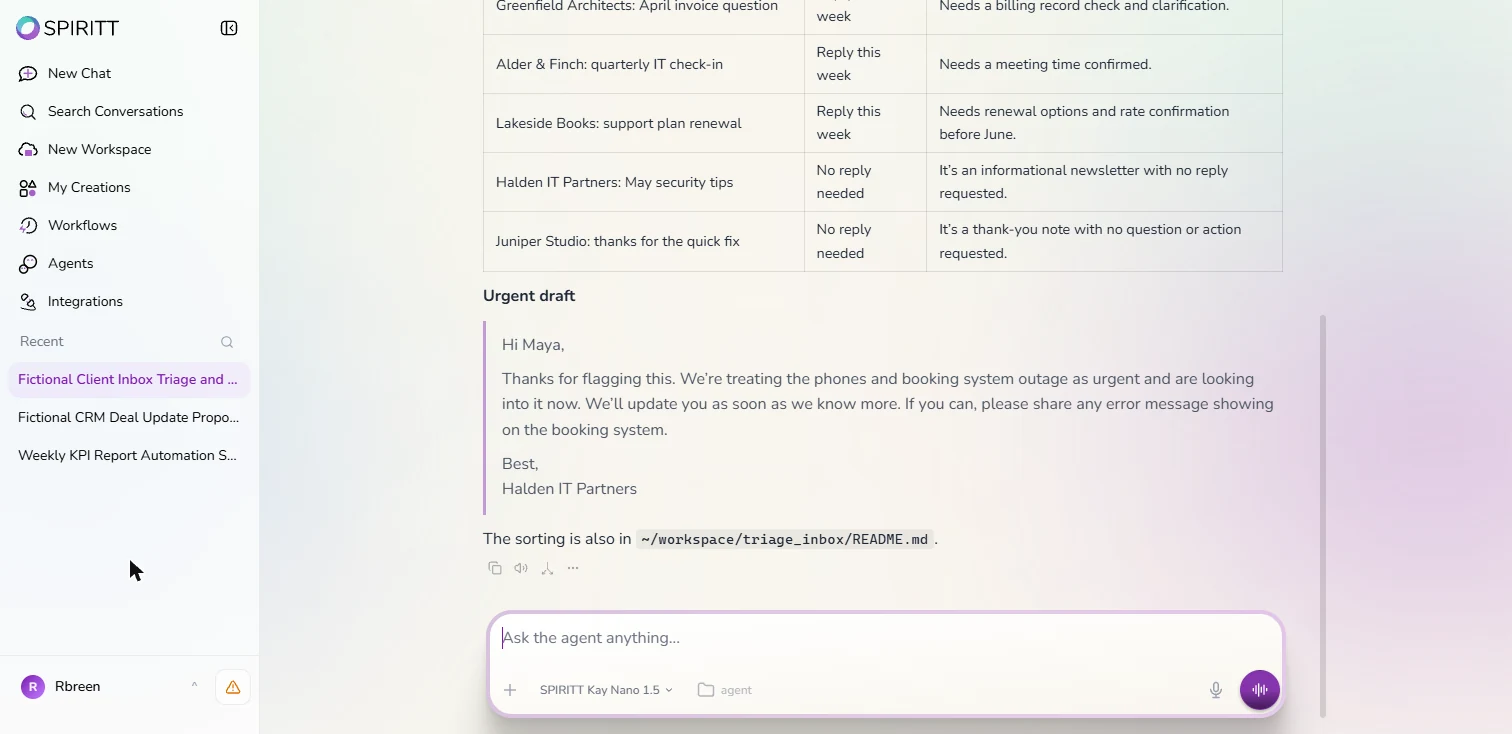
About 23 seconds later the agent had written six emails, sorted them into three folders, saved four drafts and said "Nothing was sent." The outage was Urgent today because it blocked the client's appointments; the invoice, check-in and renewal were Reply this week; a newsletter and a thank-you note needed no reply.
Two things to fix in a real request. The agent did not know today's date, so its made-up emails talked about April and June in November; put today's date in the request. And the urgent draft was short and asked a useful question but promised no time; add one, such as a call-back time, before you send it yourself.
What this saves you
- The first half hour of the day spent reading every email to find the one that matters.
- A draft waiting for each reply, in a plain, friendly voice.
- What it does not do: send. You read each draft against the email and send it from your own account.
Next: the rest of the SPIRITT course
See the CRM lesson for setting Gmail's controls to read-only and having an agent propose CRM updates from emails and call notes, and the weekly KPI report lesson. All three are in the SPIRITT Jump Start course.
How this lesson was built
Every screen is a capture of the real SPIRITT workspace, taken on 13 November 2026, and every step was done in the app. No email account was connected: the agent wrote the six emails itself and saved the drafts as files, and nothing was sent. Halden IT Partners and every client are made up.
Links
- SPIRITT guide: AI for CRM: the follow-up side: drafts in the rep's voice and a morning list of what needs attention.
- SPIRITT guide: AI agent with 1,000+ integrations: connecting Gmail and other apps to a workspace.
- SPIRITT Pricing: the free daily credits, credit packs and budgets.
Try it yourself, free
Reading the steps is a start. Doing them is how it sticks. The interactive module walks you through every click in a practice copy of SPIRITT, checks each step, and never touches your real accounts.
Start “SPIRITT: Clear the Morning Client Inbox with Replies Drafted”Step by step: SPIRITT: Clear the Morning Client Inbox with Replies Drafted
All 9 steps of the interactive module, in order. In the module you watch each one, then do it yourself in a practice copy that checks your work.
1. Describe the morning inbox job
- Start a new chat. You are the account manager at Halden IT Partners, a made-up IT services firm. Every morning the client inbox mixes an outage, a billing question, a meeting request and a newsletter, and the urgent one can sit under the rest. In SPIRITT, with SPIRITT Kay Nano 1.5 already picked at the bottom, click New Chat.
Every morning the client inbox mixes an outage with invoices and newsletters, and the urgent one gets buried. In SPIRITT, click New Chat.
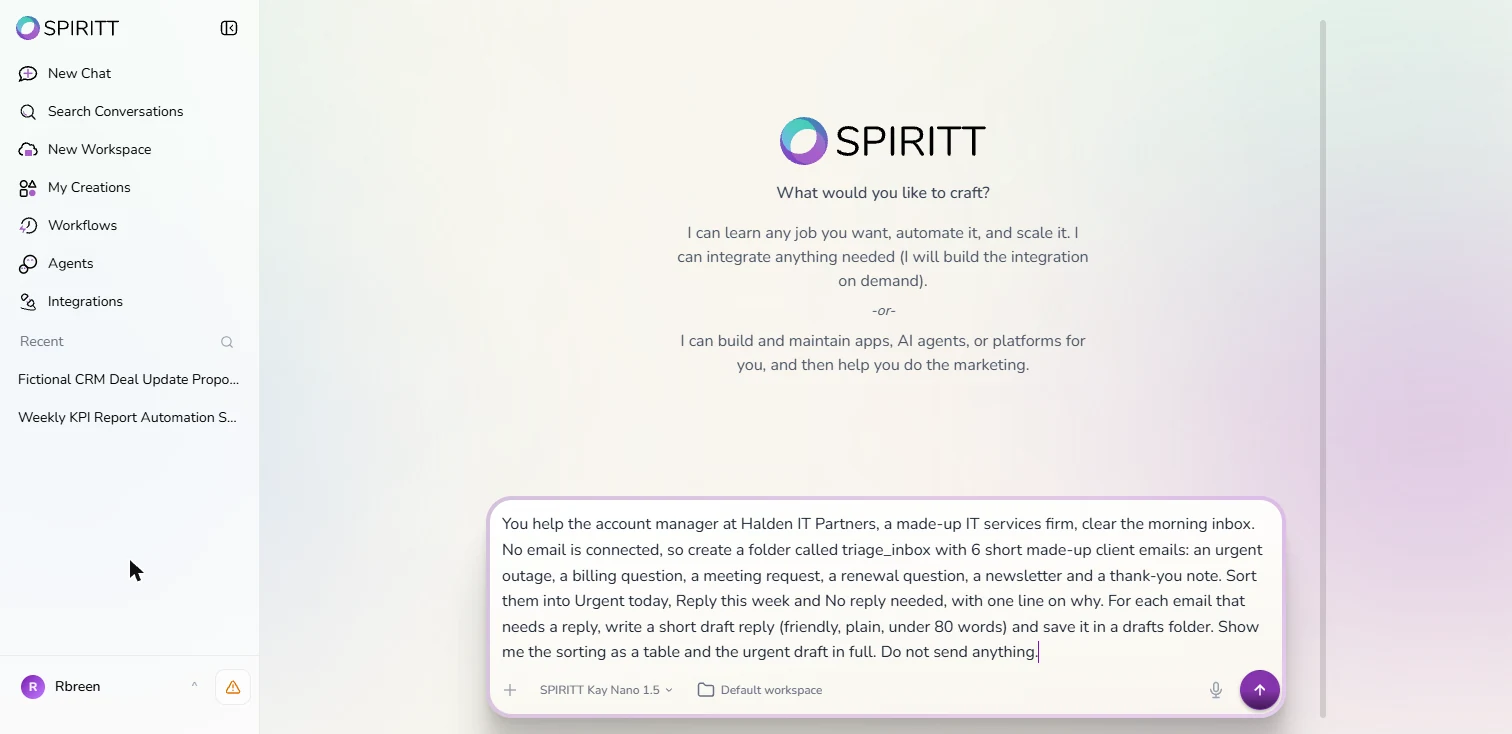
- Describe the job. No email account is connected, so the message asks the agent to write six made-up client emails first. Then the job: three folders (Urgent today, Reply this week, No reply needed) with a one-line reason each, a short draft for every email that needs a reply, saved as files, and Do not send anything. Type: You help the account manager at Halden IT Partners, a made-up IT services firm, clear the morning inbox. No email is connected, so create a folder called triage_inbox with 6 short made-up client emails: an urgent outage, a billing question, a meeting request, a renewal question, a newsletter and a thank-you note. Sort them into Urgent today, Reply this week and No reply needed, with one line on why. For each email that needs a reply, write a short draft reply (friendly, plain, under 80 words) and save it in a drafts folder. Show me the sorting as a table and the urgent draft in full. Do not send anything.
Ask for six practice emails, three folders with a reason for each, a short draft for each reply, and nothing sent.
- Send it. Click the purple arrow. Ours answered in 23 seconds.
2. Check the sorting
- Check nothing went out. First line: it created triage_inbox with six emails, sorted them into folders, wrote four reply drafts in drafts/, and "Nothing was sent." Four drafts is right: two of the six need no reply. Click Nothing was sent.
Six emails, sorted into folders, four drafts, and nothing sent.
- Is the urgent one on top?. The table has one row per email: folder and why. Northstar Dental: phones and booking system down is Urgent today, because "the outage is blocking today's appointments." The invoice, the check-in and the renewal are Reply this week. Click the Northstar row.
The outage is on top, urgent today, because it blocks the client's appointments.
- Check the No reply pile. No reply needed: a newsletter and a thank-you note. The newsletter row, Halden IT Partners: May security tips, is your own firm's newsletter, which the agent made up. On a real inbox, check this pile every morning for a week: a client question hidden in a thank-you note is easy to miss. Click the row.
Two emails need no reply. Check that pile for a week on a real inbox, because a question can hide in a thank-you note.
- Catch the wrong month. The renewal needs an answer "before June", and the invoice row says April. We ran this in November. The agent did not know today's date, so its made-up emails are dated in spring. On real mail the dates come from the messages, but put today's date in your request anyway, so "today" and "this week" mean what you think. Click the row.
It wrote about April and June in November. The agent did not know today's date, so put it in your request.
3. Check the draft before anyone sends it
- Read the urgent draft. The urgent draft, in full: "Thanks for flagging this. We're treating the phones and booking system outage as urgent and are looking into it now. We'll update you as soon as we know more. If you can, please share any error message showing on the booking system." It is short and asks one useful question. What it does not do is promise a time. Before you send it from your own email, add one, such as "I will call you by 10:30." Click the draft.
The draft is short and asks one good question. It does not promise a time. Add one before you send it yourself.
- Know where everything is. The sorting is also saved in triage_inbox/README.md, next to the four drafts. Nothing was sent: there is no email account behind this workspace, and the request said so. To do it for real: connect Gmail with Write and Destructive set to Never allow (the CRM lesson shows where), ask for drafts only, put today's date and your call-back promise in the request, and send each reply yourself after you read it.
Everything is saved in the workspace, and nothing was sent. For real, connect Gmail read only, and send each reply yourself.
Screenshots
Frequently asked questions
- Can SPIRITT sort my inbox and draft replies?
- Yes. In our run, on six made-up client emails, a SPIRITT agent sorted them into Urgent today, Reply this week and No reply needed with a reason for each and saved four reply drafts, sending nothing. To use it on real mail you connect Gmail.
- Will SPIRITT send replies without asking?
- Not if you set it up that way. When you connect Gmail, set Write and Destructive to Never allow, ask for drafts only, and send each reply yourself after you read it.
- Why did the agent get the dates wrong?
- It did not know today's date, so the made-up emails it wrote were dated in spring although we ran it in November. Put today's date in your request so "today" and "this week" mean what you expect.
- Was this lesson tested in a real SPIRITT account?
- Yes. Every screen is from a real SPIRITT workspace, captured 13 November 2026. No email account was connected, so the emails are made up.
More in AI Automation for Sales
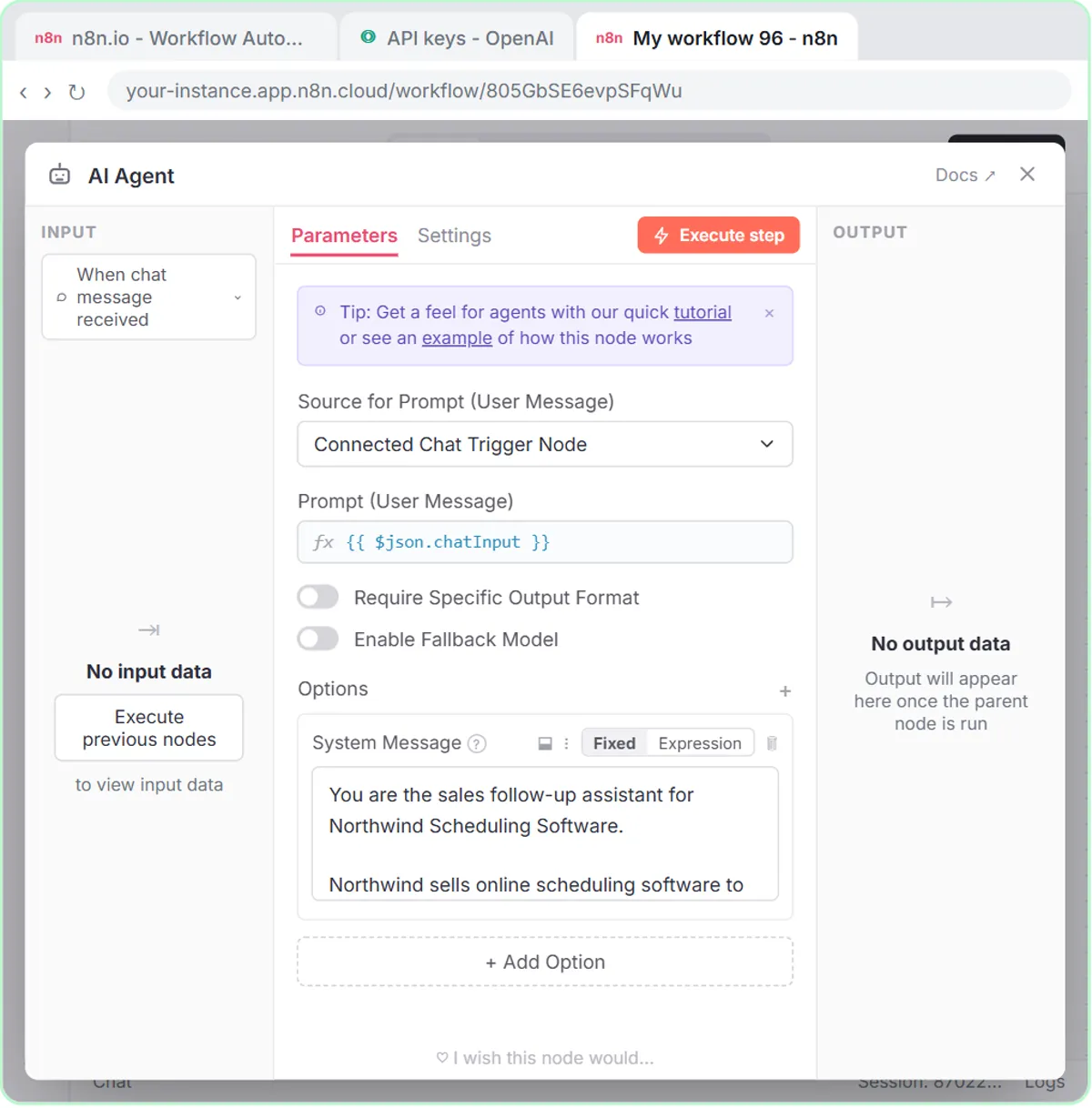 Build an n8n AI Agent That Writes Deal Follow-Ups
Build an AI agent for Northwind Scheduling Software that writes follow-up messages for your open deals and saves them to Google Sheets — chat trigger, AI Agent, system…
Free · Live ~12 min Intermediate
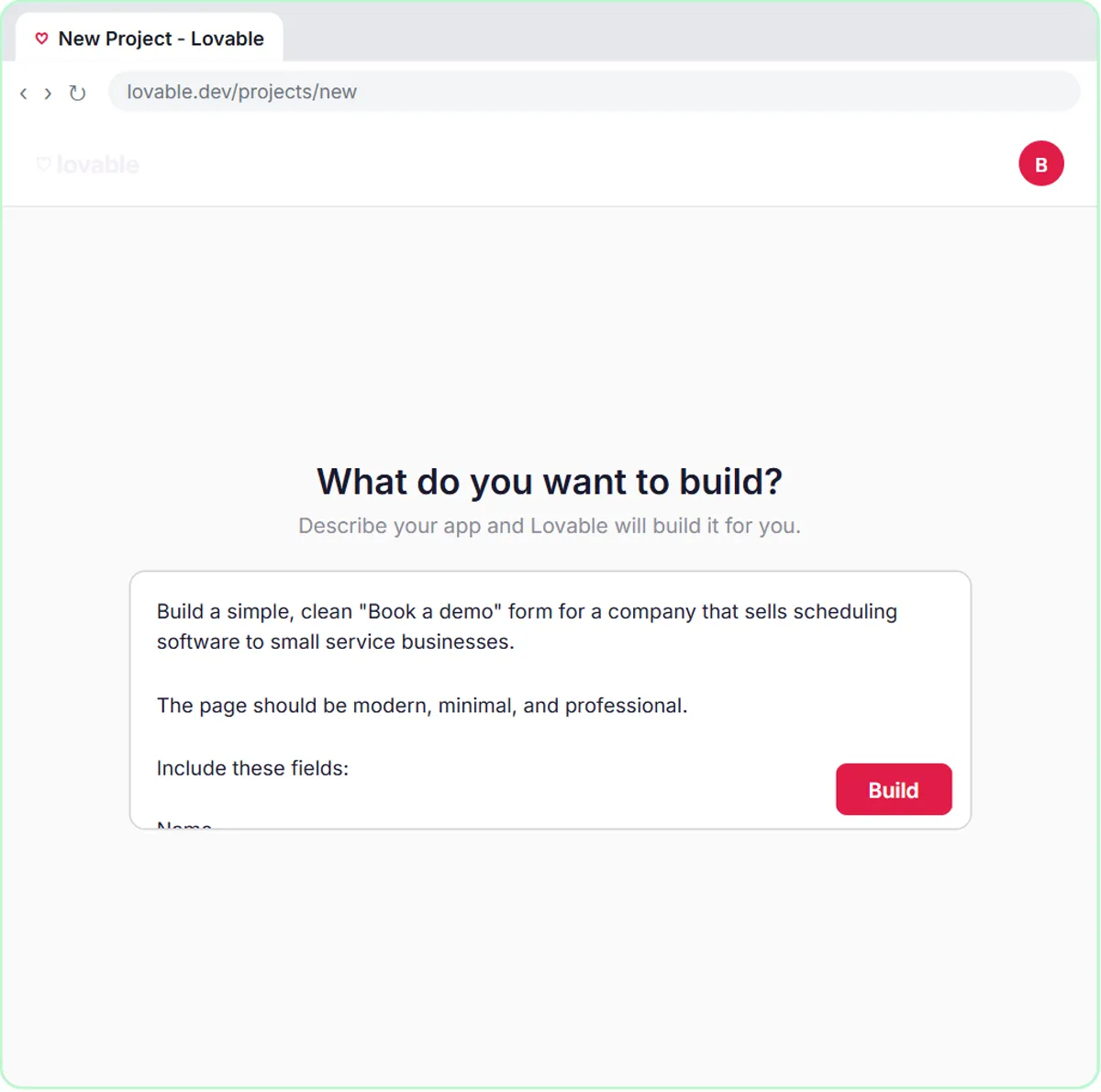 Build an AI Demo Request Form That Qualifies Leads
Build a "Book a demo" form in Lovable for Northwind Scheduling Software and connect it to n8n — the AI agent rates each lead hot, warm or nurture, saves it to Google…
Free · Live ~15 min Advanced
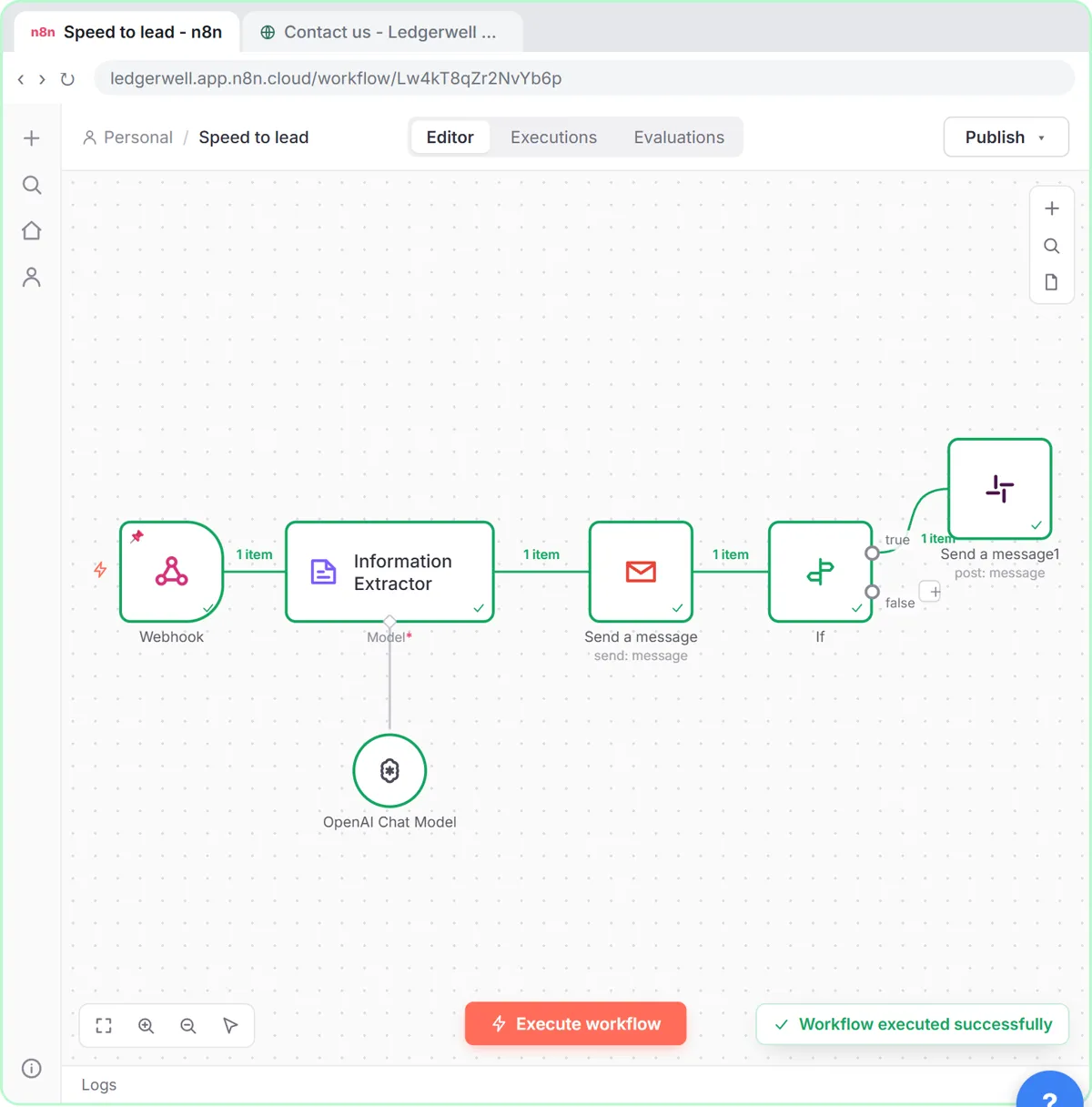 Speed-to-Lead Agent: Answer Every Web Lead in 60 Seconds
Build an n8n workflow that scores every website lead with AI, emails a personal first reply within seconds, and pings Slack only when a lead is hot.
Free · Live ~15 min Advanced
 Kylon AI Sales Agent: Find the Reason to Reach Out
Add a sales agent to your Kylon workspace, teach it what a good account looks like, check its sourced reason for one firm, approve a short first email, then make it a…
Free · Live ~8 min Intermediate
◷Pancake: Get Qualified Sales Conversations from Claude Without Hiring a BDRPrice a sales hire against $99 a month, connect Pancake to Claude, describe your ideal client, approve the leads and the messages, then read the replies and learn the…
Free · Live ~16 min Intermediate
◷Never Lose a Client Follow-up using Capsule CRMA business case for a small firm: price what dropped follow-ups cost, then use Capsule CRM to give every enquiry an owner and a next step: add a client, check the…
Free · Live ~18 min Beginner
All 19 modules in AI Automation for Sales
More SPIRITT tutorials
Terms in this lesson
Plain-English definitions, each with an example from a free lesson.