Updated . Built against the tool’s current screens and checked step by step. How we check this lesson
Every client email and call changes a deal: the amount, the close date, the next step. Typing that into the CRM after every call is the job that slips, and then the pipeline is wrong. SPIRITT is an AI agent platform where each workspace is an agent with its own cloud computer: you describe the job in plain English and it does it, on a schedule if you want. In this free lesson, captured from a real SPIRITT workspace on 13 November 2026, you first set Gmail's controls so an agent could read your mail but never send or delete it. Then, on a made-up CRM and three made-up messages, you write the rule (match, propose, log, wait for approval), check a proposal against the call note, approve it, and pause the routine. 23 steps, about eleven minutes, no account needed to practice.
At a glance
| Question | Answer |
|---|---|
| What you build | Let an AI agent read new client emails and call notes, match each one to the right deal, propose the new stage, amount, close date and next step, and log the activity, with your approval before anything changes. Built in a real SPIRITT workspace on a made-up CRM. |
| Tools | SPIRITT |
| Time | About 11 minutes, 23 steps in 5 parts |
| Level | Beginner, no coding needed |
| Cost | Free |
| Ways to learn it | Practice it step by step |
The 5 parts, in short
- Set the guardrails before you connect: Start with Integrations, Open the Gmail connection, Read the three risk levels, Never let it send, and 1 more step.
- Write the rule in plain English: Choose the model, Small model, low thinking, Write the rule, Send it.
- Check every proposed change: Read its promise, Open its working, See the CRM before, Read the call note, and 2 more steps.
- Approve it and let it log the activity: Approve, and ask for the log, Send it, Read the flag, Read the routine line.
- Pause the routine: Find the routine, Open it, Pause it, Know where it stands.
Start here first: Build an n8n AI Agent That Writes Deal Follow-Ups (module 1 of AI Automation for Sales)
Part of: AI for Sales Teams (step 27 of 29). Next up: SPIRITT: Clear the Morning Client Inbox with Replies Drafted
Part of: AI Agents 101 (step 18 of 18)
Part of: AI Apps Worth Knowing (step 151 of 157). Next up: SPIRITT: Clear the Morning Client Inbox with Replies Drafted
The business case: the CRM is only as good as the last update
Picture the account manager at Halden IT Partners, a made-up 15-person IT services firm. A client emails to approve a renewal at a new price. Another pushes their decision past a finance review. On a call, a third says their budget is capped below the quote. Each of those changes a deal, and each one has to be typed into the CRM by hand. On a busy day it does not happen, and by Monday the forecast is wrong and a follow-up is missed.
An AI agent can do the reading and the typing: match each new message to the right contact and deal, propose the new stage, amount, close date and next step, and log the activity. The account manager approves the table instead of writing it.
Who this is for, and what you need
Account managers, sales reps, sales-ops and revenue-ops staff, and founders who keep their own CRM. The practice runs in your browser with no account. To do it for real you need a SPIRITT account, a Gmail inbox and a CRM such as HubSpot to connect.
What happened in our run
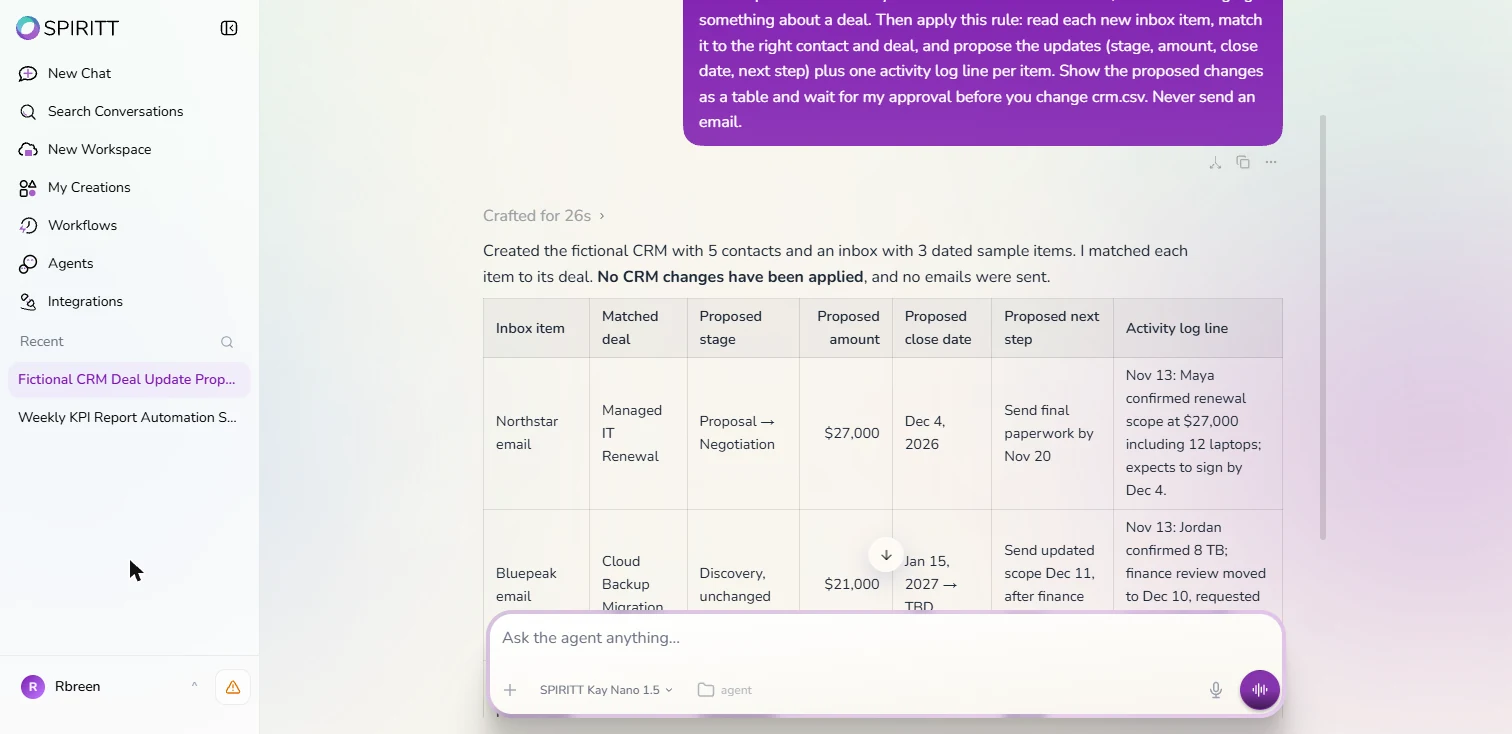
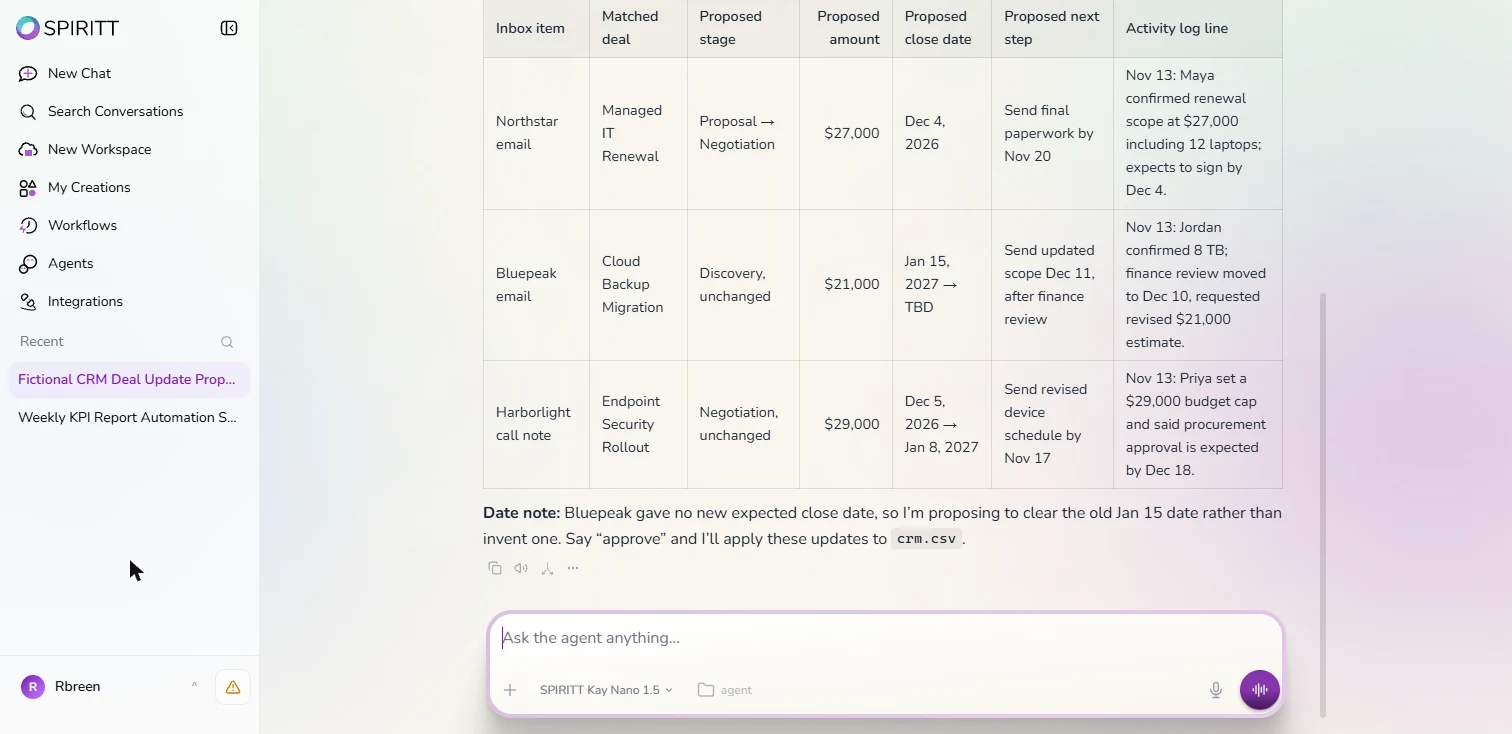
The agent first promised to leave the CRM untouched until we approved and to send no email. About 26 seconds later it showed a table: three inbox items, each matched to its deal with a proposed stage, amount, close date, next step and activity line, and no changes applied. We checked the Harborlight Realty row against the call note: the $29,000 budget cap, the close moving from December 5 to January 8 and the device schedule due November 17 all matched. The table showed only the new amount, though, so the $3,000 drop was easy to miss; ask for old and new values side by side. For a client who gave no new close date, the agent proposed clearing the old date rather than inventing one.
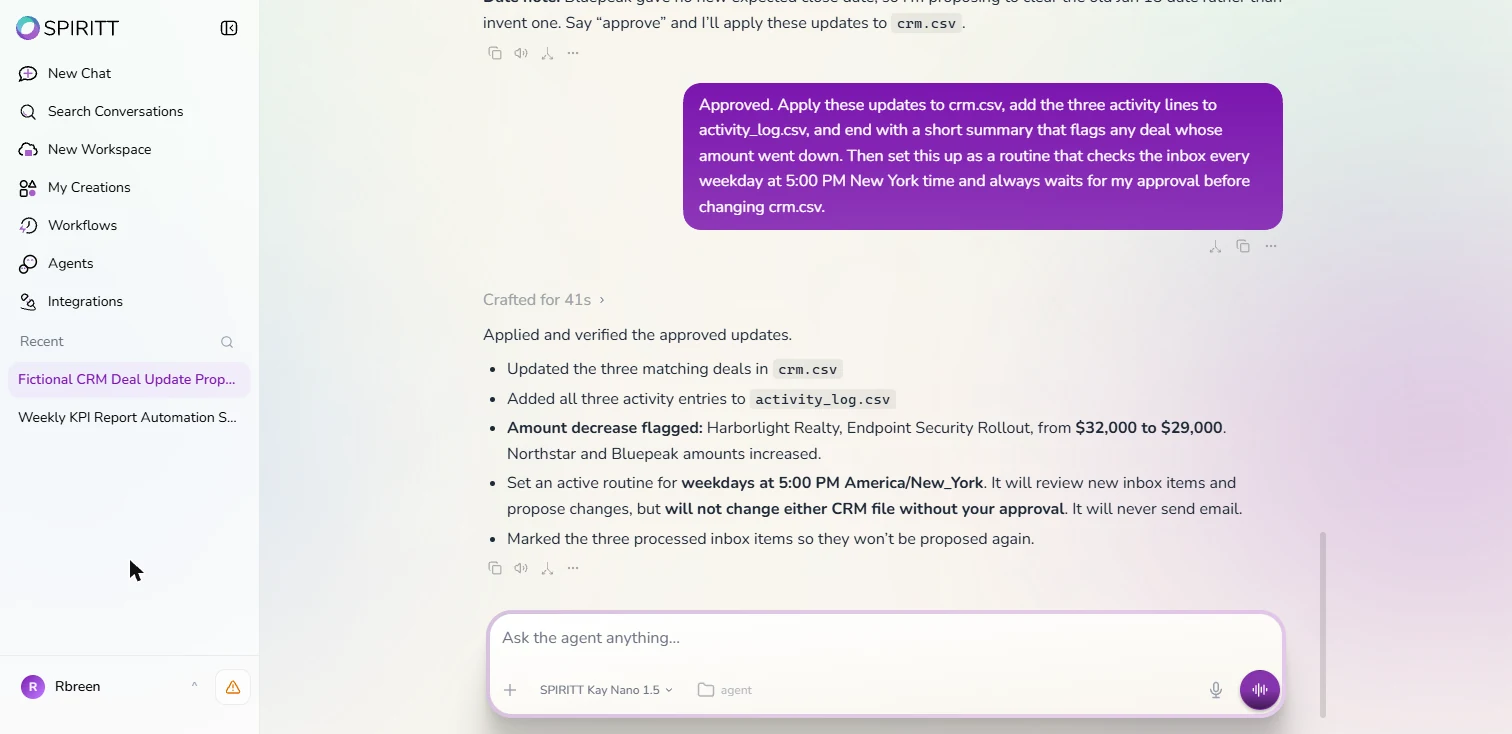
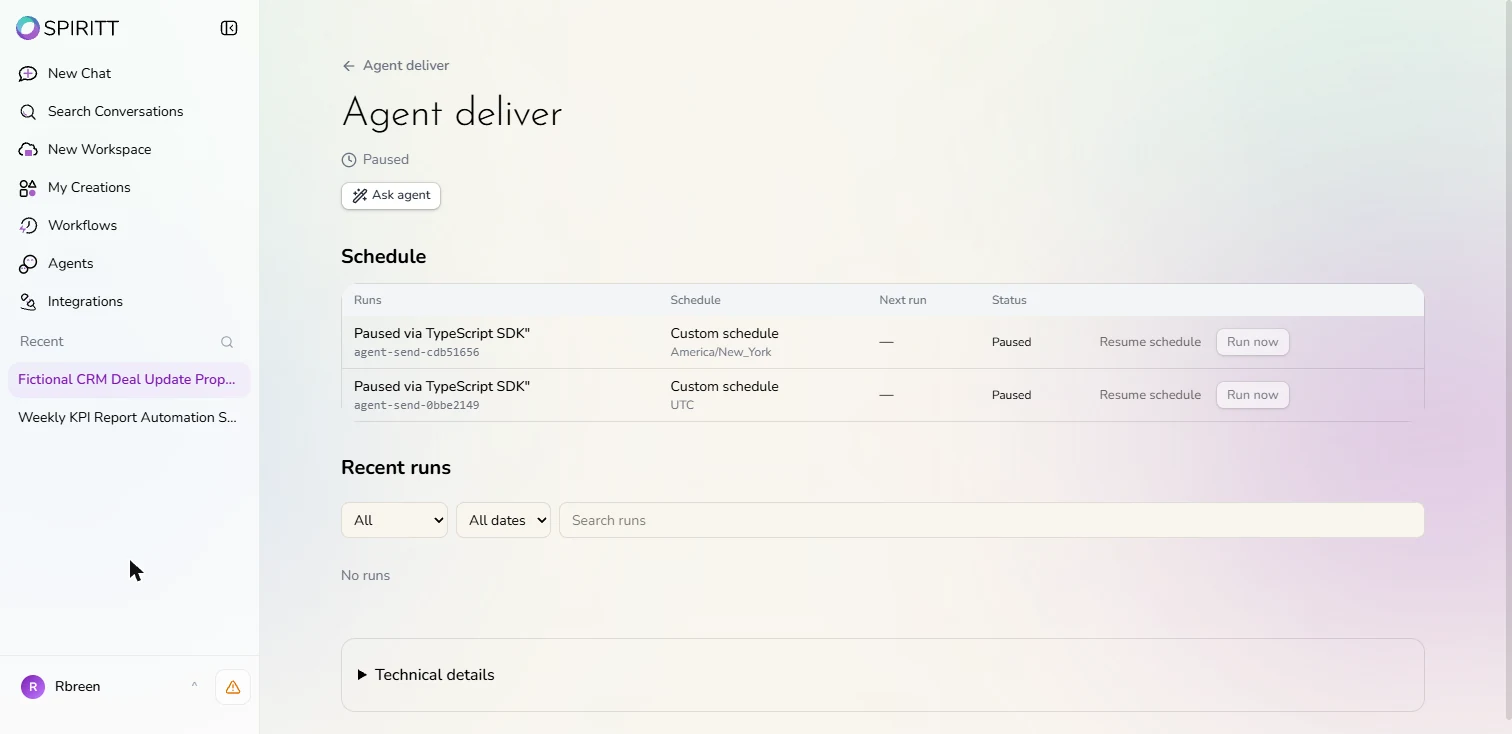
After we approved, it updated the three deals, wrote three lines to an activity log, flagged the Harborlight amount going from $32,000 to $29,000, and set a weekday routine at 5:00 PM America/New_York that keeps the approval step and never sends email. We paused it, because no real inbox is behind it yet.
What this saves you
- The typing after every client call and email, and the Monday clean-up of a stale pipeline.
- Deals that went down get flagged instead of quietly changed.
- What it does not do: decide for you. Every change waits for your approval, and the agent cannot send email with Write set to Never allow.
Next: the rest of the SPIRITT course
Start with the first SPIRITT lesson, a weekly KPI report from Stripe and HubSpot, and go on to clearing the morning client inbox with replies drafted. All three are in the SPIRITT Jump Start course.
How this lesson was built
Every screen is a capture of the real SPIRITT workspace, taken on 13 November 2026, and every step was done in the app. No email account or CRM was connected: the Gmail controls screens stop before the Connect step, and the agent created the CRM file and the messages itself. Halden IT Partners and every client are made up.
Links
- SPIRITT guide: AI for CRM: SPIRITT's own guide to an agent that keeps HubSpot, Salesforce or Pipedrive updated from emails and calls, with approval for the fields you choose.
- SPIRITT guide: AI agent with 1,000+ integrations: how apps such as Gmail and HubSpot connect to a workspace.
- SPIRITT Pricing: the free daily credits, credit packs and budgets.
Try it yourself, free
Reading the steps is a start. Doing them is how it sticks. The interactive module walks you through every click in a practice copy of SPIRITT, checks each step, and never touches your real accounts.
Start “SPIRITT: Stop Hand-Updating the CRM After Every Call”Step by step: SPIRITT: Stop Hand-Updating the CRM After Every Call
All 23 steps of the interactive module, in order. In the module you watch each one, then do it yourself in a practice copy that checks your work.
1. Set the guardrails before you connect
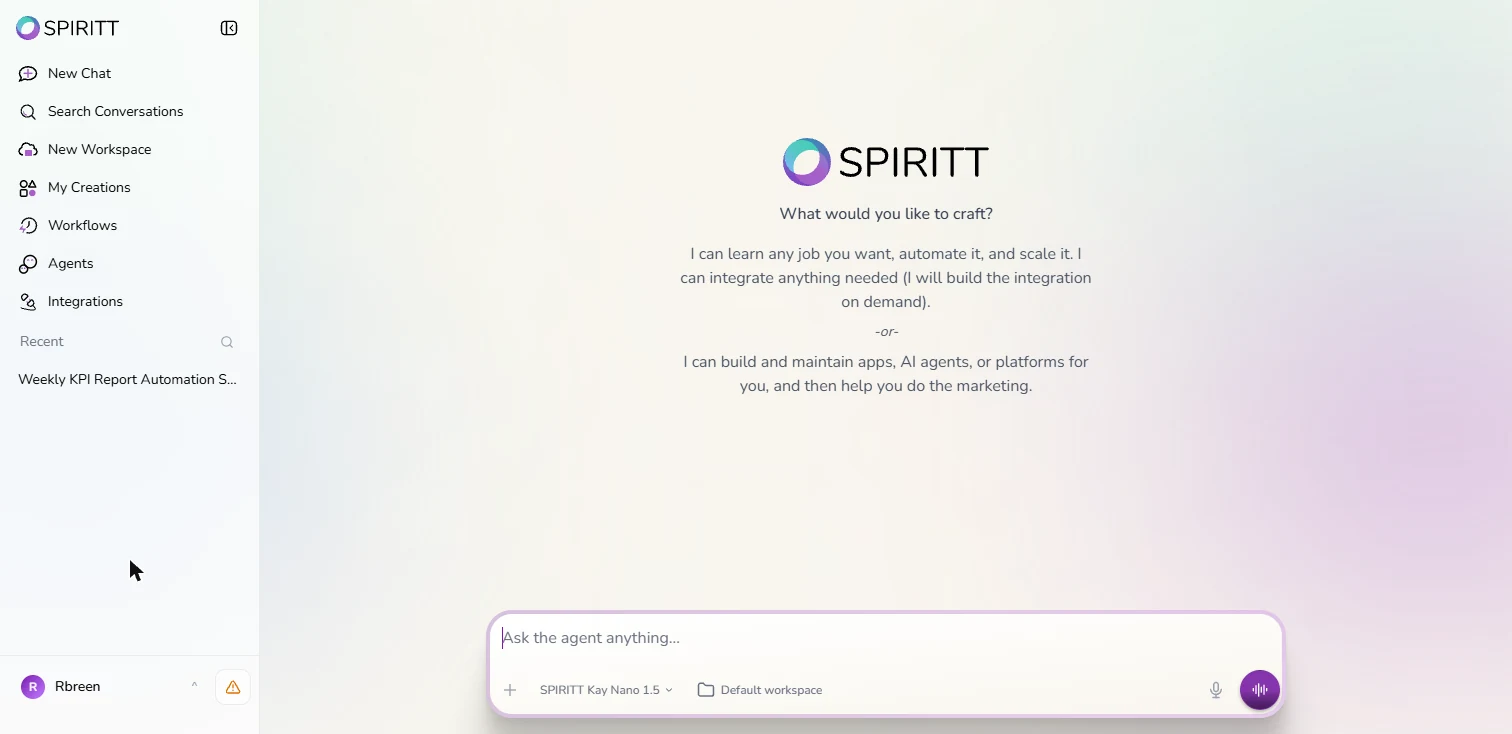
- Start with Integrations. You are the account manager at Halden IT Partners, a made-up 15-person IT services firm. After every client call and email you spend time copying the news into the CRM: new amount, new close date, next step. Some days it does not happen, and the pipeline goes stale. This is SPIRITT, an AI agent with its own cloud computer. Before the agent touches any email, look at what it would be allowed to do. Click Integrations.
You manage client accounts at a small IT firm, and after every call you copy the news into the CRM. Before an AI agent reads any email, look at what it is allowed to do.
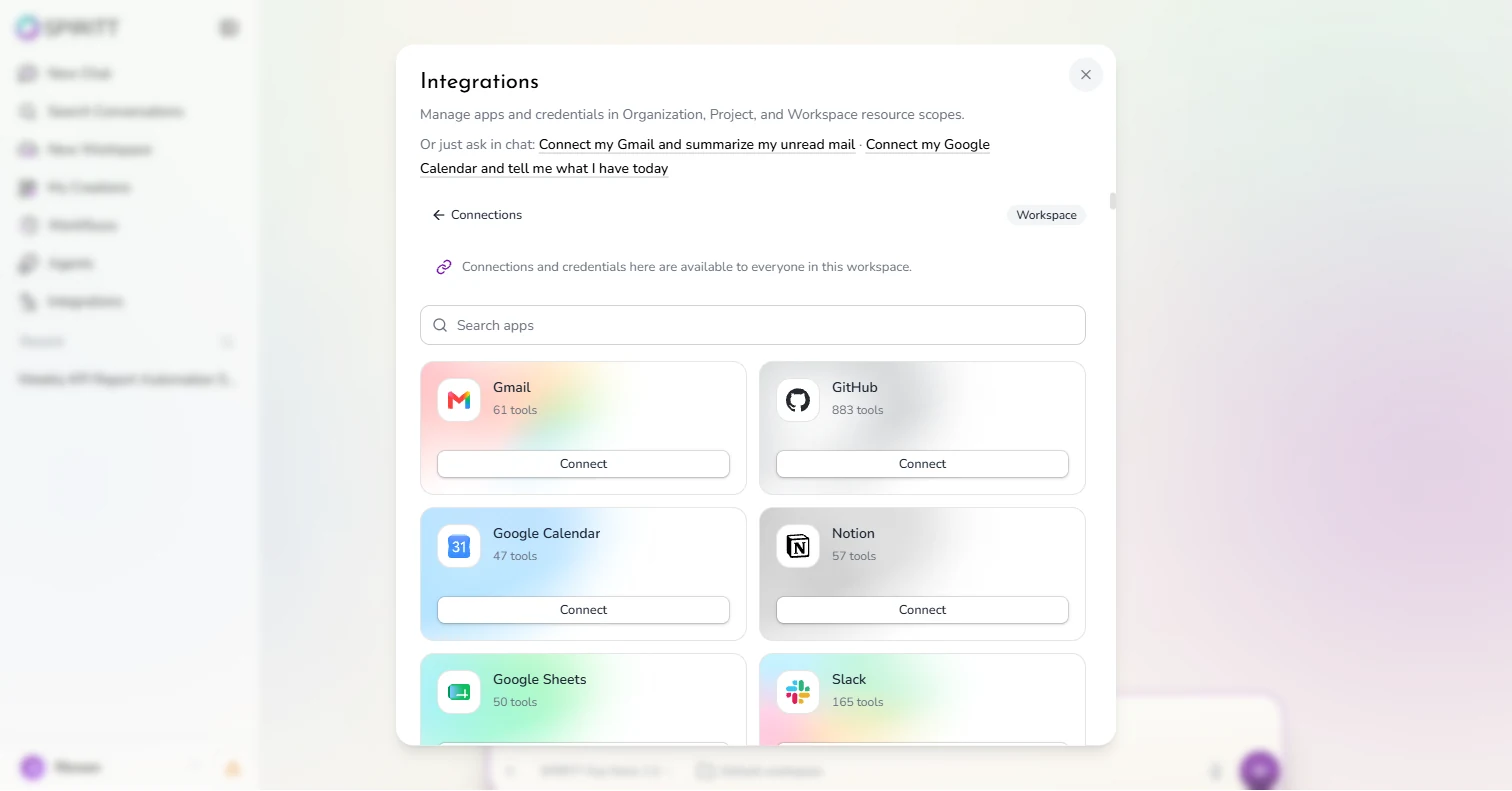
- Open the Gmail connection. Click Connect app to get this list. Each app shows how many tools the agent gets, and a note says connections here are available to everyone in this workspace. Click Connect under Gmail.
Connections here are shared with everyone in the workspace.
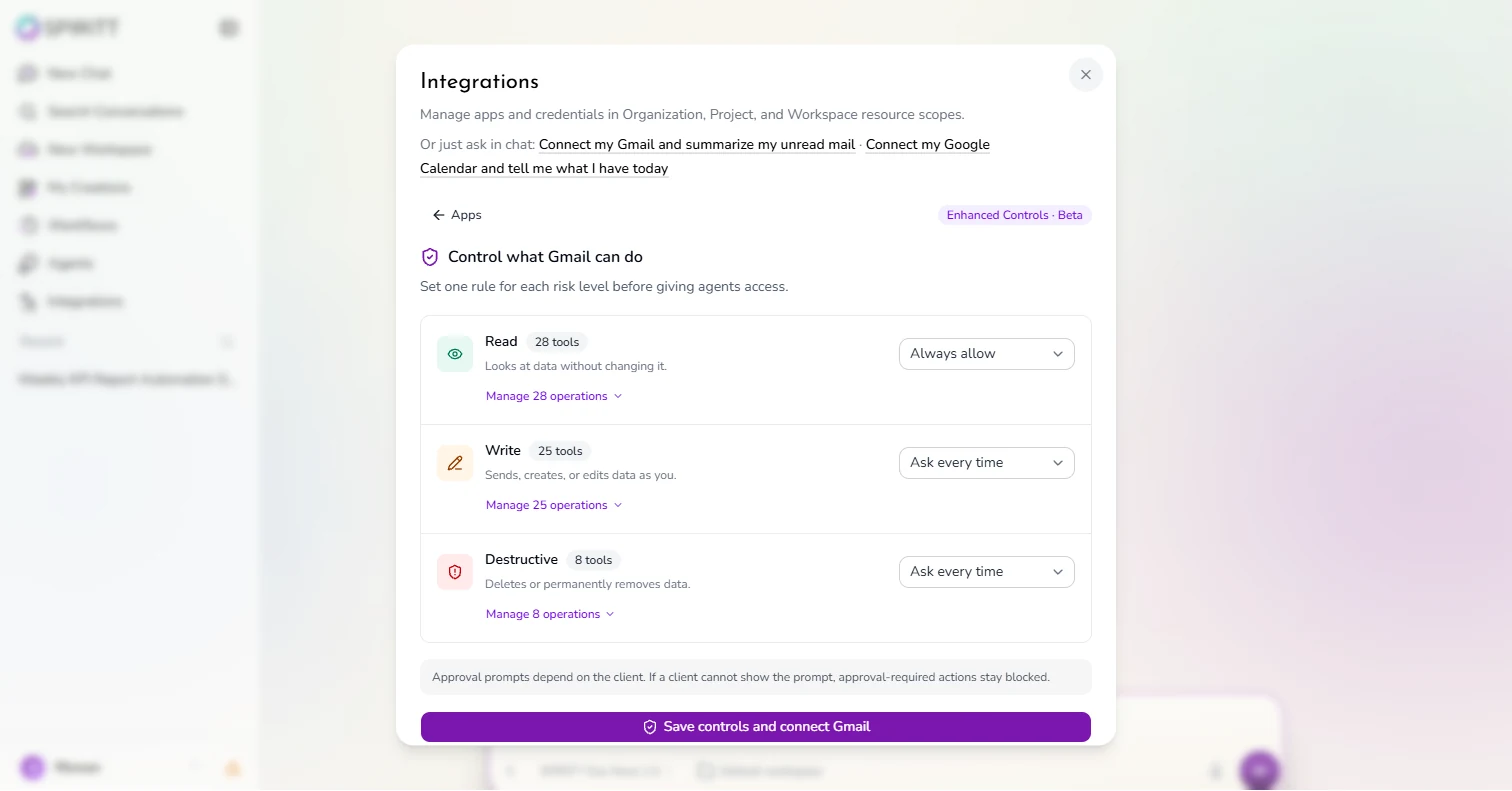
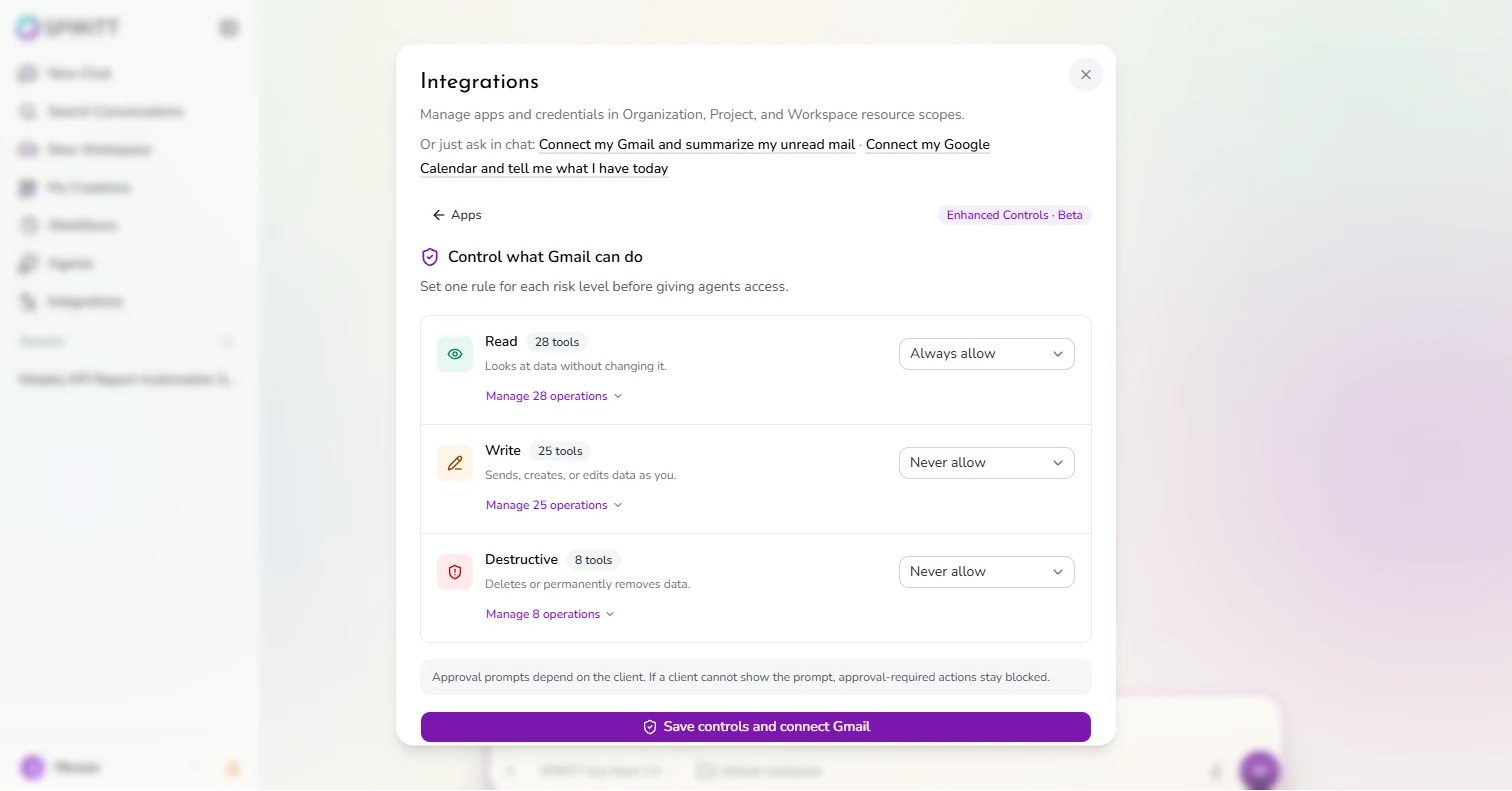
- Read the three risk levels. Control what Gmail can do comes before any Google screen. Read (28 tools) is Always allow. Write (25 tools, it "sends, creates, or edits data as you") and Destructive (8 tools, it "deletes or permanently removes data") are Ask every time. This agent only needs to read. Click the Write menu.
Before any Google screen, SPIRITT asks what Gmail may do: read, write, or delete. This agent only needs to read.
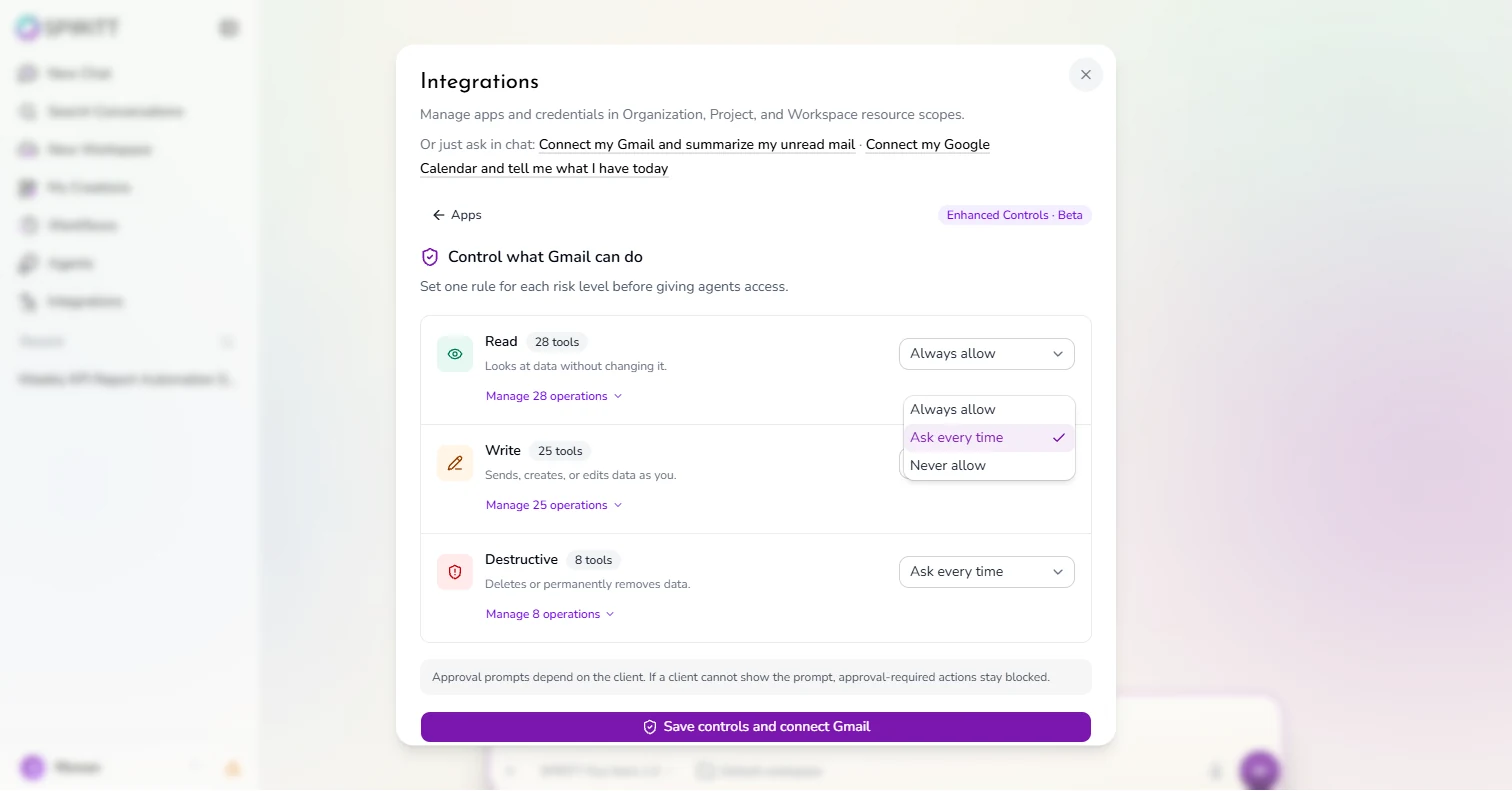
- Never let it send. The choices are Always allow, Ask every time and Never allow. Pick Never allow, and do the same for Destructive. Now the agent can read your mail but cannot send, draft or delete anything, whatever a message tells it to do.
Pick Never allow. Do the same for Destructive. Now it can read, but it can never send or delete.
- Practice before you connect. Both risky levels say Never allow. The purple button, Save controls and connect Gmail, would open Google's sign-in screen next. We stopped here: for this lesson the agent gets a made-up CRM and made-up emails as files, so you can see every change before any real inbox or CRM is involved. Close the window with the X.
We stop before connecting. The agent will practice on a made-up CRM and made-up emails first. Close the window.
2. Write the rule in plain English
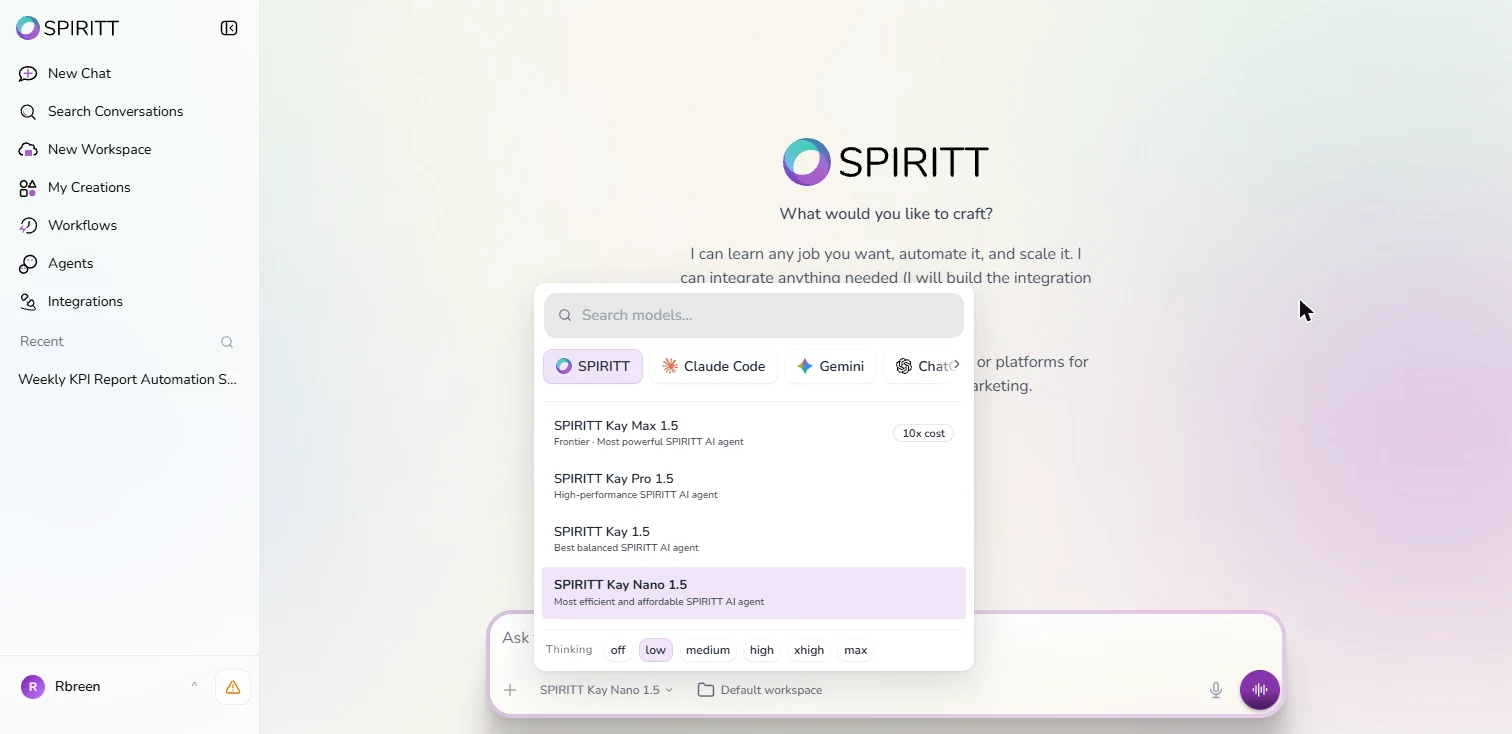
- Choose the model. At the bottom of the chat, click the model name, SPIRITT Kay Nano 1.5.
- Small model, low thinking. Matching a note to a deal and filling in four fields is simple work. Check Thinking: low is highlighted and click SPIRITT Kay Nano 1.5, "most efficient and affordable". Kay Max is marked 10x cost.
Matching a note to a deal is simple work. Keep thinking on low, and pick Kay Nano, the cheapest model.
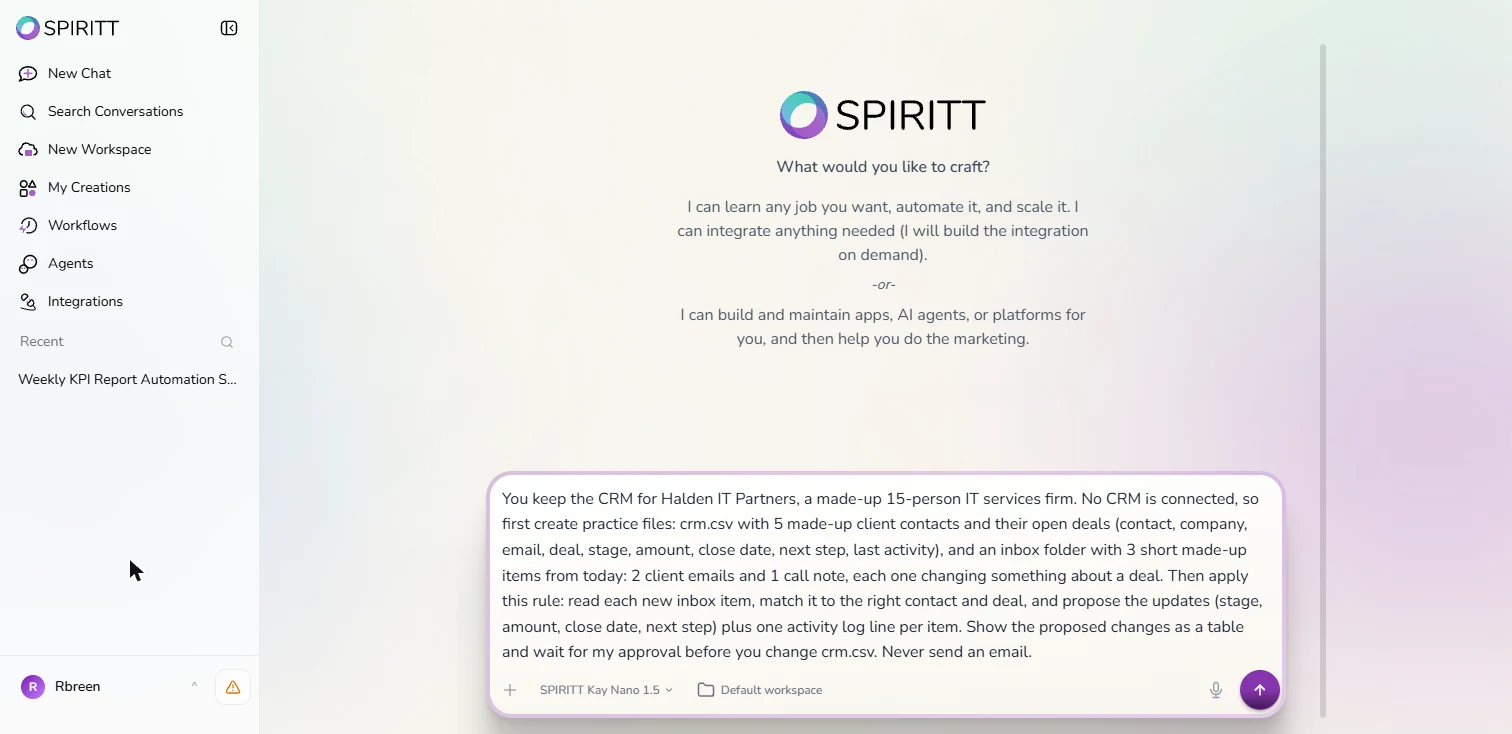
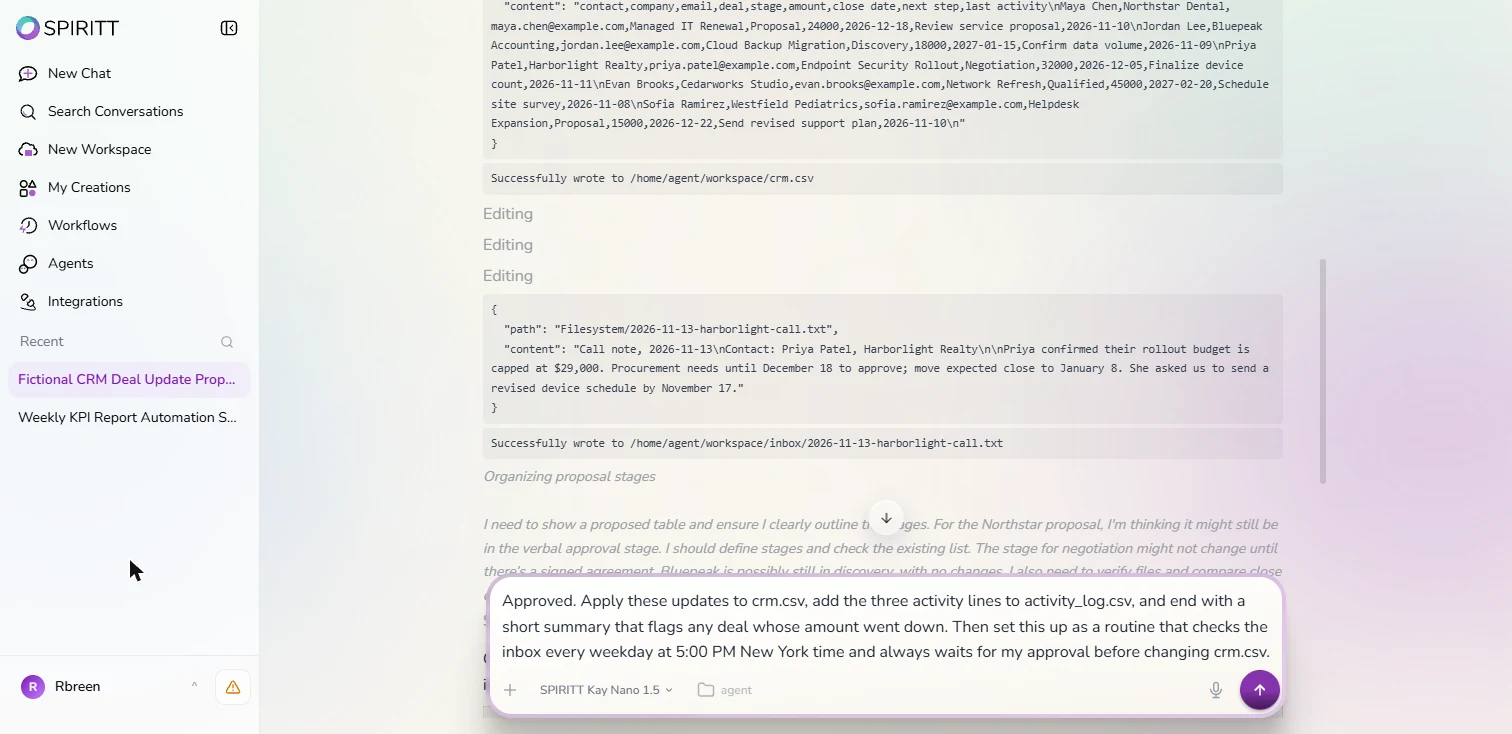
- Write the rule. One message does two jobs. First it asks for practice files: a crm.csv with five made-up clients and their deals, and an inbox folder with two client emails and a call note. Then it states the rule: read each new item, match the contact and deal, propose the stage, amount, close date and next step, write one activity line, and wait for approval before changing the CRM. Never send an email. Type: You keep the CRM for Halden IT Partners, a made-up 15-person IT services firm. No CRM is connected, so first create practice files: crm.csv with 5 made-up client contacts and their open deals (contact, company, email, deal, stage, amount, close date, next step, last activity), and an inbox folder with 3 short made-up items from today: 2 client emails and 1 call note, each one changing something about a deal. Then apply this rule: read each new inbox item, match it to the right contact and deal, and propose the updates (stage, amount, close date, next step) plus one activity log line per item. Show the proposed changes as a table and wait for my approval before you change crm.csv. Never send an email.
Ask for a practice CRM and three made-up messages. Then the rule: read each one, match the deal, propose the changes, and wait for my approval. Never send an email.
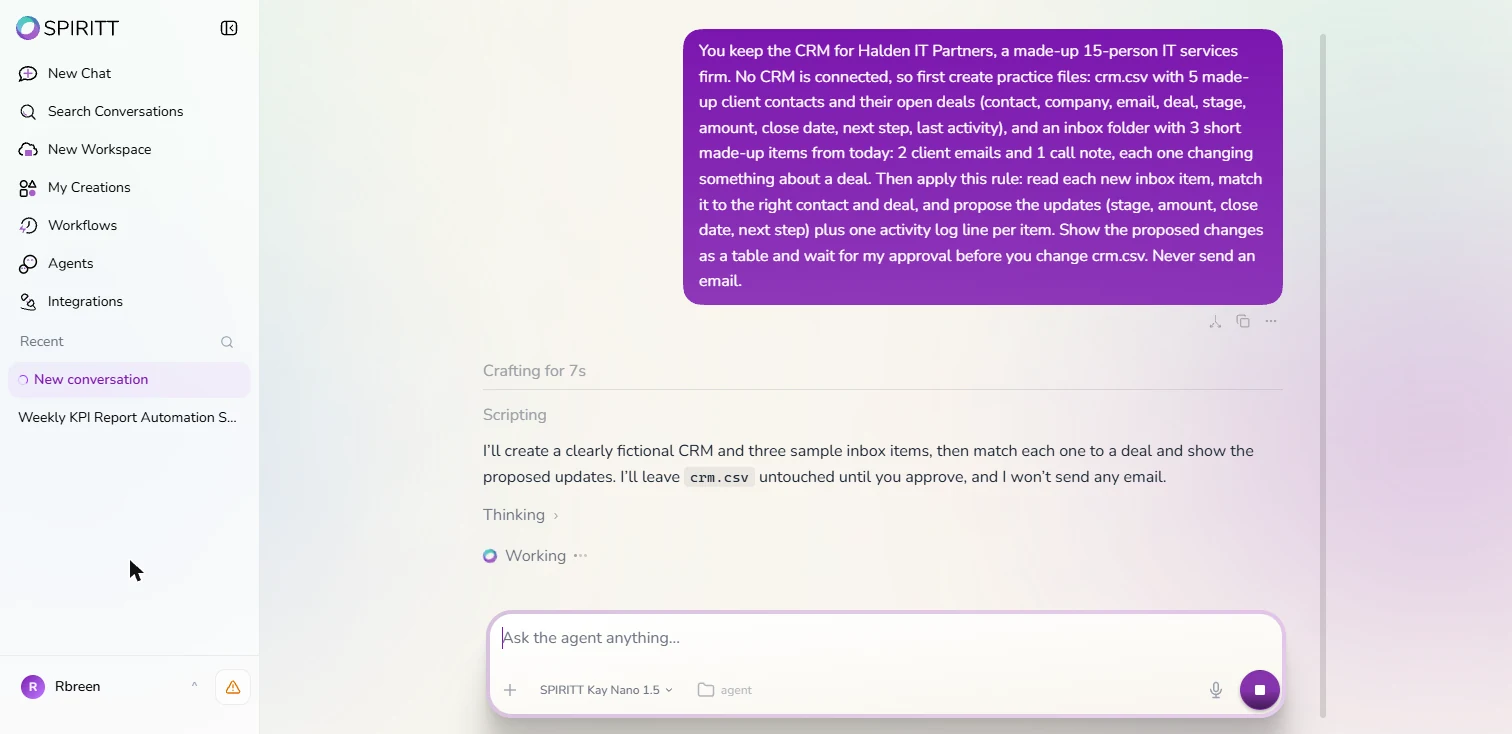
- Send it. Click the purple arrow. The agent writes its plan first.
3. Check every proposed change
- Read its promise. Before it does anything: "I'll leave crm.csv untouched until you approve, and I won't send any email." Under it you can see Scripting and Thinking as it works. Ours took 26 seconds. Click the promise.
Before it starts, it promises to leave the CRM untouched until you approve, and to send no email.
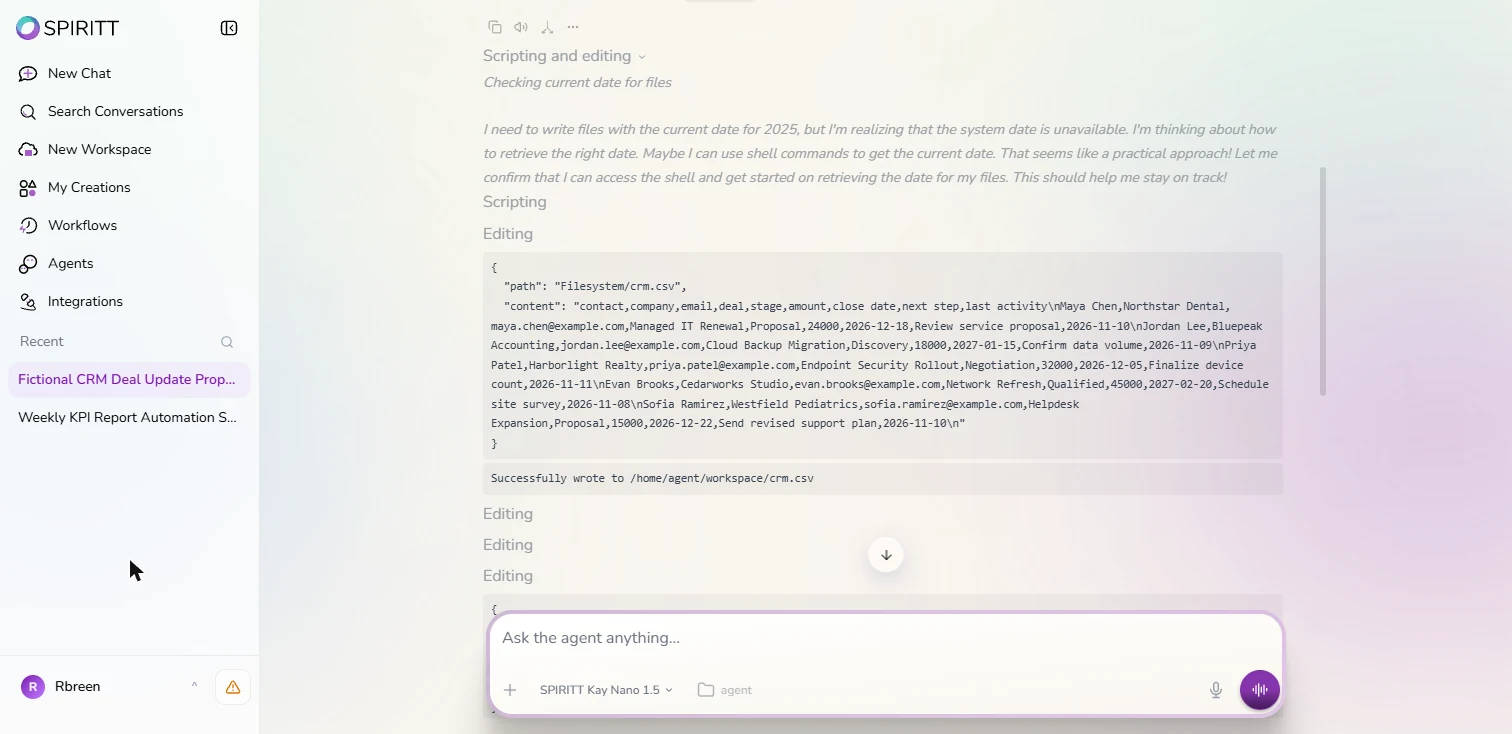
- Open its working. Its answer: "No CRM changes have been applied, and no emails were sent," then a table with one row per inbox item: matched deal, proposed stage, amount, close date, next step and the activity line. Before you trust the table, look at the files. Click Crafted for 26s, then the first Editing line.
No changes yet, and a table of proposals. Before you trust it, open its working, and look at the files.
- See the CRM before. This is crm.csv as the agent created it. Find Priya Patel, Harborlight Realty: deal Endpoint Security Rollout, stage Negotiation, amount 32000, close date 2026-12-05. Remember those. Click the Harborlight row.
Here is the practice CRM. Harborlight Realty: Negotiation, thirty two thousand dollars, closing December fifth. Remember those numbers.
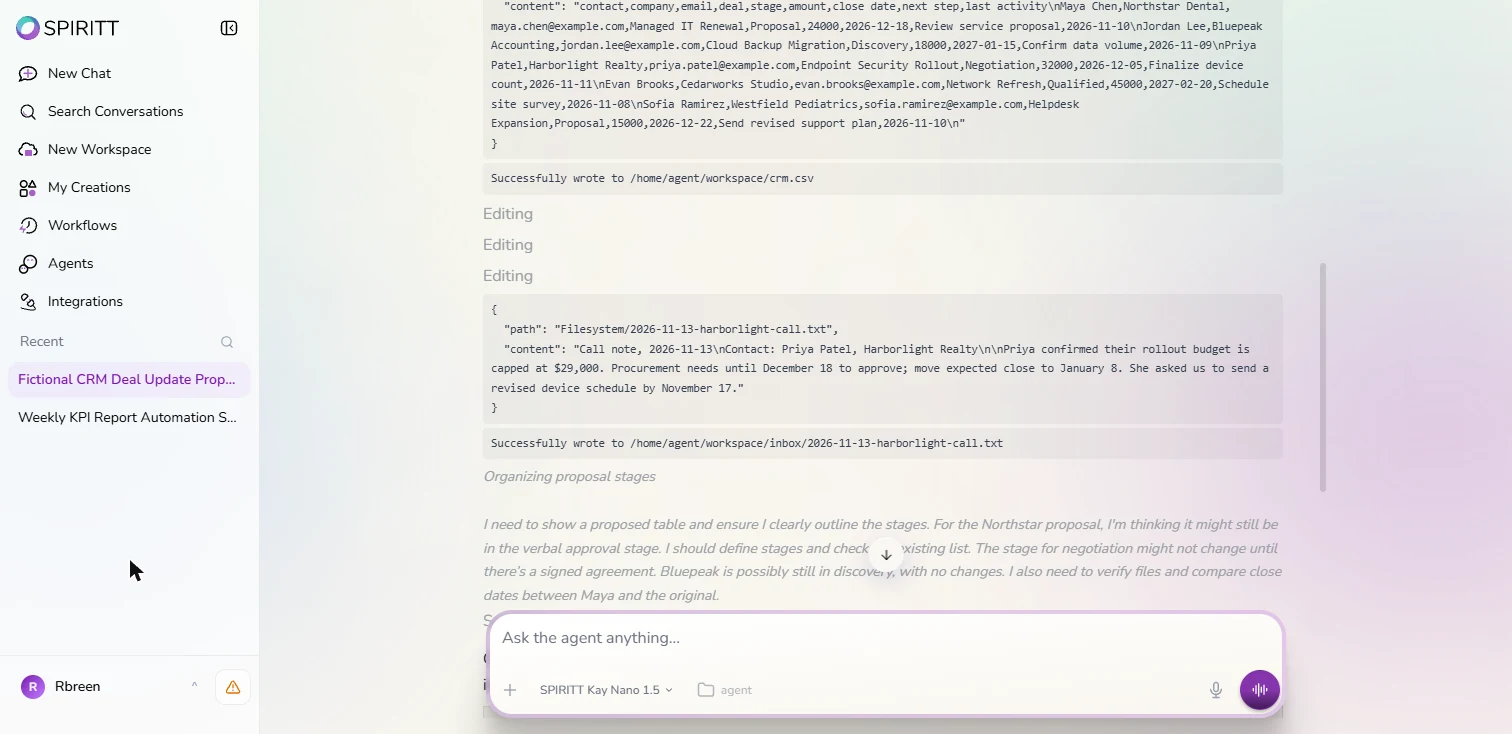
- Read the call note. Further down is the made-up call note: Priya "confirmed their rollout budget is capped at $29,000", procurement needs until December 18, so the close moves to January 8, and she wants a revised device schedule by November 17. Click the note.
The call note says the budget is capped at twenty nine thousand, and the close moves to January eighth.
- Check one row yourself. Back at the table, the Harborlight row proposes $29,000, Dec 5, 2026 → Jan 8, 2027, next step Send revised device schedule by Nov 17, stage unchanged. All match the note. But look closer: the amount column shows only the new figure, and this deal just dropped $3,000. Next time ask for old and new side by side. Click the Harborlight row.
The Harborlight row matches the note. But the table shows only the new amount, and this deal dropped three thousand dollars. Ask for old and new side by side.
- Notice what it would not invent. Date note: Bluepeak gave no new close date, so the agent proposes clearing the old one "rather than invent one." That is the behaviour you want from a CRM agent: a blank is better than a guess. It ends with Say "approve" and I'll apply these updates to crm.csv. Click the note.
Bluepeak gave no new date, so it clears the old one rather than invent one. A blank is better than a guess.
4. Approve it and let it log the activity
- Approve, and ask for the log. You checked the rows, so approve. In the same message, ask for the activity log, a flag on any deal whose amount went down, and a weekday routine at 5:00 PM New York time that keeps the approval step. Type: Approved. Apply these updates to crm.csv, add the three activity lines to activity_log.csv, and end with a short summary that flags any deal whose amount went down. Then set this up as a routine that checks the inbox every weekday at 5:00 PM New York time and always waits for my approval before changing crm.csv.
Approve it. Ask for the activity log, a flag on any lower amount, and a weekday routine at five P M New York time, still with approval.
- Send it. Click the arrow.
- Read the flag. "Applied and verified the approved updates." The three deals are updated in crm.csv and the three activity lines are in activity_log.csv. Then the flag you asked for: Amount decrease flagged: Harborlight Realty, Endpoint Security Rollout, from $32,000 to $29,000. That is the line your sales manager needs to see. Click it.
It applied the changes, logged the activity, and flagged Harborlight, down from thirty two to twenty nine thousand.
- Read the routine line. It set "an active routine for weekdays at 5:00 PM America/New_York" that proposes changes but will not change either CRM file without your approval and will never send email. It also marked the three inbox items as processed so they are not proposed again. Because the time zone was in the message, it used it. Click the line.
A weekday routine at five P M New York time, still asking for approval, and it marked the three messages as done.
5. Pause the routine
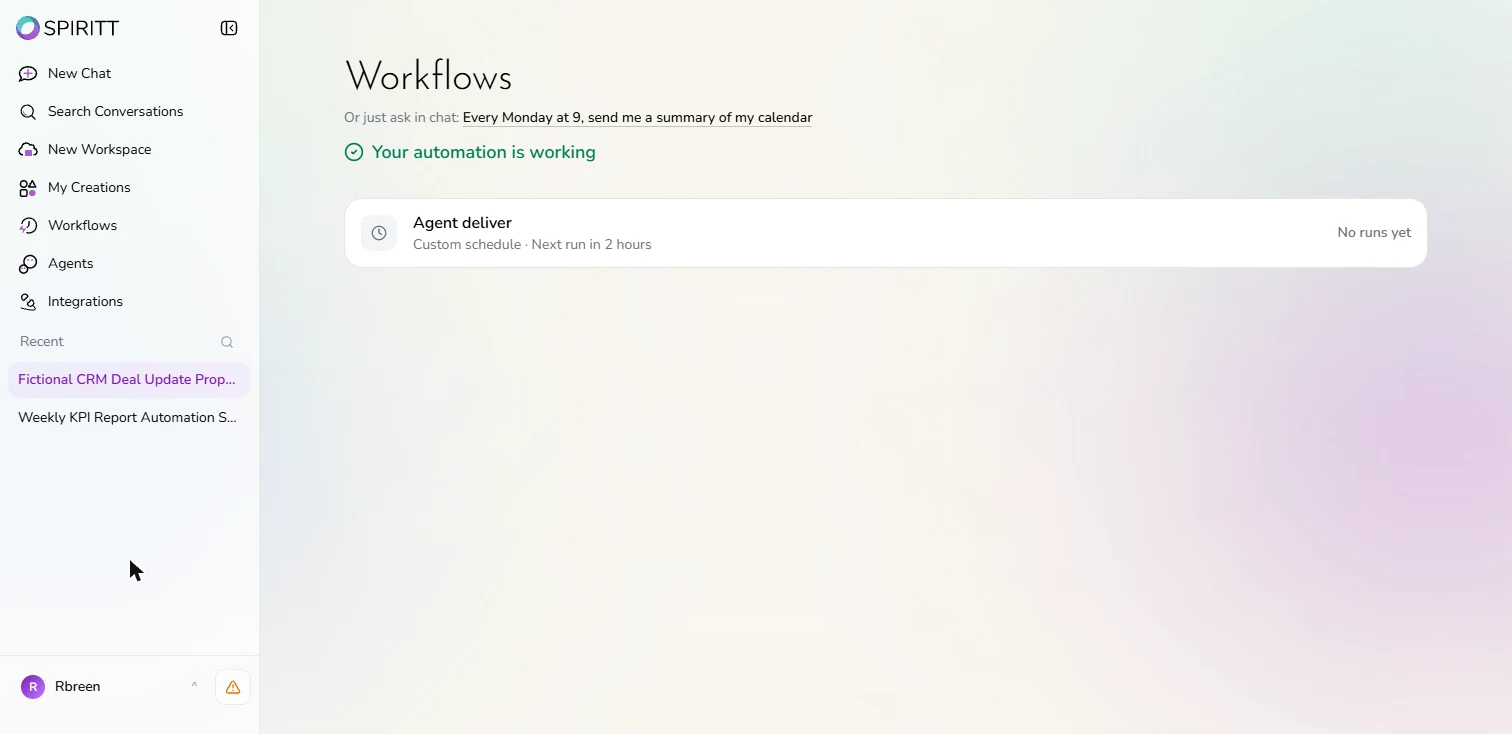
- Find the routine. Routines live under Workflows. Click Workflows in the left menu.
- Open it. Your automation is working: Agent deliver, Custom schedule, Next run in 2 hours. The agent picks that name, not you. Click it.
One routine, next run in two hours.
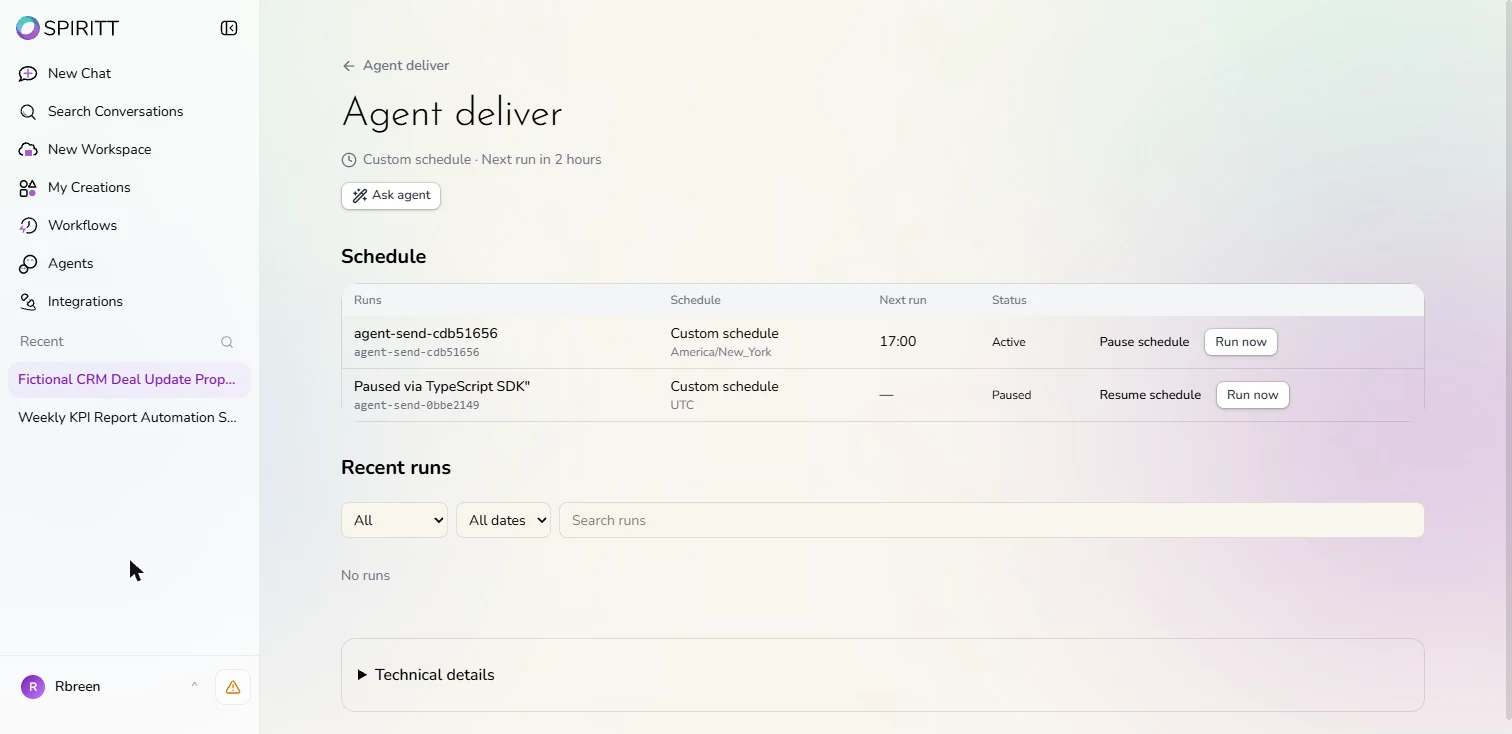
- Pause it. The Schedule table shows the new run: Custom schedule, America/New_York, next run 17:00, Active. (The Paused, UTC row below is the weekly report from the first SPIRITT lesson.) There is no real inbox behind this routine yet, so every run would check the same practice folder and spend credits. Click Pause schedule.
It is set for five P M New York time. With no real inbox behind it yet, every run would spend credits.
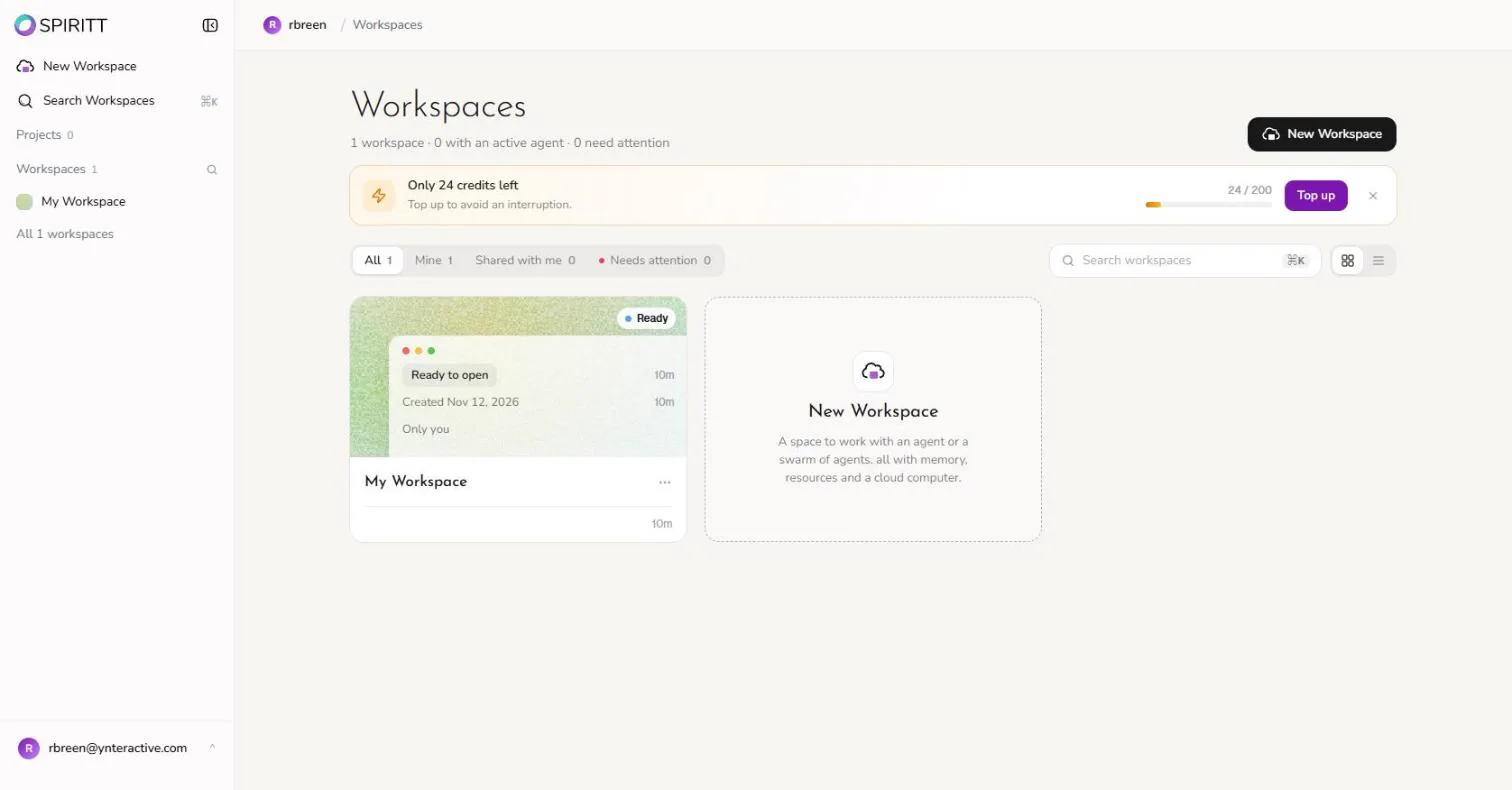
- Know where it stands. Both rows say Paused, each with Resume schedule. To do this for real: connect Gmail with Write and Destructive on Never allow, connect your CRM with an account that can only edit the deals you own, put your time zone and the approval rule in the first message, and approve the first week of proposals one by one before you trust it. Our credit bar still showed 24 / 200 after these runs on Kay Nano; check the usage in your own account.
Both routines are paused. To do it for real, connect Gmail read only, keep the approval step, and check the first week of proposals one by one.
Screenshots
Frequently asked questions
- Can SPIRITT update HubSpot automatically from emails and calls?
- Yes. SPIRITT has Gmail and HubSpot integrations, and SPIRITT's AI for CRM guide describes an agent that logs activity and updates deals under rules you set. In this lesson we ran the same rule on a made-up CRM file so you can see every proposal before any real account is connected.
- How do I stop a SPIRITT agent from sending emails?
- When you connect Gmail, SPIRITT shows Control what Gmail can do, with three risk levels. Set Write and Destructive to Never allow and leave Read on Always allow. Then also say Never send an email in your rule.
- Can I approve CRM changes before the agent makes them?
- Yes. Ask for it in the rule. Ours showed every proposed change as a table and said no changes had been applied until we wrote Approved. The routine it set up kept the same approval step.
- Was this lesson tested in a real SPIRITT account?
- Yes. Every screen is from a real SPIRITT workspace, captured 13 November 2026. No email or CRM was connected, so the CRM and the messages are the agent's own made-up practice files.
More in AI Automation for Sales
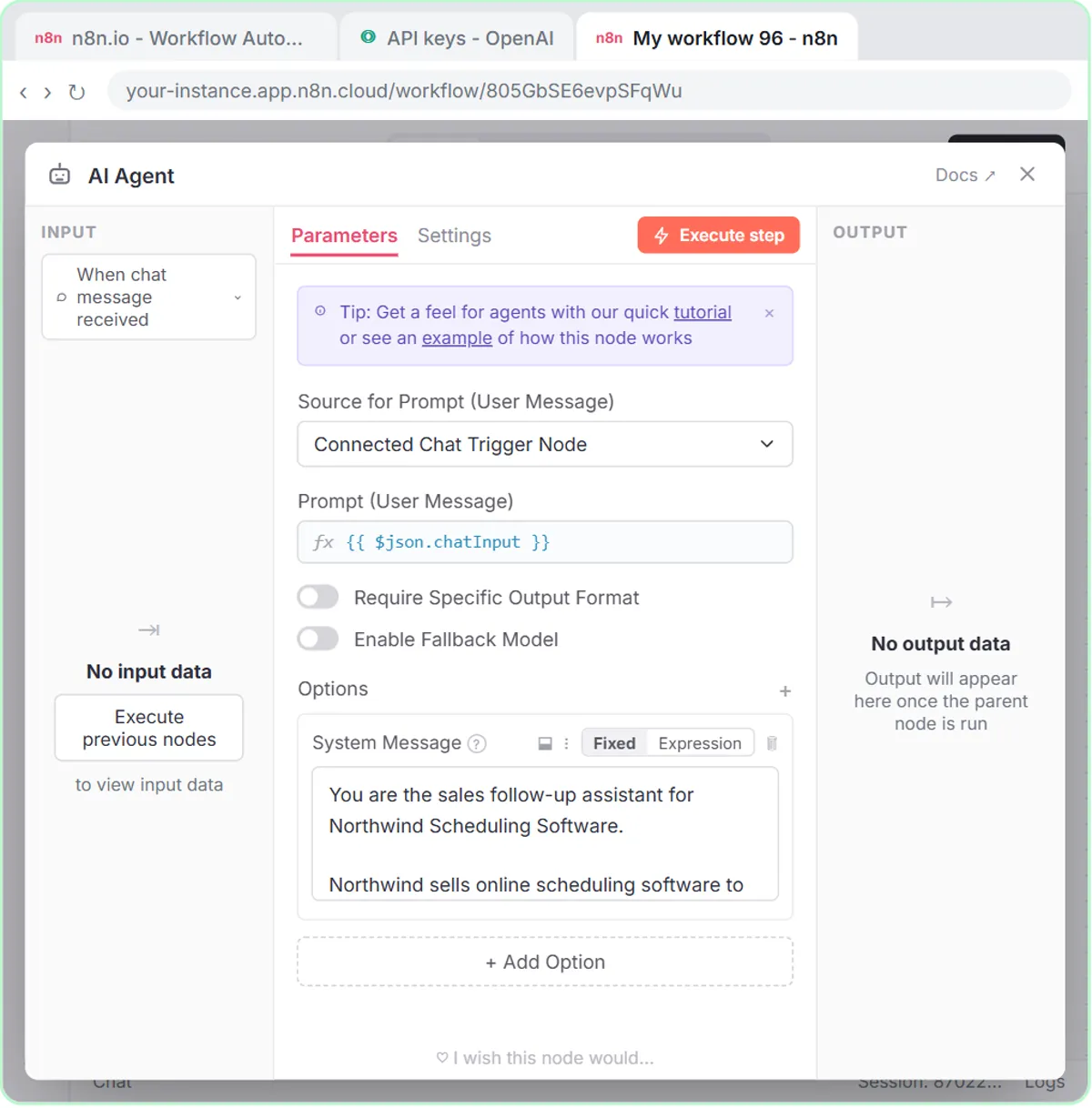 Build an n8n AI Agent That Writes Deal Follow-Ups
Build an AI agent for Northwind Scheduling Software that writes follow-up messages for your open deals and saves them to Google Sheets — chat trigger, AI Agent, system…
Free · Live ~12 min Intermediate
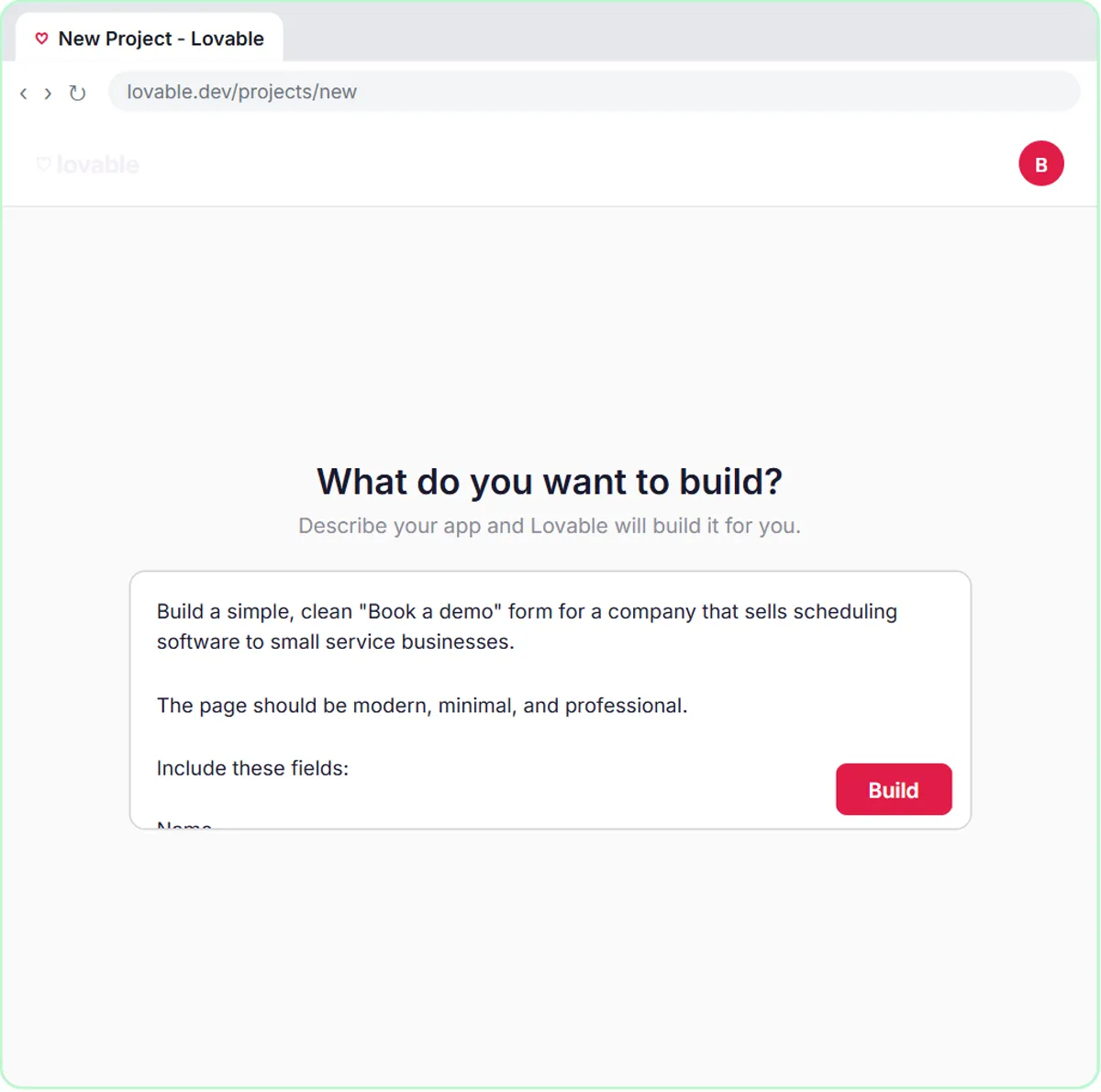 Build an AI Demo Request Form That Qualifies Leads
Build a "Book a demo" form in Lovable for Northwind Scheduling Software and connect it to n8n — the AI agent rates each lead hot, warm or nurture, saves it to Google…
Free · Live ~15 min Advanced
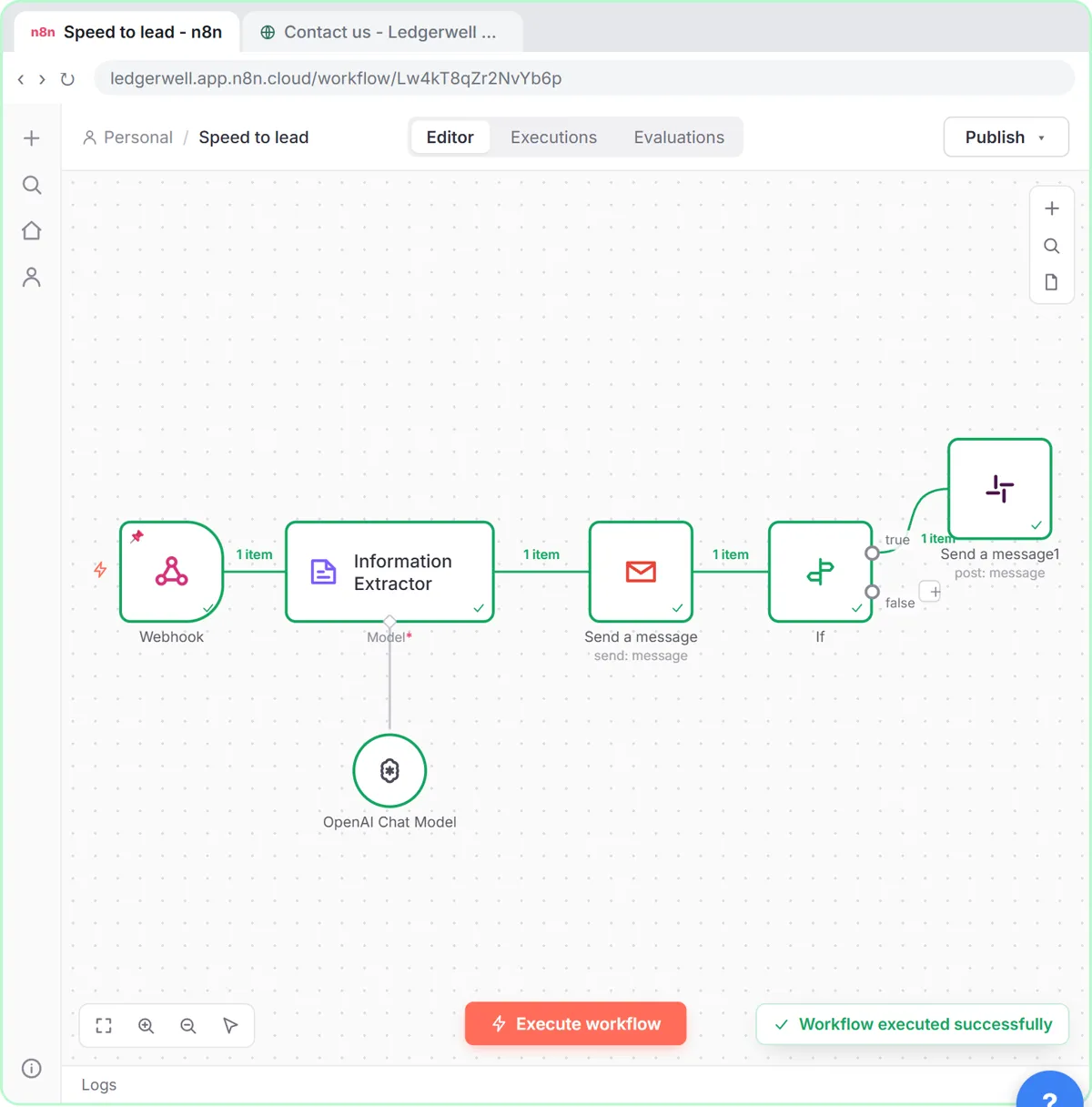 Speed-to-Lead Agent: Answer Every Web Lead in 60 Seconds
Build an n8n workflow that scores every website lead with AI, emails a personal first reply within seconds, and pings Slack only when a lead is hot.
Free · Live ~15 min Advanced
 Kylon AI Sales Agent: Find the Reason to Reach Out
Add a sales agent to your Kylon workspace, teach it what a good account looks like, check its sourced reason for one firm, approve a short first email, then make it a…
Free · Live ~8 min Intermediate
◷Pancake: Get Qualified Sales Conversations from Claude Without Hiring a BDRPrice a sales hire against $99 a month, connect Pancake to Claude, describe your ideal client, approve the leads and the messages, then read the replies and learn the…
Free · Live ~16 min Intermediate
◷Never Lose a Client Follow-up using Capsule CRMA business case for a small firm: price what dropped follow-ups cost, then use Capsule CRM to give every enquiry an owner and a next step: add a client, check the…
Free · Live ~18 min Beginner
All 19 modules in AI Automation for Sales
More SPIRITT tutorials
Terms in this lesson
Plain-English definitions, each with an example from a free lesson.