Updated . Built against the tool’s current screens and checked step by step. How we check this lesson
Stop calling from a scraped spreadsheet. In Lusha, filter companies by industry, territory and size, save them as a private list, and see who decides at each one before you spend a single credit.
At a glance
| Question | Answer |
|---|---|
| What you build | Stop calling from a scraped spreadsheet. In Lusha, filter companies by industry, territory and size, save them as a private list, and see who decides at each one before you spend a single credit. |
| Tools | Lusha |
| Time | About 8 minutes, 12 steps in 3 parts |
| Level | Beginner, no coding needed |
| Cost | Free |
| Ways to learn it | Practice it step by step |
The 3 parts, in short
- Describe your ideal account: Company filters, Industry, Accounting & Services, Location, and 1 more step.
- Save the list: Save to table, Create new table, Rename the table, Name it.
- Find who decides: Pick a company, Decision makers, Reveal only who you will contact.
What you'll build
You sell outsourced payroll to accounting firms in Pennsylvania. Your best customers are firms of 11 to 200 people, headquartered in the state. Your current prospect list is an old spreadsheet: half the firms are too big, a third have closed, and nobody knows who signs. In this lesson you rebuild it in Lusha: filter companies by industry, location and size, save them as a private table, and see the decision makers at a firm, without revealing anyone's details until you are ready to reach out. Every screen is a real Lusha screen; the companies and people are real, so they are blurred.
You turned about 256,000 accounting and finance companies into a few hundred Pennsylvania firms of 11 to 200 people, saved 40 of them as a private, named table, and opened the decision makers at one firm without revealing anyone. Next time, start from the table: open a firm, pick its decision makers, and reveal only the people you will contact this week. Lusha's free plan comes with a small number of credits; check lusha.com for current plans.
- Tools: Lusha
- Time: about 8 minutes, 12 steps in 3 chapters
- Level: beginner, no coding needed
- Price: free
Practice first, then build it for real
Practice copy built from real Lusha screens (dashboard.lusha.com), captured 25 October 2026 on the free plan. Nothing here touches a Lusha account or reveals any contact. The search returned real companies and people, so all their names and details are blurred. To build it for real you need your own Lusha account, and some services charge once you use them for real work, so check each tool's current pricing.
Try it yourself, free
Reading the steps is a start. Doing them is how it sticks. The interactive module walks you through every click in a practice copy of Lusha, checks each step, and never touches your real accounts.
Start “Lusha: Build a Target Account List and Find the Decision Makers for Sales”Step by step: Lusha: Build a Target Account List and Find the Decision Makers for Sales
All 12 steps of the interactive module, in order. In the module you watch each one, then do it yourself in a practice copy that checks your work.
1. Describe your ideal account
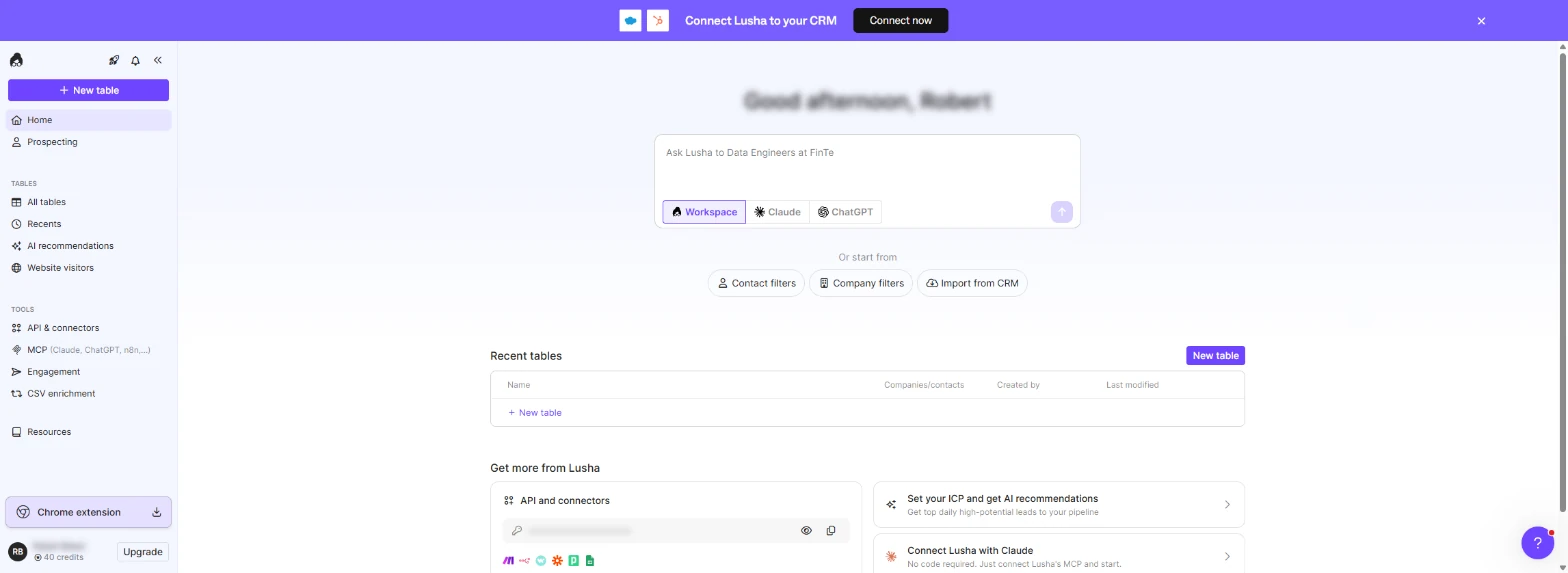
- Company filters. You sell outsourced payroll to accounting firms. Instead of a scraped spreadsheet, build the list from what your best customers look like. In Lusha, click Company filters.
Build the list from what your best customers look like.
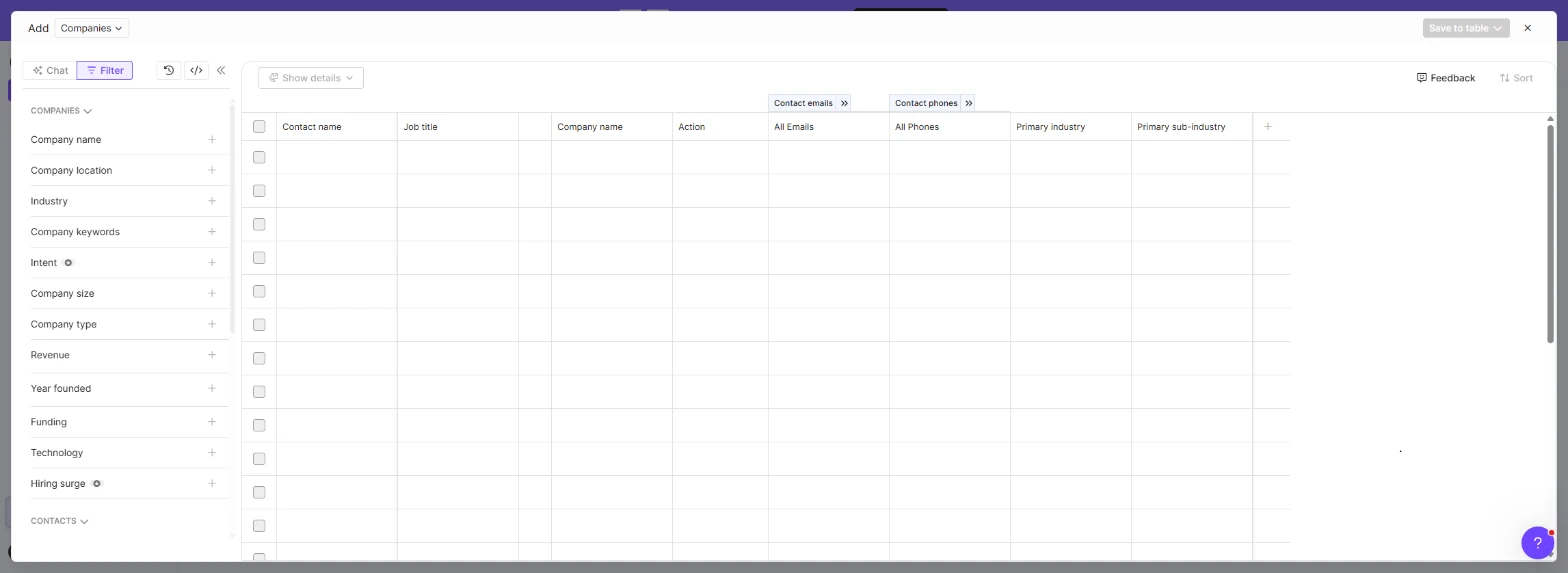
- Industry. The left panel holds the company filters; the table fills in as you add them. Click Industry.
The filters are on the left.
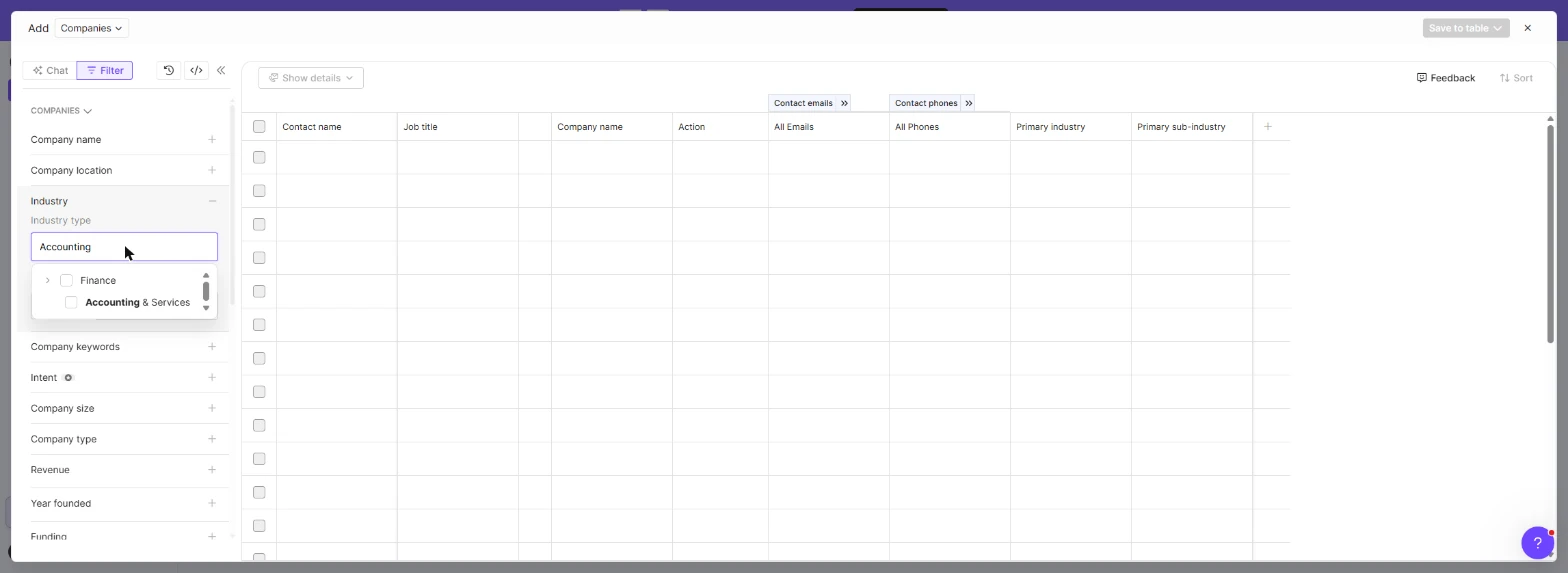
- Accounting & Services. Type Accounting and tick Accounting & Services. Then open Company location.
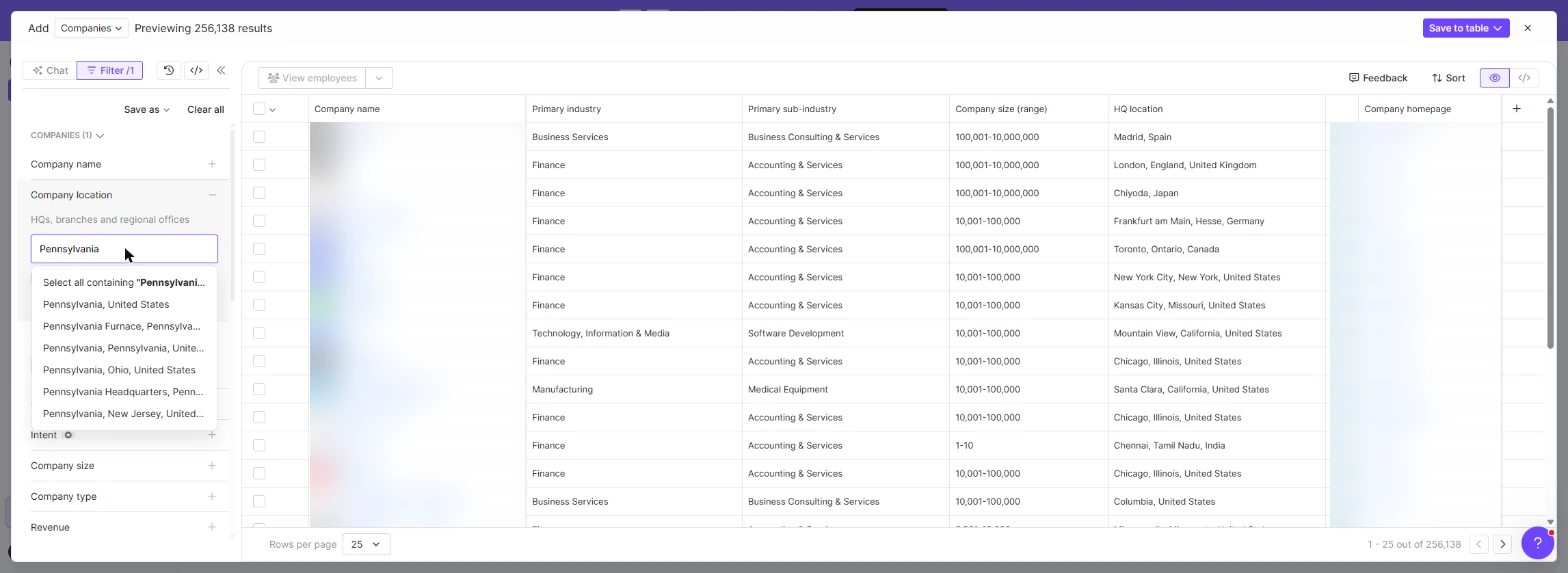
- Location. Type your territory (Pennsylvania) and pick Pennsylvania, United States. Tick HQ location only so branches of national firms drop out. Then open Company size.
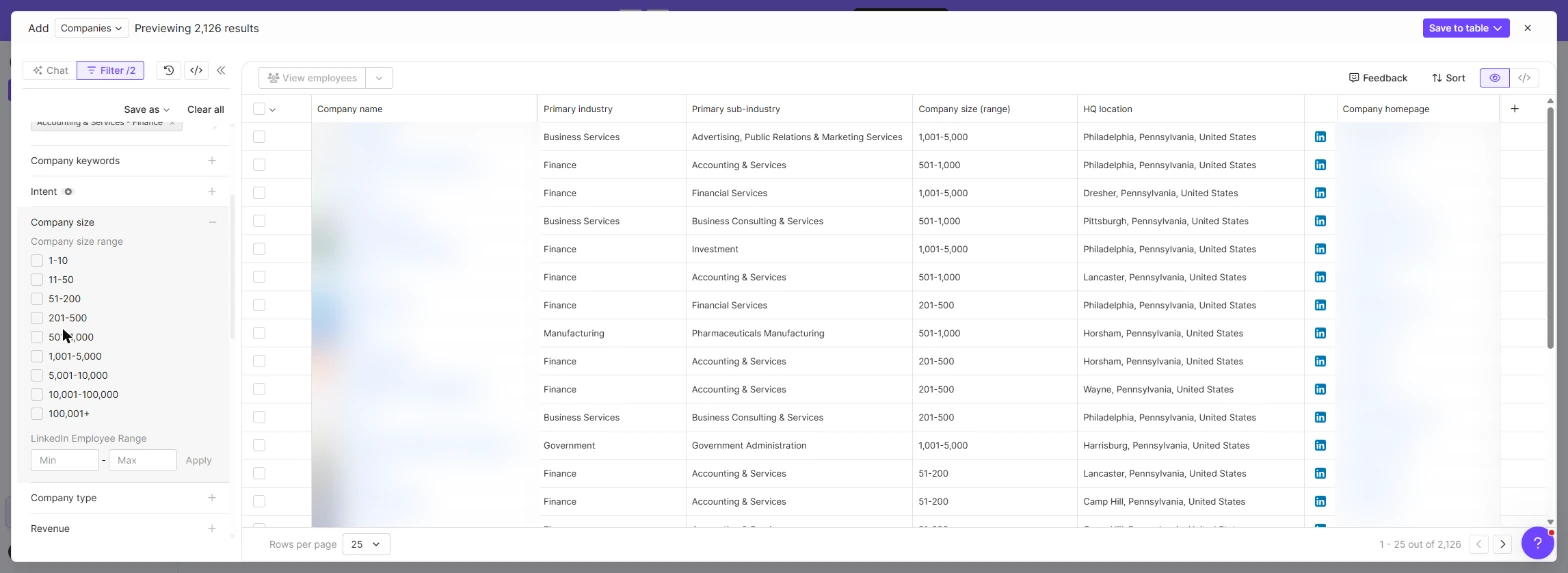
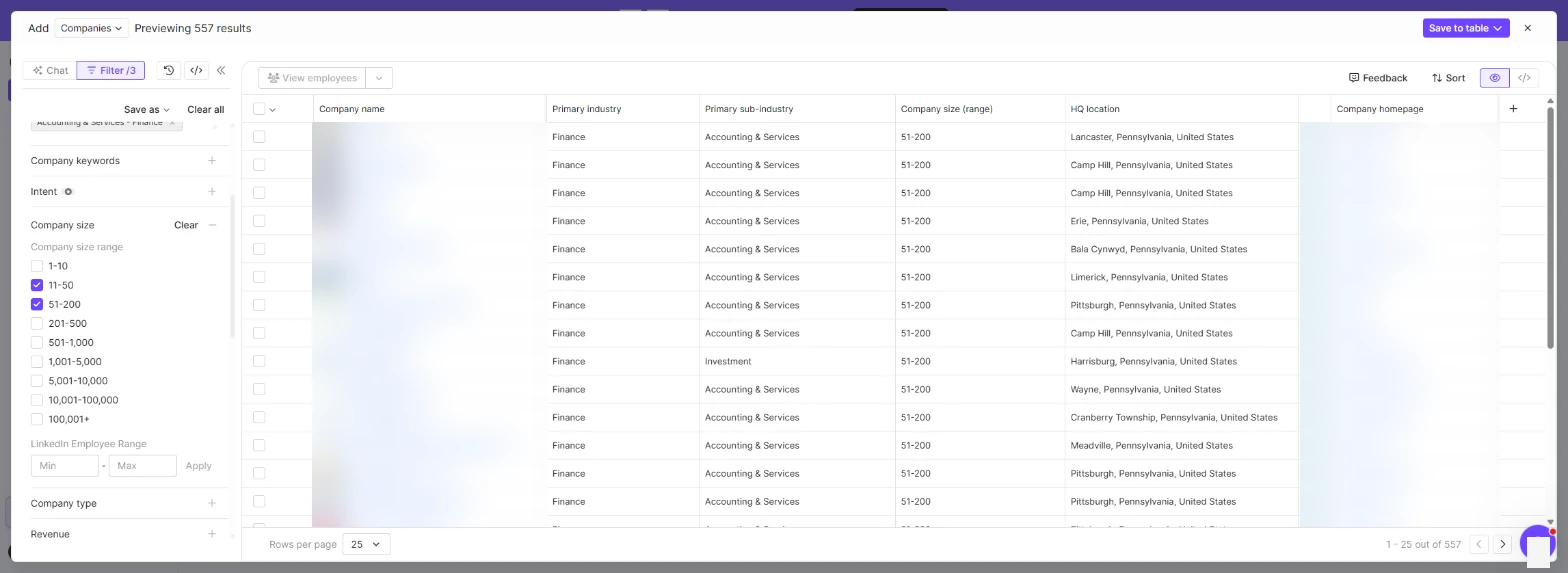
- Company size. Tick 11-50 and 51-200: firms big enough to need payroll help, small enough that a partner still decides. The count at the top drops with every filter (from about 256,000 to a few hundred).
Tick eleven to fifty, and fifty-one to two hundred. The count drops with every filter.
2. Save the list
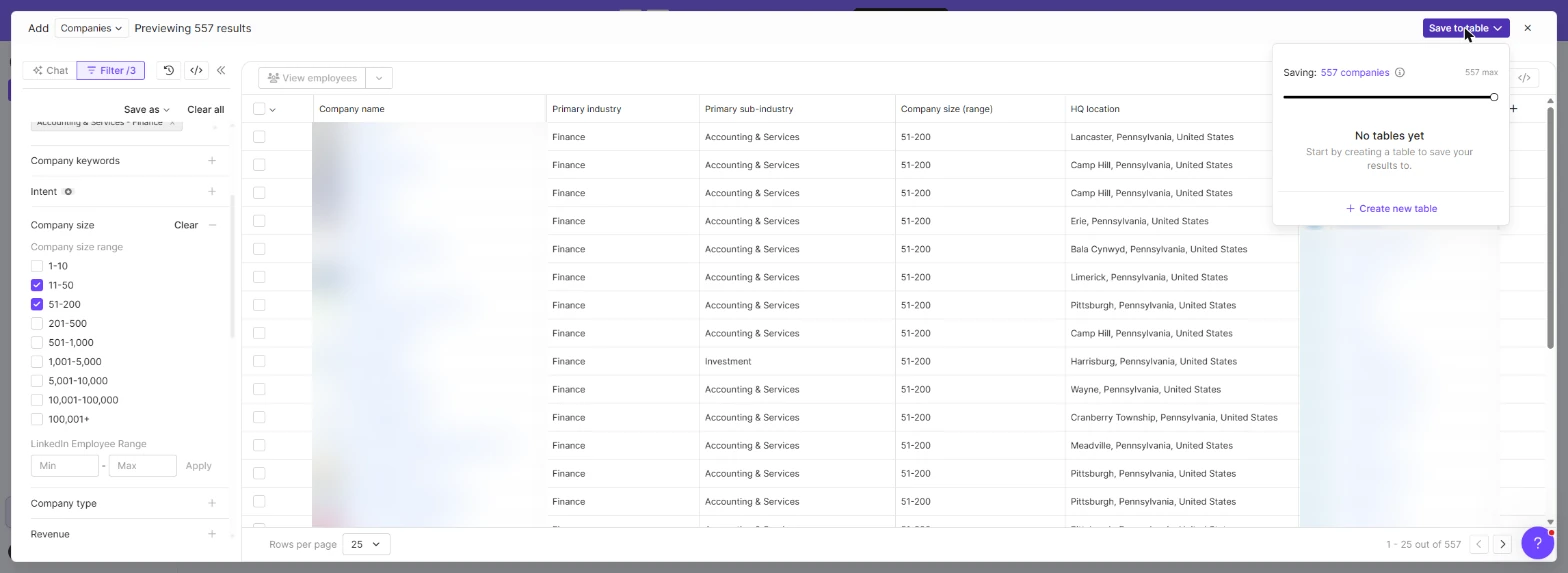
- Save to table. The table shows each company's industry, size, HQ and homepage (blurred here: these are real firms). Click Save to table.
These are real firms, so the names are blurred.
- Create new table. Drag the slider to how many companies you want (we kept 40), then click Create new table. Saving companies did not use any credits in our run: the counter stayed at 40.
Pick how many to keep, and click Create new table.
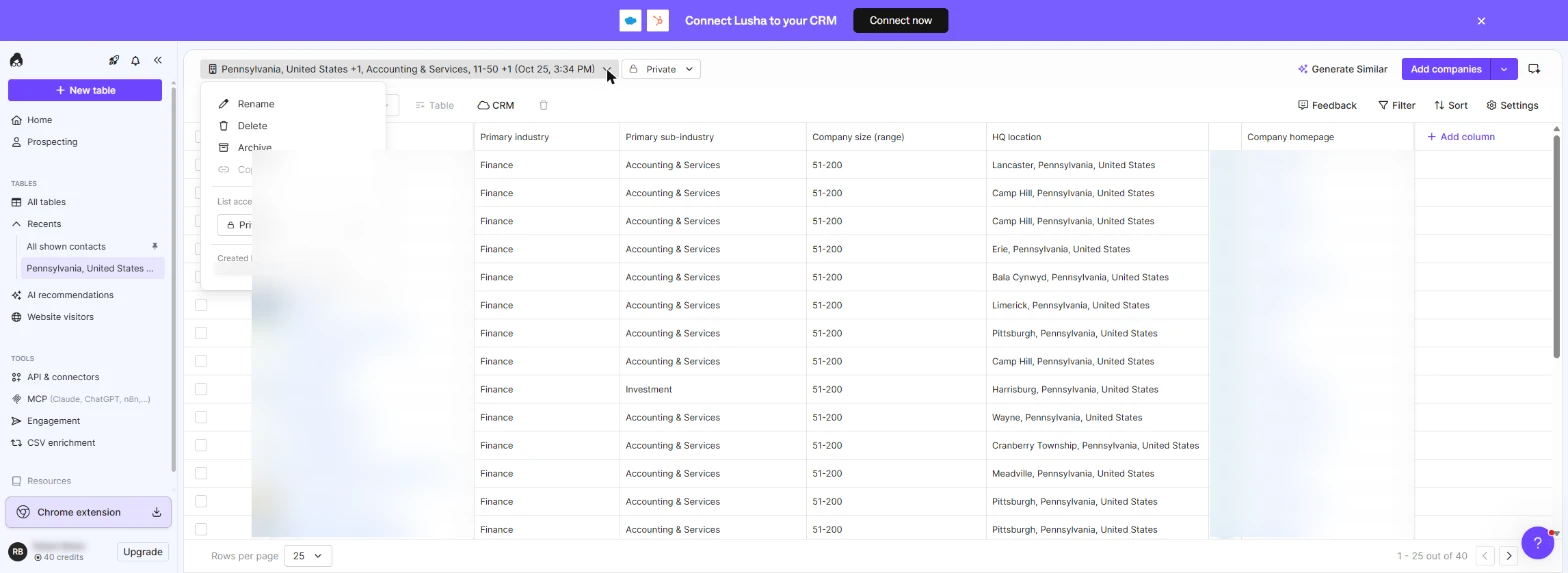
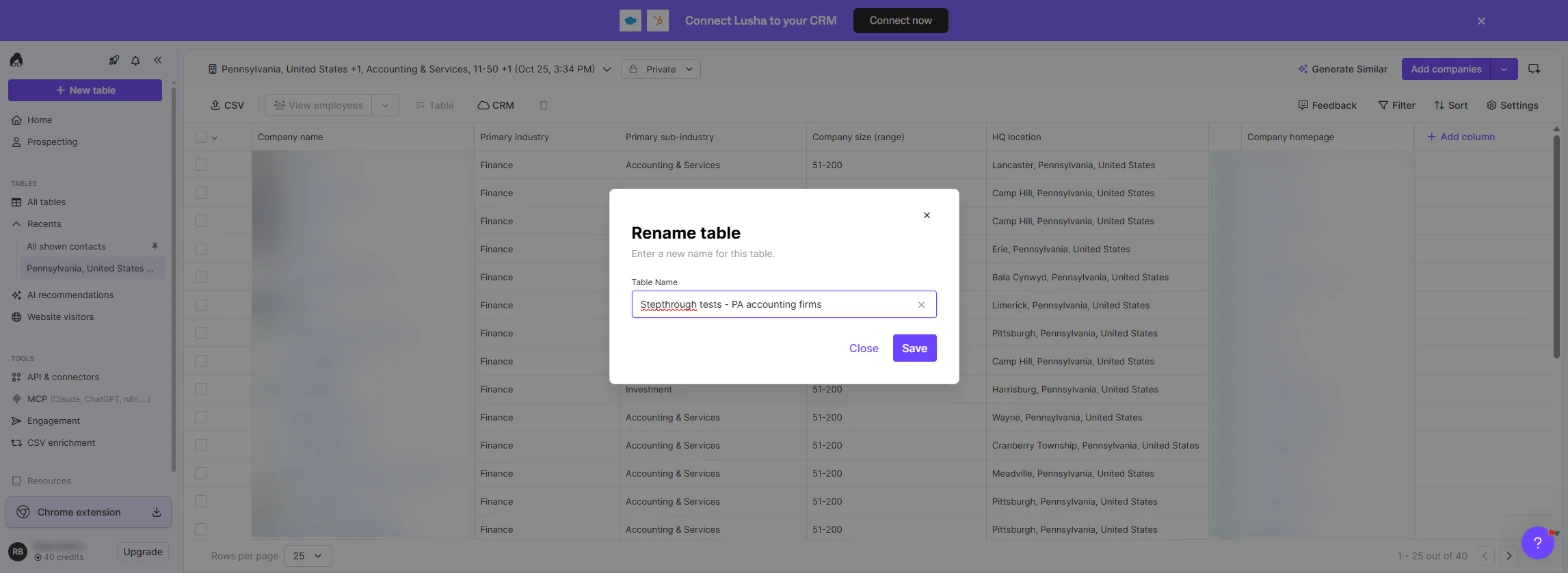
- Rename the table. Lusha names the table after your filters and keeps it Private. Open the menu next to the name and click Rename.
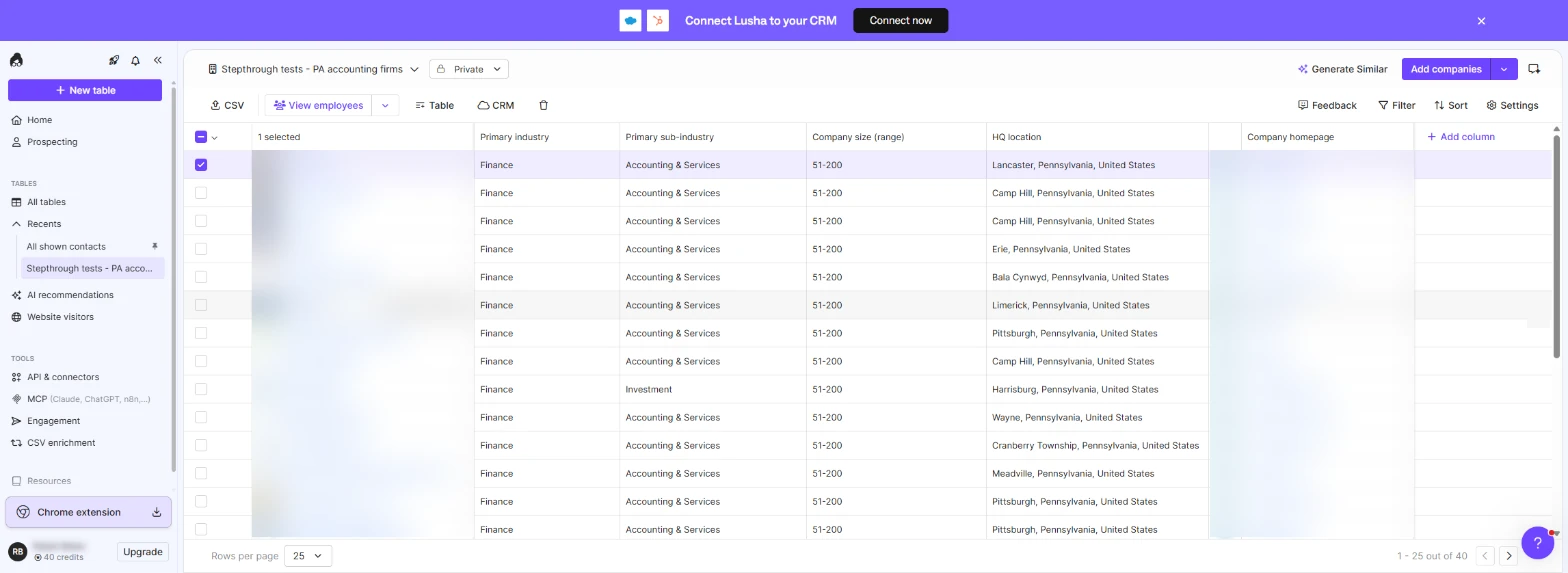
The table is private.
- Name it. Type a name the team will recognise (PA accounting firms) and click Save.
Give it a name the team will recognise, and click Save.
3. Find who decides
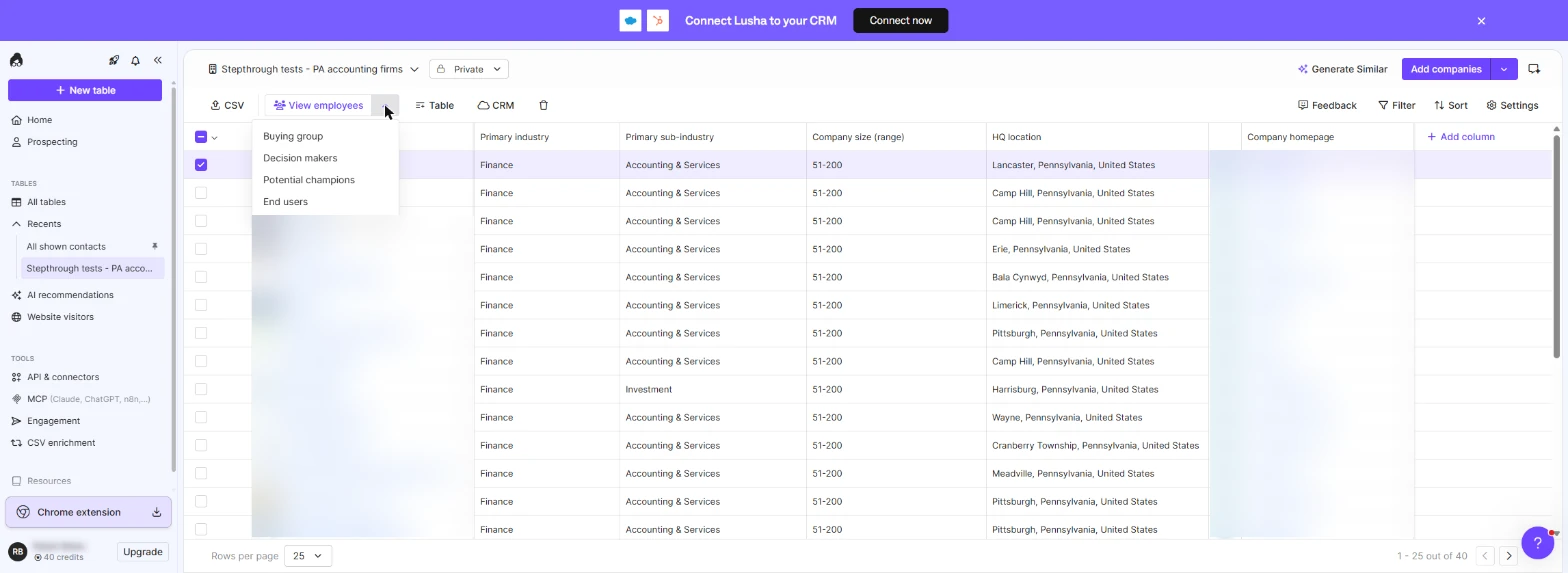
- Pick a company. Tick the first company. View employees lights up; click the small arrow next to it.
Tick a company, and open the arrow next to View employees.
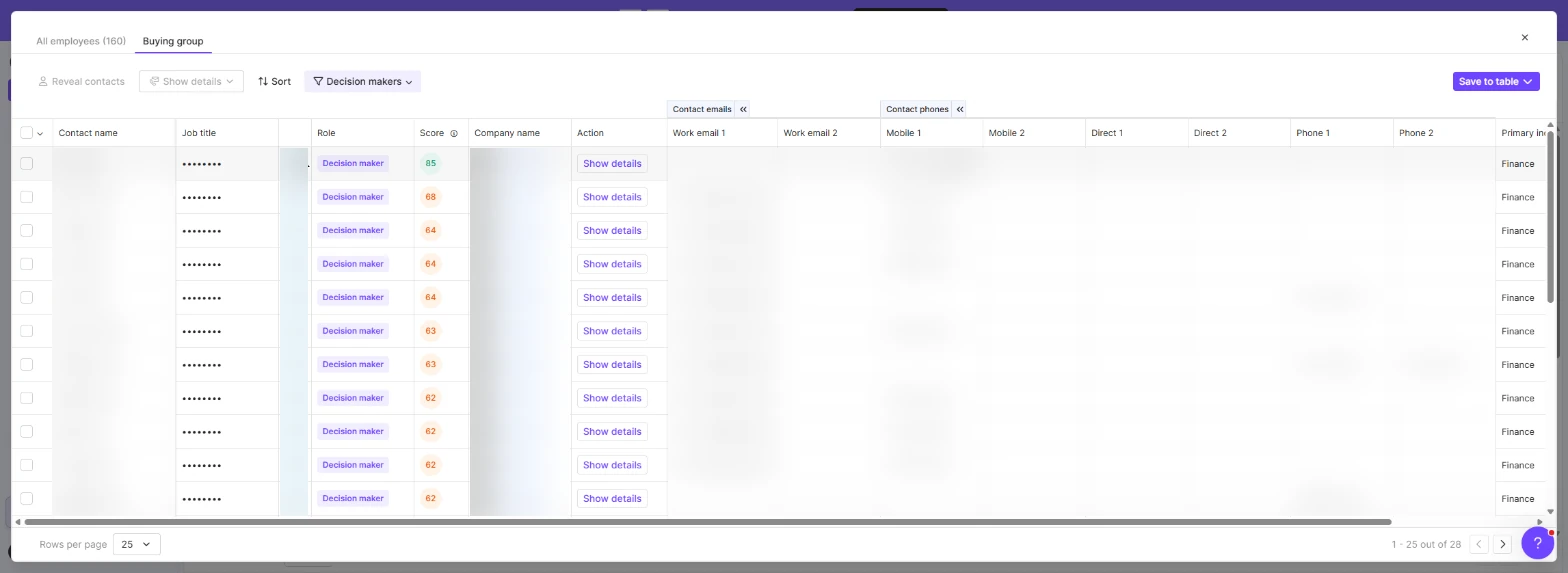
- Decision makers. Lusha groups people by buying role: Buying group, Decision makers, Potential champions, End users. Click Decision makers.
- Reveal only who you will contact. You get the people with their role and a fit score; emails and phones stay masked. Show details reveals one person's contact details and uses credits from your plan, so reveal only the two or three people you will really contact this week. We stopped here: nothing was revealed.
Emails and phones stay hidden. Show details uses credits, so reveal only the people you will really contact.
Screenshots
Terms in this lesson
Plain-English definitions, each with an example from a free lesson.