Updated . Built against the tool’s current screens and checked step by step. How we check this lesson
Turn a plain-English description into a trial follow-up tracker, log each visitor in under a minute with Quick log, load last week's list even with blank dates, and read off who to call today.
At a glance
| Question | Answer |
|---|---|
| What you build | Turn a plain-English description into a trial follow-up tracker, log each visitor in under a minute with Quick log, load last week's list even with blank dates, and read off who to call today. |
| Tools | ChatData Sync |
| Time | About 8 minutes, 22 steps in 4 parts |
| Level | Beginner, no coding needed |
| Cost | Free |
| Ways to learn it | Practice it step by step |
The 4 parts, in short
- Describe the tracker: Start a new tracker, Describe it in plain English, Generate it, Check the fields it picked, and 3 more steps.
- Log a trial with Quick log: Log your first trial by hand, The form is your tracker, Log Jordan's trial, Saved.
- Load last week's trials: The tracker is live, Upload last week's list, All four came in, Five trials, one list.
- Work the call list: Blanks show who needs a call, Sam called back, Update what changed, Save it, and 3 more steps.
Start here first: AI Receipt Extractor: Receipts to Google Sheets with n8n (module 1 of Business Automations)
In the course: Part 9 · n8n Automation Toolkit (Module 135 of the full course)
Part of: AI for Sales Teams (step 29 of 29)
Part of: AI Apps Worth Knowing (step 156 of 157). Next up: Octuo: Turn Over a Vacant Apartment in 5 Days with a Make-Ready Checklist
What you'll build
Jess is made up. She runs the front desk at a small fitness studio, where a dozen people take a free trial class each week. The ones who get a quick call often join; the rest drift away, because their names sit on a clipboard. In this lesson you describe a trial follow-up tracker in plain English and ChatData Sync builds it. You log a visitor straight after class with Quick log, which uses the tracker's own fields, then upload last week's list, blank dates and all. Last, you update a member who called back and read off who to call today.
You went from a sentence to a 10-field trial tracker, logged a visitor with Quick log, loaded four more from a CSV with blank dates, and updated one after a call. The dashes and the next follow-up column now tell you who to call. Next, log every new trial with Quick log right after class, and when you are ready, add the ChatData Sync plugin in ChatGPT so it can log calls for you.
- Tools: ChatData Sync
- Time: about 8 minutes, 22 steps in 4 chapters
- Level: beginner, no coding needed
- Price: free
Practice first, then build it for real
Practice copy built from real ChatData Sync screens (chatdatasync.com), captured 14 November 2026. Nothing here touches a ChatData Sync or ChatGPT account. The studio, the staff and the members are made up. To build it for real you need your own ChatData Sync account, and some services charge once you use them for real work, so check each tool's current pricing.
Try it yourself, free
Reading the steps is a start. Doing them is how it sticks. The interactive module walks you through every click in a practice copy of ChatData Sync, checks each step, and never touches your real accounts.
Start “ChatData Sync: Follow Up on Every Trial Class at a Fitness Studio”Step by step: ChatData Sync: Follow Up on Every Trial Class at a Fitness Studio
All 22 steps of the interactive module, in order. In the module you watch each one, then do it yourself in a practice copy that checks your work.
1. Describe the tracker
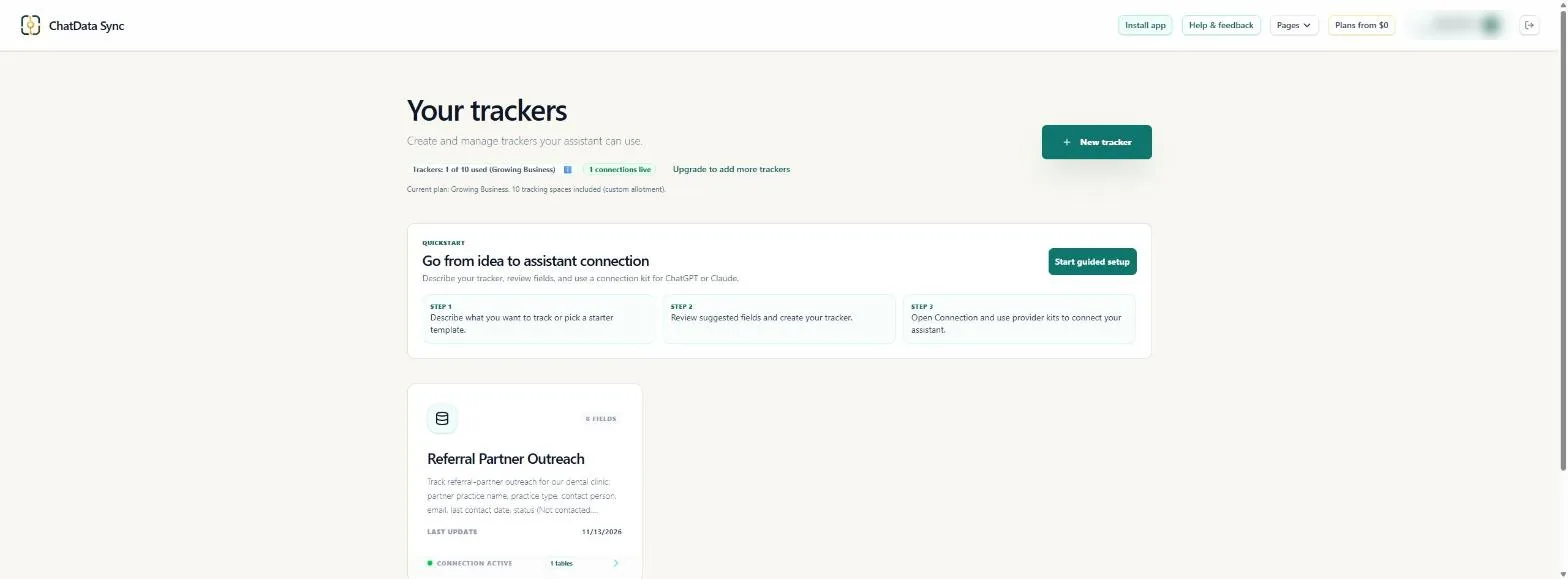
- Start a new tracker. You are Jess, the made-up front-desk lead at a small fitness studio. Every week a dozen people take a free trial class. The ones who get a quick call often join; the rest drift away, because their names sit on a clipboard. One tracker fixes that. Click New tracker.
You run the front desk at a small fitness studio. Trial visitors who get a quick call often join. Right now their names sit on a clipboard.
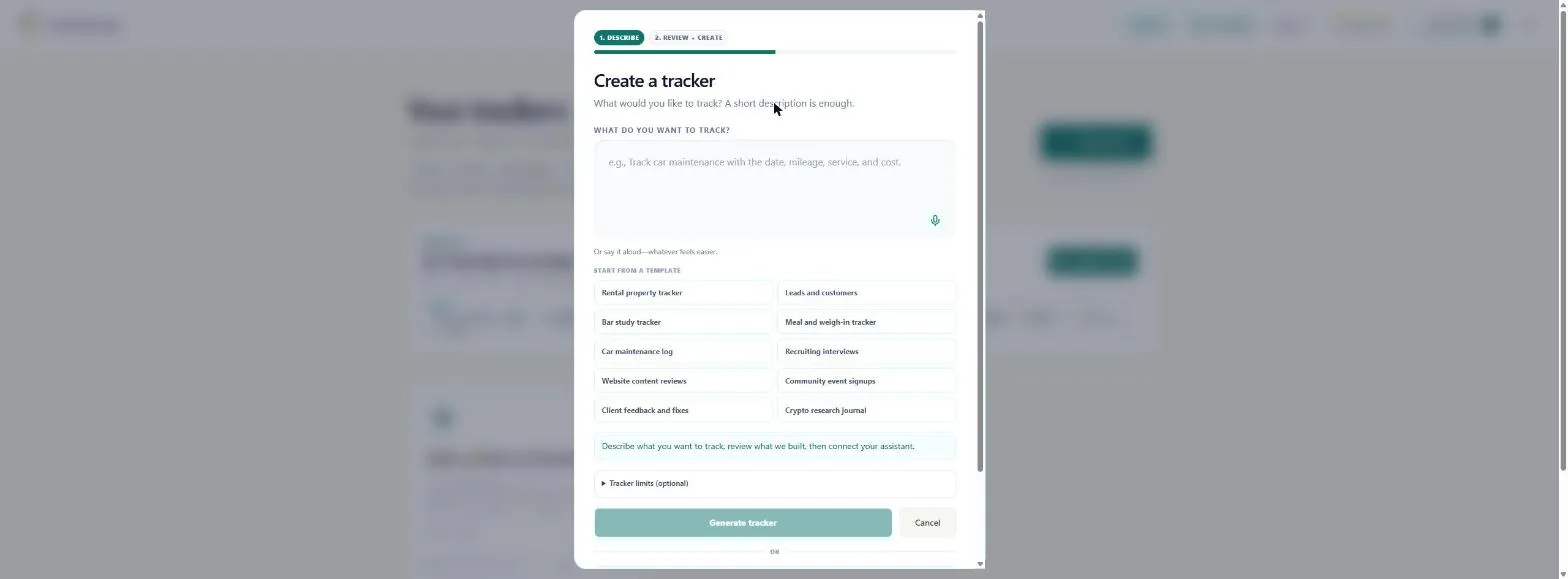
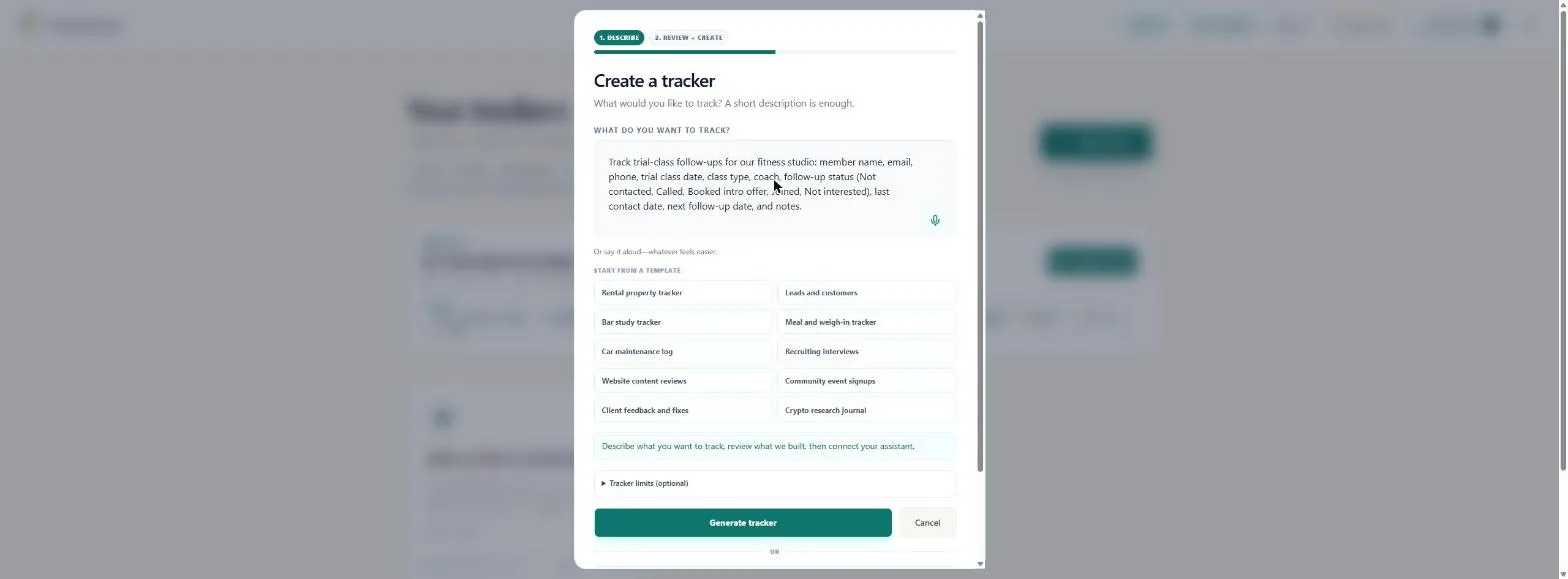
- Describe it in plain English. Describe what you track after a trial class. Name your status values in brackets, so ChatData Sync makes a pick list instead of free text.
Describe what you track after a trial class. Name your status values, so it makes a pick list.
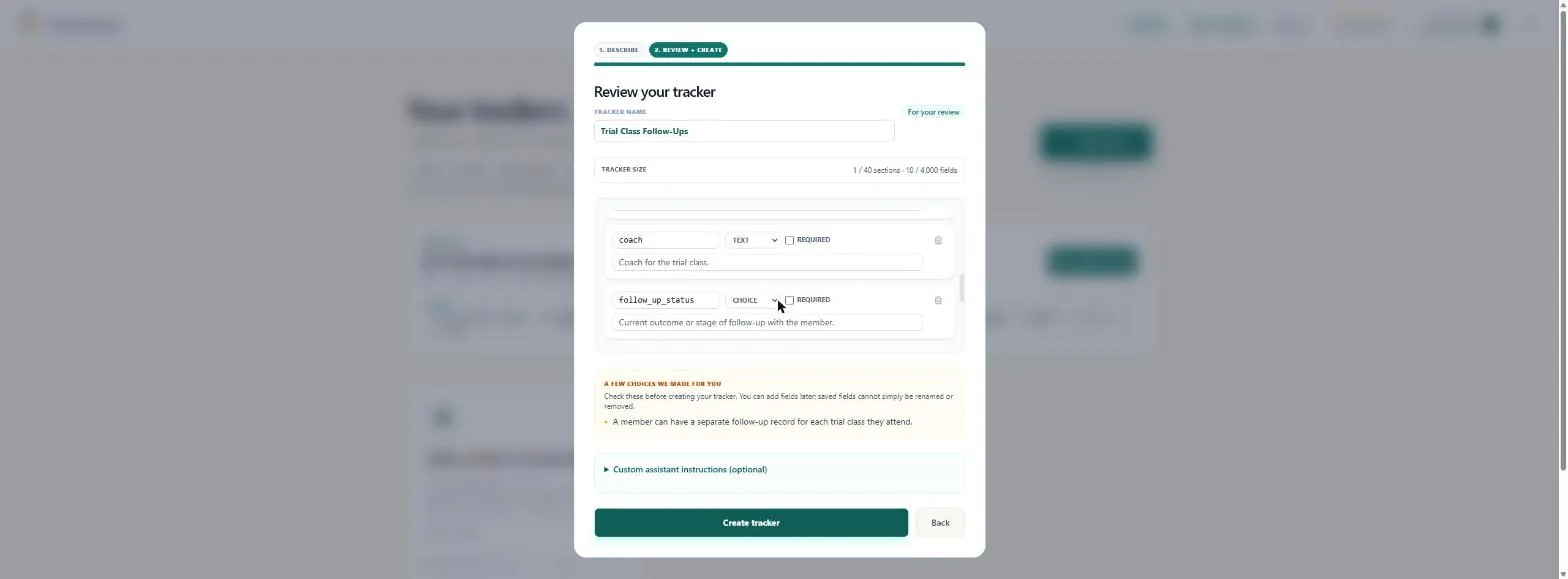
Track trial-class follow-ups for our fitness studio: member name, email, phone, trial class date, class type, coach, follow-up status (Not contacted, Called, Booked intro offer, Joined, Not interested), last contact date, next follow-up date, and notes.
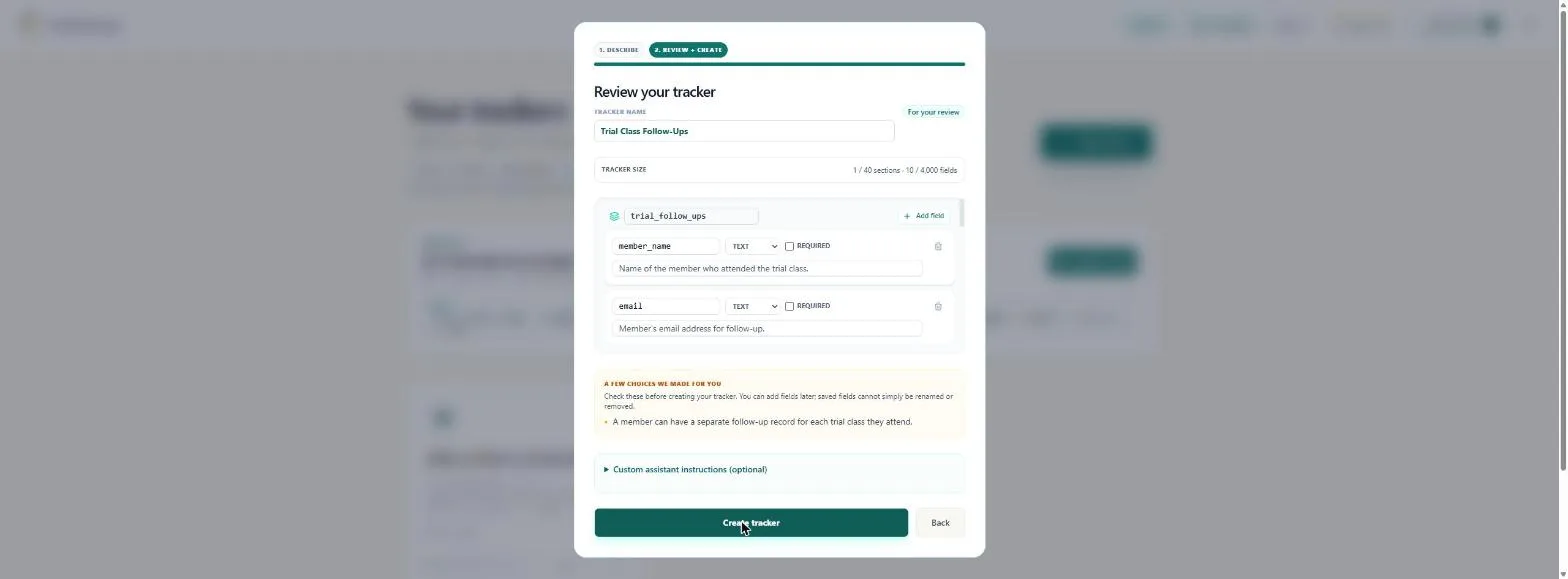
- Generate it. Click Generate tracker. Nothing is saved yet. You get a review screen first.
Nothing is saved yet.
- Check the fields it picked. It named the tracker Trial Class Follow-Ups and made 10 fields in one section, trial_follow_ups: text for name, email, phone, class type, coach and notes, and DATE for the three dates. Scroll the list and check each type. Click the fields.
It made ten fields: text for names and notes, and dates for the three dates.
- Status is a pick list. follow_up_status is a CHOICE field, built from the values you named. That keeps the list clean: nobody types "booked?" or "joined!!" by mistake. Click CHOICE.
Follow up status is a choice field, built from your values. That keeps the list clean.
- Read the choice it made for you. Read A few choices we made for you: a member can have a separate follow-up record for each trial class they attend. That suits a studio where people try two or three classes. Saved fields cannot simply be renamed or removed, so fix anything now. Click the box.
Read the choice it made. Each trial class gets its own record. Fix anything now, because saved fields cannot simply be renamed.
- Create the tracker. Click Create tracker. It also makes the tracker's connection key and ready-to-use prompts for ChatGPT, for later.
2. Log a trial with Quick log
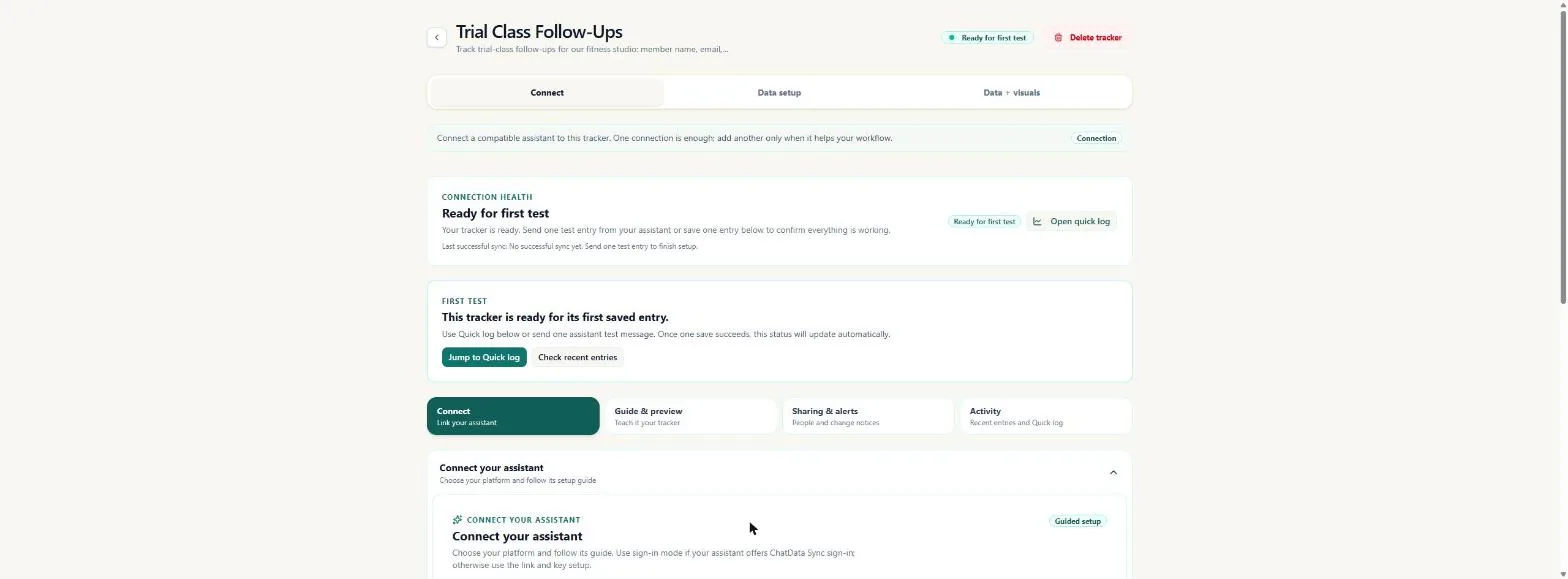
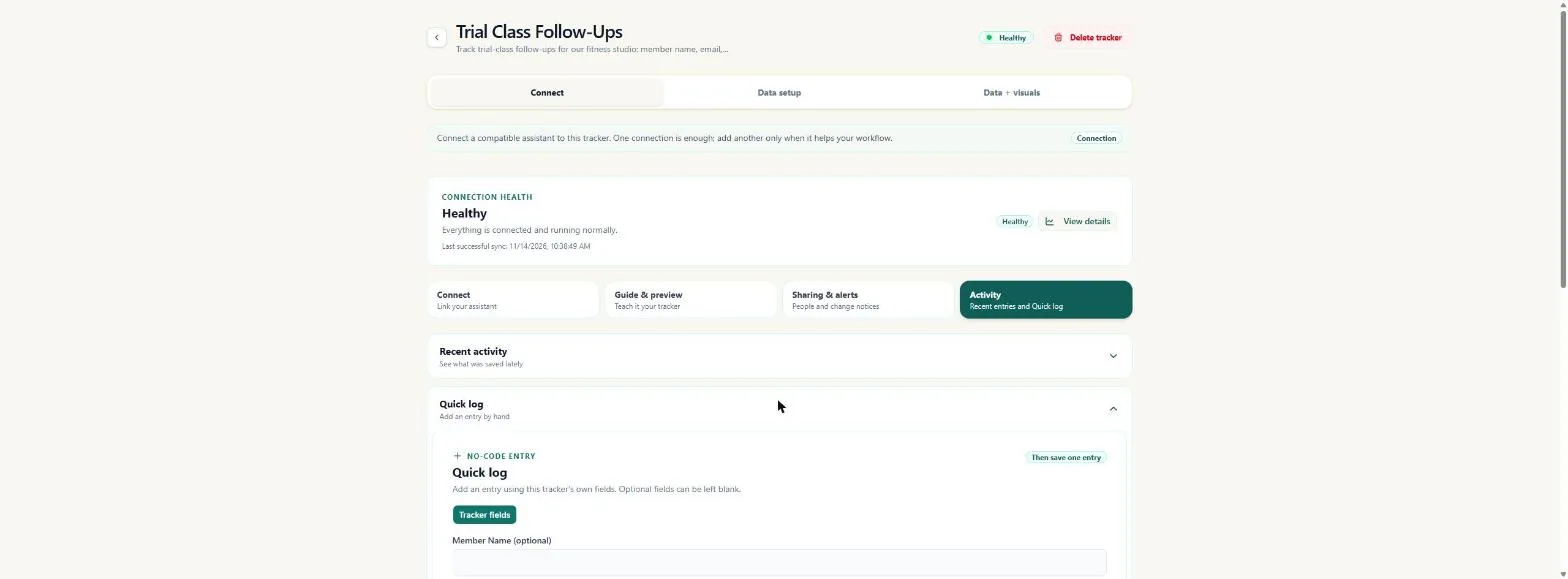
- Log your first trial by hand. It opens on Connect, with Ready for first test. You do not need ChatGPT to start. Quick log adds an entry straight from this page. Click Jump to Quick log.
Your tracker is ready. You do not need ChatGPT to start.
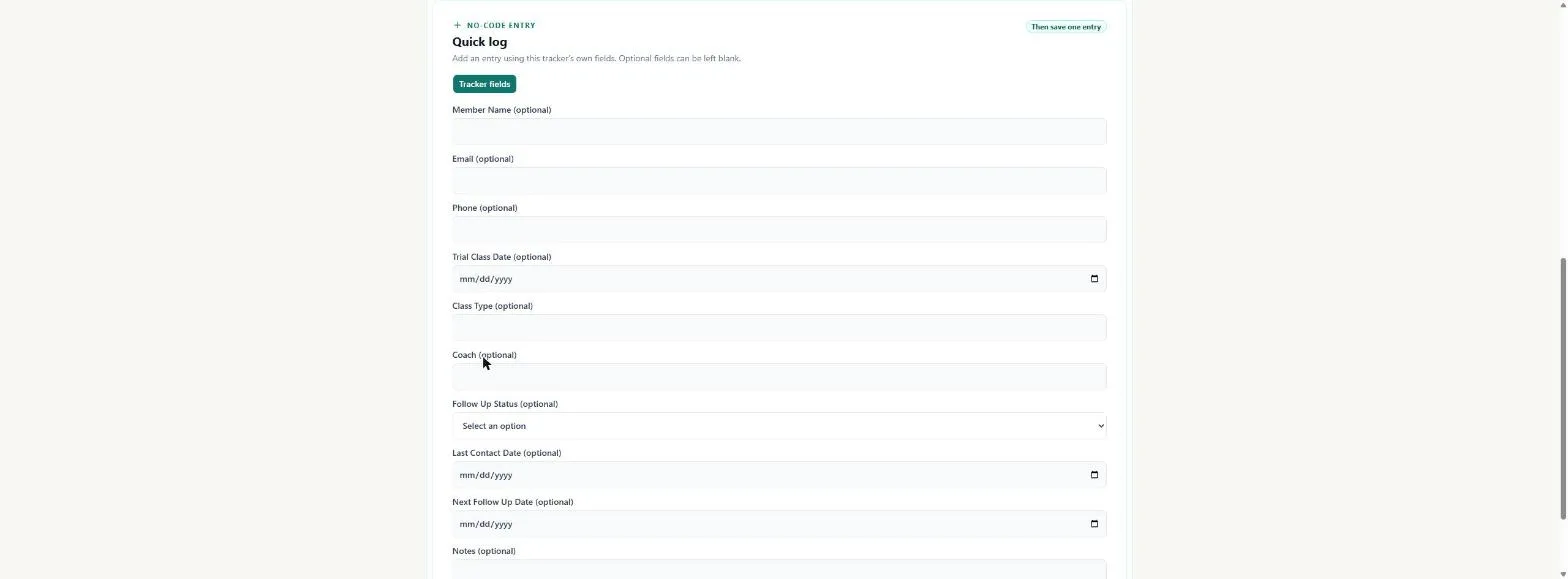
- The form is your tracker. Quick log uses this tracker's own fields: Member Name, Trial Class Date, Coach, Follow Up Status and the rest. Every field is optional, so you log what you know right after class and fill the rest later. Click Tracker fields.
Quick log uses this tracker's own fields. Every field is optional, so log what you know right after class.
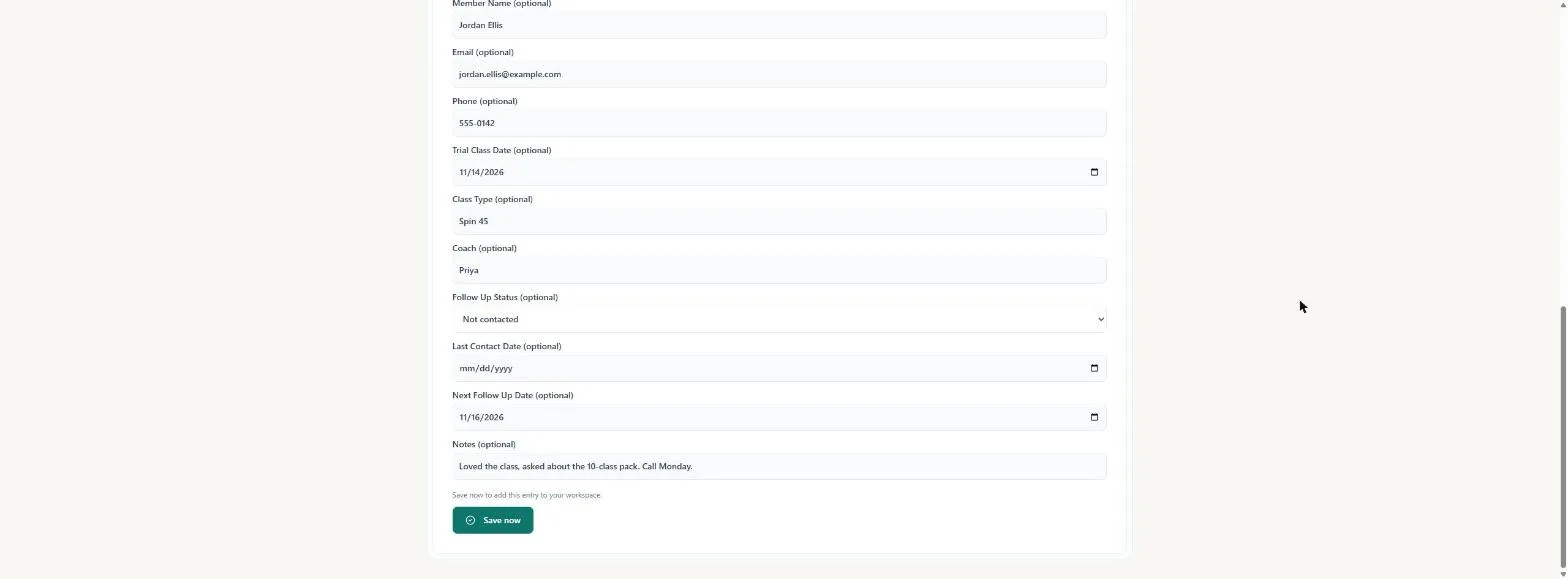
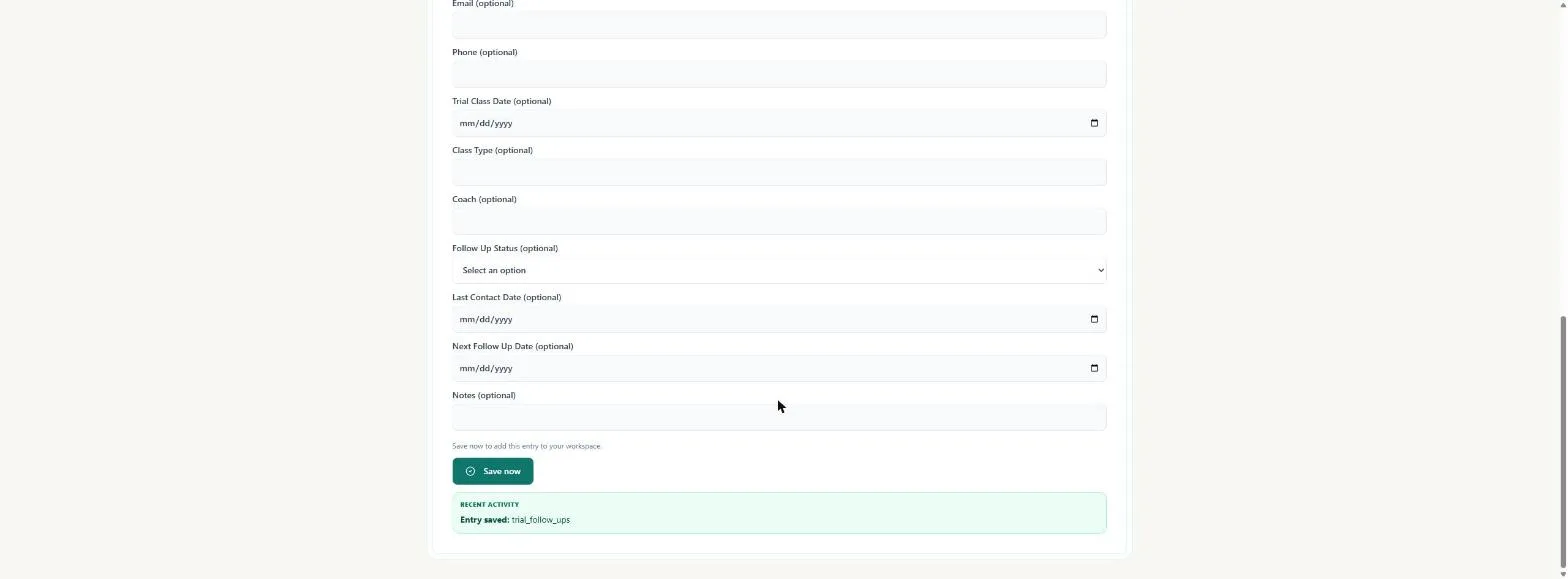
- Log Jordan's trial. Jordan Ellis just finished Spin 45 with coach Priya and asked about the 10-class pack. Fill in the name, email, phone, today's class date 11/14/2026, Not contacted, a next follow-up of 11/16/2026 and a note. Leave Last Contact Date blank: nobody has called yet. Click Save now.
Jordan just finished a spin class. Fill in the details, leave last contact date blank, and click Save now.
- Saved. The form clears and Recent activity says Entry saved: trial_follow_ups. That took under a minute, at the front desk, between classes. Click the message.
Entry saved. That took under a minute, between classes.
3. Load last week's trials
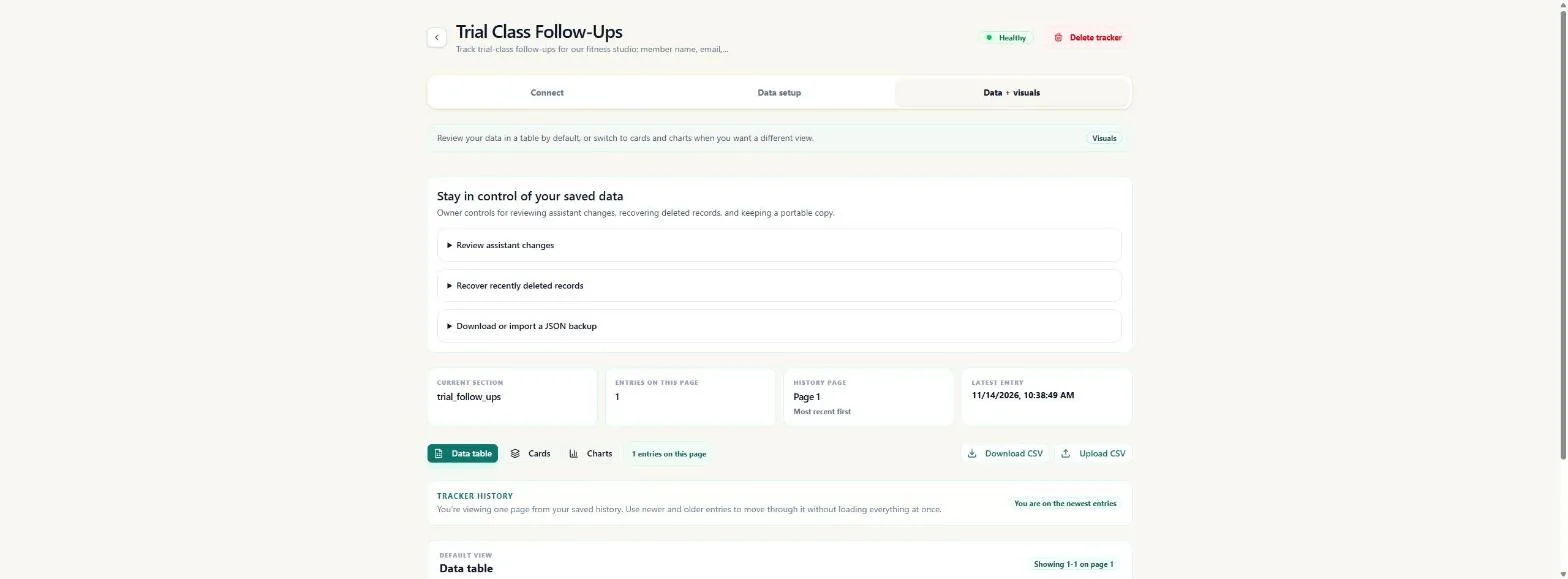
- The tracker is live. Back at the top, the tracker now shows Healthy: one saved entry was all it needed. Next, load the trials from last week's clipboard. Click Data + visuals.
The tracker now shows Healthy. Next, load last week's trials.
- Upload last week's list. Jordan is the one entry so far. Save last week's list as a CSV with the field names as headers, such as member_name and next_follow_up_date, and dates as 2026-11-15. Some rows have blank dates: Sam has not been called, and Leo has no follow-up date yet. Leave those cells empty. Click Upload CSV.
Upload last week's list as a CSV, with the field names as headers. Leave blank dates empty.
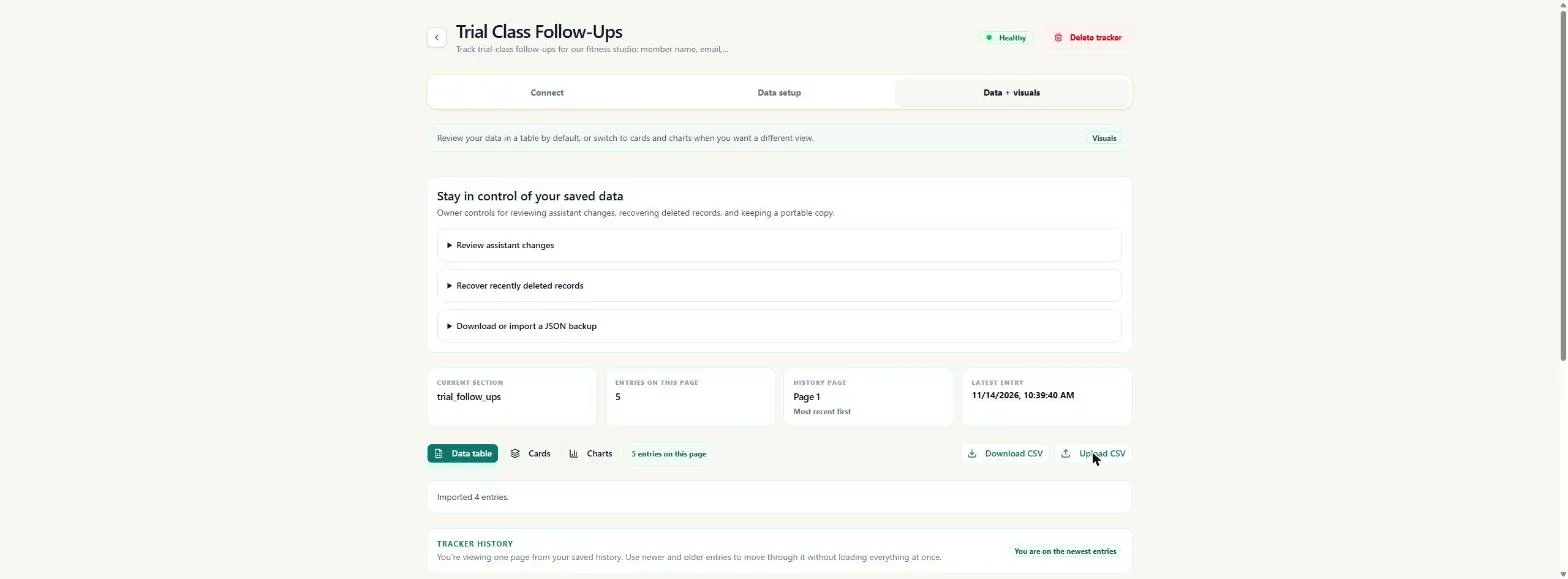
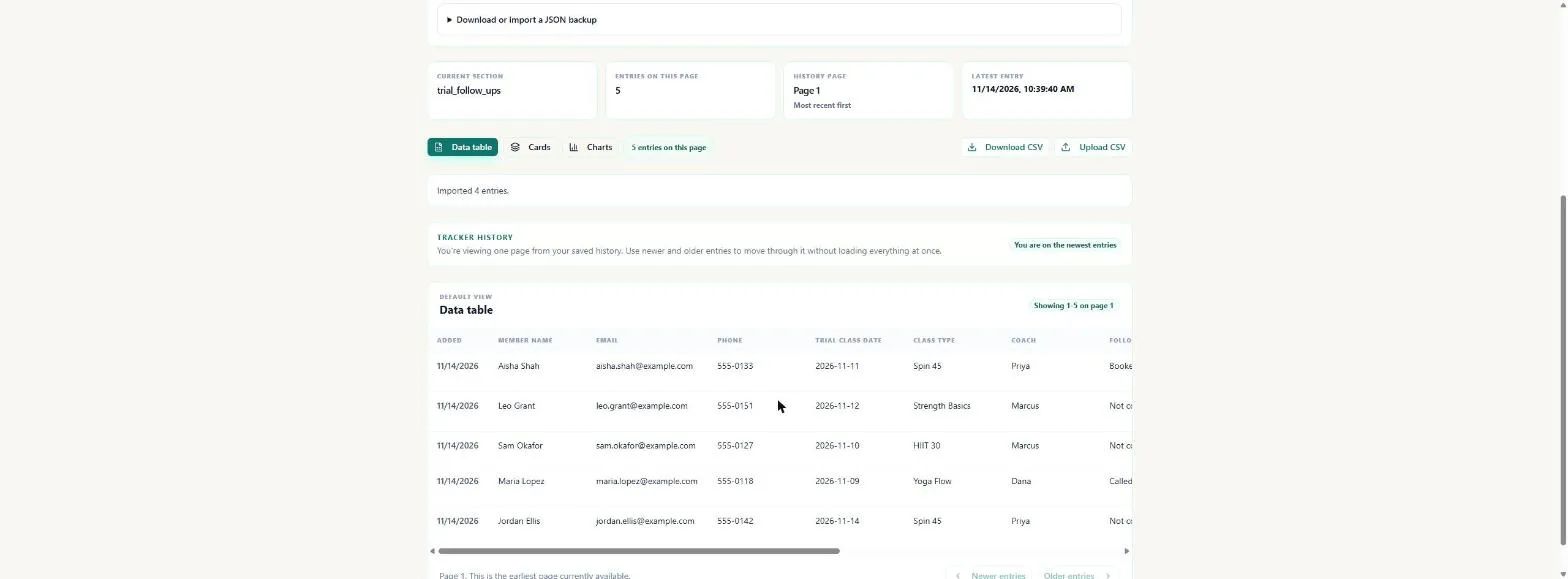
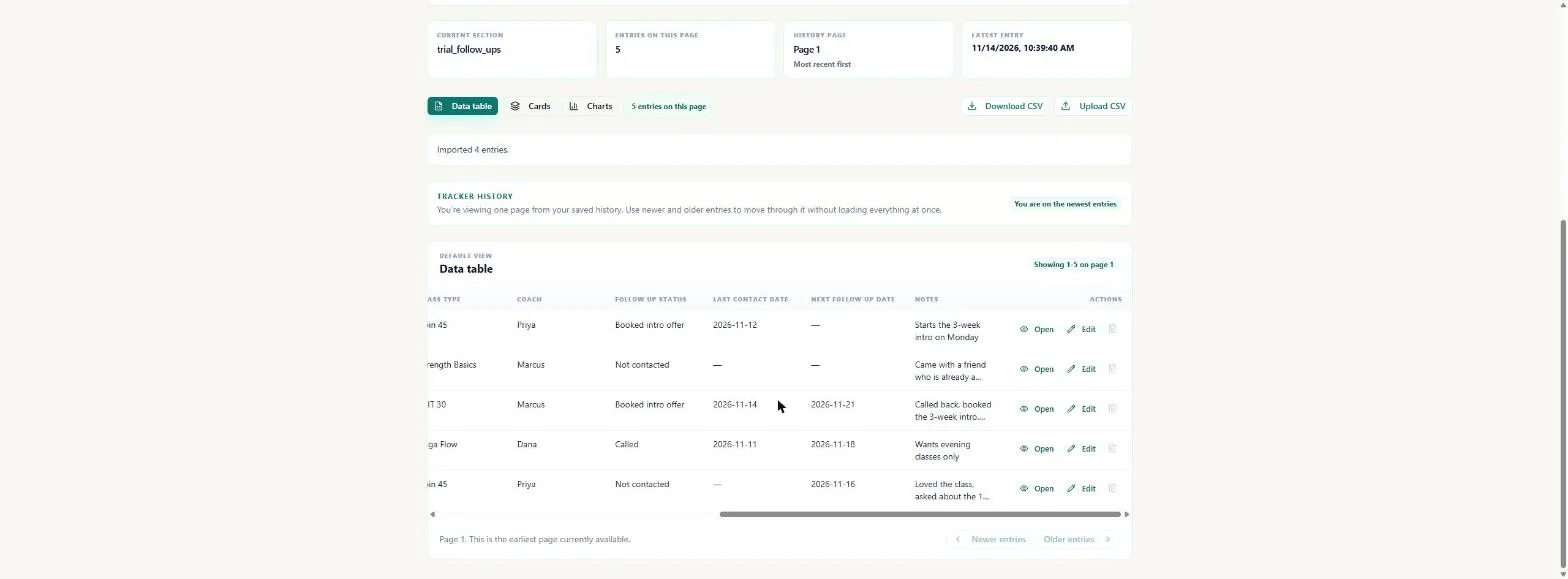
- All four came in. Imported 4 entries. Blank optional dates no longer stop the upload, so you do not have to invent a date to get a row in. Click the message.
Imported four entries. Blank dates no longer stop the upload.
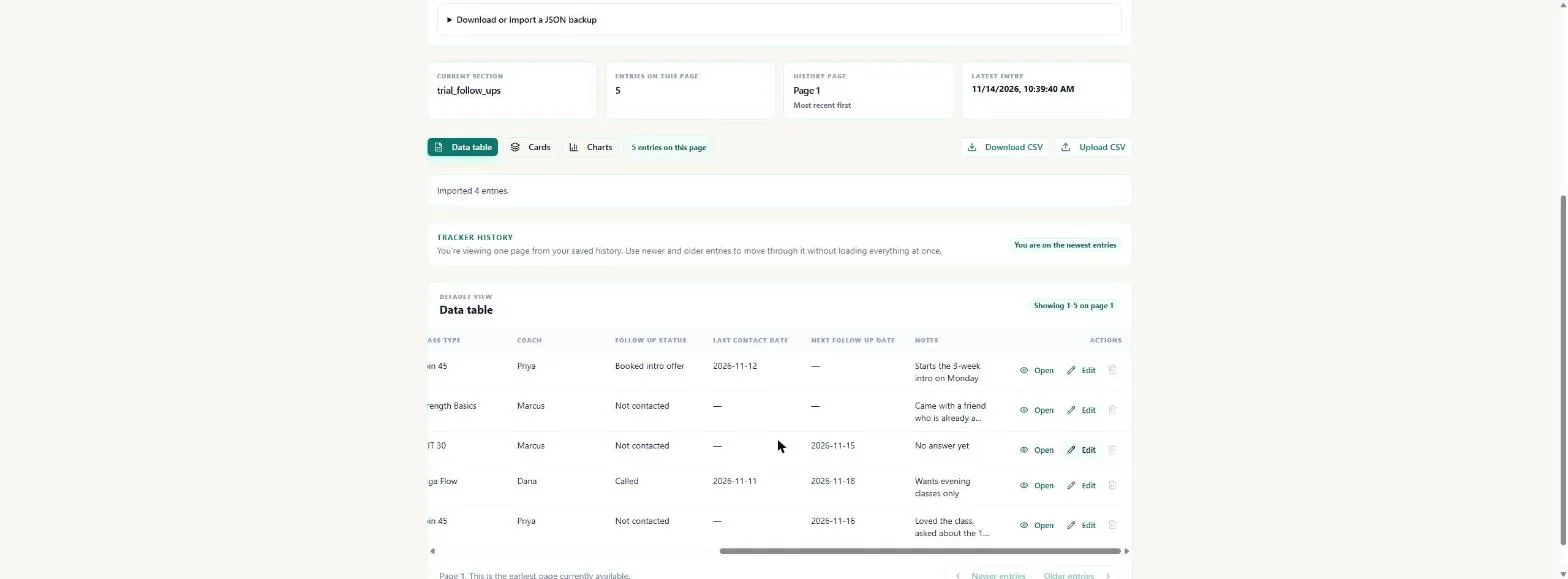
- Five trials, one list. Jordan from Quick log and the four from the CSV now sit in one table. Scroll the table to the right.
Quick log and the CSV now feed one table.
4. Work the call list
- Blanks show who needs a call. Blank dates show as a dash. A dash under Last Contact Date with Not contacted means nobody has called that person yet: Leo, Sam and Jordan. Click Leo's dash.
A dash means no date yet. No last contact means nobody has called.
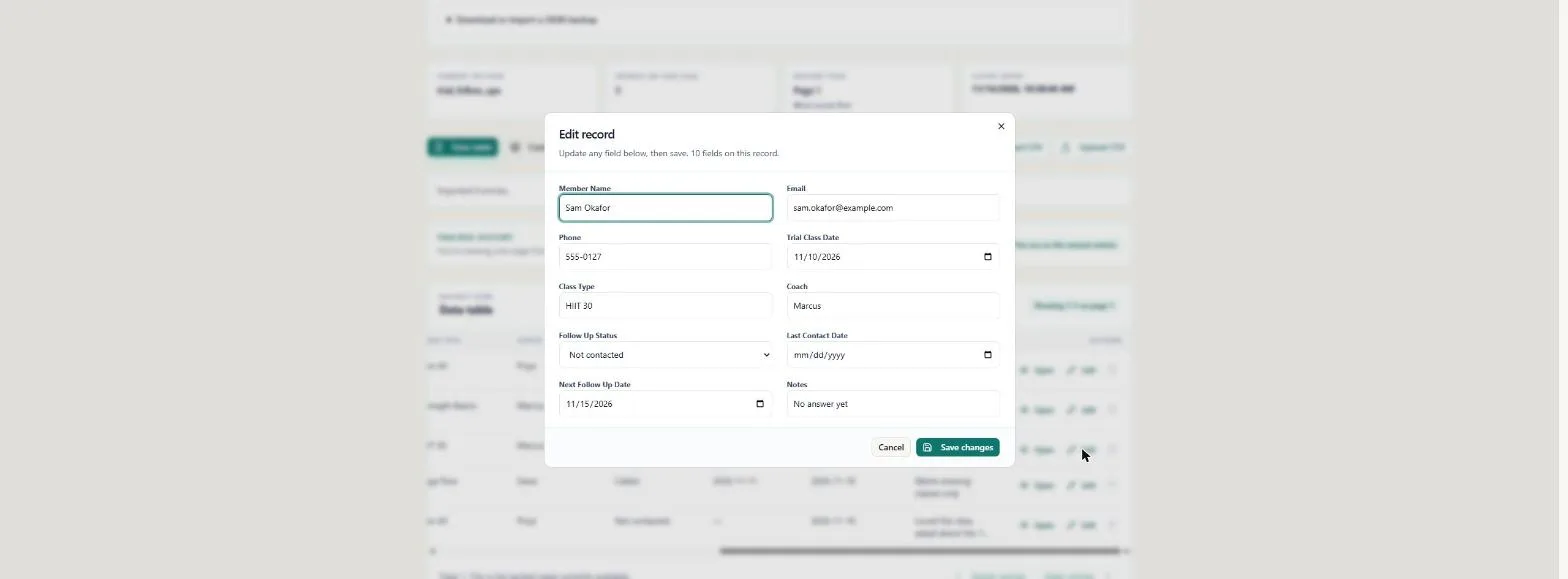
- Sam called back. Sam Okafor rang back today and booked the 3-week intro offer. Click Edit on Sam's row.
Sam called back and booked the intro offer.
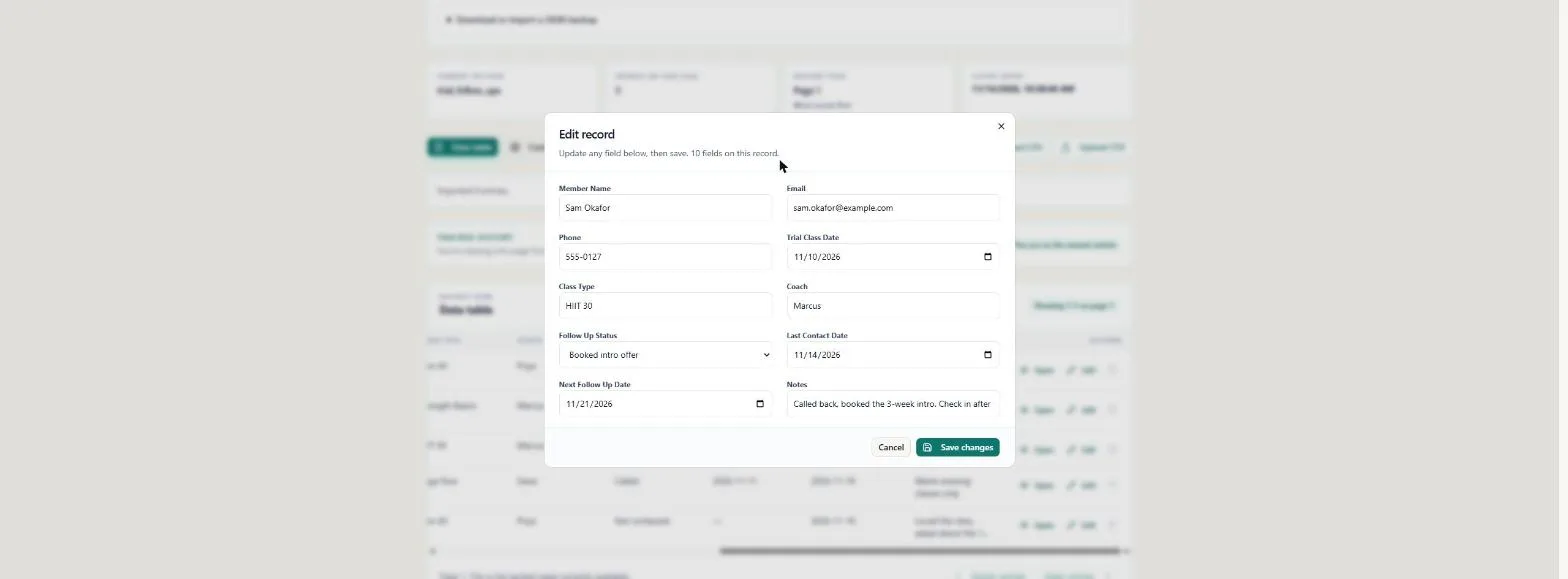
- Update what changed. Change Follow Up Status to Booked intro offer, Last Contact Date to 11/14/2026, Next Follow Up Date to 11/21/2026, and the notes. Click Follow Up Status.
Set the status to Booked intro offer, and update the dates and notes.
- Save it. Click Save changes.
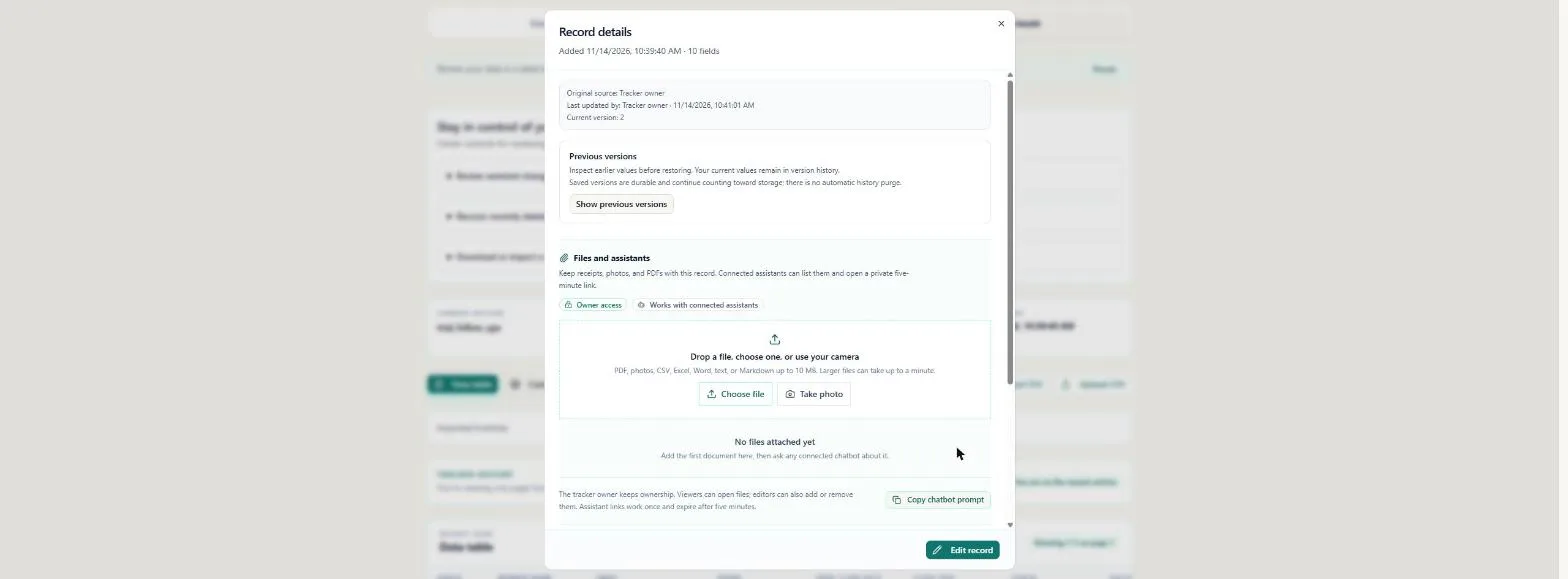
- Every save is a version. The record opens: Last updated by: Tracker owner, Current version: 2. If ChatGPT edits a record later, you see it here and can open Show previous versions. You can also attach a file, such as a signed waiver. Close the record with the X.
Every save is a version, with who changed it. Close the record.
- Your call list. Sam now shows Booked intro offer and 2026-11-21. Read down Next Follow Up Date and the dashes, and you know who to call today. Click Sam's new date.
Sam now shows Booked intro offer. Read down the follow up column, and you know who to call today.
- Make it a habit. Each new trial gets logged the same way: Connect, Activity, Quick log, right after class. Later, the same tracker can take entries from ChatGPT through the ChatData Sync plugin. Click Quick log.
Log every new trial with Quick log, right after class. Later, ChatGPT can add entries too.
Screenshots
More in Business Automations
 AI Receipt Extractor: Receipts to Google Sheets with n8n
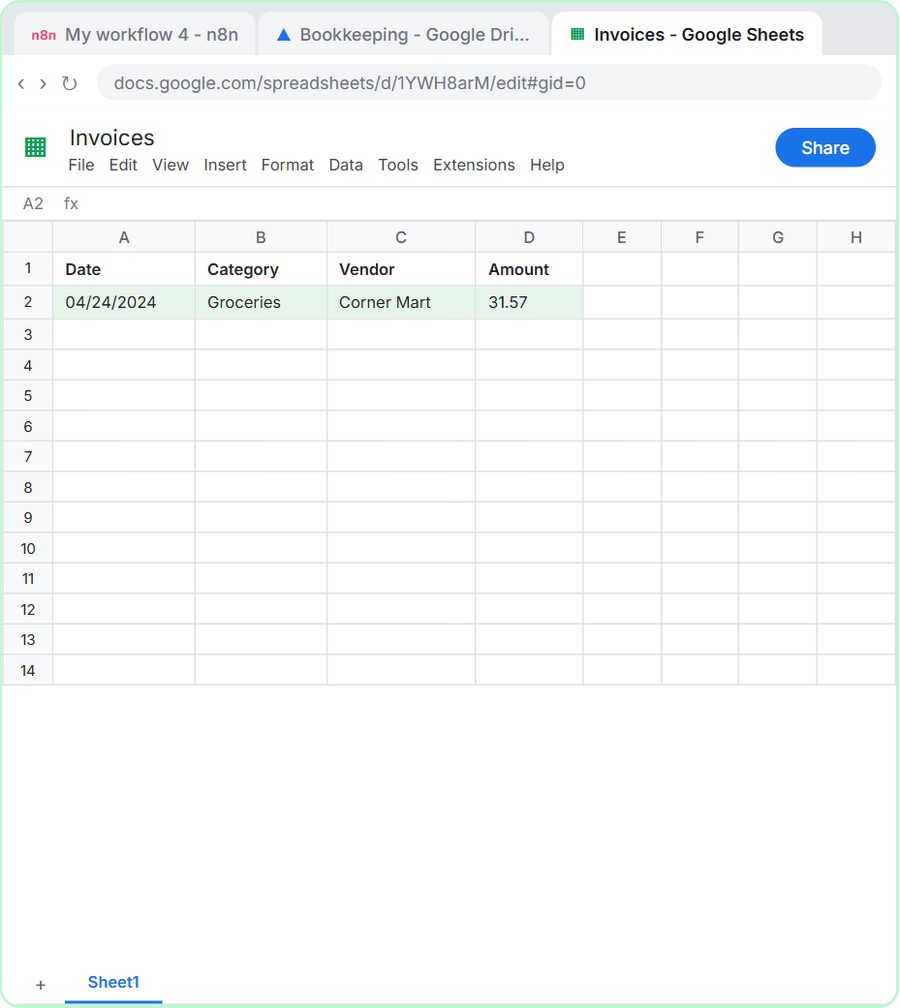
Drop a photo of a receipt into an n8n chat. An AI agent reads it, pulls out the date, vendor and amount, picks a category, and adds a row to Google Sheets.
Free · Live ~12 min Intermediate
 n8n AI Email Responder: Draft Gmail Replies Automatically
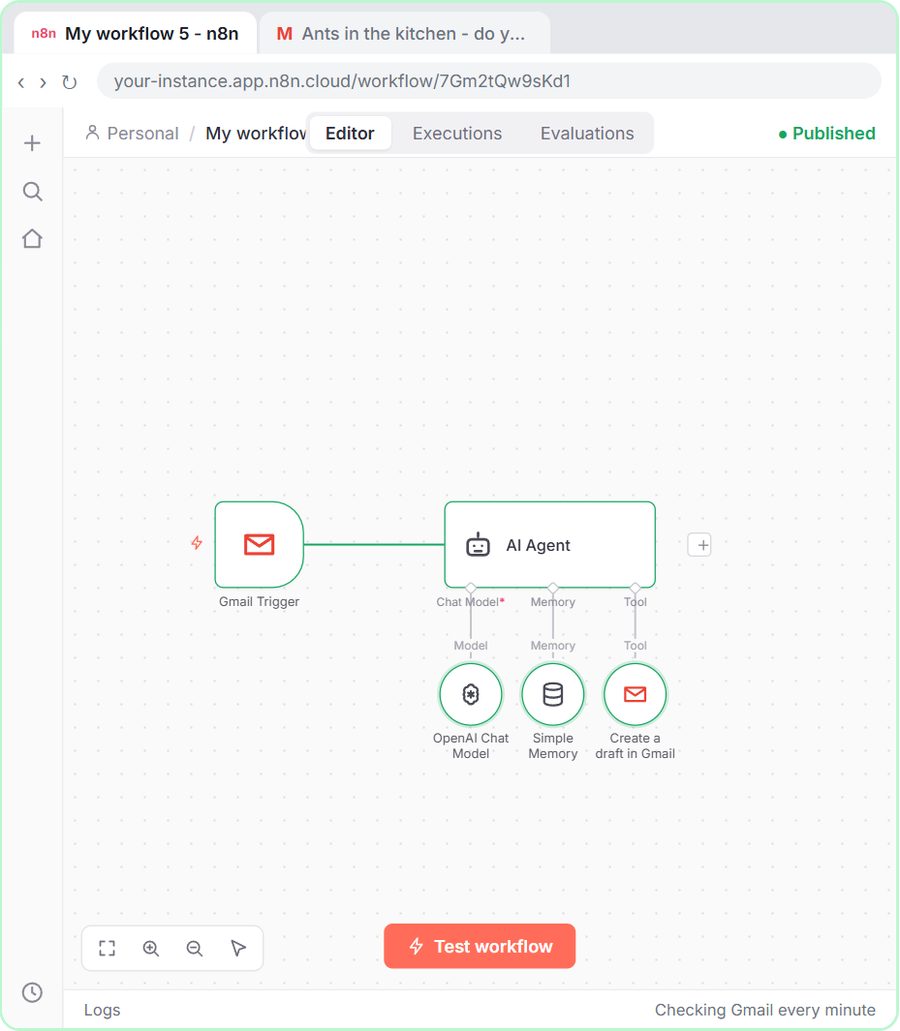
Build an n8n agent that watches your Gmail, reads each new customer email, and writes a reply as a draft in the same thread, ready for you to check and send.
Free · Live ~12 min Intermediate
 Daily Job Alerts: Email Each Tech Their Jobs from Google Sheets with n8n
Every morning at 7, n8n reads a plumbing company's jobs sheet, skips anything not assigned yet, and emails each job to the tech it's assigned to — customer, address…
Free · Live ~10 min Intermediate
 Gmail AI Triage: Auto-Label Every Email and Draft Replies
Build an n8n workflow that reads each new email, sorts it as a lead, a client or an invoice with a Text Classifier, adds the matching Gmail label, and drafts a reply to…
Free · Live ~18 min Advanced
 A Support Agent That Answers from Your Own Docs
Turn an n8n chat agent into a support agent that answers only from your policies in a Google Doc, refuses what it should, and hands off to a person by email.
Free · Live ~13 min Advanced
 Chatbase: Answer Customer FAQs with an AI Agent
A business case for a small firm that answers the same customer questions every week: build a Chatbase AI agent on your FAQ in the real app, make it say when it does…
Free · Live ~15 min Beginner
All 47 modules in Business Automations
Terms in this lesson
Plain-English definitions, each with an example from a free lesson.