Updated . Built against the tool’s current screens and checked step by step. How we check this lesson
Ask Octuo for a day-by-day make-ready checklist with an owner for every job, change it by asking, and set a reminder so the vendor calls happen before move-out.
At a glance
| Question | Answer |
|---|---|
| What you build | Ask Octuo for a day-by-day make-ready checklist with an owner for every job, change it by asking, and set a reminder so the vendor calls happen before move-out. |
| Tools | Octuo |
| Time | About 6 minutes, 11 steps in 4 parts |
| Level | Beginner, no coding needed |
| Cost | Free |
| Ways to learn it | Practice it step by step |
The 4 parts, in short
- Ask for the plan: One session per unit, Say who does what, and when, Send it.
- Work the checklist: A plan in about 20 seconds, Your make-ready board, Tick as you go.
- Change it by asking: Book the vendors first, Tell Octuo what is done.
- Never miss the vendor call: Set the reminder, Check that it is scheduled, One place for every job.
Start here first: AI Receipt Extractor: Receipts to Google Sheets with n8n (module 1 of Business Automations)
In the course: Part 9 · n8n Automation Toolkit (Module 137 of the full course)
Part of: AI Apps Worth Knowing (step 157 of 157)
What you'll build
You manage a small apartment building, Maple Court Apartments (made up). The tenant in Unit 4B moves out on Saturday, November 28, and the next tenant moves in on Thursday, December 3. That leaves five days for the walkthrough, cleaning, repairs, paint and keys, and every extra empty day costs rent. In this lesson you ask Octuo for a make-ready checklist on its Canvas, grouped by day with who does each job, tick off move-out day, add a vendor-booking day by asking, and set a reminder for the calls. Then you check the reminder on the Dashboard.
You asked Octuo for a day-by-day make-ready checklist on Canvas, ticked off move-out day, added a vendor-booking day just by asking, had Octuo mark finished items so they stay done, and set a reminder you checked on the Dashboard. Next, run your real turnover the same way, and save the request as your template for every unit.
- Tools: Octuo
- Time: about 6 minutes, 11 steps in 4 chapters
- Level: beginner, no coding needed
- Price: free
Practice first, then build it for real
Practice copy built from real Octuo web app screens (octuo.tutuo.ai), captured 14 November 2026 on the free trial. Nothing here touches an Octuo account. The building, the unit and the dates are made up. To build it for real you need your own Octuo account, and some services charge once you use them for real work, so check each tool's current pricing.
Try it yourself, free
Reading the steps is a start. Doing them is how it sticks. The interactive module walks you through every click in a practice copy of Octuo, checks each step, and never touches your real accounts.
Start “Octuo: Turn Over a Vacant Apartment in 5 Days with a Make-Ready Checklist”Step by step: Octuo: Turn Over a Vacant Apartment in 5 Days with a Make-Ready Checklist
All 11 steps of the interactive module, in order. In the module you watch each one, then do it yourself in a practice copy that checks your work.
1. Ask for the plan
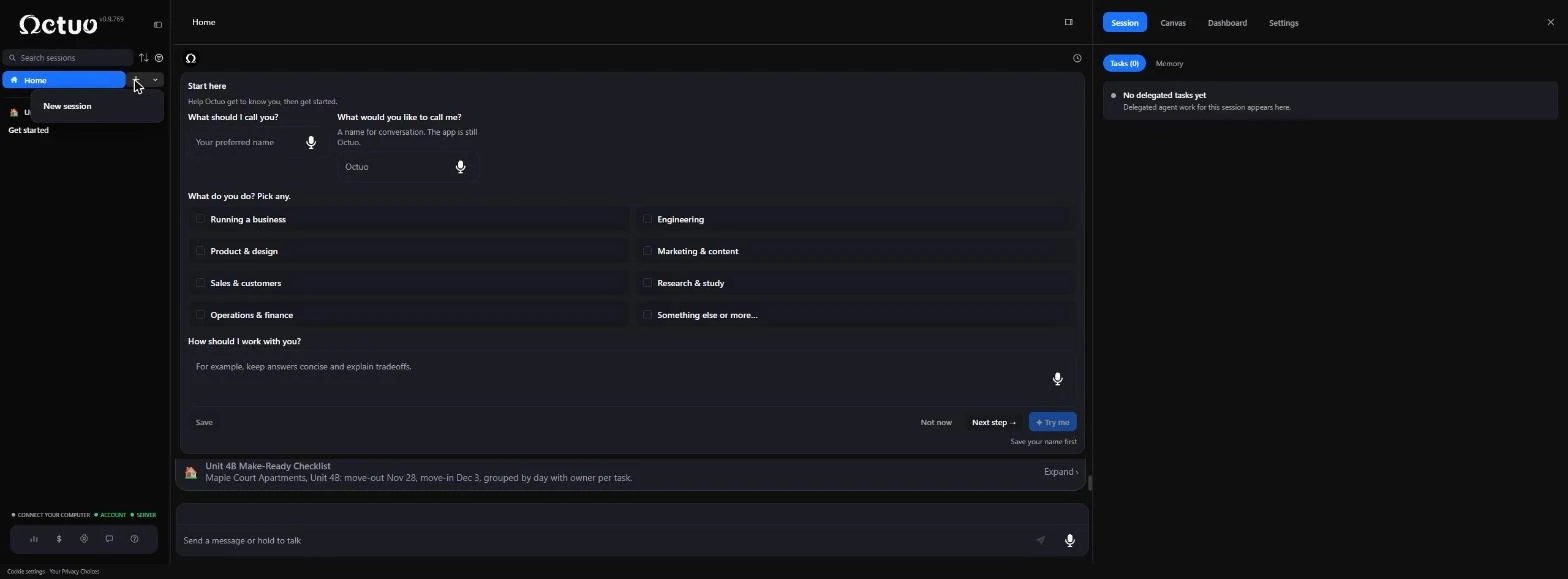
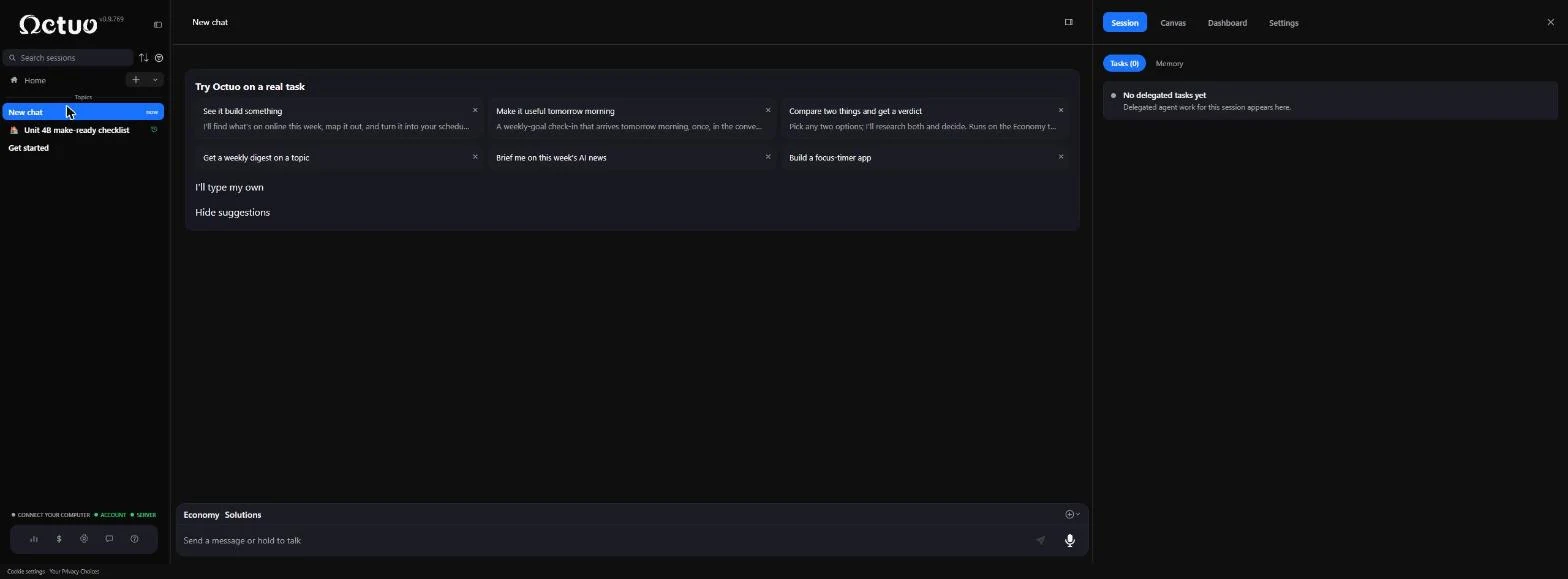
- One session per unit. You manage a small apartment building, Maple Court Apartments (made up). Unit 4B empties on Sat Nov 28 and the next tenant moves in on Thu Dec 3. Every empty day costs rent, and a missed painter or cleaner can push the move-in. We clicked the + next to Home in Octuo. Click New session.
Unit 4B empties on November 28, and the next tenant moves in on December 3. Every empty day costs rent.
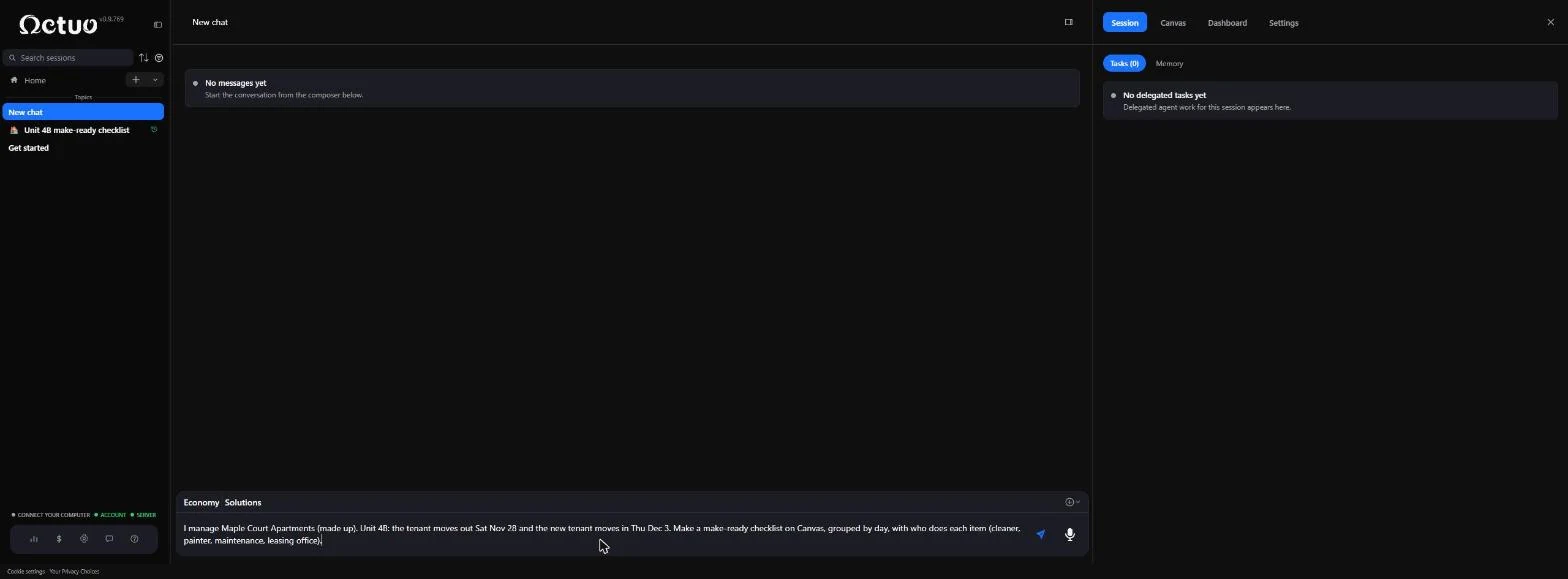
- Say who does what, and when. Give Octuo the unit, both dates and the people who do the work. Asking for Canvas puts the checklist in Octuo's side panel instead of a long chat reply. Use made-up names until you are ready to do it for real.
Give Octuo the unit, both dates, and who does the work. Ask for it on Canvas.
I manage Maple Court Apartments (made up). Unit 4B: the tenant moves out Sat Nov 28 and the new tenant moves in Thu Dec 3. Make a make-ready checklist on Canvas, grouped by day, with who does each item (cleaner, painter, maintenance, leasing office).
- Send it. The first time you send, Octuo asks whether it may share your content with its AI providers; read it and choose. Economy is the cheapest tier, and the free trial starts with 1,000 OC credits. Click the send arrow.
2. Work the checklist
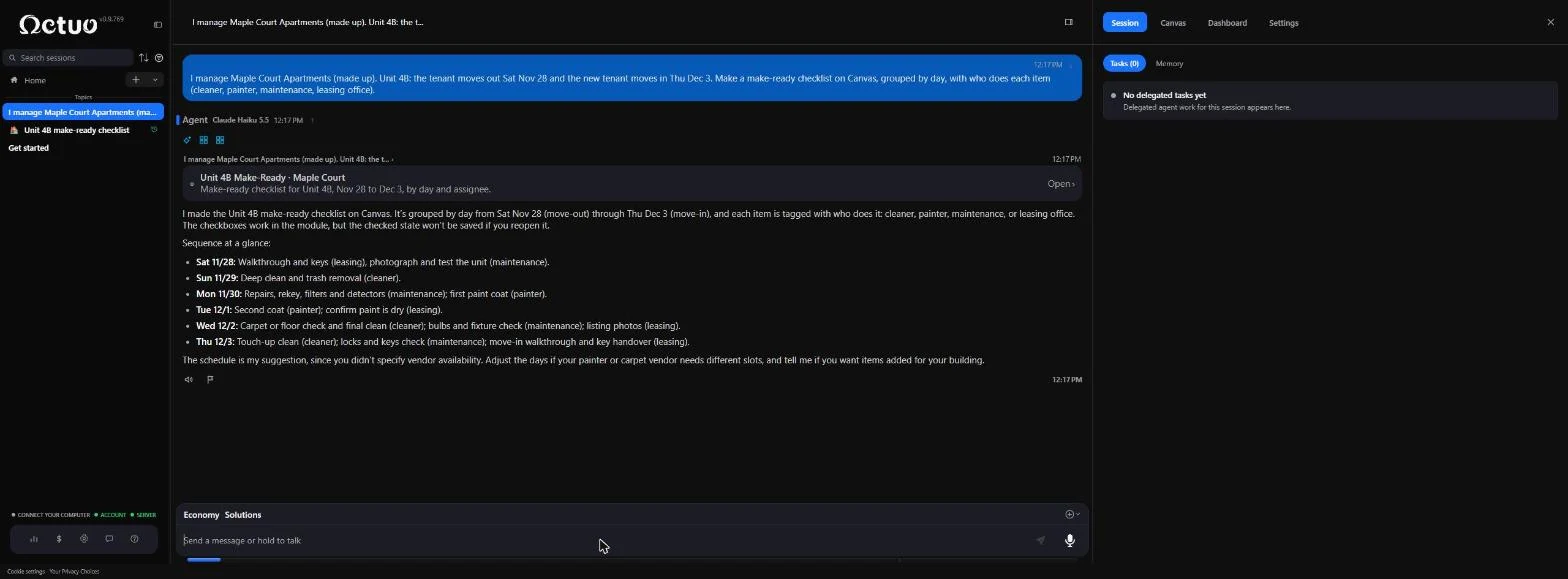
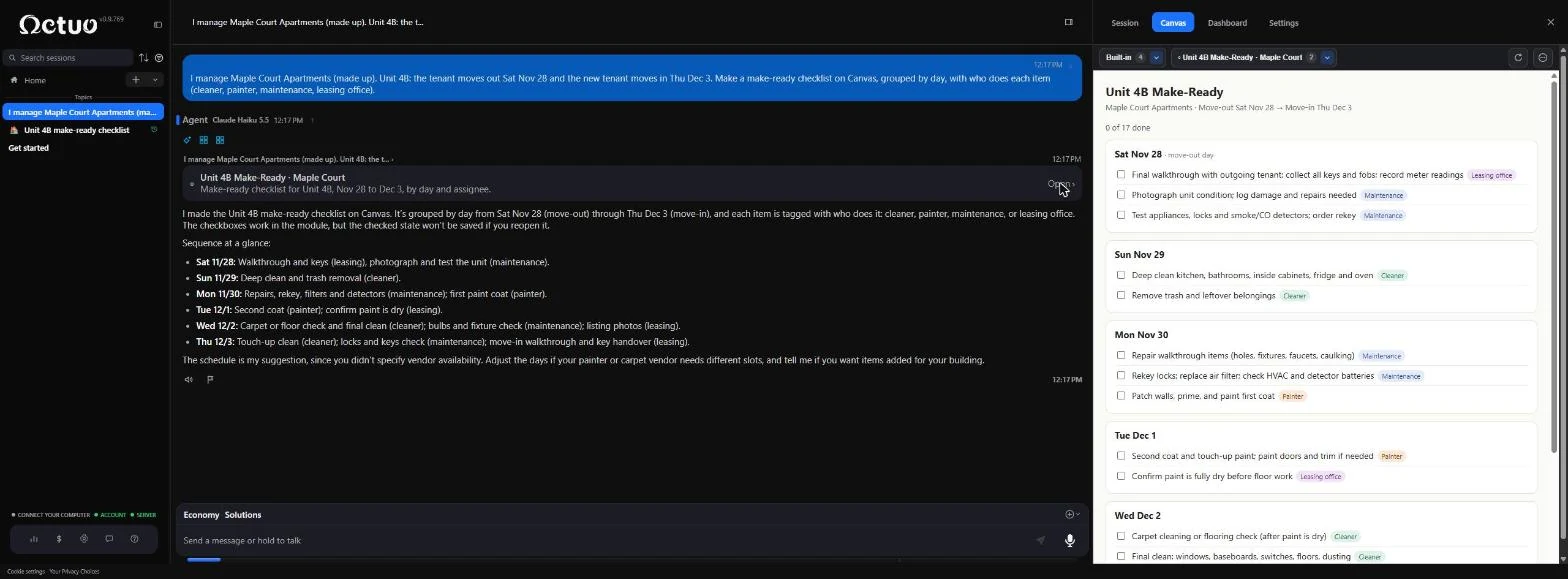
- A plan in about 20 seconds. Octuo replies with the plan day by day, from move-out to move-in, each job tagged with who does it. Your list may differ a little; AI answers vary. The card above the reply is the checklist on Canvas. Click Open.
Octuo lays out the plan day by day, with who does each job.
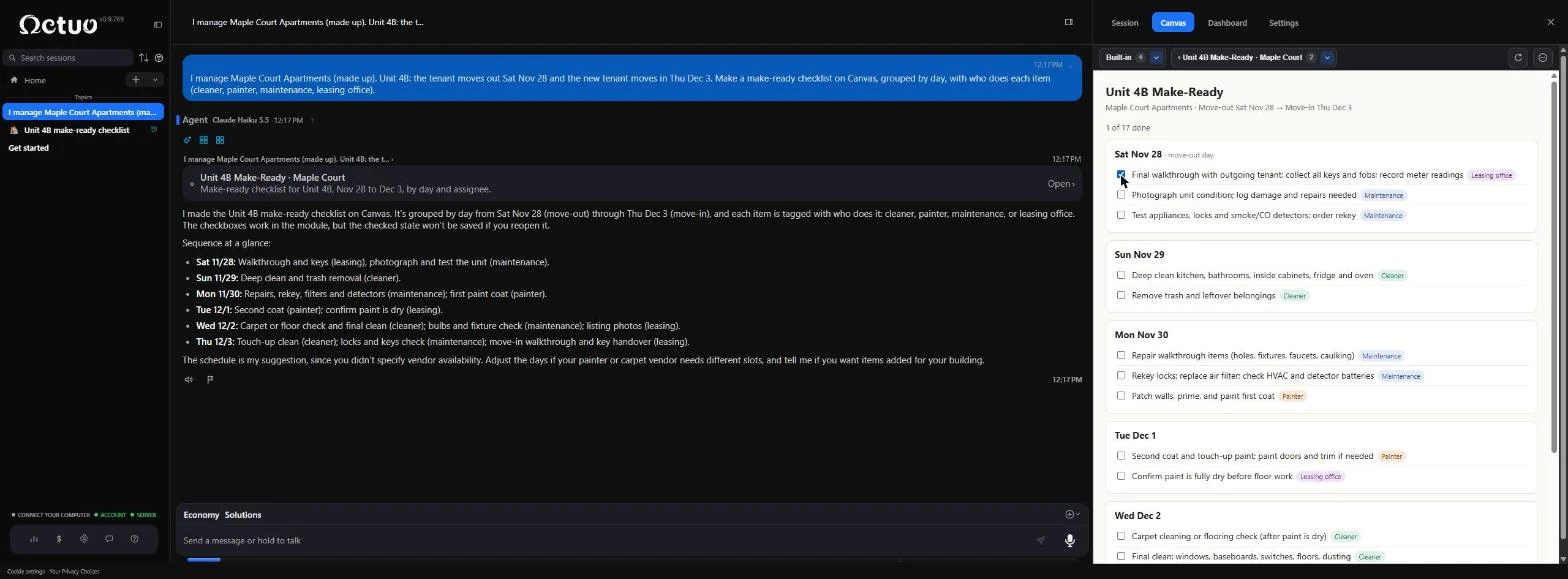
- Your make-ready board. The Canvas panel shows the checklist with a 0 of 17 done counter and coloured tags for leasing office, maintenance, cleaner and painter. Move-out day: tick Final walkthrough with outgoing tenant.
Here is the checklist on Canvas, with a done counter and a tag for each person. Tick the final walkthrough.
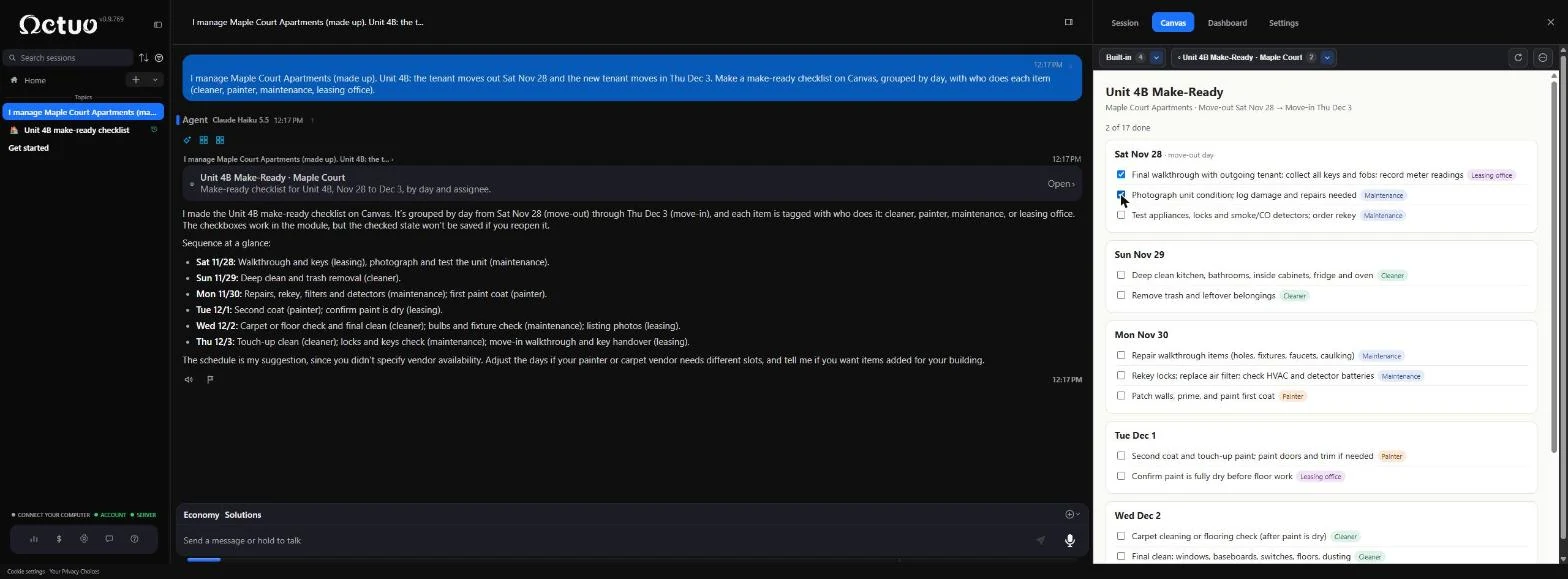
- Tick as you go. The counter says 1 of 17 done. Tick Photograph unit condition too.
Tick the photos too.
3. Change it by asking
- Book the vendors first. 2 of 17 done. The cleaner and the painter need a call before move-out, or the 5 days slip. Ask Octuo to add that to the top, then press Enter.
The cleaner and painter need a call before move-out. Ask Octuo to add that at the top, and press Enter.
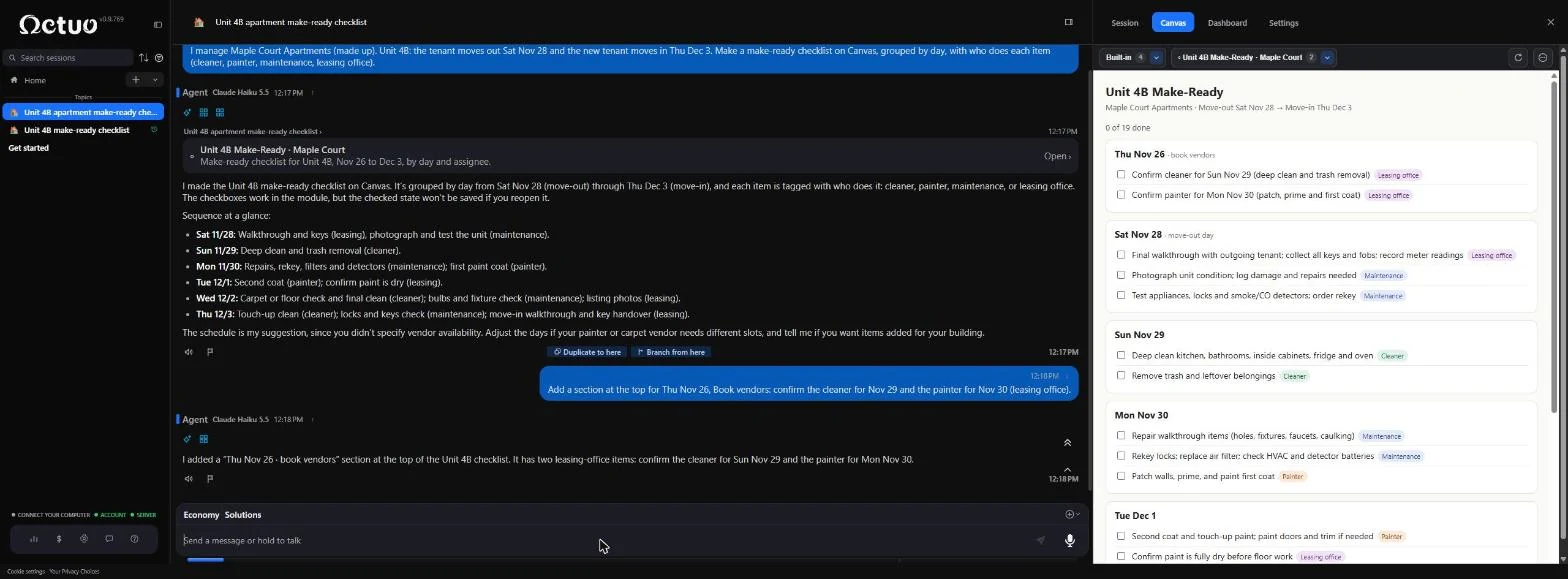
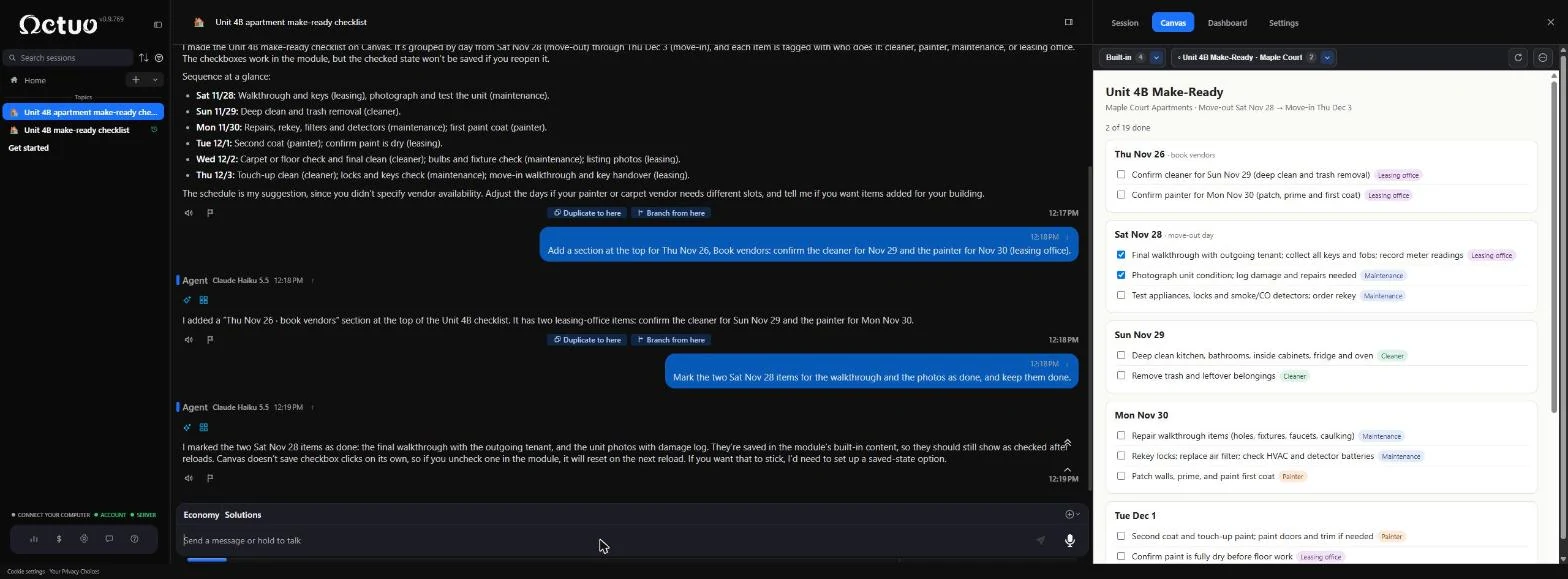
- Tell Octuo what is done. A new Thu Nov 26, book vendors section sits on top, now 0 of 19 done: your two ticks are gone. In our test, ticks you click reset when Octuo changes the list or you reload. Ask Octuo to mark them done instead, then press Enter.
The vendor section is on top, but the two ticks reset. Ask Octuo to mark them done instead, and press Enter.
4. Never miss the vendor call
- Set the reminder. 2 of 19 done, and these stayed ticked after we reloaded the page. Now make sure nobody forgets the vendor calls. Ask for a reminder, then press Enter.
These stay ticked now, even after a reload. Ask for a reminder for the vendor calls, and press Enter.
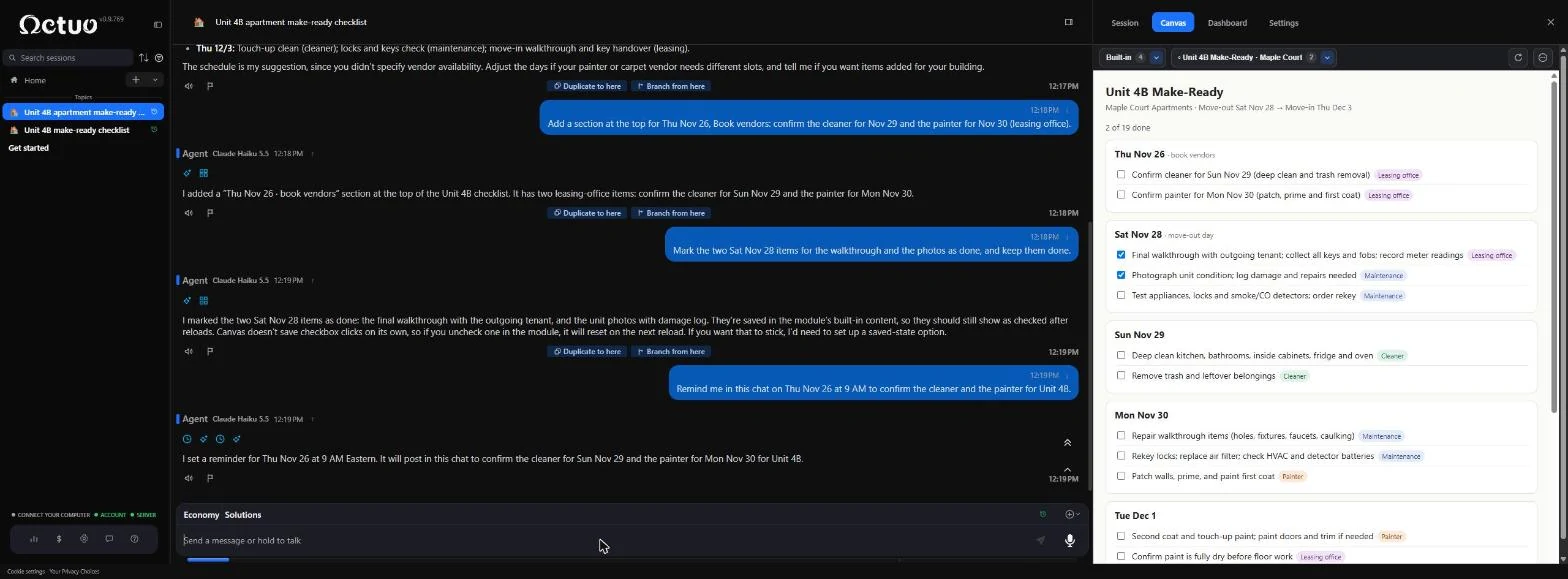
- Check that it is scheduled. Octuo says it set the reminder for Thu Nov 26 at 9 AM and will post it in this chat. Check it yourself. Click Dashboard.
Octuo says the reminder is set. Check it.
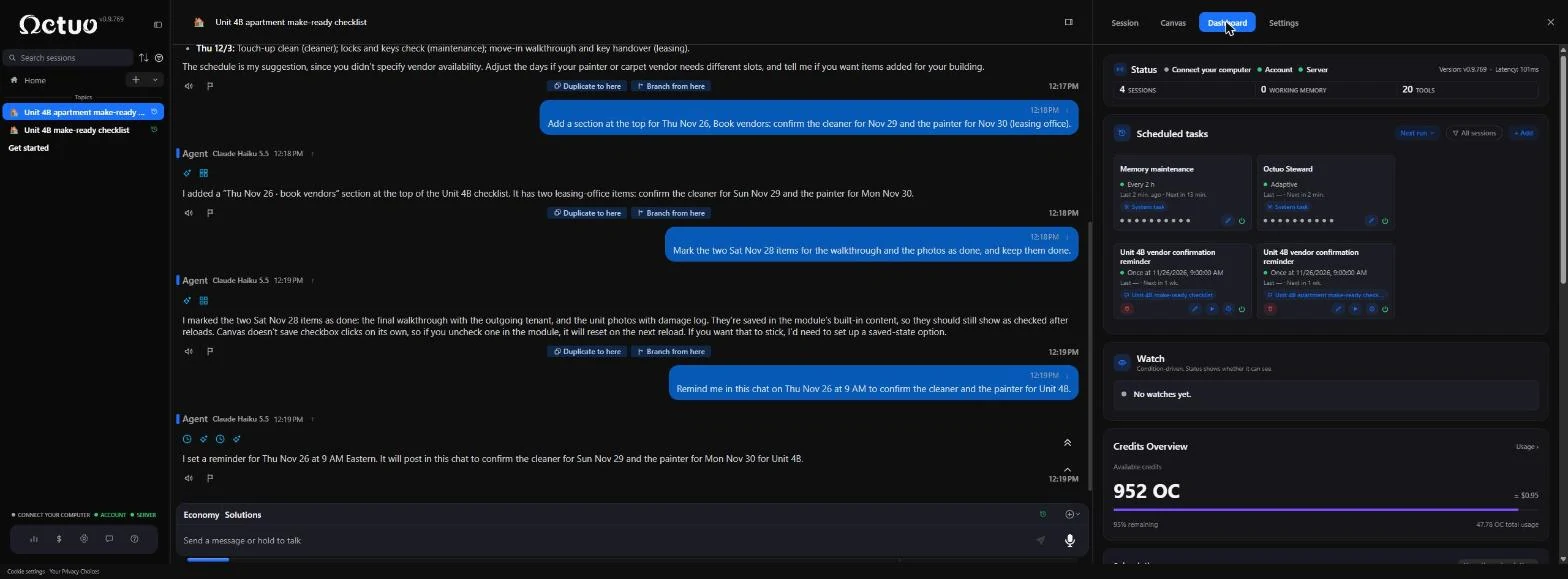
- One place for every job. Scheduled tasks shows the reminder: Once at 11/26/2026, 9:00:00 AM, linked to this session. Our test made it twice, so there are two cards. Credits Overview shows what the trial has left: about 24 OC per run. Click the reminder.
The reminder is on the dashboard, once, on November 26 at 9 AM, with the credits you have left.
Screenshots
More in Business Automations
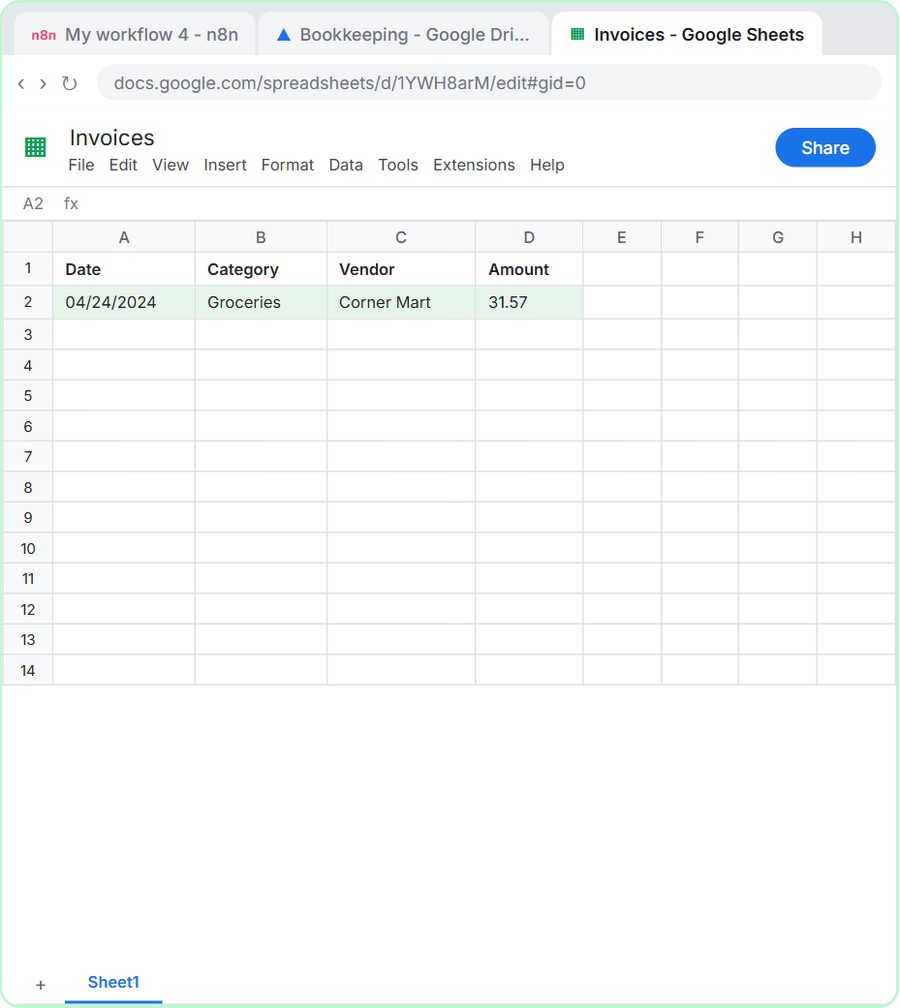 AI Receipt Extractor: Receipts to Google Sheets with n8n
Drop a photo of a receipt into an n8n chat. An AI agent reads it, pulls out the date, vendor and amount, picks a category, and adds a row to Google Sheets.
Free · Live ~12 min Intermediate
 n8n AI Email Responder: Draft Gmail Replies Automatically
Build an n8n agent that watches your Gmail, reads each new customer email, and writes a reply as a draft in the same thread, ready for you to check and send.
Free · Live ~12 min Intermediate
 Daily Job Alerts: Email Each Tech Their Jobs from Google Sheets with n8n
Every morning at 7, n8n reads a plumbing company's jobs sheet, skips anything not assigned yet, and emails each job to the tech it's assigned to — customer, address…
Free · Live ~10 min Intermediate
 Gmail AI Triage: Auto-Label Every Email and Draft Replies
Build an n8n workflow that reads each new email, sorts it as a lead, a client or an invoice with a Text Classifier, adds the matching Gmail label, and drafts a reply to…
Free · Live ~18 min Advanced
 A Support Agent That Answers from Your Own Docs
Turn an n8n chat agent into a support agent that answers only from your policies in a Google Doc, refuses what it should, and hands off to a person by email.
Free · Live ~13 min Advanced
 Chatbase: Answer Customer FAQs with an AI Agent
A business case for a small firm that answers the same customer questions every week: build a Chatbase AI agent on your FAQ in the real app, make it say when it does…
Free · Live ~15 min Beginner
All 47 modules in Business Automations
Terms in this lesson
Plain-English definitions, each with an example from a free lesson.