Updated . Built step by step in a real Runable account on 3 November 2026. Every screen in the practice is a real Runable screen, and the clarifying question, the plan, the app, the Save button that stayed grey and the fix are what Runable produced in that run. How we check this lesson
A small property manager keeps cleaning and maintenance supplies in a closet in each of three buildings. Staff count on a clipboard, the office retypes the counts on Fridays, and the reorder goes out late. In this free lesson you follow Dana Whitfield (made up), the office manager at Keystone Property Group, as she briefs Runable's App Builder for a phone-friendly stock count: pick a closet, type the counts, save who counted and when, one view for the office. Runable writes back a plan, and one phrase in it would sink the app: counts "stay in this browser". She adjusts the plan to a shared database, watches the build, and tests the app the way staff would, three items in one closet. The Save button stays grey and an under-level count shows no warning, so she asks for three changes in one message and checks the fix in the app. The lesson stops before Publish.
At a glance
| Question | Answer |
|---|---|
| What you build | A business case for office managers: describe a phone-friendly stock-count app to Runable's App Builder, catch a plan that would keep the counts in each phone's browser, test the app the way staff would, and fix what the test finds by chat. Real Runable screens, 3 November 2026. |
| Tools | Runable |
| Time | About 11 minutes, 21 steps in 6 parts |
| Level | Beginner, no coding needed |
| Cost | Free |
| Ways to learn it | Practice it step by step |
The 6 parts, in short
- The clipboard in three closets: Count what the clipboard costs, Describe the app instead.
- Brief the App Builder: Open Apps under Code, Pick a starting reference, Use the first template, Replace the sample prompt with your brief, and 1 more step.
- Read the plan before it builds: Read the plan, then adjust it, Send the answer, Watch it build.
- Test it like staff would: Open the app, Go to the Stock count screen, Count three items as Dana, Try to save, and 1 more step.
- Fix it by chat: Ask for three changes in one message, Send the fix, Check the change in the app, Check the list, and what it cost.
- What it saved, and what is next: See what you have now, Up next.
Start here first: Brief a One-Page Website and Approve the Plan using Runable (and Budget Your Credits) (module 1 of Jump Start: Runable)
Part of: AI Apps Worth Knowing (step 83 of 123). Next up: Build a Weighted Interview Scorecard with Runable (and Catch What the Averages Hide)
The business case: a clipboard in three closets
Filters, liners, paper, cleaners, bulbs and ice melt live in a supply closet in each building. Nobody owns the count, so it happens when someone remembers, the sheet is retyped on Fridays, and the office finds out the filters are gone when a tenant calls. About an hour and a half a week, plus the emergency supply runs. These are example numbers; use your own.
Inventory software is built for warehouses and priced per user. Runable's App Builder writes a small app from a plain brief instead, and the work left for the office manager is the part only she can do: the brief, the plan and the test.
What you do in the lesson
You open Apps under Code, pick a starting reference (an expense tracker, the nearest shape to a list of items with numbers), and type a brief over the template's sample prompt: the three closets, eight items, what staff do on a phone, what the manager sees, no logins, sample data only.
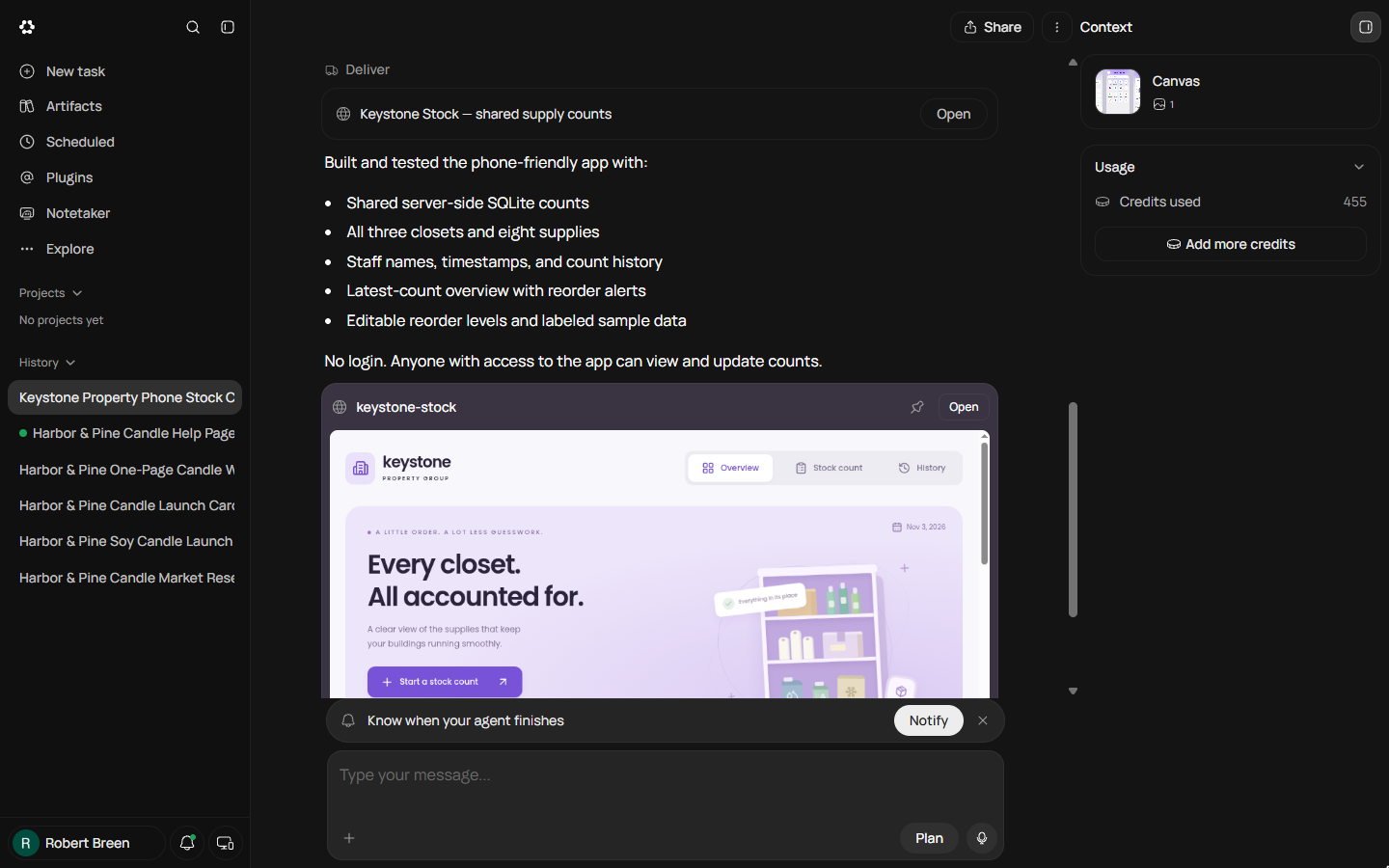
Runable asks a Quick question with its plan. It proposes Count, Overview and History screens and says counts and staff names will stay in this browser using local storage. That would give every phone its own private count. You pick Adjust the plan and ask for a shared server database; it confirms in one line and builds the app in under seven minutes for 455 credits, test server and screenshots included.
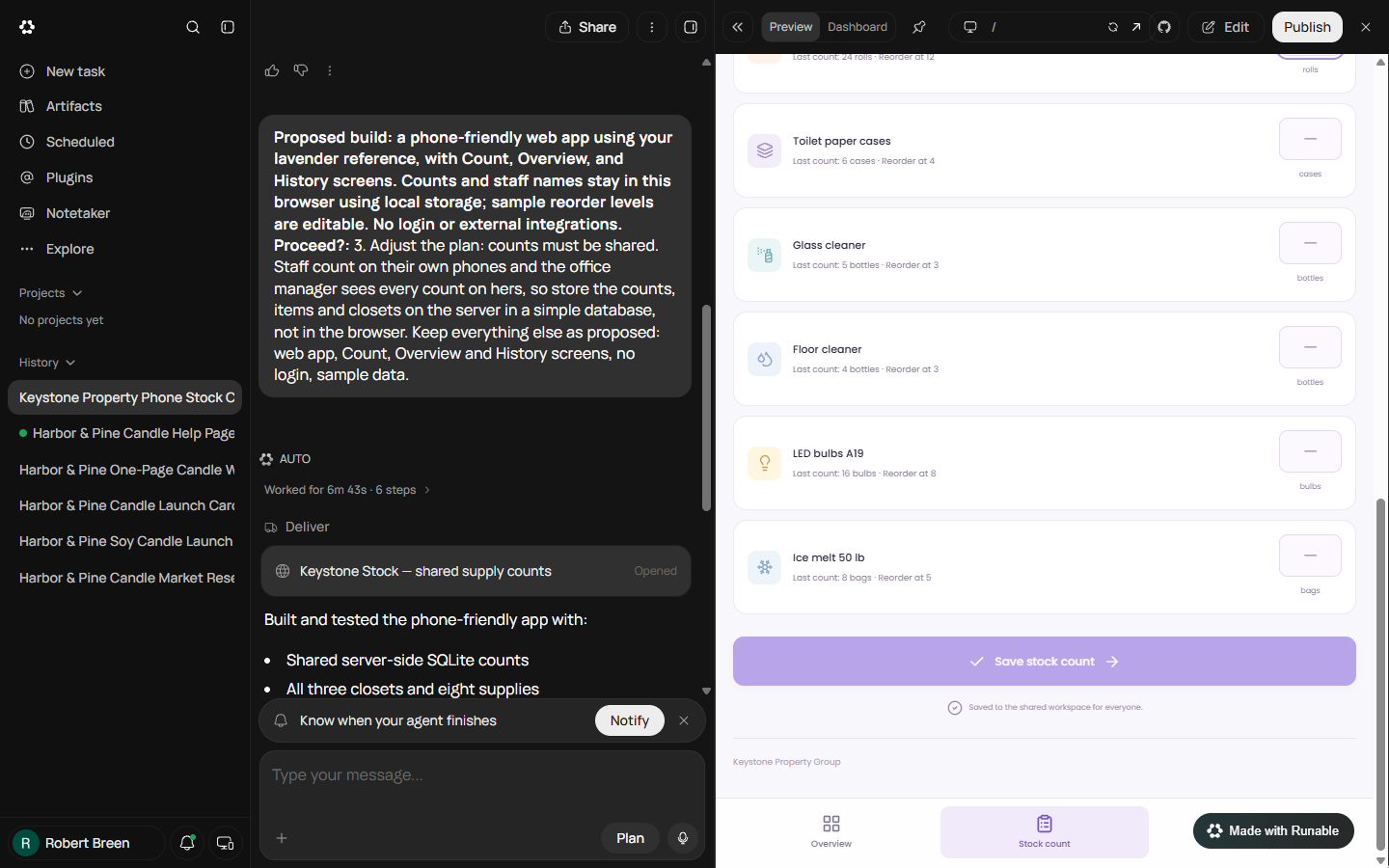
Then you test like a staff member: Harbor Tower, your name, three counts. The Save stock count button stays pale because it wants all eight items, and the Overview still shows the sample numbers. The 4 filters you typed were under the reorder level of 6 and the count screen did not say so. You describe exactly what you saw in one message, ask for partial saves, a red highlight and a Reorder list tab, and check the result in the app rather than in the summary.
What it teaches about AI app builders
The plan is where an agent tells you where your data will live and who can see it. Words like browser, local storage or device mean one copy per phone. For anything a team shares, ask for a server database before it builds, not after.
The agent tests that the app runs; it does not test how your staff will use it. Enter real-shaped data, try to save part way, and look at the result screen afterwards. Then describe what you saw, not what you suspect, and end with change nothing else. The lesson stops before Publish, because the sample data is still in the app and anyone with the link could edit counts.
Links
- Runable: the AI agent this course teaches. Its Free plan showed 1,500 credits a day when we tested it in October 2026.
- Runable pricing: current plans, credits and limits. Check them before you rely on the Free plan.
Try it yourself, free
Reading the steps is a start. Doing them is how it sticks. The interactive module walks you through every click in a practice copy of Runable, checks each step, and never touches your real accounts.
Start “Replace the Clipboard Stock Count with an App using Runable (and Test It Before You Approve)”Step by step: Replace the Clipboard Stock Count with an App using Runable (and Test It Before You Approve)
All 21 steps of the interactive module, in order. In the module you watch each one, then do it yourself in a practice copy that checks your work.
1. The clipboard in three closets
- Count what the clipboard costs. Keystone Property Group (made up) keeps cleaning and maintenance supplies in 3 building closets. Staff count them on a paper clipboard, Dana retypes the counts into a sheet on Fridays, and the reorder goes out late. About 1.5 hours a week, plus an emergency run for filters when nobody noticed the last ten were gone. Click the time row.
Three closets, one paper clipboard. The counts get retyped on Fridays, and the reorder goes out late. About an hour and a half a week, plus the emergency runs.
- Describe the app instead. Instead of buying inventory software, describe the app you need and let Runable's App Builder write it: pick a closet, type the counts, save who counted and when, and give the office one view of every closet. Click the Runable card.
Instead of buying software, describe the app. Pick a closet, type the counts, and give the office one view.
2. Brief the App Builder
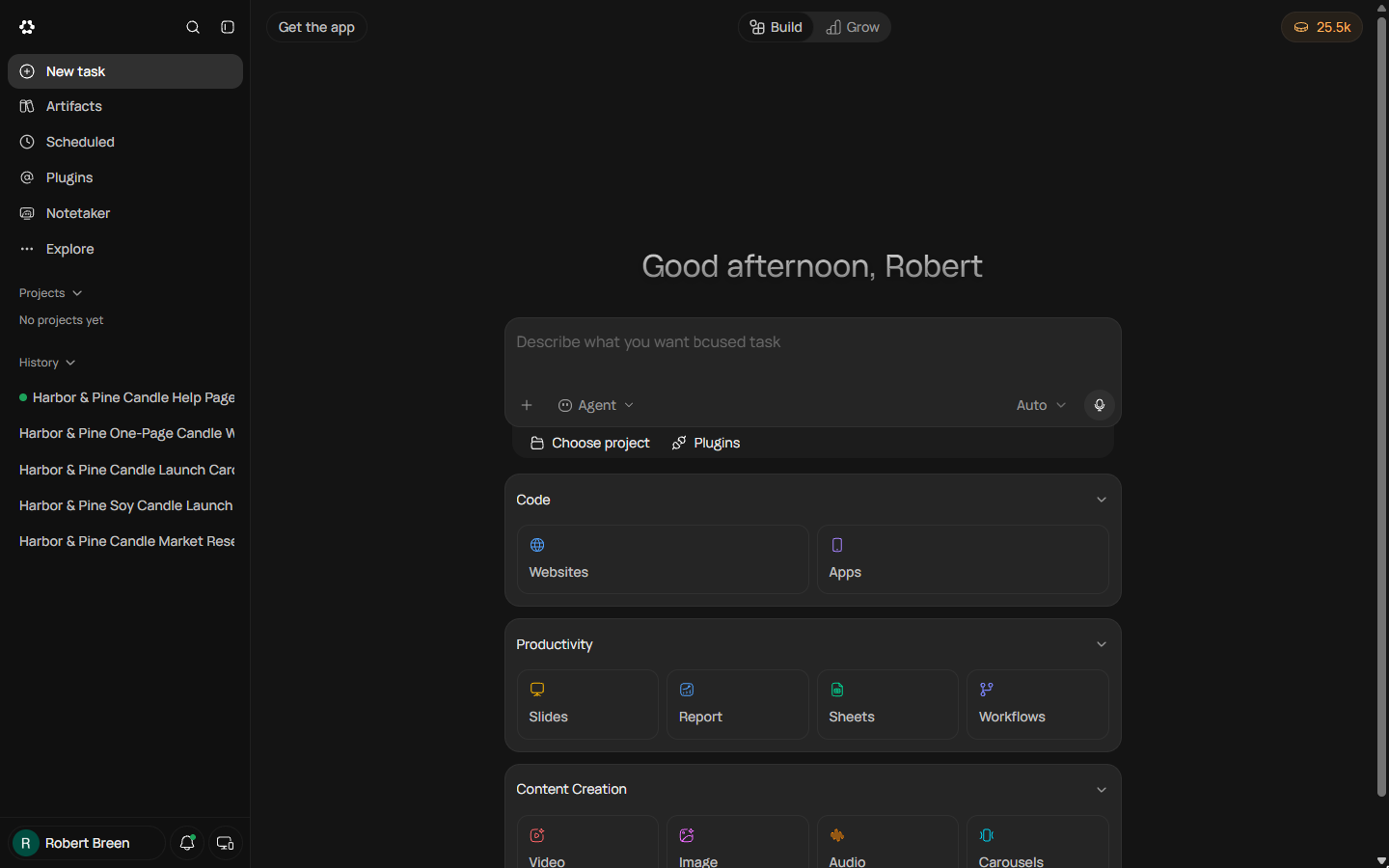
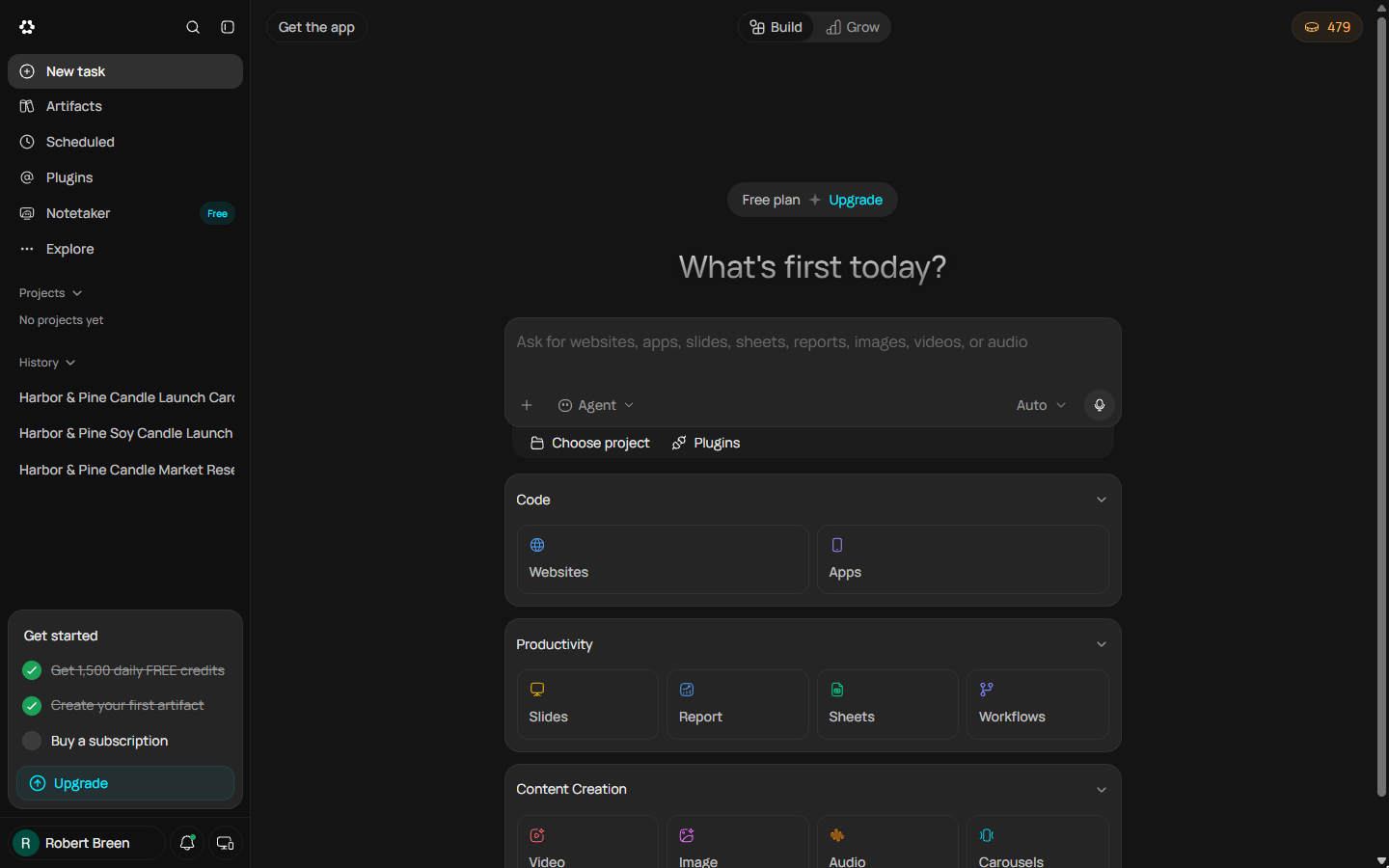
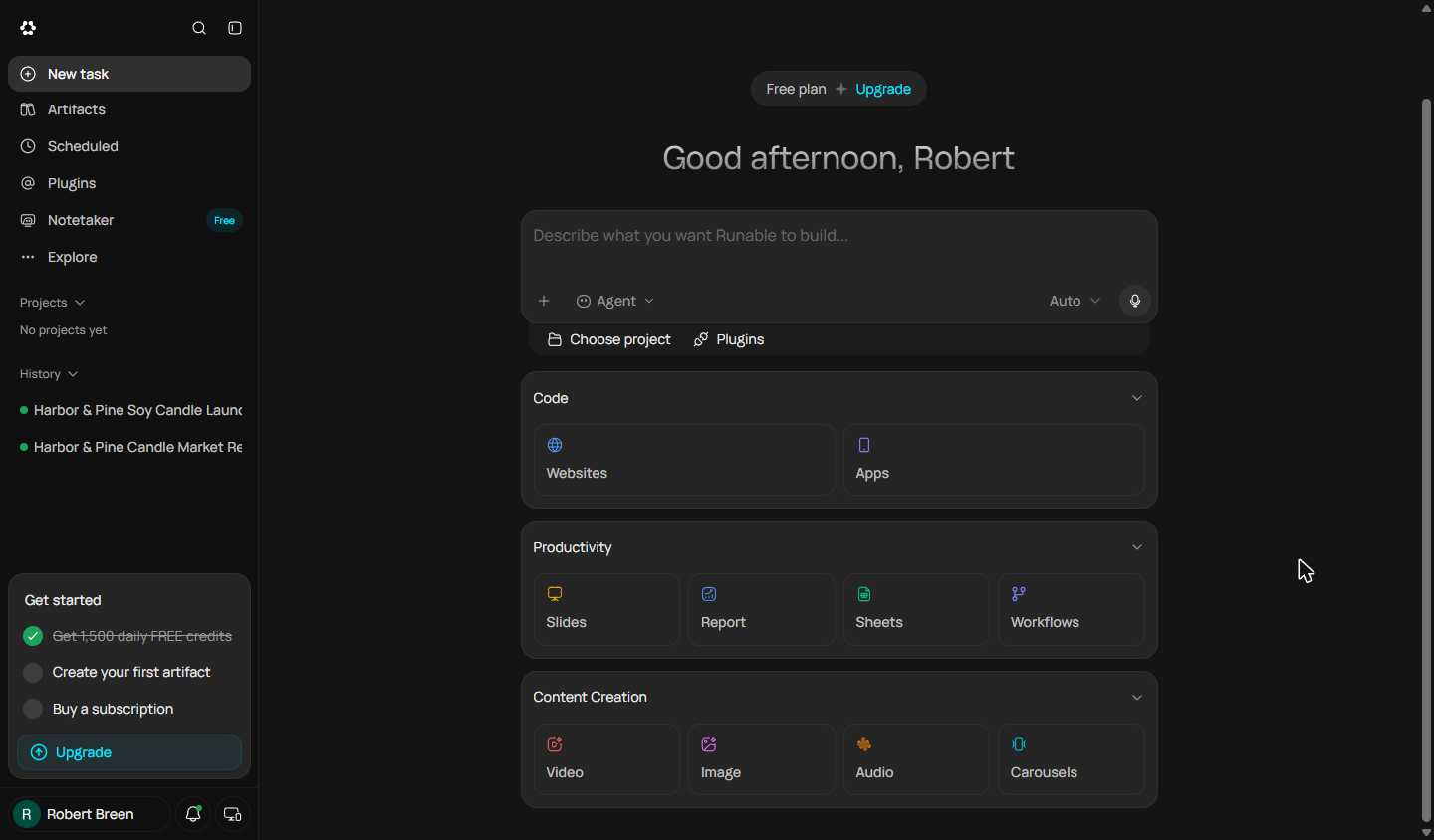
- Open Apps under Code. On Runable's home screen the tools sit under Build. Websites and Apps are under Code: both write and run real code. Click Apps.
On the home screen, the tools sit under Build.
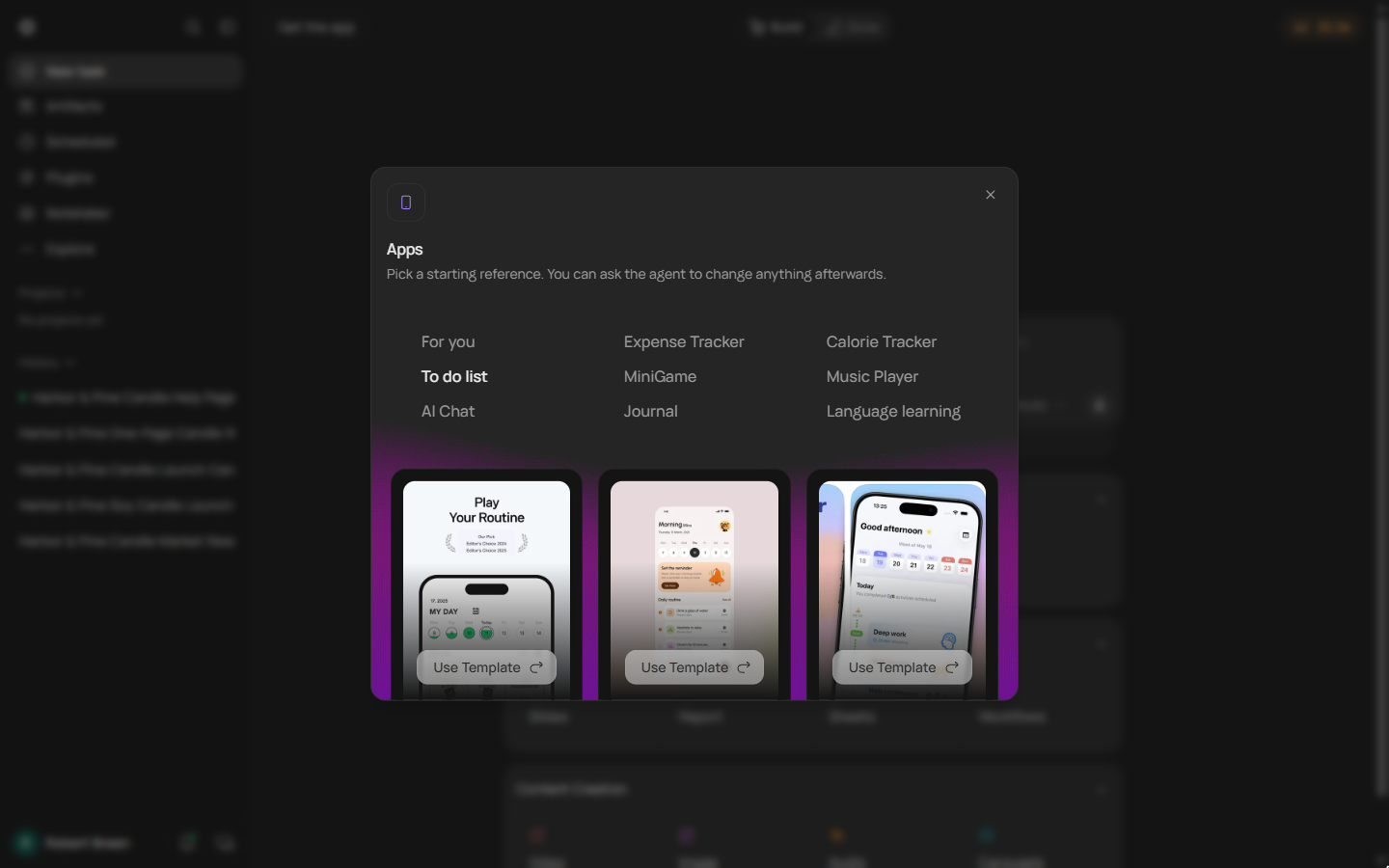
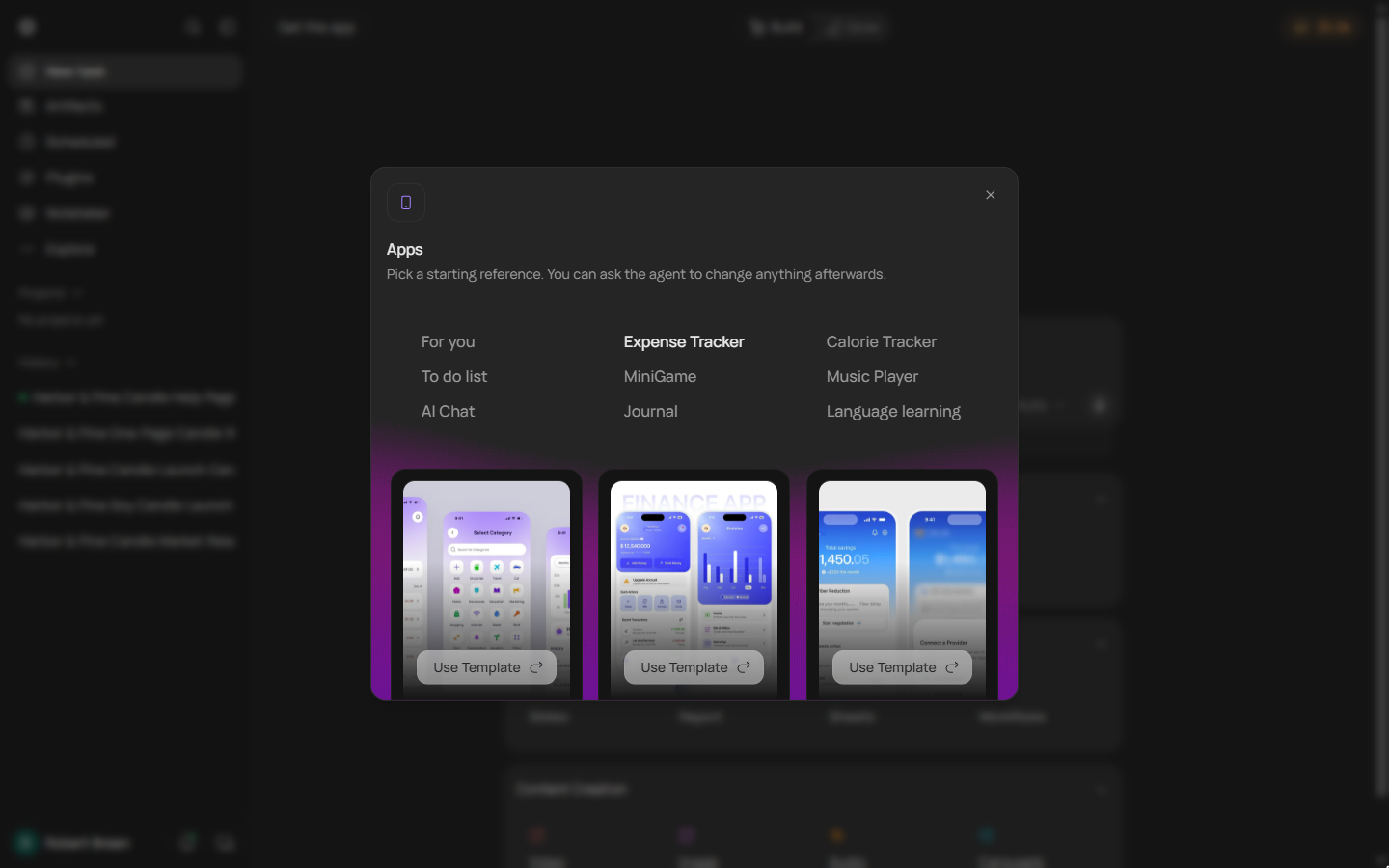
- Pick a starting reference. Apps asks for a starting reference: a look it can copy, not a limit on what it builds. Nothing here is a stock count, so pick the closest shape: a list of items with numbers. Click Expense Tracker.
It asks for a starting reference. That's a look to copy, not a limit.
- Use the first template. Three phone mock-ups. The first, a spending tracker with categories, is the nearest to a list of supplies. Click the first Use Template.
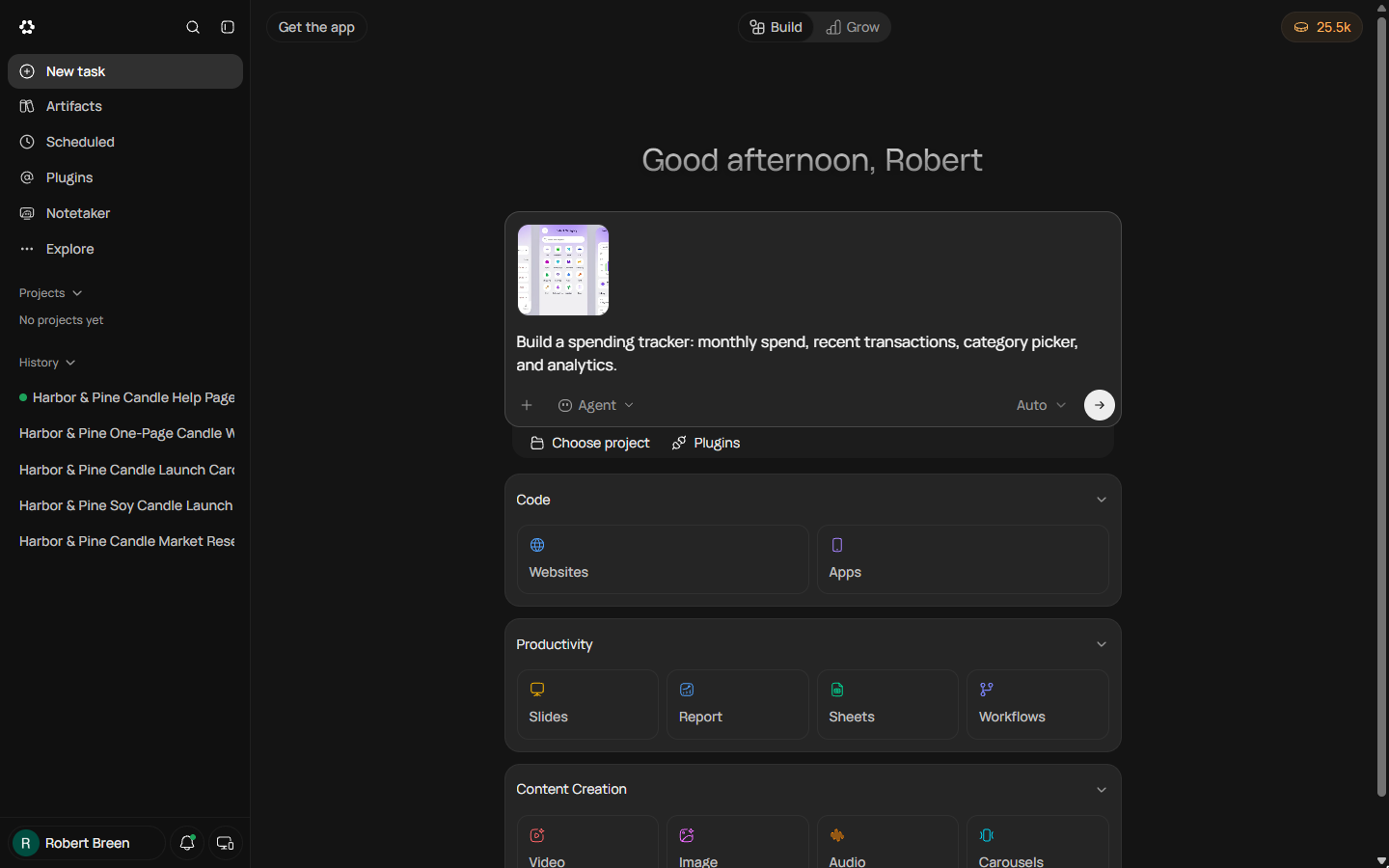
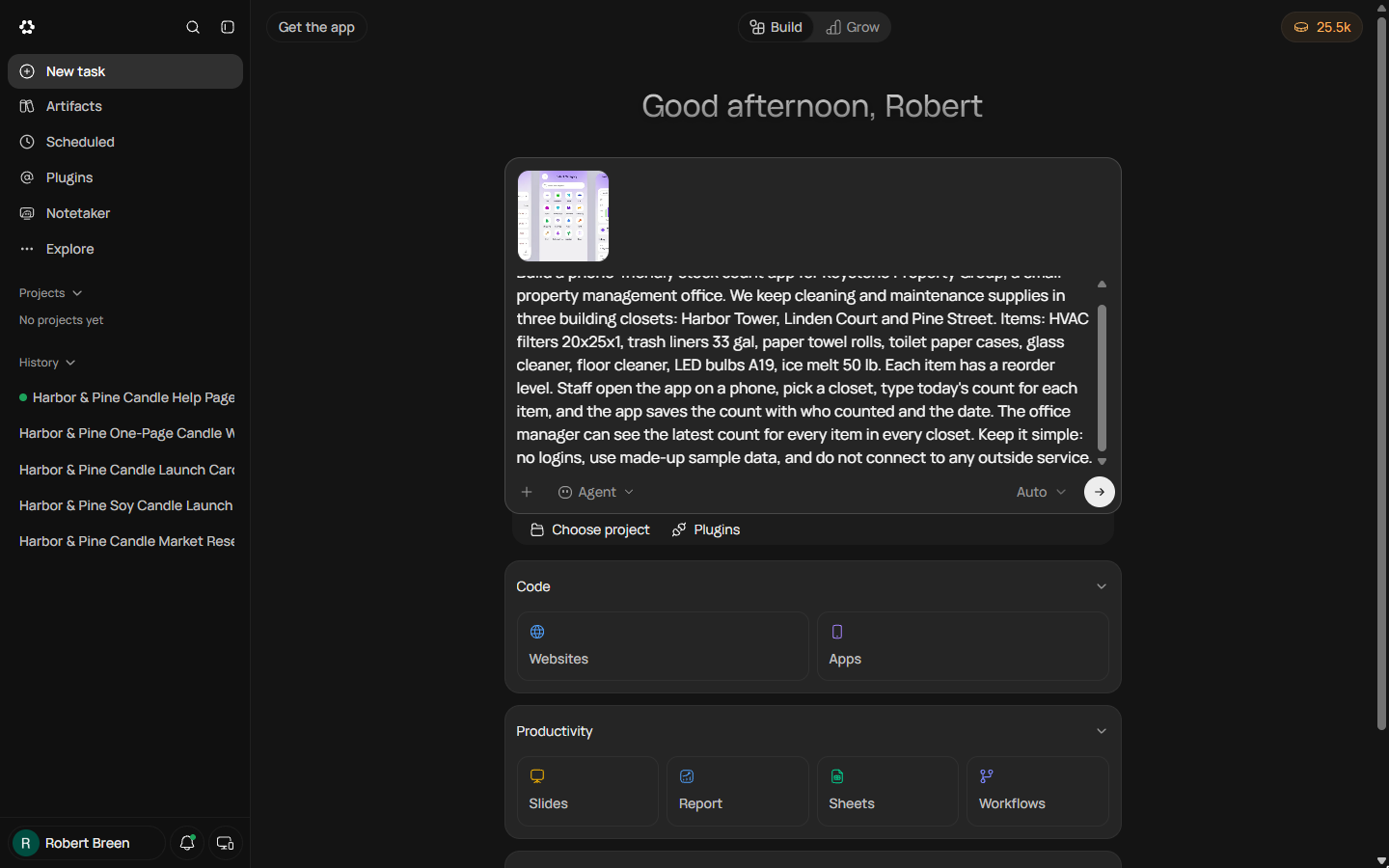
- Replace the sample prompt with your brief. The template fills the box with its own prompt ("Build a spending tracker...") and attaches the reference image. Select all of that text and type your brief over it: who you are, the closets, the items, what staff do, what the manager sees, and the limits (no logins, sample data, no outside services).
The template fills the box with its own prompt. Who you are. The closets. The items. What staff do. And the limits.
Build a phone-friendly stock count app for Keystone Property Group, a small property management office. We keep cleaning and maintenance supplies in three building closets: Harbor Tower, Linden Court and Pine Street. Items: HVAC filters 20x25x1, trash liners 33 gal, paper towel rolls, toilet paper cases, glass cleaner, floor cleaner, LED bulbs A19, ice melt 50 lb. Each item has a reorder level. Staff open the app on a phone, pick a closet, type today's count for each item, and the app saves the count with who counted and the date. The office manager can see the latest count for every item in every closet. Keep it simple: no logins, use made-up sample data, and do not connect to any outside service.
- Send it. The reference image stays attached, which is fine: it is only the look. Click the arrow to send.
3. Read the plan before it builds
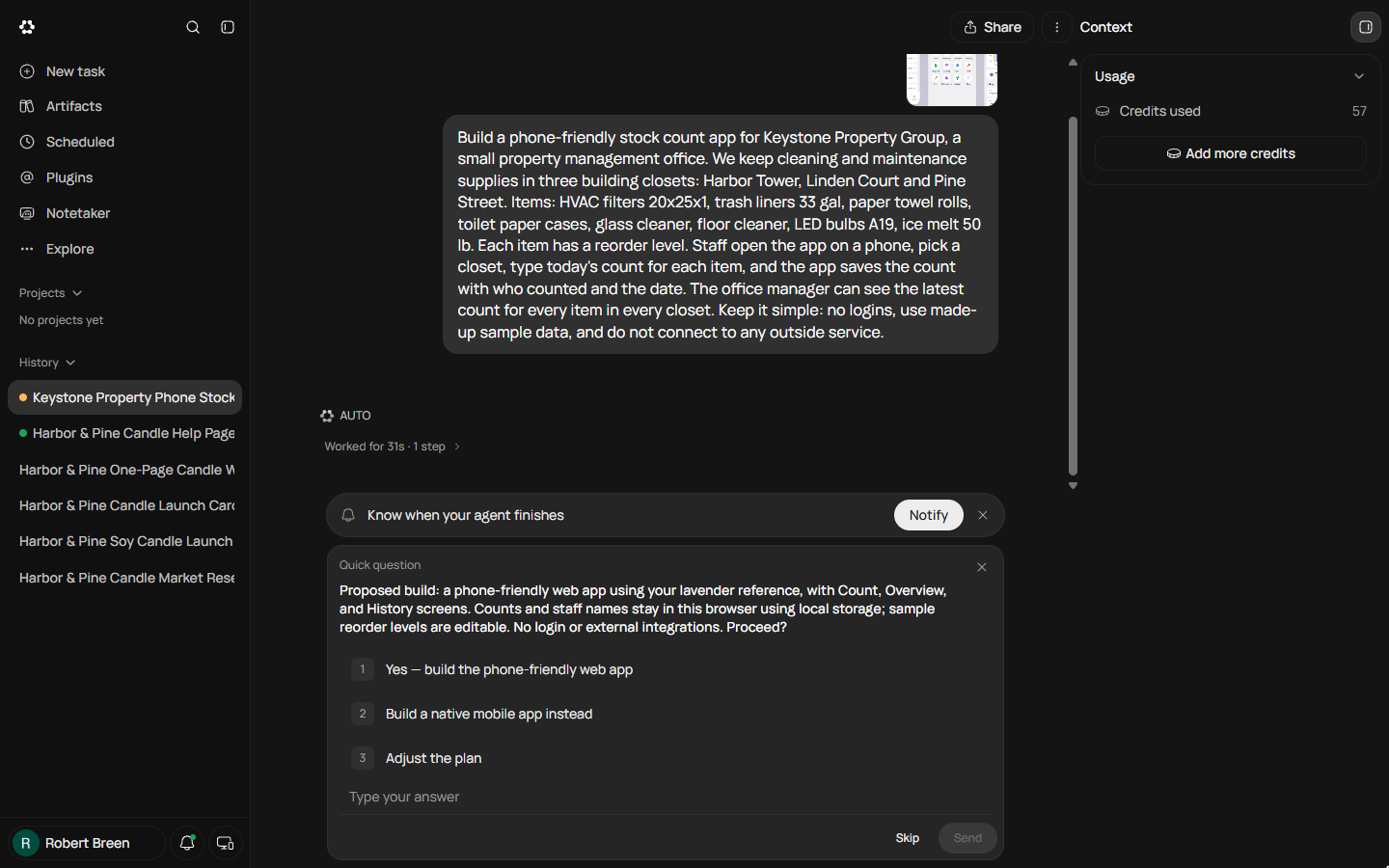
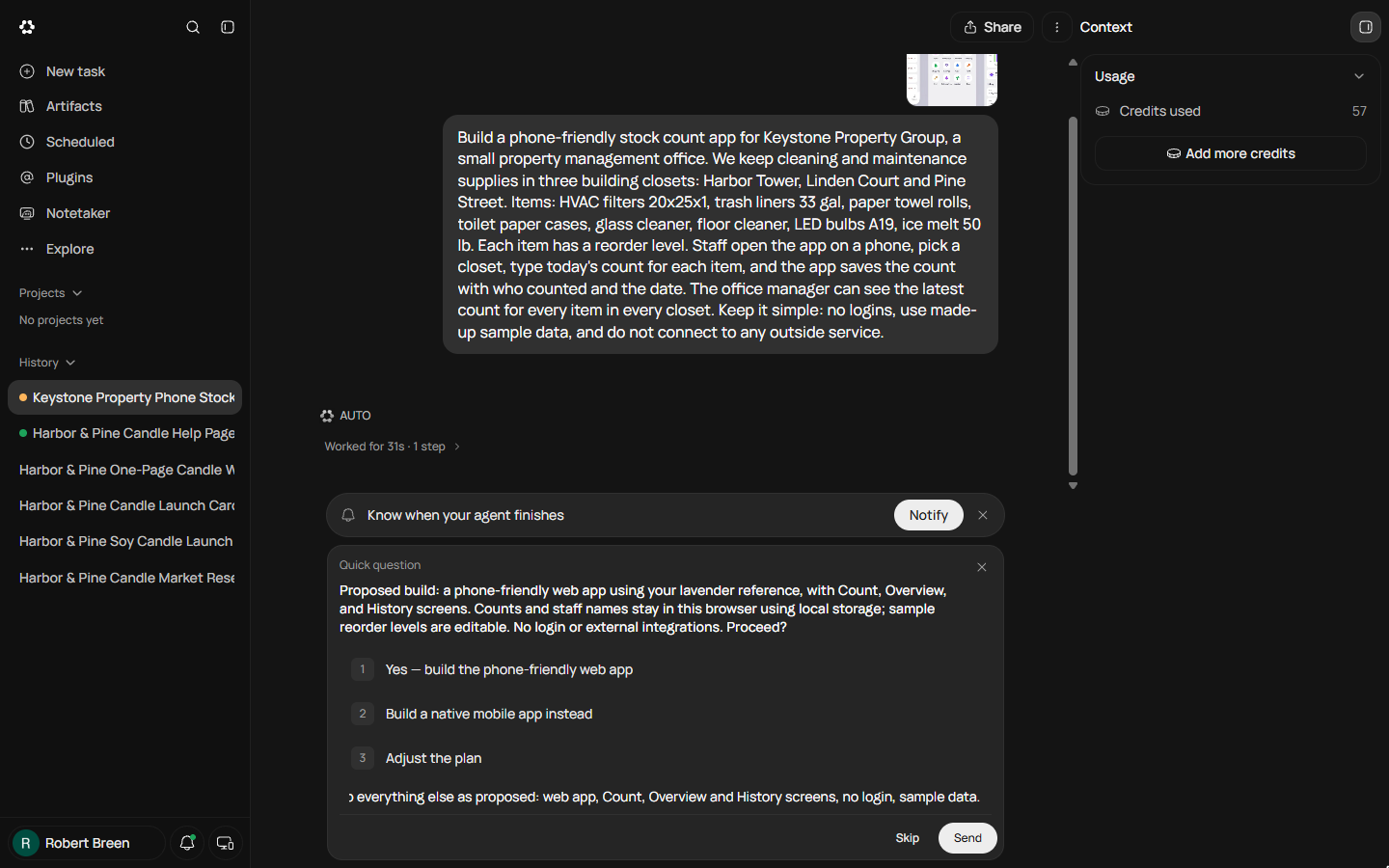
- Read the plan, then adjust it. Thirty seconds and 57 credits later, Runable asks a Quick question with its plan: Count, Overview and History screens, no login, and "counts and staff names stay in this browser using local storage". Read that line twice. It means each phone keeps its own counts and the office manager would see none of them. Do not click Yes. Type an answer that picks 3. Adjust the plan and says what must change.
Read the plan. Counts stay in this browser, using local storage. That means each phone keeps its own counts, and the manager sees none of them. Don't click yes.
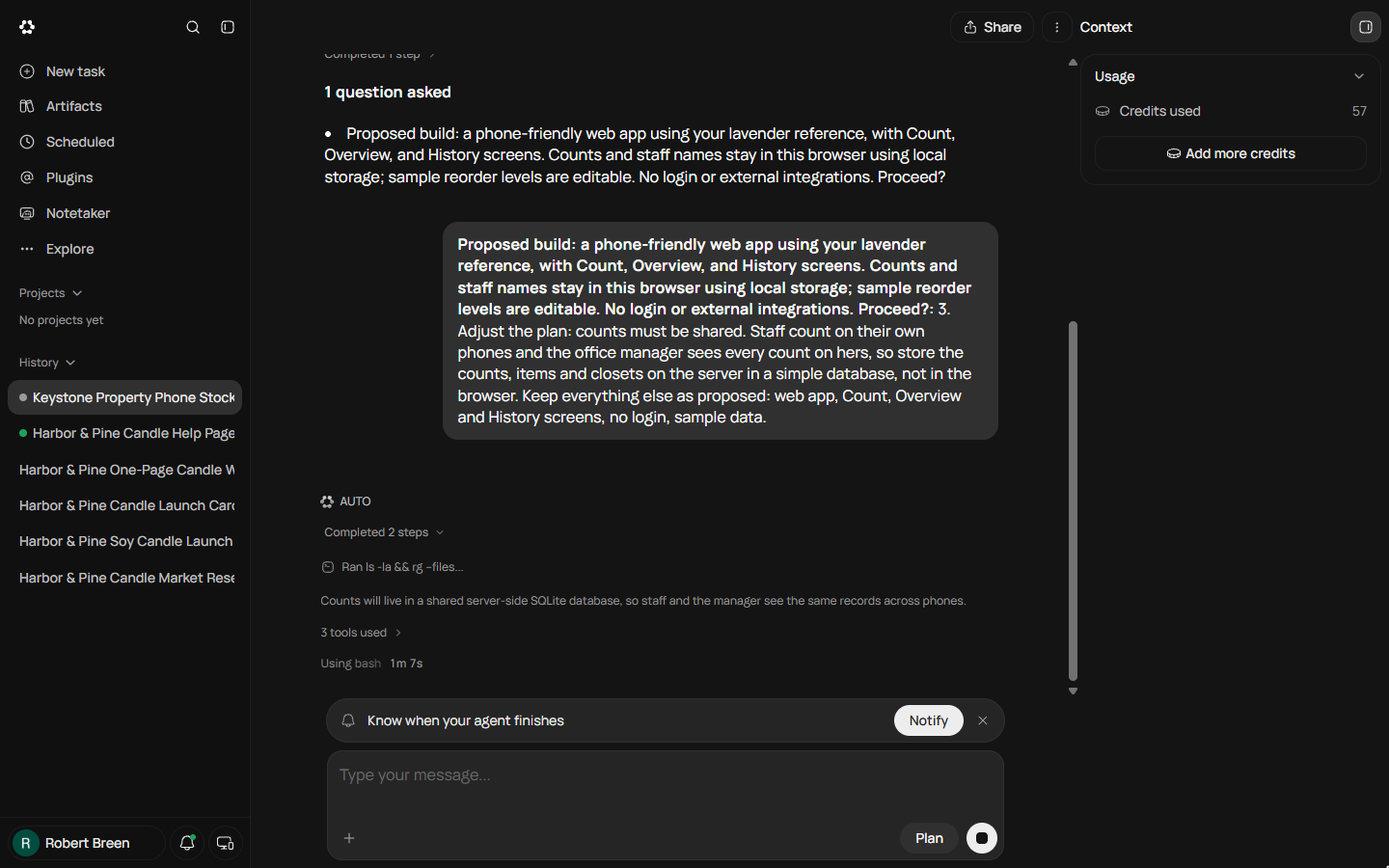
3. Adjust the plan: counts must be shared. Staff count on their own phones and the office manager sees every count on hers, so store the counts, items and closets on the server in a simple database, not in the browser. Keep everything else as proposed: web app, Count, Overview and History screens, no login, sample data.
- Send the answer. Click Send.
- Watch it build. It confirms the change in one line: "Counts will live in a shared server-side SQLite database, so staff and the manager see the same records across phones." Then it reads the template, writes files, starts a test server and takes its own screenshots. Click that line.
It confirms the change. Counts will live in a shared server-side database. Then it writes the files and tests them itself.
4. Test it like staff would
- Open the app. Worked for 6m 43s and 455 credits in all. It lists what it built, including "latest-count overview with reorder alerts", and warns: no login, so anyone with the link can view and update counts. Click Open.
Six minutes and forty-three seconds. Four hundred and fifty-five credits. It lists what it built, and warns that anyone with the link can update counts.
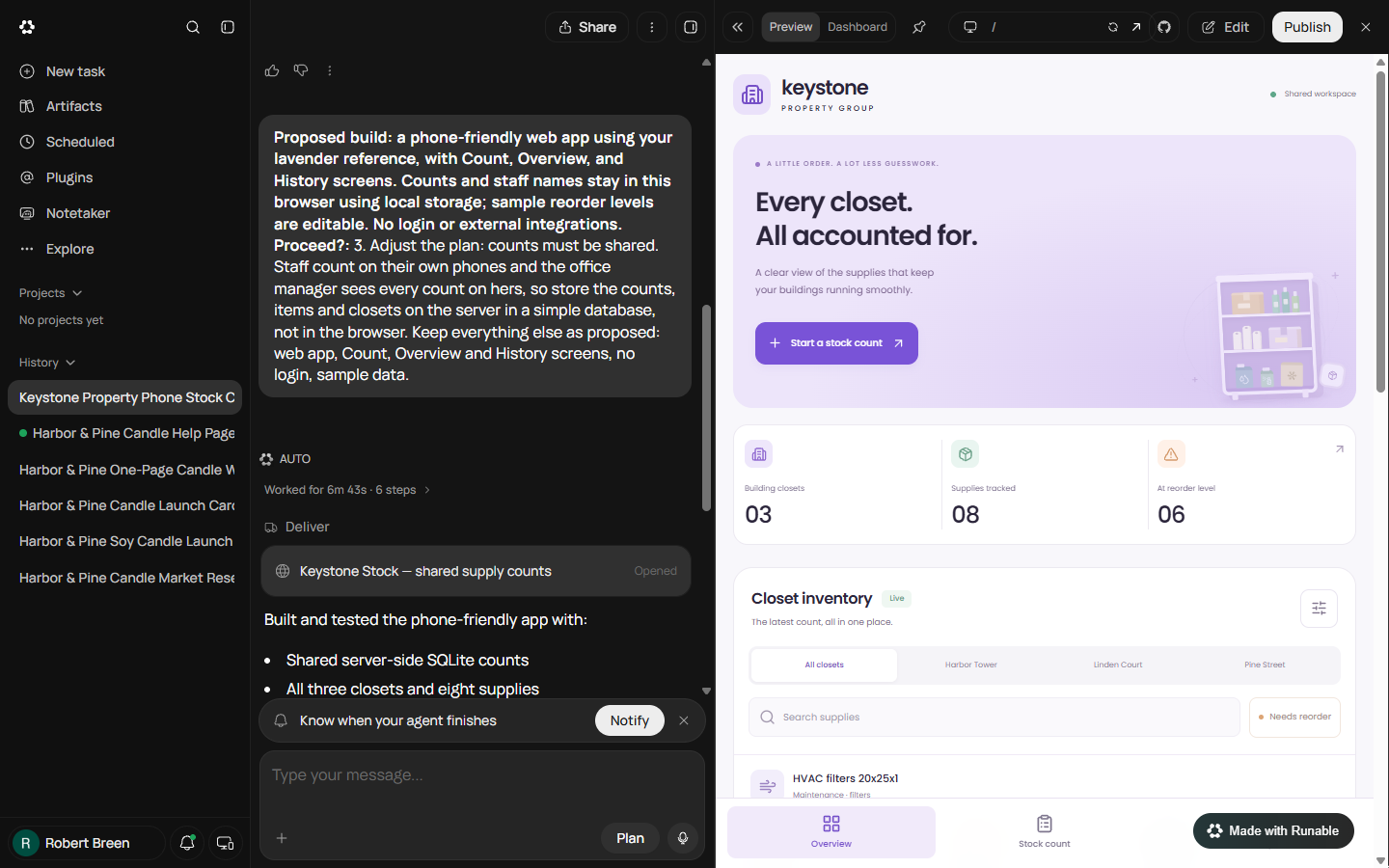
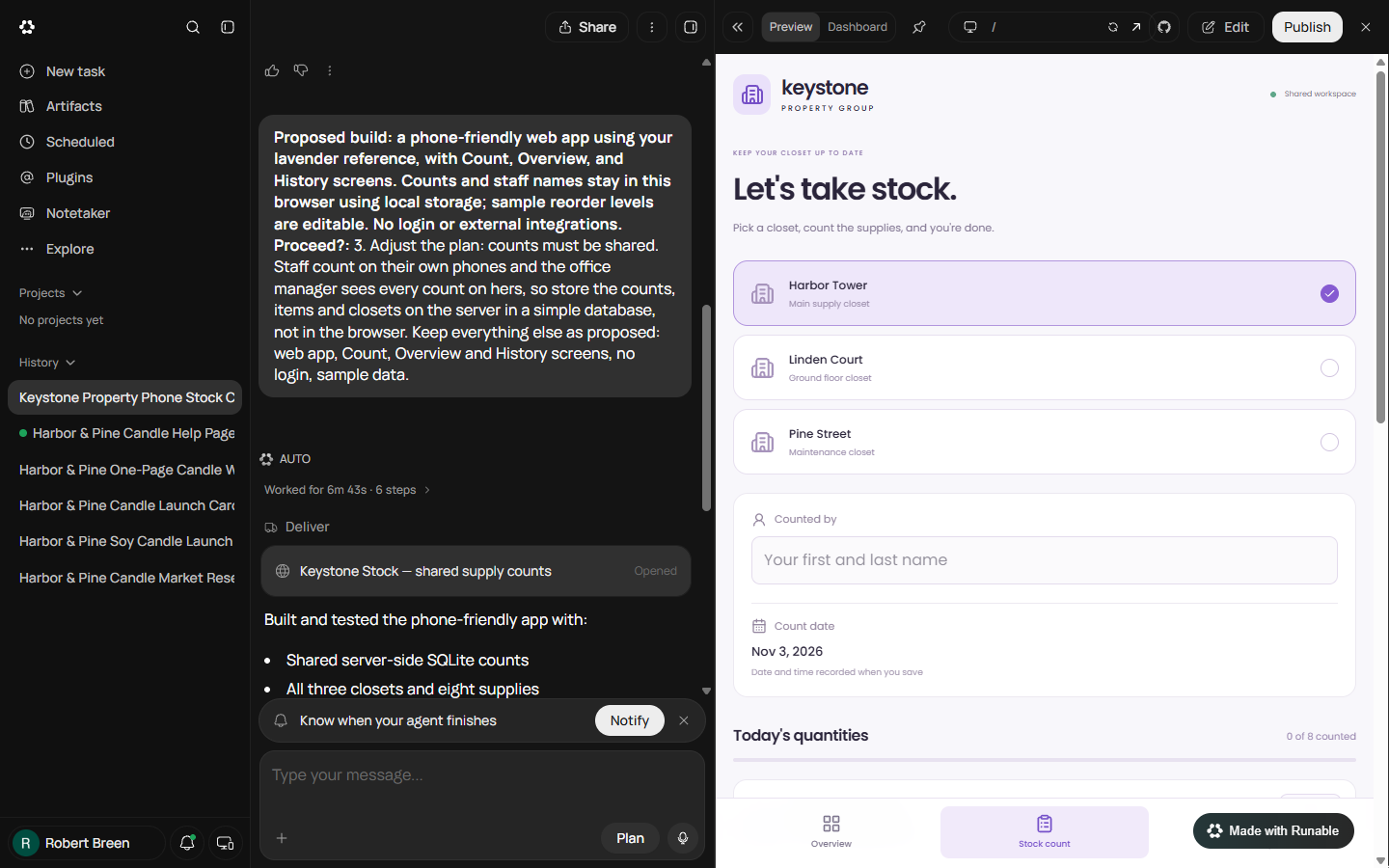
- Go to the Stock count screen. The preview opens on the right with its own toolbar: Preview, Dashboard, Edit and Publish. The app has your name on it, the three closets, eight supplies and six already at reorder level in the sample data. Now do what a staff member would do. Click Stock count at the bottom.
The preview opens on the right. Three closets, eight supplies, six already at reorder level. Now do what staff would do.
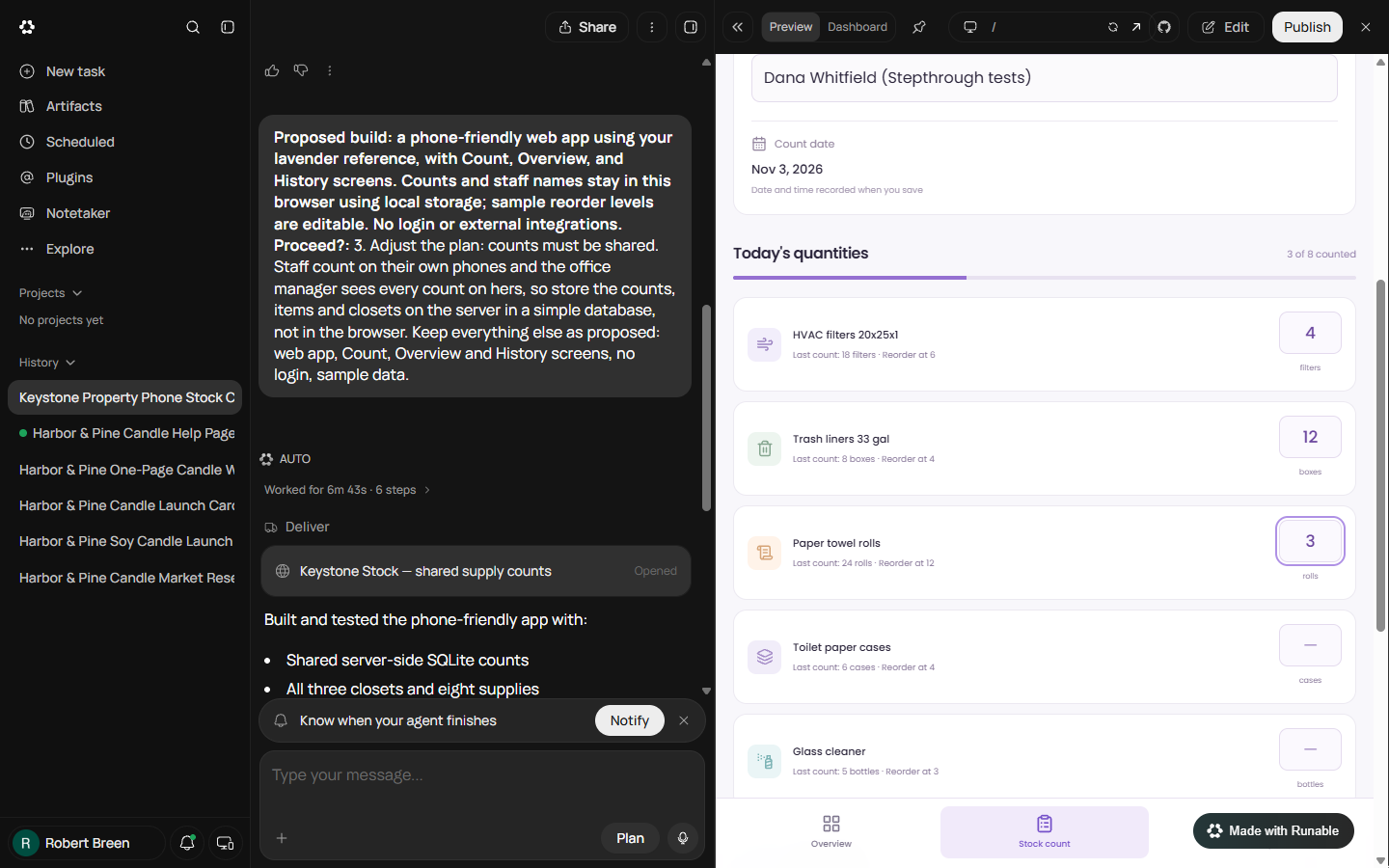
- Count three items as Dana. Harbor Tower is selected. Type your name under Counted by. In our run we then typed three counts: 4 HVAC filters (reorder at 6), 12 trash liners and 3 paper towel rolls (reorder at 12). The counter said 3 of 8 counted.
Harbor Tower is selected. Then we typed three counts. Four filters, twelve liners, three rolls of paper towel. Three of eight counted.
- Try to save. Scroll down to Save stock count. Notice it is pale: the button is disabled until all eight items have a number. A staff member counting one shelf would be stuck here. Click it anyway and see.
It's pale. Disabled until all eight items have a number.
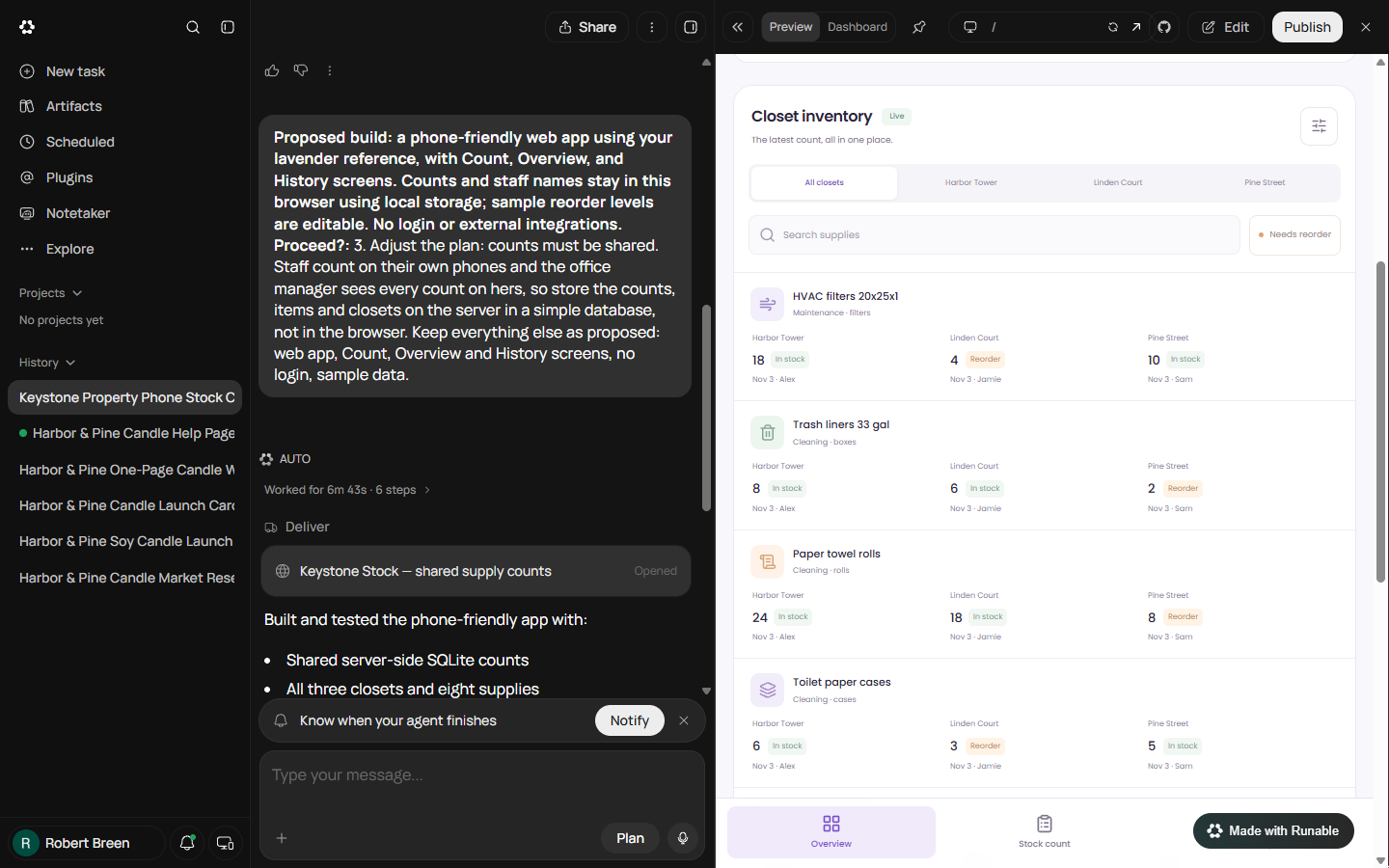
- Check the Overview. Back on Overview, Harbor Tower still shows 18 HVAC filters from the sample data, counted by Alex. Nothing saved. Also note: the 4 you typed was under the reorder level of 6 and the count screen did not say so. Two things to fix, plus the Reorder list you still want. Click the 18.
Back on Overview, Harbor Tower still shows eighteen filters. Nothing saved. And the four you typed was under the reorder level, and the screen didn't say so.
5. Fix it by chat
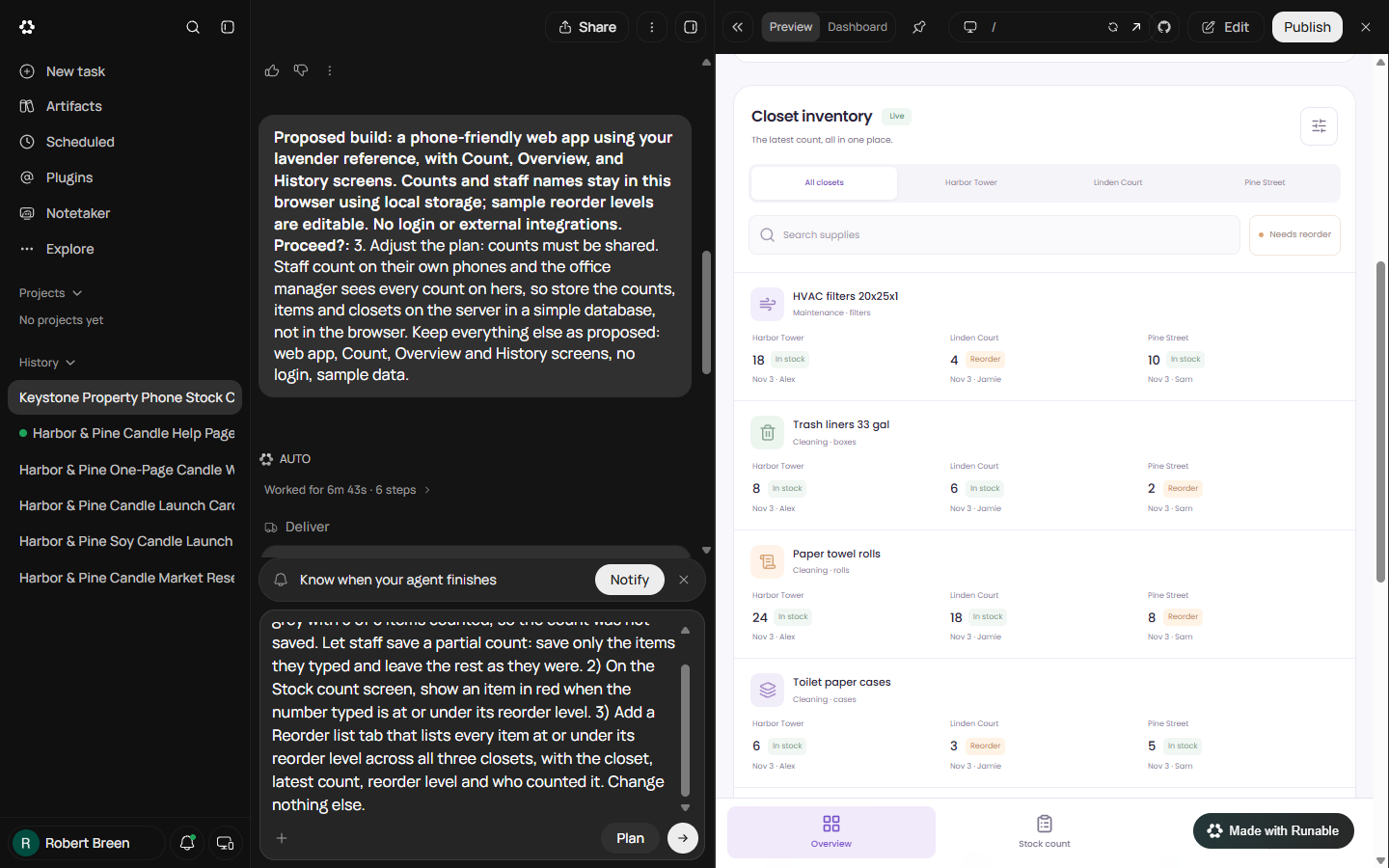
- Ask for three changes in one message. Describe what you saw, not what you suspect: the button stayed grey at 3 of 8, so let staff save a partial count. Then the red highlight on the count screen, then a Reorder list tab across all closets. End with change nothing else. Type it in the message box.
Describe what you saw. The button stayed grey at three of eight. Then the red highlight. Then a Reorder list tab. End with, change nothing else.
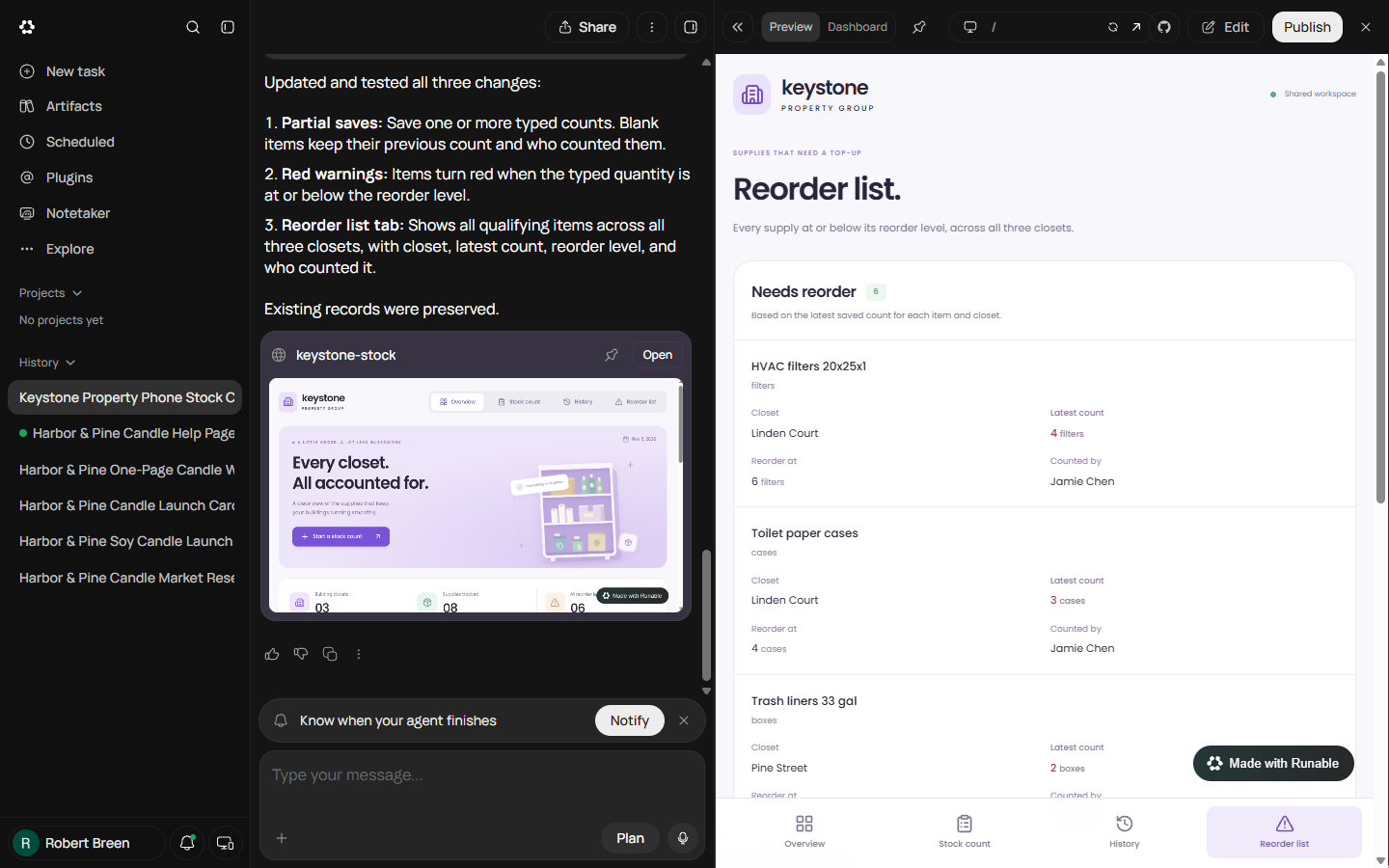
Three changes. 1) The Save stock count button stayed grey with 3 of 8 items counted, so the count was not saved. Let staff save a partial count: save only the items they typed and leave the rest as they were. 2) On the Stock count screen, show an item in red when the number typed is at or under its reorder level. 3) Add a Reorder list tab that lists every item at or under its reorder level across all three closets, with the closet, latest count, reorder level and who counted it. Change nothing else.
- Send the fix. Click the arrow to send.
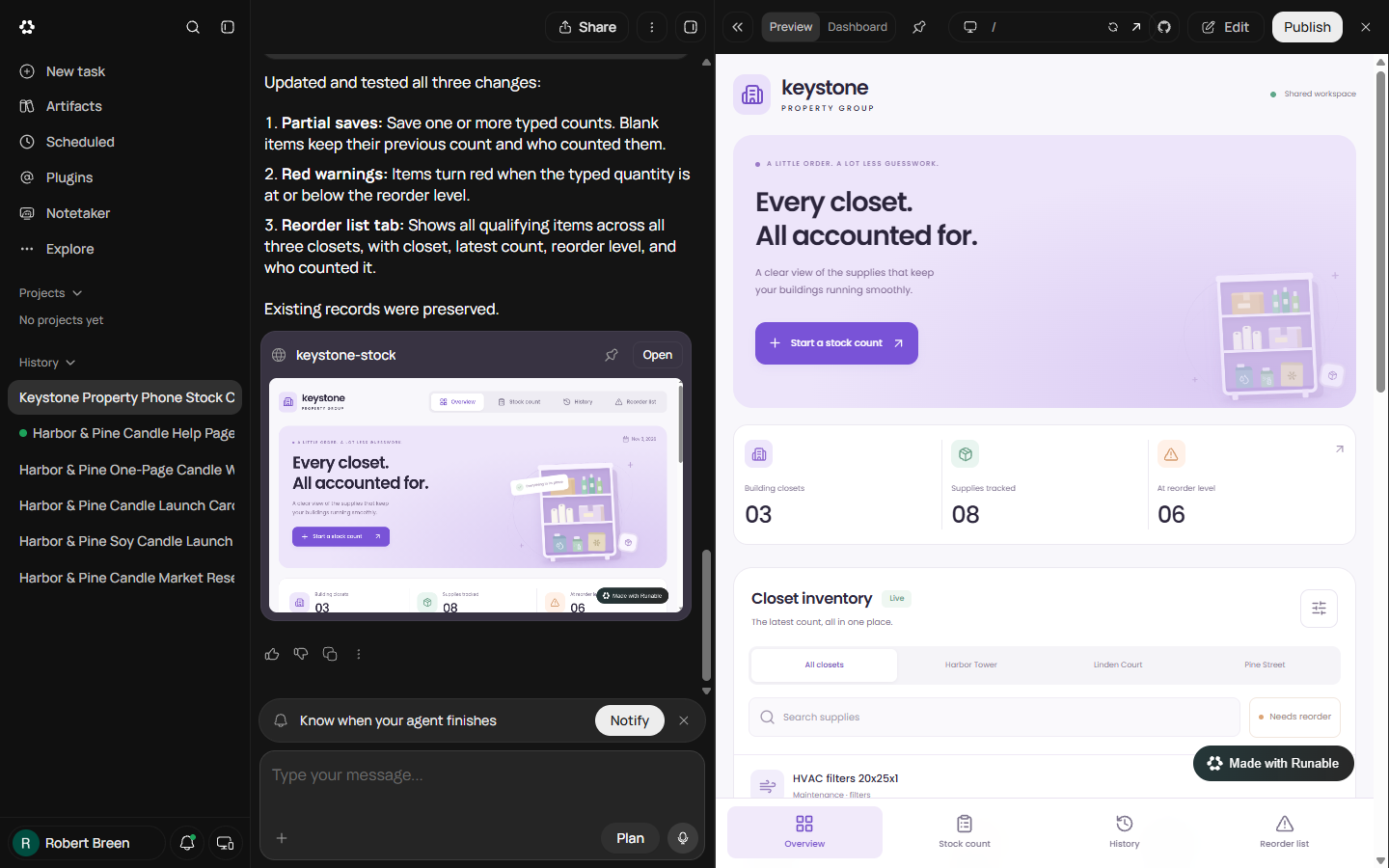
- Check the change in the app. It says Done and lists the three changes. Do not take its word: the preview pane can show an old version, so use the open in new tab arrow if it looks unchanged. Click Reorder list in the app.
It says done. Don't take its word.
- Check the list, and what it cost. The new tab lists 6 items at or under their level across the three closets, each with the closet, the latest count, the reorder level and who counted it. It took 3m 32s. Closing the preview shows Credits used: 774 for the question, the build and the fix. Click Needs reorder.
Six items, across all three closets, each with the closet and who counted it. Seven hundred and seventy-four credits for the question, the build and the fix.
6. What it saved, and what is next
- See what you have now. A shared stock-count app on every staff phone, one Reorder list for the office, and three habits: read the plan for the word "browser", test like staff, and check the app after a fix. Publish stays unclicked until the sample data is gone and you have decided who gets the link. Click What you have now.
A shared stock count app, one reorder list, and three habits. Read the plan. Test like staff. Check after a fix.
- Up next. That closes the office course: every request has an owner, paper is read with a person checking, nothing goes out unapproved, and the closets count themselves. Click Up next.
That closes the course.
Screenshots
Frequently asked questions
- Can Runable build a real app with a database?
- Yes. In our run it built a phone-friendly web app with a shared server-side SQLite database, a test server and its own screenshots in under seven minutes for 455 credits. It first proposed storing counts in the browser, which is why you read the plan before you approve it.
- Why did the Save button not work?
- The first version only enabled Save stock count once all eight items had a number. A staff member counting one shelf would have been stuck. We asked for partial saves by chat, with the exact symptom: the button stayed grey at 3 of 8 counted.
- Should I publish the app Runable built?
- Not straight away. Ours has no login, so anyone with the link can view and change counts, and the sample data is still in it. Replace the data, decide who gets the link, and test once more in a new tab before you click Publish.
More in Jump Start: Runable
All 4 modules in Jump Start: Runable
More Runable tutorials
A business case for a small agency: price what a slow proposal costs, then use Runable, an AI agent, to turn a messy client email into a finished six-slide proposal…
Free · Live ~16 min Beginner
 Size Up Your Market and 5 Competitors Before You Spend a Dollar using Runable
A business case for new founders: before you buy stock, have Runable, an AI agent, research the market size, five competitors and their prices, and two gaps, with a…
Free · Live ~12 min Beginner
 Turn Your Research into a One-Page Business Plan using Runable
A business case for new founders: turn your research into a one-page launch plan with Runable's Report tool and Business Plan template, read the fact and assumption…
Free · Live ~10 min Beginner
 Make an Instagram Launch Carousel for Your Products using Runable
A business case for new founders: make a 5-slide Instagram launch carousel with Runable's Carousels tool, approve the cover before it renders the rest, check every…
Free · Live ~10 min Beginner
Terms in this lesson
Plain-English definitions, each with an example from a free lesson.