Updated . Built against the tool’s current screens and checked step by step. How we check this lesson
KDAN makes several products: KDAN PDF (also called KDAN PDF Reader) with its AI Chatbot, DottedSign for e-signatures, and Document 365 plans. It is easy to open the wrong one, or to trust an AI answer you have not checked. This short module is the map: what KDAN PDF does, which tool fits three office jobs, and what KDAN itself says to check. It is a free, five-minute module of explainer cards, the first module of the KDAN Jump Start. This is my own lesson, not an official KDAN course.
At a glance
| Question | Answer |
|---|---|
| What you build | A five-minute map of KDAN PDF before you use it: AI Chatbot, Explain This, annotation and the everyday PDF tools, which one fits a vendor agreement, a confusing clause or a contract to sign, and what to check first. |
| Tools | KDAN |
| Time | About 5 minutes, 11 steps in 3 parts |
| Level | Beginner, no coding needed |
| Cost | Free |
| Ways to learn it | Practice it step by step |
The 3 parts, in short
- What KDAN PDF does: Open the AI Chatbot card, Open the Annotation card, Open the everyday tools card.
- Which tool for which job: Open the jobs sheet, Match the vendor agreement, Match the confusing clause, Match the contract to sign.
- Before you trust it: Open the checks sheet, Read the accuracy check, Read the files check, Read the plan check.
Start here first: Build an AI Vendor Follow-Up Agent in n8n (module 1 of AI Automation for Operations)
Part of: AI Apps Worth Knowing (step 63 of 140). Next up: Foxit for Beginners: Workspace, AI Assistant and PDF Editor Explained
Part of: AI Back Office for Small Business (step 14 of 22). Next up: Foxit for Beginners: Workspace, AI Assistant and PDF Editor Explained
What you will do
Three explainer sheets: what KDAN PDF does, which tool for which job, and three checks before you trust it.
Every fact on the cards comes from the tool’s own website, read 20 October 2026. The cards show no app screens; the next modules in the course use real ones.
AI Chatbot gives a first read
Start with Summarize this document, then ask for the terms you need with section numbers. KDAN’s own help article says the chatbot may not be entirely accurate, so read each cited section.
Explain one clause, on the page
Explain This (Beta) explains the text you select, so you check the AI against the actual words.
Signing yourself vs collecting signatures
Form & Sign in KDAN PDF fills and signs a form yourself. DottedSign is KDAN’s separate e-signature product for collecting other people’s signatures.
Try it in KDAN
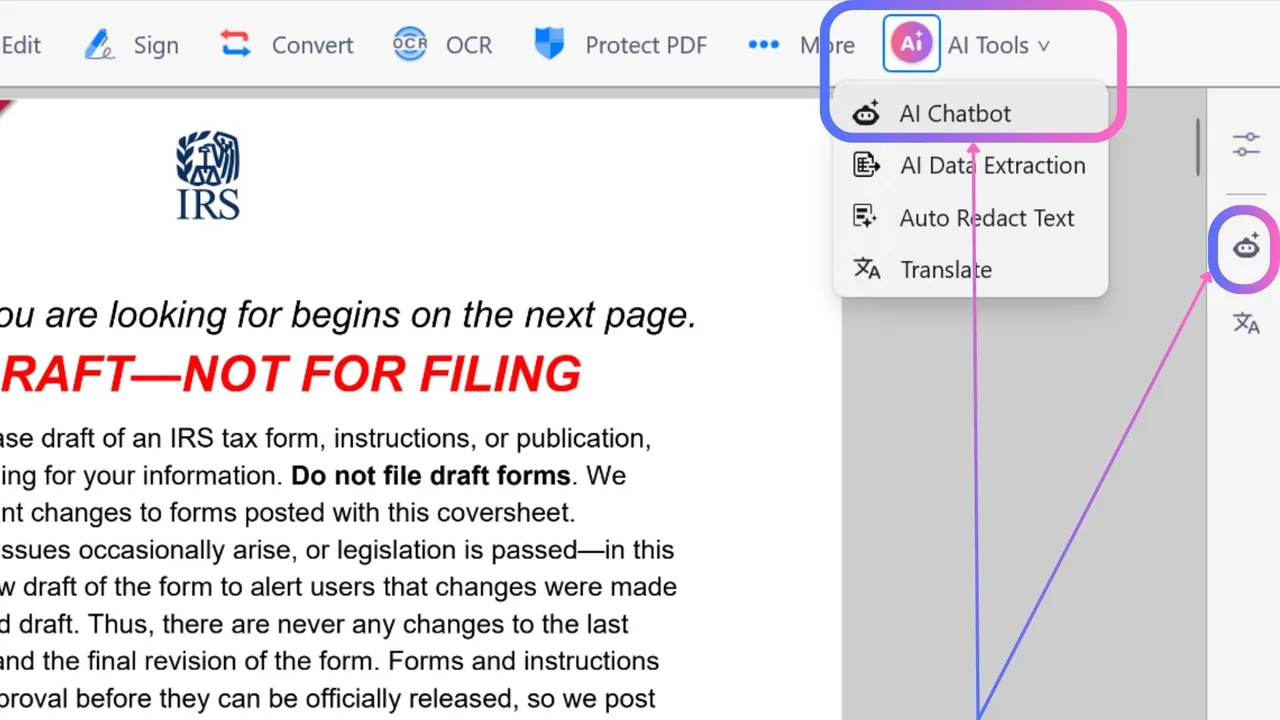
- Open the PDF in KDAN PDF and find AI Chatbot under AI Tools.
- Start with Summarize this document.
- Ask for every fee and deadline with its section number.
- Select a confusing clause and use Explain This (Beta).
- Save checked answers as a Note on the document.
Try it yourself, free
Reading the steps is a start. Doing them is how it sticks. The interactive module walks you through every click in a practice copy of KDAN, checks each step, and never touches your real accounts.
Start “KDAN PDF for Beginners: AI Chatbot, Notes and Signing Explained”Step by step: KDAN PDF for Beginners: AI Chatbot, Notes and Signing Explained
All 11 steps of the interactive module, in order. In the module you watch each one, then do it yourself in a practice copy that checks your work.
1. What KDAN PDF does
- Open the AI Chatbot card. Click the AI Chatbot card.
Start with AI Chatbot. You open a PDF and ask it questions in a chat panel. Summarize this document is a good first question, then ask for the terms you need, with section numbers. KDAN's own help article says the chatbot may not be entirely accurate, so read the section before you rely on it.
- Open the Annotation card. Click the Annotation and Notes card.
Next, Annotation and notes. Highlight a clause, and leave a note on the first page with what you found. Then the answers live on the contract, not in your head. Only put checked answers in the note.
- Open the everyday tools card. Click the Edit, Convert, OCR, Form & Sign card.
And the everyday PDF jobs. Edit text, reorder pages, convert to Office formats and back, make scans searchable with OCR, fill and sign forms, and redact or lock a file. After a conversion or OCR, check the names and numbers.
2. Which tool for which job
- Open the jobs sheet. Click the Which tool for which job tab.
Now let's match KDAN's tools to real office jobs.
- Match the vendor agreement. Click the A vendor agreement before a 2:00 PM call card.
A vendor agreement and a call this afternoon. Use AI Chatbot. Summarize first, then ask for every fee and deadline with its section number. That's the next module in this course.
- Match the confusing clause. Click the One clause nobody understands card.
One clause nobody understands. You are checking the AI against the actual words on the page, which is the safest way to use it.
- Match the contract to sign. Click the A contract other people must sign card.
A contract other people must sign. That's DottedSign, KDAN's separate e-signature product. Form and Sign in KDAN PDF is for signing yourself.
3. Before you trust it
- Open the checks sheet. Click the Before you trust it tab.
Last tab. Three checks before you rely on it.
- Read the accuracy check. Click the Accuracy card.
Accuracy. KDAN says the chatbot may not be entirely accurate. Ask for section numbers, read each one yourself, and take anything large to a lawyer.
- Read the files check. Click the Your files card.
Your files. KDAN says conversion runs locally on your device, and you can redact and encrypt files. Before you send a client contract to any AI feature, follow your firm's data rules.
- Read the plan check. Click the Plans and AI limits card.
Plans. KDAN says Free and Document 365 users get a limited chatbot allowance, and the full AI features are in Document 365 AI plus. Check KDAN's subscription page before a long file. That's the map. Next, you'll do the vendor agreement job.
Frequently asked questions
- What is KDAN PDF?
- KDAN PDF (also called KDAN PDF Reader) is KDAN’s PDF app for annotating, editing, converting, OCR, filling and signing forms, with an AI Chatbot that answers questions about the open document.
- Does KDAN have AI?
- Yes. KDAN PDF has an AI Chatbot, and KDAN describes its AI Assistant as able to translate, summarize and extract data. KDAN says Free and Document 365 users get a limited chatbot allowance, with full AI features in Document 365 AI+.
- Is this an official KDAN course?
- No. This is my own lesson. KDAN is a separate, third-party company. Facts come from KDAN’s own pages, read 20 October 2026.
More in AI Automation for Operations
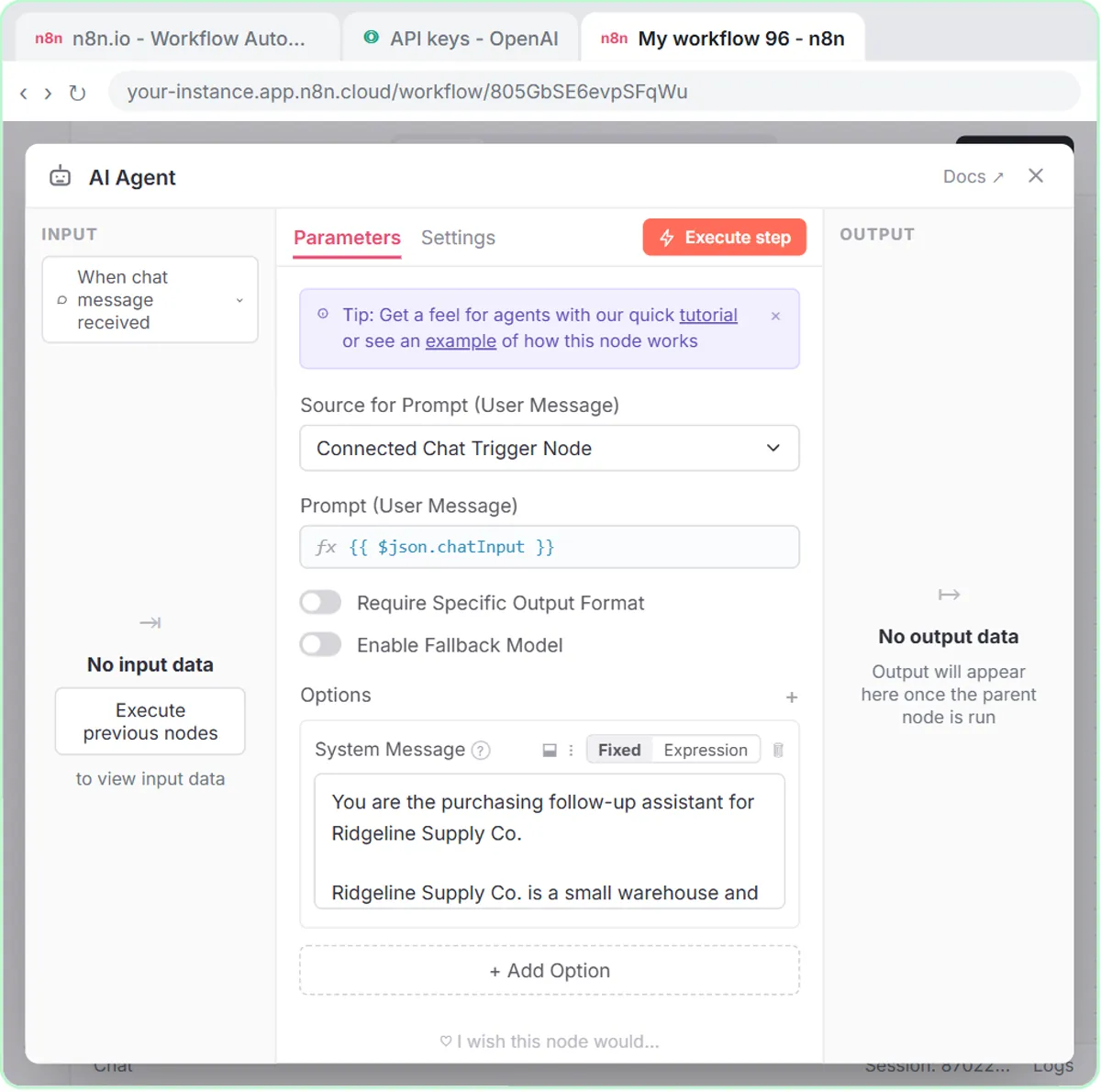 Build an AI Vendor Follow-Up Agent in n8n
Build an AI agent for Ridgeline Supply Co. that writes follow-up messages for late or pending purchase orders and saves them to Google Sheets — chat trigger, AI Agent…
Free · Live ~12 min Intermediate
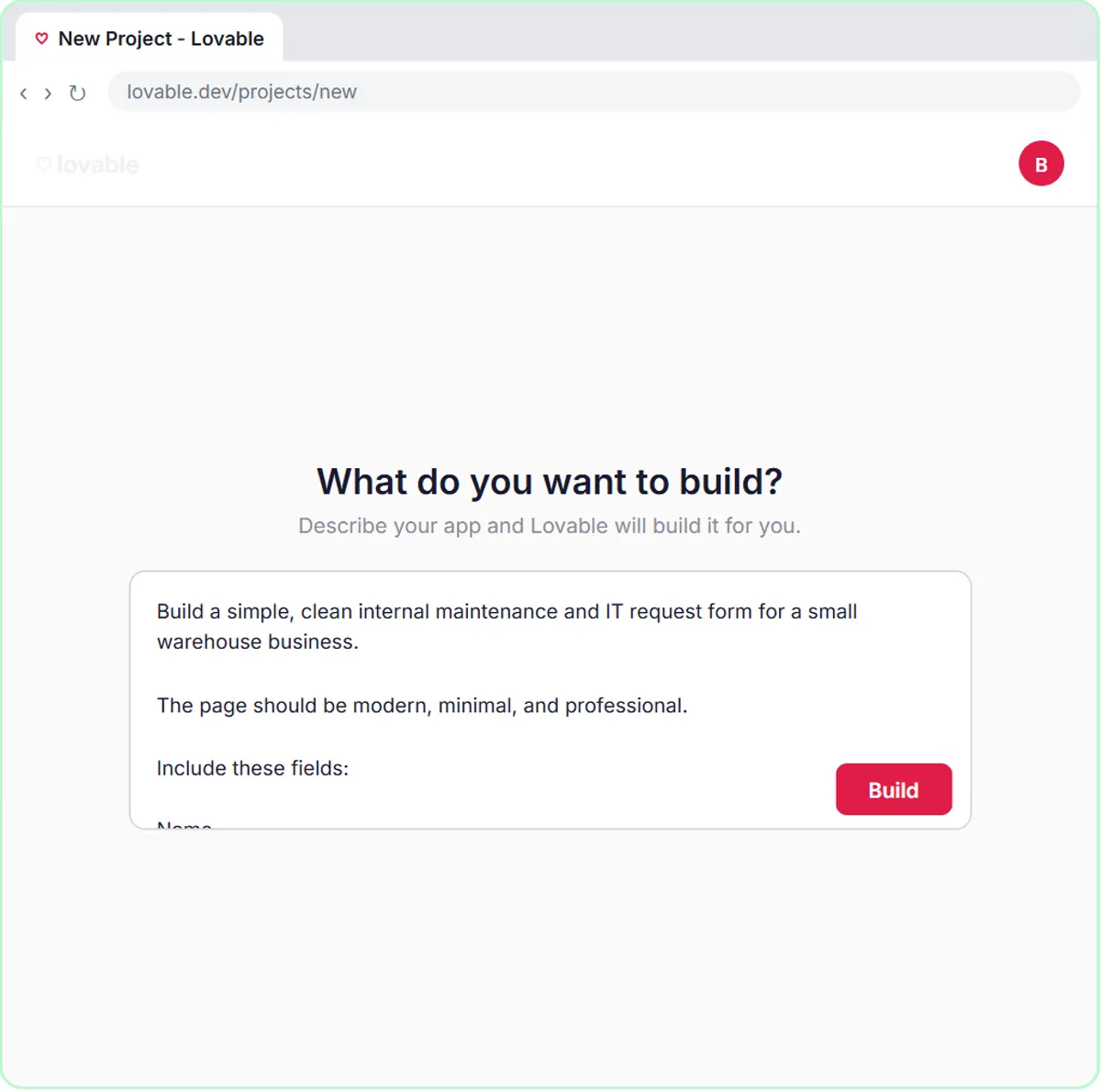 Build an AI Maintenance and IT Request Form
Build an internal maintenance and IT request form in Lovable for Ridgeline Supply Co. and connect it to n8n — the AI agent sets the priority, assigns a team, saves the…
Free · Live ~15 min Advanced
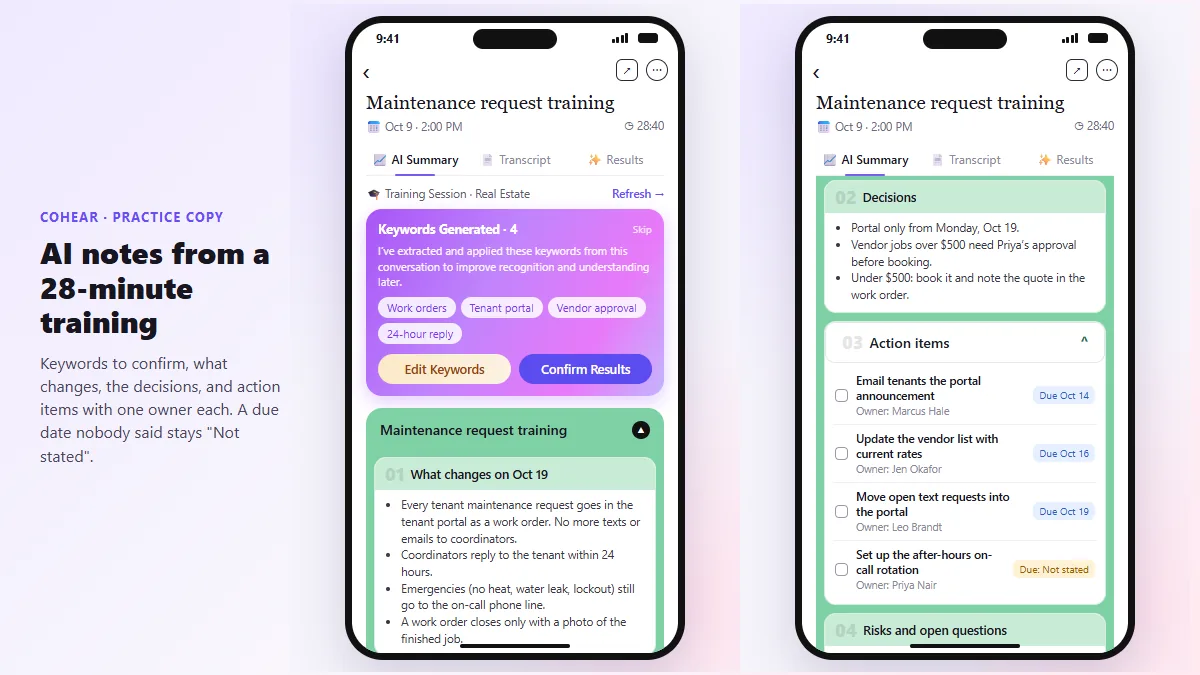 CoHear: AI Meeting Notes from a Team Training Session
Record a team training session on your iPhone with CoHear, check the AI notes and action items against the transcript, make a one-page handout and share it behind a…
Free · Live ~8 min Intermediate
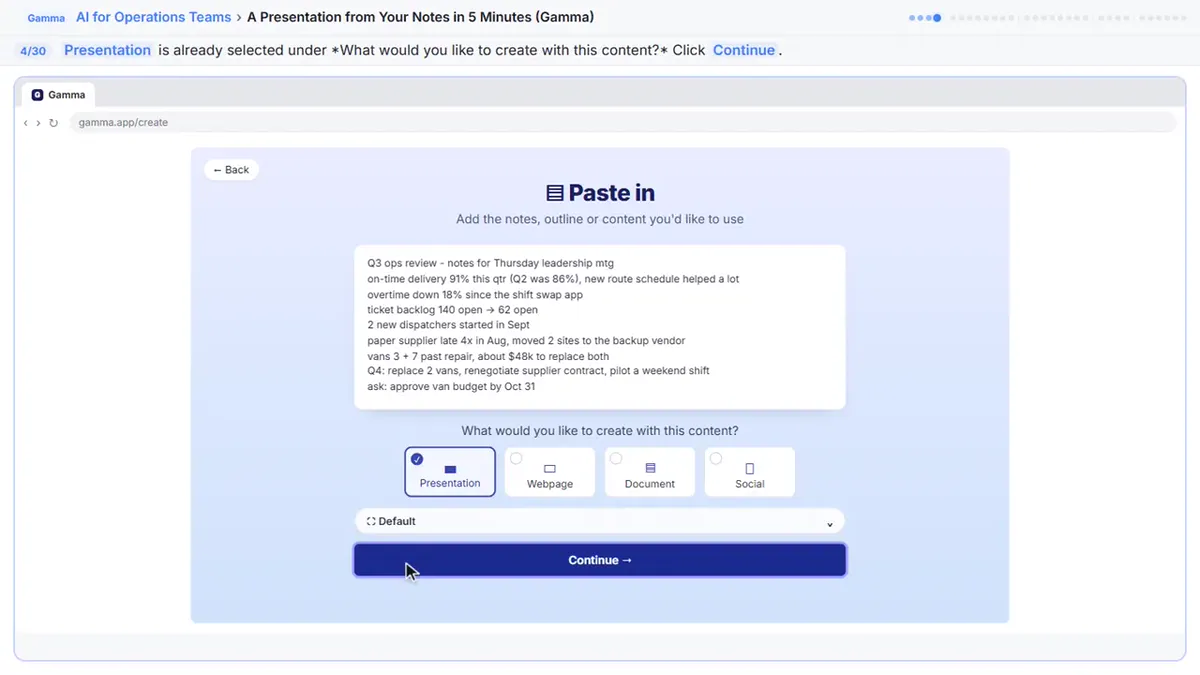 A Presentation from Your Notes in 5 Minutes (Gamma)
Paste rough meeting notes into Gamma, pick a theme, fix one slide by chatting with its AI, and export the deck to PowerPoint and PDF.
Free · Live ~9 min Intermediate
◷Airia for Beginners: What an AI Agent Is Made OfA five-minute map of Airia before you build: the four parts of an agent (model and instructions, data sources, Playground, Publish), three office jobs that suit one…
Free · Live ~5 min Beginner
◷Foxit for Beginners: Workspace, AI Assistant and PDF Editor ExplainedA five-minute map of Foxit before you use it: Foxit Workspace, the PDF AI Assistant and PDF Editor, which one fits a contract review, a revised contract, a flat form or…
Free · Live ~5 min Beginner
All 33 modules in AI Automation for Operations
More KDAN tutorials
Terms in this lesson
Plain-English definitions, each with an example from a free lesson.