Lawn care and landscaping owners can use the quiet months to set up three AI projects: customer announcement emails written with a four-part ChatGPT prompt, a morning email that sends each crew its jobs, and an online form for estimate requests. This guide is for lawn care owners and office staff, and the first project comes straight from the free Prompt Writing 101 lesson, which uses a made-up lawn company as its example.
The other two lessons were built for other trades, a plumbing company and a pet groomer. The steps carry over to lawn care almost unchanged, and this post points out exactly what to swap.
Why set up AI in the off-season?
Building and testing anything new takes a few quiet hours, and lawn care owners rarely have those once mowing starts. November through the winter is when the phones are slower and there's time to get the spring announcement, the crew emails and the estimate form ready.
Each project below has a free lesson of 8 to 10 minutes in a practice copy, so you can see the whole build before you sign up for anything.
How can ChatGPT write customer announcements for a lawn care company?
Give ChatGPT a prompt in four parts, Role, Context, Task and Format, instead of one vague sentence. In Prompt Writing 101, the example is Summit Lawn Care, a made-up family-run lawn company in Harrisburg, PA, announcing a new fall service.
The vague version, "Write an email to my customers about our new service.", gets a generic email with blanks like [Your Company Name] and emoji in the subject line. The four-part version gets something you could send:
- Role: "You are the owner of Summit Lawn Care, a small family-run lawn company in Harrisburg, PA."
- Context: "Our customers are Harrisburg homeowners who already get weekly mowing from us. New this fall: core aeration and overseeding, $149 for most yards, done between September 29 and October 17."
- Task: "Write a short email announcing the new service, with one clear call to action: reply to this email to book a date."
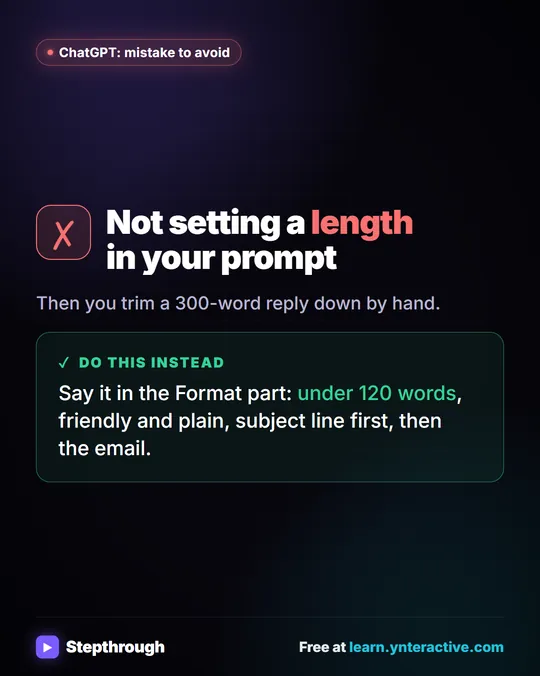
- Format: "Keep it under 120 words, friendly and plain, no emoji. Put the subject line first, then the email."
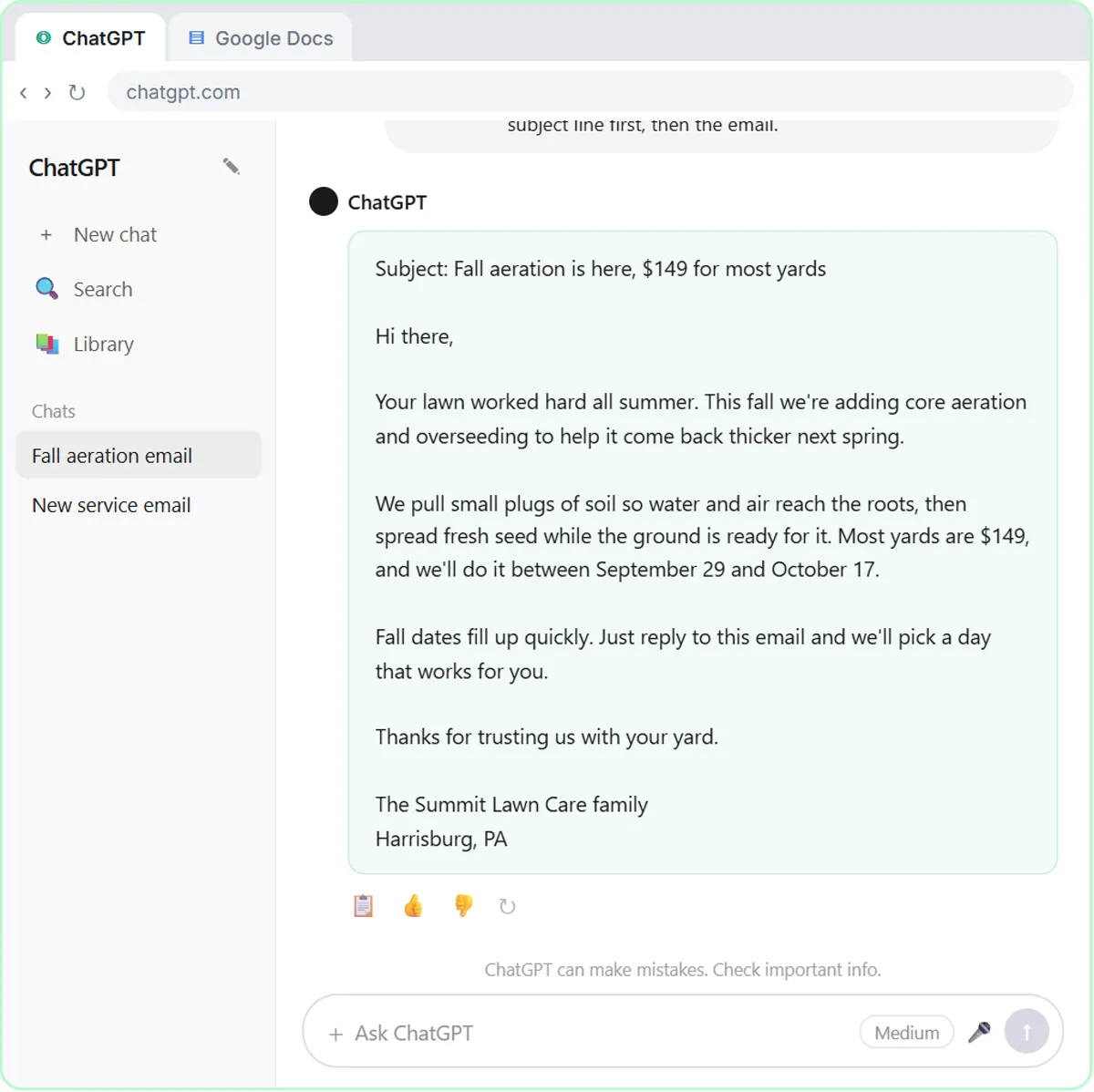
The $149 price and the dates belong to the made-up company. Use your own.
What should a spring prep announcement prompt look like?
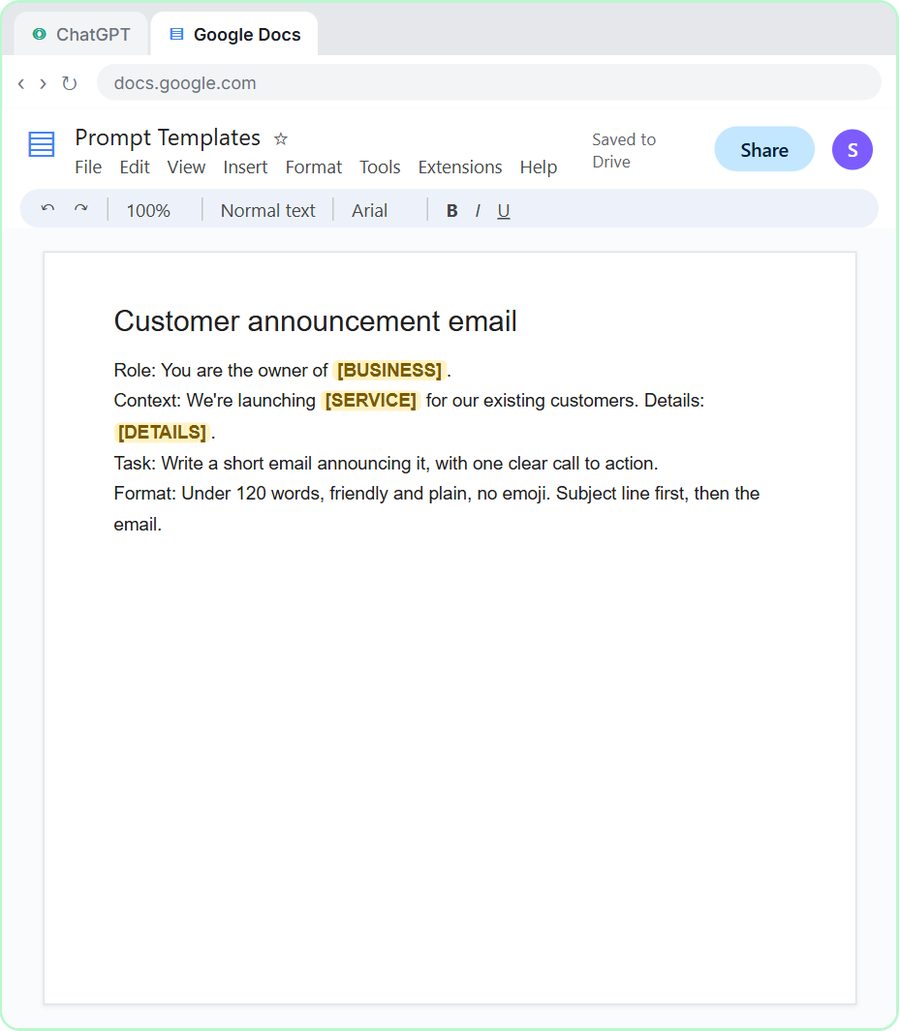
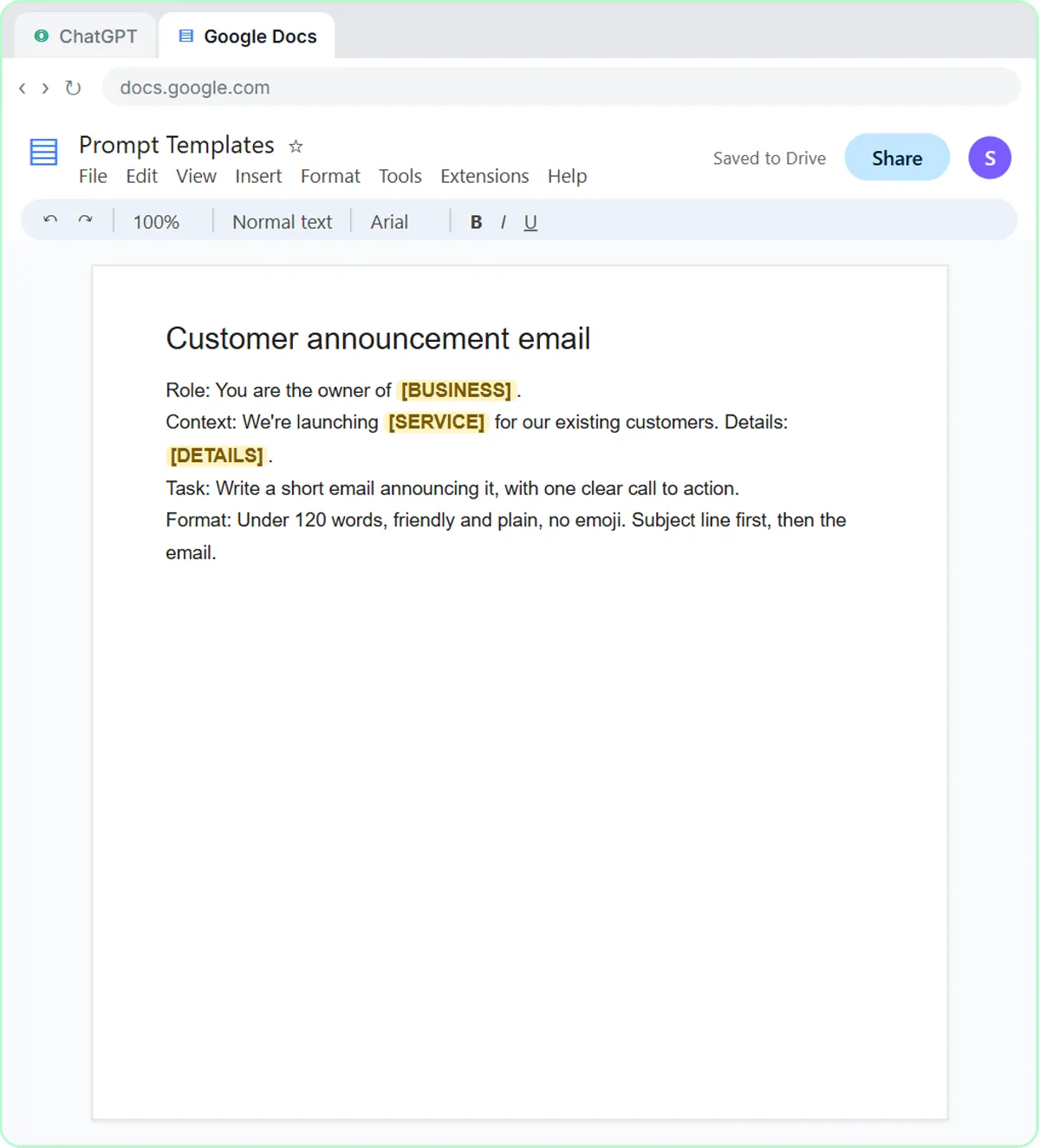
Use the same four parts with your spring details in the Context and one clear action in the Task. Here's a version to fill in over the winter and send when sign-ups open:
Role: You are the owner of [BUSINESS], a lawn care company in [TOWN].
Context: Our customers are homeowners we mowed for this year. This spring we offer [SERVICE, e.g. spring cleanup], [PRICE], scheduled between [START DATE] and [END DATE]. Spots are booked in the order people reply.
Task: Write a short email inviting them to book spring service, with one clear call to action: reply to this email to reserve a spot.
Format: Under 120 words, friendly and plain, no emoji. Subject line first, then the email.
Only put real prices, dates and offers in the brackets, because ChatGPT will repeat whatever you give it. Save the prompt in a Google Doc of templates, as the lesson does, and next season you only change the brackets. How to Write Better ChatGPT Prompts goes deeper on the four parts.
How can each crew get its jobs by email every morning?
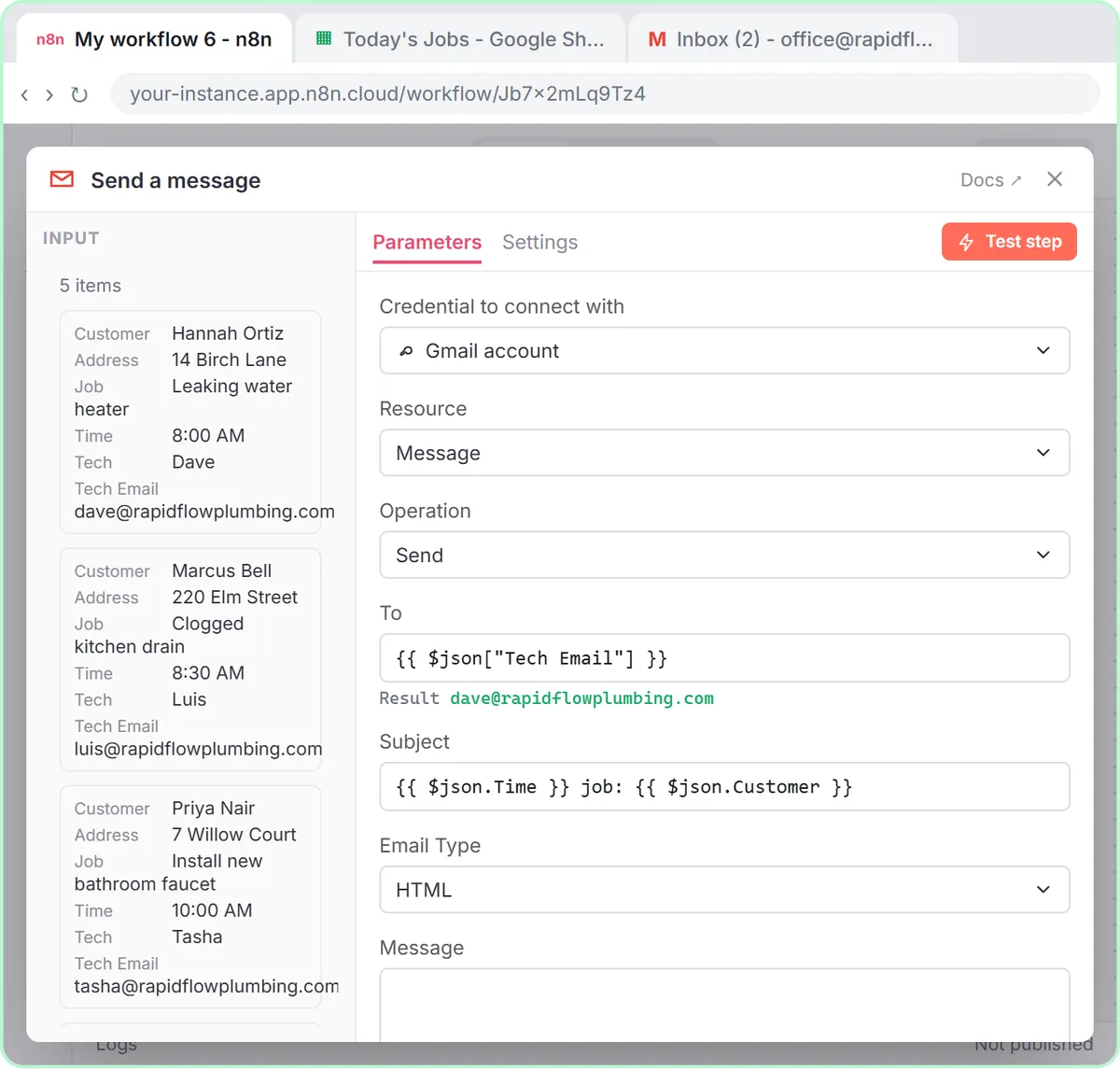
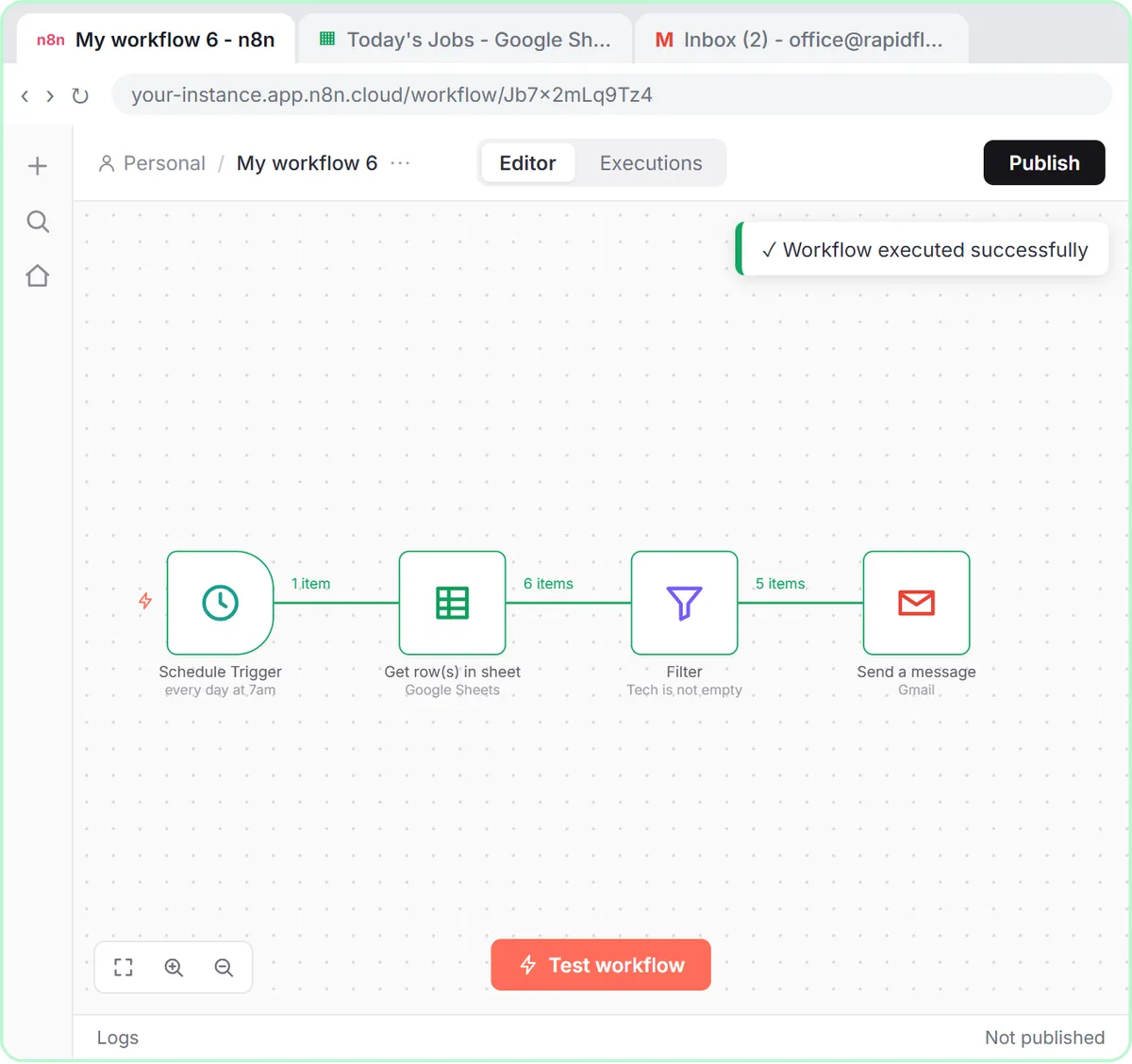
Build the Daily Job Alerts workflow in n8n: at 7am it reads today's jobs from a Google Sheet, skips jobs with no one assigned, and emails each job to the right person. The Daily Job Alerts lesson is built for Rapid Flow Plumbing, a made-up plumbing company that sends jobs to techs. For lawn care, you send them to crews instead.
The changes are small:
- The sheet: rename the Tech and Tech Email columns to something like Crew and Crew Email. Keep one row per job with Customer, Address, Job and Time.
- The Filter: check
{{ $json.Crew }}is not empty, so unassigned jobs are skipped. - The Gmail To field: use
{{ $json["Crew Email"] }}. The column name has a space, so it goes in square brackets and quotes. - The message: start with
Hi {{ $json.Crew }},and list the job, address and time from their columns.
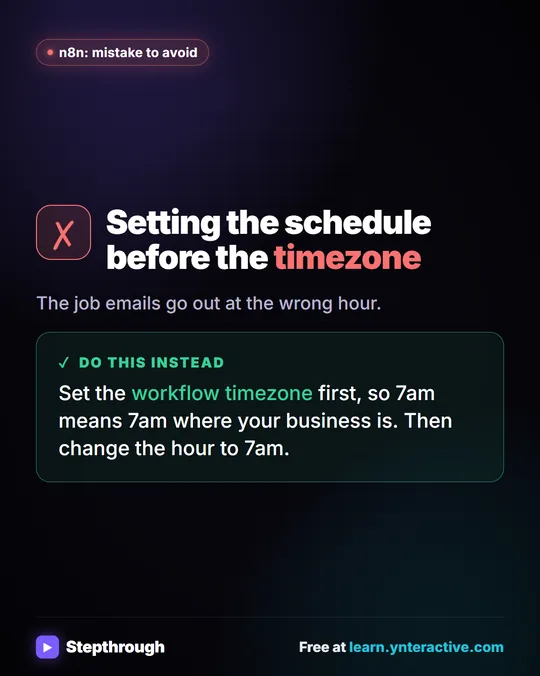
Two settings from the lesson matter just as much here. Set the workflow's Timezone in Settings first, because schedules default to New York time. And keep the sheet to today's jobs only, because the workflow emails every assigned row, every day. When rain moves a job, the office edits the sheet and the next morning's email is right. The full build is in Email Each Tech Their Jobs Every Morning with n8n.
Try it free, step by step
Daily Job Alerts: Email Each Tech Their Jobs from Google Sheets with n8n. Every morning at 7, n8n reads a plumbing company's jobs sheet, skips anything not assigned yet, and emails each job to the tech it's assigned to — customer, address, time and what's wrong. No AI… You do every step yourself in a practice copy of n8n, it checks your work as you go, and “Do it for me” finishes any step you get stuck on. Free, and nothing touches your real accounts.
Start the free lessonHow can a lawn care business take estimate requests online?
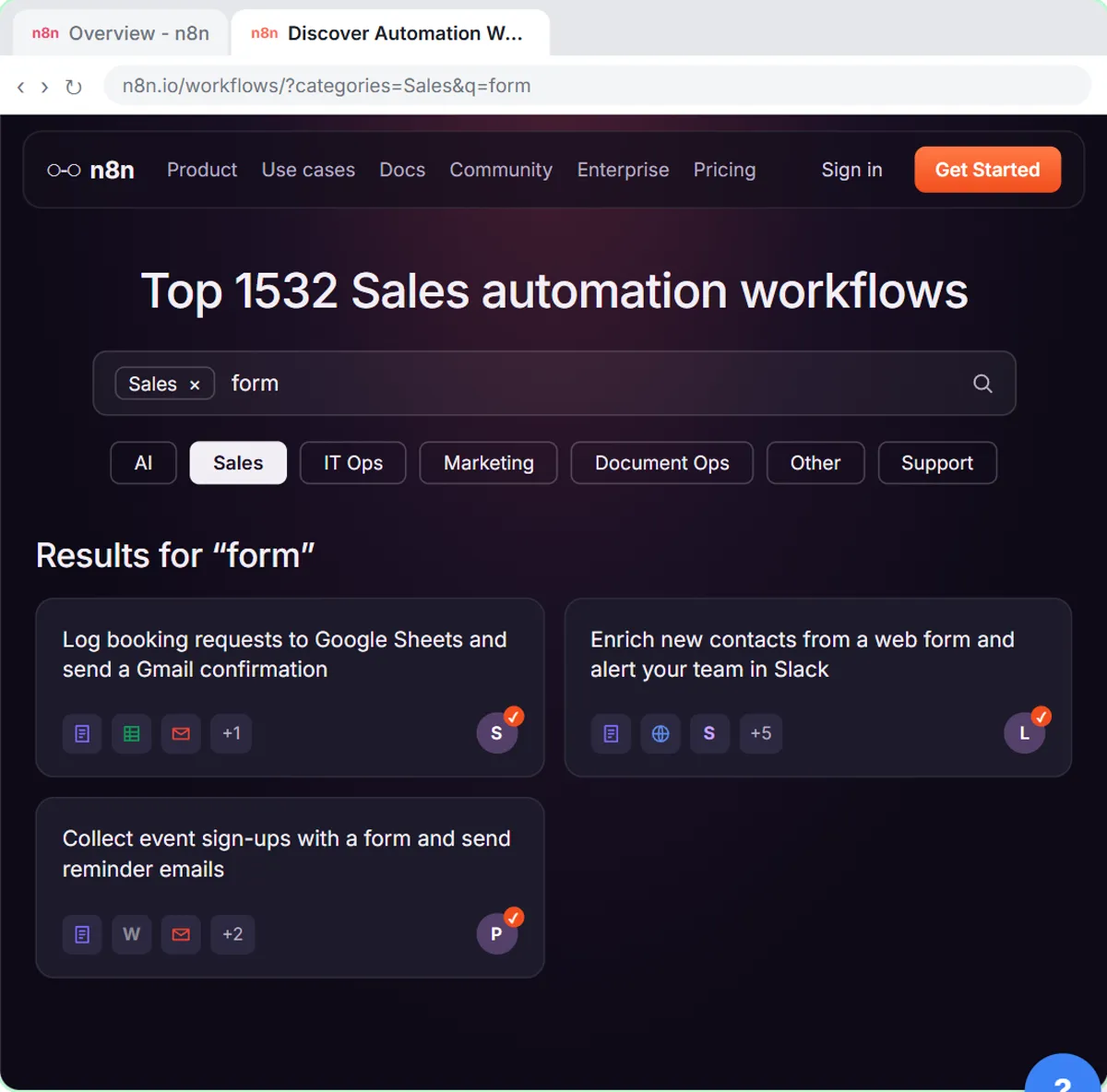
Import an n8n template that comes with a form: each request lands as a row in a Google Sheet and the customer gets a confirmation email. In the Find and Use n8n Templates lesson, the example is Hillside Pet Grooming, a made-up groomer, using a gallery template called "Log booking requests to Google Sheets and send a Gmail confirmation".
The template's form asks for a name, an email and a pet's name, and the sheet has Name, Email, Pet name and Submitted columns. For lawn care, you'd change the pet's name field to something like the property address, rename the sheet header to match, and update the email. The lesson's confirmation says "we will call you within one business day to pick a time", which suits estimates too.
The lesson covers connecting Google Sheets and Gmail, picking your own sheet, rewriting the email and testing. It doesn't cover editing the form's fields, so run a test request after each change and check the new row. How to Use n8n Templates has the full walkthrough.
Which lawn care AI project should you start with?
Start with the ChatGPT announcement if you've never used AI for work; it takes 8 minutes to learn and costs nothing extra. Start with the crew job emails if someone spends every morning texting addresses. Start with the estimate form if requests come in by phone and voicemail and get lost.
What do these projects cost?
The lessons are free and run in practice copies. For real use:
- ChatGPT announcements: any ChatGPT plan works to start, including the free plan within its limits.
- Crew job emails and the estimate form: n8n (n8n Cloud is paid after a free trial, or self-host it) and the Google account you already use. Neither uses AI, so there's no OpenAI cost.
Check n8n's pricing page for current prices. More lessons are on the course page.
Key takeaways
- Lawn care owners can use the off-season to set up AI announcement emails, morning crew job emails and an online estimate form.
- Prompt Writing 101 uses a made-up lawn company, Summit Lawn Care, to show how Role, Context, Task and Format turn a generic email into one you can send.
- The Daily Job Alerts workflow works for lawn crews by renaming Tech and Tech Email to Crew and Crew Email in the sheet and expressions.
- An n8n template with a built-in form can log estimate requests in Google Sheets and send each customer a confirmation.
- The crew emails and the estimate form use no AI, so their only cost is n8n.
Frequently asked questions
- Is Summit Lawn Care a real company?
No. Summit Lawn Care, its $149 price and its dates are made-up examples from the Prompt Writing 101 lesson.
- Do the n8n lessons work for lawn care even though they use other businesses?
Yes. The job emails lesson uses a plumbing company and the template lesson uses a pet groomer, but the steps are the same. You rename a few columns and fields to fit crews and properties.
- Does the morning crew email use AI?
No. It reads the sheet, filters out unassigned jobs and sends emails. There's no AI step, so there's no AI cost.
- What if a job gets rained out?
Change the job in the sheet. The workflow reads the sheet fresh every morning, so the next day's emails reflect the change.