Updated . Built against the tool’s current screens and checked step by step. How we check this lesson
A client form asks if your website is accessible. Run a WCAG 2.2 static check on a page you own, read what passed and what was not tested, and copy a ready AI fix prompt for your developer.
At a glance
| Question | Answer |
|---|---|
| What you build | A client form asks if your website is accessible. Run a WCAG 2.2 static check on a page you own, read what passed and what was not tested, and copy a ready AI fix prompt for your developer. |
| Tools | Sitelemetry |
| Time | About 7 minutes, 11 steps in 3 parts |
| Level | Beginner, no coding needed |
| Cost | Free |
| Ways to learn it | Practice it step by step |
The 3 parts, in short
- Run the check: Enter a page you own, Run the analysis.
- Read what passed and what was not tested: Read the sentence under the score first, Six tiles, two issues, Know what was not measured, Find the first issue, and 2 more steps.
- Hand over the fixes: Get the AI Fix Prompt, Copy the prompt, Send it to whoever fixes the site.
Start here first: How to Do OCR in n8n: Read Receipt Photos into Google Sheets with AI (module 1 of Business Automations)
In the course: Part 9 · n8n Automation Toolkit (Module 155 of the full course)
Part of: AI for Consulting & Agencies (step 37 of 38). Next up: Anwaar Digital: Send a Client One Small, Signed Engagement Packet for Consulting & Agencies
Part of: AI Apps Worth Knowing (step 165 of 175). Next up: ResumeScorePro: Get Internal Candidates Past the Resume Screen for Recruiting & HR
What you'll build
Sam is made up. A hospital client's vendor form asks about website accessibility, and nobody on the small team has an answer. In this lesson you run Sitelemetry's Accessibility check on one page, and we use our own site, learn.ynteractive.com, because you should only scan sites you own. You read the score and the sentence under it, see which checks passed, which need a manual review and which two failed, then copy the AI Fix Prompt for whoever maintains the site.
You have a first static check of one page: 96 out of 100, alt text and labels in place, two minor issues with a fix prompt ready to send. You also know what was not tested: contrast, keyboard use, focus and reflow. Put both in your reply to the client, and run the check again after the fixes.
- Tools: Sitelemetry
- Time: about 7 minutes, 11 steps in 3 chapters
- Level: beginner, no coding needed
- Price: free
Practice first, then build it for real
Practice copy built from real Sitelemetry screens (sitelemetry.com), captured 16 November 2026. Nothing here runs a scan. The page scanned was our own site; the score, findings and fix prompt are what Sitelemetry returned that day. Accessibility is on Sitelemetry's paid plans. To build it for real you need your own Sitelemetry account, and some services charge once you use them for real work, so check each tool's current pricing.
Try it yourself, free
Reading the steps is a start. Doing them is how it sticks. The interactive module walks you through every click in a practice copy of Sitelemetry, checks each step, and never touches your real accounts.
Start “Sitelemetry: Check a Web Page for Accessibility Basics and Get an AI Fix Prompt”Step by step: Sitelemetry: Check a Web Page for Accessibility Basics and Get an AI Fix Prompt
All 11 steps of the interactive module, in order. In the module you watch each one, then do it yourself in a practice copy that checks your work.
1. Run the check
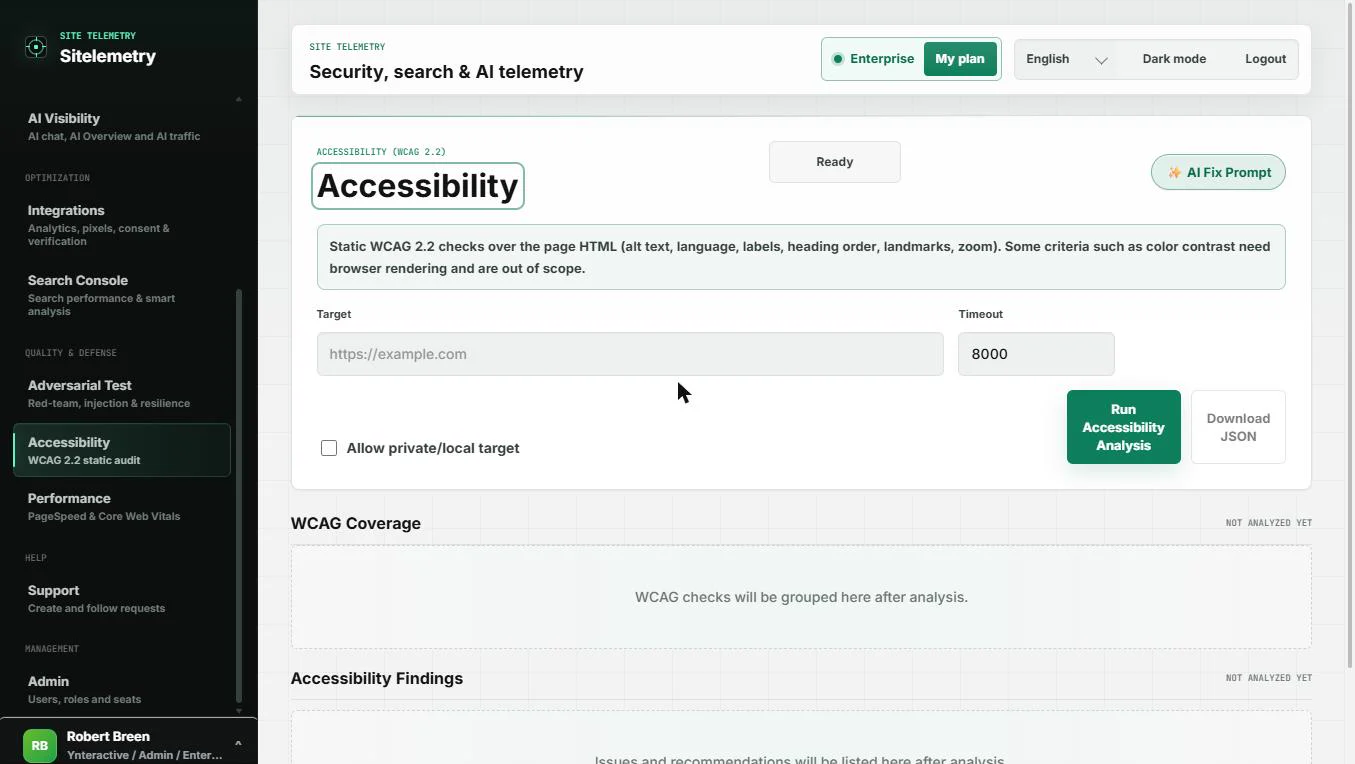
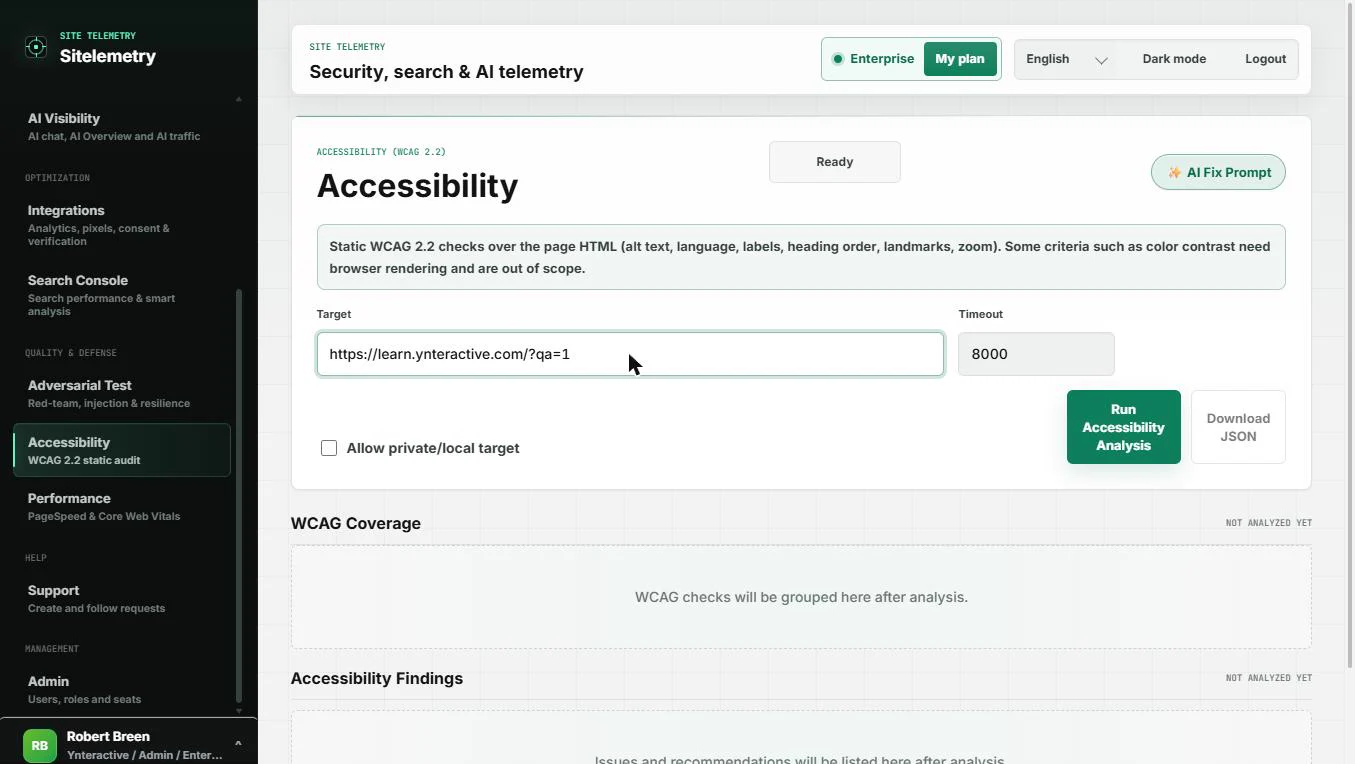
- Enter a page you own. You are Sam, a made-up operations coordinator. A hospital client's vendor form asks: "Is your website accessible? Attach evidence." You are not a developer, but you can run a first check. In Sitelemetry, open Accessibility (WCAG 2.2 static audit). Read the green box: it checks the page's HTML for alt text, language, labels, heading order, landmarks and zoom; things like color contrast are out of scope. Type the address of a page you own. We use our own site (the ?qa=1 on the end only keeps our test out of our visitor stats).
A client asks if your website is accessible, with evidence.
- Run the analysis. Leave Timeout at 8000 and Allow private/local target unticked. Click Run Accessibility Analysis.
Leave the timeout as it is.
2. Read what passed and what was not tested
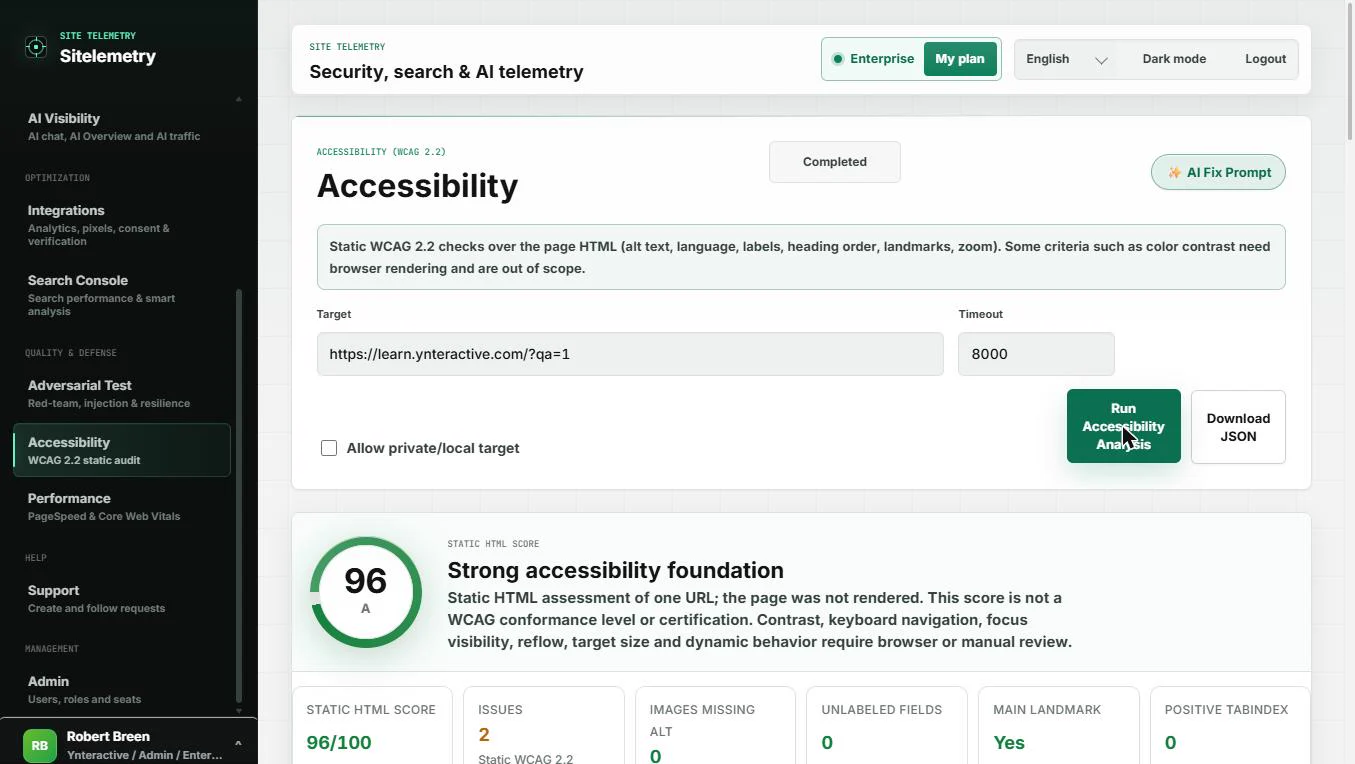
- Read the sentence under the score first. About ten seconds later: 96, grade A, Strong accessibility foundation. Before you quote that number to anyone, read the line under it: this is a static HTML assessment of one URL, the page was not rendered, and the score is not a WCAG conformance level or certification. Contrast, keyboard navigation, focus, reflow and target size still need a browser or a person. Click that sentence.
Ninety six, grade A. But read the line under it. This is a static check of one page. It is not a certification.
- Six tiles, two issues. The tiles give the evidence a client form wants: 51 images scanned, 0 missing alt text; 1 form field, 0 unlabeled; main landmark: Yes; 0 positive tabindex. And 2 issues. Click Issues.
The tiles give the evidence. Fifty one images, none missing alt text. One field, labeled. And two issues.
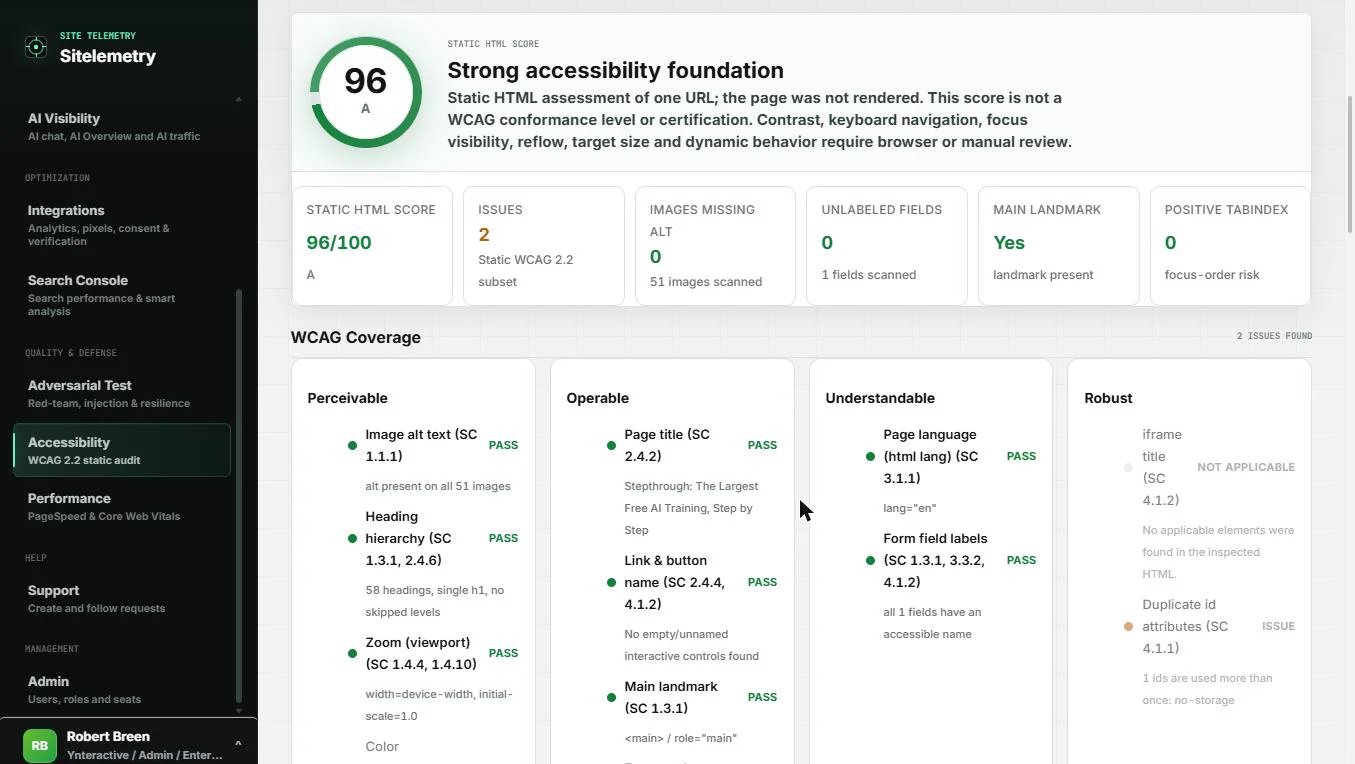
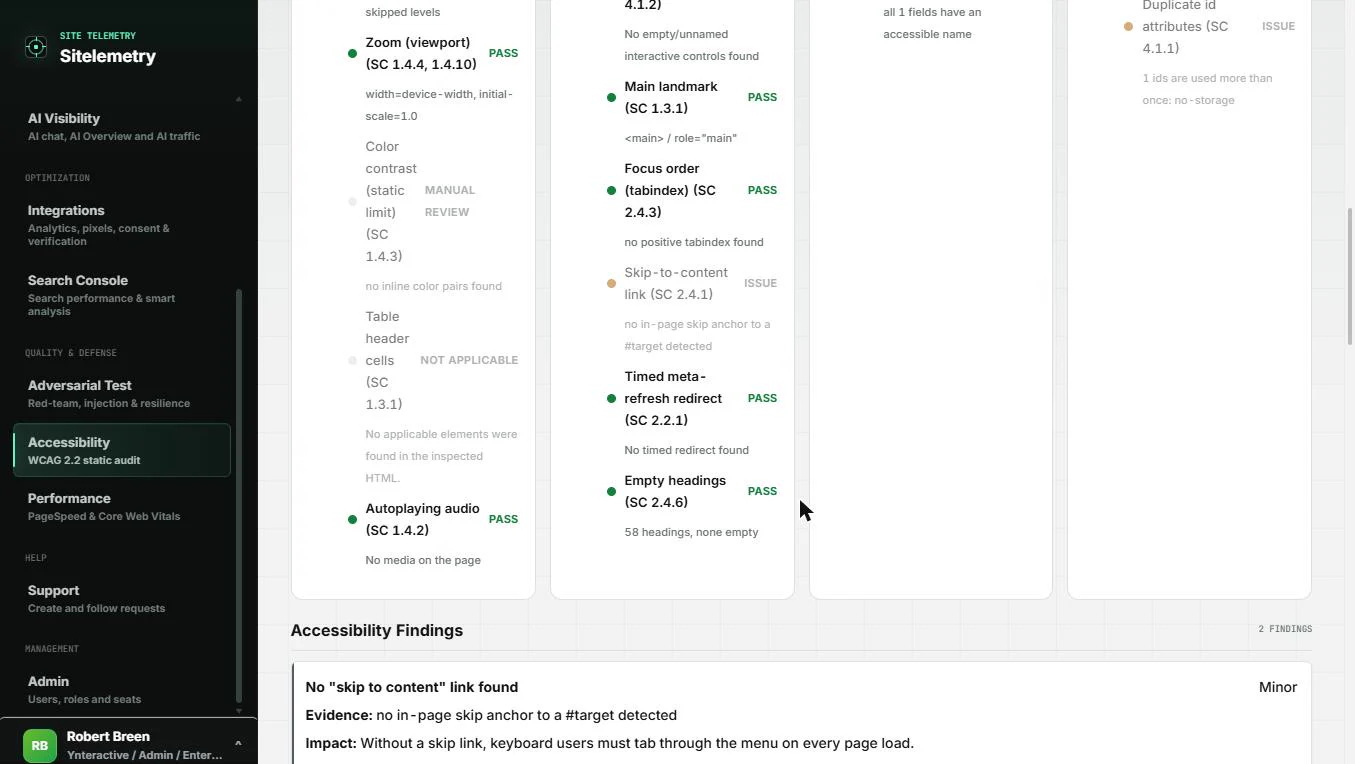
- Know what was not measured. WCAG Coverage groups every check under Perceivable, Operable, Understandable and Robust, each marked Pass, Issue, Not applicable or Manual review. Color contrast says Manual review: the tool could not judge it. Write that down as still to do. Click Color contrast.
Coverage marks each check as pass, issue, not applicable, or manual review. Colour contrast needs a manual review. Write that down.
- Find the first issue. Under Operable, Skip-to-content link is marked Issue: "no in-page skip anchor to a #target detected". Click it.
Under Operable, skip to content link is marked as an issue.
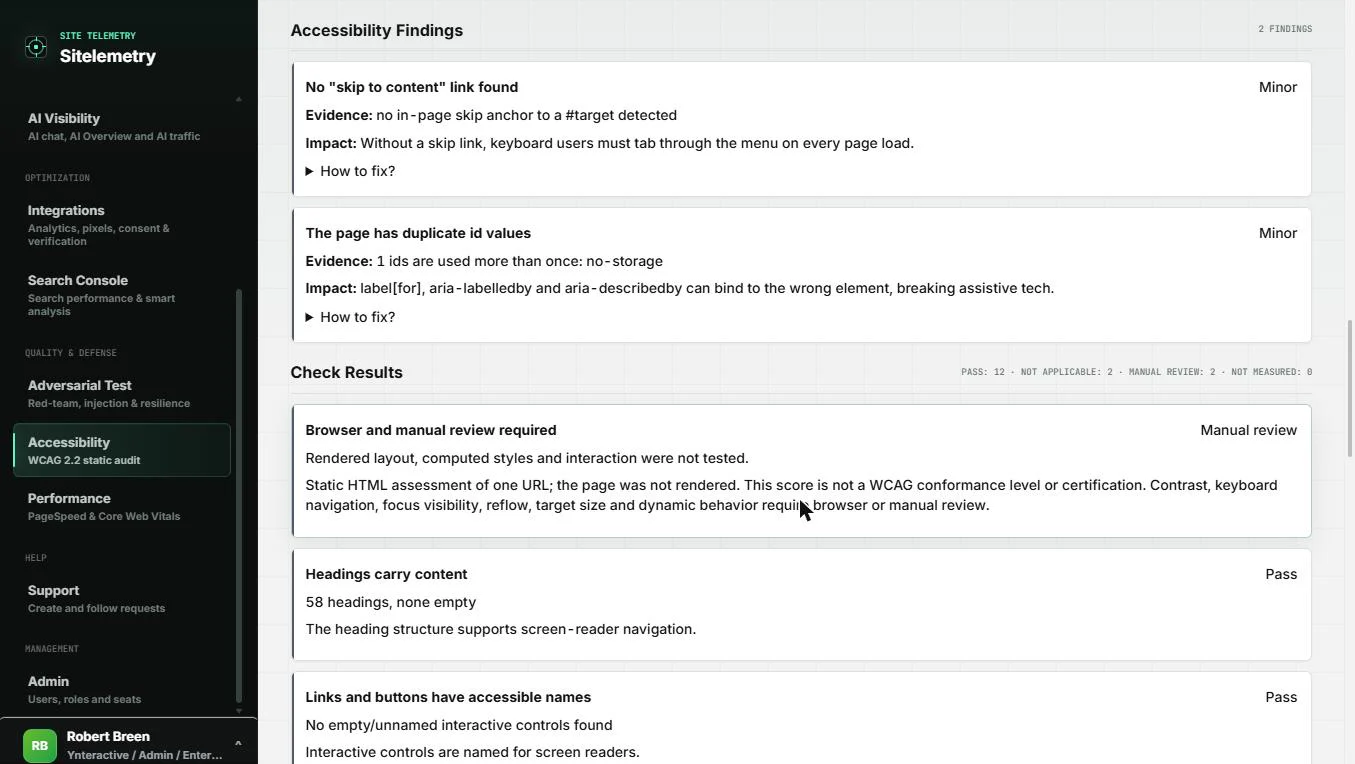
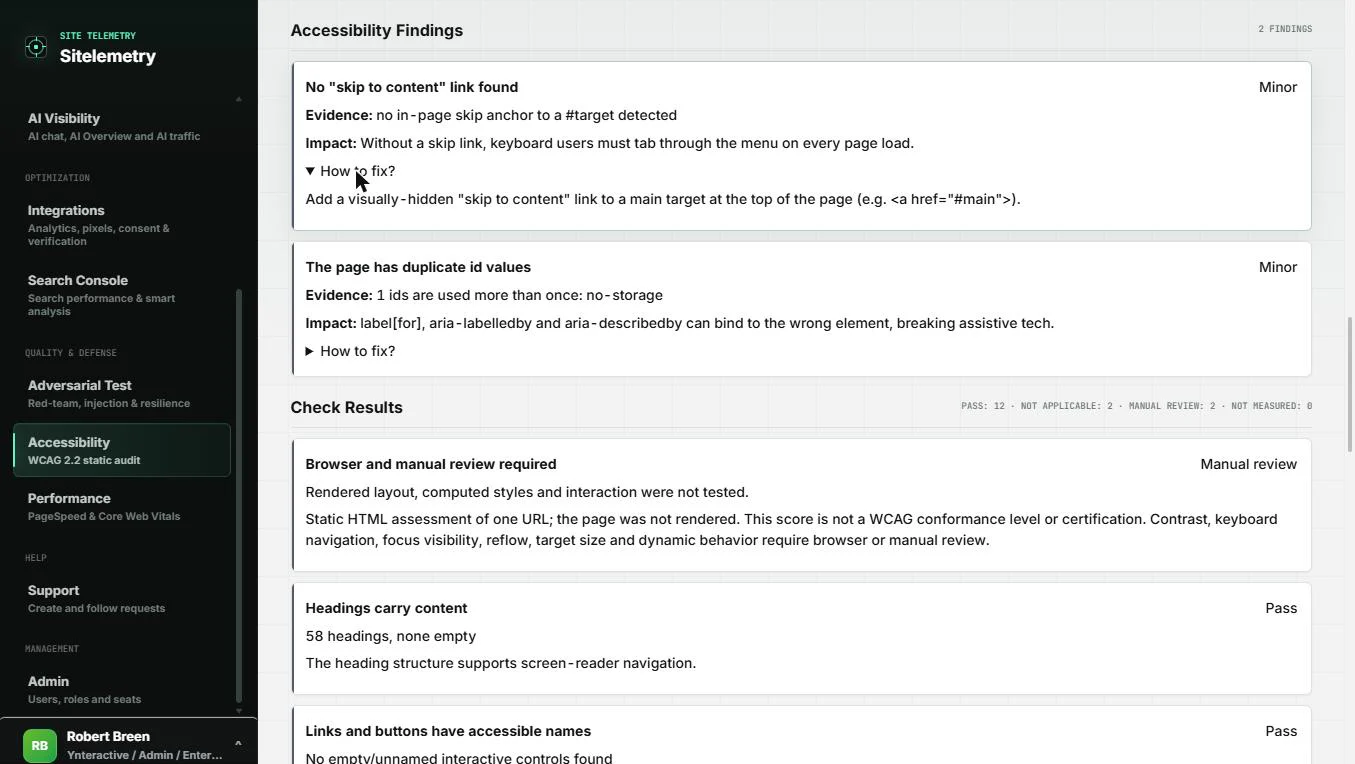
- Open How to fix. Accessibility Findings explains each issue with Evidence and Impact. For the skip link: without one, keyboard users must tab through the menu on every page load. Both findings are rated Minor. Click How to fix?
Each finding has evidence and impact. Without a skip link, keyboard users tab through the menu on every page.
- Read the second finding. The fix is one sentence: add a visually hidden "skip to content" link to the main target at the top of the page. The second finding: the page has duplicate id values (one id, "no-storage", is used more than once), which can make labels point at the wrong element. Below, Check Results repeats that rendered layout and interaction were not tested. Click the second finding.
The fix is one sentence. The second finding is a duplicate id, which can make labels point at the wrong element.
3. Hand over the fixes
- Get the AI Fix Prompt. You will not fix HTML yourself. Scroll back to the top and click AI Fix Prompt.
You will not fix HTML yourself.
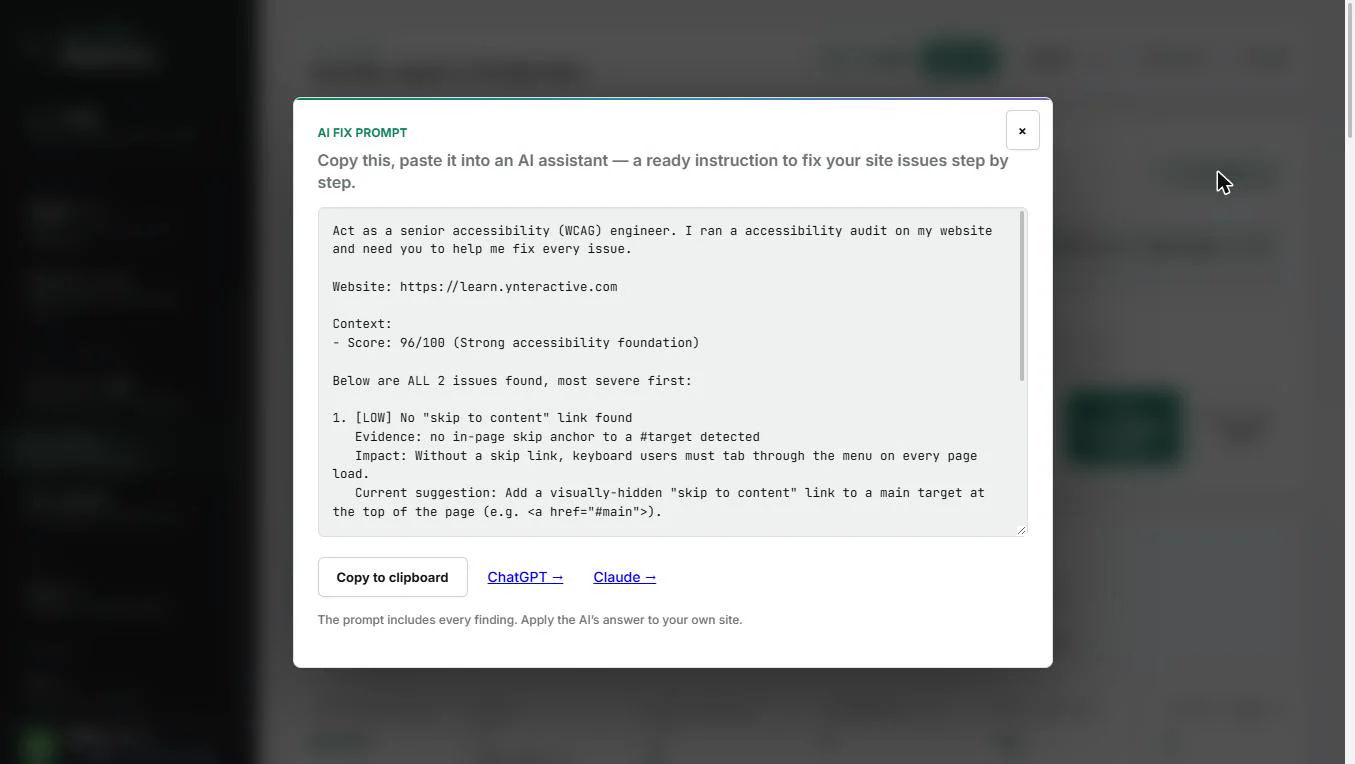
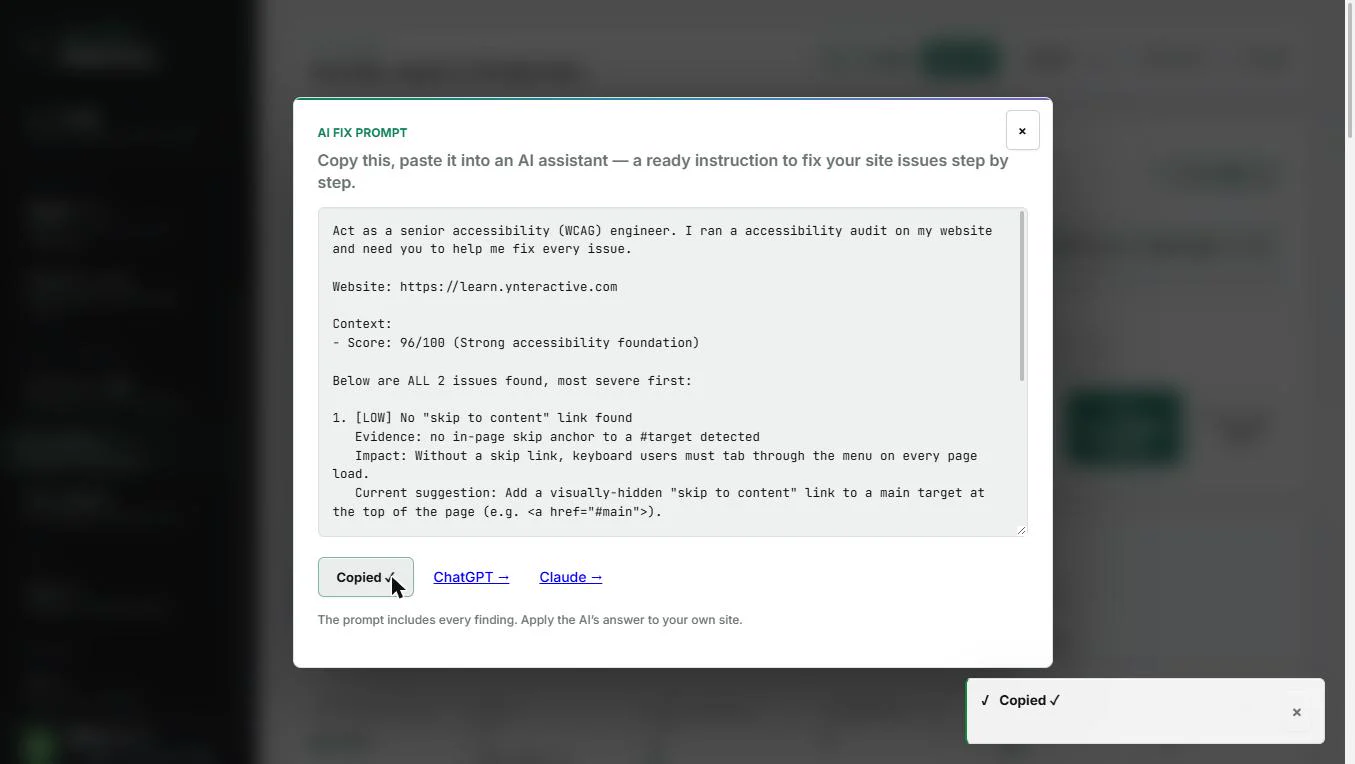
- Copy the prompt. Sitelemetry wrote a ready instruction: "Act as a senior accessibility (WCAG) engineer", the site, the score, and all 2 issues, most severe first, each with its evidence, impact and current suggestion. Click Copy to clipboard.
Sitelemetry wrote a ready instruction with both issues, their evidence and impact.
- Send it to whoever fixes the site. Copied. Paste it into an email to your web developer, or open it in ChatGPT or Claude with the links beside the button and send the answer on. Then answer the client honestly: "Static check of our home page on 16 Nov: 96/100, two minor issues being fixed; contrast and keyboard checks still to do." Click Claude to finish.
Copied. Send it to whoever fixes the site. Then tell the client what was checked, and what still needs a manual review.
Screenshots
More in Business Automations
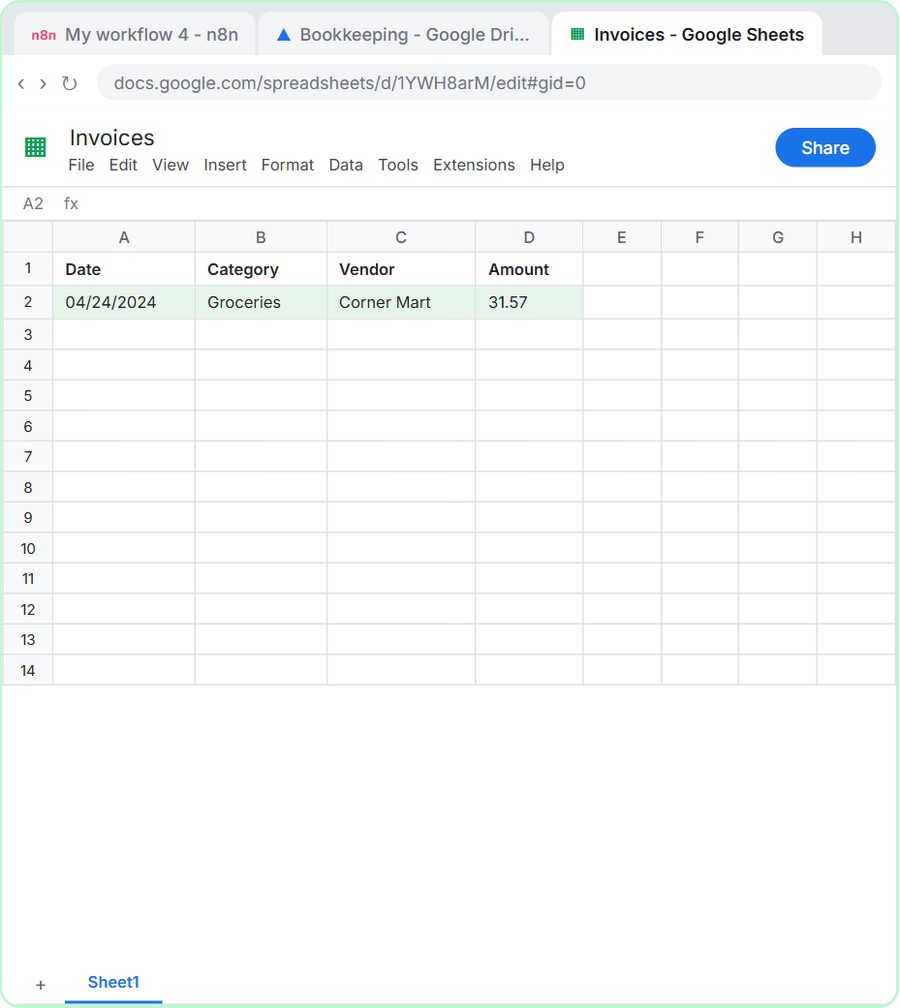 How to Do OCR in n8n: Read Receipt Photos into Google Sheets with AI
Drop a photo of a receipt into an n8n chat. An AI agent reads it, pulls out the date, vendor and amount, picks a category, and adds a row to Google Sheets.
Free · Live ~12 min Intermediate
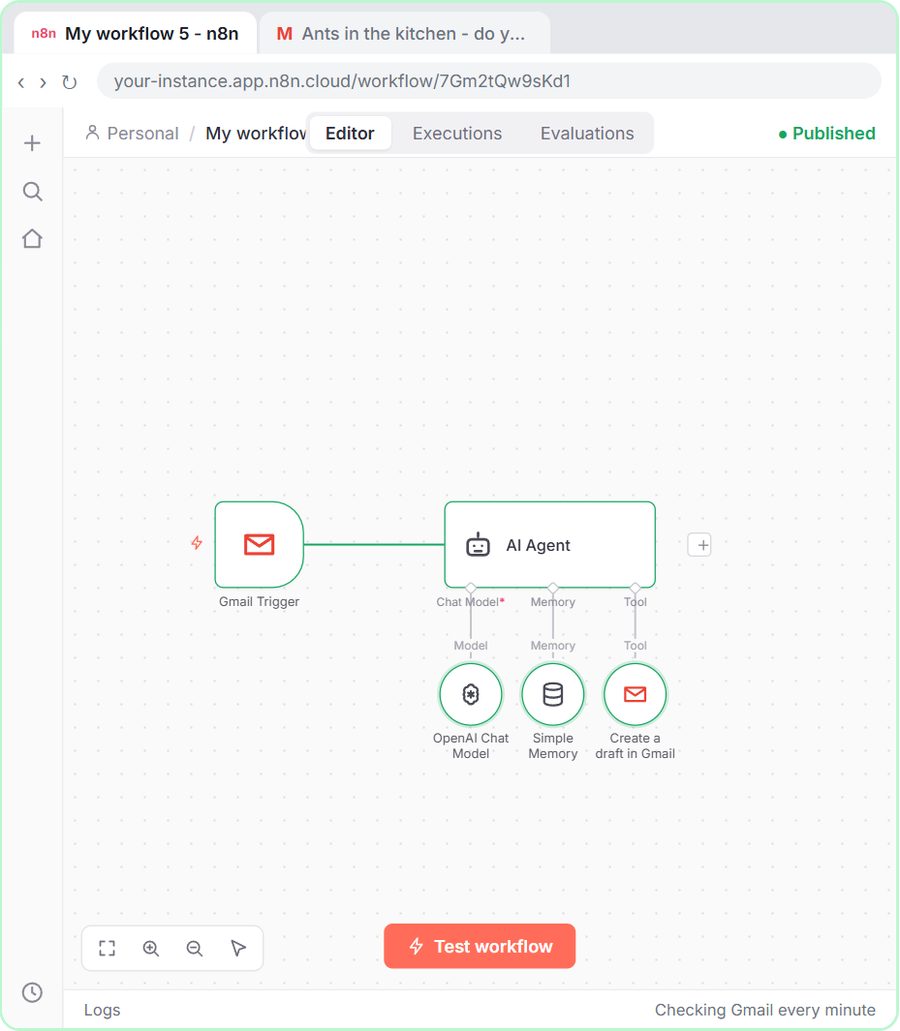 n8n AI Email Responder: Draft Gmail Replies Automatically
Build an n8n agent that watches your Gmail, reads each new customer email, and writes a reply as a draft in the same thread, ready for you to check and send.
Free · Live ~12 min Intermediate
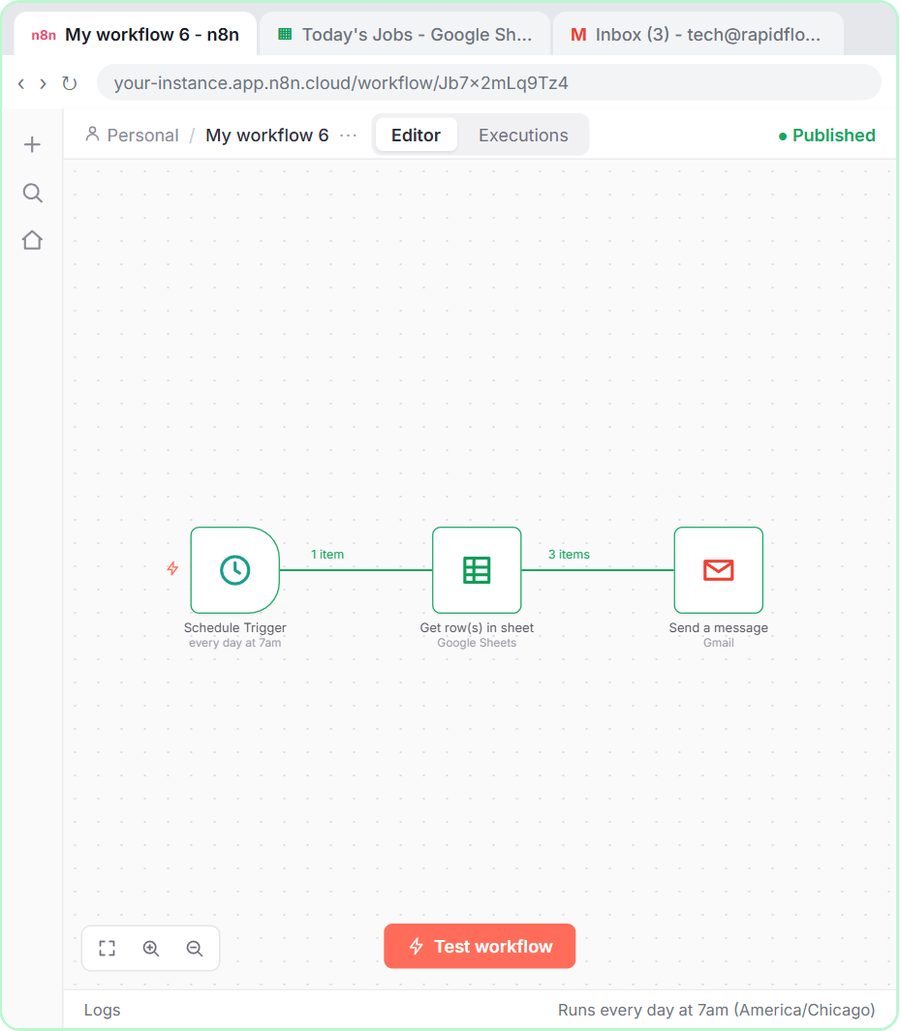 How to Make an n8n Workflow That Emails Each Tech Their Jobs from Sheets
Every morning at 7, n8n reads a plumbing company's jobs sheet, skips anything not assigned yet, and emails each job to the tech it's assigned to — customer, address…
Free · Live ~10 min Intermediate
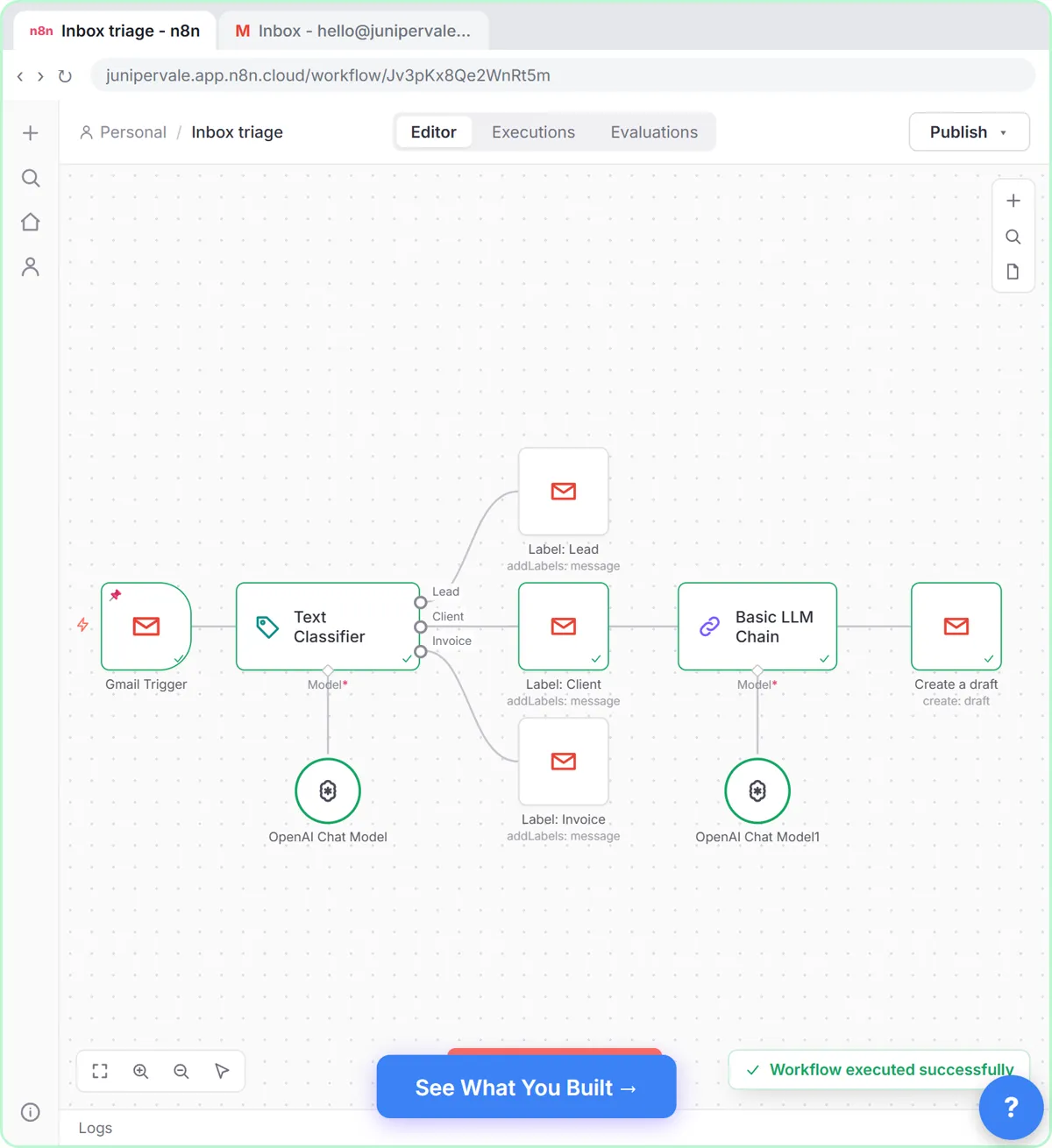 Gmail AI Triage: Auto-Label Every Email and Draft Replies
Build an n8n workflow that reads each new email, sorts it as a lead, a client or an invoice with a Text Classifier, adds the matching Gmail label, and drafts a reply to…
Free · Live ~18 min Advanced
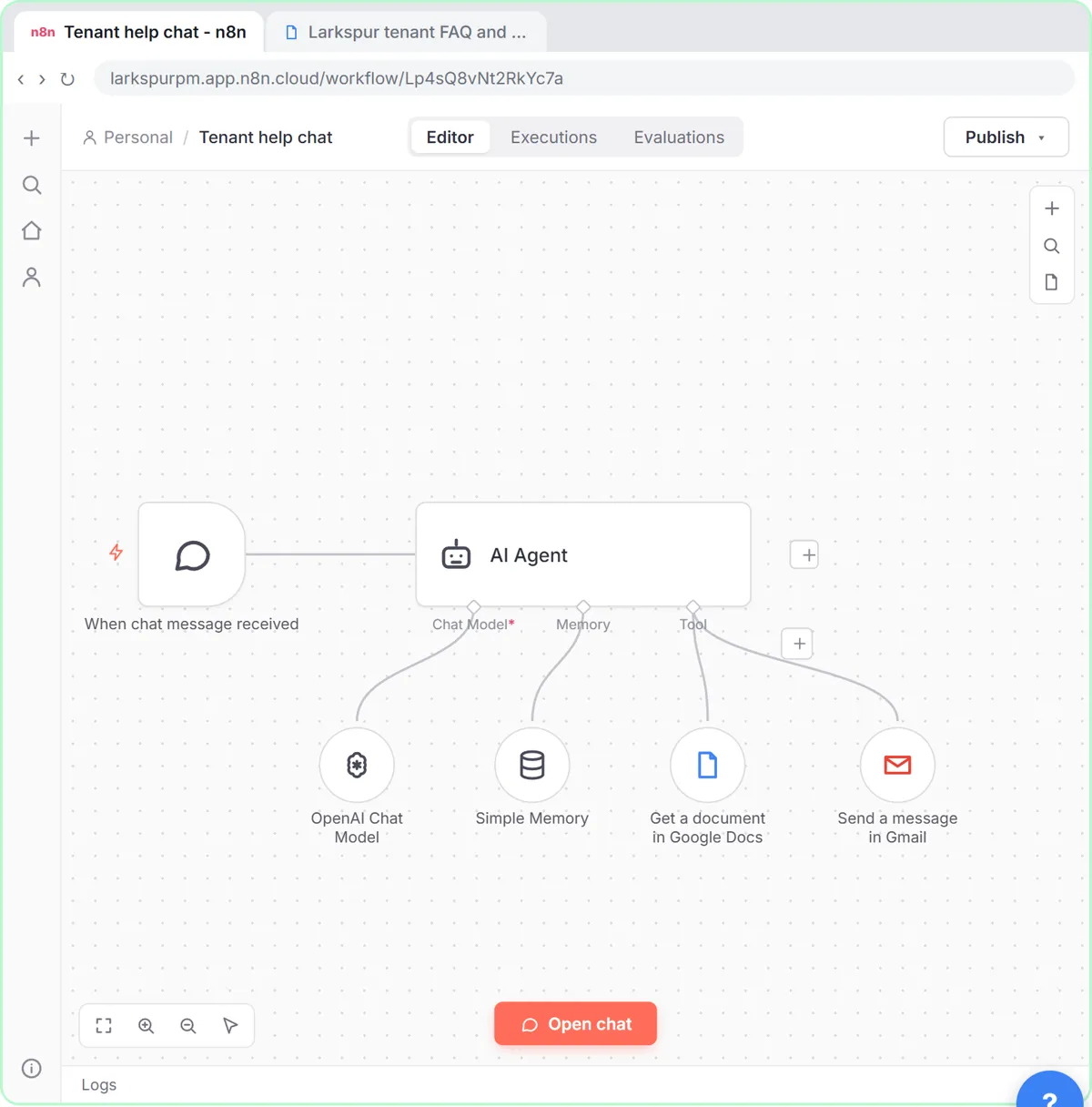 How to Use n8n to Build AI Agents: A Support Agent That Answers from Your Docs
Turn an n8n chat agent into a support agent that answers only from your policies in a Google Doc, refuses what it should, and hands off to a person by email.
Free · Live ~13 min Advanced
 Chatbase: Answer Customer FAQs with an AI Agent
A business case for a small firm that answers the same customer questions every week: build a Chatbase AI agent on your FAQ in the real app, make it say when it does…
Free · Live ~15 min Beginner
All 56 modules in Business Automations
Terms in this lesson
Plain-English definitions, each with an example from a free lesson.