Updated . Built against the tool’s current screens and checked step by step. How we check this lesson
Before a paid campaign sends people to your site, verify it, then run security, SEO, AI visibility, accessibility and speed audits, triage what you find, and hand your developer one fix prompt.
At a glance
| Question | Answer |
|---|---|
| What you build | Before a paid campaign sends people to your site, verify it, then run security, SEO, AI visibility, accessibility and speed audits, triage what you find, and hand your developer one fix prompt. |
| Tools | Sitelemetry |
| Time | About 10 minutes, 30 steps in 6 parts |
| Level | Beginner, no coding needed |
| Cost | Free |
| Ways to learn it | Practice it step by step |
The 6 parts, in short
- Prove the site is yours: Add the site you will advertise, Ask for a verification code, Publish the file, then verify, Verified.
- Is it safe?: Point the scan at the site, Choose a safe profile for a live site, Seven public checks, A real result: headers missing, and 4 more steps.
- Can Google read it?: Crawl the pages the ads send people to, Use the plan's full crawl, Start the crawl, Strong foundation, one note.
- Can AI assistants answer from it?: The new front door, Name the brand, Type the questions your buyers ask, Run it, and 1 more step.
- Can everyone use it, fast?: Check the page for every visitor, Run it, Two minor findings, A one-line fix, and 3 more steps.
- Hand the fixes over: One prompt with every finding, Copy it for your developer.
Start here first: AI Receipt Extractor: Receipts to Google Sheets with n8n (module 1 of Business Automations)
In the course: Part 9 · n8n Automation Toolkit (Module 139 of the full course)
Part of: AI for Consulting & Agencies (step 36 of 37). Next up: Anwaar Digital: Send a Client One Small, Signed Engagement Packet for Consulting & Agencies
Part of: AI Apps Worth Knowing (step 158 of 164). Next up: ResumeScorePro: Get Internal Candidates Past the Resume Screen for Recruiting & HR
What you'll build
You run marketing at Northgate Benefits Advisors, a made-up 14-person employee-benefits consultancy. On Monday a $4,000 LinkedIn and Google Ads campaign for open-enrollment season starts sending people to your website. A certificate warning, a slow phone page or a site AI assistants can't describe would waste that budget. In this lesson you verify the site in Sitelemetry, then run five audits: security on the safe Passive profile, SEO, AI visibility with your buyers' own questions, accessibility and mobile speed. You mark a deliberate setting as an accepted risk, and copy one AI fix prompt for your web developer. Sitelemetry only audits sites you own, so the screens show our own site, learn.ynteractive.com, with its real results.
You verified the site, ran a Passive security scan, read the evidence behind each finding and marked a deliberate setting as an accepted risk. Then you crawled 15 pages for SEO, checked whether AI assistants can answer your buyers' questions from your pages, ran the accessibility and mobile speed checks, and copied one prompt with every security fix for your developer. Next, run the same checks on your own site the week before your next campaign, and re-run them after the fixes go live.
- Tools: Sitelemetry
- Time: about 10 minutes, 30 steps in 6 chapters
- Level: beginner, no coding needed
- Price: free
Practice first, then build it for real
Practice copy built from real Sitelemetry screens (sitelemetry.com/app, Professional plan), captured 14 November 2026 while auditing our own site, learn.ynteractive.com. Nothing here touches a Sitelemetry account. Northgate Benefits Advisors is made up. To build it for real you need your own Sitelemetry account, and some services charge once you use them for real work, so check each tool's current pricing.
Try it yourself, free
Reading the steps is a start. Doing them is how it sticks. The interactive module walks you through every click in a practice copy of Sitelemetry, checks each step, and never touches your real accounts.
Start “Sitelemetry: Check Your Website Is Campaign-Ready and AI-Visible”Step by step: Sitelemetry: Check Your Website Is Campaign-Ready and AI-Visible
All 30 steps of the interactive module, in order. In the module you watch each one, then do it yourself in a practice copy that checks your work.
1. Prove the site is yours
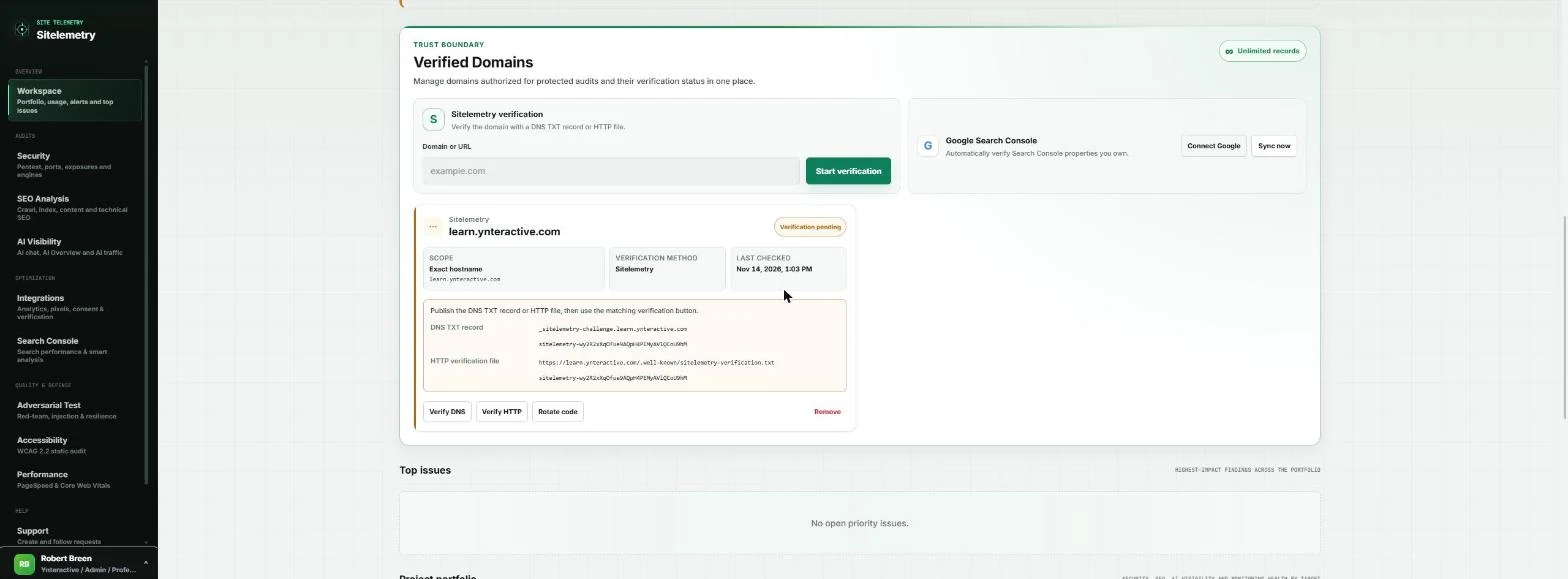
- Add the site you will advertise. You run marketing at Northgate Benefits Advisors (made up), a 14-person employee-benefits consultancy. On Monday a $4,000 LinkedIn and Google Ads campaign for open-enrollment season starts sending people to your website. Before you pay for those clicks, check the site is safe, findable, readable by AI assistants, usable by everyone and fast. Sitelemetry only audits sites you own, so these screens show our site, learn.ynteractive.com. In Verified Domains, type the site's address.
A four thousand dollar campaign starts Monday. Before you pay for clicks, check the website.
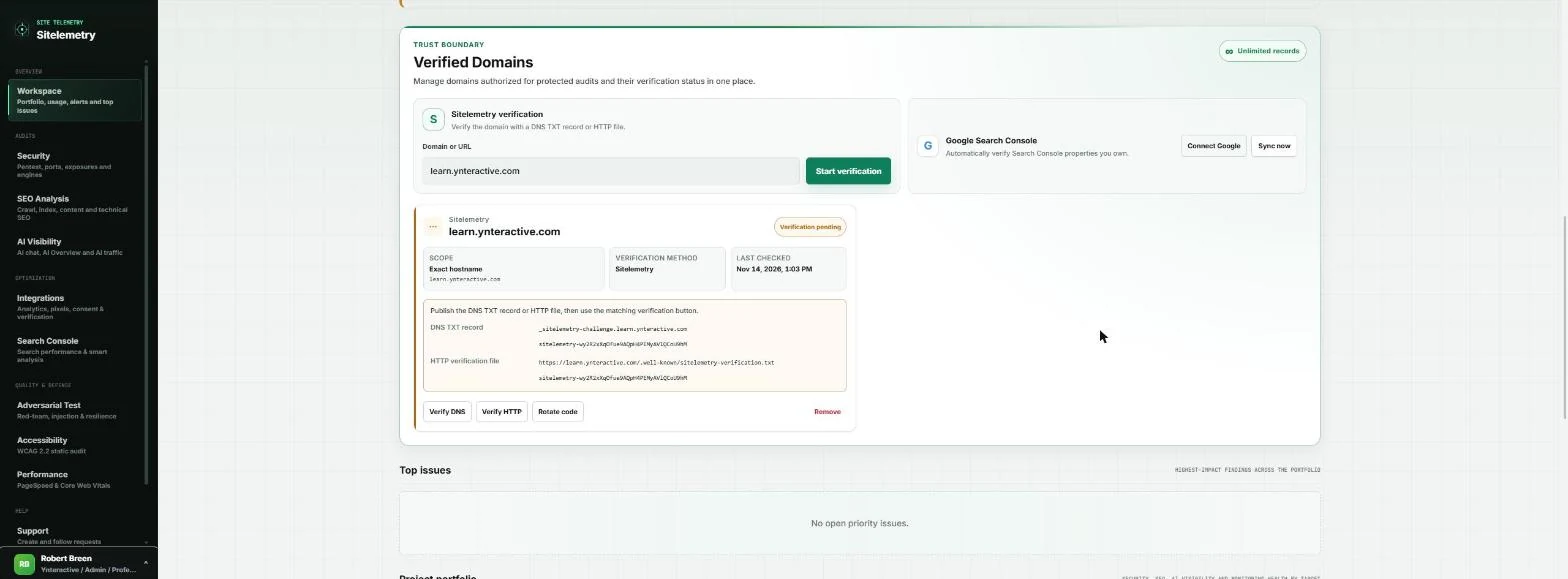
- Ask for a verification code. You can type a subdomain such as learn.ynteractive.com; Sitelemetry verifies that exact hostname. Click Start verification.
Sitelemetry verifies the exact hostname you type.
- Publish the file, then verify. Sitelemetry shows two ways to prove ownership: a DNS TXT record, or an HTTP verification file at /.well-known/sitelemetry-verification.txt that holds the code. We sent the file to our web developer, who published it; it was live a few minutes later. Then click Verify HTTP.
Pick the DNS record or the HTTP file. Our web developer published the file.
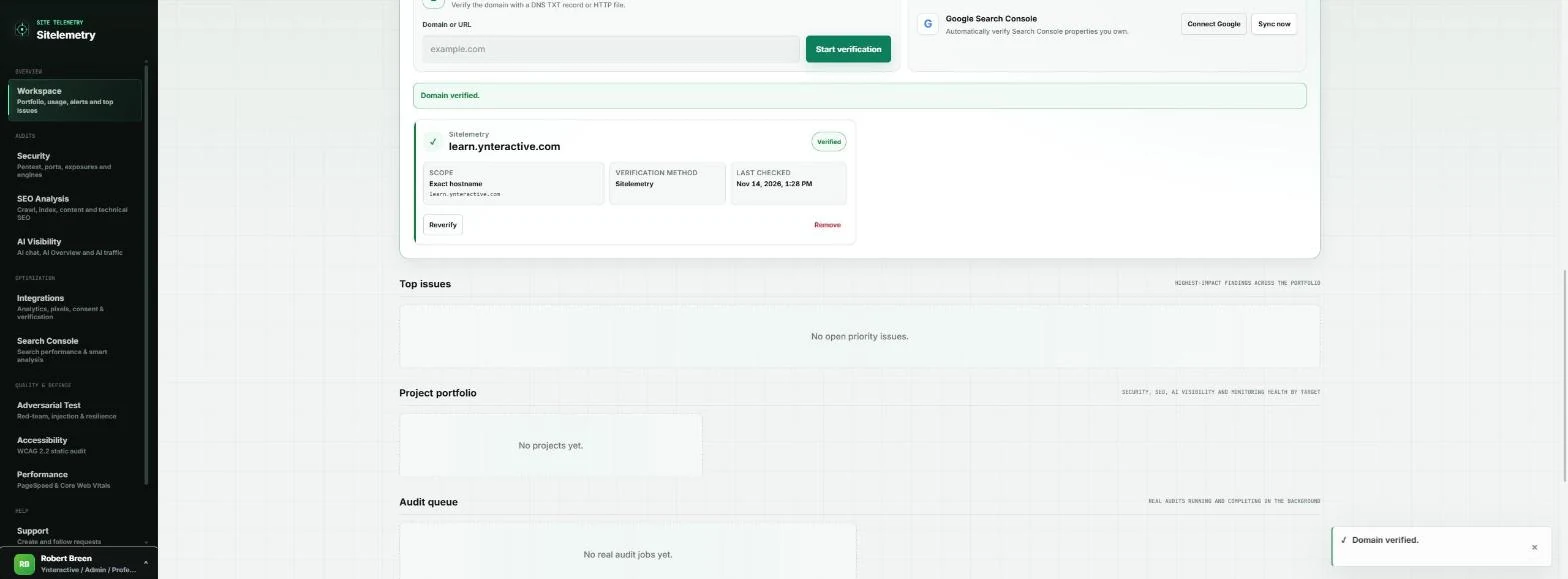
- Verified. The card now says Verified, with the date it was last checked. That unlocks the protected checks for this site. Now the audits. Click Security in the left menu.
The site is verified.
2. Is it safe?
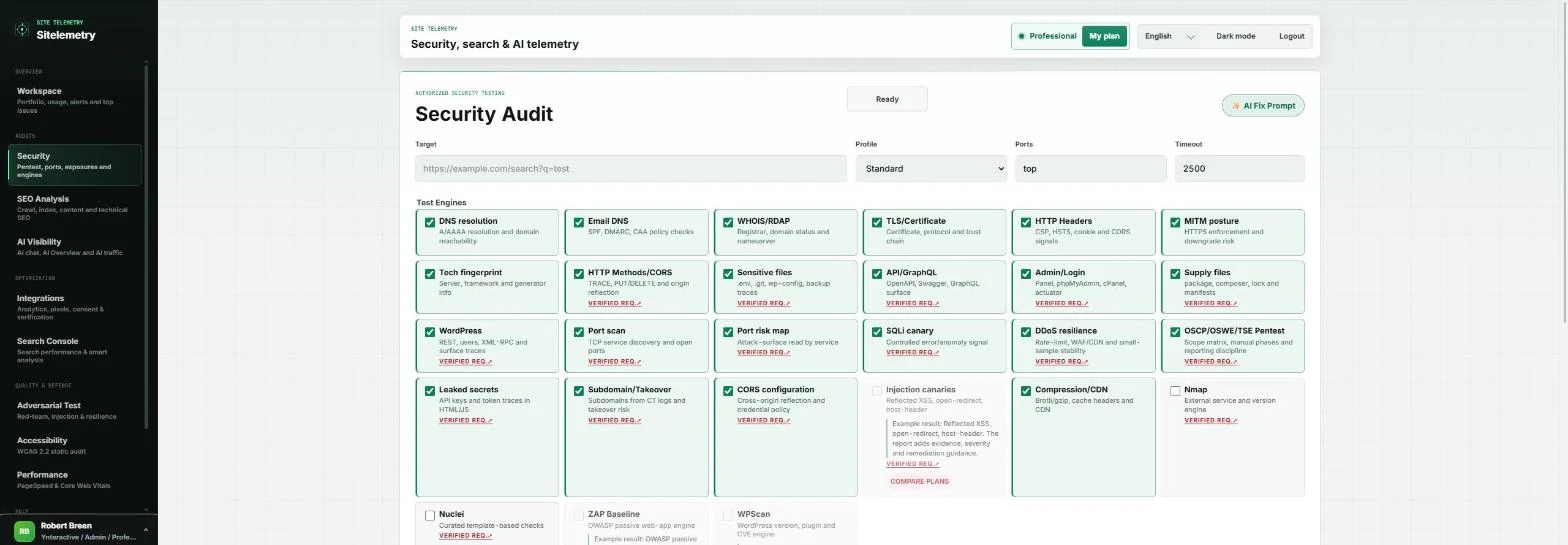
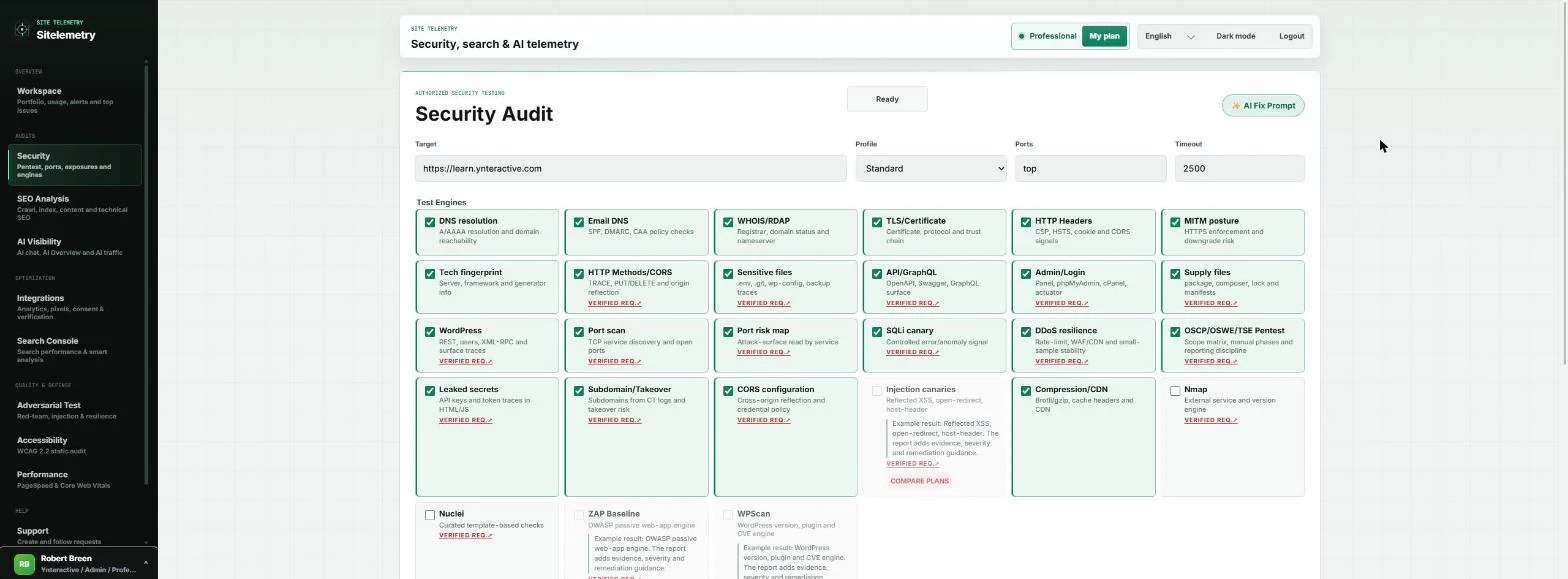
- Point the scan at the site. The Security Audit page lists its test engines as cards. Type the full address in Target.
- Choose a safe profile for a live site. With the site verified, Standard ticks almost every engine, including the active ones, Port scan and SQLi canary, which send real test traffic. On the Professional plan those are the only active checks; injection canaries, ZAP and WPScan are Enterprise-only. Before the first protected scan, Sitelemetry asks you to confirm you own the site or are authorized to test it, and that you will stay in scope. A week before a campaign, start gently. Open Profile and pick Passive.
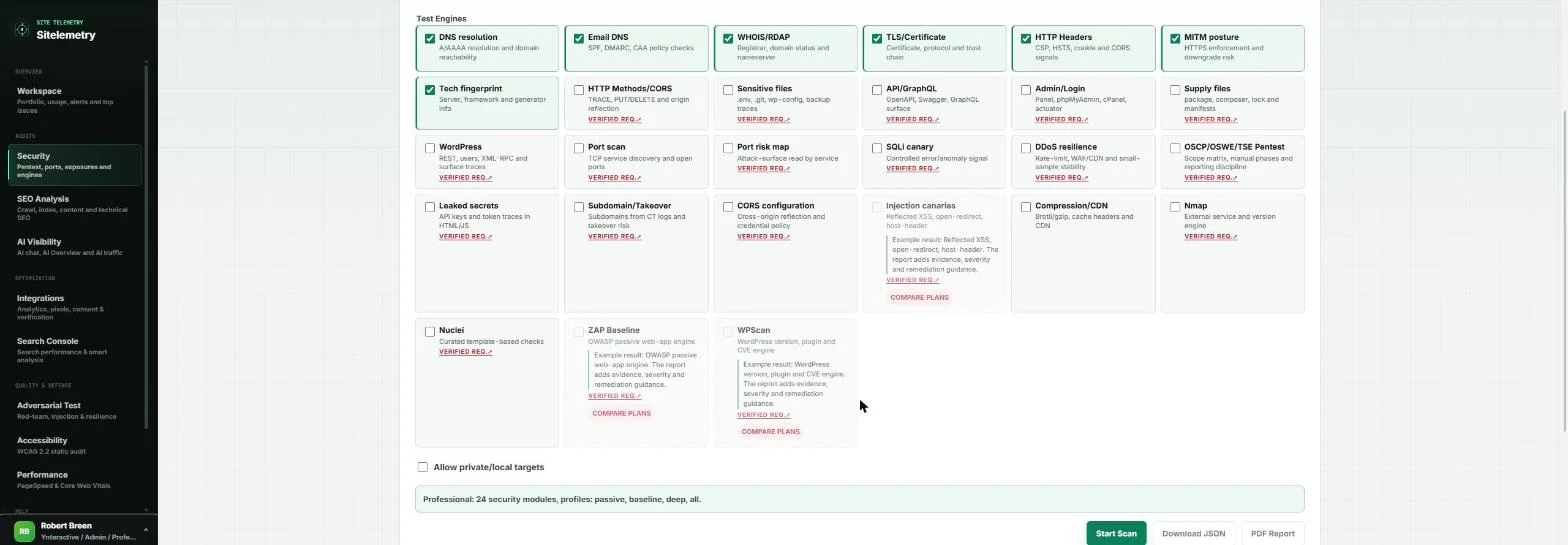
Standard runs active tests that send real traffic. A week before a campaign, start gently. Pick the Passive profile.
- Seven public checks. Passive keeps seven checks that only read what the site already shows the world: DNS, email DNS, WHOIS, the TLS certificate, HTTP headers, HTTPS downgrade risk and the technology fingerprint. Scroll down and click Start Scan.
Passive keeps seven checks that only read public settings.
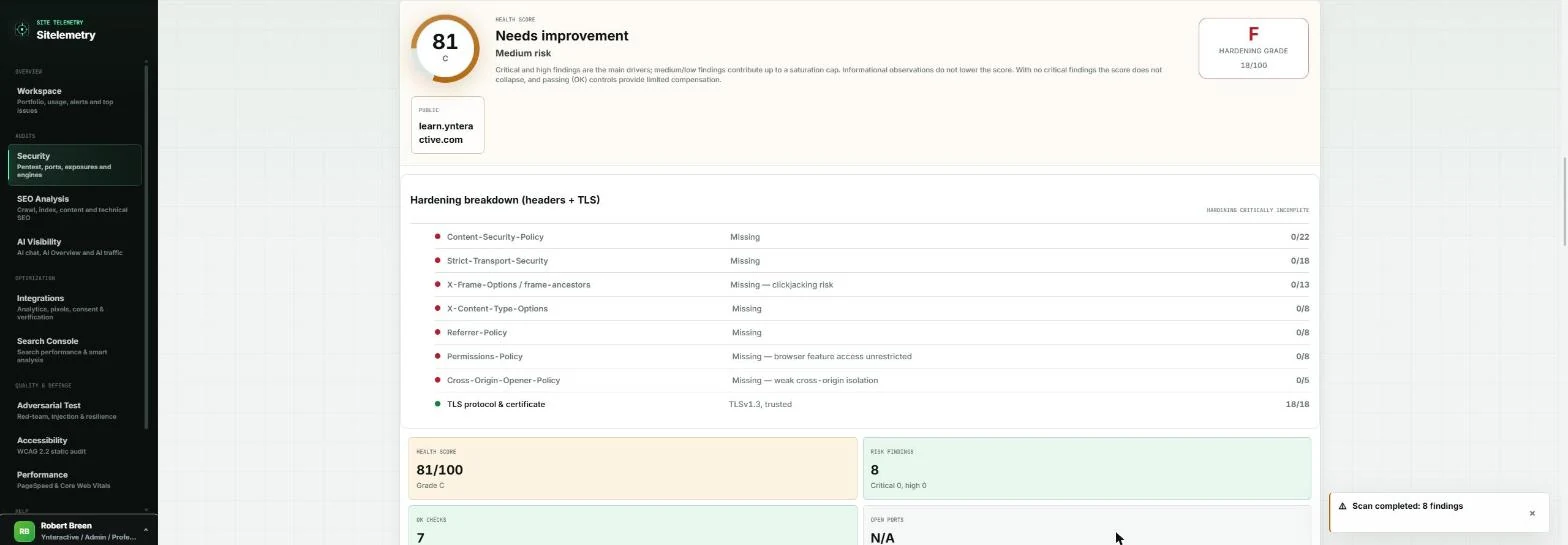
- A real result: headers missing. Our site scored 81/100, medium risk, with a hardening grade of F. The certificate is fine (TLS 1.3, trusted), but seven browser security headers are missing, such as Content-Security-Policy and Strict-Transport-Security. That is a common gap on small business sites. Close the Scan completed note.
Our site scored 81, with a hardening grade of F. The certificate is fine, but seven security headers are missing. Close the note.
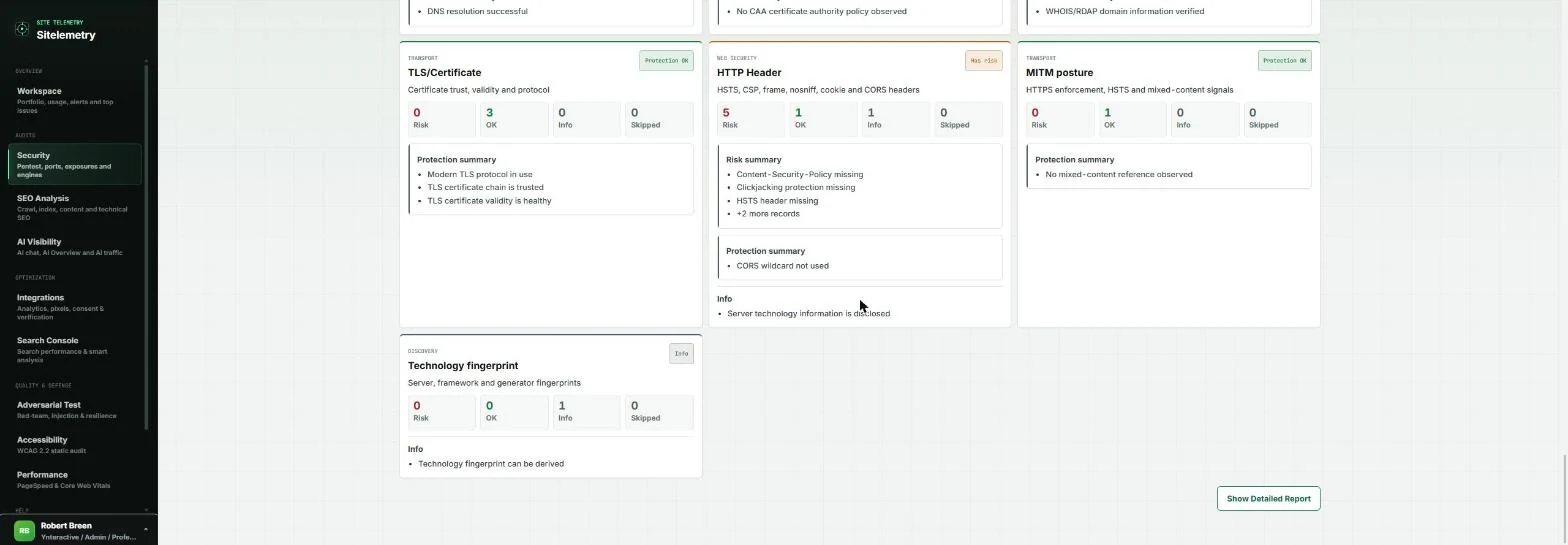
- Every check has its own card. Further down, one card per check. TLS/Certificate and MITM posture say Protection OK; HTTP Header says Has risk, with 5 risks. The WHOIS card even shows when the domain registration expires. Click Show Detailed Report.
Each check has a card. HTTP Header has risk.
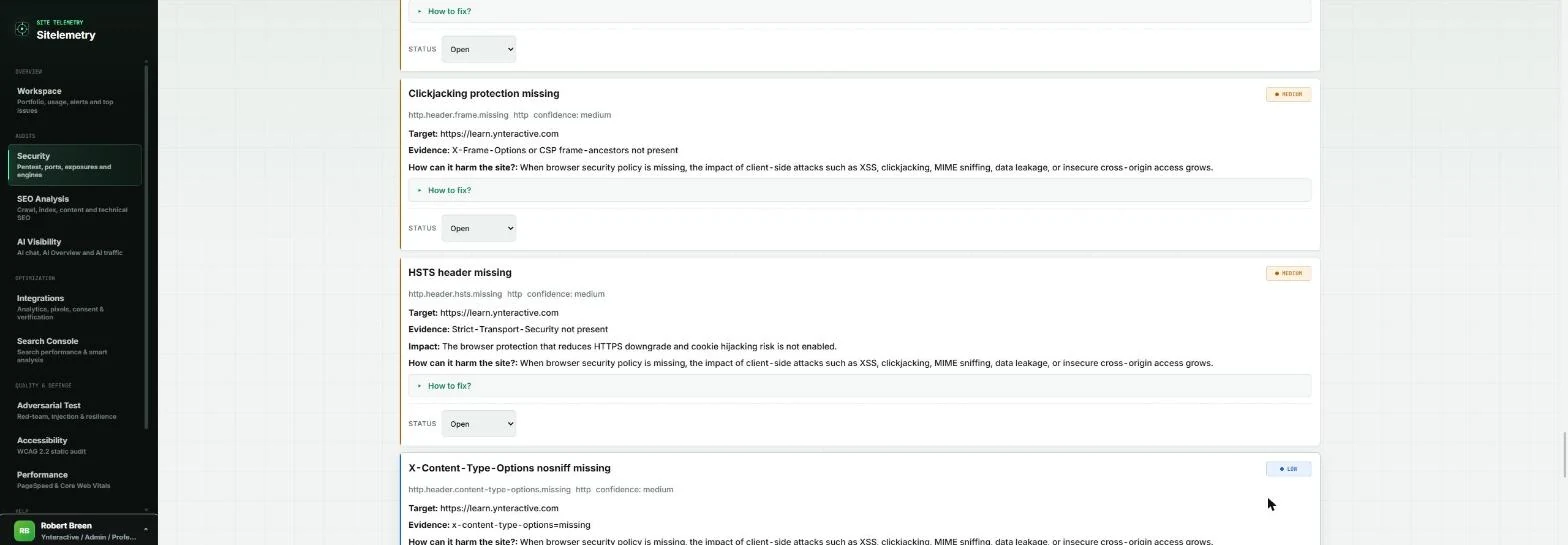
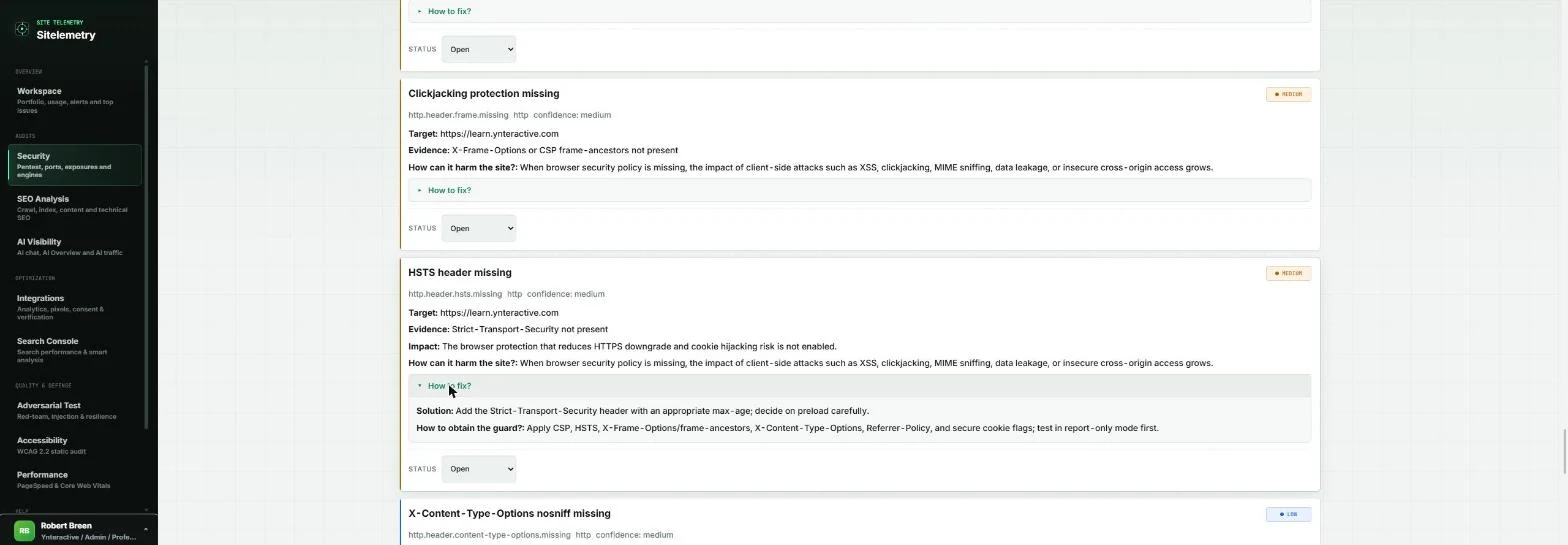
- Evidence and impact for each finding. Each finding has a severity, the Evidence it saw and the Impact. HSTS header missing means browsers are not told to always use HTTPS. Click How to fix? under it.
Each finding shows its evidence and impact.
- Triage: not every finding is a fix. The fix: add a Strict-Transport-Security header, and test the other headers in report-only mode first. Now triage. Clickjacking protection missing is on purpose for us: partner sites show our lessons inside their pages. Open its Status and pick Accepted risk. The options are Open, Accepted risk, False positive and Fixed.
The fix is one header. Now triage. Clickjacking is on purpose for us, so set its status to Accepted risk.
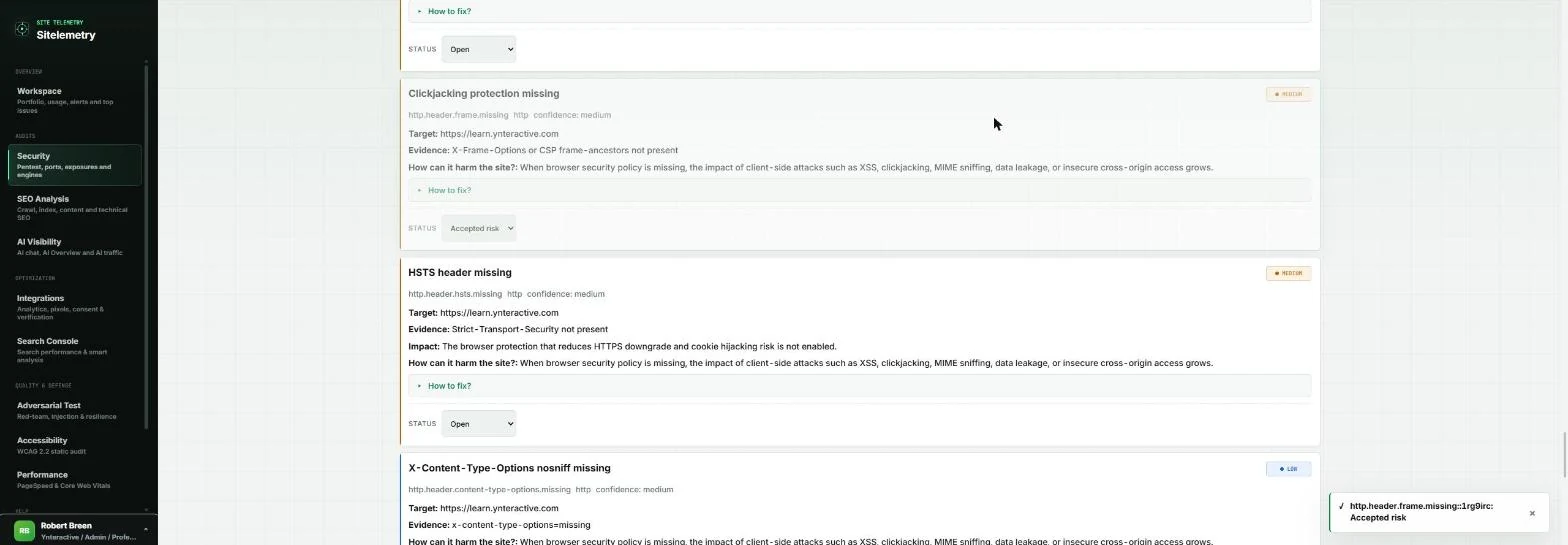
- Recorded as a decision. The finding greys out and a note confirms Accepted risk. Your web developer now sees six real fixes instead of seven, and nobody wastes an afternoon on a deliberate setting. Next, search. Click SEO Analysis.
The finding greys out, so your developer sees only the real fixes.
3. Can Google read it?
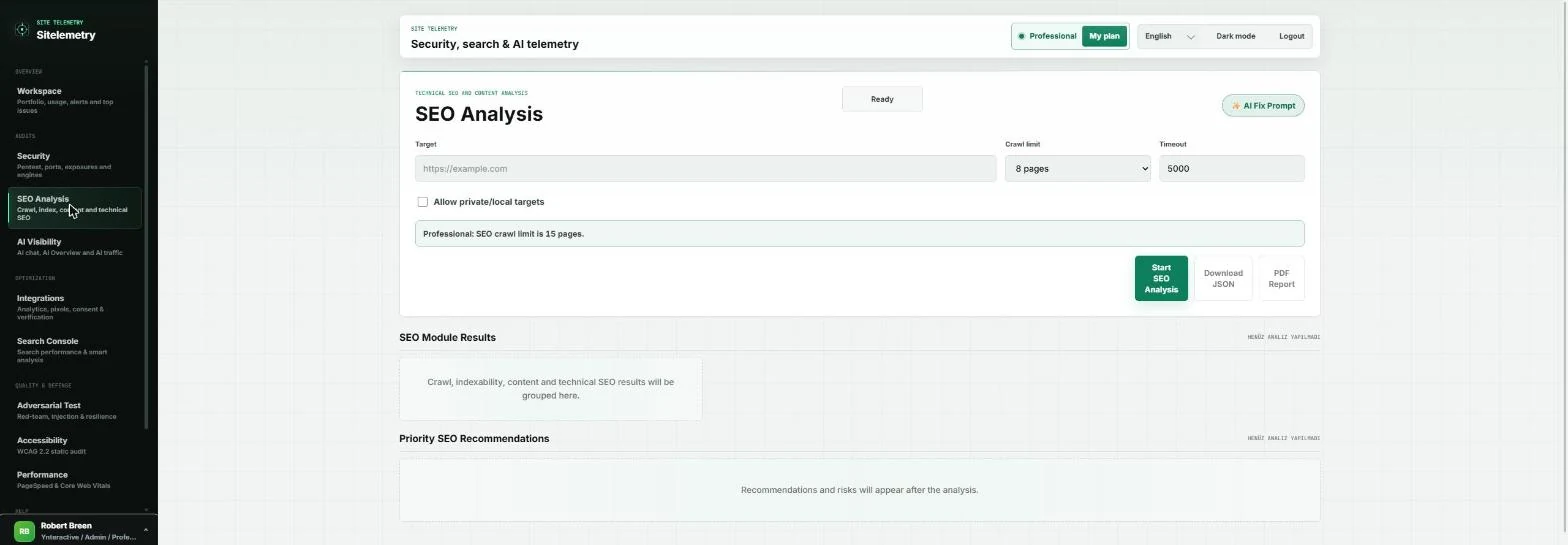
- Crawl the pages the ads send people to. SEO Analysis crawls your pages and checks titles, descriptions, canonicals, structured data, sitemap, images and speed signals. Type the address in Target.
SEO Analysis crawls your pages.
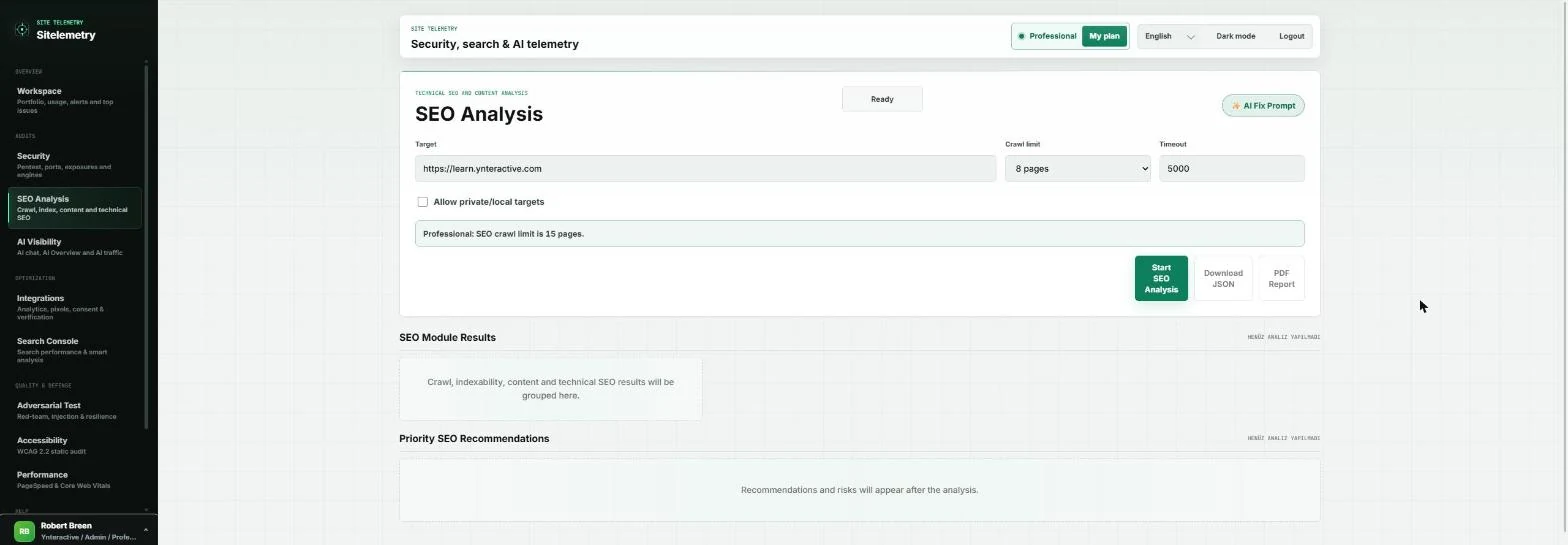
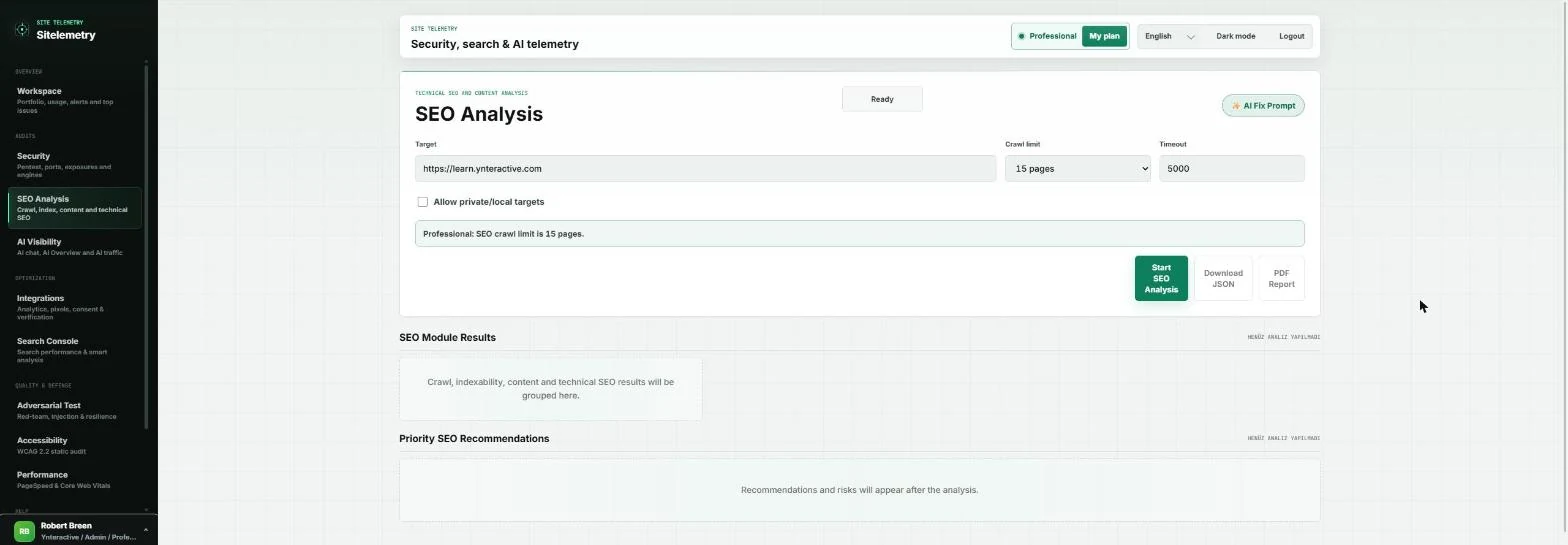
- Use the plan's full crawl. The green note says the Professional plan crawls up to 15 pages. Crawl limit starts at 8 pages so the first run is quick, and you can raise it in the same menu up to your plan's limit. Open Crawl limit and pick 15 pages.
The limit starts at eight pages for speed. Raise it to fifteen, the plan's limit.
- Start the crawl. Click Start SEO Analysis. It took about ten seconds for us.
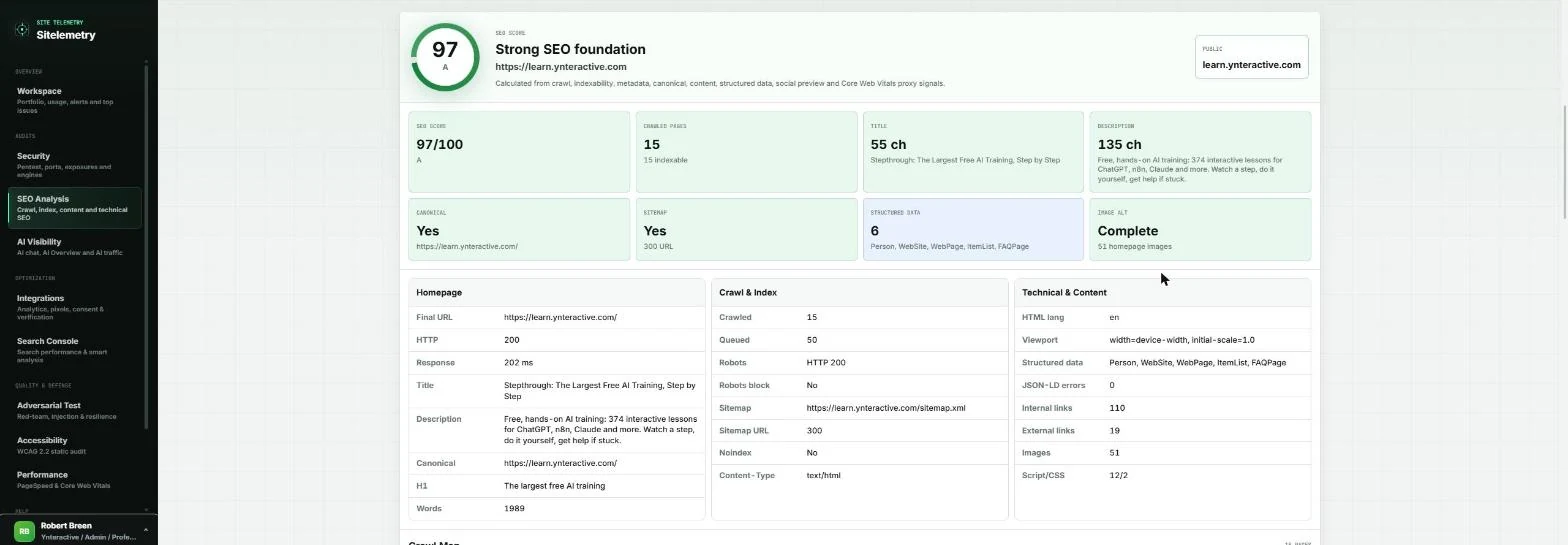
- Strong foundation, one note. 97/100: 15 pages crawled, all indexable, title, description, canonical, sitemap and image alt text all present. The only recommendation, further down, is Low: homepage sentences average about 30 words. For campaign landing pages, short sentences help people who arrive from an ad. Next, AI assistants. Click AI Visibility.
Ninety seven out of a hundred, with one low note about long sentences.
4. Can AI assistants answer from it?
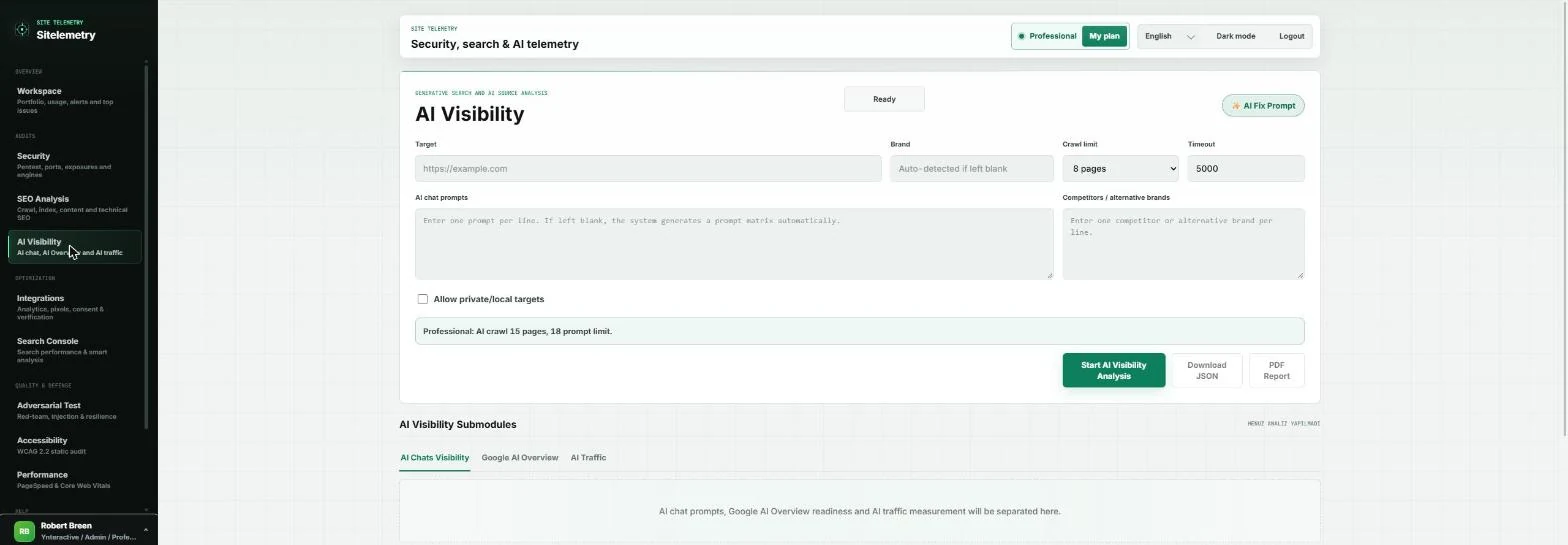
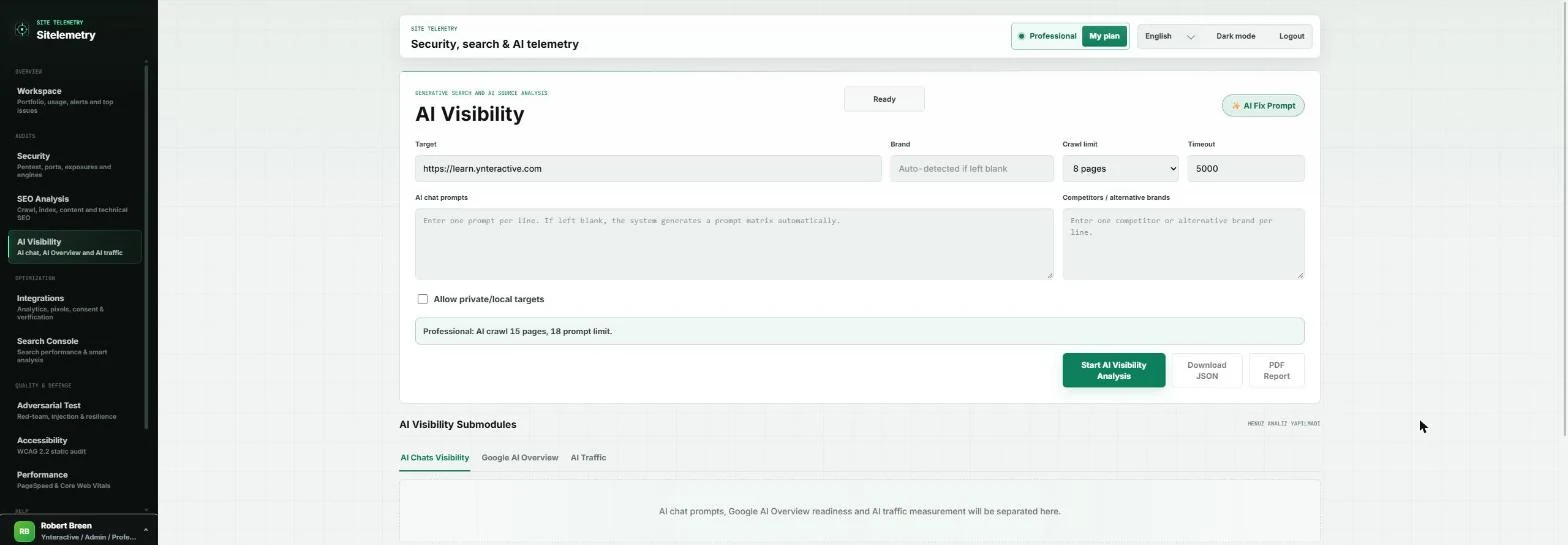
- The new front door. More buyers now ask ChatGPT, Gemini or Perplexity before they ever click an ad. AI Visibility checks whether your pages can be an answer source. Type the address in Target.
Buyers now ask AI assistants before they click an ad.
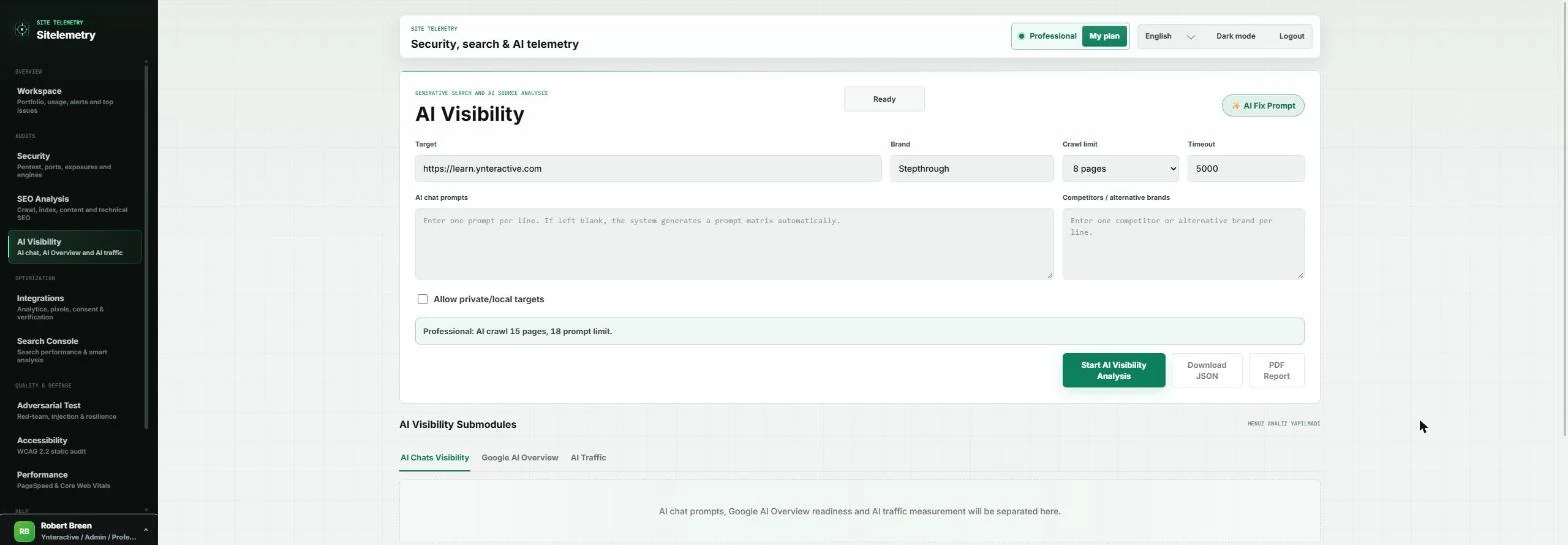
- Name the brand. Type the name you want AI assistants to use in Brand. Leave it blank and Sitelemetry guesses it from the pages.
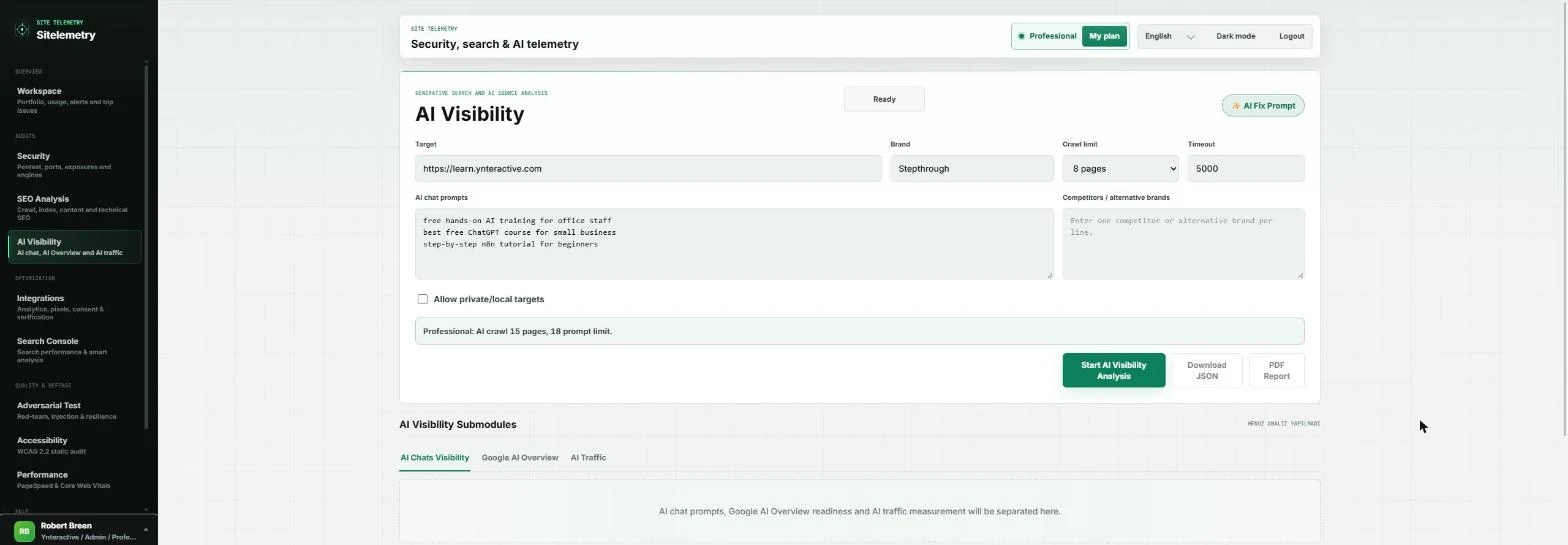
- Type the questions your buyers ask. In AI chat prompts, put one question per line, the way a buyer would ask an assistant. For Northgate that would be questions like "how do small employers compare health plans". We used our own buyers' questions. Leave it blank and Sitelemetry builds a question list itself.
- Run it. The note says Professional allows 15 pages and 18 prompts here. Click Start AI Visibility Analysis.
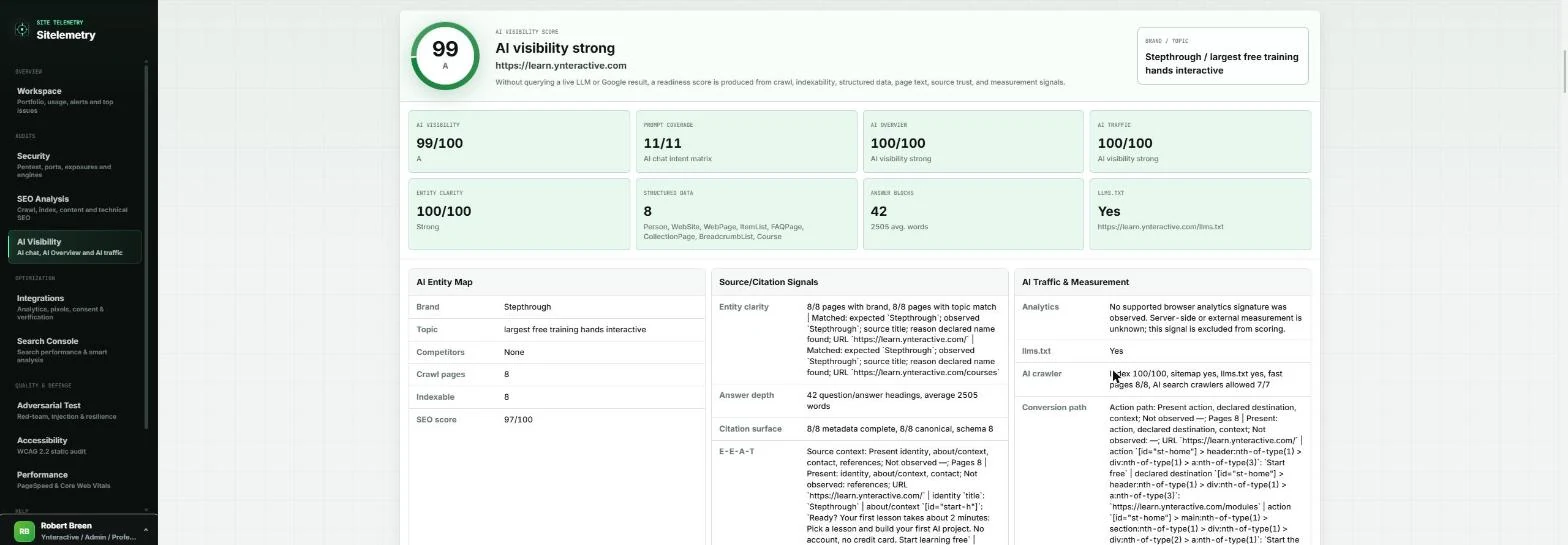
- A readiness score, not a live AI test. 99/100. Prompt coverage 11/11: our three questions plus eight Sitelemetry added, each matched to a page. It also found 8 types of structured data, 42 question-and-answer headings and an llms.txt file. The page says it makes this score without querying a live LLM or Google result: it tells you whether you are ready to be cited, not whether you are cited today. Next, accessibility. Click Accessibility.
Ninety nine. Every question has a page that answers it. This is readiness, not a live AI test.
5. Can everyone use it, fast?
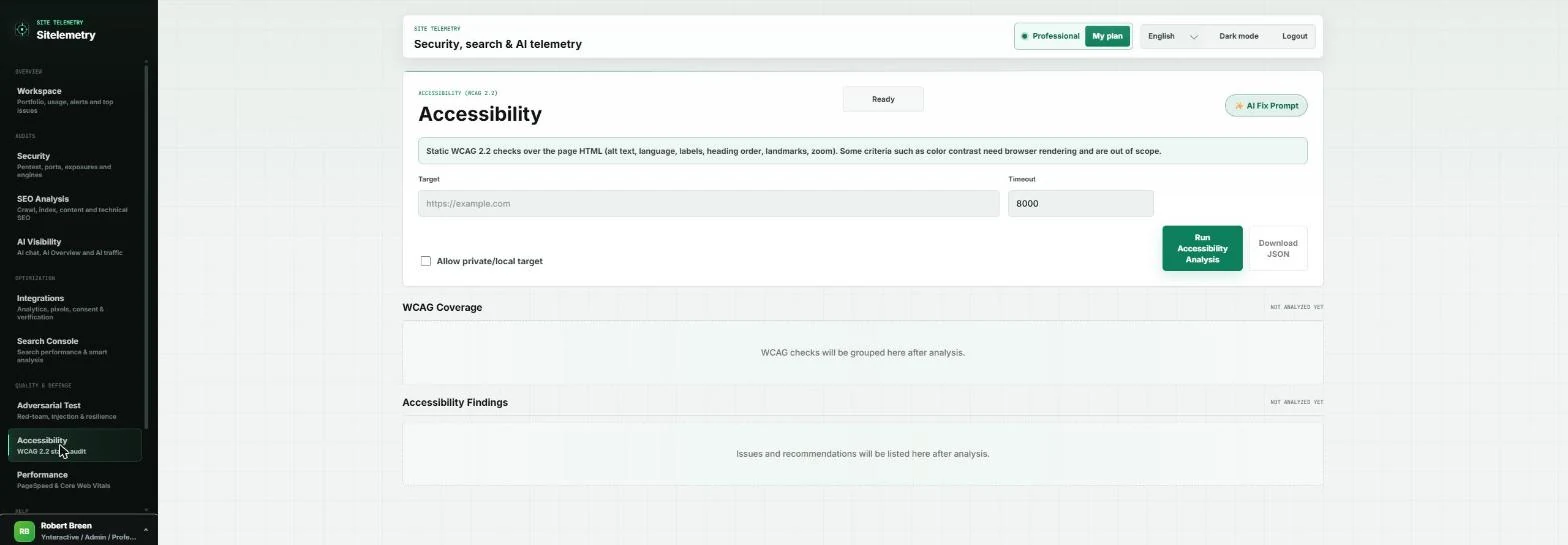
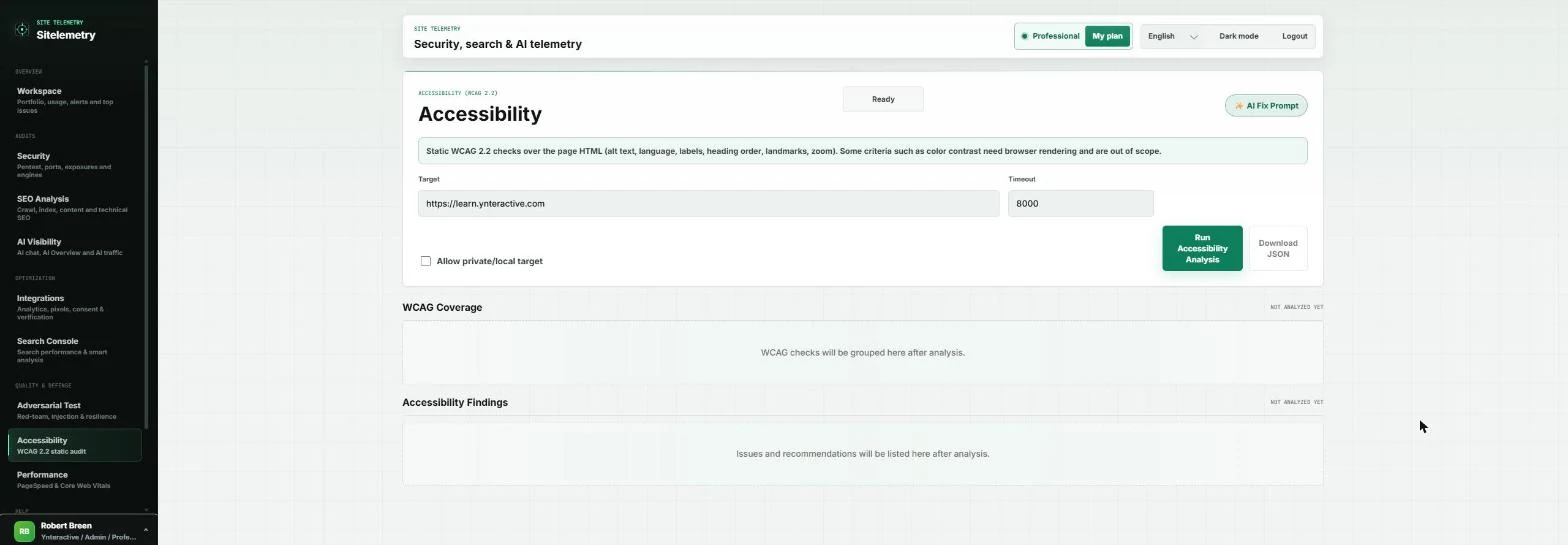
- Check the page for every visitor. The note at the top says this is a static WCAG 2.2 check of the page HTML: alt text, language, labels, heading order, landmarks, zoom. It reads the HTML without rendering the page, so it only flags clear inline colour pairs; check real colour contrast by hand. Type the address in Target.
This checks the page HTML against WCAG.
- Run it. Click Run Accessibility Analysis.
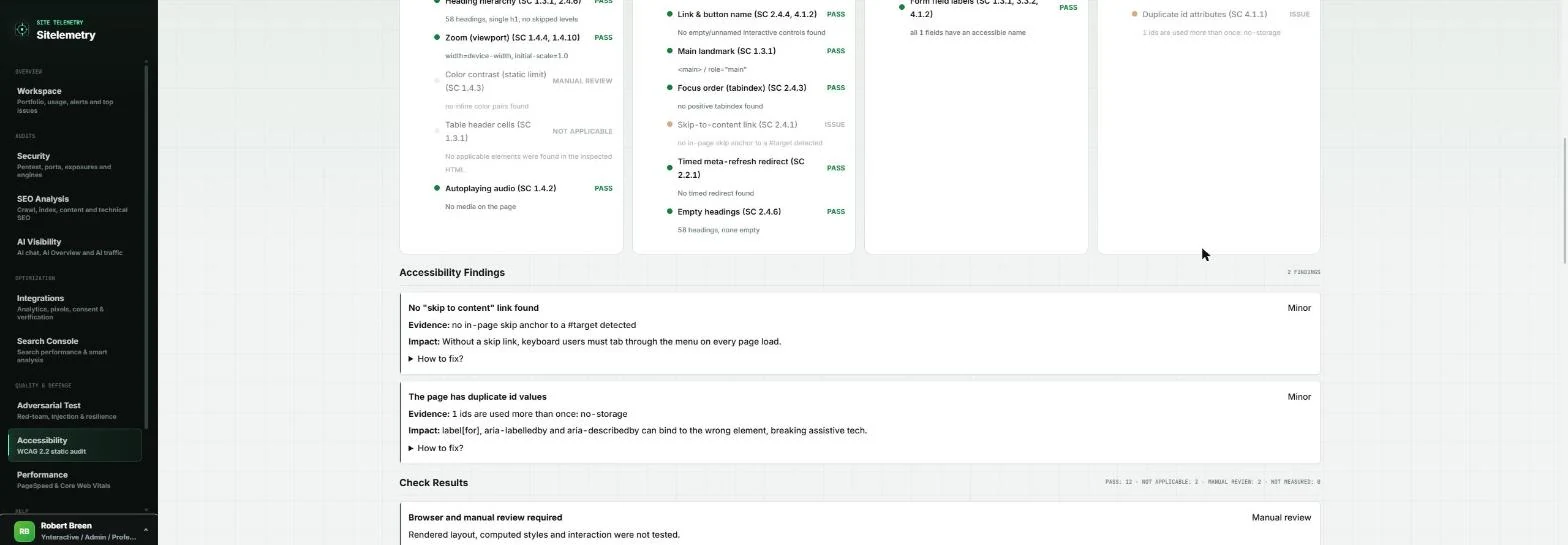
- Two minor findings. Our homepage scored 96/100: all 51 images have alt text, one main landmark, no unlabeled fields. Scroll down to Accessibility Findings: two Minor issues. The first: no "skip to content" link, so keyboard users tab through the whole menu on every page. Click How to fix?.
Ninety six, with two minor findings.
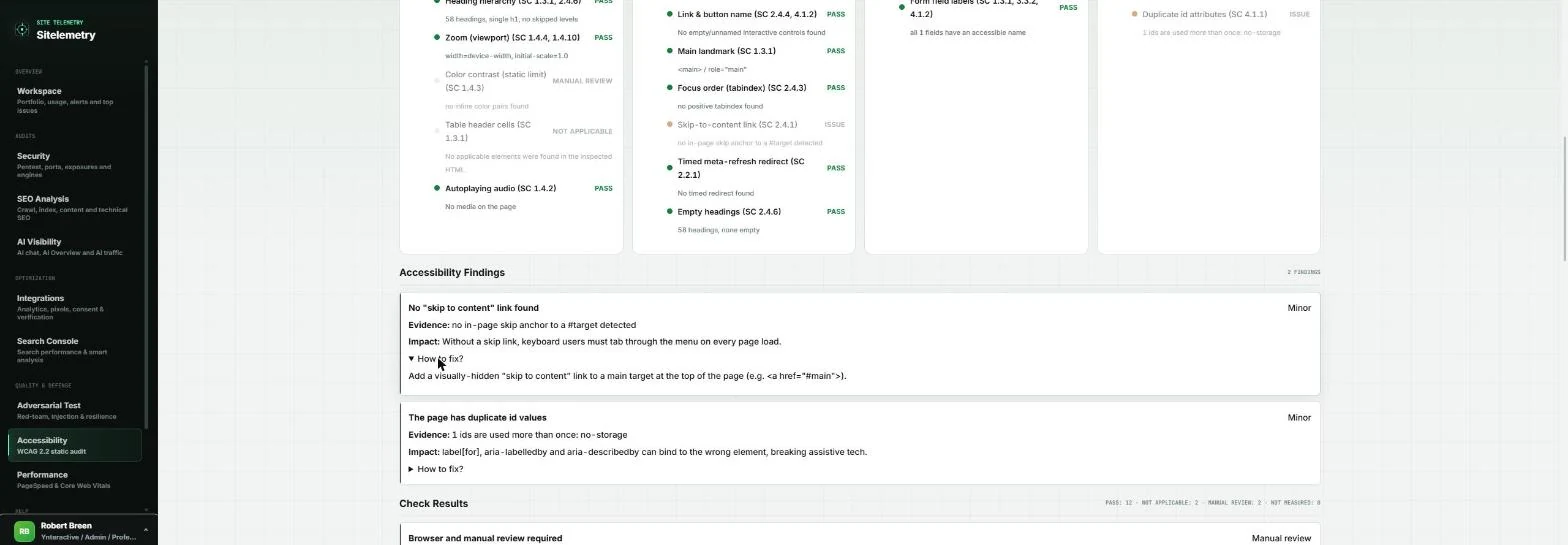
- A one-line fix. Add a visually hidden "skip to content" link at the top of the page that jumps to the main content. A small job for your web developer. Last audit: speed. Click Performance.
Add a hidden skip link. Last audit, speed.
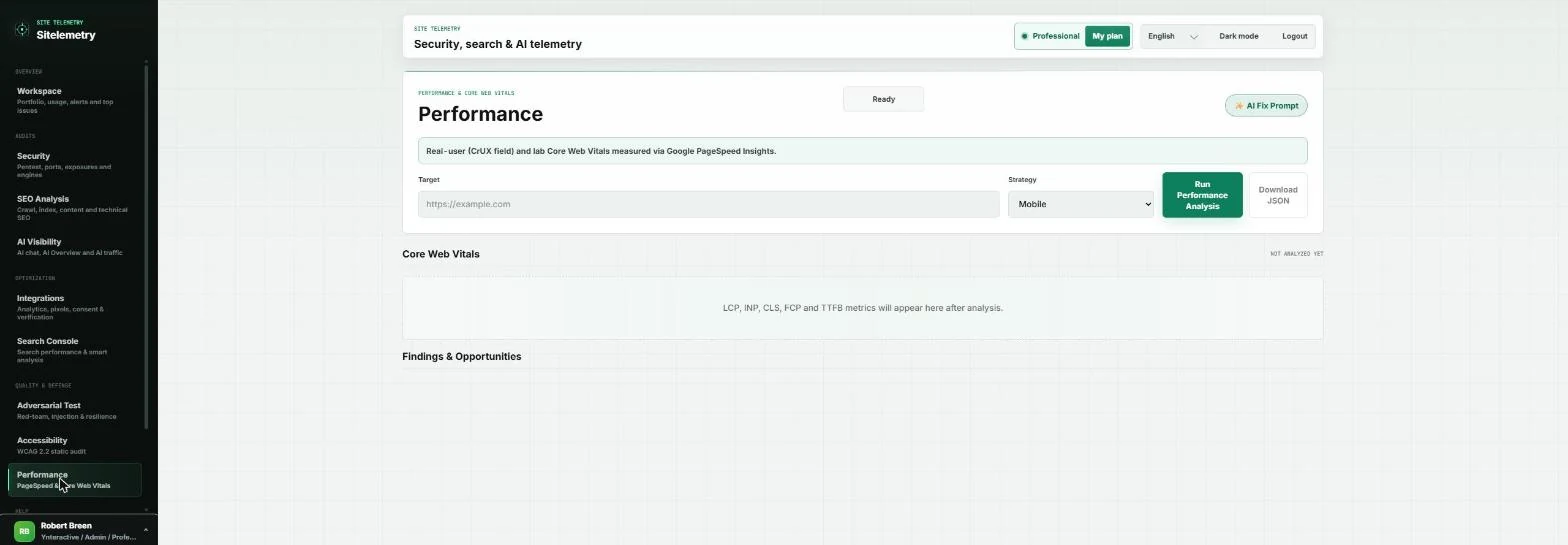
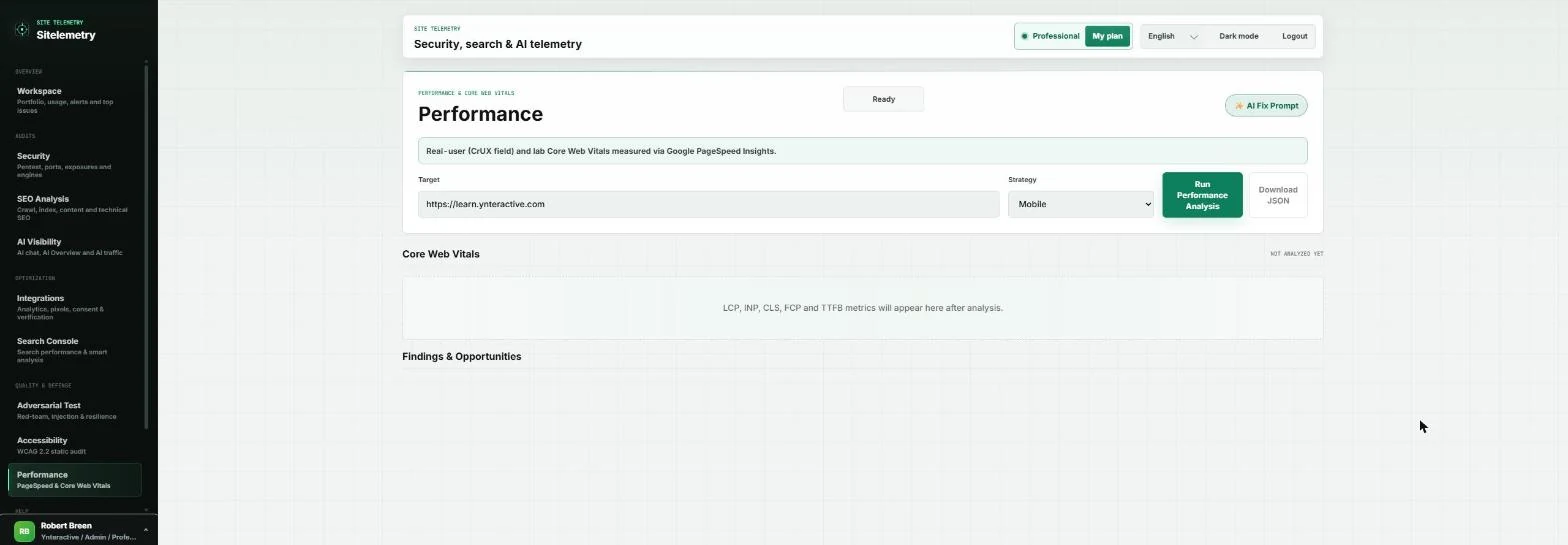
- Speed on a phone. Most ad clicks come from phones. Performance uses Google PageSpeed Insights, with real-user (CrUX) data when Google has it. Strategy is already Mobile. Type the address in Target.
Most ad clicks come from phones. Strategy is already Mobile.
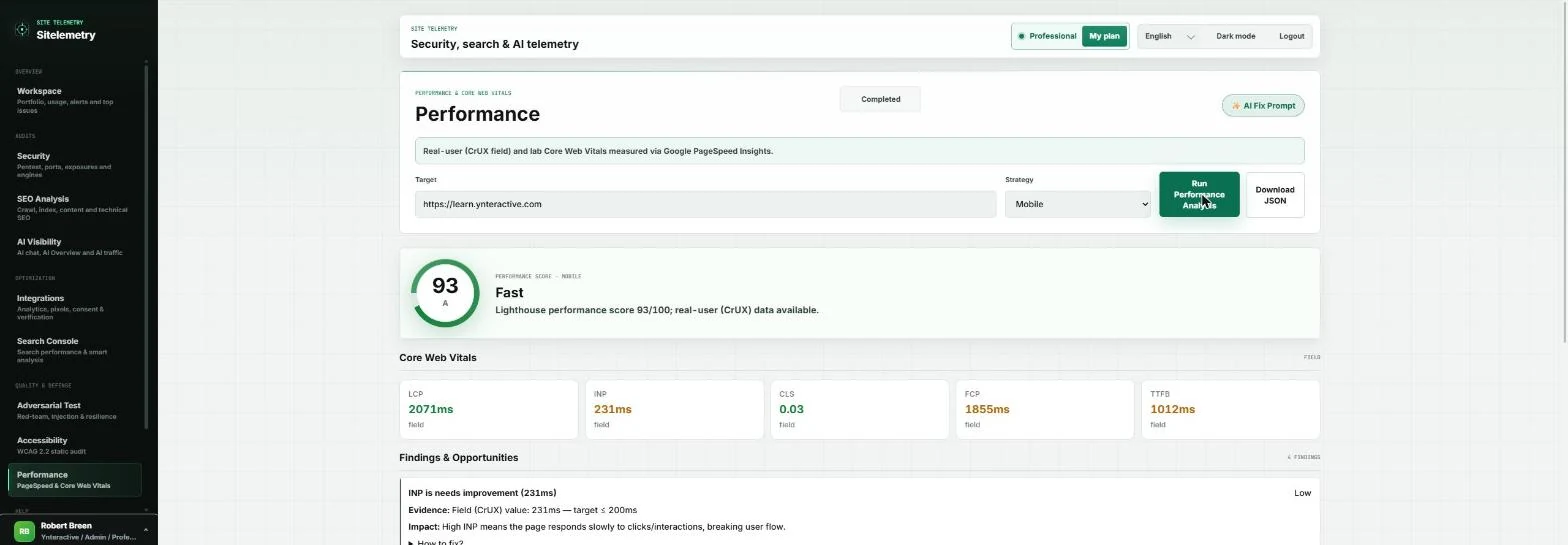
- Run it. Click Run Performance Analysis. It takes about 20 seconds, because Google loads the page itself.
It takes about twenty seconds.
- Fast, with one thing to watch. 93/100, Fast (it was 96 on an earlier run; lab scores move a few points). Real-user numbers: LCP 2.07 s, CLS 0.03, and INP 231 ms, just over Google's 200 ms target, flagged Low. Fine for the campaign. Now hand the security fixes to your developer. Click Security.
Ninety three, fast. One low note on interaction speed. Now hand over the security fixes.
6. Hand the fixes over
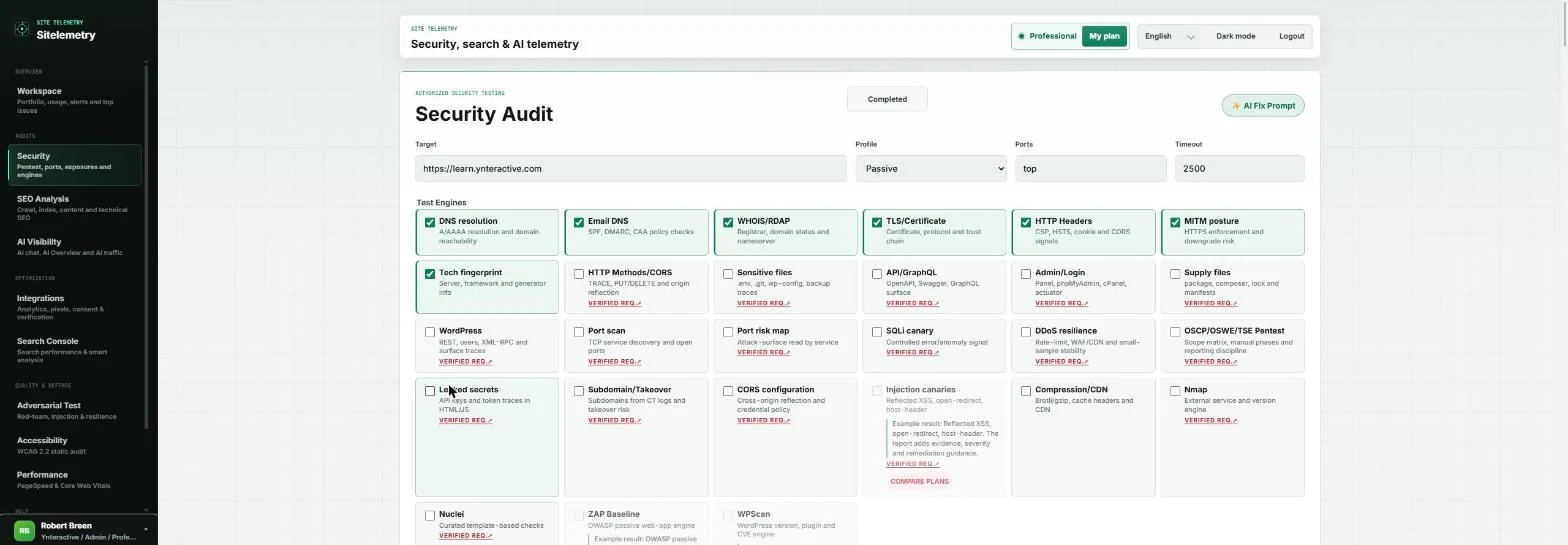
- One prompt with every finding. Your last scan is still here. Click AI Fix Prompt.
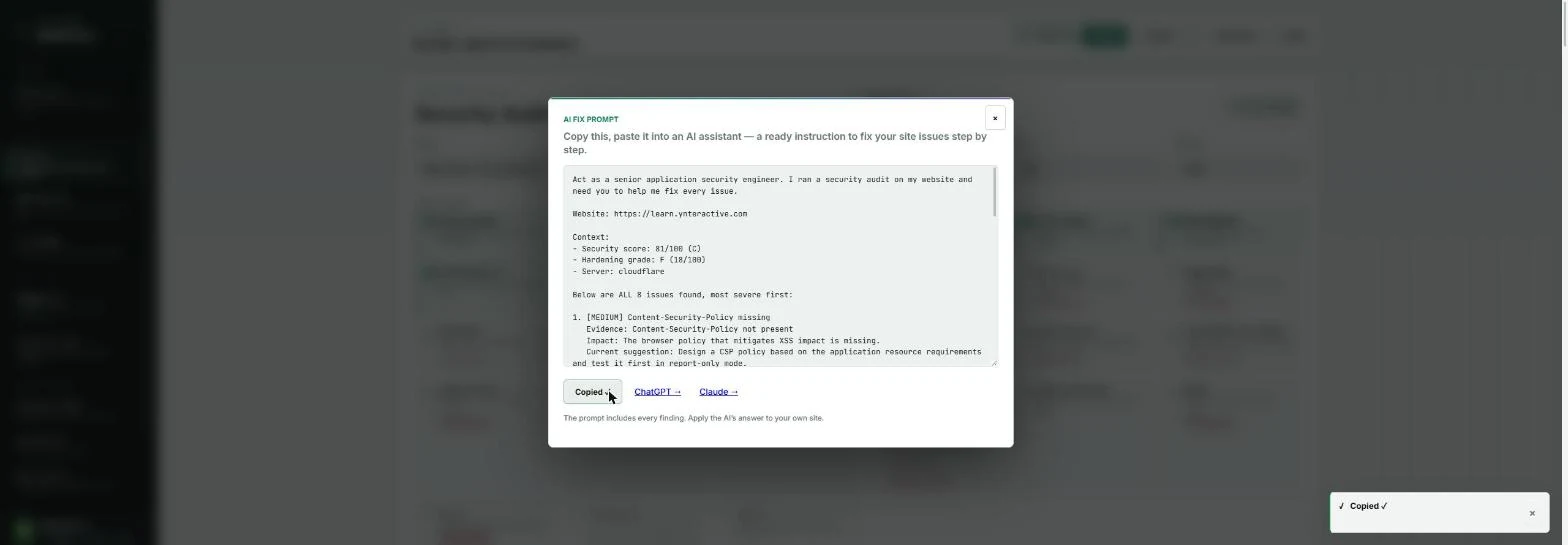
- Copy it for your developer. The prompt lists the site, the score, the hardening grade and all 8 issues, most severe first, each with its evidence and suggested fix. Paste it into ChatGPT or Claude, or send it to your web developer with the campaign date. Click Copy to clipboard.
The prompt lists every finding with its evidence and fix. Copy it for your developer.
Screenshots

More in Business Automations
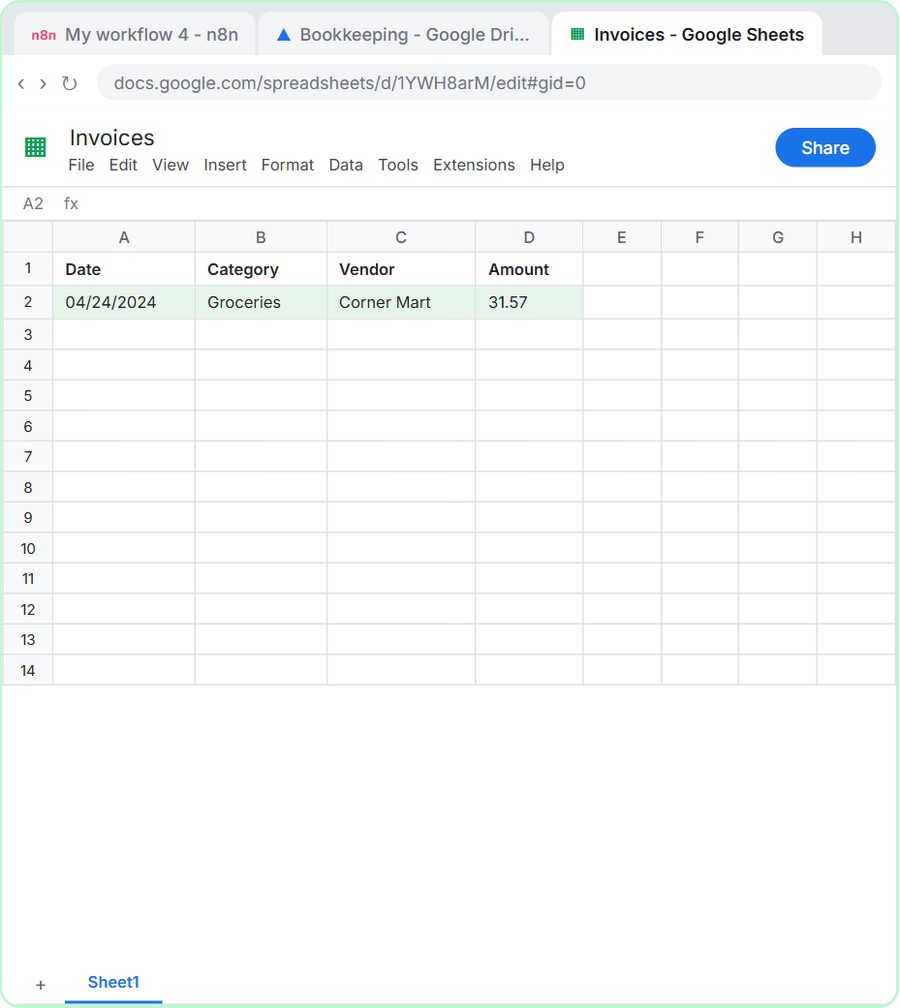 AI Receipt Extractor: Receipts to Google Sheets with n8n
Drop a photo of a receipt into an n8n chat. An AI agent reads it, pulls out the date, vendor and amount, picks a category, and adds a row to Google Sheets.
Free · Live ~12 min Intermediate
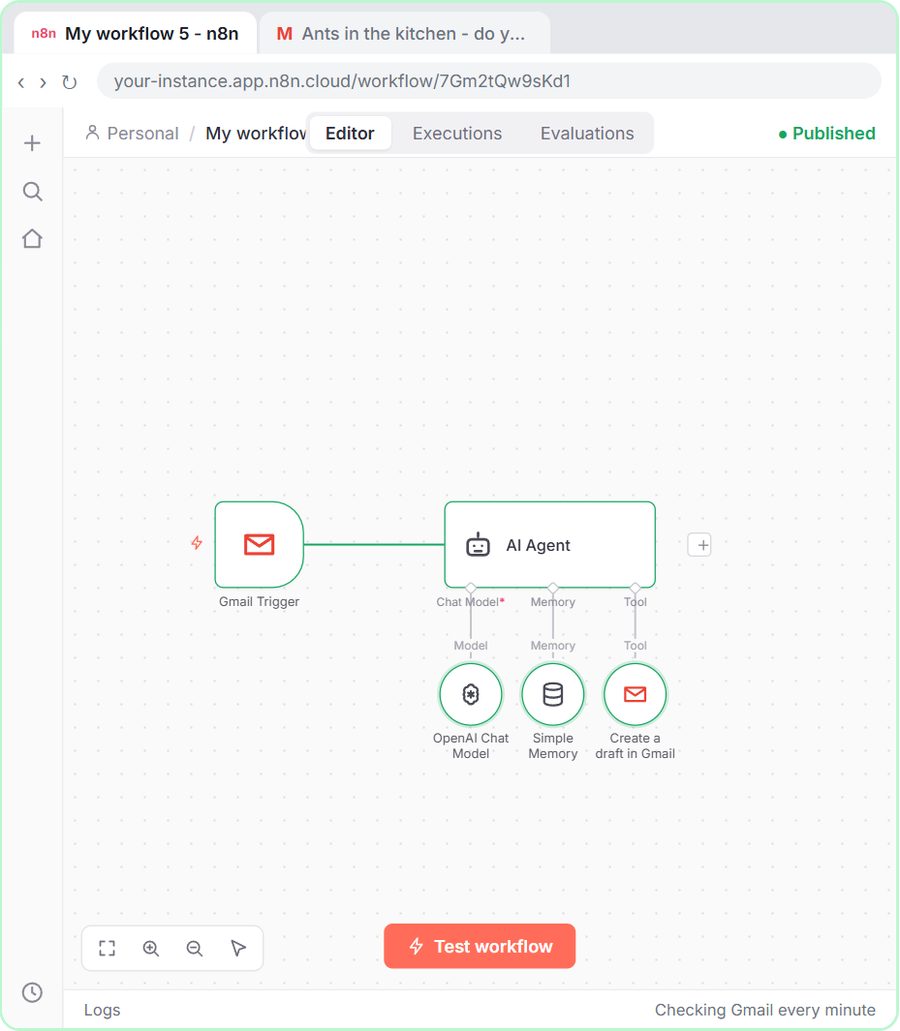 n8n AI Email Responder: Draft Gmail Replies Automatically
Build an n8n agent that watches your Gmail, reads each new customer email, and writes a reply as a draft in the same thread, ready for you to check and send.
Free · Live ~12 min Intermediate
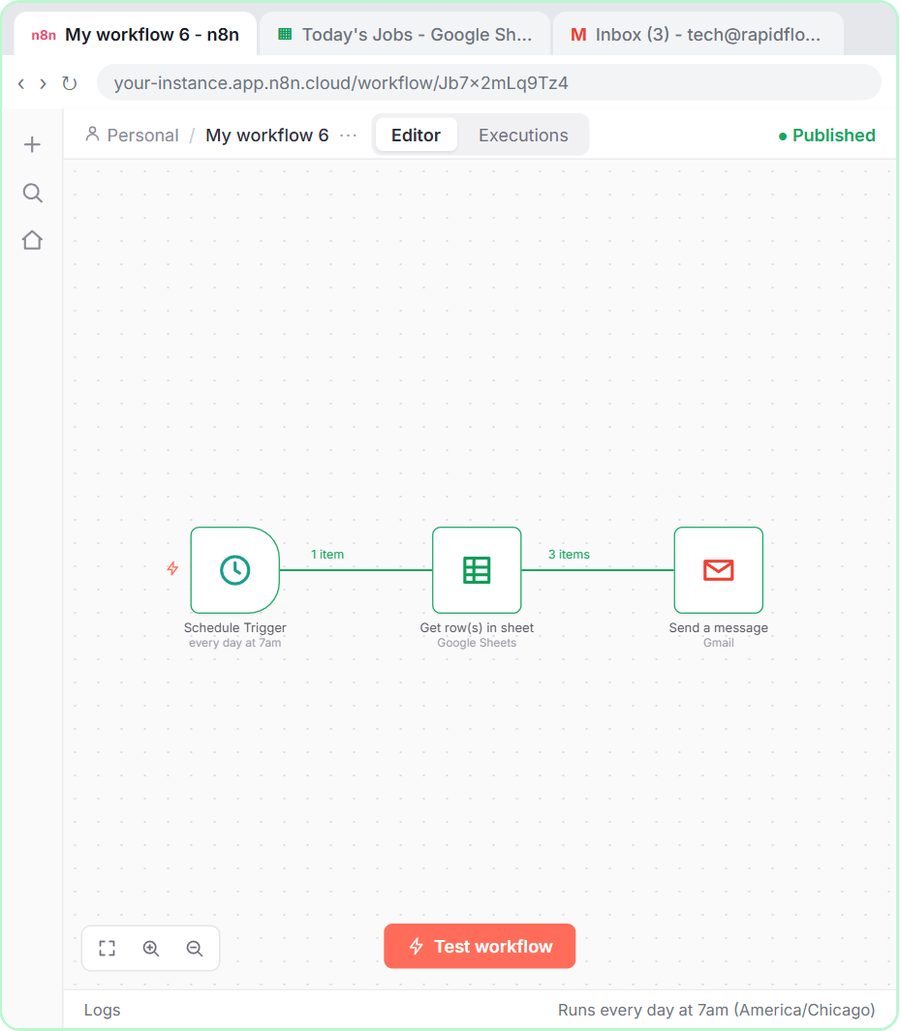 Daily Job Alerts: Email Each Tech Their Jobs from Google Sheets with n8n
Every morning at 7, n8n reads a plumbing company's jobs sheet, skips anything not assigned yet, and emails each job to the tech it's assigned to — customer, address…
Free · Live ~10 min Intermediate
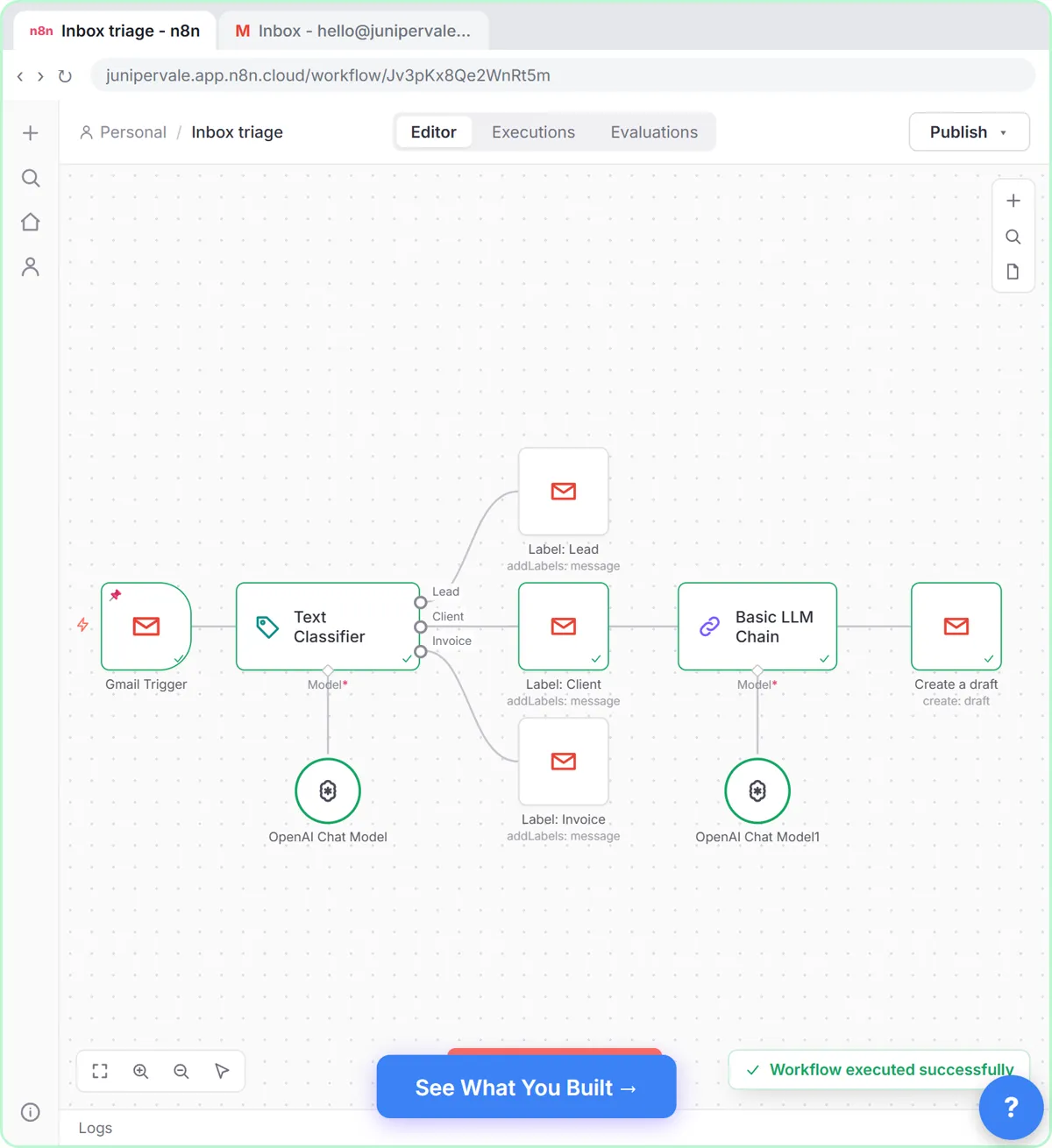 Gmail AI Triage: Auto-Label Every Email and Draft Replies
Build an n8n workflow that reads each new email, sorts it as a lead, a client or an invoice with a Text Classifier, adds the matching Gmail label, and drafts a reply to…
Free · Live ~18 min Advanced
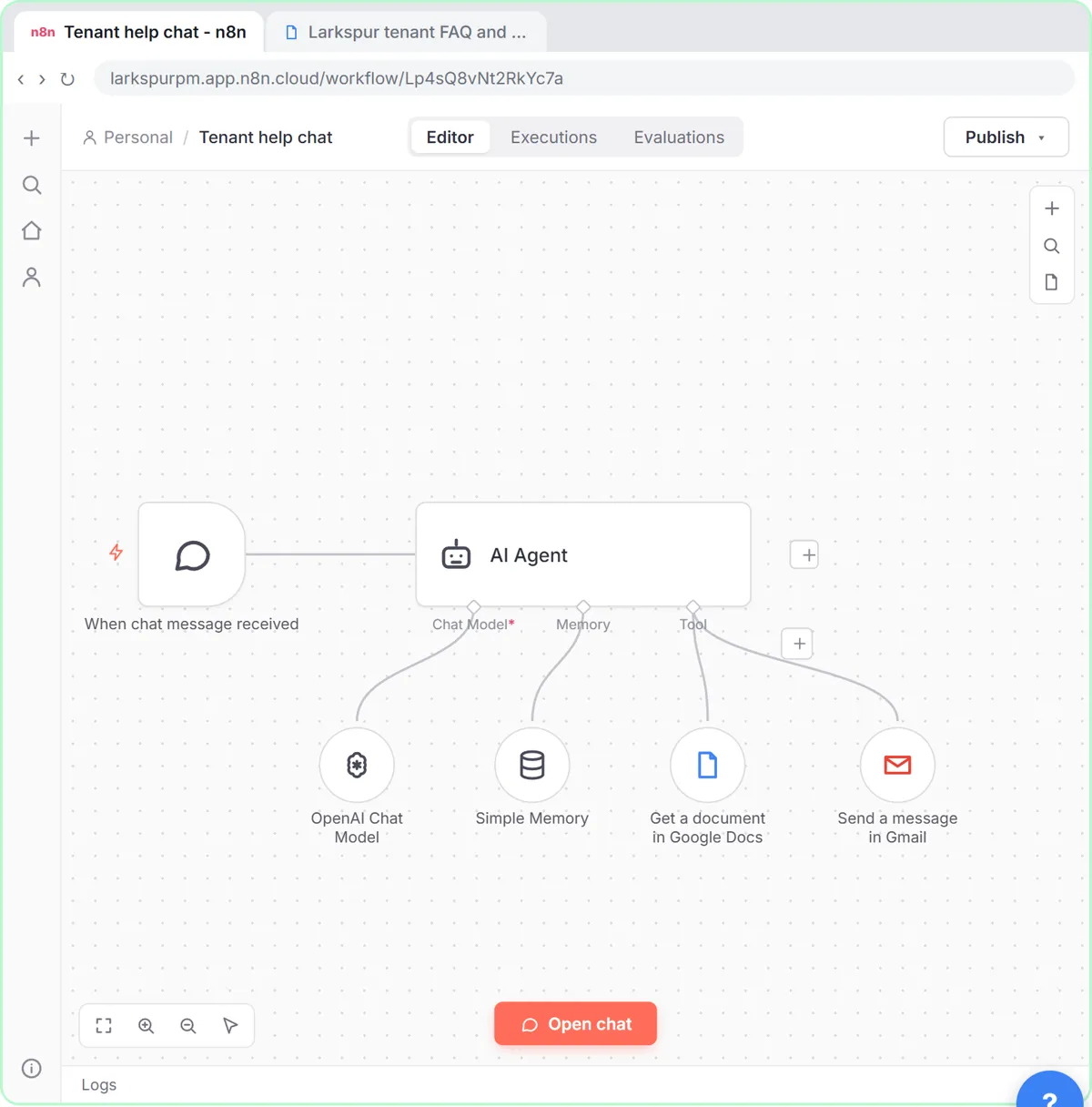 A Support Agent That Answers from Your Own Docs
Turn an n8n chat agent into a support agent that answers only from your policies in a Google Doc, refuses what it should, and hands off to a person by email.
Free · Live ~13 min Advanced
 Chatbase: Answer Customer FAQs with an AI Agent
A business case for a small firm that answers the same customer questions every week: build a Chatbase AI agent on your FAQ in the real app, make it say when it does…
Free · Live ~15 min Beginner
All 48 modules in Business Automations
Terms in this lesson
Plain-English definitions, each with an example from a free lesson.