Updated . Built against the tool’s current screens and checked step by step. How we check this lesson
Buyers still call your old number. Find the listings whose name, address or phone disagree, give your website one clean LocalBusiness record, and draft this week's Google Business Profile post, with three free Rankite tools and no sign-up.
At a glance
| Question | Answer |
|---|---|
| What you build | Buyers still call your old number. Find the listings whose name, address or phone disagree, give your website one clean LocalBusiness record, and draft this week's Google Business Profile post, with three free Rankite tools and no sign-up. |
| Tools | Rankite |
| Time | About 8 minutes, 16 steps in 3 parts |
| Level | Beginner, no coding needed |
| Cost | Free |
| Ways to learn it | Practice it step by step |
The 3 parts, in short
- Find the listings that disagree: Type the correct name, address and phone, Paste what each site shows, Read the results, Google matches, and 2 more steps.
- Give search one clean record: Describe the office for search engines, Pick Real Estate Agent, Add your website and hours, Copy the code, and 1 more step.
- Post your next event on Google: Describe your next event, Set the date and the button, Pick a draft, then tidy it, Copy it, and 1 more step.
Start here first: How to Do OCR in n8n: Read Receipt Photos into Google Sheets with AI (module 1 of Business Automations)
In the course: Part 9 · n8n Automation Toolkit (Module 140 of the full course)
Part of: AI for Real Estate (step 17 of 17)
Part of: AI for Marketing Teams (step 11 of 55). Next up: iMini AI Agent: Turn a Rough Idea into a Launch Kit
Part of: AI Apps Worth Knowing (step 51 of 175). Next up: Jinxo: Plan a Client Kickoff with Claude in a Jinxo Group Chat
What you'll build
Cedar & Main Realty is made up. The office moved to Exchange St two years ago, and Google, Zillow, Facebook and Yelp each still show it a little differently. As the office manager, you compare all four listings against the one correct name, address and phone with Rankite's free NAP Consistency Checker, and catch two swapped digits in the Facebook phone number. Then you make LocalBusiness schema for the website and draft a Google Business Profile post for a first-time buyer workshop. Every tool is free and needs no account.
The checker found that only Google matched, and that Facebook sent callers to a wrong number. You have the three fixes in order, a LocalBusiness code block for the website, and a post for the workshop. Fix the listings this week, then run the checker again with the new text to make sure all four say Consistent.
- Tools: Rankite
- Time: about 8 minutes, 16 steps in 3 chapters
- Level: beginner, no coding needed
- Price: free
Practice first, then build it for real
Practice copy built from real screens of Rankite's free tools (rankite.com/free-seo-tools), used with no account on 16 November 2026. Nothing here touches your listings or website. Cedar & Main Realty, its office, phone number and listings are made up. The tools run in your browser, so your results match what you type. To build it for real you need your own Rankite account, and some services charge once you use them for real work, so check each tool's current pricing.
Try it yourself, free
Reading the steps is a start. Doing them is how it sticks. The interactive module walks you through every click in a practice copy of Rankite, checks each step, and never touches your real accounts.
Start “Rankite: Fix a Real Estate Office's Local Listings”Step by step: Rankite: Fix a Real Estate Office's Local Listings
All 16 steps of the interactive module, in order. In the module you watch each one, then do it yourself in a practice copy that checks your work.
1. Find the listings that disagree
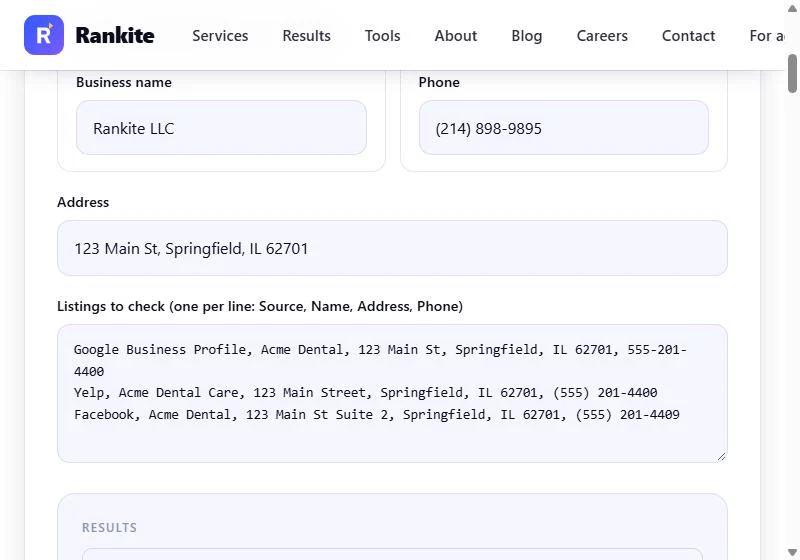
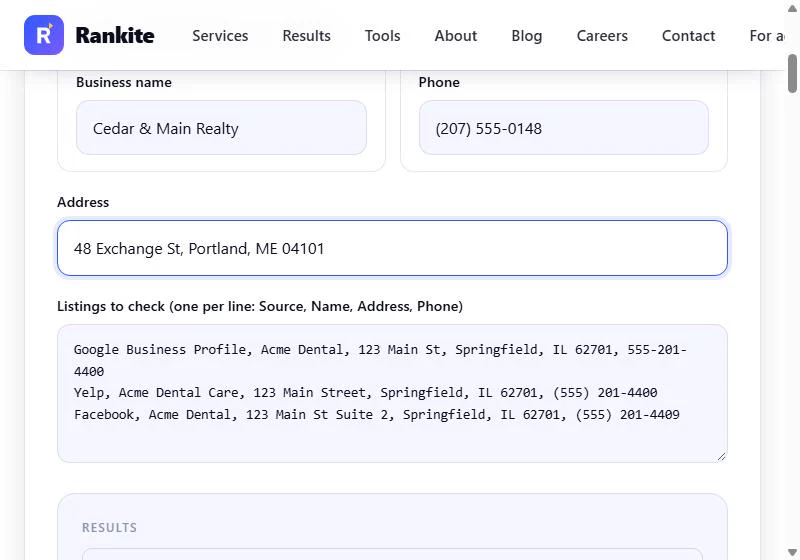
- Type the correct name, address and phone. You are Dana, the made-up office manager at Cedar & Main Realty, a small brokerage in Portland, Maine. The office moved from Fore St to 48 Exchange St two years ago, and buyers still call the old number or walk to the old door. Google, Zillow, Facebook and Yelp each show the office a little differently. Open Rankite's free NAP Consistency Checker (no sign-up). NAP means Name, Address, Phone. First type the one correct version, word for word as it appears on your Google Business Profile. Type the business name (we fill in the phone and address for you).
You run the office at a small brokerage that moved two years ago. Buyers still call the old number.
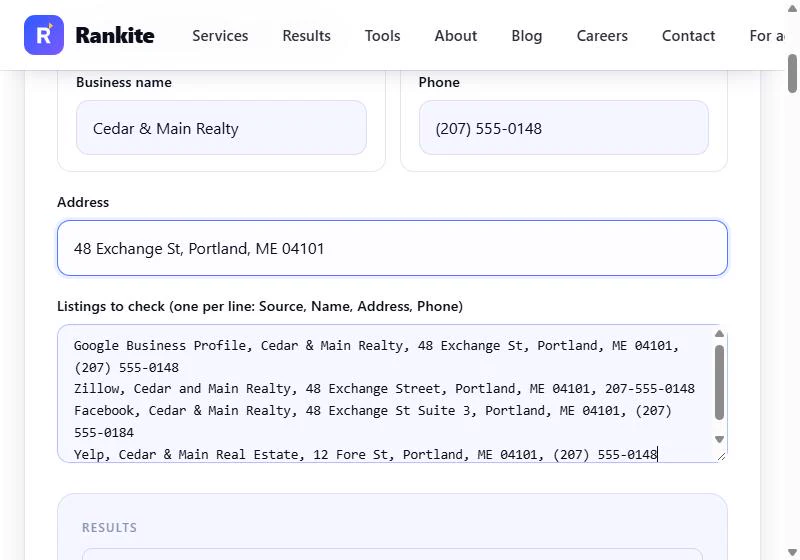
- Paste what each site shows. Now paste each listing exactly as it shows today, one per line: Source, Name, Address, Phone. Copy them from the live pages, typos and all. Our four: Google Business Profile, Zillow, Facebook and Yelp.
Copy typos and all.
Google Business Profile, Cedar & Main Realty, 48 Exchange St, Portland, ME 04101, (207) 555-0148
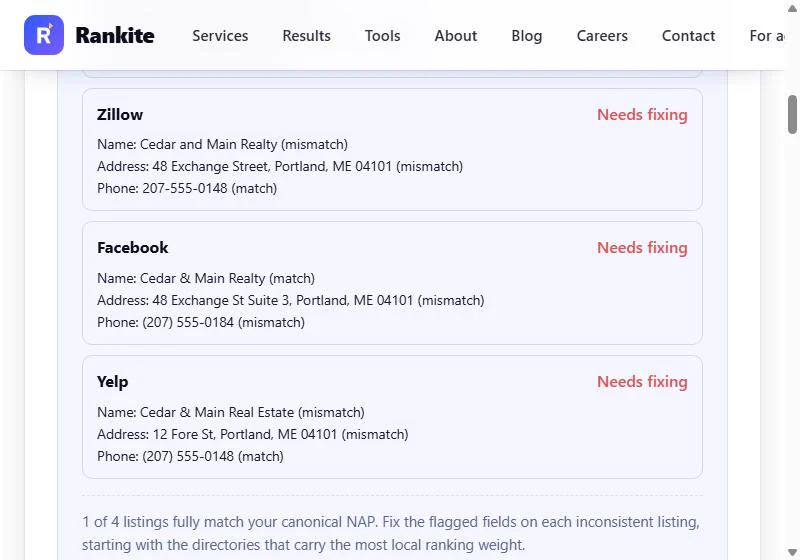
Zillow, Cedar and Main Realty, 48 Exchange Street, Portland, ME 04101, 207-555-0148
Facebook, Cedar & Main Realty, 48 Exchange St Suite 3, Portland, ME 04101, (207) 555-0184
Yelp, Cedar & Main Real Estate, 12 Fore St, Portland, ME 04101, (207) 555-0148
- Read the results. The checker compares as you type; there is no button to press. Scroll to Results.
The checker compares as you type.
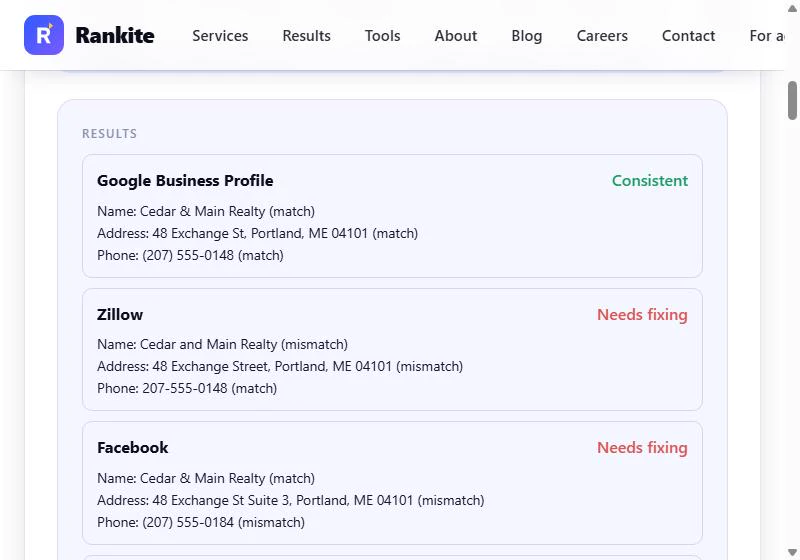
- Google matches. Google Business Profile: Consistent. Name, address and phone all match. Good: that is the listing most people see in Search and Maps, and the one you copied the correct version from. Click it.
Google matches on all three. That is the one most people see.
- Find the costly mistake. Three listings need fixing, and they are not equally bad. Zillow says "and" instead of "&" and "Street" instead of "St": Rankite is strict and flags both, so match your Google wording exactly. Yelp still has the old Fore St office and an old name. Facebook has 555-0184: two digits swapped, so callers reach a stranger. Fix Facebook first, then Yelp, then Zillow. Click Facebook.
Three need fixing. Zillow uses and instead of the ampersand. Yelp has the old office. Facebook has two digits swapped in the phone, so callers reach a stranger. Fix that one first.
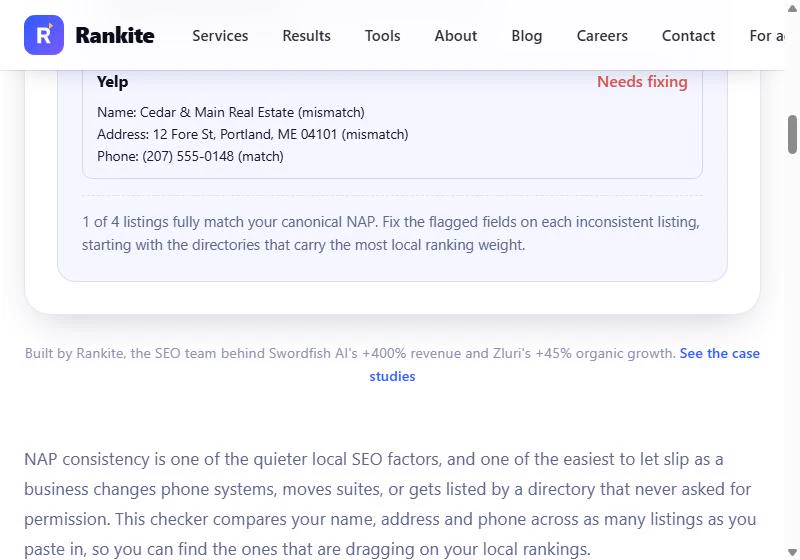
- One of four is right. 1 of 4 listings fully match. Rankite's advice: fix the flagged fields, starting with the directories that carry the most local weight. Write your three fixes on a list: Facebook phone and suite, Yelp address and name, Zillow name and street. Click the summary.
One of four match. Make a list: Facebook, then Yelp, then Zillow.
2. Give search one clean record
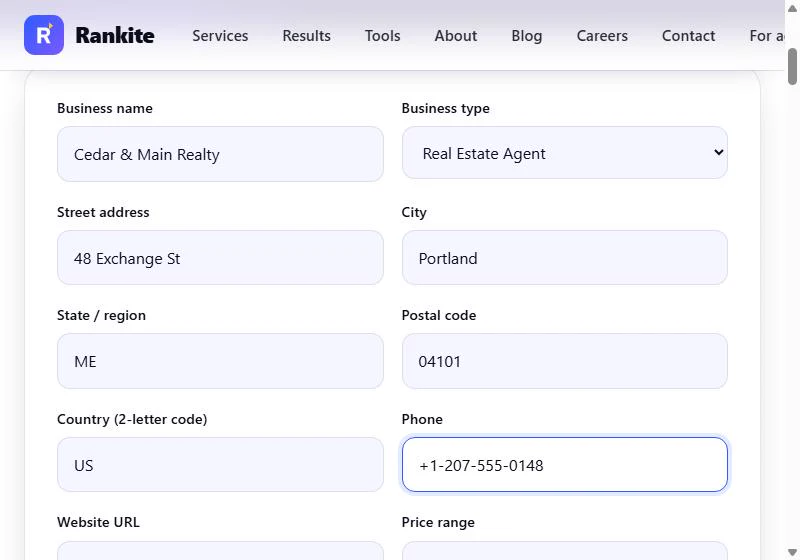
- Describe the office for search engines. Listings live on other sites. Your own website can carry the same facts in a format search engines and AI answer tools read directly: LocalBusiness schema. Open Rankite's free Local Business Schema Generator. Type the business name exactly as on Google (we fill in the street, city, state, postal code and phone in the same format).
Your own website can carry the same facts in a format search engines read directly.
- Pick Real Estate Agent. Under Business type, pick Real Estate Agent. That tells search engines what kind of local business you are, not just where you are. Keep the phone in the +1-207-555-0148 format the tool shows. Click the business type.
Pick Real Estate Agent as the business type.
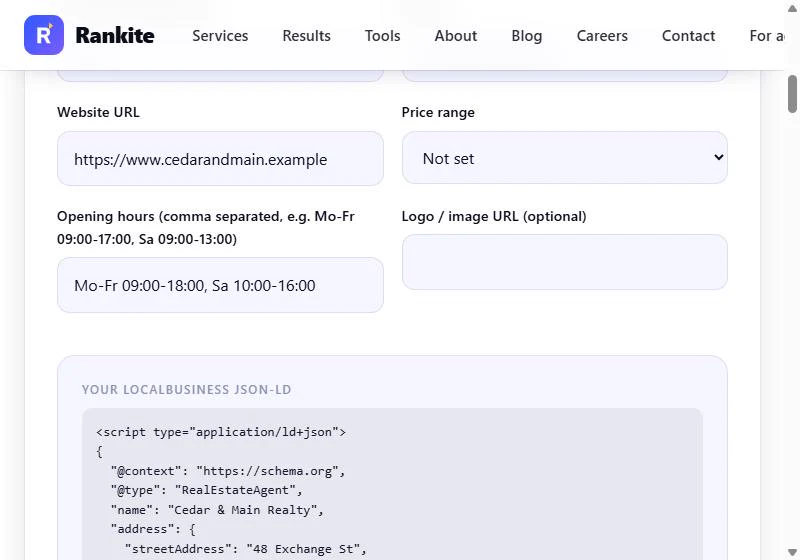
- Add your website and hours. Add the website, and type your hours the way the tool asks: Mo-Fr 09:00-18:00, Sa 10:00-16:00. Set Price range to Not set; a brokerage has no menu price. Click the hours.
Add your website and your hours, in the format the tool shows. Leave price range not set.
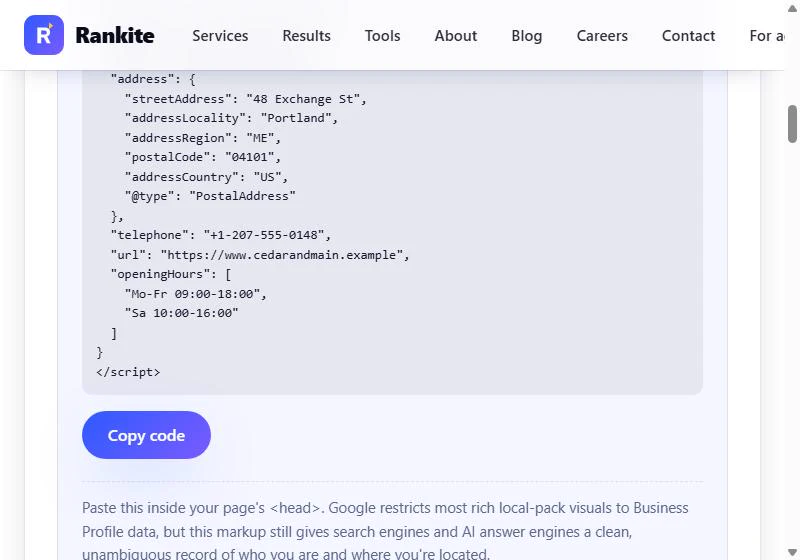
- Copy the code. Rankite writes the code as you go: @type RealEstateAgent, the address, phone, URL and both opening-hours lines. Check every value against your Google listing one more time, then click Copy code.
The code builds as you type. Check every value against Google, then copy it.
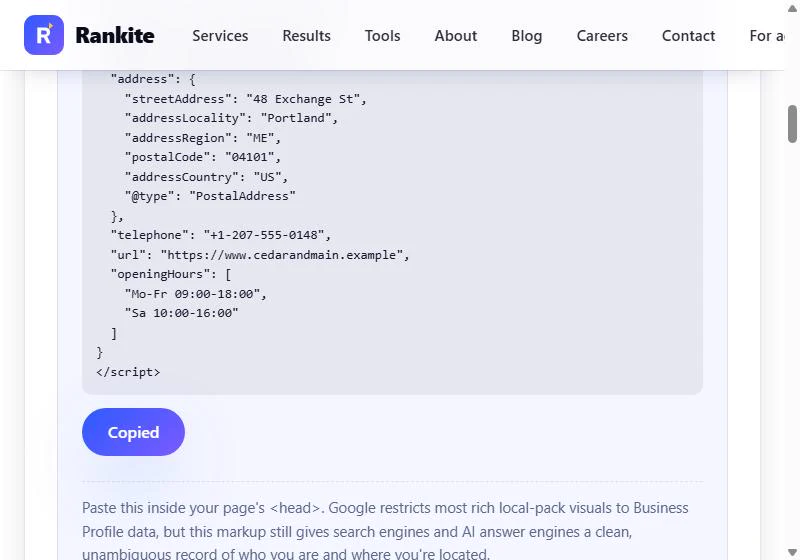
- Hand it to whoever runs the site. Copied. Paste it inside the <head> of your home or contact page, or send it to whoever runs the website. As the note says, Google still takes its map panel from your Business Profile, but this gives search engines and AI answer tools one clean record of who you are and where. Click the note.
Copied.
3. Post your next event on Google
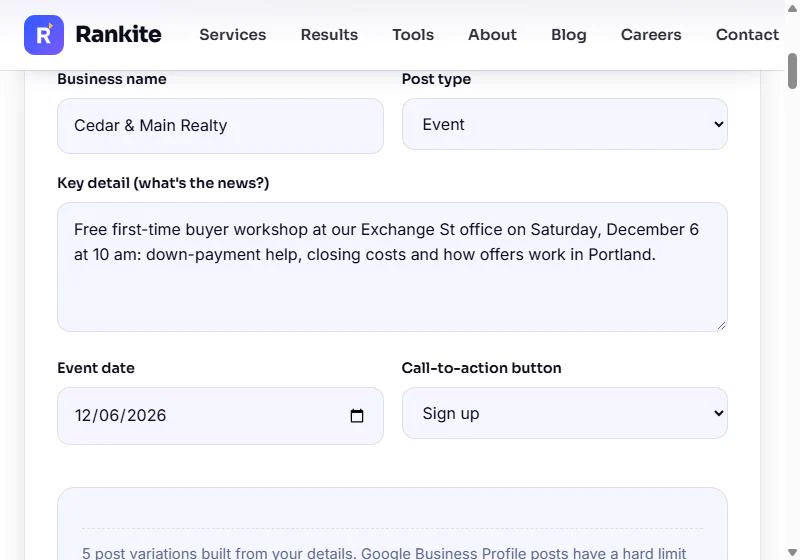
- Describe your next event. Last, give people a reason to see your listing this week. Google Business Profile posts show on your profile in Search and Maps. Open Rankite's free Google Business Profile Post Generator. Business name: Cedar & Main Realty. Post type: Event. Then type the key detail: what, where, when and what they get.
Free first-time buyer workshop at our Exchange St office on Saturday, December 6 at 10 am: down-payment help, closing costs and how offers work in Portland.
- Set the date and the button. Picking Event adds an Event date: 12/06/2026. Set the Call-to-action button to Sign up. Click the button field.
Event adds a date field. Set the date, and set the button to sign up.
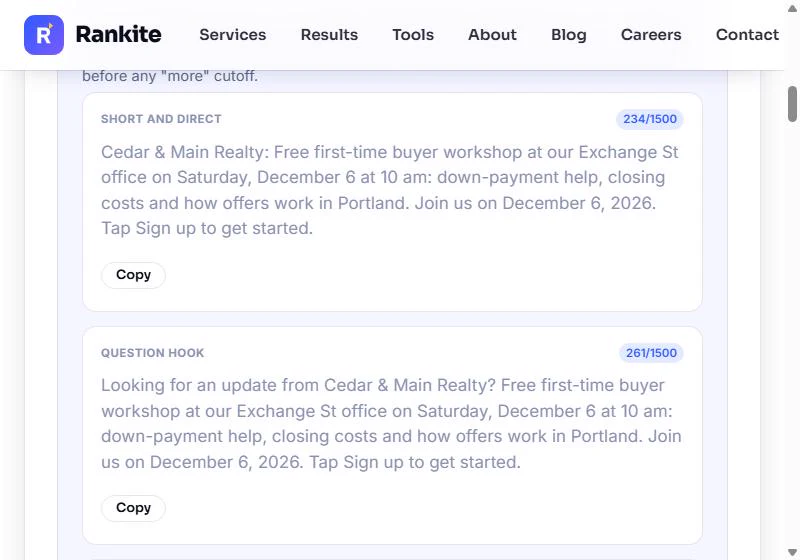
- Pick a draft, then tidy it. You get five drafts with character counts (Google allows 1,500). They are fill-in templates, not finished copy: every one repeats the date ("December 6 at 10 am... Join us on December 6, 2026"), and Urgency-led ends with "...in Portland. from Cedar & Main Realty." Short and direct (234 characters) reads best. Click it.
Five drafts, with character counts. They are templates: each repeats the date. Short and direct reads best.
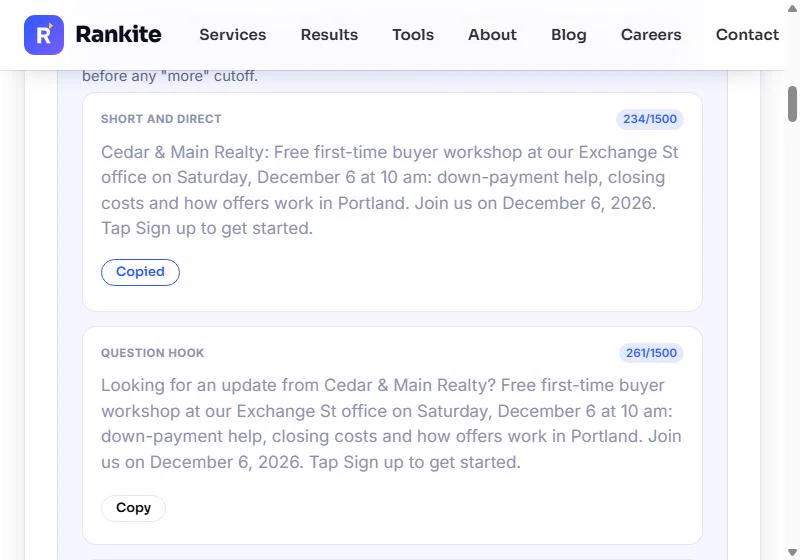
- Copy it. Click Copy under Short and direct. In your Business Profile, paste it into a new Event post, delete the second "Join us on December 6, 2026", add a photo of the office, and set the button to your sign-up page.
Copy it. In your Business Profile, paste it, delete the repeated date, and add a photo.
- Done. Copied. In about fifteen minutes you found the swapped phone digits and the old address, made one clean record for the website, and drafted this week's post. Click Copied to finish.
Copied. You found the wrong phone and the old address, made one clean record, and drafted this week's post.
Screenshots
More in Business Automations
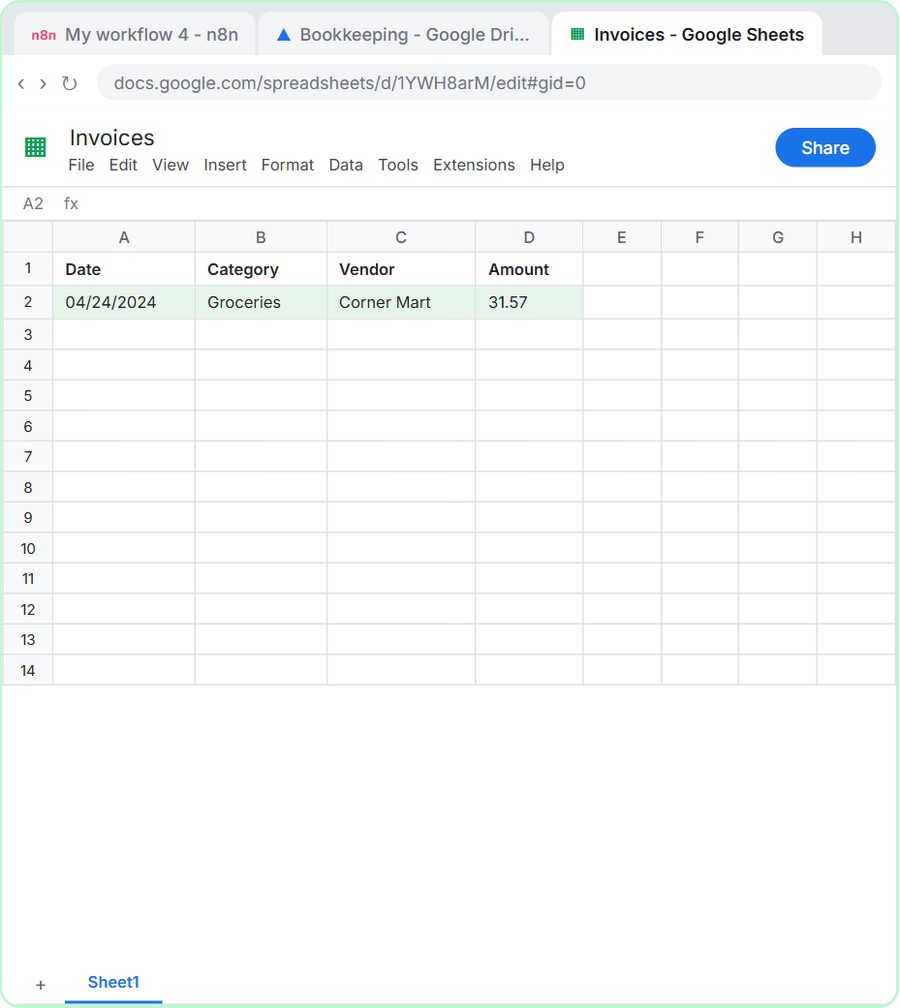 How to Do OCR in n8n: Read Receipt Photos into Google Sheets with AI
Drop a photo of a receipt into an n8n chat. An AI agent reads it, pulls out the date, vendor and amount, picks a category, and adds a row to Google Sheets.
Free · Live ~12 min Intermediate
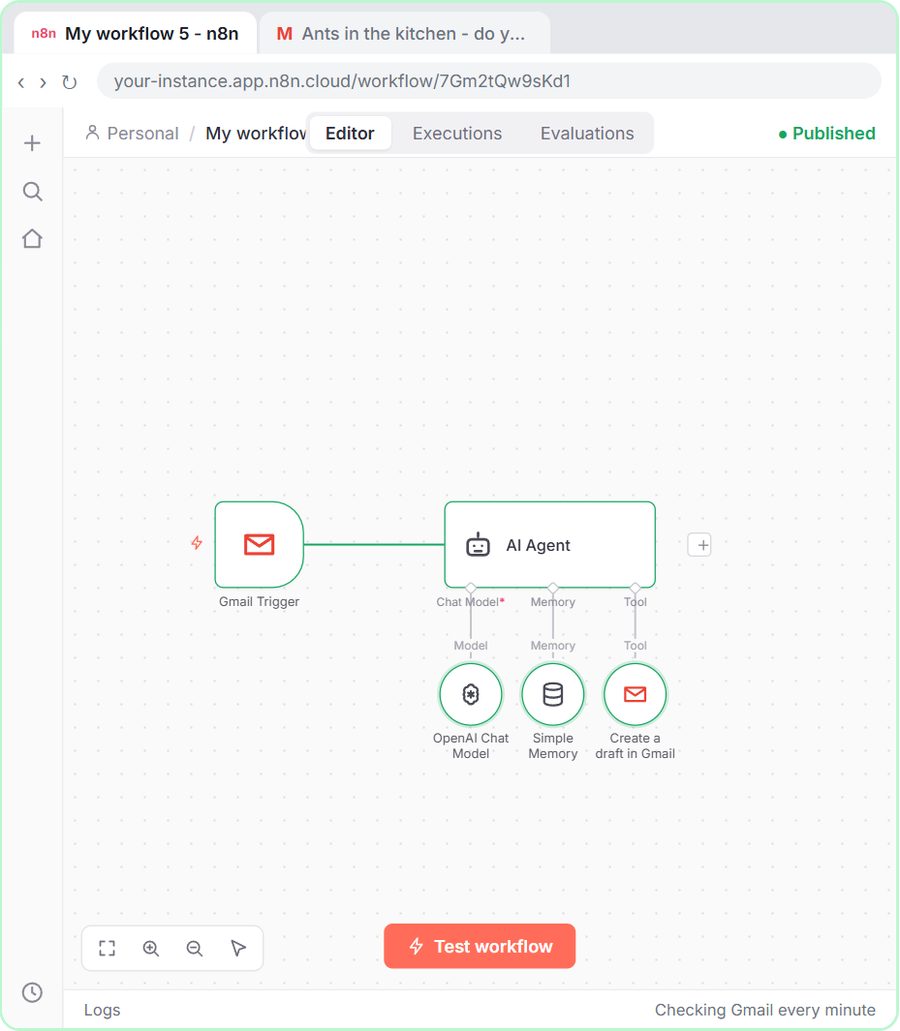 n8n AI Email Responder: Draft Gmail Replies Automatically
Build an n8n agent that watches your Gmail, reads each new customer email, and writes a reply as a draft in the same thread, ready for you to check and send.
Free · Live ~12 min Intermediate
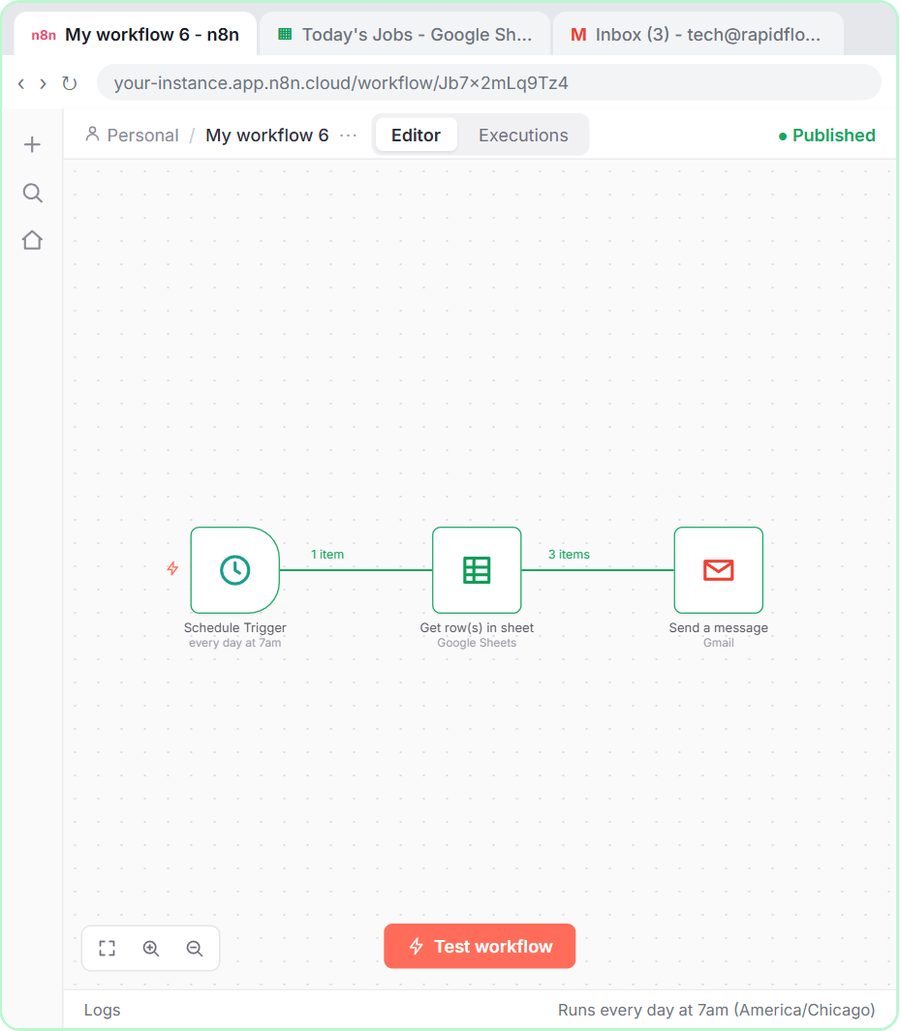 How to Make an n8n Workflow That Emails Each Tech Their Jobs from Sheets
Every morning at 7, n8n reads a plumbing company's jobs sheet, skips anything not assigned yet, and emails each job to the tech it's assigned to — customer, address…
Free · Live ~10 min Intermediate
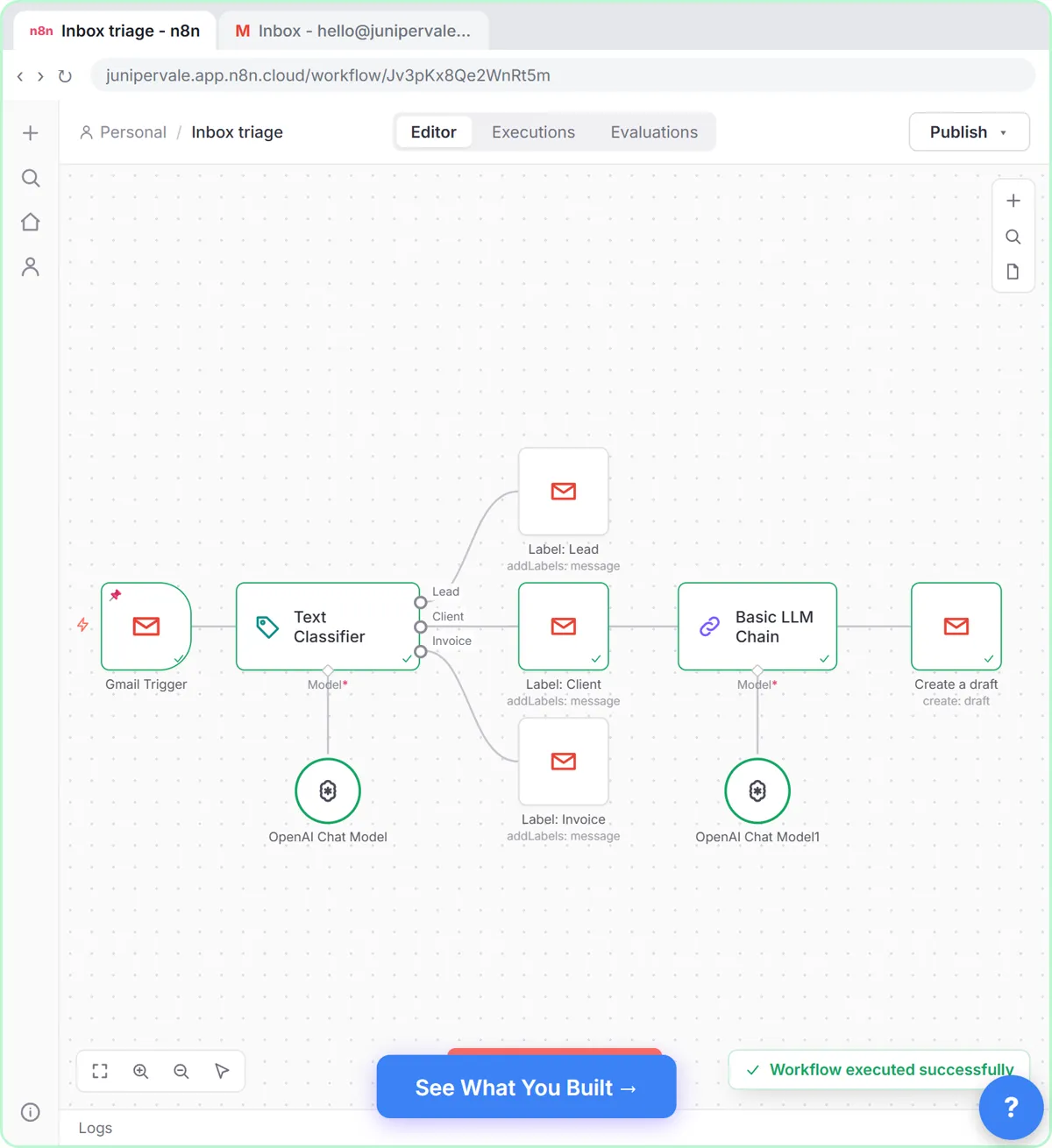 Gmail AI Triage: Auto-Label Every Email and Draft Replies
Build an n8n workflow that reads each new email, sorts it as a lead, a client or an invoice with a Text Classifier, adds the matching Gmail label, and drafts a reply to…
Free · Live ~18 min Advanced
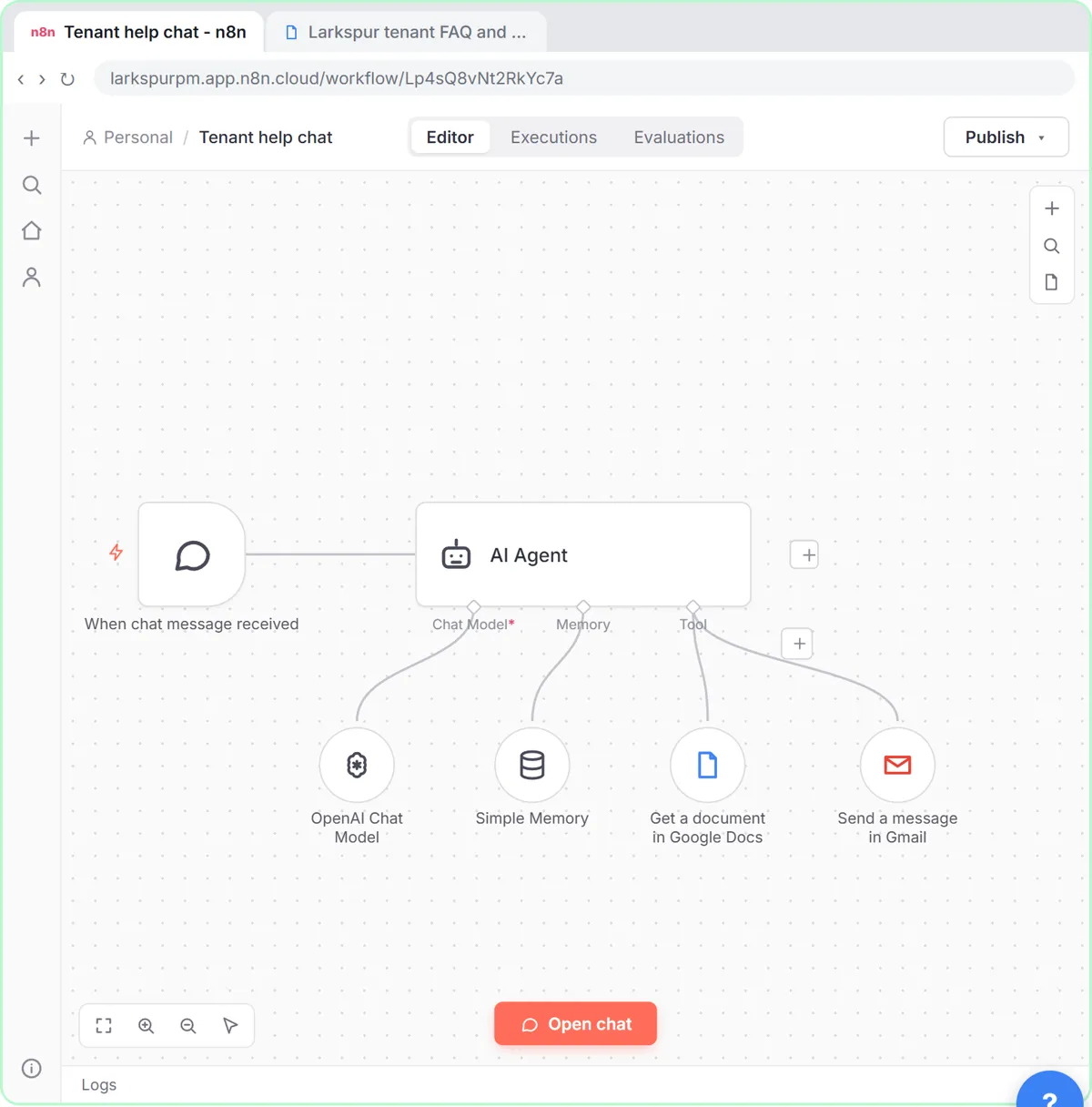 How to Use n8n to Build AI Agents: A Support Agent That Answers from Your Docs
Turn an n8n chat agent into a support agent that answers only from your policies in a Google Doc, refuses what it should, and hands off to a person by email.
Free · Live ~13 min Advanced
 Chatbase: Answer Customer FAQs with an AI Agent
A business case for a small firm that answers the same customer questions every week: build a Chatbase AI agent on your FAQ in the real app, make it say when it does…
Free · Live ~15 min Beginner
All 56 modules in Business Automations
More Rankite tutorials
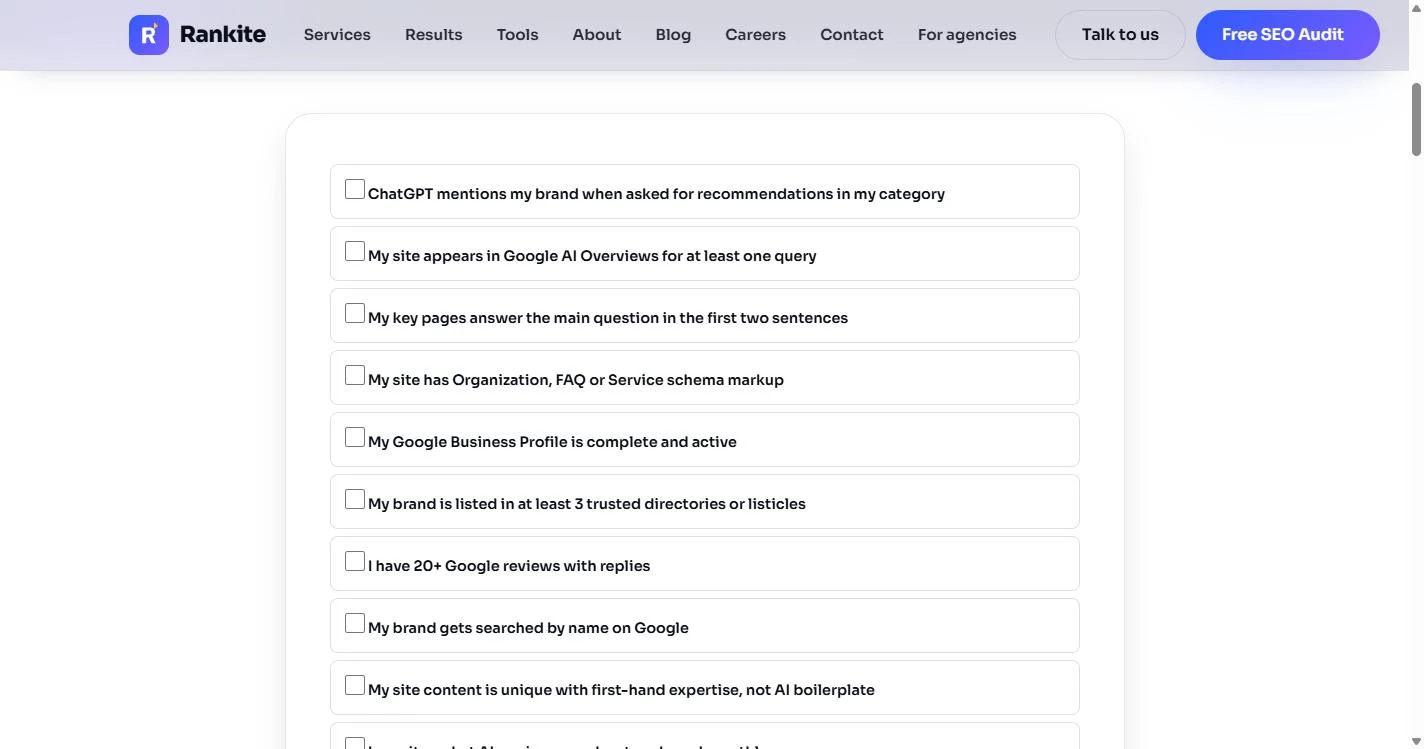 Rankite: Get Your Firm Found by ChatGPT and AI Search
Your firm ranks on Google but never shows up when clients ask ChatGPT. Score your AI visibility, let AI answer bots read your site while blocking training crawlers, and…
Free · Live ~7 min Beginner
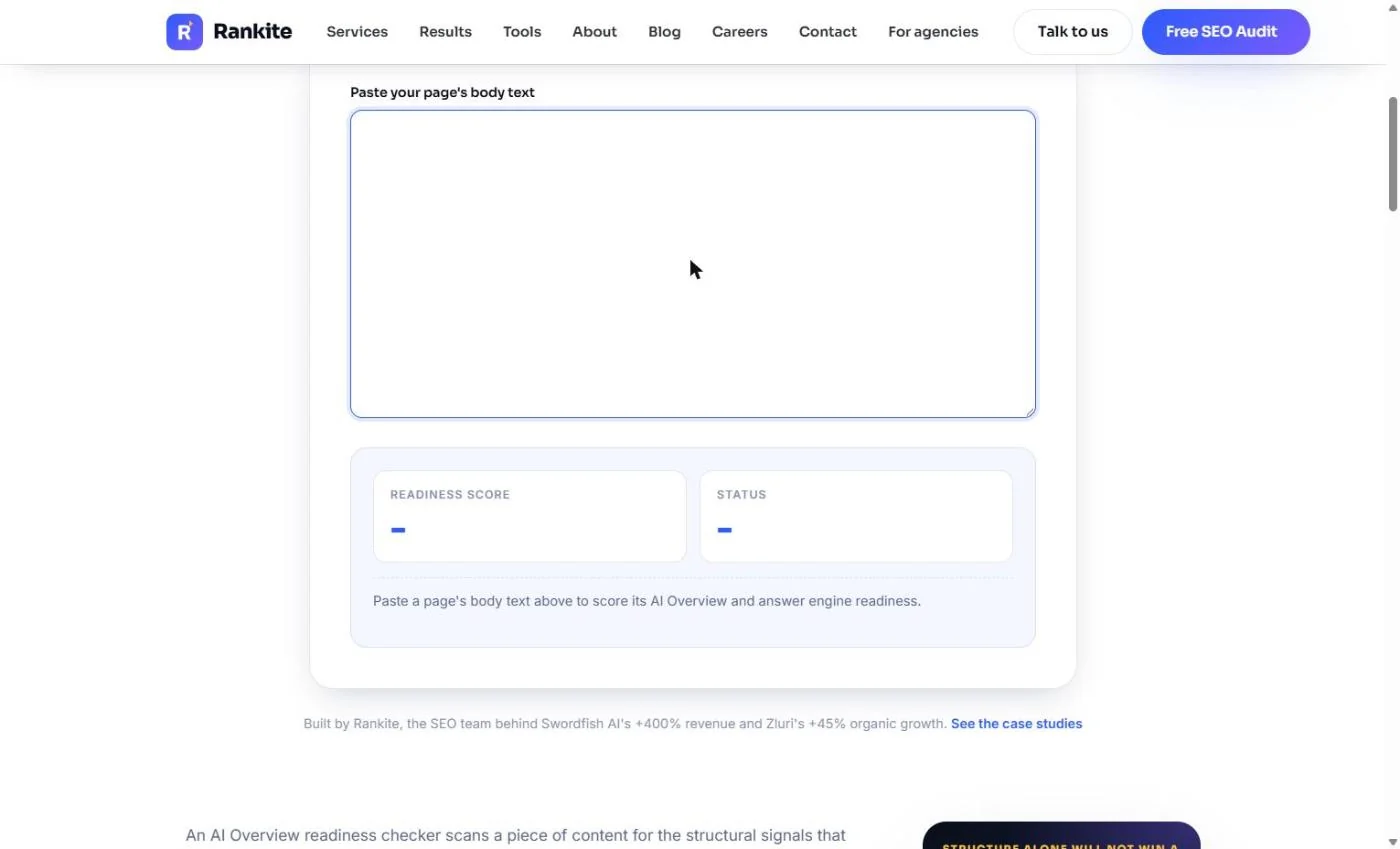 Rankite: Get Your SaaS FAQ Quoted in Google's AI Overviews
Buyers ask Google what your software costs and the AI answer quotes a competitor. Score your pricing page, rewrite it around the questions buyers ask, add FAQ and…
Free · Live ~9 min Beginner