Updated . Built against the tool’s current screens and checked step by step. How we check this lesson
Every new client means a kickoff call, and someone has to write the agenda and prep list from a blank page. Jinxo (getjinxo.com) is a group chat for people and their AI bots. In this free business-case lesson you use a practice copy built from real Jinxo and claude.ai screenshots, captured October 2026, to price the blank-page agenda for a made-up consulting firm, connect Claude to a Jinxo room, ask @Claude for a 30-minute agenda and three prep items, and read the draft it posts back to the room. Claude writes a fresh answer each time, so yours will differ. This is my own lesson, not an official Jinxo course.
At a glance
| Question | Answer |
|---|---|
| What you build | A business case for project teams that write every client kickoff agenda from a blank page: price that, then add Claude to a Jinxo group chat, ask it for a 30-minute agenda and prep list, and read the draft it posts back to the room. |
| Tools | Jinxo |
| Time | About 10 minutes, 20 steps in 6 parts |
| Level | Intermediate |
| Cost | Free |
| Ways to learn it | Practice it step by step, read the guide with screenshots |
The 6 parts, in short
- A blank page before every kickoff: Read the team chat, Put a price on it, Meet Jinxo.
- Connect Claude to your Jinxo room: Add Claude to a room, Add the custom connector in claude.ai, Check the tool permissions.
- Ask in the group chat: Open the group chat, Ask Claude for the agenda, See that it is waiting.
- Let Claude read the room and answer: Switch the Jinxo connector on, Tell Claude to check the room, Watch it post to Jinxo, Read Claude's summary.
- Check the draft in Jinxo: See that Claude read it, Open the reply, Read the agenda, Read the prep list, and 1 more step.
- What it saves, and doing it for real: What this saves you, Do it for real.
Part of: AI for Consulting & Agencies (step 23 of 34)
Part of: AI Apps Worth Knowing (step 46 of 132)
Part of: AI for Meetings (step 2 of 18)
Jinxo: Plan a Client Kickoff with Claude in a Jinxo Group Chat: step-by-step guide with screenshots
About the screenshots. They come from Stepthrough’s simulated practice environment (a practice copy of Jinxo), not the live tool, so no real account appears. The buttons and labels match the real screens the lesson was built against. Practice it yourself free at learn.ynteractive.com.
- Tools: Jinxo
- Time: about 10 minutes, 20 steps in 6 parts
- Level: intermediate
Part 1: A blank page before every kickoff
Step 1: Read the team chat
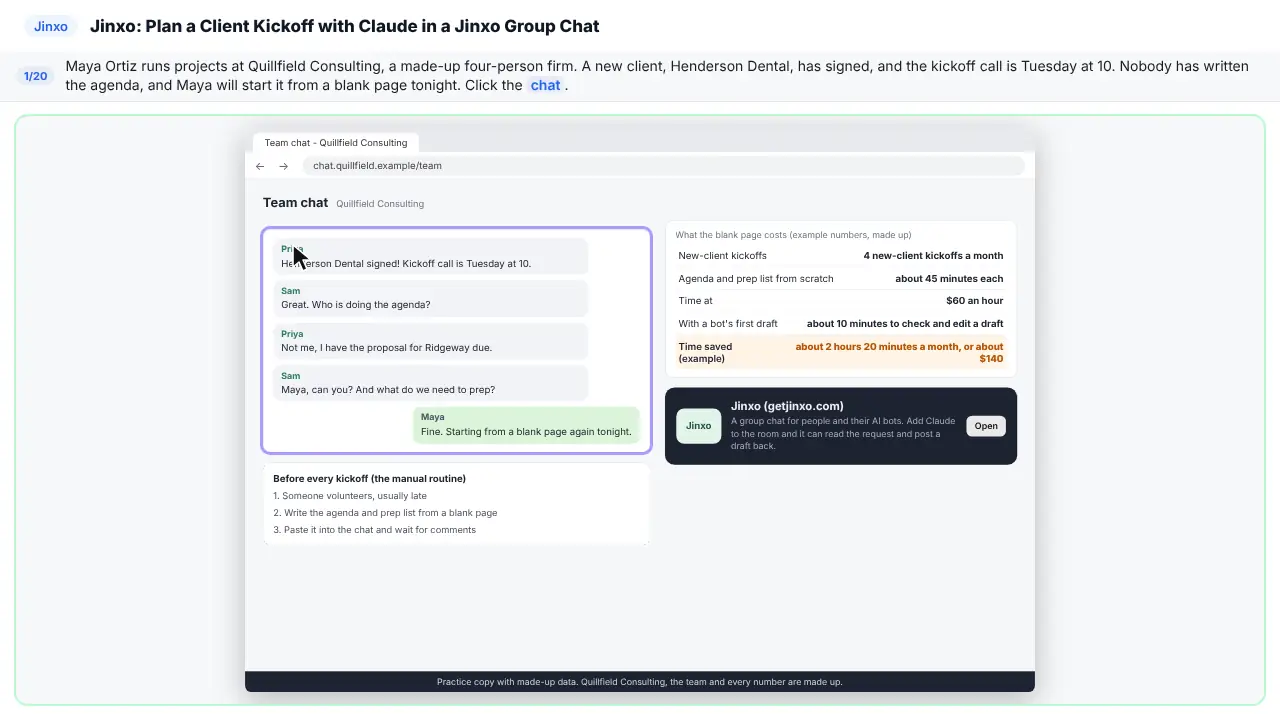
Meet Maya. She runs projects at a small consulting firm. A new client just signed, and the kickoff call is Tuesday. Nobody has written the agenda. So Maya will start from a blank page, again.
Step 2: Put a price on it
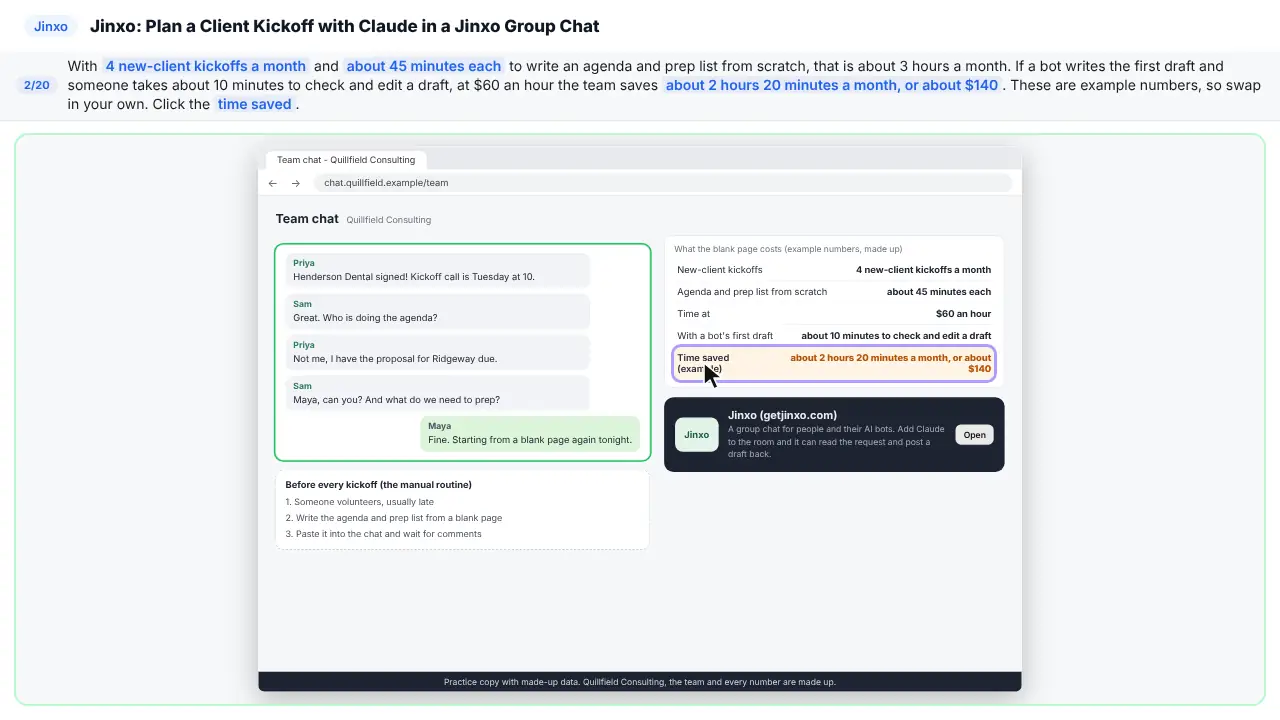
Let's put a price on that. Four kickoffs a month, about forty-five minutes each. If a bot writes the first draft, and you spend ten minutes fixing it, you save over two hours a month. These are example numbers. Use your own.
Step 3: Meet Jinxo
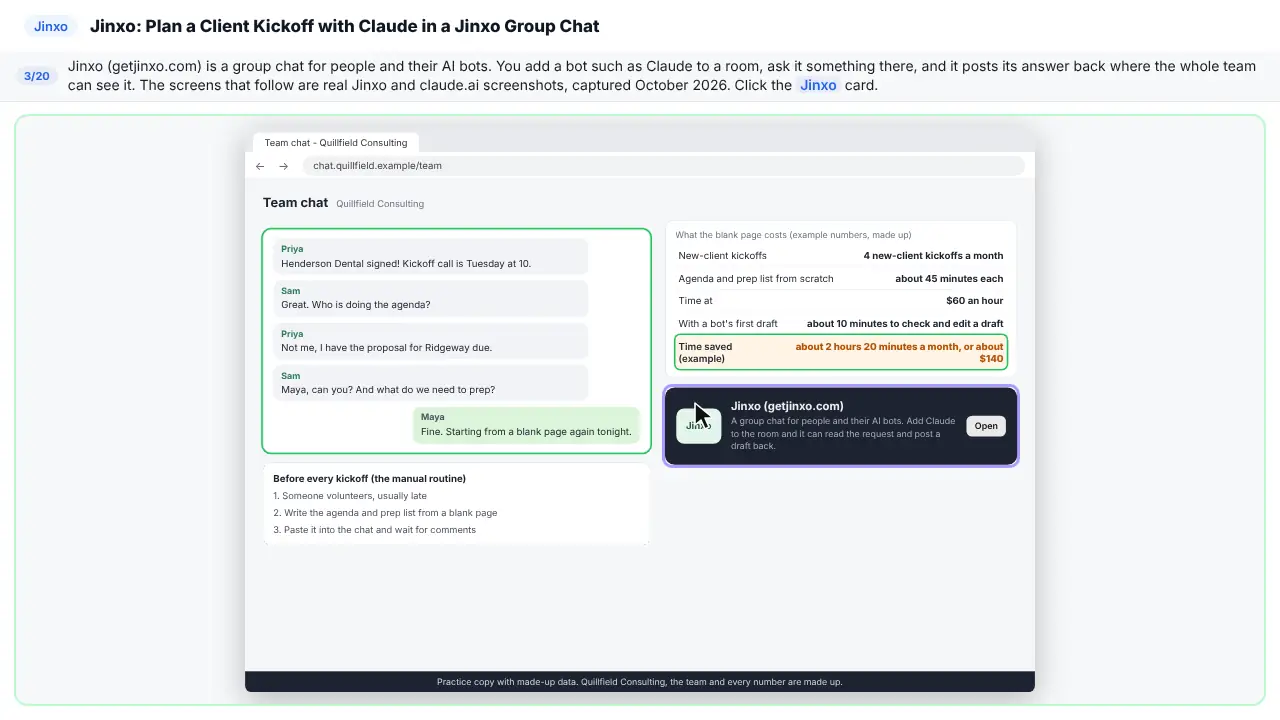
This is Jinxo. It's a group chat for people and their AI bots. You add a bot like Claude to a room. You ask it something there. And it posts the answer back, where the whole team can see it.
Part 2: Connect Claude to your Jinxo room
Step 4: Add Claude to a room
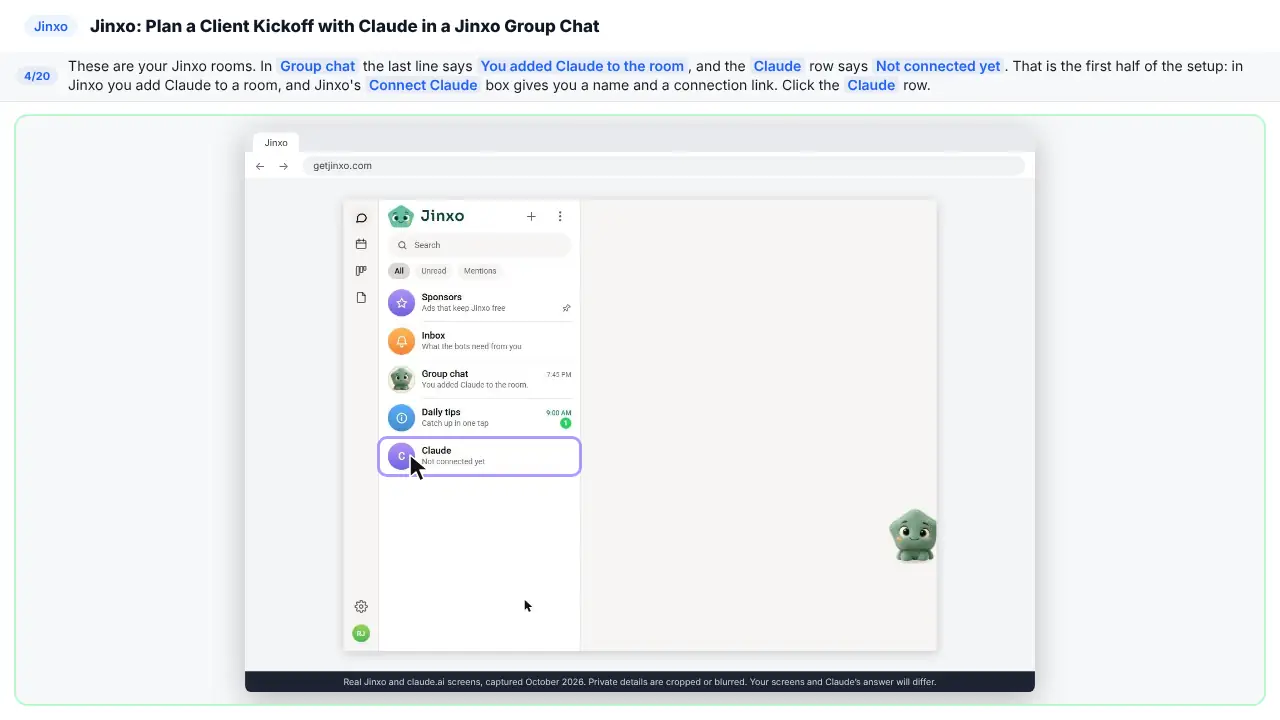
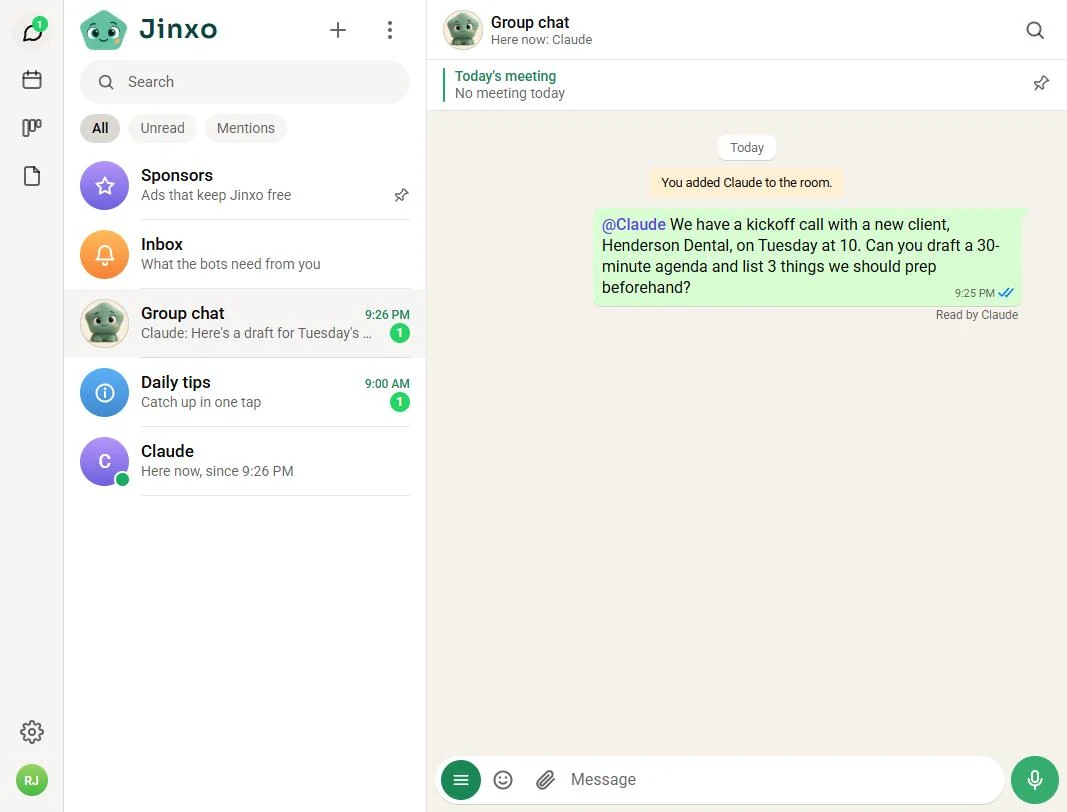
Here are the rooms. The group chat says you added Claude to the room. But the Claude row says, not connected yet. That's half the setup. Jinxo gives you a name and a connection link for the next part.
Step 5: Add the custom connector in claude.ai
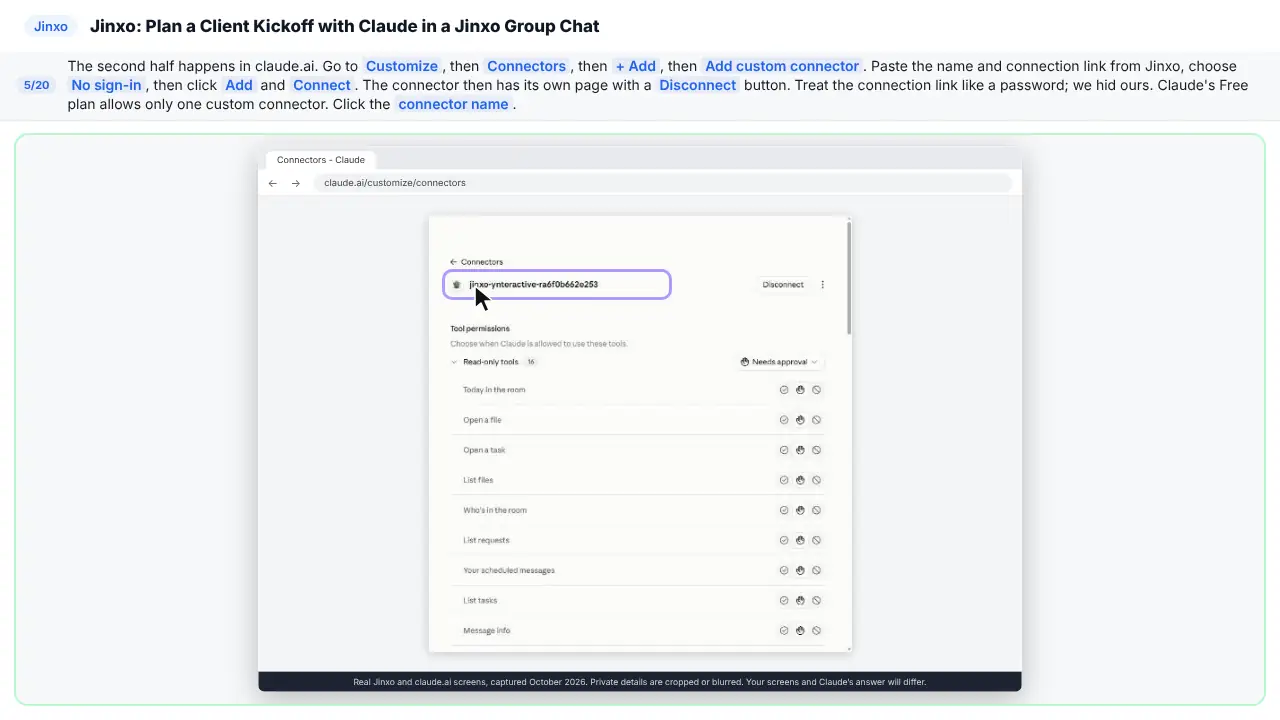
The other half happens in Claude. Go to Customize, then Connectors, then Add custom connector. Then add, and connect. Keep that link private, like a password.
Step 6: Check the tool permissions
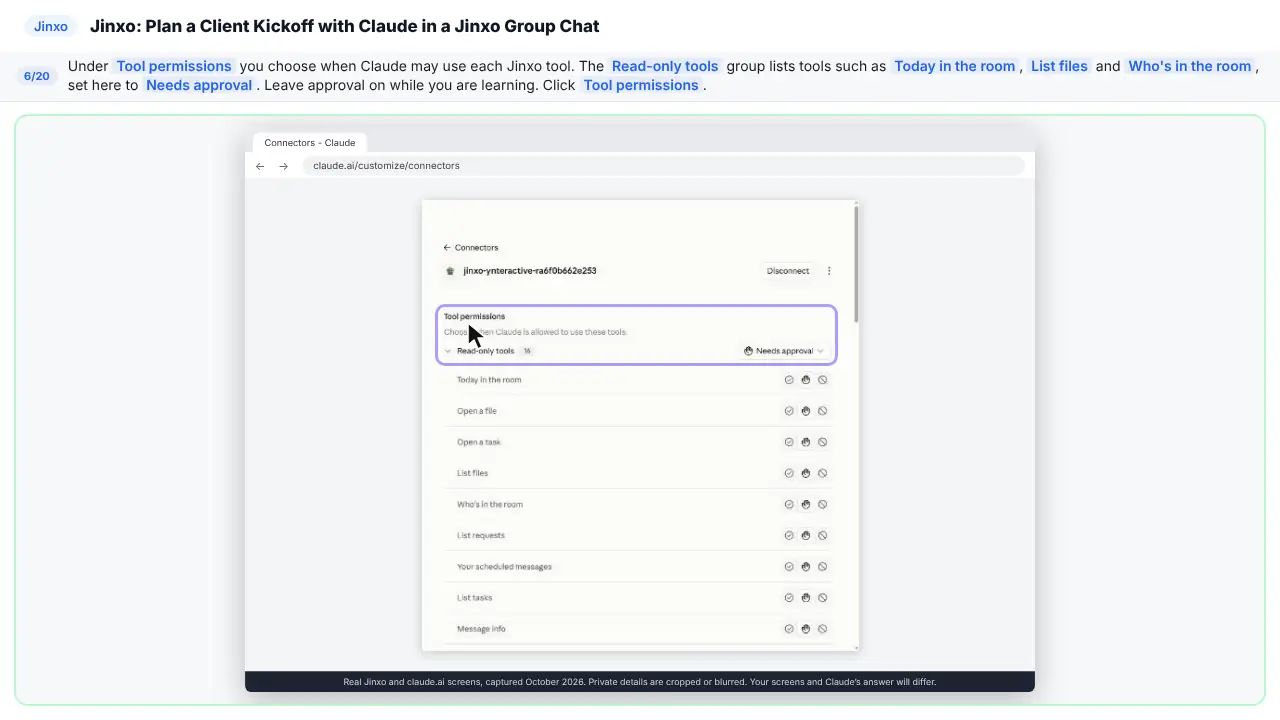
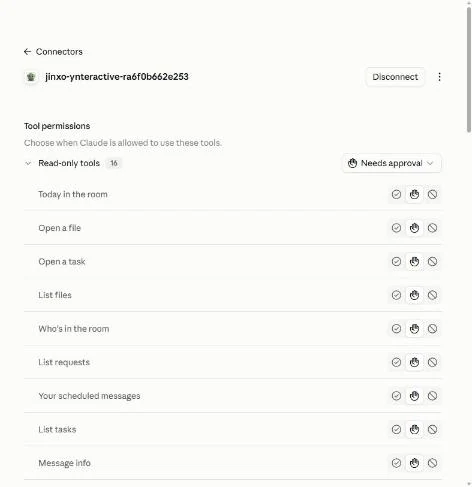
Here you choose when Claude can use each Jinxo tool. While you're learning, leave approval turned on.
Part 3: Ask in the group chat
Step 7: Open the group chat
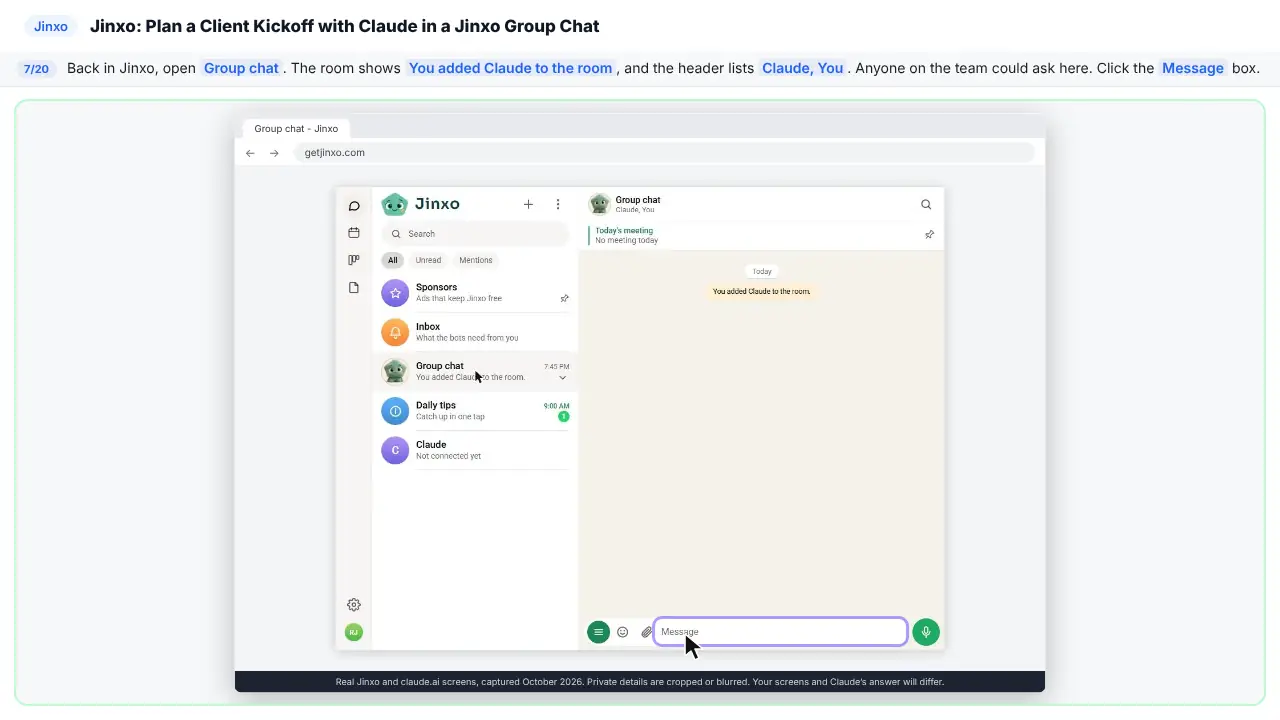
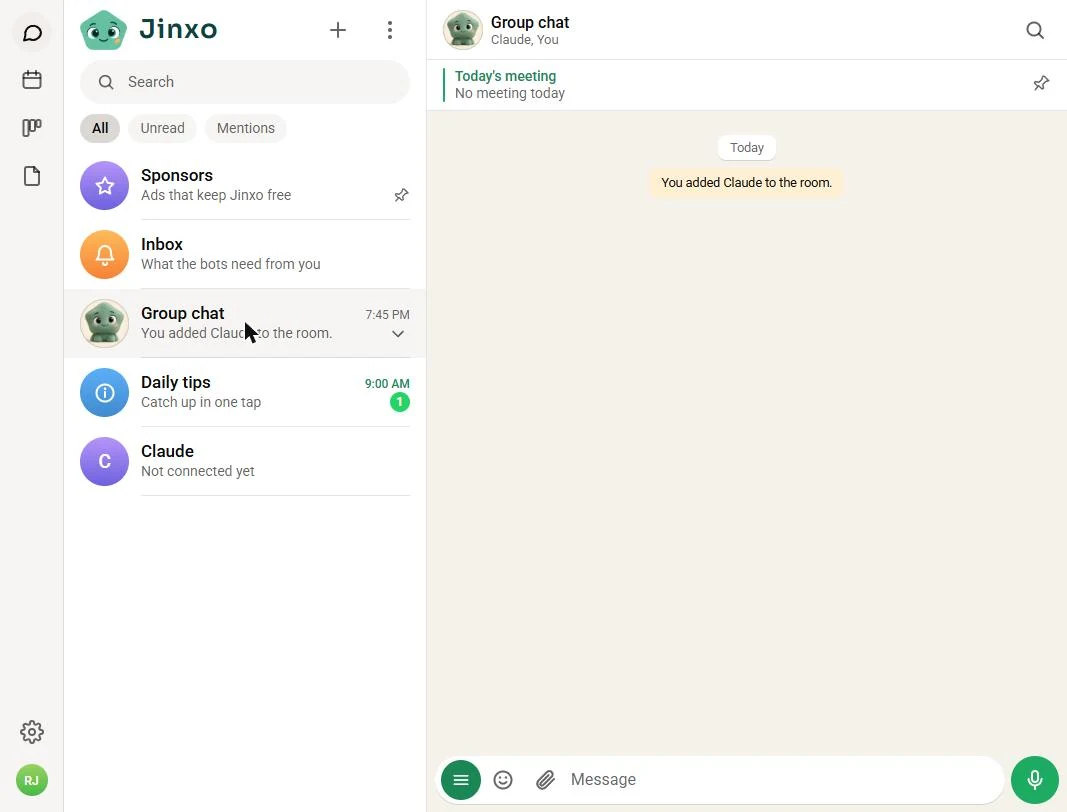
Back in Jinxo, open the group chat. Claude is in the room now. Anyone on the team could ask here.
Step 8: Ask Claude for the agenda
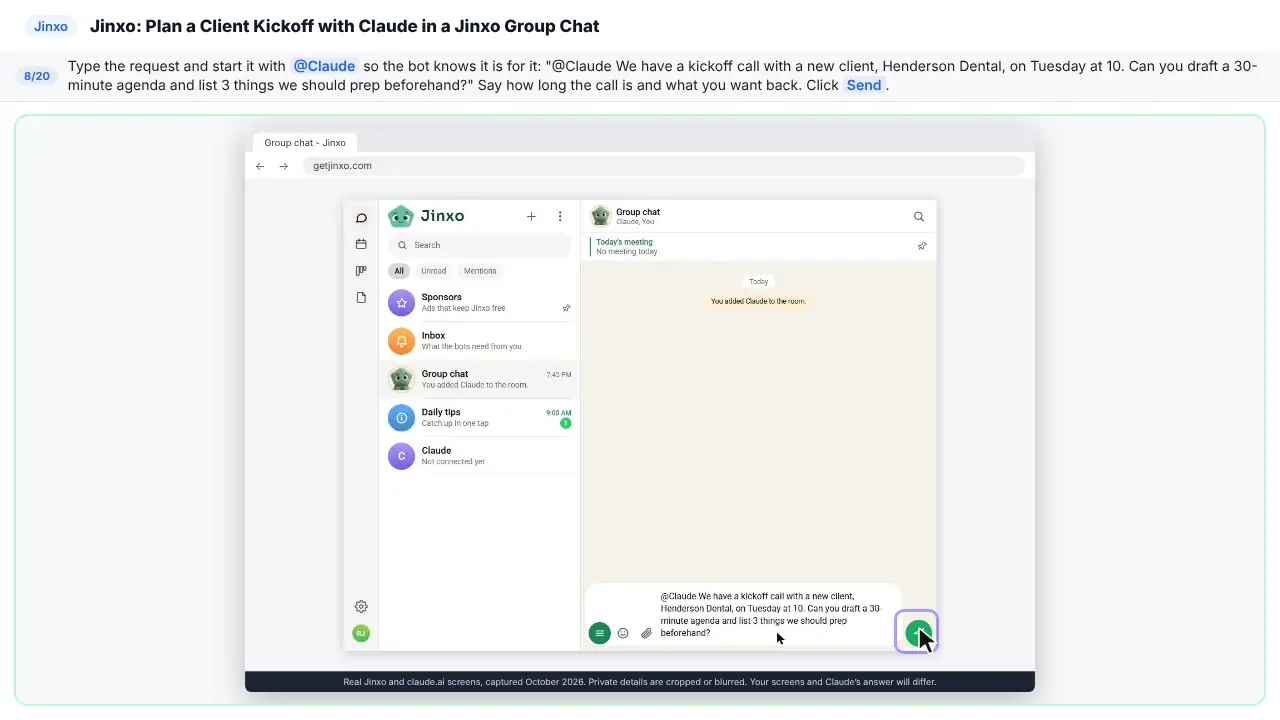
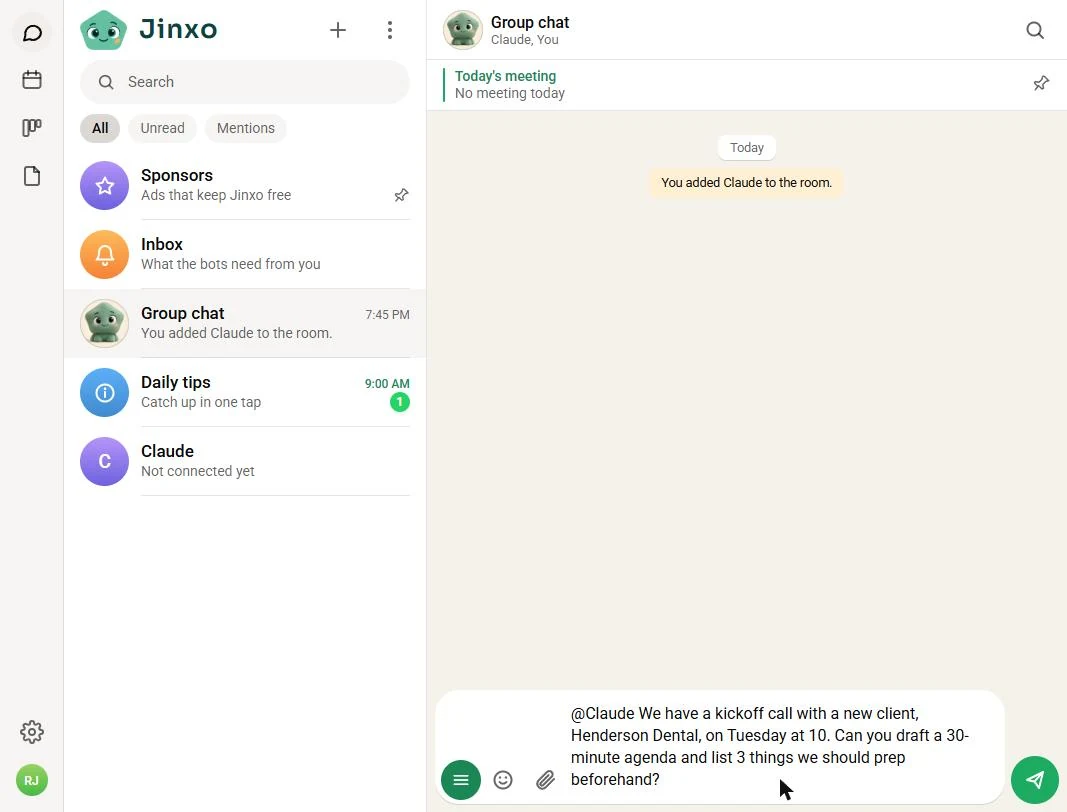
Start with at Claude, so the bot knows it's for it. Say how long the call is. And say what you want back.
Step 9: See that it is waiting
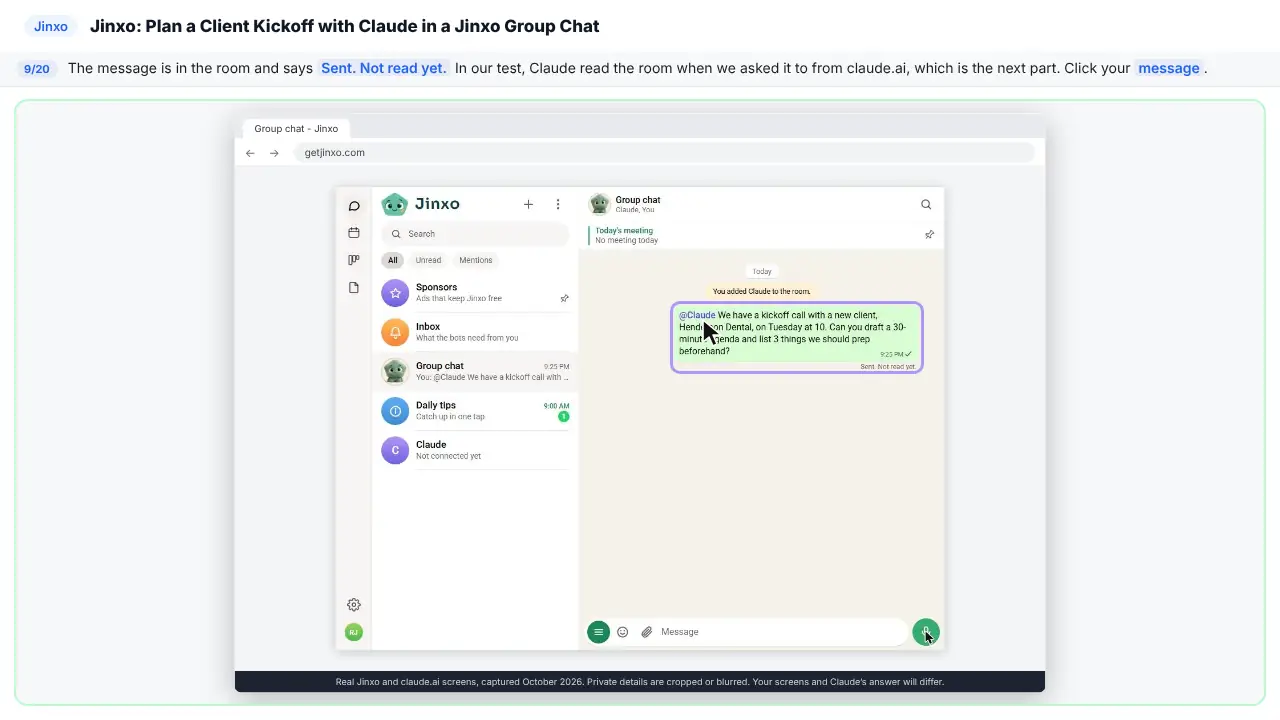
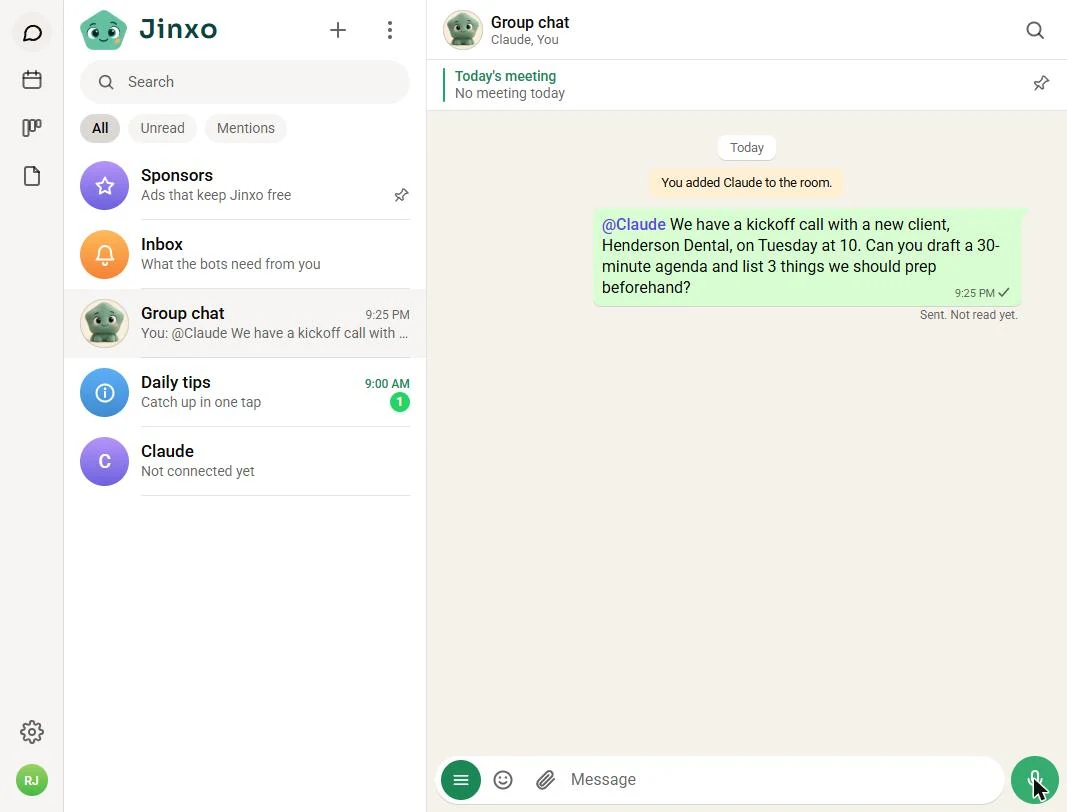
The message is in the room. It says, sent, not read yet. Next, we ask Claude to go read it.
Part 4: Let Claude read the room and answer
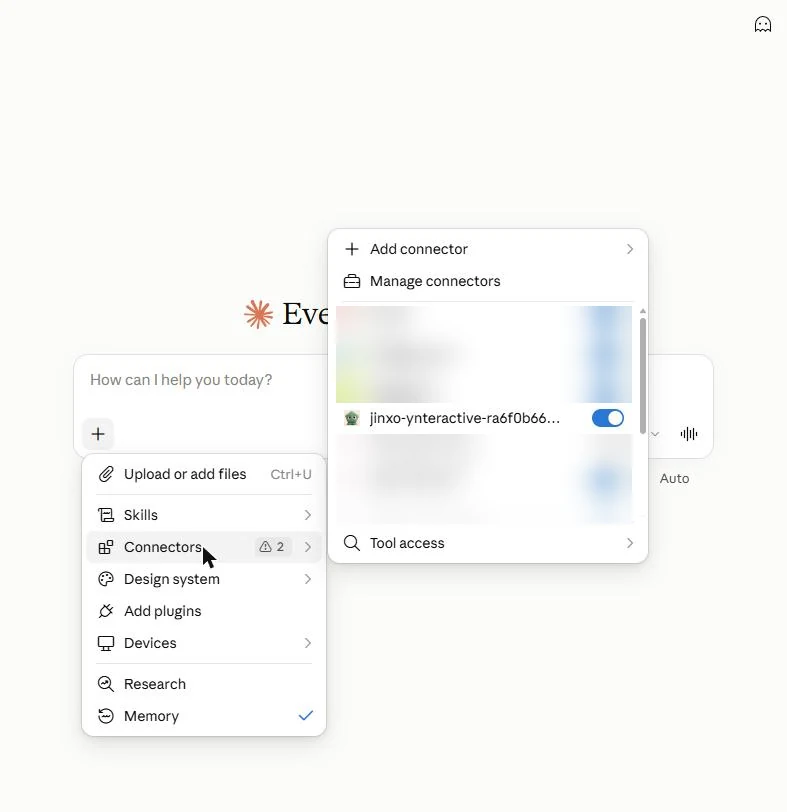
Step 10: Switch the Jinxo connector on
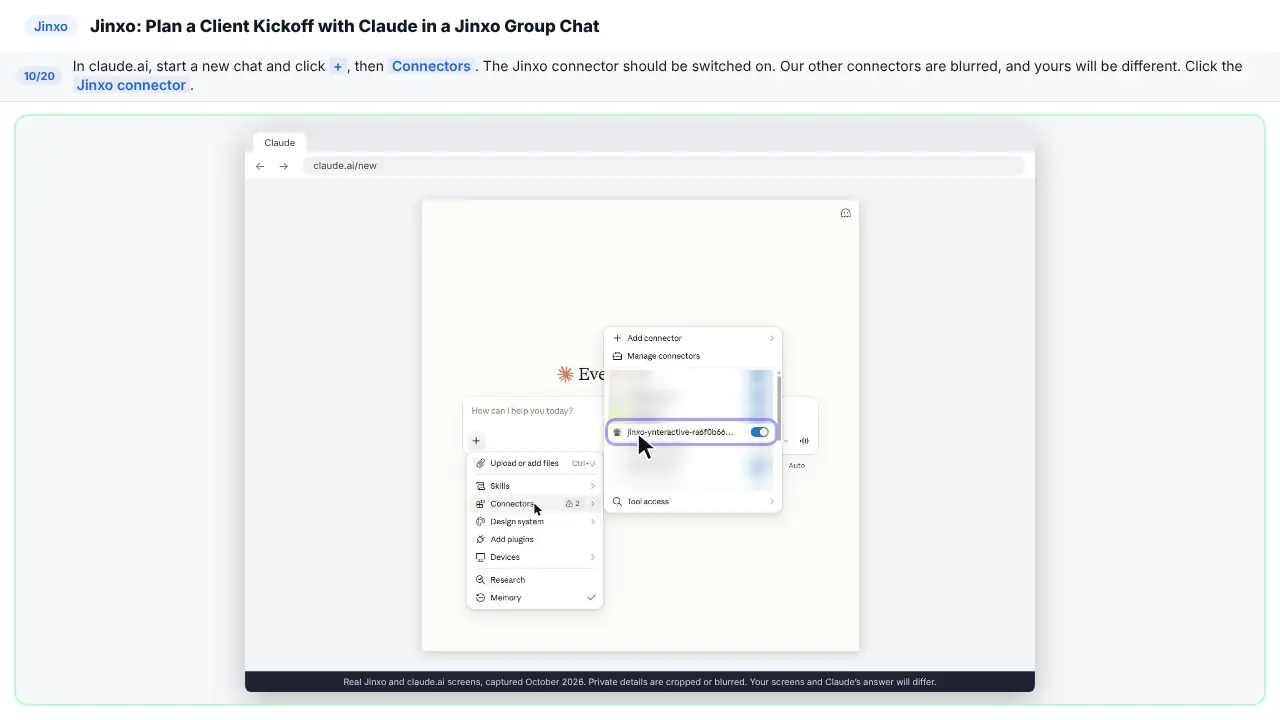
In Claude, start a new chat. Make sure Jinxo is switched on.
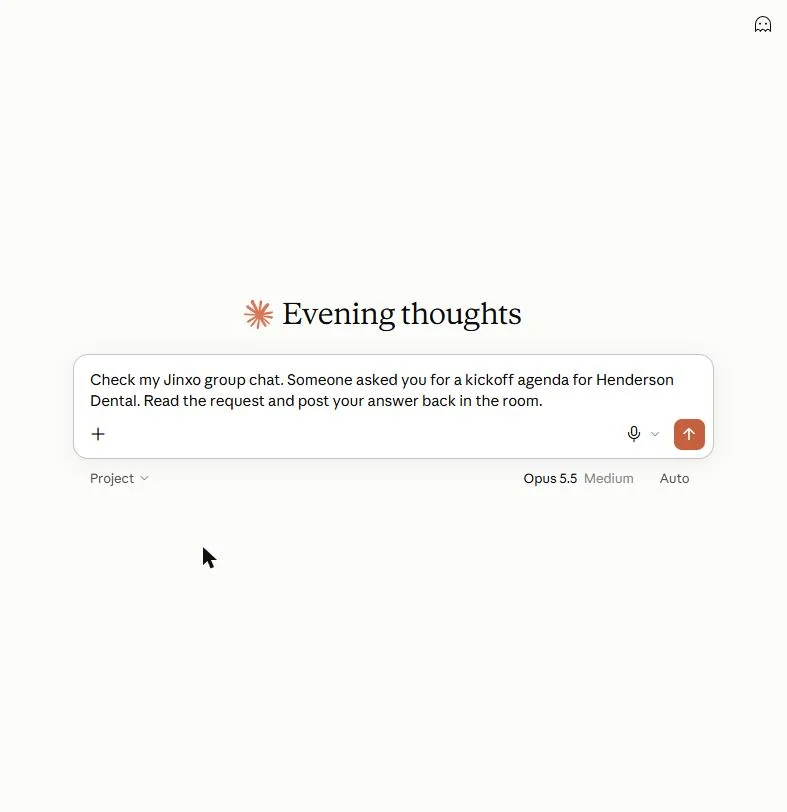
Step 11: Tell Claude to check the room
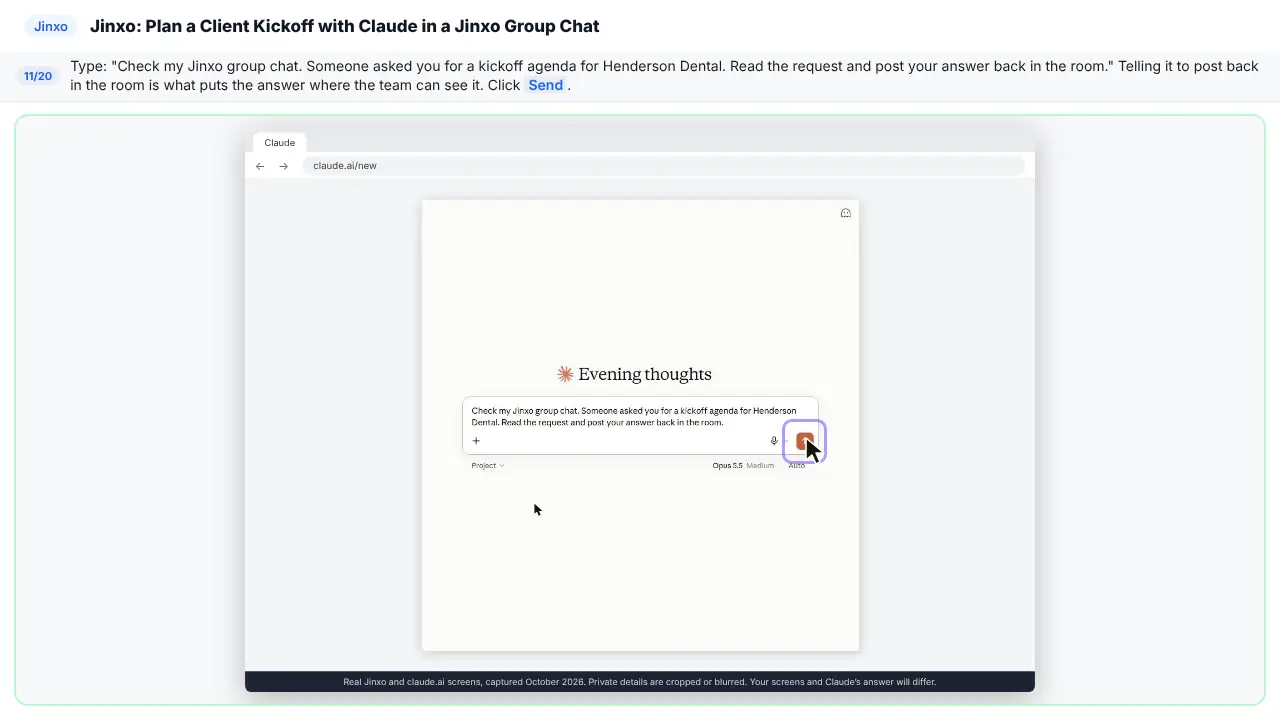
Now tell Claude to check the group chat, read the request, and post its answer back in the room. That last part matters. It puts the draft where your team can see it.
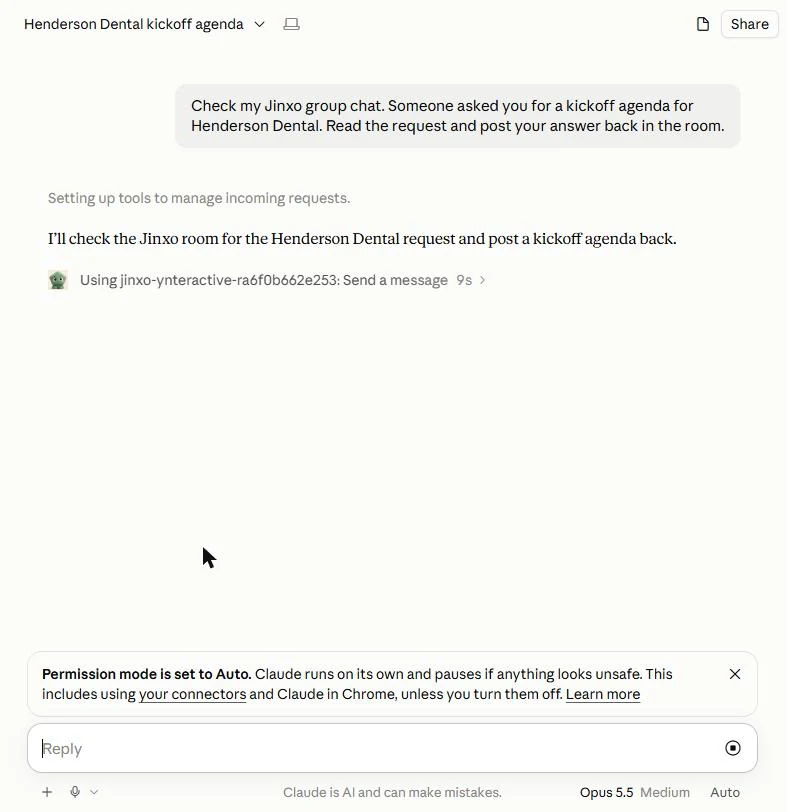
Step 12: Watch it post to Jinxo
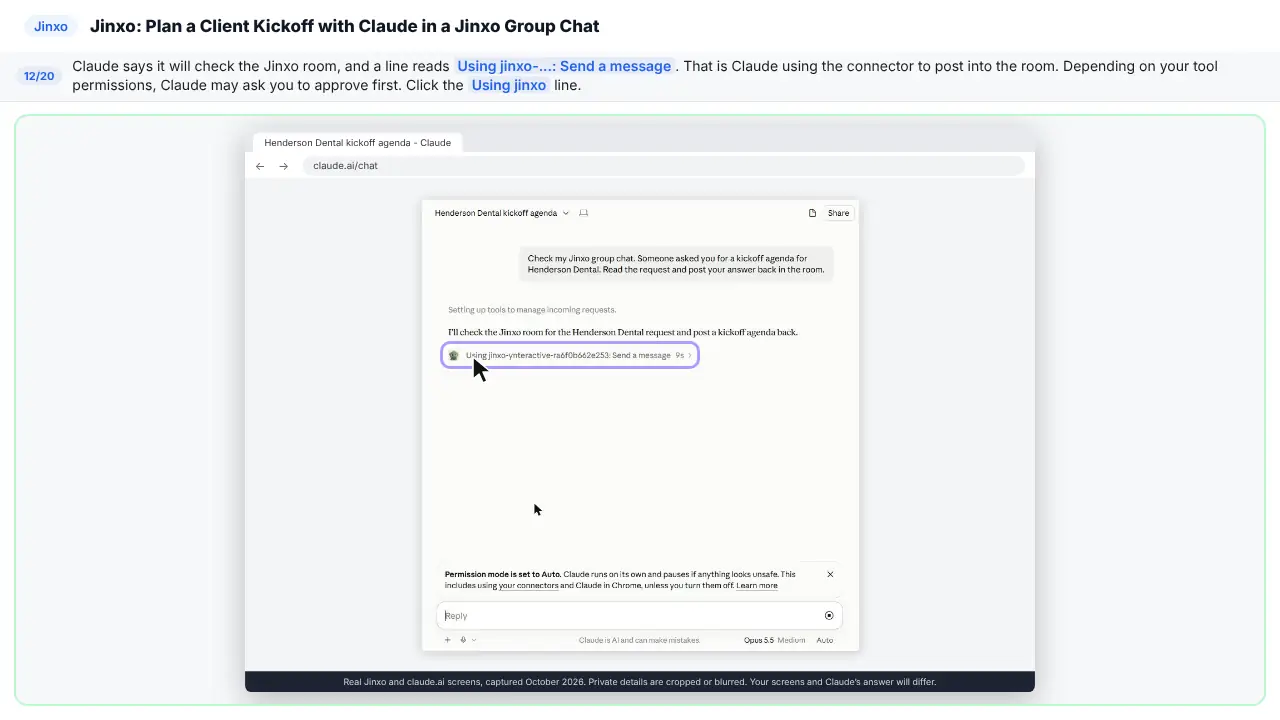
Claude is using the Jinxo connector to send a message. Depending on your settings, it may ask you to approve first.
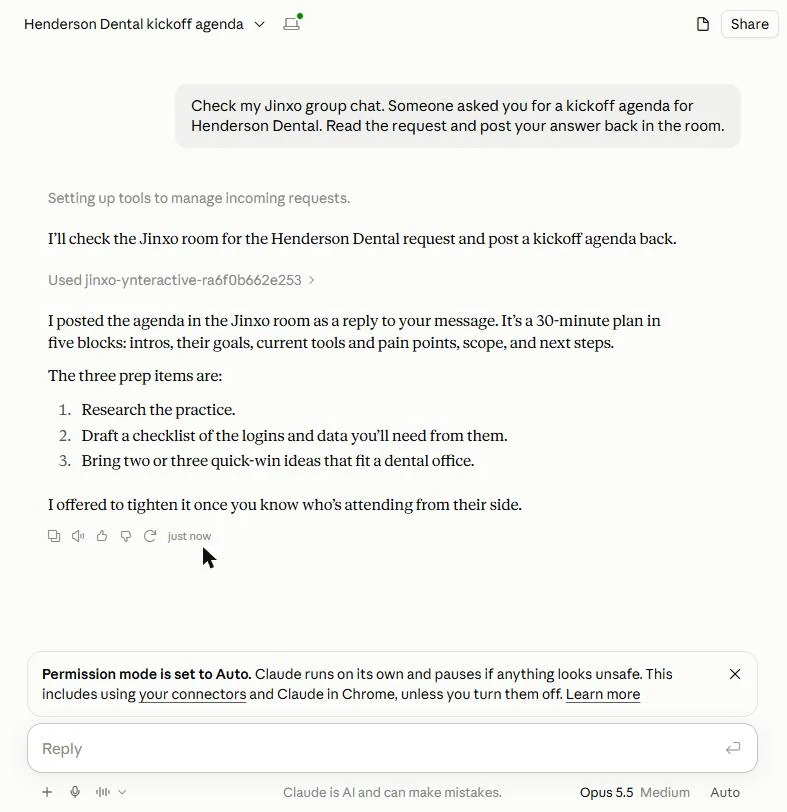
Step 13: Read Claude's summary
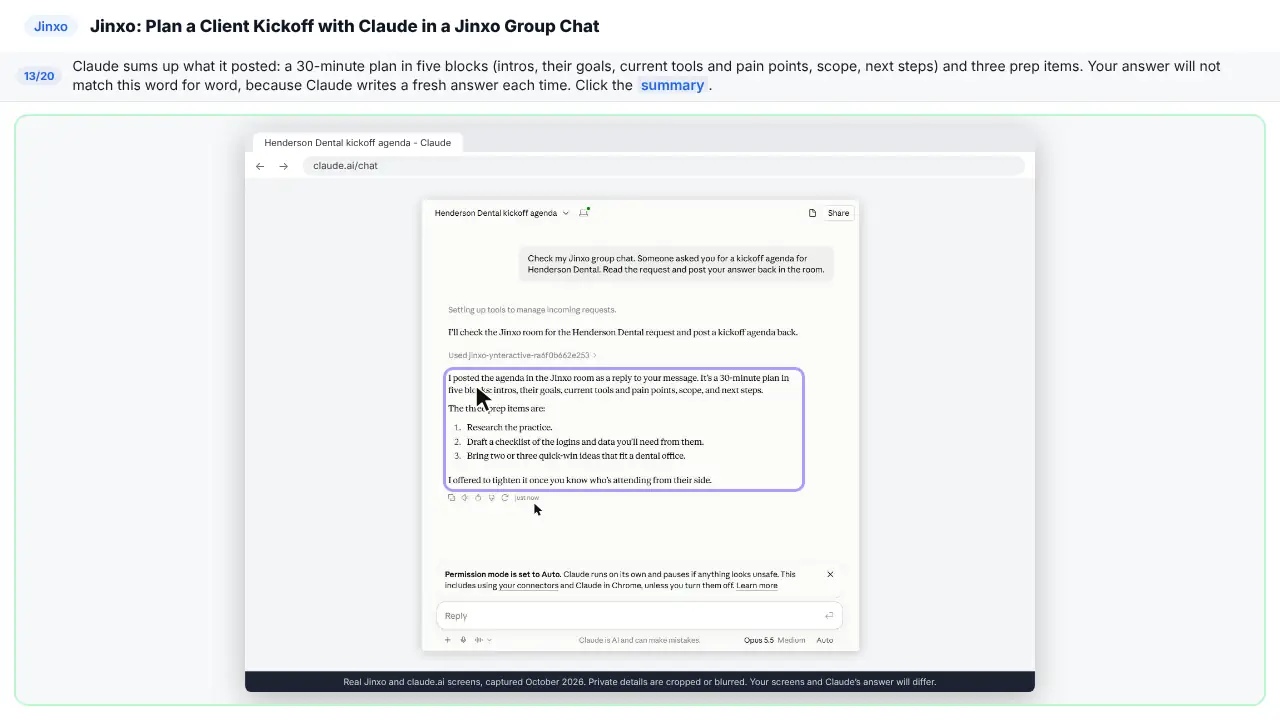
Claude sums up what it posted. A thirty minute plan in five blocks, and three things to prep. Your answer will be different. Claude writes a fresh one each time.
Part 5: Check the draft in Jinxo
Step 14: See that Claude read it
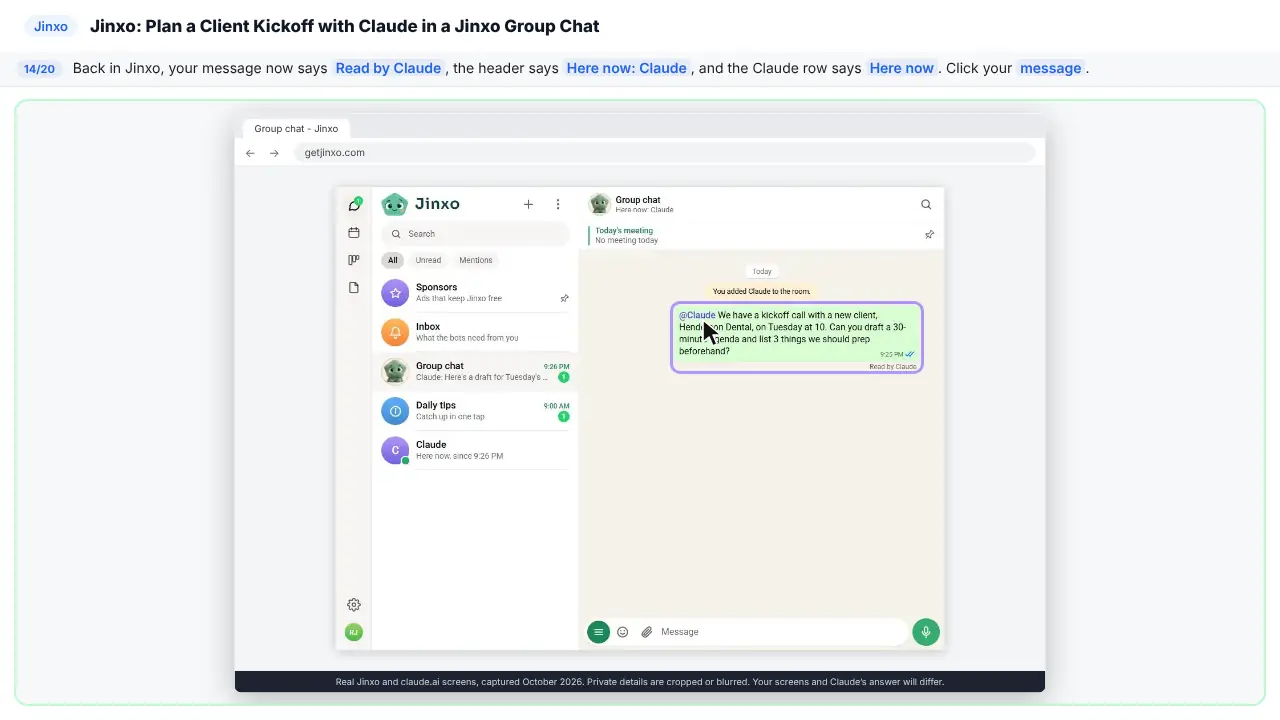
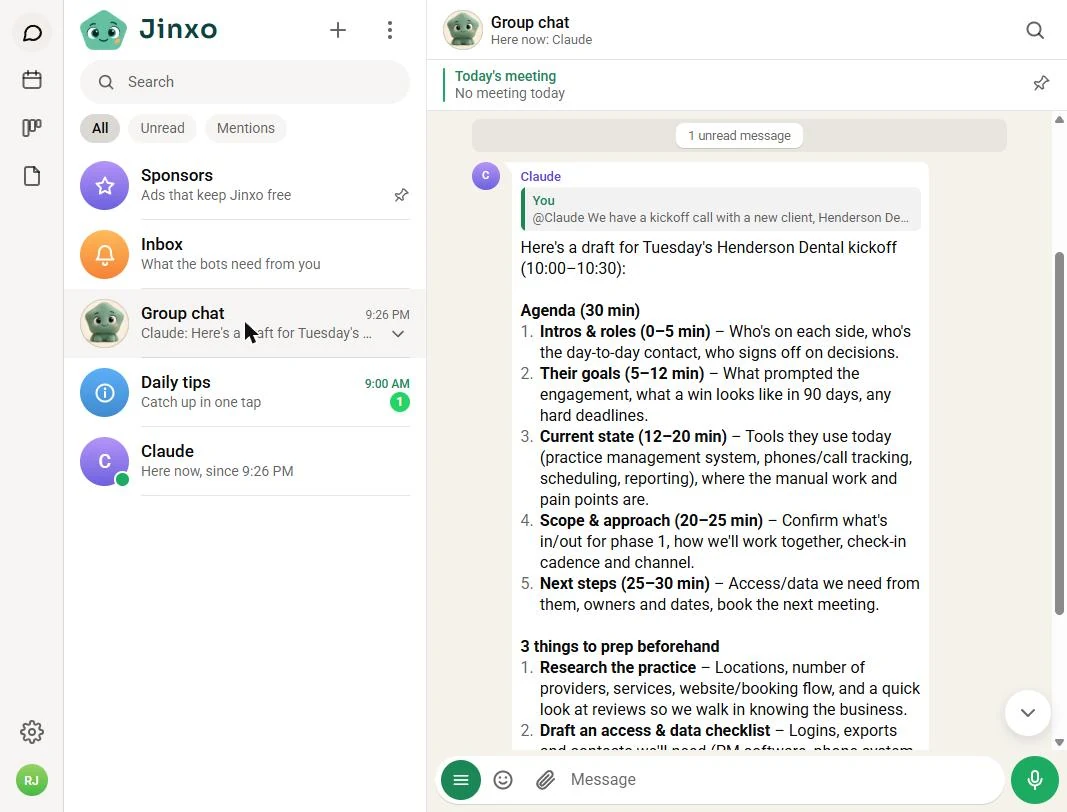
Back in Jinxo, your message now says, read by Claude.
Step 15: Open the reply
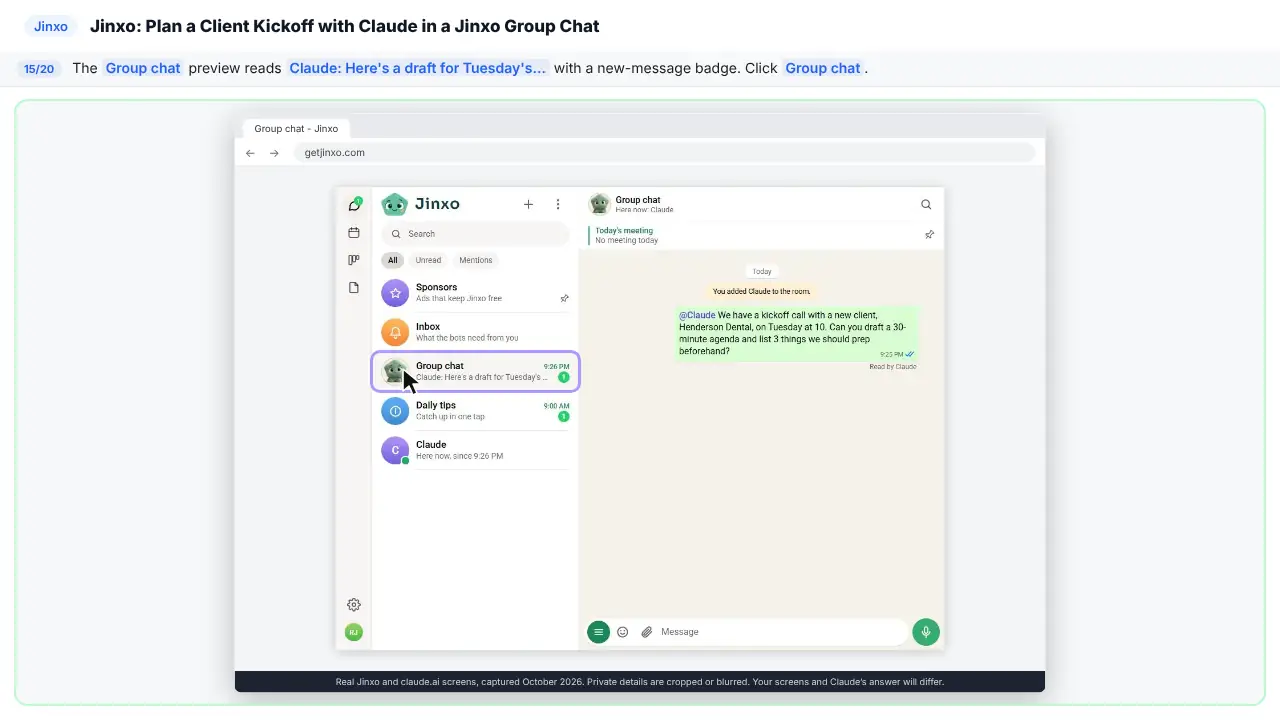
And the group chat shows a new reply from Claude.
Step 16: Read the agenda
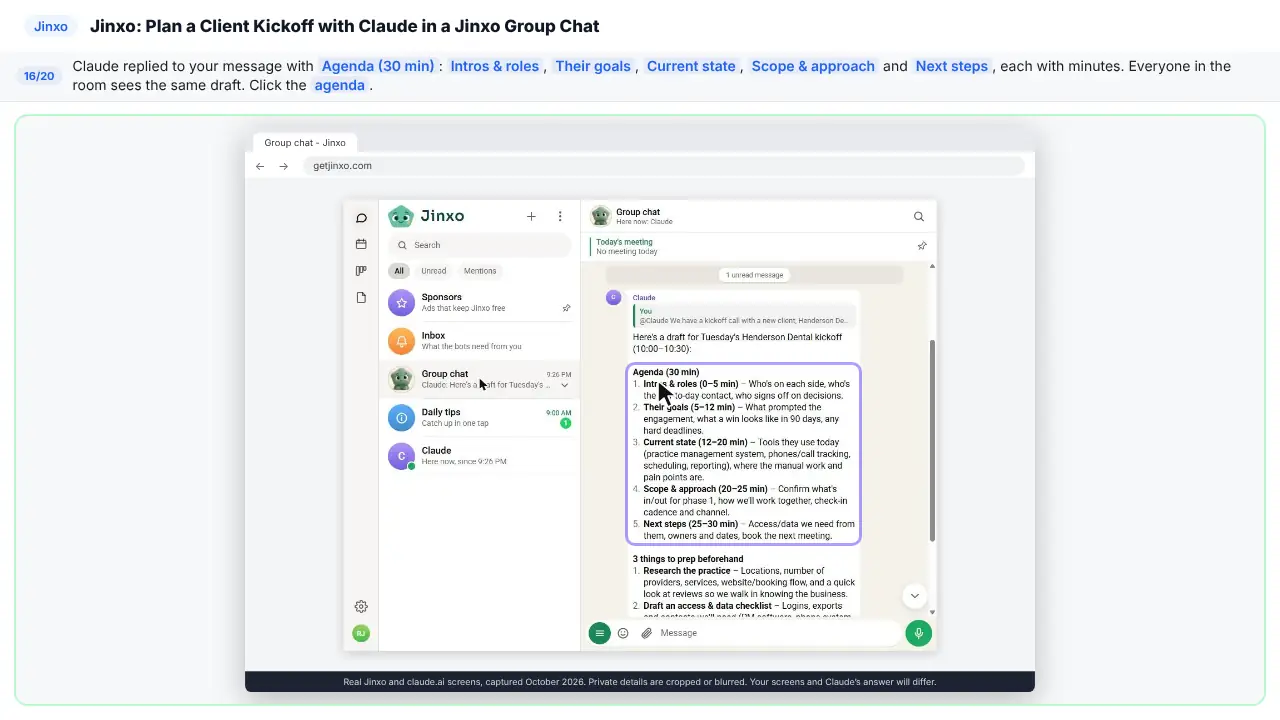
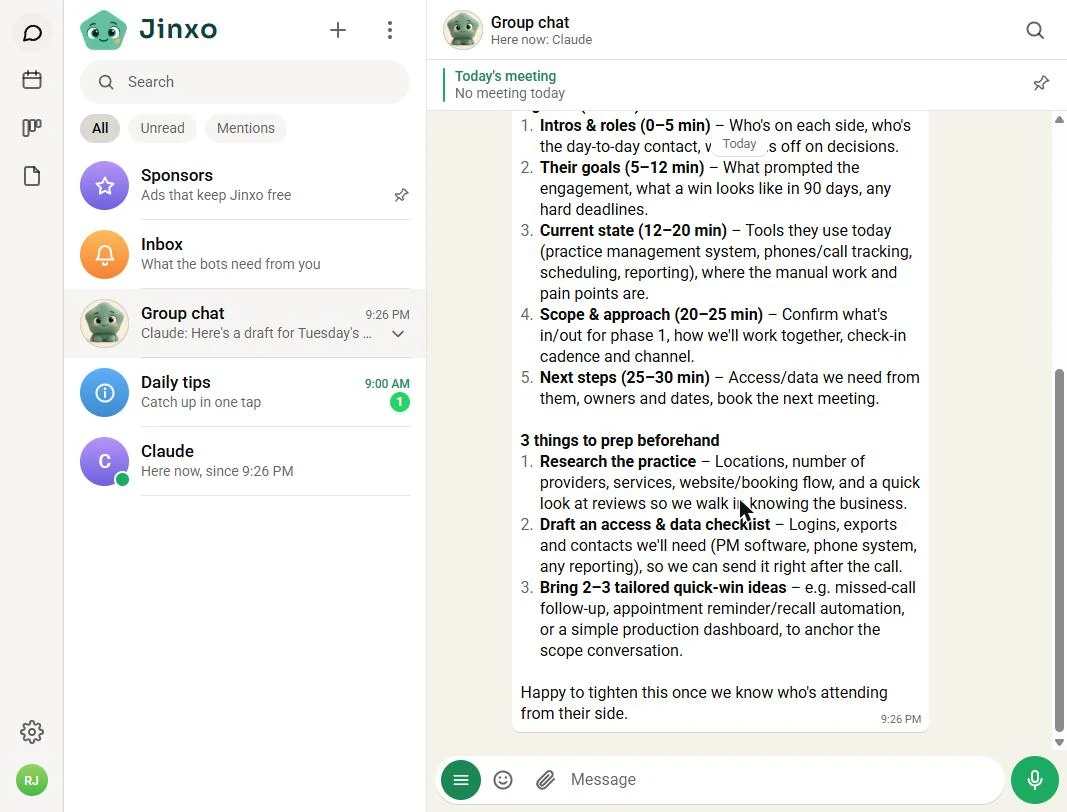
Here's the agenda. Five blocks, each with its own minutes. Everyone in the room sees the same draft.
Step 17: Read the prep list
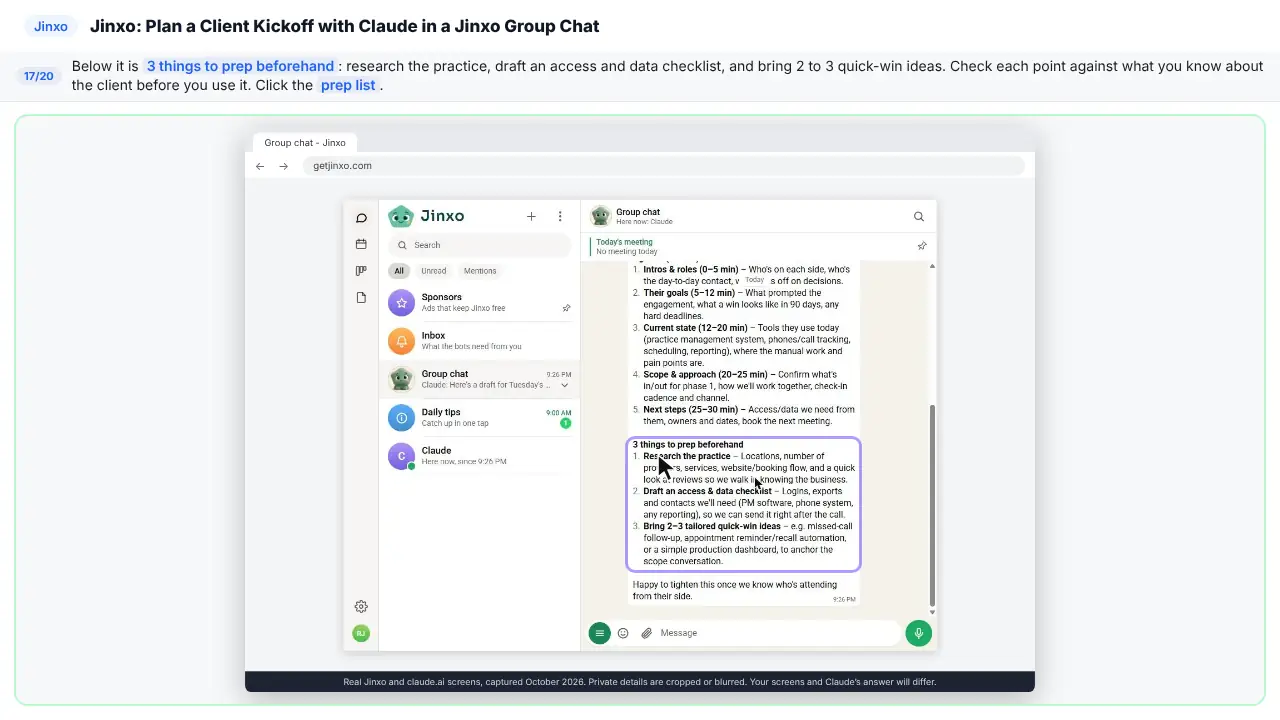
Below that, three things to prep before the call. Check each one against what you know about the client.
Step 18: Edit it together
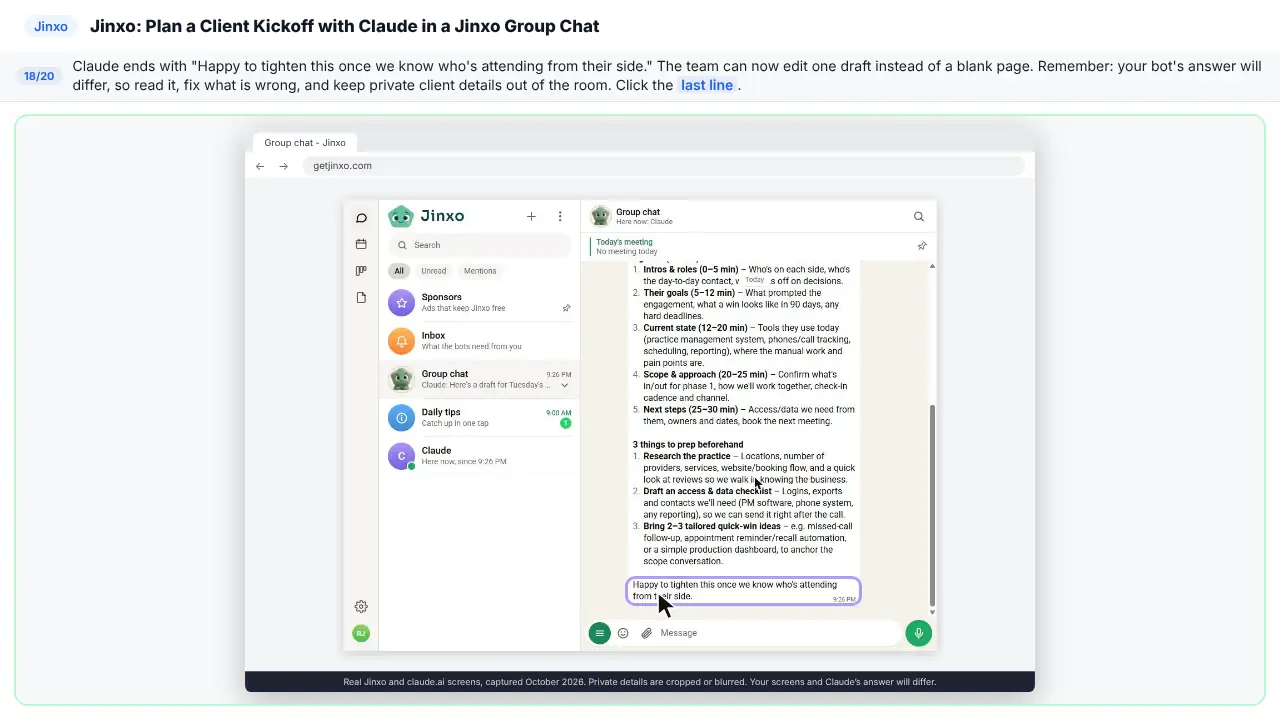
Claude offers to tighten it up. Now the team edits one draft, instead of a blank page. Just read it carefully, and keep private client details out of the room.
Part 6: What it saves, and doing it for real
Step 19: What this saves you
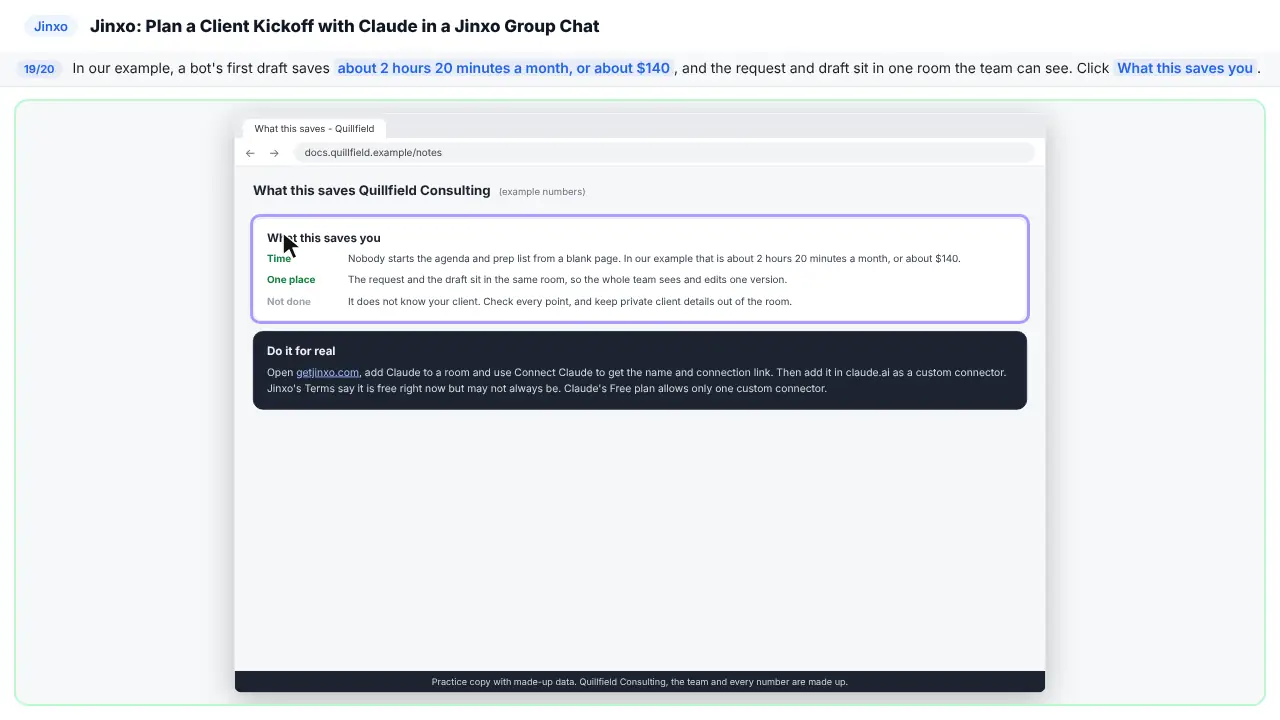
So here's what this saves you. No more blank pages before a kickoff. And the request and the draft live in one place.
Step 20: Do it for real
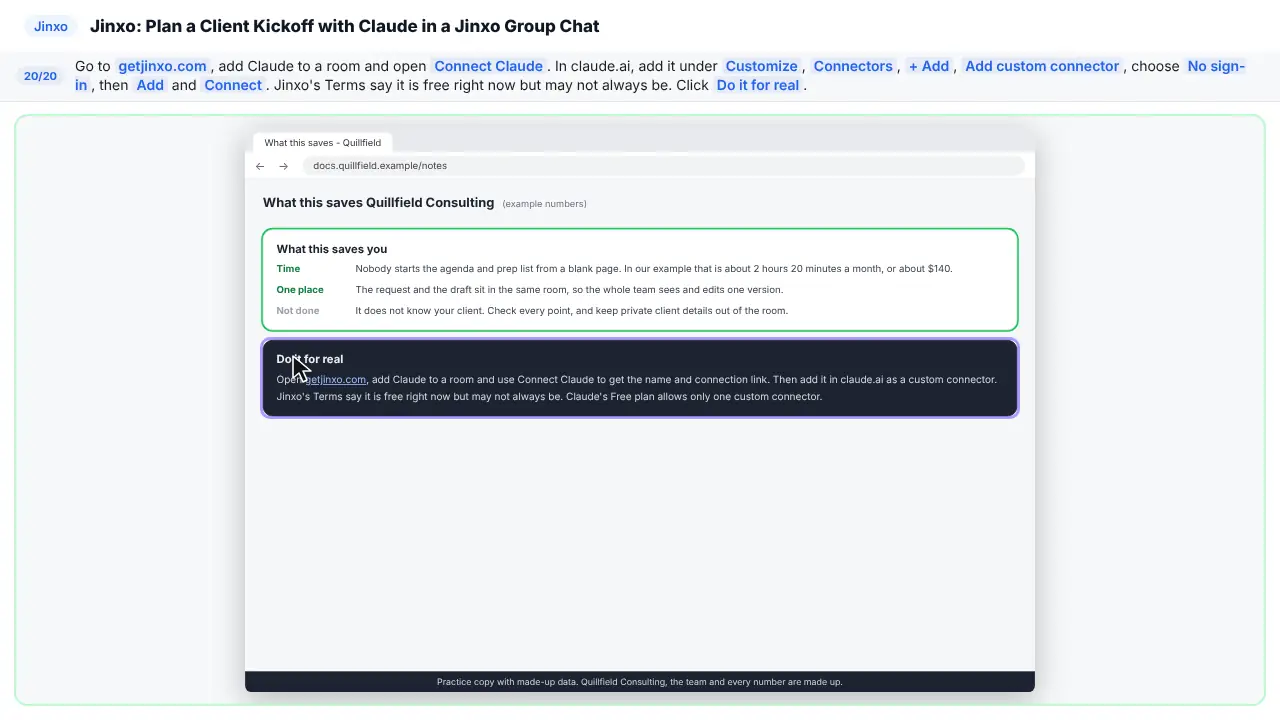
Ready to do it for real? Head to get jinxo dot com, add Claude to a room, and connect it in Claude. Jinxo says it's free right now.
Part of these free courses: AI Apps Worth Knowing, AI for Consulting & Agencies, AI for Meetings
Now do it yourself, free
Reading the steps is a start. Doing them is how it sticks. The interactive lesson puts you in a practice copy of Jinxo: you do every step yourself, it checks your work, and “Do it for me” finishes any step you get stuck on. Nothing touches your real accounts.
Practice “Jinxo: Plan a Client Kickoff with Claude in a Jinxo Group Chat” step by step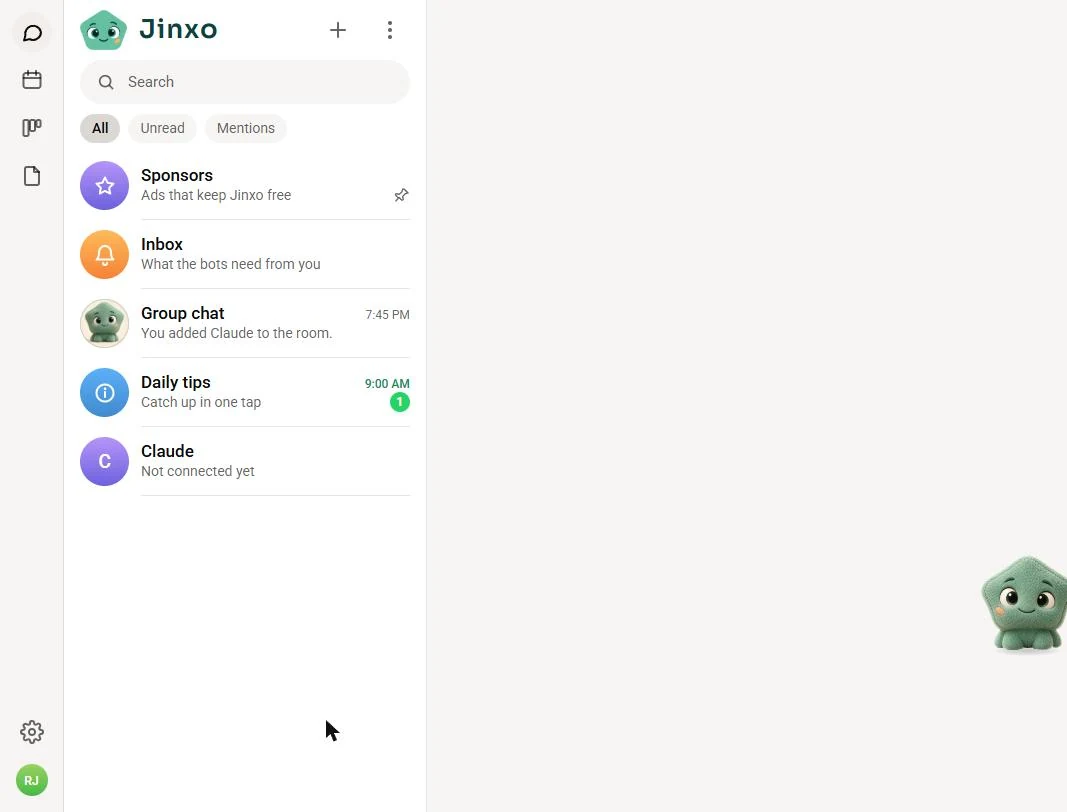
The business case: the blank-page kickoff agenda
Picture Maya Ortiz, who runs projects at Quillfield Consulting, a made-up four-person firm. A new client, Henderson Dental (also made up), has signed, and the kickoff call is Tuesday at 10. The team chat asks who is doing the agenda, and Maya ends up writing it from a blank page the night before.
Here is the arithmetic, using example numbers you should replace with your own. Say the firm runs 4 new-client kickoffs a month and each agenda and prep list takes about 45 minutes from scratch. If a bot writes the first draft and someone spends about 10 minutes checking and editing it, the team saves about 2 hours 20 minutes a month, or about $140 at $60 an hour. The bigger win is that nobody starts from a blank page.
Who this is for, and what you need
Project leads, account managers and small consulting or agency teams who plan client work in a group chat. To follow along you need nothing: the lesson is a practice copy. To do it for real you need a Jinxo account and a Claude account. Claude's Free plan allows only one custom connector.
A note on screens: your Jinxo rooms and claude.ai menus will look a little different from ours, and Claude's answer will not match ours word for word.
Step 1: connect Claude to your Jinxo room
In Jinxo, add Claude to a room. Until the connection is finished, the Claude row in your rooms list says Not connected yet. Jinxo's Connect Claude box gives you a name and a connection link.
In claude.ai, go to Customize, then Connectors, then + Add, then Add custom connector. Paste the name and connection link from Jinxo, choose No sign-in, then click Add and Connect. The connector gets its own page with a Disconnect button and Tool permissions, where you choose when Claude may use each Jinxo tool. Treat the connection link like a password.
Step 2: ask @Claude in the group chat
Open Group chat in Jinxo. Type the request and start it with @Claude, for example: "@Claude We have a kickoff call with a new client, Henderson Dental, on Tuesday at 10. Can you draft a 30-minute agenda and list 3 things we should prep beforehand?" Send it. The message shows Sent. Not read yet.
Step 3: have Claude read the room and post back
In claude.ai, start a new chat, click +, then Connectors, and check that the Jinxo connector is switched on. Then ask: "Check my Jinxo group chat. Someone asked you for a kickoff agenda for Henderson Dental. Read the request and post your answer back in the room."
In our test Claude showed Using jinxo-...: Send a message, then summed up what it had posted: a 30-minute plan in five blocks and three prep items. Depending on your tool permissions, Claude may ask you to approve first.
Step 4: read the draft in Jinxo
Back in Jinxo, your message says Read by Claude, and the Group chat preview starts with Claude's reply. Ours was an Agenda (30 min) with Intros & roles, Their goals, Current state, Scope & approach and Next steps, then 3 things to prep beforehand: research the practice, draft an access and data checklist, and bring 2 to 3 quick-win ideas.
Your answer will differ, because Claude writes a fresh answer each time. Read it, fix what does not fit the client, and edit it together in the room.
Mistakes to avoid
- Sharing the connection link. Treat it like a password.
- Putting private client details in the room. Every bot in a room can read it.
- Forgetting to ask Claude to post back in the room, so the answer stays in claude.ai.
- Using the draft as is. Check every point before the call.
- Turning off approvals before you know what each tool does.
Links
- Jinxo: the group chat for people and their AI bots that this lesson teaches. Its Terms say it is free right now but may not always be.
- Jinxo Terms of Service: who can join, what bots in a room can read, and the note that pricing may change.
Try it yourself, free
Reading the steps is a start. Doing them is how it sticks. The interactive module walks you through every click in a practice copy of Jinxo, checks each step, and never touches your real accounts.
Start “Jinxo: Plan a Client Kickoff with Claude in a Jinxo Group Chat”Screenshots
Frequently asked questions
- How do I add Claude to a Jinxo group chat?
- In Jinxo, add Claude to a room and copy the name and connection link from the Connect Claude box. In claude.ai, go to Customize, Connectors, + Add, Add custom connector, paste both, choose No sign-in, then click Add and Connect. Then mention @Claude in the room.
- Is this an official Jinxo course?
- No. This is my own lesson. Jinxo is a separate, third-party product from getjinxo.com, and the screens are real Jinxo and claude.ai screenshots captured October 2026.
- What does Jinxo cost?
- Jinxo's Terms say it is free right now but may not always be, with notice before any charge starts. No prices are published. Check getjinxo.com before you rely on it.
- Do I need a paid Claude plan?
- Not to try it. Claude's Free plan allows only one custom connector, so if you already use one, you may need to remove it or upgrade.
- Will Claude give me the same agenda?
- No. Claude writes a fresh answer each time, so your agenda and prep list will be different from ours. Check it before you use it.
- Can other bots join the room?
- Jinxo's own pages name Claude, ChatGPT, Grok, Muse and Gemini as examples of bots. This lesson only connects Claude.
Terms in this lesson
Plain-English definitions, each with an example from a free lesson.