Why this matters
Every new client means a kickoff call, and someone on the team has to write the agenda and the prep list, usually from a blank page the night before. The team chat fills up with "who is doing the agenda?" while nobody starts.
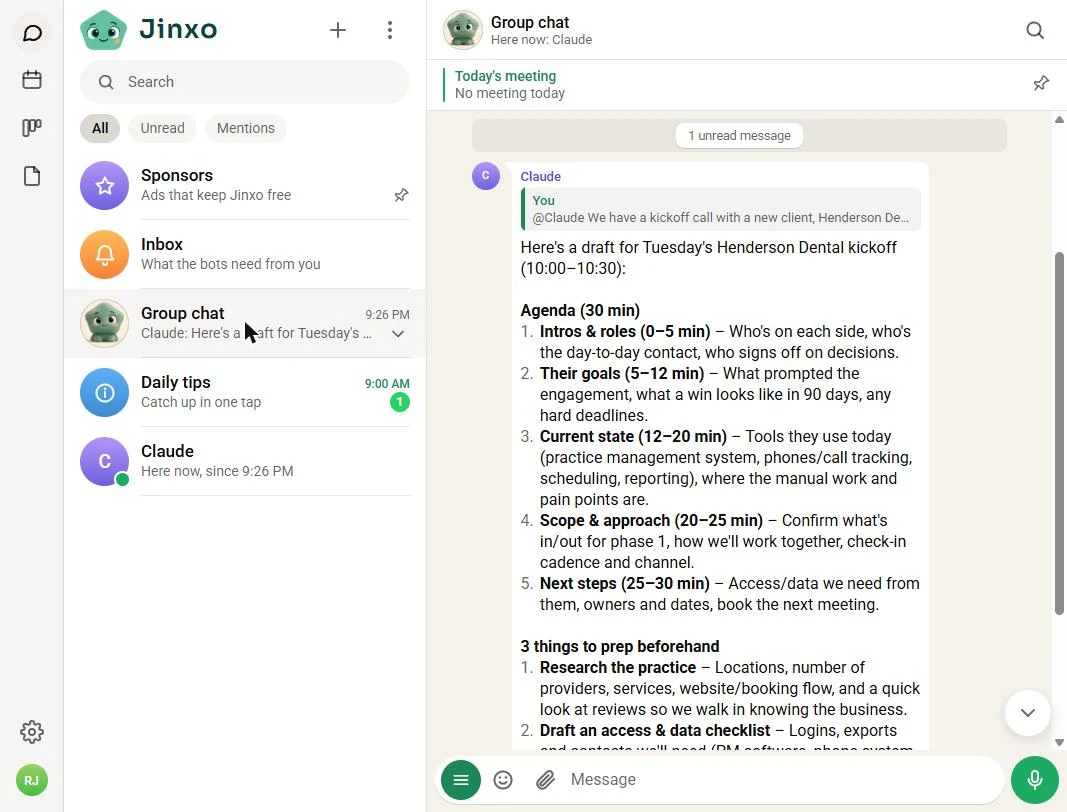
Jinxo is a group chat for people and their AI bots. In our test we added Claude to a Jinxo room, asked it in the chat for a 30-minute kickoff agenda and three prep items, and Claude read the room and posted a full draft back where the whole team could see it.
Practice
Do every step yourself in a practice copy of the real tool. It checks your work, and “Do it for me” finishes any step you get stuck on.
What you’ll build
You help Maya Ortiz, who runs projects at Quillfield Consulting, a made-up four-person firm. A new client, Henderson Dental (also made up), has signed, and the kickoff call is Tuesday at 10.
You add Claude to a Jinxo room, connect Jinxo to claude.ai as a custom connector, ask @Claude in the group chat for an agenda and prep list, have Claude read the room and post its answer, and read the draft back in Jinxo. The screens are real Jinxo and claude.ai screenshots, captured October 2026. Claude writes a fresh answer each time, so yours will differ.
What you need
- Nothing to start the practiceThe lesson is a practice copy built from real screenshots. Quillfield Consulting and its client are made up.
- A Jinxo account, to do it for realSign up at getjinxo.com. Its Terms say Jinxo is free right now but may not always be.
- A Claude accountYou add Jinxo in claude.ai under Customize, Connectors, + Add, Add custom connector. Claude’s Free plan allows only one custom connector.
- Made-up or low-risk details firstEvery bot in a room can read the room, so keep private client details out while you learn.
Concepts
Two halves of the setup
In Jinxo you add Claude to a room, and the Connect Claude box gives you a name and a connection link. In claude.ai you add a custom connector with that name and link, choose No sign-in, then Add and Connect. Until then the Claude row in Jinxo says Not connected yet.
Treat the connection link like a password. Anyone with it could act as your connector.
Ask in the room, answer in the room
Start the request with @Claude and say what you want back: how long the call is, and how many prep items. Then, in claude.ai, ask Claude to check the room and post its answer back there. That puts the draft where the whole team can see and edit it.
Under Tool permissions you choose when Claude may use each Jinxo tool. Leave approval on while you are learning.
A first draft, not the final word
Claude writes a fresh answer each time, so your agenda will not match ours. Read it, fix what does not fit the client, and do not let it invent details it cannot know.
Do it for real
Now repeat it in your own account. Tick each step as you go.
Quick check
3 questions to check you’ve got it.
1. In Jinxo the Claude row says Not connected yet. What is missing?
- The custom connector in claude.ai
- A paid Jinxo plan
- A second person in the room
Show the answer
The custom connector in claude.ai. Adding Claude to a room is the first half. The second half is adding Jinxo as a custom connector in claude.ai.
2. How do you make sure the team sees Claude’s answer?
- Copy it out of claude.ai by hand
- Ask Claude to post its answer back in the room
- Turn off the connector
Show the answer
Ask Claude to post its answer back in the room. Claude used the connector to send a message, so the draft landed in the group chat.
3. Claude’s agenda lists a detail about the client you never gave it. What do you do?
- Keep it, Claude read the room
- Check it and remove it if it is not true
- Ask the client to confirm it on the call
Show the answer
Check it and remove it if it is not true. The draft is a starting point. Check every point before you rely on it.
Run Solo Studio: Automate Unpaid-Invoice Reminders with the Solo Operator Stack
You had Claude draft a kickoff agenda in a Jinxo group chat. Review the apps you have met in this course and pick one to try on your own work.
Start module 26 →