Updated . Built against the tool’s current screens and checked step by step. How we check this lesson
Buyers ask Google what your software costs and the AI answer quotes a competitor. Score your pricing page, rewrite it around the questions buyers ask, add FAQ and product schema, and check the code, with five free Rankite tools and no sign-up.
At a glance
| Question | Answer |
|---|---|
| What you build | Buyers ask Google what your software costs and the AI answer quotes a competitor. Score your pricing page, rewrite it around the questions buyers ask, add FAQ and product schema, and check the code, with five free Rankite tools and no sign-up. |
| Tools | Rankite |
| Time | About 9 minutes, 24 steps in 5 parts |
| Level | Beginner, no coding needed |
| Cost | Free |
| Ways to learn it | Practice it step by step |
The 5 parts, in short
- Score the page you have: Paste the pricing page, Read the score, Read what to fix.
- Draft the questions buyers ask: Name the topic buyers search, Add your real price and trial, Read the cost question, Spot the generic answers, and 1 more step.
- Rewrite and score again: Find the one missing point, Add one real question and rescore.
- Label the answers with schema: Replace the first sample question, Replace the other two, Check the integration answer, Read your FAQPage JSON-LD, and 4 more steps.
- Check the code before it ships: Paste the code into the checker, Check schema, Read the error, Check it again, and 2 more steps.
Start here first: AI Receipt Extractor: Receipts to Google Sheets with n8n (module 1 of Business Automations)
In the course: Part 9 · n8n Automation Toolkit (Module 126 of the full course)
Part of: AI for Marketing Teams (step 9 of 51). Next up: Rankite: Win More Google Reviews for Your Insurance Agency
Part of: AI Apps Worth Knowing (step 49 of 157). Next up: Rankite: Win More Google Reviews for Your Insurance Agency
What you'll build
Ledgerloop is made up: a 30-person company selling invoicing software to marketing agencies. When buyers search what agency invoicing software costs or whether it works with QuickBooks, Google's AI Overview answers from competitors' pages. As Ledgerloop's marketing manager, you score the pricing page with Rankite's free AI Overview Readiness Checker (30 out of 100), draft the questions buyers ask with its FAQ Generator, rewrite the page until it scores 100, build FAQPage and SoftwareApplication schema, and check the code before it ships. Every tool is free and needs no account.
The pricing page went from three 60-word sentences to a plain opening line, a list of plans and seven short answers with real numbers, and the checker moved from 30 to 100. The FAQPage and SoftwareApplication blocks passed Rankite's schema checker once the script lines were removed. None of this guarantees an AI Overview citation, so search your cost and integration questions again in a few weeks. To check whether ChatGPT names your business at all, see the first Rankite lesson.
- Tools: Rankite
- Time: about 9 minutes, 24 steps in 5 chapters
- Level: beginner, no coding needed
- Price: free
Practice first, then build it for real
Practice copy built from real screens of Rankite's free tools (rankite.com/free-seo-tools), used with no account on 13 November 2026. Nothing here touches your website. Ledgerloop, its prices and its pages are made up. The tools run in your browser, so your results match what you type. To build it for real you need your own Rankite account, and some services charge once you use them for real work, so check each tool's current pricing.
Try it yourself, free
Reading the steps is a start. Doing them is how it sticks. The interactive module walks you through every click in a practice copy of Rankite, checks each step, and never touches your real accounts.
Start “Rankite: Get Your SaaS FAQ Quoted in Google's AI Overviews”
Step by step: Rankite: Get Your SaaS FAQ Quoted in Google's AI Overviews
All 24 steps of the interactive module, in order. In the module you watch each one, then do it yourself in a practice copy that checks your work.
1. Score the page you have
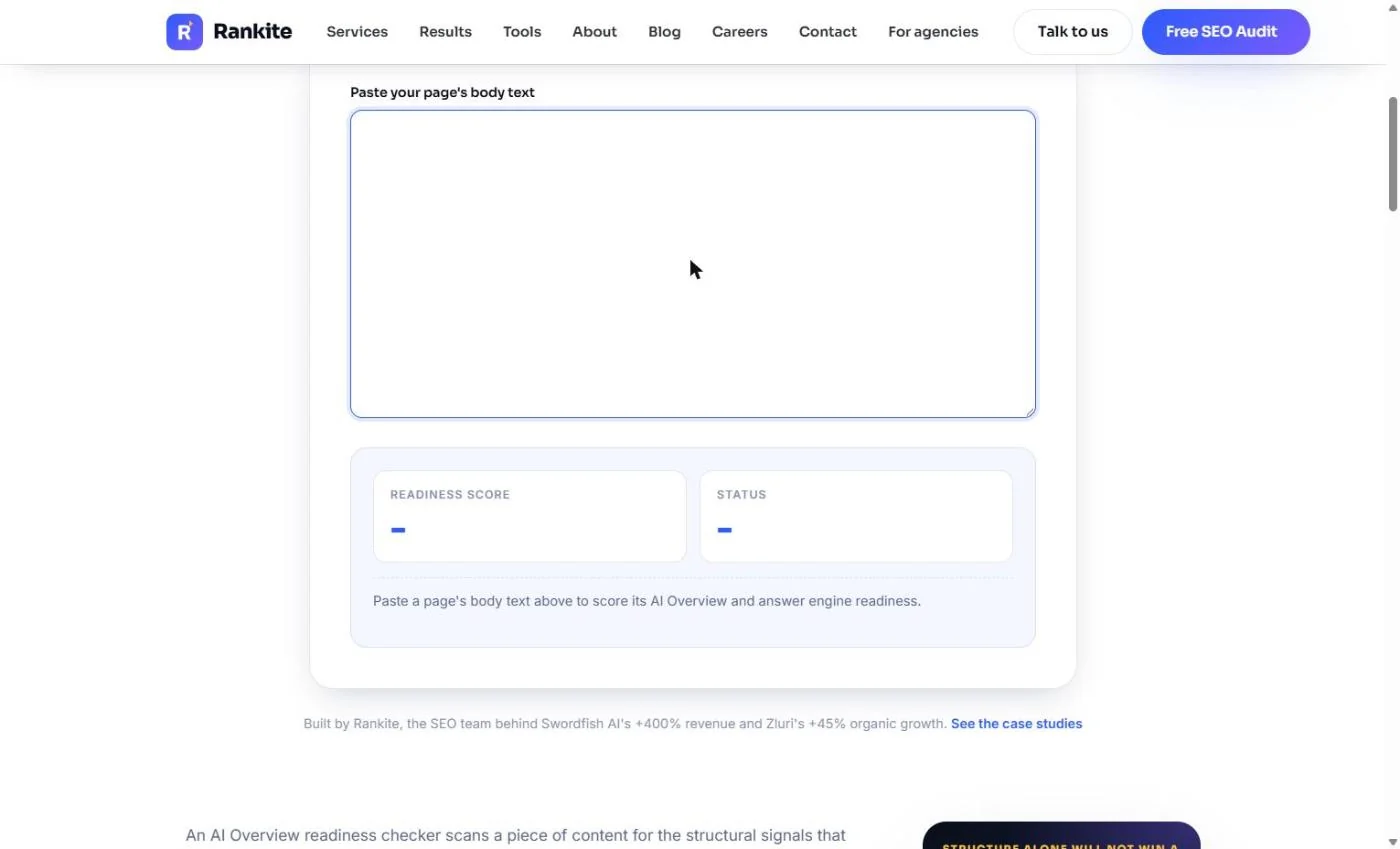
- Paste the pricing page. You are Dana, marketing manager at Ledgerloop, a made-up 30-person company that sells invoicing software to marketing agencies. When buyers search "how much does agency invoicing software cost", Google's AI Overview answers from competitors' pricing pages, not yours. Open Rankite's free AI Overview Readiness Checker (no sign-up; the page says pasted text is not stored). Paste in the your page's body text and we paste the pricing page's current text for you: three long paragraphs about flexibility and partnership.
Buyers ask Google what agency invoicing software costs, and the AI answer quotes your competitors.
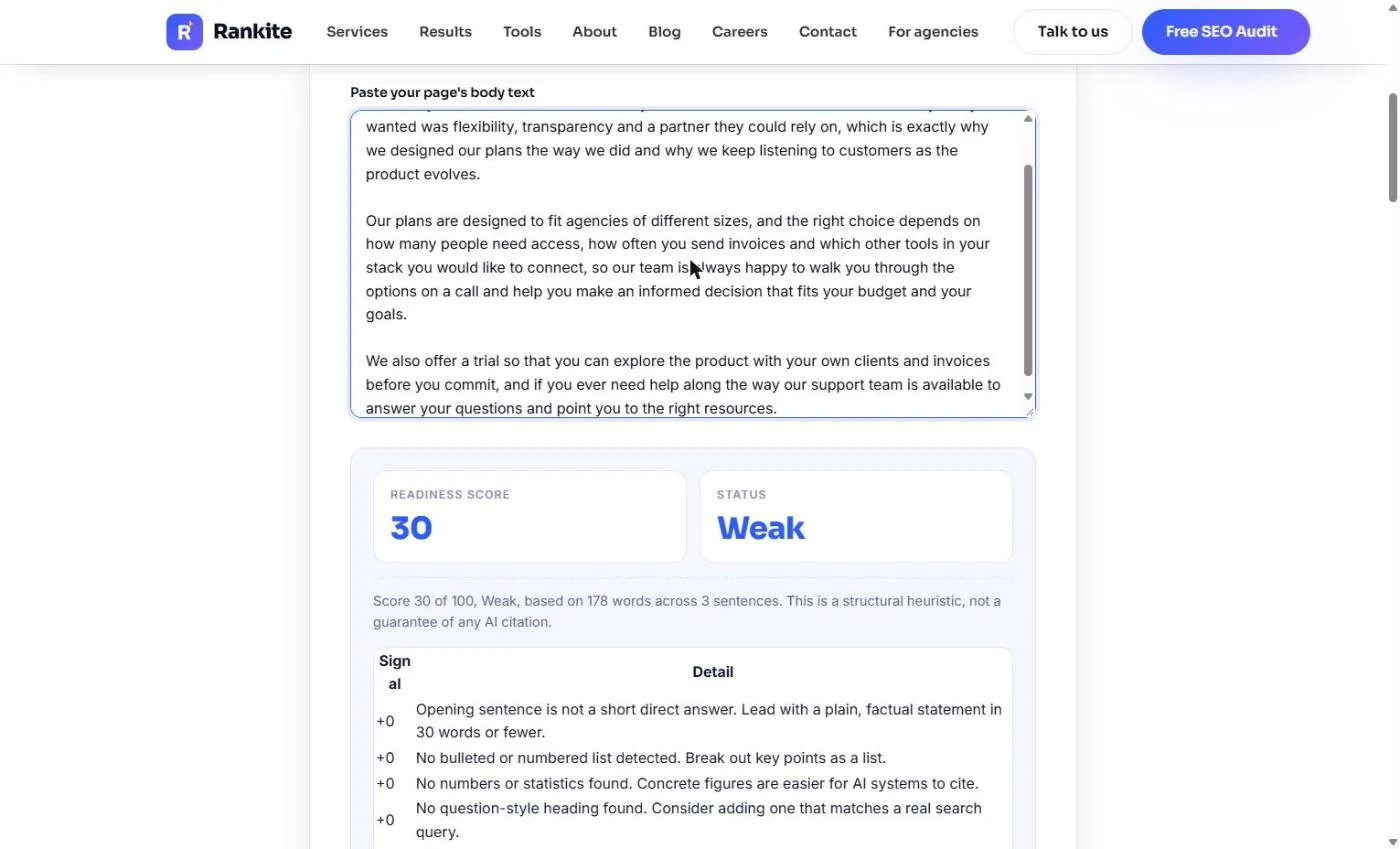
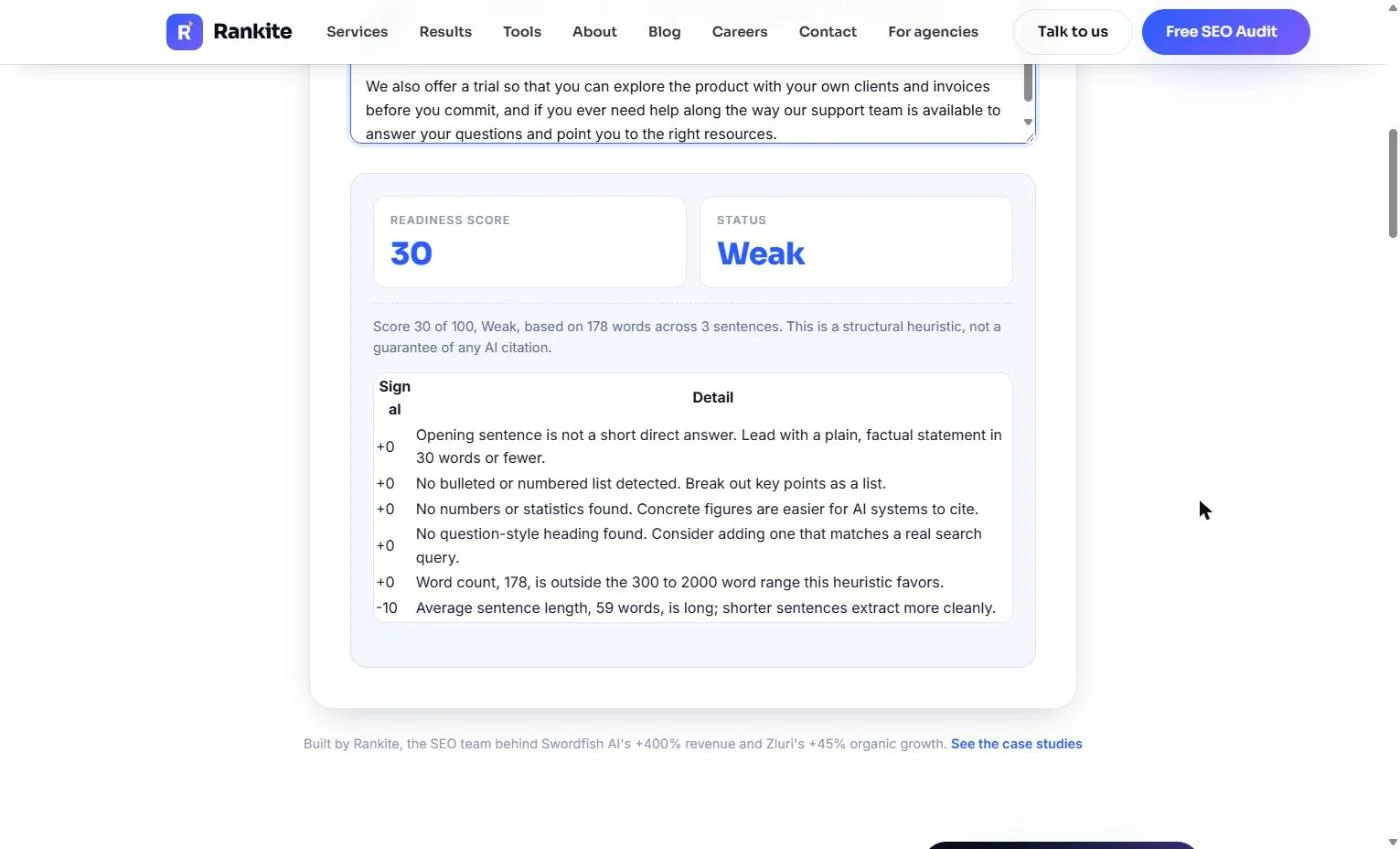
- Read the score. The score updates as you paste: 30 / 100, Weak, based on 178 words across 3 sentences. Three sentences for 178 words means each one runs about 60 words, which is hard for an AI to lift into an answer. Click the score.
Thirty out of a hundred. Weak. Three sentences, and almost sixty words each.
- Read what to fix. Under the score, Rankite lists every signal it checks and why you missed it: no short direct answer at the top, no list, no numbers, no question-style heading, too few words, and a -10 for long sentences. That is your rewrite brief. Click the list.
This list is your rewrite brief. Keep sentences short.
2. Draft the questions buyers ask
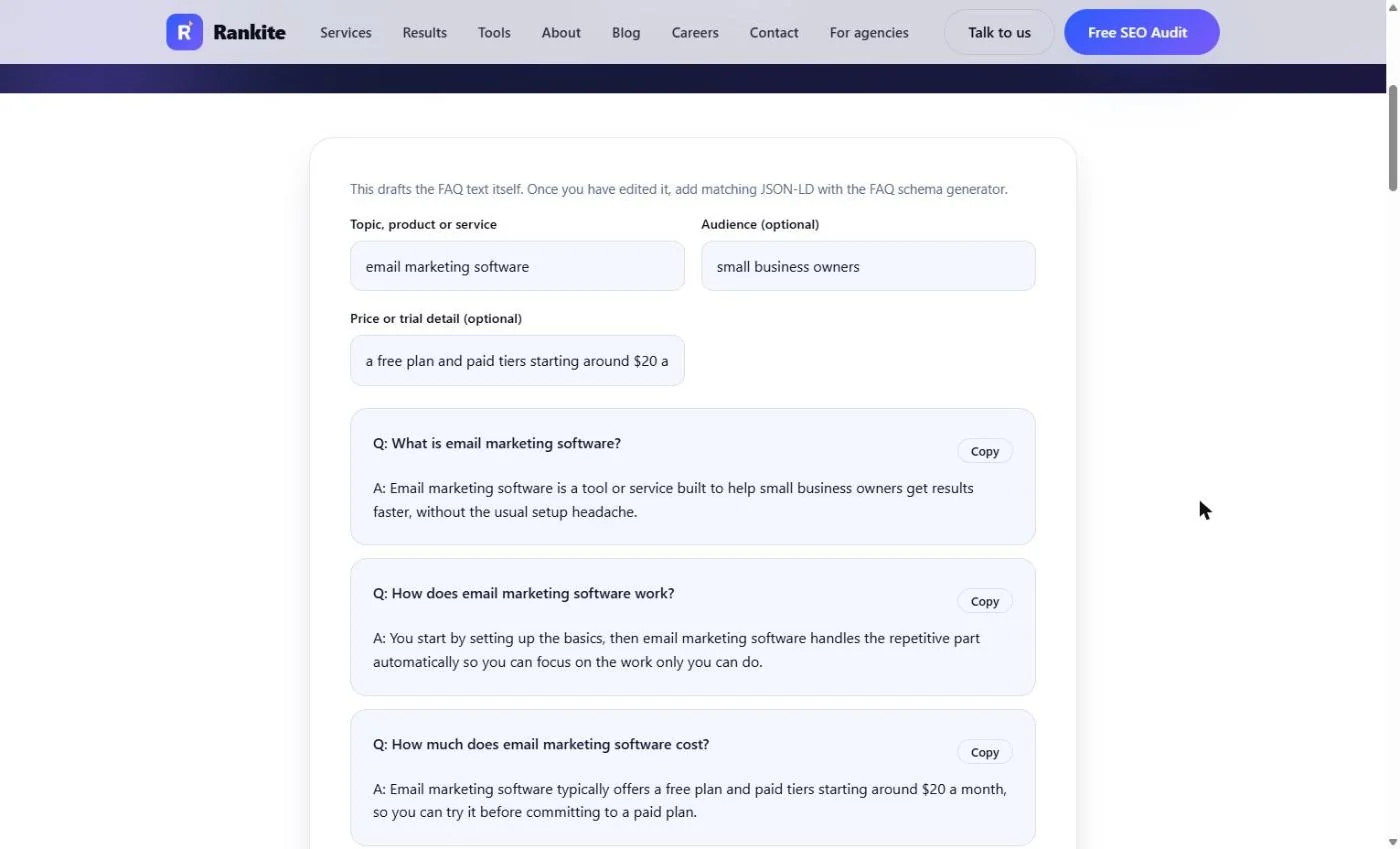
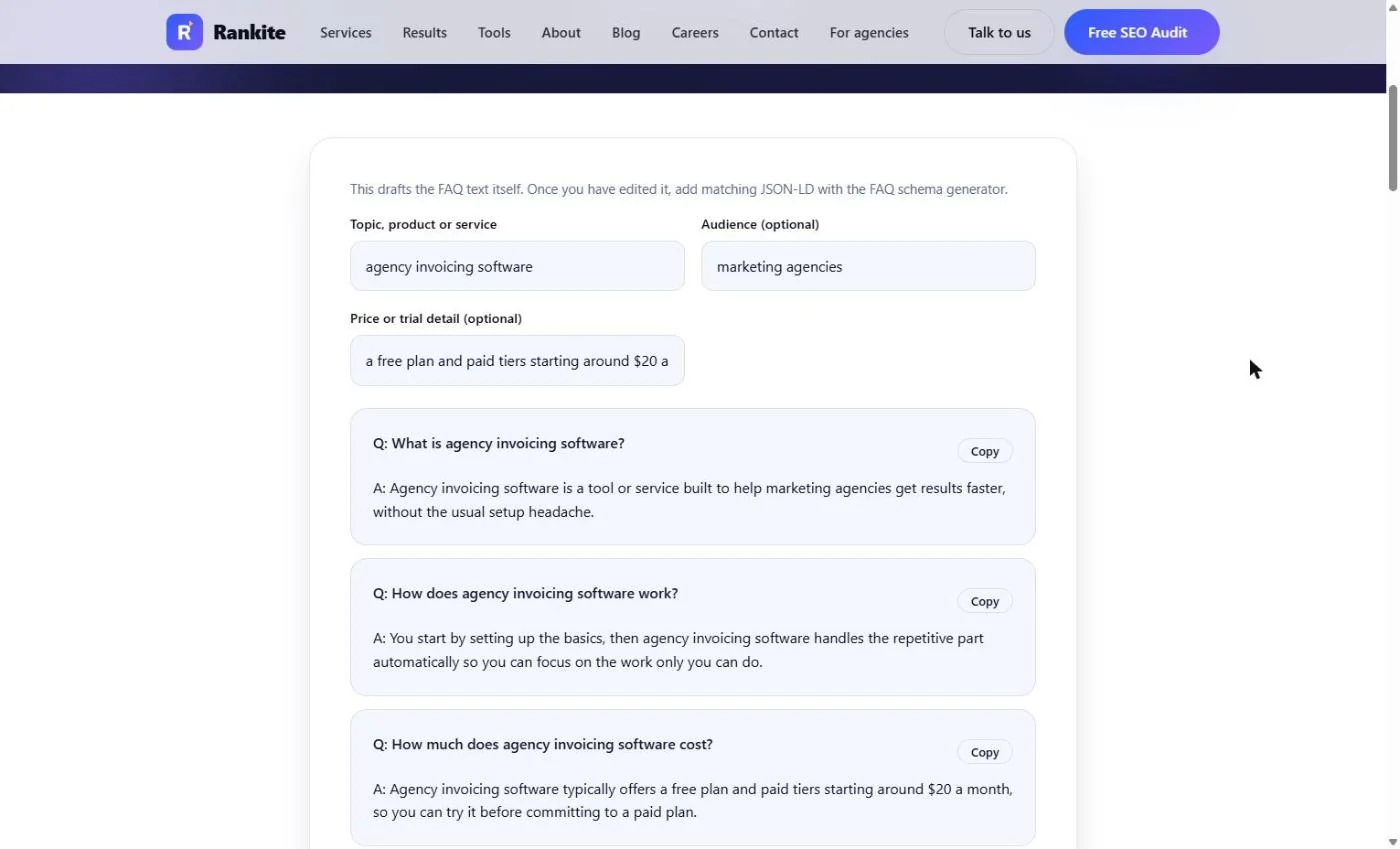
- Name the topic buyers search. Which questions should the page answer? Open Rankite's free FAQ Generator. In Topic, product or service, type the category buyers search for, not your brand name: agency invoicing software. We fill Audience with *marketing agencies* for you.
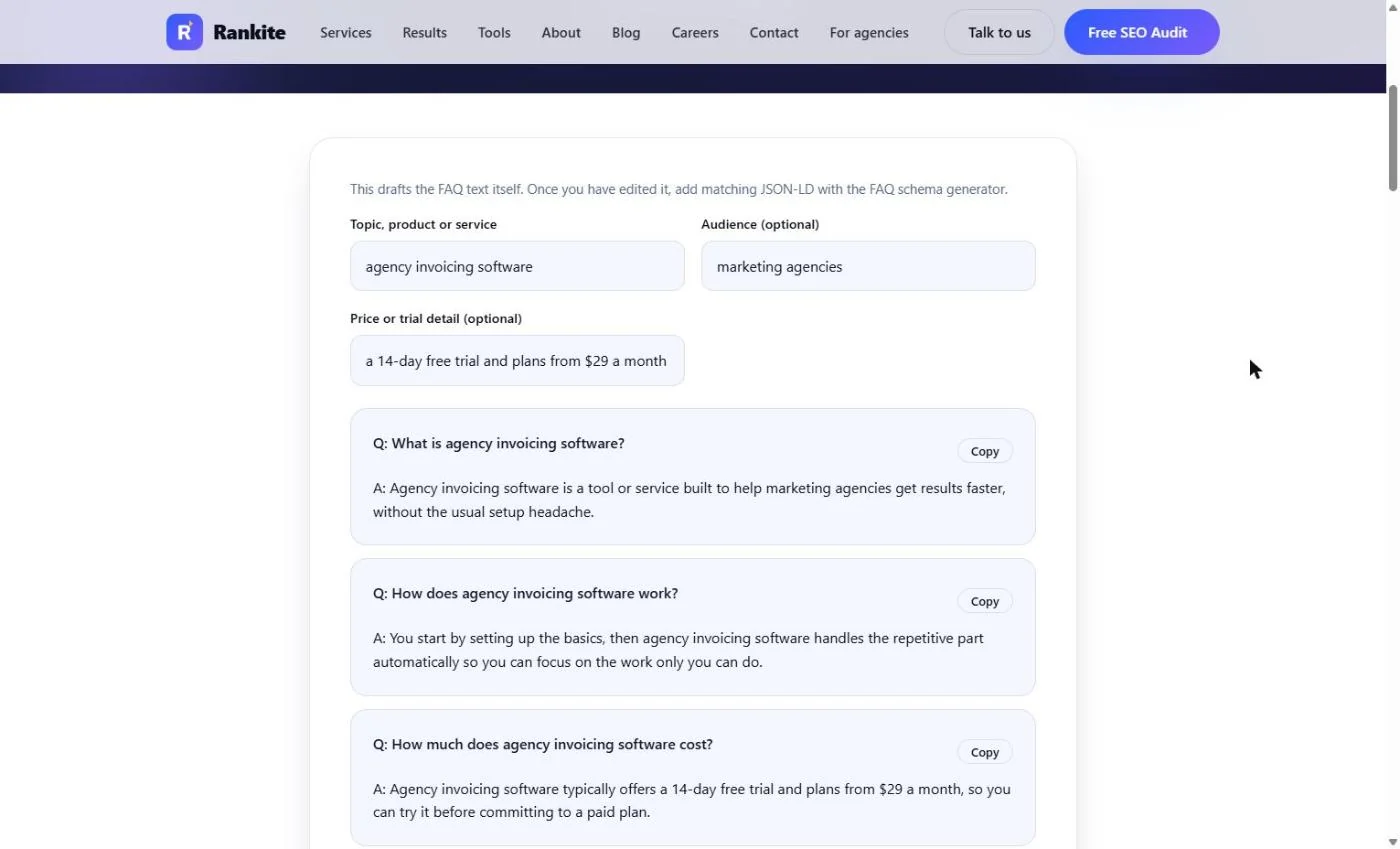
- Add your real price and trial. In Price or trial detail, type the facts a buyer wants: a 14-day free trial and plans from $29 a month. The generator writes these into the cost answer.
Add your real price and trial. The generator puts them in the cost answer.
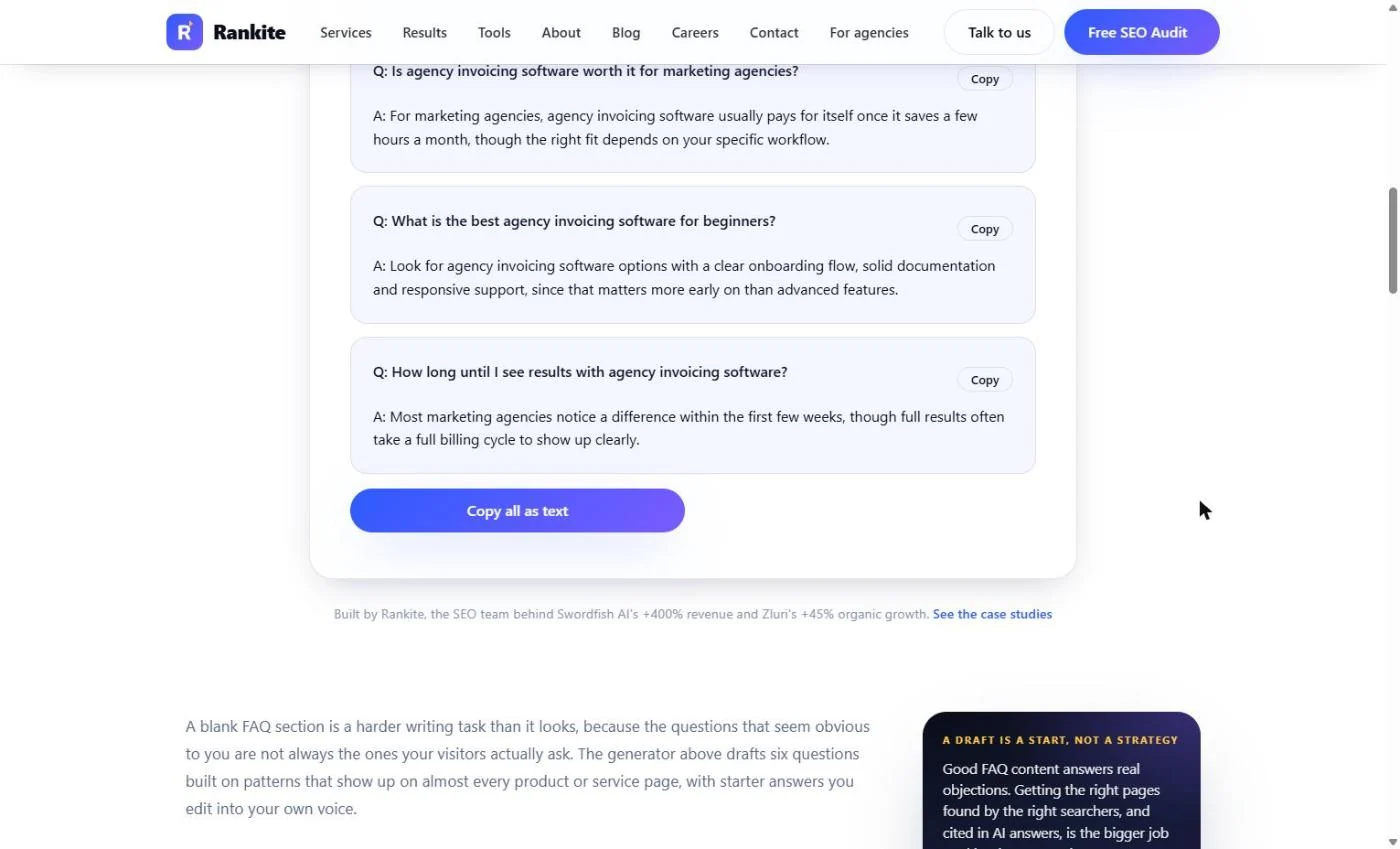
- Read the cost question. The questions update as you type: *What is agency invoicing software?*, *How does it work?* and How much does agency invoicing software cost?, now answered with your 14-day trial and $29 price. Those are the questions buyers type into Google. Click the cost question.
These are the questions buyers type into Google. The cost answer now has your real trial and price.
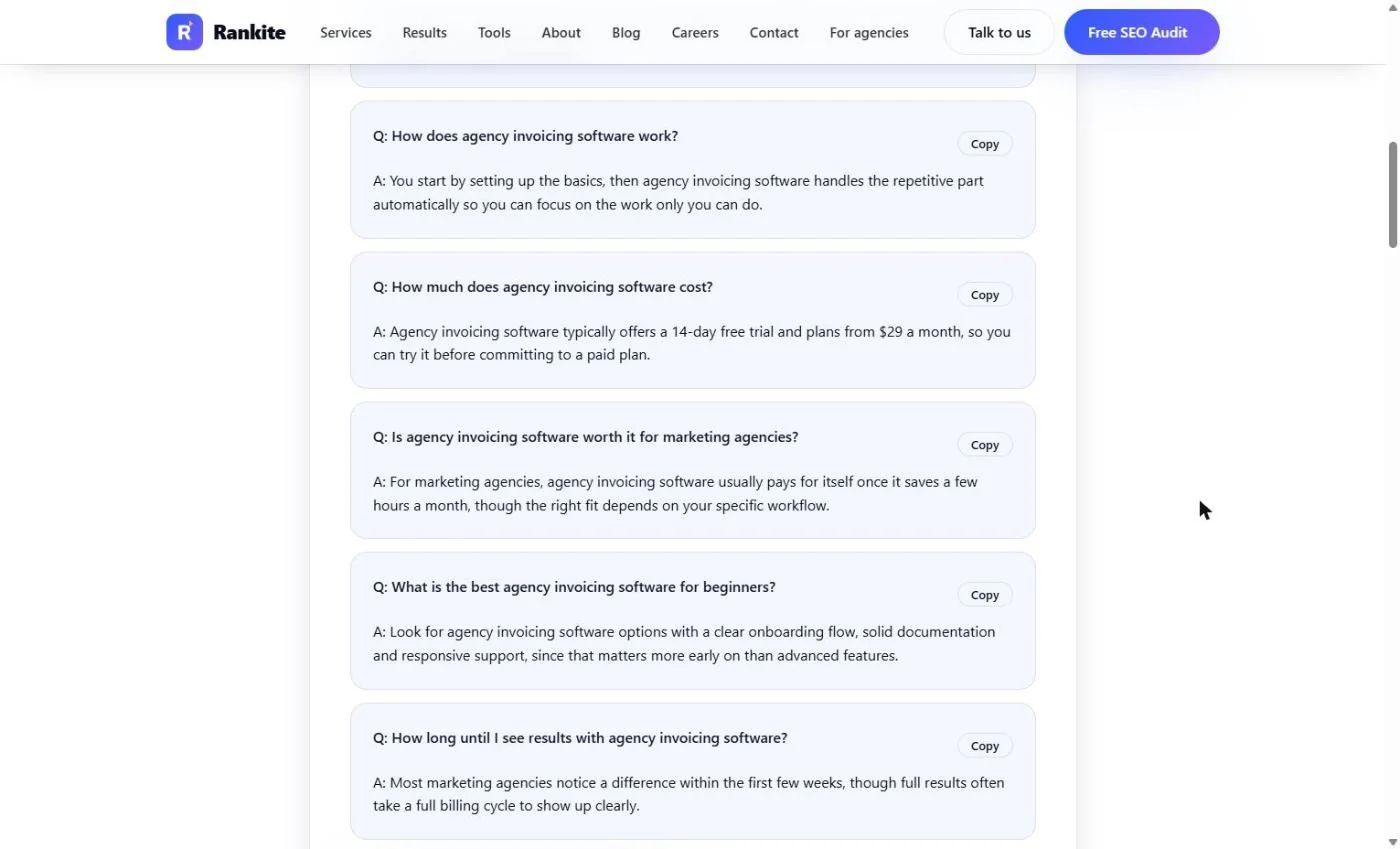
- Spot the generic answers. Scroll down. Six questions in all. Some answers are fillers you must rewrite: *usually pays for itself once it saves a few hours a month* is not a fact about your product. Rankite says it plainly: this drafts the FAQ text, and you edit it into your own voice. Keep the questions; replace every vague answer with a real number. Click the *worth it* answer.
Keep the questions. Rewrite every vague answer with a real fact about your product.
- Copy all as text. Click Copy all as text and paste the six drafts into your page draft. Then rewrite: open with one plain sentence that states the prices, add the plans as a short list, and answer each question in two or three short sentences with real numbers (trial length, user limits, sync times).
Copy all six, and rewrite them into your page. A plain first sentence with the prices, a short list of plans, and short answers with real numbers.
3. Rewrite and score again
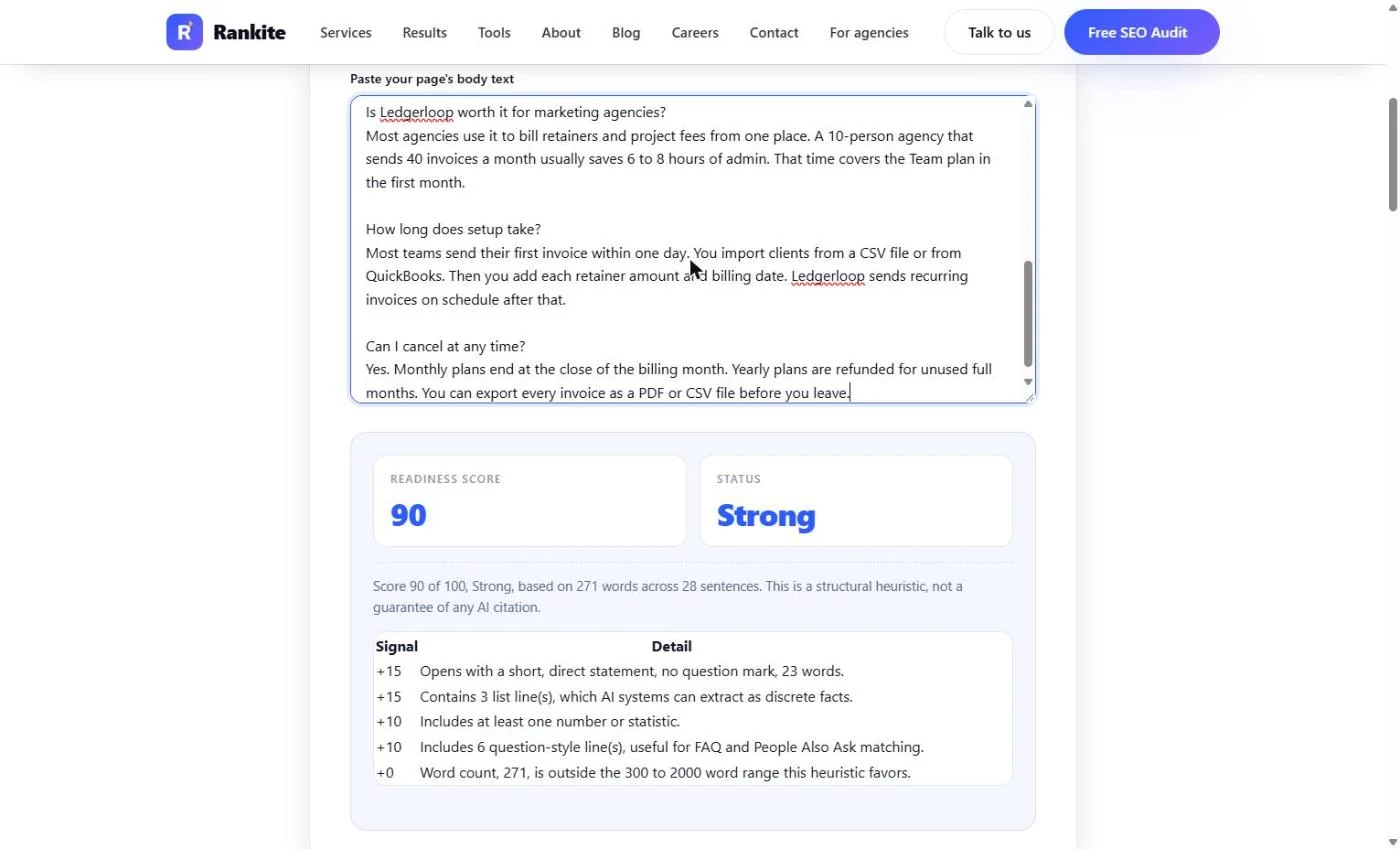
- Find the one missing point. Back in the readiness checker, we pasted the rewritten page. It opens with *Ledgerloop costs $29 a month for Starter, $79 for Team and $149 for Agency, and every plan starts with a 14-day free trial.* Score: 90, Strong. One signal still shows +0: the word count, 271, is under the 300 the checker favors. Click that row.
Ninety. Strong. One point is missing. The page is a little short.
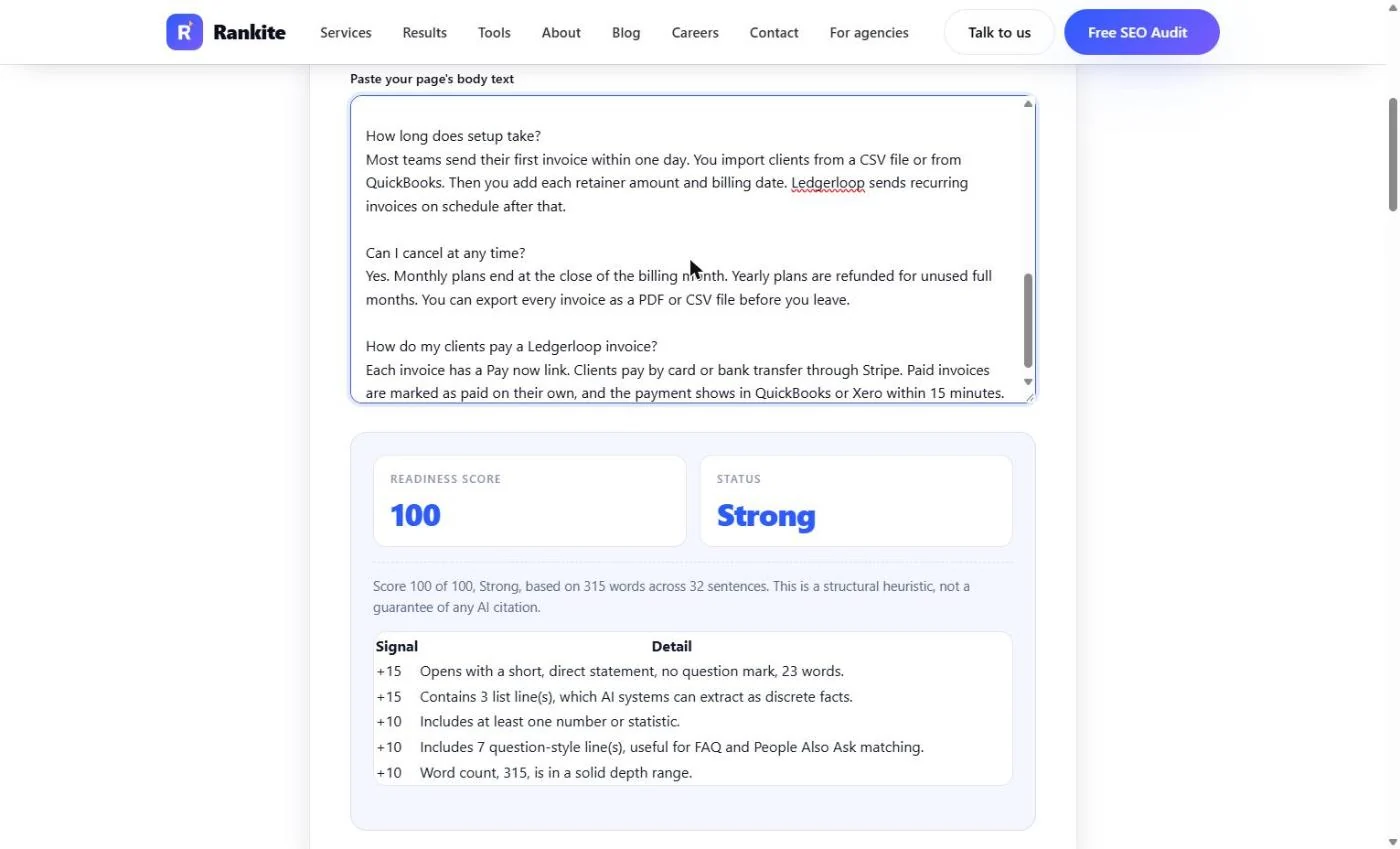
- Add one real question and rescore. Do not pad it. Add one more question buyers really ask: How do my clients pay a Ledgerloop invoice?, answered in three short sentences. Now it reads 100 / 100, Strong: 315 words, 7 question lines, a list and real numbers. Rankite says it plainly: this is a structural check, not a promise of a citation. Click the score.
Add one more real question, not filler. One hundred out of a hundred. Structure is fixed, but it is not a promise of a citation.
4. Label the answers with schema
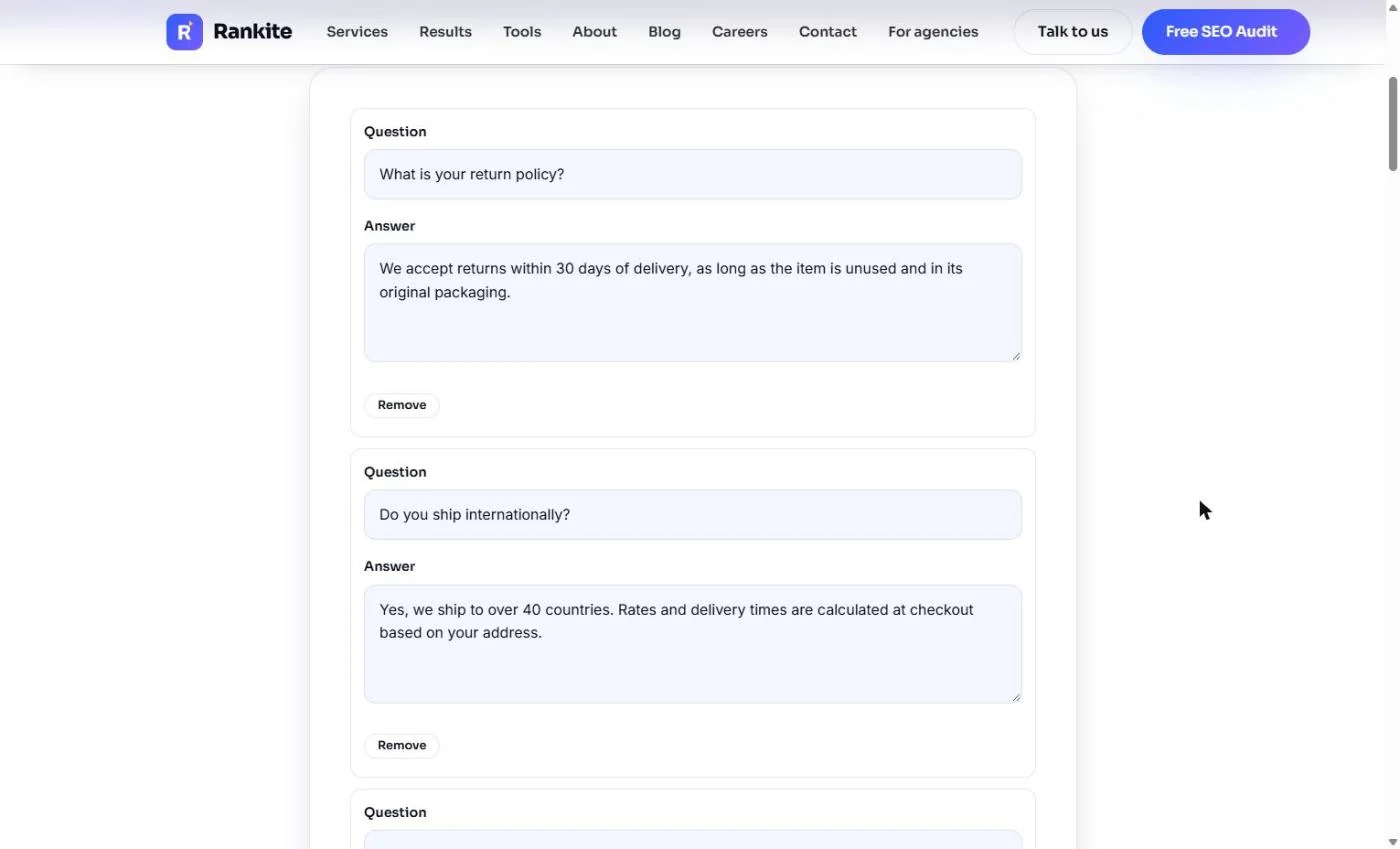
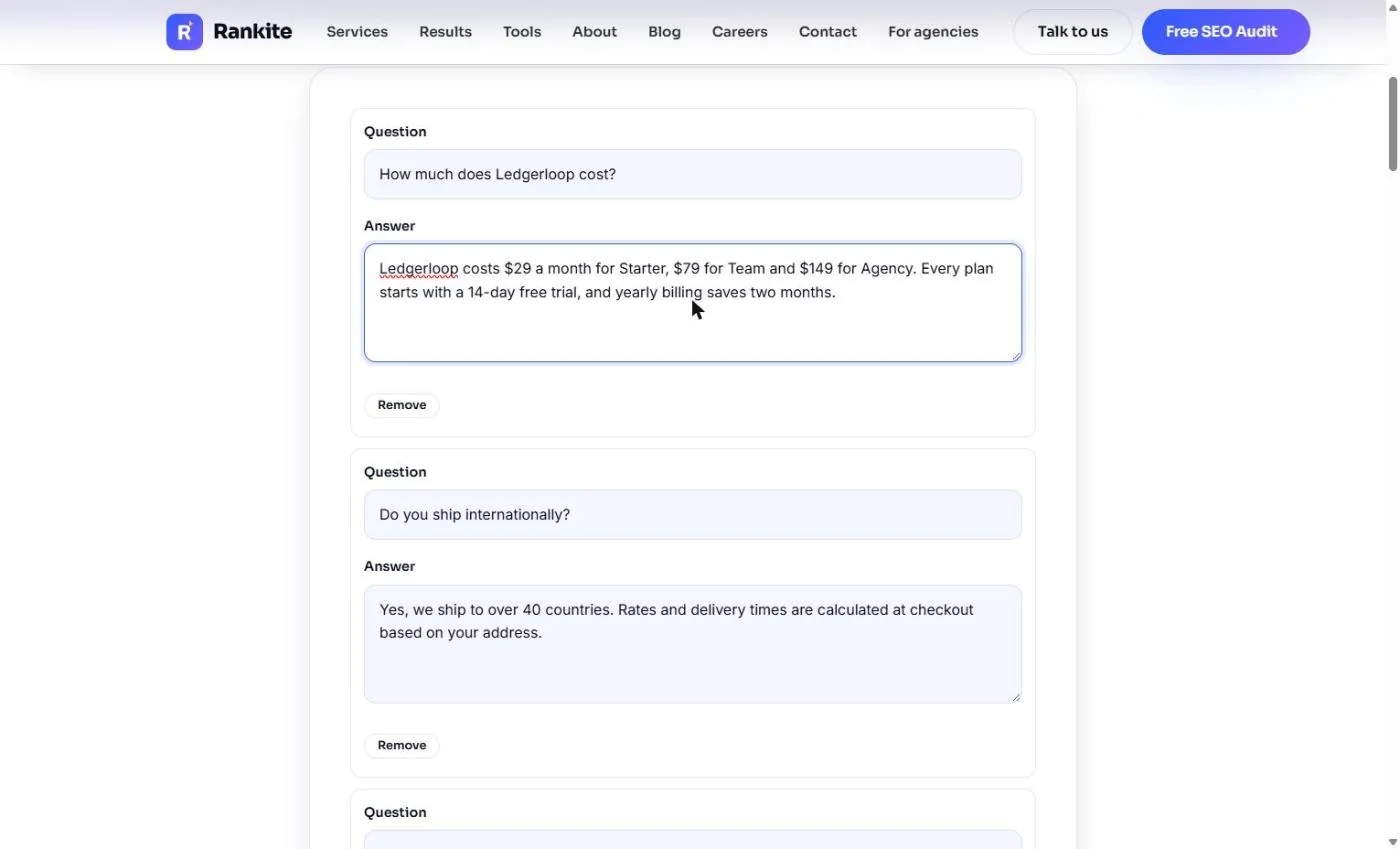
- Replace the first sample question. Now label the answers so machines can read them without guessing: schema (JSON-LD code in the page). Open Rankite's free FAQ Schema Generator. It starts with three sample questions about returns and shipping. In the first Question, type your cost question. We type its answer, copied word for word from the page, for you.
Replace the first sample question with your cost question.
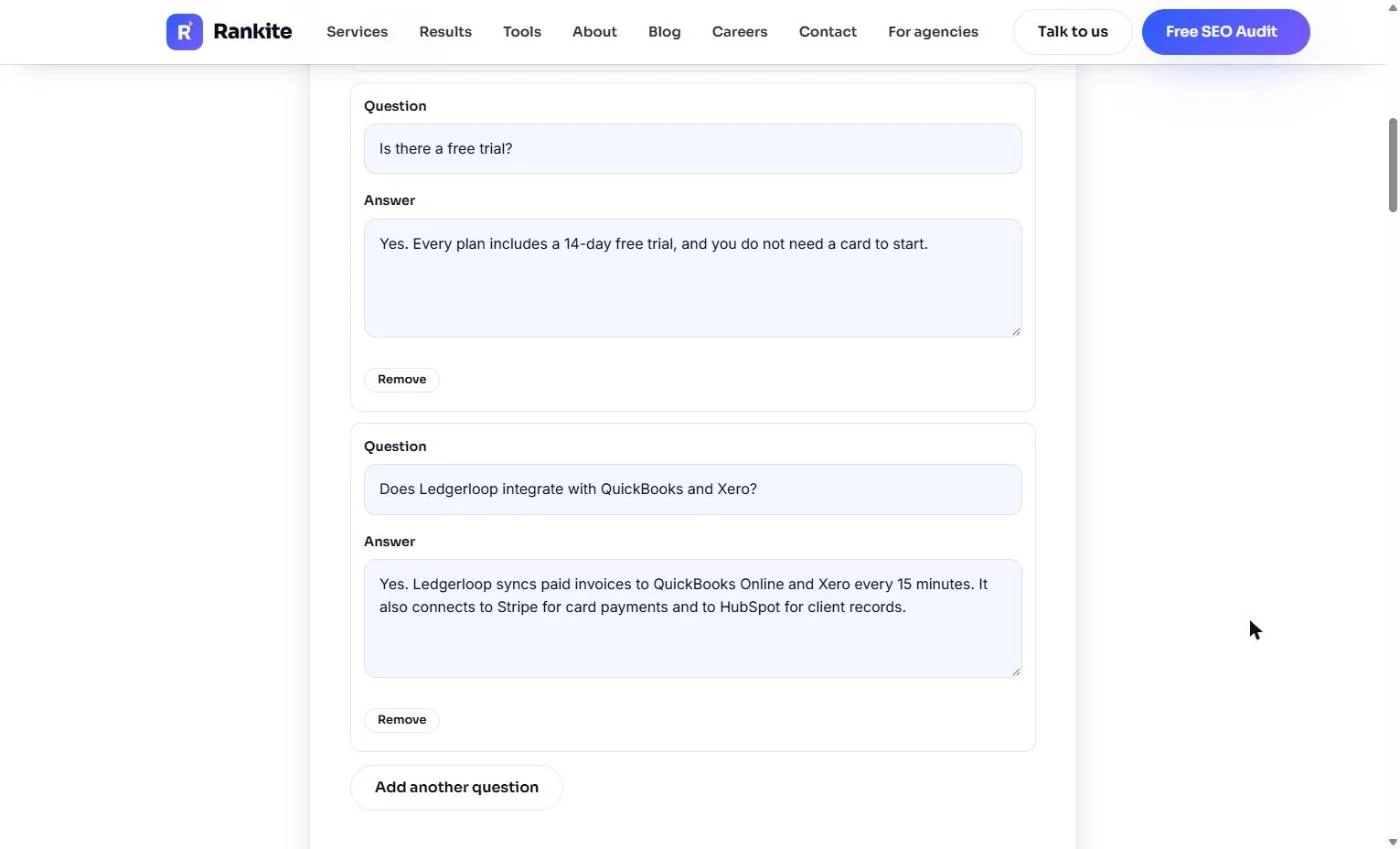
- Replace the other two. Replace the other two samples the same way: Is there a free trial? and Does Ledgerloop integrate with QuickBooks and Xero?, each with the same answer text that is on the page. Schema that says something the page does not is a mismatch, so copy, do not rewrite. Click the second question.
Replace the other two. Use the same answer text that is on the page, word for word.
- Check the integration answer. The third answer names the tools buyers ask about by name: QuickBooks Online, Xero, Stripe and HubSpot, with a number (every 15 minutes). That is exactly what an *integrates with* search wants. Click the answer.
Name the tools buyers ask about, and add a real number.
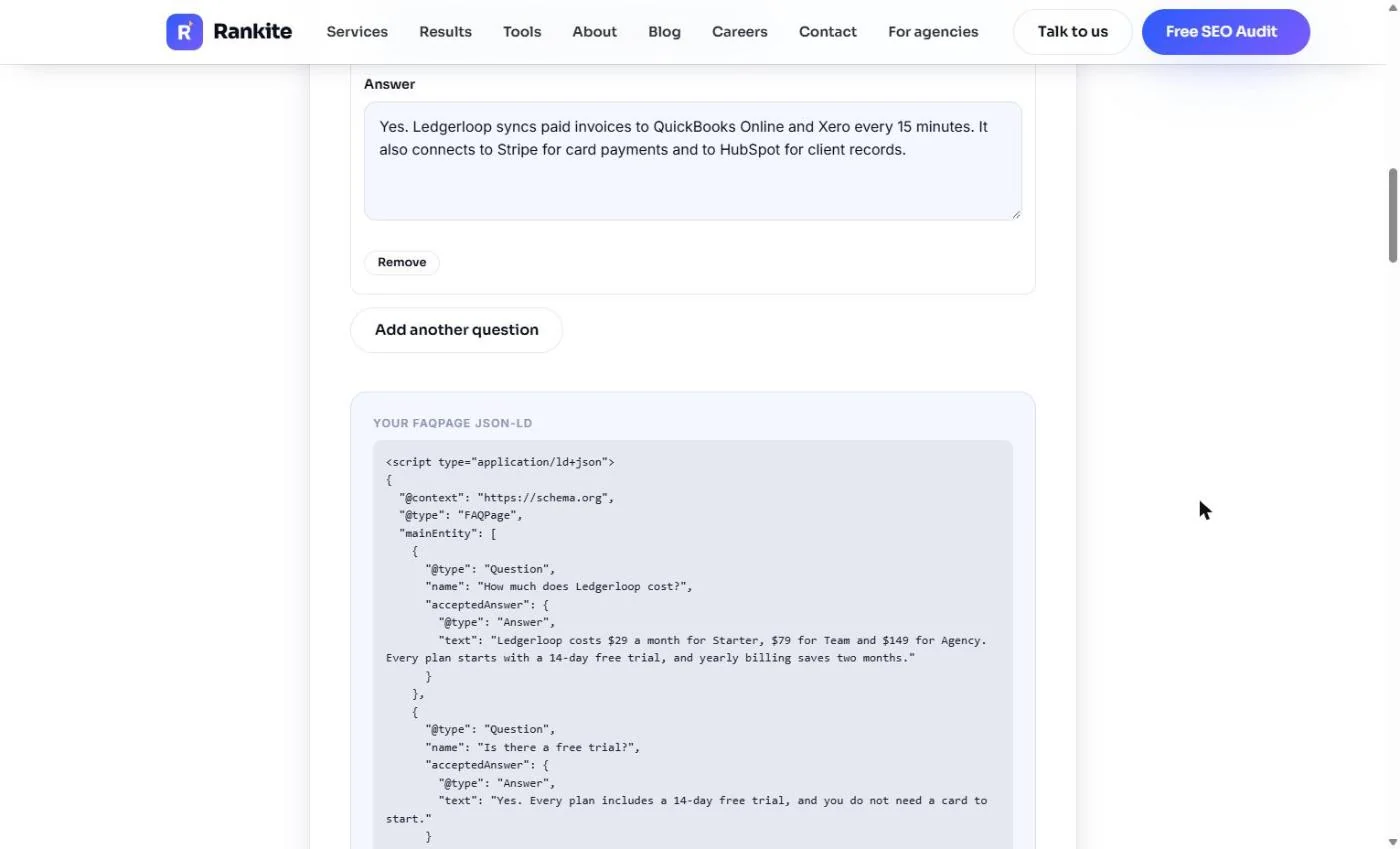
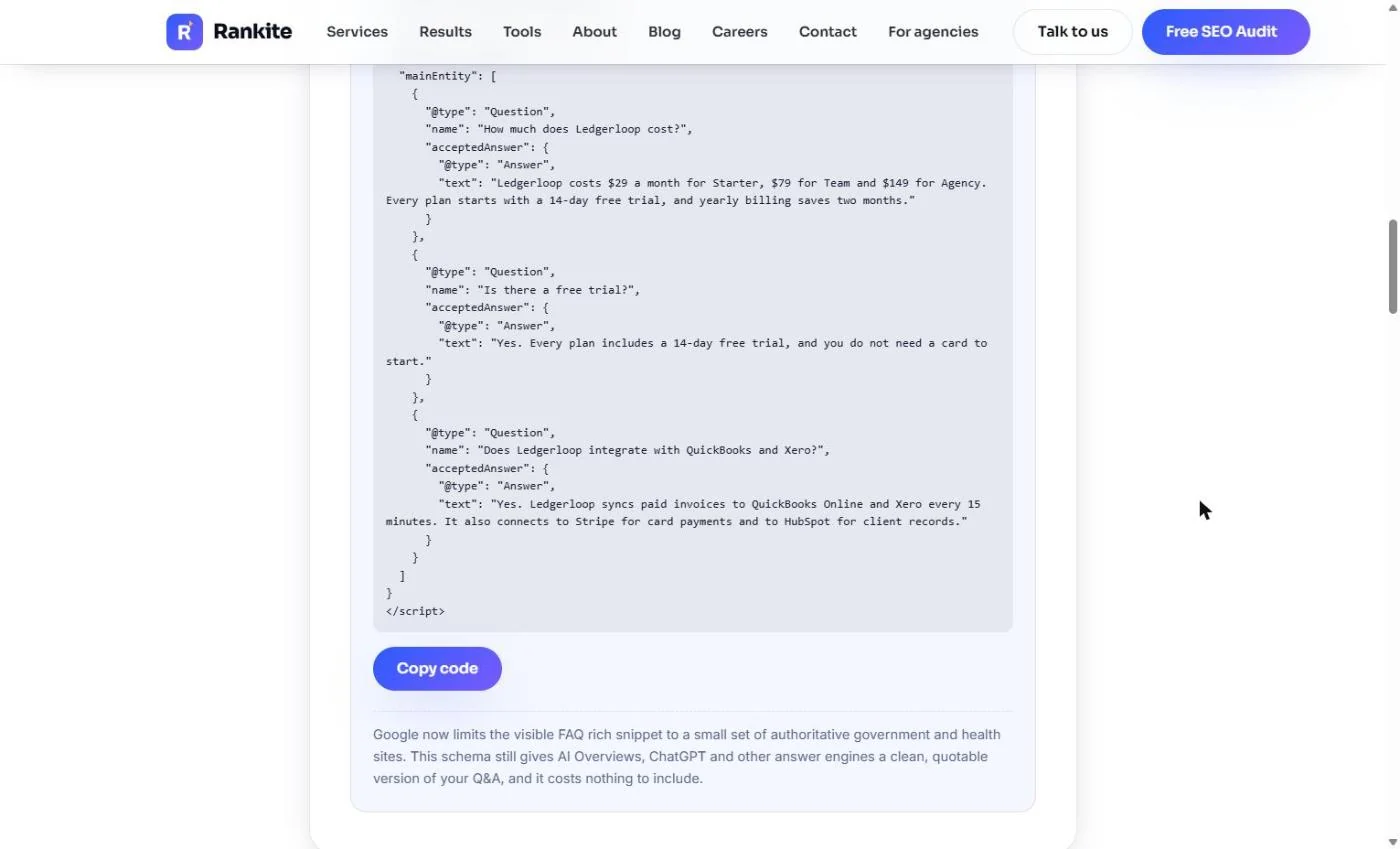
- Read your FAQPage JSON-LD. Below the questions, Your FAQPage JSON-LD builds itself: a FAQPage with one Question and acceptedAnswer for each pair. Under the code Rankite notes that Google now shows FAQ rich results only for a small set of government and health sites, but the markup still gives AI answer engines a clean copy of your Q&A. Click the code.
Rankite writes the code as you type. One question and one answer for each pair.
- Copy code. Click Copy code. Send it to whoever runs the website, to paste into the pricing page's HTML (or your CMS's custom code box for that page).
Copy the code, and send it to whoever runs the website.
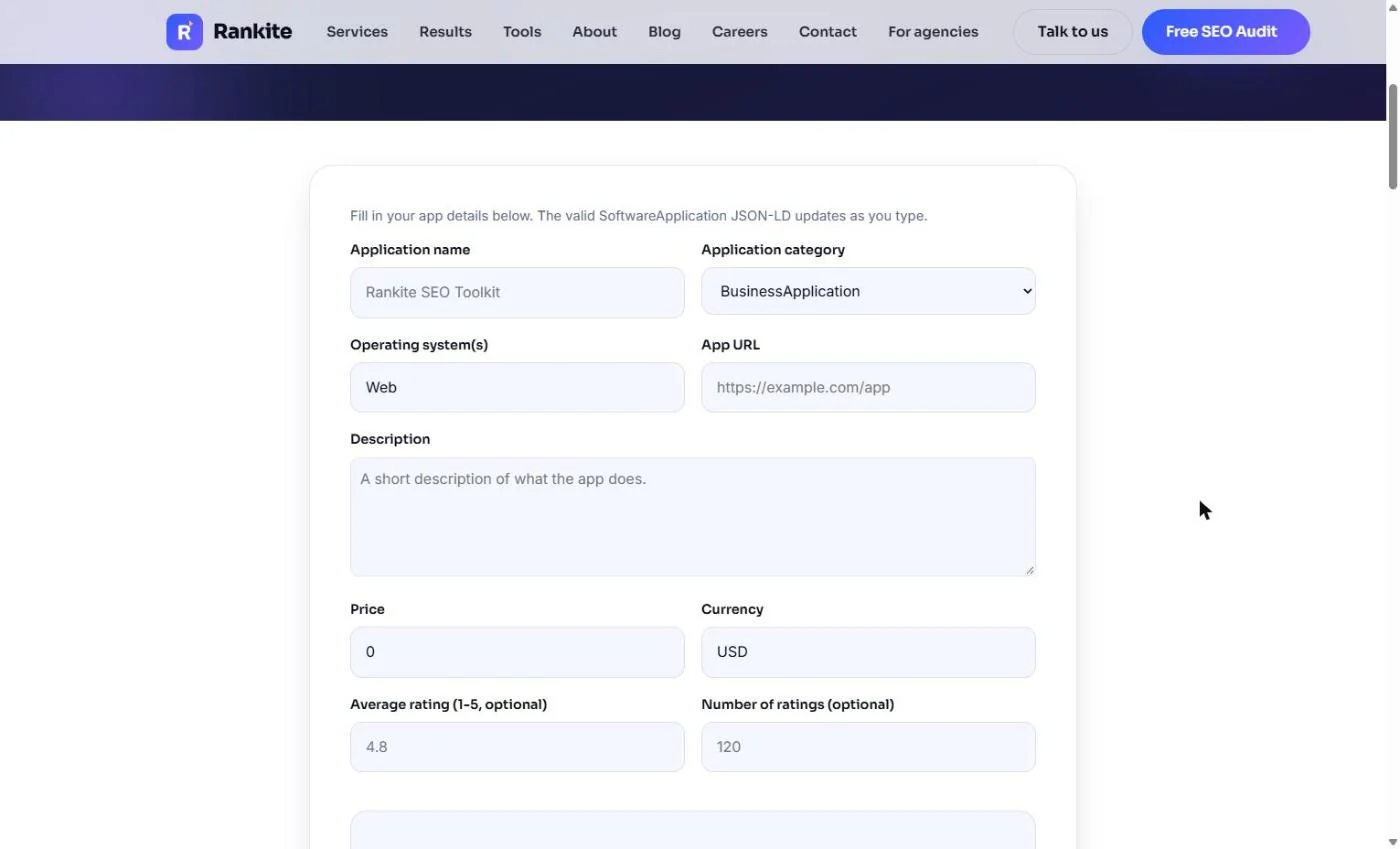
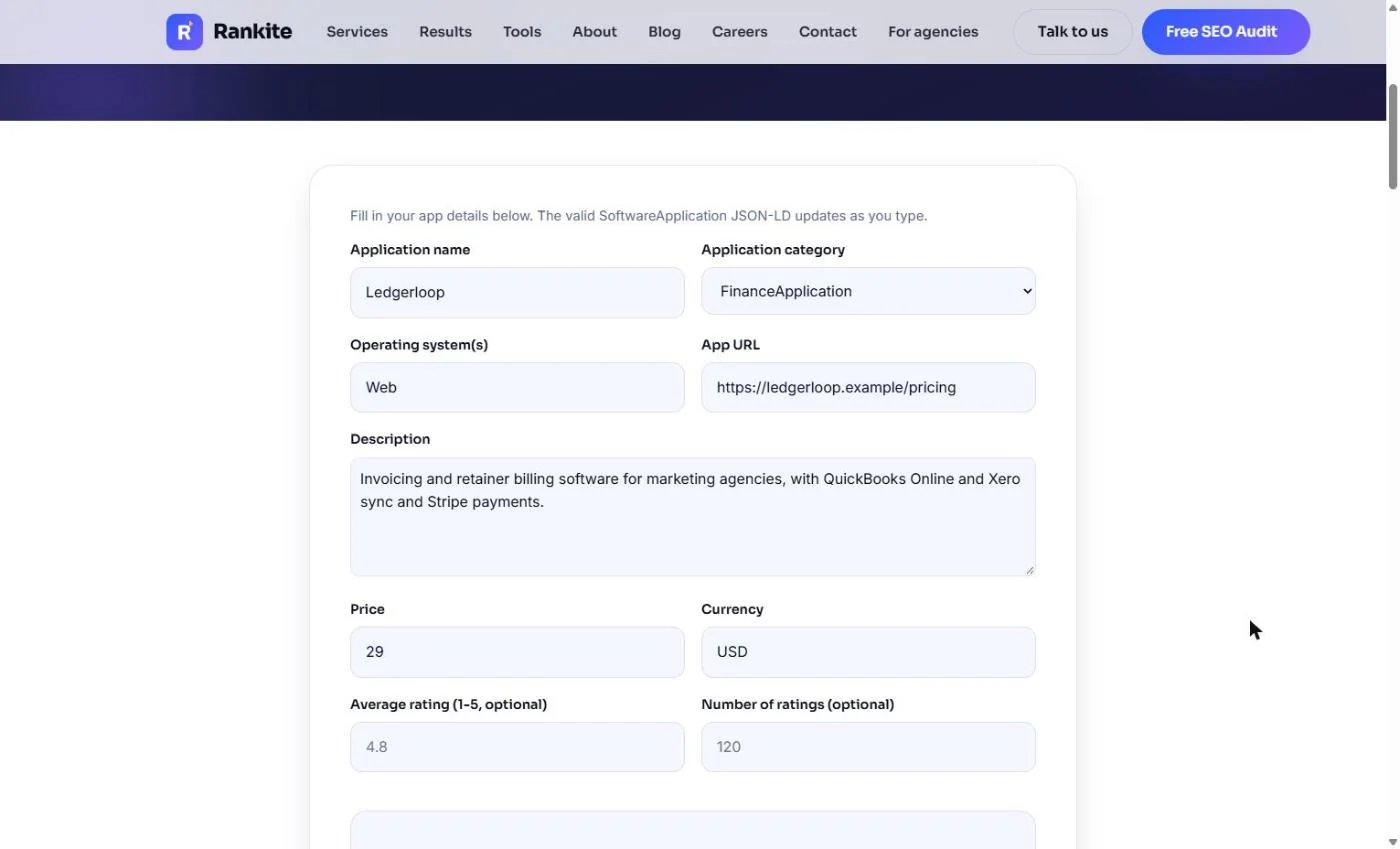
- Describe the product itself. One more label: what the product is and what it costs. Open Rankite's free SoftwareApplication Schema Generator. In Application name, type the product name. We fill the rest for you: category FinanceApplication, Web, the pricing page URL, a one-line description and a starting Price of 29 USD.
We fill in the category, price and description.
- Leave the ratings blank. Average rating and Number of ratings are optional, and the grey 4.8 and 120 are only examples. Fill them only with real review numbers that are shown on the page. Made-up ratings in schema break Google's rules. Ledgerloop has none on the page, so leave both blank. Click the rating fields.
Leave the ratings blank, unless real review numbers are shown on the page.
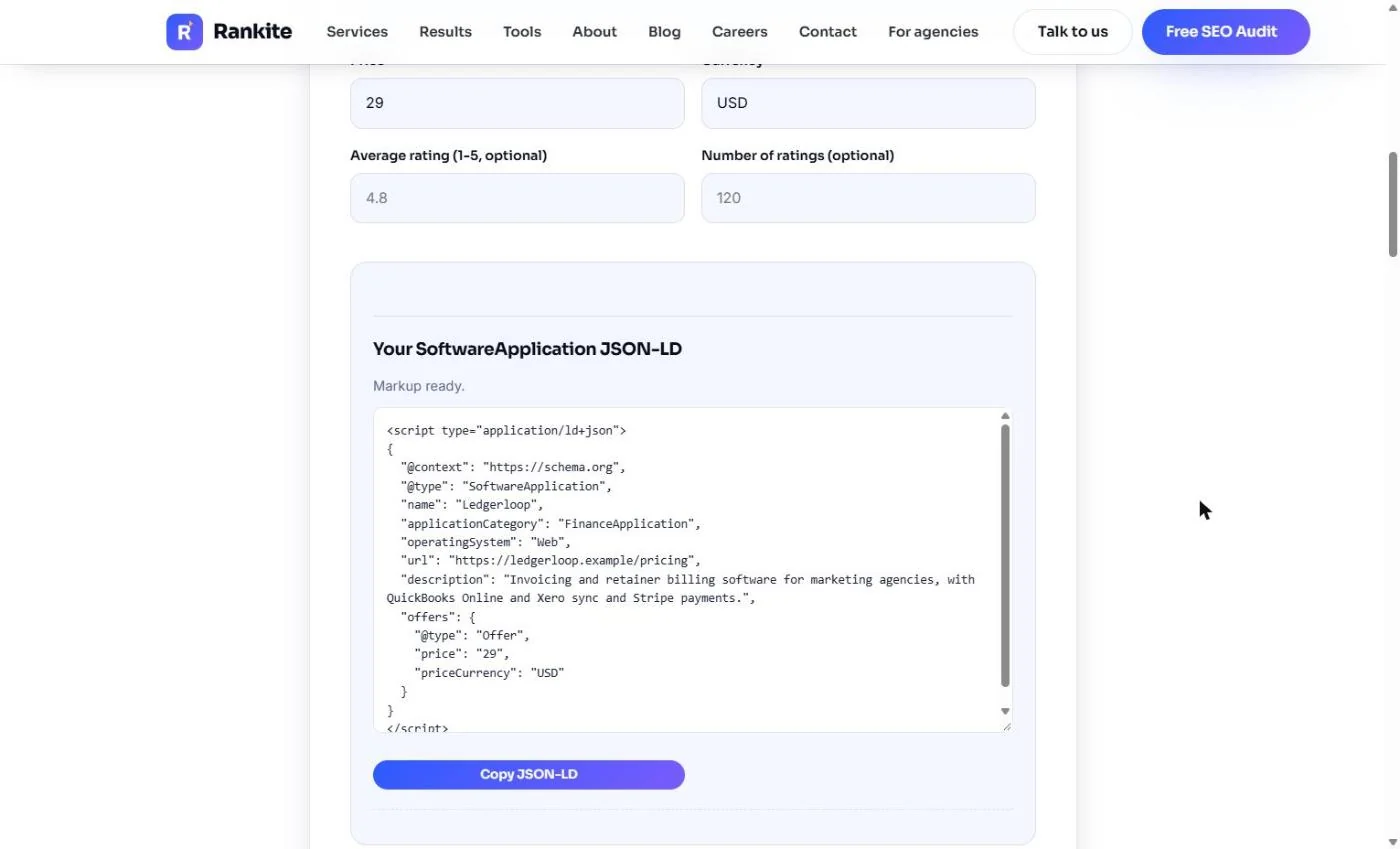
- Copy JSON-LD. Your SoftwareApplication JSON-LD says *Markup ready*: name, category, operating system, URL, description and an Offer of 29 USD. No ratings, because you left them blank. Click Copy JSON-LD.
Markup ready. Copy it.
5. Check the code before it ships
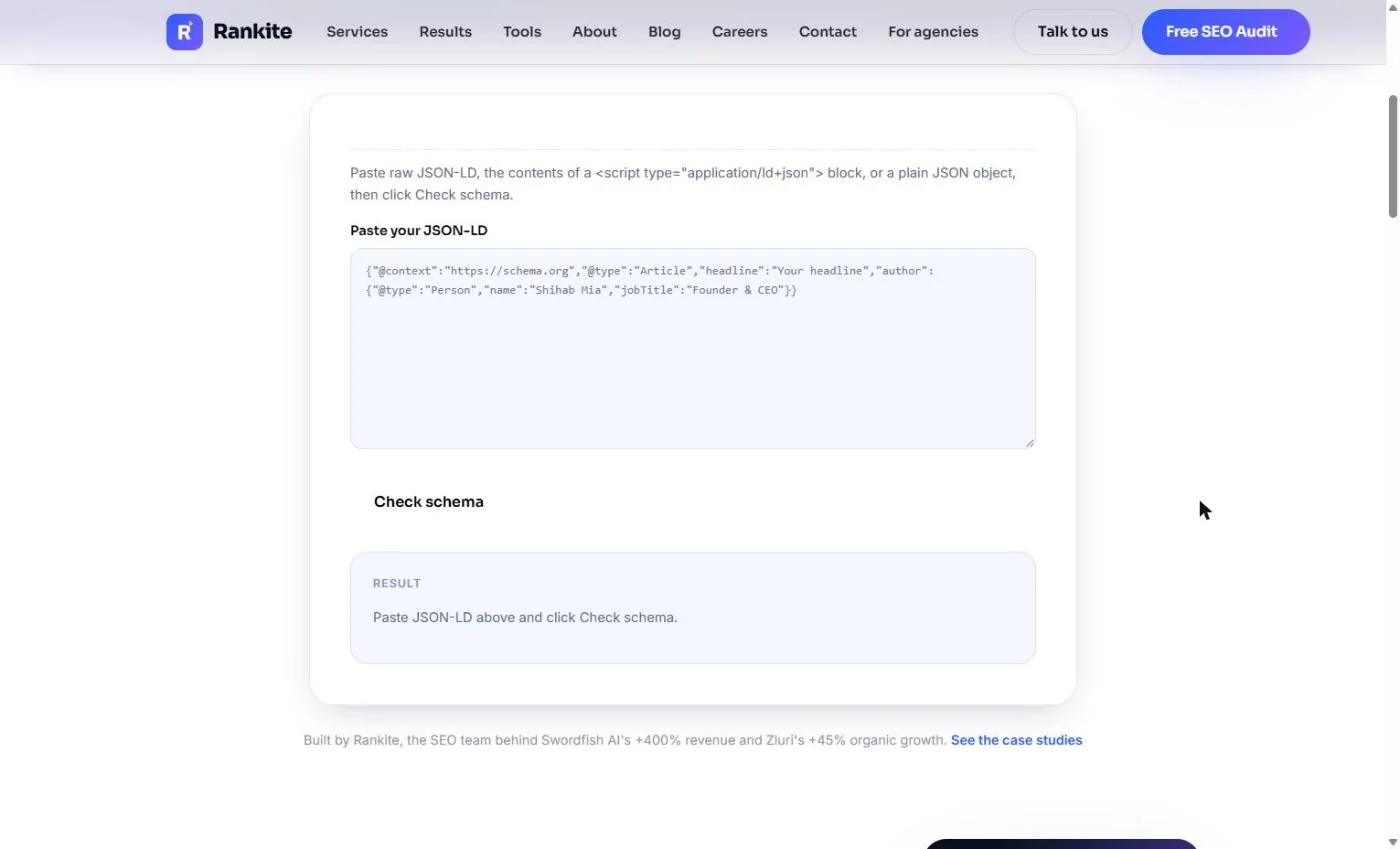
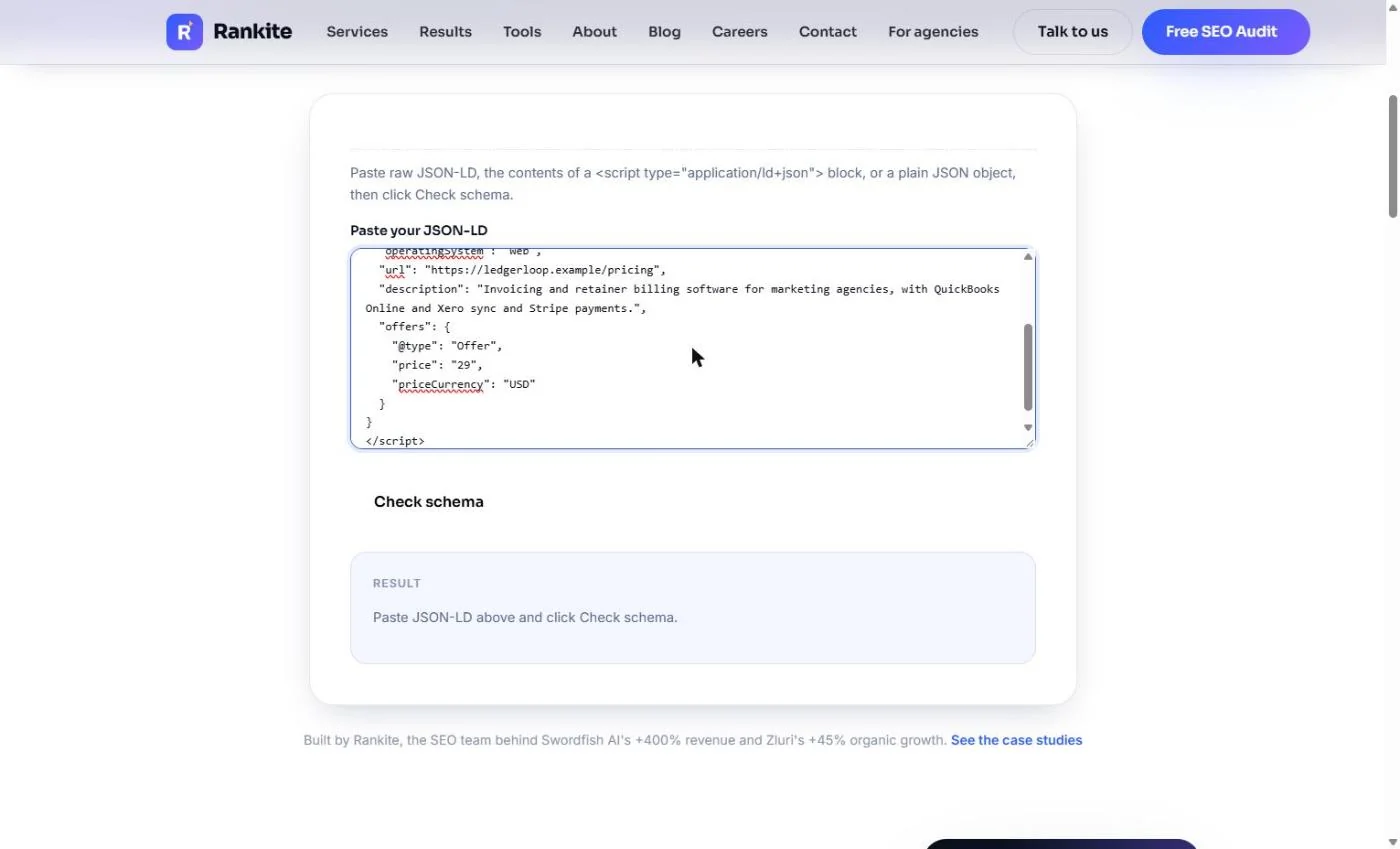
- Paste the code into the checker. Before the code goes live, check it. Open Rankite's free JSON-LD Schema Checker. Paste in the your JSON-LD and we paste the SoftwareApplication code exactly as you copied it, including the <script type="application/ld+json"> line at the top and </script> at the bottom.
Before it goes live, check it.
- Check schema. Click Check schema.
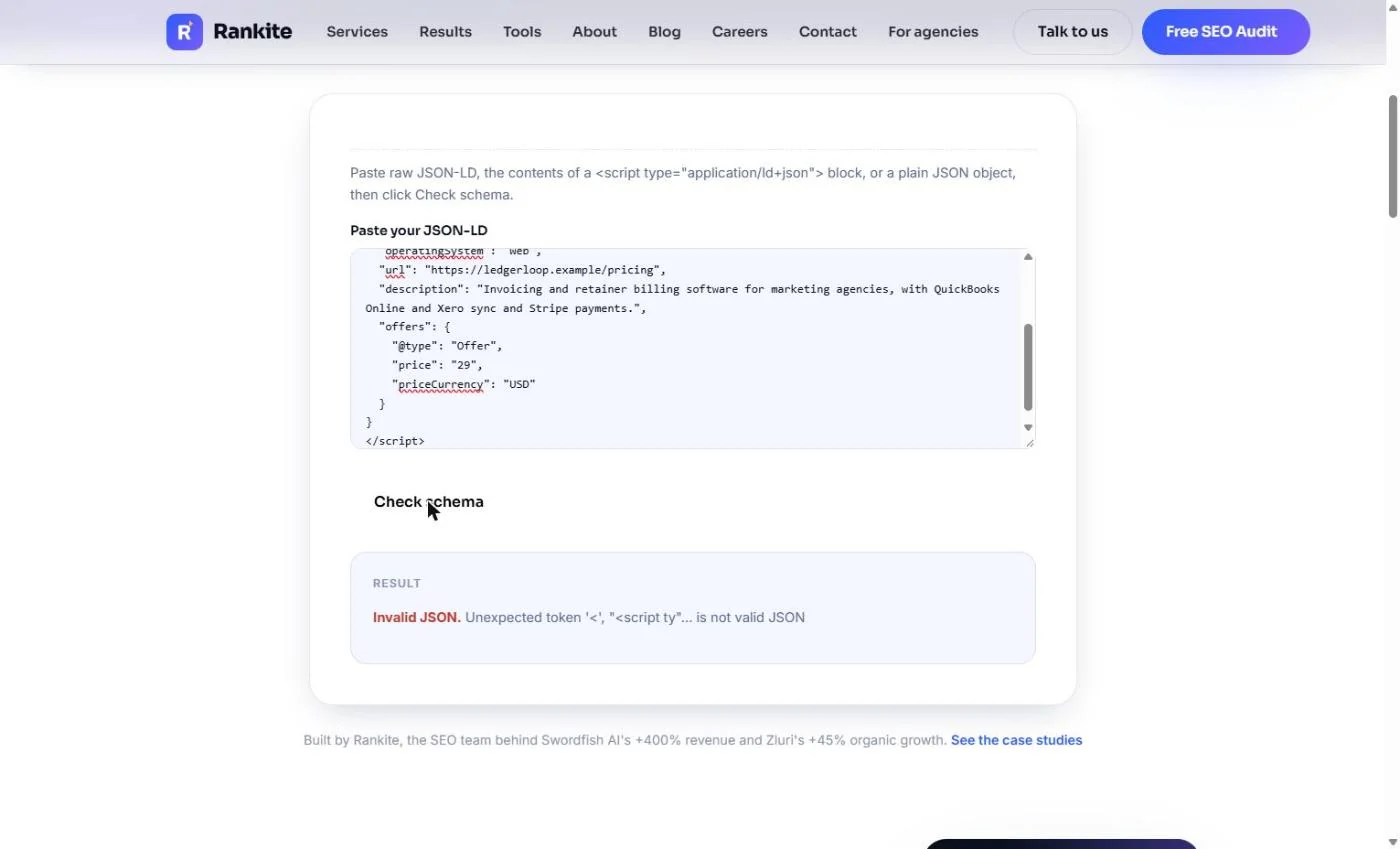
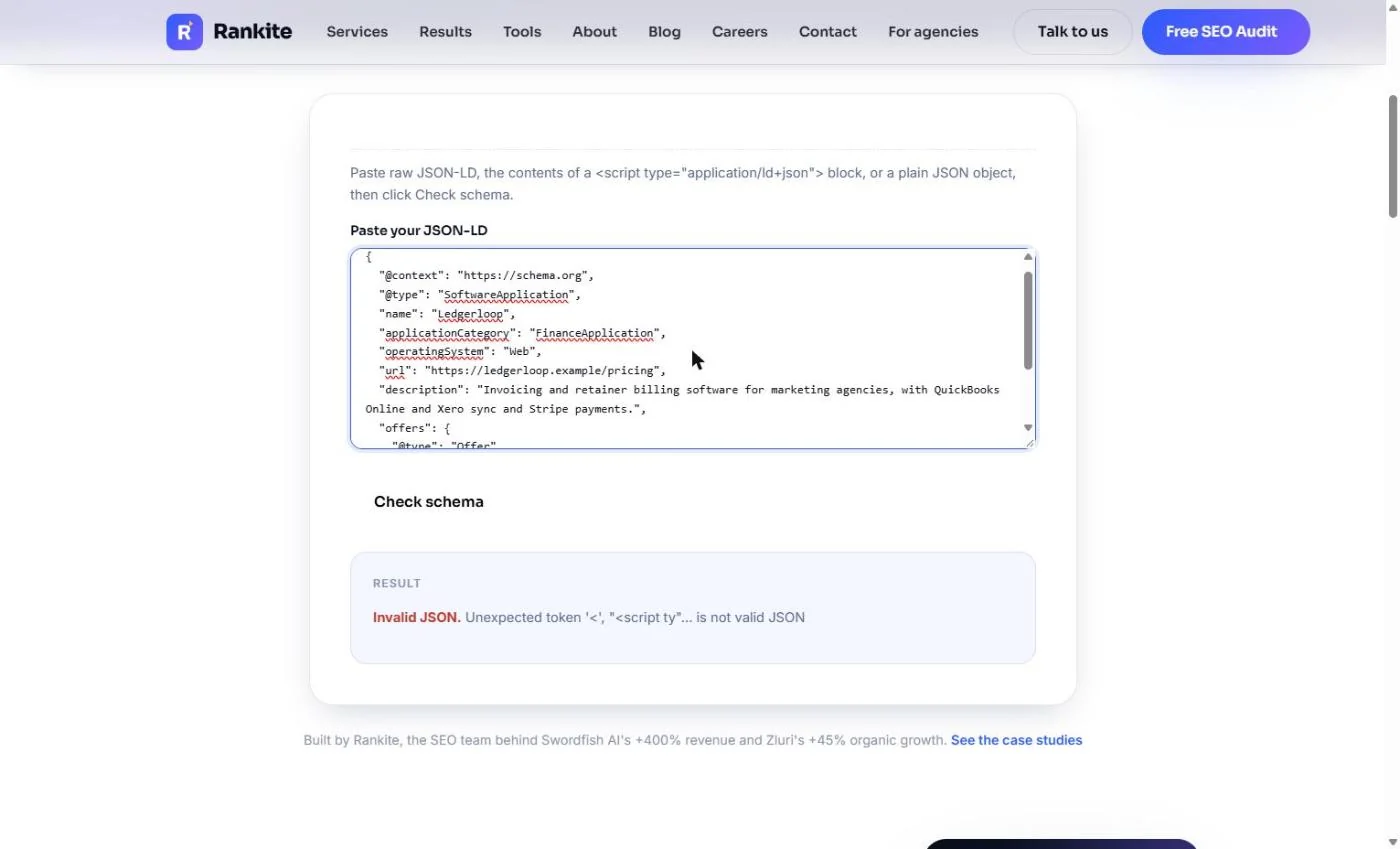
- Read the error. Invalid JSON. Unexpected token '<'. On our run, the checker stopped at the <script line, even though the note above the box says script blocks are fine. The fix takes a second: delete the first line (<script type="application/ld+json">) and the last line (</script>), so the box starts with { and ends with }. Click the error.
Invalid J S O N. It stopped at the script line. Delete the first and last lines, so the box starts and ends with a curly bracket.
- Check it again. The box now starts with {. The old result is still showing until you check again. Click Check schema.
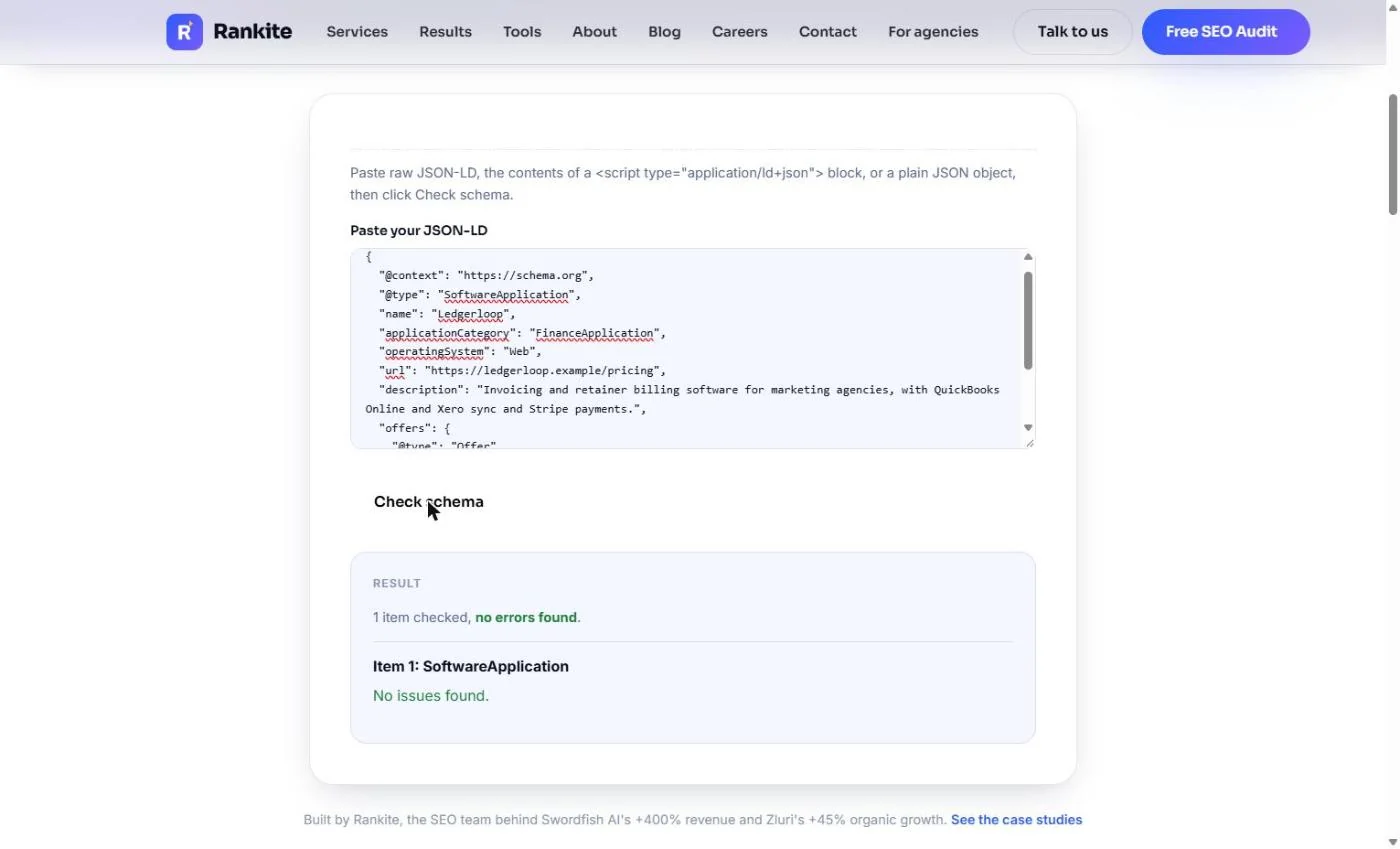
- Read the result. 1 item checked, no errors found. Item 1: SoftwareApplication. No issues found. Click the result.
One item checked. No errors found.
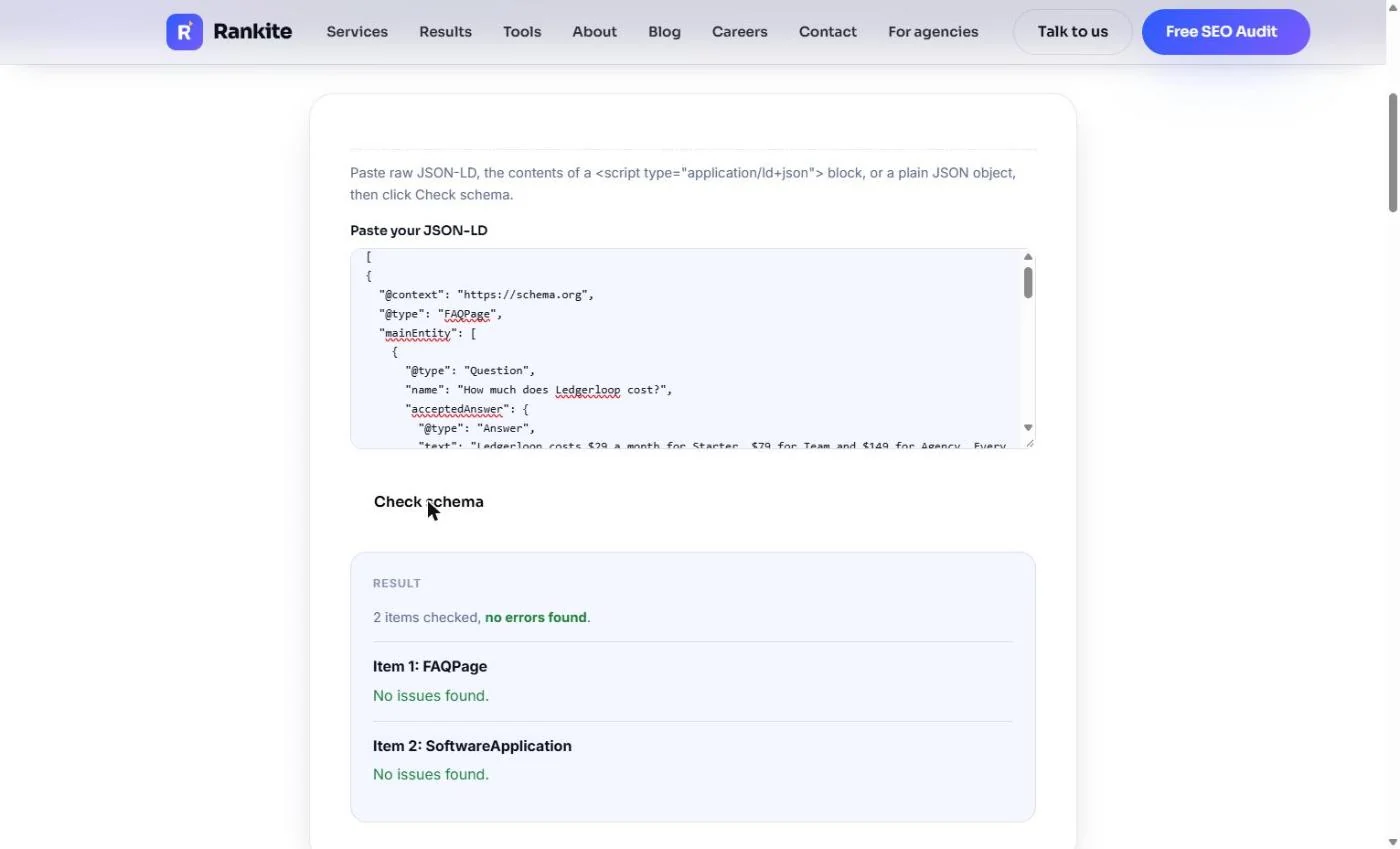
- Check both at once. You can check both blocks in one go: put them inside [ ] with a comma between them. We did: 2 items checked, no errors found, FAQPage and SoftwareApplication. Now hand both blocks to the web team, ask for them on the pricing page, and watch the cost and integration searches over the next few weeks. Click the result.
Check both at once, inside square brackets. Two items, no errors. Hand them to the web team, and watch those searches over the next few weeks.
Screenshots
More in Business Automations
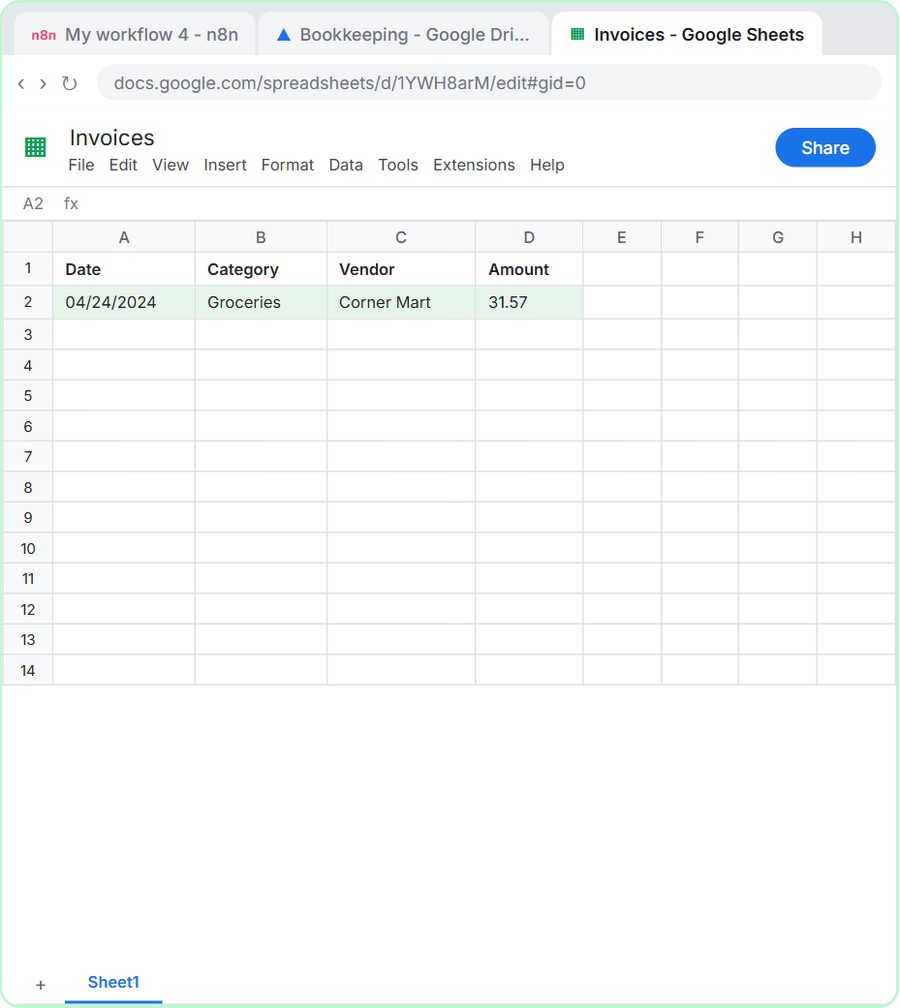 AI Receipt Extractor: Receipts to Google Sheets with n8n
Drop a photo of a receipt into an n8n chat. An AI agent reads it, pulls out the date, vendor and amount, picks a category, and adds a row to Google Sheets.
Free · Live ~12 min Intermediate
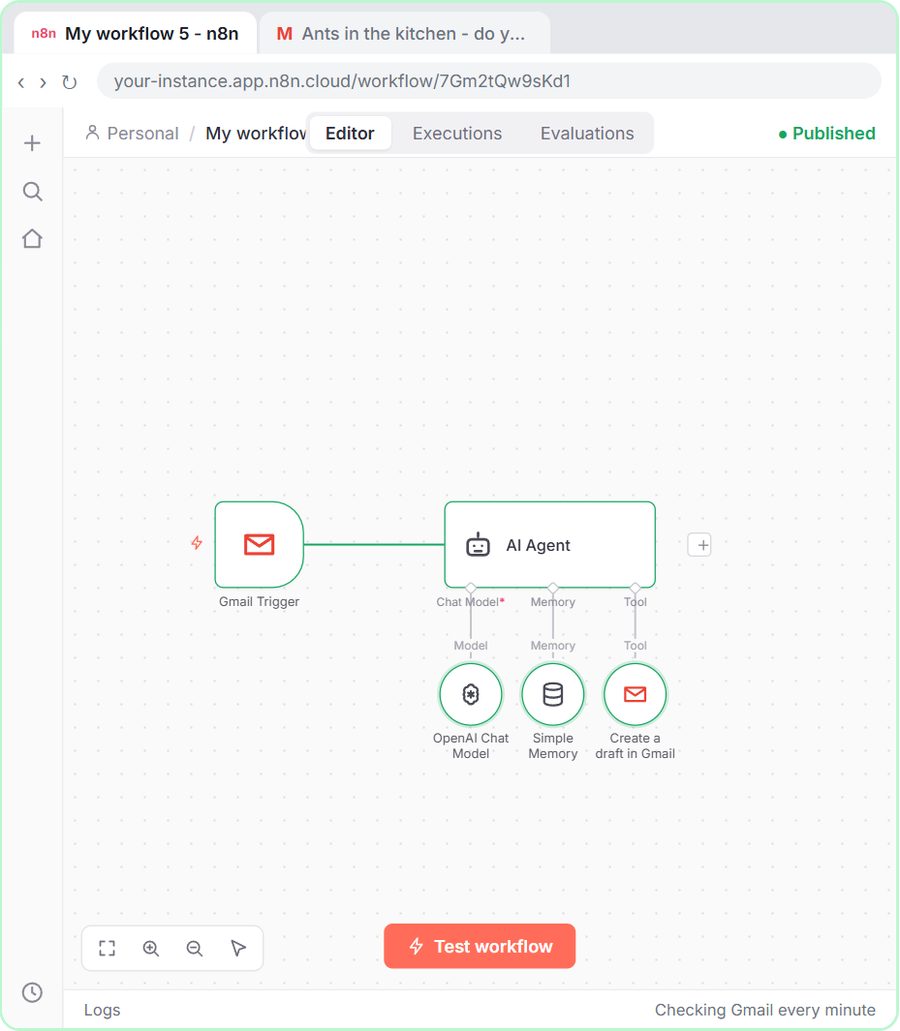 n8n AI Email Responder: Draft Gmail Replies Automatically
Build an n8n agent that watches your Gmail, reads each new customer email, and writes a reply as a draft in the same thread, ready for you to check and send.
Free · Live ~12 min Intermediate
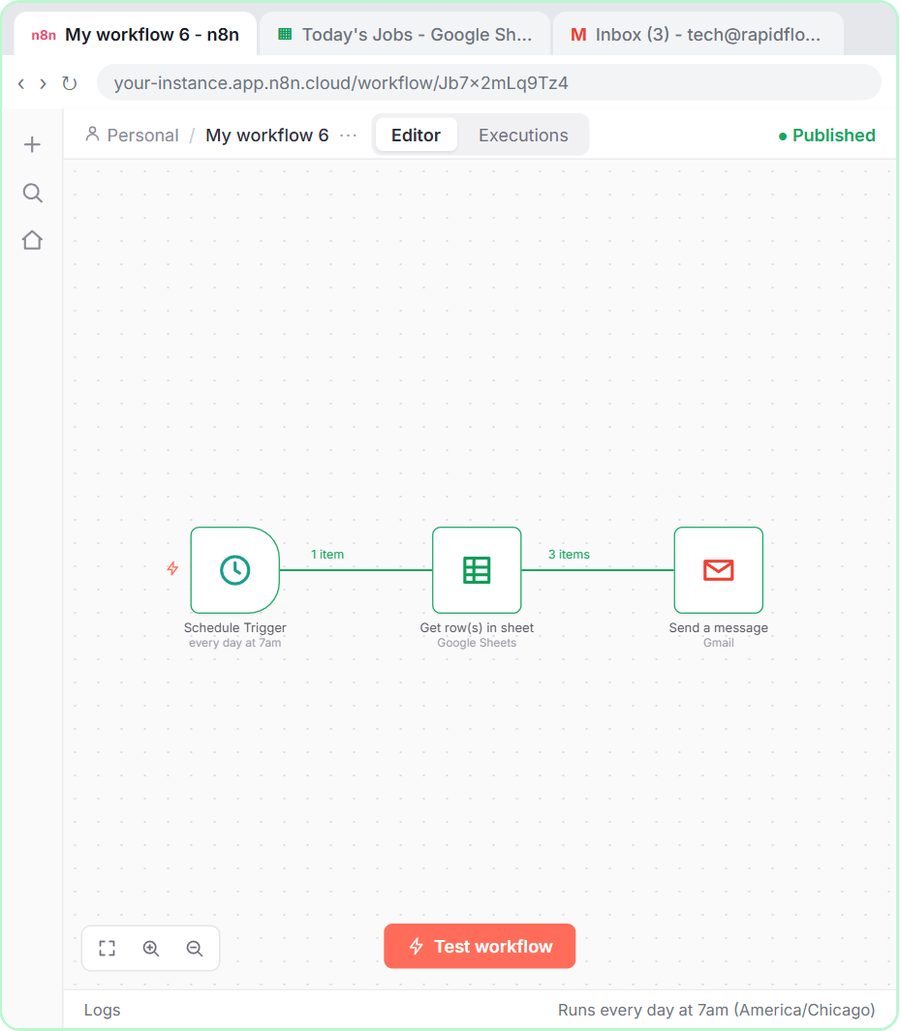 Daily Job Alerts: Email Each Tech Their Jobs from Google Sheets with n8n
Every morning at 7, n8n reads a plumbing company's jobs sheet, skips anything not assigned yet, and emails each job to the tech it's assigned to — customer, address…
Free · Live ~10 min Intermediate
 Gmail AI Triage: Auto-Label Every Email and Draft Replies
Build an n8n workflow that reads each new email, sorts it as a lead, a client or an invoice with a Text Classifier, adds the matching Gmail label, and drafts a reply to…
Free · Live ~18 min Advanced
 A Support Agent That Answers from Your Own Docs
Turn an n8n chat agent into a support agent that answers only from your policies in a Google Doc, refuses what it should, and hands off to a person by email.
Free · Live ~13 min Advanced
 Chatbase: Answer Customer FAQs with an AI Agent
A business case for a small firm that answers the same customer questions every week: build a Chatbase AI agent on your FAQ in the real app, make it say when it does…
Free · Live ~15 min Beginner
All 47 modules in Business Automations
More Rankite tutorials
Terms in this lesson
Plain-English definitions, each with an example from a free lesson.