This is a guide, not a hands-on lesson. It explains the idea and lists the setup steps from Zapier's and Speak AI's own documentation. There's no practice copy to click through here, and Stepthrough hasn't tested every screen on every plan. Speak AI's help pages and Zapier's listing use slightly different trigger names, so use the names you see in the Zap editor.
What business problem does this solve?
Recorded calls are full of useful detail that nobody reads. A sales rep records a discovery call, a researcher records a customer interview, and the file sits in a folder. Writing up a summary takes 20 minutes, so it usually doesn't happen, and the team never hears what the customer said.
Take Crestline Benefits Advisors, a made-up employee-benefits consultancy. Its consultants run about 25 client calls a week and drop the recordings into a shared Client calls Drive folder. The managing partner wants a two-paragraph summary of each call, with concerns and next steps, posted in the team's #client-calls Slack channel. That way problems with a renewal surface the same day, not at the quarterly review.
With Speak AI and Zapier, the consultant's only job is to save the recording to the folder. The transcript, the summary and the Slack post all happen without anyone typing.
What do you need before you start?
- A Speak AI account. Its Zapier app works on Zapier's free plan, and Speak AI's trial includes it.
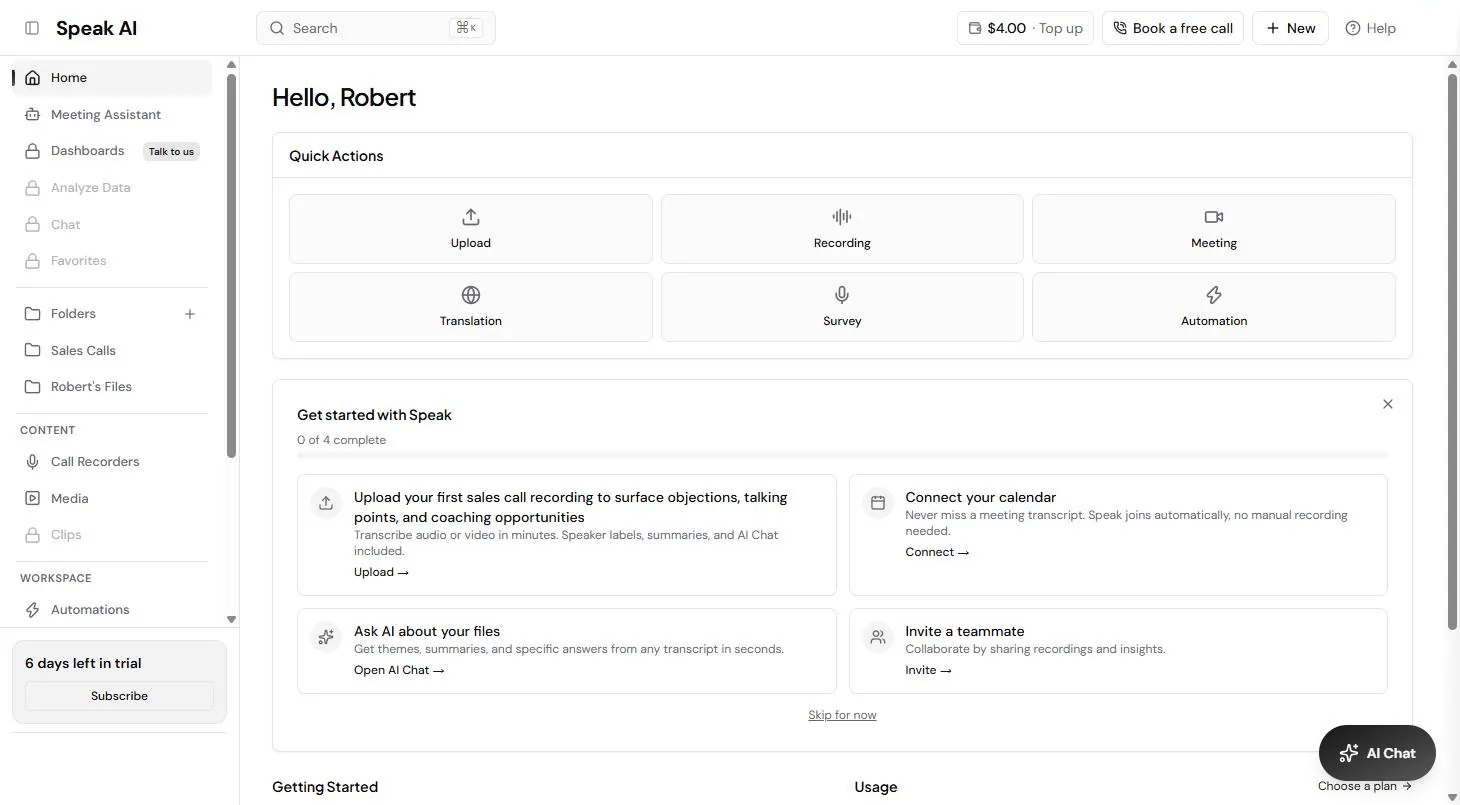
- Your Speak AI API key. Speak AI's API docs point to the developer page in the app, at app.speakai.co/developers. Zapier asks for the key when you connect.
- An AI Chat prompt saved in Speak AI, such as "Summarize this call in two paragraphs: the client's main concerns, then agreed next steps." The New AI Chat Response trigger fires when a prompt like this finishes on a file.
- A Google Drive folder for recordings, and a Slack channel for the posts.
- At least one file already processed in Speak AI. Speak AI's Zapier guide says to do this first, so Zapier has sample data to map.
How do you connect Speak AI to Zapier, step by step?
Zap 1: new recording to Speak AI
- In Zapier, click Create, then Zaps.
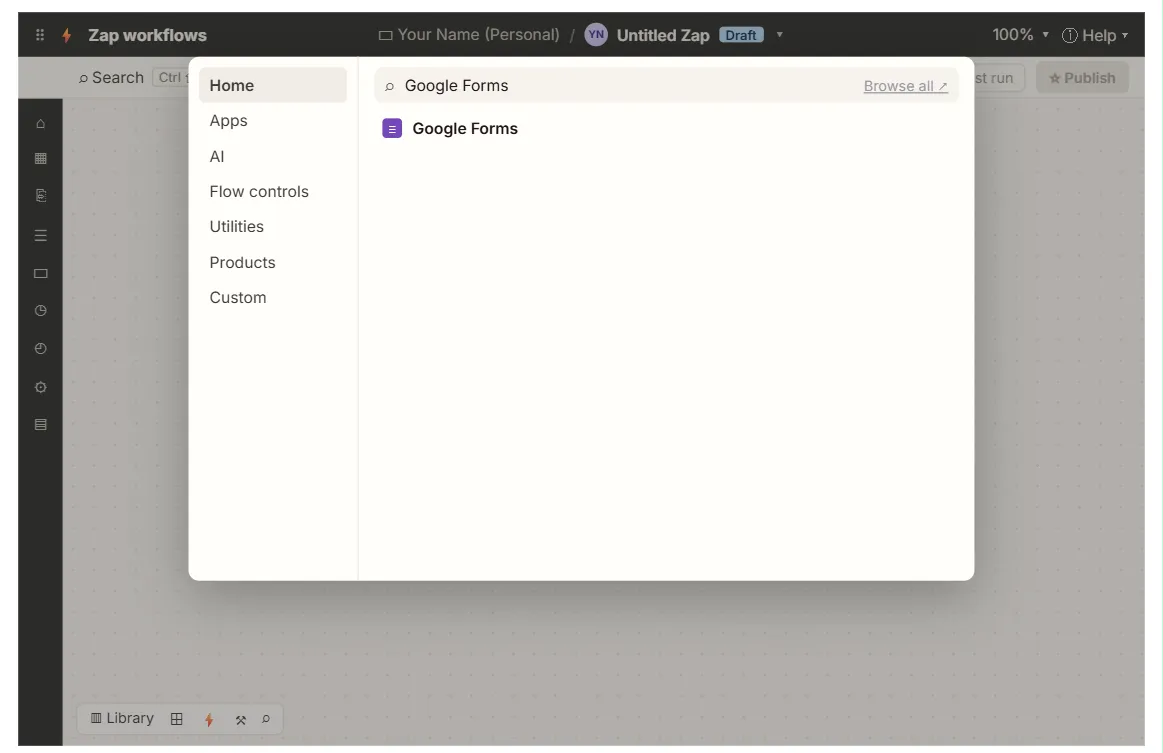
- Trigger: Google Drive, event New File in Folder. Pick the Client calls folder.
- Action: Speak AI, event Upload File to Transcribe and Analyze. Connect Speak AI with your API key.
- Map the File from the Drive step, and the file name as the media name.
- Click Test step, confirm the file shows up in Speak AI, then Publish.
Zap 2: finished insight to Slack
- Create another Zap. Trigger: Speak AI, event New AI Chat Response. Use New Automated Transcription instead if you only want to know a transcript is ready.
- Click Test trigger. Zapier loads a recent result as sample data.
- Action: Slack, event Send Channel Message. Pick #client-calls.
- Write the message: a heading with the media name, then the response text from Speak AI (field mapping).
- Click Test step, check the post in Slack, then Publish.
What else can the Speak AI Zapier app do?
Zapier lists five triggers, three actions and one search for Speak AI:
| Type | Name |
|---|---|
| Trigger | New Automated Transcription |
| Trigger | New AI Chat Response |
| Trigger | New Sentiment Analysis |
| Trigger | New Recording Captured |
| Trigger | New Captions in SRT or VTT |
| Action | Upload File to Transcribe and Analyze |
| Action | Upload Text Note to Analyze |
| Action | Run AI Chat |
| Search | Find Media by ID |
Two more ideas for the same firm:
- Flag unhappy clients. New Sentiment Analysis into a Slack message to the account lead when the sentiment is negative. Add a Zapier Filter step on the sentiment value. Learn the idea behind it in the sentiment analysis glossary entry.
- Save a record. New Automated Transcription into a Google Docs or Notion page per call, so every meeting transcript is searchable later.
What should you check before recording clients?
Automation makes recording easy, so be careful about what you record:
- Get consent. Tell clients the call is recorded and why. Some US states and many countries require every party's consent.
- Keep sensitive detail out of Slack. Benefits calls can include health or salary information. Have the prompt summarize concerns and next steps without personal details, and keep the channel private.
- Check before acting. AI summaries can miss nuance or get a name wrong. Treat the Slack post as a pointer to the call, not the official record.
The ChatGPT meeting summary lesson shows how to write a summary prompt that sticks to facts, and you can practice it free.
Key takeaways
- Speak AI has a real Zapier app with five triggers, three actions and a Find Media by ID search. It has no Make app.
- One Zap uploads recordings with Upload File to Transcribe and Analyze, and another posts results with New AI Chat Response or New Automated Transcription.
- Connect with a Speak AI API key from the developer page in the app.
- Process one file in Speak AI first, so Zapier has sample data.
- Get consent to record, and keep personal details out of shared channels.
Frequently asked questions
- Does Speak AI work with Make?
Not with a dedicated app. Speak AI's integration docs list Zapier, its API and webhooks. In Make, you would use the generic HTTP module with the Speak AI API.
- Can Zoom recordings go straight to Speak AI?
Yes. Speak AI's Zapier guide suggests Zoom's New Recording trigger as the starting point instead of a Drive folder.
- Is the Speak AI Zapier app free?
The app works on Zapier's free plan and during Speak AI's trial. Check Speak AI's current plans for media limits after the trial.
- Where can I learn Zapier from scratch?
The free AI Automation with Zapier course starts with your first Zap, in a practice copy.