This is a guide, not a hands-on lesson. It explains the idea and lists the setup steps from Chatbase's and Zapier's own documentation. There's no practice copy to click through here, and Stepthrough hasn't tested every screen on every plan. Screens and plan limits change, so check the links in Sources if a button looks different.
What business problem does this solve?
A website chatbot that collects leads is only useful if someone follows up. Out of the box, Chatbase keeps the leads it collects inside Chatbase. In a small office, nobody checks another dashboard every morning. So a visitor who asked about pricing at 9pm and left an email address waits two days for a reply, or never gets one.
Take Brightway Bookkeeping, a made-up four-person firm. Its Chatbase agent answers questions about monthly bookkeeping packages and offers to have someone call. The office manager wants three things:
- Every lead in the firm's existing New inquiries Google Sheet, next to the leads from the contact form.
- A Slack message the moment a lead comes in, so the right person can reply the same day.
- No copy and paste.
A two-step Zap does all three. The payoff is speed. Small firms that reply to an inquiry within the hour win far more of them than firms that reply the next day. Stepthrough's speed-to-lead glossary entry explains why.
What do you need before you start?
You need four things, and getting them ready first saves time in the Zap editor:
- A Chatbase agent with lead collection on. Open the agent, go to Build > Actions, choose Create action and set up Collect leads. Choose the fields to ask for, for example name, email and phone.
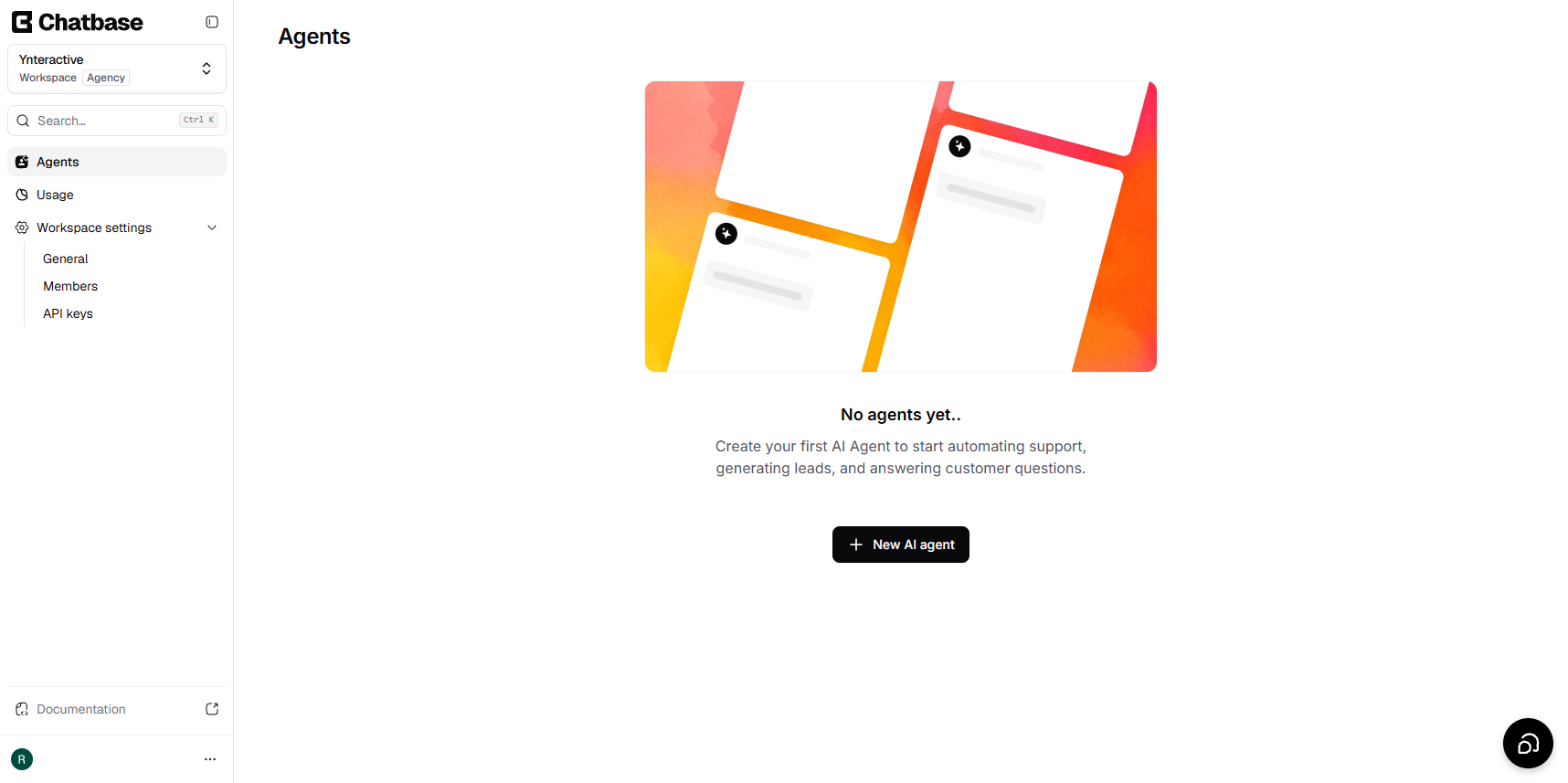
- Your Chatbase API key. In the Chatbase dashboard, open Workspace settings and choose API keys in the sidebar. Copy a key, or click Create API Key. Treat it like a password. Stepthrough's API key entry explains why.
- Your Agent ID. Open the agent, go to Settings > General, and copy the ID from the Agent details card.
- A Google Sheet with a header row. Use columns such as Date, Name, Email, Phone and Source. Zapier reads row 1 to list the columns you can fill.
Zapier's help center says the Chatbase app needs a paid Chatbase plan. Check your plan before you start. Zapier's free plan covers two-step Zaps like this one.
How do you connect Chatbase to Zapier, step by step?
These steps follow Chatbase's Zapier guide. Chatbase's own example sends leads to Google Docs; this one sends them to Google Sheets, which is easier to sort and share.
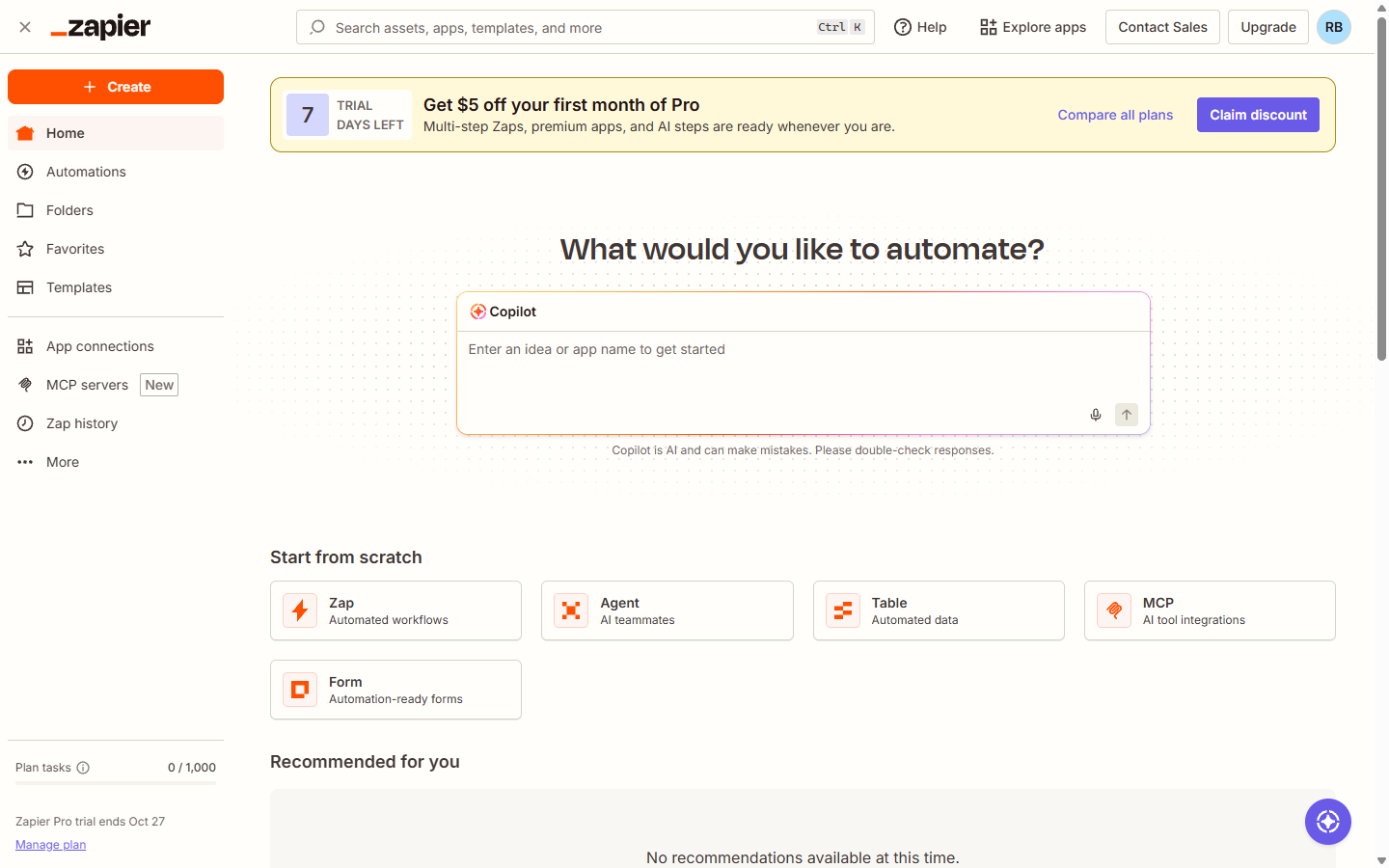
- In Zapier, click Create, then Zaps. In the Zap editor, click Trigger.
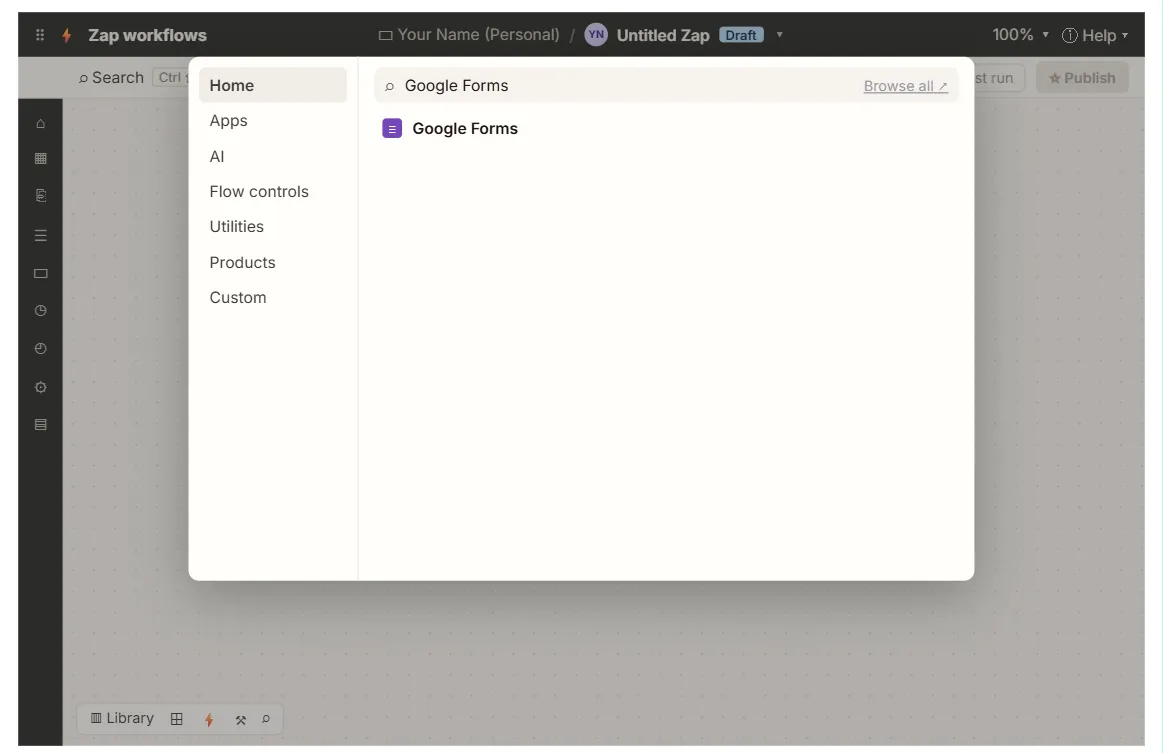
- Search for Chatbase and choose Form Submission as the trigger event. Click Continue.
- Click Sign in, paste your Chatbase API key, and confirm. Zapier saves this connection for later Zaps.
- Paste your Agent ID when Zapier asks for the chatbot, then click Continue.
- Click Test trigger. Zapier needs at least one real lead, so chat with your agent on your own site first and leave a test name and email.
- Add an action. Search for Google Sheets and choose Create Spreadsheet Row. Sign in with the Google account that owns the sheet.
- Pick the spreadsheet and the worksheet. Zapier shows one box per column header.
- Map the fields (field mapping): click each box and pick the matching Chatbase value, such as name into Name and email into Email. Type "Chatbase" into Source so you can tell these leads from form leads.
- Click Test step, then check that the row appeared in the sheet.
- Optional: add a third step, Slack: Send Channel Message, with a line like "New chatbot lead: {name}, {email}". A third step needs a paid Zapier plan.
- Click Publish.
The Form Submission trigger fires each time the agent's Collect Leads action captures a lead. On Zapier's free plan, Zaps check for new data about every 15 minutes. Paid plans check more often.
What else can the Chatbase Zapier app do?
The Chatbase app on Zapier has one trigger and one action:
| Type | Name | What it does |
|---|---|---|
| Trigger | Form Submission | Starts a Zap when your agent collects a lead |
| Action | Send Prompt | Sends a message to your chatbot and returns its answer |
Send Prompt turns the chatbot into a step inside other Zaps. For example, a new email in a shared inbox can be sent to the agent, and its answer, drawn from your own help docs, saved as a draft reply for a person to check. The Zapier: ChatGPT Drafts Every Reply lesson builds the same draft-then-review pattern with ChatGPT, and you can do it hands-on.
What usually goes wrong?
- The test finds no data. The trigger only sees leads collected after Collect Leads was turned on. Submit a fresh test lead through the chat, then test again.
- The wrong agent. Each agent has its own ID. If leads from your main site don't arrive, check the ID in Settings > General against the one in the Zap.
- Columns don't show up. Zapier reads the header row when you pick the sheet. If you add a column later, refresh the fields in the action step.
- Duplicate rows. People sometimes give their details twice in one chat. Sort by email weekly, or add a Zapier Filter step later.
- Privacy. Leads are personal data. Share the sheet only with people who follow up, and tell visitors in your chat widget that you'll store their details.
Key takeaways
- Chatbase's Zapier trigger is Form Submission. It fires when the agent's Collect leads action captures a lead.
- You connect with a Chatbase API key from Workspace settings > API keys, plus the agent's Agent ID.
- Create Spreadsheet Row puts each lead into an existing Google Sheet, and a Slack step adds an instant alert.
- The Send Prompt action lets other Zaps ask your chatbot a question, which is useful for drafting replies from your own docs.
- Zapier's help says a paid Chatbase plan is needed. Check yours before you start.
Frequently asked questions
- Does Chatbase work with Zapier on the free plan?
Zapier's help center says the Chatbase app needs a paid Chatbase plan. Zapier itself has a free plan that covers simple two-step Zaps.
- Can I send Chatbase leads to a CRM instead of a sheet?
Yes. Swap the Google Sheets step for your CRM's create-contact action, for example HubSpot or Pipedrive. The trigger stays the same.
- Is there a Chatbase app for Make too?
Yes. Make has a Chatbase app with a Send a Message module. See Chatbase + Make: Draft Support Replies from Your Agent.
- Where can I learn Zapier from scratch?
The free Make & Zapier Jump Start course starts with your first Zap, in a practice copy of the tool.