This is a guide, not a hands-on lesson. It explains the idea and lists the setup steps from Make's and Chatbase's own documentation. There's no practice copy to click through here, and Stepthrough hasn't tested every screen on every plan. Screens change, so check the links in Sources if a module looks different.
What business problem does this solve?
Most support questions arrive twice: once in the website chat and again by email. A Chatbase agent trained on your FAQ pages answers the chat ones in seconds. The email ones still wait in a shared inbox until someone has time to type the same answer again.
Take Northgate Payroll Services, a made-up eight-person payroll firm. Its inbox gets about 40 emails a week asking the same things: when payroll runs, how to add an employee, where to find a W-2. The firm's Chatbase agent already answers these on the website from the client handbook. The owner wants the inbox to get the same answers, but checked by a person before anything is sent.
A Make scenario gives every new support email a ready-made draft. Staff open the draft, check it, fix anything that's off, and click Send. The firm's estimate is about 3 minutes saved per email, or roughly 2 hours a week, and answers that match the handbook every time.
What do you need before you start?
- A trained Chatbase agent. If its website answers are good, its email answers will be too.
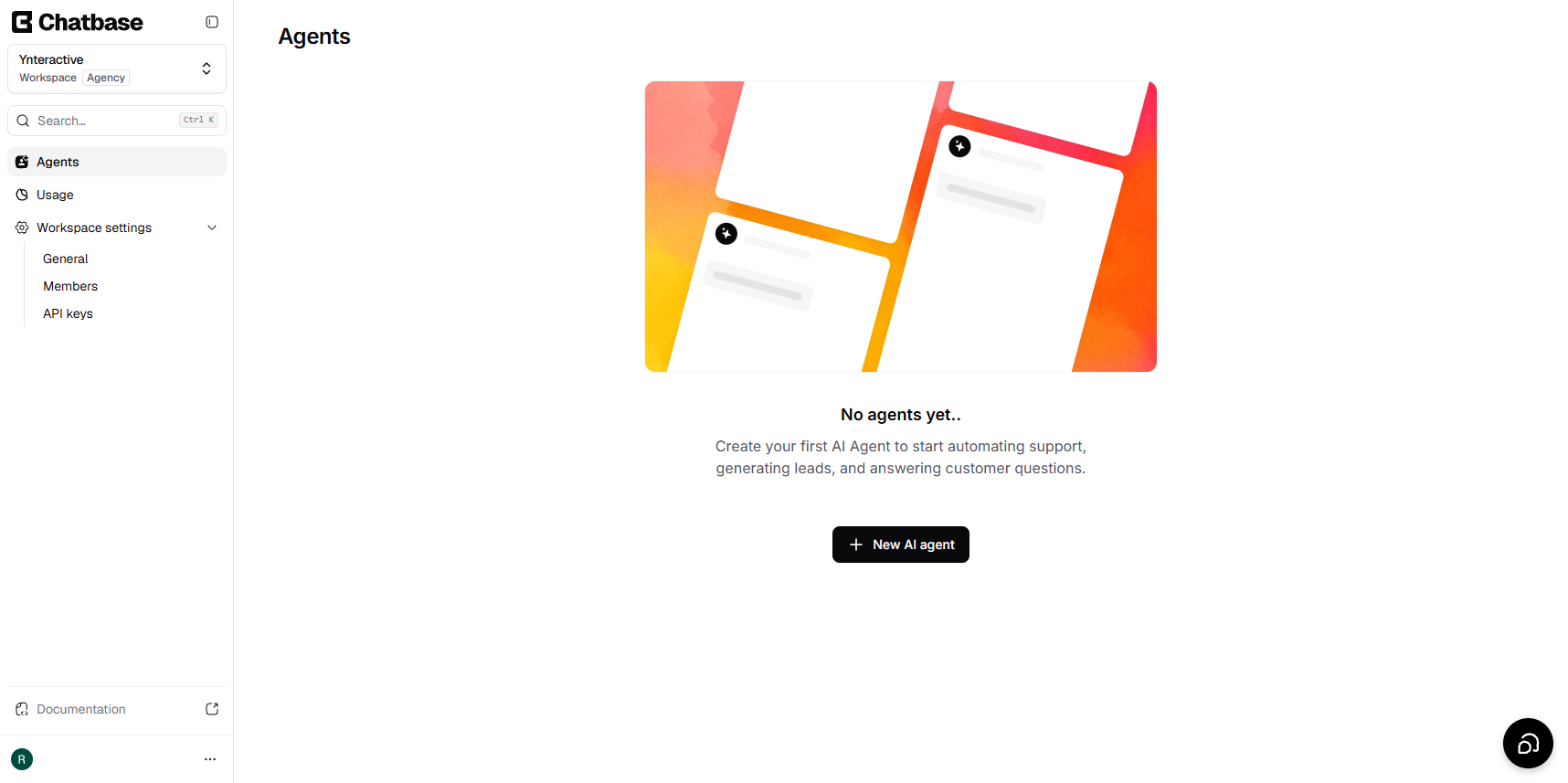
- Your Chatbase API key. Make's Chatbase guide says to open Settings in Chatbase and click API Keys. Chatbase's newer docs put keys under Workspace settings > API keys. Copy a key, or create one, and keep it private.
- A Gmail label for support mail, for example Support, so the scenario only reads support emails, not the whole inbox.
- A Make account. The free plan is enough to try this.
Chatbase's API, which Make uses, may need a paid Chatbase plan. Check your plan in Chatbase before you build.
How do you connect Chatbase to Make, step by step?
- In Make, click Create a new scenario.
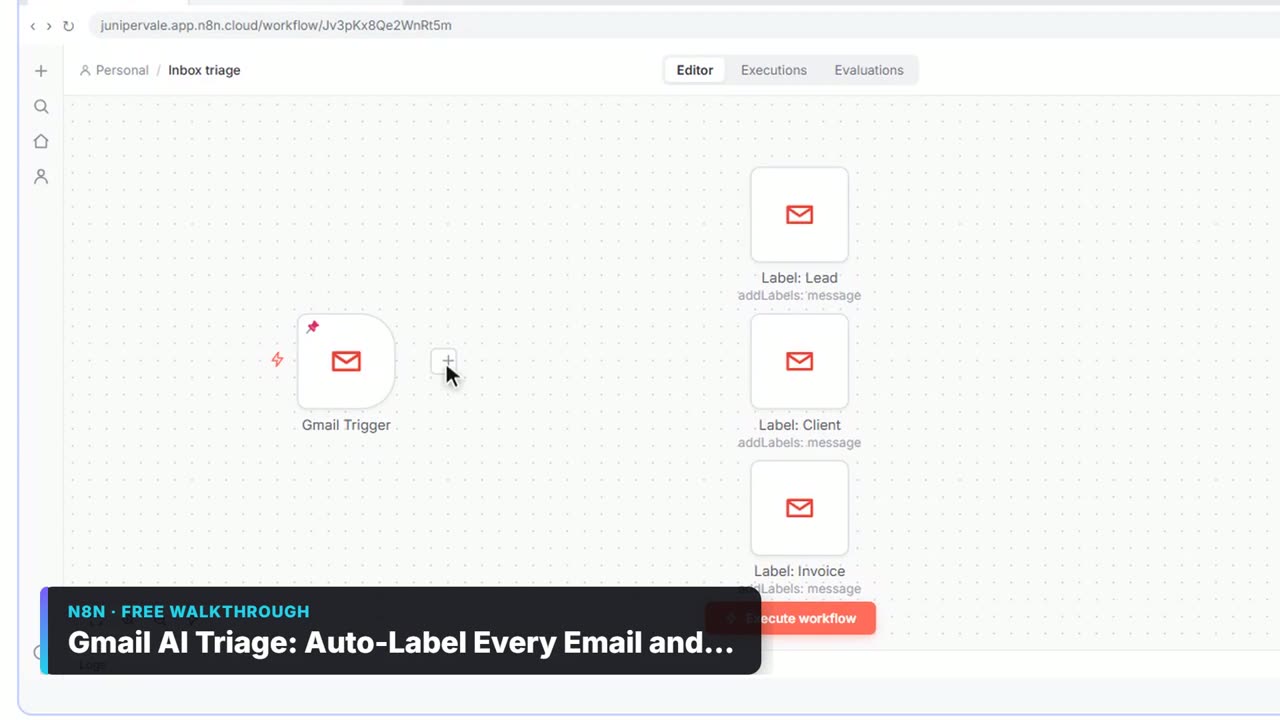
- Click the big plus, search for Gmail and choose Watch Emails. Connect your Google account and point it at the Support label. This is the scenario's trigger.
- Add a module. Search for Chatbase and choose Send a Message.
- Click Create a connection, give it a name such as "Northgate Chatbase", paste your API key and save.
- Choose your agent. In the message field, map the email's subject and body text from the Gmail module, for example: "Customer question: {subject}. {text content}".
- Add a third module: Gmail: Create a Draft. Set To to the sender's address from module 1, the subject to "Re: {subject}", and the content to the reply text from the Chatbase module.
- Click Run once, send a test email to the Support label from another account, and check that a draft appears with a sensible answer.
- Save the scenario and turn it on. Gmail's Watch Emails module checks on a schedule you set, for example every 15 minutes.
Each module run uses Make operations, and every new email uses three: one per module. Check how many your plan includes per month.
What can the Chatbase Make app do?
Make's Chatbase app is verified and maintained by Chatbase. It has two modules and no triggers:
| Module | What it does |
|---|---|
| Send a Message | Sends text to your agent and returns its reply |
| Make an API Call | Calls any Chatbase API endpoint with your saved connection |
The app has no trigger, so a Chatbase event can't start a Make scenario. Something else starts it: an email, a form, a new row or a webhook. To send new chatbot leads somewhere automatically, use Zapier's Form Submission trigger instead. See Chatbase + Zapier: Send Chatbot Leads to Google Sheets.
Why save a draft instead of sending the reply?
Because the agent can be wrong, and a wrong email to a client is worse than a slow one. A draft keeps a person in charge: they read it, correct it and send it. Stepthrough lessons use the same rule for every AI reply. In practice:
- Start with drafts for a month. Note which questions the agent gets wrong, and add those answers to its sources in Chatbase.
- Never auto-send anything about money, deadlines or legal matters. A Make filter can route emails with words like "refund" or "late" to a person with no draft at all. Filters and Routers in Make shows how, hands-on.
- Keep personal data out of the prompt where you can. Send the question, not the client's whole history.
What usually goes wrong?
- The scenario reads the whole inbox. Set the Gmail module to a label or a search filter, not "All mail".
- The answer quotes the email signature. Map the email's plain-text body, not the full HTML, and trim long threads.
- Drafts land in the wrong account. The Gmail connection in module 3 must be the shared support inbox, not a personal one.
- Operations run out. A busy label can use many operations. Raise the check interval, or filter out newsletters first.
Key takeaways
- Make's Chatbase app has a Send a Message module and a Make an API Call module, but no triggers.
- A Gmail: Watch Emails > Chatbase: Send a Message > Gmail: Create a Draft scenario answers support email from your own docs.
- Connect with a Chatbase API key. Make's guide says it's under Settings > API Keys, and Chatbase's own docs say Workspace settings > API keys.
- Save drafts, not sent emails, and keep a person reviewing every reply.
- To react to new chatbot leads, use Chatbase's Zapier trigger, because the Make app can't start a scenario.
Frequently asked questions
- Does Chatbase have a Make trigger for new leads?
No. The Make app has only Send a Message and Make an API Call. For leads, use the Chatbase app on Zapier, whose Form Submission trigger fires for each new lead.
- Can the scenario send replies automatically?
It can, by using Gmail's send module instead of a draft. Stepthrough recommends drafts, so a person checks every answer before a client sees it.
- How much does this cost to run?
Make counts operations, about three per email here. Chatbase counts message credits for each Send a Message call. Both have plan limits, so check your usage after the first week.
- Where can I learn Make from scratch?
Start with Your First Make Scenario, or take the whole free Make & Zapier Jump Start course.