This is a guide, not a hands-on lesson. It explains the idea and lists the setup steps from Make's tawk.to documentation. There's no practice copy to click through here, and Stepthrough hasn't tested every screen on every plan. Screens change, so check the links in Sources if a step looks different.
What business problem does this solve?
When nobody is online, tawk.to lets visitors leave a message, which becomes a ticket. Tickets are where real requests hide: "Please call me about a quote," "I was charged twice," "Can you send my certificate?" If they only live in the tawk.to dashboard, they're easy to miss. Nobody can see at a glance who is handling which one.
Take Summit Ridge Accounting, a made-up five-person firm. In tax season, it gets 15 to 20 website tickets a week, mostly after hours. The office manager wants one shared sheet, Website tickets, that shows every ticket, who owns it and whether it's done, and that the whole team already knows how to use.
A Make scenario adds each ticket the moment it's created. Each morning the office manager assigns owners in the sheet, and the team works down the list. Nothing waits more than a business day, and the sheet doubles as a record of response times.
How does the tawk.to Make app work?
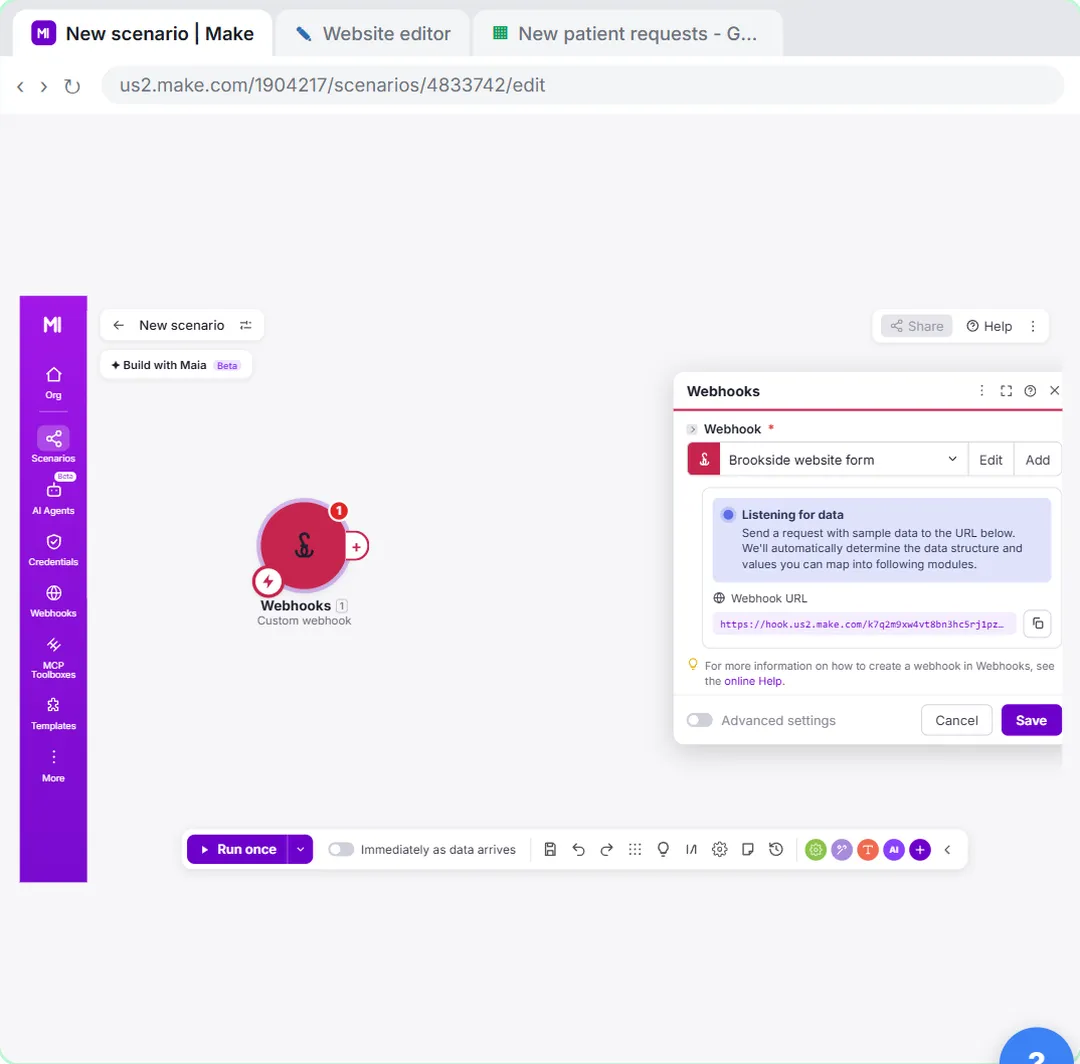
It works through a webhook, not an API key. tawk.to sends a message to a URL each time an event happens, and Make listens at that URL. Make's own documentation says no tawk.to connection is needed in Make: you copy a URL from Make into tawk.to.
The app has three triggers and no actions:
| Module | Fires when |
|---|---|
| Watch Chat Starts | A visitor starts a chat |
| Watch Chat Ends | A chat ends |
| Watch New Ticket | A visitor creates a ticket |
Because these are instant webhook triggers, the scenario runs the moment tawk.to sends the event. It doesn't wait for a schedule.
How do you connect tawk.to to Make, step by step?
- In Make, click Create a new scenario.
- Click the big plus, search for tawk.to and choose Watch New Ticket.
- Create a webhook: give it a name such as "Summit Ridge tickets", click Save, and copy the URL Make shows.
- In your tawk.to dashboard, go to Settings, then Webhooks, and click Create Webhook.
- Give it a name, paste the URL into the Endpoint field, select the ticket event, and click Save.
- Back in Make, click Run once. Then leave a test ticket on your own website: open the widget when no agent is online and send a message.
- Make shows the ticket data it received. Add a module: Google Sheets: Add a Row, and pick the Website tickets sheet.
- Map the columns (field mapping): received time, visitor name, email, subject and message. Type "New" into Status and leave Owner blank for the morning review.
- Save the scenario and turn it on.
Add the other events to the same webhook in tawk.to only if you want those too. Each event that arrives uses Make operations, even if a filter later drops it.
What can you add after the basic scenario?
- An alert. Add Slack: Create a Message after the sheet step, so the team sees "New website ticket from {name}" right away.
- Routing. Use a Make router to send tickets that mention "billing" or "charged" to the billing lead, and the rest to the front desk. Filters and Routers in Make teaches this hands-on.
- A chat log. Make a second scenario on Watch Chat Ends that adds every finished chat to a separate tab, for monthly FAQ reviews.
What usually goes wrong?
- No data arrives. The webhook in tawk.to must be saved with the right event selected, and the Make scenario must be running, or in Run once mode while you test.
- Several websites. If you run more than one tawk.to property, check in the test data which website each ticket came from, and add a Property column so the right team picks it up.
- A changed URL. If you delete and recreate the Make webhook, its URL changes. Update the Endpoint in tawk.to.
- Personal data. Tickets contain names, emails and sometimes account details. Share the sheet only with the people who answer tickets.
Key takeaways
- Make's tawk.to app has three instant triggers: Watch Chat Starts, Watch Chat Ends and Watch New Ticket. It has no actions.
- There's no API key. Copy the webhook URL from Make into tawk.to's Settings > Webhooks > Create Webhook, in the Endpoint field.
- Watch New Ticket into Google Sheets: Add a Row gives the team one shared ticket list with owners and statuses.
- Add Slack alerts and a router once the basic scenario works.
- If you recreate the Make webhook, update the URL in tawk.to.
Frequently asked questions
- Do I need a paid tawk.to plan for webhooks?
tawk.to is free, and Make's guide doesn't mention a paid plan for webhooks. Make's free plan includes a monthly allowance of operations.
- Is there a Zapier version?
Yes. The tawk.to Zapier app has four triggers, including New Chat Transcript. See tawk.to + Zapier: Log Every Chat Transcript in Sheets.
- What is a webhook, in plain words?
A message one app sends to another the moment something happens, so the second app doesn't have to keep checking. The webhook glossary entry explains it with an example.
- Where can I learn Make from scratch?
Start with Your First Make Scenario, or take the free Make & Zapier Jump Start course.