Which Gmail action should I pick?
| Action | What happens | Lesson |
|---|---|---|
| Send a message | The email goes out right away | Daily Job Alerts, Speed-to-Lead |
| Create a draft | A draft waits in Gmail Drafts; nothing is sent | Client status email |
| Send message and wait for response | Sends, then pauses the workflow until the person answers | Invoice approval |
| Reply to a message | Replies in the same thread | Email responders |
| Add label / Mark as read | Organizes the inbox | Triage workflows |
Example 1: one email per sheet row
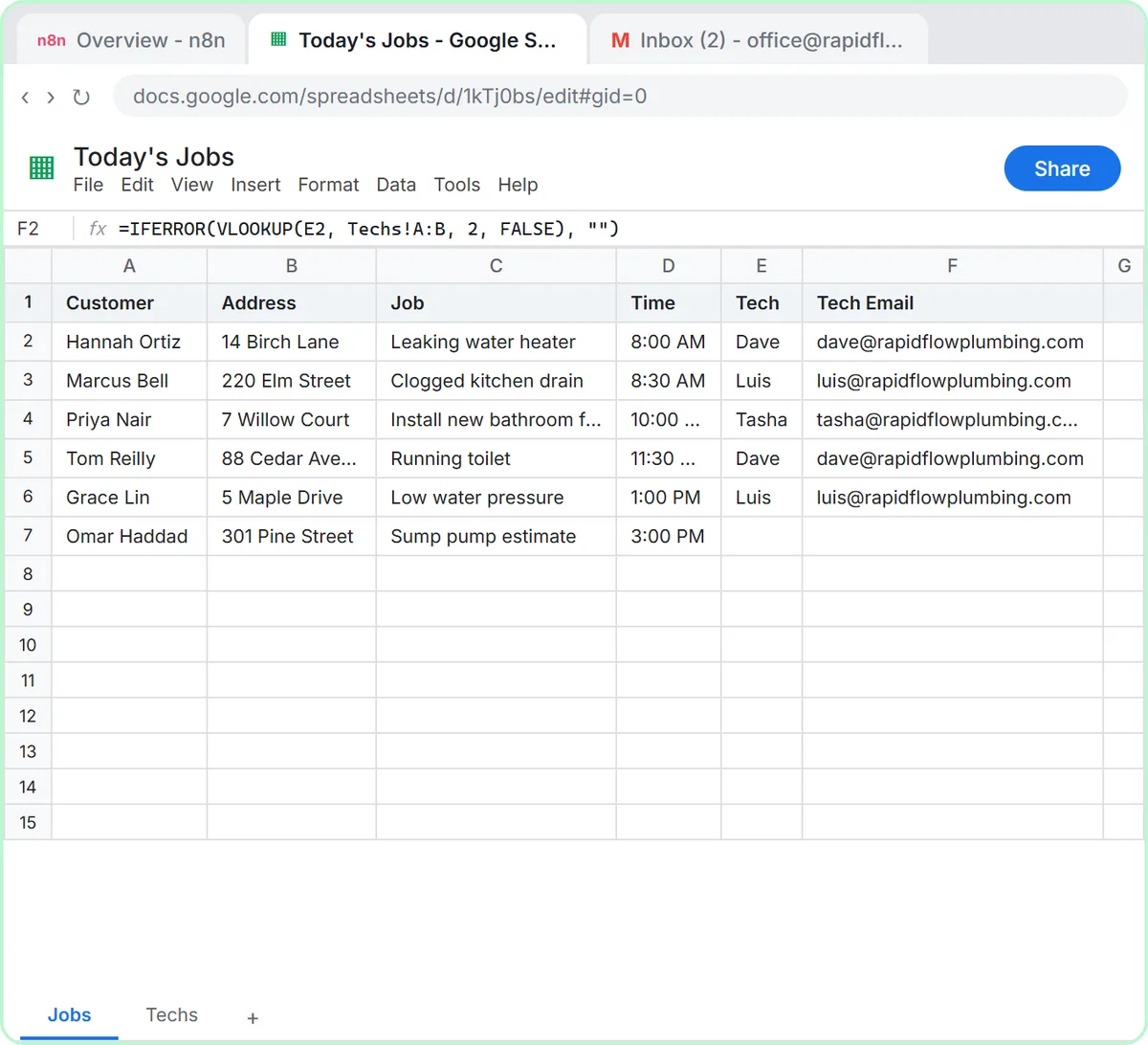
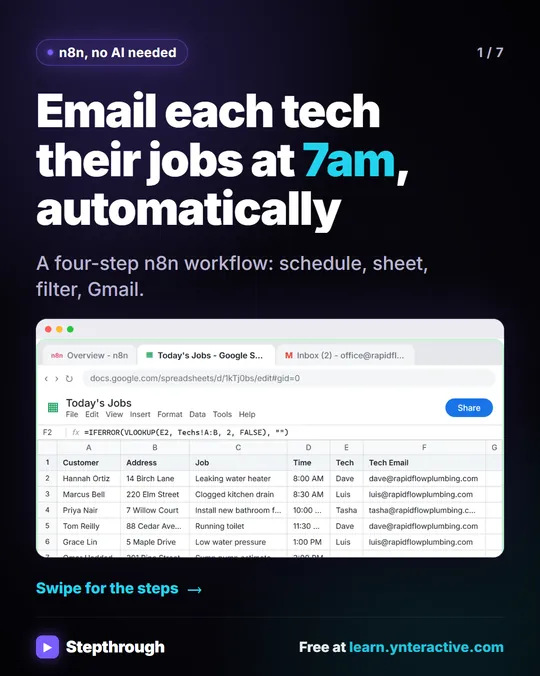
Daily Job Alerts sends each tech their job. To is {{ $json["Tech Email"] }} (brackets because the column name has a space), the subject is {{ $json.Time }} job: {{ $json.Customer }}, and the message lists Job, Address, Time and Customer from the row. Email Type is changed from HTML to Text because the message is plain lines. Six rows in, a Filter drops the unassigned job, and Gmail runs five times: five emails.
Example 2: an AI-written draft for each client
In the client status lesson, Create a draft gets:
| Field | Value |
|---|---|
| Subject | Your weekly update: {{ $('Get row(s) in sheet').item.json.Project }} |
| Message | {{ $json.output[0].content[0].text }} (the AI's email) |
| To Email (under Options) | {{ $('Get row(s) in sheet').item.json.Email }} |
A draft needs somebody to send it to, which is why To Email is added under Add option. Execute step makes 5 items, each labelled DRAFT. The $('Get row(s) in sheet') part reaches back past the AI node to the sheet row; see n8n Reference a Previous Node.
Example 3: an instant reply to a web lead
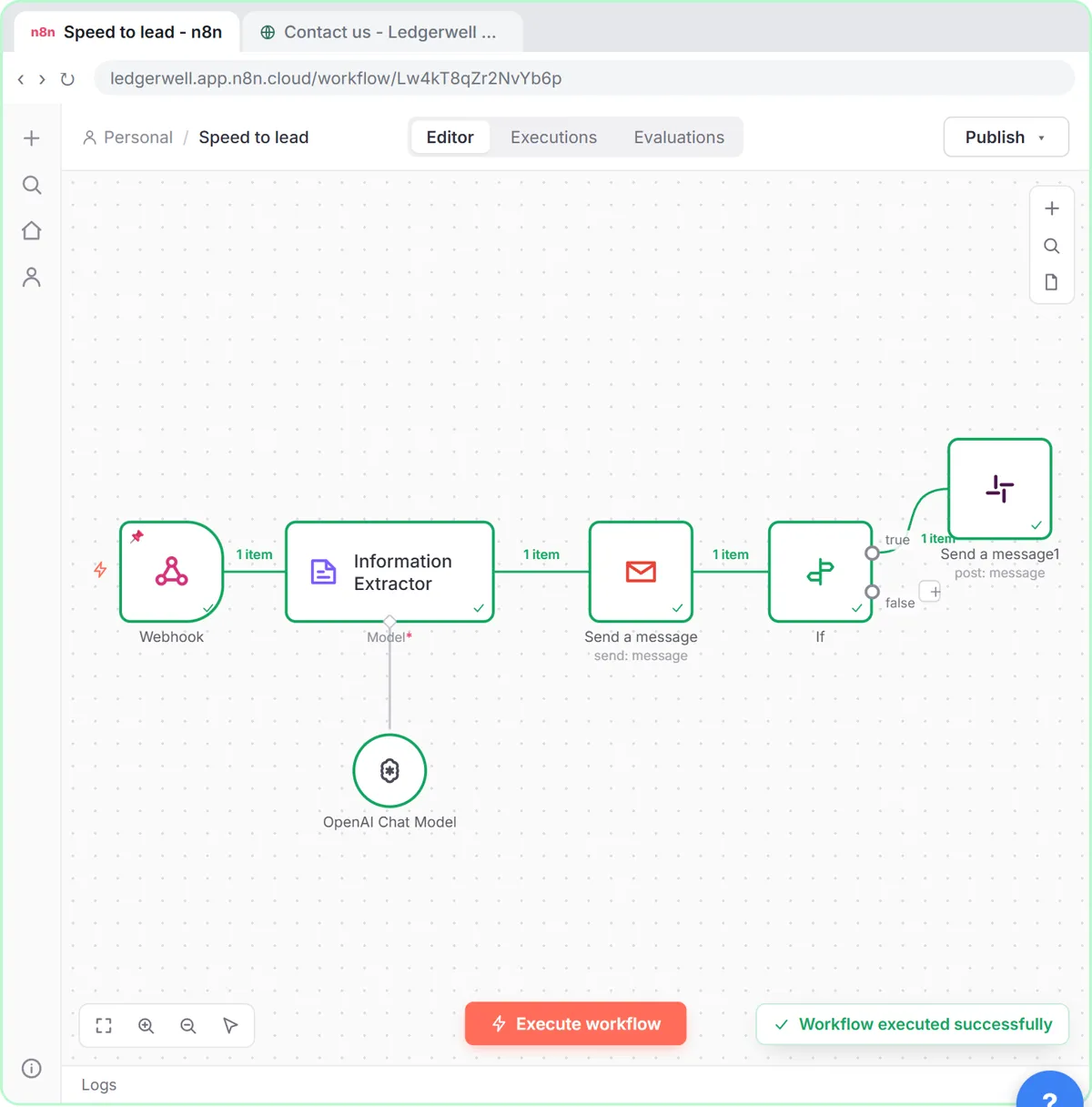
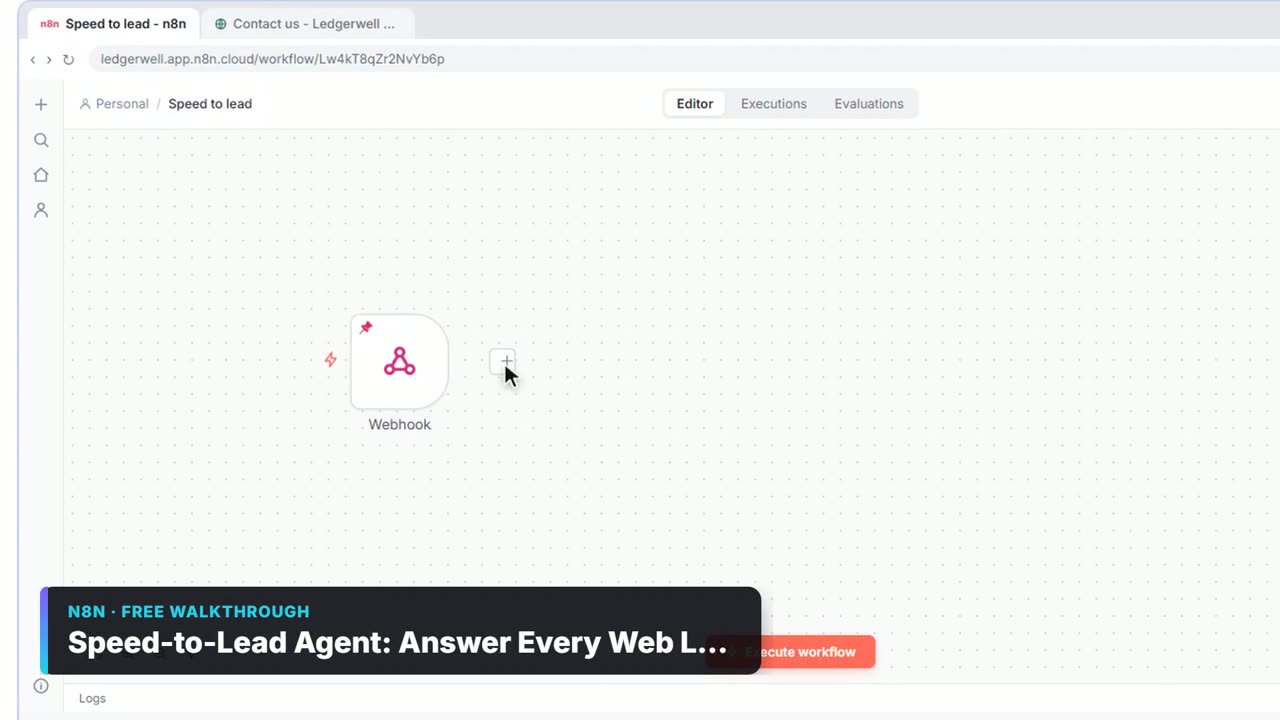
The speed-to-lead workflow replies within seconds. To is {{ $('Webhook').item.json.body.email }}, Subject is {{ $json.output.subject }} and Message is {{ $json.output.reply }}, both written by the Information Extractor. Email Type stays HTML, which is why the prompt asks for the reply as HTML paragraphs.
Example 4: wait for the owner's approval
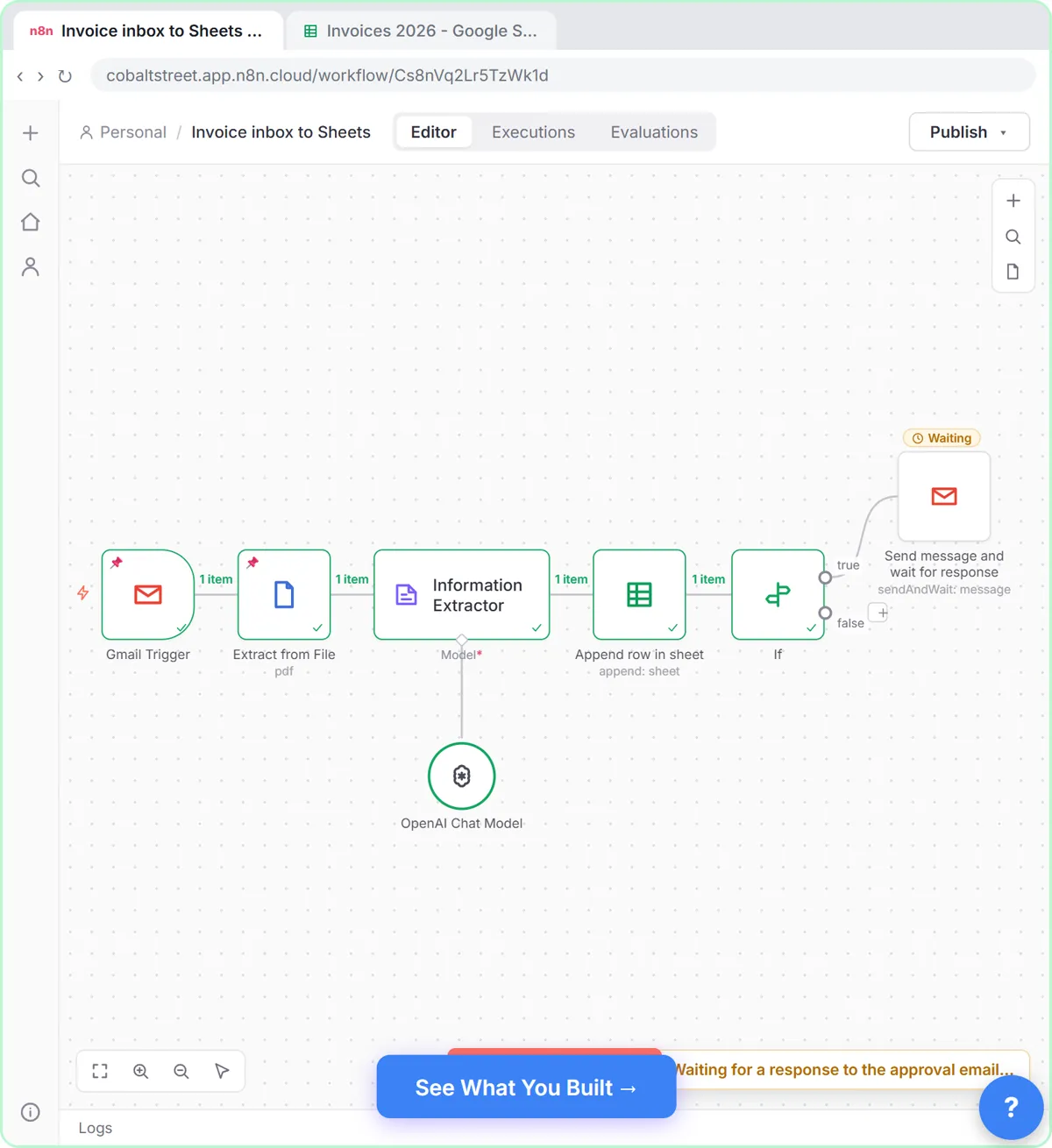
In the invoice lesson, invoices over $1,000 go down the If node's true branch to Send message and wait for response. To is the owner's email, the subject is Approve invoice {{ $('Information Extractor').item.json.output.invoice_number }} from {{ $('Information Extractor').item.json.output.vendor }}?, and Response Type is Approval. The workflow pauses until the owner clicks a button in the email. n8n Send and Wait for Approval covers the options.
Example 5: turn off "Sent automatically with n8n"
By default n8n adds an attribution line to the bottom of emails. Click Add option, choose Append n8n Attribution and click the toggle to turn it off. Every send example in the lessons does this, because a customer shouldn't see it.
Try it free, step by step
n8n: Weekly Client Status Emails from a Google Sheet, Written by AI. Build an n8n workflow that wakes up every Monday, reads your client tracker in Google Sheets, has AI write a friendly update for each client and saves it as a Gmail draft. You do every step yourself in a practice copy of n8n, it checks your work as you go, and “Do it for me” finishes any step you get stuck on. Free, and nothing touches your real accounts.
Start the free lessonCommon Gmail node mistakes
- Fields left in Fixed mode.
{{ }}arrives in the email as text. Hover and click Expression. - HTML email with plain line breaks. It shows as one paragraph. Use Text, or write
<p>tags. - Sending before you trust it. Start with drafts; switch to Send a message after a week of good drafts.
- Wrong Gmail account. The credential decides who the email is from.
Key takeaways
- Create a draft while testing, Send a message once the wording is trusted.
- Send message and wait for response pauses the workflow for a human decision.
- Map To from the data so each item emails its own person.
- Turn off Append n8n Attribution on customer-facing emails.
Frequently asked questions
- How do I send an email from n8n with Gmail?
Add Gmail, choose Send a message, pick your Gmail credential, and fill To, Subject and Message, using expressions for anything that changes per item.
- Can n8n create Gmail drafts instead of sending?
Yes. Choose Create a draft. Add To Email under Options so the draft has a recipient.
- How do I remove the n8n footer from emails?
Add the option Append n8n Attribution and turn it off.
- Is connecting Gmail to n8n safe?
Read Is It Safe to Connect Gmail to n8n?. The lessons are in the free n8n Jump Start course.

![n8n + Gmail: mistake to avoid. Mistake: Typing one address in the To field. Every job email goes to the same person. Do this instead: Make To an expression for the Tech Email column. The name has a space, so write it as $json["Tech Email"].](/content/visual/mistake-one-address-for-every-job/01-540.webp)