Updated . Built against the tool’s current screens and checked step by step. How we check this lesson
A job post that works brings in more resumes than anyone can read carefully. In this free, interactive lesson you build an n8n workflow that reads each applicant's PDF resume, scores it against the job's must-haves, quotes the resume's own words as evidence for every score, and adds a row to a Google Sheet. Fairness rules keep name, age, gender, race, photos, address and graduation years out of the score. The AI only ranks. A person reads the evidence and makes every call, and nobody gets an automatic rejection.
At a glance
| Question | Answer |
|---|---|
| What you build | Have n8n read each applicant’s PDF resume, score it against the job’s must-haves with the evidence quoted, and rank it in Google Sheets, while a person makes every hiring call. |
| Tools | n8n |
| Time | About 14 minutes, 40 steps in 6 parts |
| Level | Intermediate, no coding needed |
| Cost | Free |
| Ways to learn it | Practice it step by step, watch the video, read the guide with screenshots |
The 6 parts, in short
- Read the resume: Add the next step, Search for it, Extract from File, Extract from PDF, and 2 more steps.
- Score it against the job: Add the AI step, Search for it, Information Extractor, Give it the job and the resume, and 3 more steps.
- Add the fairness rules: Add an option, System Prompt Template, Write the fairness rules, Close the node.
- Connect a model: Give it a model, OpenAI Chat Model, Close the node.
- Save the ranking: Add the last step, Search for it, Google Sheets, Append row in sheet, and 10 more steps.
- A person decides: Publish, Confirm, Open the sheet, Open the Score column menu, and 2 more steps.
Start here first: Turn an Interview Debrief into a Scorecard and a Candidate Follow-Up (Recruiting & HR) (module 1 of AI Automation for Recruiting & HR)
An AI Resume Screener, with a Fairness Step (Recruiting & HR): step-by-step guide with screenshots
About the screenshots. They come from Stepthrough’s simulated practice environment (a practice copy of n8n), not the live tool, so no real account appears. The buttons and labels match the real screens the lesson was built against. Practice it yourself free at learn.ynteractive.com.
- Tools: n8n
- Time: about 14 minutes, 40 steps in 6 parts
- Level: beginner, no coding needed
Part 1: Read the resume
Step 1: Add the next step
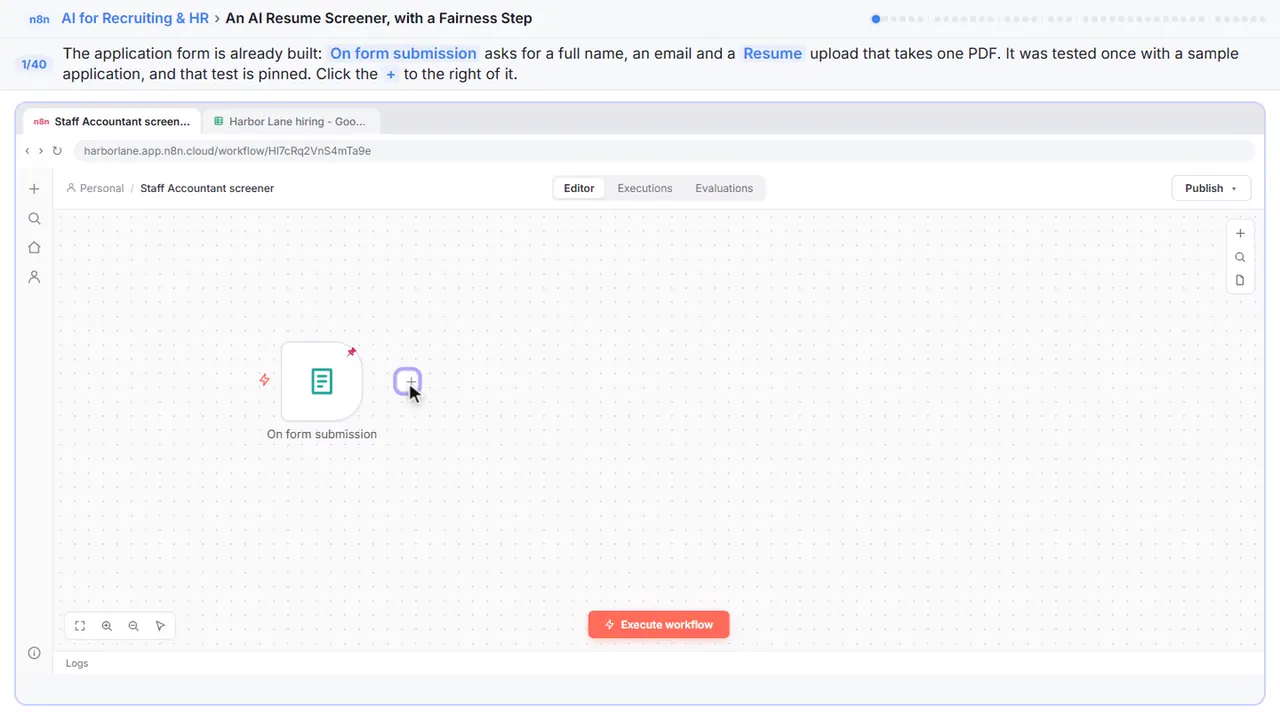
You hire for Harbor Lane Accounting, and a Staff Accountant opening just pulled in a pile of resumes. Let's have AI read each one, score it against the job, and rank it in a sheet, while a person still makes every call. The application form is already built, with a resume upload.
Step 2: Search for it
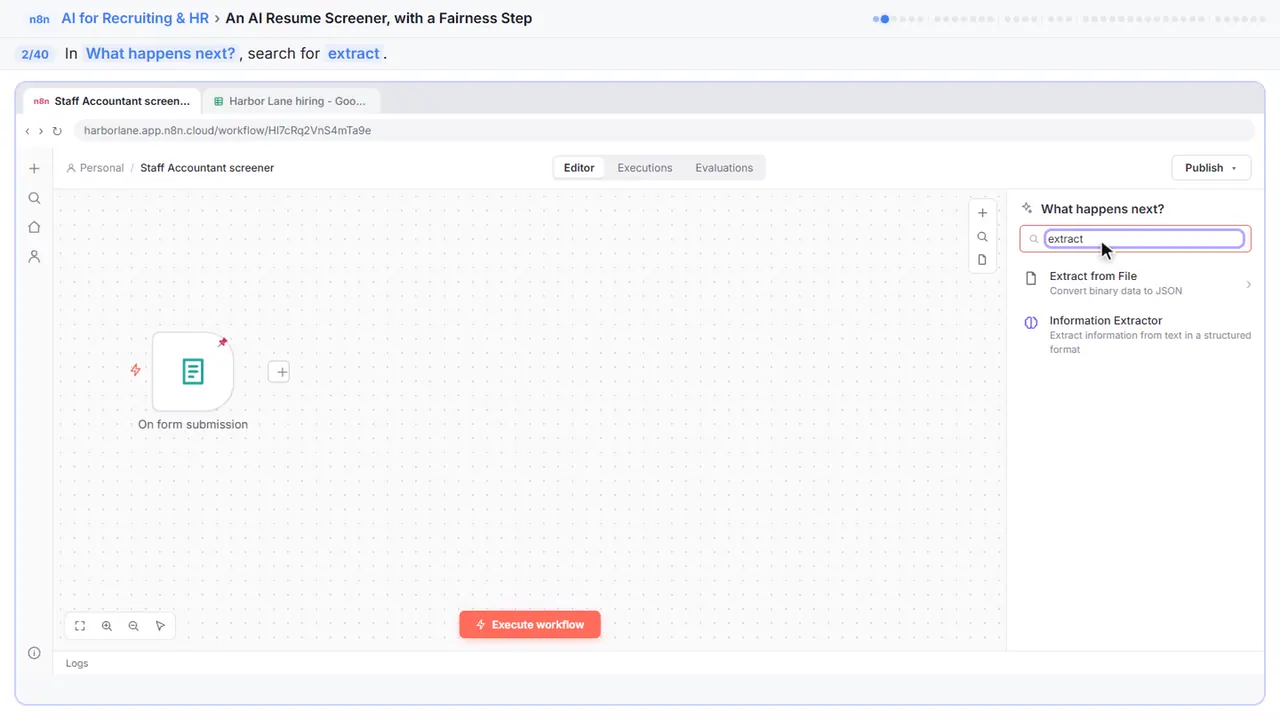
The resume arrives as a PDF file. To get its words out, search for extract.
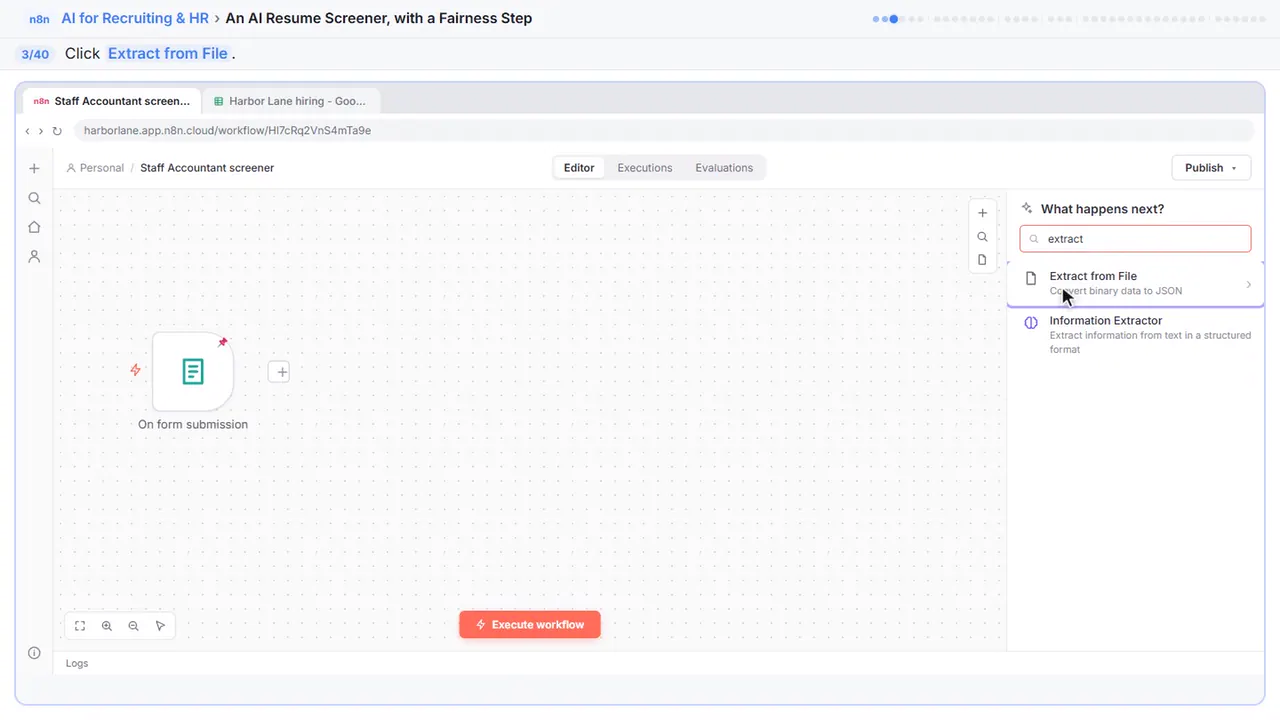
Step 3: Extract from File
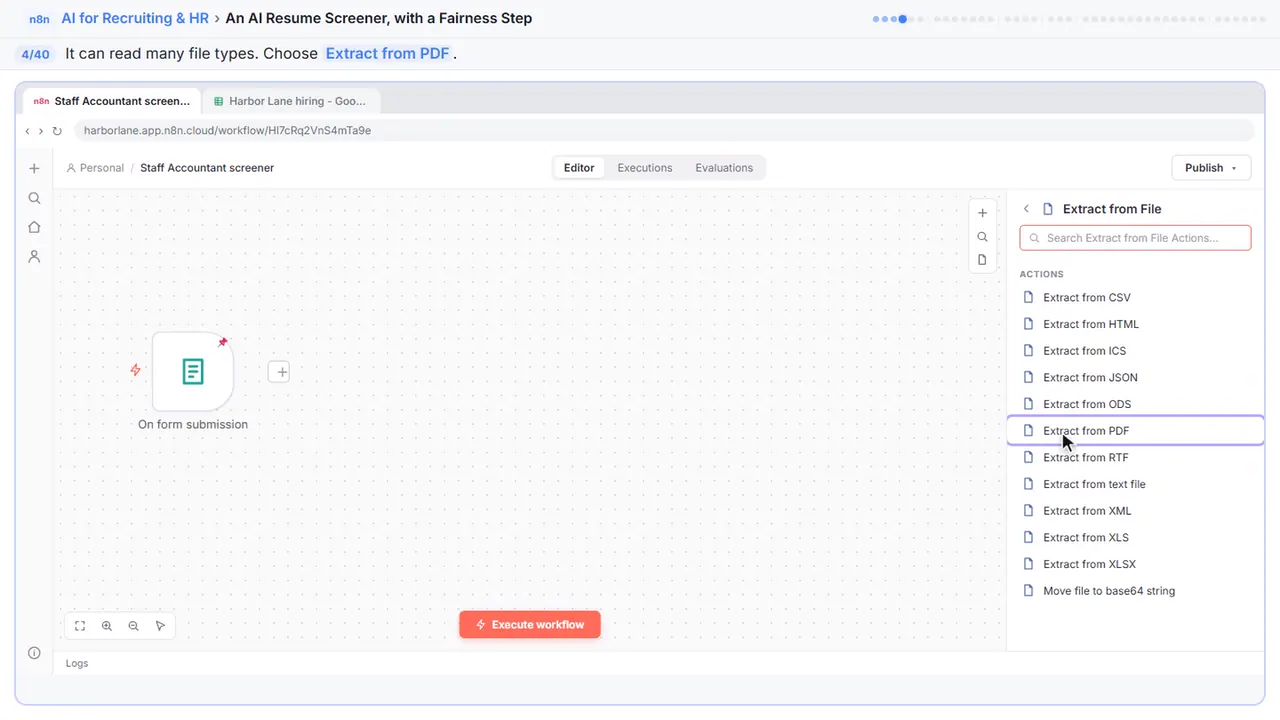
Step 4: Extract from PDF
It reads lots of file types.
Step 5: Point it at the resume
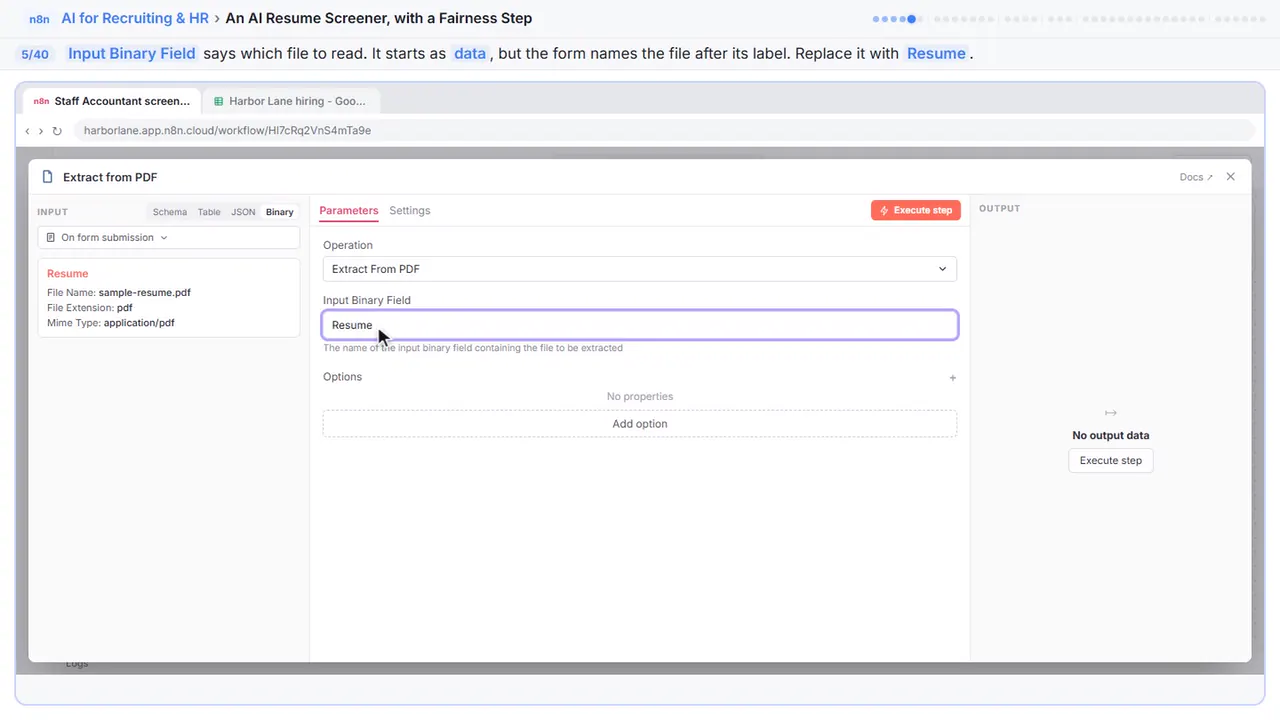
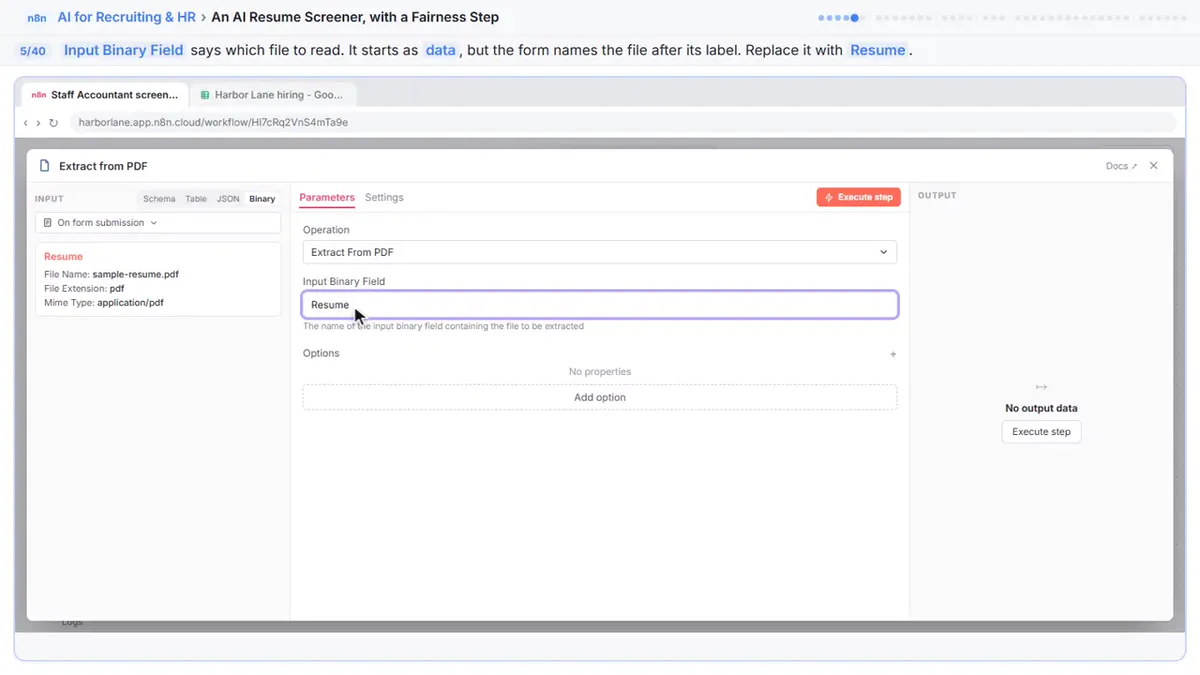
Input Binary Field says which file to read. It starts as data, but the form names the file after its label, Resume. Change it to Resume, or the step can't find the file.
Step 6: Close the node
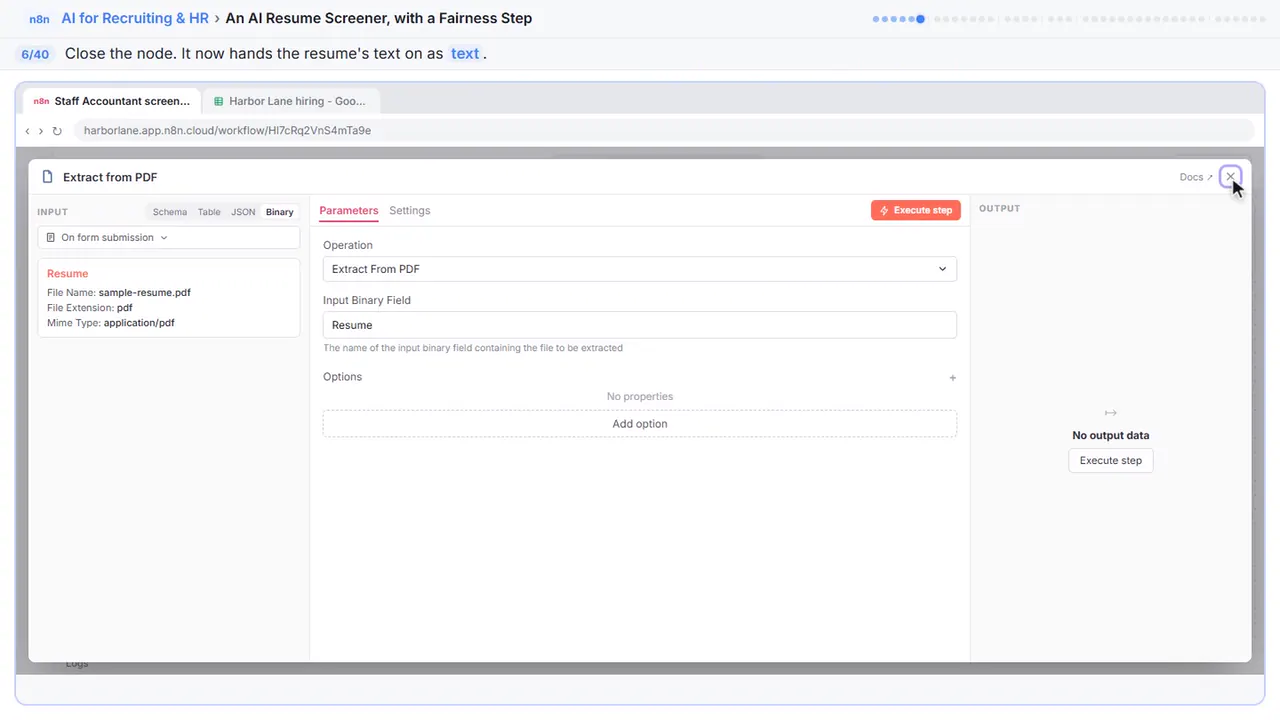
Close it. This step now passes the resume's text along.
Part 2: Score it against the job
Step 7: Add the AI step
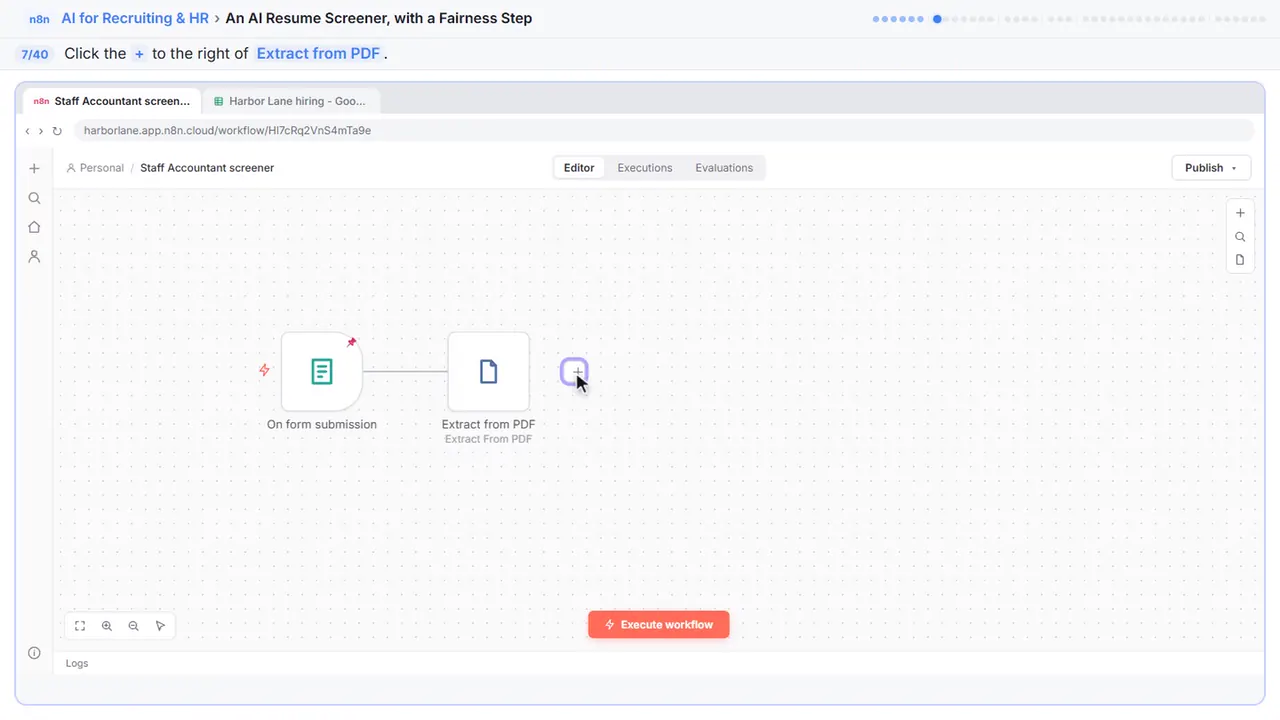
Now the AI.
Step 8: Search for it
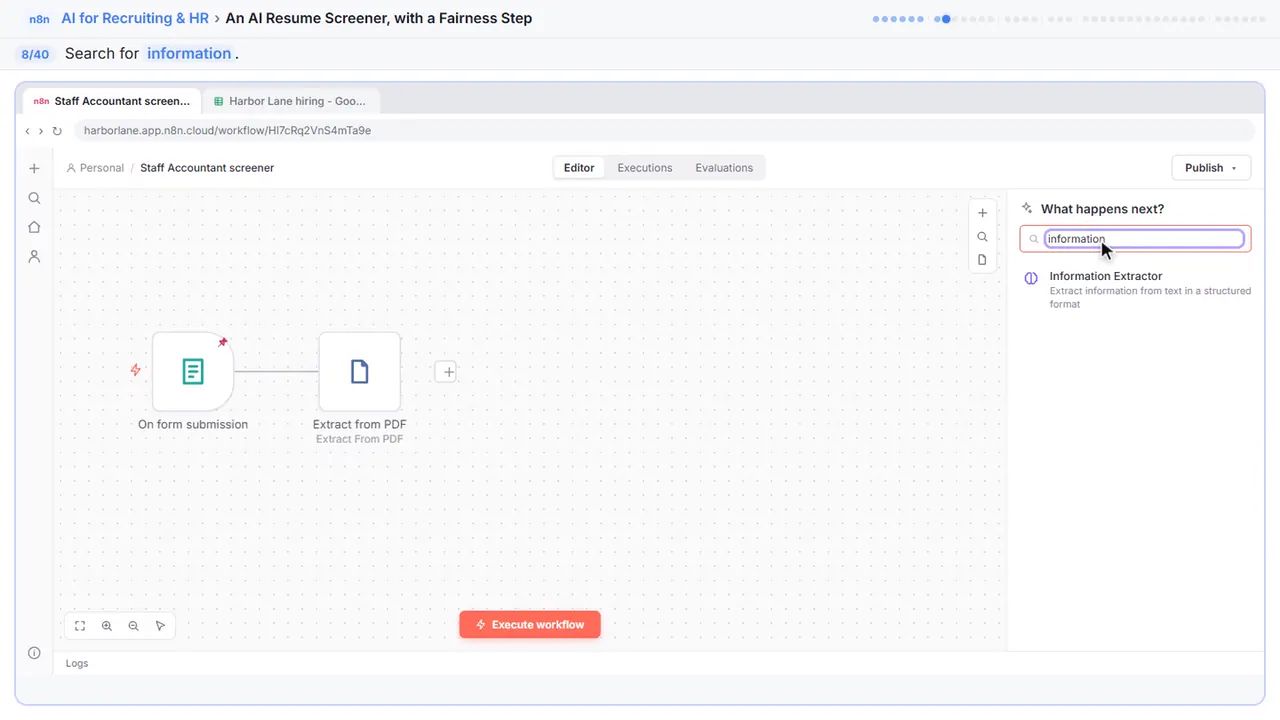
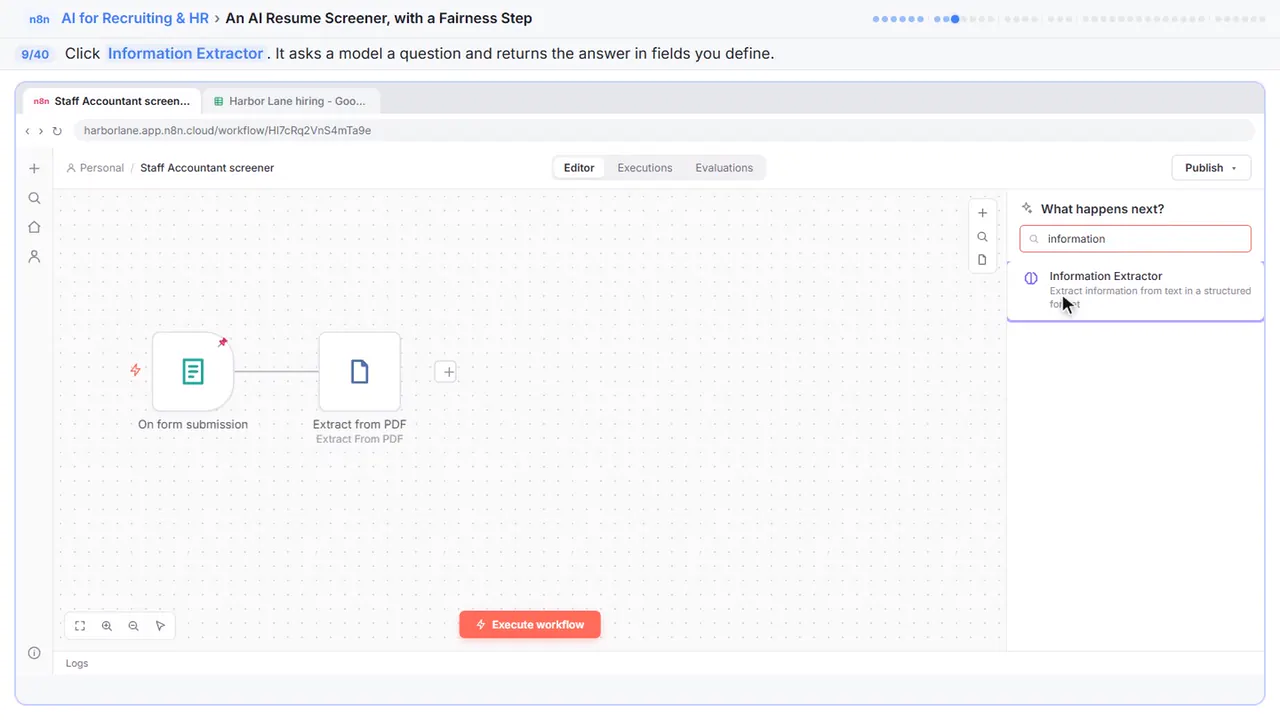
Step 9: Information Extractor
It asks an AI model to pull answers out of text, in fields you choose.
Step 10: Give it the job and the resume
In Text, paste this. It lists the job's four must-haves, then the resume. The part in curly braces drops in the text from the PDF.
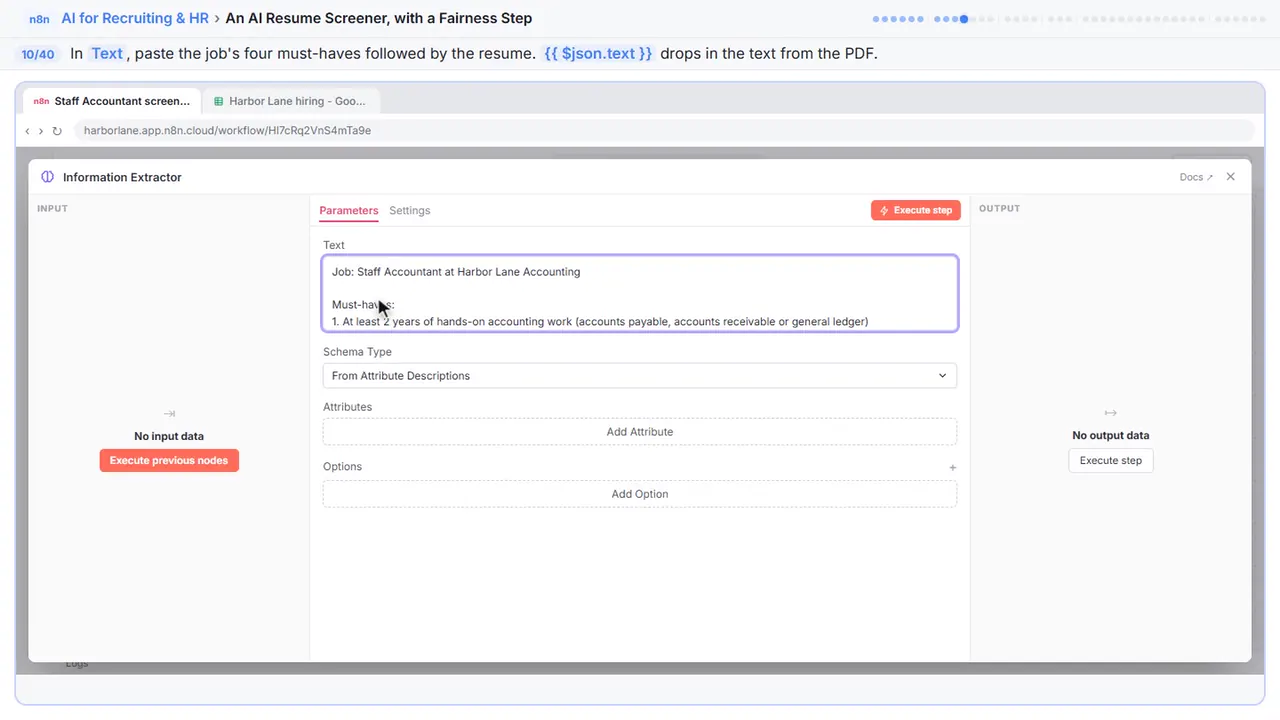
Job: Staff Accountant at Harbor Lane Accounting

Must-haves:
1. At least 2 years of hands-on accounting work (accounts payable, accounts receivable or general ledger)
2. Month-end close and bank reconciliations
3. QuickBooks Online or Xero
4. Excel: pivot tables and lookups (XLOOKUP or VLOOKUP)

Applicant's resume:
{{ $json.text }}
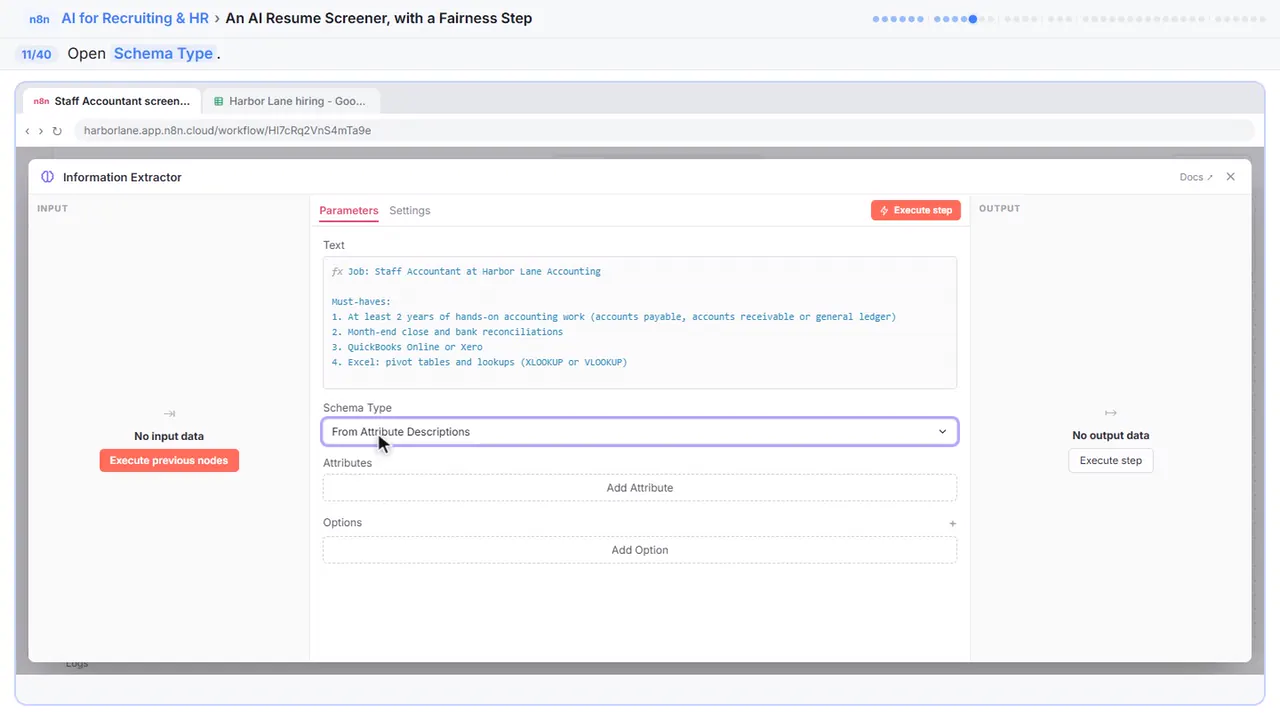
Step 11: Schema Type
Next, tell it what answer you want back.
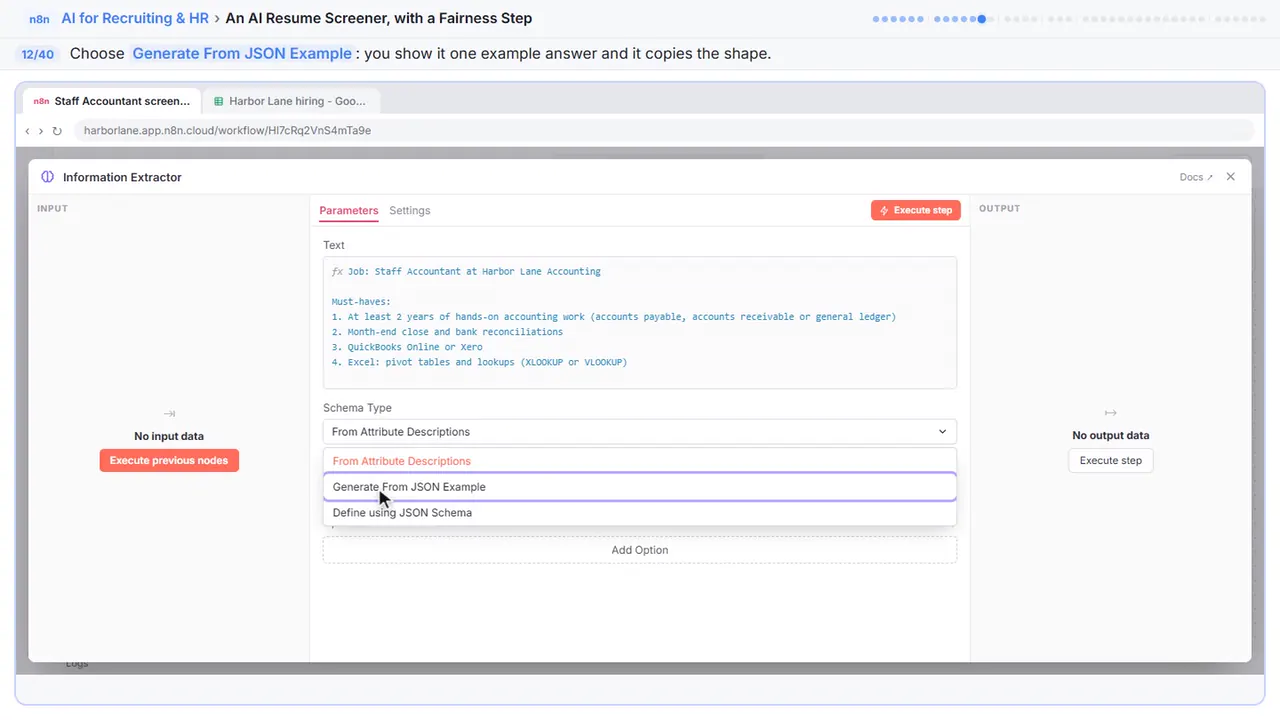
Step 12: Generate From JSON Example
You show it one sample answer, and it copies the shape.
Step 13: Show it the answer you want
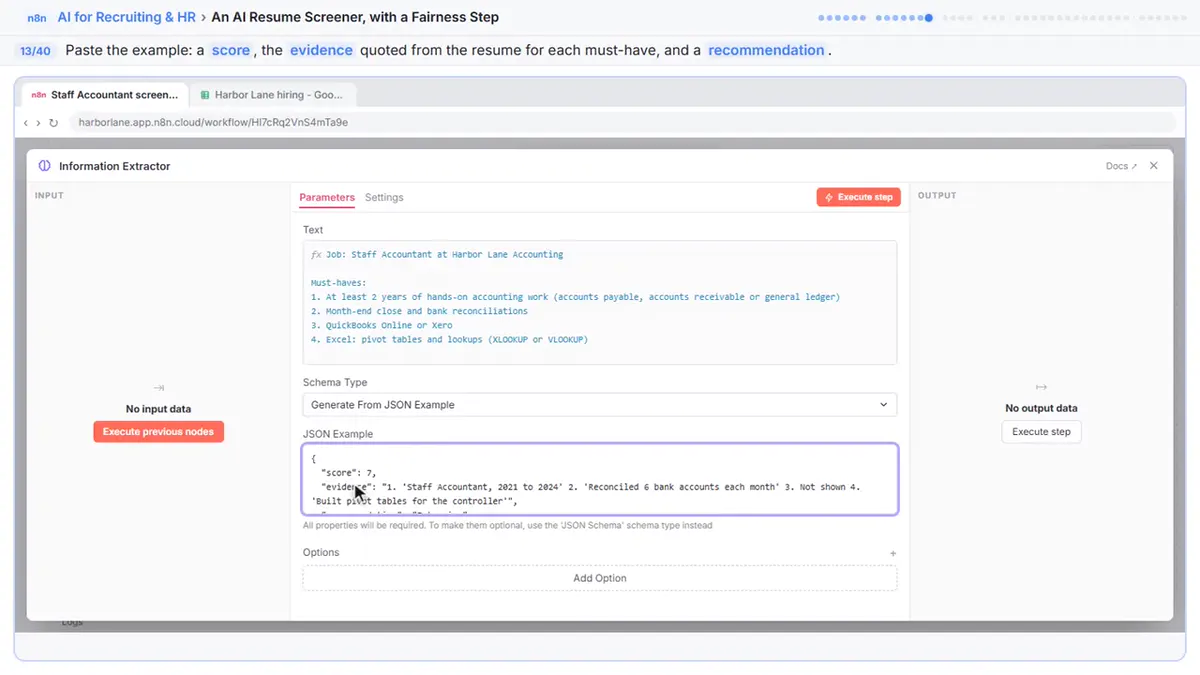
Three fields: a score, the evidence quoted from the resume for each must-have, and a recommendation. The quotes matter. You can check every score against the resume itself.
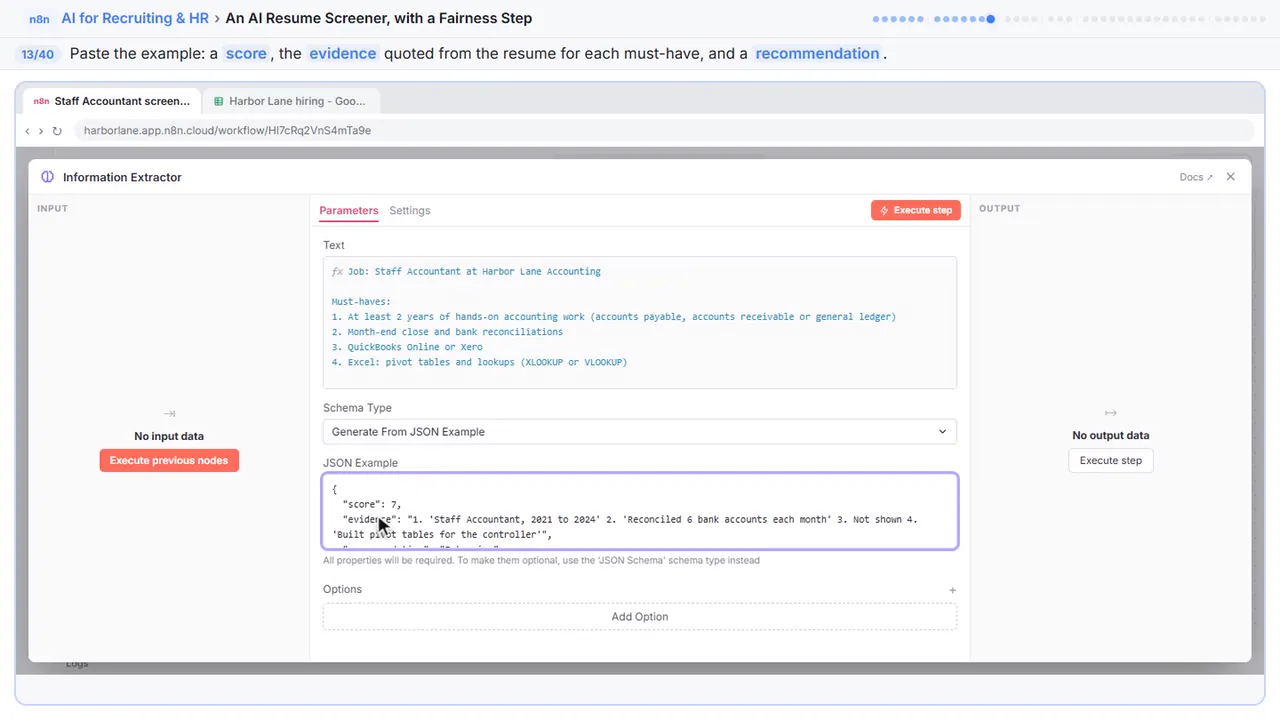
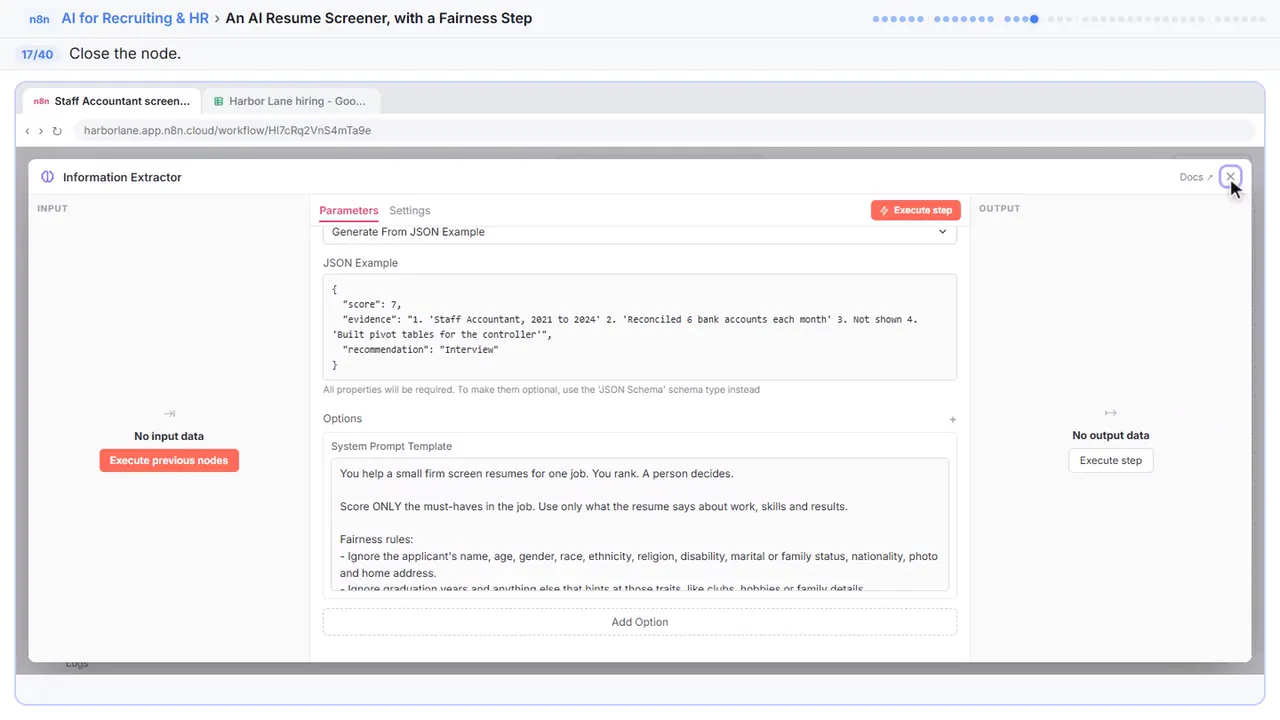
{
  "score": 7,
  "evidence": "1. 'Staff Accountant, 2021 to 2024' 2. 'Reconciled 6 bank accounts each month' 3. Not shown 4. 'Built pivot tables for the controller'",
  "recommendation": "Interview"
}
Part 3: Add the fairness rules
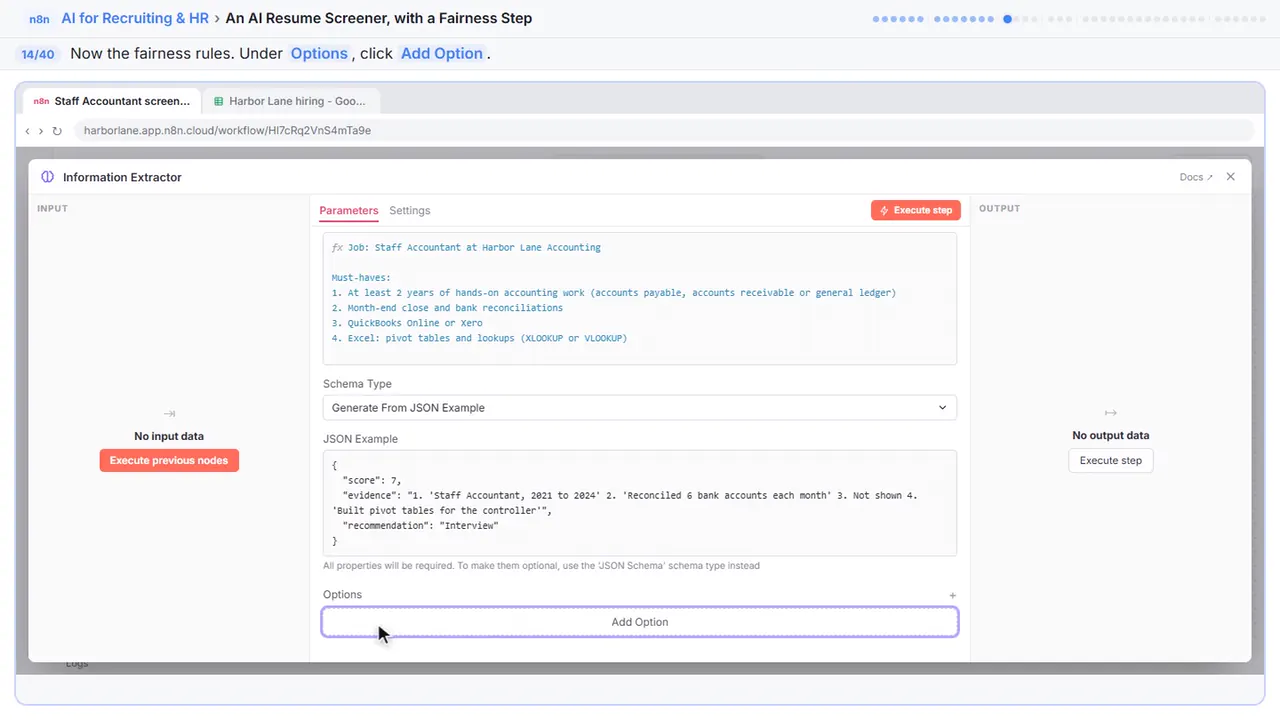
Step 14: Add an option
Now the most important part: the fairness rules. Under Options, click Add Option.
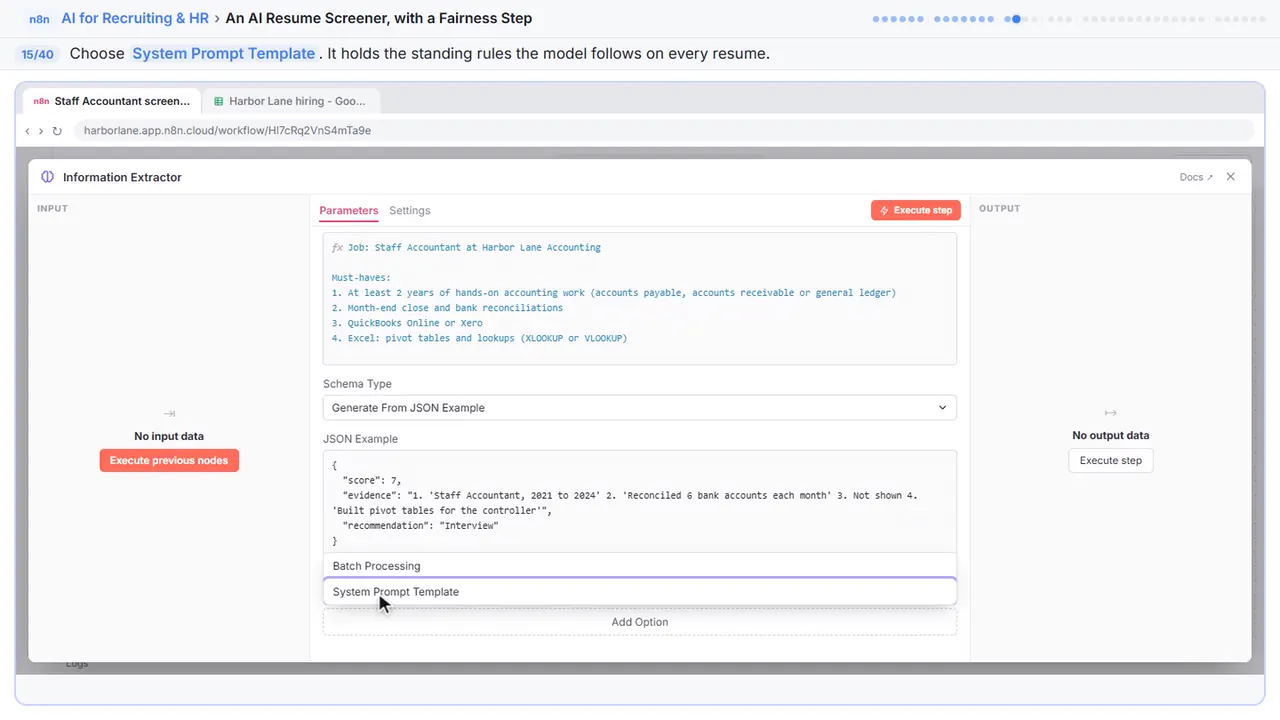
Step 15: System Prompt Template
These are the standing rules the model follows on every resume.
Step 16: Write the fairness rules
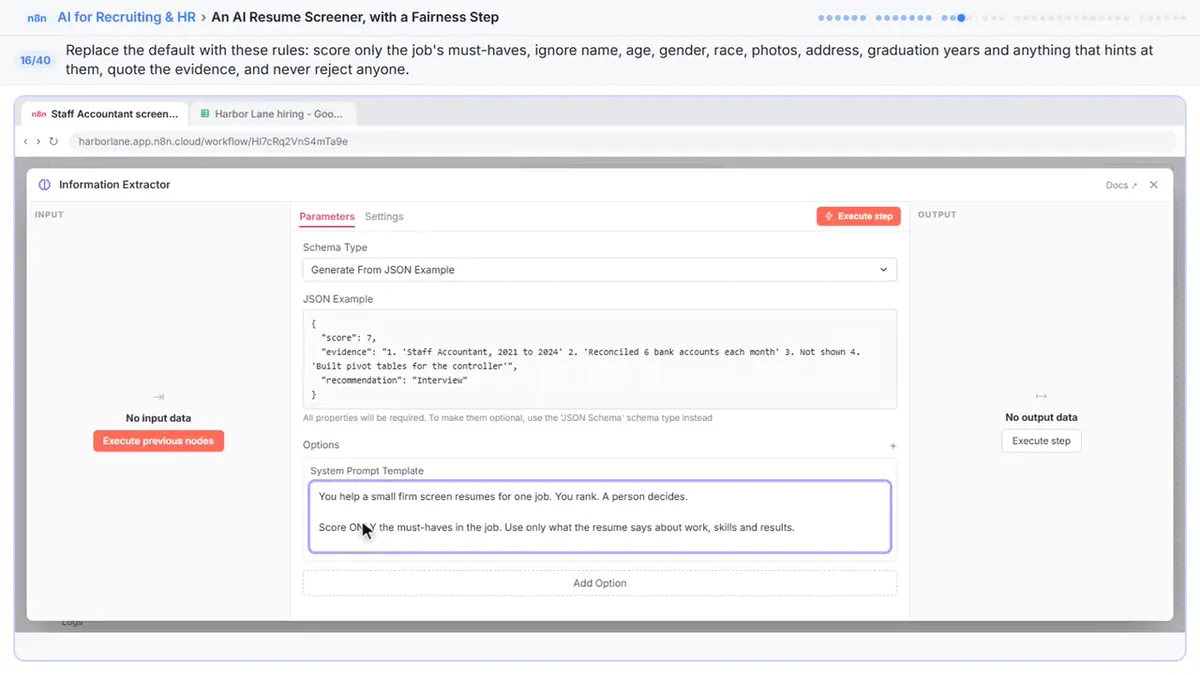
Replace the default with this. It scores only the job's must-haves. It ignores name, age, gender, race, photos, home address and graduation years, plus anything that hints at them. And it never rejects anyone. It only ranks.
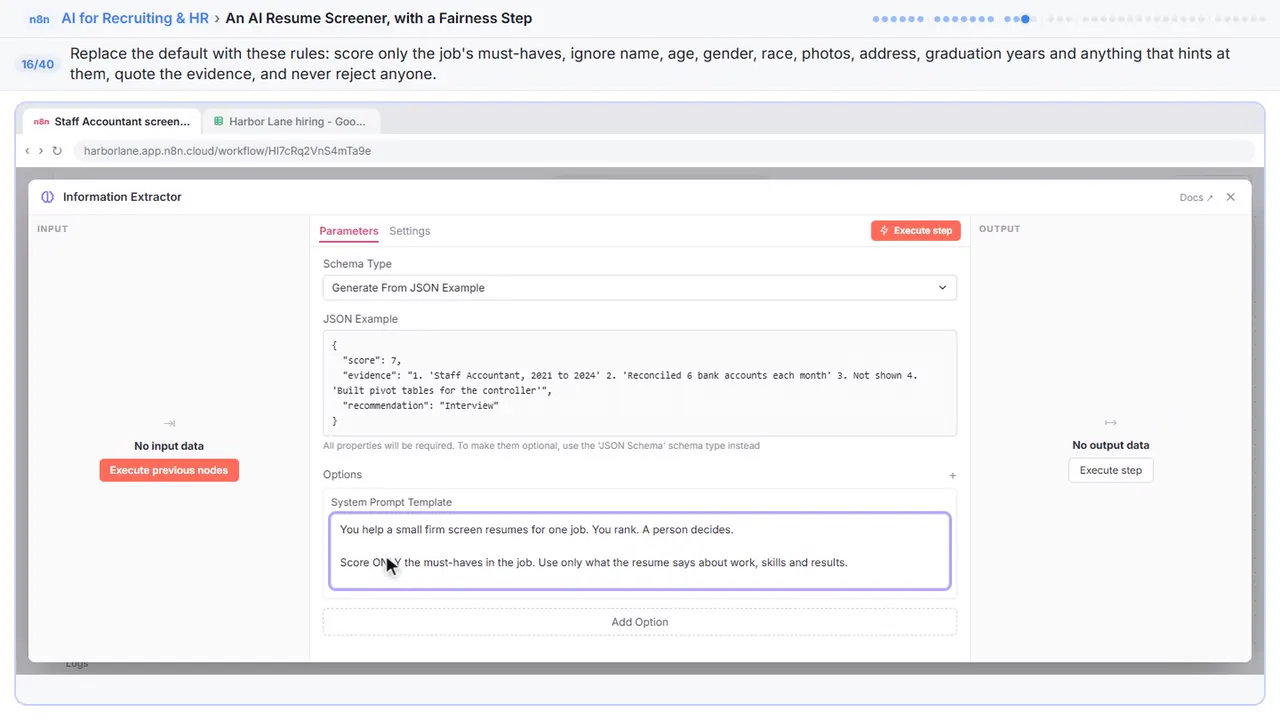
You help a small firm screen resumes for one job. You rank. A person decides.

Score ONLY the must-haves in the job. Use only what the resume says about work, skills and results.

Fairness rules:
- Ignore the applicant's name, age, gender, race, ethnicity, religion, disability, marital or family status, nationality, photo and home address.
- Ignore graduation years and anything else that hints at those traits, like clubs, hobbies or family details.
- Never mention any of those in your answer.
- A gap between jobs is not a reason to score lower.

For each must-have, quote the resume's exact words that show it, or write "Not shown".
Score 1 to 10 for how well the resume shows the must-haves.
Recommendation: "Interview", "Review" or "Missing must-haves". Never reject anyone.
Step 17: Close the node
Close it.
Part 4: Connect a model
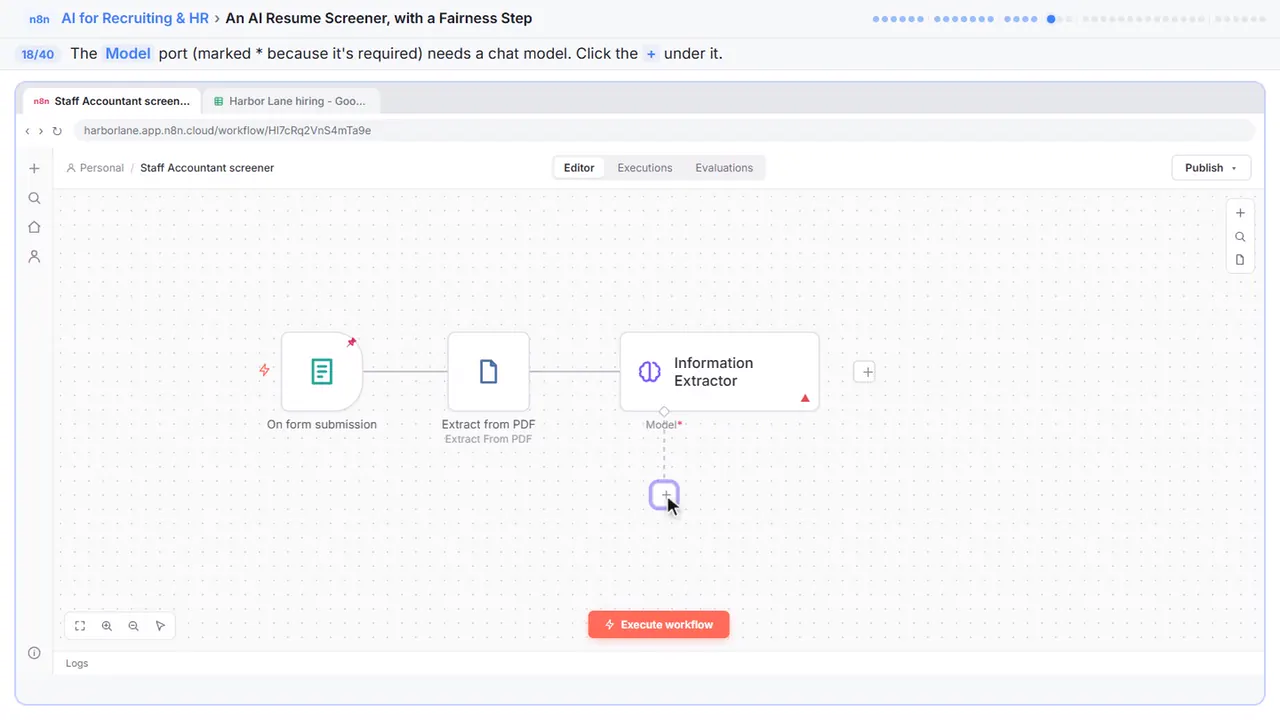
Step 18: Give it a model
It still needs a model to think with.
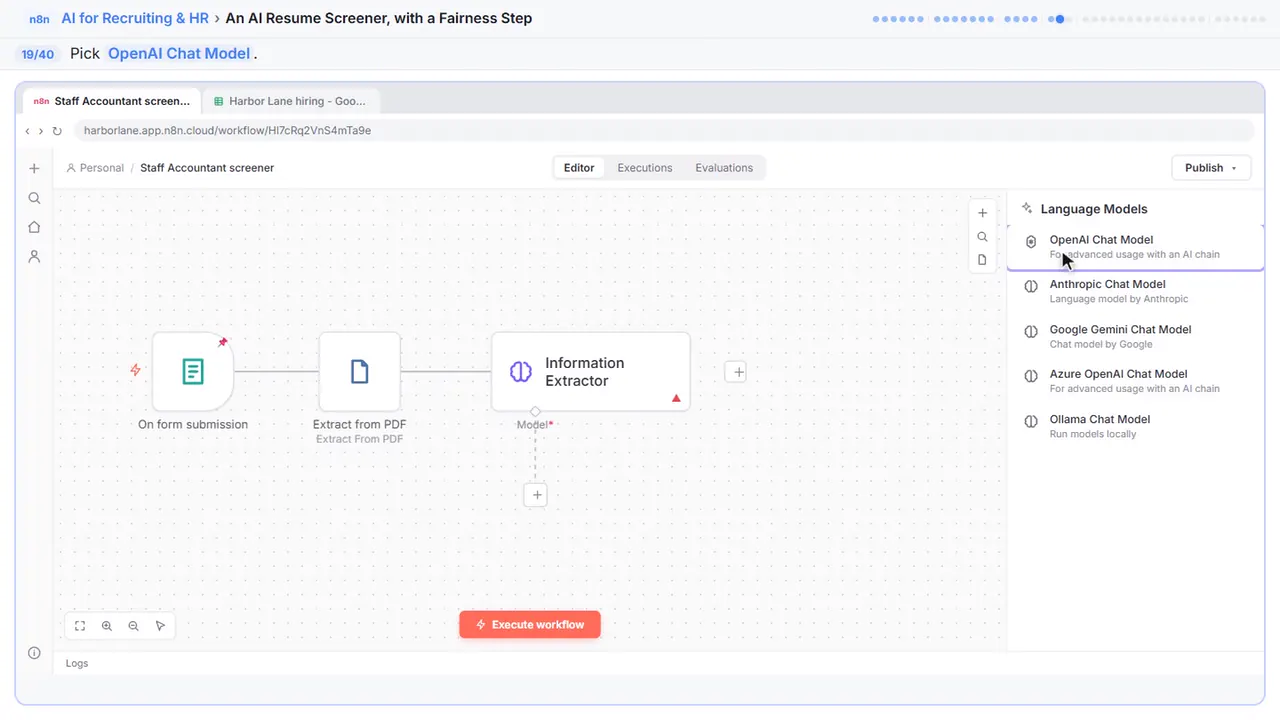
Step 19: OpenAI Chat Model
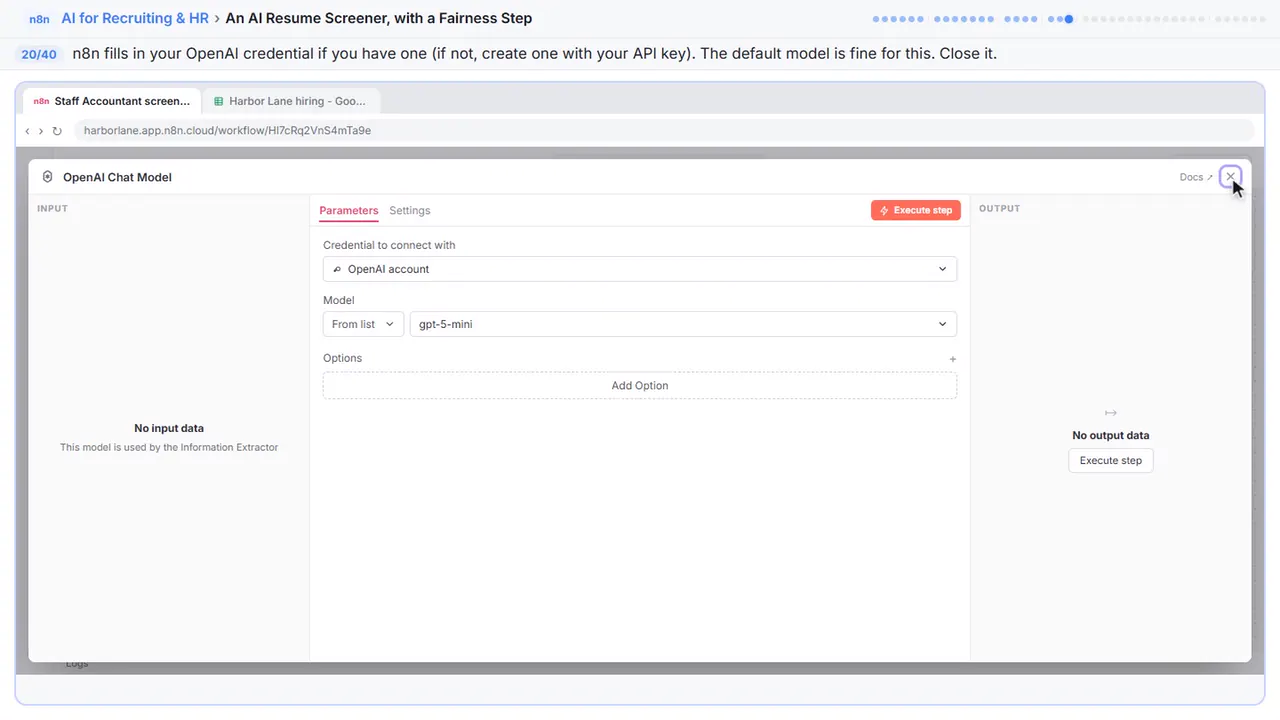
Step 20: Close the node
If your OpenAI key is connected, n eight n fills it in for you. The default model is fine. Close it.
Part 5: Save the ranking
Step 21: Add the last step
Last step: put each result in a sheet.
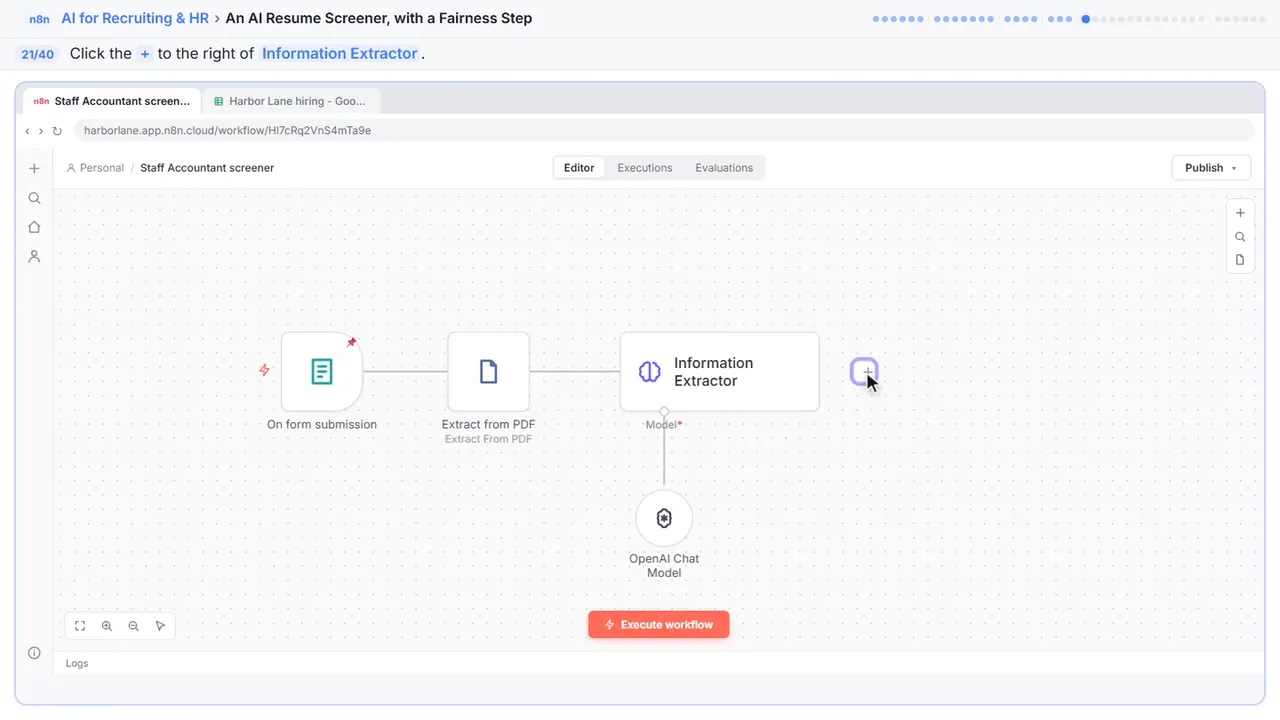
Step 22: Search for it
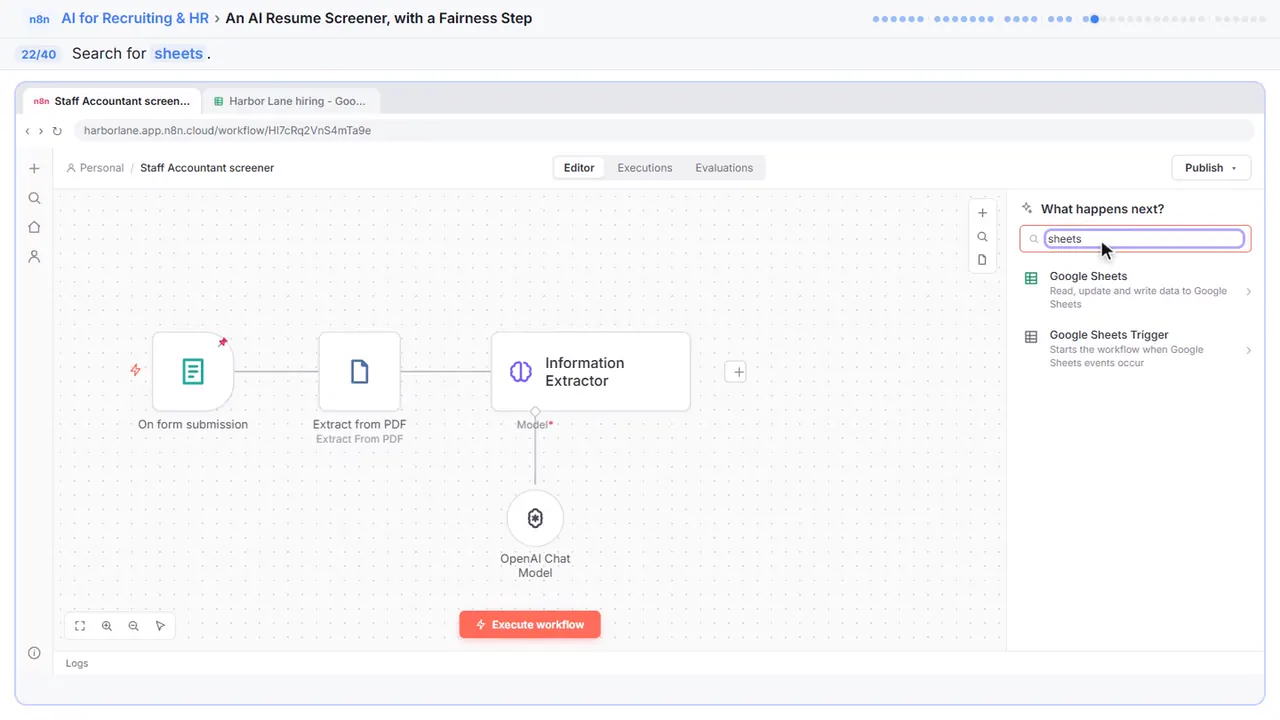
Step 23: Google Sheets
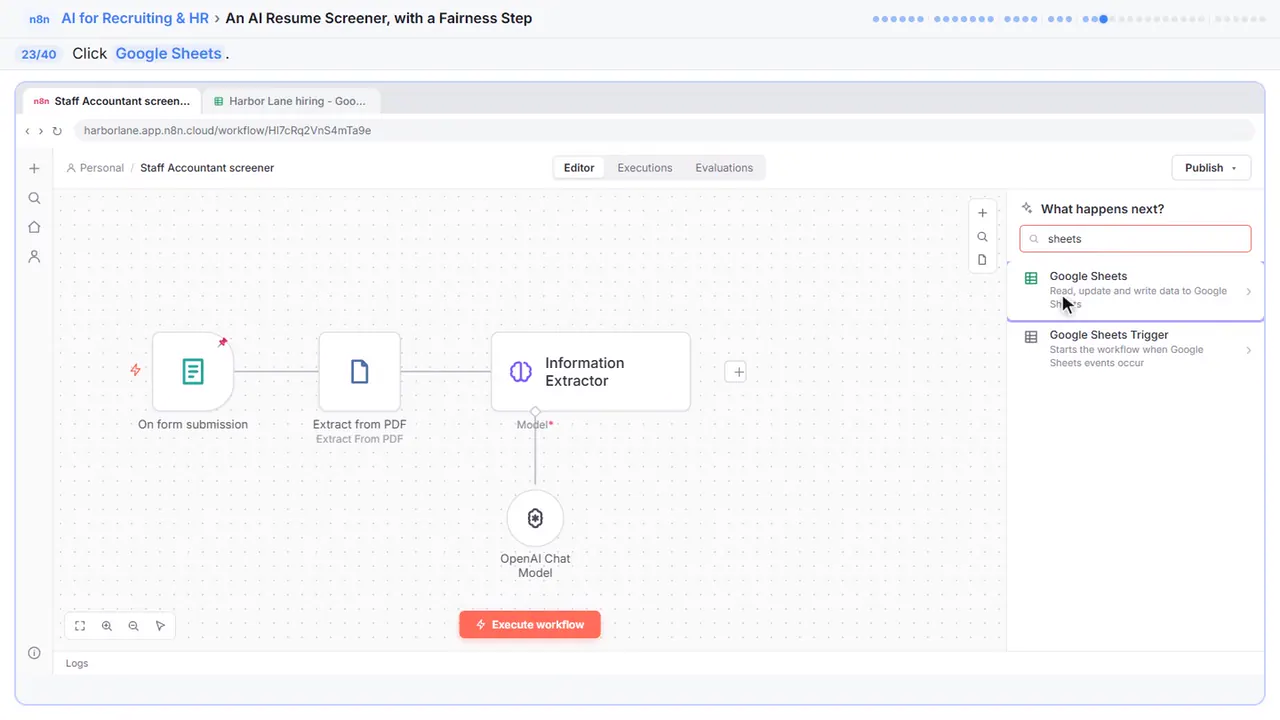
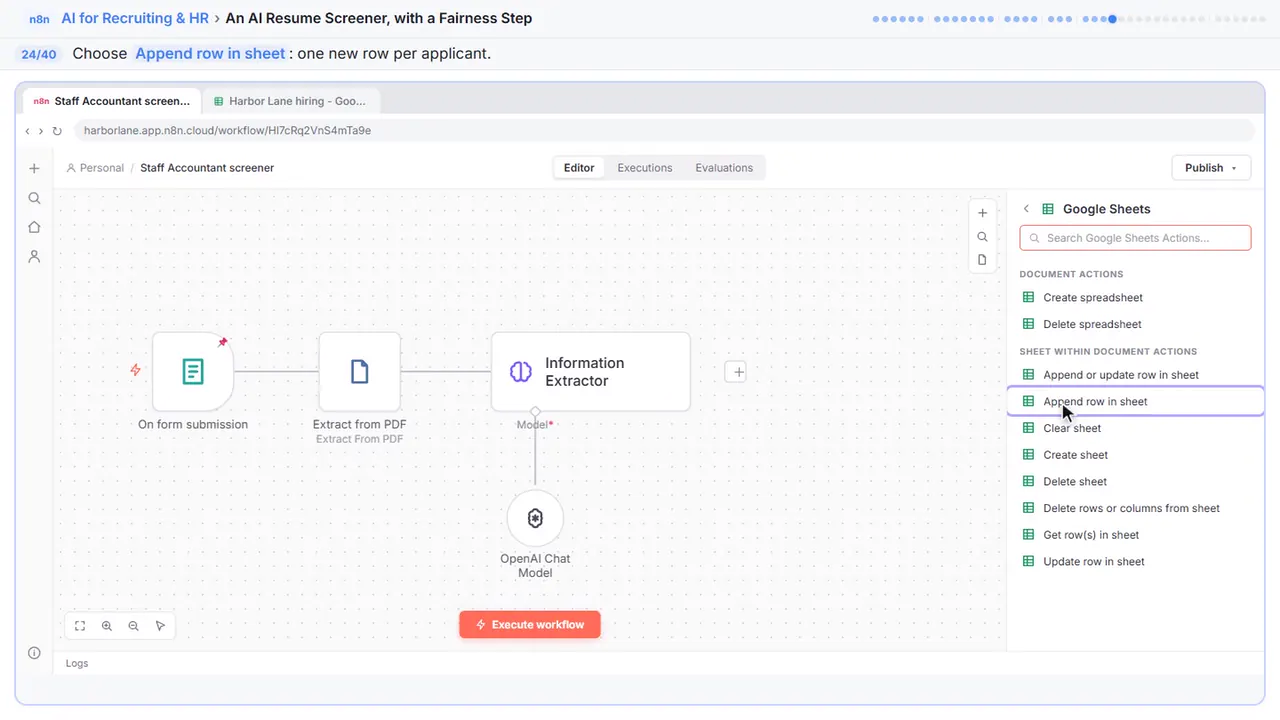
Step 24: Append row in sheet
One new row for each applicant.
Step 25: Pick the spreadsheet
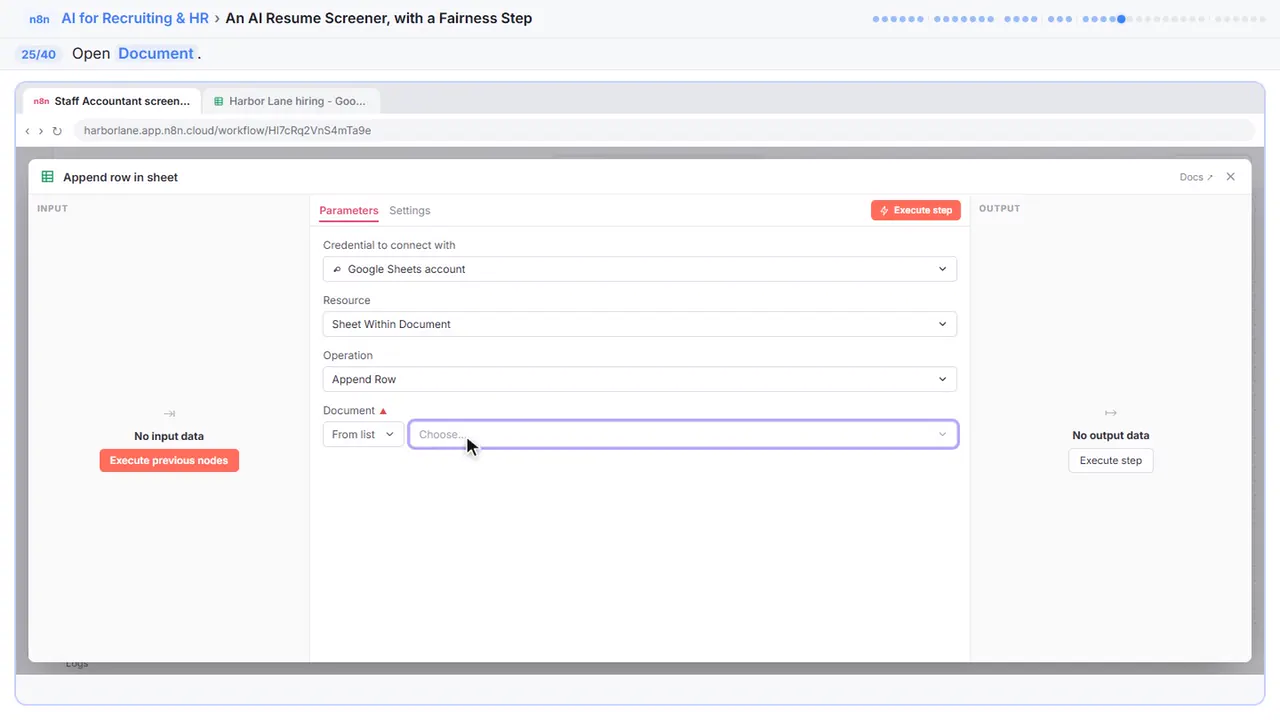
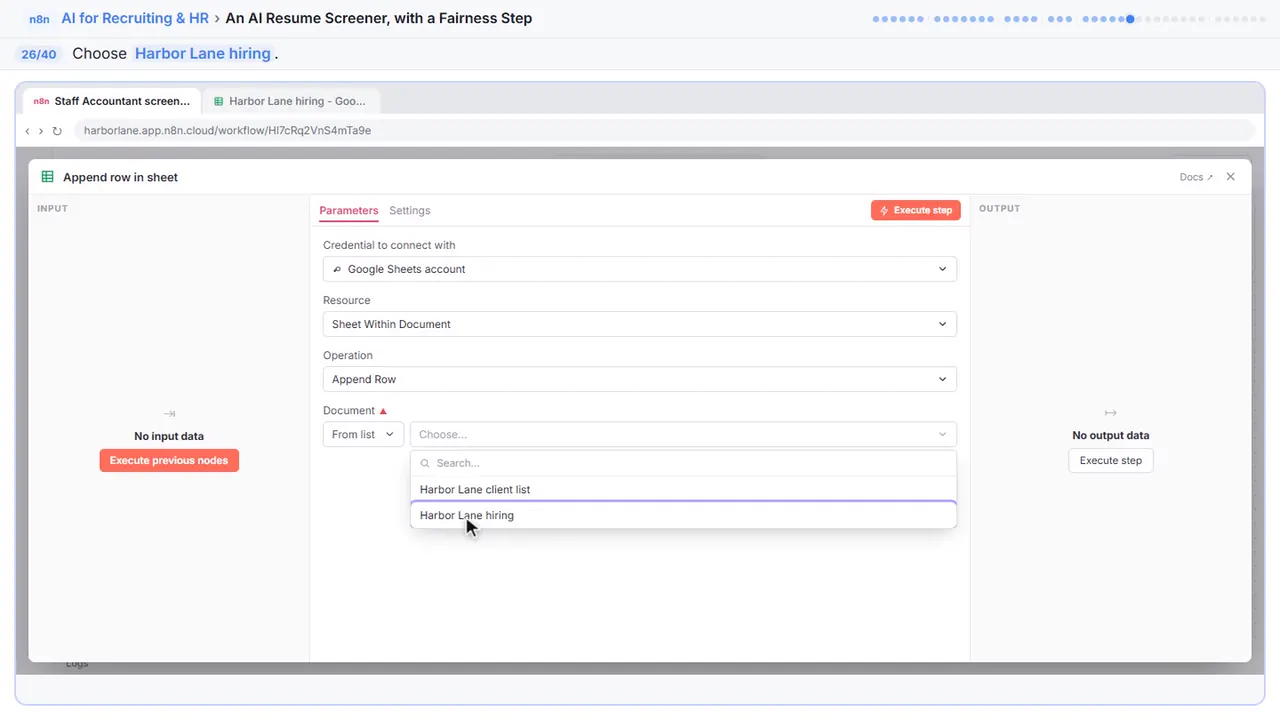
Step 26: Harbor Lane hiring
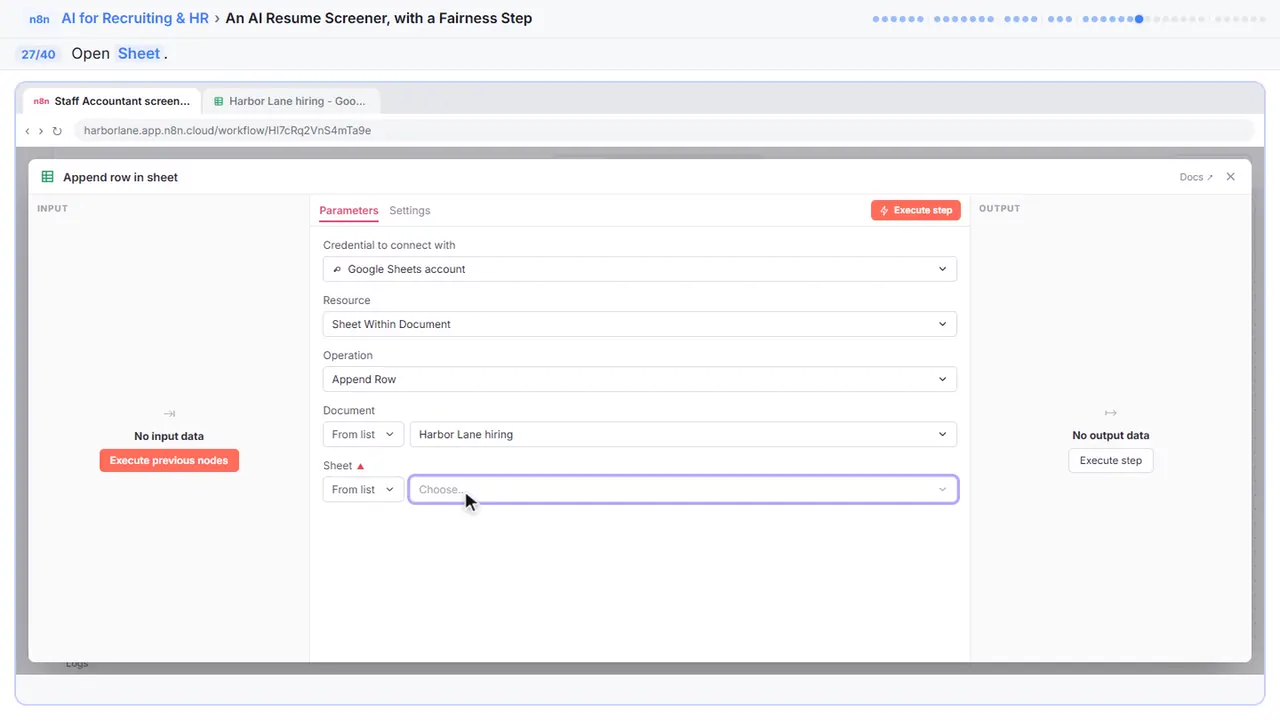
Step 27: Pick the tab
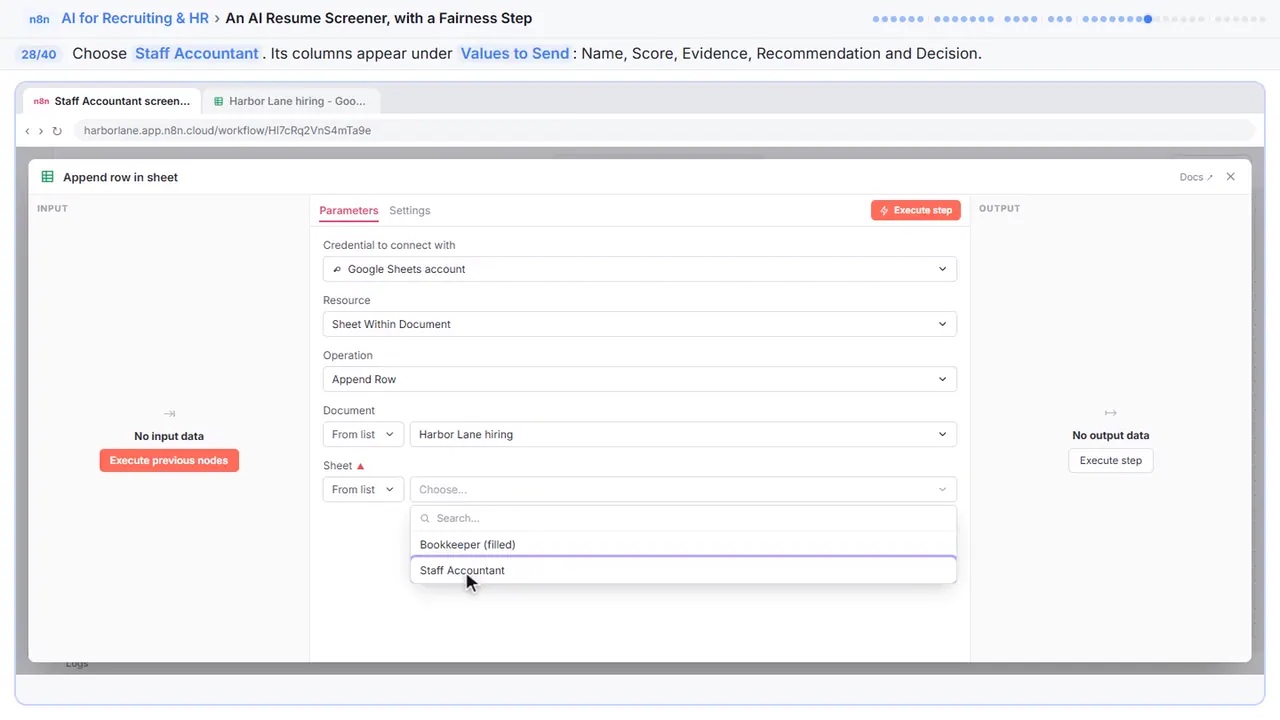
Step 28: Staff Accountant
Its columns show up below. Name, Score, Evidence, Recommendation, and Decision.
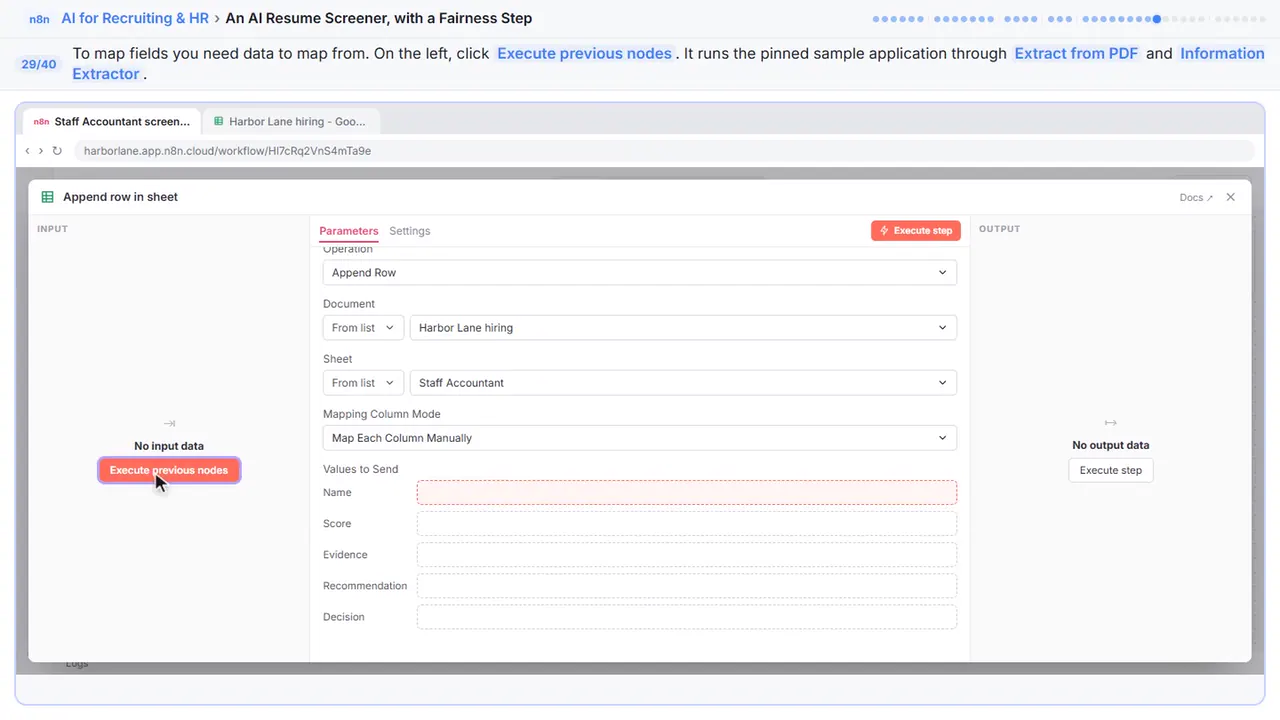
Step 29: Execute previous nodes
To fill the columns, you need some data. On the left, click Execute previous nodes. It runs the pinned sample application through the PDF step and the AI.
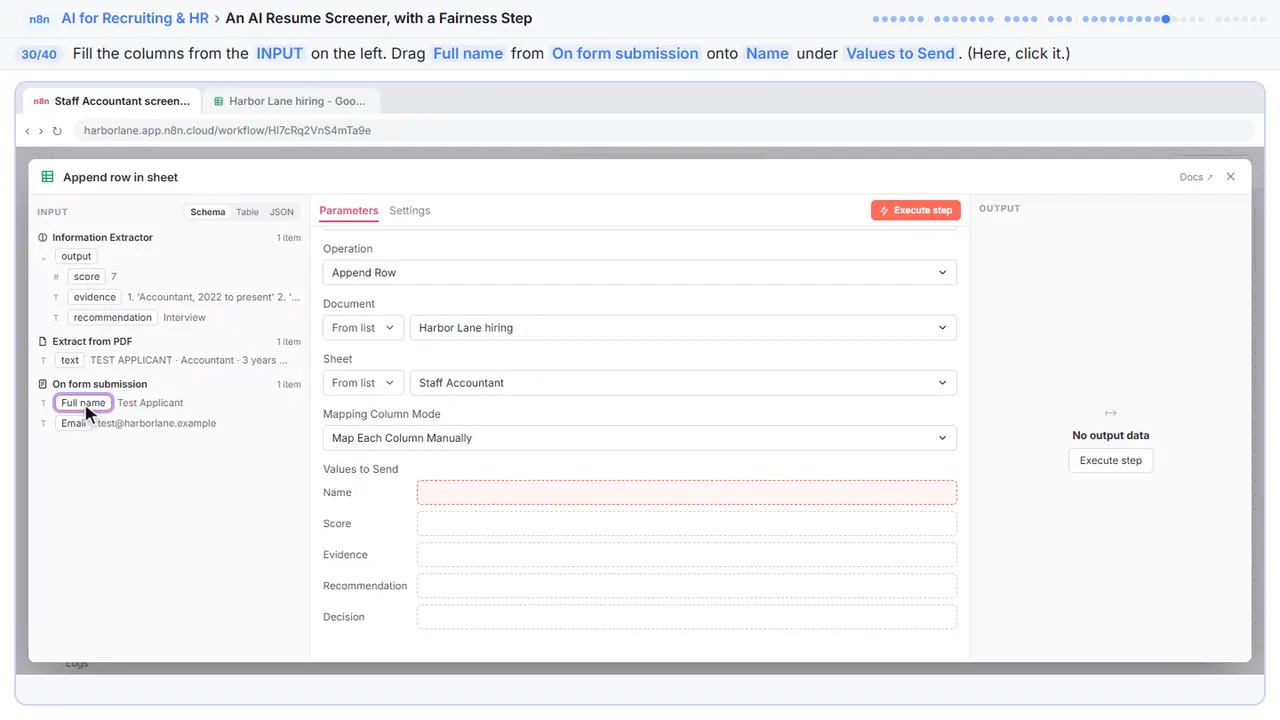
Step 30: Map the name
Fill the columns from the left. The name comes straight from the form, not from the AI.
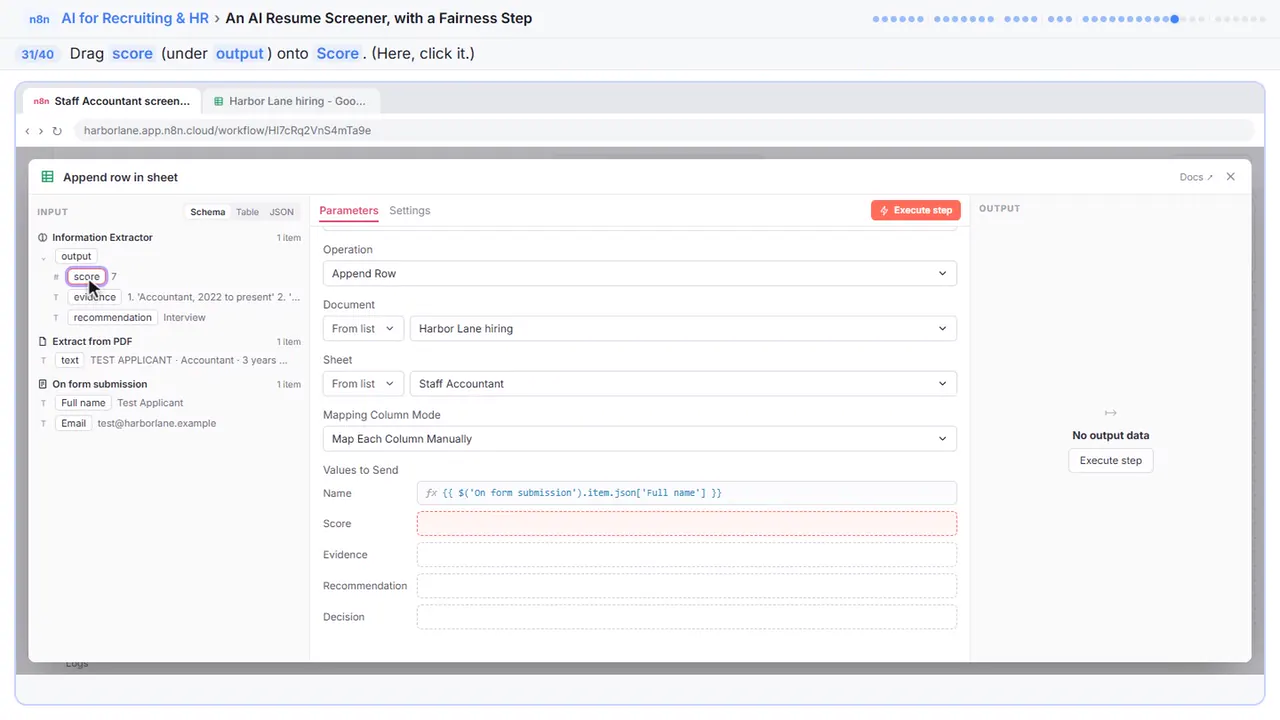
Step 31: Map the score
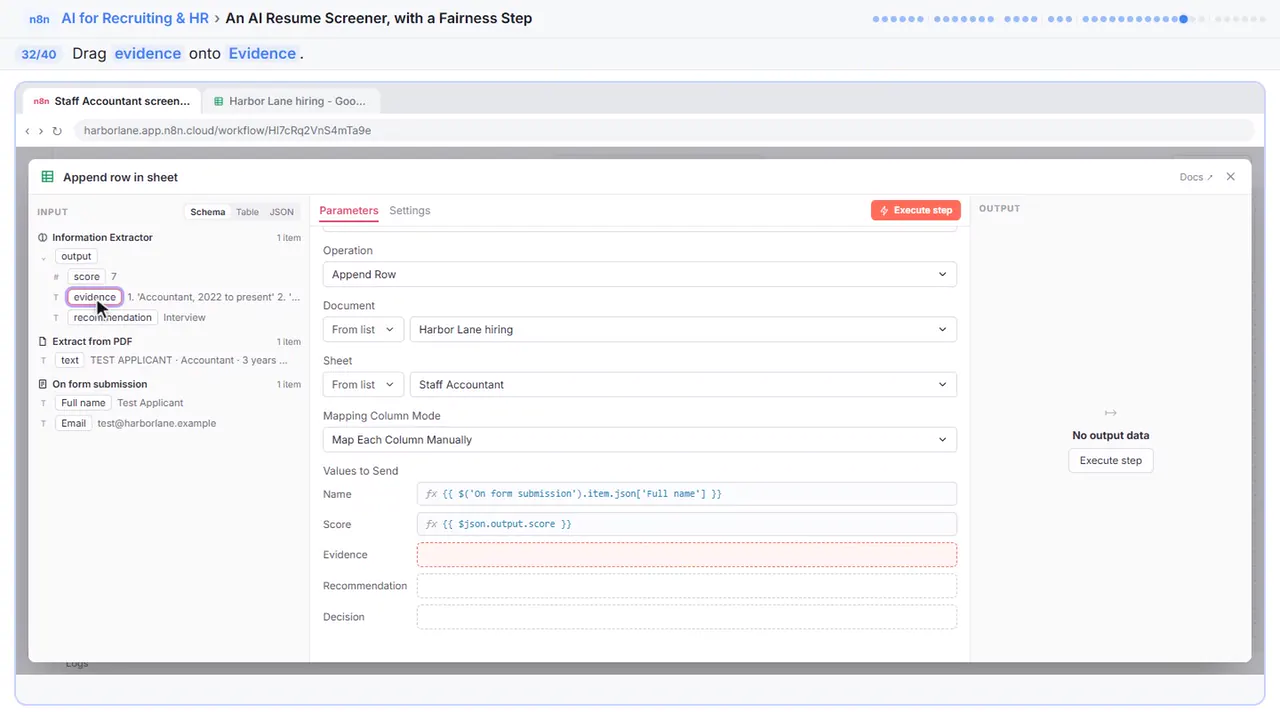
Step 32: Map the evidence
Evidence into Evidence.
Step 33: Map the recommendation
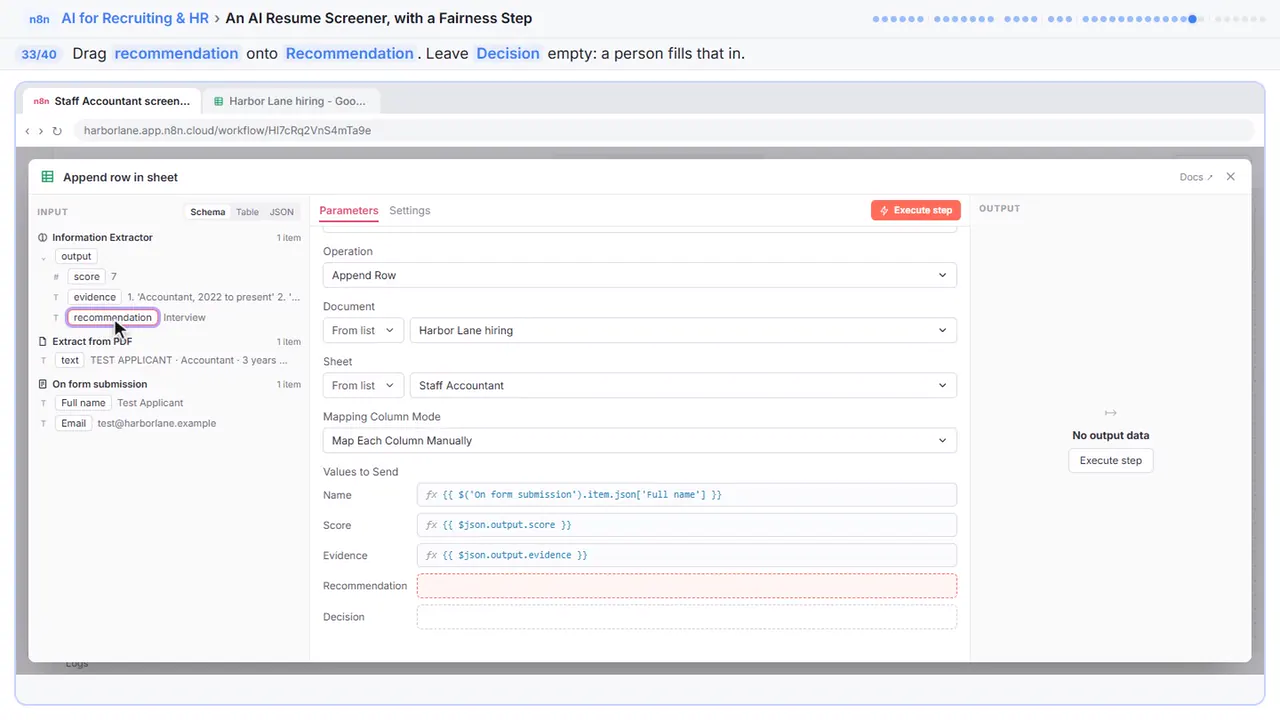
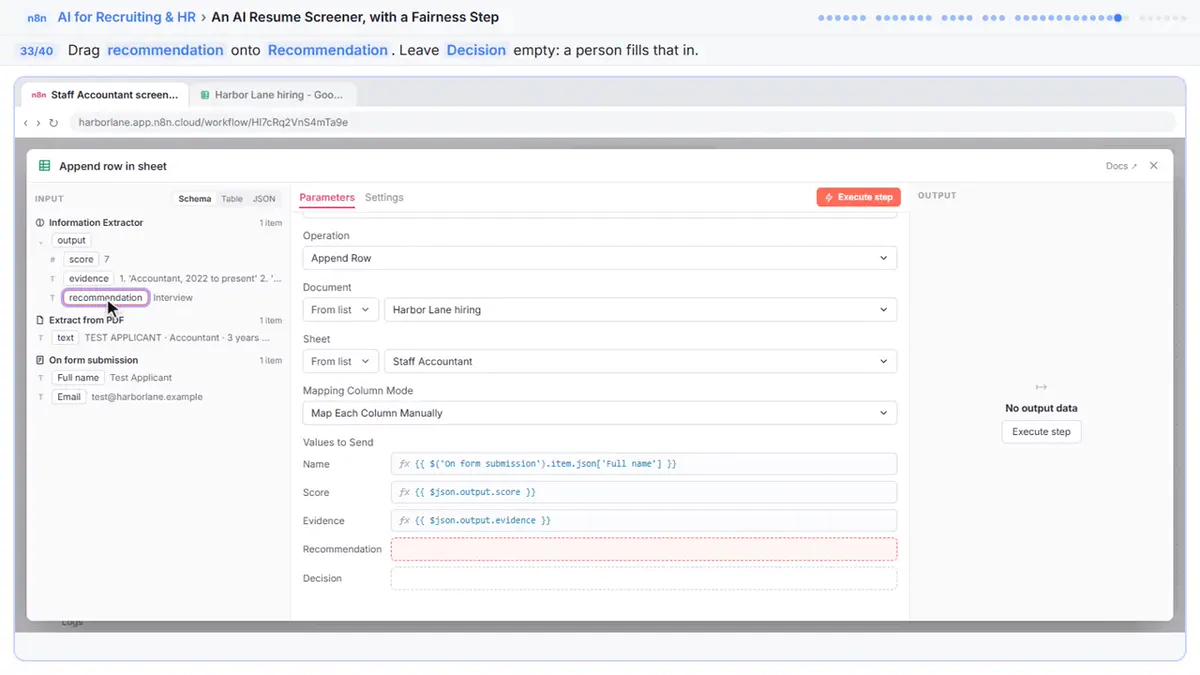
And recommendation into Recommendation. Leave Decision empty. That column is for a person.
Step 34: Close the node
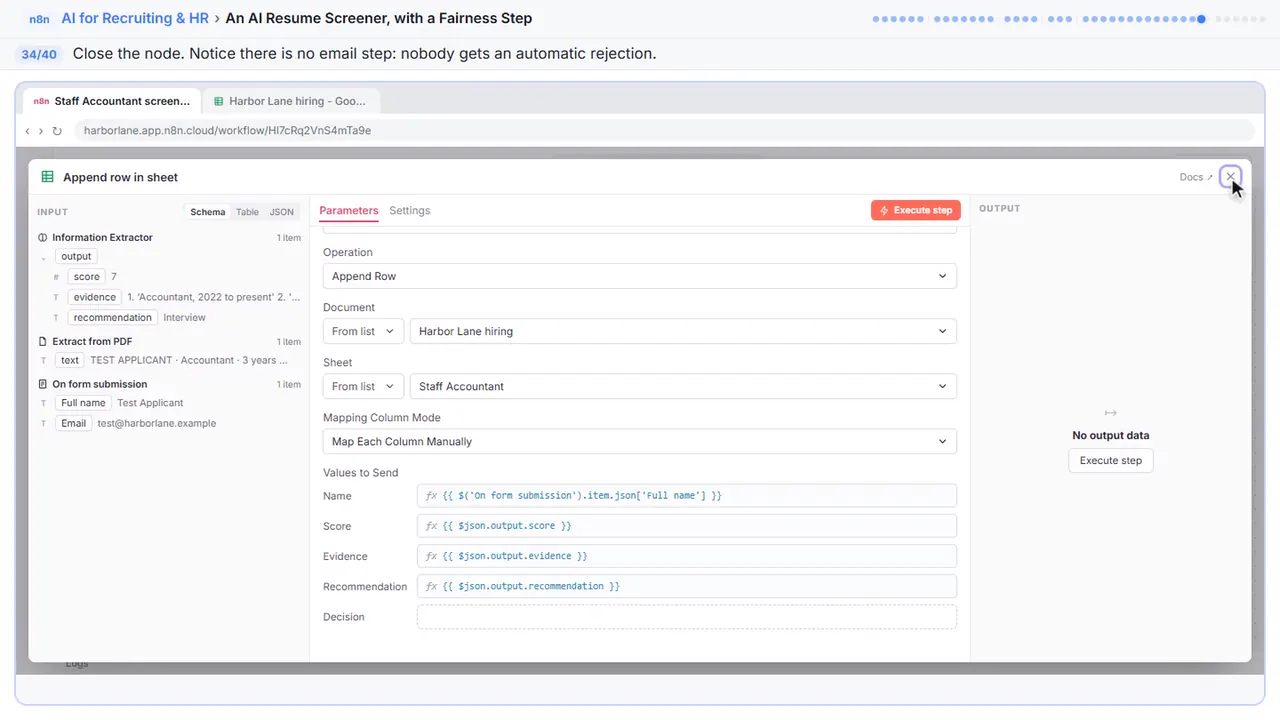
Close it. Notice there's no email step. Nobody gets an automatic rejection.
Part 6: A person decides
Step 35: Publish
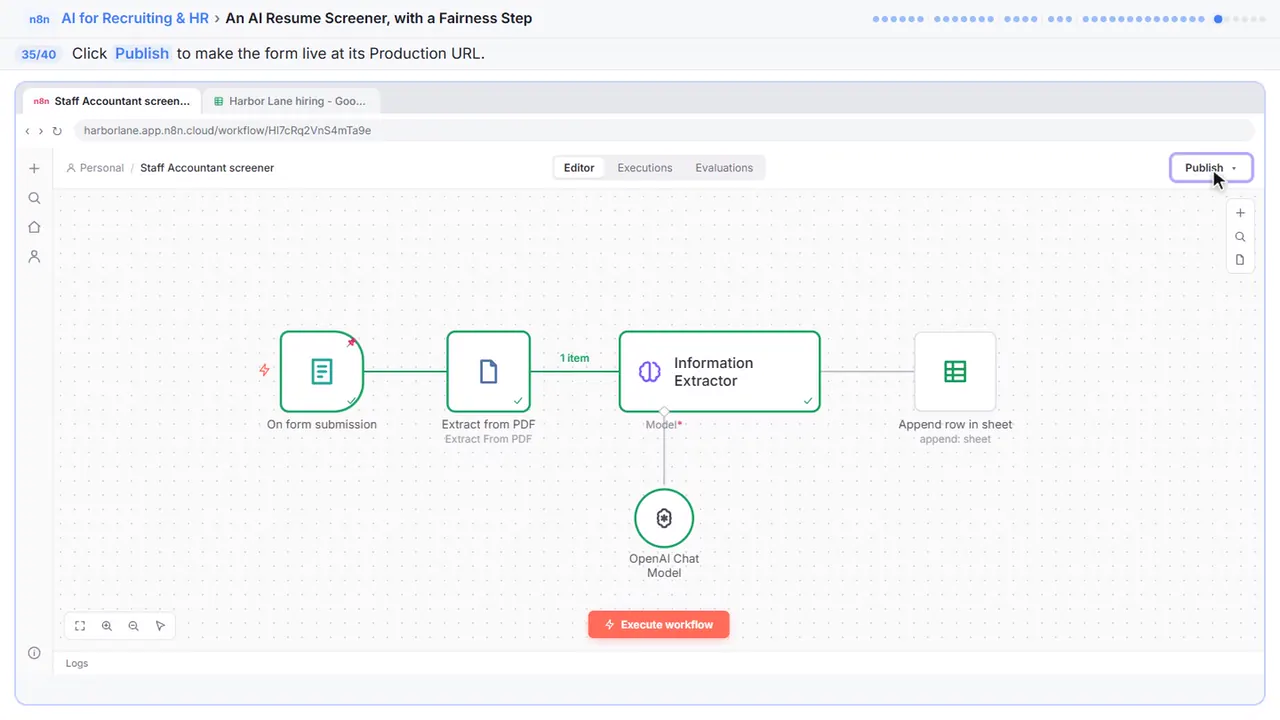
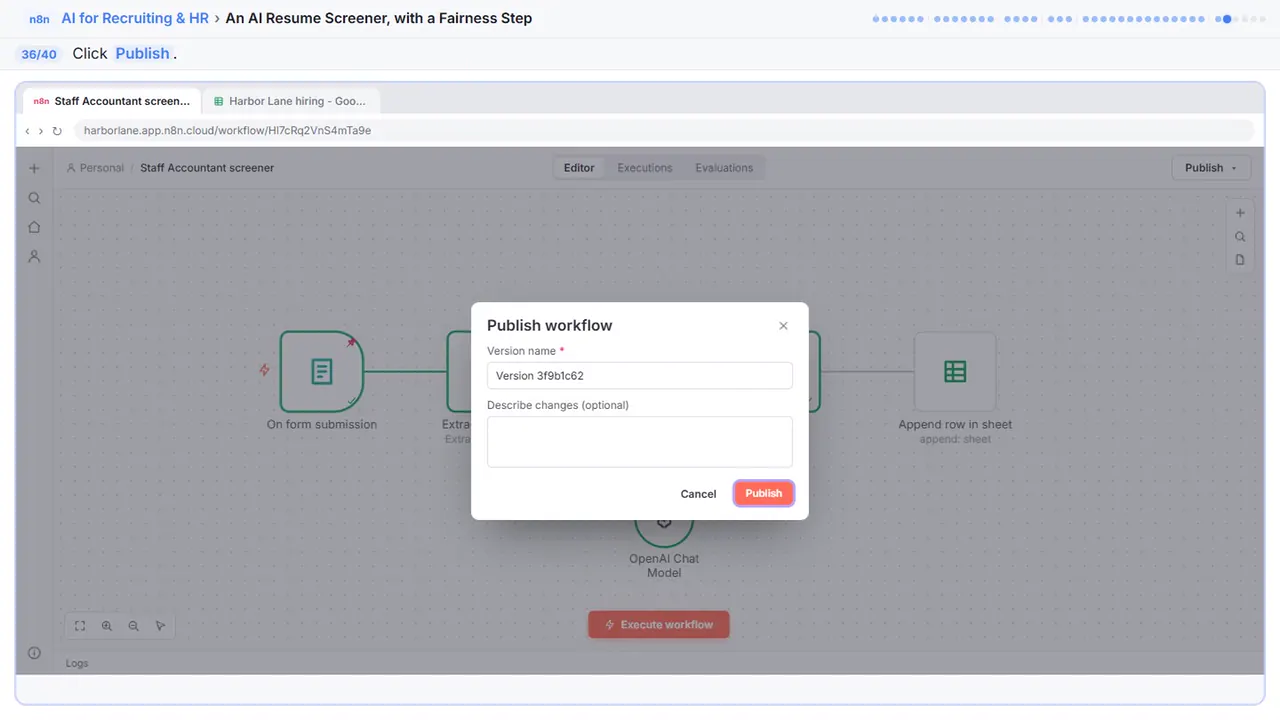
Publish it, so the form works at its live link. Before you do this for real, test it with a few resumes of your own.
Step 36: Confirm
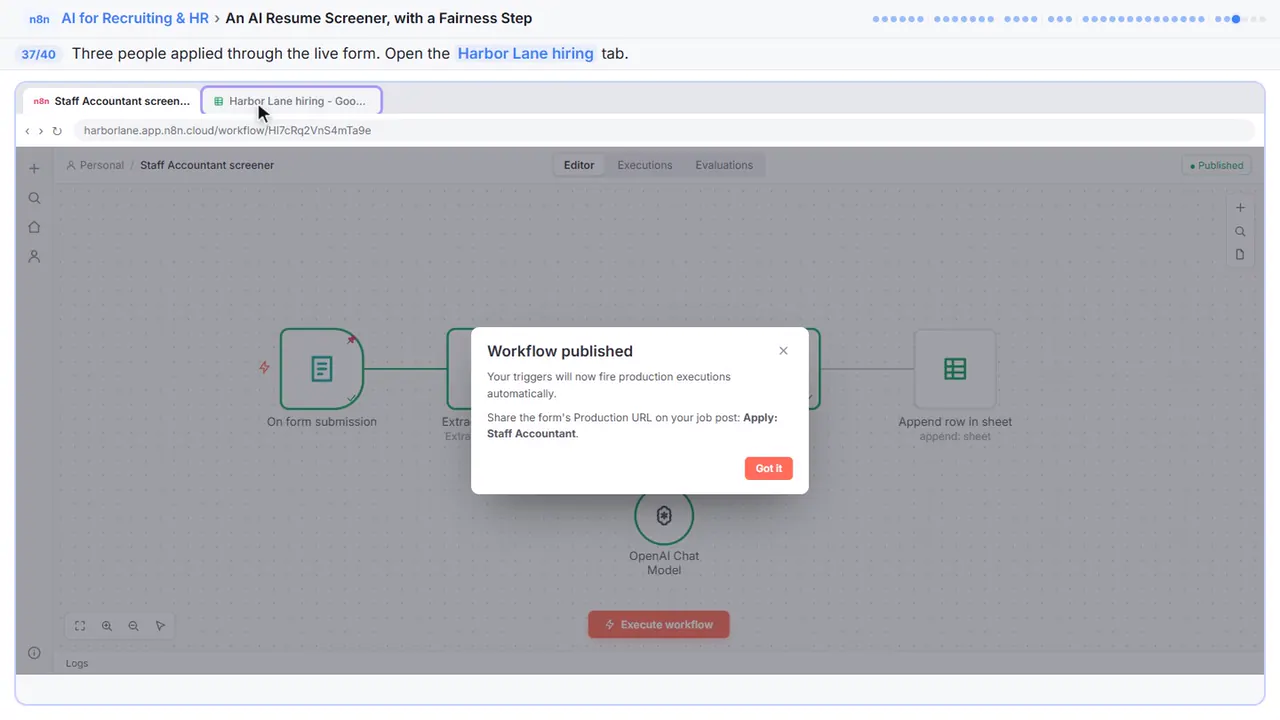
Step 37: Open the sheet
Three people have applied through the live form.
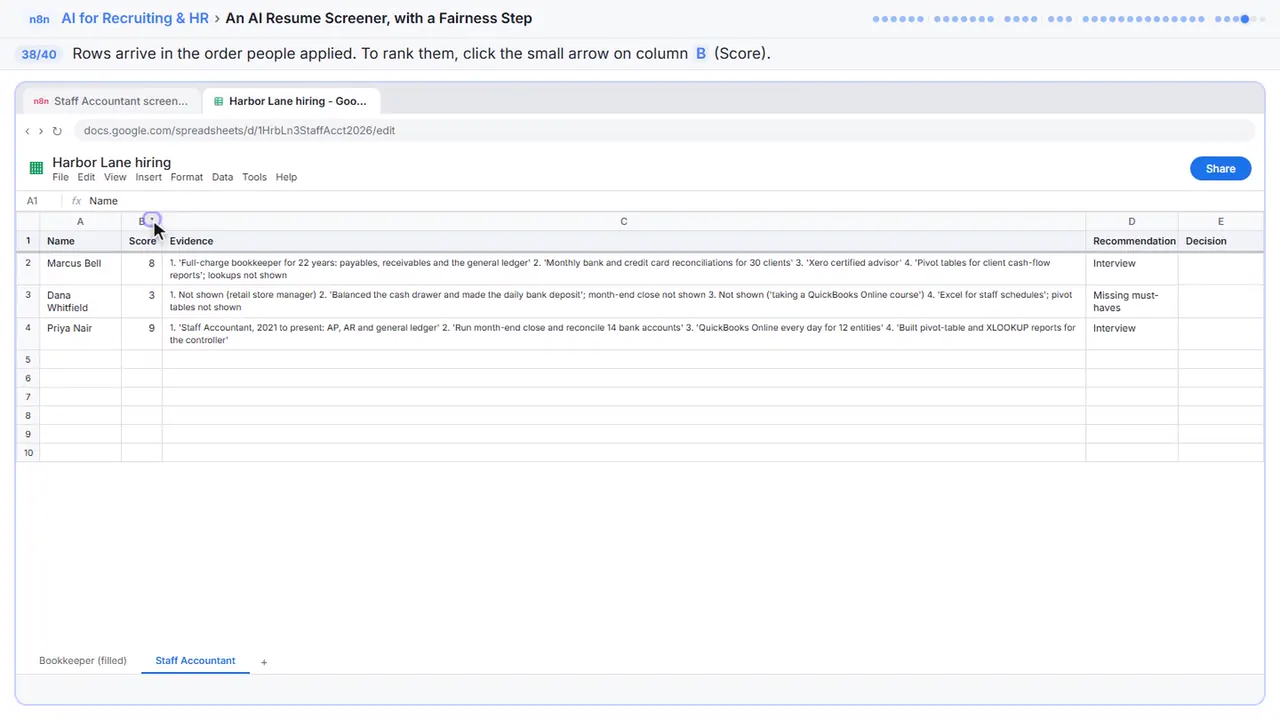
Step 38: Open the Score column menu
Rows come in the order people applied. To rank them, click the little arrow on the Score column.
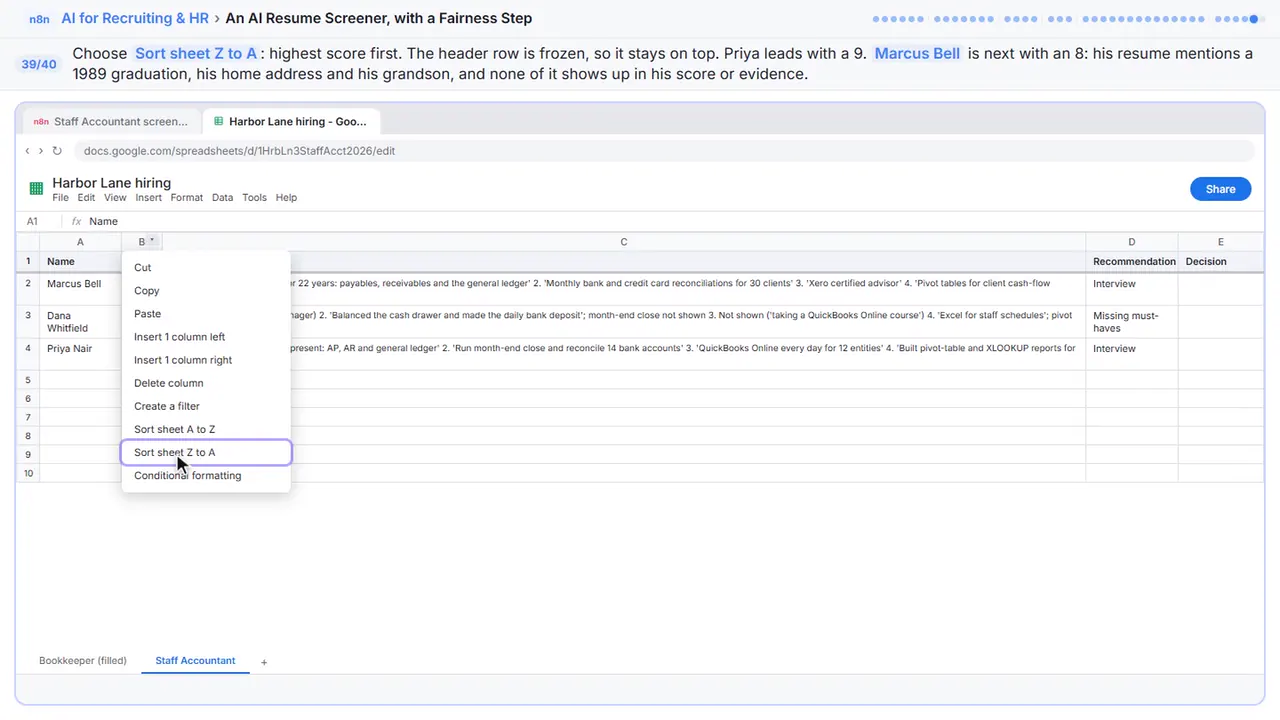
Step 39: Sort Z to A
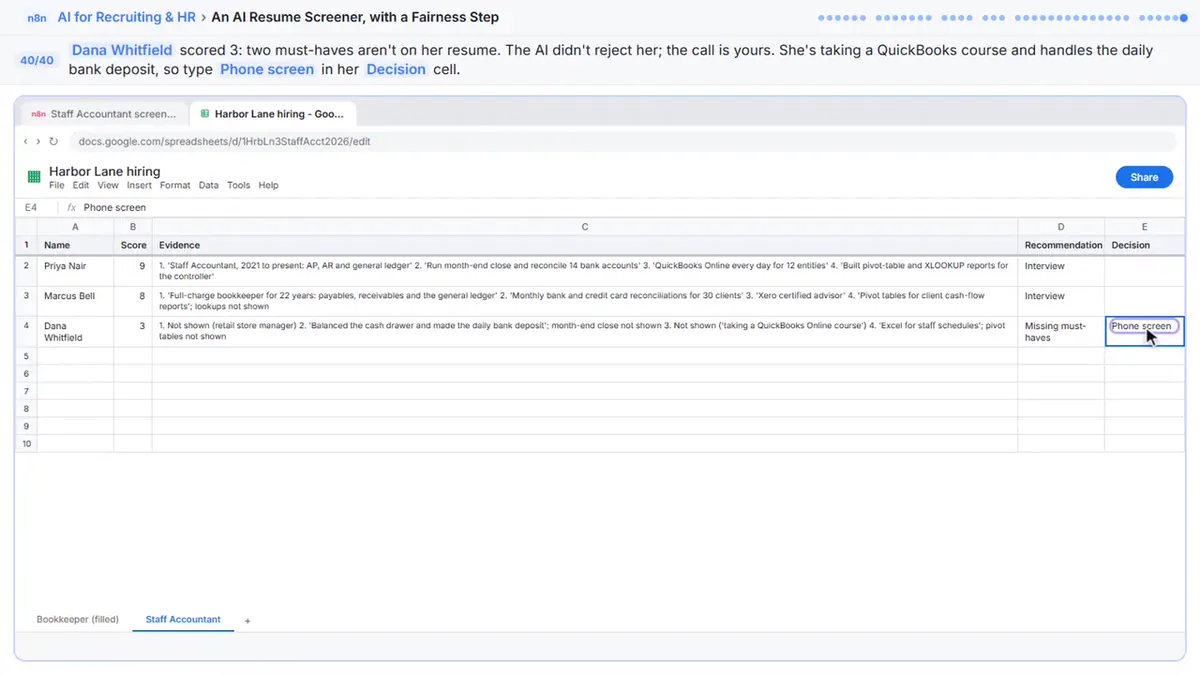
Priya leads with a nine. Marcus is next with an eight. His resume mentions graduating in 1989, his home address, and coaching his grandson's team. None of that is in his score or his evidence, only his work. That's the fairness rules doing their job.
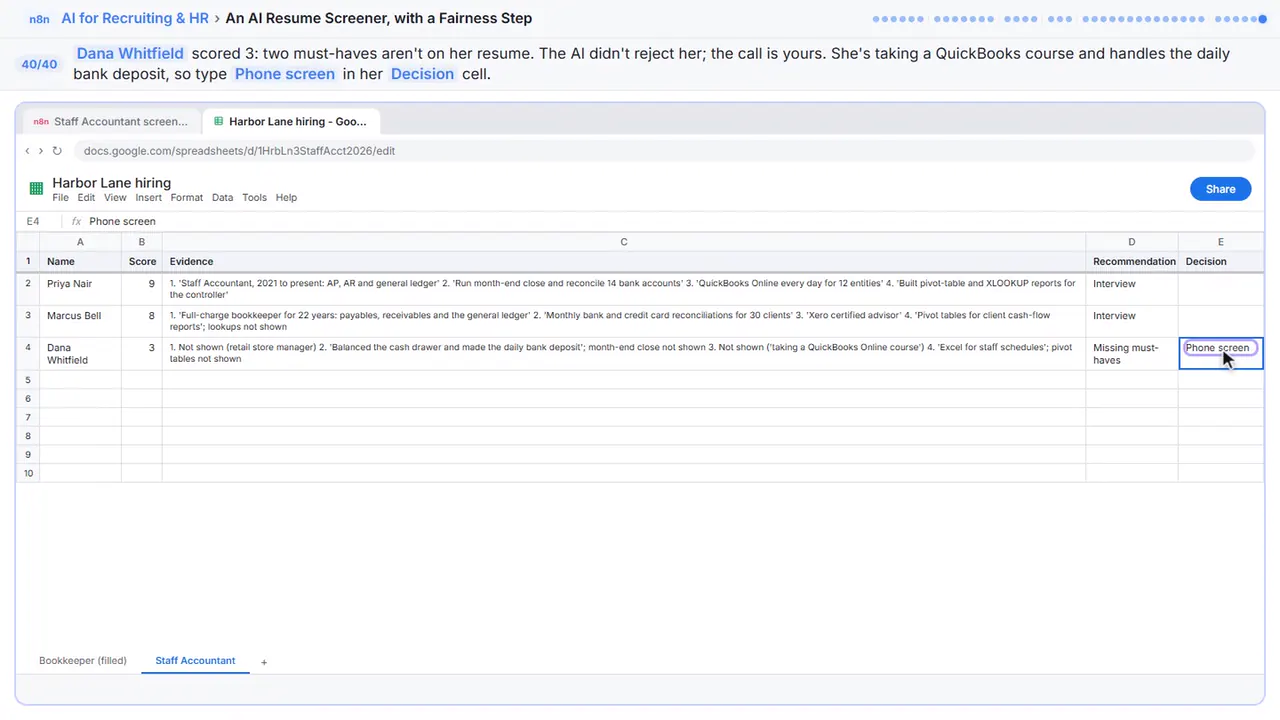
Step 40: Make the call on Dana
Dana scored a three. The AI didn't reject her. It just showed what's missing. The call is yours. She's learning QuickBooks and handles the daily deposits, so type Phone screen. The AI ranks. A person decides.
Now do it yourself, free
Reading the steps is a start. Doing them is how it sticks. The interactive lesson puts you in a practice copy of n8n: you do every step yourself, it checks your work, and “Do it for me” finishes any step you get stuck on. Nothing touches your real accounts.
Practice “An AI Resume Screener, with a Fairness Step (Recruiting & HR)” step by stepAn AI Resume Screener, with a Fairness Step (Recruiting & HR): video walkthrough
The whole lesson in 3:36, narrated step by step.
Simulated practice environment. Recorded in Stepthrough’s simulated practice environment, not the live tool. Practice it yourself free at learn.ynteractive.com.
Chapters
Click a chapter to jump the video there.
- 0:00 Read the resume
- 0:40 Score it against the job
- 1:18 Add the fairness rules
- 1:42 Connect a model
- 1:54 Save the ranking
- 2:43 A person decides
Now do it yourself, free
Watching is the warm-up. The interactive lesson puts you in a practice copy of n8n: you do every step yourself, it checks your work, and “Do it for me” finishes any step you get stuck on. Nothing touches your real accounts.
Practice “An AI Resume Screener, with a Fairness Step (Recruiting & HR)” step by stepFull transcript
Read the resume
0:00 You hire for Harbor Lane Accounting, and a Staff Accountant opening just pulled in a pile of resumes. Let's have AI read each one, score it against the job, and rank it in a sheet, while a person still makes every call. The application form is already built, with a resume upload. Click the plus next to it.
0:17 The resume arrives as a PDF file. To get its words out, search for extract.
0:22 Click Extract from File.
0:23 It reads lots of file types. Choose Extract from PDF.
0:27 Input Binary Field says which file to read. It starts as data, but the form names the file after its label, Resume. Change it to Resume, or the step can't find the file.
0:36 Close it. This step now passes the resume's text along.
Score it against the job
0:39 Now the AI. Click the plus after Extract from PDF.
0:43 Search for information.
0:44 Click Information Extractor. It asks an AI model to pull answers out of text, in fields you choose.
0:50 In Text, paste this. It lists the job's four must-haves, then the resume. The part in curly braces drops in the text from the PDF.
0:57 Next, tell it what answer you want back. Open Schema Type.
1:01 Choose Generate From JSON Example. You show it one sample answer, and it copies the shape.
1:06 Paste this example. Three fields: a score, the evidence quoted from the resume for each must-have, and a recommendation. The quotes matter. You can check every score against the resume itself.
Add the fairness rules
1:18 Now the most important part: the fairness rules. Under Options, click Add Option.
1:23 Choose System Prompt Template. These are the standing rules the model follows on every resume.
1:28 Replace the default with this. It scores only the job's must-haves. It ignores name, age, gender, race, photos, home address and graduation years, plus anything that hints at them. And it never rejects anyone. It only ranks.
1:41 Close it.
Connect a model
1:42 It still needs a model to think with. Click the plus under Model.
1:45 Pick OpenAI Chat Model.
1:47 If your OpenAI key is connected, n eight n fills it in for you. The default model is fine. Close it.
Save the ranking
1:53 Last step: put each result in a sheet. Click the plus after Information Extractor.
1:58 Search for sheets.
1:59 Click Google Sheets.
2:01 Choose Append row in sheet. One new row for each applicant.
2:04 Open Document.
2:06 Choose Harbor Lane hiring.
2:07 Now open Sheet.
2:09 Choose the Staff Accountant tab. Its columns show up below. Name, Score, Evidence, Recommendation, and Decision.
2:15 To fill the columns, you need some data. On the left, click Execute previous nodes. It runs the pinned sample application through the PDF step and the AI.
2:24 Fill the columns from the left. The name comes straight from the form, not from the AI. Drag Full name into Name.
2:30 Drag score into Score.
2:31 Evidence into Evidence.
2:33 And recommendation into Recommendation. Leave Decision empty. That column is for a person.
2:38 Close it. Notice there's no email step. Nobody gets an automatic rejection.
A person decides
2:42 Publish it, so the form works at its live link. Before you do this for real, test it with a few resumes of your own.
2:49 Click Publish.
2:50 Three people have applied through the live form. Open the sheet.
2:54 Rows come in the order people applied. To rank them, click the little arrow on the Score column.
2:59 Choose Sort sheet Z to A, highest score first. Priya leads with a nine. Marcus is next with an eight. His resume mentions graduating in 1989, his home address, and coaching his grandson's team. None of that is in his score or his evidence, only his work. That's the fairness rules doing their job.
3:18 Dana scored a three. The AI didn't reject her. It just showed what's missing. The call is yours. She's learning QuickBooks and handles the daily deposits, so type Phone screen. The AI ranks. A person decides.
3:29 Simple as that. We show you and you do it. Sign up below to learn AI automation for free.
The example: one Staff Accountant opening
You hire for Harbor Lane Accounting, a made-up small firm with one Staff Accountant opening. The job has four must-haves: at least two years of hands-on accounting work (payables, receivables or the general ledger), month-end close and bank reconciliations, QuickBooks Online or Xero, and Excel pivot tables and lookups.
The application form is already built in n8n with an On form submission trigger: full name, email and a Resume upload that takes one PDF. You add three steps after it and then watch three applications come in. Priya Nair scores a 9 with evidence for all four must-haves. Marcus Bell scores an 8: his resume mentions a 1989 graduation, his home address and coaching his grandson's team, and none of that appears in his score or his evidence. Dana Whitfield, a retail store manager who is taking a QuickBooks course, scores a 3. The AI marks her Missing must-haves but doesn't reject her. You read her evidence and decide on a phone screen.
The fairness rules, and why they're written this way
The system prompt tells the model to score only the job's must-haves, using only what the resume says about work, skills and results. It names what to ignore: name, age, gender, race, ethnicity, religion, disability, marital or family status, nationality, photo and home address. It also names the proxies that leak those traits in, like graduation years, clubs, hobbies and family details, and tells the model never to mention them. A gap between jobs is not a reason to score lower.
Two design choices do most of the work. First, the evidence column: the model has to quote the resume for every must-have or write Not shown, so anyone can check a score in seconds and spot one that isn't backed by the resume. Second, the name never goes to the AI as something to score. It's copied into the sheet straight from the form, so a person knows whose row it is.
Prompt rules reduce bias; they don't prove a tool is fair. Now and then, compare the AI's ranking with your own on a handful of resumes.
The AI ranks. A person decides.
There is no email step in this workflow, on purpose. A low score means the resume doesn't show the must-haves in words the model could find. It doesn't mean the person can't do the job. Career changers, people who describe their work differently and people with non-traditional paths often score lower than they should. The Decision column is for a person, and the recommendation values are Interview, Review and Missing must-haves. None of them means rejected.
Gotchas worth knowing
- Extract from File reads a field called data by default. A Form Trigger upload is named after its label, so set Input Binary Field to Resume or the step can't find the file.
- Extract from PDF reads text, not pictures. A scanned resume saved as an image comes back empty, so check for blank evidence.
- The Information Extractor puts its fields under output, so in the sheet you map output.score, output.evidence and output.recommendation.
- With Generate From JSON Example every field is required. Use Define using JSON Schema if you want optional ones.
- Freeze the header row in Google Sheets before you sort, or the header gets sorted into the data.
- Test with a few resumes you have permission to use, and pin one test so you can map fields without resubmitting the form.
Check the rules where you hire
Some places regulate automated tools used in hiring. New York City's Local Law 144, for example, requires a bias audit and notice to candidates before an automated employment decision tool is used, and other states and countries have their own rules or are adding them. This lesson isn't legal advice. Check what applies where you hire, tell applicants how their resume is reviewed, and keep a person making the decisions.
What you need
- An n8n account: n8n Cloud from about €20 a month with a free trial, or the free self-hosted Community Edition.
- An OpenAI API key with a little credit. Each resume is one short call to a small model.
- Google Sheets connected in n8n, and a sheet with Name, Score, Evidence, Recommendation and Decision columns.
Try it yourself, free
Reading the steps is a start. Doing them is how it sticks. The interactive module walks you through every click in a practice copy of n8n, checks each step, and never touches your real accounts.
Start “An AI Resume Screener, with a Fairness Step (Recruiting & HR)”Screenshots
Frequently asked questions
- How does the interactive lesson work?
- Each step is shown to you first on the left (Watch). Then you do it yourself in a practice copy on the right (Your turn), and every click is checked. If you get stuck, press Do it for me. It is a practice copy, so no real accounts are touched.
- Is this free?
- Stepthrough is completely free. Running the screener for real needs your own n8n account, an OpenAI API key with some credit, and Google Sheets.
- Will the AI reject candidates?
- No. The workflow has no email or rejection step. It writes a score, quoted evidence and a recommendation to a sheet, and a person decides what happens next.
- Can I use Claude or Gemini instead of OpenAI?
- Yes. The Information Extractor takes any chat model. Click the + under Model and pick Anthropic Chat Model or Google Gemini Chat Model instead.
- Is it legal to screen resumes with AI?
- It depends on where you hire. Some places, like New York City under Local Law 144, require a bias audit and notice to candidates for automated hiring tools. This isn't legal advice, so check the rules that apply to you.
More in AI Automation for Recruiting & HR
All 3 modules in AI Automation for Recruiting & HR
More n8n tutorials
 n8n AI Agent Tutorial: Save Social Media Ideas to Google Sheets
Build an AI agent for BrightPath Marketing that generates social media post ideas and saves them to Google Sheets — chat trigger, AI Agent, system prompt, model…
Free · Live ~12 min
 Lovable + n8n: Build a Web App with an AI Backend
Build a contact form in Lovable and connect it to an n8n workflow — webhook trigger, AI Agent, Google Sheets, Gmail, and a Respond node that ties it all together.
Free · Live ~15 min
 AI Receipt Extractor: Receipts to Google Sheets with n8n
Drop a photo of a receipt into an n8n chat. An AI agent reads it, pulls out the date, vendor and amount, picks a category, and adds a row to Google Sheets.
Free · Live ~12 min
 AI Email Responder: Draft Gmail Replies Automatically with n8n
Build an n8n agent that watches your Gmail, reads each new customer email, and writes a reply as a draft in the same thread, ready for you to check and send.
Free · Live ~12 min
 Daily Job Alerts: Email Each Tech Their Jobs from Google Sheets with n8n
Every morning at 7, n8n reads a plumbing company's jobs sheet, skips anything not assigned yet, and emails each job to the tech it's assigned to — customer, address…
Free · Live ~10 min
 Gmail AI Triage: Auto-Label Every Email and Draft Replies
Build an n8n workflow that reads each new email, sorts it as a lead, a client or an invoice with a Text Classifier, adds the matching Gmail label, and drafts a reply to…
Free · Live ~14 min
Same business, other tools
Harbor Lane Accounting shows up in these modules too, built with different tools.
Terms in this lesson
Plain-English definitions, each with an example from a free lesson.