Updated . Built against the tool’s current screens and checked step by step. How we check this lesson
The owner walk is tomorrow and the punch list usually takes your evening. Capture each issue in Hardline as a photo with one line of context, then ask the project for a punch list with item, location, trade and what done looks like.
At a glance
| Question | Answer |
|---|---|
| What you build | The owner walk is tomorrow and the punch list usually takes your evening. Capture each issue in Hardline as a photo with one line of context, then ask the project for a punch list with item, location, trade and what done looks like. |
| Tools | Hardline |
| Time | About 7 minutes, 12 steps in 3 parts |
| Level | Beginner, no coding needed |
| Cost | Free |
| Ways to learn it | Practice it step by step |
The 3 parts, in short
- Point captures at the job: Make this the active project, Confirm it, Go to Home to capture.
- Capture each issue: Add a photo, Save the photo, Add one line of context and send it, Repeat for each issue, then open the project.
- Ask for the punch list: Check the photos, then ask, Say exactly what the punch list needs, Send it, Read the answer, then open it full size, and 1 more step.
Start here first: How to Do OCR in n8n: Read Receipt Photos into Google Sheets with AI (module 1 of Business Automations)
In the course: Part 9 · n8n Automation Toolkit (Module 122 of the full course)
Part of: AI Apps Worth Knowing (step 103 of 182). Next up: How to Make a Video with Higgsfield from One Product Photo
Part of: AI for Meetings (step 18 of 20). Next up: HappyScribe: Turn a Spanish Customer Call into an English Summary and Action Items
What you'll build
You are the superintendent on Lakeside Law Office Build-Out, a made-up tenant fit-out on Floor 3 of 48 Lakeside Ave. The owner walk is tomorrow. You have photos on your phone and notes in your head, and turning them into a punch list usually takes your evening. In this lesson you make the project active in Hardline, capture three issues as a photo plus a one-line note each, and ask the project for a punch list in the exact format the walk needs: item, location, trade responsible and what done looks like. Then you check it before you share it.
You made the project active, captured three issues as a photo plus one line each, and asked Hardline for an owner-walk punch list. In about 20 seconds it listed the shaft firestopping, the conference room leak and the file room fixture, each with location, trade and what done looks like, and noted which capture each came from. It even kept a duplicate photo with the right item instead of inventing a fourth. Check every line against your own walk before you share it. For the daily log from a site-walk call, see the first Hardline lesson.
- Tools: Hardline
- Time: about 7 minutes, 12 steps in 3 chapters
- Level: beginner, no coding needed
- Price: free
Practice first, then build it for real
Practice copy built from real Hardline screens (hardlineapp.com), captured 20 November 2026 on Robert's trial account. Nothing here touches a Hardline account. The project and notes are made up. Site photos from Wikimedia Commons: Ceiling sheetrock damaged by water (Tomwsulcer, CC0), Drywall shaft damage (Achim Hering, public domain) and Spackling a ceiling with light fixture removed (Tomwsulcer, CC0). To build it for real you need your own Hardline account, and some services charge once you use them for real work, so check each tool's current pricing.
Try it yourself, free
Reading the steps is a start. Doing them is how it sticks. The interactive module walks you through every click in a practice copy of Hardline, checks each step, and never touches your real accounts.
Start “Hardline: Turn Site Photos into a Punch List for the Owner Walk”Step by step: Hardline: Turn Site Photos into a Punch List for the Owner Walk
All 12 steps of the interactive module, in order. In the module you watch each one, then do it yourself in a practice copy that checks your work.
1. Point captures at the job
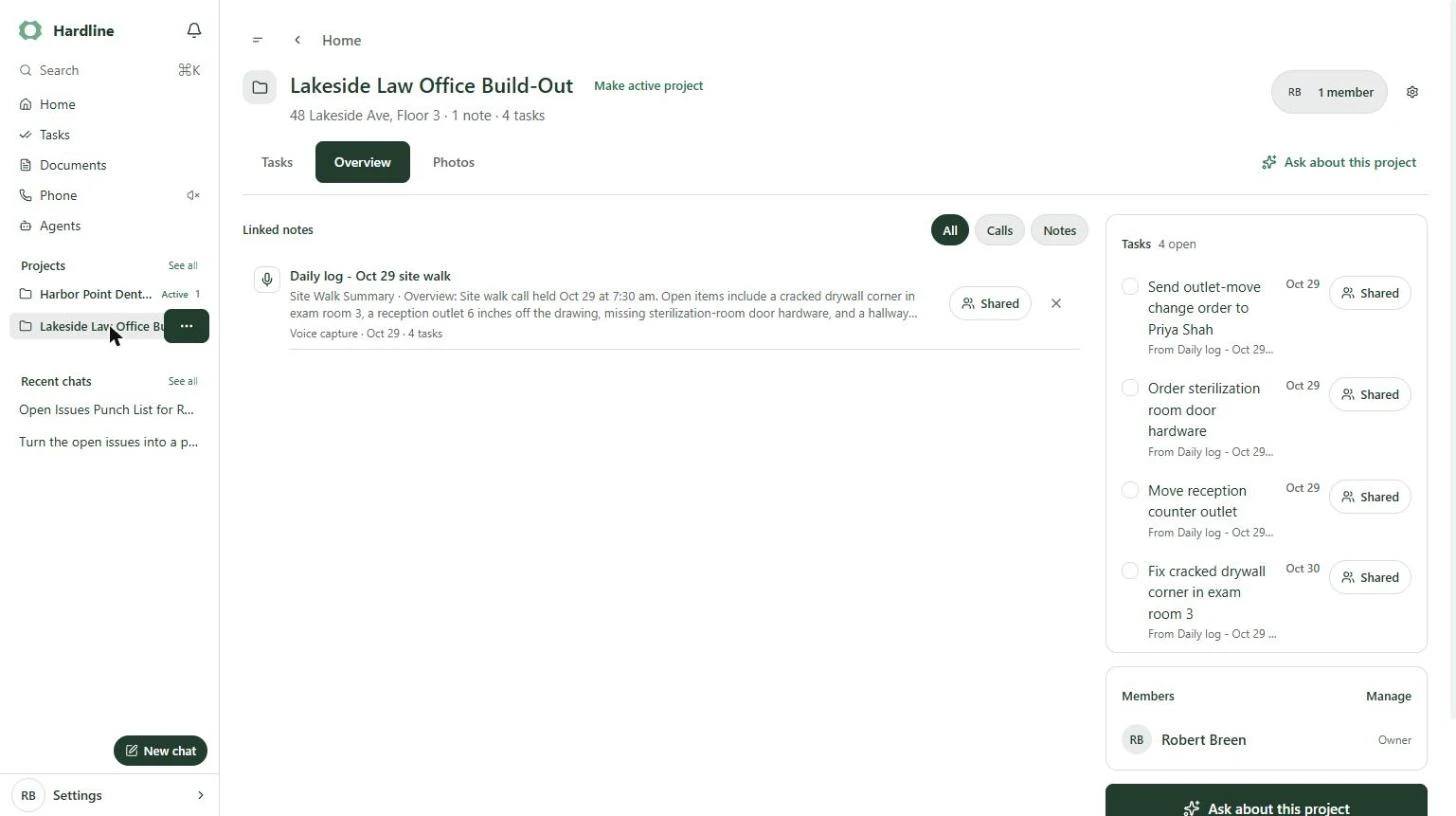
- Make this the active project. You are the superintendent on Lakeside Law Office Build-Out, a made-up tenant fit-out at 48 Lakeside Ave, Floor 3. The owner walk is tomorrow. You have photos on your phone and notes in your head, and the punch list usually takes your evening. In Hardline, open the project and click Make active project, so every photo and note you capture lands here.
You are the superintendent, and the owner walk is tomorrow. The punch list usually eats your evening.
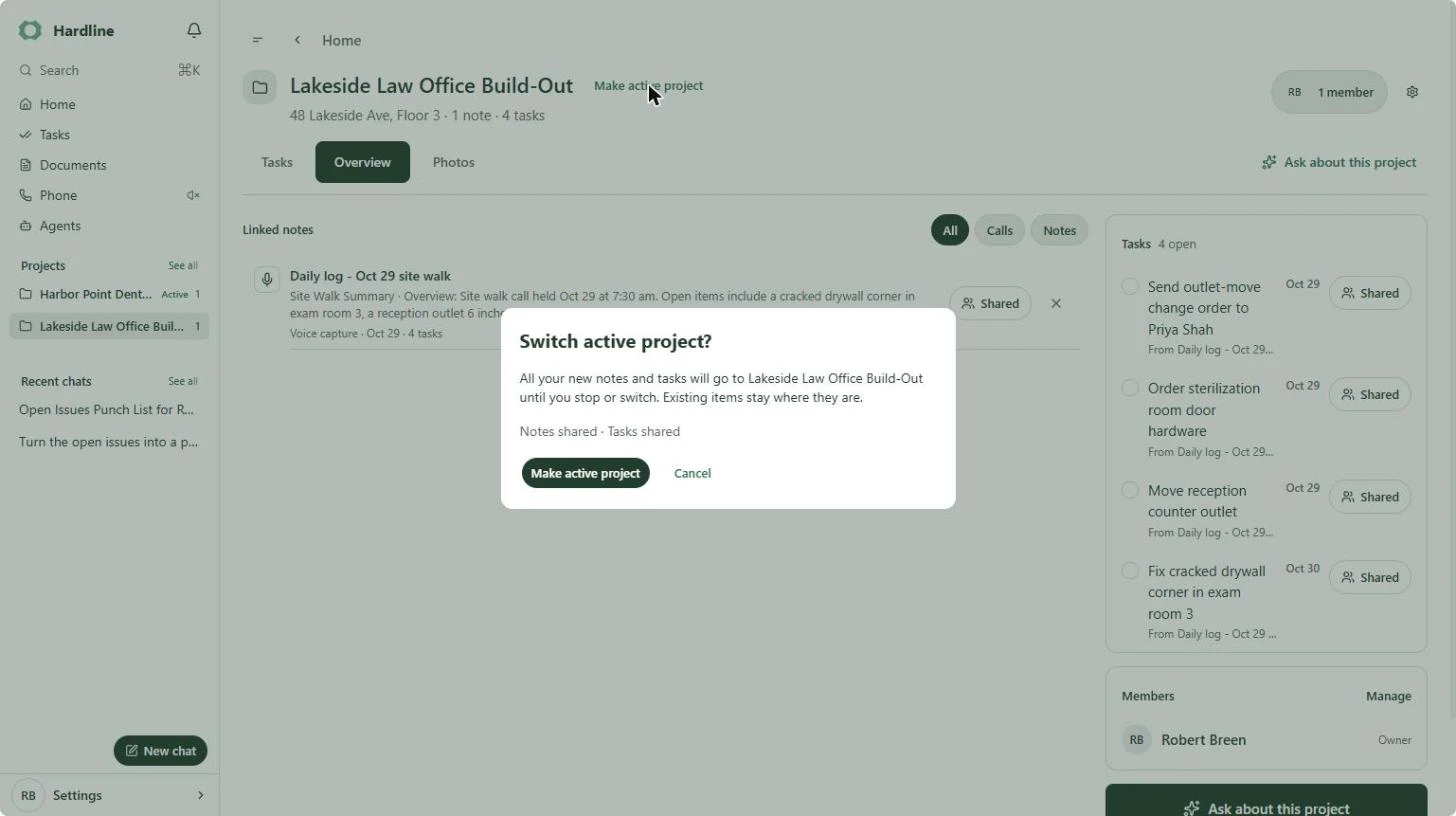
- Confirm it. Switch active project? All your new notes and tasks go to Lakeside Law Office Build-Out until you stop or switch. Click Make active project.
New notes and tasks go to this project until you switch.
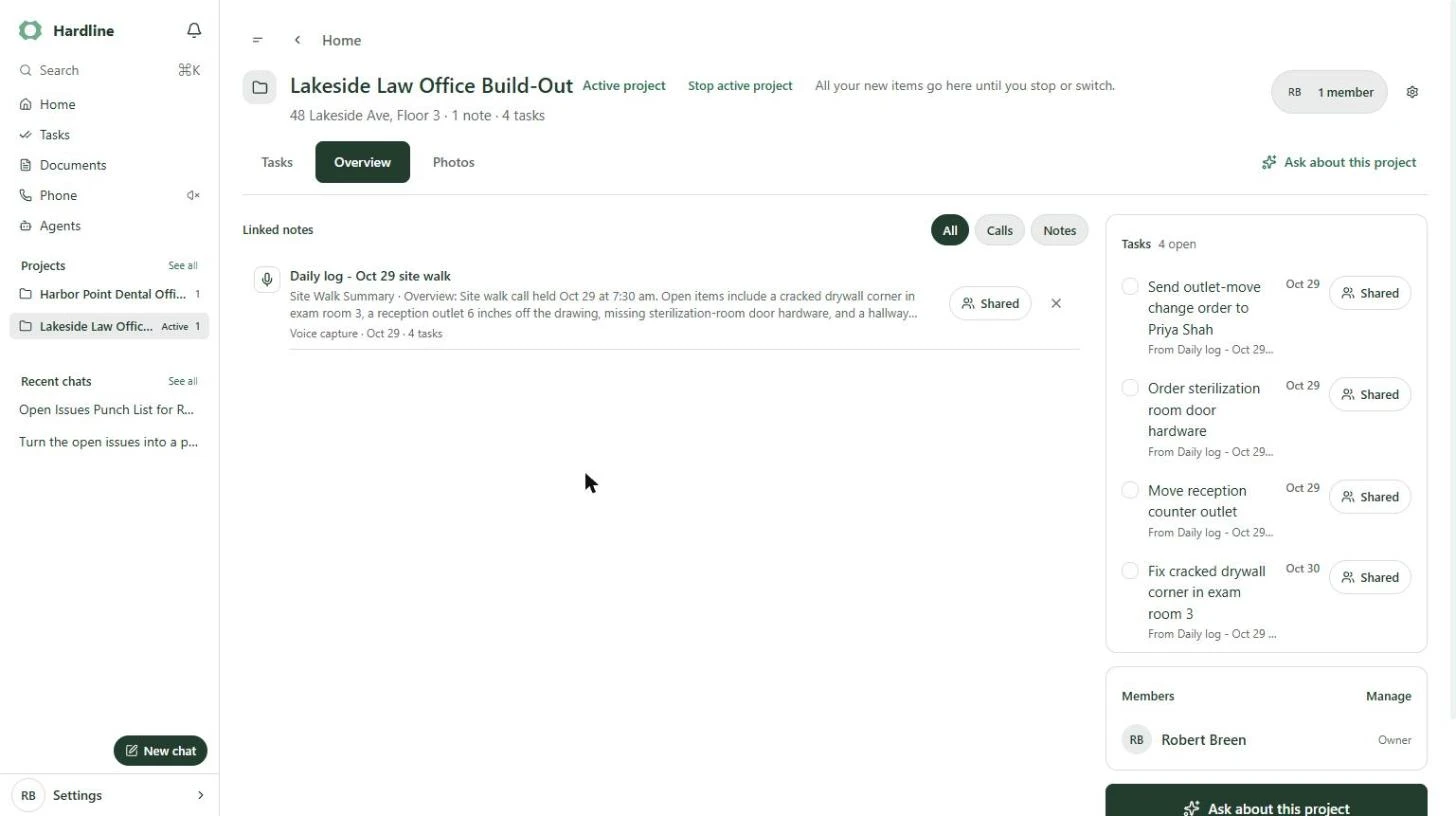
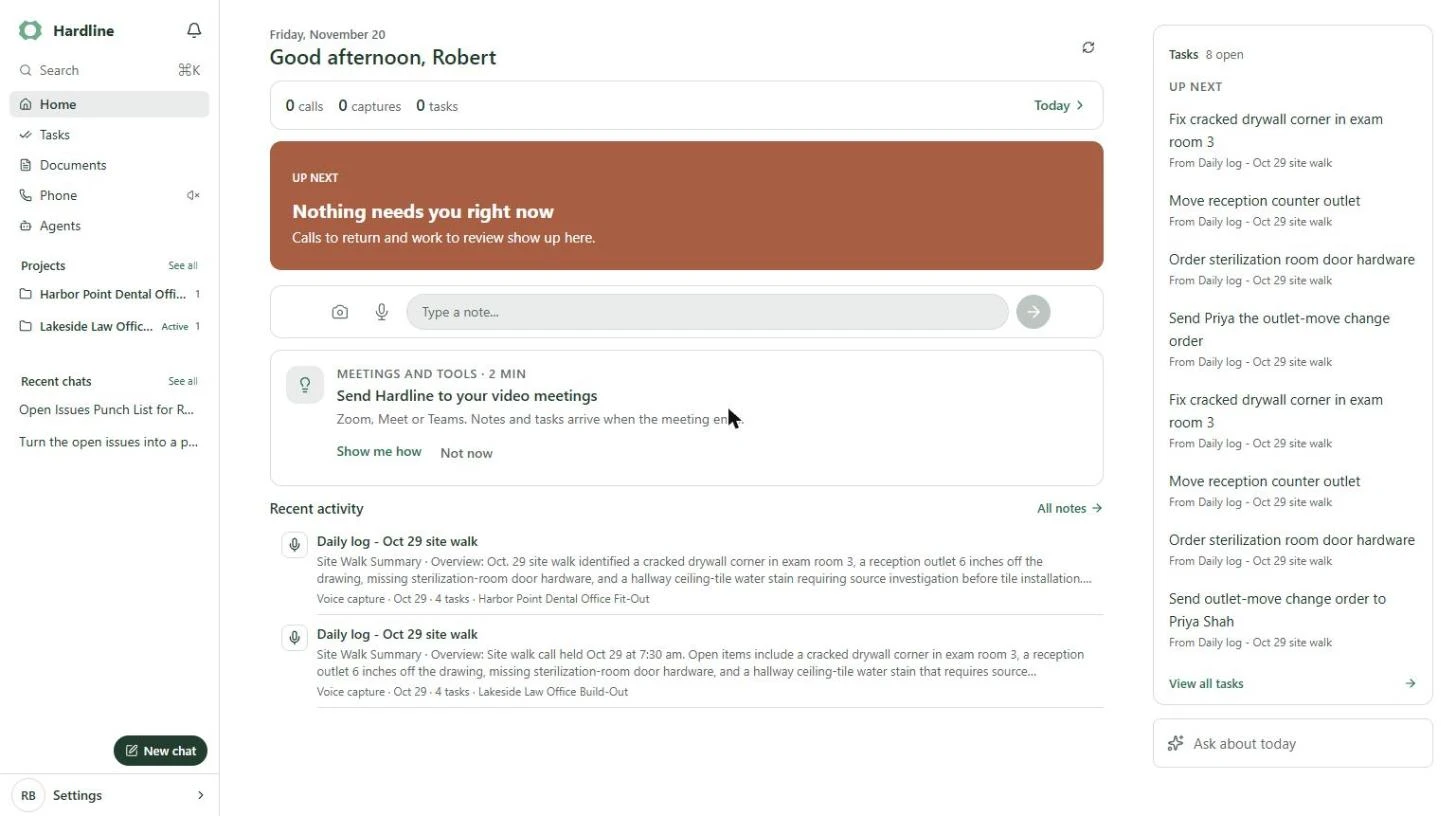
- Go to Home to capture. The project now says Active project. Captures start from Home. Click Home.
The project is now active.
2. Capture each issue
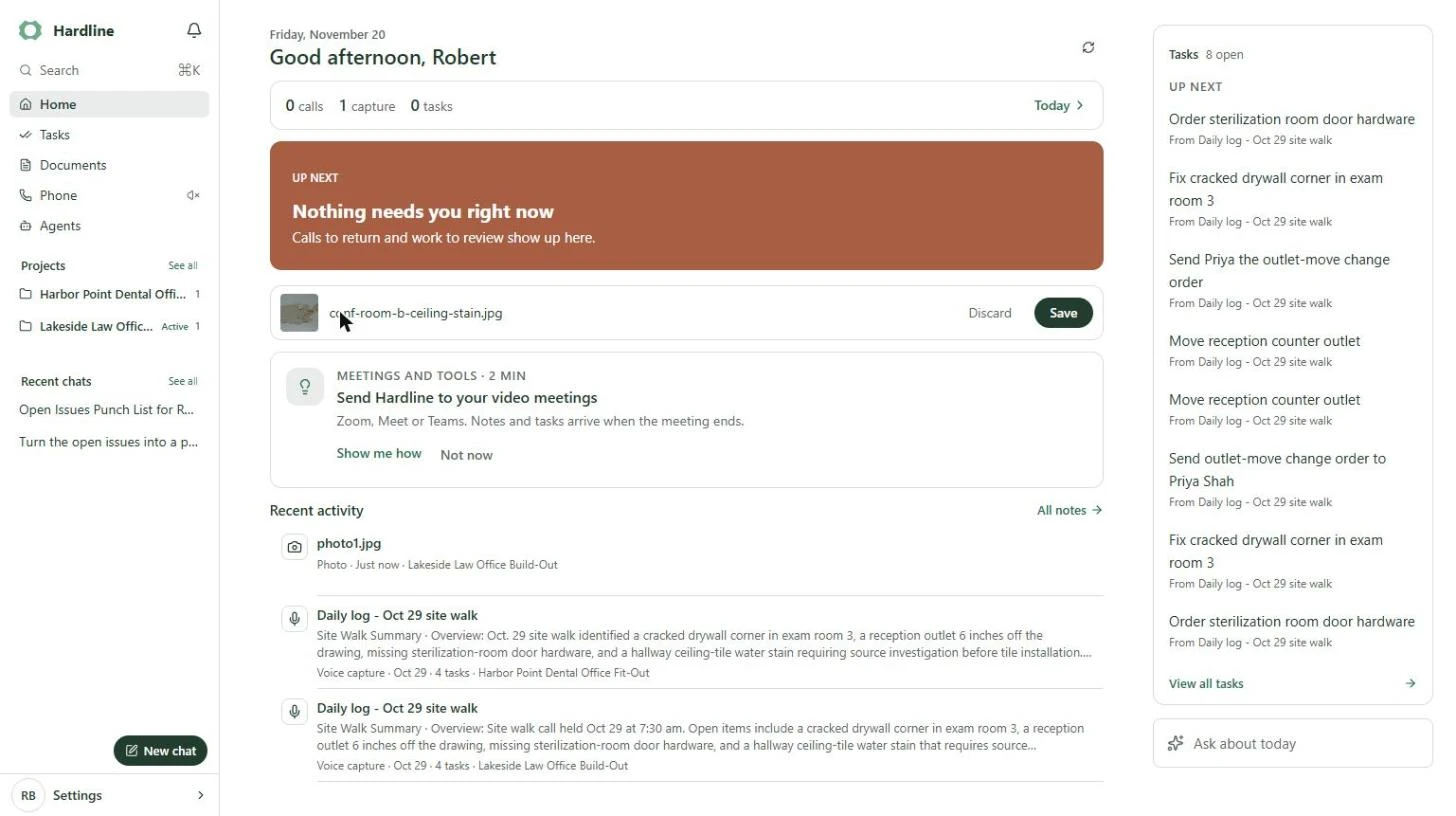
- Add a photo. The capture bar takes a photo, a voice note or a typed note. On the phone it opens the camera; on the web it picks a file. Click the camera. We added a photo of the water-stained ceiling in conference room B.
The capture bar takes a photo, a voice note, or a typed note.
- Save the photo. The photo waits with its file name. A clear name like conf-room-b-ceiling-stain.jpg helps later. Click Save.
A clear file name helps later.
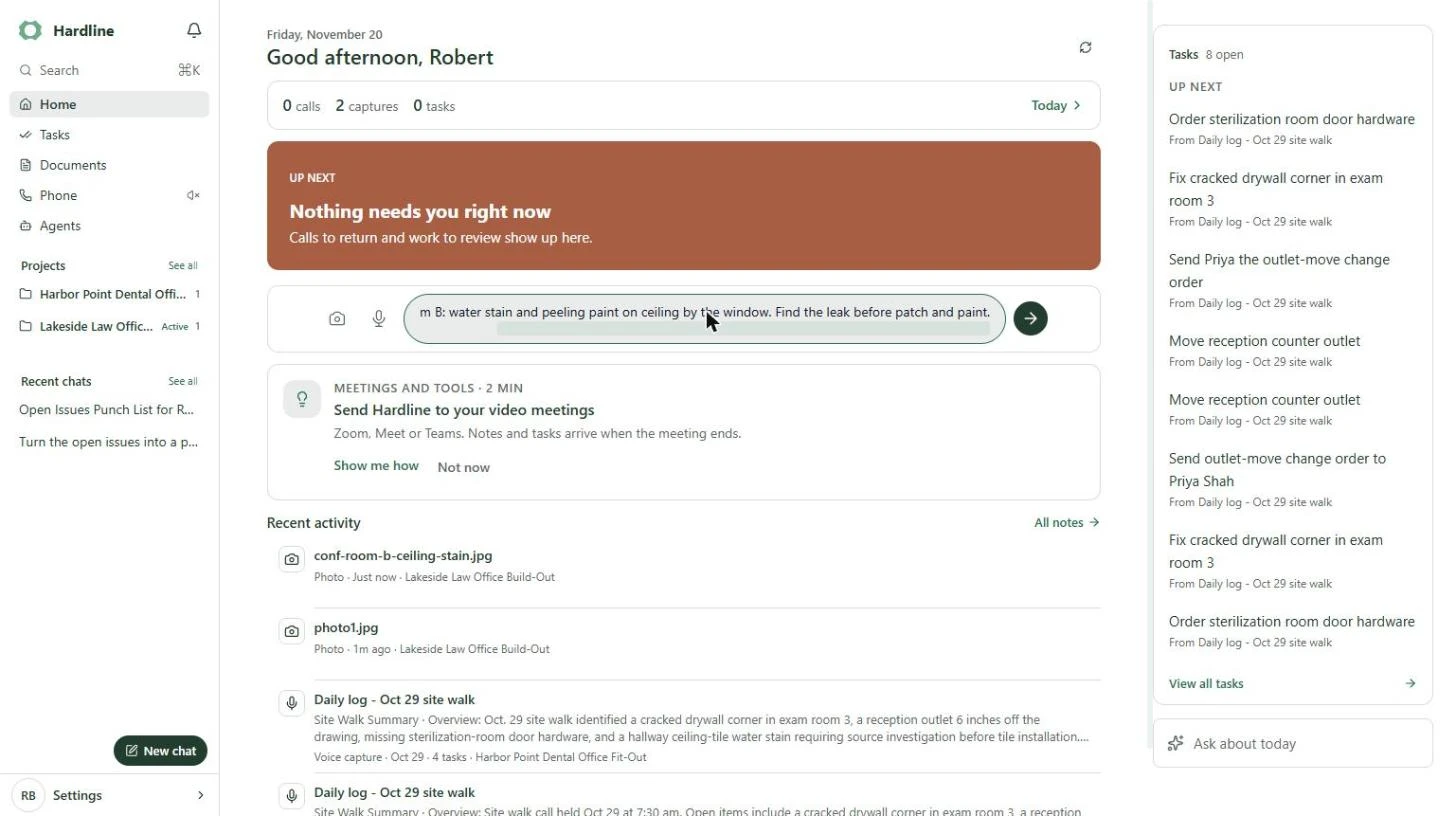
- Add one line of context and send it. A photo shows what; a note says where, who and what next. Type one line under the photo. Ours: Conference room B: water stain and peeling paint on ceiling by the window. Find the leak before patch and paint. Click Send.
A photo shows what. A note says where, who, and what next.
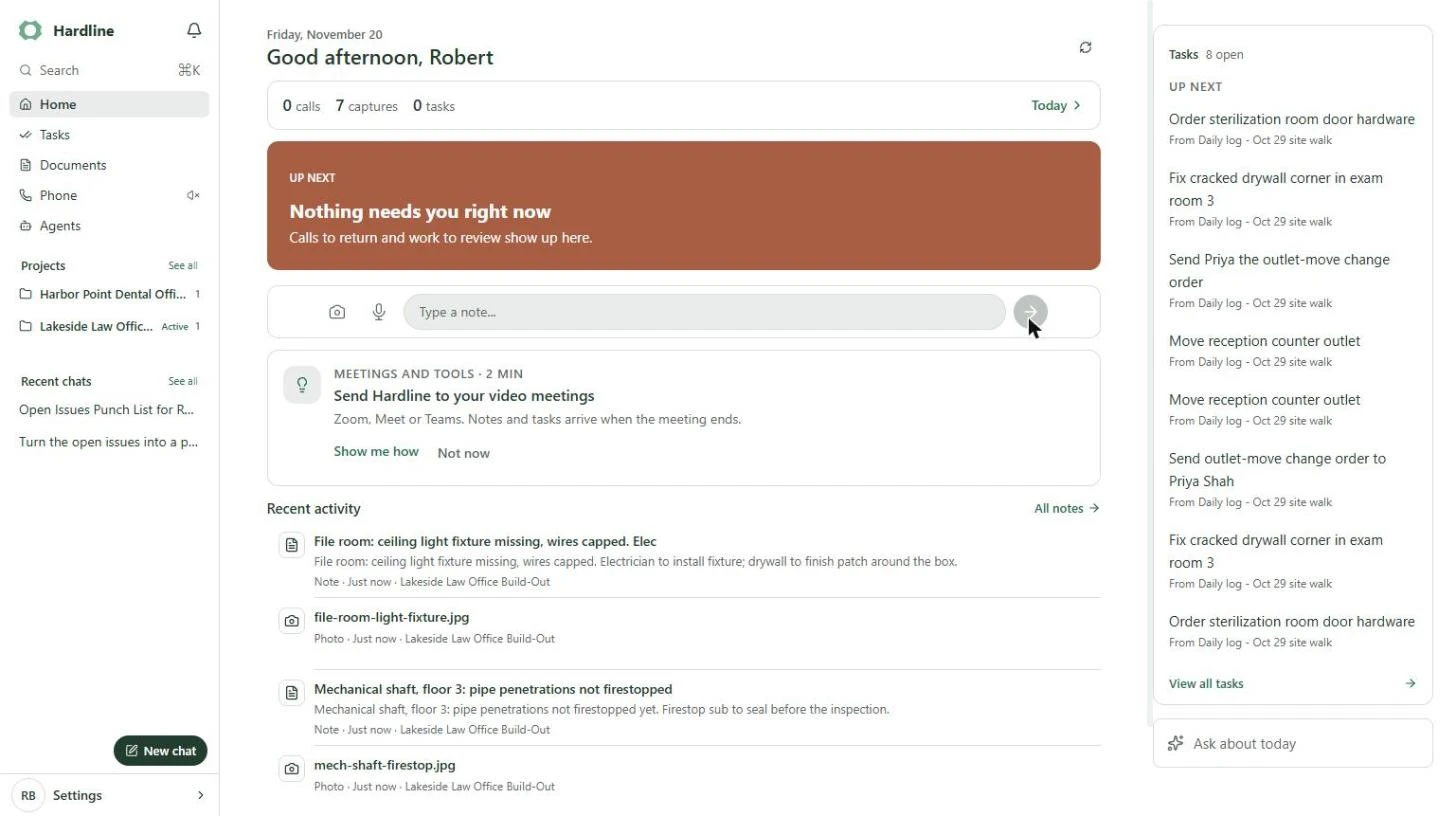
- Repeat for each issue, then open the project. Do the same for each issue on the walk. We added the mechanical shaft (pipe penetrations not firestopped) and the file room (light fixture missing, wires capped). Every photo and note shows under Recent activity, filed to Lakeside Law Office Build-Out. Click the project.
Repeat for each issue on the walk. Every photo and note lands in the project.
3. Ask for the punch list
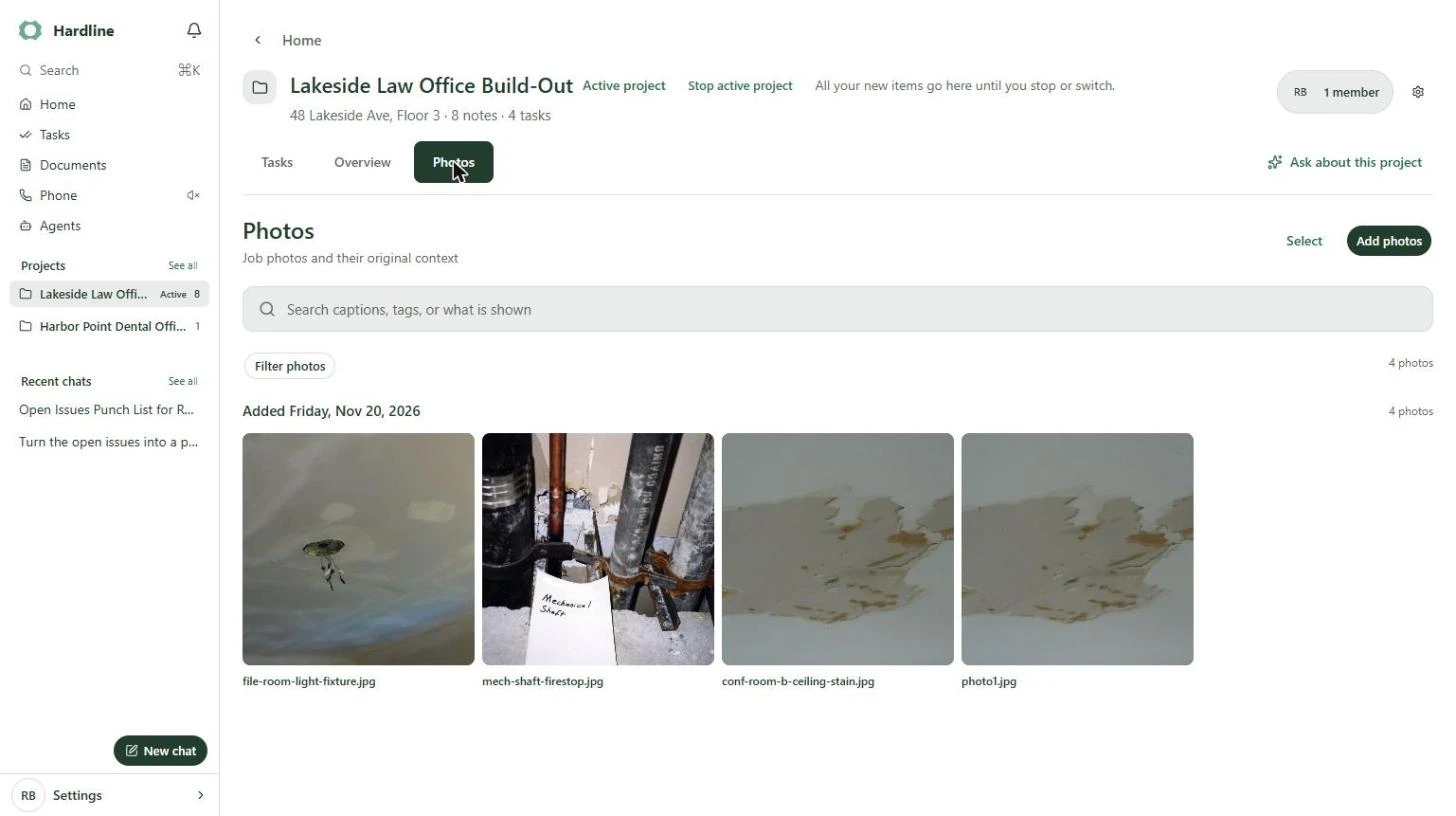
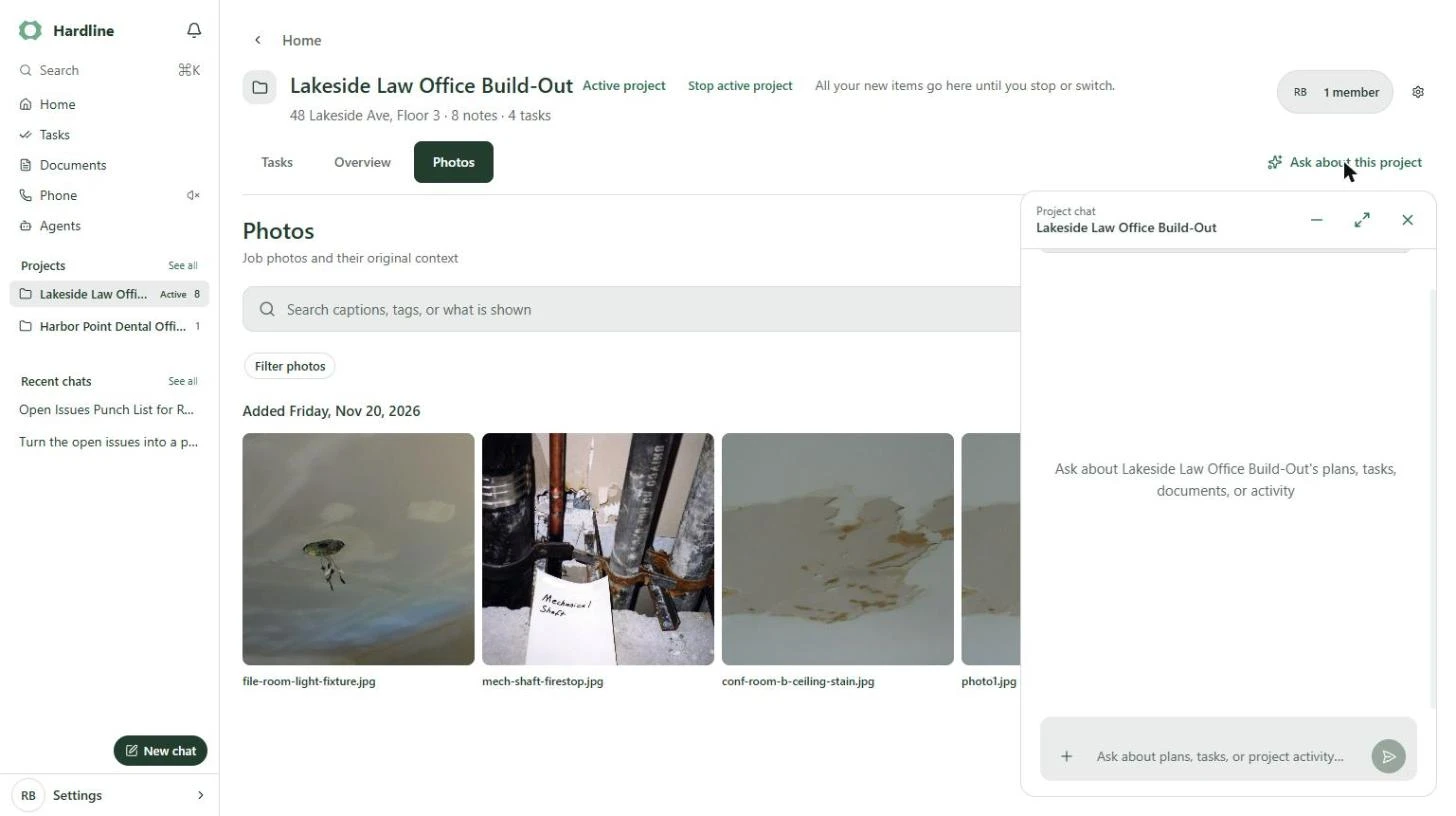
- Check the photos, then ask. Photos shows every job photo with its file name. Ours includes an extra copy of the ceiling photo, photo1.jpg, from a test upload. Click Ask about this project.
The Photos tab shows every job photo.
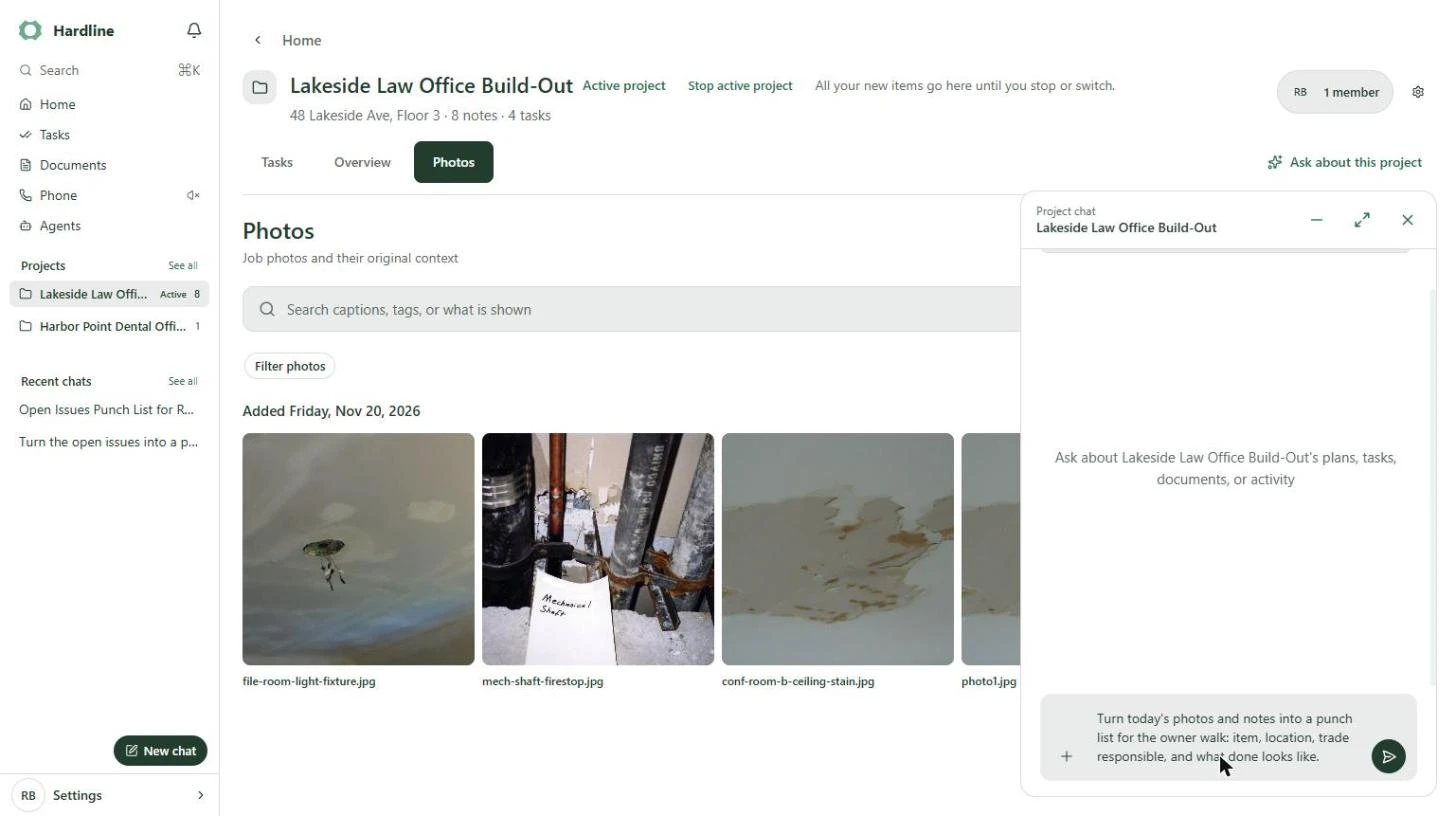
- Say exactly what the punch list needs. Name the format the owner walk needs. Type: Turn today's photos and notes into a punch list for the owner walk: item, location, trade responsible, and what done looks like.
Say exactly what the list needs. Item, location, trade responsible, and what done looks like.
- Send it. Click Send.
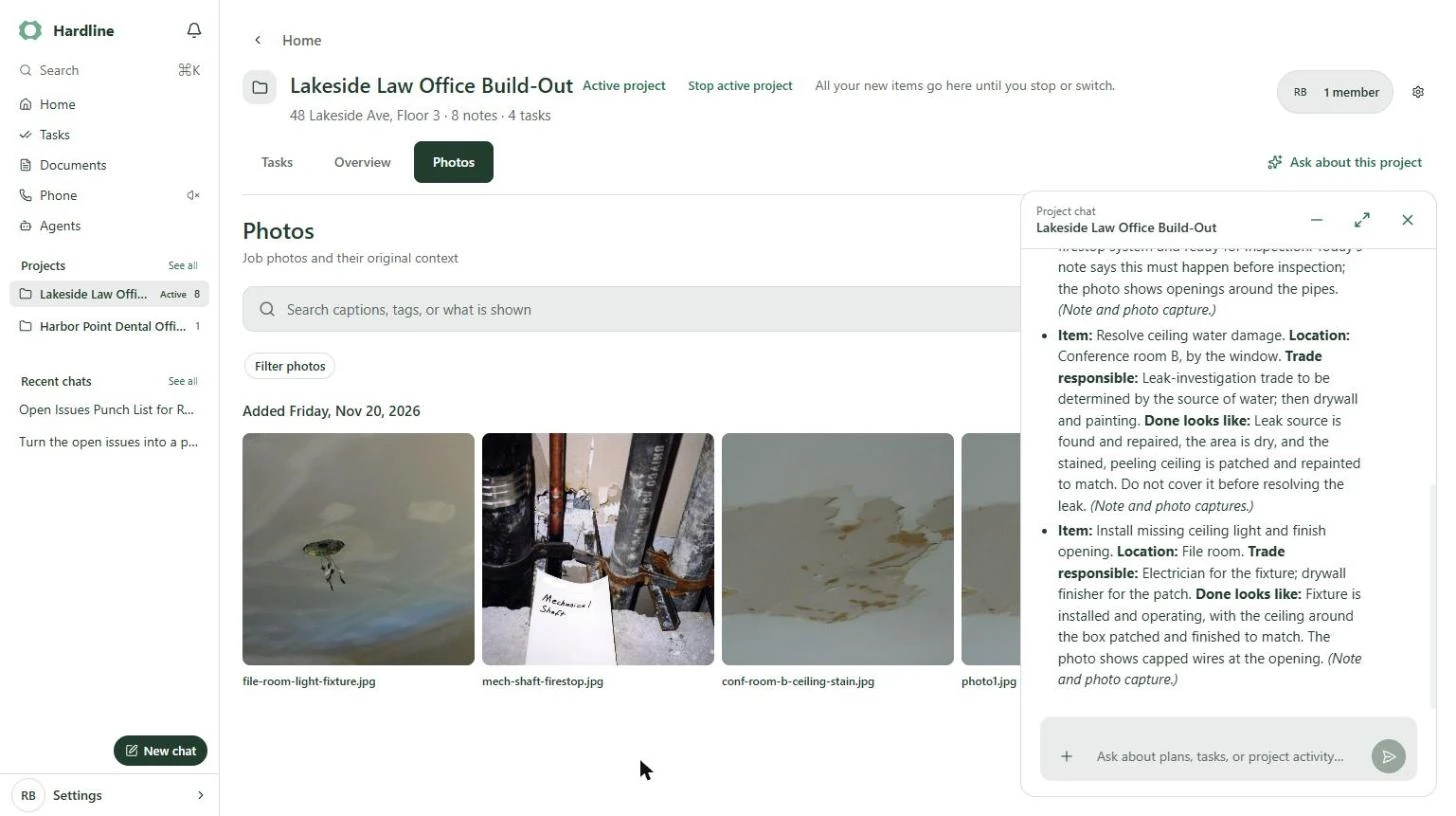
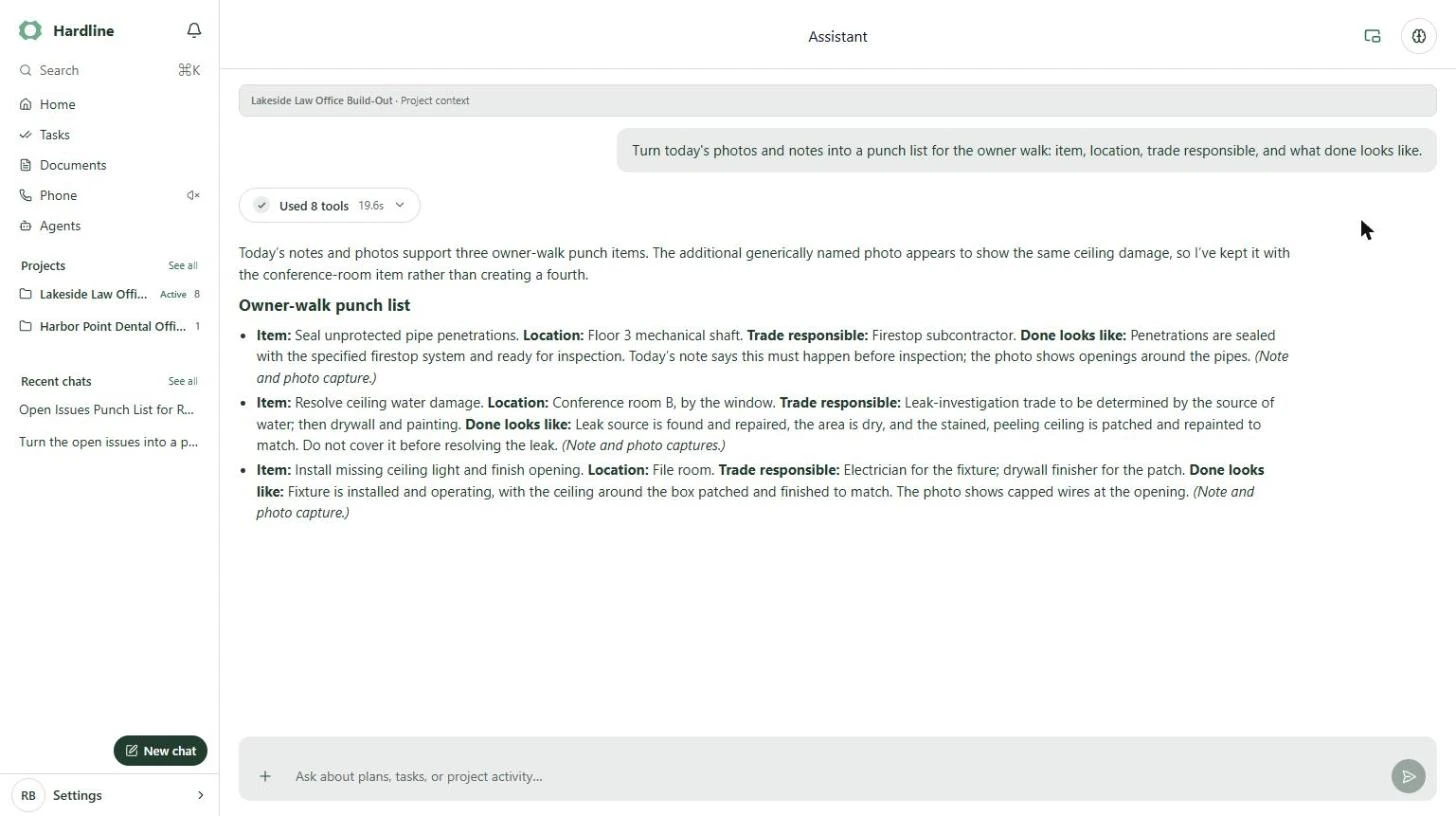
- Read the answer, then open it full size. Hardline used 8 tools in about 20 seconds. Each item has a location, a trade and what done looks like, and ends with where it came from: (Note and photo capture.) Click the expand icon to read it full size.
Hardline answered in about twenty seconds. Each item has a location, a trade, and what done looks like. Expand it.
- Check the list before the walk. Owner-walk punch list: seal the shaft penetrations (firestop sub), resolve the conference room B leak before patch and paint, and install the file room fixture (electrician, then drywall finisher). It also spotted that photo1.jpg showed the same ceiling damage and kept it with that item instead of making a fourth. Read each line against your own walk, then share it.
Three items, each with the trade and what done looks like. It even caught the duplicate photo. Check each line against your walk, then share it.
Screenshots
More in Business Automations
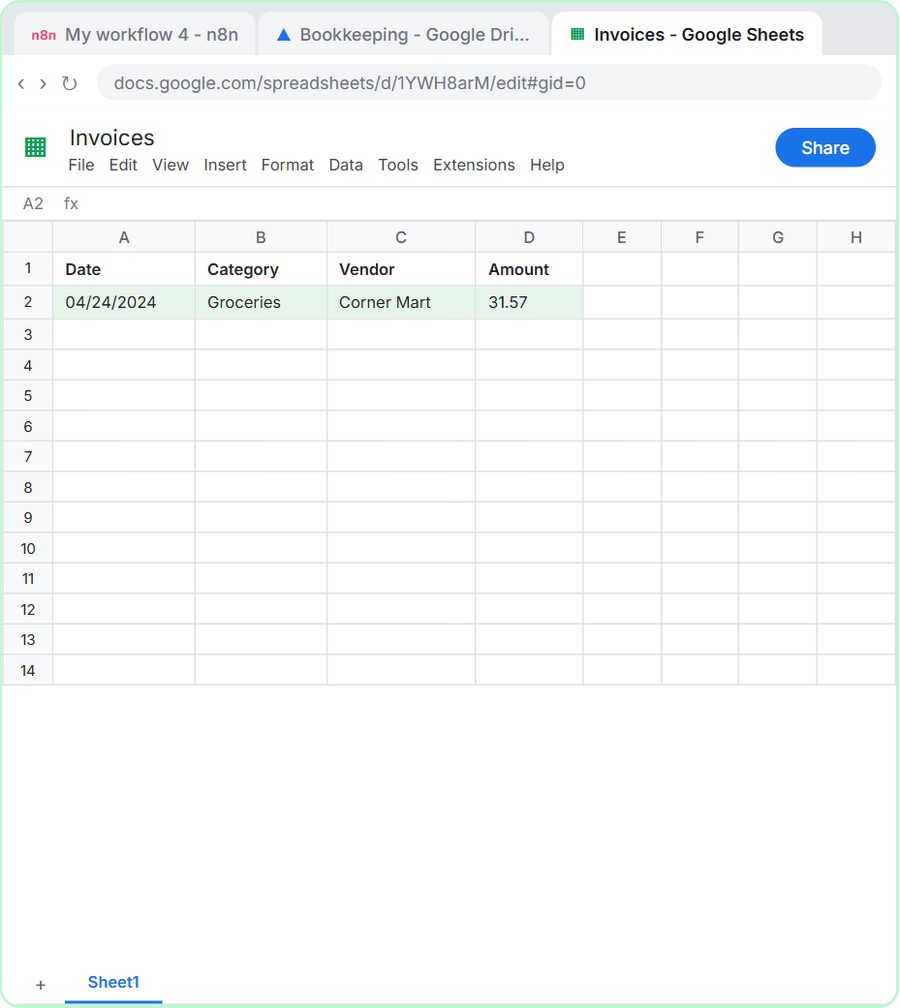 How to Do OCR in n8n: Read Receipt Photos into Google Sheets with AI
Drop a photo of a receipt into an n8n chat. An AI agent reads it, pulls out the date, vendor and amount, picks a category, and adds a row to Google Sheets.
Free · Live ~12 min Intermediate
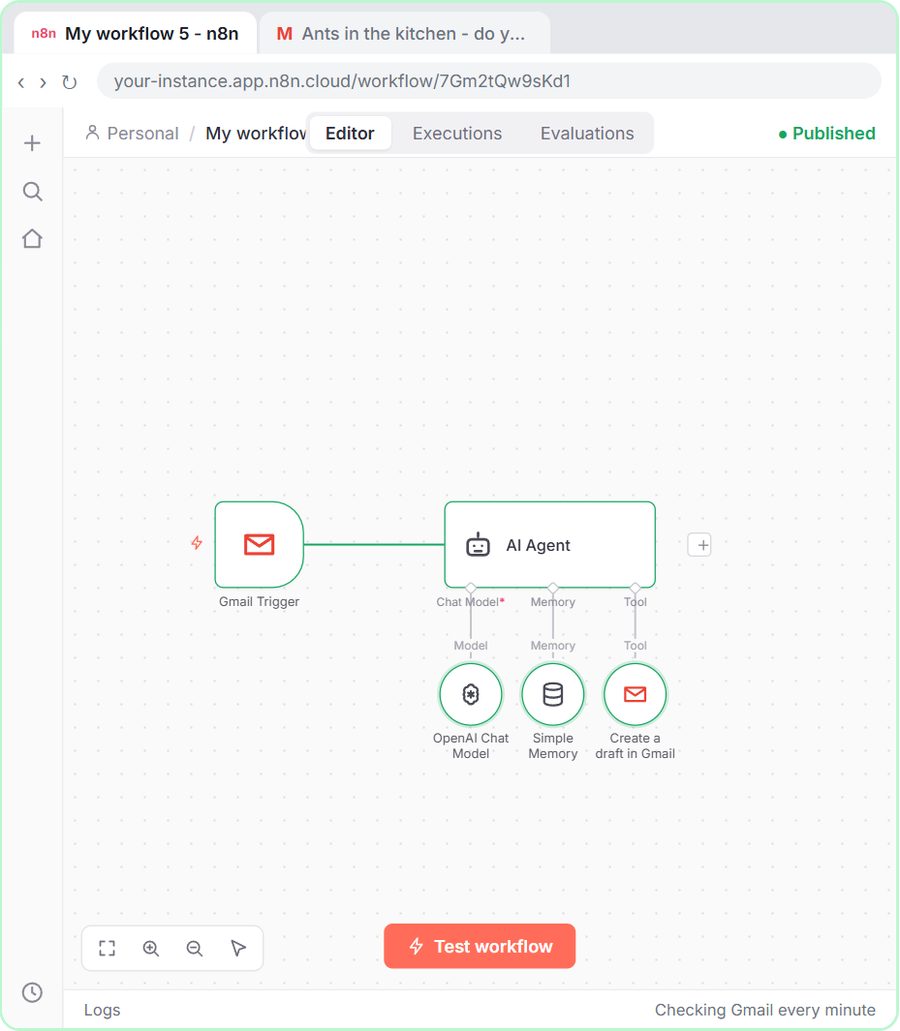 n8n AI Email Responder: Draft Gmail Replies Automatically
Build an n8n agent that watches your Gmail, reads each new customer email, and writes a reply as a draft in the same thread, ready for you to check and send.
Free · Live ~12 min Intermediate
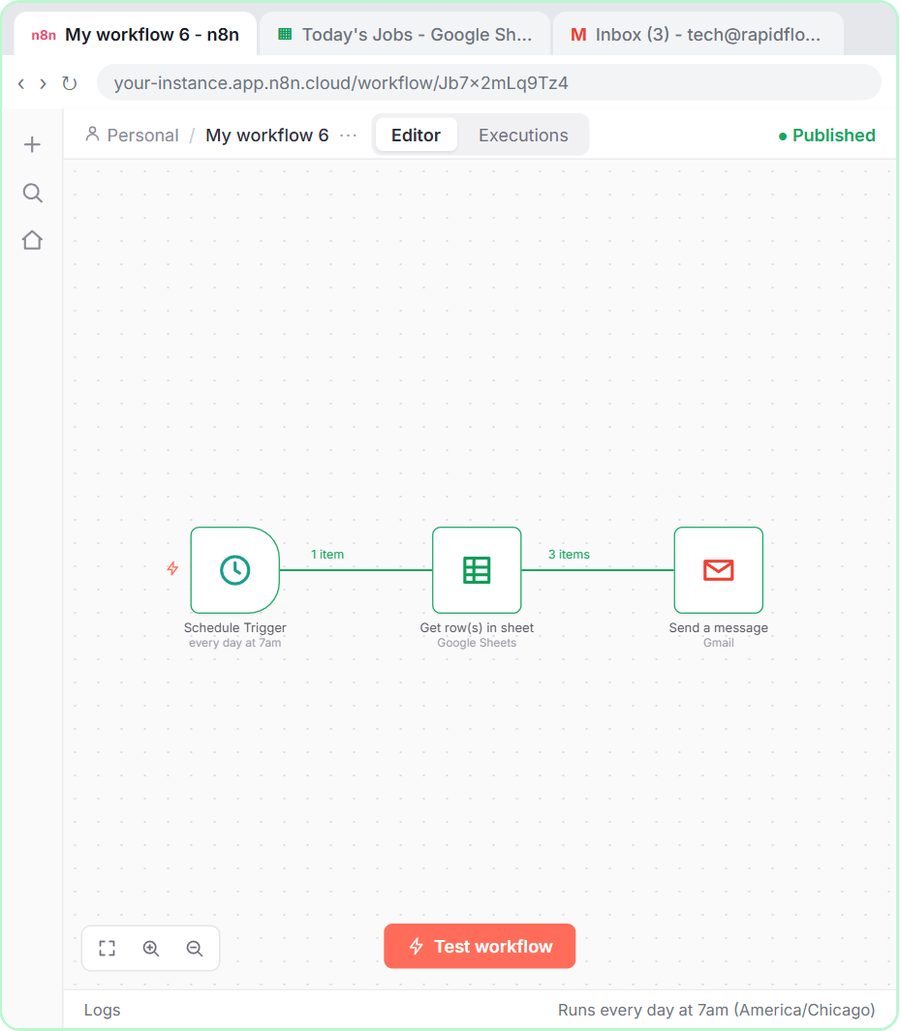 How to Make an n8n Workflow That Emails Each Tech Their Jobs from Sheets
Every morning at 7, n8n reads a plumbing company's jobs sheet, skips anything not assigned yet, and emails each job to the tech it's assigned to — customer, address…
Free · Live ~10 min Intermediate
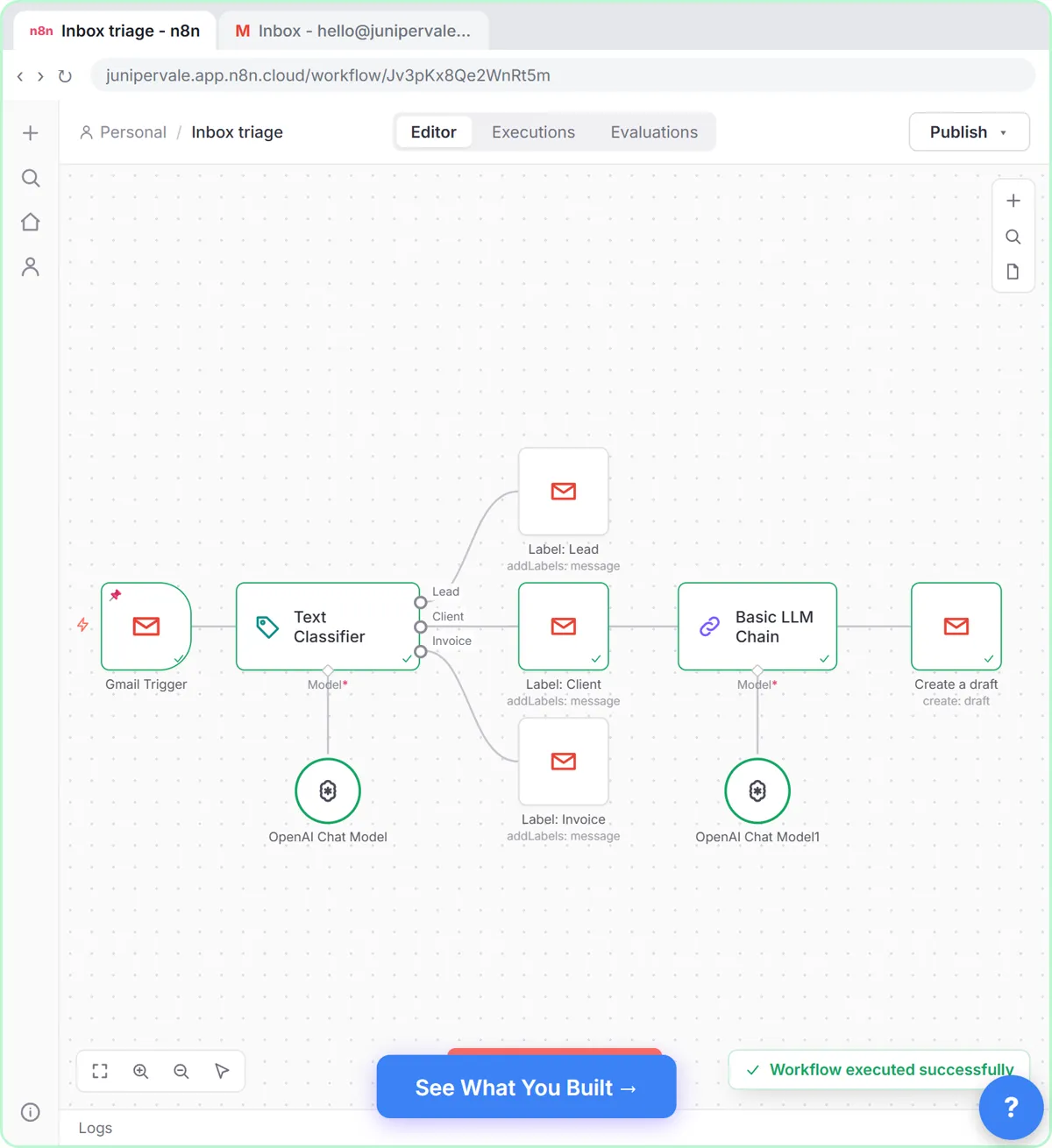 Gmail AI Triage: Auto-Label Every Email and Draft Replies
Build an n8n workflow that reads each new email, sorts it as a lead, a client or an invoice with a Text Classifier, adds the matching Gmail label, and drafts a reply to…
Free · Live ~18 min Advanced
 How to Use n8n to Build AI Agents: A Support Agent That Answers from Your Docs
Turn an n8n chat agent into a support agent that answers only from your policies in a Google Doc, refuses what it should, and hands off to a person by email.
Free · Live ~13 min Advanced
 Chatbase: Answer Customer FAQs with an AI Agent
A business case for a small firm that answers the same customer questions every week: build a Chatbase AI agent on your FAQ in the real app, make it say when it does…
Free · Live ~15 min Beginner
All 61 modules in Business Automations