Updated . Built against the tool’s current screens and checked step by step. How we check this lesson
The board wants volunteer hours per person and yours are on paper sign-in sheets. Describe volunteers and shifts in one sentence, check the link between them, log shifts in under a minute and read the hours by volunteer.
At a glance
| Question | Answer |
|---|---|
| What you build | The board wants volunteer hours per person and yours are on paper sign-in sheets. Describe volunteers and shifts in one sentence, check the link between them, log shifts in under a minute and read the hours by volunteer. |
| Tools | ChatData Sync |
| Time | About 9 minutes, 21 steps in 4 parts |
| Level | Beginner, no coding needed |
| Cost | Free |
| Ways to learn it | Practice it step by step |
The 4 parts, in short
- Describe two linked lists: Start a new tracker, Describe both lists in one go, Generate it, Two sections, ten fields, and 3 more steps.
- Log a volunteer and a shift: Open Quick log, Start with a person, Save Priya, Switch to shifts, and 3 more steps.
- Load the roster: See the shift with its volunteer, Try a CSV of shifts, A limit to know about, The roster loads fine.
- Read hours by volunteer: Six shifts, one table, Group by volunteer, Read the hours.
Start here first: How to Do OCR in n8n: Read Receipt Photos into Google Sheets with AI (module 1 of Business Automations)
In the course: Part 9 · n8n Automation Toolkit (Module 151 of the full course)
Part of: AI for Sales Teams (step 30 of 30)
Part of: AI Apps Worth Knowing (step 162 of 175). Next up: Octuo: Turn Over a Vacant Apartment in 5 Days with a Make-Ready Checklist
What you'll build
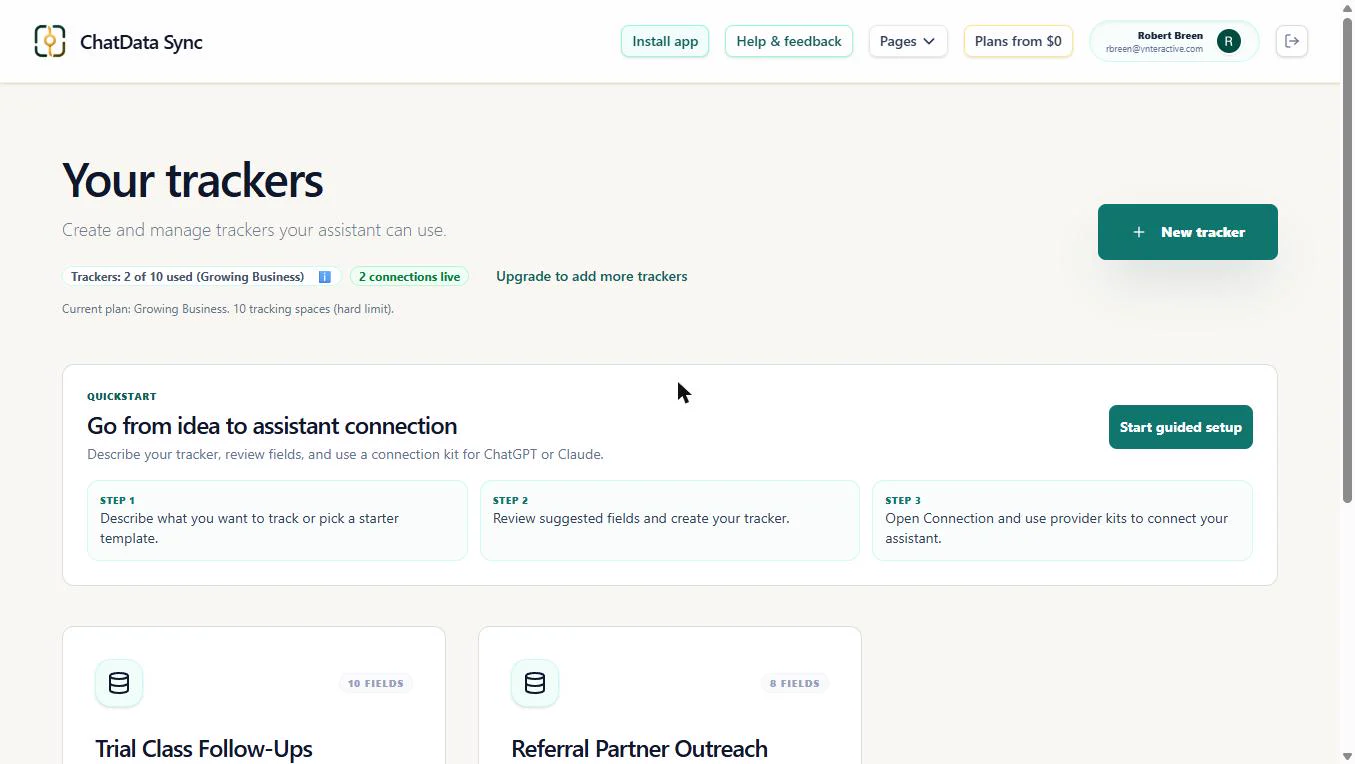
Riverside Food Bank is made up. Its grant report needs volunteer hours per person, and the hours live on paper sign-in sheets. As the volunteer coordinator, you describe two linked lists in plain English, volunteers and shifts, and ChatData Sync builds both and the link between them. You log a volunteer and a shift with Quick log, load the roster from a CSV, and read the hours by volunteer on a chart. You also see two limits we hit in the real app, so they do not surprise you.
You built a volunteers list and a shifts list with a link between them, logged shifts with Quick log, loaded the roster from a CSV and read the hours by volunteer: Marcus 9.5, Priya 7.5, Elena 6. Next, log each shift the day it happens. When you connect ChatGPT or Claude on the Connect tab, you can ask for "total hours per volunteer this month" in one sentence.
- Tools: ChatData Sync
- Time: about 9 minutes, 21 steps in 4 chapters
- Level: beginner, no coding needed
- Price: free
Practice first, then build it for real
Practice copy built from real ChatData Sync screens (chatdatasync.com), captured 16 November 2026. Nothing here touches a ChatData Sync or ChatGPT account. The food bank, the volunteers and the shifts are made up. To build it for real you need your own ChatData Sync account, and some services charge once you use them for real work, so check each tool's current pricing.
Try it yourself, free
Reading the steps is a start. Doing them is how it sticks. The interactive module walks you through every click in a practice copy of ChatData Sync, checks each step, and never touches your real accounts.
Start “ChatData Sync: Track Volunteer Hours with Linked Records”Step by step: ChatData Sync: Track Volunteer Hours with Linked Records
All 21 steps of the interactive module, in order. In the module you watch each one, then do it yourself in a practice copy that checks your work.
1. Describe two linked lists
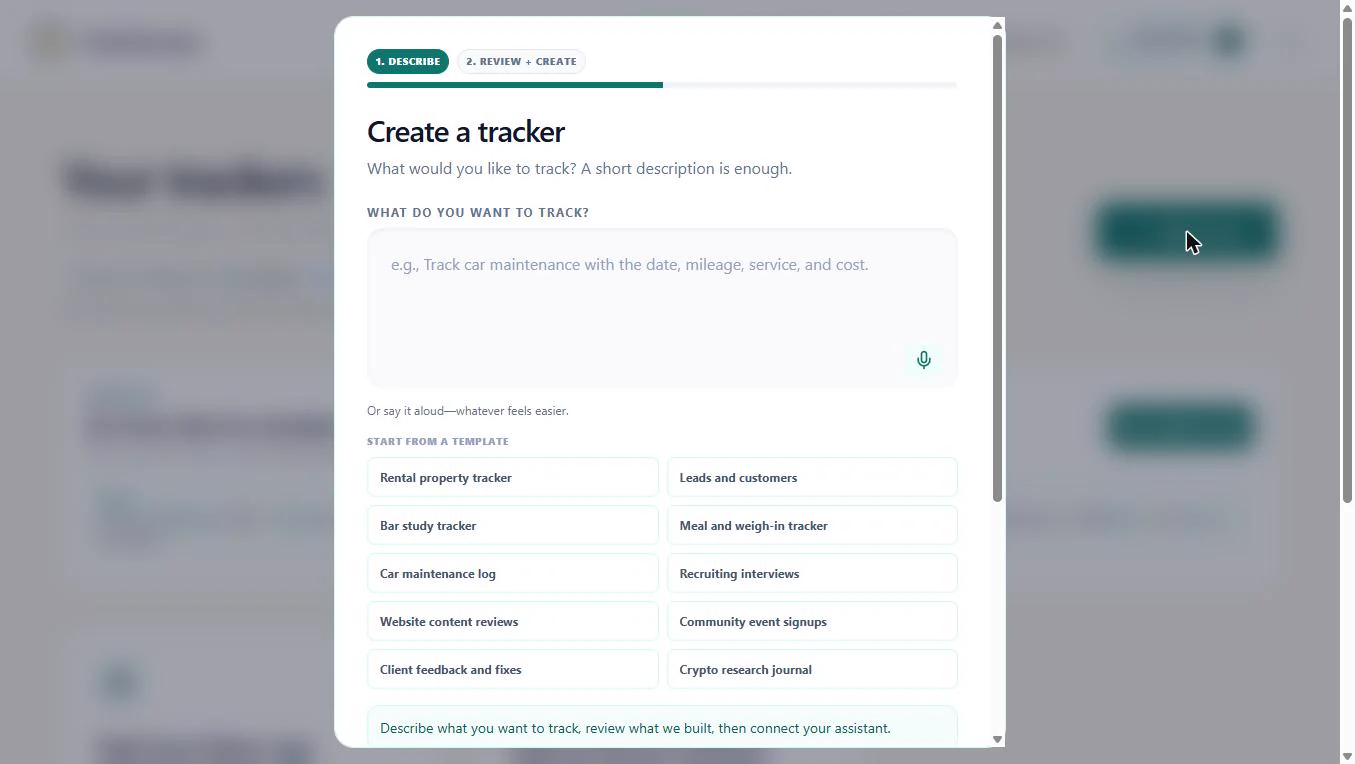
- Start a new tracker. You are Noor, the made-up volunteer coordinator at Riverside Food Bank. The grant report is due and the board wants hours per volunteer. Right now those hours sit on paper sign-in sheets. Click New tracker.
You coordinate volunteers at a food bank. The board wants hours per volunteer, and the hours are on paper.
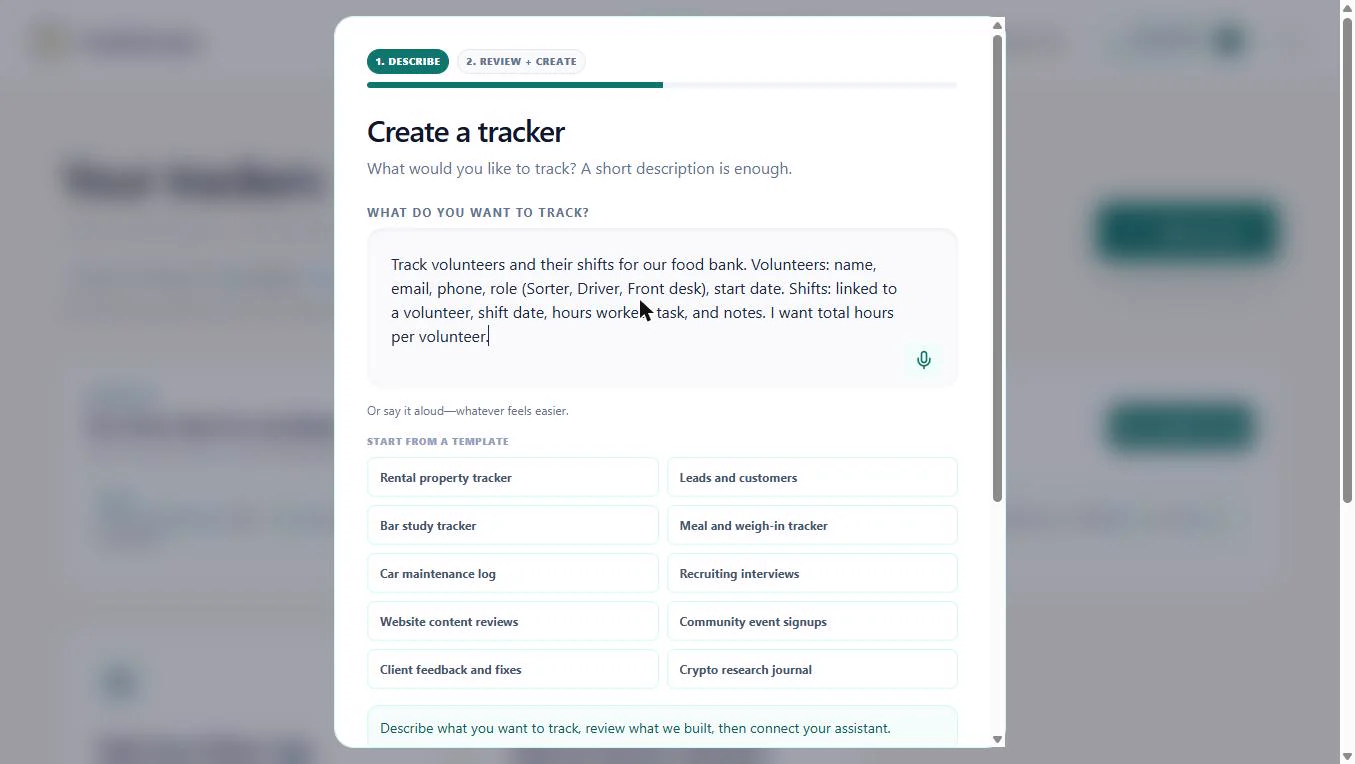
- Describe both lists in one go. You need two lists: people and shifts. Describe both, and say that shifts are linked to a volunteer. Name the role values in brackets so they become a pick list.
Describe two lists, people and shifts, and say that shifts are linked to a volunteer.
Track volunteers and their shifts for our food bank. Volunteers: name, email, phone, role (Sorter, Driver, Front desk), start date. Shifts: linked to a volunteer, shift date, hours worked, task, and notes. I want total hours per volunteer.
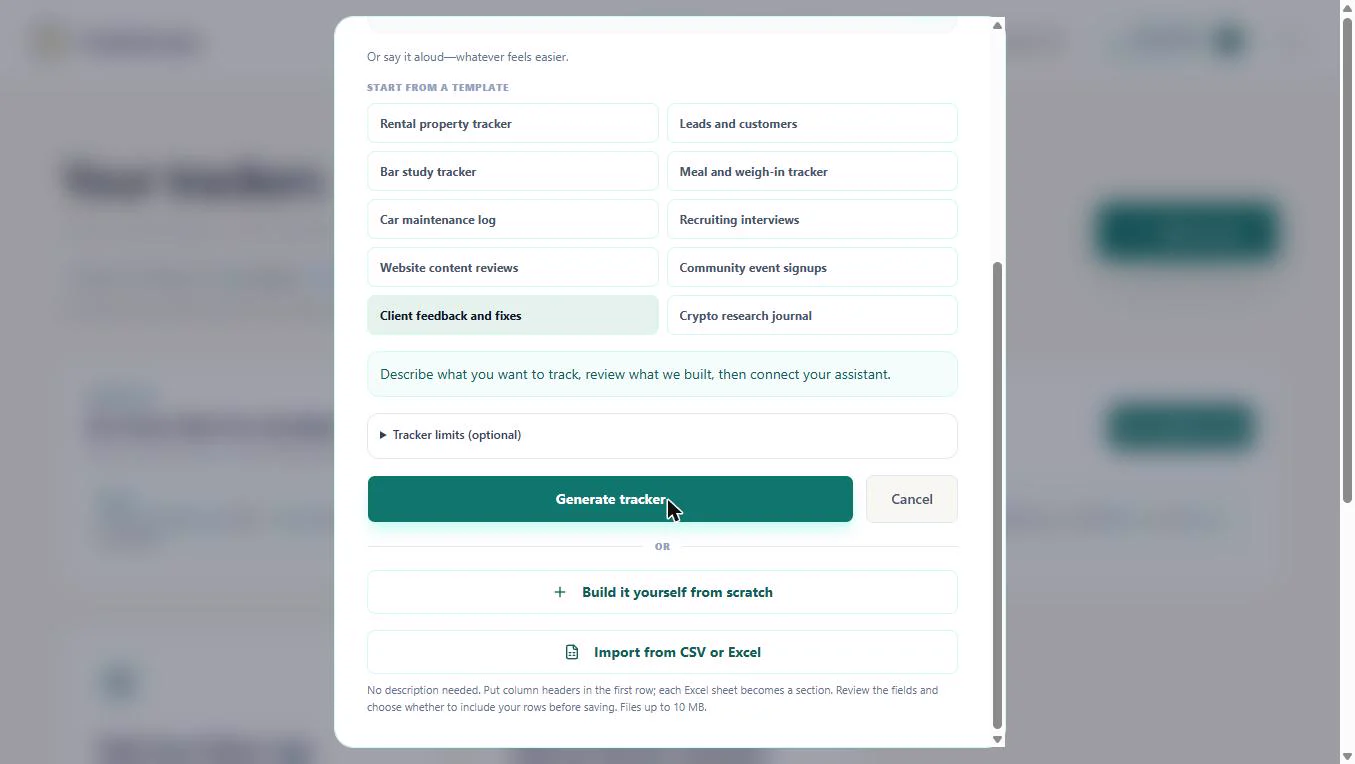
- Generate it. Scroll down and click Generate tracker. Nothing is saved yet; you review it first.
Nothing is saved yet.
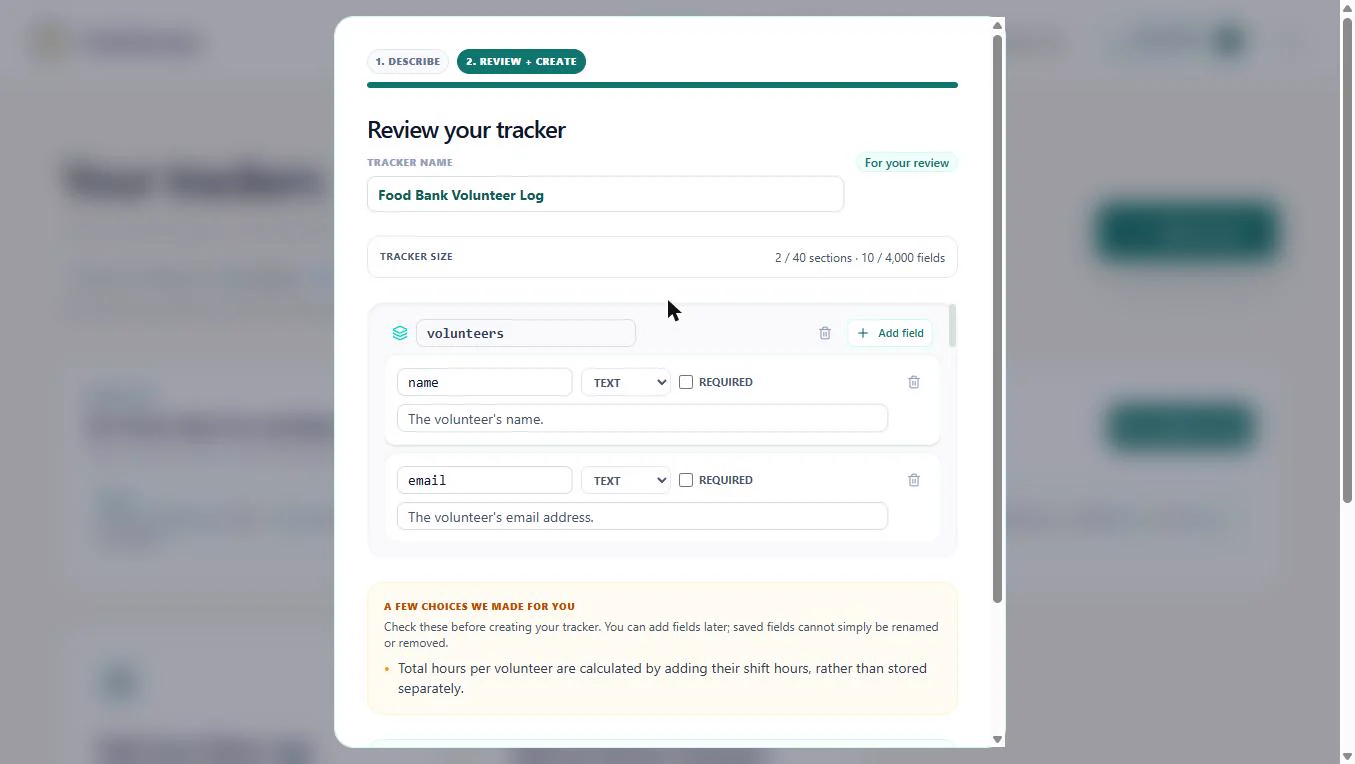
- Two sections, ten fields. It named the tracker Food Bank Volunteer Log and made 2 sections with 10 fields: volunteers (name, email, phone, role, start date) and shifts. Click Tracker size.
It made two sections with ten fields: volunteers and shifts.
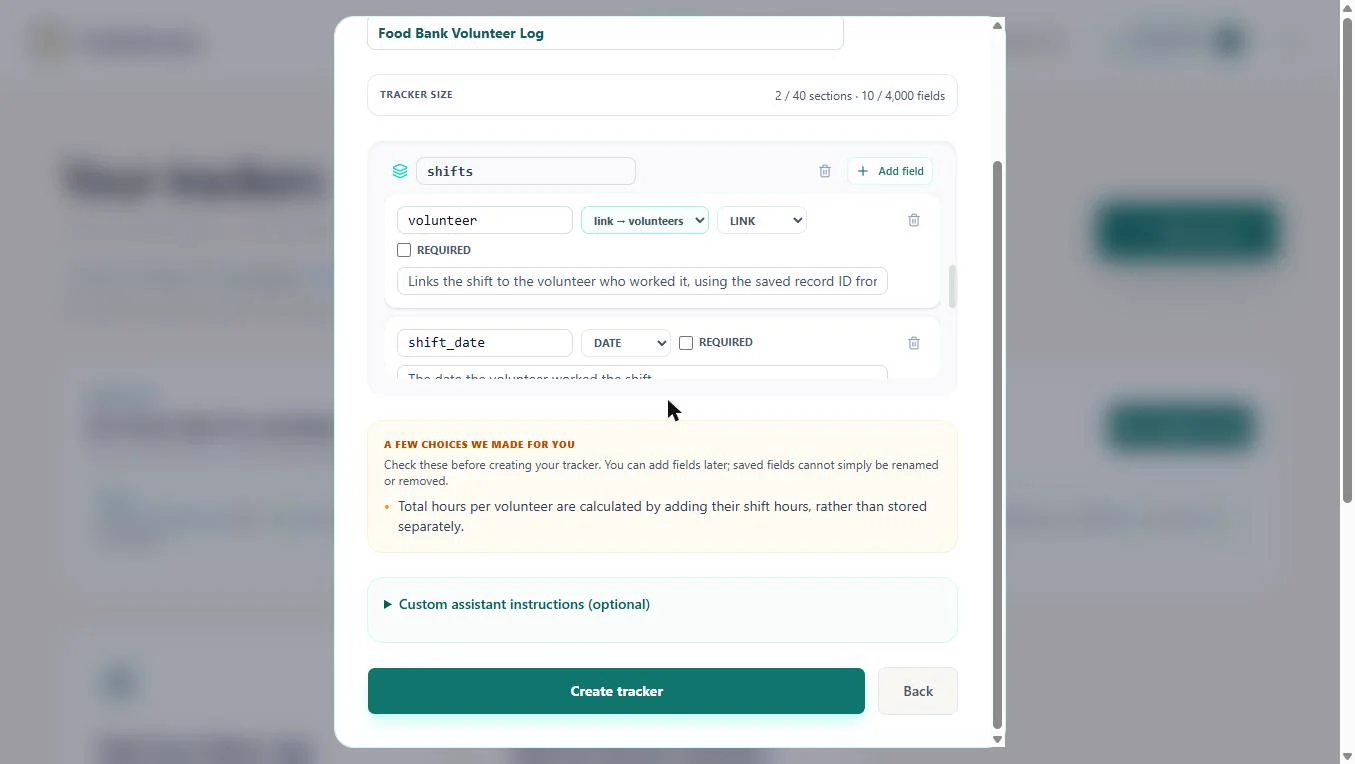
- Check the link. Scroll to shifts. The first field, volunteer, is a LINK that points to volunteers. That link is what lets one person have many shifts without retyping their details. Click link → volunteers.
In shifts, the volunteer field is a link that points to volunteers. One person, many shifts.
- Read the choice it made. Read A few choices we made for you: total hours per volunteer are calculated by adding their shift hours, not stored as a separate number. Good: a stored total goes stale the day someone forgets to update it. Saved fields cannot simply be renamed or removed, so check now. Click the box.
Total hours are calculated from the shifts, not stored. Saved fields cannot simply be renamed, so check now.
- Create the tracker. Click Create tracker.
2. Log a volunteer and a shift
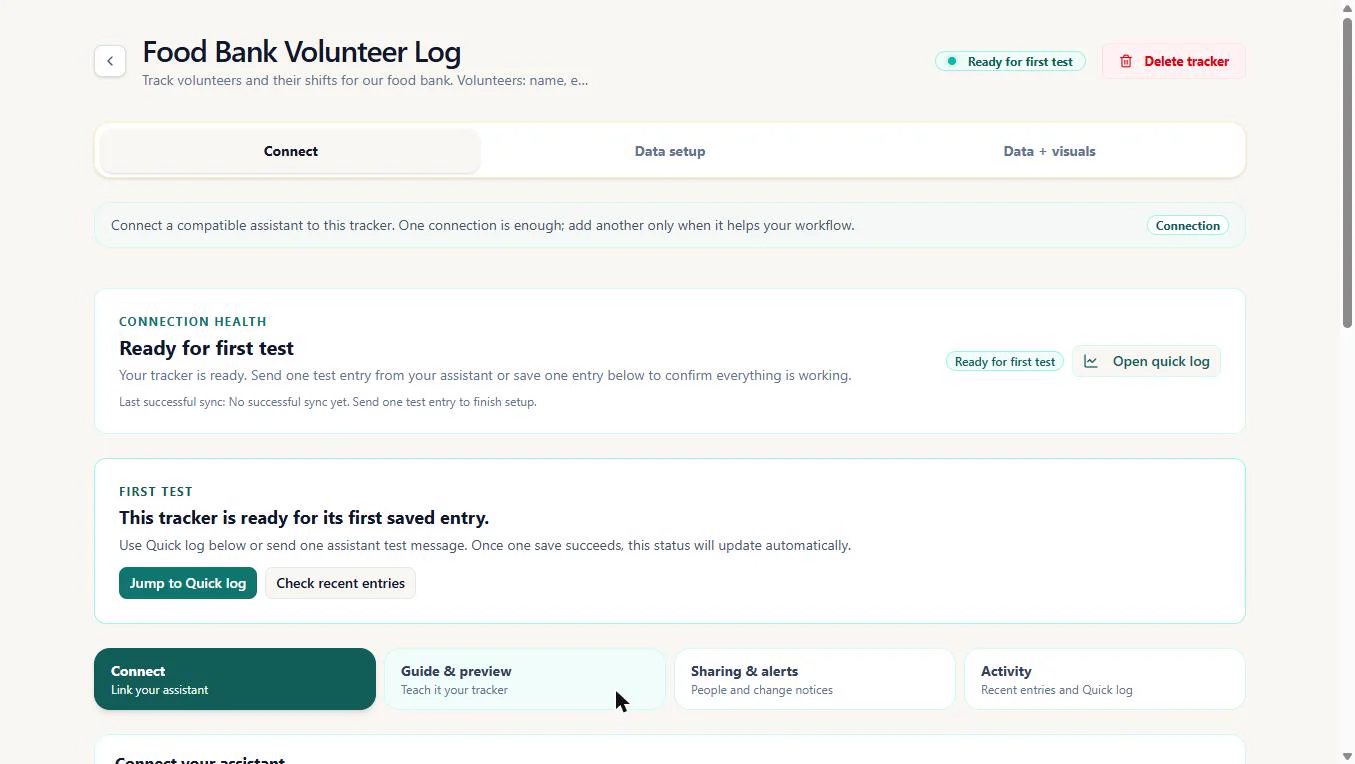
- Open Quick log. The tracker opens on Connect, Ready for first test. You do not need ChatGPT yet. Click Jump to Quick log.
The tracker is ready. You do not need ChatGPT yet.
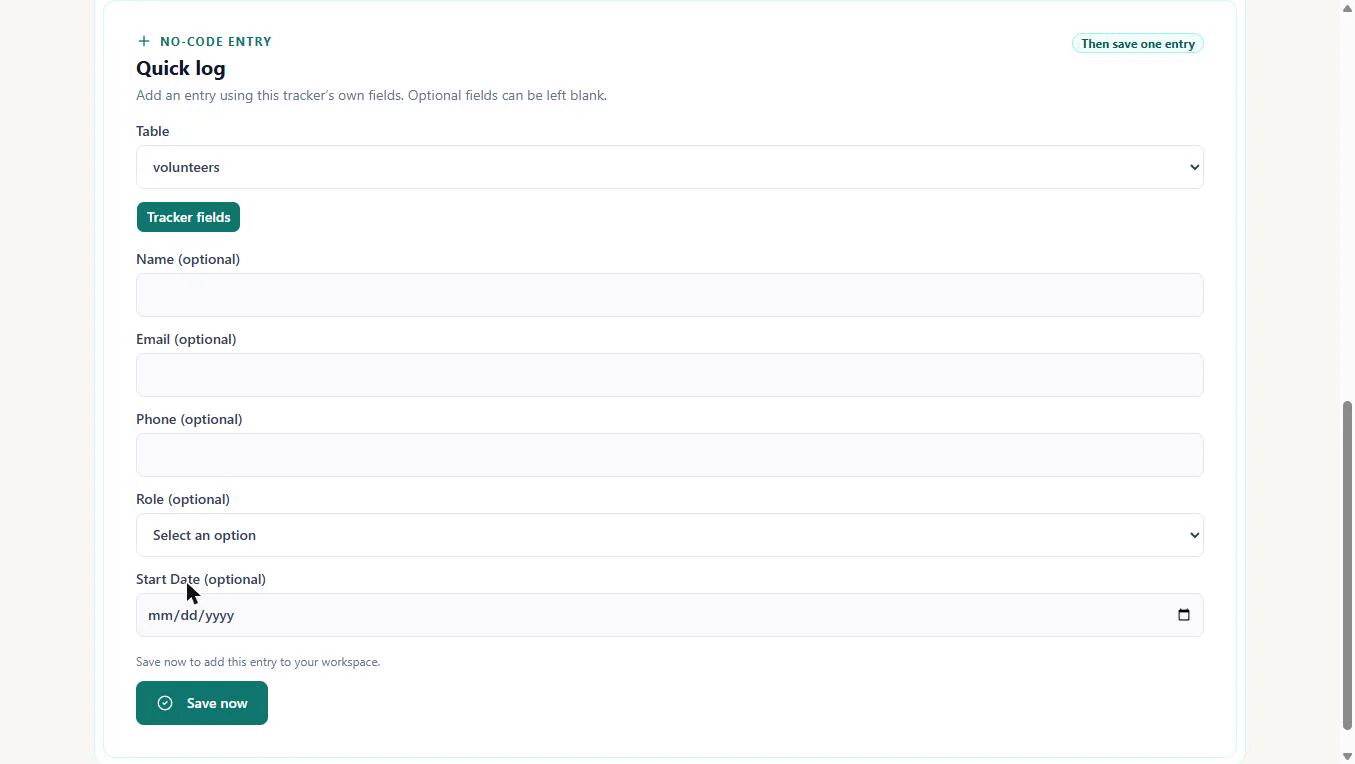
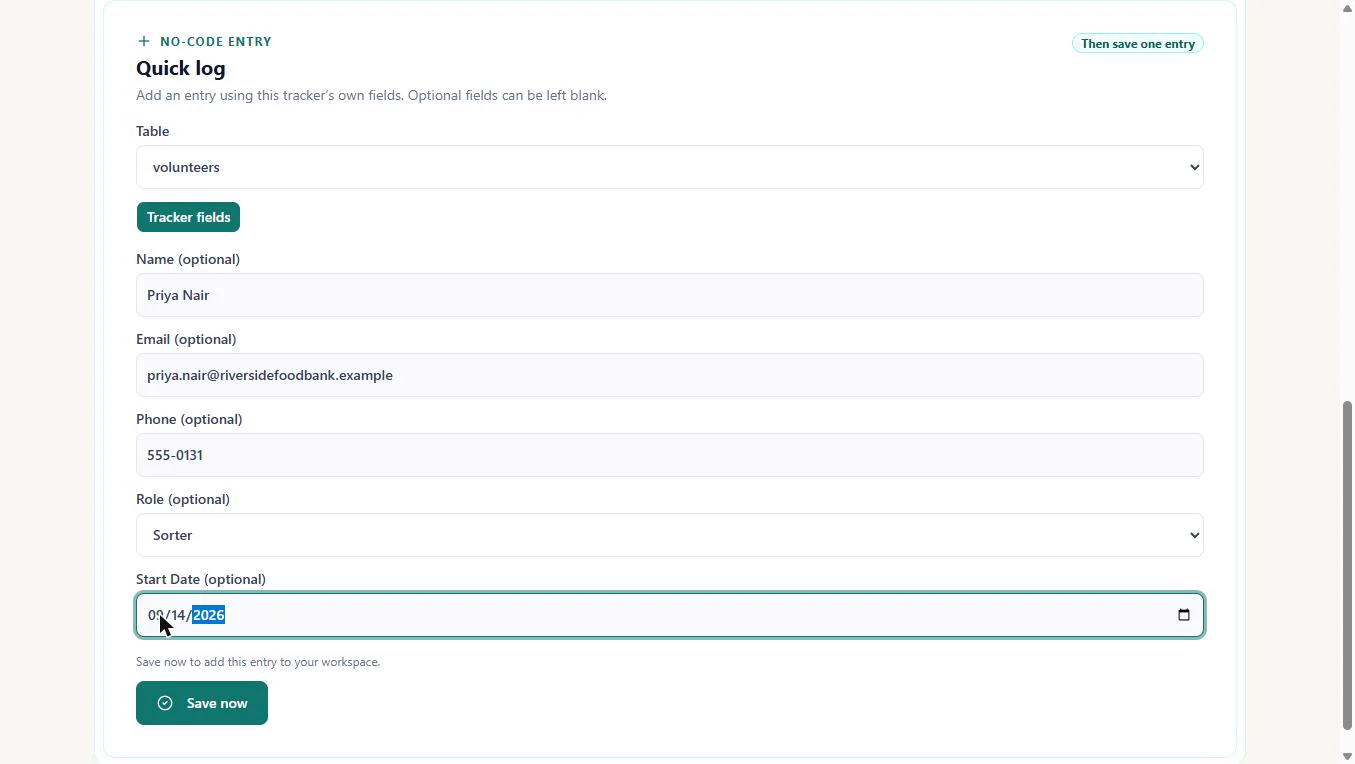
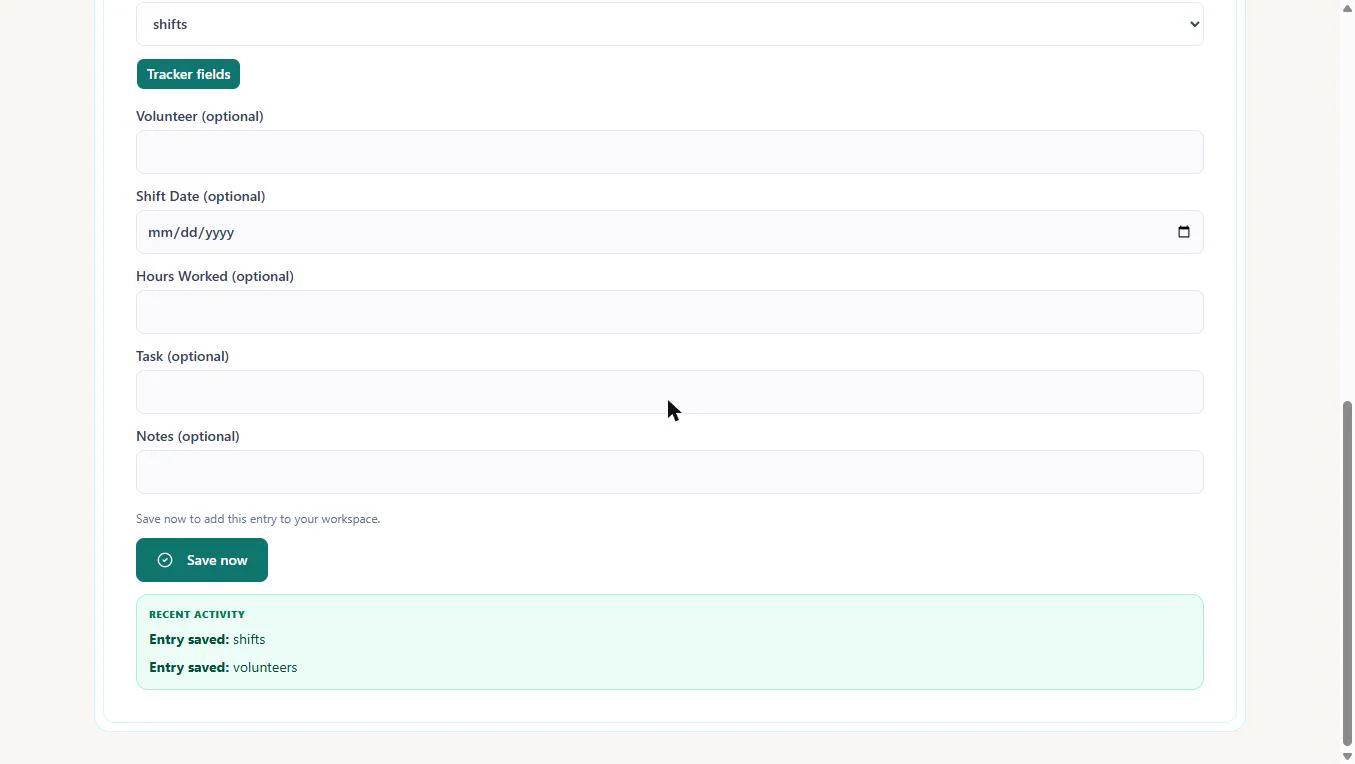
- Start with a person. Quick log has a Table picker with both sections. It starts on volunteers, with that section's own fields, and Role is a pick list of Sorter, Driver and Front desk. Add the person before their shifts. Click Tracker fields.
Quick log has a table picker with both sections. Add the person before their shifts.
- Save Priya. Fill in Priya Nair, her email and phone, Sorter, and a start date of 09/14/2026. Click Save now.
Fill in Priya, pick Sorter, add her start date, and click Save now.
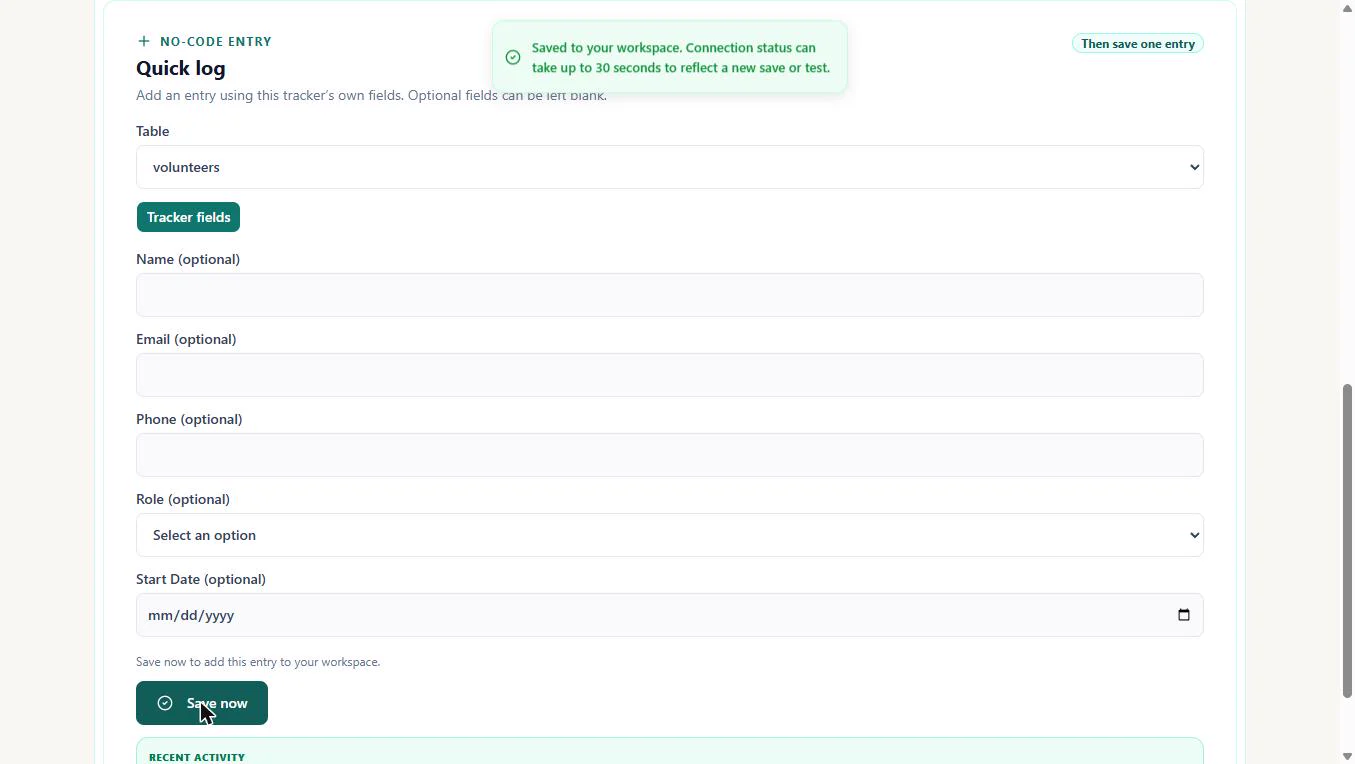
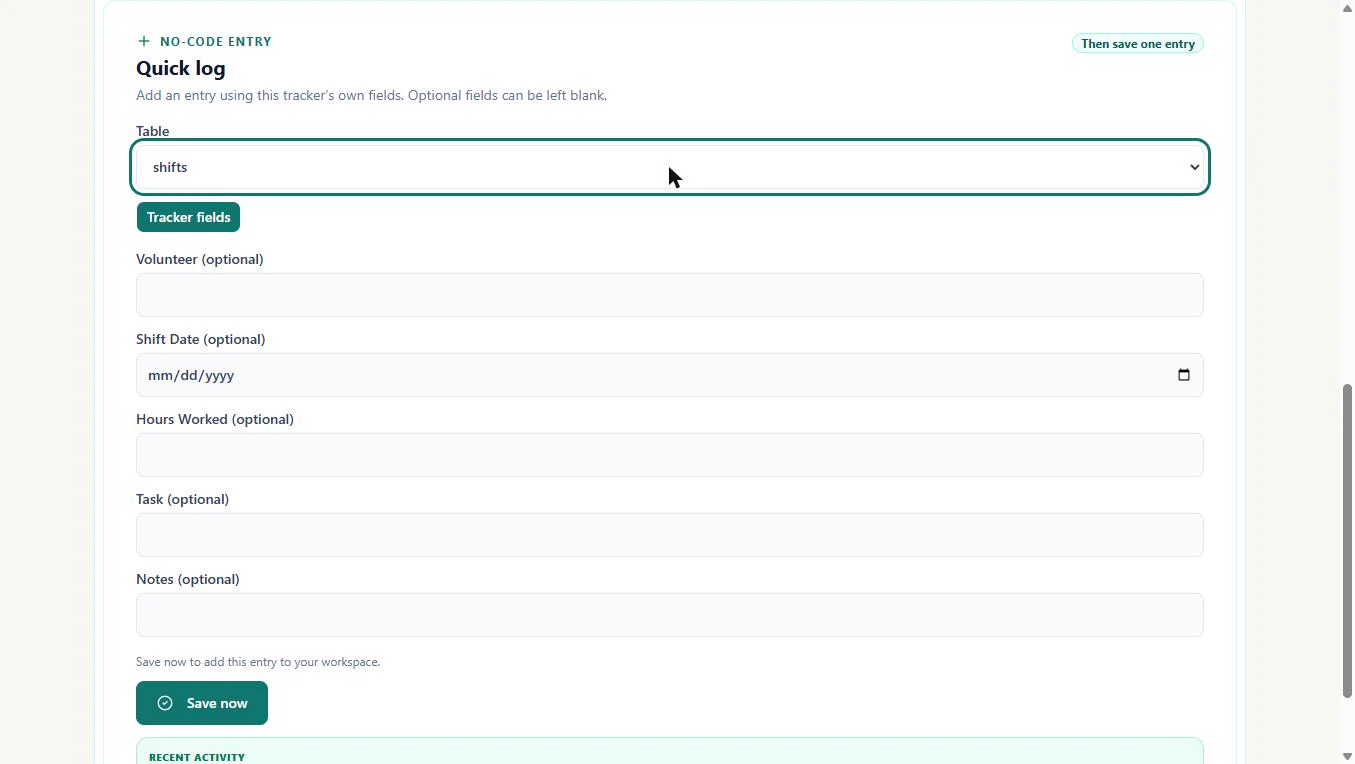
- Switch to shifts. Saved to your workspace. The form clears. Now log her shift: open Table and pick shifts.
Saved.
- Name the volunteer. The form now shows the shift fields. Volunteer is the link. In our test, typing the name exactly as saved worked. Type it.
The volunteer field is the link.
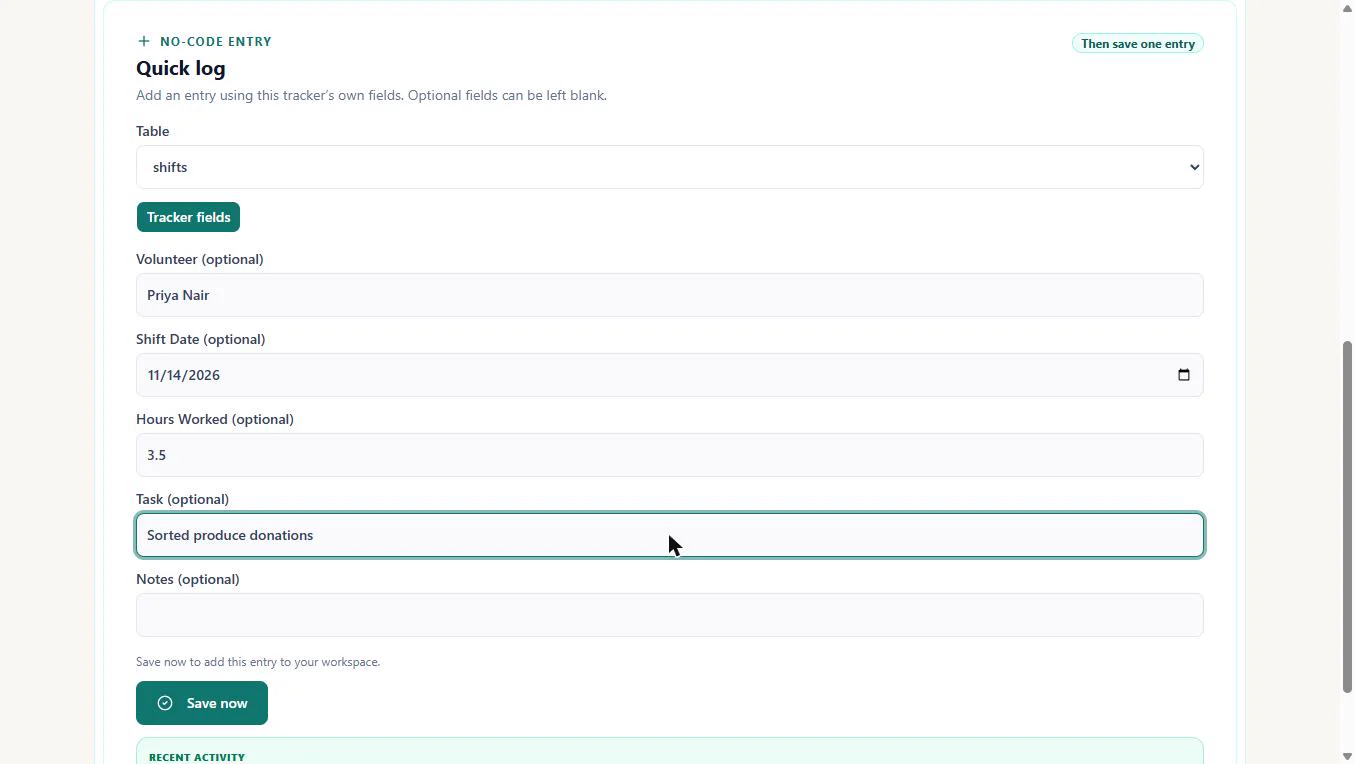
- Save the shift. Add the shift date 11/14/2026, 3.5 hours and the task. Notes can stay blank. Click Save now.
Add the date, three and a half hours, and the task.
- Both saved. Recent activity lists Entry saved: shifts and Entry saved: volunteers. Click it.
Recent activity shows both entries saved.
3. Load the roster
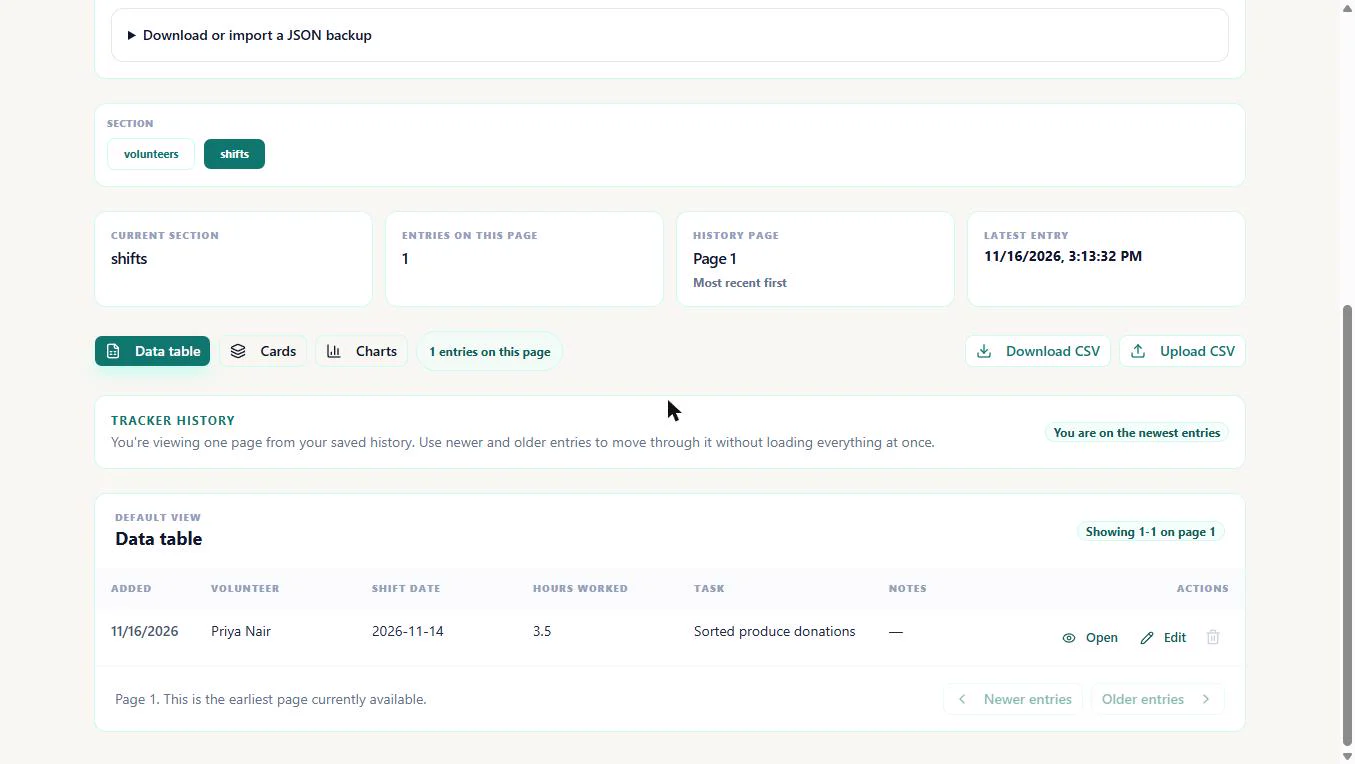
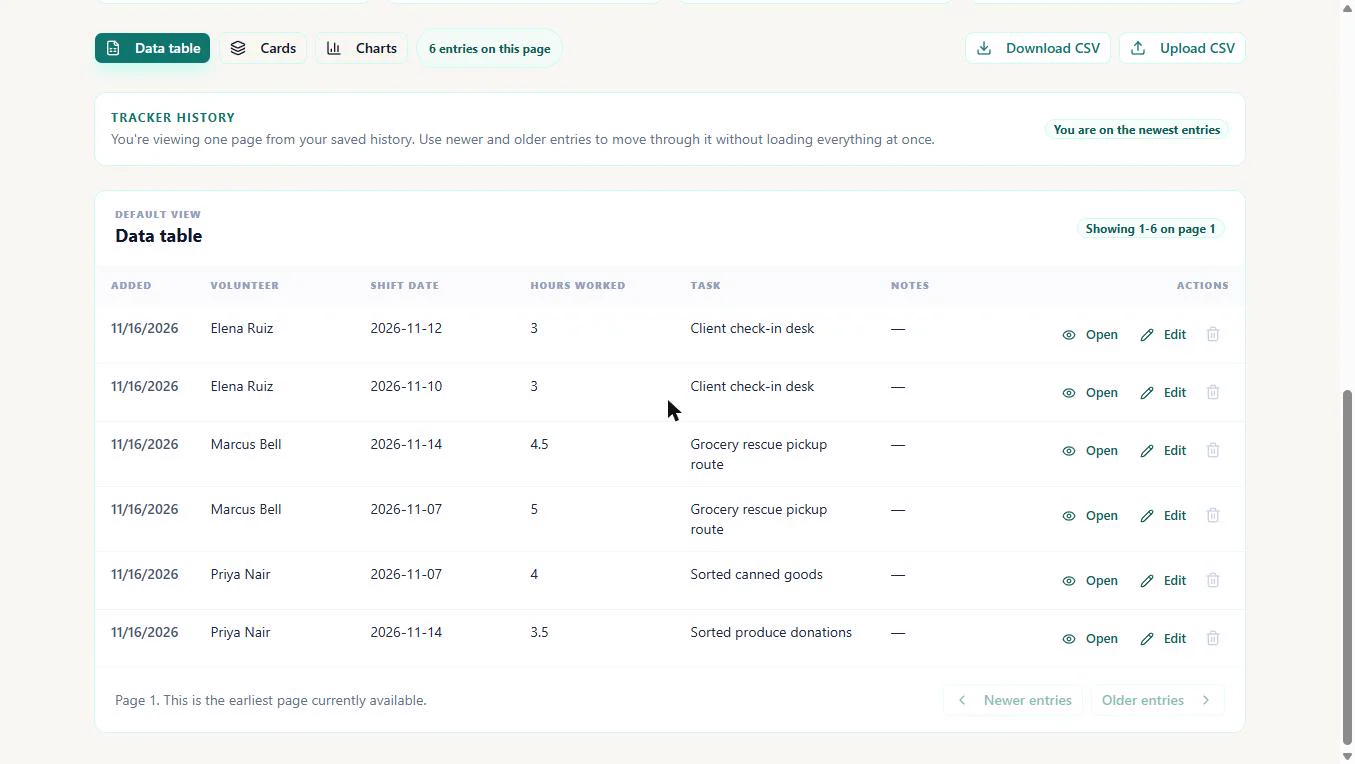
- See the shift with its volunteer. On Data + visuals, section shifts, the row reads Priya Nair, 2026-11-14, 3.5, Sorted produce donations. Click the volunteer name.
On Data plus visuals, the shift shows Priya, the date, and three and a half hours.
- Try a CSV of shifts. You have last week's sign-in sheet typed up as a CSV. Try it: click Upload CSV.
You have last week's sign-in sheet as a CSV.
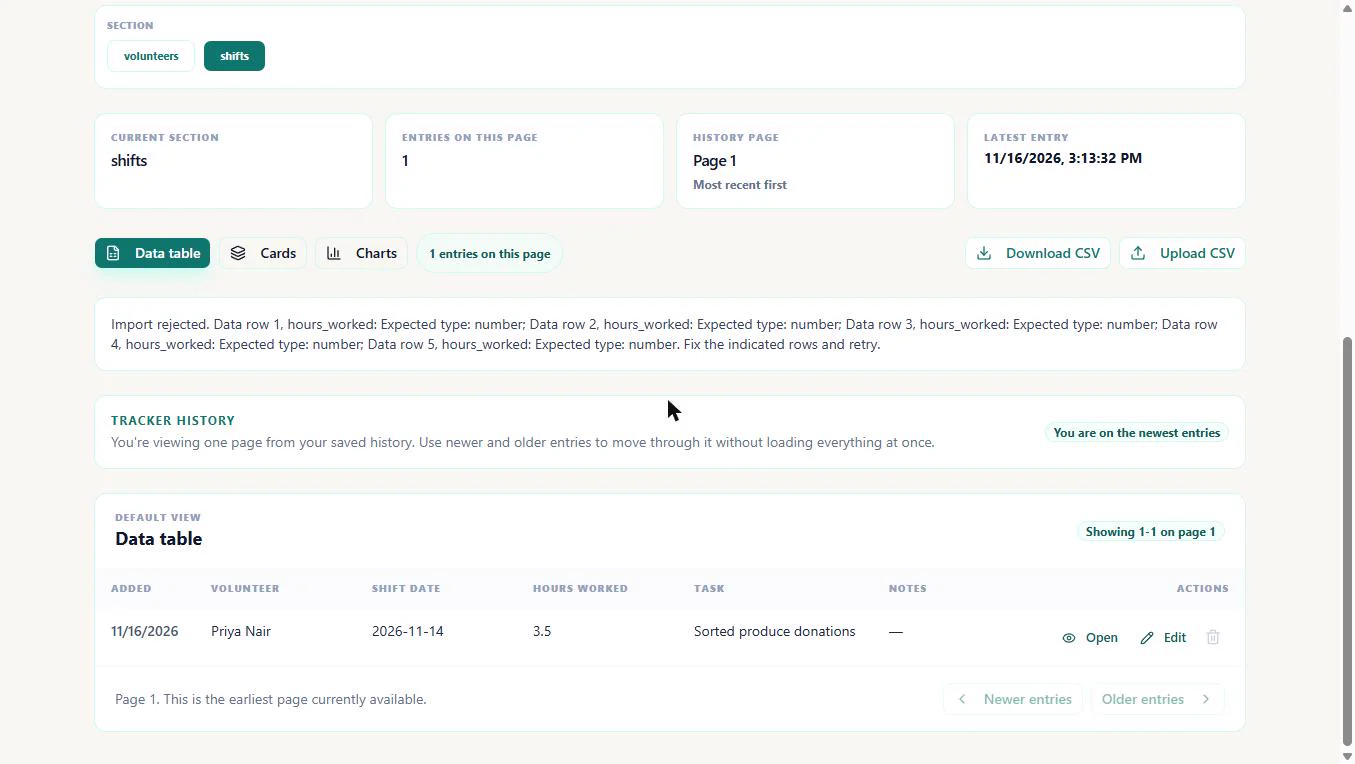
- A limit to know about. Import rejected: "hours_worked: Expected type: number" on every row, even for plain values like 4. In our test on 16 November 2026 the CSV upload did not accept the number column, so we logged the other five shifts with Quick log instead. An upload into the wrong section is rejected too, so pick the section first. Click the message.
Import rejected. In our test the upload did not accept the number column, so we logged those shifts with Quick log. Pick the section before you upload.
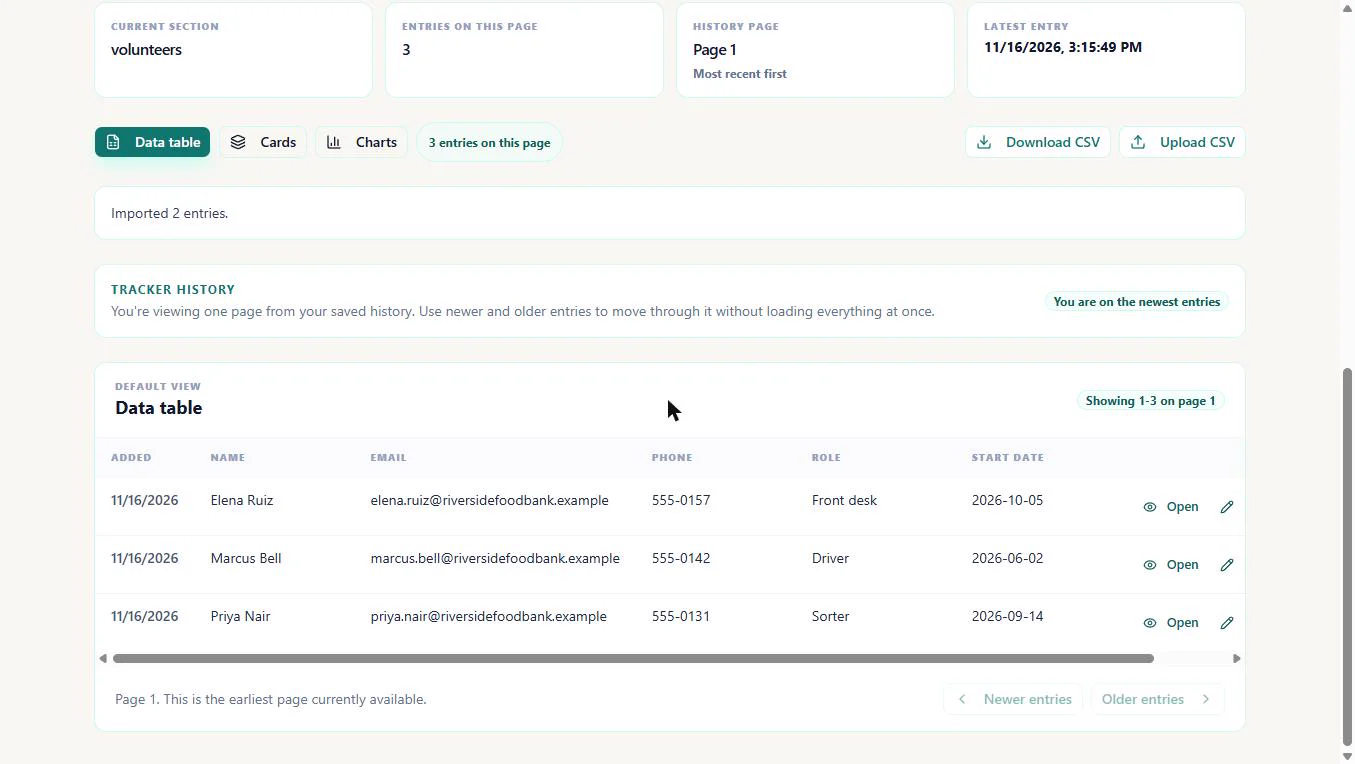
- The roster loads fine. Text, pick-list and date columns do import. With volunteers selected, the roster CSV came in: Imported 2 entries, Marcus Bell (Driver) and Elena Ruiz (Front desk), next to Priya. Click the message.
The roster did import. Two entries, Marcus and Elena, next to Priya.
4. Read hours by volunteer
- Six shifts, one table. Back in shifts: six rows, each with its volunteer. Now turn the table into a picture. Click Charts.
Six shifts, each with its volunteer.
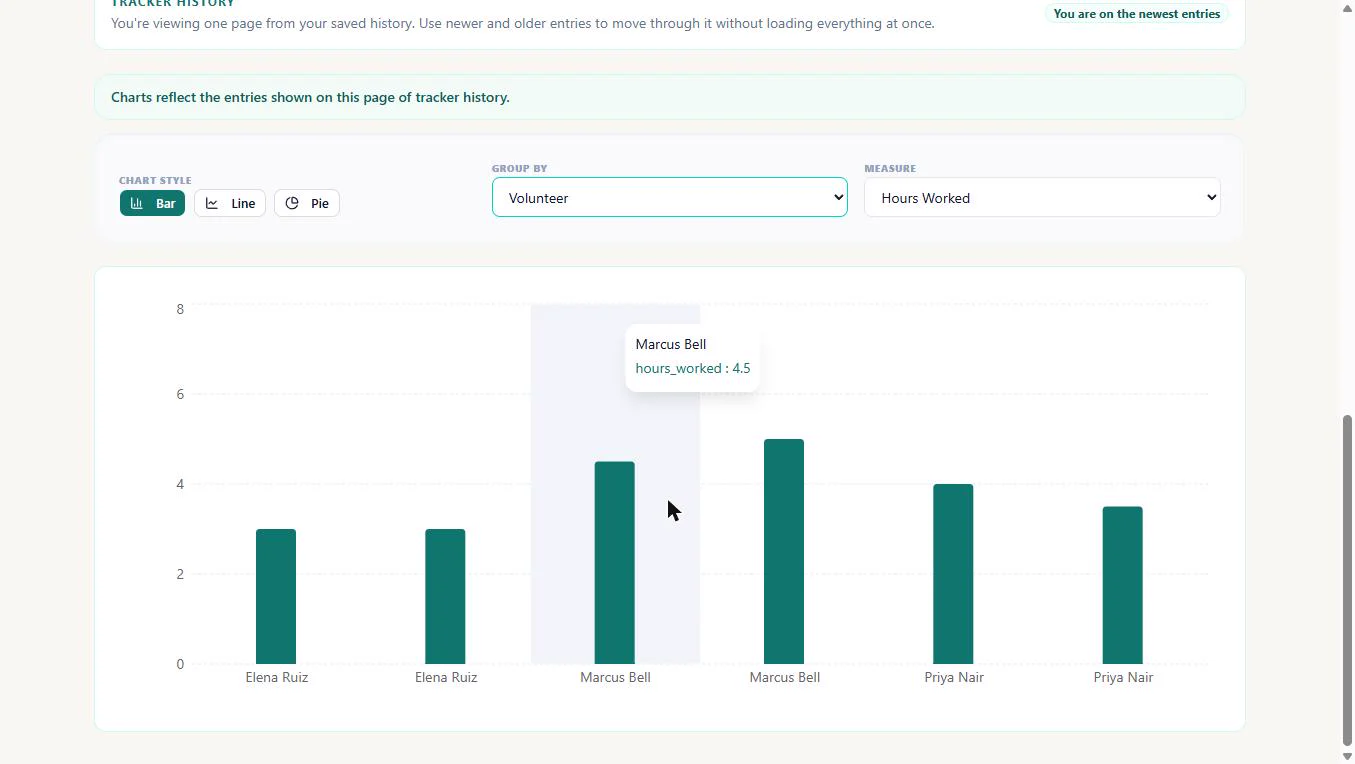
- Group by volunteer. Set Group by to Volunteer and leave Measure on Hours Worked. Click Group by.
Set group by to Volunteer. Leave measure on hours worked.
- Read the hours. One more thing to know: the chart draws one bar per shift, not one per person. Add each person's bars: Marcus 4.5 + 5 = 9.5, Priya 4 + 3.5 = 7.5, Elena 3 + 3 = 6. That is 23 volunteer hours for the report. Click the bars to finish.
The chart draws one bar per shift. Add each person's bars. Marcus nine and a half, Priya seven and a half, Elena six.
Screenshots
More in Business Automations
 How to Do OCR in n8n: Read Receipt Photos into Google Sheets with AI
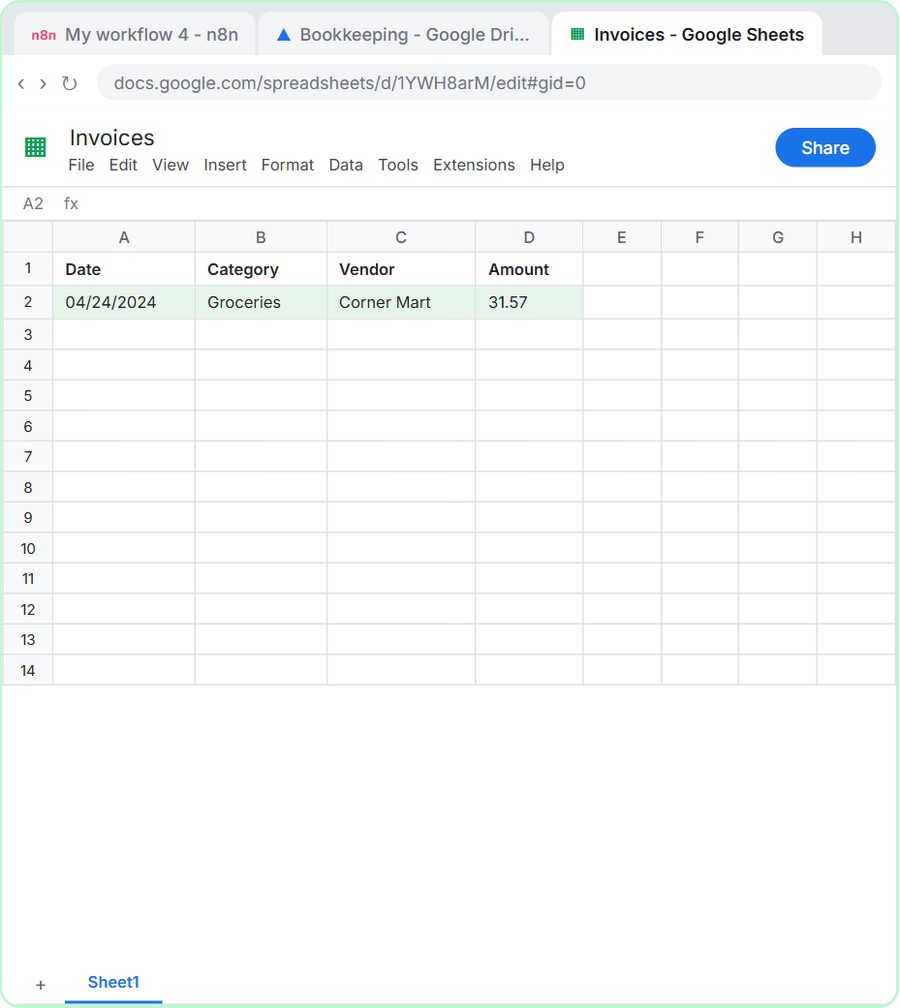
Drop a photo of a receipt into an n8n chat. An AI agent reads it, pulls out the date, vendor and amount, picks a category, and adds a row to Google Sheets.
Free · Live ~12 min Intermediate
 n8n AI Email Responder: Draft Gmail Replies Automatically
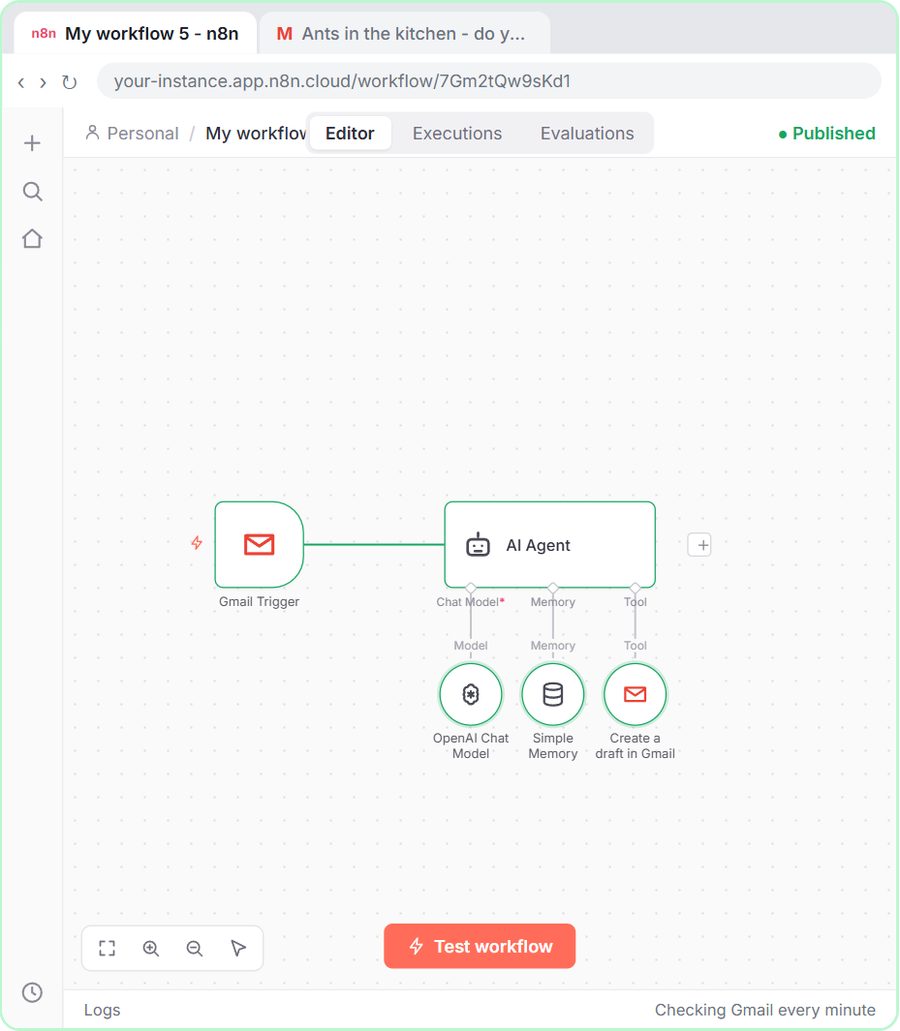
Build an n8n agent that watches your Gmail, reads each new customer email, and writes a reply as a draft in the same thread, ready for you to check and send.
Free · Live ~12 min Intermediate
 How to Make an n8n Workflow That Emails Each Tech Their Jobs from Sheets
Every morning at 7, n8n reads a plumbing company's jobs sheet, skips anything not assigned yet, and emails each job to the tech it's assigned to — customer, address…
Free · Live ~10 min Intermediate
 Gmail AI Triage: Auto-Label Every Email and Draft Replies
Build an n8n workflow that reads each new email, sorts it as a lead, a client or an invoice with a Text Classifier, adds the matching Gmail label, and drafts a reply to…
Free · Live ~18 min Advanced
 How to Use n8n to Build AI Agents: A Support Agent That Answers from Your Docs
Turn an n8n chat agent into a support agent that answers only from your policies in a Google Doc, refuses what it should, and hands off to a person by email.
Free · Live ~13 min Advanced
 Chatbase: Answer Customer FAQs with an AI Agent
A business case for a small firm that answers the same customer questions every week: build a Chatbase AI agent on your FAQ in the real app, make it say when it does…
Free · Live ~15 min Beginner
All 56 modules in Business Automations
More ChatData Sync tutorials
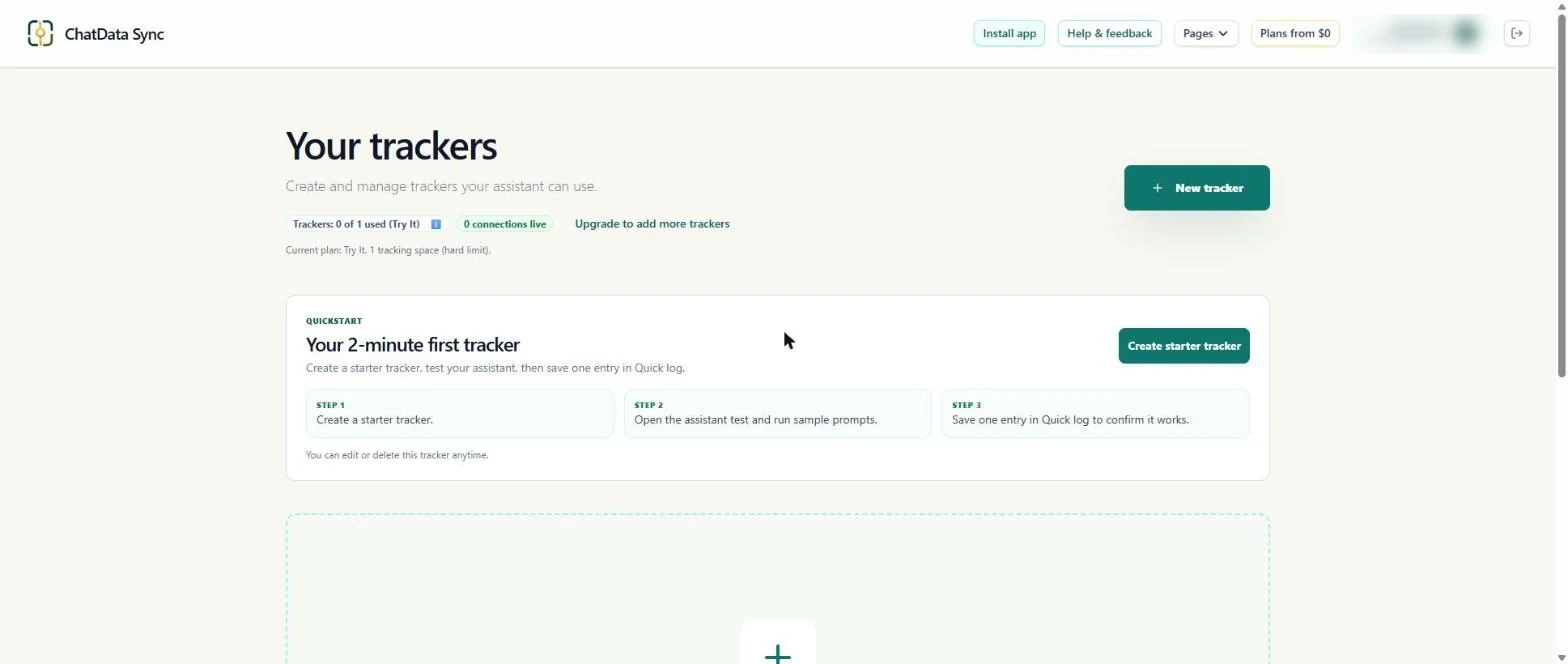 ChatData Sync: Track Referral-Partner Outreach for a Dental Clinic
Turn a plain-English description into a referral-partner tracker, load your partner list, update a partner after a call, and check every change before you let ChatGPT…
Free · Live ~8 min Beginner
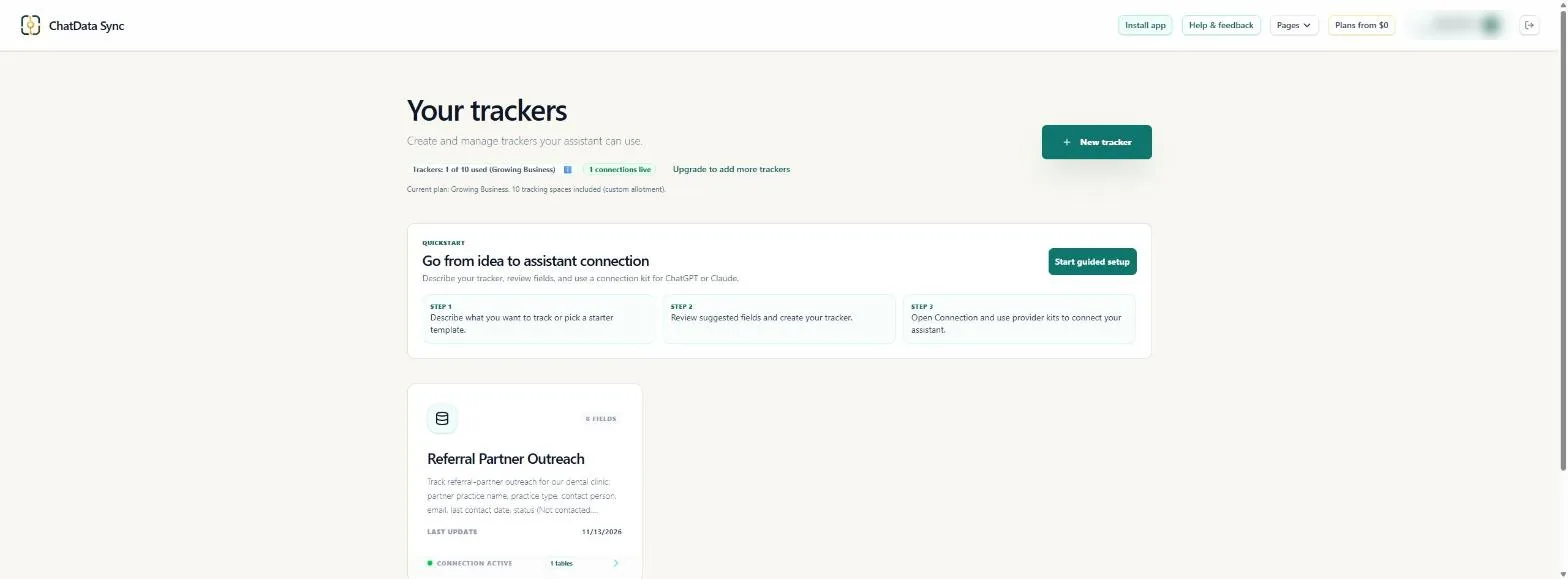 ChatData Sync: Follow Up on Every Trial Class at a Fitness Studio
Turn a plain-English description into a trial follow-up tracker, log each visitor in under a minute with Quick log, load last week's list even with blank dates, and…
Free · Live ~8 min Beginner
Terms in this lesson
Plain-English definitions, each with an example from a free lesson.