The example is made up. Jordan Ellis is an account manager at Harbor Lane Marketing with 6 retainer clients, and the client in the lesson is Lakeside Dental, a 3-dentist practice. The screens are real ChatGPT (Plus plan), captured on 20 October 2026, and the answers are ChatGPT's real output from that run. A few private items in our sidebar are painted out. This is our own lesson, not an official OpenAI course.
What does working without projects cost?
In the lesson's example numbers, every new chat starts from zero. Jordan re-pastes the client, the contacts and the tone for 5 to 10 minutes a day, and about once a month a draft goes out with another client's detail in it. That adds up to 2 to 3 hours a month, plus one apology. A project per client fixes both: the details live in the project, and each client's chats stay in their own folder.
How do I create a project for a client?
The lesson does it in three clicks and a paste:
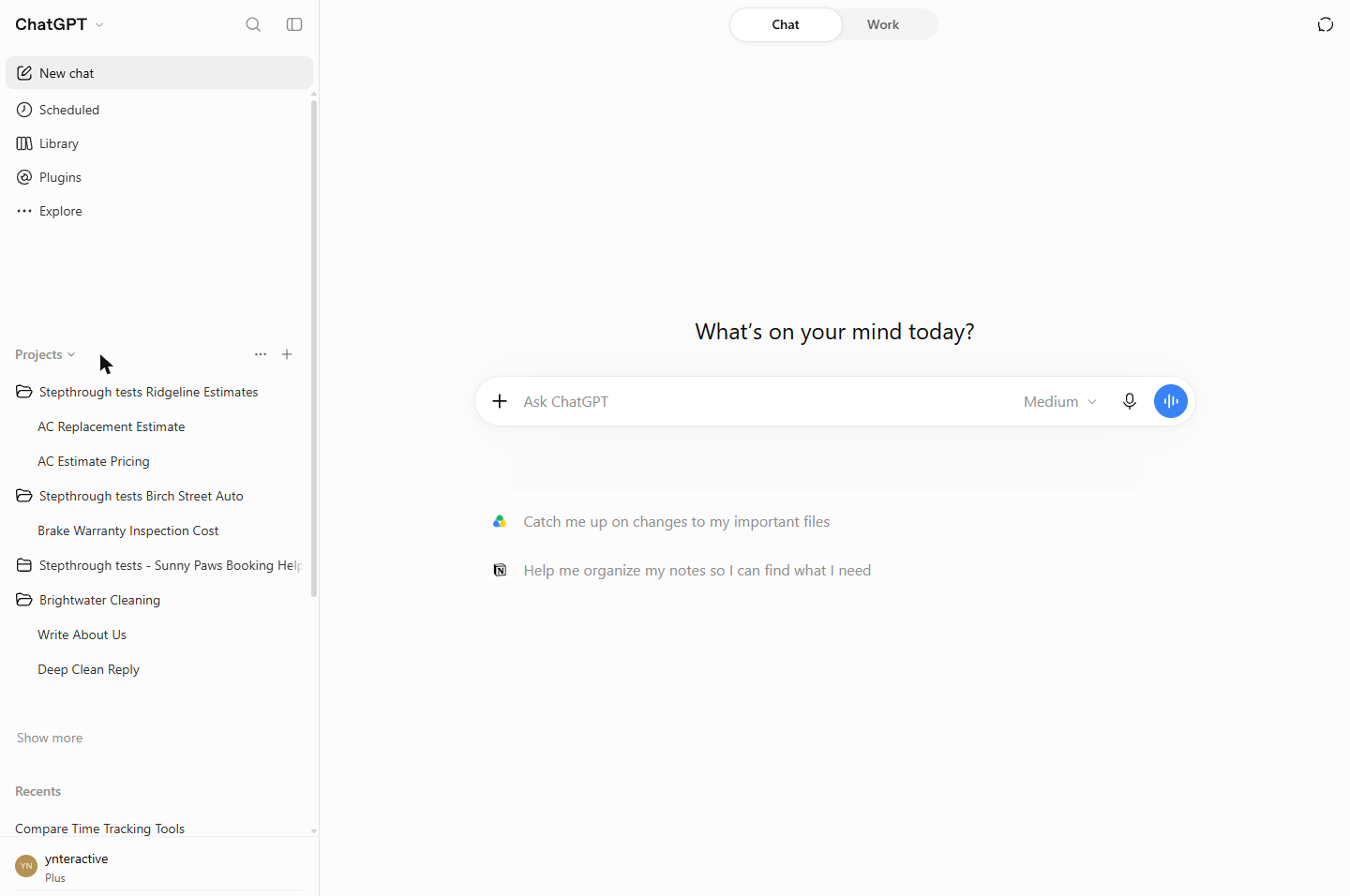
- In the ChatGPT sidebar, point at Projects and click the + next to it.
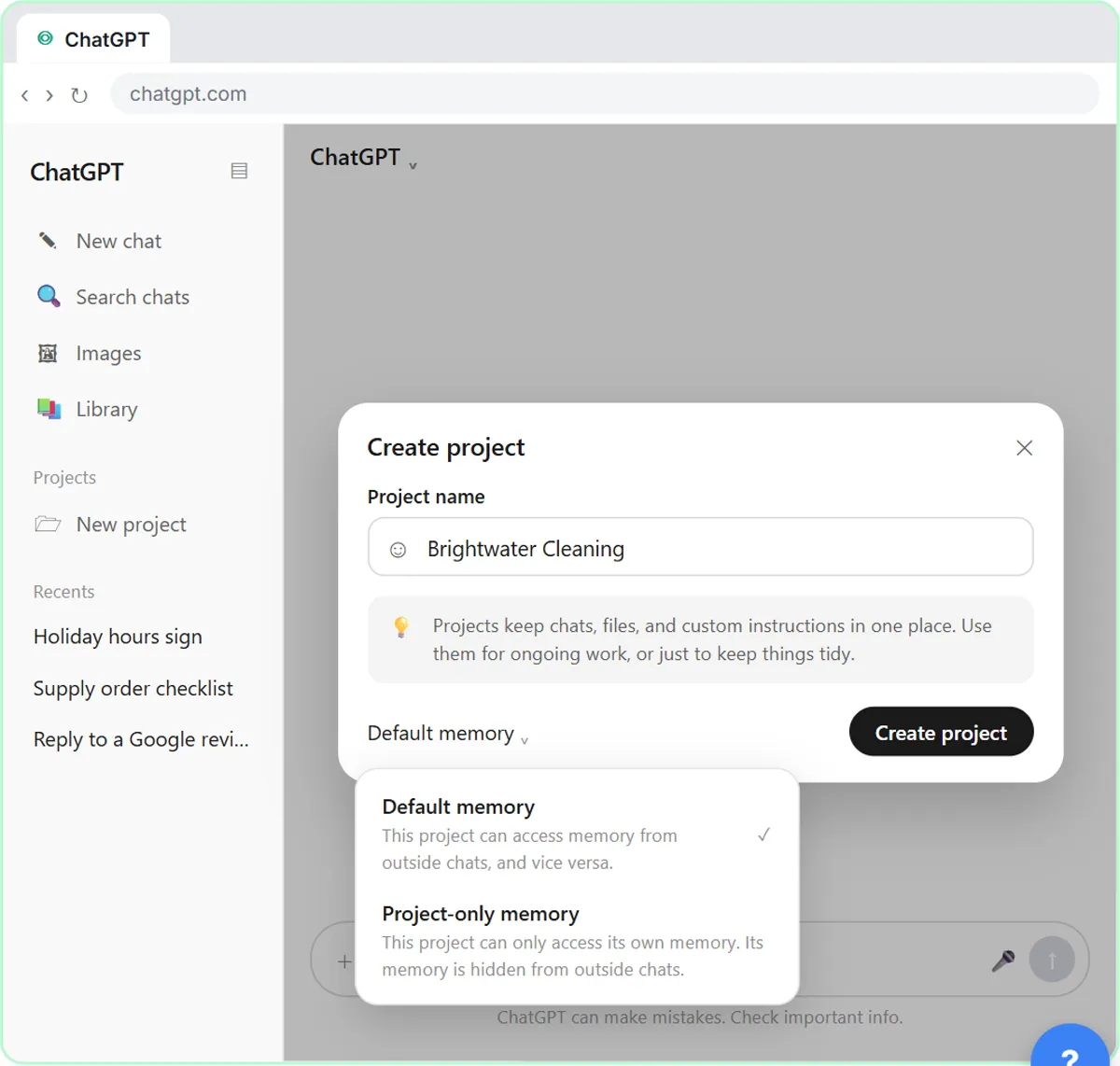
- Create project opens. Type the client's name into Project name. Leave Default memory as it is for now.
- Click Create project.
The project page opens with Chats and Sources tabs and "No chats yet".
Where do the client's instructions go?
On the project page, click the ··· next to Share, then Project settings. Paste the client rules into Instructions and click Save.
The lesson's instructions say who the client is, the retainer (4 blog posts and 8 social posts a month), the contacts (Dr. Ana Ruiz, the owner, and Kim Lee, the office manager), the tone (warm and plain, no medical claims or prices) and one house rule: always end drafts with a question for Kim to approve. You can download a template from the lesson and fill it in for each client.
What to leave out: passwords, card numbers and anything the work does not need.
What happened when I asked inside the project?
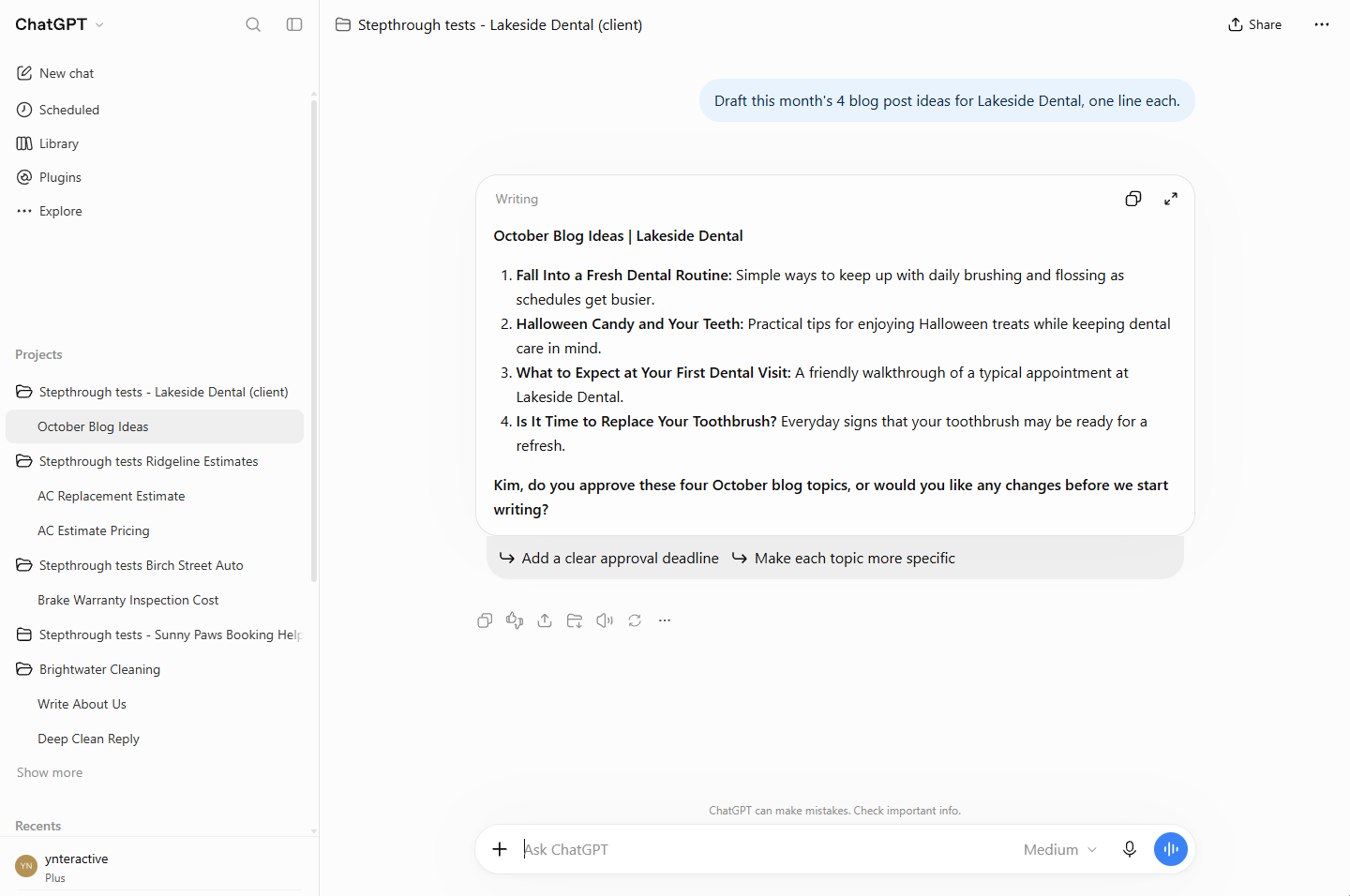
On the project page, the lesson types into New chat in Stepthrough tests - Lakeside Dental (client): Draft this month's 4 blog post ideas for Lakeside Dental, one line each. The request does not say who the client is or how to sound.
The answer gave four October blog ideas, plain and warm, and its last line asked "Kim, do you approve these four October blog topics...", exactly as the instructions said. The chat then showed up inside the project in the sidebar.
Try it free, step by step
ChatGPT Projects vs Chats: Keep Each Client's Work Together and Stop Re-explaining. When to use a ChatGPT project and when a normal chat is enough: give one client a project with its own instructions, see a new chat follow them, and see a normal chat ignore them. Real ChatGPT… You do every step yourself in a practice copy of ChatGPT, it checks your work as you go, and “Do it for me” finishes any step you get stuck on. Free, and nothing touches your real accounts.
Start the free lessonWhat happened in a normal chat?
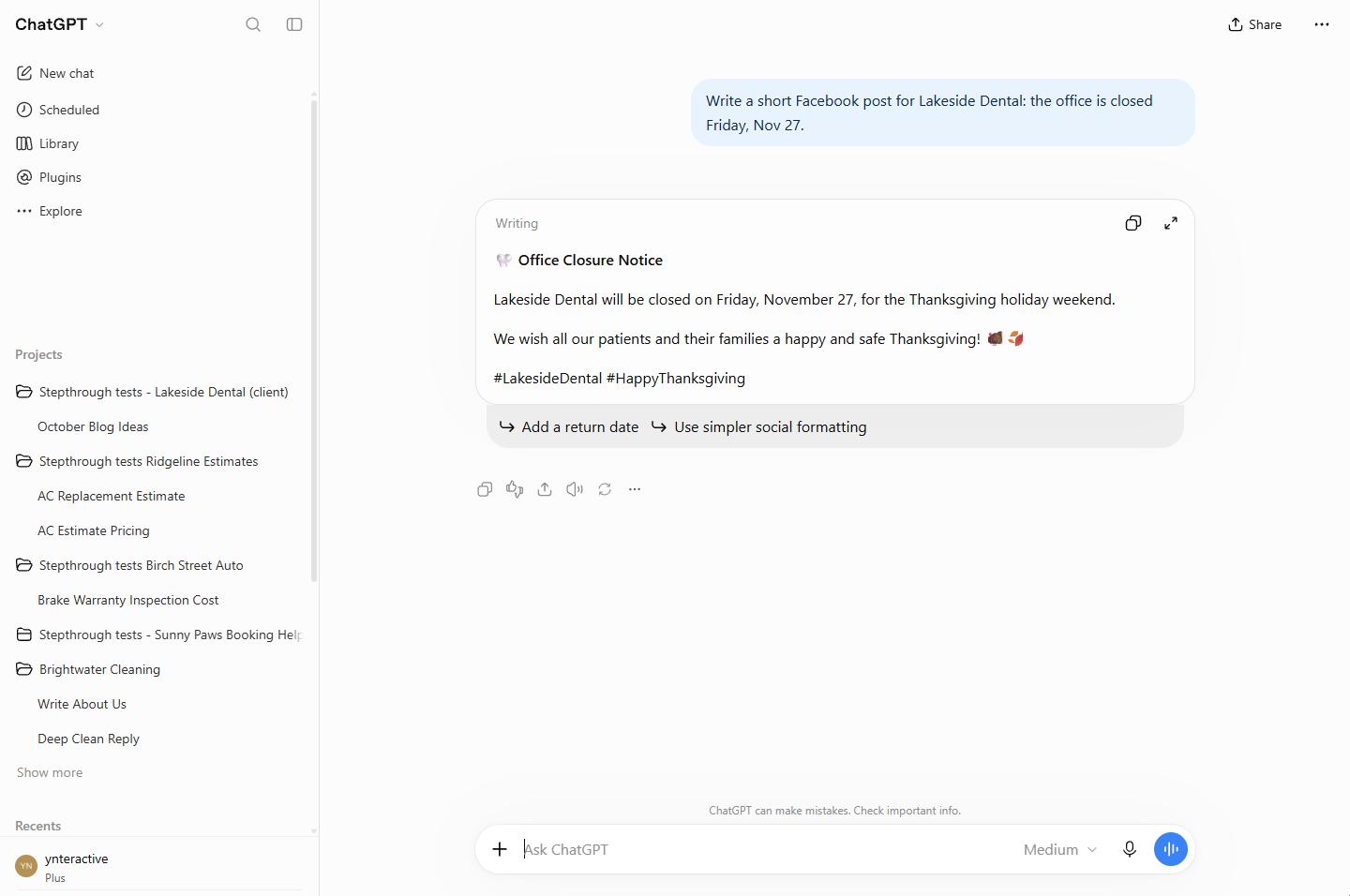
The lesson then asks for a short Facebook post for the same client in a normal chat, outside the project. The post was fine, but it used emojis and hashtags and did not ask Kim to approve. Project instructions only apply inside the project. That is the whole difference between a project and a chat, seen in one test.
Key takeaways
- A chat is one conversation. A project is a folder with its own instructions, files and chats.
- One project per client, one new chat per task, started from the project page.
- Put the client rules in Project settings, Instructions, and click Save.
- Look at the project's Memory setting when you create a client project.
- Archive hides a chat; Delete removes it for good.
Frequently asked questions
- Do project instructions apply to my other chats?
No. In the lesson's test, a normal chat for the same client ignored the project's rules. Only chats inside the project start with its instructions.
- What does the Memory setting in Project settings do?
Under Instructions, Memory: Default says "This project can access memory from outside chats, and vice versa". For client work you may not want one client's details showing up elsewhere. The lesson leaves it on Default and says to check your firm's rules before you change it. For how memory works in general, read how ChatGPT memory works.
- What is the difference between Archive and Delete?
Every chat has a ··· menu with Rename, Pin, Archive, Delete and Move to project. Archive hides a chat from the sidebar, but it is still stored; you can find it under Settings, Archived chats. Delete removes it for good.
- Can I move an old chat into a project?
The menu has Move to project, but in the lesson's test it did not move the chat. The reliable habit is to start client chats from the project page, so they are in the right place from the start.
- When should I use a normal chat?
For one-off questions that belong to no client. Anything you will come back to for a client or an ongoing job belongs in a project.
- Is a project the same as custom instructions?
No. Custom instructions apply to your whole account. Project instructions apply only to chats in that project. See custom instructions vs project instructions for more.
- Which plans have projects?
The lesson was captured on the Plus plan. Check the OpenAI Help Center and search "Projects" for what projects can hold and which plans have them today.
- What should I learn next?
When to keep going in the same chat and when to start a new one. The stop losing context lesson and when to start a new chat in ChatGPT cover it.
For the slip-ups to avoid, read ChatGPT projects mistakes. Then try the practice.