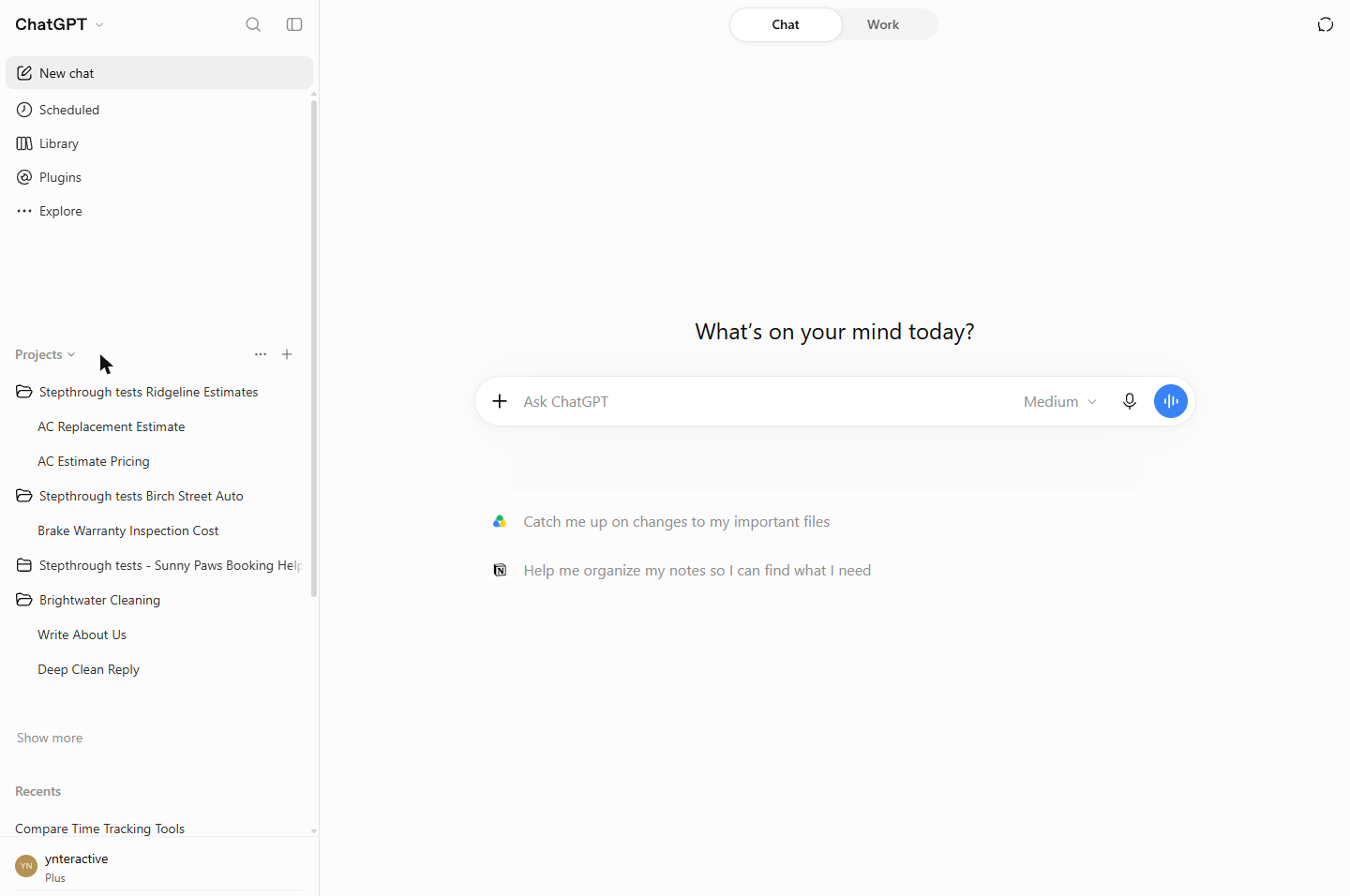
The example is made up. Jordan Ellis is an account manager at Harbor Lane Marketing with 6 retainer clients, and the client is Lakeside Dental. The screens are real ChatGPT (Plus plan), captured on 20 October 2026, and the answers are ChatGPT's real output from that run.
What are the most common ChatGPT projects mistakes?
Seven mistakes cover most of the trouble:
| # | Mistake | Fix |
|---|---|---|
| 1 | Starting client chats outside the project | Type into New chat in your project on the project page |
| 2 | A project with no instructions | Paste the client rules into Instructions in Project settings |
| 3 | Forgetting Save | Click Save after you paste |
| 4 | Putting secrets in the instructions | Leave out passwords, card numbers and anything the work does not need |
| 5 | Leaving Memory unchecked | Look at it when you create a client project, against your firm's rules |
| 6 | One long chat for every task | One project per client, one new chat per task |
| 7 | Counting on Move to project or Archive | Start in the right project; Archive hides, Delete removes |
Why does the chat have to start inside the project?
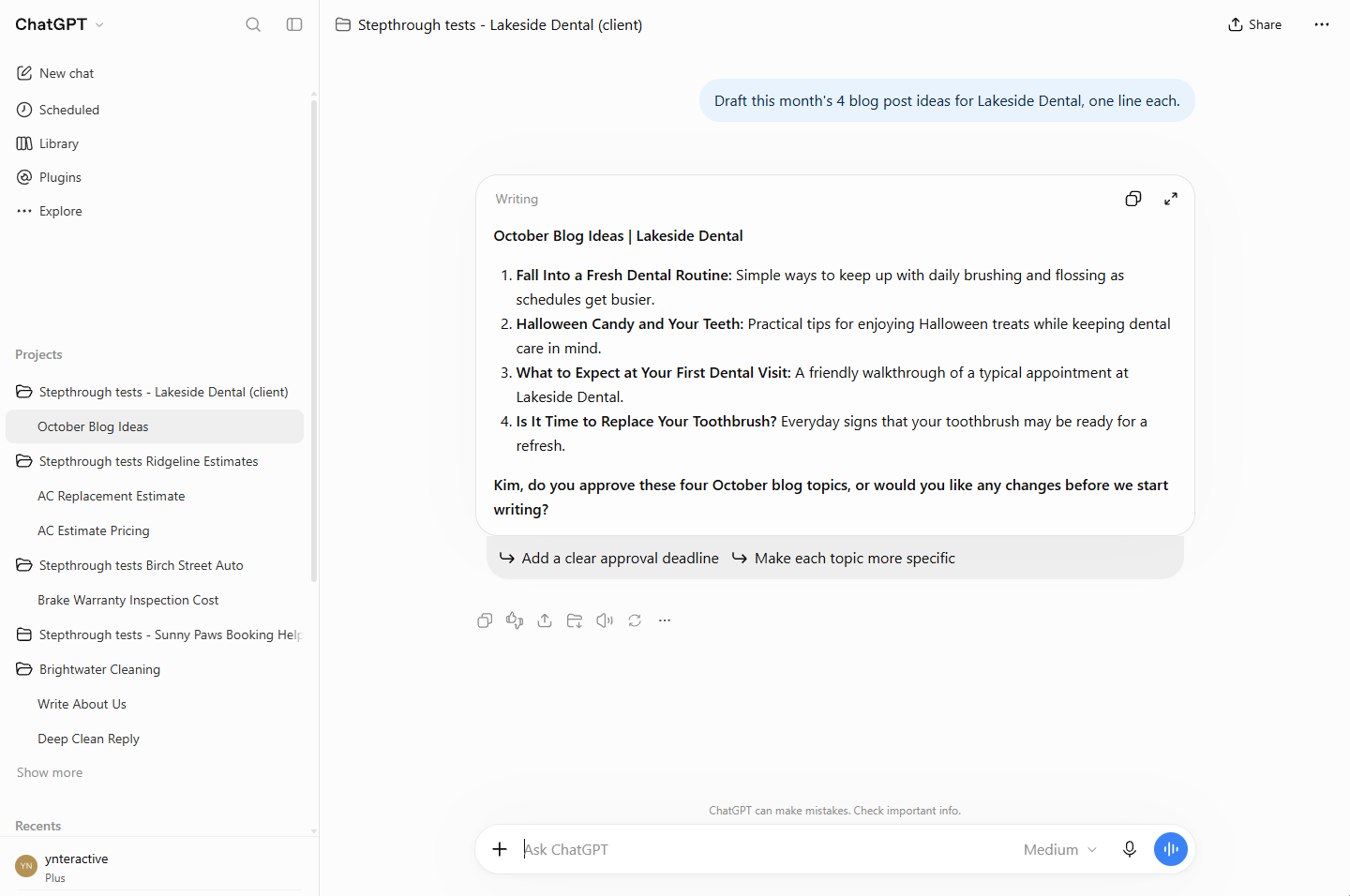
1. Starting client chats outside the project. This is the one the lesson tests on purpose. Inside the project, a request for four blog ideas came back in the client's tone and ended with the house rule, a question for Kim to approve. Then the lesson asks for a Facebook post for the same client in a normal chat. The post was fine, but it used emojis and hashtags and did not ask Kim to approve. The client rules were still there in the project. The chat just was not.
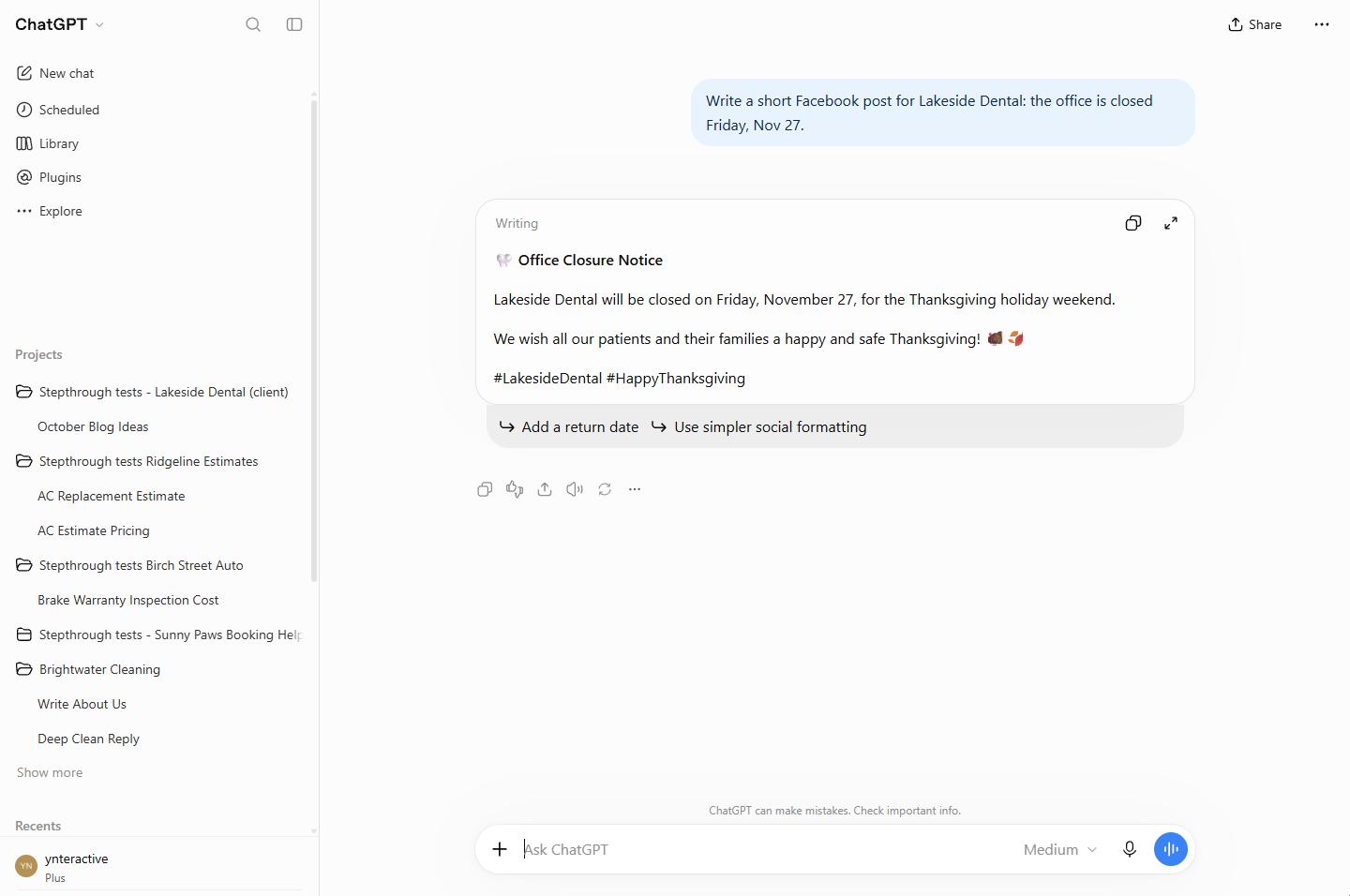
The fix is a habit, not a setting. On the project page, type into New chat in followed by the project's name. In the lesson it reads New chat in Stepthrough tests - Lakeside Dental (client).
Which mistakes happen while you set up the project?
2. A project with no instructions. A project with no instructions is just a folder. The value comes from Instructions. On the project page, click the ··· next to Share, then Project settings, and paste the client rules. The lesson's rules say who the client is, the retainer, the contacts, the tone, and one house rule: always end drafts with a question for Kim to approve. Write the rules you would otherwise repeat in every chat. The lesson has a template you can download.
3. Forgetting Save. After pasting, click Save. It is easy to close the window in a hurry and lose the work.
4. Putting secrets in the instructions. Instructions are for who the client is, who approves, the tone and the house rules. Leave out passwords, card numbers and anything the work does not need.
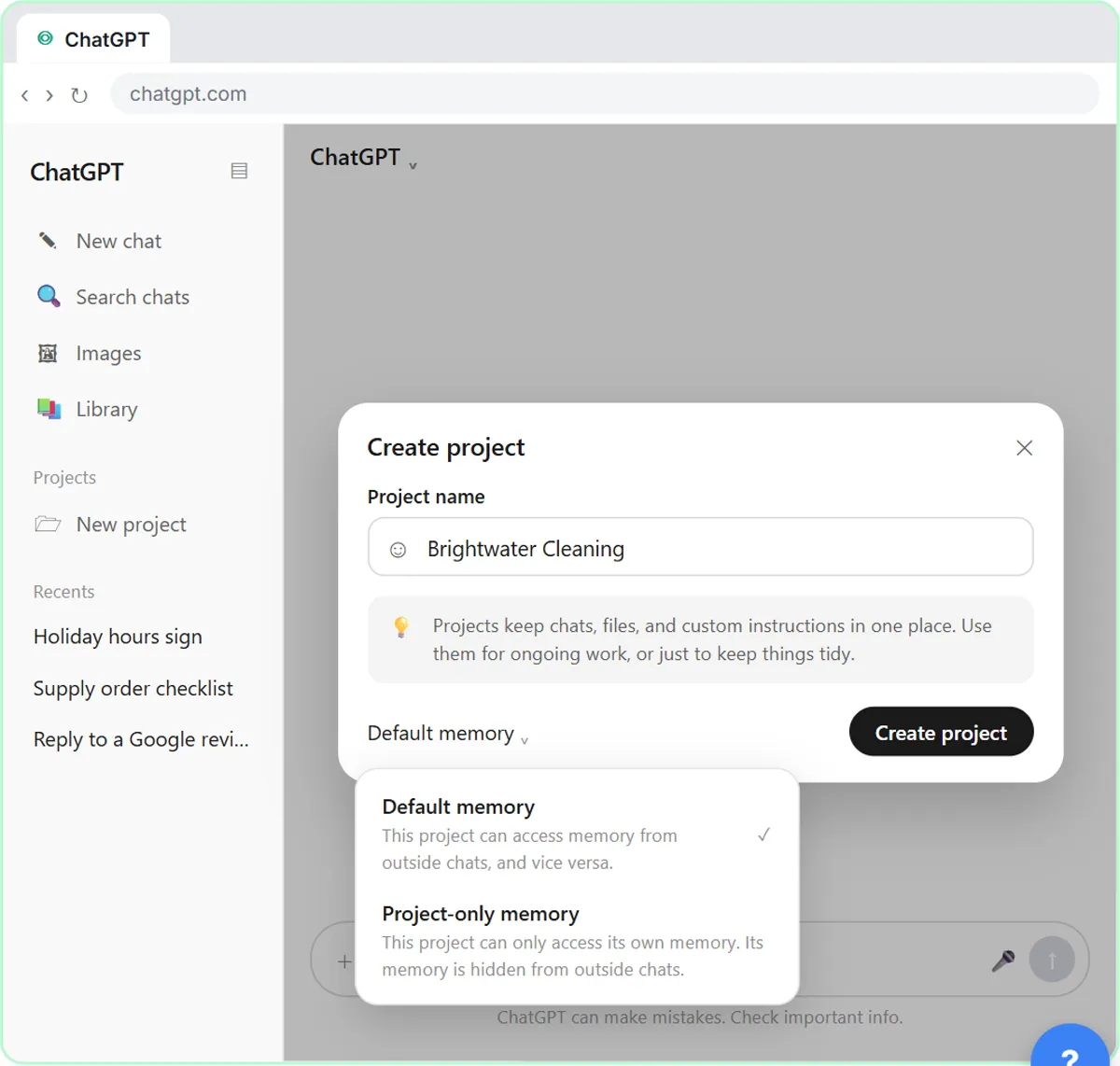
5. Leaving Memory unchecked. In Project settings, below Instructions, Memory: Default says "This project can access memory from outside chats, and vice versa". For client work you may not want one client's details showing up elsewhere. Create project also shows a Default memory option. The lesson leaves both alone on purpose and says to check your firm's rules before you change them. The point is to look, not to skip it. For background, read how ChatGPT memory works.
Try it free, step by step
ChatGPT Projects vs Chats: Keep Each Client's Work Together and Stop Re-explaining. When to use a ChatGPT project and when a normal chat is enough: give one client a project with its own instructions, see a new chat follow them, and see a normal chat ignore them. Real ChatGPT… You do every step yourself in a practice copy of ChatGPT, it checks your work as you go, and “Do it for me” finishes any step you get stuck on. Free, and nothing touches your real accounts.
Start the free lessonWhat goes wrong in day-to-day use?
6. One long chat for every task. The rule of thumb is one project per client, one new chat per task. A new chat inside the project still starts with the client rules, so you lose nothing. A long chat that mixes several jobs can drift. The stop losing context lesson covers when to keep going and when to start fresh.
7. Counting on Move to project or Archive. Every chat's ··· menu has Rename, Pin, Archive, Delete and Move to project. In the lesson's test, Move to project did not move the chat. So do not plan to start in a normal chat and file it later; start in the project. And know the difference between the other two: Archive hides a chat from the sidebar but keeps it stored, while Delete removes it for good. Archiving is not the same as getting rid of a chat.
What does it cost to get this wrong?
In the lesson's example numbers, re-pasting client details takes 5 to 10 minutes a day, and about once a month a draft goes out with another client's detail in it. That is 2 to 3 hours a month plus one apology. Each of the mistakes above brings some of that back.
Key takeaways
- Start every client chat from the project page.
- Paste the client rules into Instructions and click Save.
- Keep secrets out of the instructions.
- Check the project's Memory setting against your firm's rules.
- Archive hides, Delete removes, and Move to project did not work in our test.
The ChatGPT Projects FAQ answers the how-to questions, and one ChatGPT project per client covers setup and upkeep in more depth.
Frequently asked questions
- Why did ChatGPT ignore my project instructions?
Most often the chat was started outside the project, or the instructions were not saved. Open Project settings to check, then start a new chat from the project page.
- Does archiving a chat delete it?
No. Archive hides it from the sidebar, and it is still stored. Delete removes it for good.
- Should I make one project for all my clients?
No. One project per client keeps each client's rules and chats apart, which is how you avoid a wrong-client detail in a draft.
- Do I have to change the memory setting?
Not to follow the lesson. It leaves Memory on Default. Look at it when you create a client project, and check your firm's rules before you change it.