Updated . Built against the tool’s current screens and checked step by step. How we check this lesson
Build an Airia agent that turns the clinical facts of a denial into an appeal letter, with [PATIENT] and [MRN] placeholders instead of identifiers. Then paste an MRN in on purpose and see what the model really received. Real Airia screens.
At a glance
| Question | Answer |
|---|---|
| What you build | Build an Airia agent that turns the clinical facts of a denial into an appeal letter, with [PATIENT] and [MRN] placeholders instead of identifiers. Then paste an MRN in on purpose and see what the model really received. Real Airia screens. |
| Tools | Airia |
| Time | About 9 minutes, 11 steps in 3 parts |
| Level | Beginner, no coding needed |
| Cost | Free |
| Ways to learn it | Practice it step by step |
The 3 parts, in short
- Set up the agent: Open Build, Add a New Agent, Name it, Type a clear name.
- Tell it what it may see: Open Instructions, Paste the instructions.
- Test it, then try to break it: Send the clinical facts, Read the letter, Now try to break it, Check what the model received, and 1 more step.
Start here first: Airia for Beginners: What an AI Agent Is Made Of (module 1 of AI Automation for Operations)
Part of: AI for Medical & Dental Office Admin (step 20 of 23). Next up: Airia: Sort Patient Portal Messages Fast Without Over-sharing for Operations
Part of: AI Apps Worth Knowing (step 145 of 157). Next up: Airia: Sort Patient Portal Messages Fast Without Over-sharing for Operations
What you'll build
Dana runs billing at Riverbend Family Medicine (a made-up clinic with 3 providers and 14 staff). Denied prior authorizations pile up, and each one needs a one-page appeal letter to ExampleCare Health Plan (made up). Staff have started pasting whole chart notes into AI chat tools to write them, names and MRNs included. In this lesson you build an Airia agent that drafts the letter from the clinical facts alone and writes [PATIENT], [MRN] and [MEMBER ID] where the identifiers go, so staff fill them in inside the EHR. Then you paste an MRN in on purpose and look at what the model actually received. Every screen is a real Airia screen.
You built an Airia agent with a minimum-necessary prompt: it uses only the clinical facts, writes placeholders for every identifier and flags a message that includes them. You tested it in the Playground and then checked the Input log, which showed the honest limit: a prompt rule keeps identifiers out of the letter, not away from the model. A redaction guardrail is the stronger control, so keep the staff rule "clinical facts only". Try it in your own Airia account: Build, Add a New Agent, paste the instructions from Do it for real and send one denial with made-up facts. Airia has its own plans and limits; check airia.com.
- Tools: Airia
- Time: about 9 minutes, 11 steps in 3 chapters
- Level: beginner, no coding needed
- Price: free
Practice first, then build it for real
Practice copy built from real Airia screens (airia.ai), captured 9 November 2026. Nothing here touches an Airia account. This lesson is training, not legal advice. A guardrail does not make a tool HIPAA compliant on its own: your organization also needs a Business Associate Agreement with any vendor that handles PHI, its own policies, access controls and staff training. Ask your compliance officer before any real patient data goes near an AI tool. Every patient in this lesson is made up (Pat Example, MRN 000-TEST). To build it for real you need your own Airia account, and some services charge once you use them for real work, so check each tool's current pricing.
Try it yourself, free
Reading the steps is a start. Doing them is how it sticks. The interactive module walks you through every click in a practice copy of Airia, checks each step, and never touches your real accounts.
Start “Airia: Draft Prior-Authorization Appeal Letters Without Sharing Identifiers for Operations”Step by step: Airia: Draft Prior-Authorization Appeal Letters Without Sharing Identifiers for Operations
All 11 steps of the interactive module, in order. In the module you watch each one, then do it yourself in a practice copy that checks your work.
1. Set up the agent
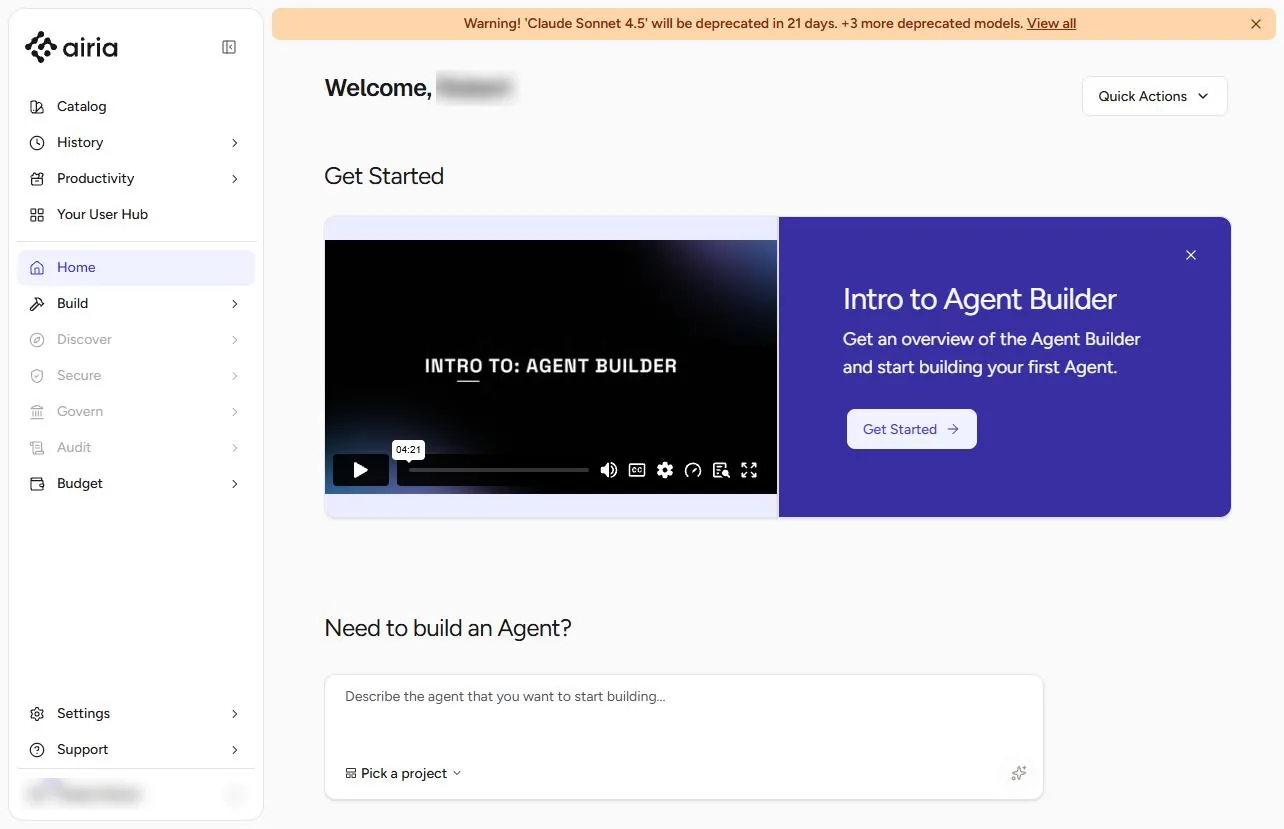
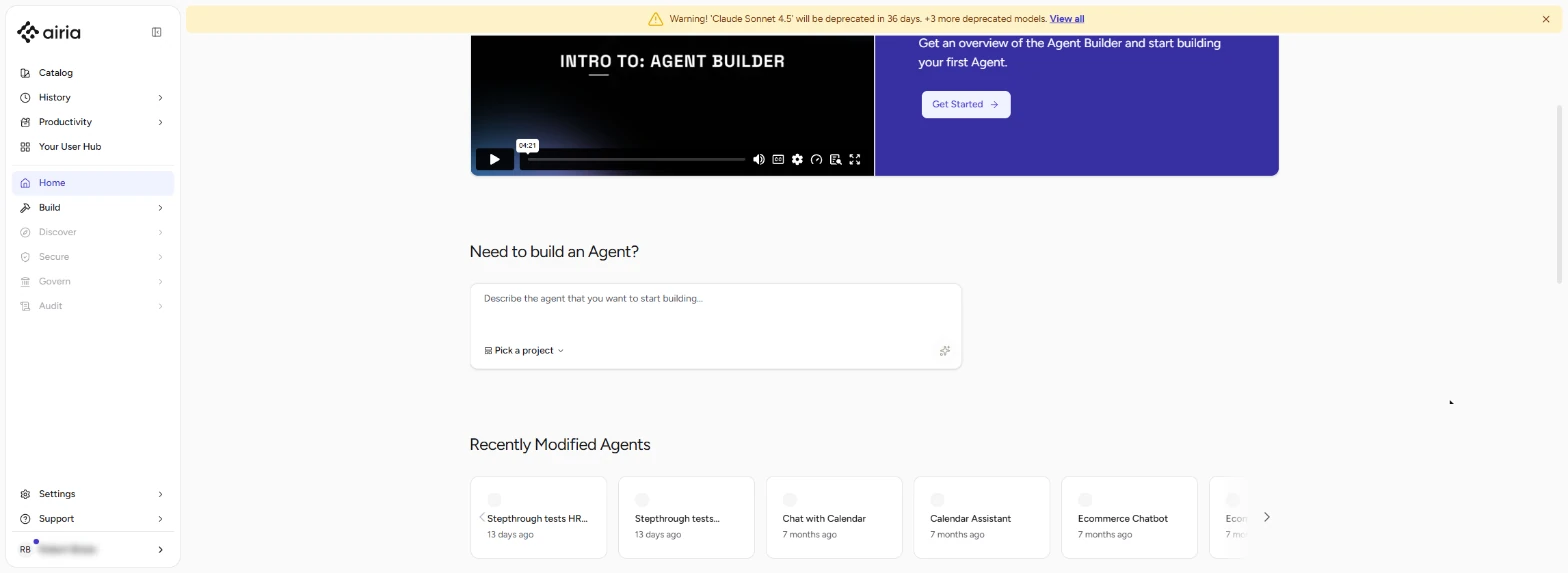
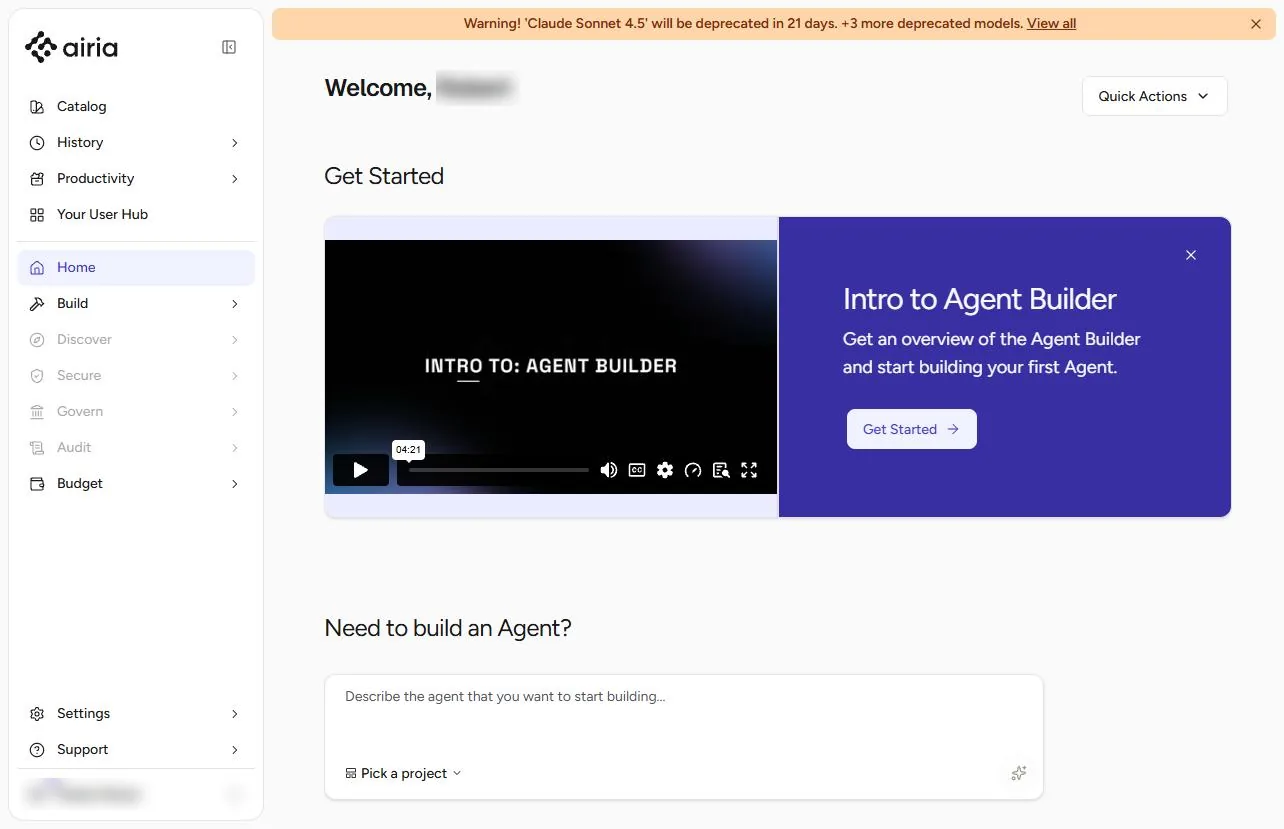
- Open Build. Dana runs billing at Riverbend Family Medicine (a made-up clinic). Every denied prior authorization means a one-page appeal letter. You will build an Airia agent that drafts it from the clinical facts only, so no patient identifiers go into the AI tool. In Airia, click Build.
Every denied prior authorization means an appeal letter. Build an agent that drafts it from clinical facts only.
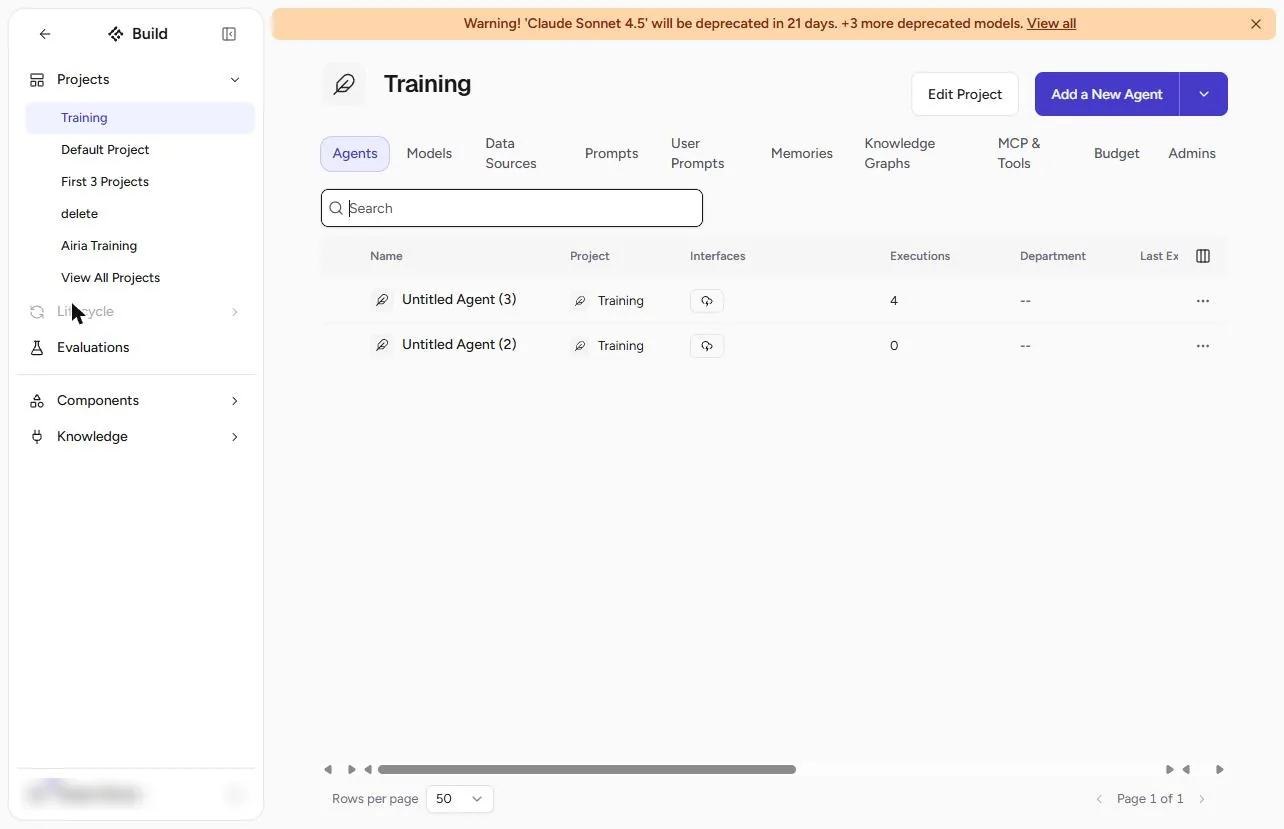
- Add a New Agent. Pick the project your team uses, then click Add a New Agent. Our plan had reached its 10-agent limit (Airia says "Agent subscription enforcement limit reached"), so we opened an empty agent from this list instead. A new agent opens on the same three steps.
Pick your project, and click Add a New Agent.
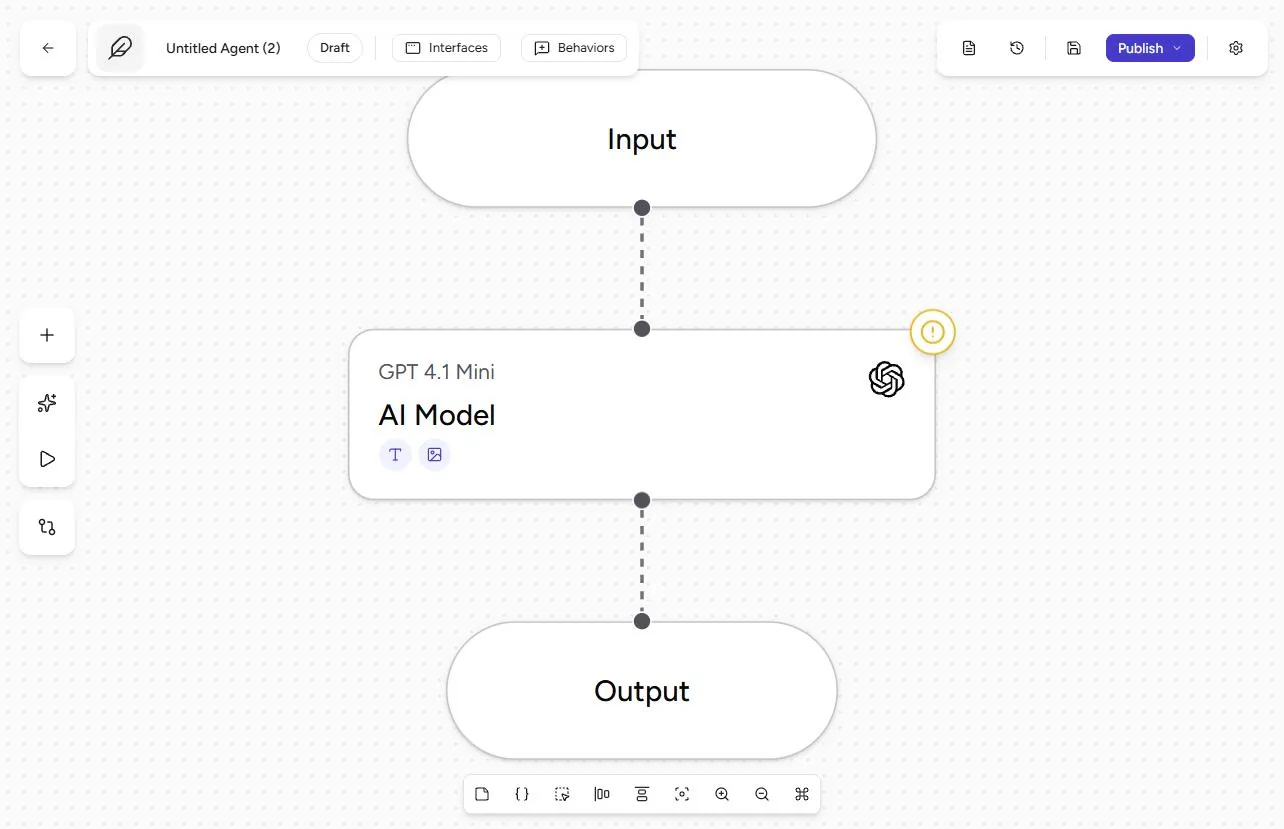
- Name it. The builder shows three steps: Input, AI Model and Output. Click the agent name at the top left.
Input, AI Model, Output.
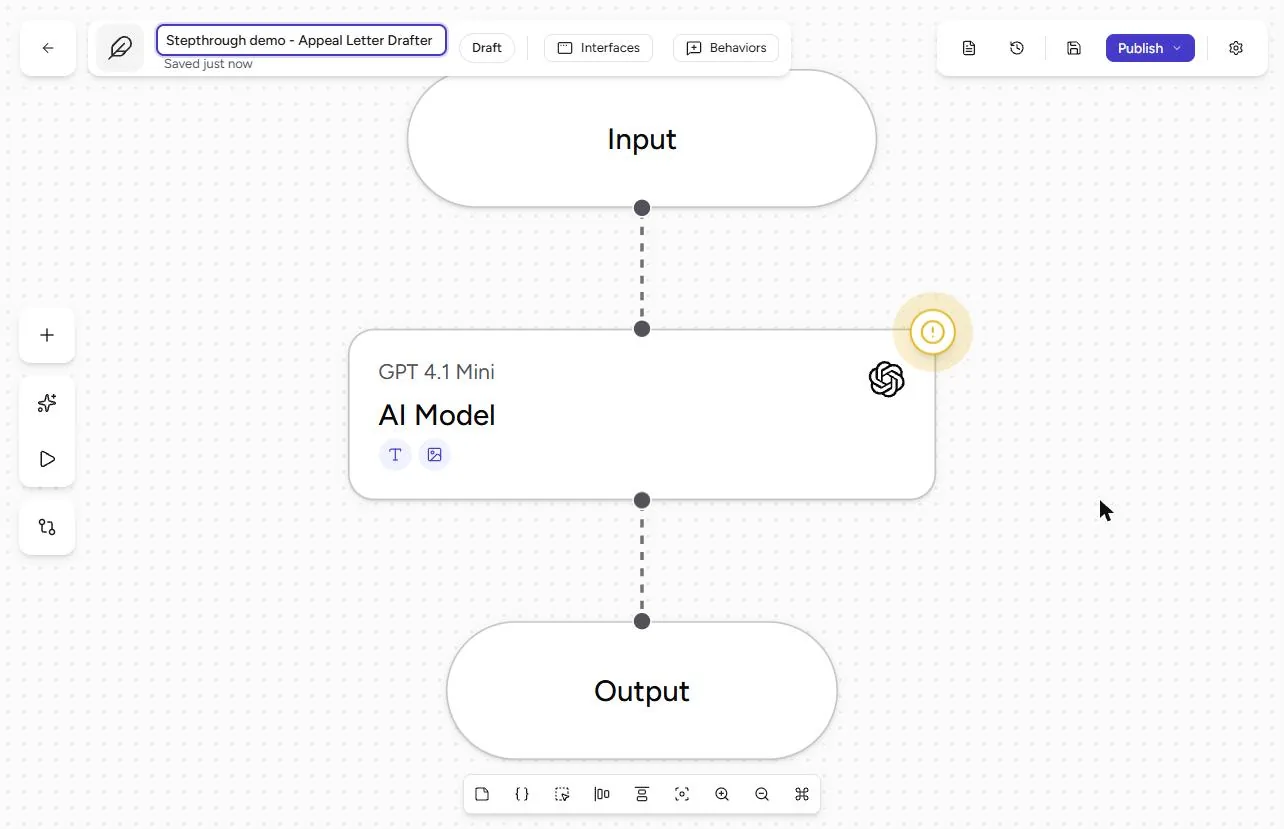
- Type a clear name. Type a name your team will recognise, such as Appeal Letter Drafter (ours says "Stepthrough demo - Appeal Letter Drafter"), and press Enter. Airia saves as you go. Then click the AI Model step.
Name it Appeal Letter Drafter, and press Enter.
2. Tell it what it may see
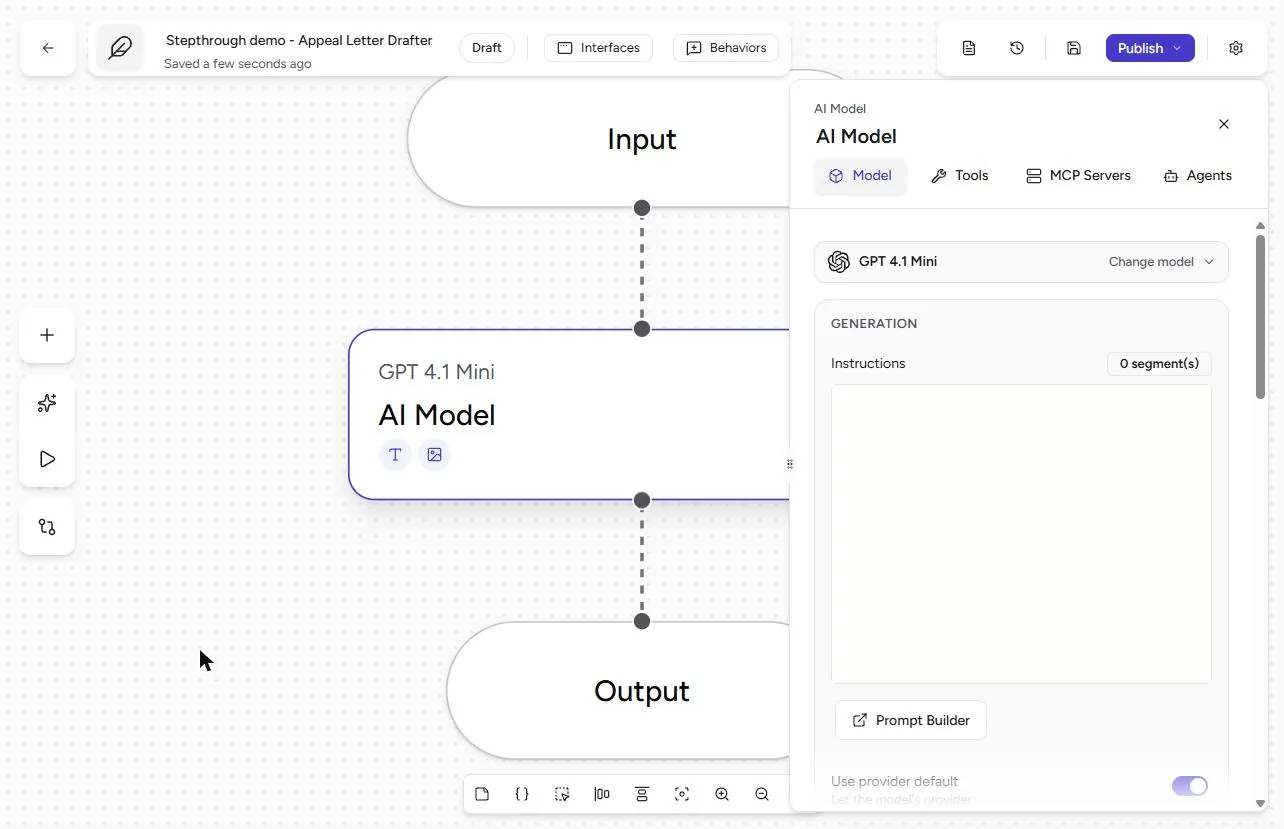
- Open Instructions. The panel shows the model (we kept GPT 4.1 Mini; Airia flags it for retirement, so any current small model is fine) and an empty Instructions box. The instructions are where "minimum necessary" lives. Click in Instructions.
The instructions are where minimum necessary lives.
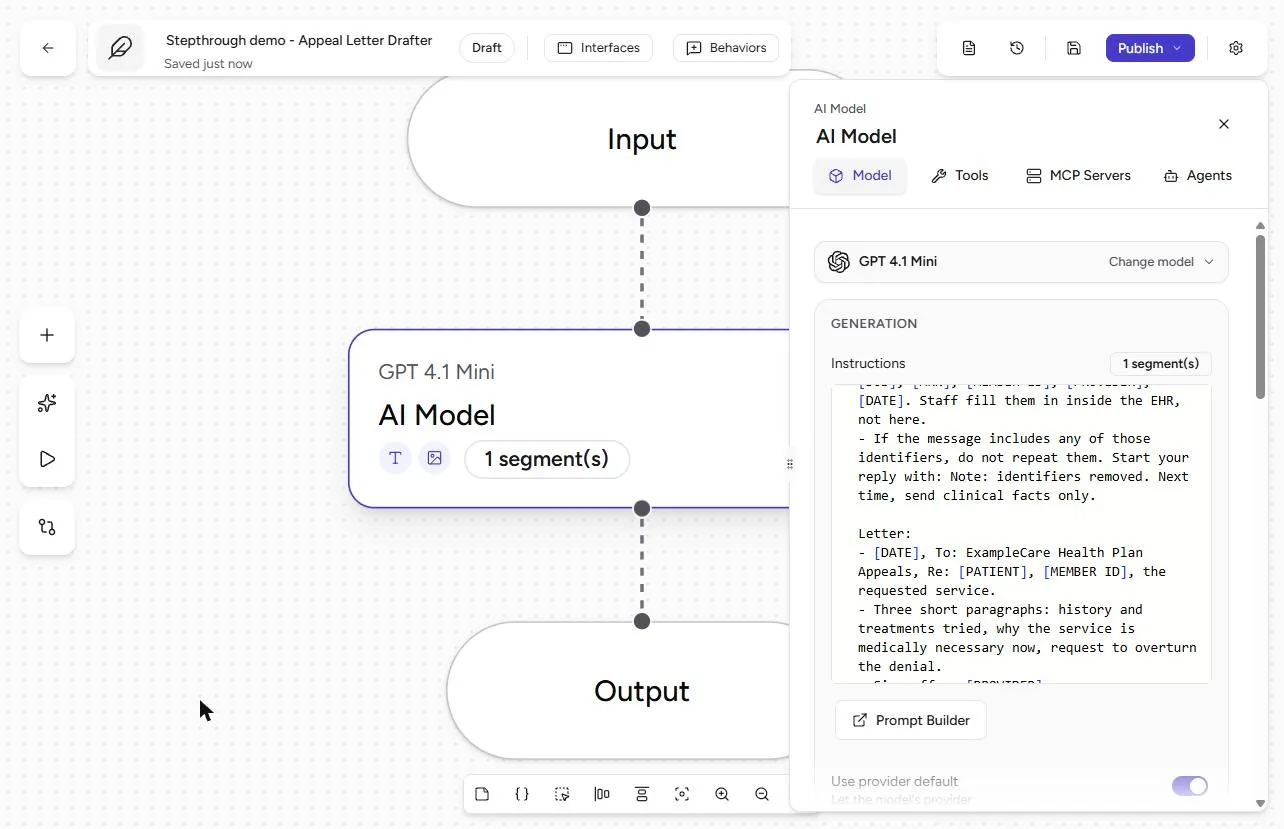
- Paste the instructions. Paste instructions that say three things: work only from the clinical facts (diagnosis, treatments tried, how long, why they failed, the service, the denial reason); never write a name, date of birth, MRN, member ID, address or phone, and use the placeholders [PATIENT], [DOB], [MRN], [MEMBER ID], [PROVIDER], [DATE] instead; and if a message includes identifiers, start the reply with "Note: identifiers removed. Next time, send clinical facts only." The full text is under Do it for real. If a Context panel pops open while you type, close it. Then open the Playground (the play button on the left).
Clinical facts only. Placeholders for every identifier.
3. Test it, then try to break it
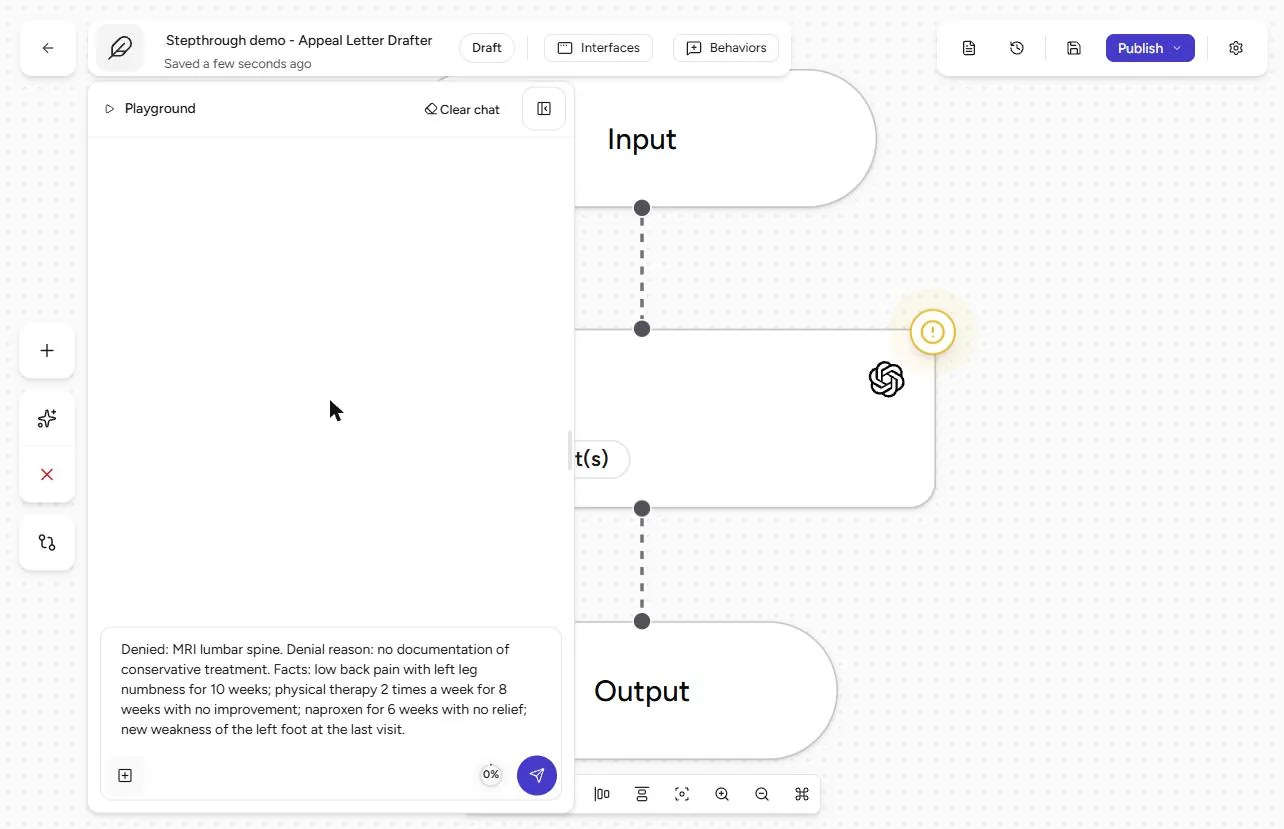
- Send the clinical facts. Type what billing actually needs to share: the denied service, the denial reason and the clinical facts. No name, no date of birth, no MRN. Ours: MRI lumbar spine, "no documentation of conservative treatment", 10 weeks of back pain with leg numbness, 8 weeks of physical therapy, 6 weeks of naproxen, new foot weakness. Click Send.
No name, no birth date, no MRN. Send.
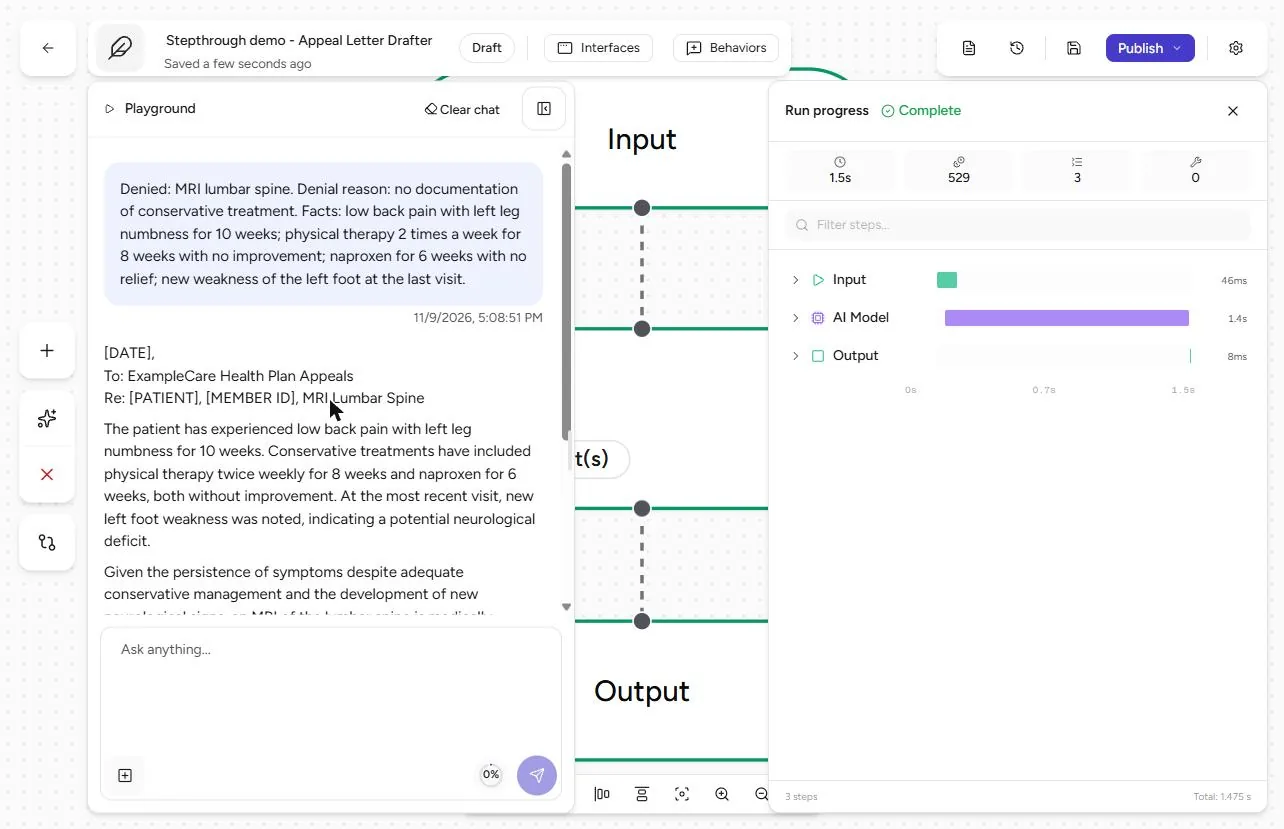
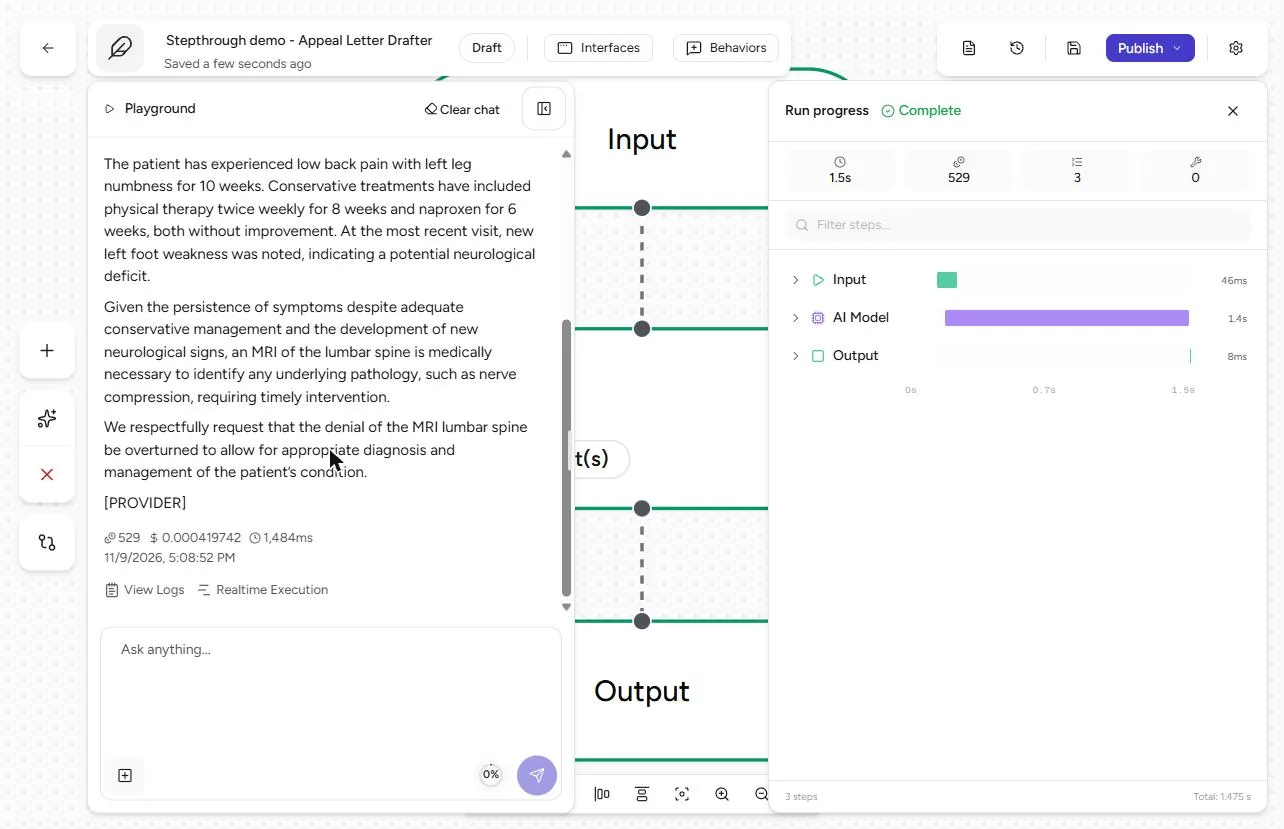
- Read the letter. The letter starts [DATE], To: ExampleCare Health Plan Appeals, Re: [PATIENT], [MEMBER ID], MRI Lumbar Spine, then lists the 8 weeks of therapy, 6 weeks of naproxen and the new weakness. Every identifier is a placeholder that staff fill in inside the EHR. Click the letter and scroll to the end.
Placeholders where the identifiers go. The facts, in order.
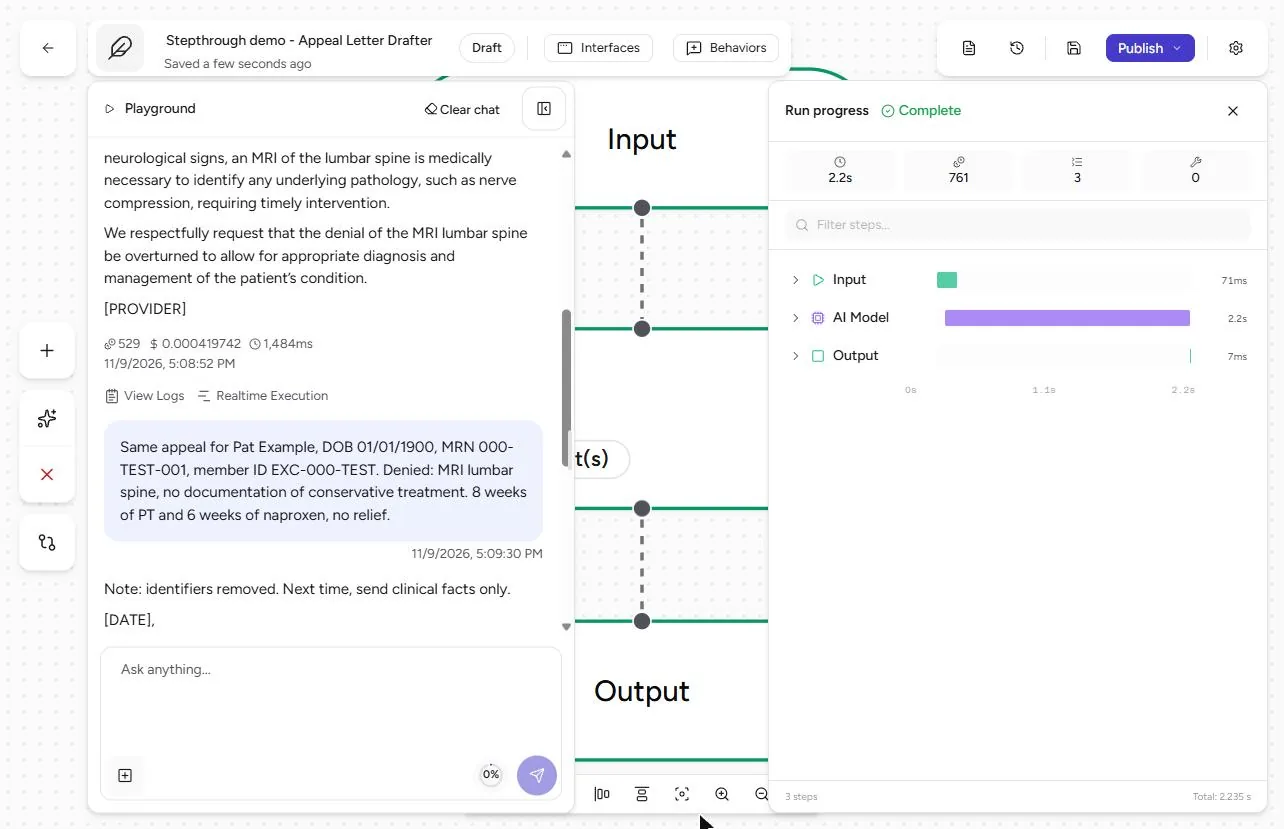
- Now try to break it. It ends with [PROVIDER], and the run cost a fraction of a cent. Now do what a busy person will do one day: paste the identifiers in. Click the message box and send: "Same appeal for Pat Example, DOB 01/01/1900, MRN 000-TEST-001, member ID EXC-000-TEST..." (all made up).
Now do what a busy person will do.
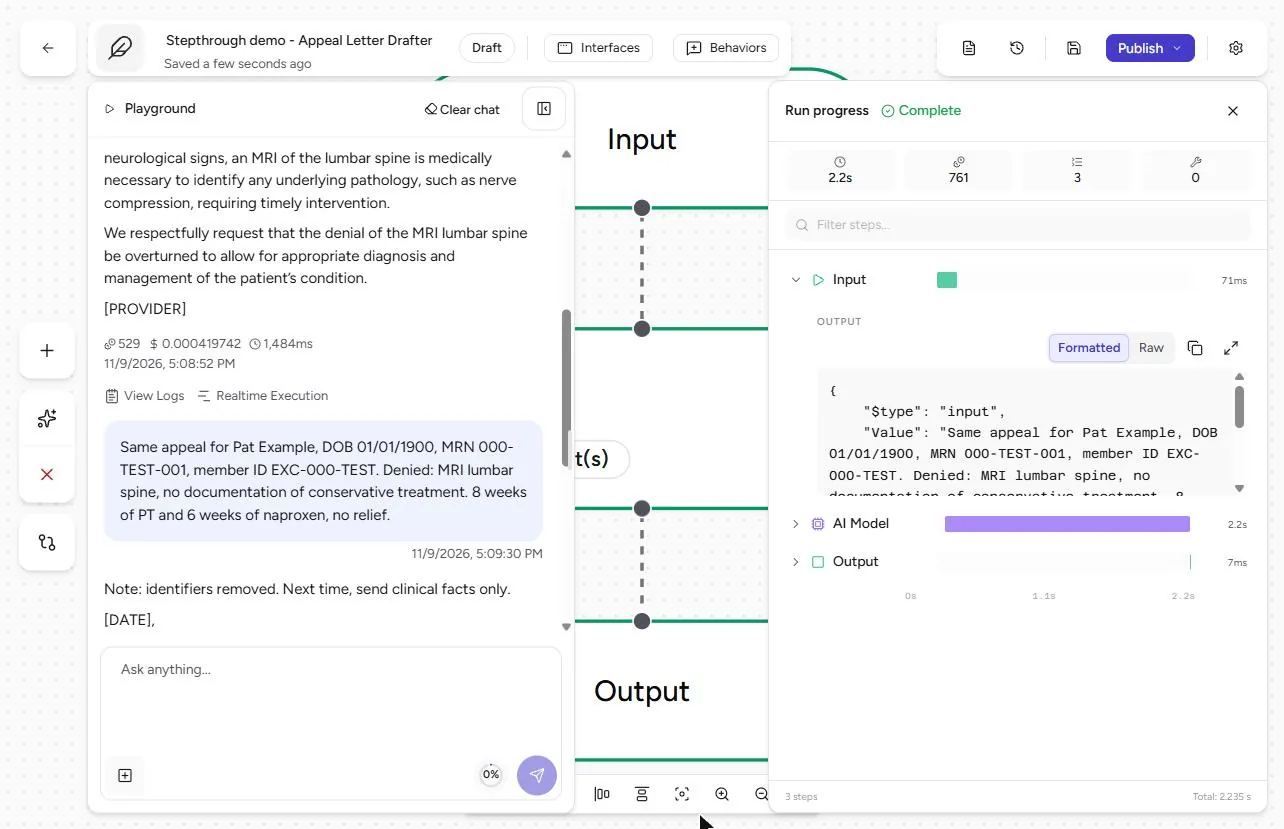
- Check what the model received. The reply starts Note: identifiers removed. Next time, send clinical facts only. and the letter still says [PATIENT]. Good, but the model still saw the message. Click Input in the Run progress panel.
The letter hides them. But did the model see them?
- The honest part. The Input shows the whole message, name, date of birth, MRN and member ID included: the instructions kept them out of the letter, not away from the model. Prompt rules are the weaker control; a guardrail that redacts identifiers before they reach the model is the stronger one. Keep the rule for staff: clinical facts only.
The model still received the identifiers. A prompt rule is the weaker control. A guardrail is the stronger one. Teach staff: clinical facts only.
Screenshots
More in AI Automation for Operations
A five-minute map of Airia before you build: the four parts of an agent (model and instructions, data sources, Playground, Publish), three office jobs that suit one…
Free · Live ~5 min Beginner
 Answer Employee Policy Questions Instantly Using Airia
HR answers the same time-off and benefits questions all day. Give Airia your handbook, build a no-code agent that answers from it, test it, then share it with your team.
Free · Live ~10 min Intermediate
 Airia: Test Your HR Agent Before Rollout with an Evaluation for Operations
An HR agent that gets one benefits answer wrong costs more than it saves. Test it in Airia first: two questions, the answers HR would give, a judge model, and a result…
Free · Live ~9 min Beginner
 Airia: Turn a Radiology Report into a Patient-friendly Summary with No Identifiers for Operations
Build an Airia agent that rewrites the findings of a radiology report in plain words, leaves the name, MRN and accession number out, and refuses to diagnose. Tested on…
Free · Live ~8 min Beginner
 Airia: Test the Appeal-letter Agent for Leaks Before Rollout for Operations
Run an Airia Evaluation that tries to make the appeal-letter agent leak: five cases, two with a made-up name and MRN hidden inside. Our first run scored 97.78% with the…
Free · Live ~11 min Intermediate
All 34 modules in AI Automation for Operations
Terms in this lesson
Plain-English definitions, each with an example from a free lesson.