Updated . Built against the tool’s current screens and checked step by step. How we check this lesson
Stop paying for stock photos that look like every other firm's. In MaxVideoAI's Image tab, compare model prices, set a 16:9 header, write a prompt that says what to leave out, and generate one image for the price on the button.
At a glance
| Question | Answer |
|---|---|
| What you build | Stop paying for stock photos that look like every other firm's. In MaxVideoAI's Image tab, compare model prices, set a 16:9 header, write a prompt that says what to leave out, and generate one image for the price on the button. |
| Tools | MaxVideoAI |
| Time | About 6 minutes, 9 steps in 3 parts |
| Level | Beginner, no coding needed |
| Cost | Free |
| Ways to learn it | Practice it step by step |
The 3 parts, in short
- Pick the model and the format: Switch to images, Open the model list, Compare prices, then pick Seedream 5.5, Make it wide.
- Write the prompt: Say what to show, and what to leave out.
- Generate and check: Generate for the price on the button, Watch it in Activity, Check it against the brief, Download it.
Start here first: How to Use n8n in Marketing: An AI Agent That Plans Your Content Calendar (module 1 of AI Automation for Marketing)
Part of: AI Apps Worth Knowing (step 141 of 175). Next up: How to Use Claude to Build an App with Floot: An Office Request Tracker
What you'll build
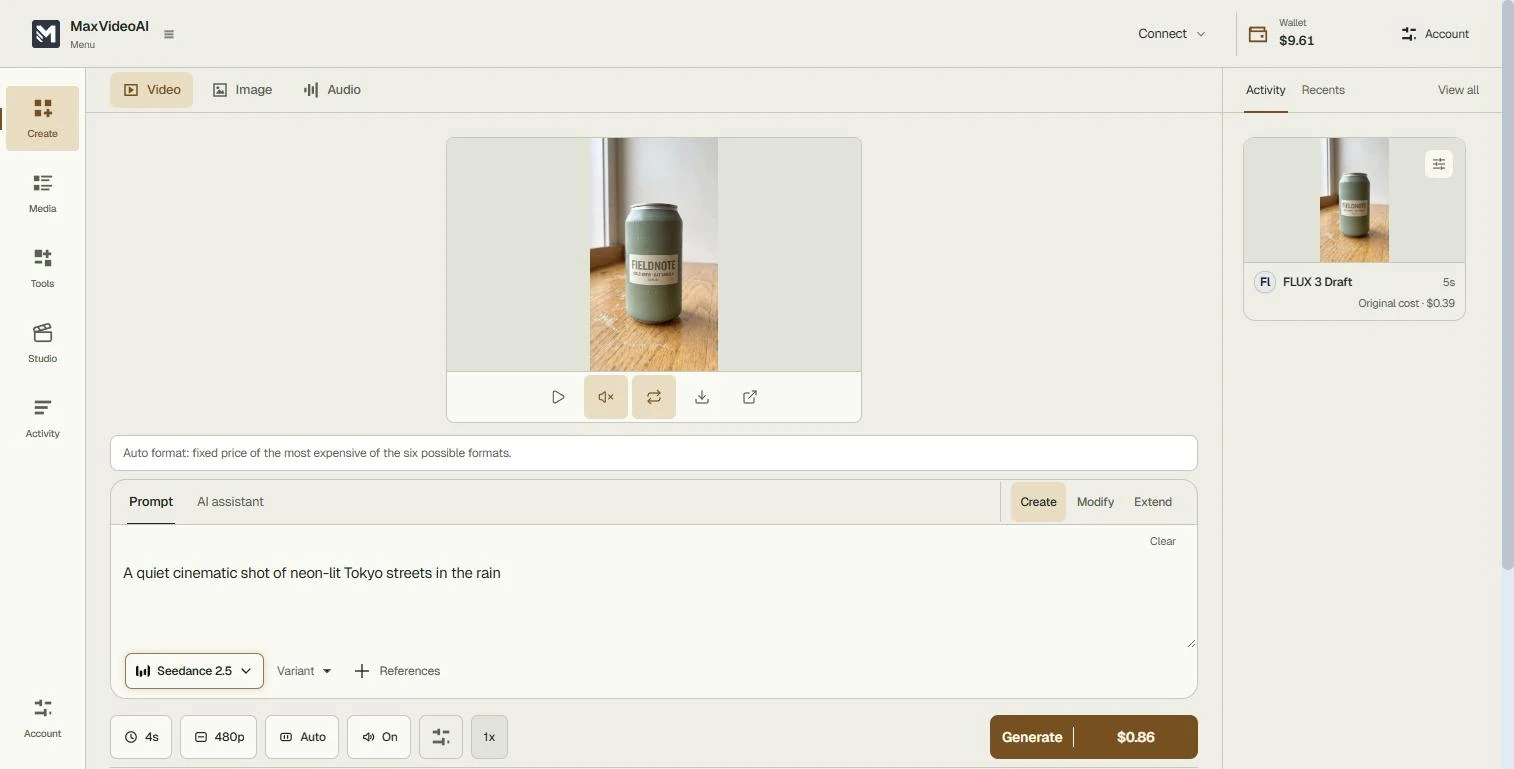
You run the office at Northfield Family Law, a made-up firm. It posts one blog article a month, and every header so far has been a stock photo of a gavel or scales, the same ones other firms use. In this lesson you open MaxVideoAI's Image tab, compare what each image model costs before you choose, set a wide 16:9 format for a blog header, and write a prompt that says what the picture should show and what to leave out. You generate one image, check it against the brief and download it. Ours cost the $0.06 shown on the button.
You compared image model prices before choosing, picked Seedream 5.5 at $0.06, set a 16:9 header, and wrote a prompt that named what to show and what to leave out: no people, no text, no logos, no gavels. MaxVideoAI made the image in about 20 seconds and the wallet dropped by exactly the $0.06 on the button. Next time, reuse the same prompt with one detail changed so every post's header looks like it belongs to the same firm.
- Tools: MaxVideoAI
- Time: about 6 minutes, 9 steps in 3 chapters
- Level: beginner, no coding needed
- Price: free
Practice first, then build it for real
Practice copy built from real MaxVideoAI screens (maxvideoai.com), captured 18 November 2026 on Robert's account. Nothing here touches a MaxVideoAI account. Northfield Family Law is made up; the image is the one Seedream 5.5 made for $0.06, and yours will differ. Prices were checked on 18 November 2026; the button always shows today's price. To build it for real you need your own MaxVideoAI account, and some services charge once you use them for real work, so check each tool's current pricing.
Try it yourself, free
Reading the steps is a start. Doing them is how it sticks. The interactive module walks you through every click in a practice copy of MaxVideoAI, checks each step, and never touches your real accounts.
Start “MaxVideoAI: Make a Blog Header Image for Your Firm for 6 Cents for Marketing”Step by step: MaxVideoAI: Make a Blog Header Image for Your Firm for 6 Cents for Marketing
All 9 steps of the interactive module, in order. In the module you watch each one, then do it yourself in a practice copy that checks your work.
1. Pick the model and the format
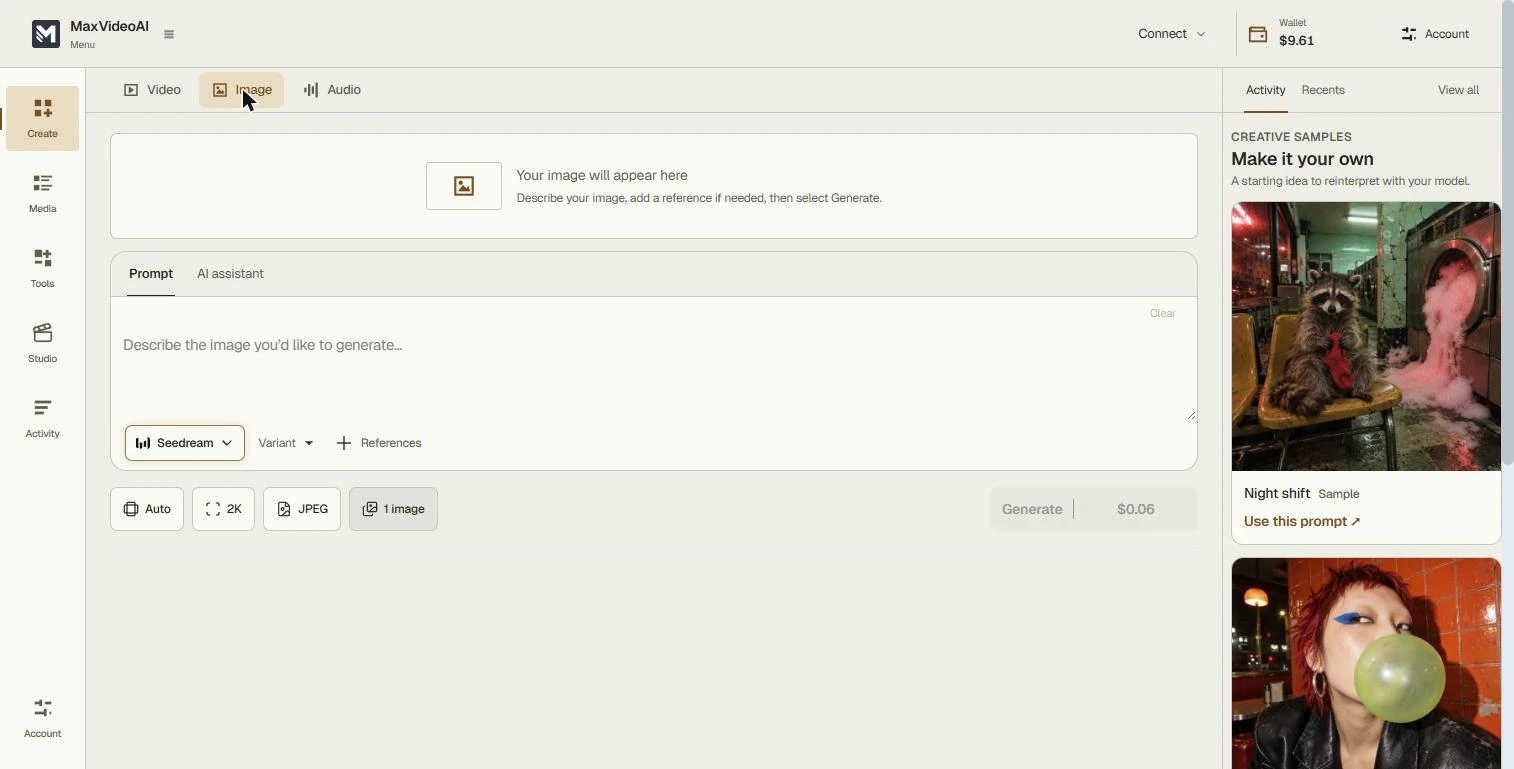
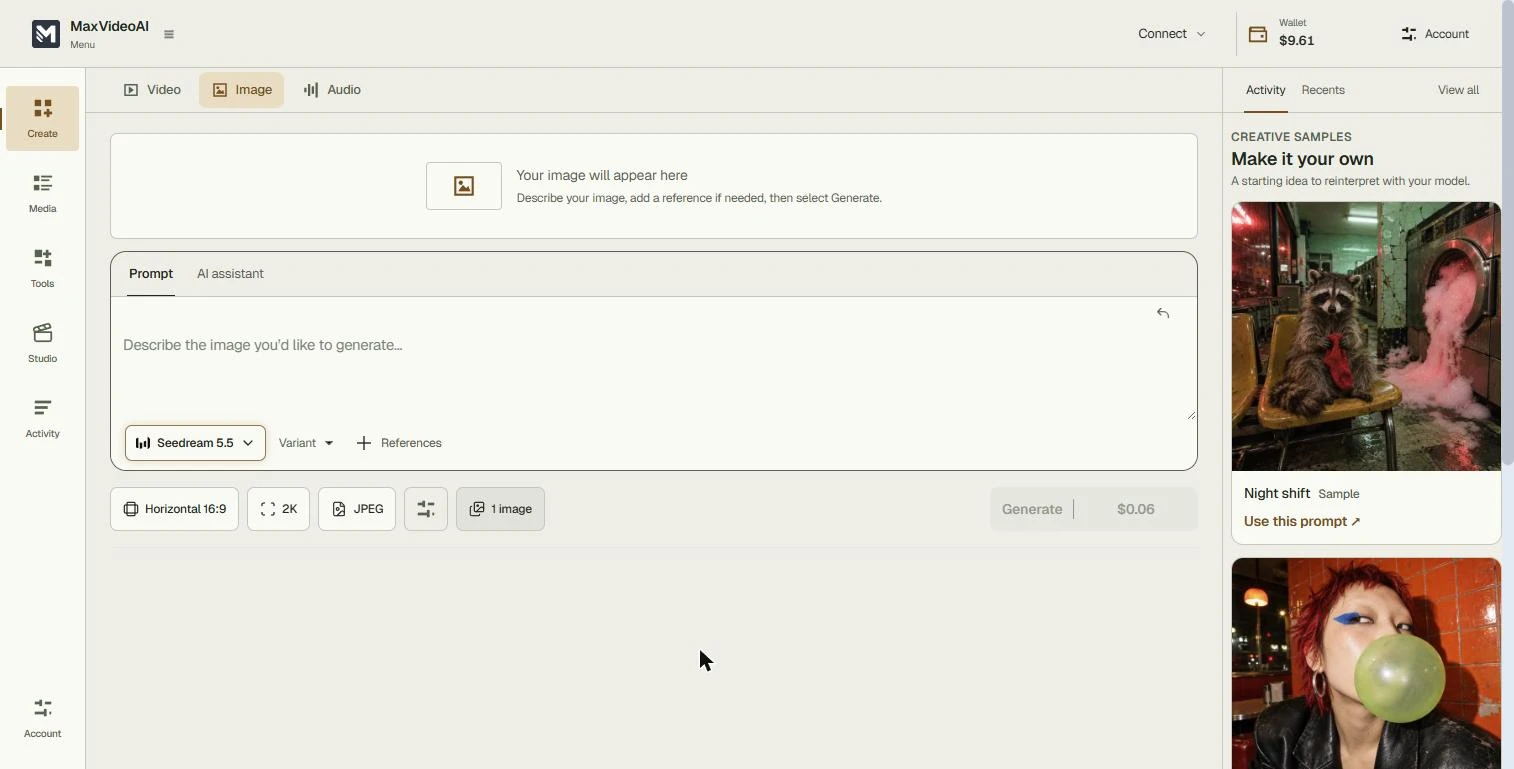
- Switch to images. You run the office at Northfield Family Law, a made-up firm that posts one blog article a month. Every header so far has been a stock photo of a gavel, the same one other firms use. This is the MaxVideoAI workspace, open on Video. Click the Image tab.
You run the office at a small family law firm. Every blog header is the same gavel stock photo other firms use. In MaxVideoAI, click the Image tab.
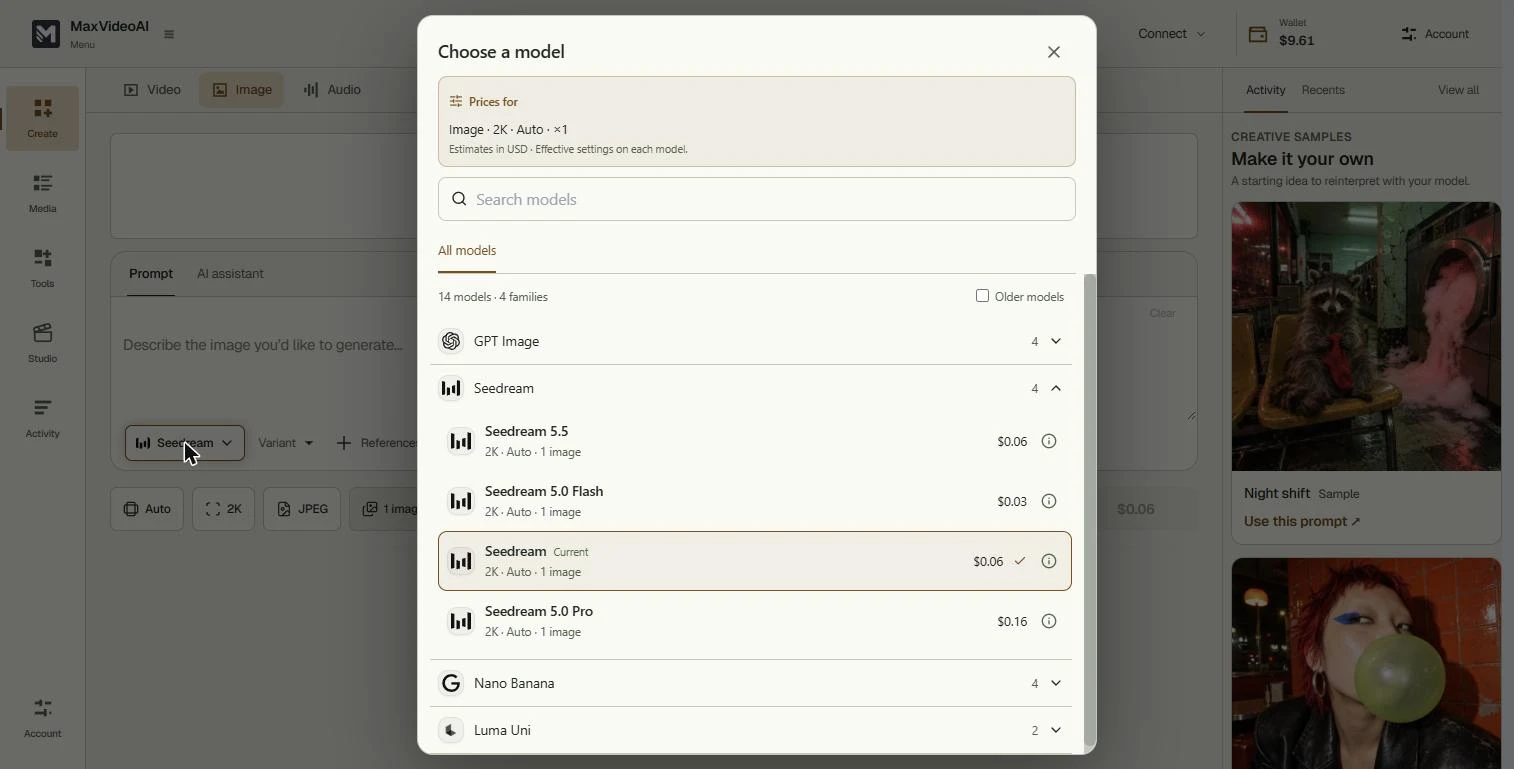
- Open the model list. The Generate button already shows a price: $0.06 for one image. Before you take the default, see what the other models cost. Click the model button, Seedream.
The Generate button already shows a price. Before you take the default, open the model list.
- Compare prices, then pick Seedream 5.5. Choose a model lists 14 models in 4 families: GPT Image, Seedream, Nano Banana and Luma Uni, each priced for your settings (Image, 2K, Auto, x1). In the Seedream family: 5.0 Flash $0.03, 5.5 $0.06, 5.0 Pro $0.16. For a blog header, the newest standard model is plenty. Click Seedream 5.5.
Fourteen image models, each with its price for your settings. For a blog header, Seedream five point five at six cents is plenty.
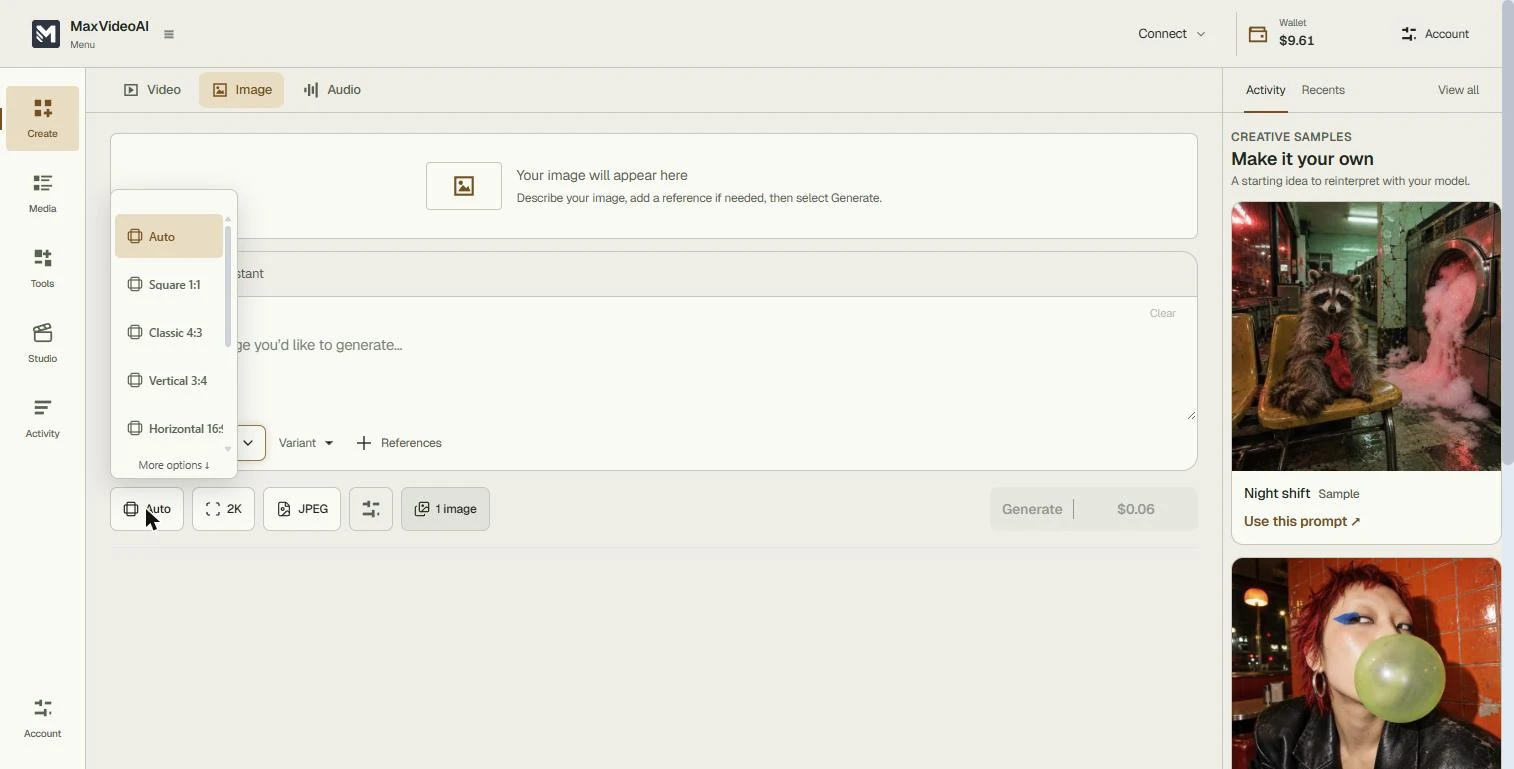
- Make it wide. Blog headers are wide. Click the format button (Auto) and choose Horizontal 16:9. Leave 2K, JPEG and 1 image as they are.
Blog headers are wide.
2. Write the prompt
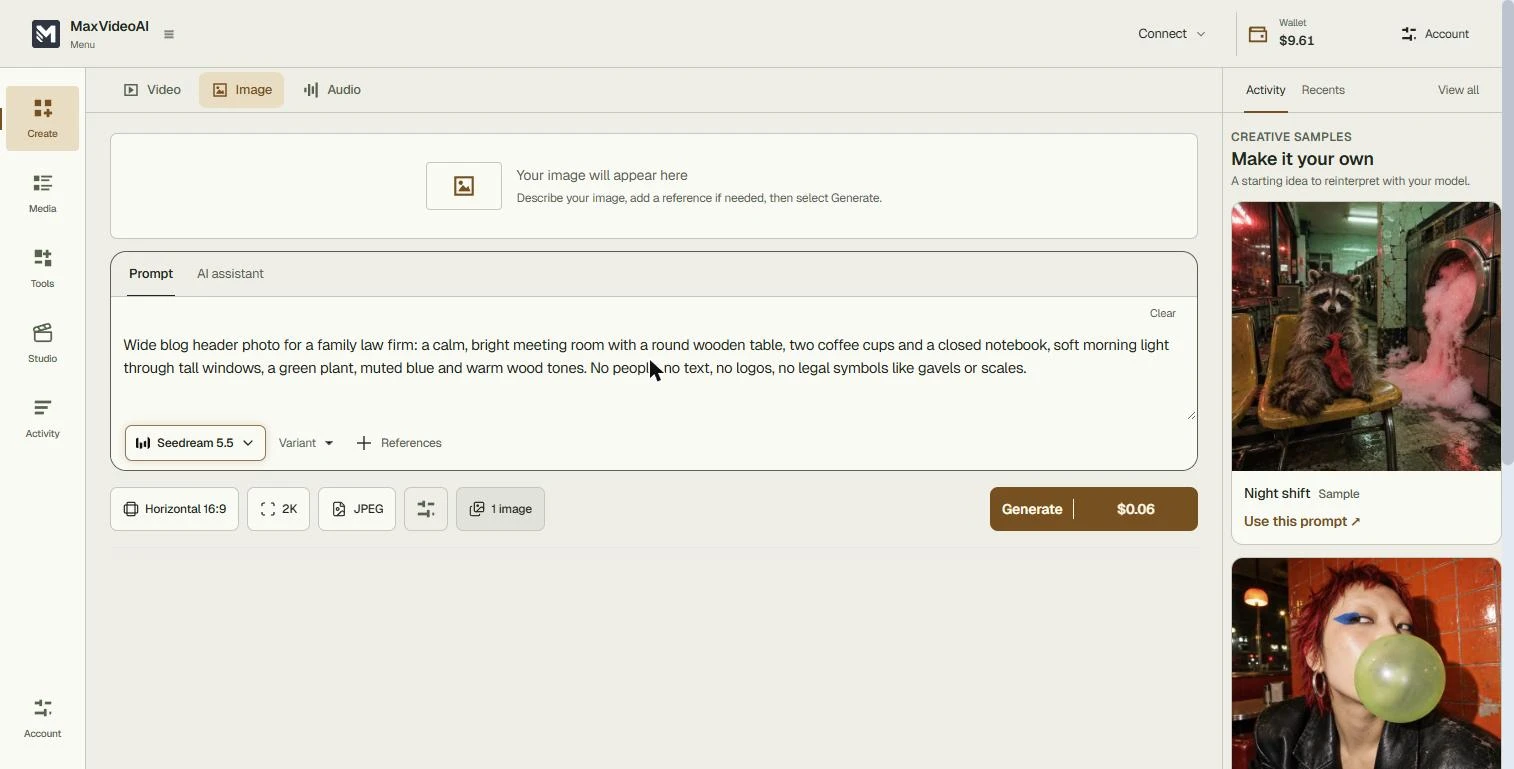
- Say what to show, and what to leave out. Describe the picture: what it is for, the room, the objects, the light and the colours. Then say what must not be in it: an AI image of people or text often looks off, and you want to get away from gavels. Type: Wide blog header photo for a family law firm: a calm, bright meeting room with a round wooden table, two coffee cups and a closed notebook, soft morning light through tall windows, a green plant, muted blue and warm wood tones. No people, no text, no logos, no legal symbols like gavels or scales.
Describe what it is for, the room, the light and the colours. Then say what to leave out. No people, no text, no logos, and no gavels.
3. Generate and check
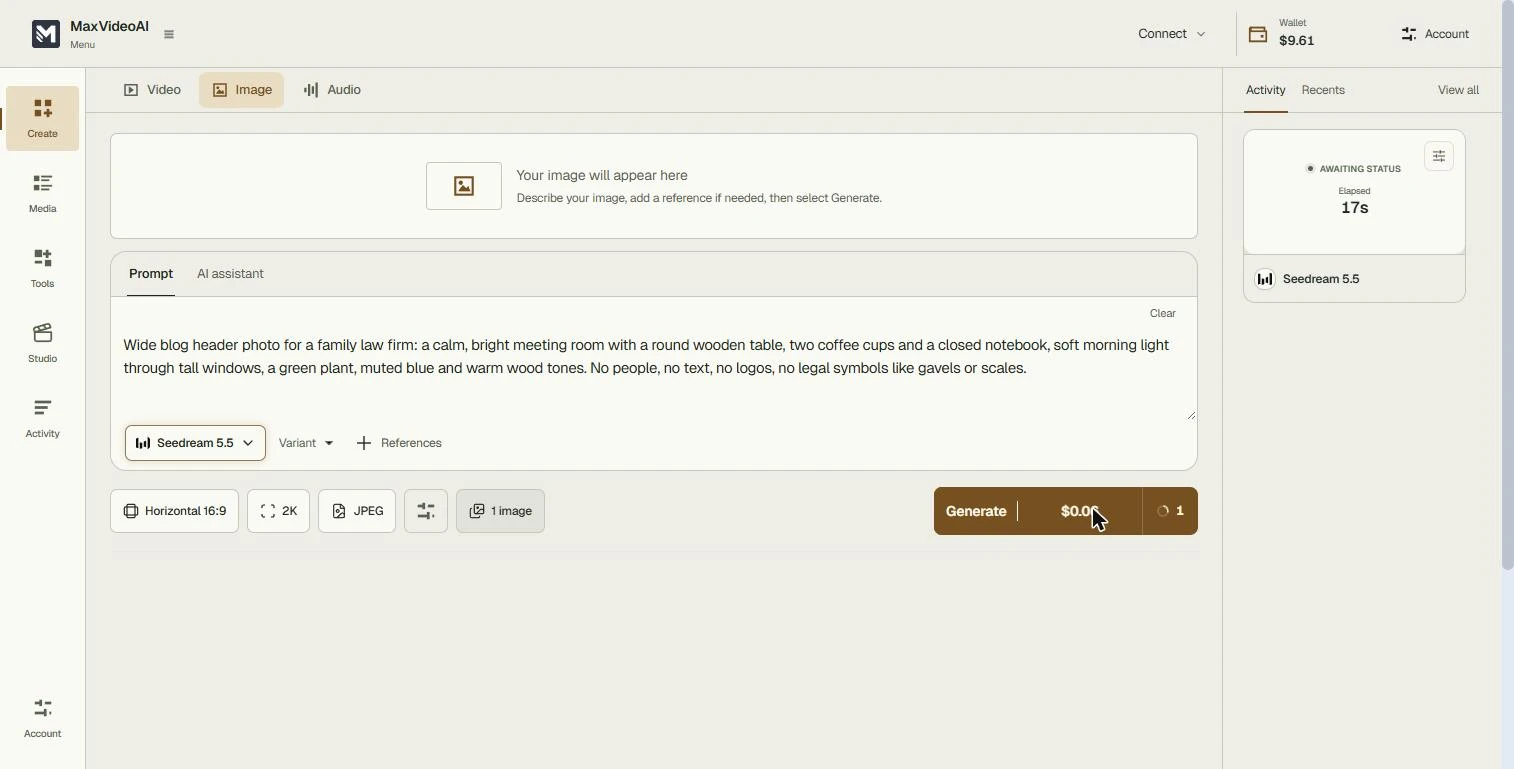
- Generate for the price on the button. The button reads Generate | $0.06. That is what you pay, from your MaxVideoAI wallet, for one 2K image. Click Generate.
The button shows the price, six cents.
- Watch it in Activity. A card appears under Activity on the right: Seedream 5.5, Awaiting status, with the seconds counting up. Ours took about 20 seconds. Click the card.
A card appears under Activity, with the seconds counting. Ours took about twenty seconds.
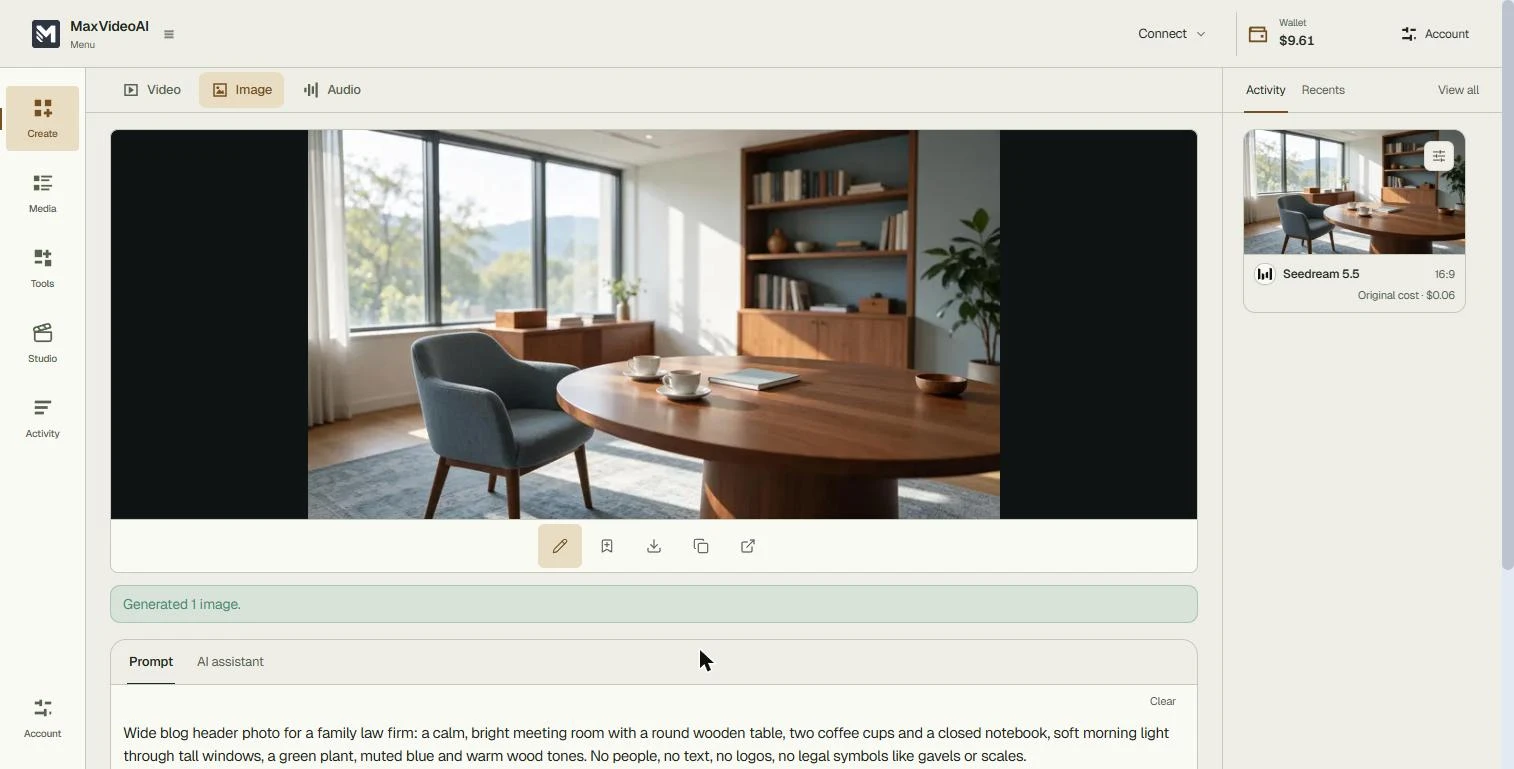
- Check it against the brief. Generated 1 image. Check it against what you asked for: a bright room, round wooden table, two coffee cups, a notebook, a plant, blue and wood tones, and no people, text or gavels. The Activity card says 16:9 and Original cost $0.06, and after a page refresh the wallet went from $9.61 to $9.55. Click the image.
Check it against the brief. Two cups, a notebook, a plant, and no people, text or gavels. The wallet dropped by exactly six cents.
- Download it. Under the image: edit, save, download, copy and open. Click download and add the image to the blog post. Keep the prompt: change one detail next month (a different room, a window seat, autumn light) so every header looks like the same firm.
Keep the prompt, and change one detail next month, so every header looks like the same firm.
Screenshots
More in AI Automation for Marketing
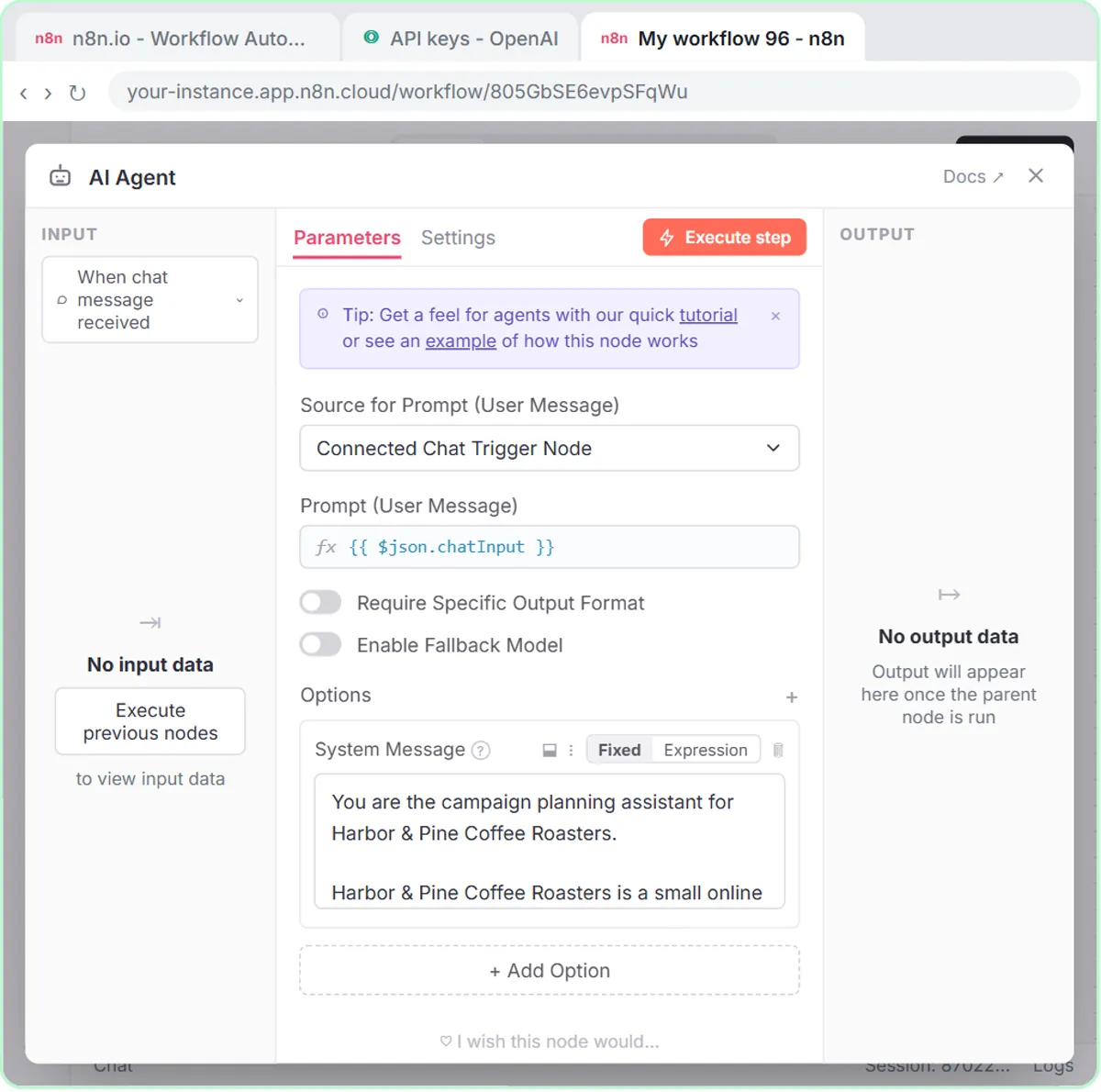 How to Use n8n in Marketing: An AI Agent That Plans Your Content Calendar
Build an AI agent for Harbor & Pine Coffee Roasters that turns one campaign theme into a two-week email and content calendar in Google Sheets — chat trigger, AI Agent…
Free · Live ~12 min Intermediate
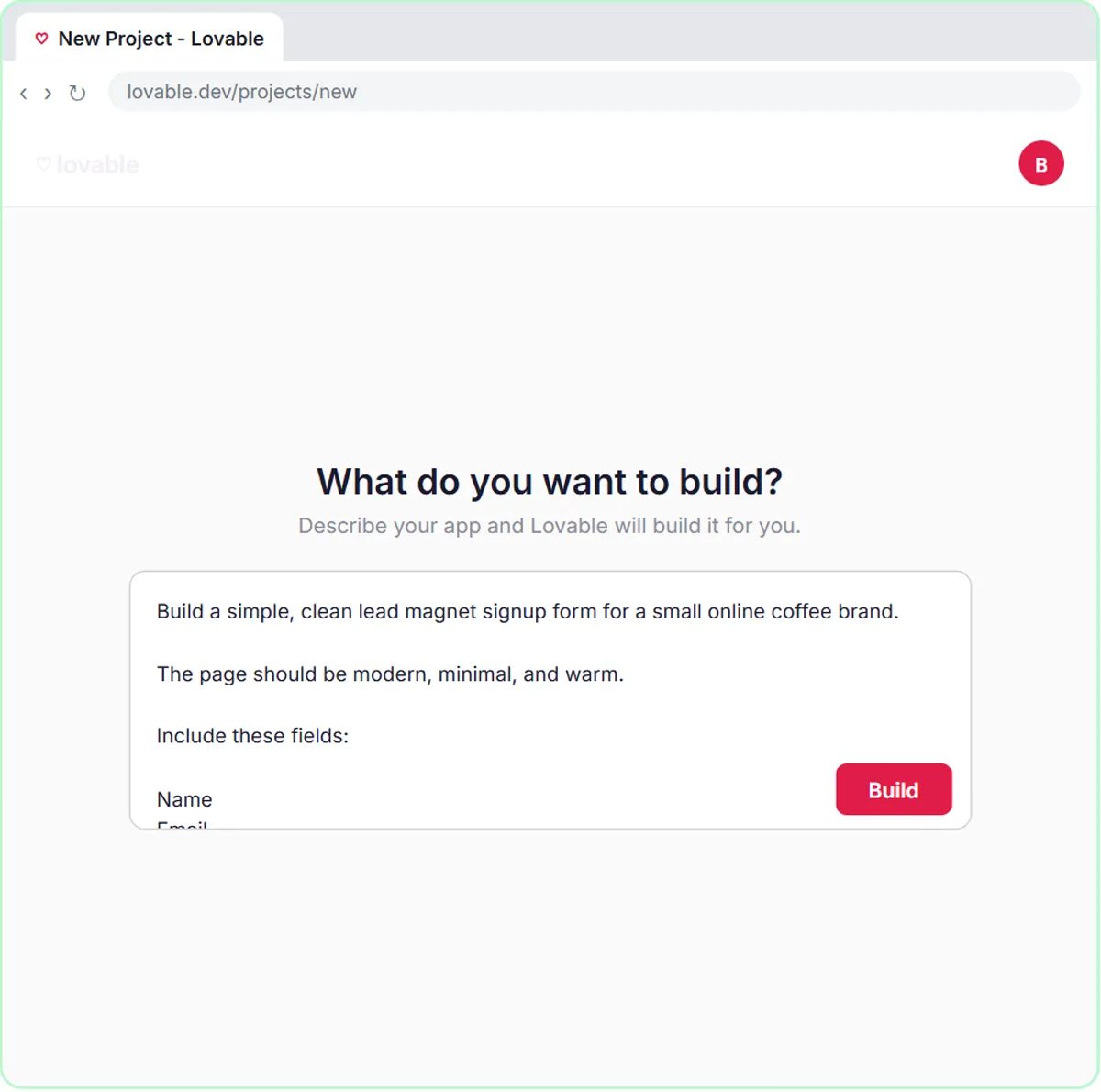 Build a Lead Magnet Signup Form with an AI Welcome Email
Build a "Get the free guide" signup form in Lovable for Harbor & Pine Coffee Roasters and connect it to n8n — the AI agent tags each lead by interest, saves it to…
Free · Live ~15 min Advanced
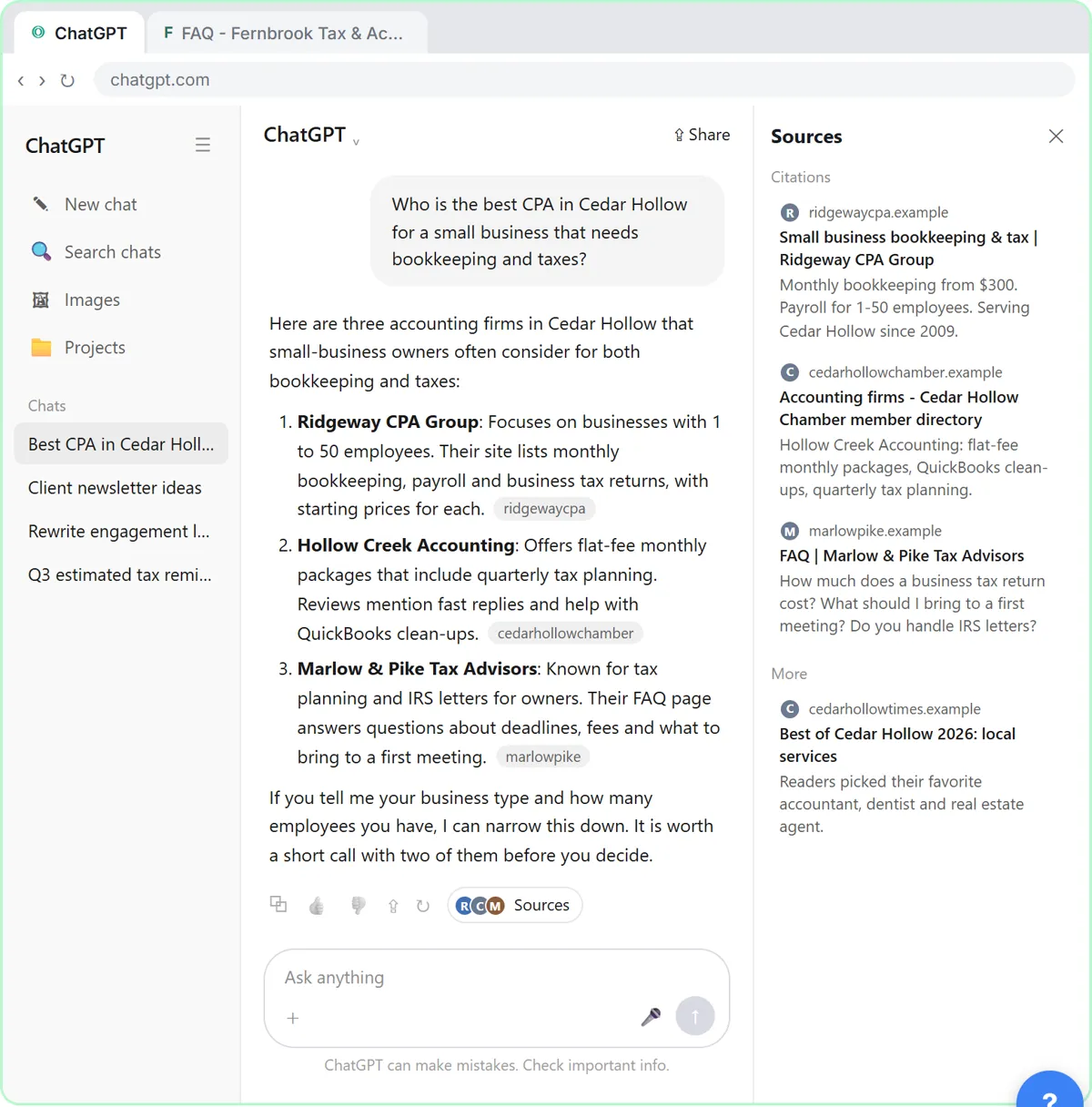 Get Your Business Recommended by ChatGPT
Ask ChatGPT who it recommends in your town, see which pages it trusts, then use it to write an FAQ page and Business Profile copy that answer real customer questions.
Free · Live ~10 min Intermediate
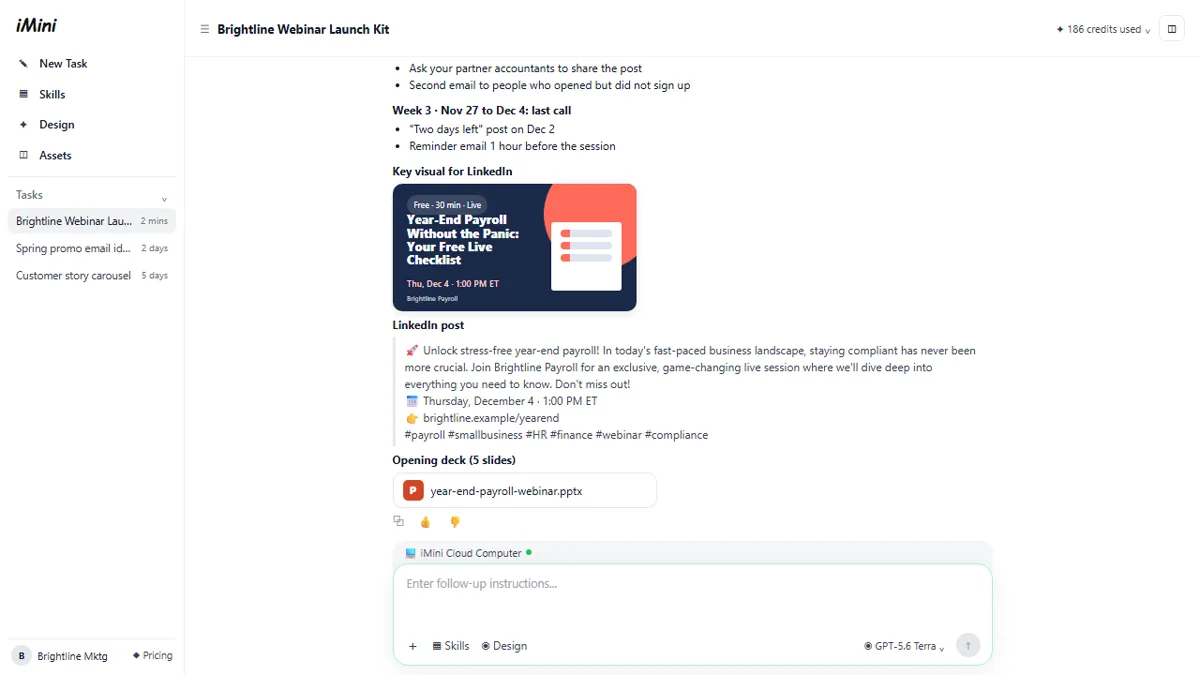 iMini AI Agent: Turn a Rough Idea into a Launch Kit
Brief the iMini Creative Agent once and get a launch plan, a LinkedIn visual, a post and a 5-slide deck, then fix the visual and humanize the post with follow-ups.
Free · Live ~8 min Beginner
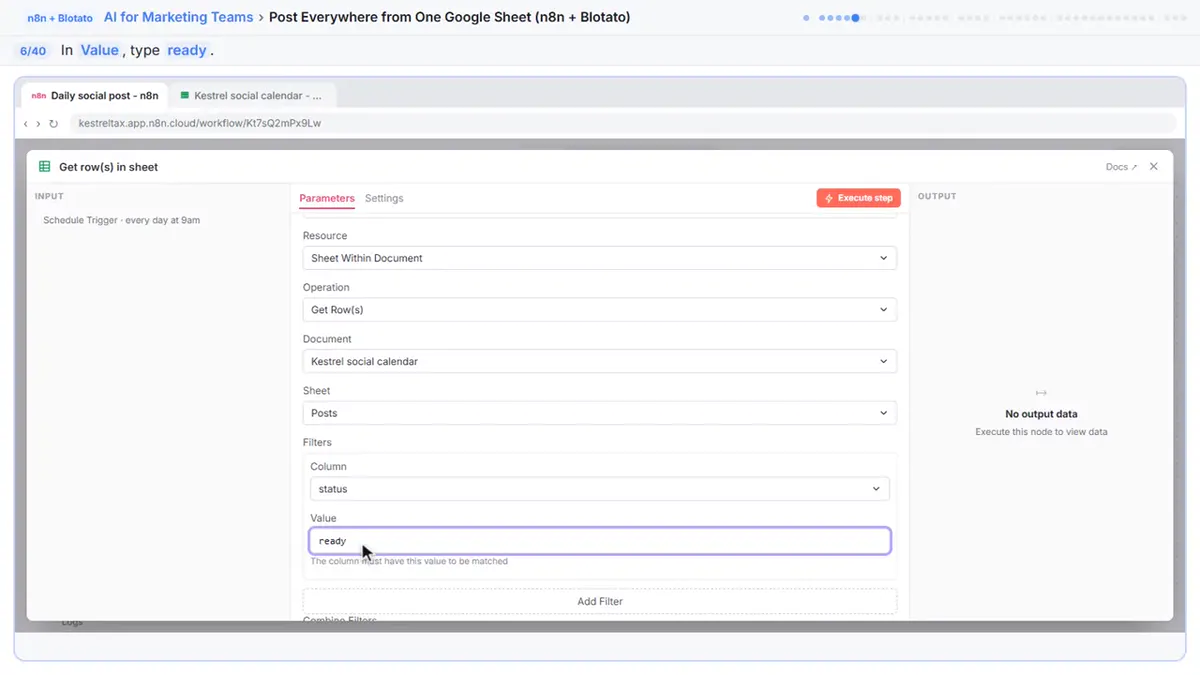 Post to Every Channel Daily from One Sheet using n8n + Blotato
Copying the same post into every social app can take half an hour a day, and on busy days nothing goes out. Plan a week of posts in one Google Sheet; every morning n8n…
Free · Live ~14 min Advanced
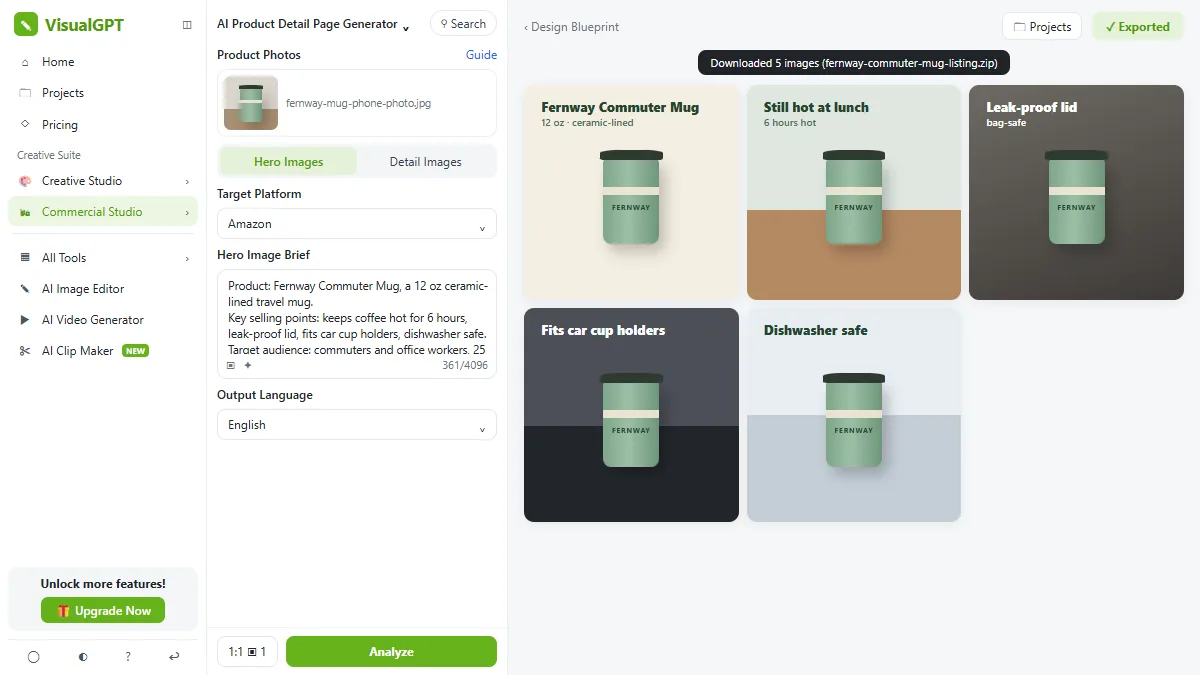 VisualGPT: Product Photos, Listing Images and Ads from One Phone Photo
Turn one phone photo into a lifestyle product shot, a five-image Amazon listing set and three launch ads in VisualGPT's Commercial Studio, checking the plan and every…
Free · Live ~8 min Beginner
All 29 modules in AI Automation for Marketing
Terms in this lesson
Plain-English definitions, each with an example from a free lesson.