Updated . Built against the tool’s current screens and checked step by step. How we check this lesson
Stop answering the same member questions by hand. Load your help docs into Dify, check it finds the right article, set the rules, and test the question your docs do not answer. Free plan.
At a glance
| Question | Answer |
|---|---|
| What you build | Stop answering the same member questions by hand. Load your help docs into Dify, check it finds the right article, set the rules, and test the question your docs do not answer. Free plan. |
| Tools | Dify |
| Time | About 10 minutes, 35 steps in 5 parts |
| Level | Beginner, no coding needed |
| Cost | Free |
| Ways to learn it | Practice it step by step |
The 5 parts, in short
- Load your help docs: Create a knowledge base, Upload your help docs, Go to the next step, Preview how it splits the file, and 5 more steps.
- Check what it finds: Open the document, Open Retrieval Testing, Ask like a member would, Read the top result.
- Build the chatbot: Go back to Studio, Start a blank app, See the basic types, Choose Chatbot, and 4 more steps.
- Test the good and the unknown: Add it, Send the test question, Read what it invented, Write the rules, and 3 more steps.
- Put it on your site: Open Publish, Publish your changes, Open Access Point, Open the embed options, and 3 more steps.
Start here first: AI Receipt Extractor: Receipts to Google Sheets with n8n (module 1 of Business Automations)
In the course: Part 9 · n8n Automation Toolkit (Module 112 of the full course)
Part of: AI Apps Worth Knowing (step 107 of 111). Next up: Softr: Build a Client Portal Where Each Client Sees Only Their Own Work
What you'll build
Lakeshore Coworking is a made-up coworking space. Its support inbox fills with the same questions about prices, meeting rooms and cancellations. In this lesson you load its help center into Dify, fix how the file is split, and check the right article comes back. Then you build a chatbot and test two questions: one the docs answer, and one they do not. The second one is where a support bot earns trust or loses it. You finish at the code that puts the bot on your site. The lesson stops there; it does not go on a live site.
You loaded the docs, split them so each article stays whole, and confirmed the right one comes back. You also saw why a prompt matters: with no rules the bot admitted it did not know, then invented advice. With rules, it gave your exact hand-off line. Before real members use yours, try twenty of your real questions, including several your docs do not cover, and turn off the public link until you are ready.
- Tools: Dify
- Time: about 10 minutes, 35 steps in 5 chapters
- Level: beginner, no coding needed
- Price: free
Practice first, then build it for real
Practice copy built from real Dify screens (cloud.dify.ai), captured 31 October 2026 on a free Sandbox workspace. Nothing here touches a Dify account. The coworking space and its help center are made up. The chunks, scores and answers are what Dify produced, and your results can differ. To build it for real you need your own Dify account, and some services charge once you use them for real work, so check each tool's current pricing.
Try it yourself, free
Reading the steps is a start. Doing them is how it sticks. The interactive module walks you through every click in a practice copy of Dify, checks each step, and never touches your real accounts.
Start “Dify: Build a Support Chatbot That Answers From Your Help Docs”Step by step: Dify: Build a Support Chatbot That Answers From Your Help Docs
All 35 steps of the interactive module, in order. In the module you watch each one, then do it yourself in a practice copy that checks your work.
1. Load your help docs
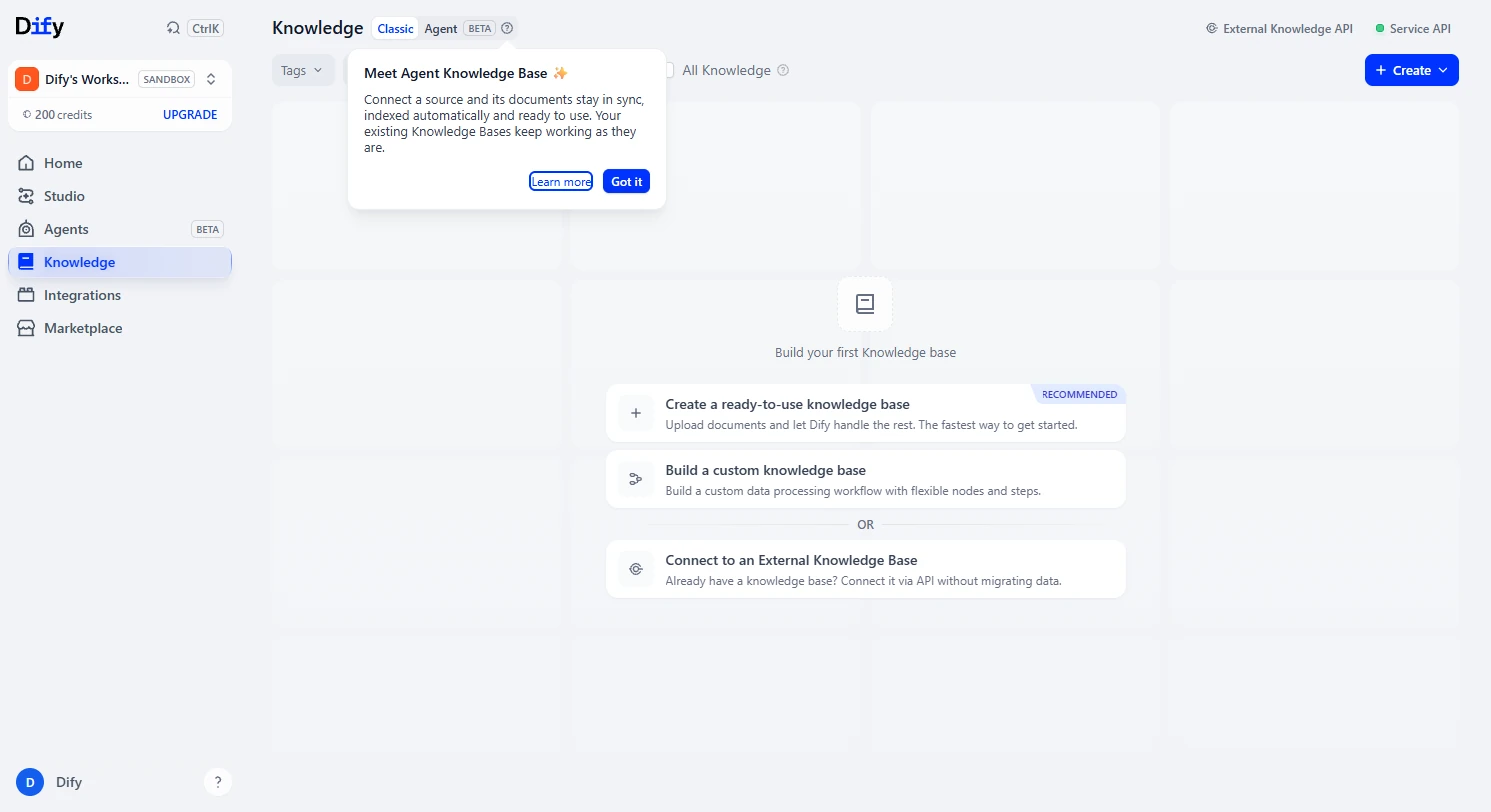
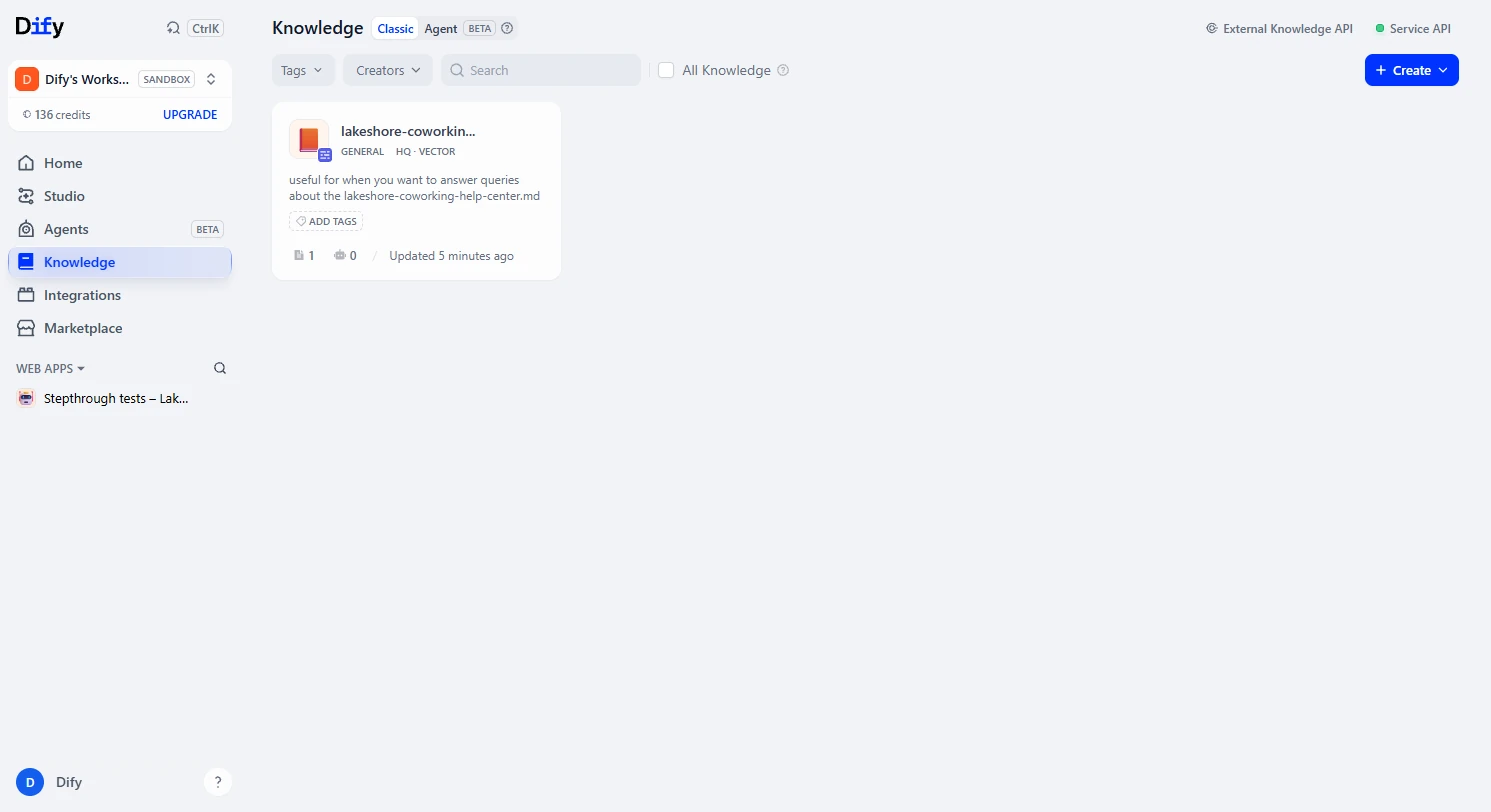
- Create a knowledge base. You run member support at Lakeshore Coworking, a made-up coworking space. The same questions about prices, meeting rooms and cancellations fill your inbox every day. In Dify, open Knowledge. Close the tip if one appears, then click Create a ready-to-use knowledge base.
You answer the same member questions every day. In Dify, open Knowledge, and create a ready-to-use knowledge base.
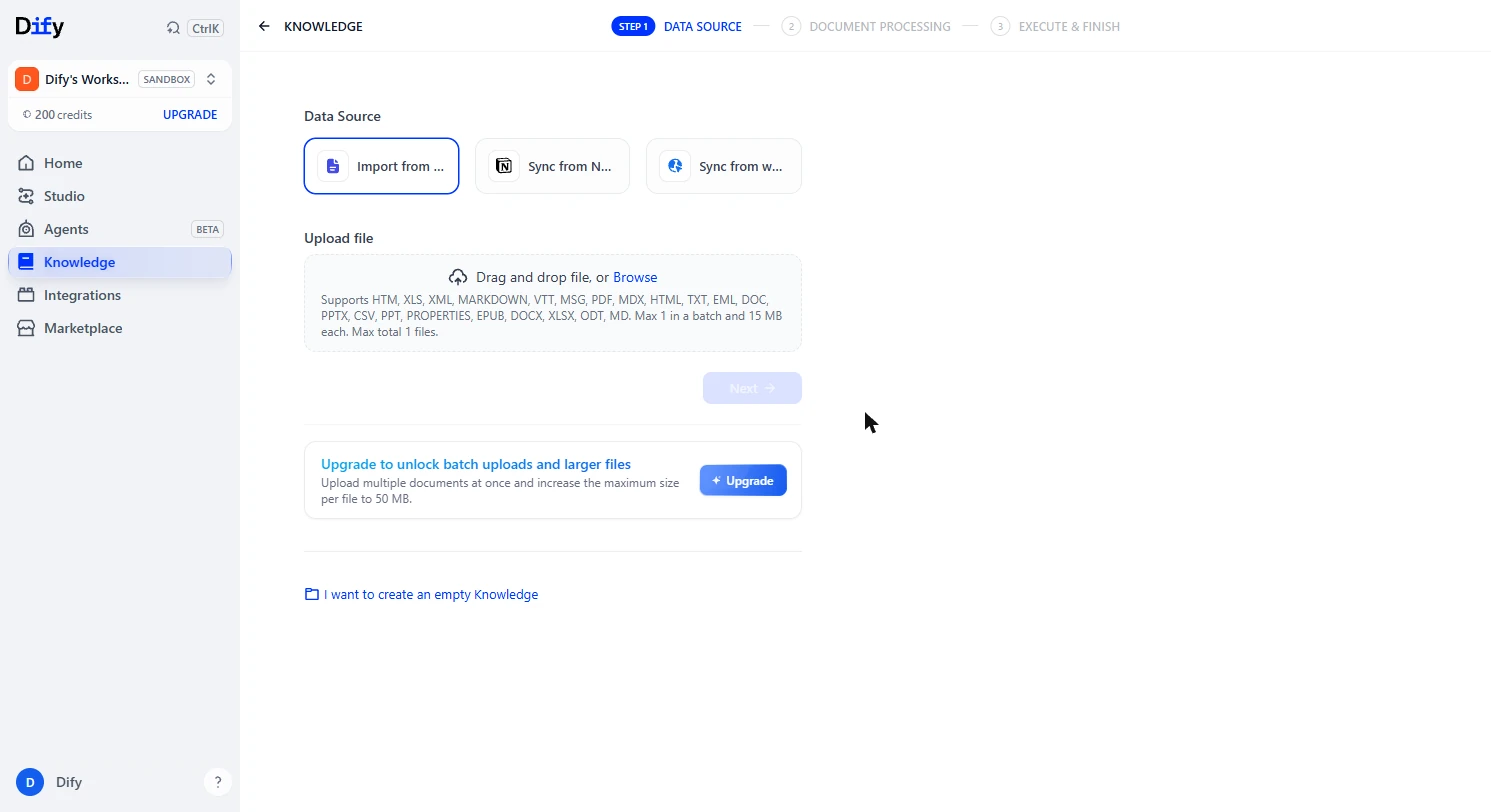
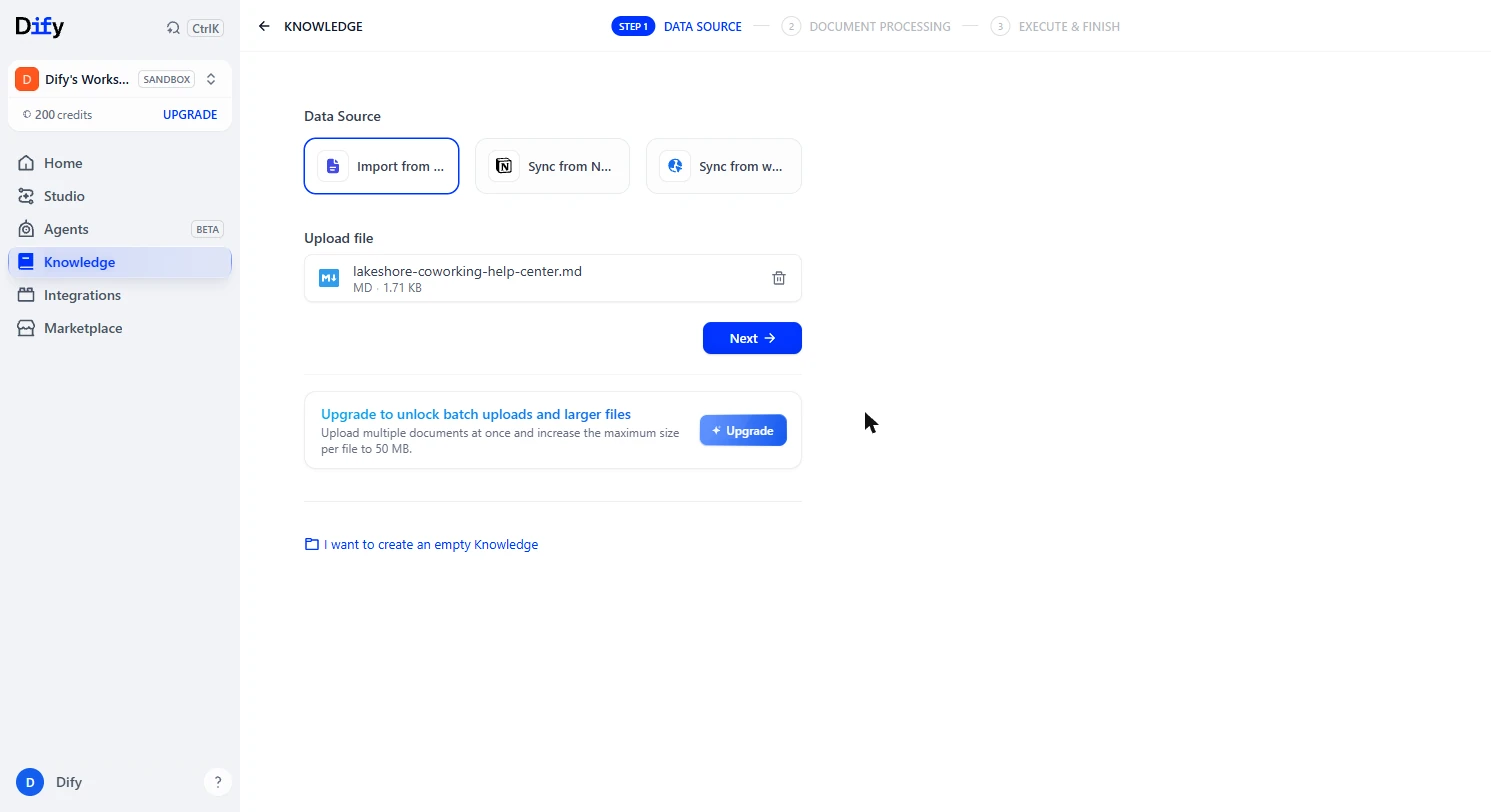
- Upload your help docs. Click Browse and choose lakeshore-coworking-help-center.md, the made-up help center linked on this lesson. The free plan takes one file at a time, up to 15 MB.
- Go to the next step. Click Next.
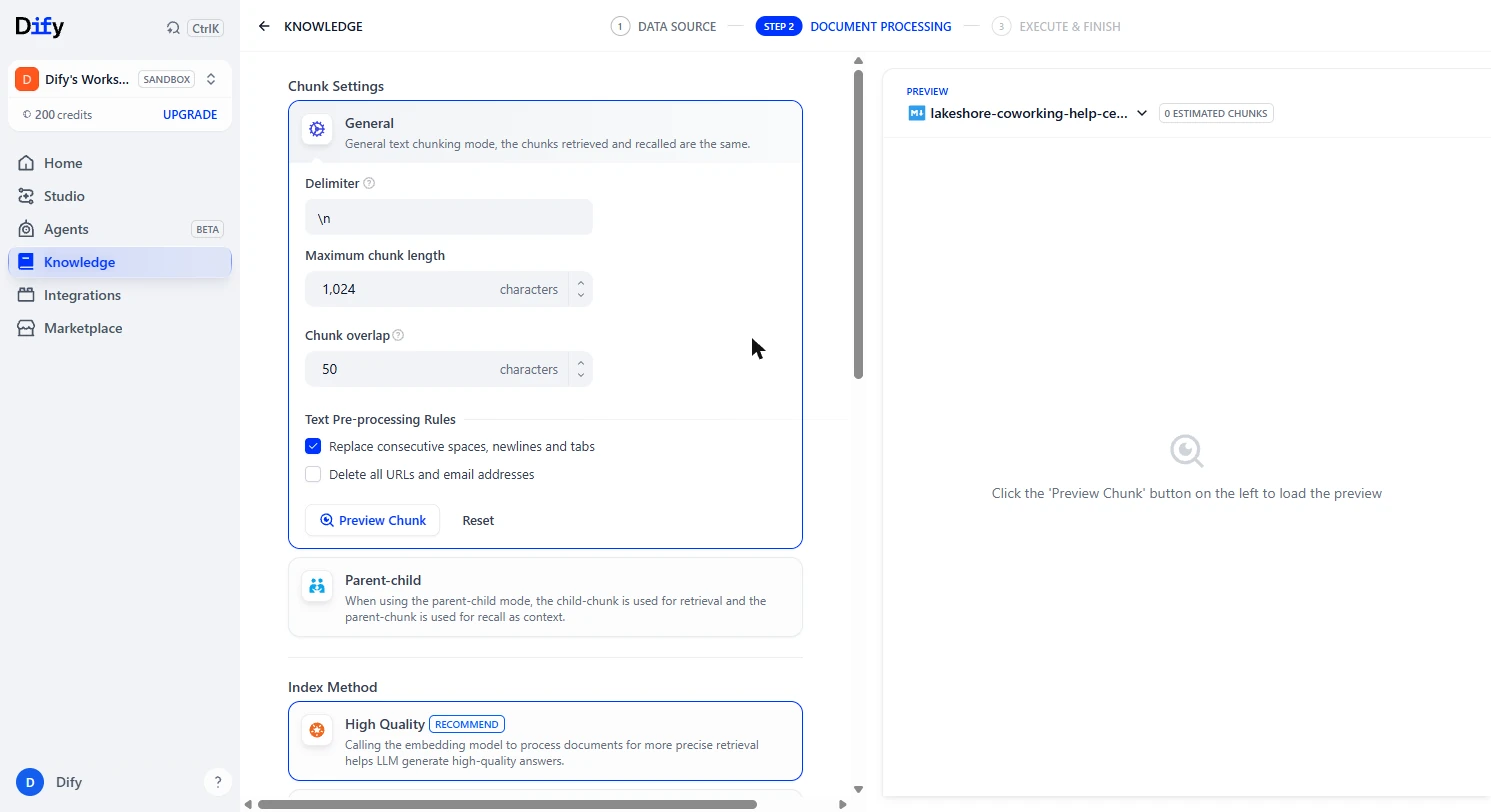
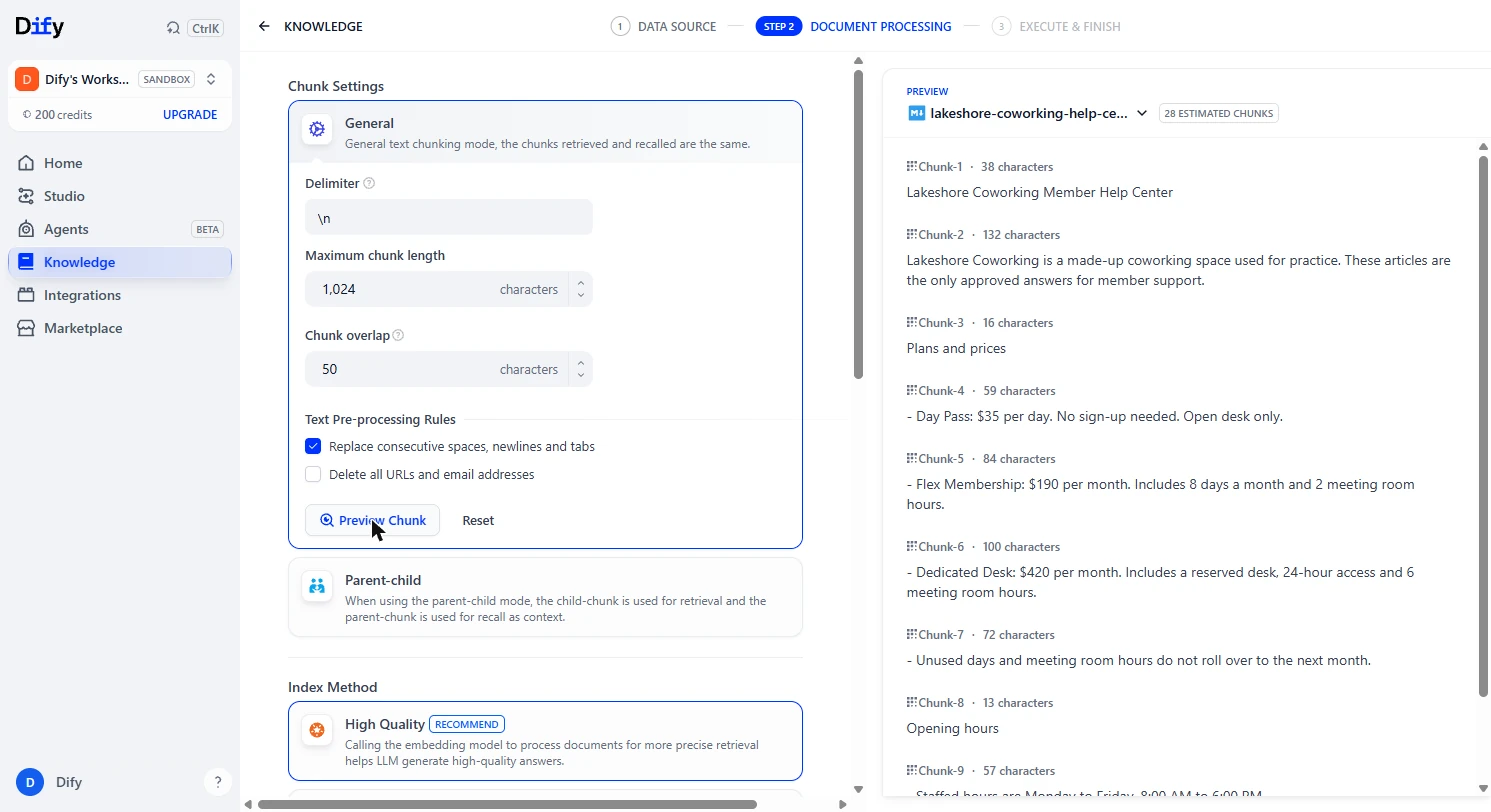
- Preview how it splits the file. A chatbot does not read your whole file for every question. It looks up the pieces that match, called chunks. Click Preview Chunk to see them before you save.
The bot looks up pieces of your file, called chunks.
- Spot the problem. The default splits on every new line, so we got 28 tiny chunks. Plans and prices sits alone as its own chunk, away from the prices it heads. And Unused days do not roll over no longer says which plan it belongs to. Click the preview to continue.
Twenty-eight tiny chunks. The heading is split from its own prices, so a lookup could miss the context.
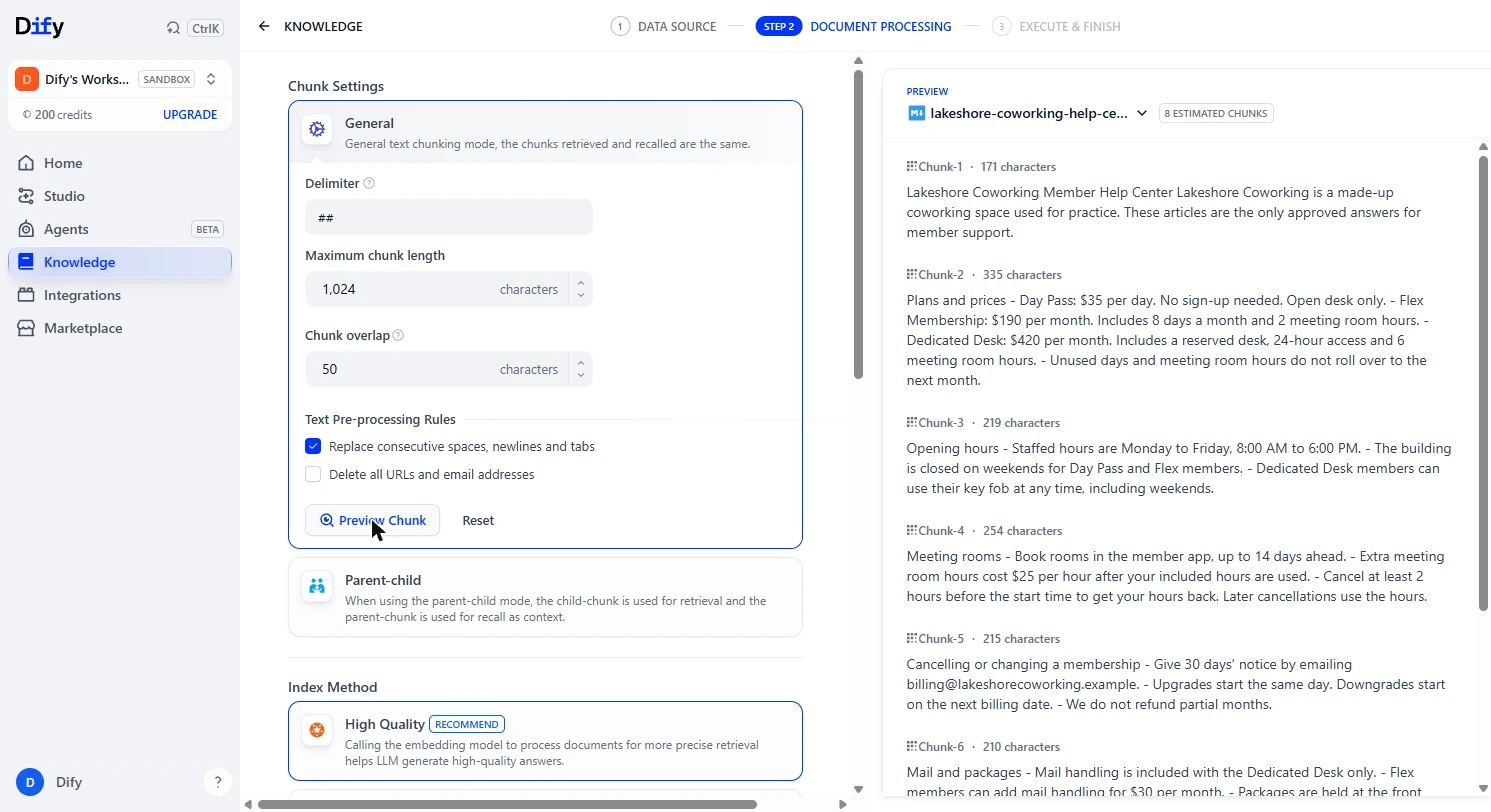
- Split by article instead. Our file marks each article with ##, so split there. Under Delimiter, replace the value with two hash marks and a space, then click Preview Chunk again.
Our articles each start with two hash marks. Use that as the delimiter, and preview again.
- Check the new chunks. Now it is 8 chunks, one per article, with each heading next to its own facts. Use whatever marks a new topic in your own docs. Click the preview, then scroll down the left side.
Eight chunks, one per article. Each heading stays with its facts.
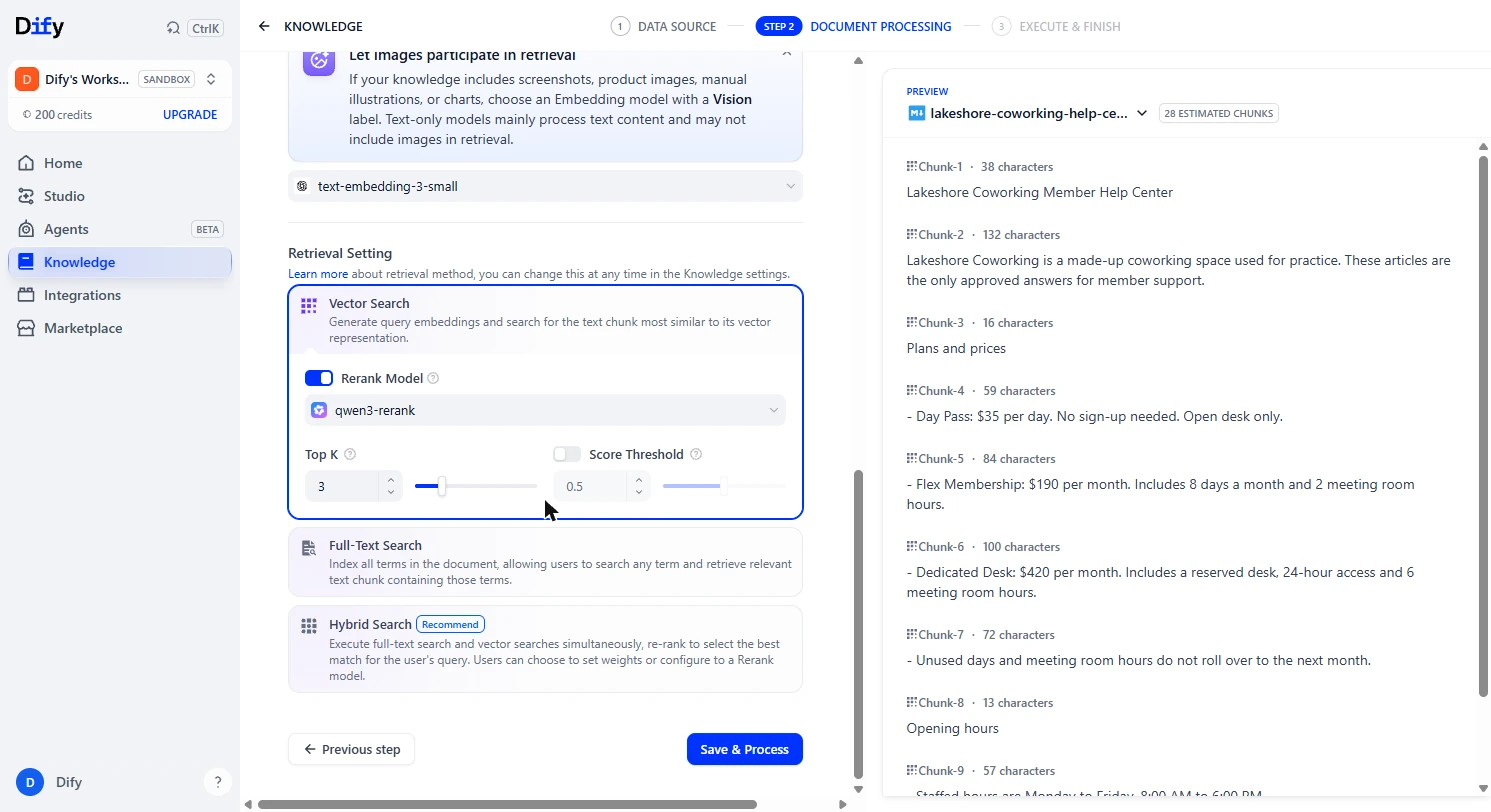
- Save and process. Leave High Quality and Vector Search as they are. Click Save & Process.
Leave the defaults, and click Save and Process.
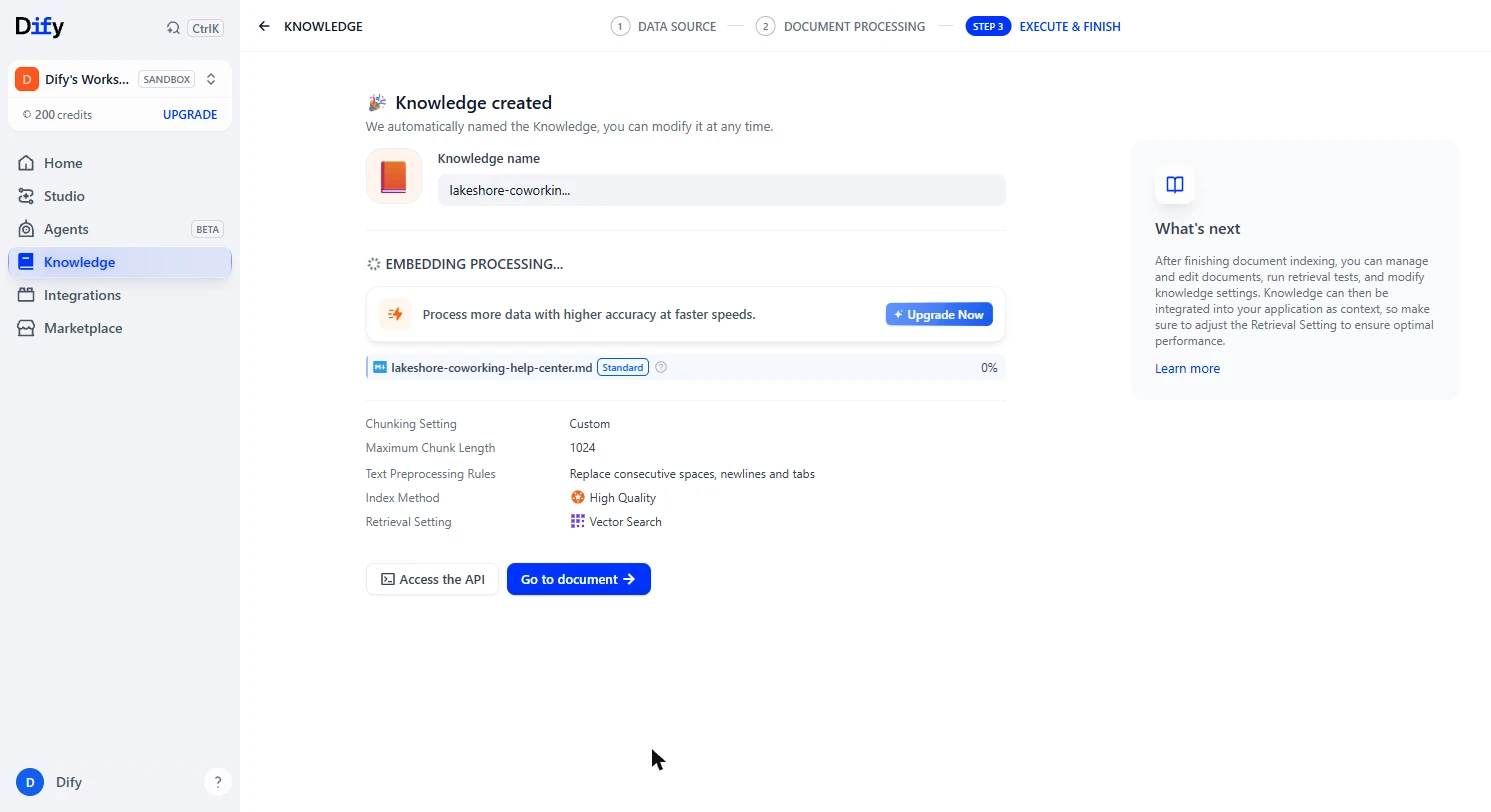
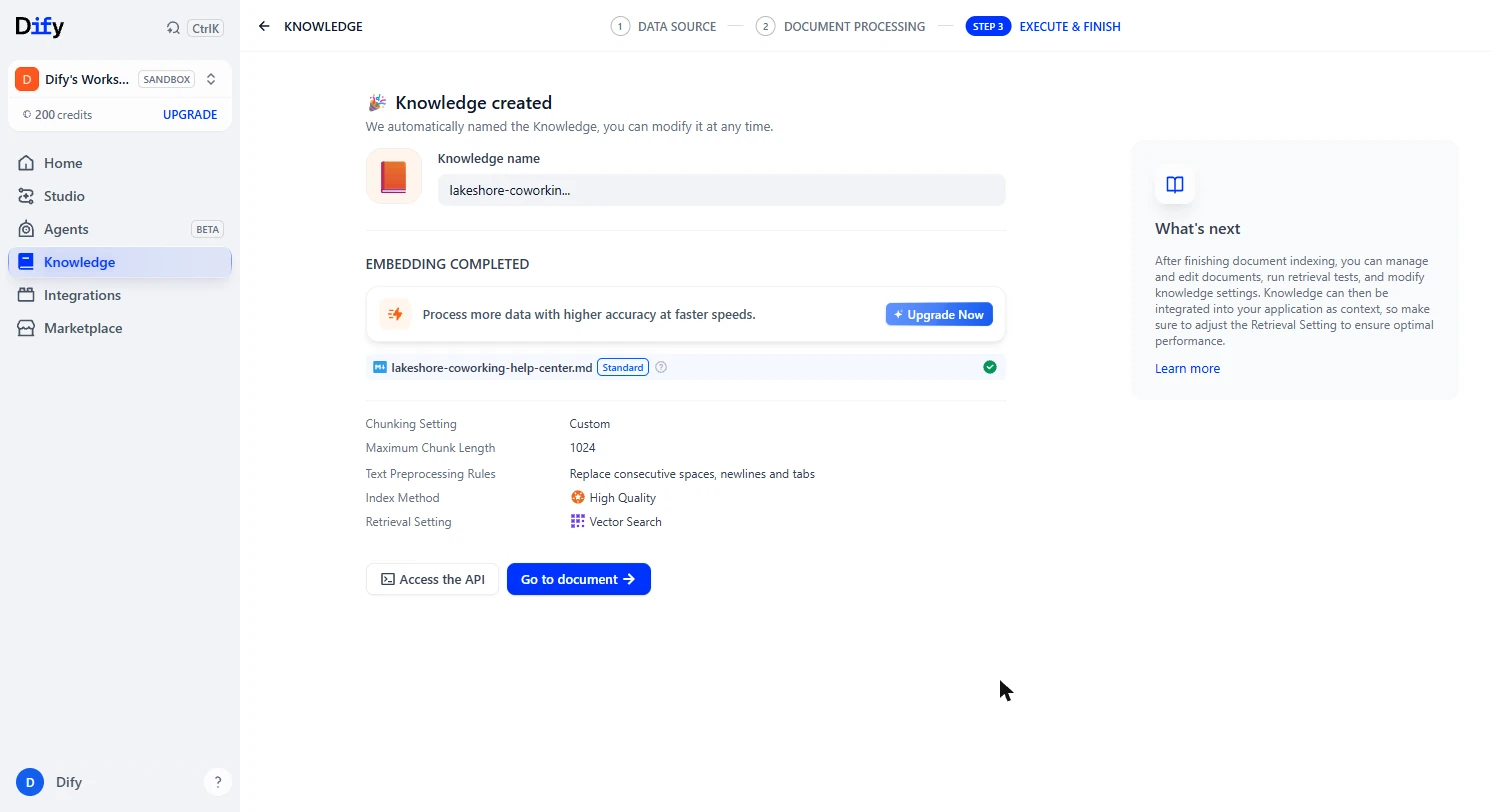
- Let it finish. Dify turns each chunk into a searchable form. A file this small took a few seconds. Click the file row when it is done.
This takes a few seconds on a small file.
2. Check what it finds
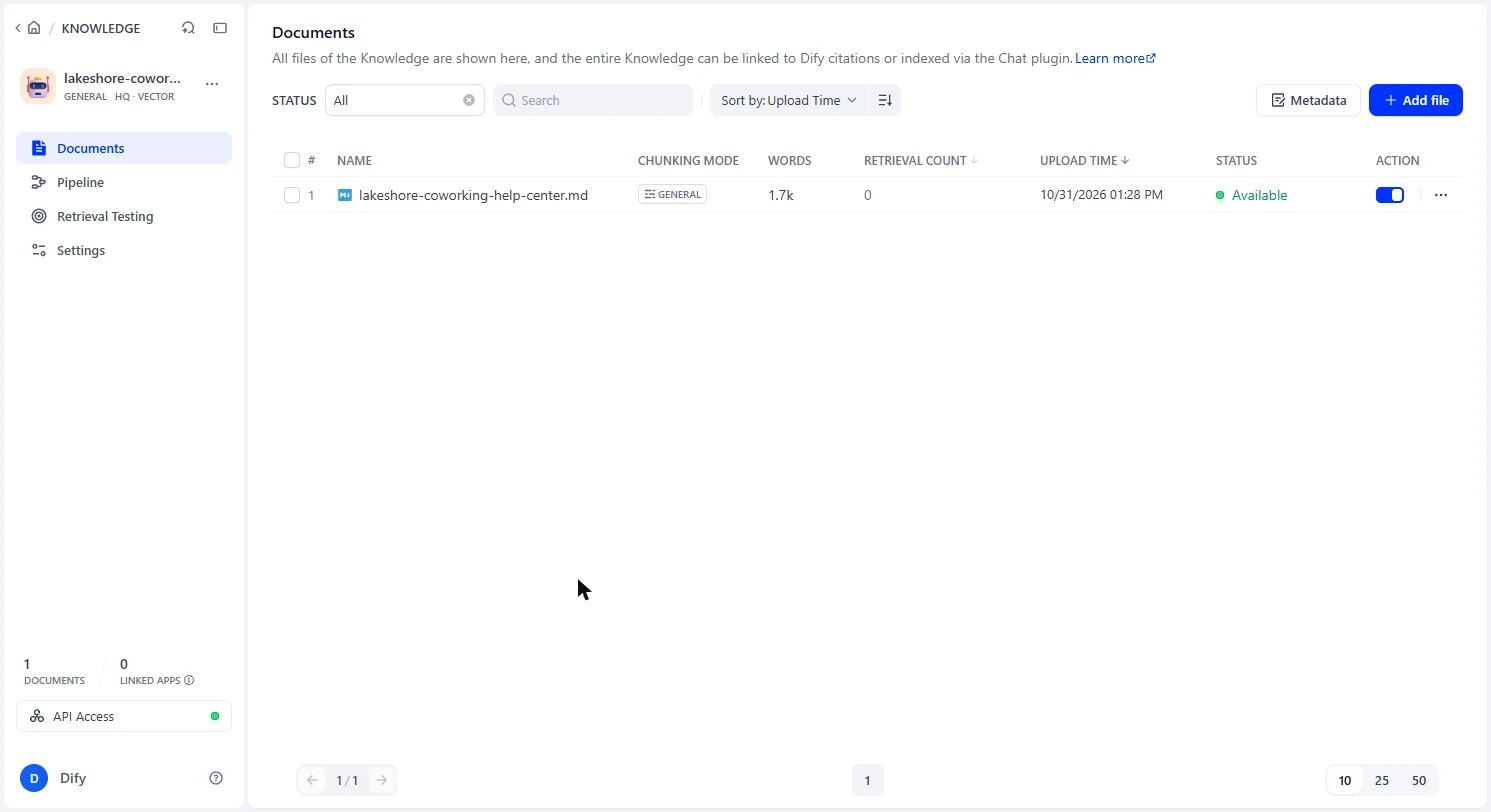
- Open the document. Dify named the knowledge base after the file. You can rename it later in Settings. Click Go to document.
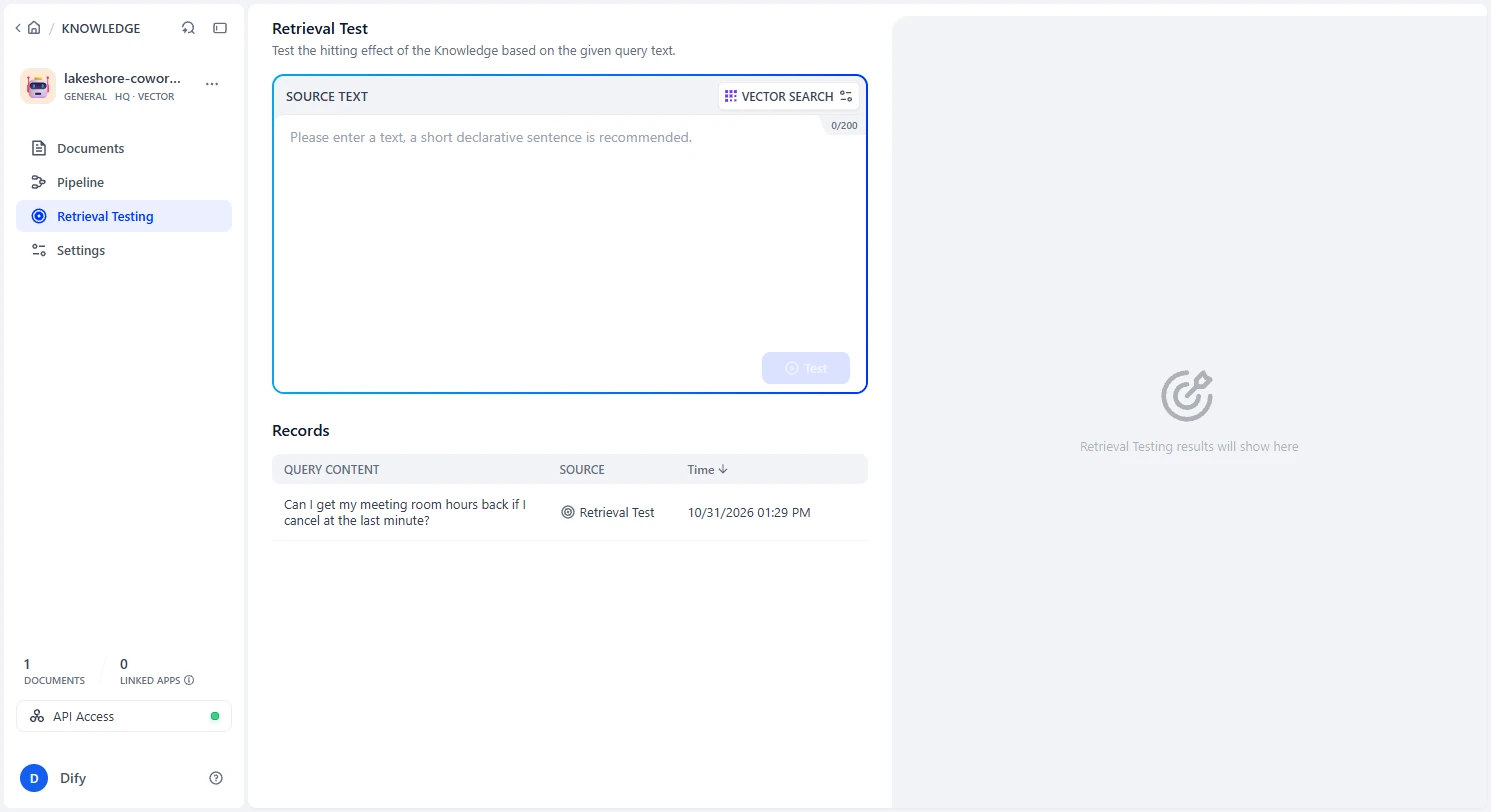
- Open Retrieval Testing. Before you build a chatbot on this, check it finds the right article. Click Retrieval Testing.
Before you build anything, check it finds the right article.
- Ask like a member would. Write the question the way a member would, not in your help center's words. Then click Test.
Ask the way a member would, then click Test.
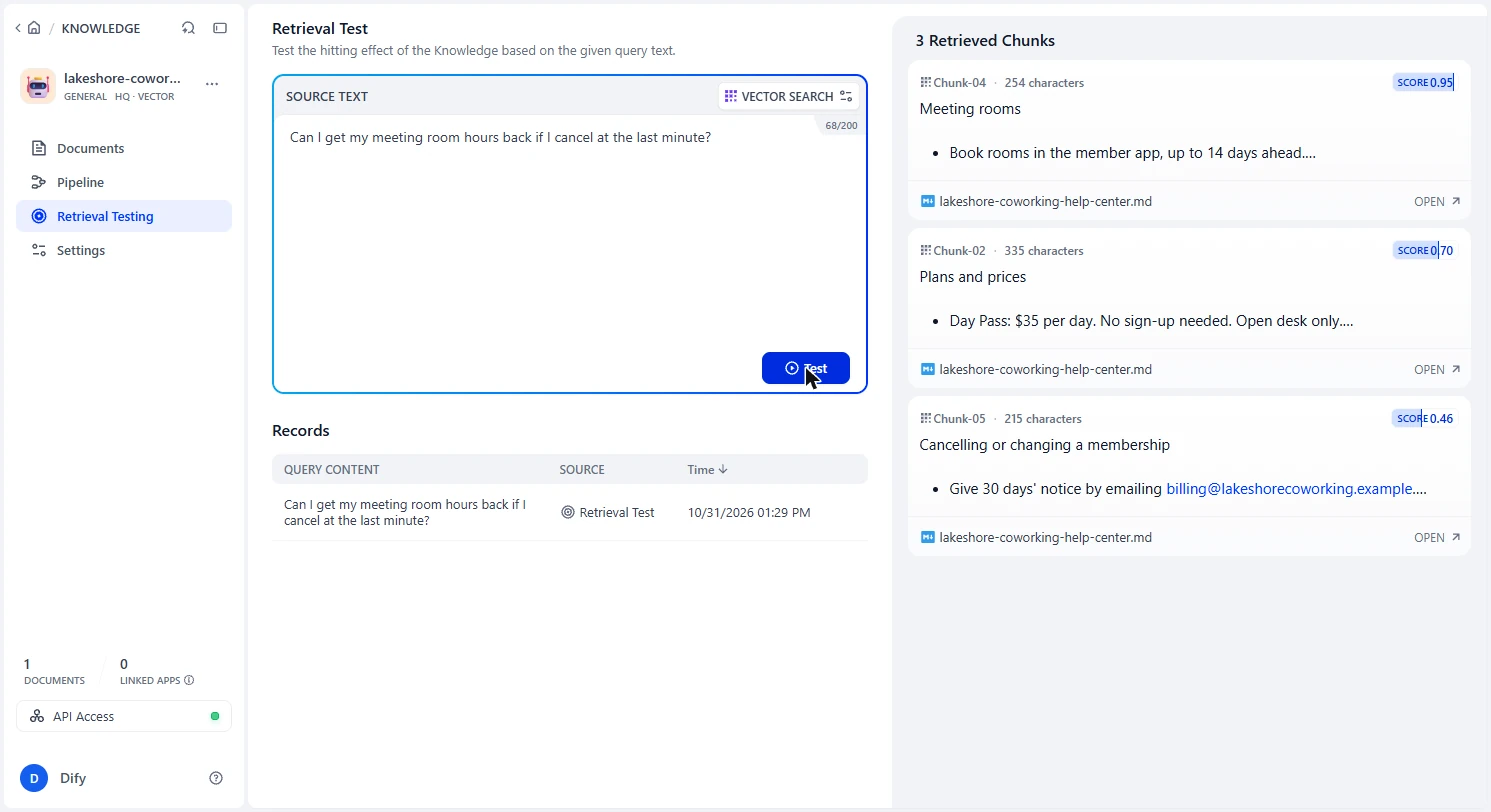
- Read the top result. Meeting rooms came back first, at a score of 0.95, and it holds the 2-hour rule. The other two scored 0.70 and 0.46. A good top match with a clear gap is what you want to see. If the right article is missing here, the chatbot cannot answer. Fix the docs first.
Meeting rooms came first, scoring zero point nine five. That is the article with the answer. If it were missing, you would fix your docs first.
3. Build the chatbot
- Go back to Studio. Click the arrow at the top left, then open Studio.
Go back, and open Studio.
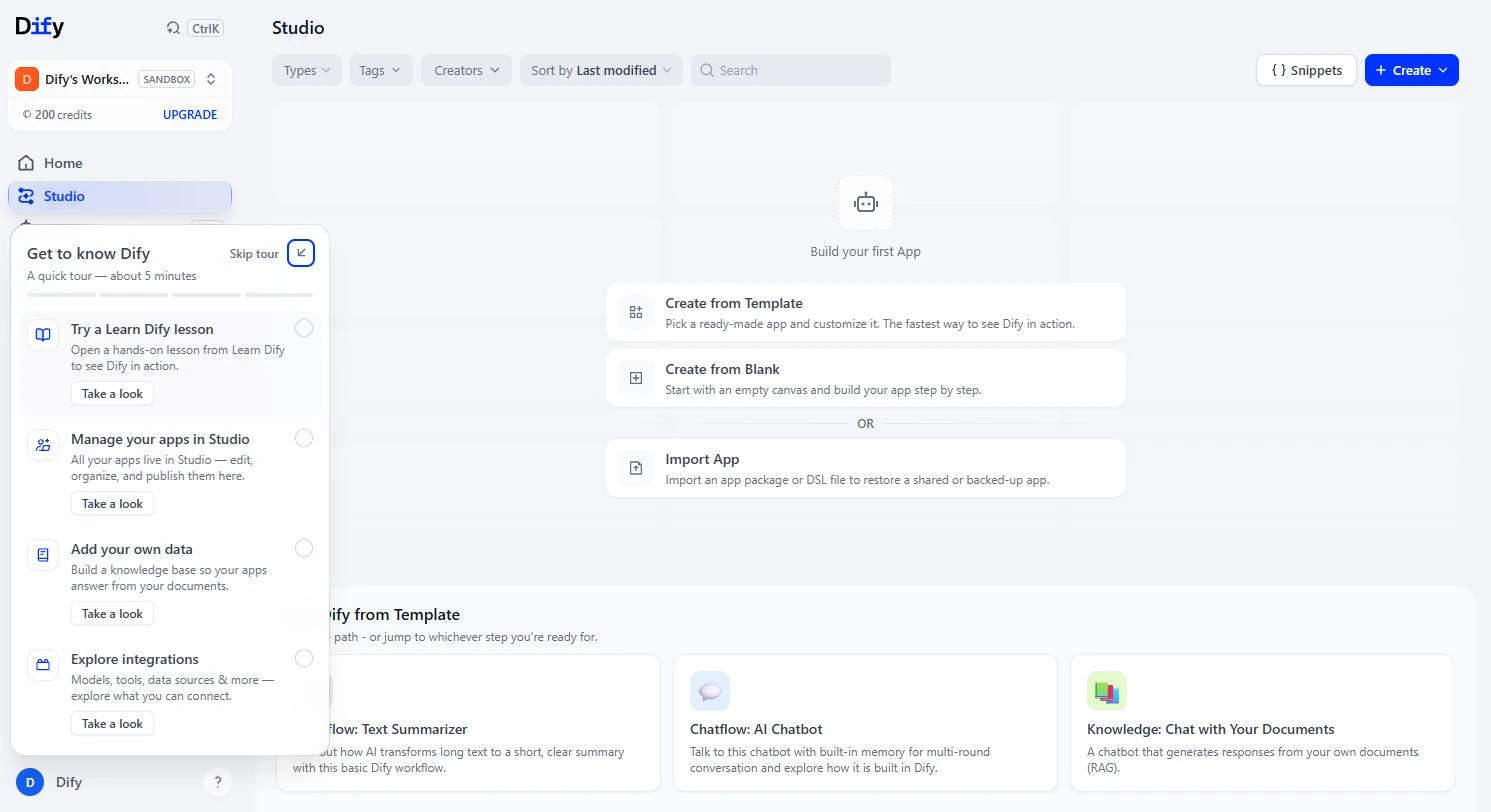
- Start a blank app. Click Create from Blank. Skip the tour if it appears.
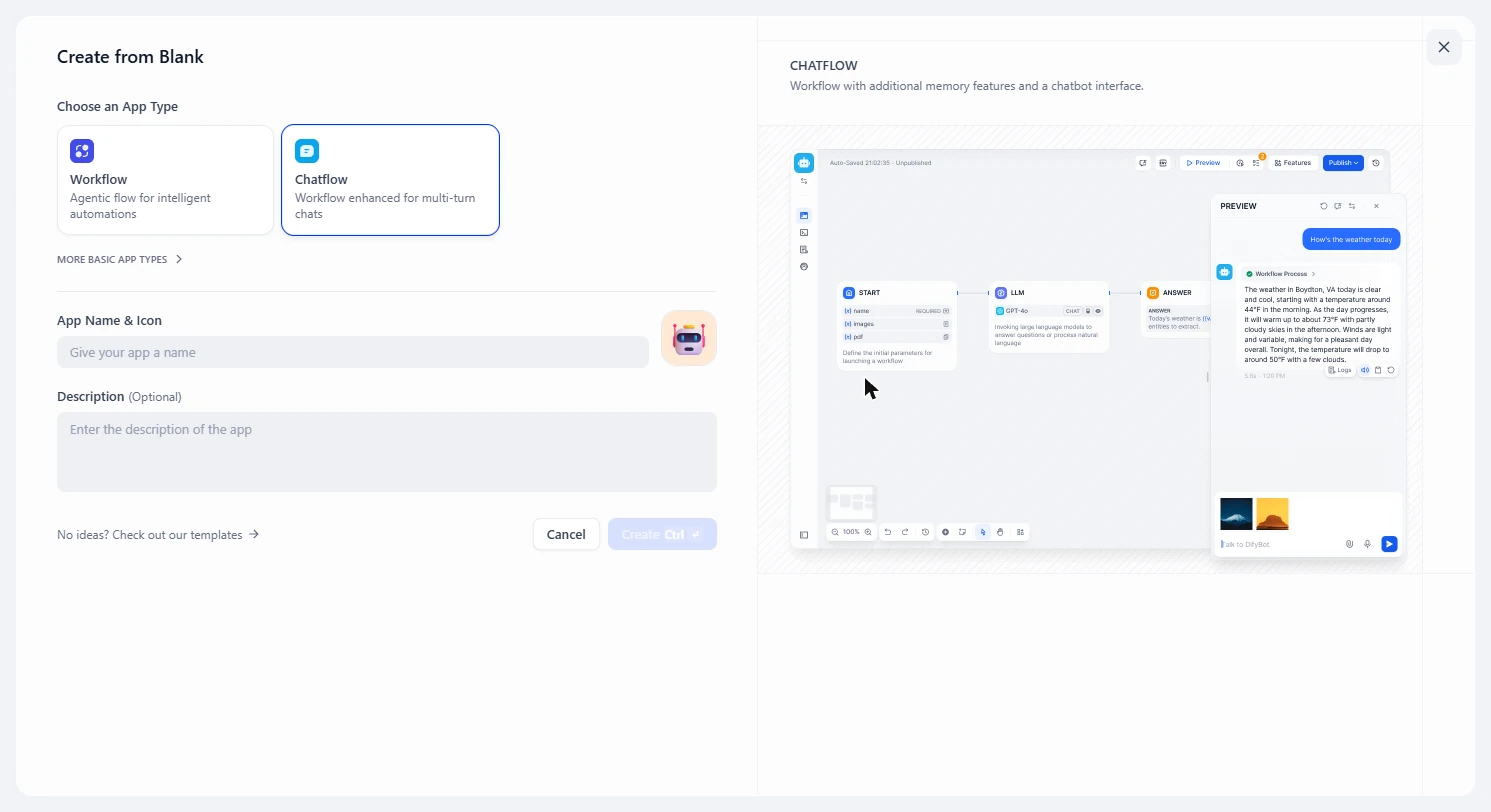
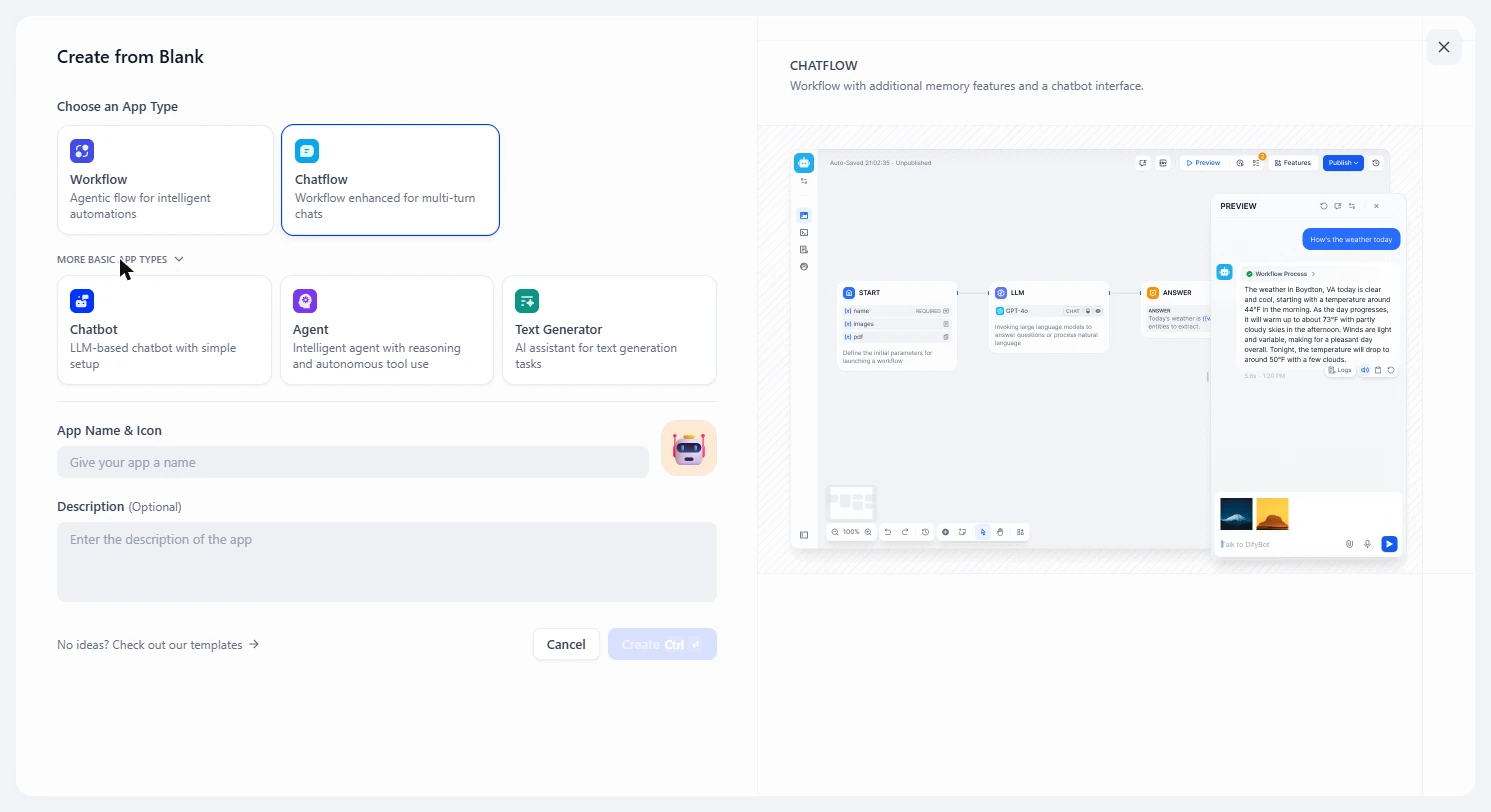
- See the basic types. Click More basic app types.
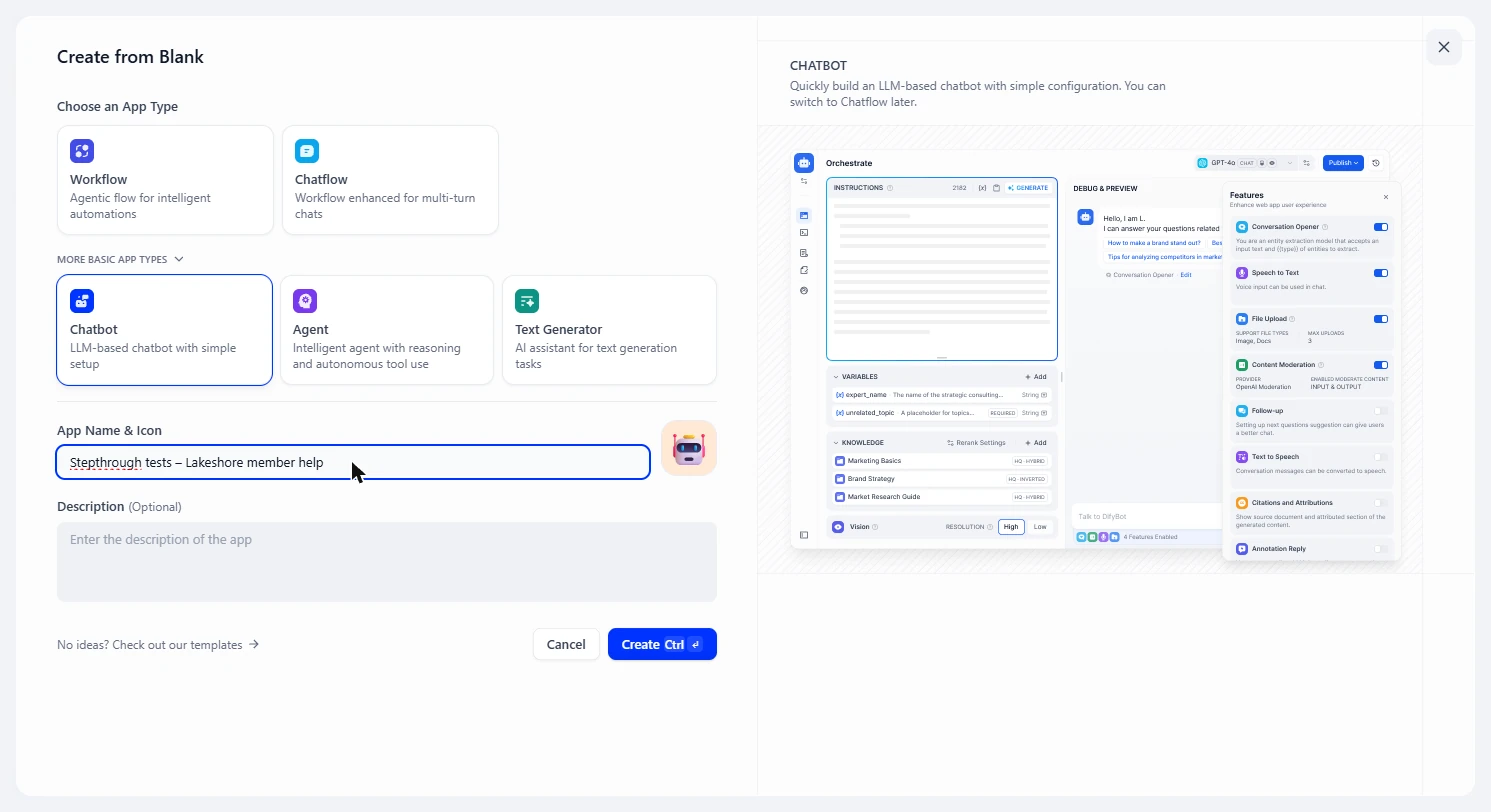
- Choose Chatbot. Click Chatbot. It is the simple setup: a prompt plus your knowledge. You can switch to a Chatflow later.
- Name the app. Under App Name & Icon, use a name your team will recognize. Ours marks it as a test.
Give the app a name.
- Create it. Click Create.
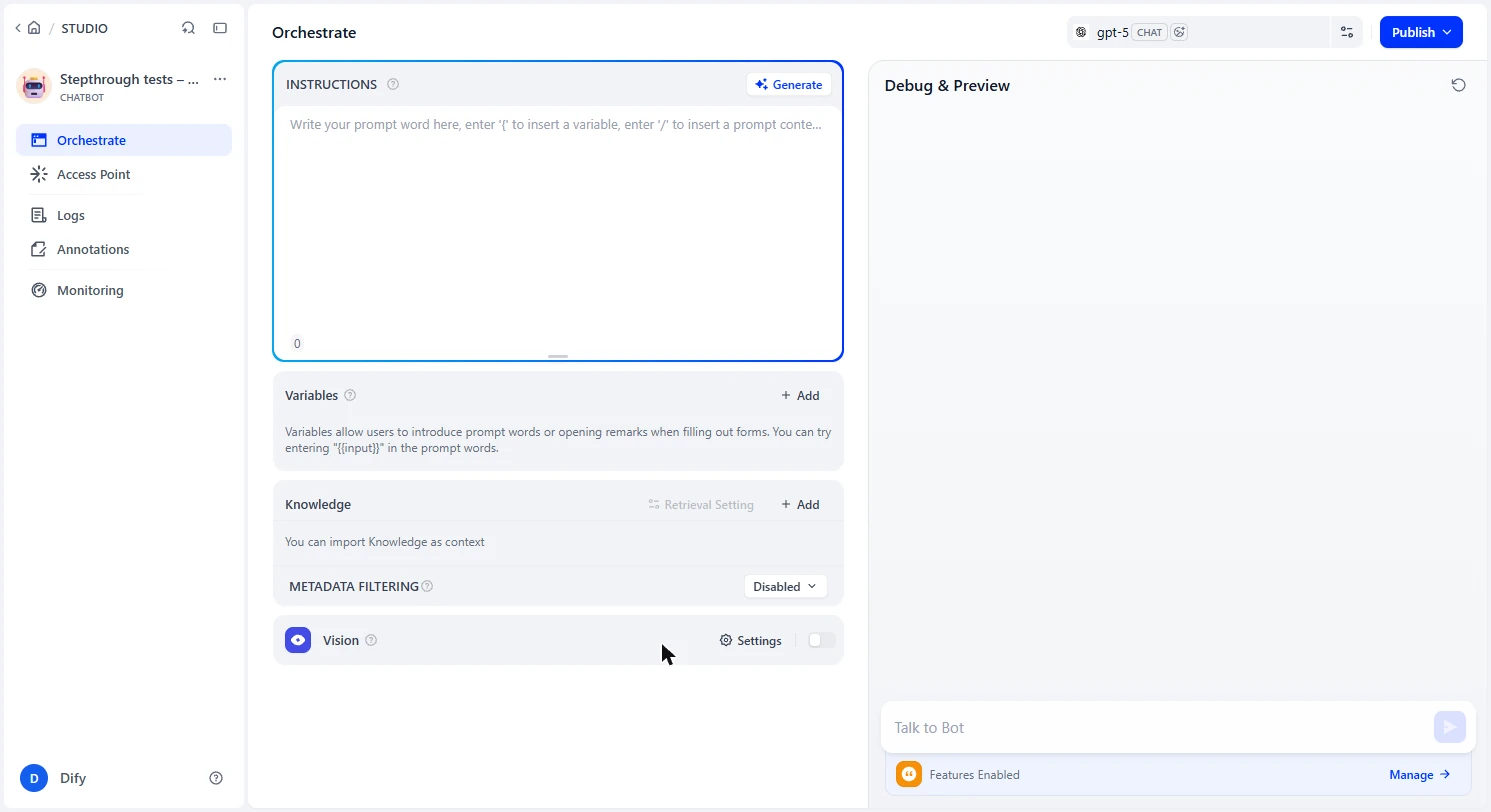
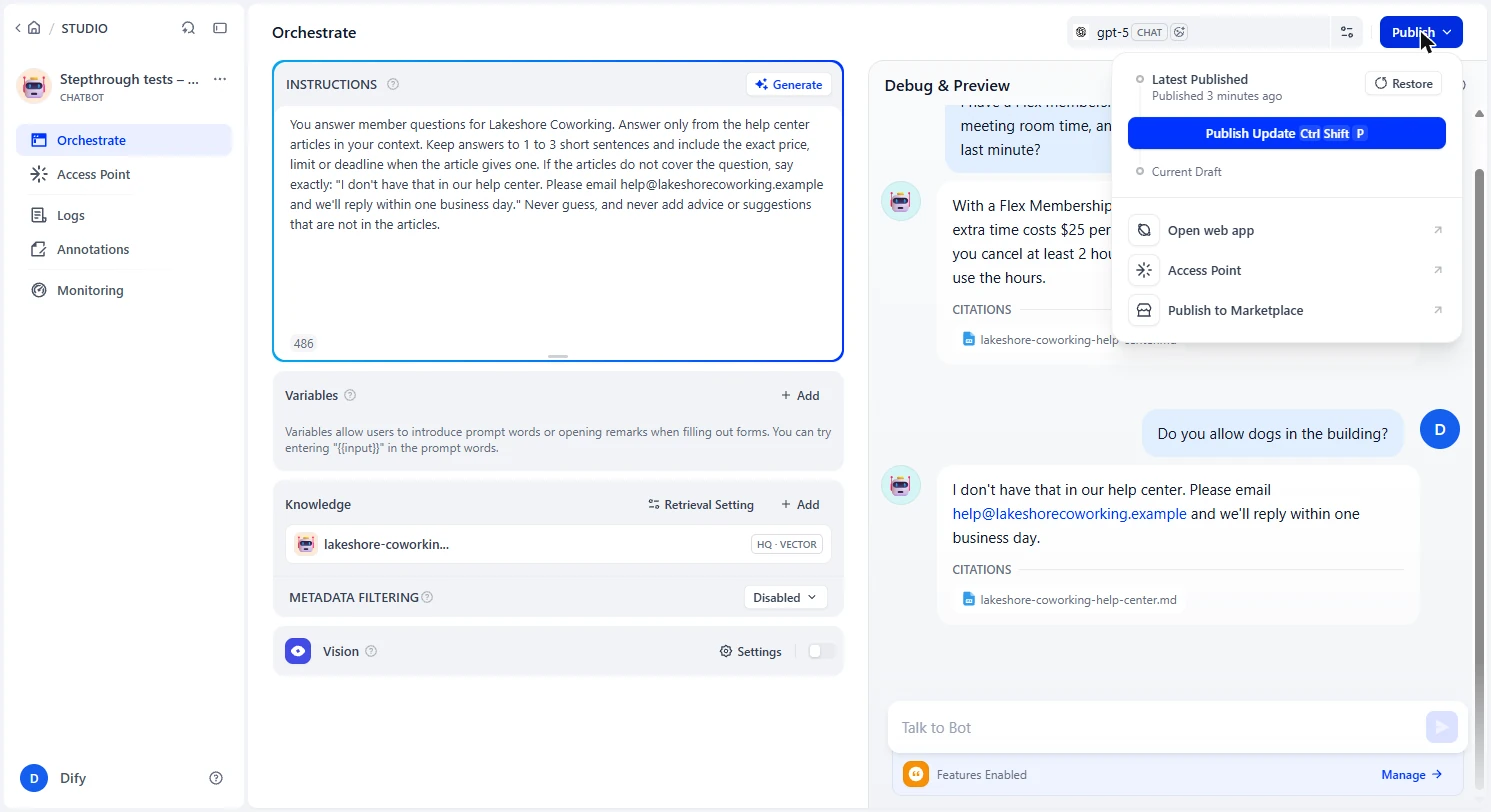
- Add your knowledge. This is Orchestrate: instructions on the left, a test chat on the right. The model was gpt-5 in our free workspace. Next to Knowledge, click Add.
Next to Knowledge, click Add.
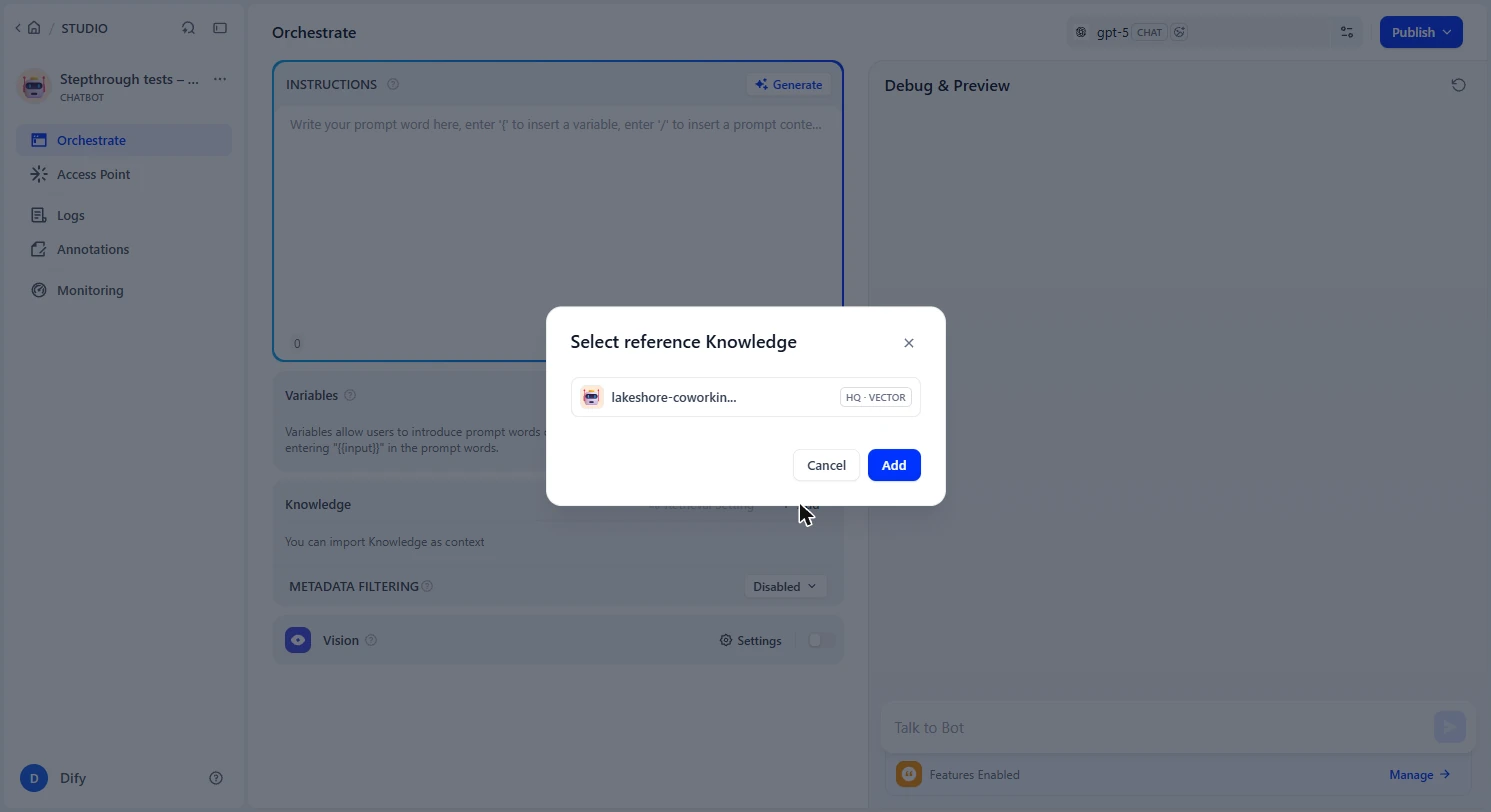
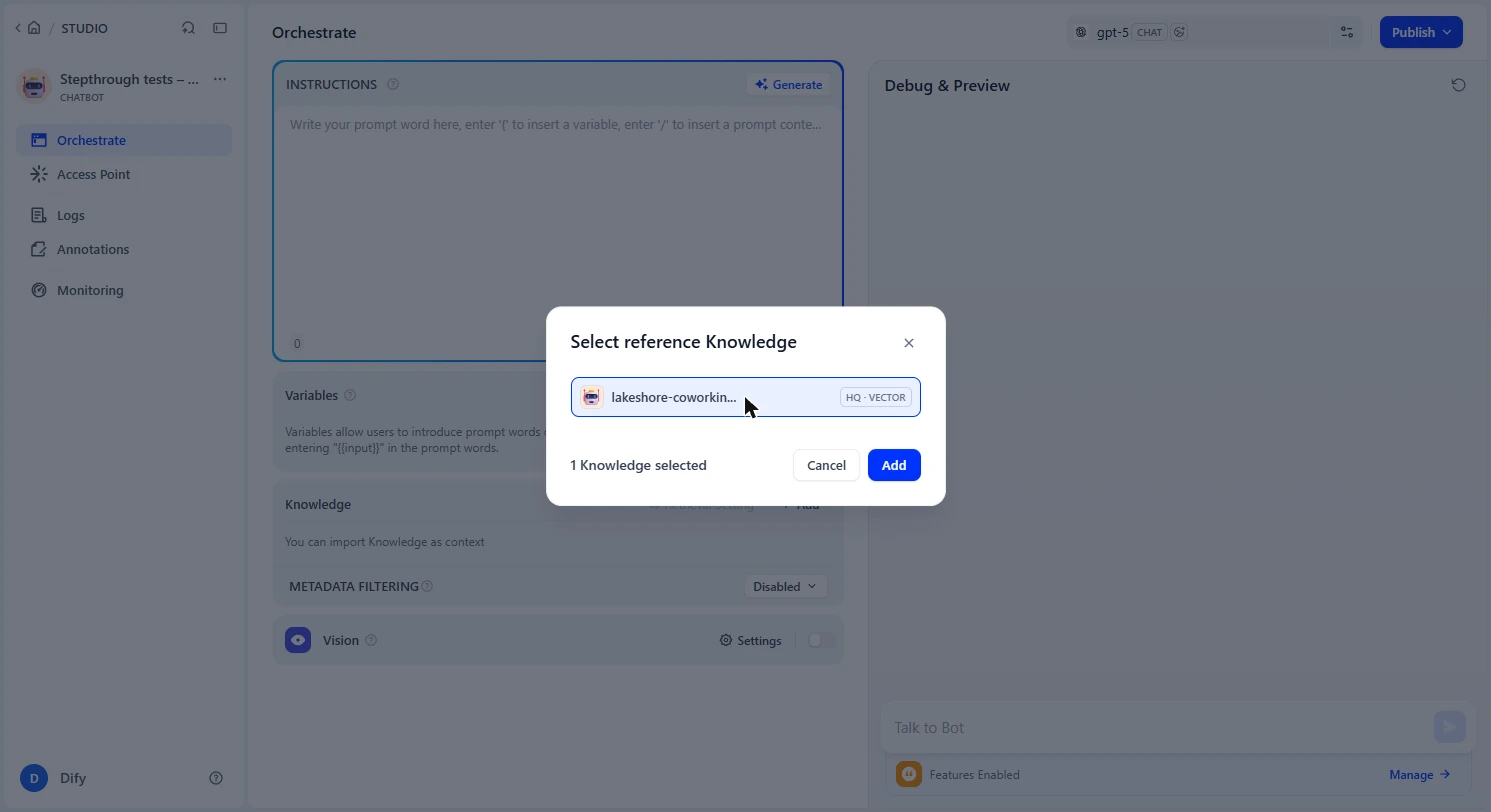
- Pick the help center. Click the knowledge base you just made.
4. Test the good and the unknown
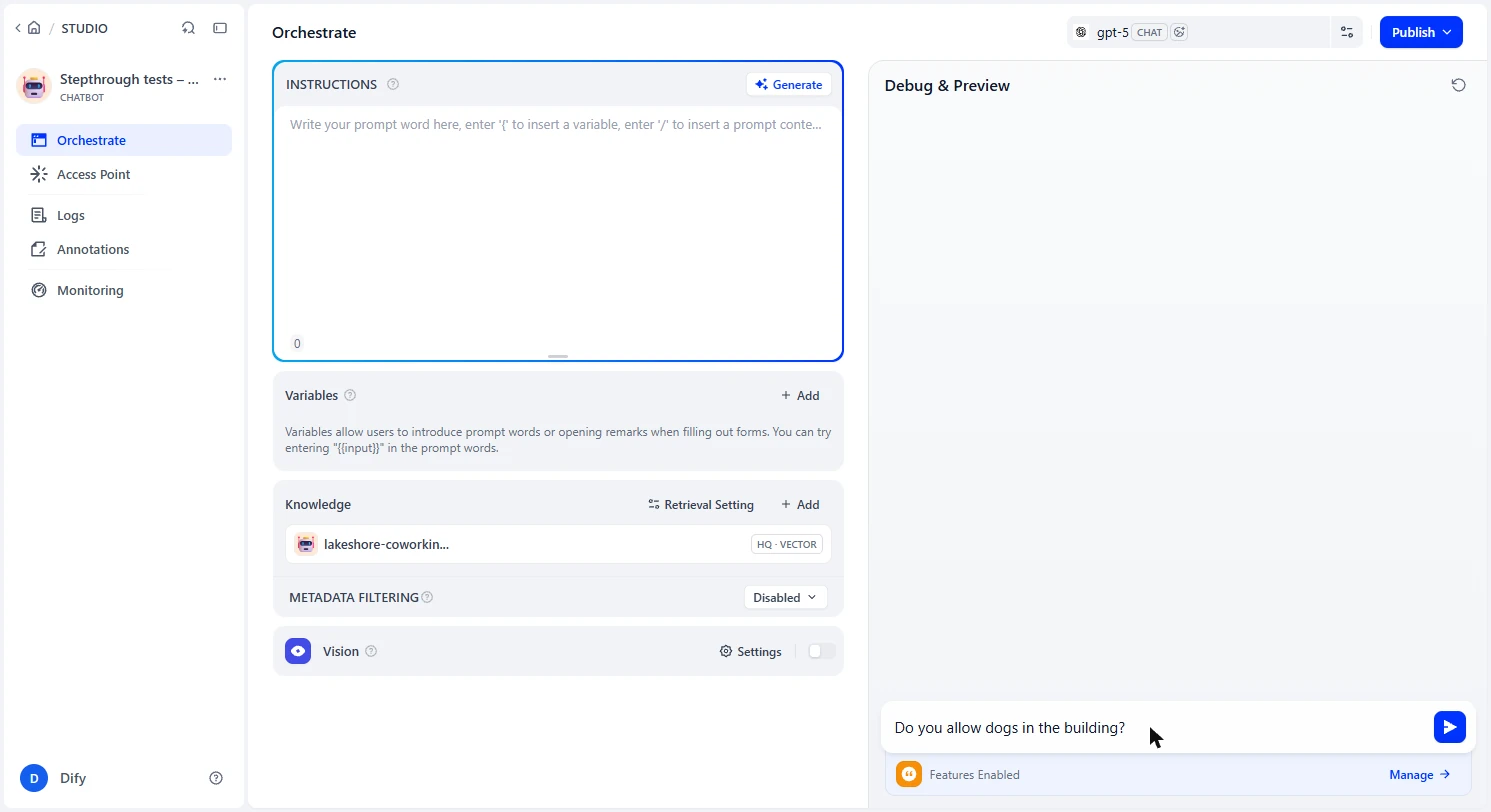
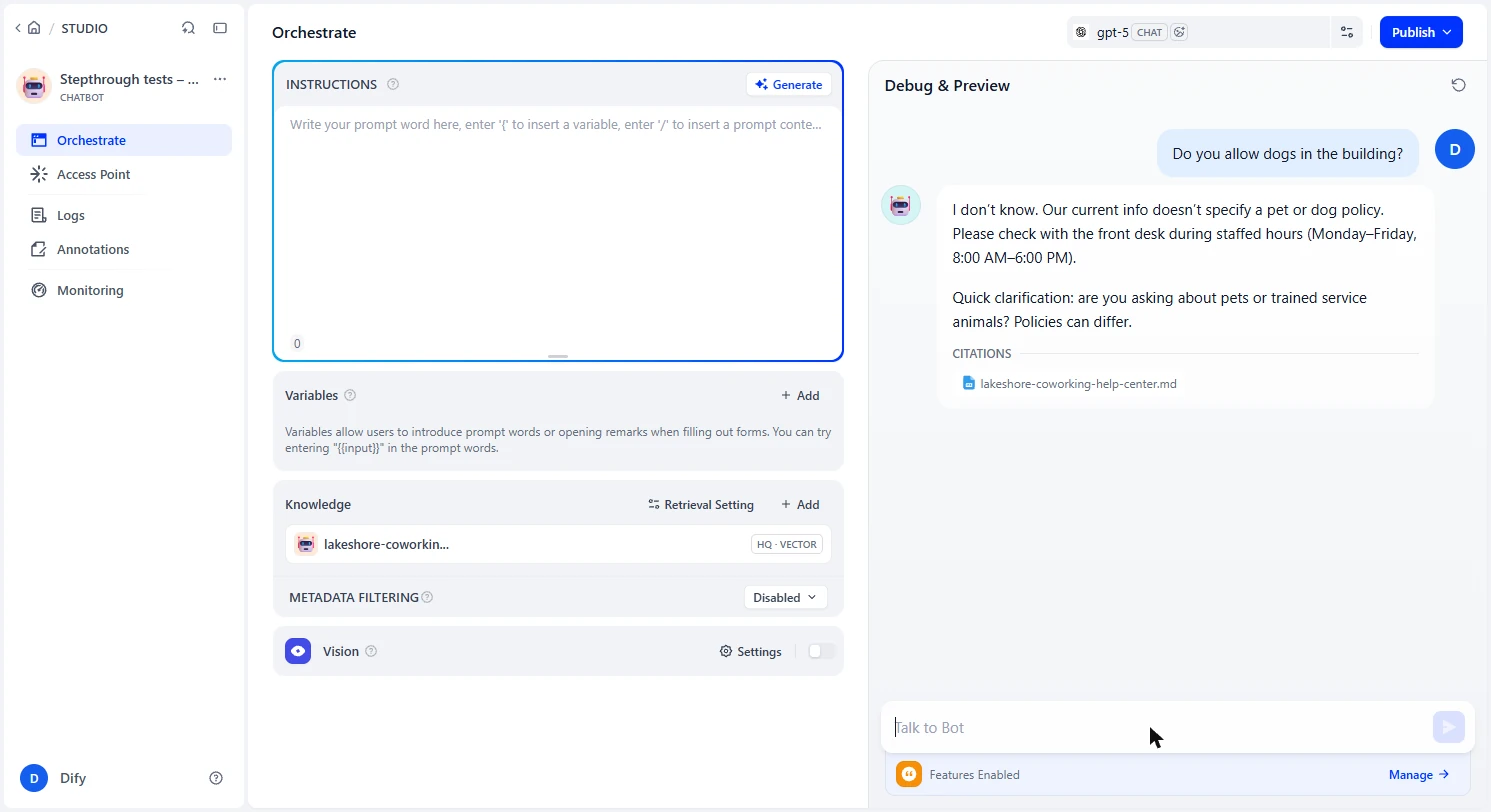
- Add it. Click Add. Then, with the instructions still empty, type a question your docs do not answer under Talk to Bot: Do you allow dogs in the building? We typed it for you here.
Now ask something your docs do not cover. Do you allow dogs?
- Send the test question. Click send.
Send it.
- Read what it invented. With no instructions, it did say I don't know. Then it told the member to check with the front desk, and hinted that policies differ for service animals. None of that is in your docs. Your help center says to email help@ for anything it does not cover. Click the answer.
It admits it does not know, then makes up advice. Your docs say to email support, not ask the front desk.
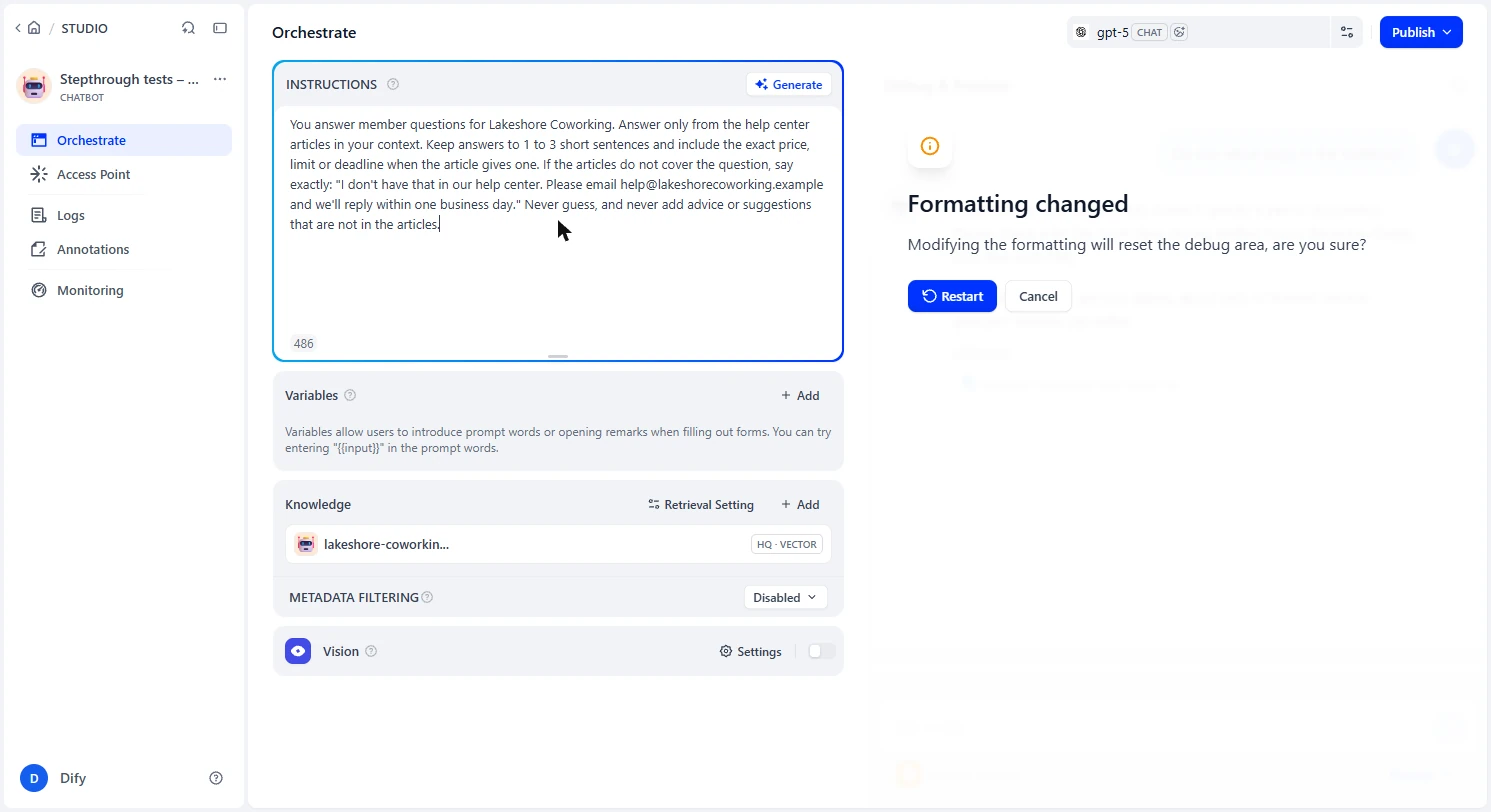
- Write the rules. Under Instructions, paste the rules. Notice three things: answer only from the articles, give exact numbers, and use one exact sentence when the articles do not cover it.
Answer only from the articles, give exact numbers, and use one exact sentence when you do not know.
You answer member questions for Lakeshore Coworking. Answer only from the help center articles in your context. Keep answers to 1 to 3 short sentences and include the exact price, limit or deadline when the article gives one. If the articles do not cover the question, say exactly: "I don't have that in our help center. Please email help@lakeshorecoworking.example and we'll reply within one business day." Never guess, and never add advice or suggestions that are not in the articles.
- Restart the test chat. Changing the instructions resets the test chat. Click Restart.
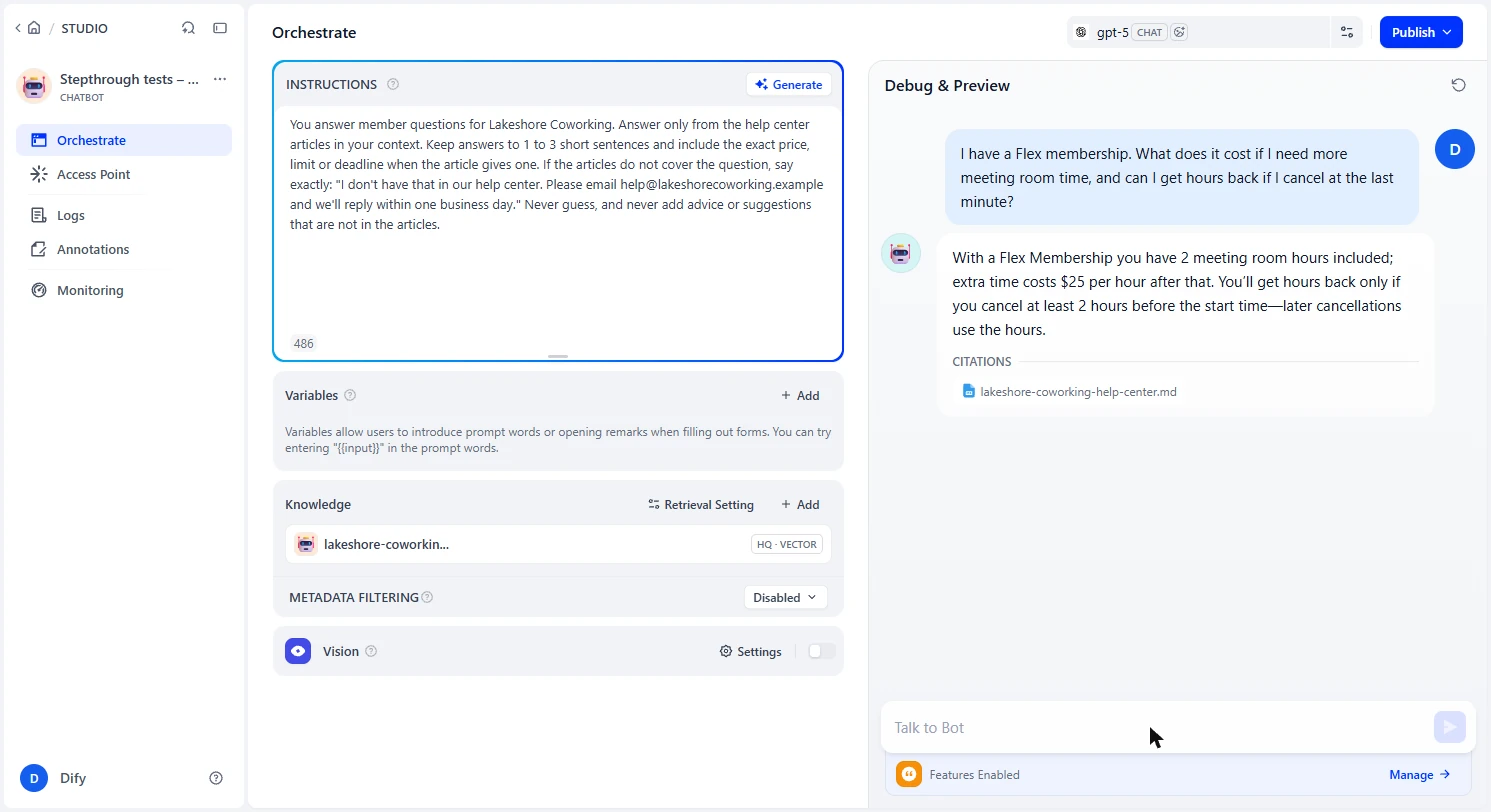
- Ask one the docs do answer. We asked: I have a Flex membership. What does it cost if I need more meeting room time, and can I get hours back if I cancel at the last minute? It used two articles: 2 hours included, $25 per extra hour, and hours back only with 2 hours' notice. All correct, with a citation. Click the answer.
A question the docs do answer. Twenty-five dollars an hour, and two hours notice. Both correct, with a citation.
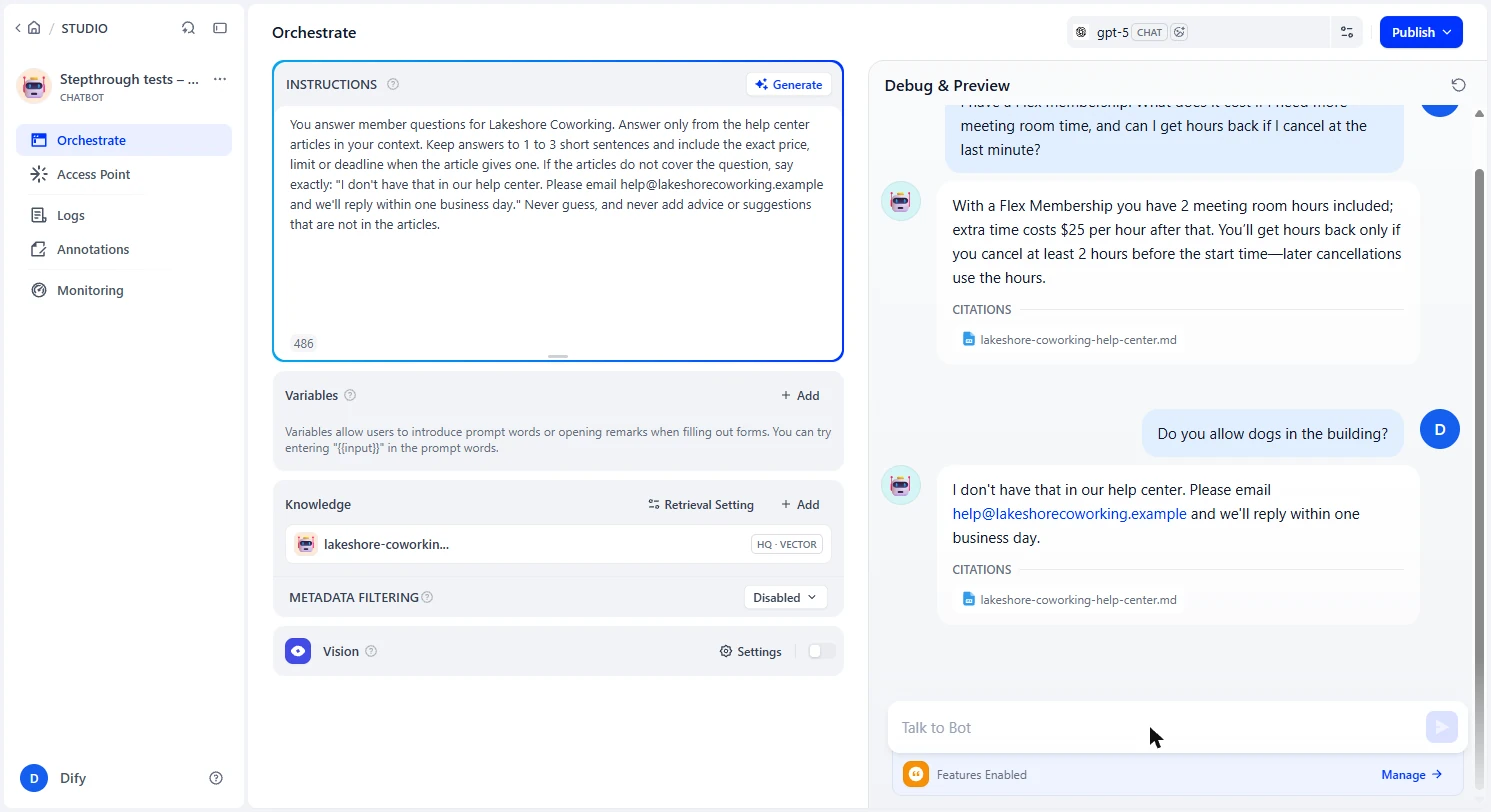
- Ask the dog question again. Now the same dog question. It gives your exact hand-off sentence and adds nothing. This is the test that matters most. A support bot's worst answer is a confident wrong one. Try a few more of your own before you trust it.
Same dog question. Now it gives your exact hand-off and adds nothing. That is the test that matters most.
5. Put it on your site
- Open Publish. Click Publish.
- Publish your changes. Your instructions are still a Current Draft, and members only get the published version. Publish before you leave this page. When we left without publishing and came back, our instructions and knowledge were gone. On your own app, click Publish Update. We show this step without clicking it, because our test bot is made up.
Your rules are still a draft. On your own app, click Publish Update, so members get them.
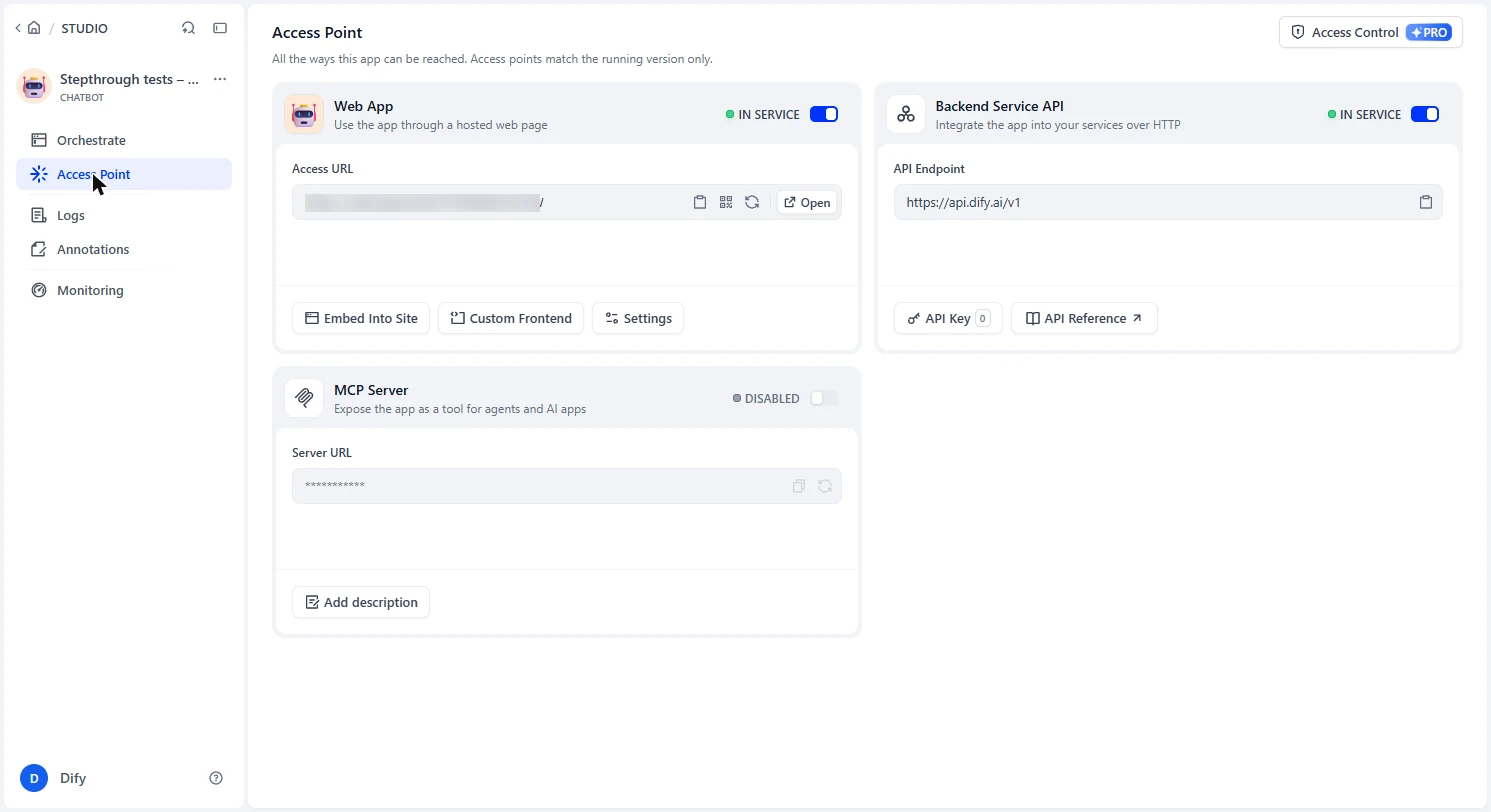
- Open Access Point. Click Access Point.
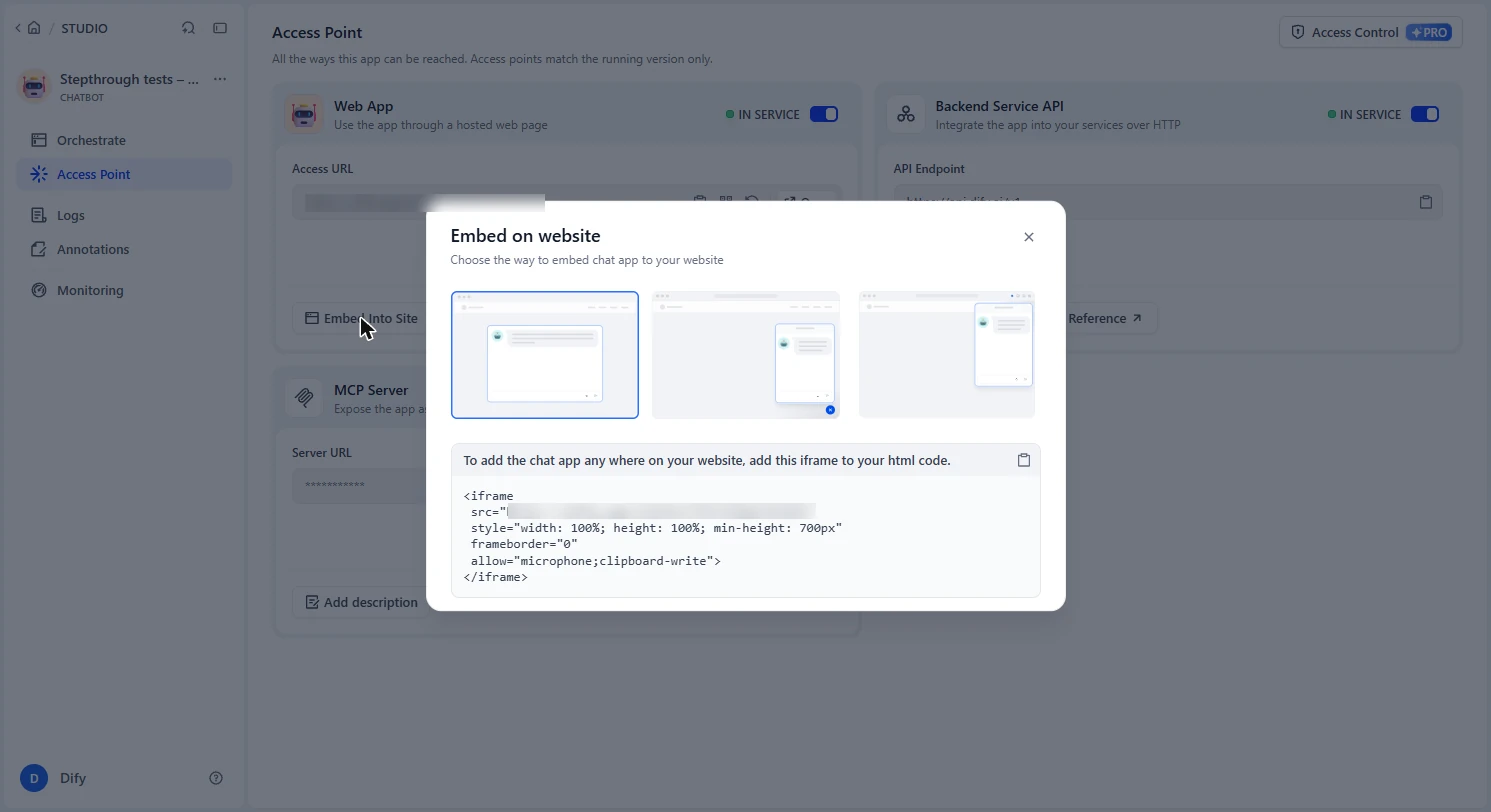
- Open the embed options. This page matters. Our new app already showed Web App: In Service, with a public link, before we published anything. Anyone with that link can chat, and every chat spends your credits. Use the switch to turn it off until you are ready. We blurred our link here. Click Embed Into Site.
Heads up. The web app was already in service with a public link, before we published. Turn it off until you are ready.
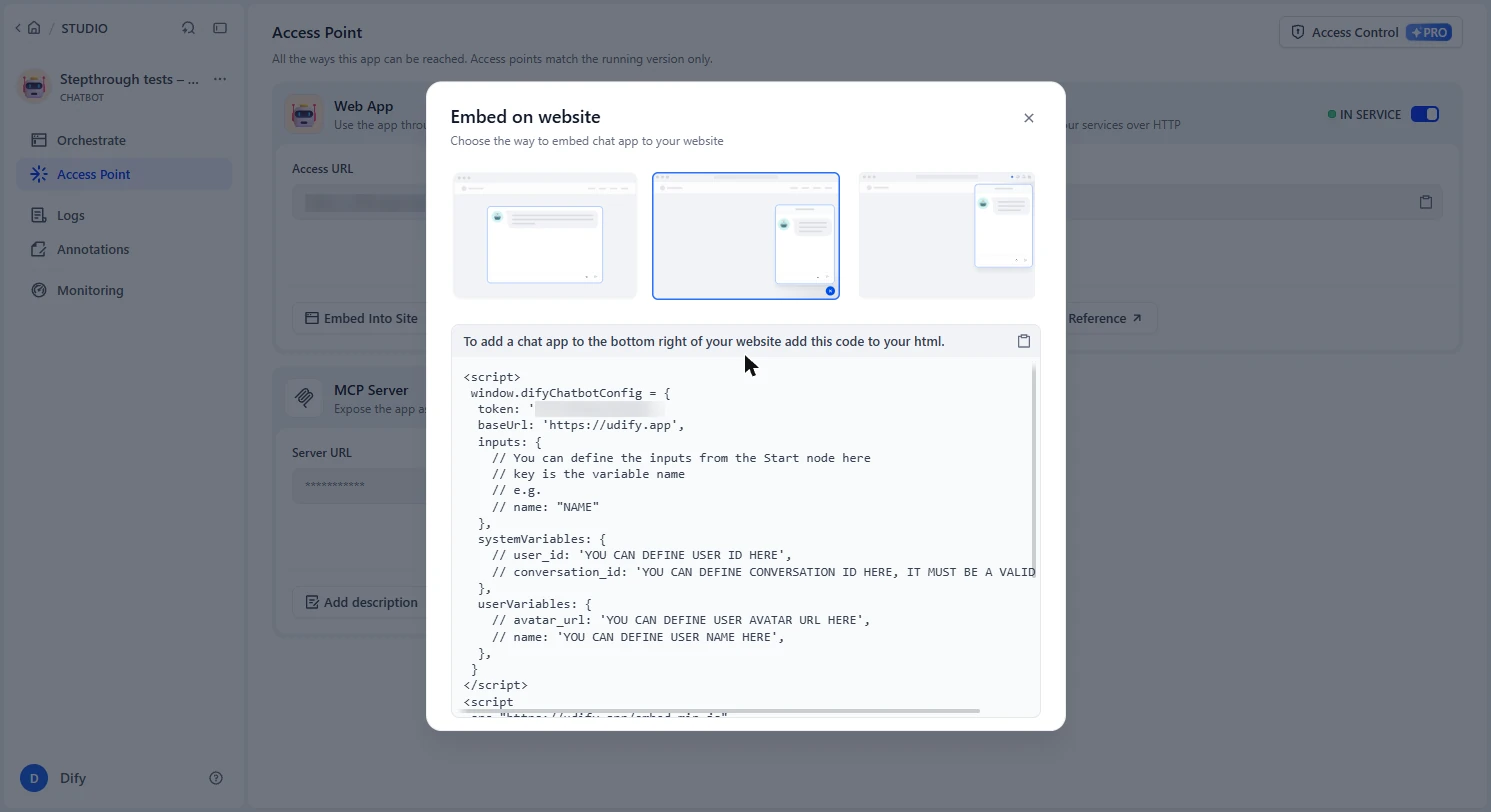
- Choose the chat bubble. The first option puts the chat anywhere on a page. Click the second, a bubble at the bottom right, which is what most support teams want.
Pick the second option, a chat bubble at the bottom right.
- Copy the code for your site. Copy this code into your site's HTML, or hand it to whoever runs your site. We did not put it on a live site.
Copy this code into your site, or hand it to whoever runs your site.
- Watch your credits. Our free workspace started at 200 credits and showed 136 after this build: three chat messages on gpt-5, one retrieval test and one small file. That was about the whole 64. So free credits are for building and testing. Before real members use it, check Dify's current plans.
We started with two hundred credits and ended with one hundred thirty six. Free credits are for building and testing. Check the plans before real members use it.
Screenshots
More in Business Automations
 AI Receipt Extractor: Receipts to Google Sheets with n8n
Drop a photo of a receipt into an n8n chat. An AI agent reads it, pulls out the date, vendor and amount, picks a category, and adds a row to Google Sheets.
Free · Live ~12 min Intermediate
 n8n AI Email Responder: Draft Gmail Replies Automatically
Build an n8n agent that watches your Gmail, reads each new customer email, and writes a reply as a draft in the same thread, ready for you to check and send.
Free · Live ~12 min Intermediate
 Daily Job Alerts: Email Each Tech Their Jobs from Google Sheets with n8n
Every morning at 7, n8n reads a plumbing company's jobs sheet, skips anything not assigned yet, and emails each job to the tech it's assigned to — customer, address…
Free · Live ~10 min Intermediate
 Gmail AI Triage: Auto-Label Every Email and Draft Replies
Build an n8n workflow that reads each new email, sorts it as a lead, a client or an invoice with a Text Classifier, adds the matching Gmail label, and drafts a reply to…
Free · Live ~18 min Advanced
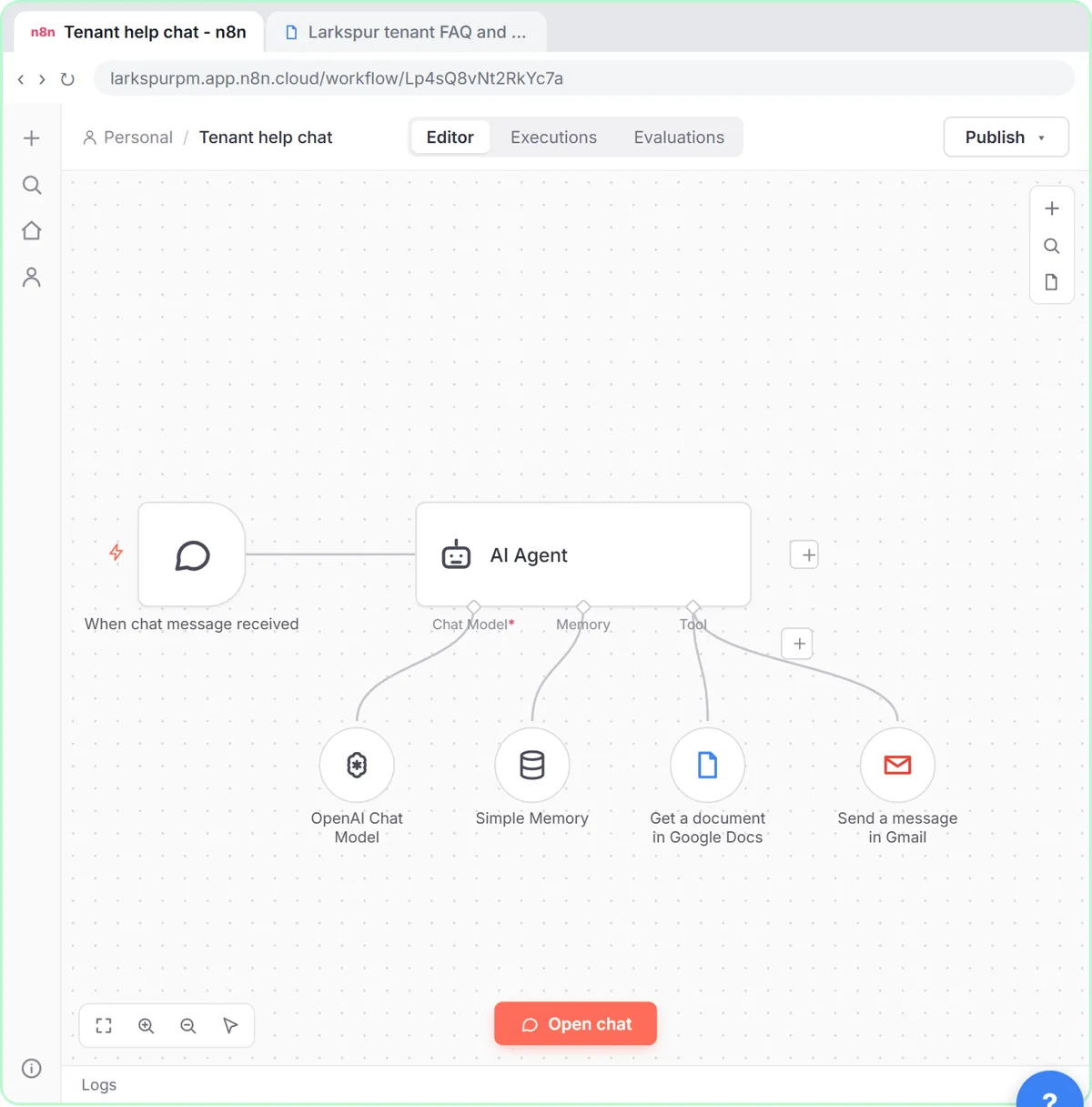 A Support Agent That Answers from Your Own Docs
Turn an n8n chat agent into a support agent that answers only from your policies in a Google Doc, refuses what it should, and hands off to a person by email.
Free · Live ~13 min Advanced
 Chatbase: Answer Customer FAQs with an AI Agent
A business case for a small firm that answers the same customer questions every week: build a Chatbase AI agent on your FAQ in the real app, make it say when it does…
Free · Live ~15 min Beginner
All 26 modules in Business Automations
Terms in this lesson
Plain-English definitions, each with an example from a free lesson.