Updated . Built against the tool’s current screens and checked step by step. How we check this lesson
Replace "where is my draft?" emails with a client portal. Describe it to Softr's AI, preview it as a client, fix what you find on the Free plan, and prove one client can't see another's work.
At a glance
| Question | Answer |
|---|---|
| What you build | Replace "where is my draft?" emails with a client portal. Describe it to Softr's AI, preview it as a client, fix what you find on the Free plan, and prove one client can't see another's work. |
| Tools | Softr |
| Time | About 14 minutes, 53 steps in 5 parts |
| Level | Beginner, no coding needed |
| Cost | Free |
| Ways to learn it | Practice it step by step |
The 5 parts, in short
- Describe the portal: Describe the app, Send it, Answer: feedback in the portal, Answer: staff update statuses, and 5 more steps.
- See what it built: Watch it build, Open the Data tab, Look at the people and the tables, See who owns each project, and 2 more steps.
- Look through a client's eyes: Read the warning, Open Preview, Open Preview as, Pick a client, and 5 more steps.
- Fix it on the Free plan: Go back to the editor, Select the My Projects list, Scroll to Record filters, See why it found nothing, and 18 more steps.
- Test it again as the client: Preview as Emma again, Check the count, Open her project, Open a deliverable, and 3 more steps.
Start here first: AI Receipt Extractor: Receipts to Google Sheets with n8n (module 1 of Business Automations)
In the course: Part 9 · n8n Automation Toolkit (Module 113 of the full course)
Part of: AI Apps Worth Knowing (step 108 of 111). Next up: AI Tool Directories: Find the Right Tool for a Job
What you'll build
Alder & Finch is a made-up marketing agency. Clients email to ask where their draft is, and approvals get lost in long threads. In this lesson you describe a client portal to Softr's AI and it builds the database, pages and sample data. Then you do the step most people skip: you preview it as a client. On the Free plan we found problems you need to catch, including one client seeing another's projects. You fix each one on the Free plan and test again. The lesson stops in preview; it does not publish the app or invite anyone.
The AI built a working portal in about two minutes. Previewing as a client showed what that first draft got wrong on the Free plan: no projects, other clients' projects, and no way to approve. You fixed each one, without paying, and proved it by testing as the client again. That habit applies to anything an AI builds that handles permissions. Before real clients log in, test the published app with a test client, run the link check on every page, and replace the sample people.
- Tools: Softr
- Time: about 14 minutes, 53 steps in 5 chapters
- Level: beginner, no coding needed
- Price: free
Practice first, then build it for real
Practice copy built from real Softr screens (studio.softr.io), captured 31 October 2026 on the Free plan. Nothing here touches a Softr account. The agency is made up, and the people and projects are sample records Softr's AI generated. AI builds differ from run to run, so your app can differ. To build it for real you need your own Softr account, and some services charge once you use them for real work, so check each tool's current pricing.
Try it yourself, free
Reading the steps is a start. Doing them is how it sticks. The interactive module walks you through every click in a practice copy of Softr, checks each step, and never touches your real accounts.
Start “Softr: Build a Client Portal Where Each Client Sees Only Their Own Work”Step by step: Softr: Build a Client Portal Where Each Client Sees Only Their Own Work
All 53 steps of the interactive module, in order. In the module you watch each one, then do it yourself in a practice copy that checks your work.
1. Describe the portal
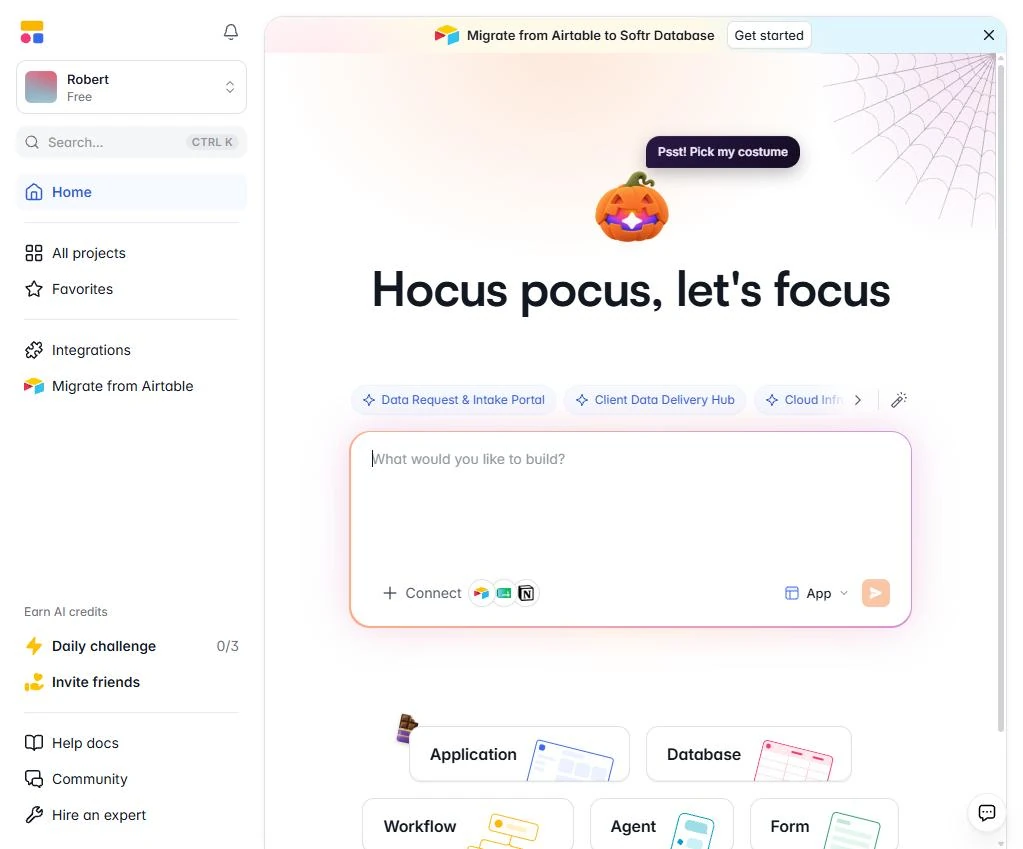
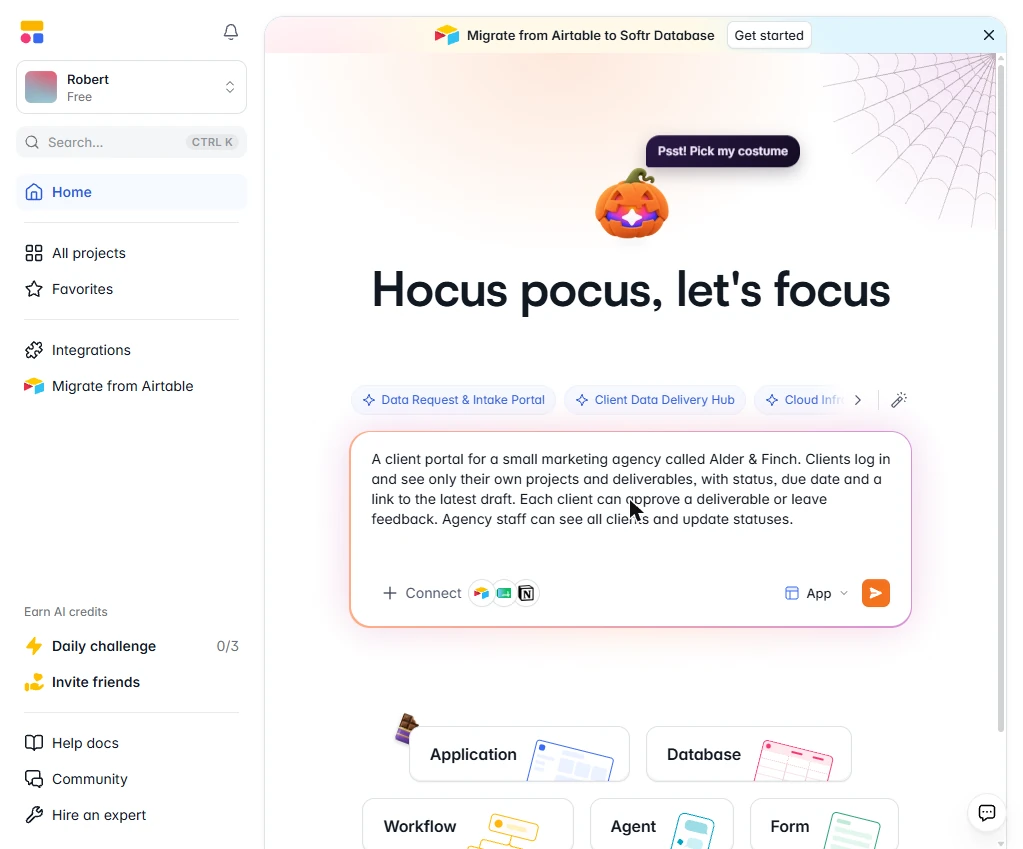
- Describe the app. You run client services at Alder & Finch, a made-up marketing agency. Clients email to ask where their draft is, and approvals get lost in long threads. In Softr, describe the portal on the home screen. Say who logs in and exactly what each person may see.
Clients keep emailing to ask where their draft is. In Softr, describe the portal. Say who logs in, and what each person may see.
A client portal for a small marketing agency called Alder & Finch. Clients log in and see only their own projects and deliverables, with status, due date and a link to the latest draft. Each client can approve a deliverable or leave feedback. Agency staff can see all clients and update statuses.
- Send it. Keep App selected at the bottom, and click the send arrow.
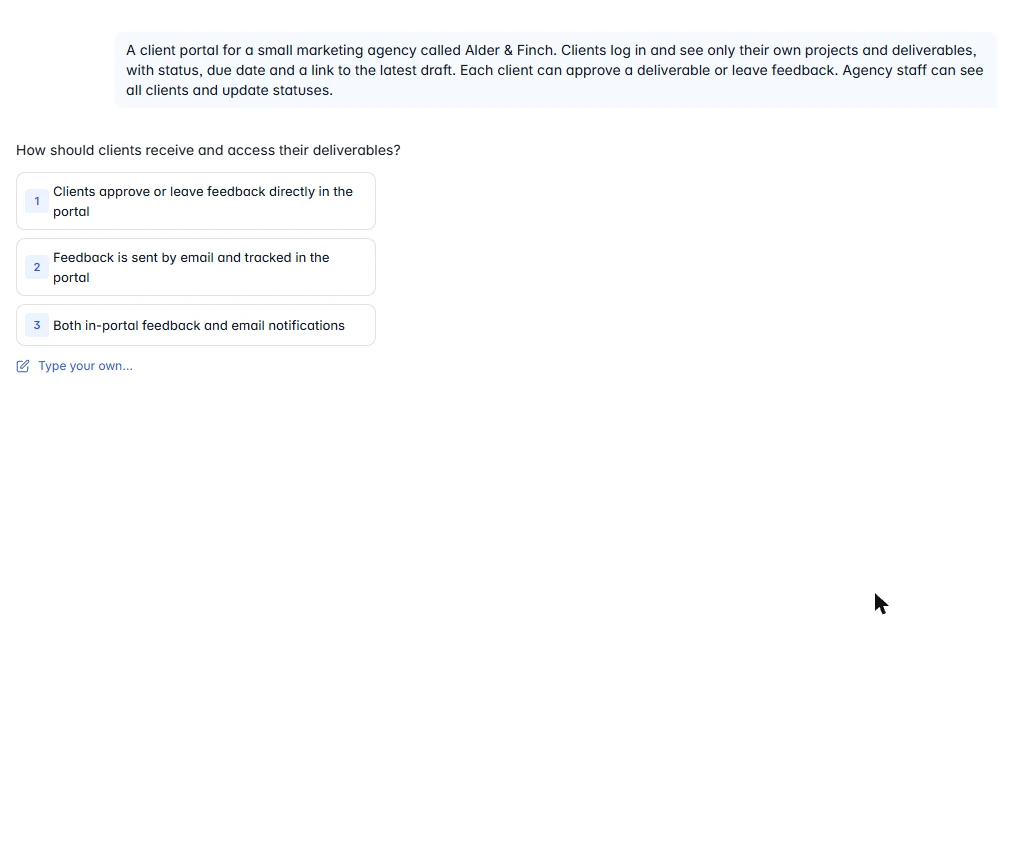
- Answer: feedback in the portal. The AI asks a few questions first. Your questions may differ. Click Clients approve or leave feedback directly in the portal.
It asks a few questions. Pick feedback directly in the portal.
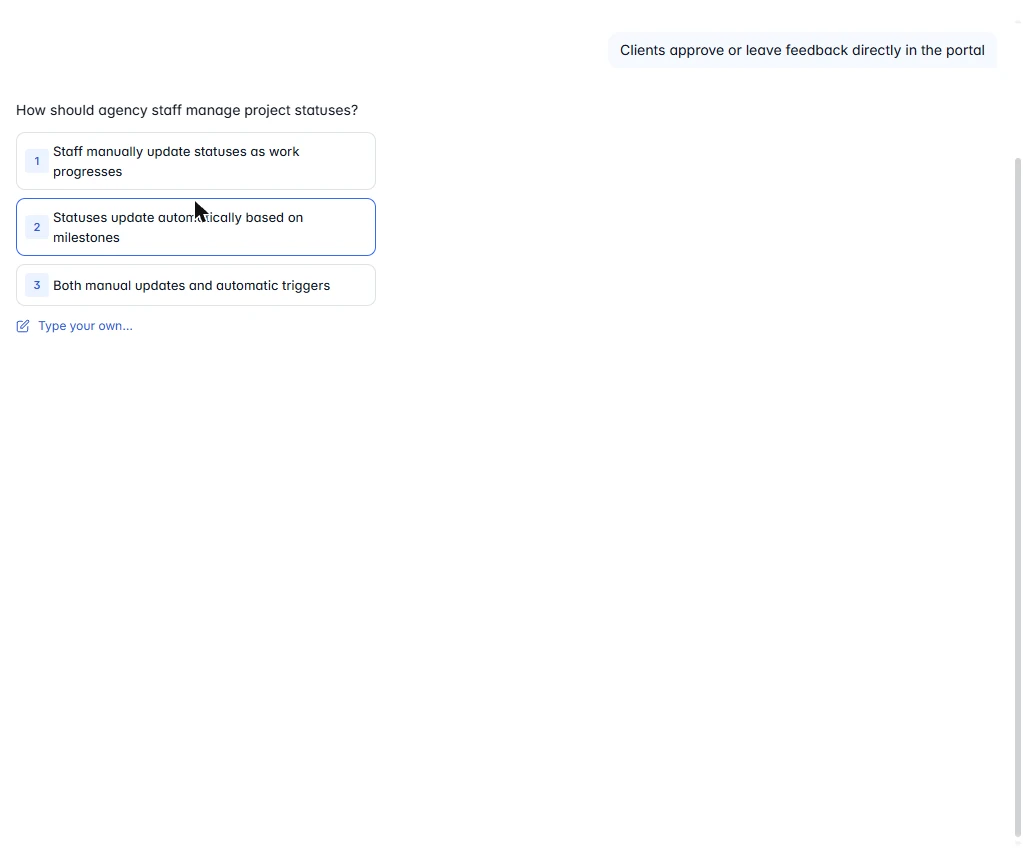
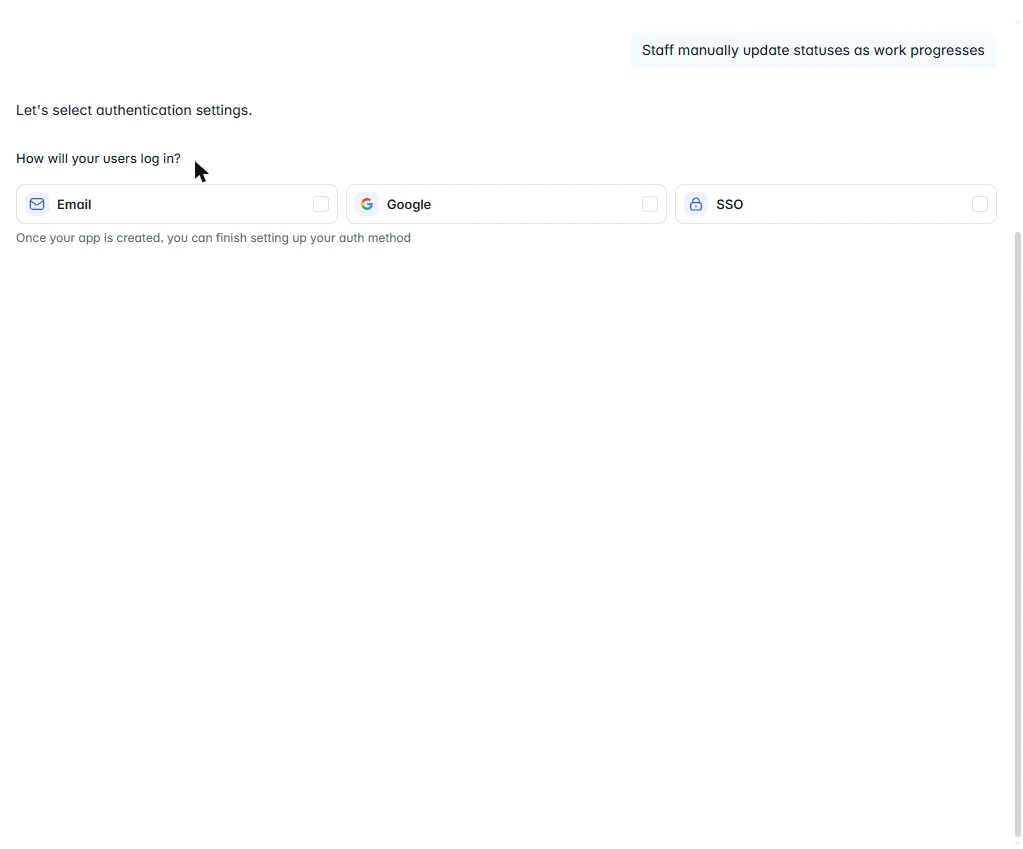
- Answer: staff update statuses. Click Staff manually update statuses as work progresses.
Pick staff update statuses by hand.
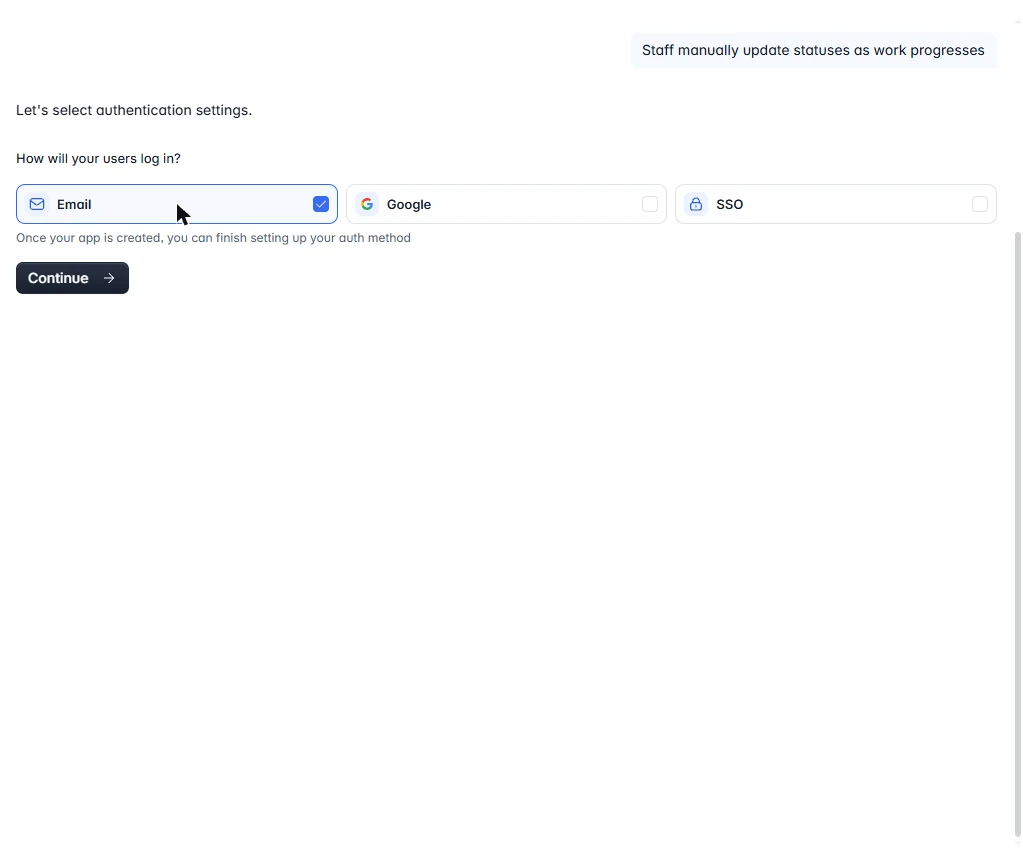
- Choose email login. Under How will your users log in?, tick Email.
Tick Email.
- Continue. Click Continue.
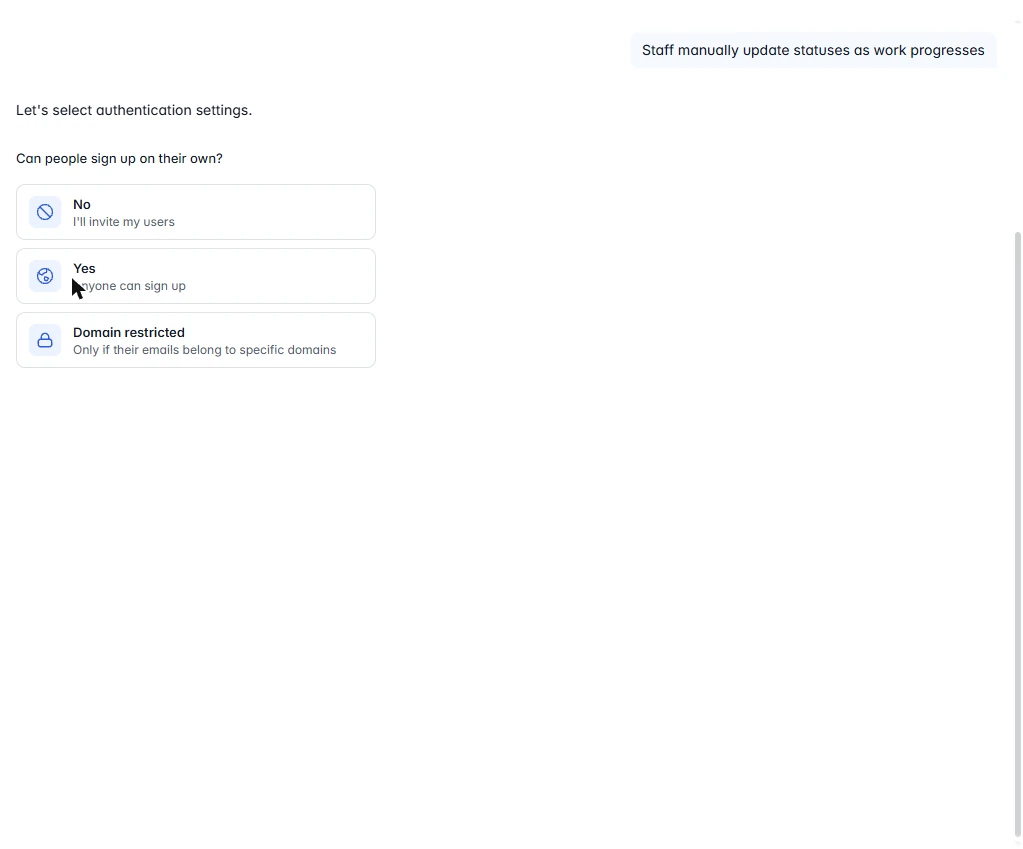
- Keep strangers out. Under Can people sign up on their own?, click No, I'll invite my users. A client portal is invite-only. Then click Continue. On the navigation question that follows, we kept the defaults, Side and Bottom, and clicked Continue.
Pick No, I will invite my users. A client portal is invite only. Then keep the navigation defaults.
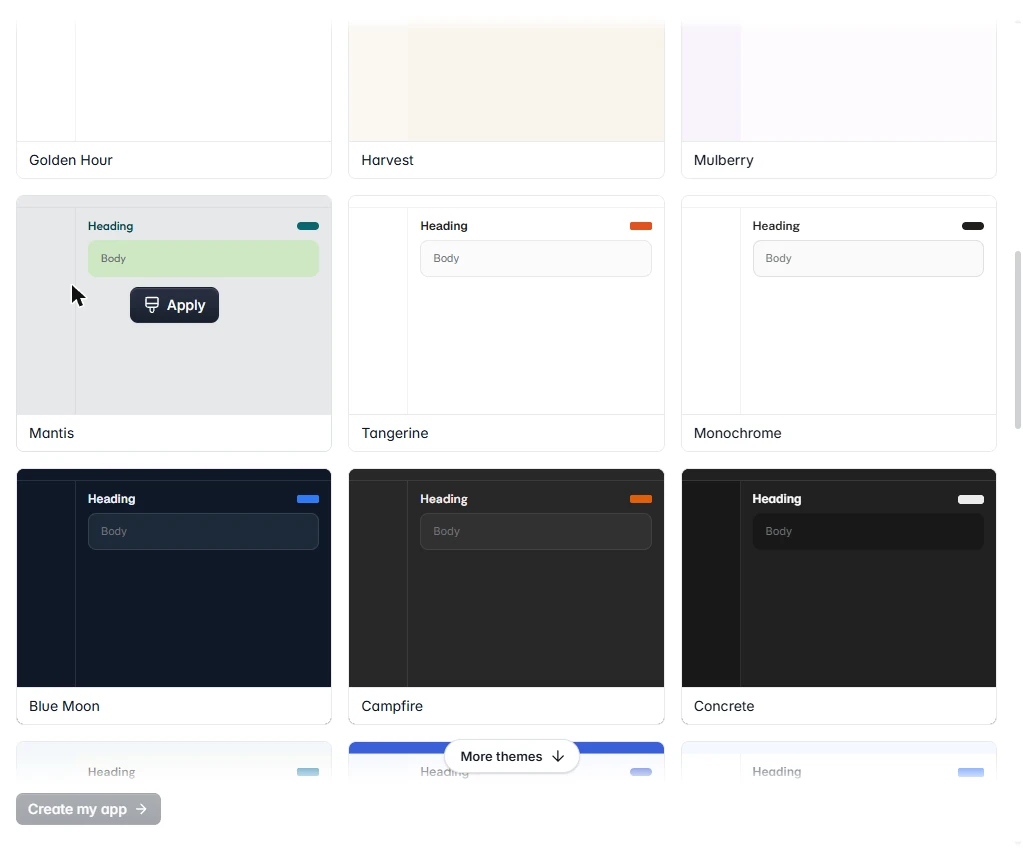
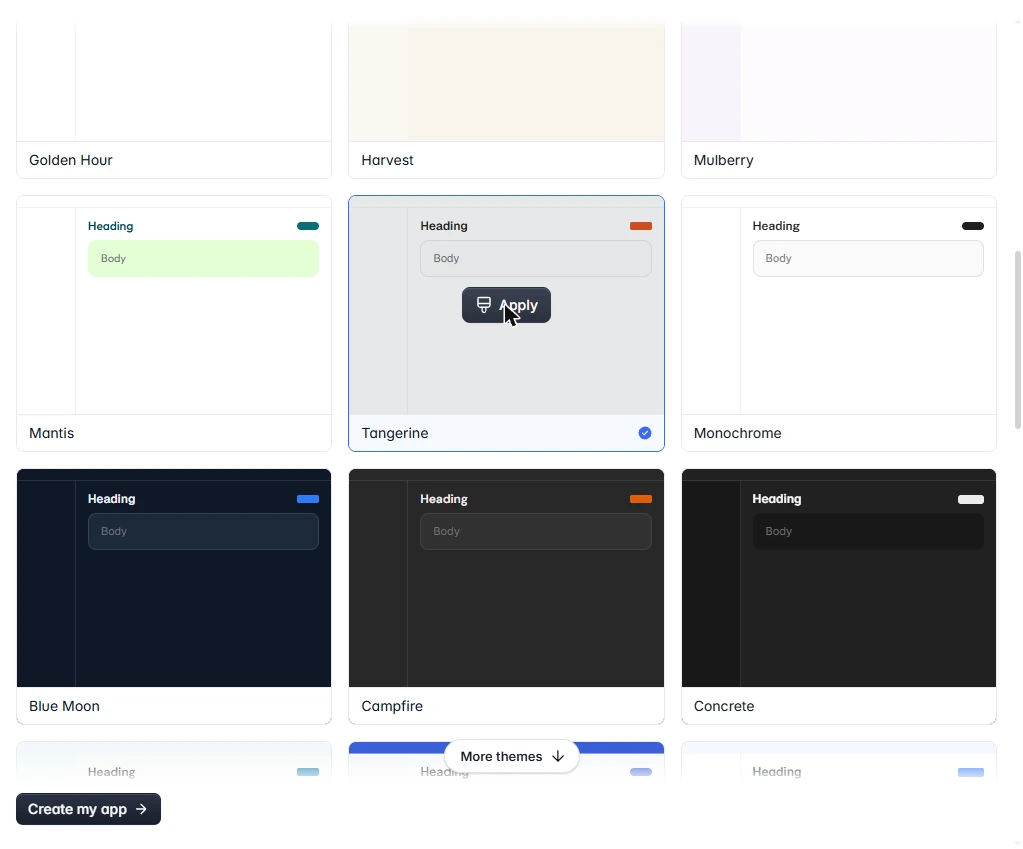
- Pick a theme. Click any theme, then Apply. We used Tangerine. You can change it later.
Pick any theme, and click Apply.
- Create the app. Click Create my app.
2. See what it built
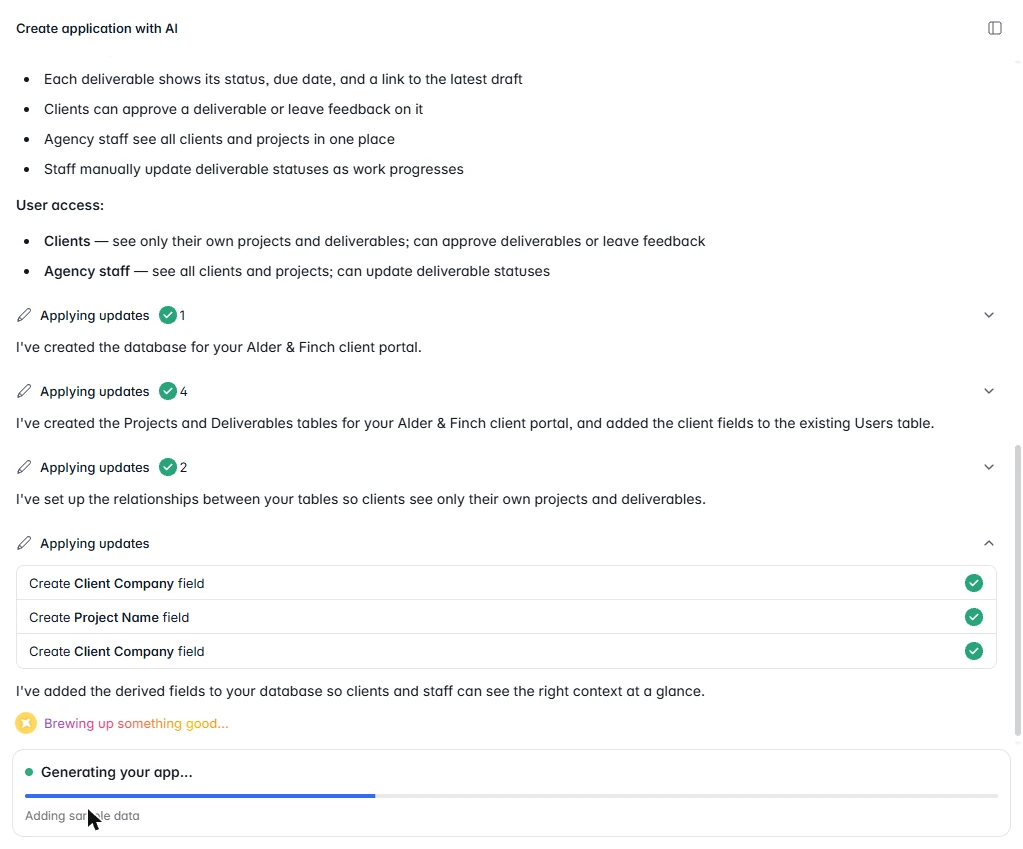
- Watch it build. It builds the database, the links between tables, sample data, pages and permissions. Ours took about two minutes, and it says clients see only their own work. Now you check that. Click the build log.
It builds the database, pages and permissions, in about two minutes. It says clients see only their own work. Now you check that.
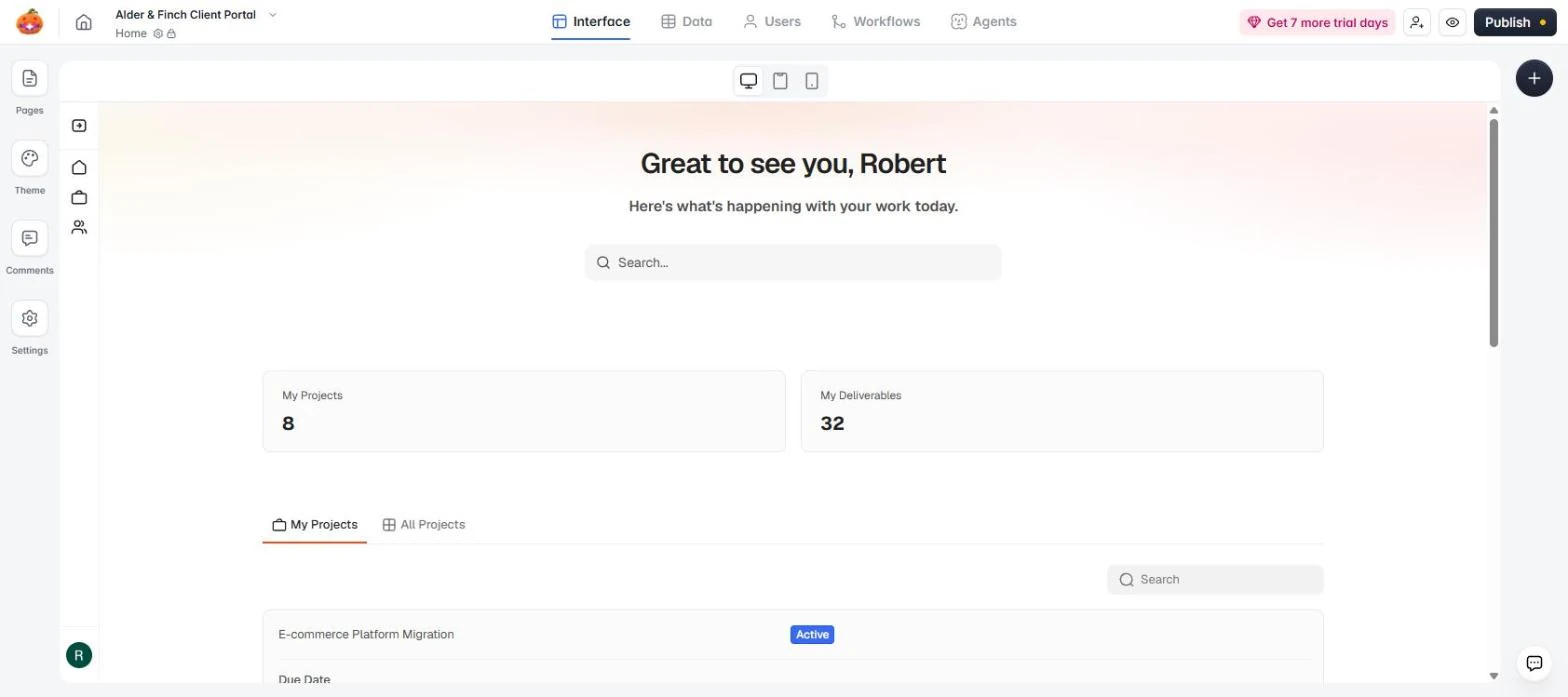
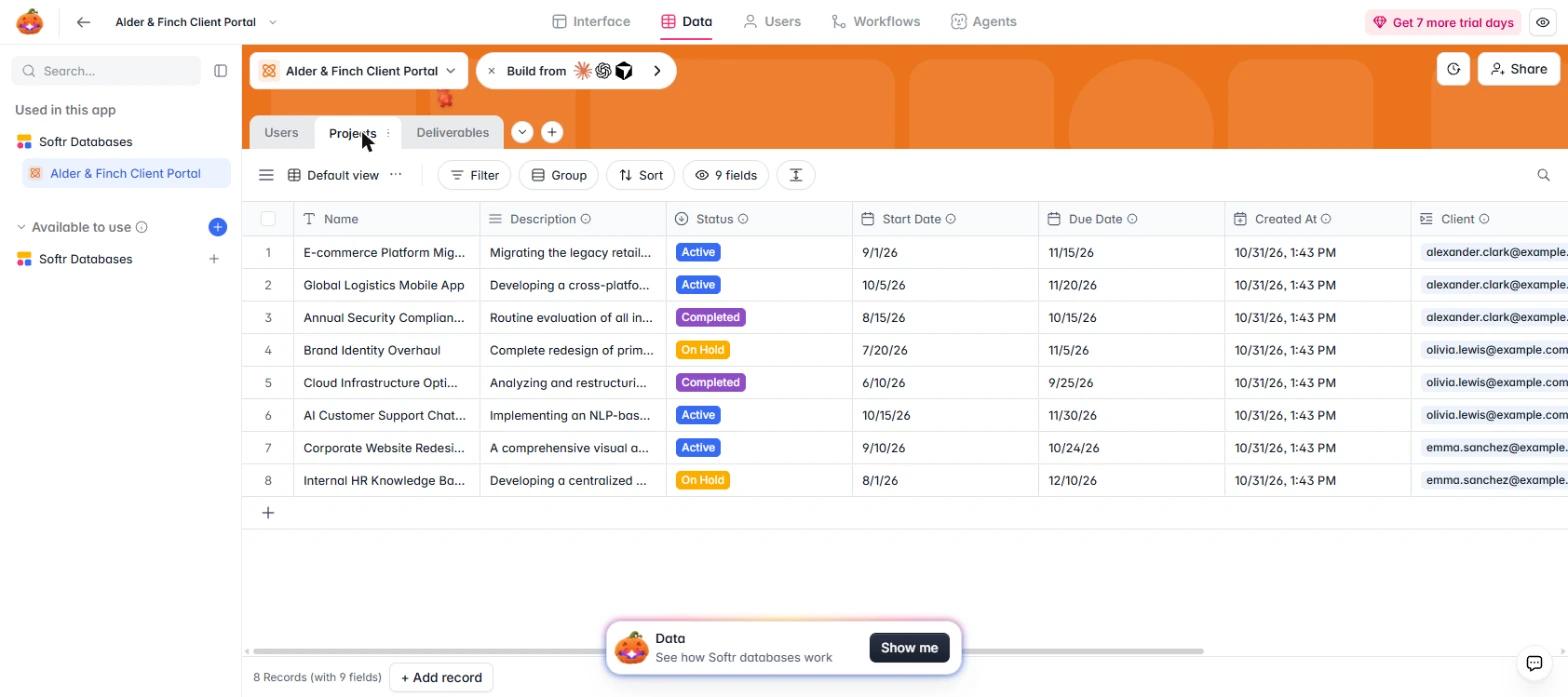
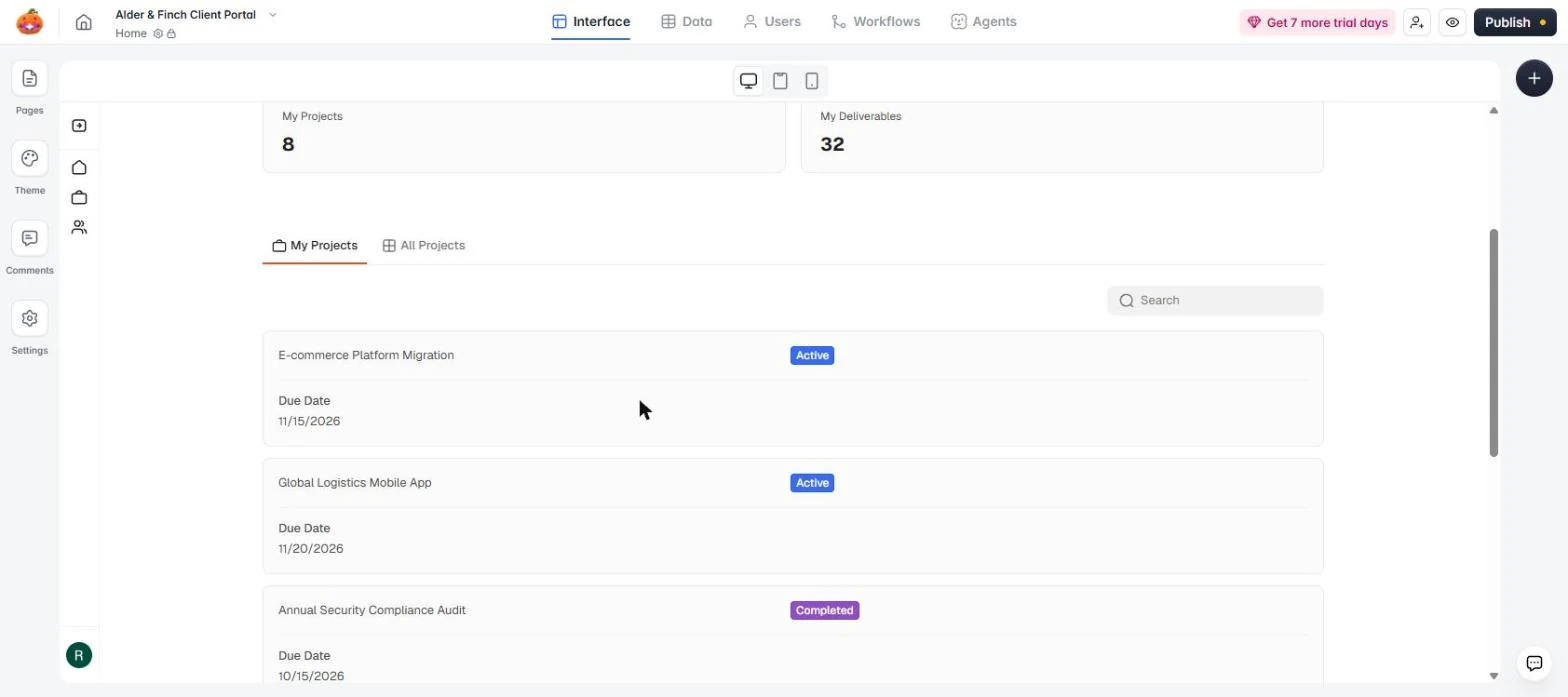
- Open the Data tab. You land in the editor. My Projects shows 8 here because the editor does not apply user filters. Softr says so itself, and you will see that note shortly. Click Data.
The editor does not apply user filters, so ignore these counts.
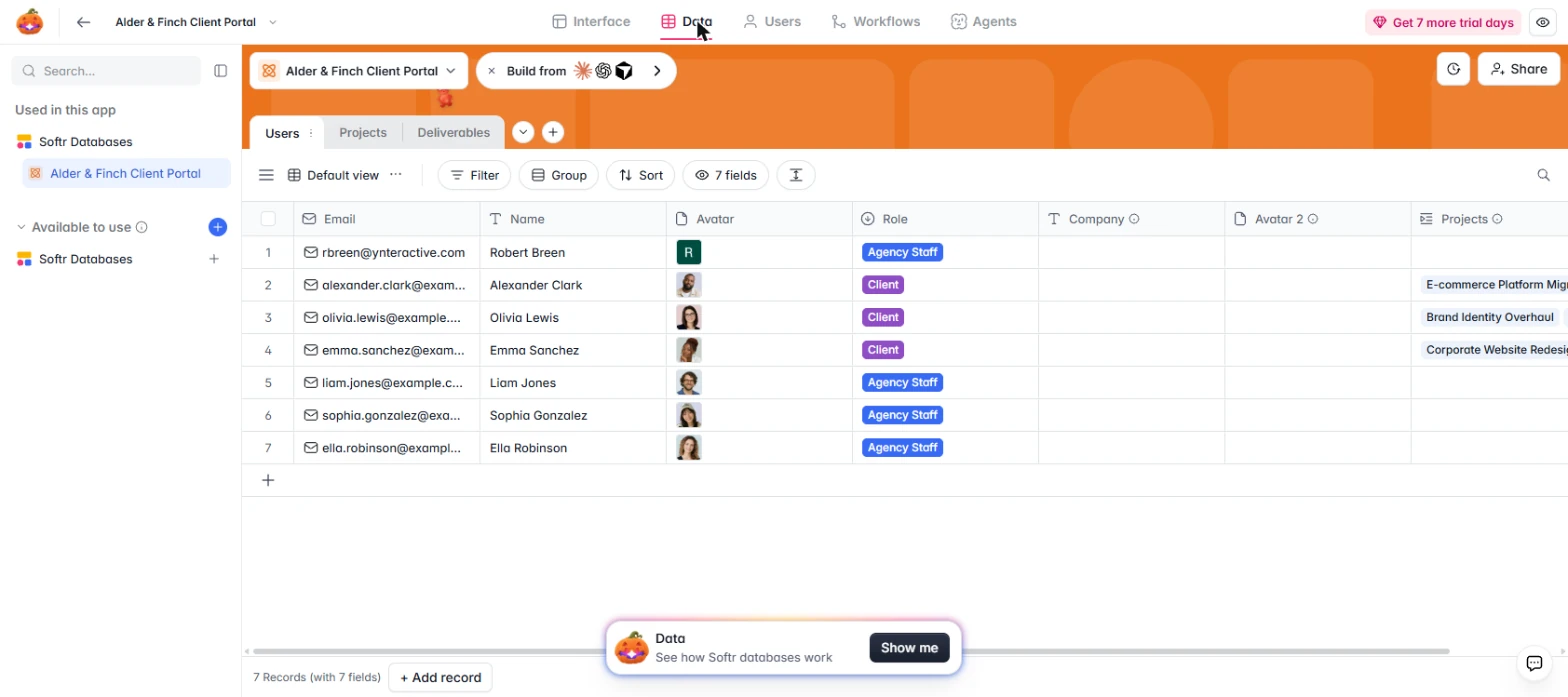
- Look at the people and the tables. The AI made sample people: three Client and four Agency Staff, including you. Replace them with real ones later. The Free plan allows 5 app users, per Softr's docs, so delete samples before you invite anyone. Click the Projects table.
Sample clients and staff. Replace them later. The free plan allows five app users.
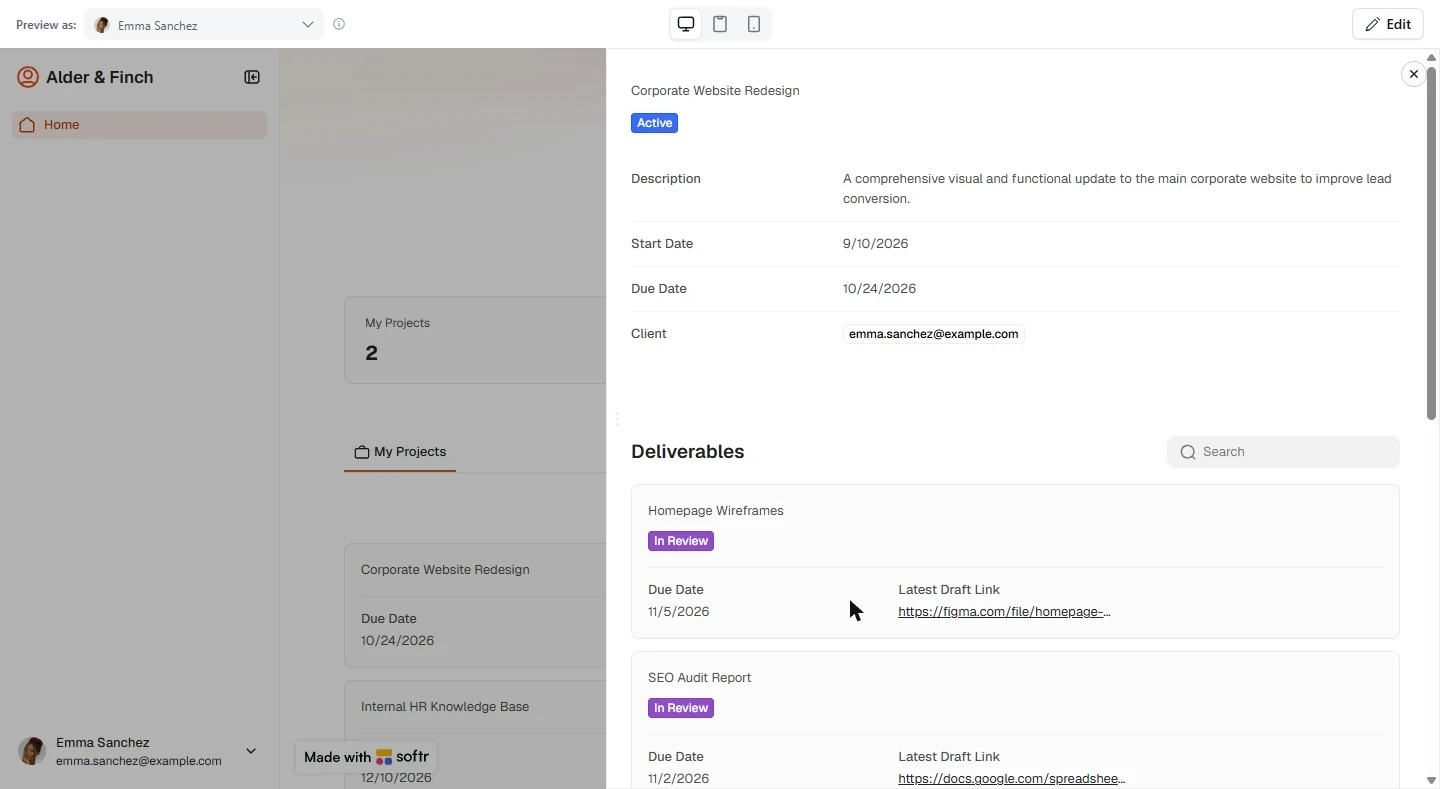
- See who owns each project. Each project has a Client column holding that client's email. Emma Sanchez owns two projects: Corporate Website Redesign and Internal HR Knowledge Base. Remember that number. Click the Client column.
Each project has a client. Emma Sanchez owns two. Remember that number.
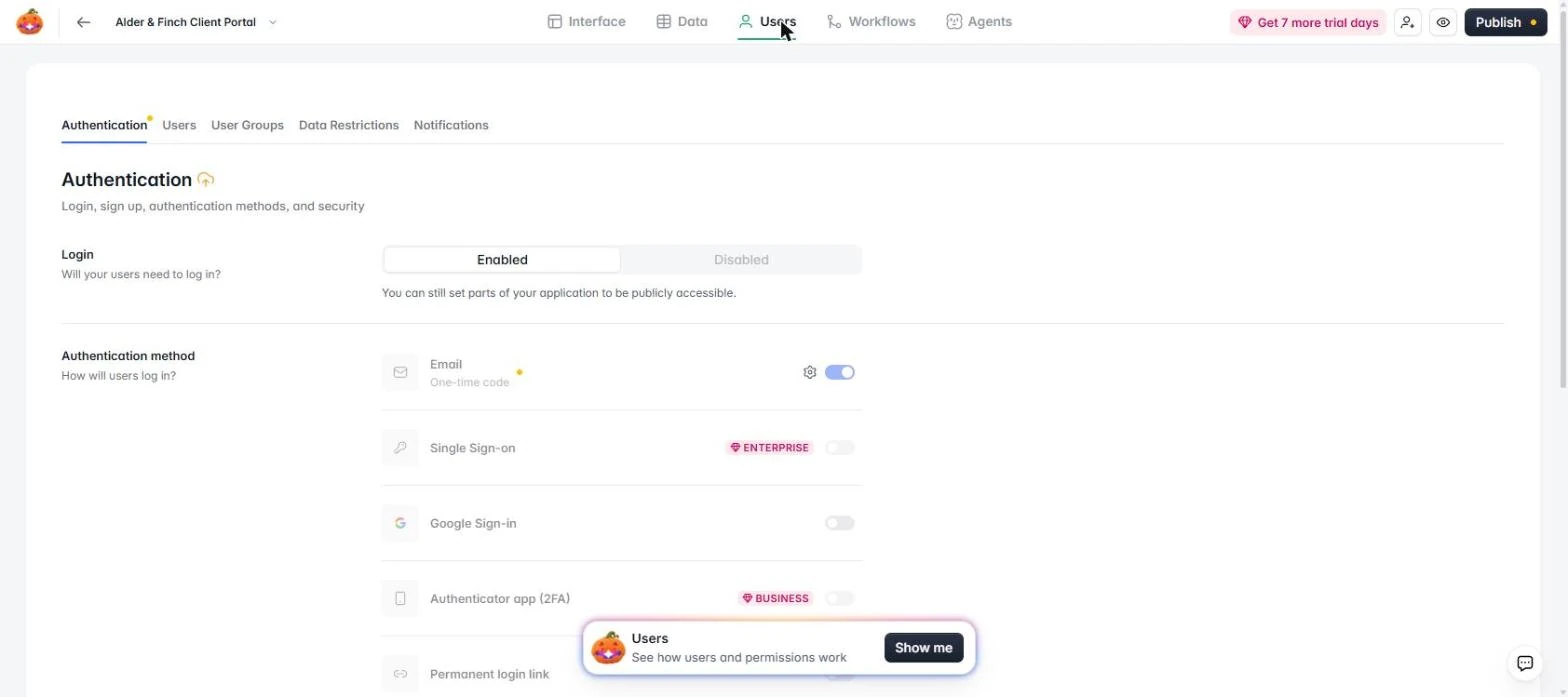
- Open the Users tab. Click Users at the top.
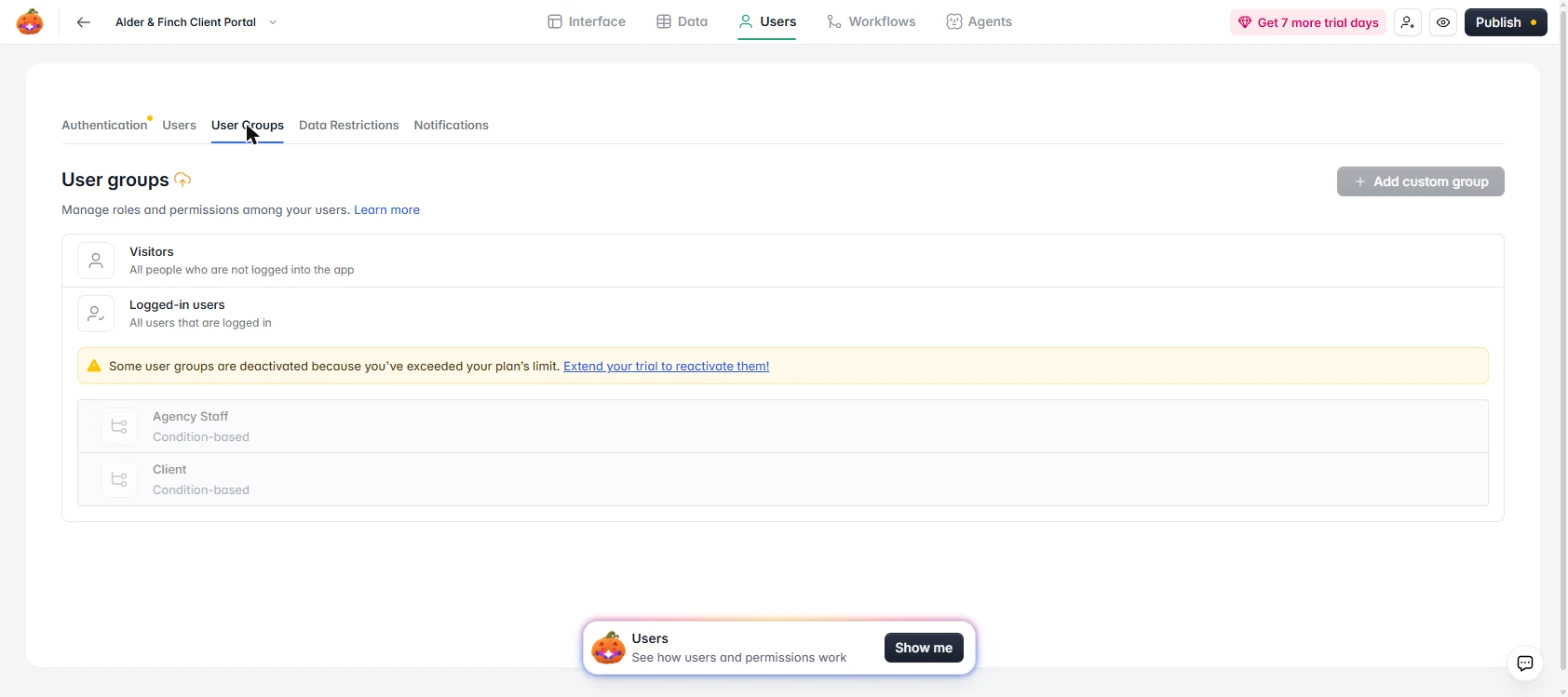
- Open User Groups. Click User Groups. The small yellow marks on this page flag features that depend on your plan.
3. Look through a client's eyes
- Read the warning. This is the catch on the Free plan. The AI made Agency Staff and Client groups, and they are switched off: *"Some user groups are deactivated because you've exceeded your plan's limit."* Softr's docs list custom groups from the Pro plan up. So anything the AI hid or showed by group now behaves differently. Click the warning.
Here is the catch. The groups the AI made are switched off on the free plan. So anything it restricted by group behaves differently.
- Open Preview. Click the eye icon, top right. Preview opens in a new tab.
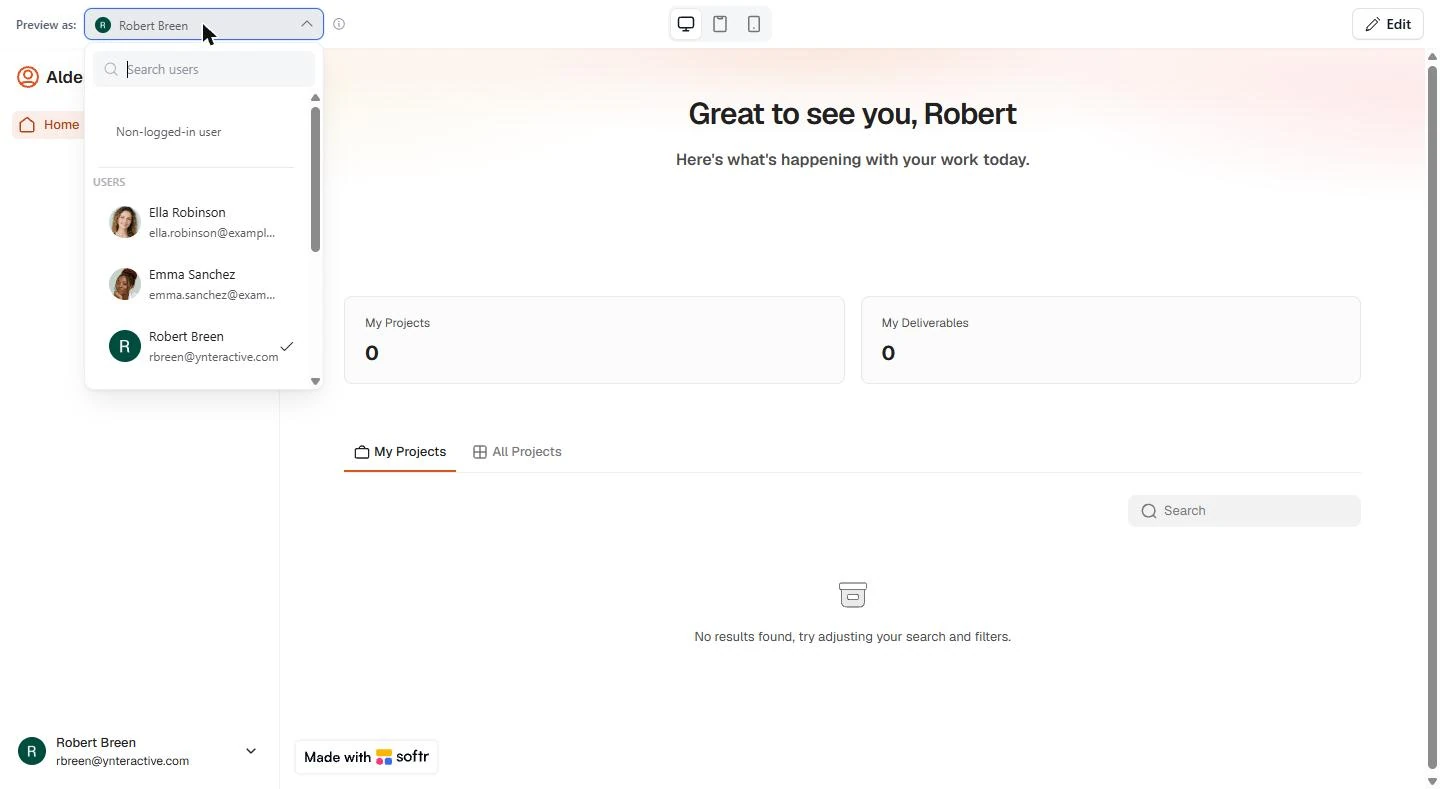
- Open Preview as. Preview as lets you see the app as any user without their login. Click the box next to it.
Preview as shows the app as any user.
- Pick a client. Click Emma Sanchez.
Pick Emma Sanchez, a client.
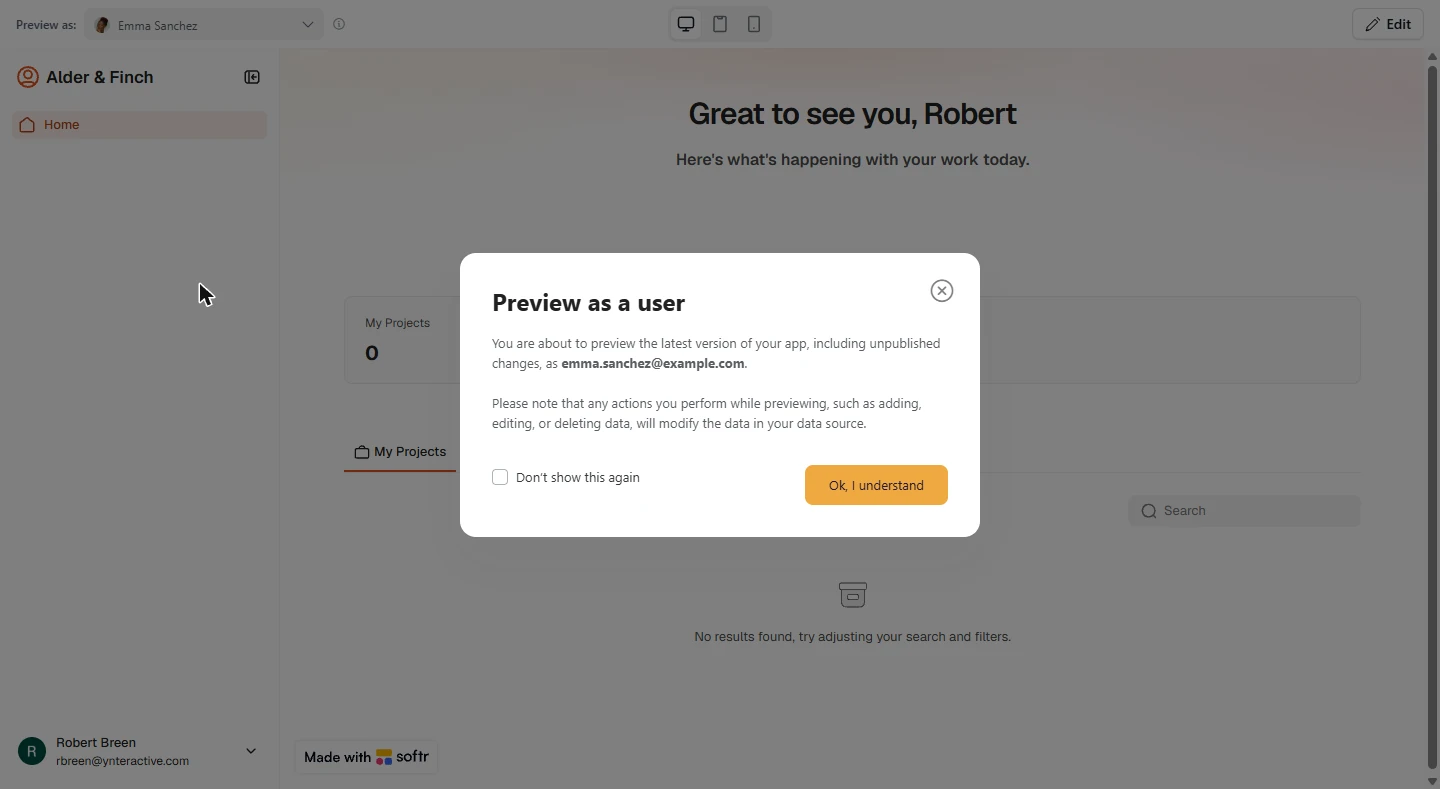
- Note the warning. Read this one: anything you do in preview changes your real data. Use test records. Click Ok, I understand.
Note that anything you do in preview changes real data.
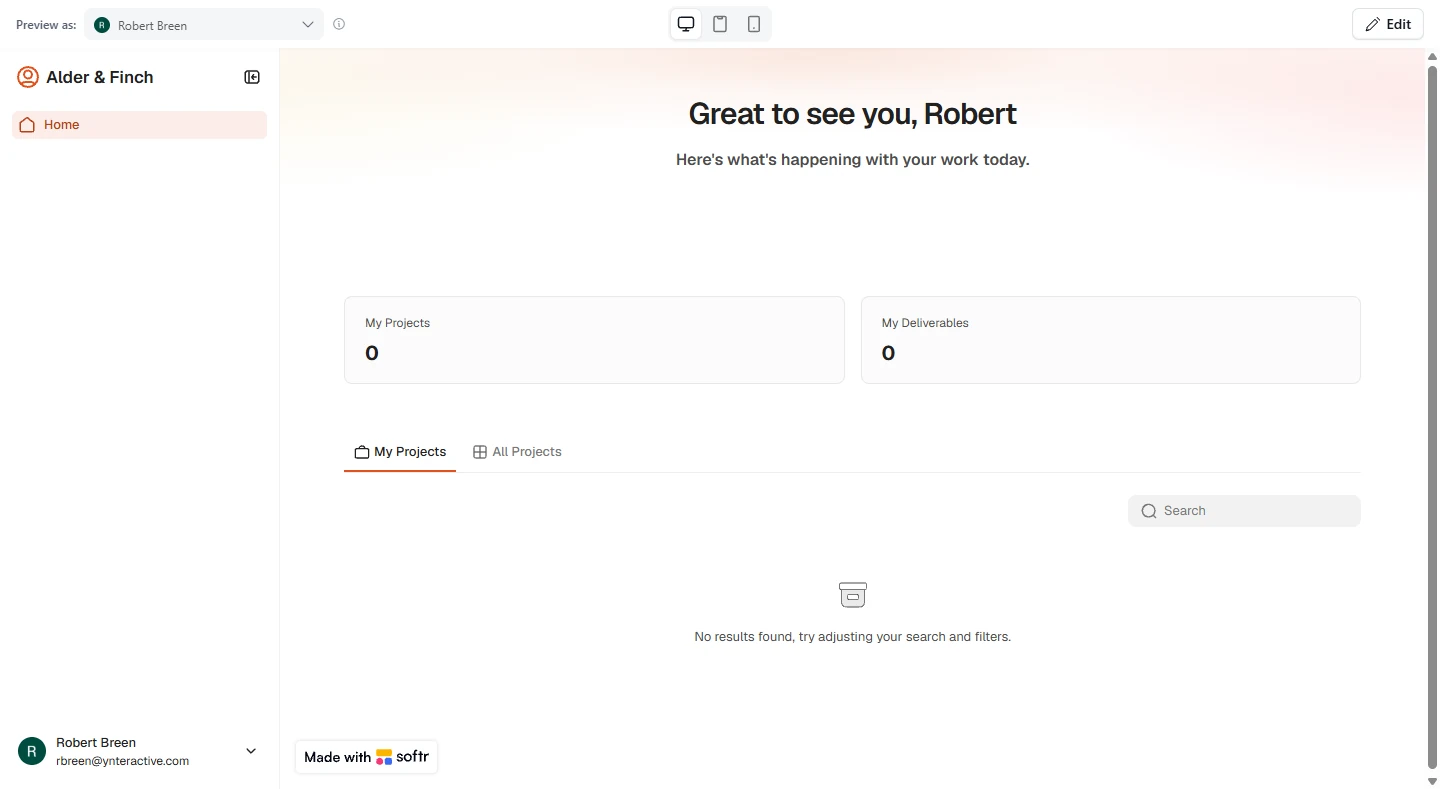
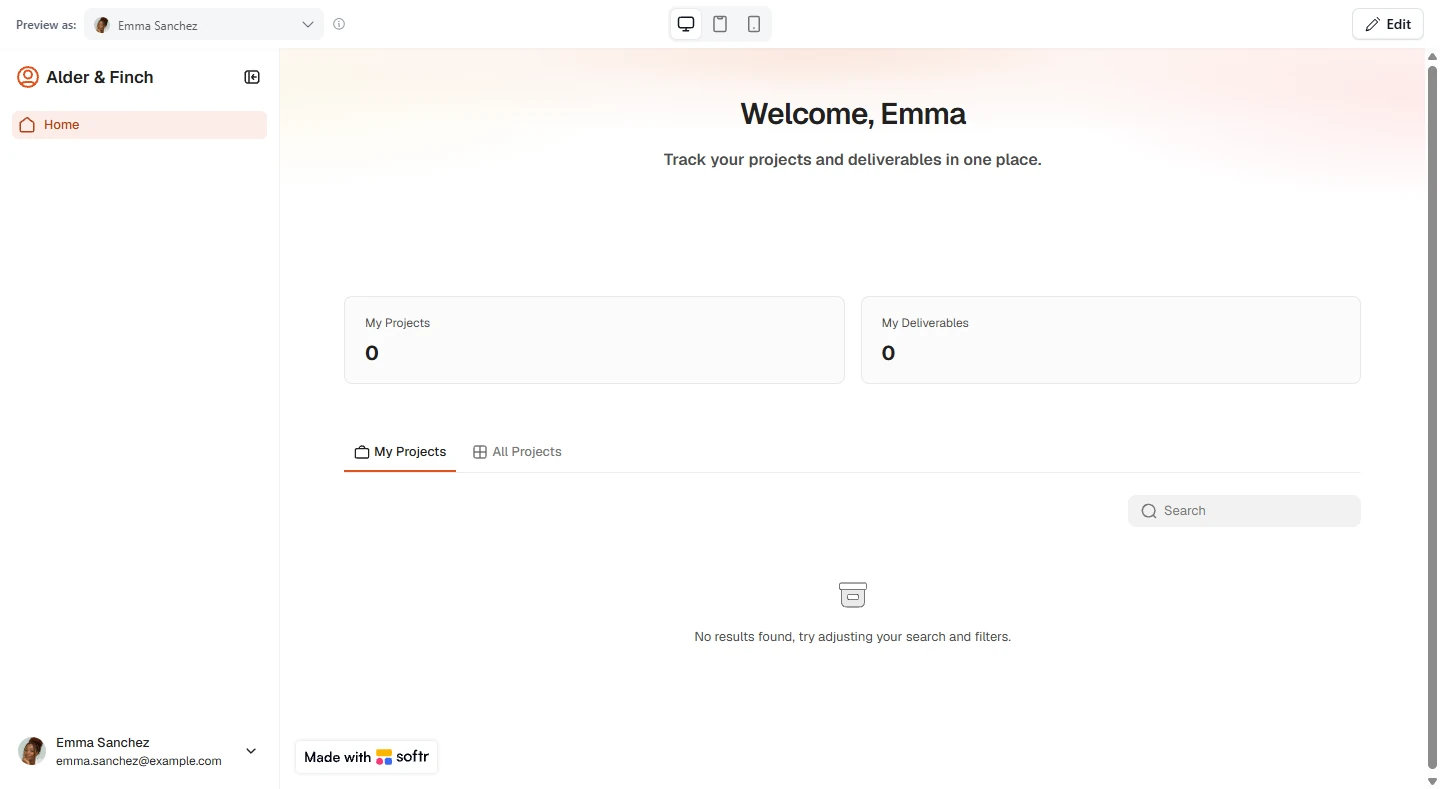
- Problem 1: she has no projects. Emma owns two projects, and My Projects says 0. The list below is empty too. Click the count.
Problem one. Emma owns two projects, and it says zero.
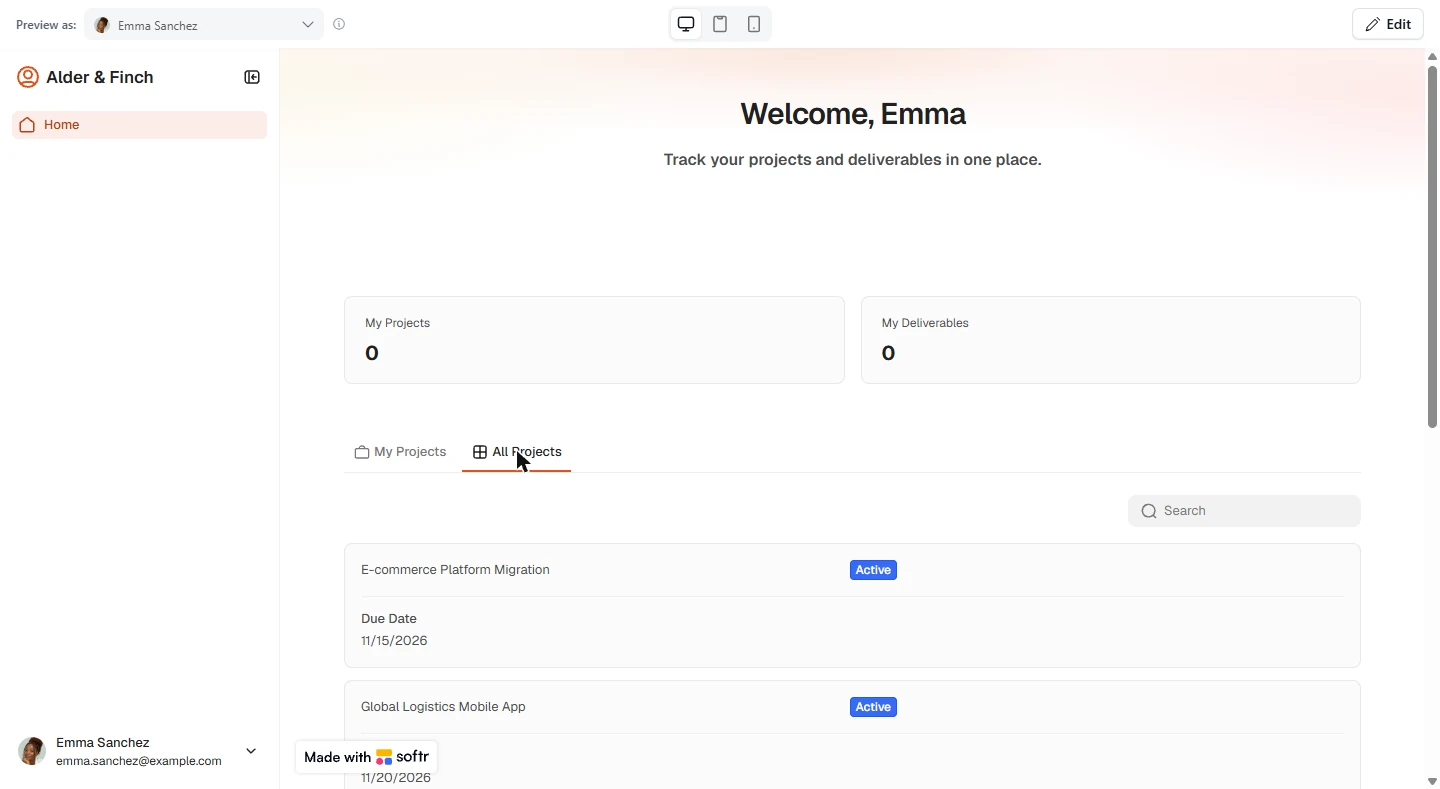
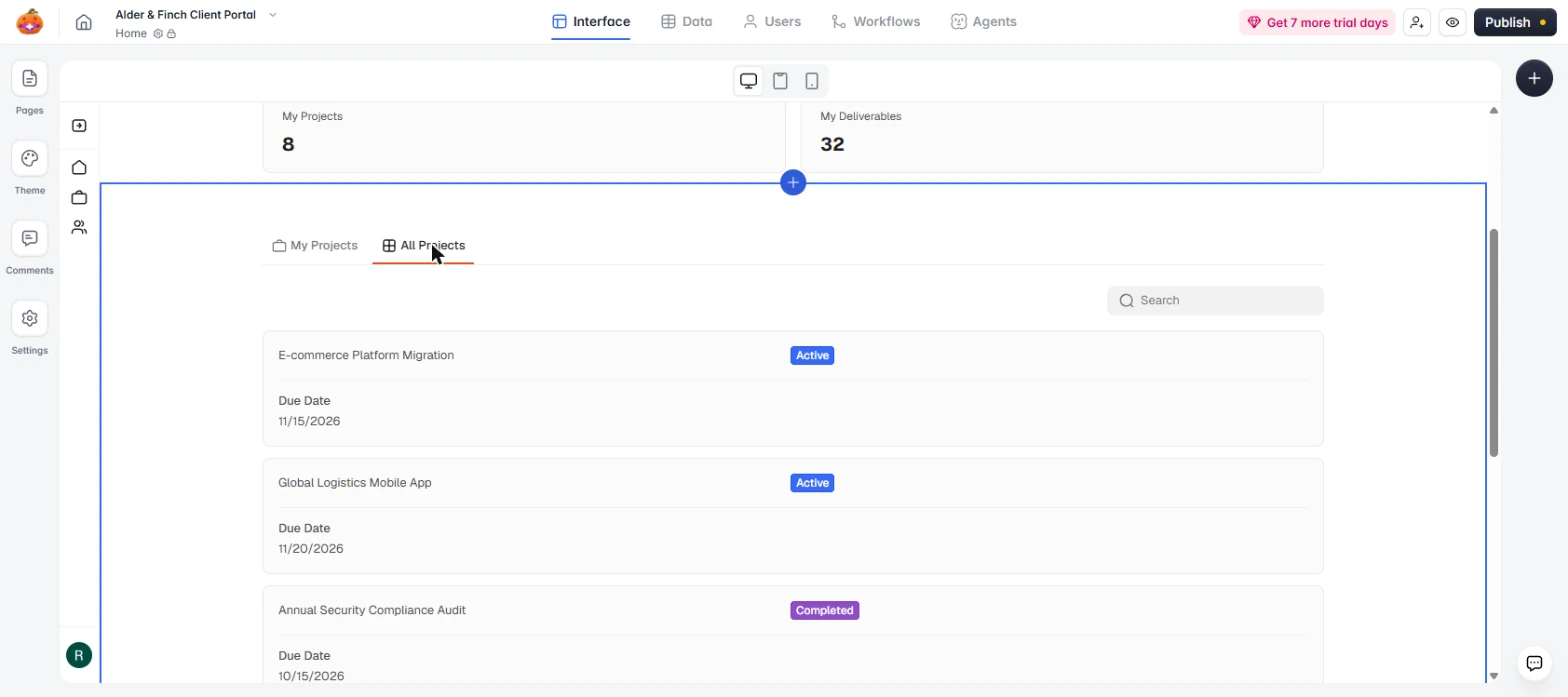
- Open All Projects. The AI meant this next tab for staff only. Click All Projects.
The AI meant this tab for staff only.
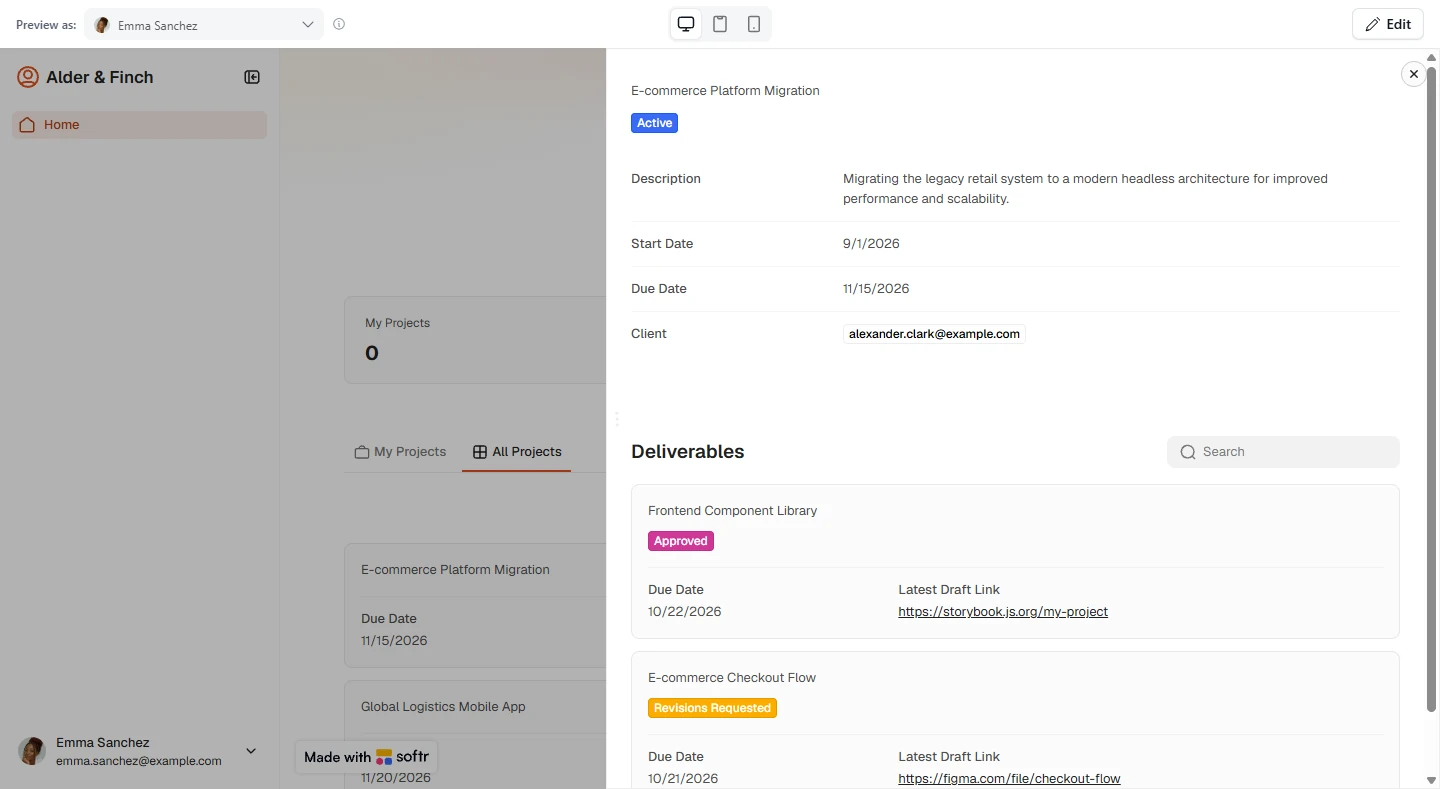
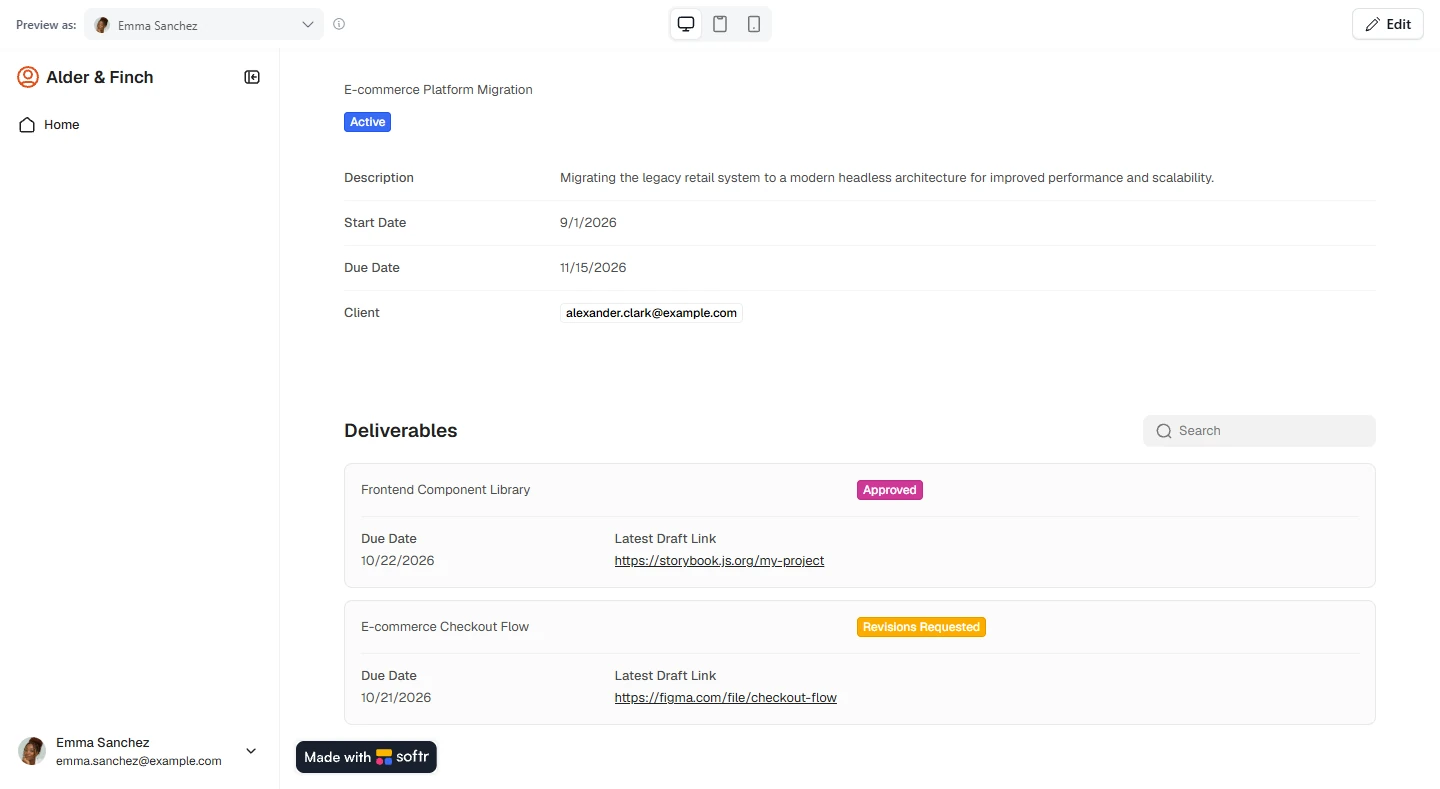
- Problem 2: other clients show up. Emma can see every client's projects. E-commerce Platform Migration is not hers. In a real portal, this is the one mistake you cannot make. Click it.
Problem two. Emma can see every client's projects. That is the one mistake a portal cannot make.
- Confirm whose it is. The Client is alexander.clark@example.com, and Emma can read the whole project. This is why you always preview as a client before you invite anyone. Click the email.
That project belongs to Alexander. This is why you always preview as a client before you invite anyone.
4. Fix it on the Free plan
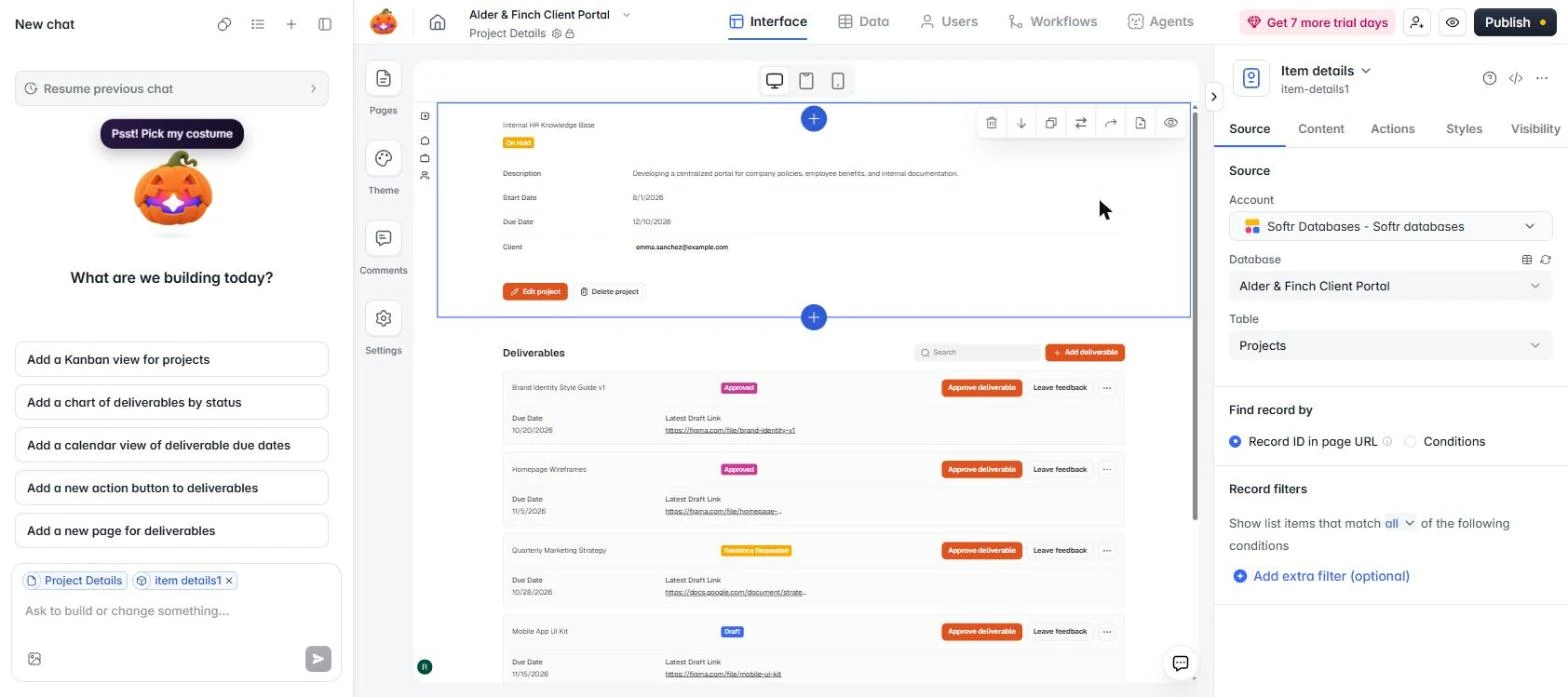
- Go back to the editor. Click Edit, top right. Stay on the Home page and scroll to the projects list.
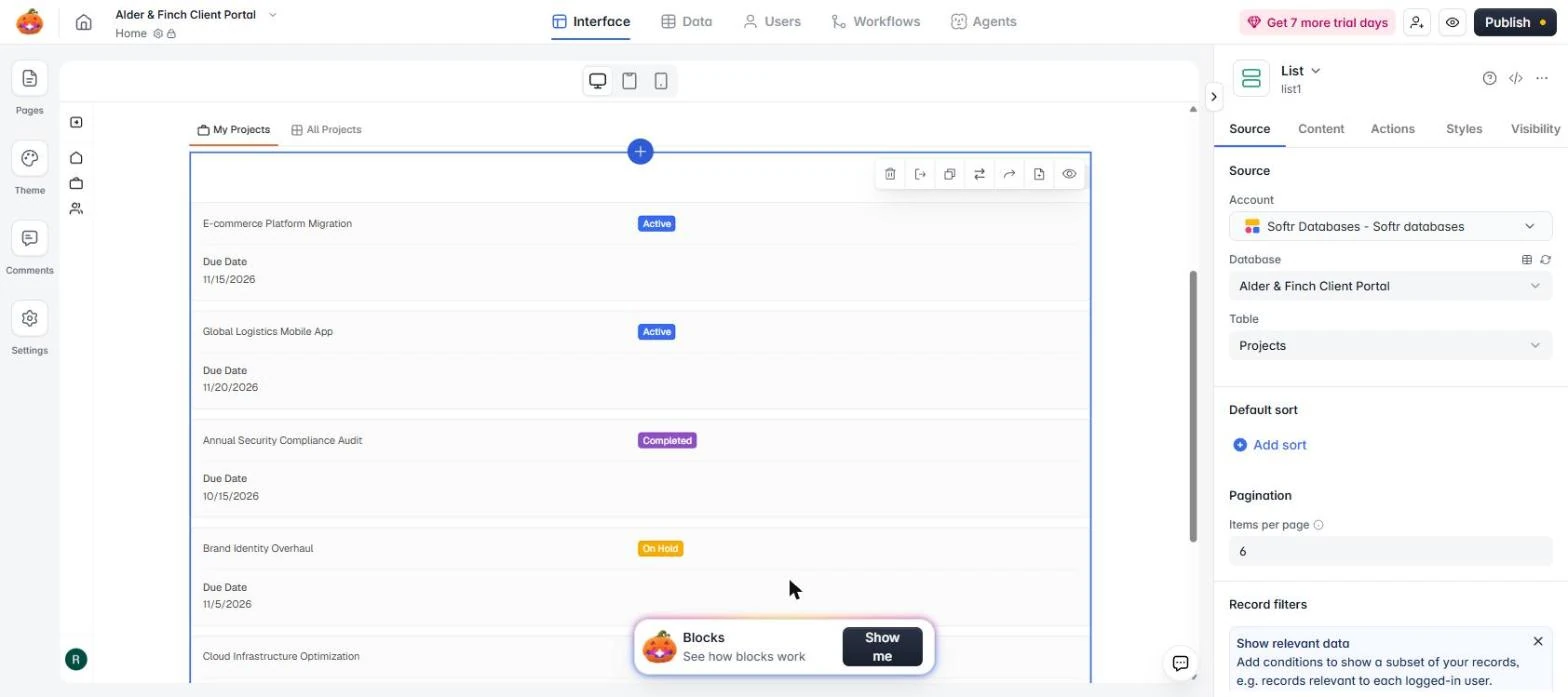
- Select the My Projects list. Make sure My Projects is the open tab, then click the list. Its settings open on the right.
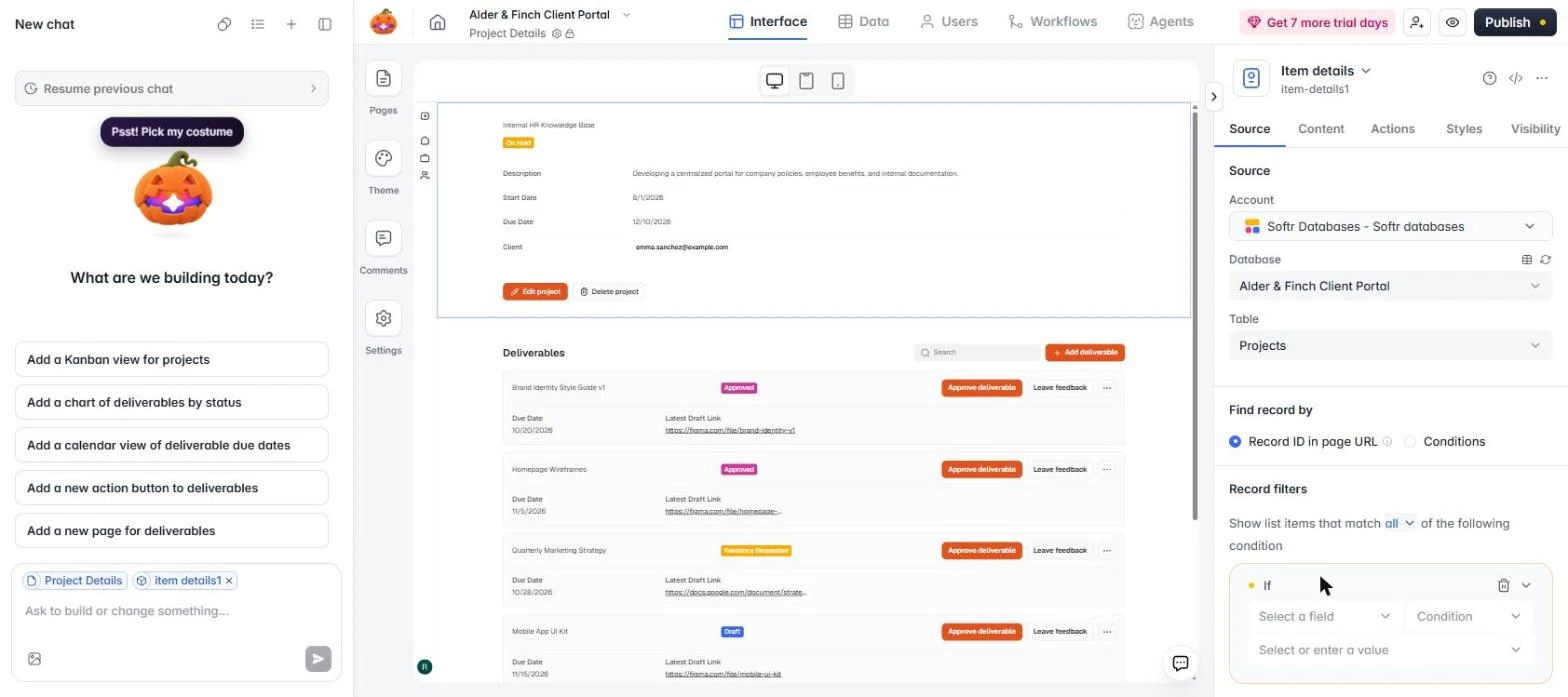
- Scroll to Record filters. Scroll down the right panel to Record filters.
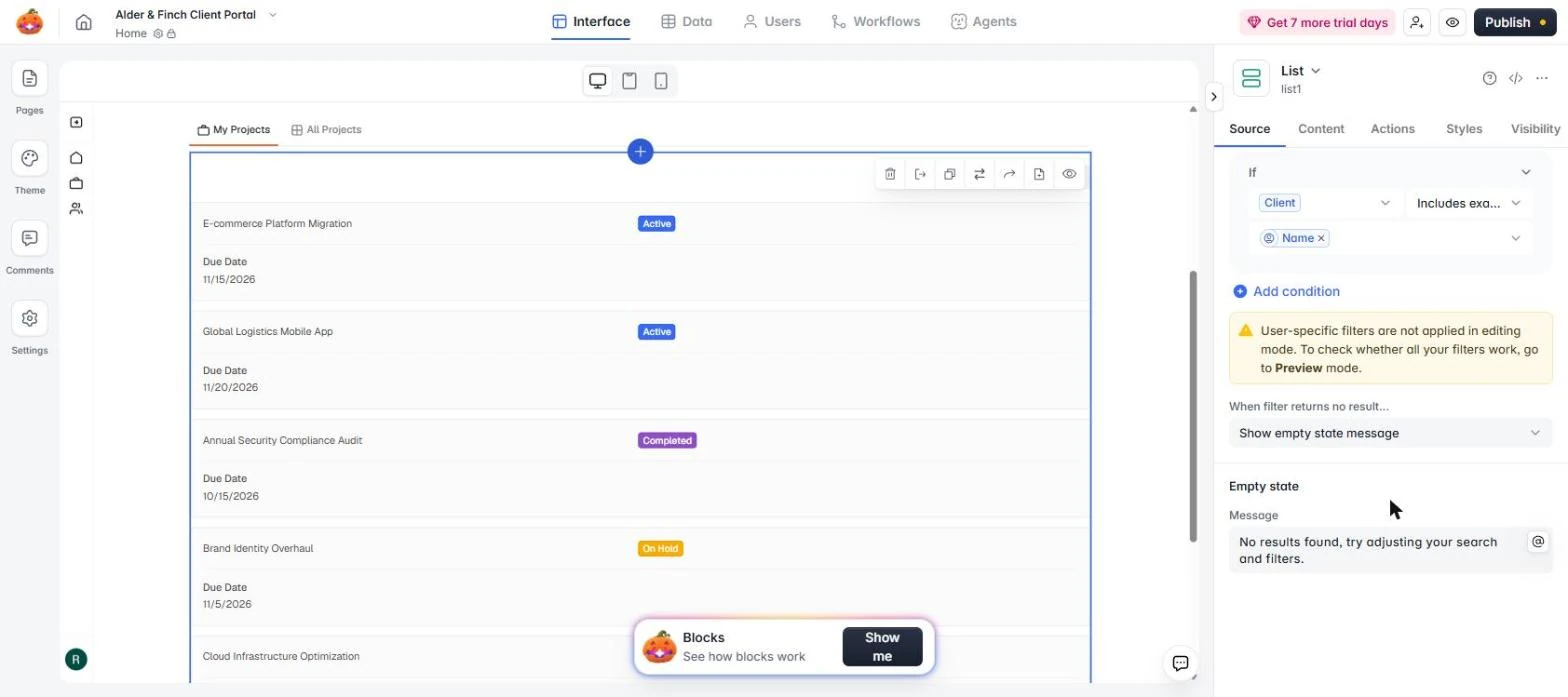
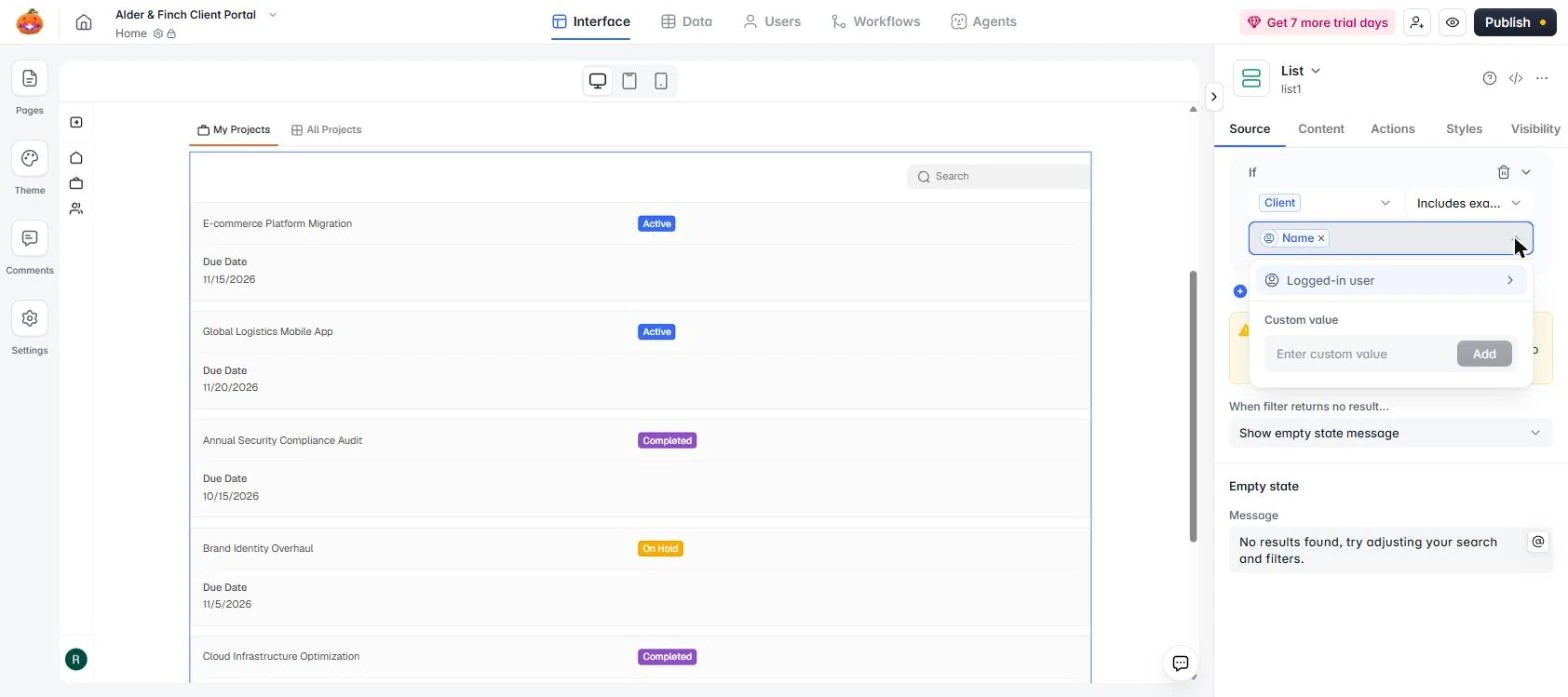
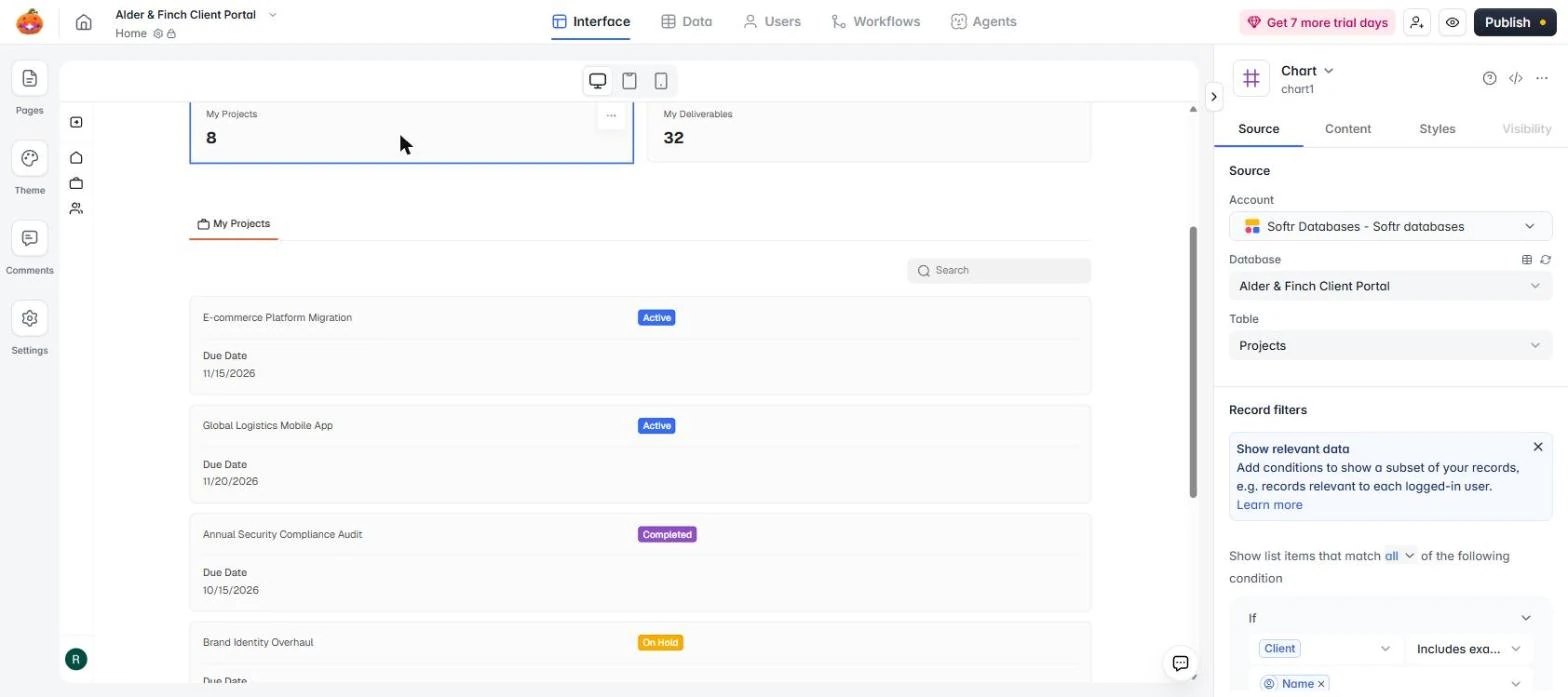
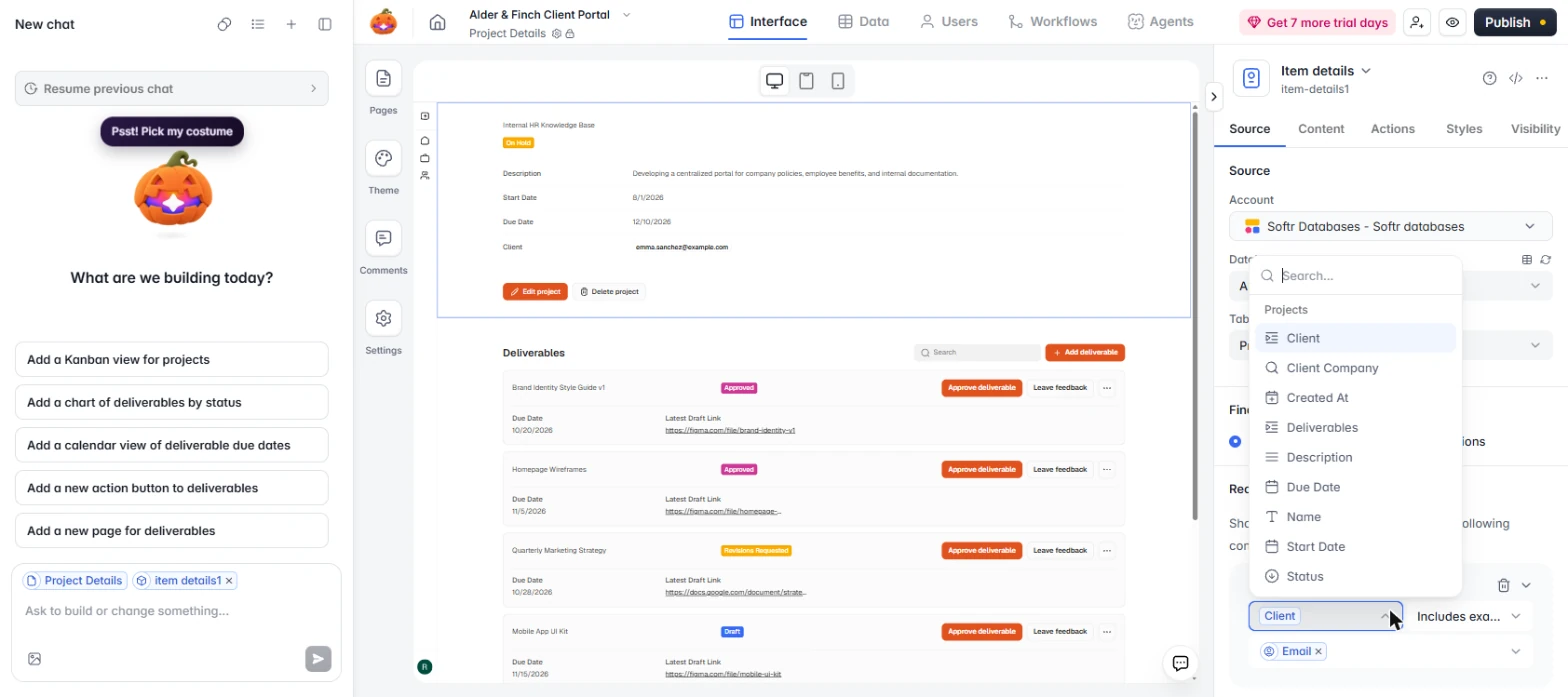
- See why it found nothing. The filter says Client includes exactly the logged-in user's Name. But the Client column holds emails, as you saw. A name never equals an email, so nothing matches. And note the yellow box: user filters only run in Preview. Click the Name box.
Here is the bug. It compares the client column to the user's name, but that column holds emails. So nothing matches.
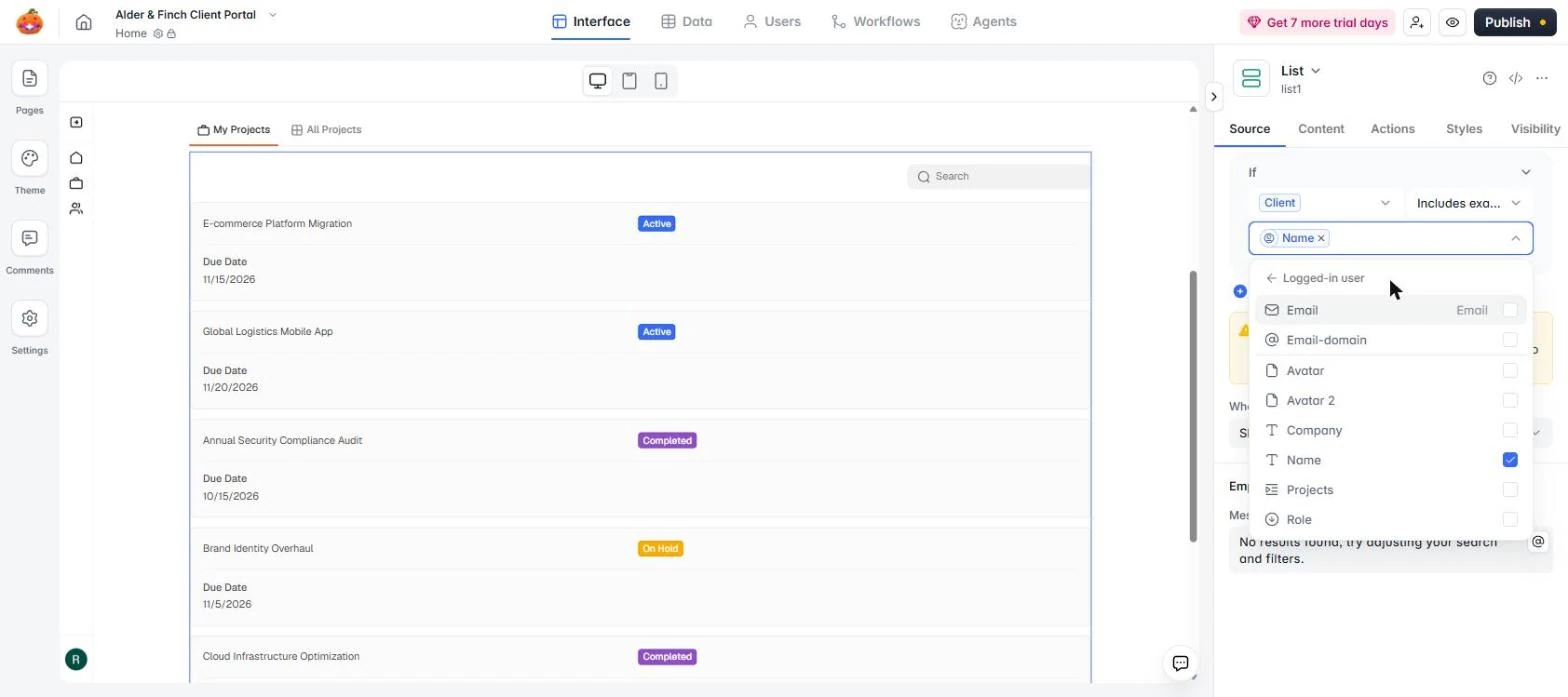
- Open the user fields. Click Logged-in user.
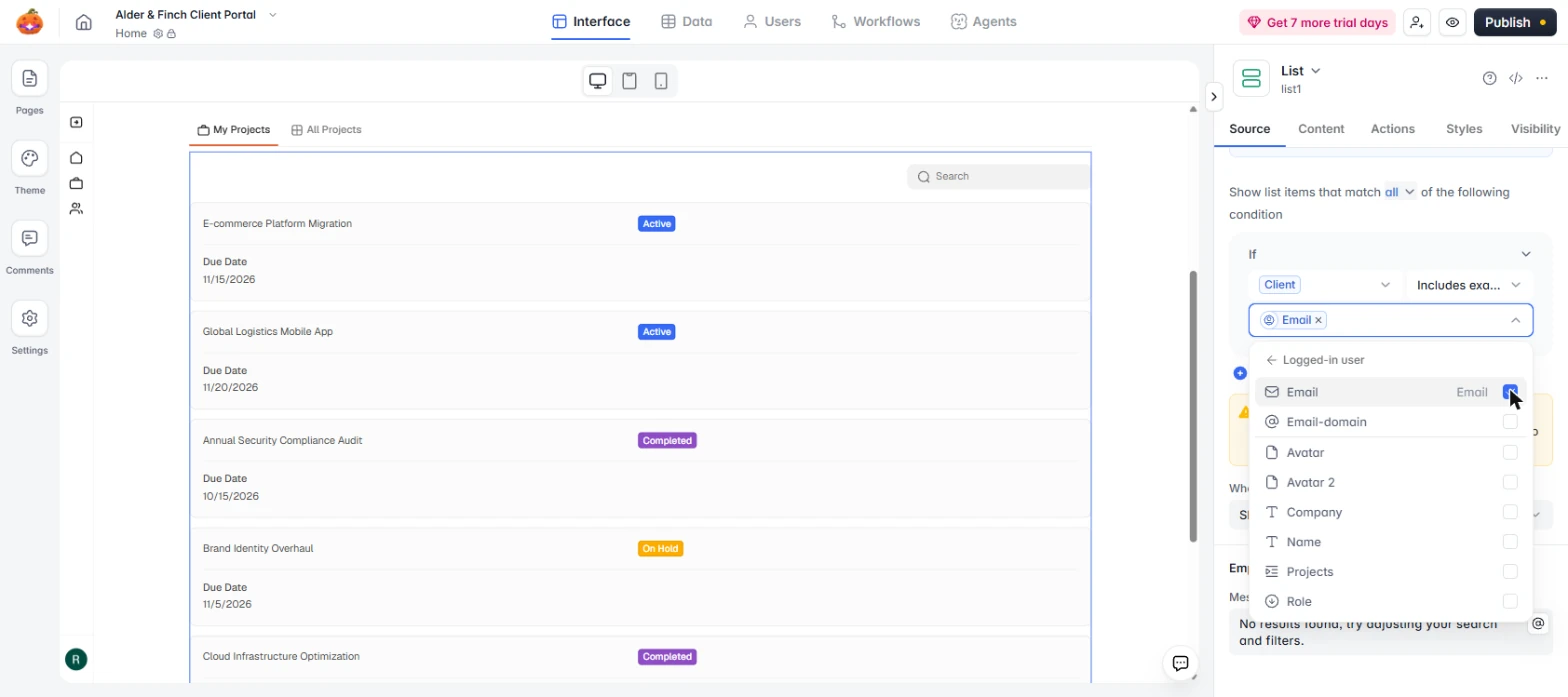
- Match on Email. Untick Name, then tick Email. The value now reads Email.
Untick Name, and tick Email.
- Go to the All Projects tab. Now the leak. Click All Projects.
Now the leak.
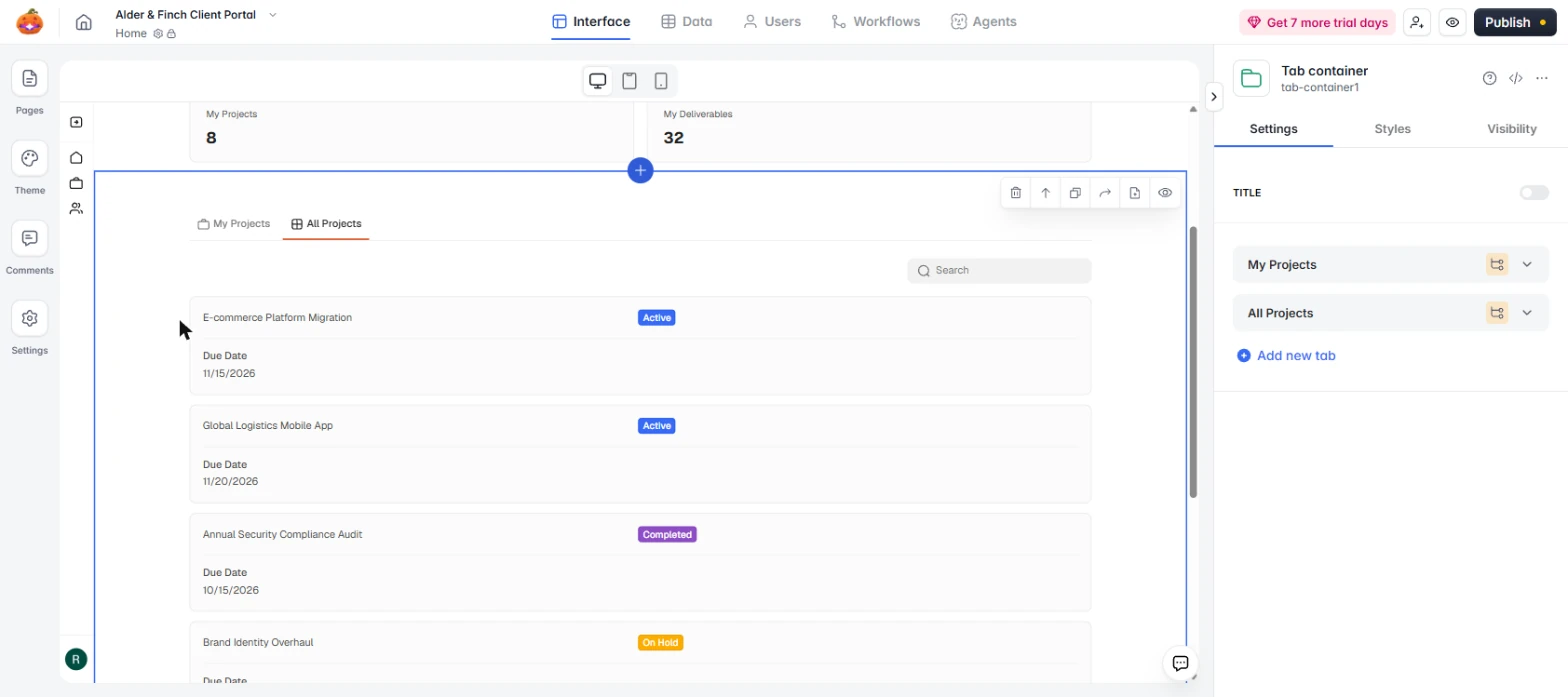
- Select the tab container. Click the empty space to the left of the list. The right panel changes to Tab container.
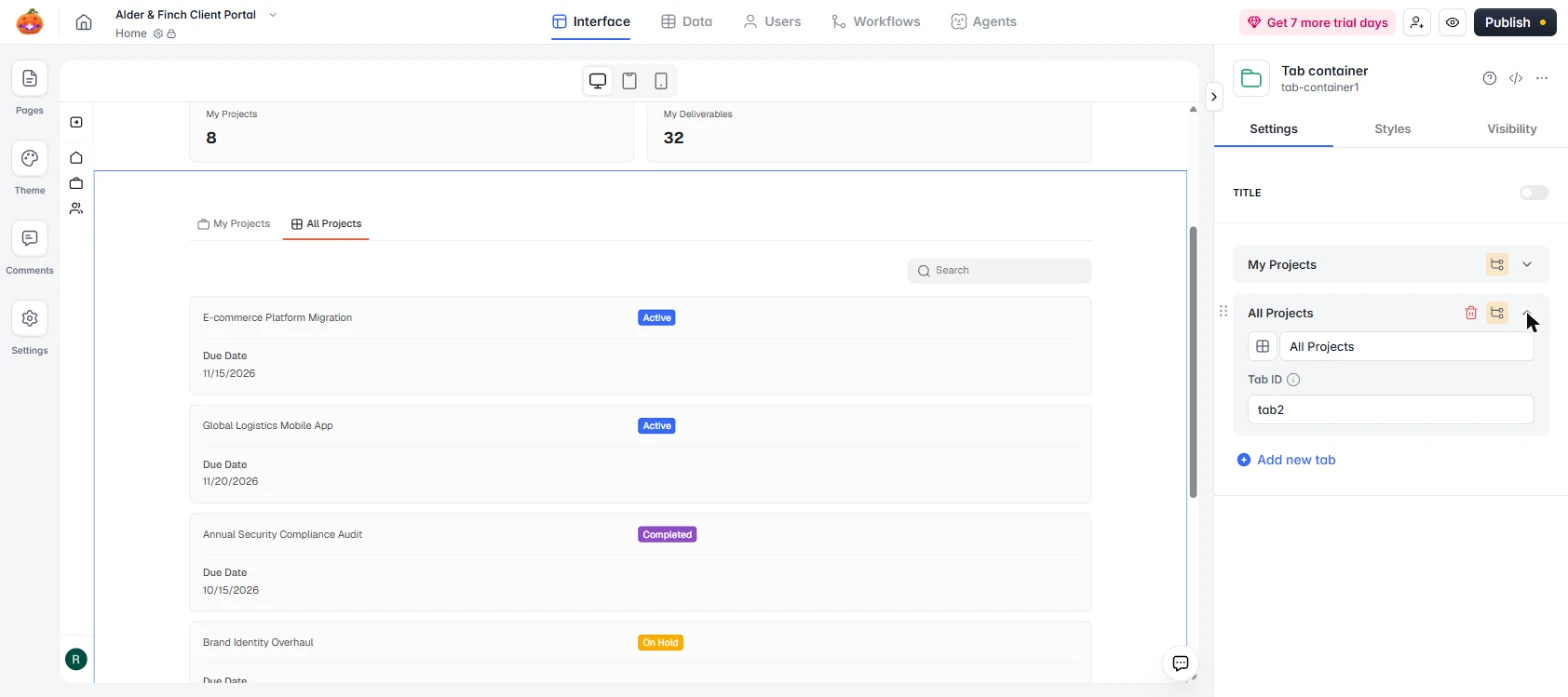
- Open the All Projects tab settings. The orange icons mean each tab was limited to a group, and those groups are off. Click the arrow on All Projects.
Those orange icons were group limits, and the groups are off.
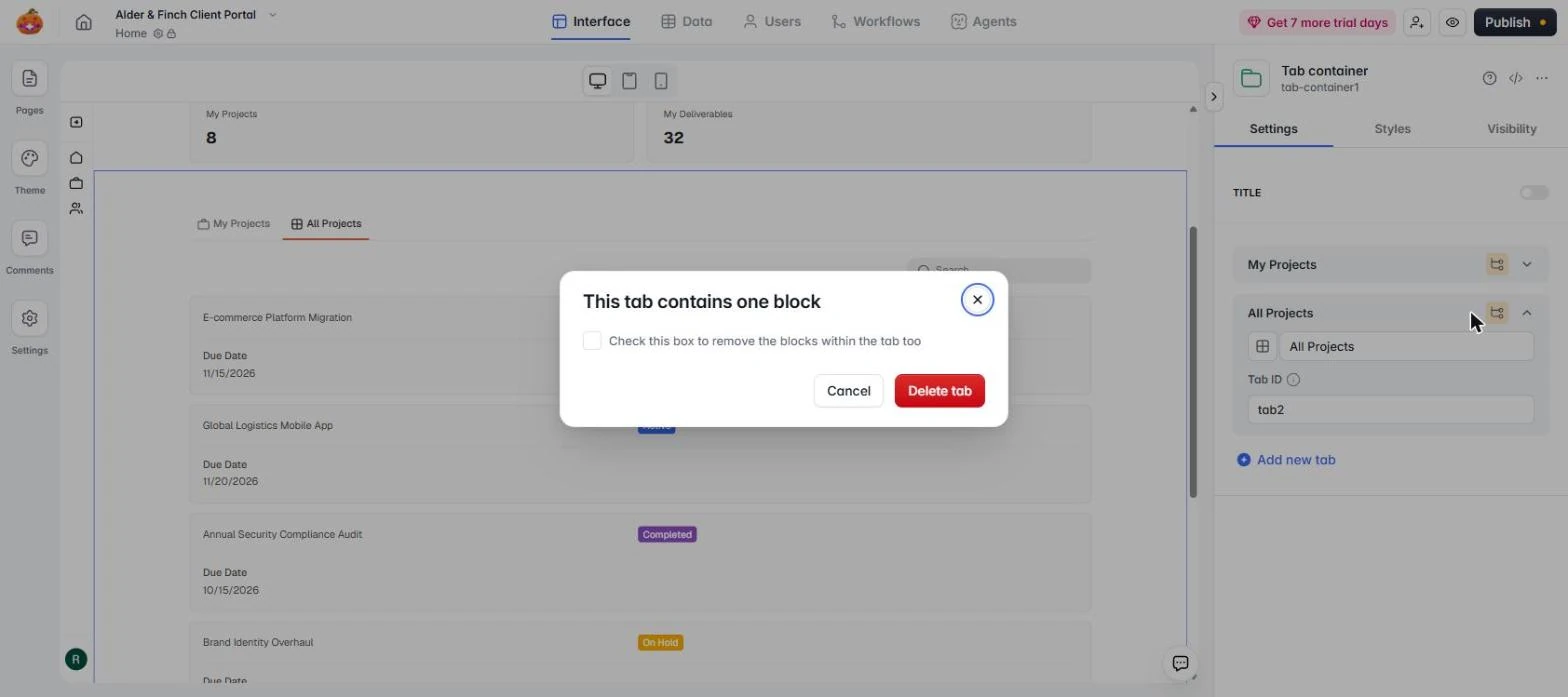
- Delete the tab. Your staff can use the Data tab to see every project, so clients don't need this tab. Click the red trash icon.
Staff can use the Data tab, so delete this one.
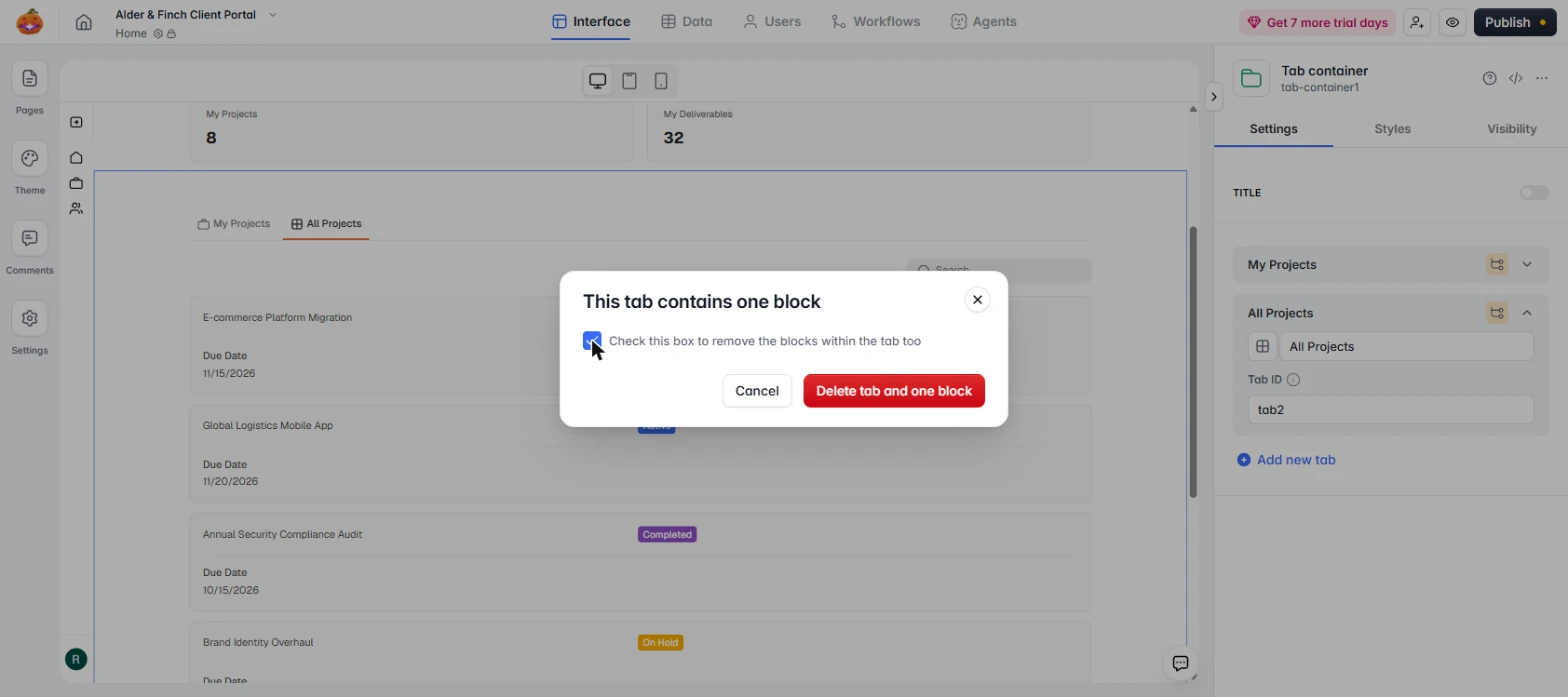
- Remove the list too. Tick this box, or the list moves onto the page and keeps showing every project.
Tick this box, or the list stays on the page.
- Confirm. Click Delete tab and one block.
Confirm the delete.
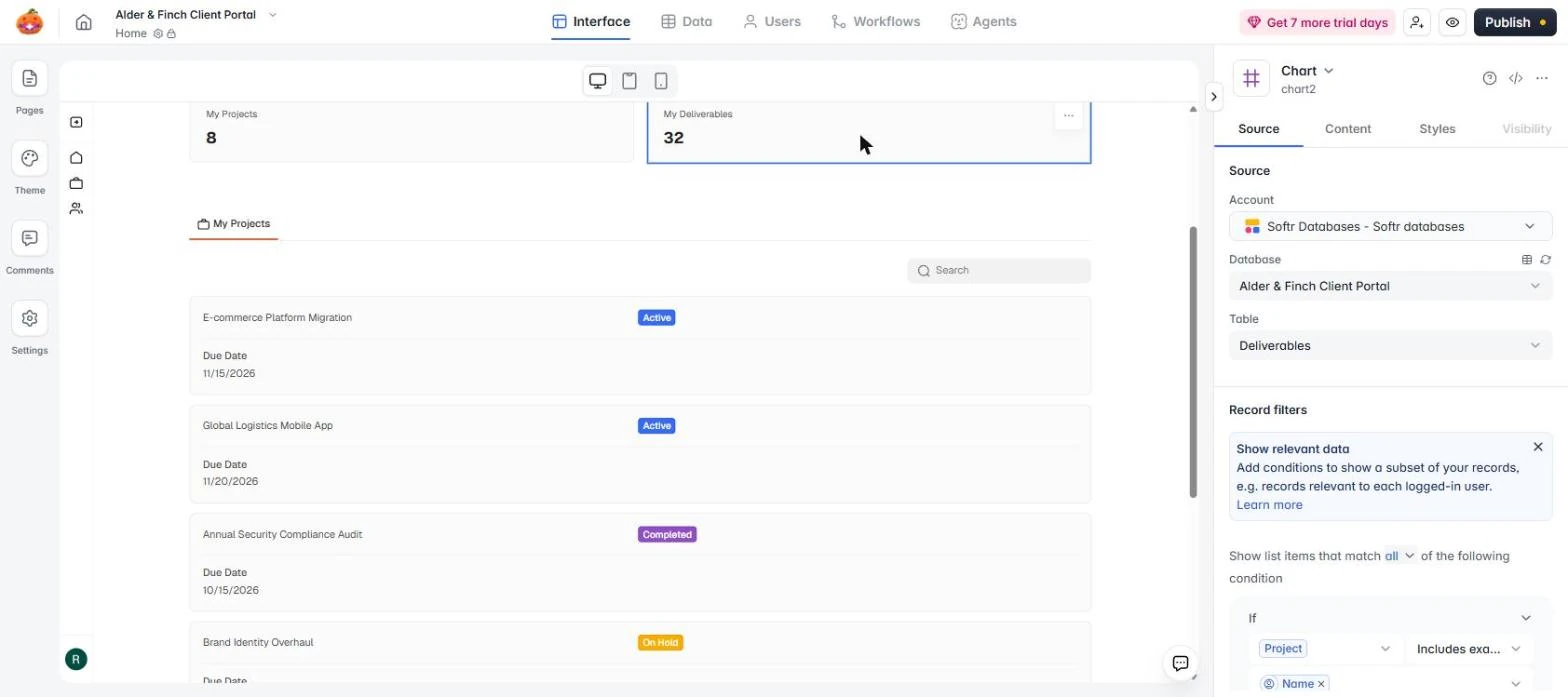
- Fix the count the same way. Click the My Projects count at the top. It has the same bug. In Record filters, change Name to Email exactly as you just did. Then click the My Deliverables count.
The count has the same bug. Change Name to Email, the same way.
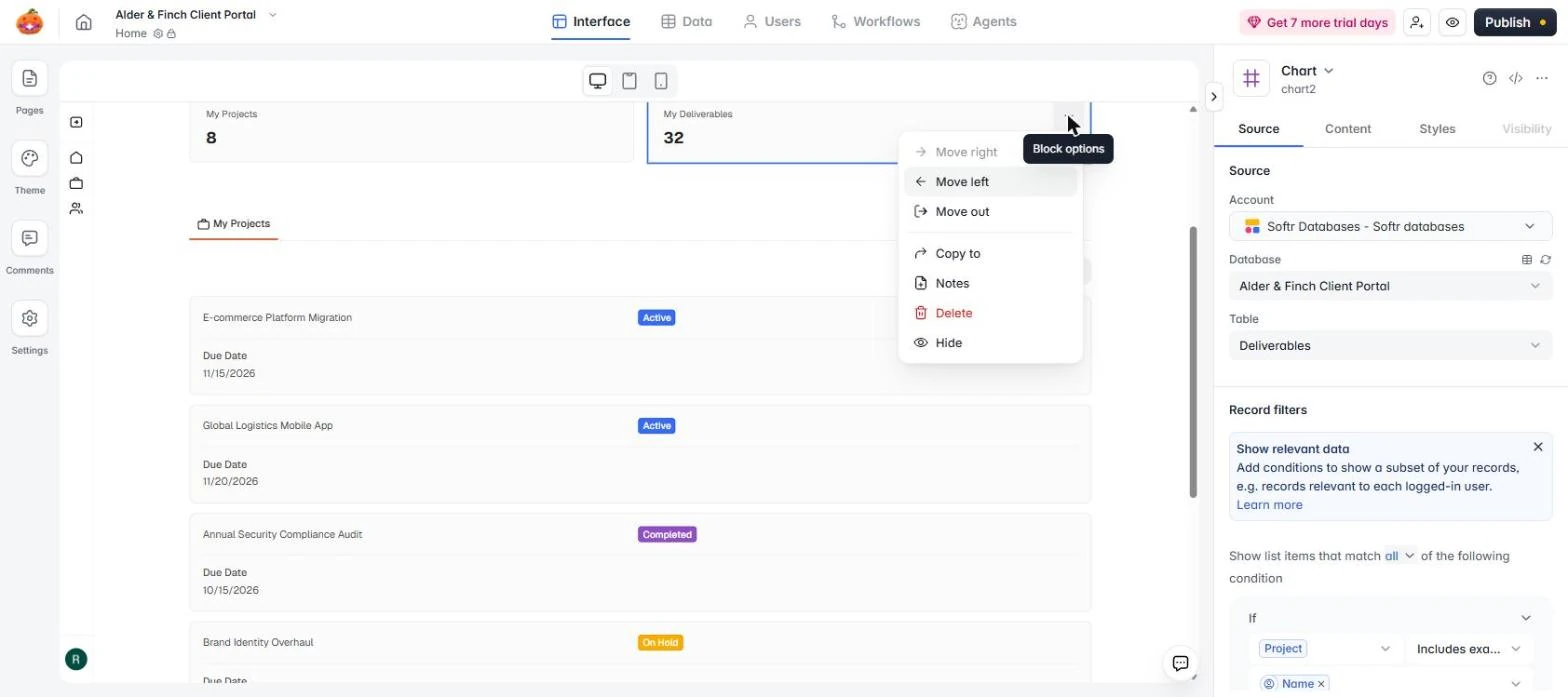
- Remove the second count. This one compares a Project to the user's name, which can never match. Each project page already lists its deliverables, so the simple fix is to remove it. Click the three dots.
This one can never match. The project page already lists deliverables, so remove it.
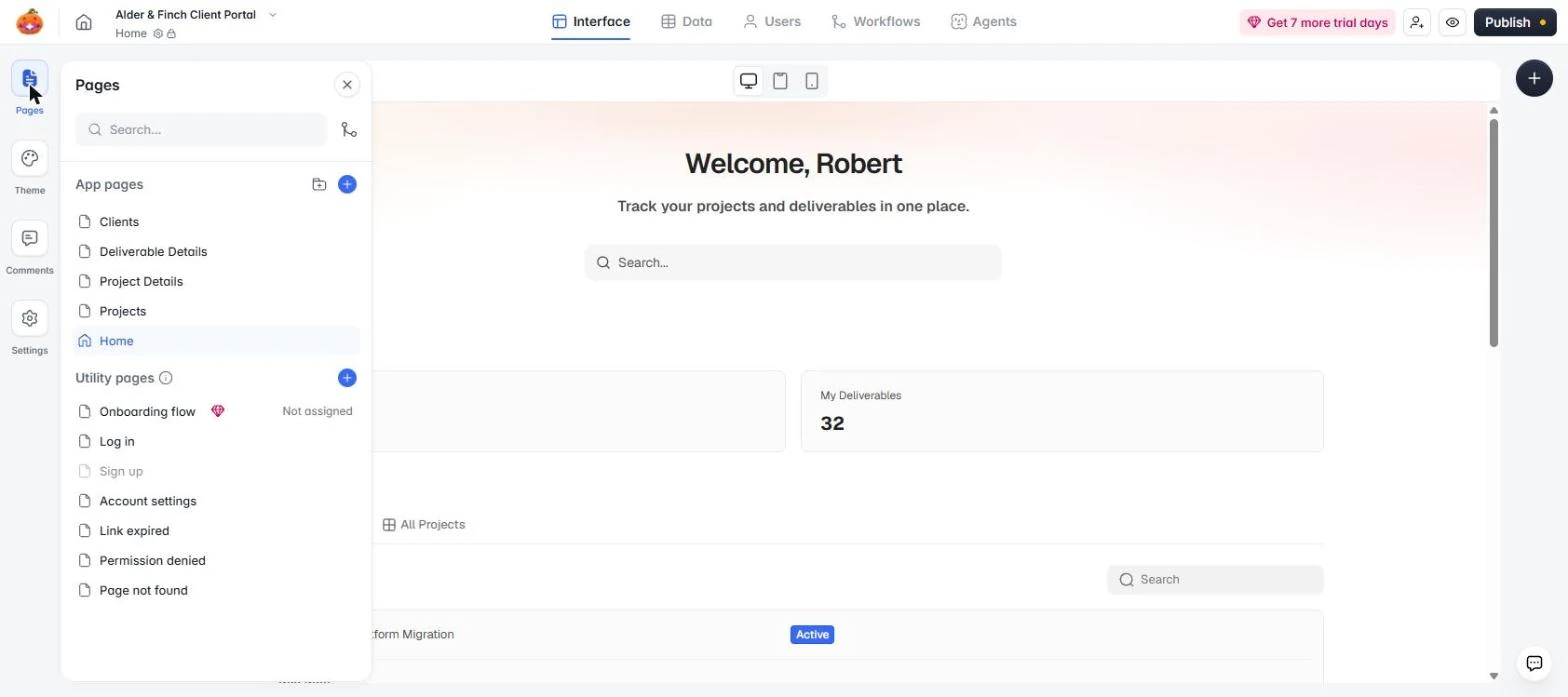
- Delete it. Click Delete, then Delete again. Next open Pages, on the left.
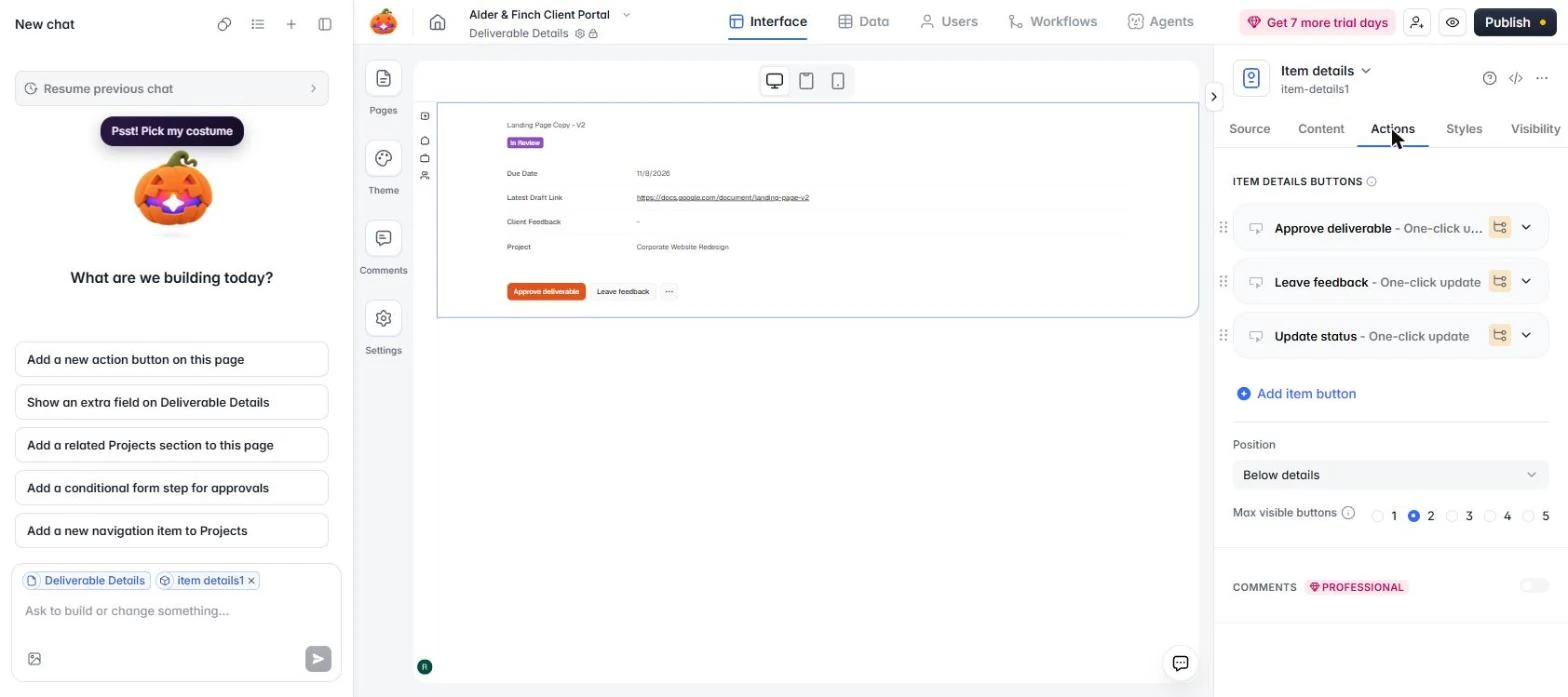
- Open Deliverable Details. Earlier, Emma would have had no way to approve anything. Click Deliverable Details, click the details block, and open its Actions tab.
Now the approve button.
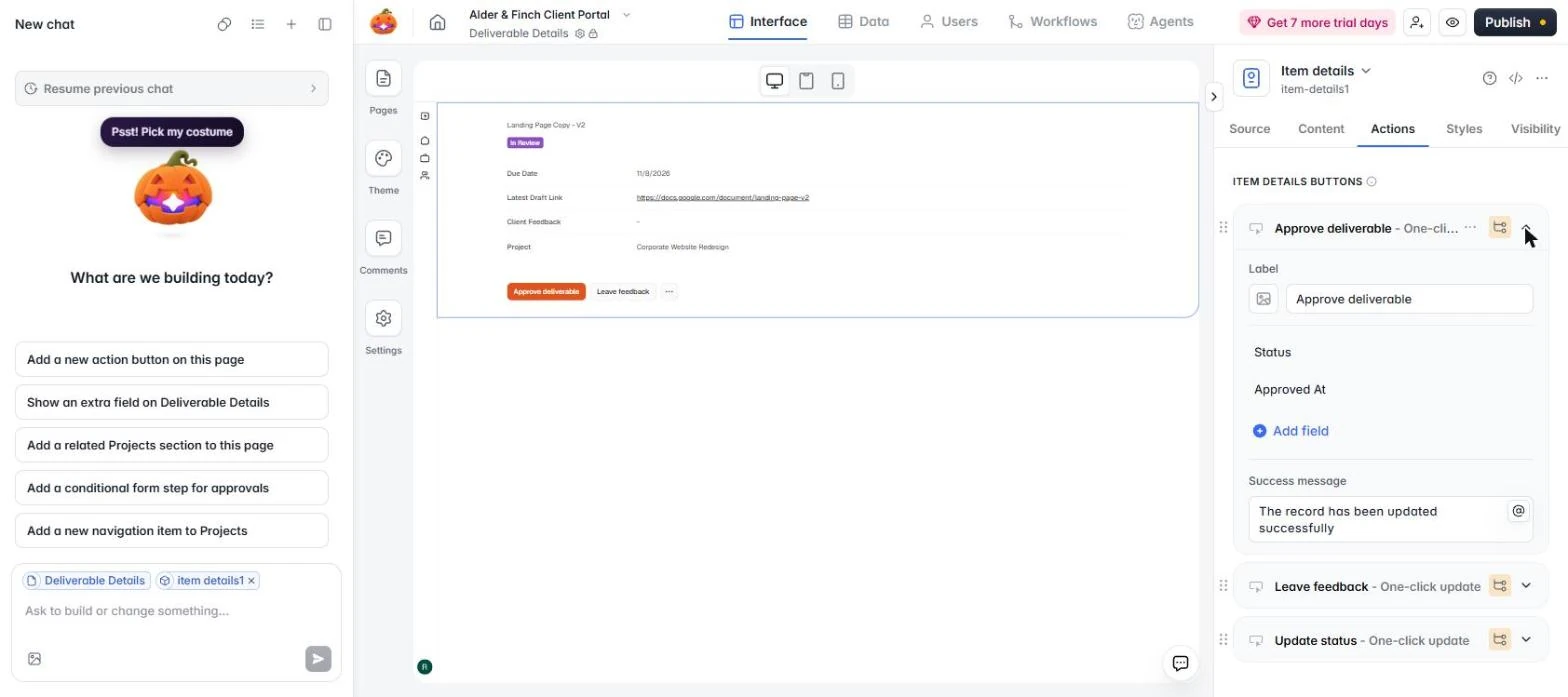
- Open Approve deliverable. The orange icon again. Click the arrow on Approve deliverable.
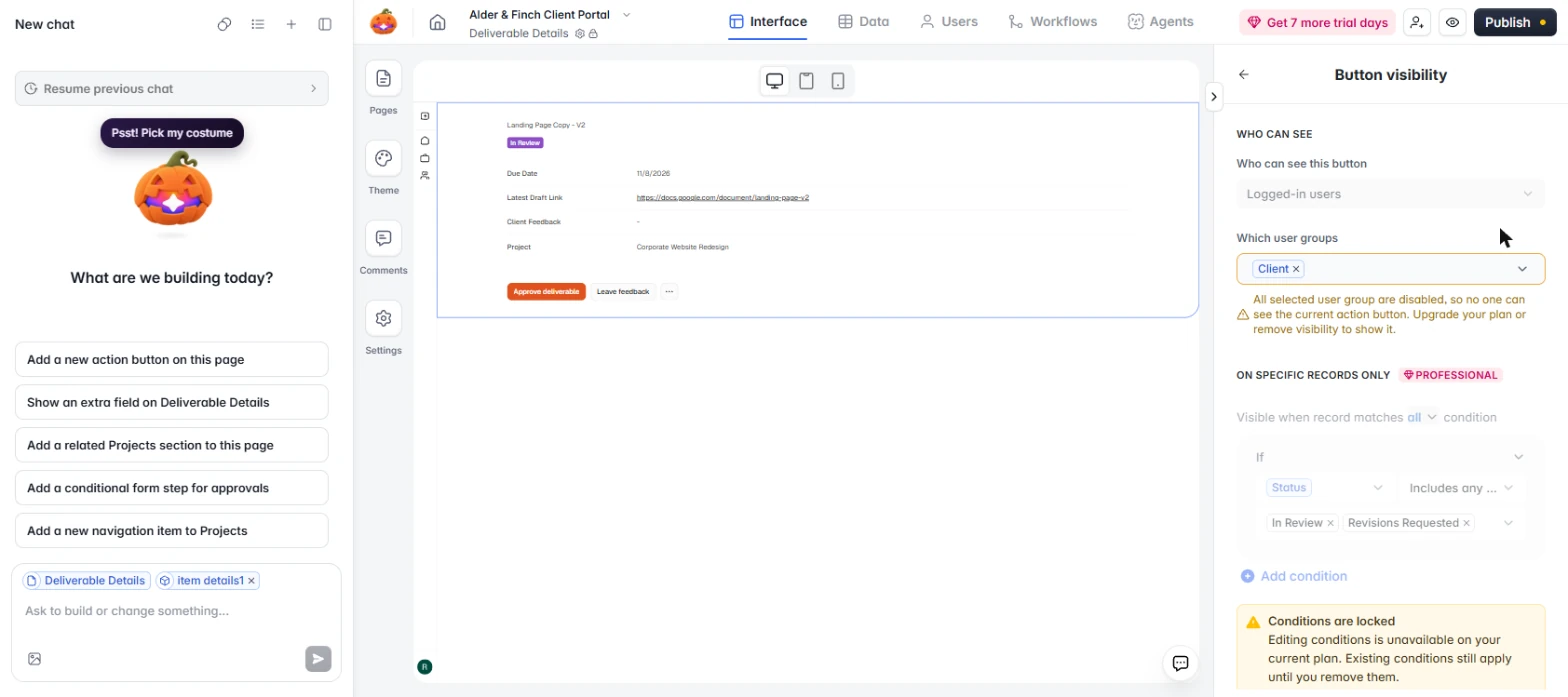
- Open its visibility. Click the orange icon.
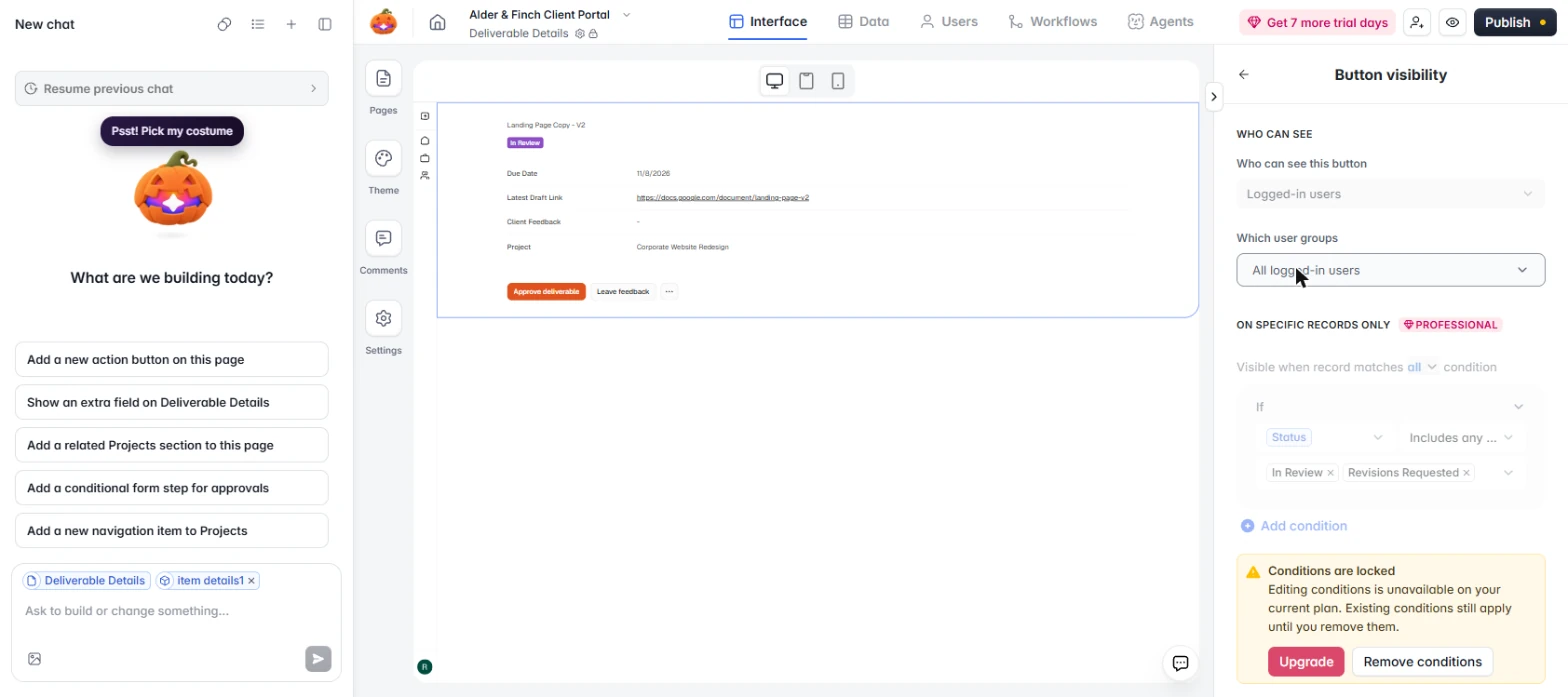
- Remove the switched-off group. Softr spells it out: *"All selected user group are disabled, so no one can see the current action button. Upgrade your plan or remove visibility to show it."* So on Free, nobody could approve. Click the x on Client. Conditions show as locked on this plan, but Softr says existing ones still apply.
Softr spells it out. With that group off, no one sees this button.
- Do the same for Leave feedback. It now says All logged-in users. Click the back arrow and do the same for Leave feedback. Leave Update status alone, so clients can't change it. Then open the Project Details page from Pages, and click the top block.
Now it is all logged-in users. Do the same for Leave feedback, and leave Update status alone.
- Add a filter to the project page. One more gap. This page finds a project from the record ID in the link, so a client with another client's link could open it. We tested that, and they could. Click Add extra filter.
One more gap. This page trusts the link, so a client with someone else's link could open it. We tested it, and they could. Add a filter.
- Limit it to the logged-in client. Choose Client, then Includes exactly, then Logged-in user, then Email. Now the record must also belong to whoever is logged in. Then click the eye icon to preview.
5. Test it again as the client
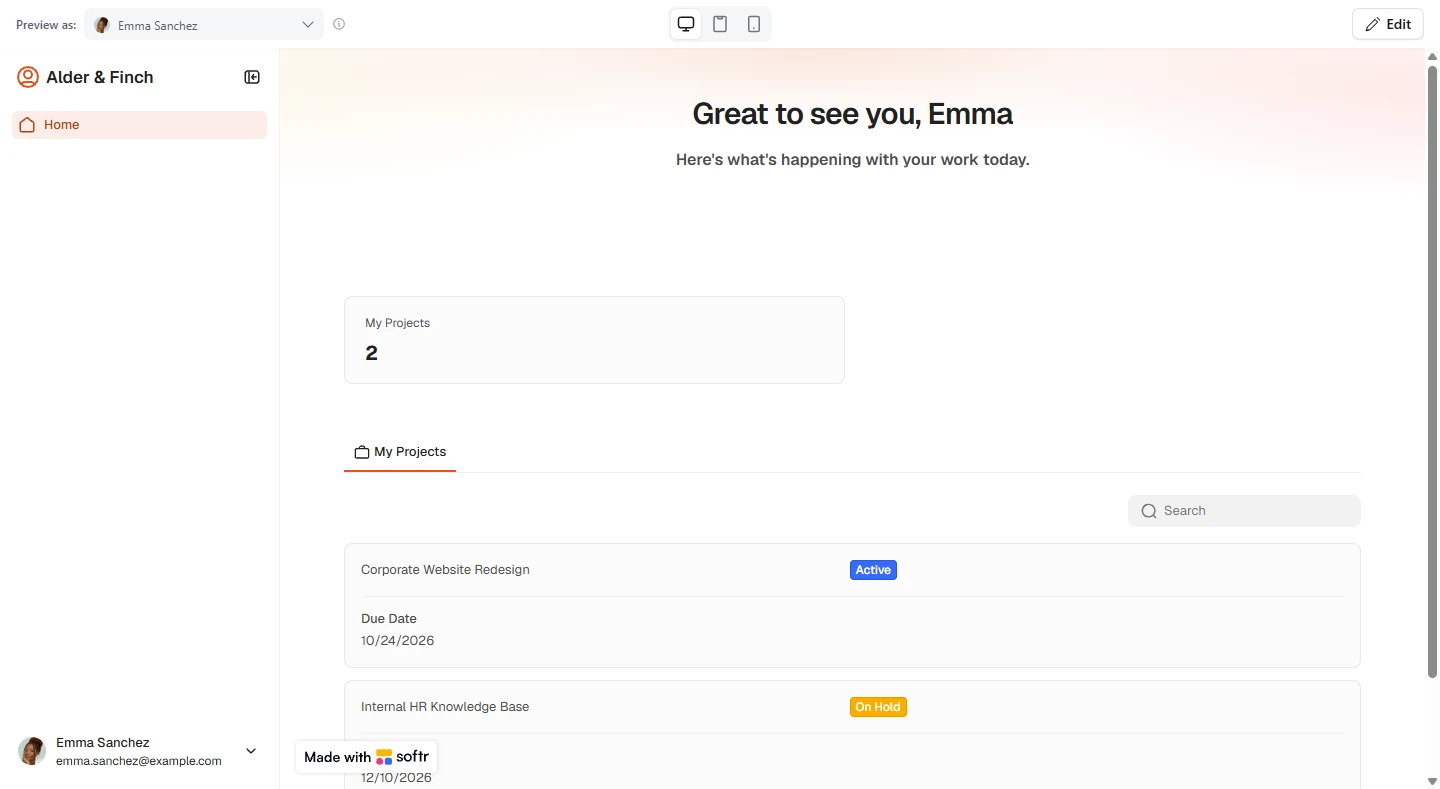
- Preview as Emma again. Click the eye icon. If you see Your app has been updated, click Refresh. Your Preview as choice stays on Emma.
Preview again. If it says the app was updated, click Refresh.
- Check the count. My Projects says 2, which matches the table. The All Projects tab is gone. Click the count.
Two projects, which matches the table. And All Projects is gone.
- Open her project. Click Corporate Website Redesign.
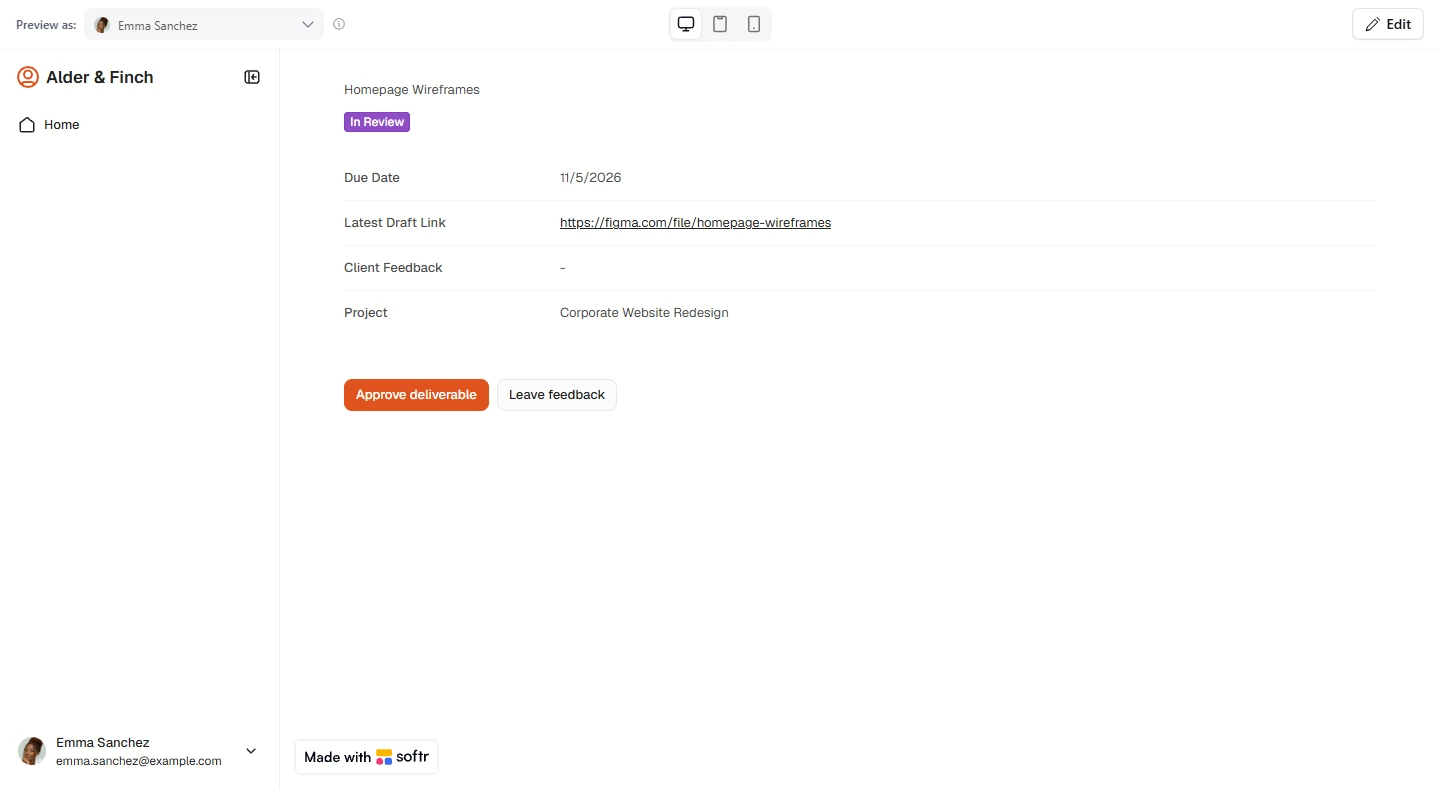
- Open a deliverable. Her deliverables show with status, due date and the draft link. Click Homepage Wireframes.
Her deliverables show with status, date and draft link.
- Approve it. The buttons are back, on the Free plan. These are made-up records, so click Approve deliverable.
The buttons are back, on the free plan.
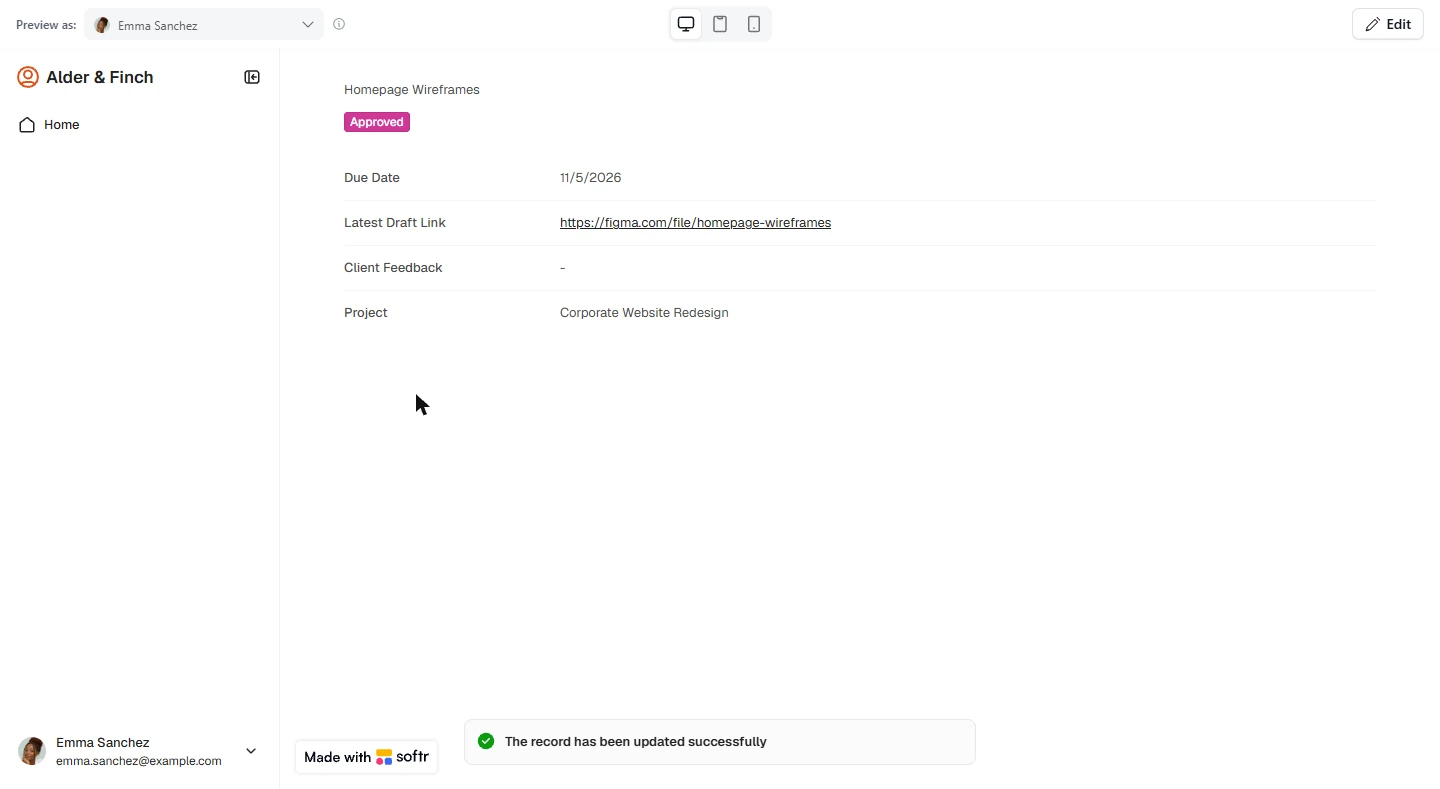
- Check it saved. The status changed from In Review to Approved. That update is what replaces the email thread. Click the status. Next, paste the link to one of Alexander's projects while still previewing as Emma.
Approved. That replaces the email thread. Last check.
- Try the other client's link. Before our filter, this link showed Alexander's whole project. Now the project is gone and its deliverables never load. Do this check on each page that opens a record. We closed the project page; do the same on Deliverable Details, using a field that ties a deliverable to its client. We tested all of this in Preview. Softr's published app and real login were not tested, so try them with a test client before you invite real ones.
Alexander's project no longer opens. Run this same check on every page that opens a record, and try the published app with a test client, before you invite real ones.
Screenshots
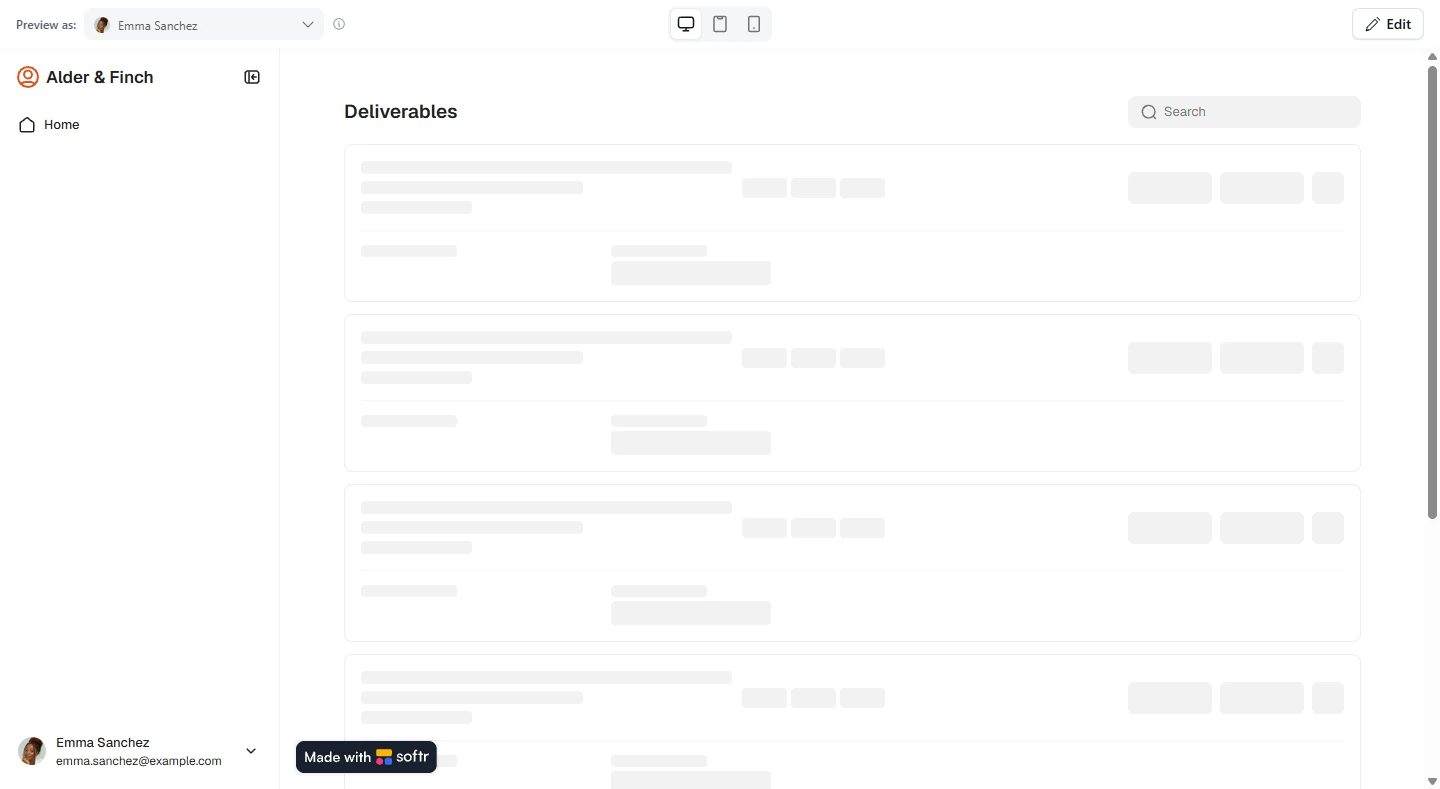
More in Business Automations
 AI Receipt Extractor: Receipts to Google Sheets with n8n
Drop a photo of a receipt into an n8n chat. An AI agent reads it, pulls out the date, vendor and amount, picks a category, and adds a row to Google Sheets.
Free · Live ~12 min Intermediate
 n8n AI Email Responder: Draft Gmail Replies Automatically
Build an n8n agent that watches your Gmail, reads each new customer email, and writes a reply as a draft in the same thread, ready for you to check and send.
Free · Live ~12 min Intermediate
 Daily Job Alerts: Email Each Tech Their Jobs from Google Sheets with n8n
Every morning at 7, n8n reads a plumbing company's jobs sheet, skips anything not assigned yet, and emails each job to the tech it's assigned to — customer, address…
Free · Live ~10 min Intermediate
 Gmail AI Triage: Auto-Label Every Email and Draft Replies
Build an n8n workflow that reads each new email, sorts it as a lead, a client or an invoice with a Text Classifier, adds the matching Gmail label, and drafts a reply to…
Free · Live ~18 min Advanced
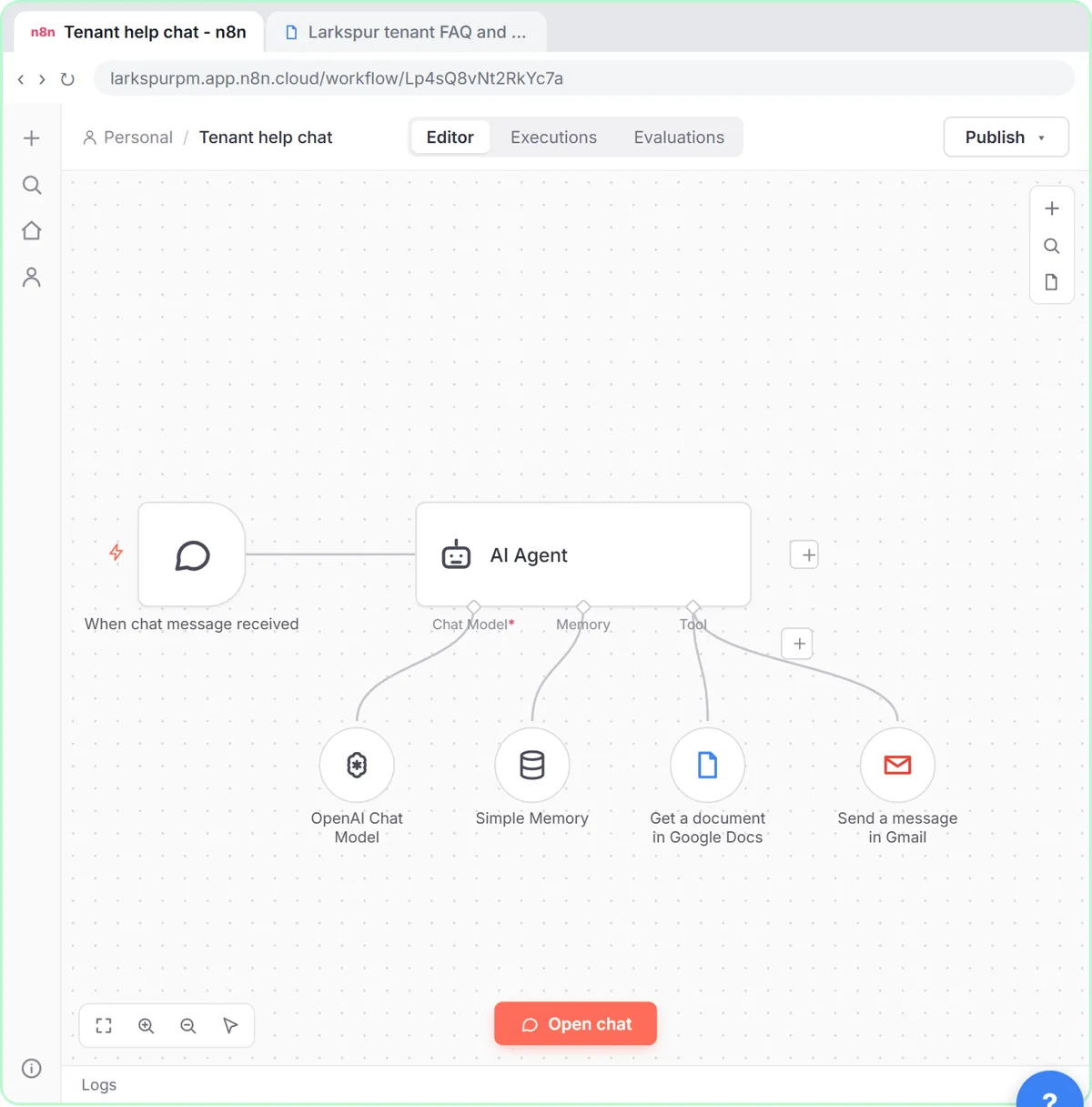 A Support Agent That Answers from Your Own Docs
Turn an n8n chat agent into a support agent that answers only from your policies in a Google Doc, refuses what it should, and hands off to a person by email.
Free · Live ~13 min Advanced
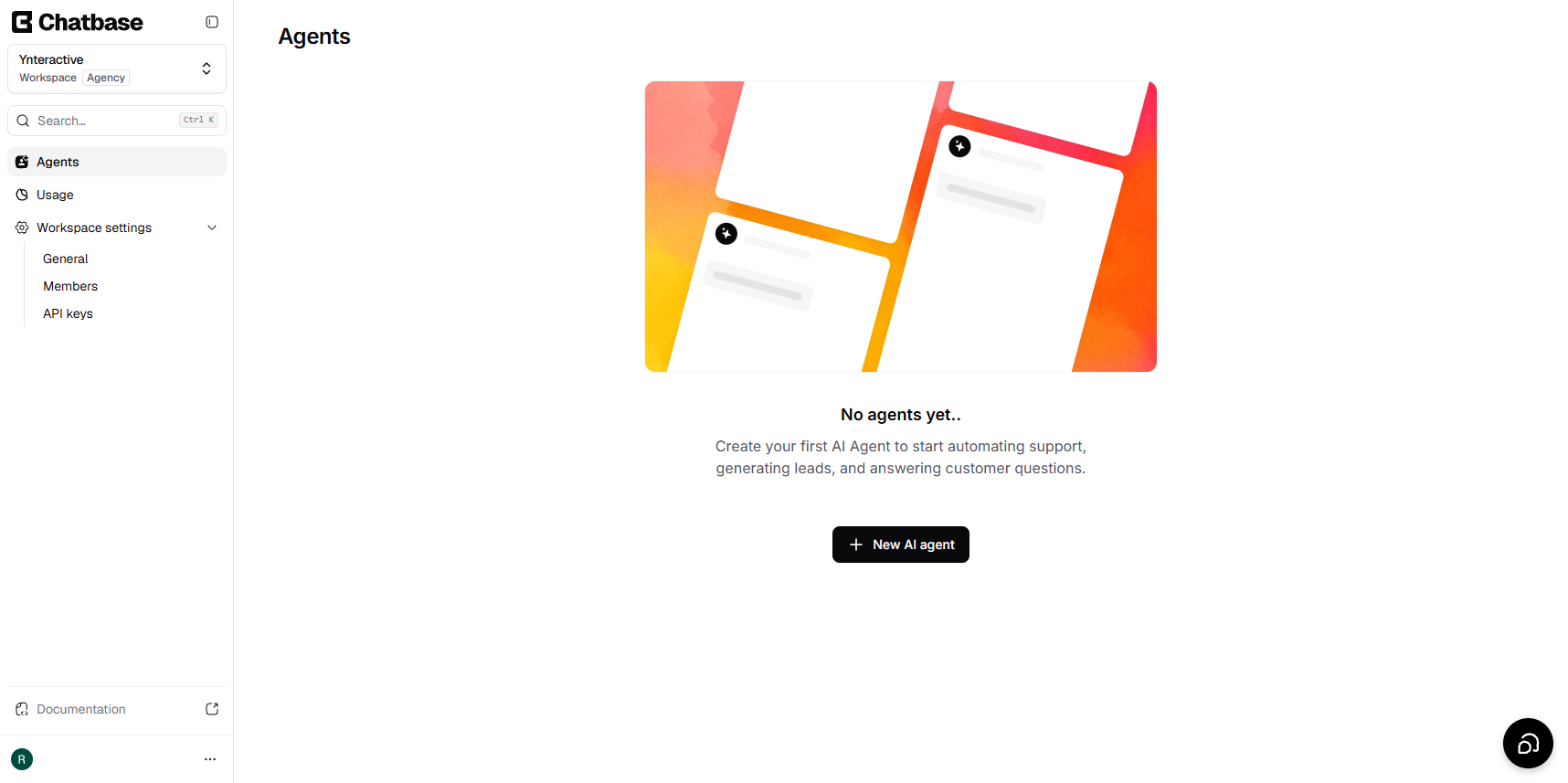 Chatbase: Answer Customer FAQs with an AI Agent
A business case for a small firm that answers the same customer questions every week: build a Chatbase AI agent on your FAQ in the real app, make it say when it does…
Free · Live ~15 min Beginner
All 26 modules in Business Automations
Terms in this lesson
Plain-English definitions, each with an example from a free lesson.