Updated . Built against the tool’s current screens and checked step by step. How we check this lesson
Stop leaving client testimonials in a folder. Use PopNow's free video editor to trim a recording to the one good take, add captions and export a finished clip, all on 0 credits.
At a glance
| Question | Answer |
|---|---|
| What you build | Stop leaving client testimonials in a folder. Use PopNow's free video editor to trim a recording to the one good take, add captions and export a finished clip, all on 0 credits. |
| Tools | PopNow |
| Time | About 7 minutes, 19 steps in 4 parts |
| Level | Beginner, no coding needed |
| Cost | Free |
| Ways to learn it | Practice it step by step |
The 4 parts, in short
- Clear the sample project: Open the menu, Choose Start over, Clear the timeline, Add the clip.
- Trim to the good take: Go to where Maya stops, Trim the end, Go to where Maya starts, Trim the start.
- Add captions: Find the captions button, Open Auto captions, Check the cost before you click, Add a subtitle, and 4 more steps.
- Export it: Open the export, Pick the shape and start, Download it and watch it.
Start here first: AI Receipt Extractor: Receipts to Google Sheets with n8n (module 1 of Business Automations)
In the course: Part 9 · n8n Automation Toolkit (Module 111 of the full course)
Part of: AI Apps Worth Knowing (step 105 of 111). Next up: Better Analyst: Check a Donor Export Before the Board Sees It
What you'll build
Harbor Lane is a made-up small marketing agency. A client recorded a testimonial with a false start and a chat at the end, and it has been sitting in a folder because nobody has time to edit it. In this lesson you use PopNow's free video editor to cut it to 10 seconds, add captions and export it, and you learn which buttons cost credits.
You cut a raw recording to the one good take, captioned it by hand and exported it without spending a credit. Before you post a real one, get the client's OK, watch it all the way through, and check every name and number against the recording.
- Tools: PopNow
- Time: about 7 minutes, 19 steps in 4 chapters
- Level: beginner, no coding needed
- Price: free
Practice first, then build it for real
Practice copy built from real PopNow screens (popnow.ai/editor), captured 31 October 2026 on an account with 0 credits. Nothing here touches a PopNow account. The agency, the client and the practice clip are made up. To build it for real you need your own PopNow account, and some services charge once you use them for real work, so check each tool's current pricing.
Try it yourself, free
Reading the steps is a start. Doing them is how it sticks. The interactive module walks you through every click in a practice copy of PopNow, checks each step, and never touches your real accounts.
Start “PopNow: Cut a Client Testimonial Into a Captioned Clip for Free”Step by step: PopNow: Cut a Client Testimonial Into a Captioned Clip for Free
All 19 steps of the interactive module, in order. In the module you watch each one, then do it yourself in a practice copy that checks your work.
1. Clear the sample project
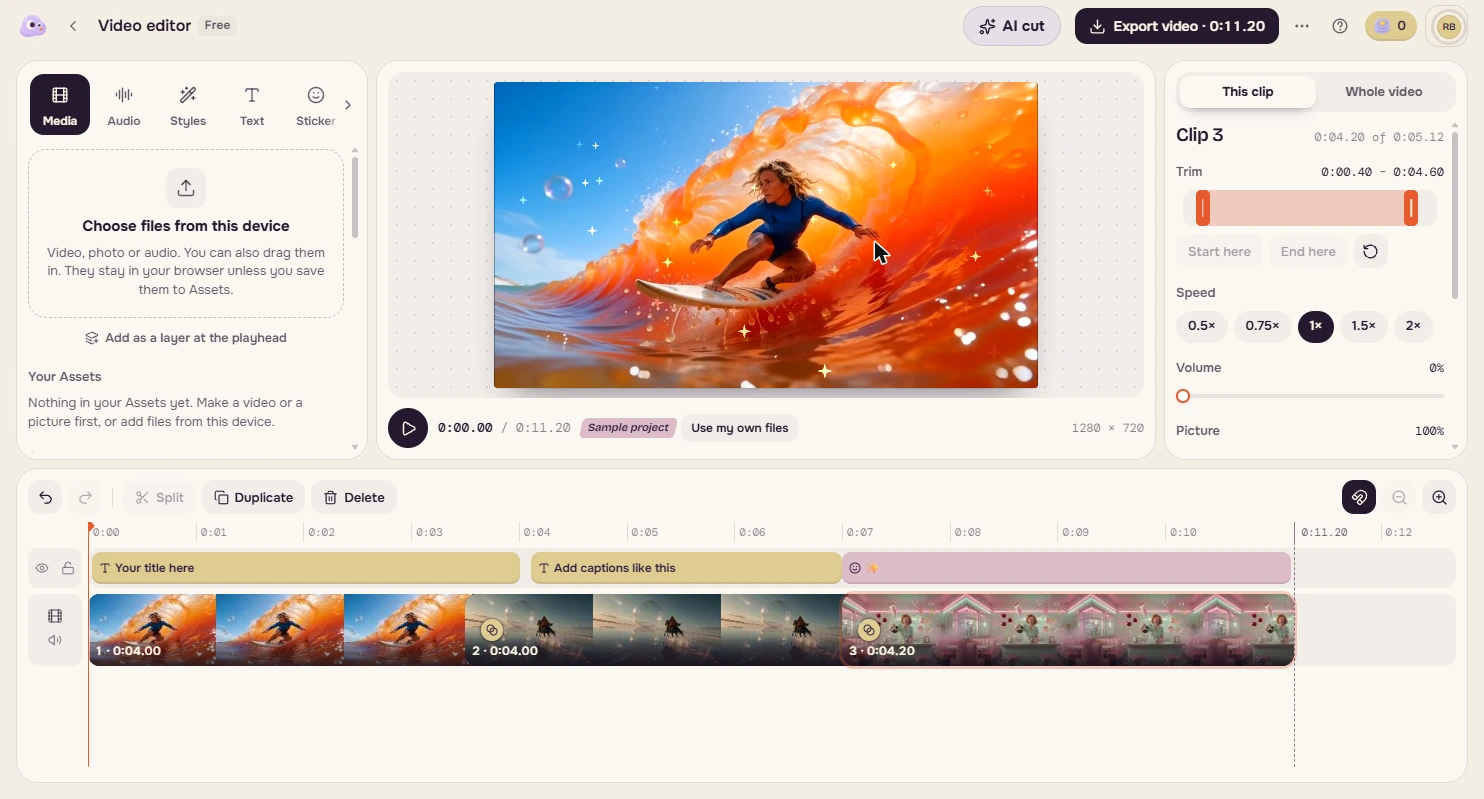
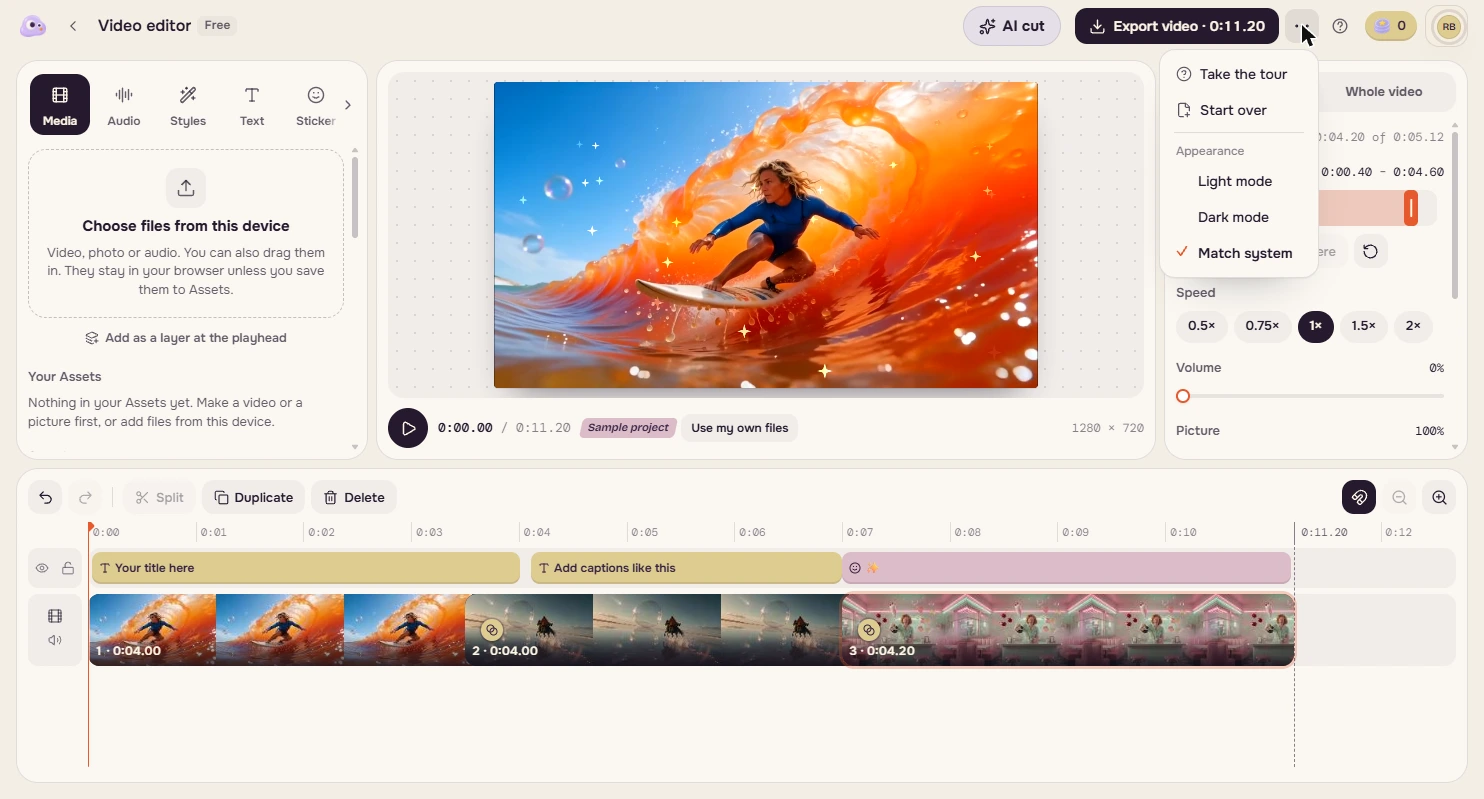
- Open the menu. You do marketing at Harbor Lane, a made-up small agency. A client recorded a testimonial on a call. It is 19 seconds, with a false start and a chat at the end, and sitting in a folder it wins you nothing. Open popnow.ai/editor. If a tour or a cookie notice pops up, close it. PopNow opens with a sample project. Click the three dots at the top.
A client recorded a testimonial, with a false start and a chat at the end. In a folder, it wins you nothing. It starts with a sample.
- Choose Start over. Click Start over.
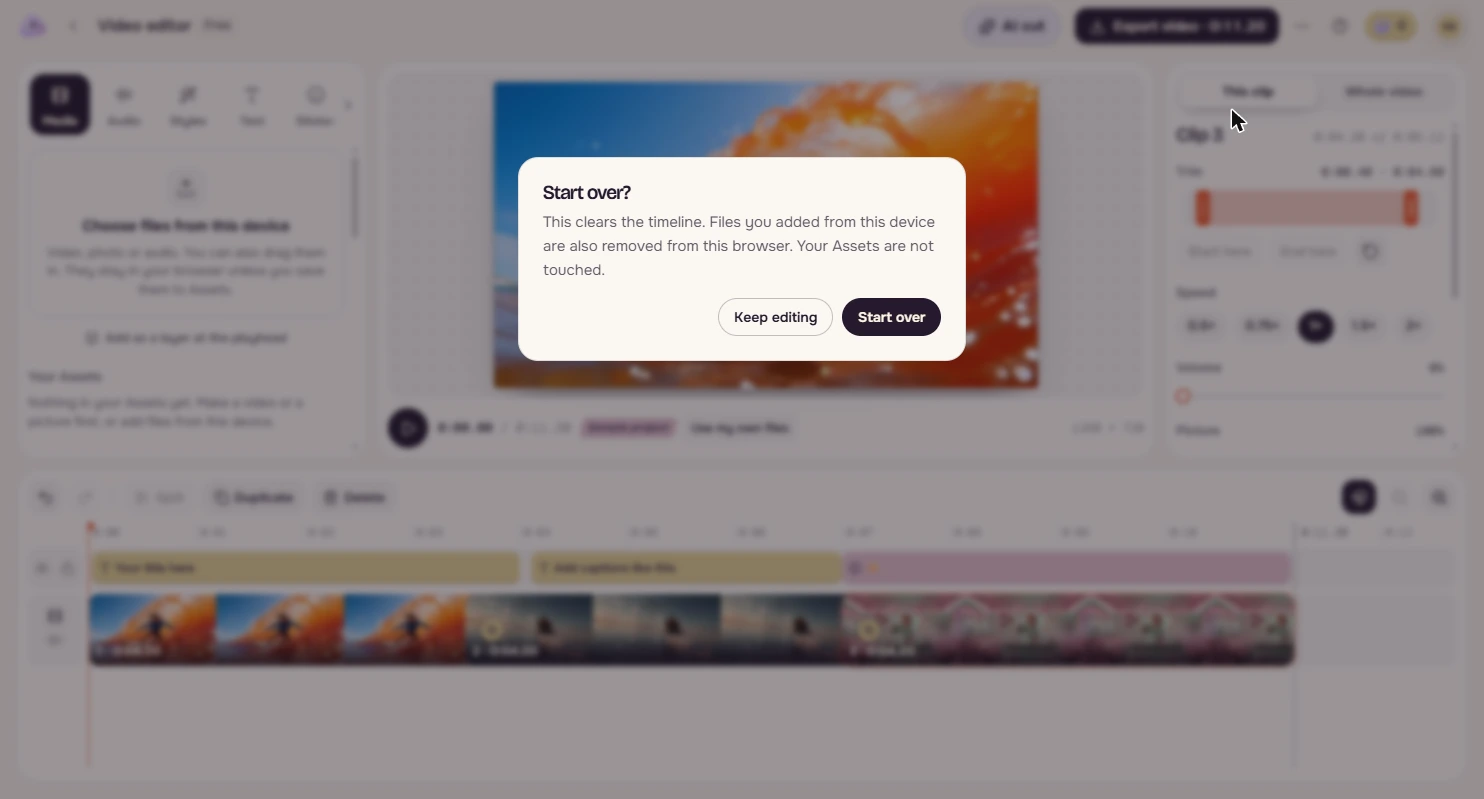
- Clear the timeline. It warns you that files you added from this device are removed too, so do this first. Click Start over.
It also removes files you added, so do this first.
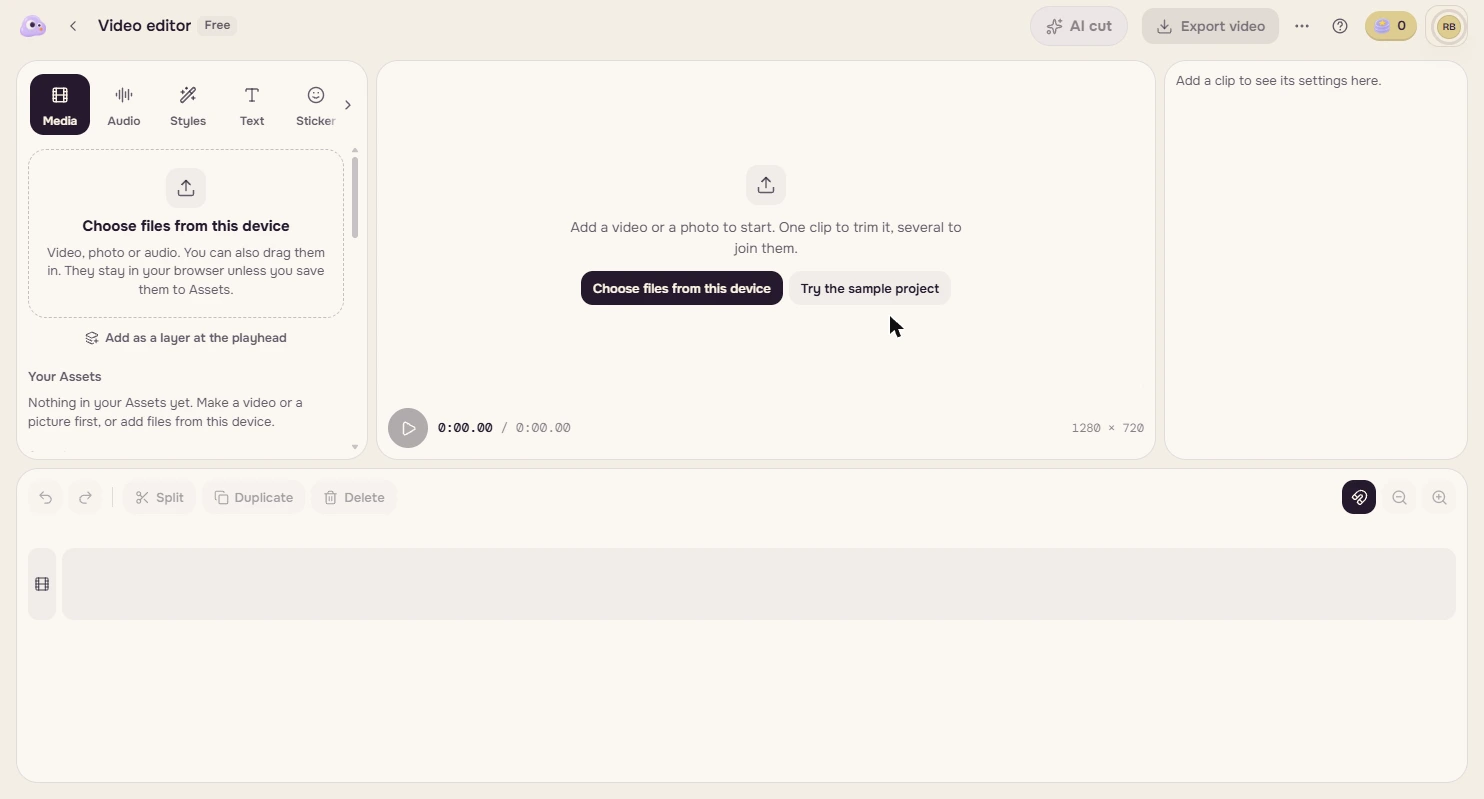
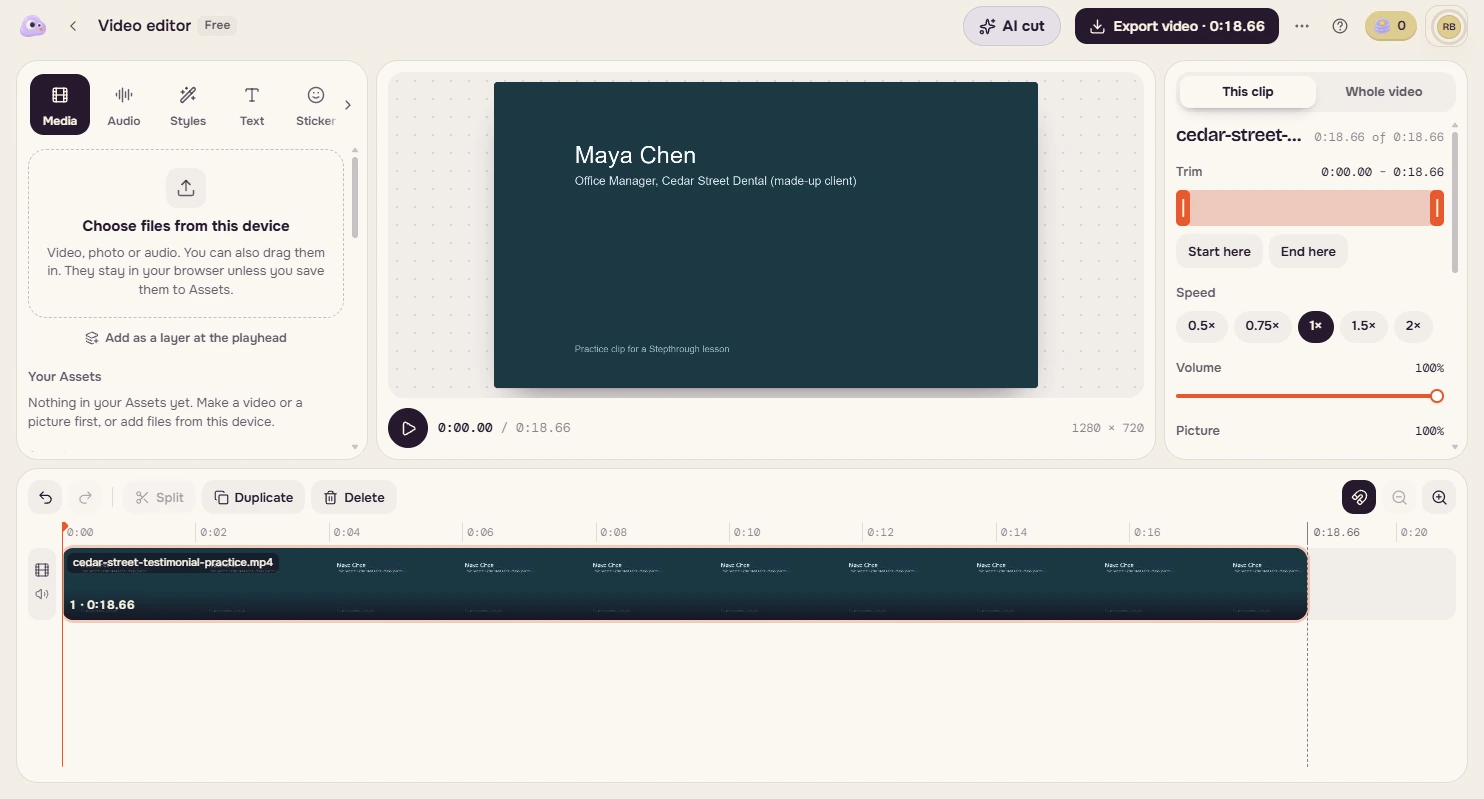
- Add the clip. Click Choose files from this device and pick cedar-street-testimonial-practice.mp4, the made-up clip in the links on this lesson. Your file stays in your browser unless you save it to Assets. For a real testimonial, get the client's OK to use it first.
It stays in your browser unless you save it.
2. Trim to the good take
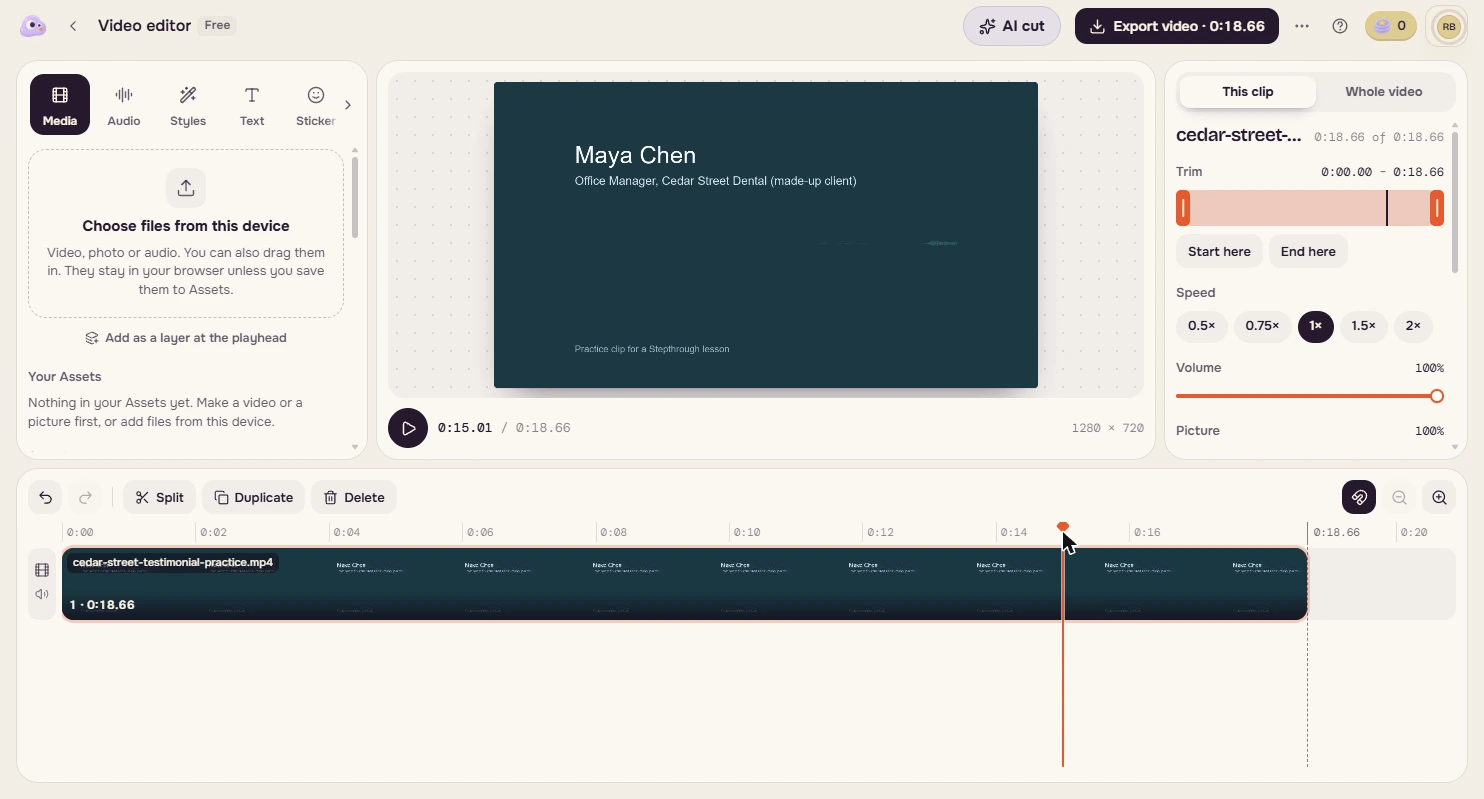
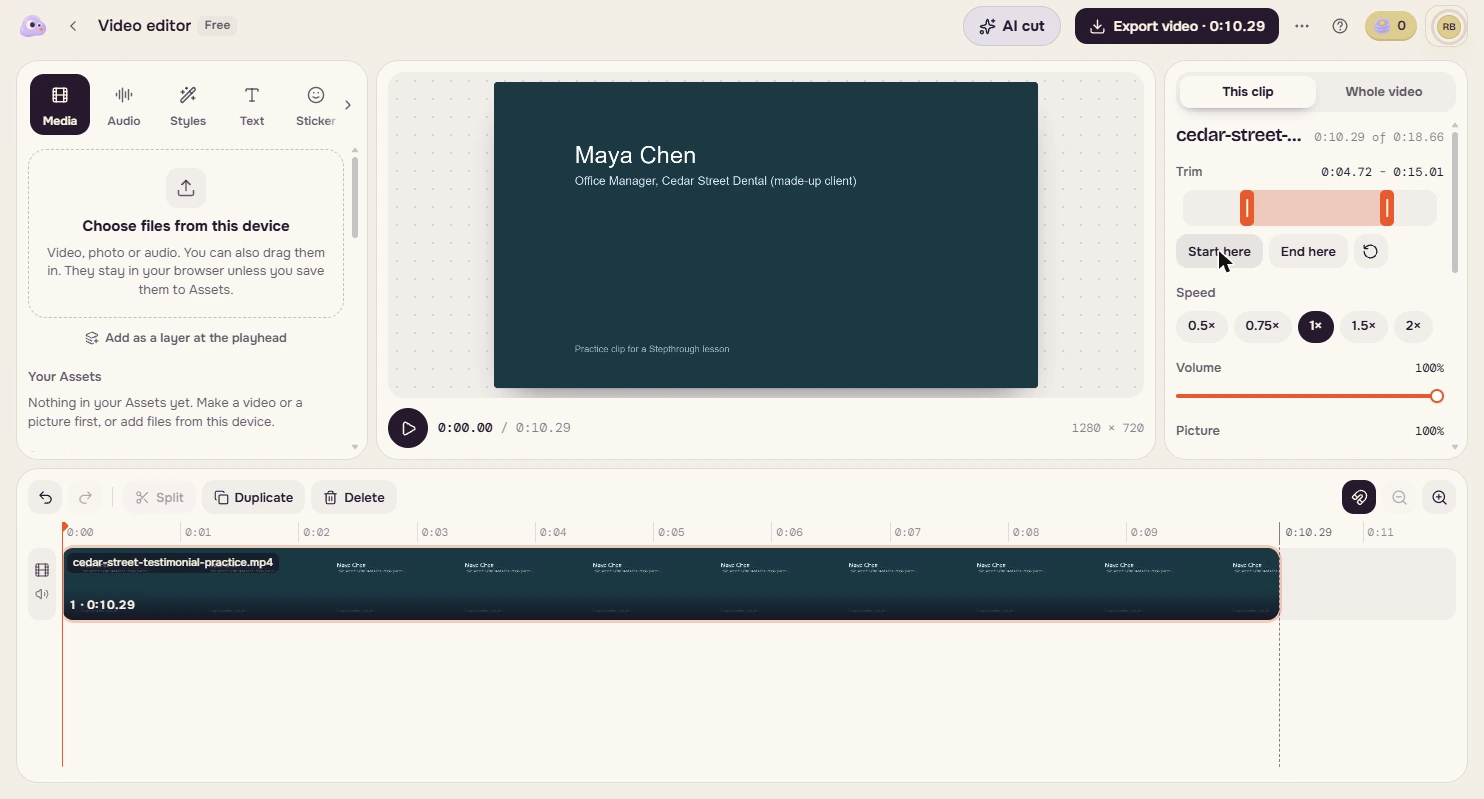
- Go to where Maya stops. The clip runs 18.66 seconds. Maya finishes the last sentence at about 15 seconds, then asks if that was okay. On the ruler above the clip, click at about 0:15.
Maya finishes at about fifteen seconds, then asks if that was okay.
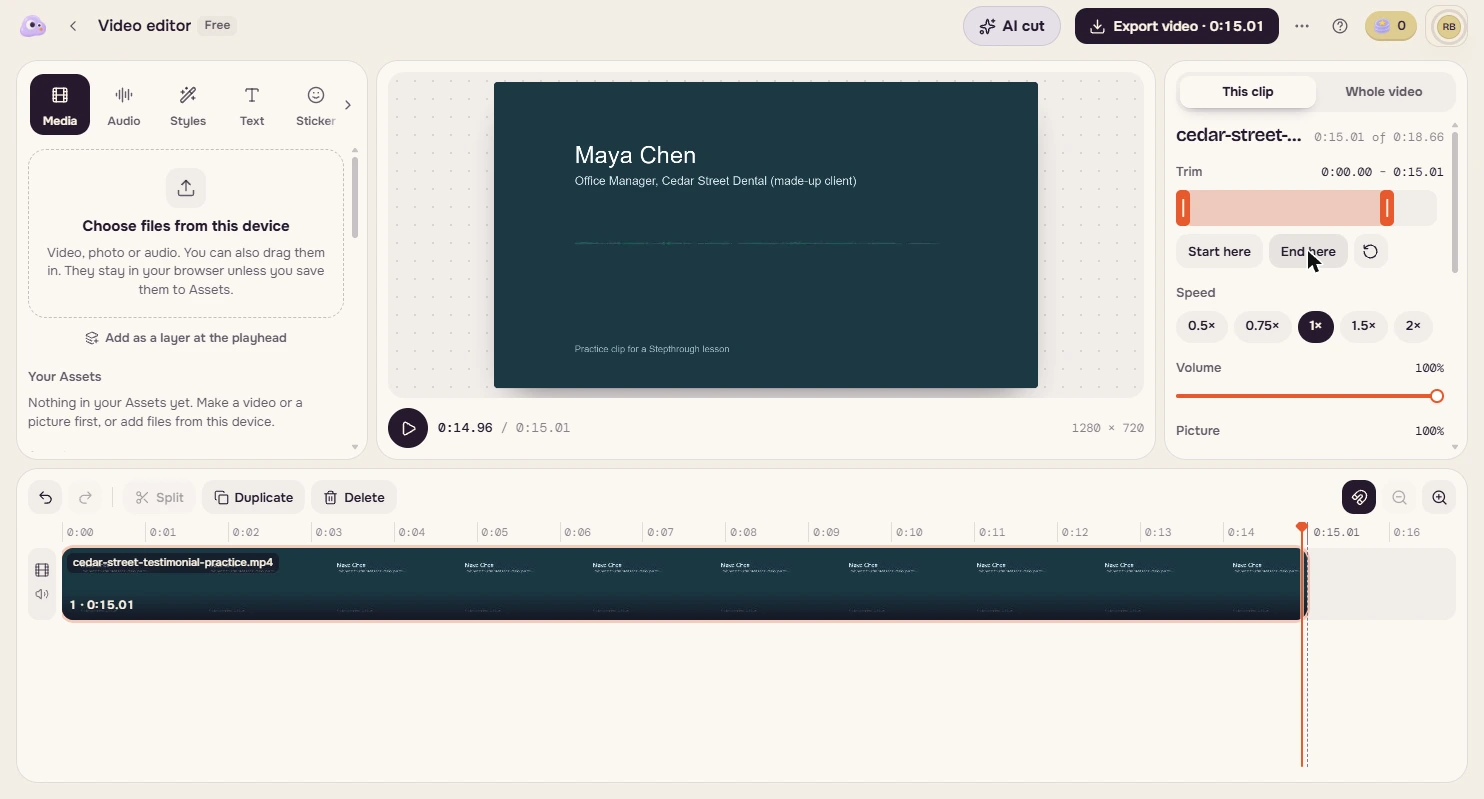
- Trim the end. The time under the picture shows where you are. Under Trim, click End here.
Under Trim, click End here.
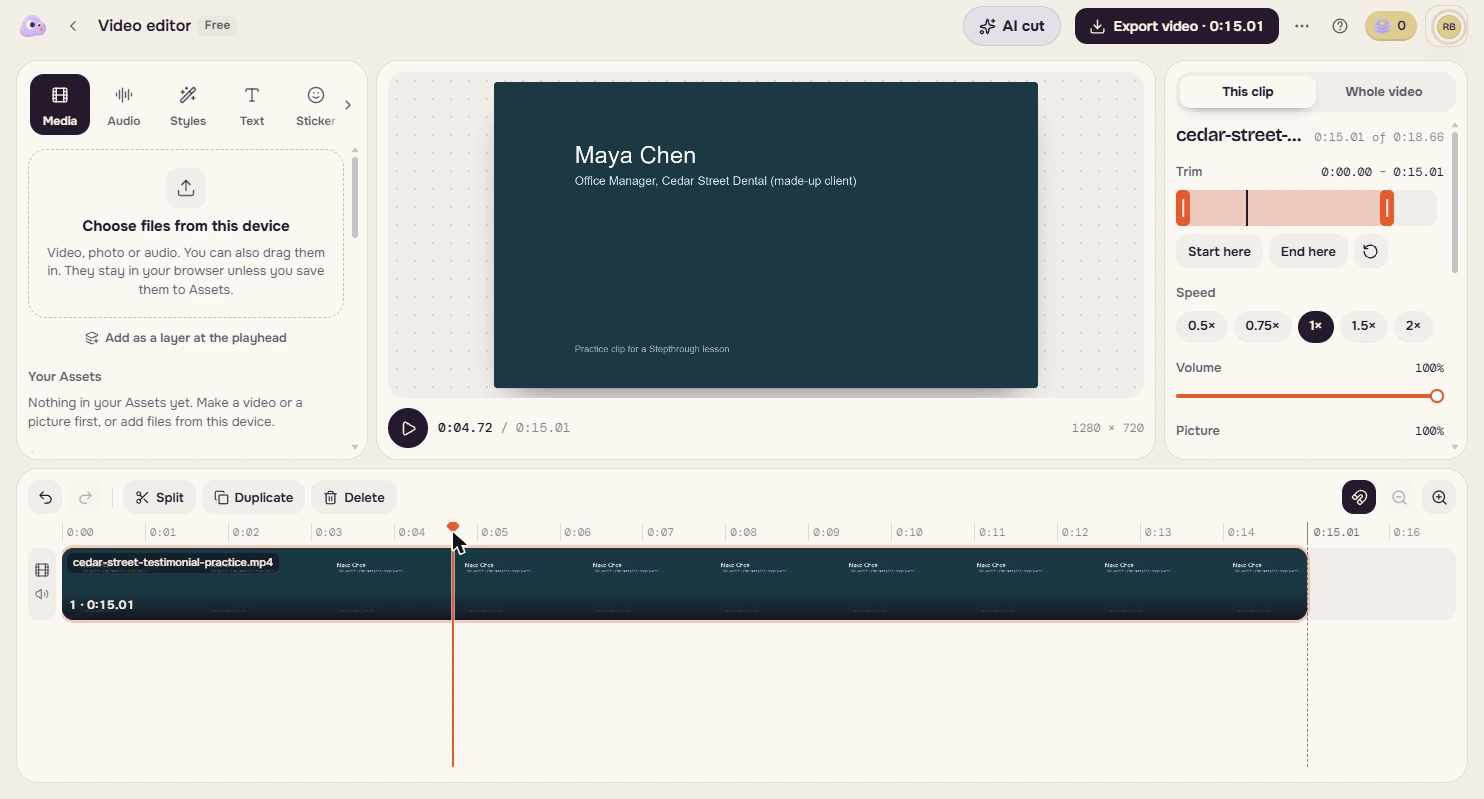
- Go to where Maya starts. Do the end first, because the timeline redraws after every trim. "We used to spend" starts at about 4.7 seconds. Click the ruler just before 0:05.
The good take starts just before five seconds.
- Trim the start. Click Start here.
3. Add captions
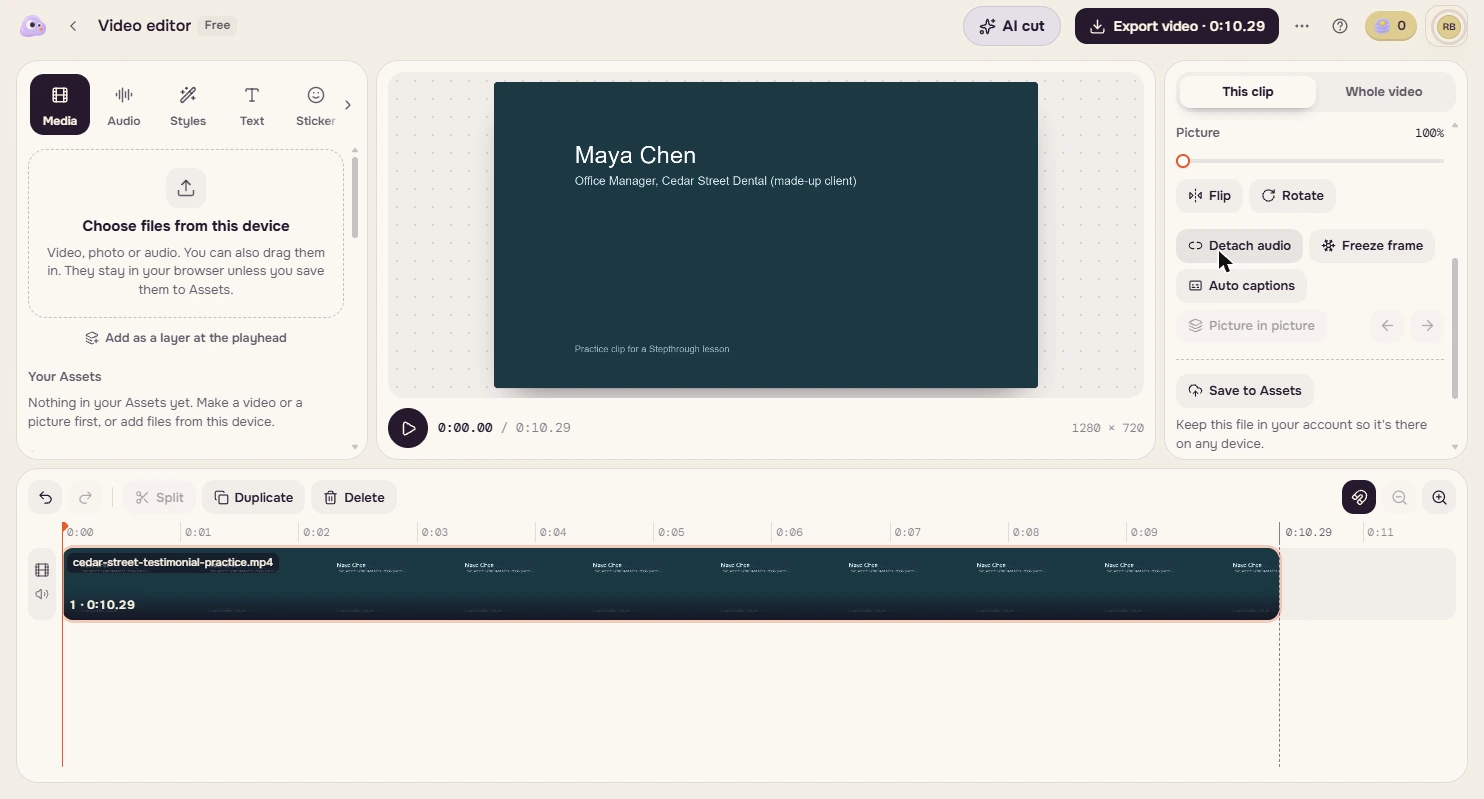
- Find the captions button. The clip is now 10.29 seconds, and the false start and the chat are gone. Most people scroll with the sound off, so it needs captions. In the panel on the right, scroll down.
Ten seconds, and only the good take. Most people scroll with the sound off, so it needs captions.
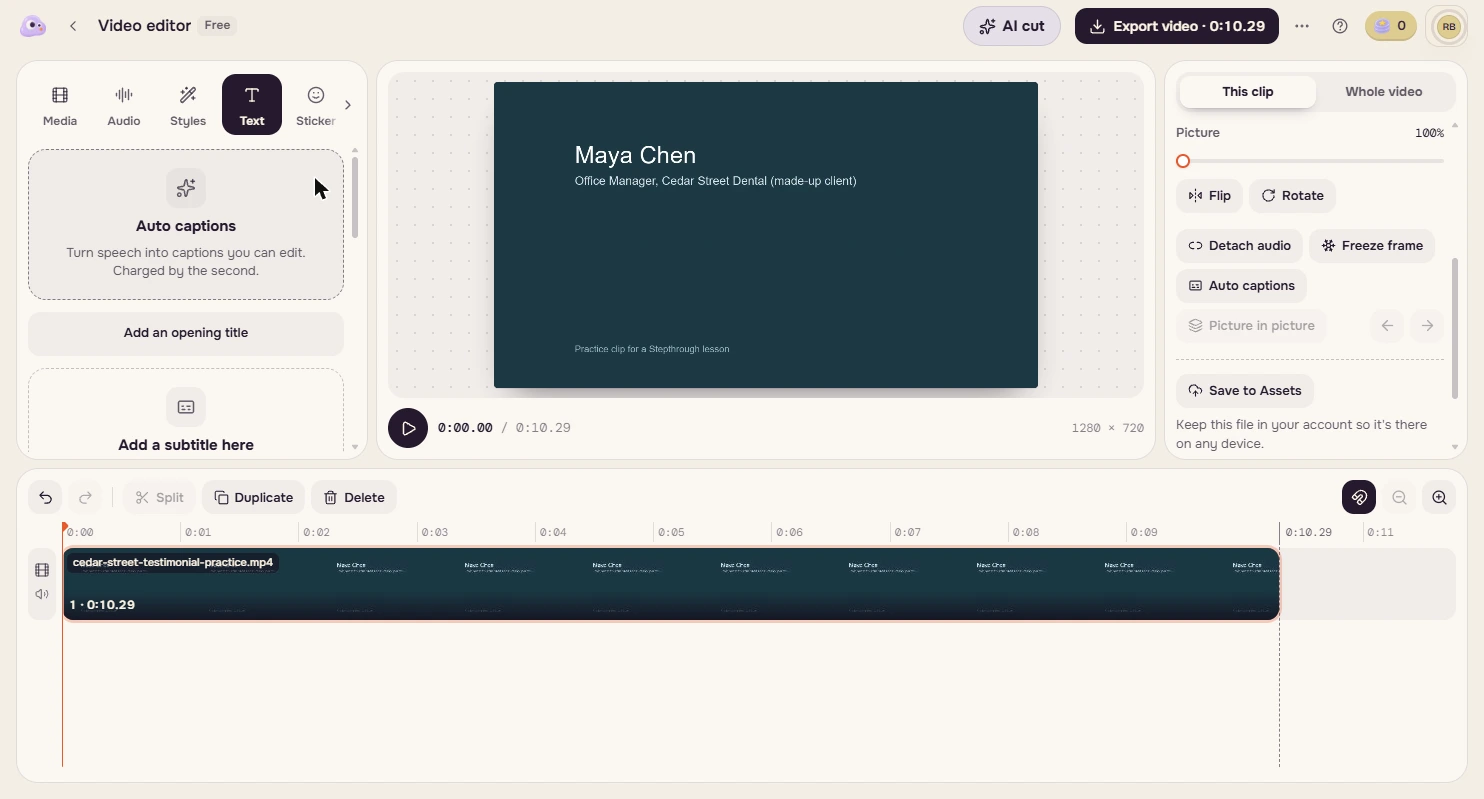
- Open Auto captions. Click Auto captions.
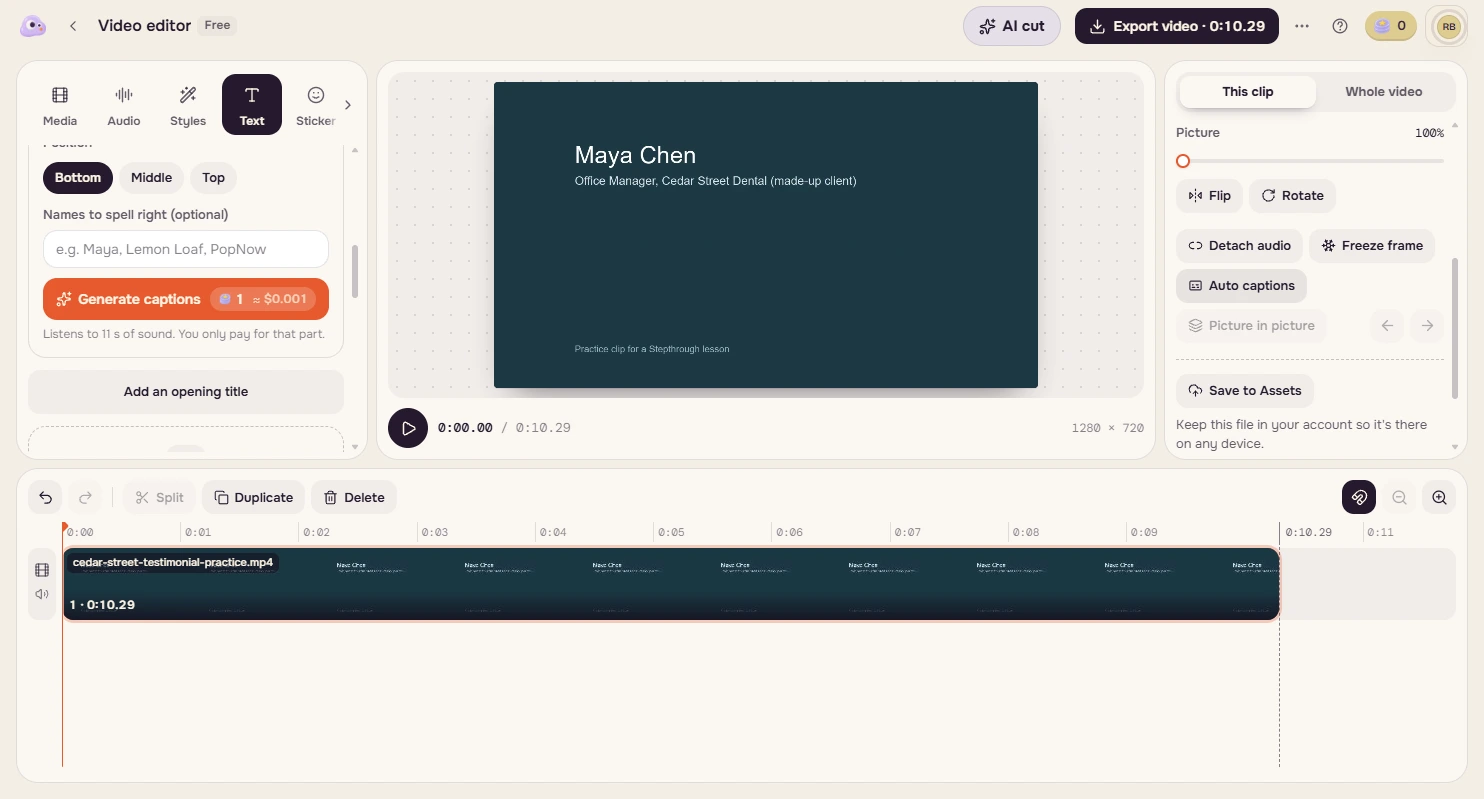
- Check the cost before you click. Scroll this panel to Generate captions. It costs 1 credit, about $0.001, for this clip, and it is the part of the editor that is charged by the second. With 0 credits, that button opens Buy credits, where the smallest pack is $9. For three short lines, typing is free. Click the price, then close this panel with the X at its top.
Auto captions cost one credit, a fraction of a cent. But with no credits, it opens a nine dollar pack. For three short lines, typing is free.
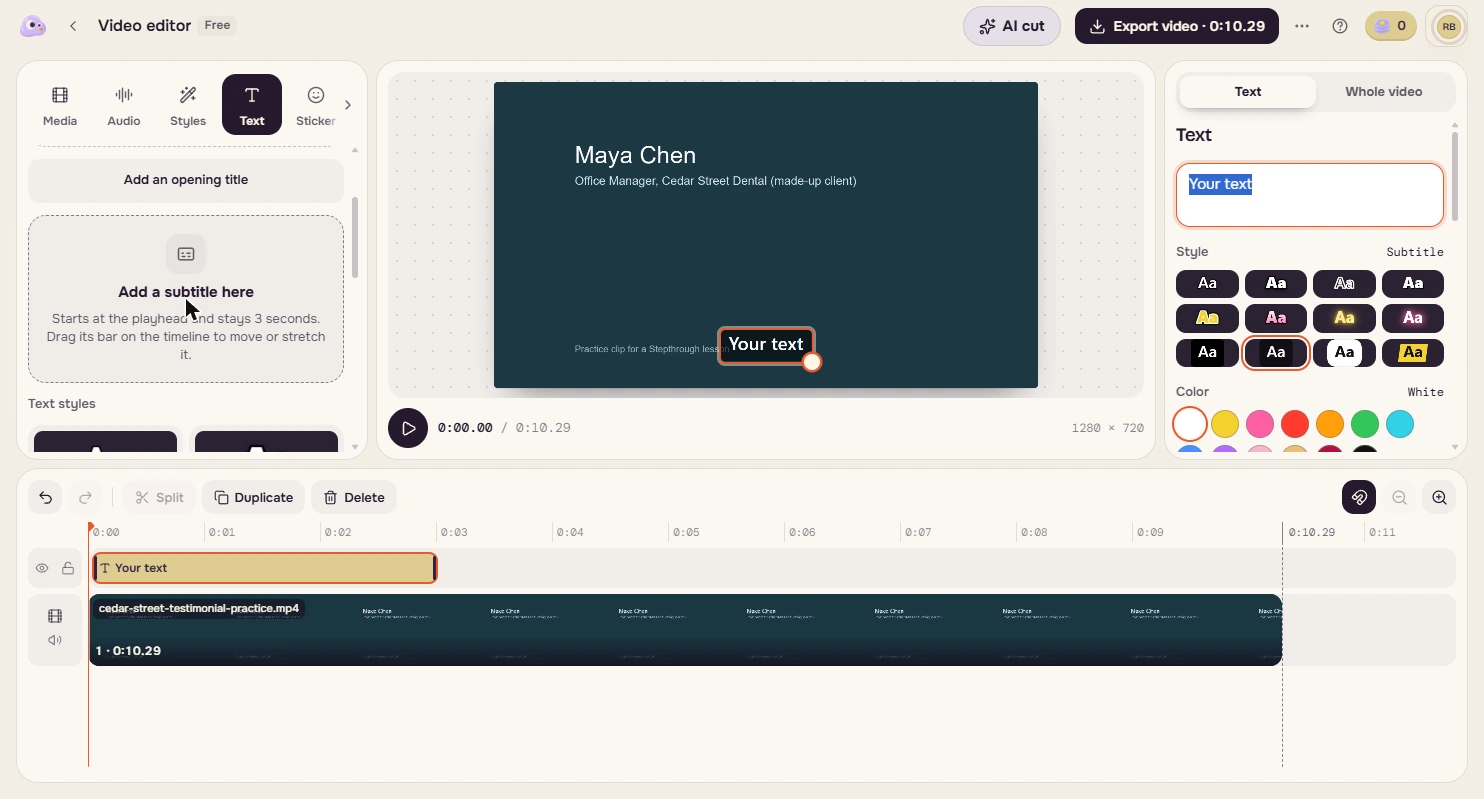
- Add a subtitle. The playhead is at the start, which is where the first caption goes. Click Add a subtitle here. It lasts 3 seconds, and you can drag its bar.
It starts at the playhead and lasts three seconds.
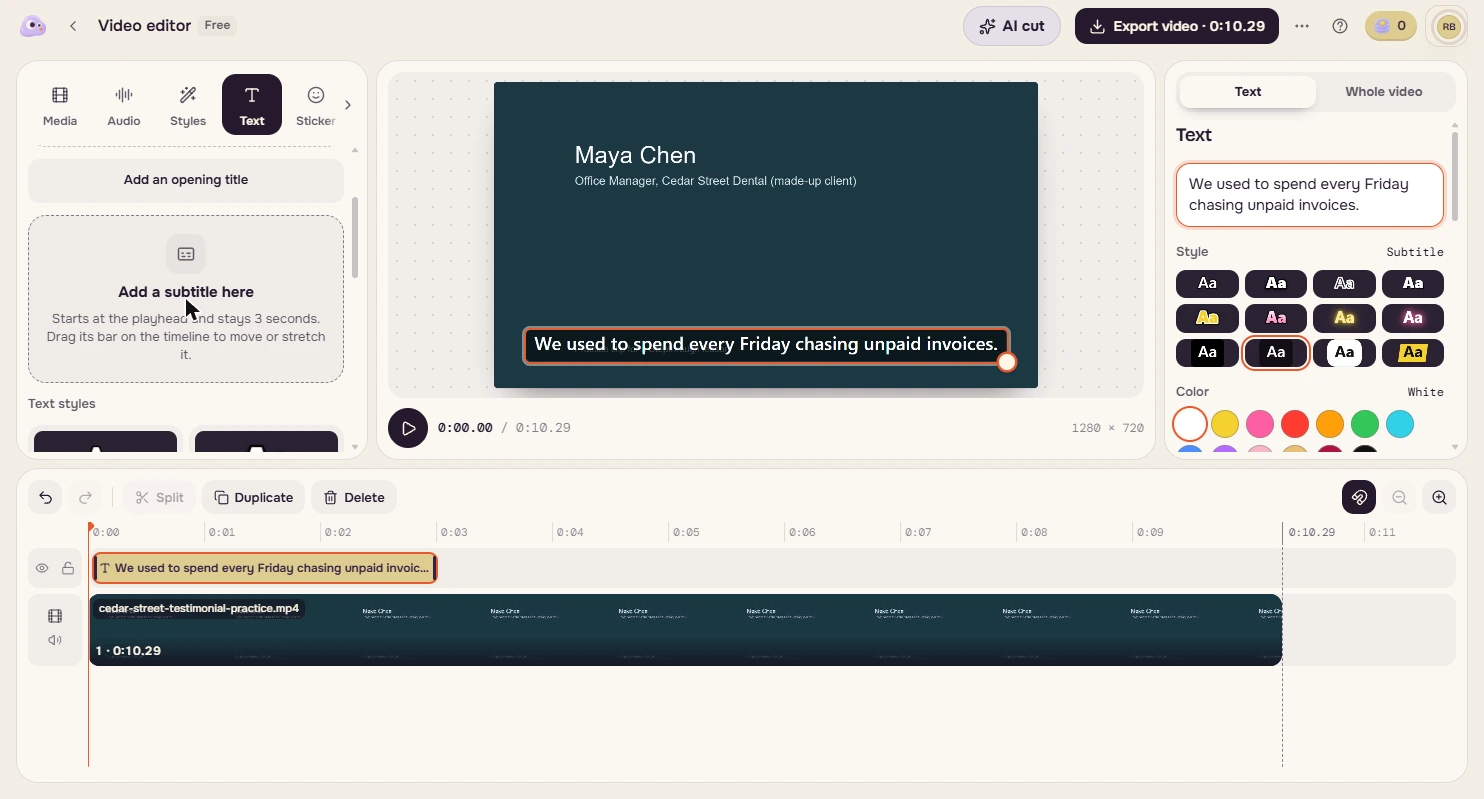
- Type the first caption. "Your text" is selected on the right, so just type over it. Write what Maya actually says.
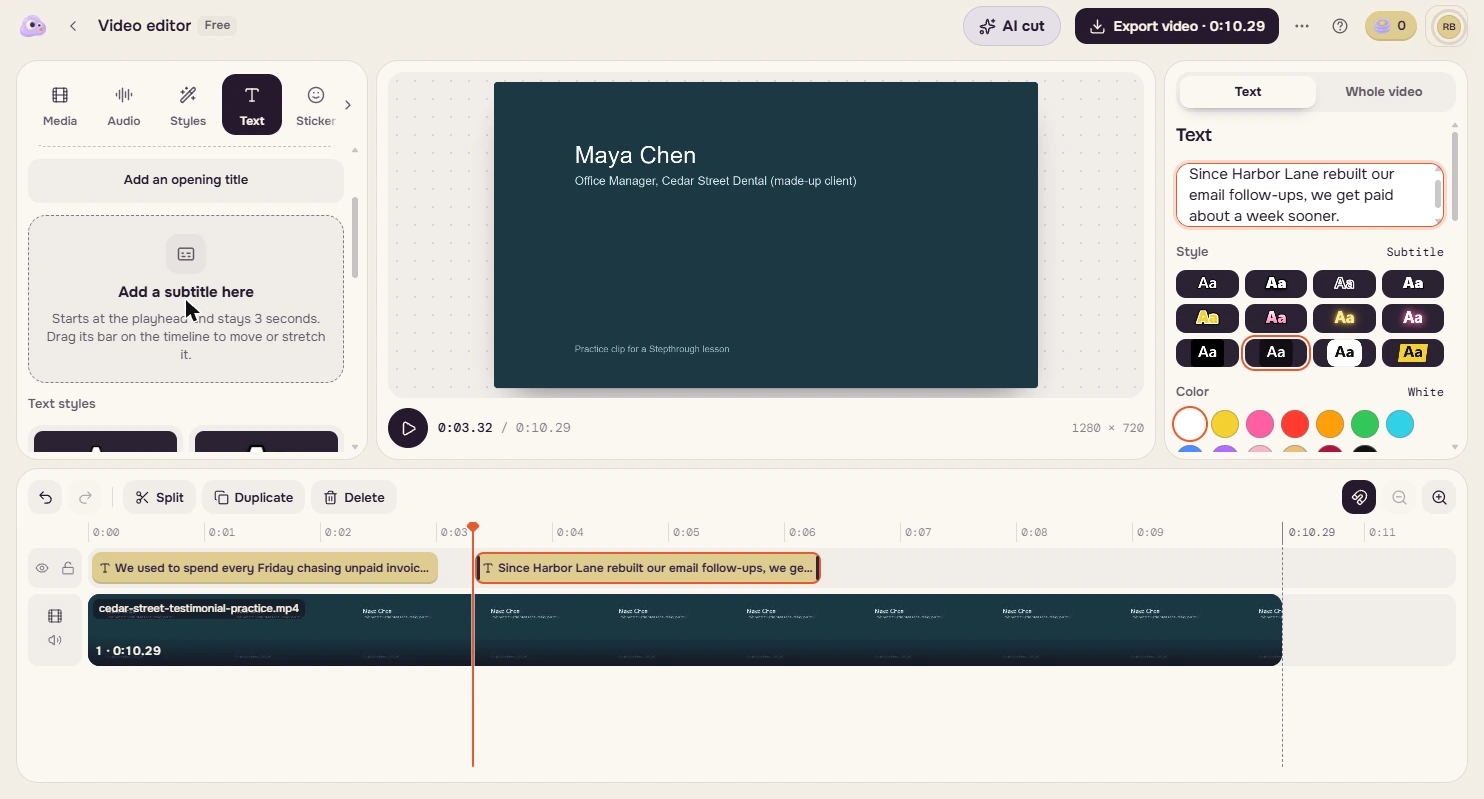
- Add the second caption. The next sentence starts at about 3.3 seconds. Click the ruler there, click Add a subtitle here, and type Since Harbor Lane rebuilt our email follow-ups, we get paid about a week sooner. Click the button here to do it.
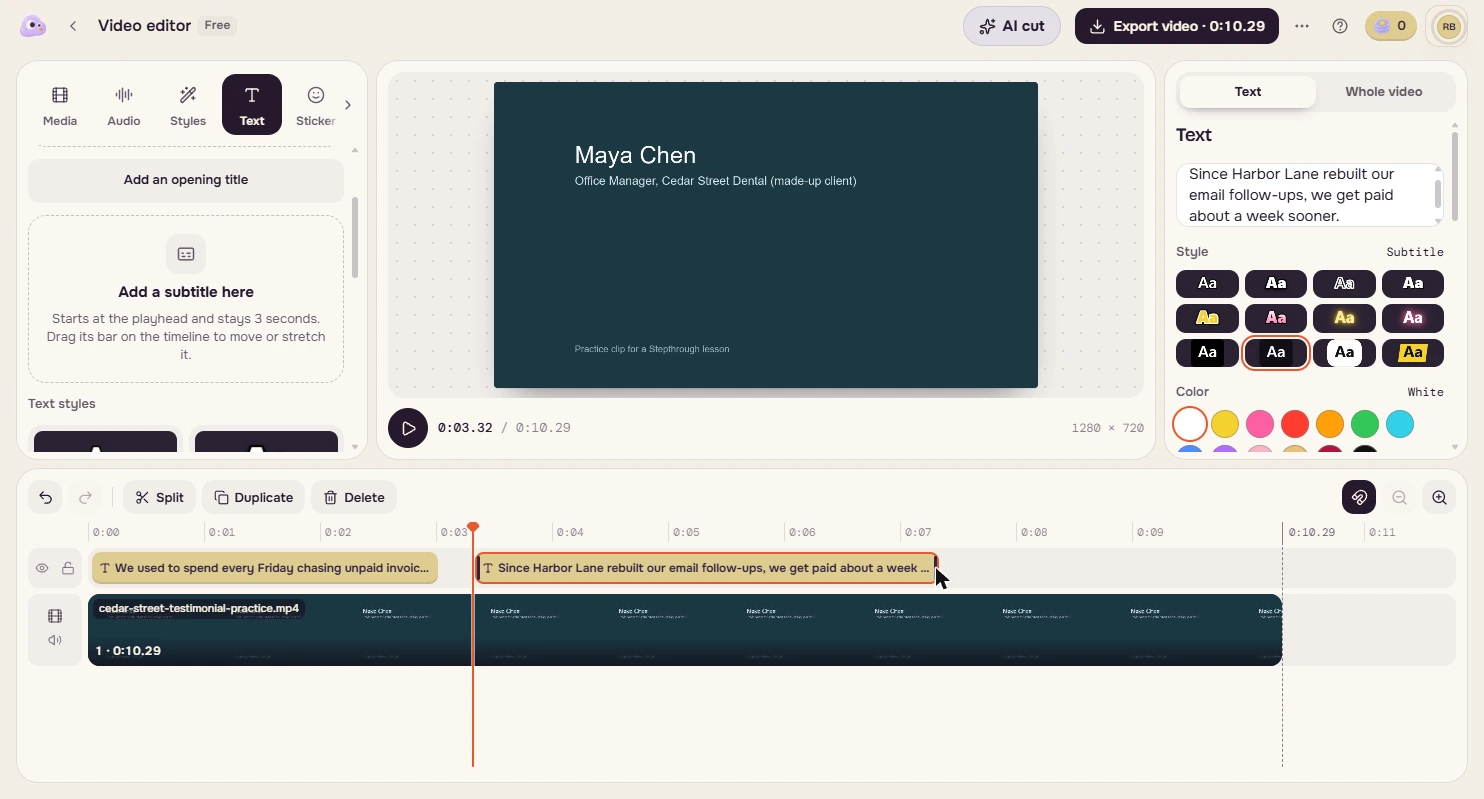
- Stretch it to fit. This sentence runs longer than 3 seconds. Drag the right end of its bar to about 0:07.3. Click the end of the bar here.
That sentence is longer than three seconds.
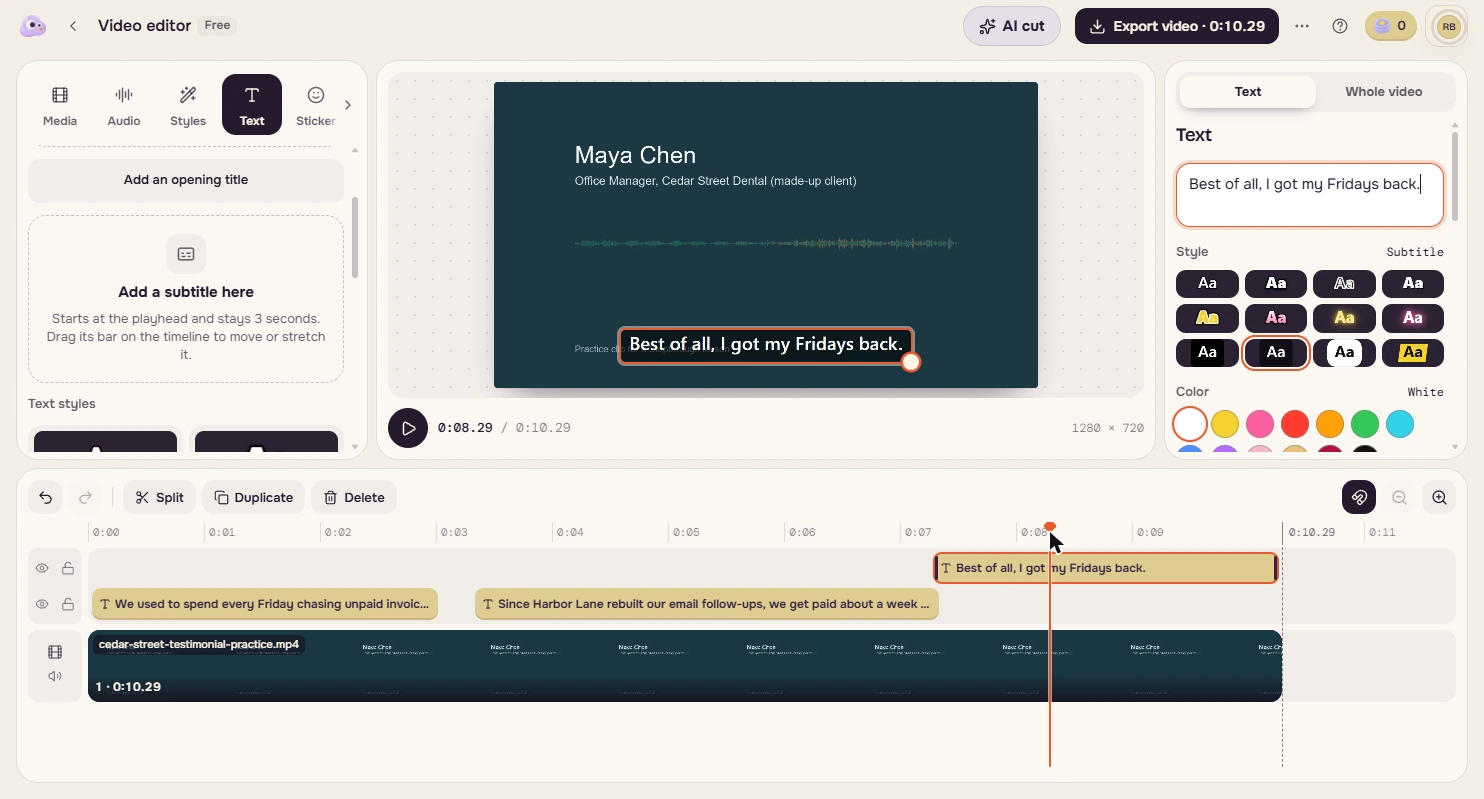
- Add the last caption. Click the ruler at about 0:07.4, click Add a subtitle here, and type Best of all, I got my Fridays back. The new bar lands on a row of its own, which is fine. Now click the ruler anywhere on it and read the caption over the picture. Check names and numbers against the recording.
Add the last caption at about seven seconds. Then read it over the picture, and check names and numbers against the recording.
4. Export it
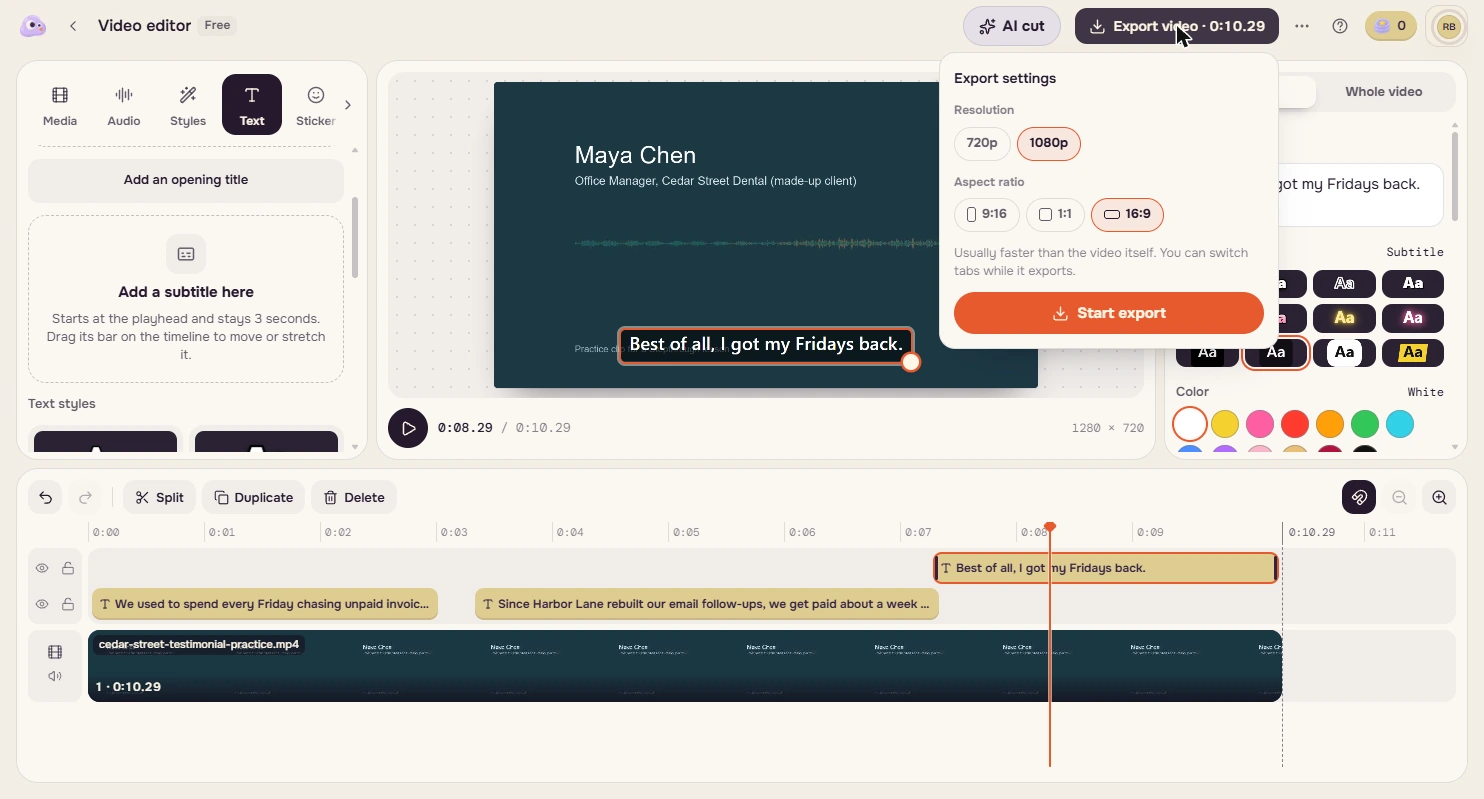
- Open the export. Your balance at the top still says 0. Click Export video.
Your balance still says zero.
- Pick the shape and start. Choose 9:16, 1:1 or 16:9 for where the clip will run. We tested 1080p and 16:9, the shape already selected. Click Start export. It took under a minute here, and you can switch tabs while it runs.
Pick the shape for where it will run. We tested ten eighty, wide.
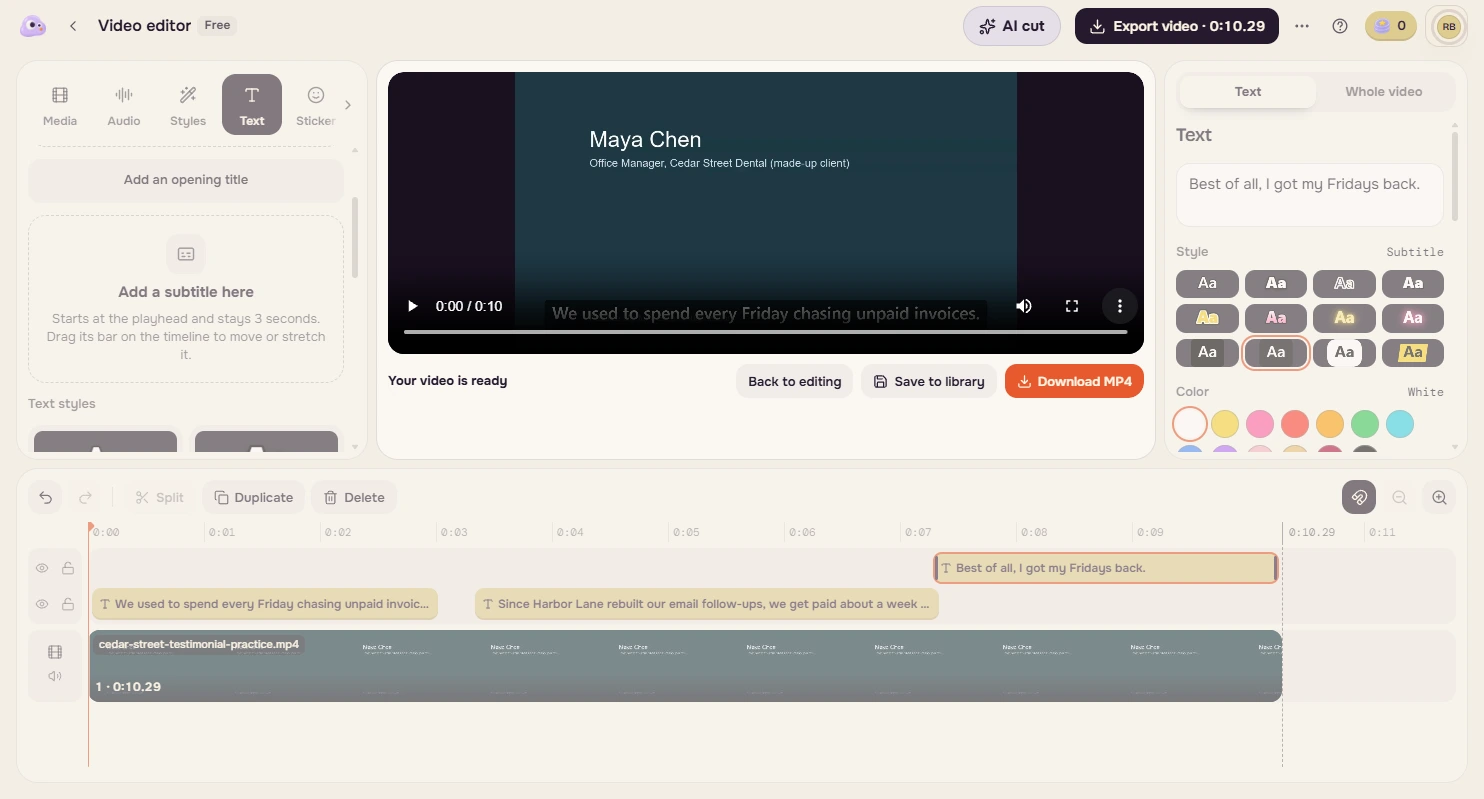
- Download it and watch it. Click Download MP4. Our file was 1920 by 1080, with the captions in the picture. It cost 0 credits and we saw no PopNow badge on it. The account settings mention a small badge on downloads, so check yours. Watch yours all the way through before you post it.
Ours cost nothing, and we saw no badge. Watch it all the way through before you post it.
Screenshots
More in Business Automations
 AI Receipt Extractor: Receipts to Google Sheets with n8n
Drop a photo of a receipt into an n8n chat. An AI agent reads it, pulls out the date, vendor and amount, picks a category, and adds a row to Google Sheets.
Free · Live ~12 min Intermediate
 n8n AI Email Responder: Draft Gmail Replies Automatically
Build an n8n agent that watches your Gmail, reads each new customer email, and writes a reply as a draft in the same thread, ready for you to check and send.
Free · Live ~12 min Intermediate
 Daily Job Alerts: Email Each Tech Their Jobs from Google Sheets with n8n
Every morning at 7, n8n reads a plumbing company's jobs sheet, skips anything not assigned yet, and emails each job to the tech it's assigned to — customer, address…
Free · Live ~10 min Intermediate
 Gmail AI Triage: Auto-Label Every Email and Draft Replies
Build an n8n workflow that reads each new email, sorts it as a lead, a client or an invoice with a Text Classifier, adds the matching Gmail label, and drafts a reply to…
Free · Live ~18 min Advanced
 A Support Agent That Answers from Your Own Docs
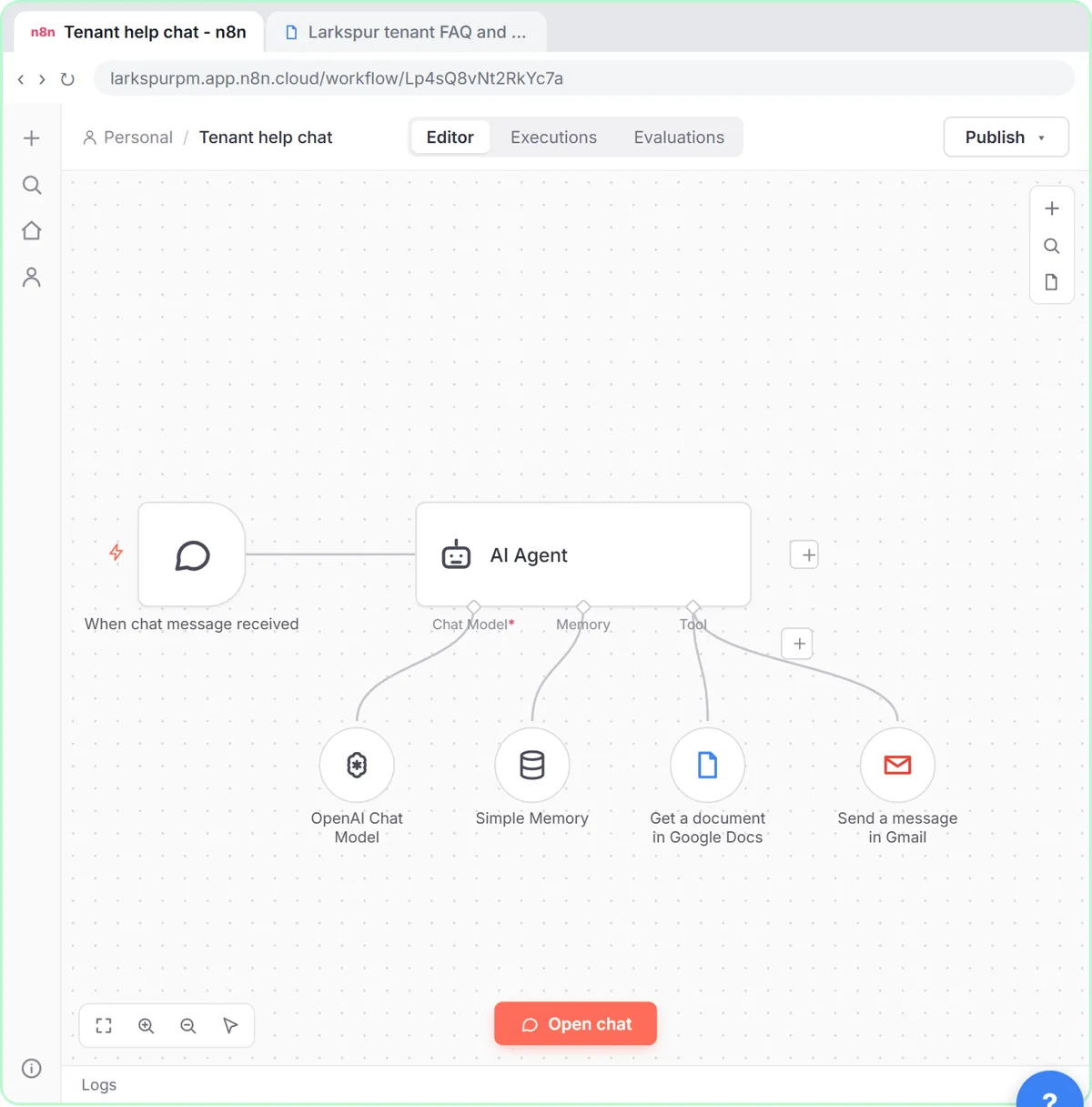
Turn an n8n chat agent into a support agent that answers only from your policies in a Google Doc, refuses what it should, and hands off to a person by email.
Free · Live ~13 min Advanced
 Chatbase: Answer Customer FAQs with an AI Agent
A business case for a small firm that answers the same customer questions every week: build a Chatbase AI agent on your FAQ in the real app, make it say when it does…
Free · Live ~15 min Beginner
All 26 modules in Business Automations
Terms in this lesson
Plain-English definitions, each with an example from a free lesson.