Updated . Built against the tool’s current screens and checked step by step. How we check this lesson
Get a client proposal out today, not next week. Draft it from one line with Propovo AI, fill in the price and dates yourself, catch and fix the lines the AI got wrong, and preview what your client signs.
At a glance
| Question | Answer |
|---|---|
| What you build | Get a client proposal out today, not next week. Draft it from one line with Propovo AI, fill in the price and dates yourself, catch and fix the lines the AI got wrong, and preview what your client signs. |
| Tools | Propovo |
| Time | About 9 minutes, 25 steps in 5 parts |
| Level | Beginner, no coding needed |
| Cost | Free |
| Ways to learn it | Practice it step by step |
The 5 parts, in short
- Brief the AI: Start a proposal, Choose Full proposal, Create with AI, Write the brief, and 3 more steps.
- Read the outline: Read the outline first, Find the blanks, Create the document.
- Fill in what only you know: Click Send to run the check, Read the check, Enter your fee, Fill in timeline and payment terms.
- Fix what the AI got wrong: Read every line, then open Ask AI, Say exactly what to fix, Send the request, Then check it yourself.
- See what your client sees: Check the numbers, Add who says yes, Name the decision maker, Save the person, and 3 more steps.
Start here first: AI Receipt Extractor: Receipts to Google Sheets with n8n (module 1 of Business Automations)
In the course: Part 9 · n8n Automation Toolkit (Module 110 of the full course)
Part of: AI Apps Worth Knowing (step 104 of 111). Next up: PopNow: Cut a Client Testimonial Into a Captioned Clip for Free
What you'll build
Alder & Main HR Partners is a made-up four-person consulting firm. Birchline Architects wants its handbook rewritten, and every day the proposal waits is a day the deal can cool. In this lesson you turn one line into a full proposal in Propovo, fill in the fee and timeline yourself, fix two lines the AI really got wrong in our test, and preview the client's view.
You briefed the AI, got an outline, filled in the numbers only you know, and fixed lines the automatic check could not catch. Before you publish a real proposal, read every line once more and look at every picture. Then send it.
- Tools: Propovo
- Time: about 9 minutes, 25 steps in 5 chapters
- Level: beginner, no coding needed
- Price: free
Practice first, then build it for real
Practice copy built from real Propovo screens (propovo.com/dashboard), captured 31 October 2026 on a free trial. Nothing here touches a Propovo account. The companies, the buyer and the fee are made up. The outline and the draft are what Propovo AI produced, and yours will differ. We stopped before publishing, so client tracking was not part of our test. To build it for real you need your own Propovo account, and some services charge once you use them for real work, so check each tool's current pricing.
Try it yourself, free
Reading the steps is a start. Doing them is how it sticks. The interactive module walks you through every click in a practice copy of Propovo, checks each step, and never touches your real accounts.
Start “Propovo: Turn a One-Line Brief Into a Proposal You Can Trust”Step by step: Propovo: Turn a One-Line Brief Into a Proposal You Can Trust
All 25 steps of the interactive module, in order. In the module you watch each one, then do it yourself in a practice copy that checks your work.
1. Brief the AI
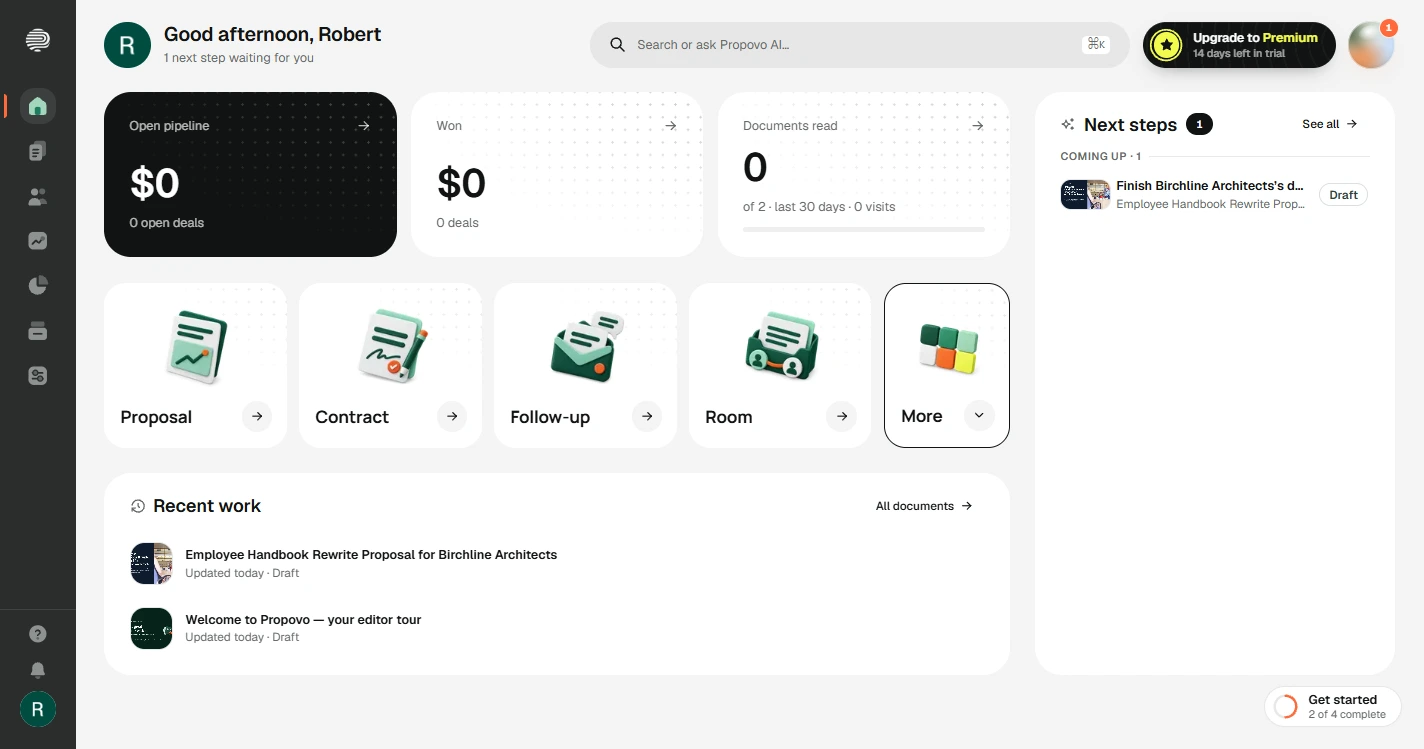
- Start a proposal. You run Alder & Main HR Partners, a made-up four-person HR consulting firm. Birchline Architects, 40 people, wants its employee handbook rewritten, and you want to send a proposal today instead of next week. On the Propovo home screen, click Proposal.
You run a small H R consulting firm, and an architecture firm wants its handbook rewritten. You want the proposal out today, not next week.
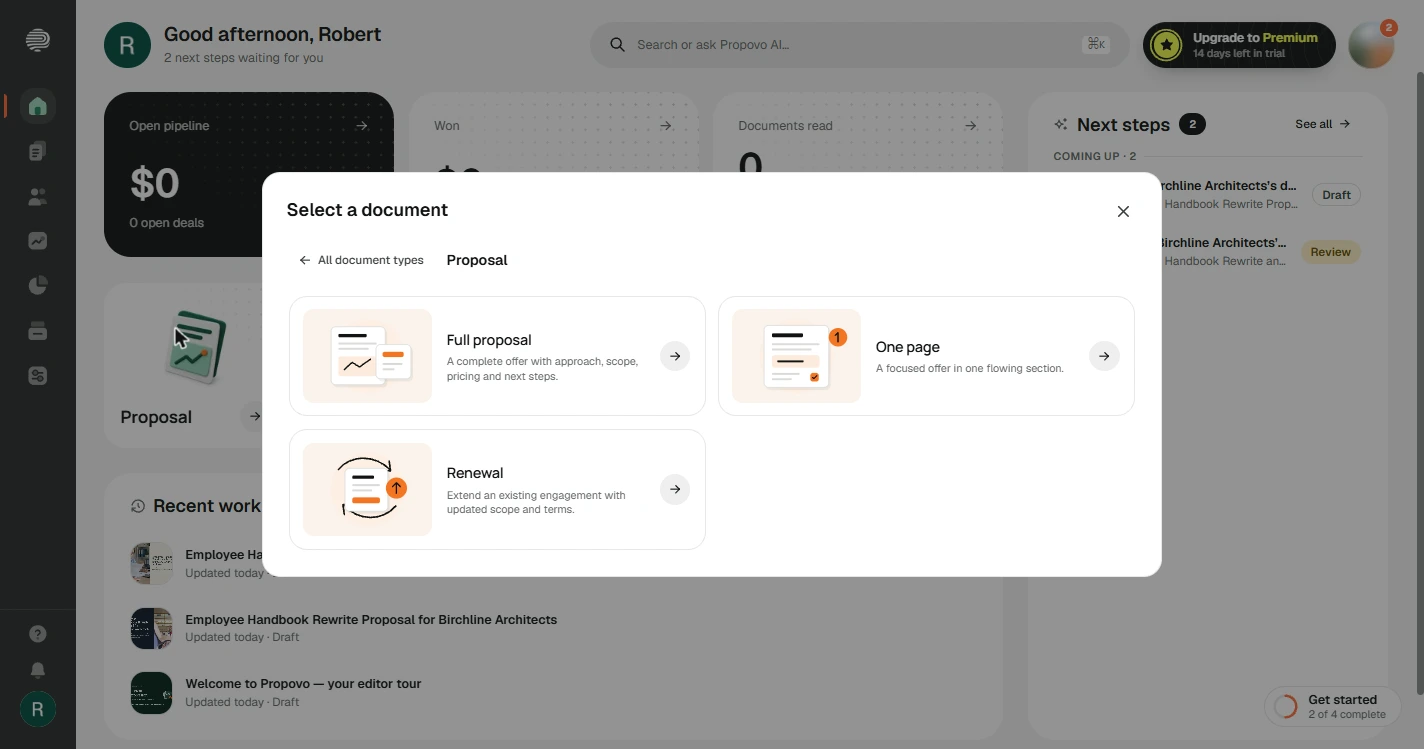
- Choose Full proposal. One page and Renewal are here for later. This is a new client, so click Full proposal.
This is a new client.
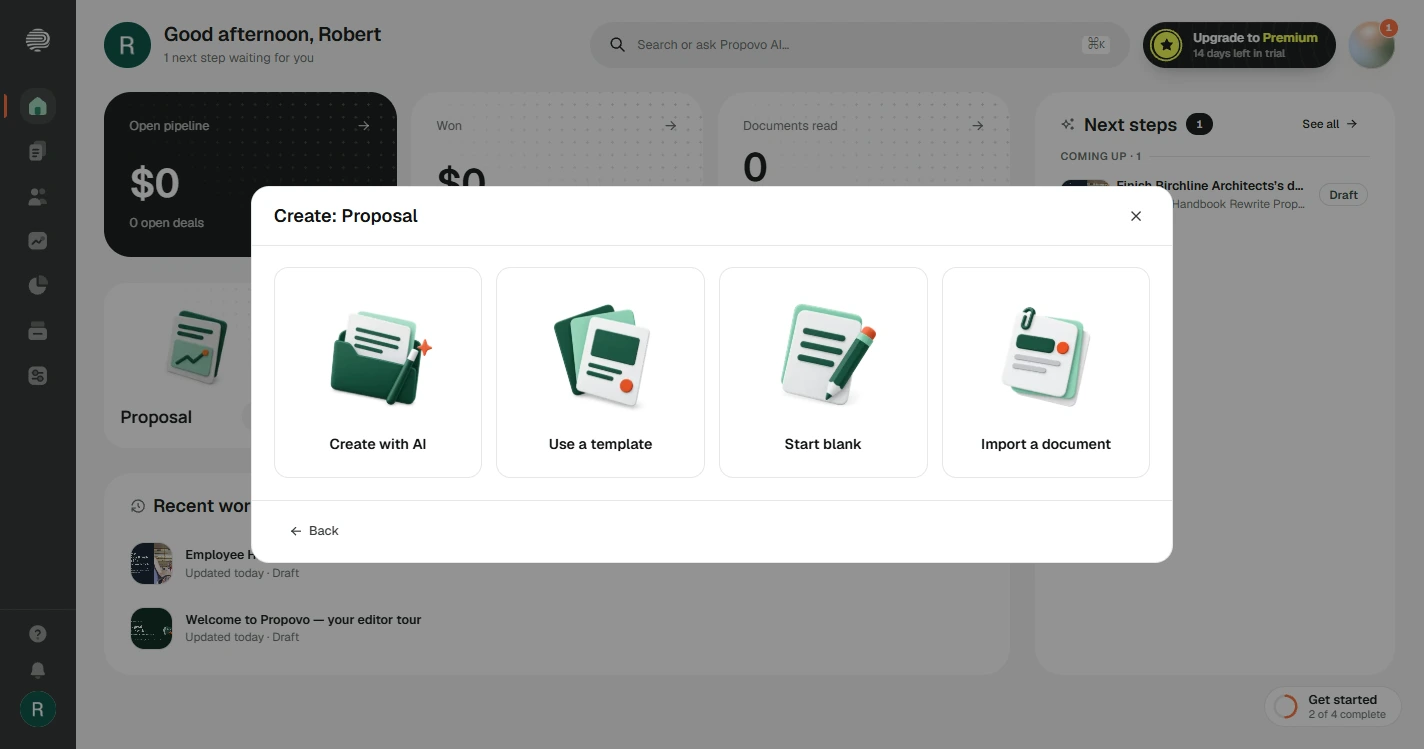
- Create with AI. You can also start from a template, a blank page or a document you already have. Click Create with AI.
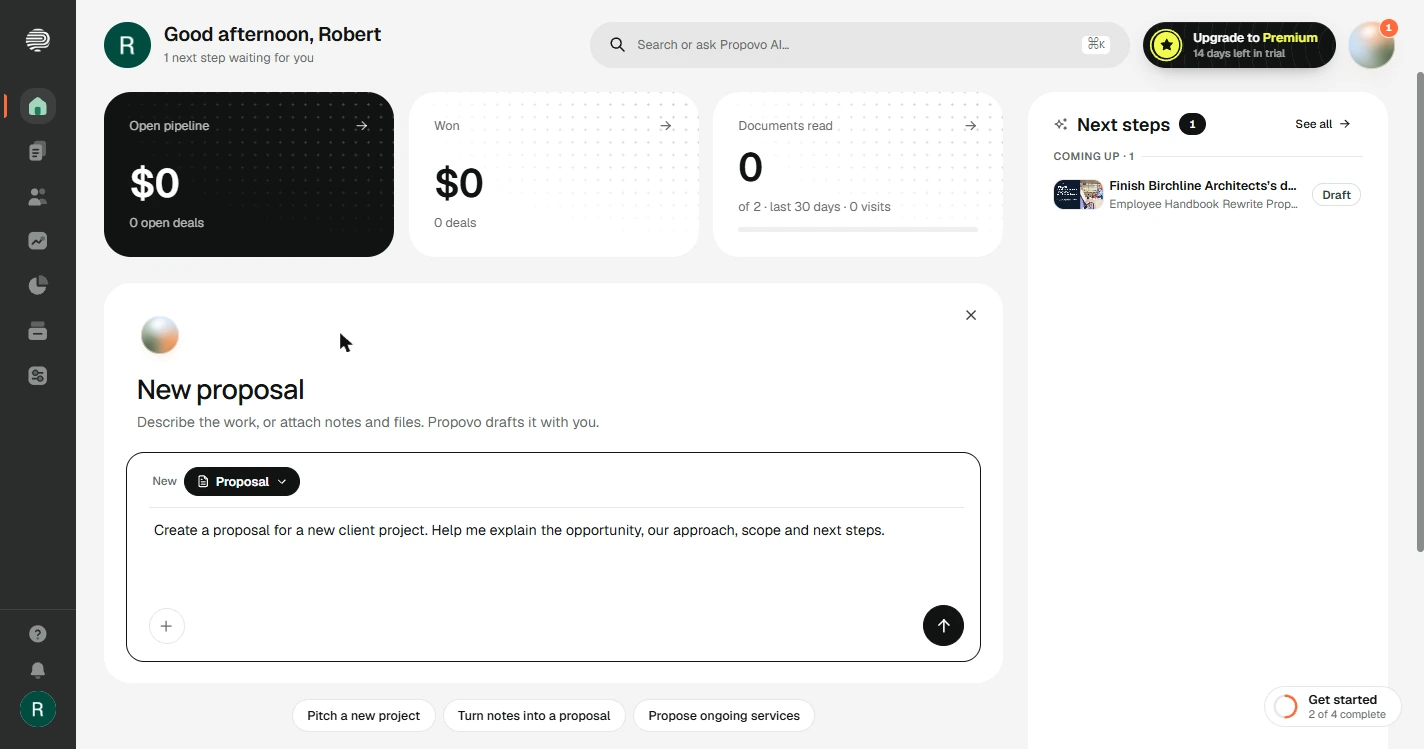
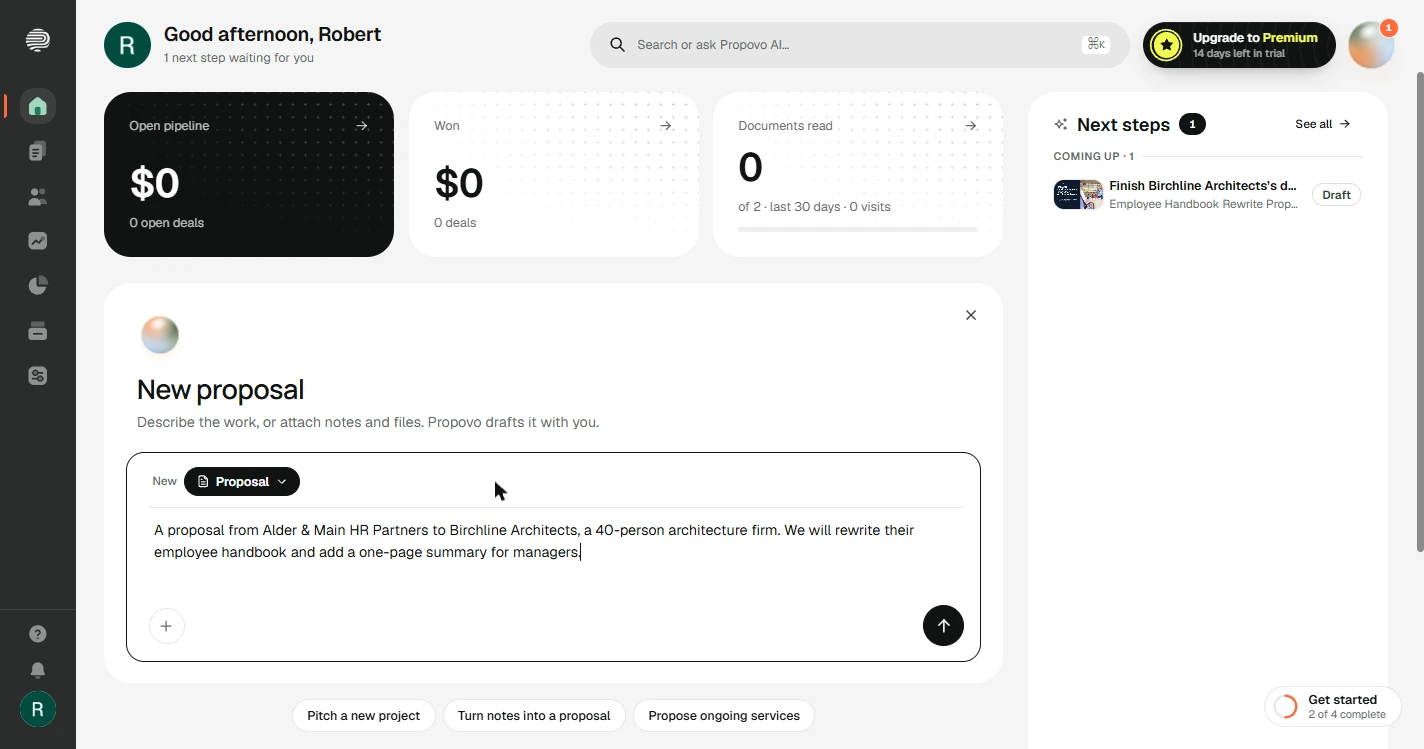
- Write the brief. Propovo fills the box with a suggestion. Replace it with who it is from, who it is for, and the work. Notice what this brief leaves out: the price and the dates.
Replace the suggestion with who it is from, who it is for, and the work. Notice we did not give it a price or dates.
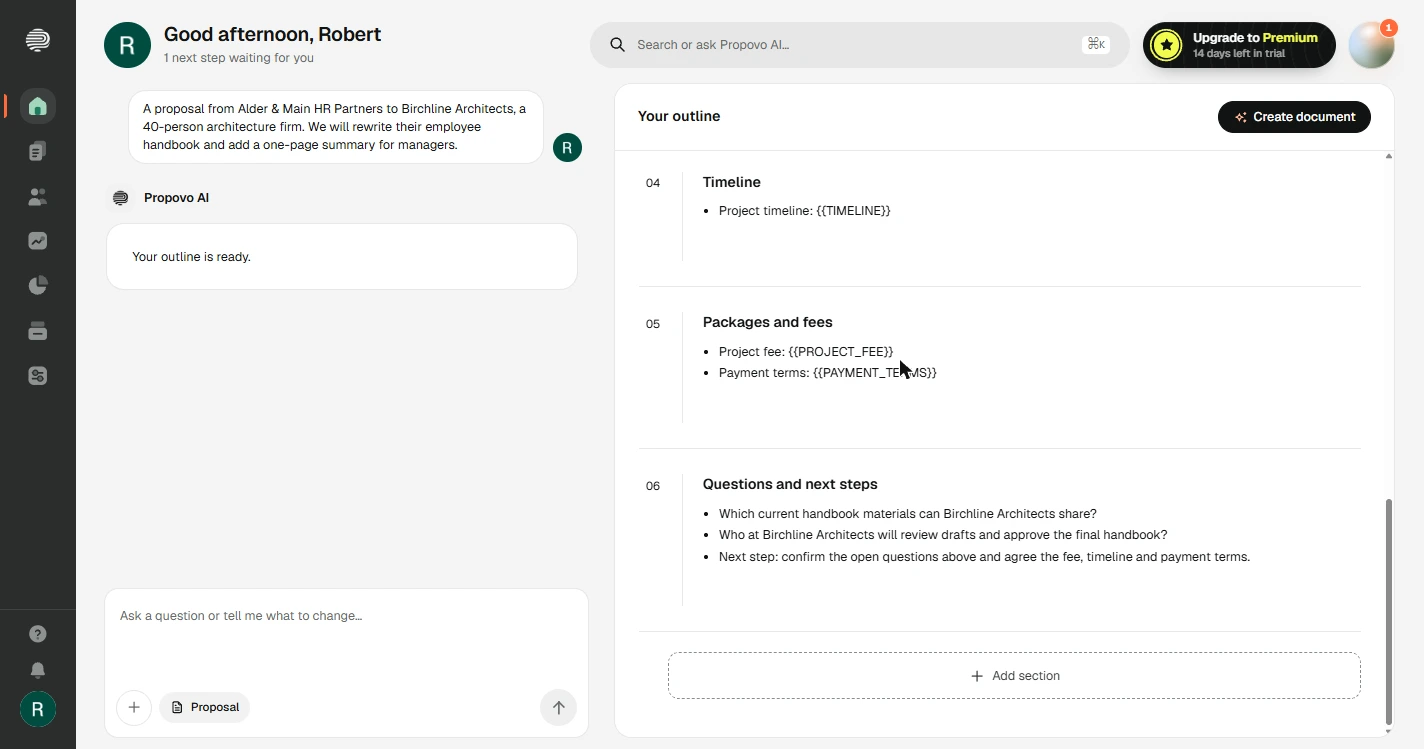
A proposal from Alder & Main HR Partners to Birchline Architects, a 40-person architecture firm. We will rewrite their employee handbook and add a one-page summary for managers.
- Send the brief. Click the arrow. On a brand new account, Propovo first asks what your business does and saves your answer to your profile. Ours was one line: a four-person HR consulting firm for professional services companies with 20 to 100 employees. If you see Something went wrong, click Try again. That happened to us once.
The first time, it asks what your business does. One line is enough.
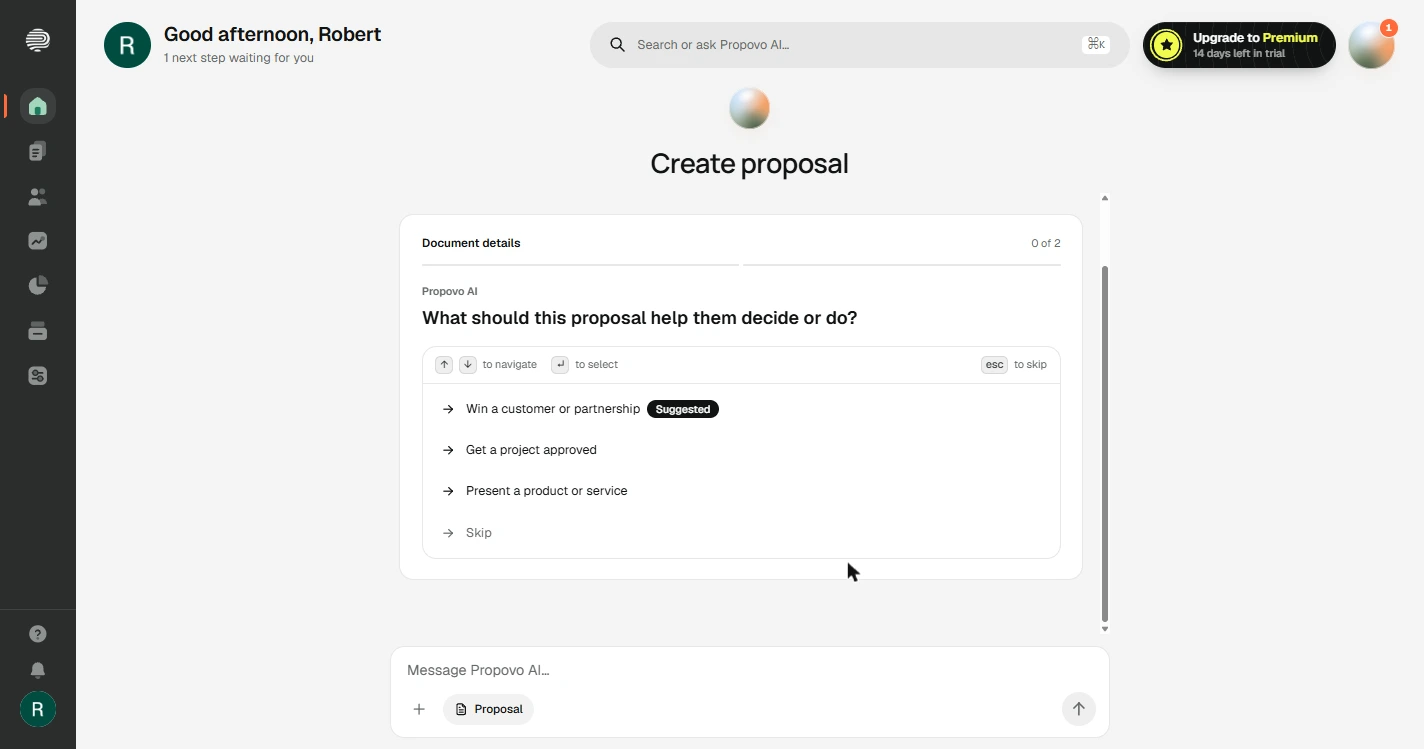
- Say what the proposal is for. It asks what this proposal should help them decide or do. Click Win a customer or partnership.
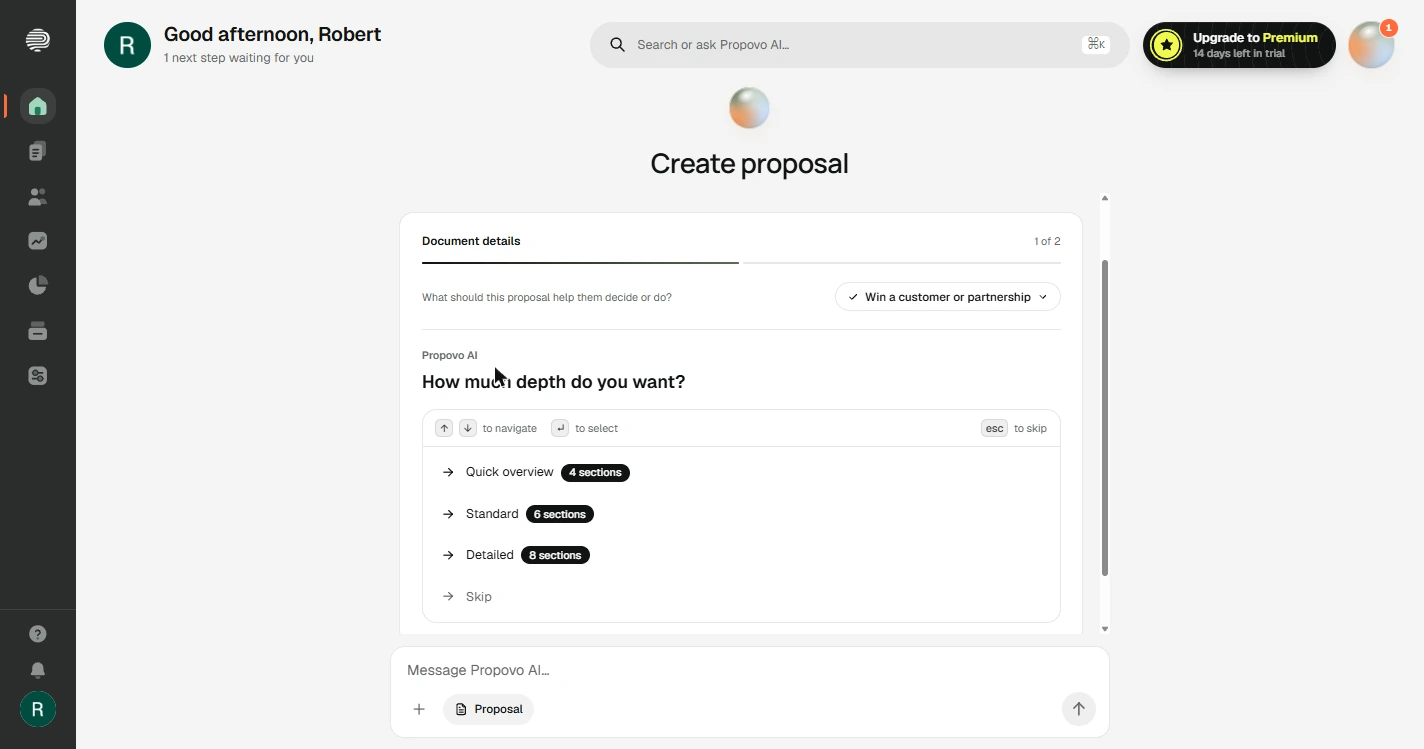
- Pick the depth. Quick overview is 4 sections, Standard is 6 and Detailed is 8. Click Standard.
Six sections.
2. Read the outline
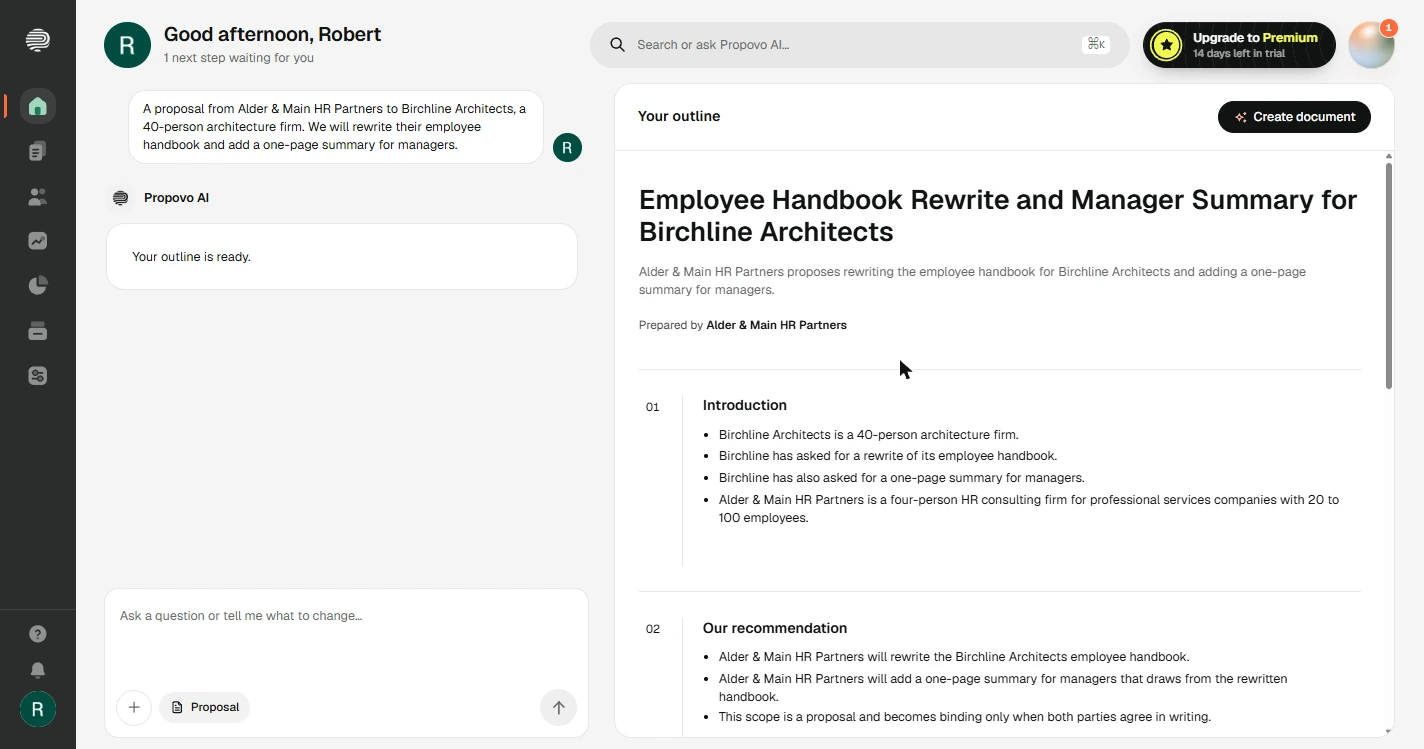
- Read the outline first. You get an outline before a full document. It used only what you told it, including your firm description. Changing the plan here is cheaper than rewriting pages later. Click the outline, then scroll to the bottom.
You get an outline first. It is cheaper to fix the plan here than rewrite pages later.
- Find the blanks. Look at Packages and fees. You never gave a price, so the AI wrote {{PROJECT_FEE}} instead of inventing one. It did the same for {{TIMELINE}} and {{PAYMENT_TERMS}}. Click the fee line.
You never gave a price, so it left a blank instead of making one up. That is what you want.
- Create the document. Click Create document. It took about a minute in our test and used about 25 of the 250 AI credits in the free trial.
It takes about a minute.
3. Fill in what only you know
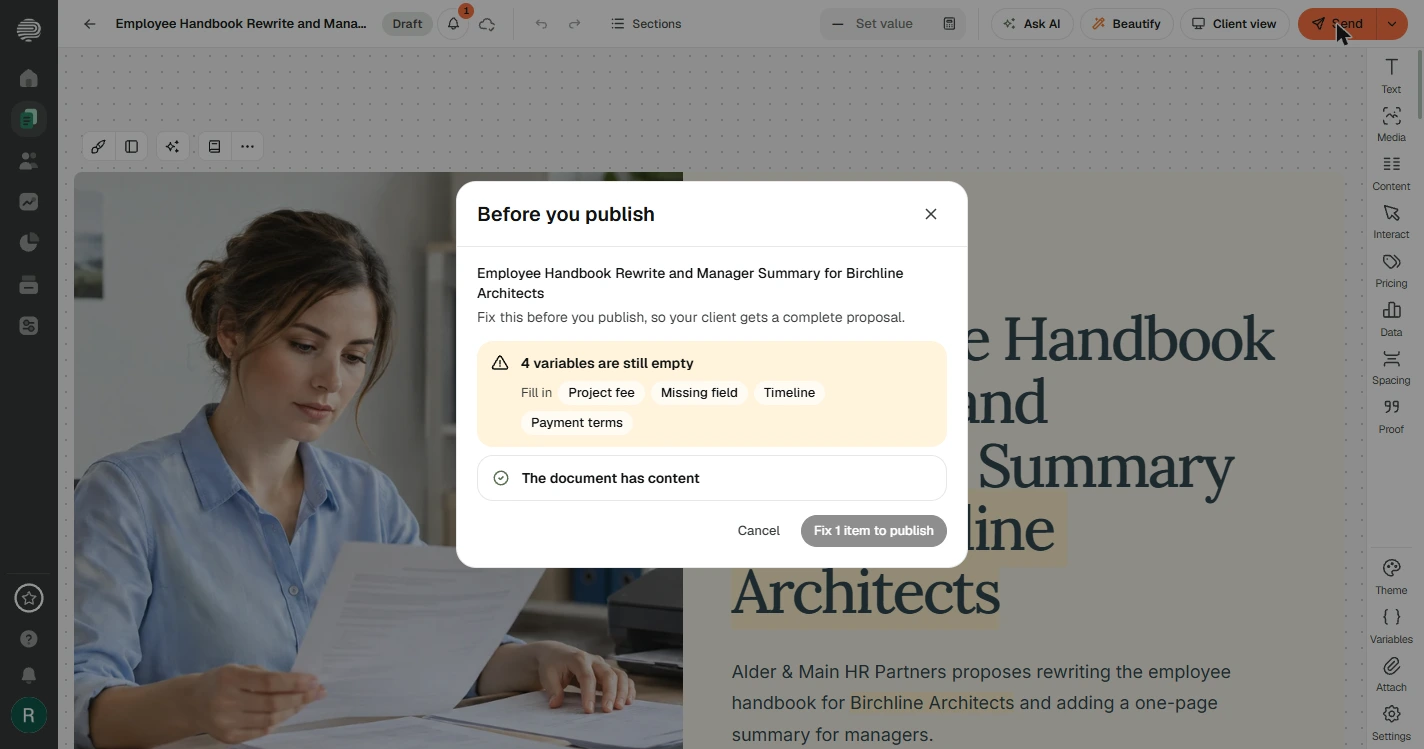
- Click Send to run the check. The document looks finished, with a cover, photos and sections. Pictures were chosen by the AI, so look at each one before a client does. Click Send. Nothing goes out yet; Propovo checks the proposal first.
It looks finished. Do not trust that yet. Nothing goes out. Propovo checks the proposal first.
- Read the check. Before you publish lists 4 empty variables and won't let you continue: Project fee, Missing field, Timeline and Payment terms. That Missing field is worth a second look; we come back to it. Click Project fee.
It will not let you publish with blanks. Good. There are four, and one is called Missing field, which is odd. We will come back to that.
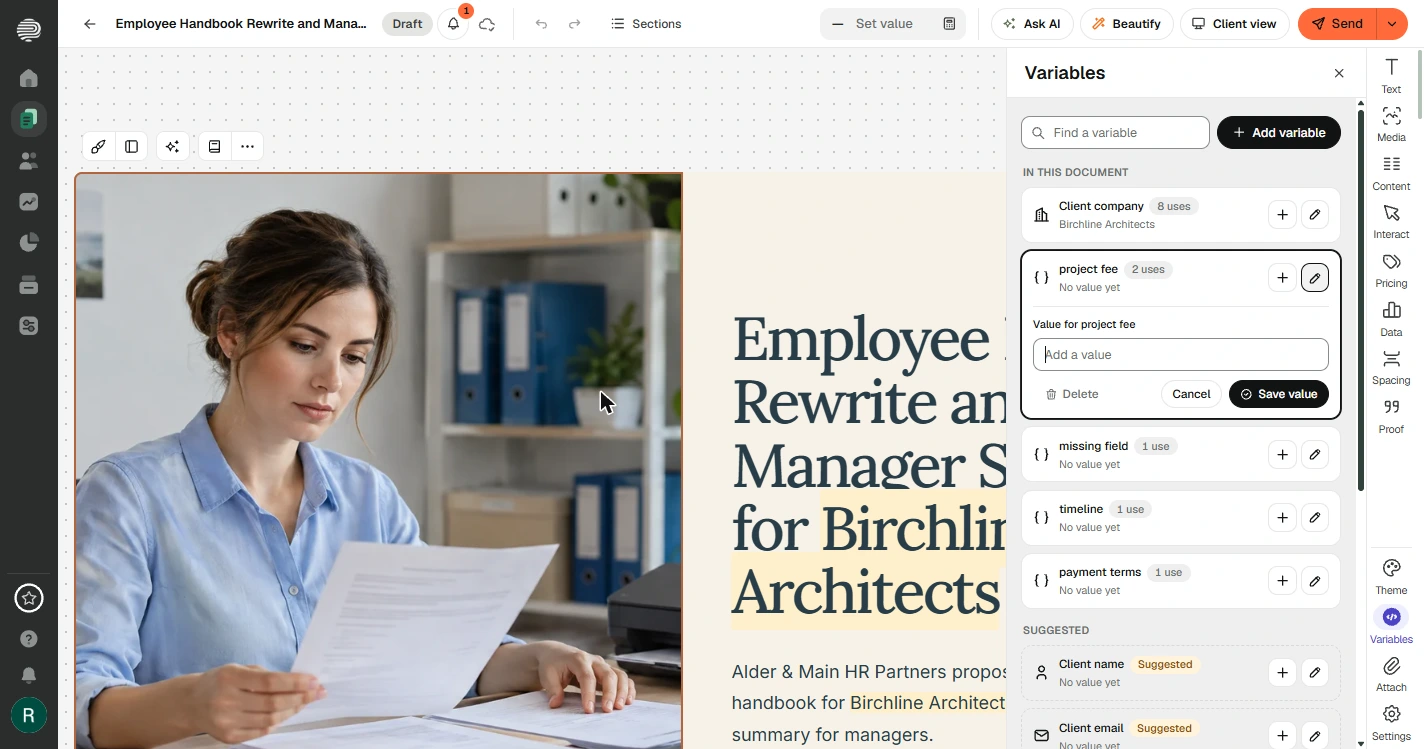
- Enter your fee. The Variables panel opens on the fee. Use your real number here; ours is made up. Then click Save value. The fee is used in 2 places, and one value fills both.
Enter your fee, then click Save value. One value fills every place it is used.
- Fill in timeline and payment terms. Click the pencil on timeline and enter Six weeks from the signed proposal, then Save value. Do the same on payment terms with 50% at signing, 50% on delivery. Click either row here to do both.
Do the same for the timeline and the payment terms. Six weeks. Half at signing, half on delivery.
4. Fix what the AI got wrong
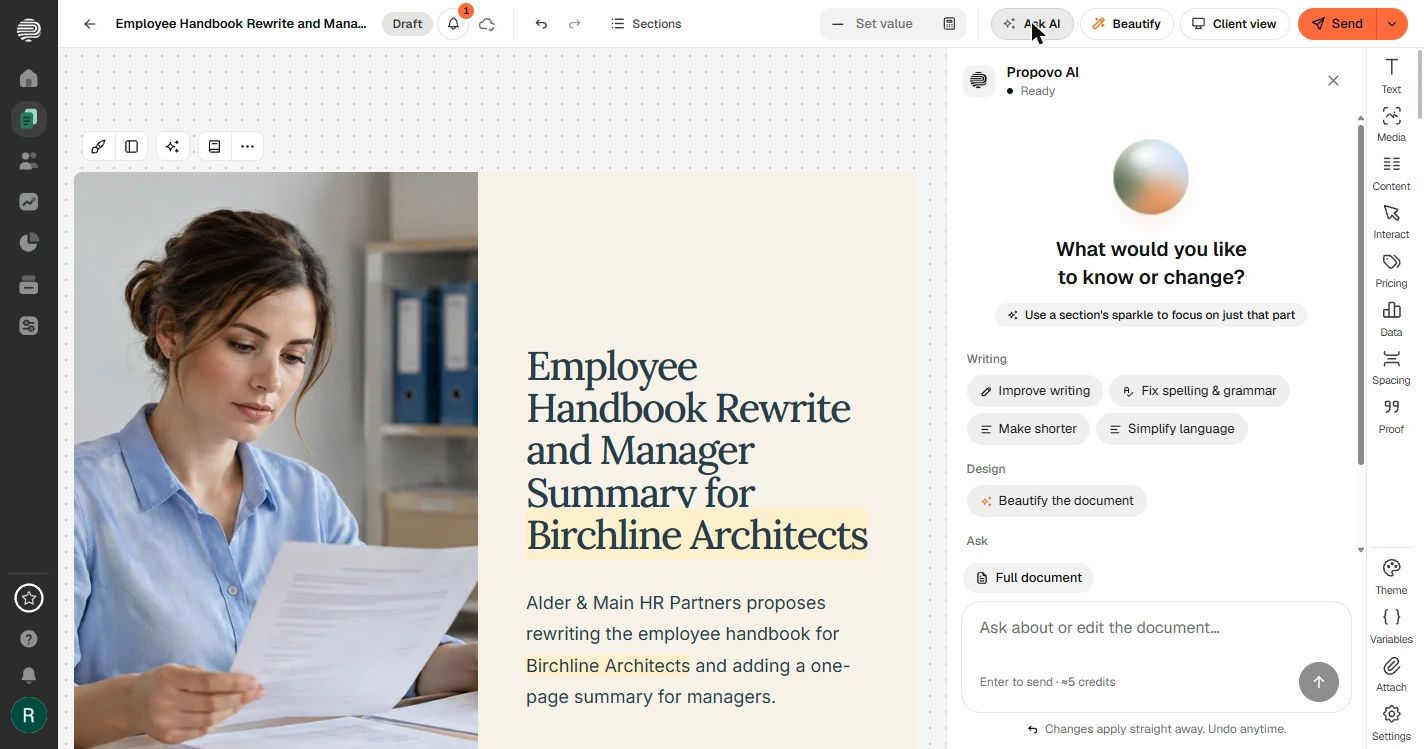
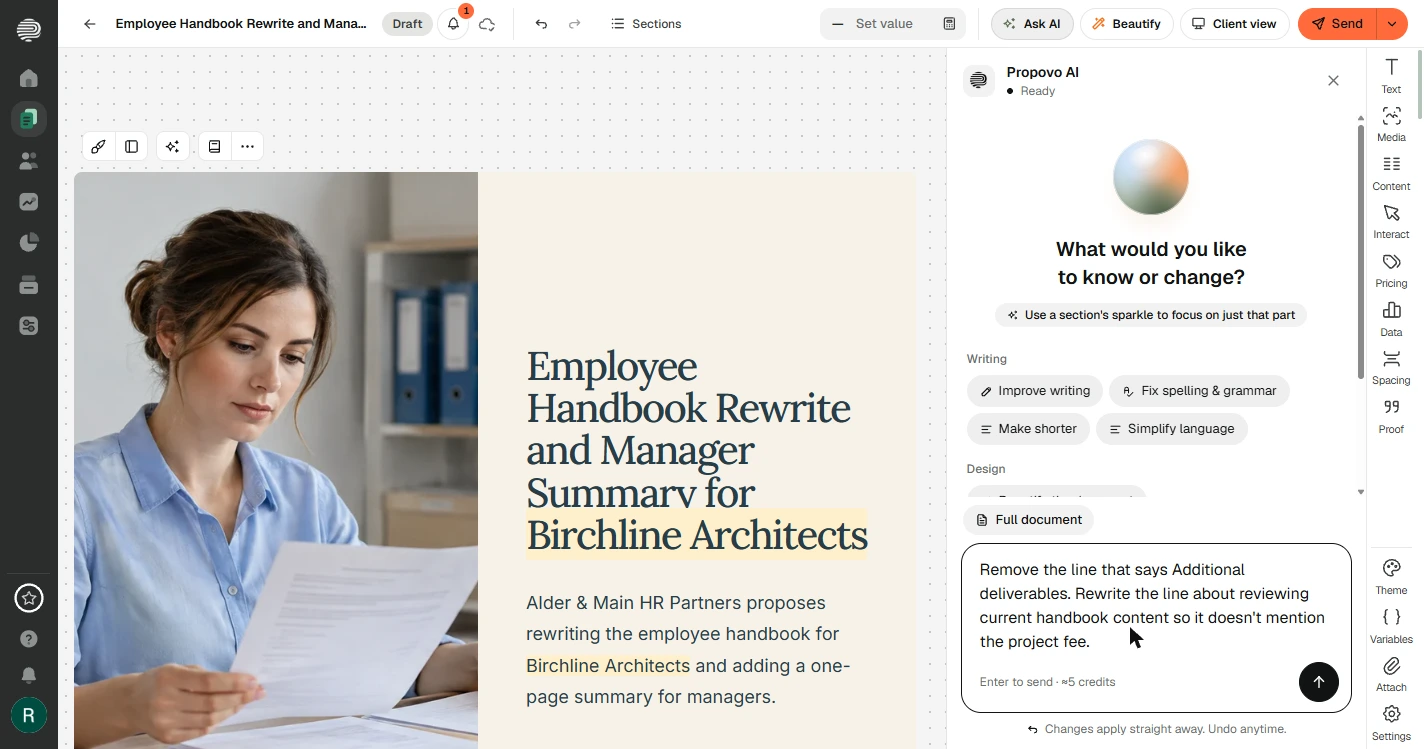
- Read every line, then open Ask AI. Read the whole draft before anything else. Ours had two bad lines the check could not understand: "Review of current handbook content with Birchline stakeholders is {{PROJECT_FEE}}-independent and to be confirmed." and "Additional deliverables: {{MISSING_FIELD}}". Filling in a fee would have sent a client "$6,400 fixed fee-independent". Your draft will differ, so read yours. Click Ask AI.
Read every line. Our draft had two bad ones. One would have told the client the review was six thousand dollars independent. The check only finds blanks. It can not find nonsense. You can.
- Say exactly what to fix. Name the lines and say what you want. A specific request costs about 5 credits, and changes apply straight away. You can undo them.
Name the lines and say exactly what you want changed.
Remove the line that says Additional deliverables. Rewrite the line about reviewing current handbook content so it doesn't mention the project fee.
- Send the request. Click the arrow.
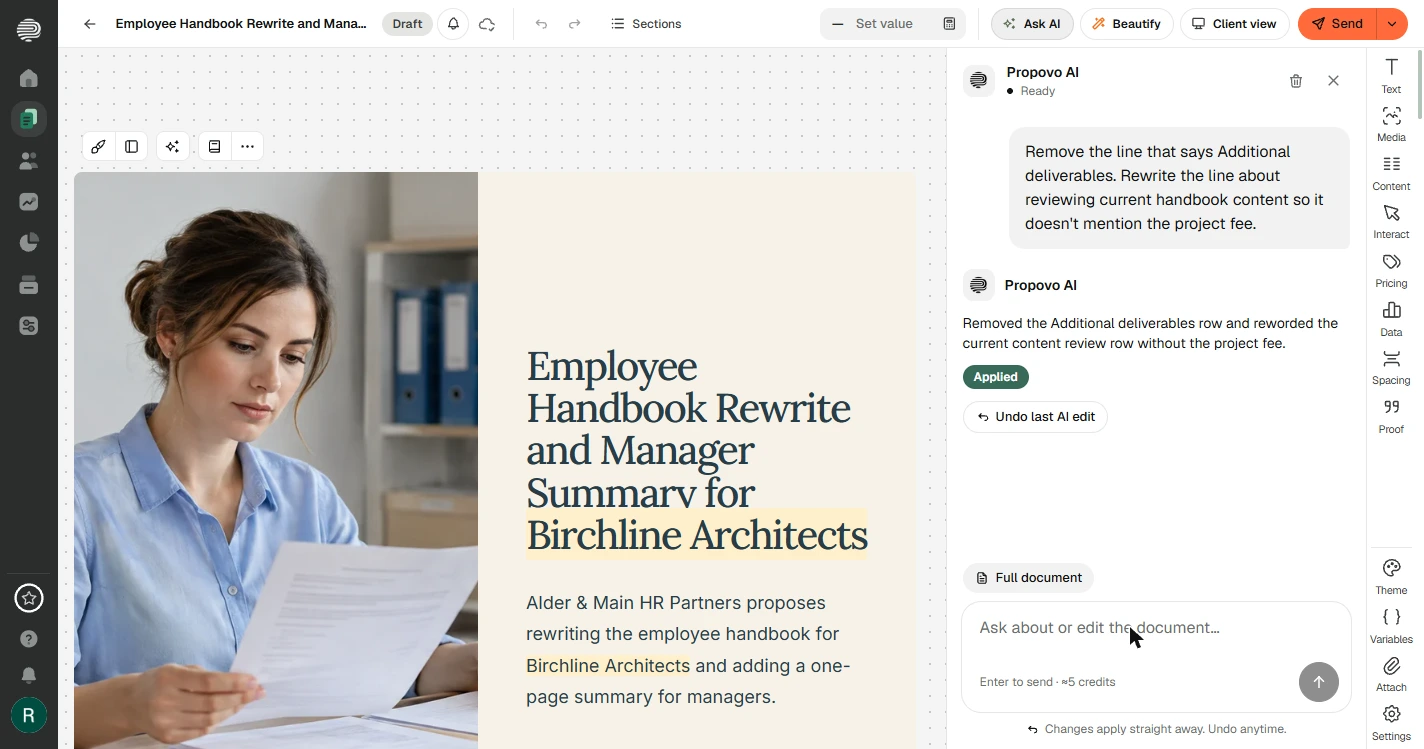
- Then check it yourself. Applied means the change was made, not that it is right. In ours, the row now reads "Review of current handbook content with Birchline stakeholders, to be confirmed." and the deliverables row is gone. Click Applied.
Applied means the change was made, not that it is right. Go read the lines yourself.
5. See what your client sees
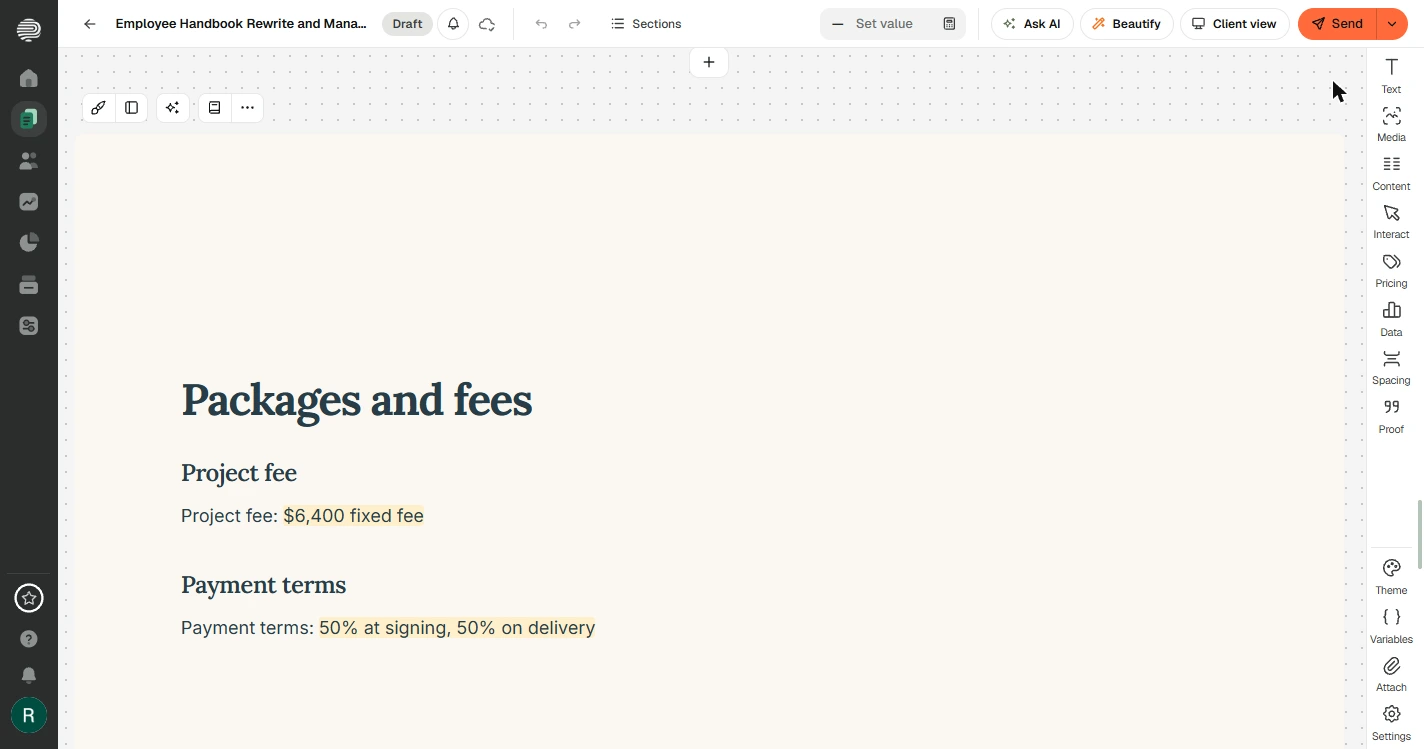
- Check the numbers. In Packages and fees, your values are now in the text, highlighted so you can spot them. Check them against what you agreed. Click $6,400 fixed fee.
Your values are in the text now. Check them against what you agreed.
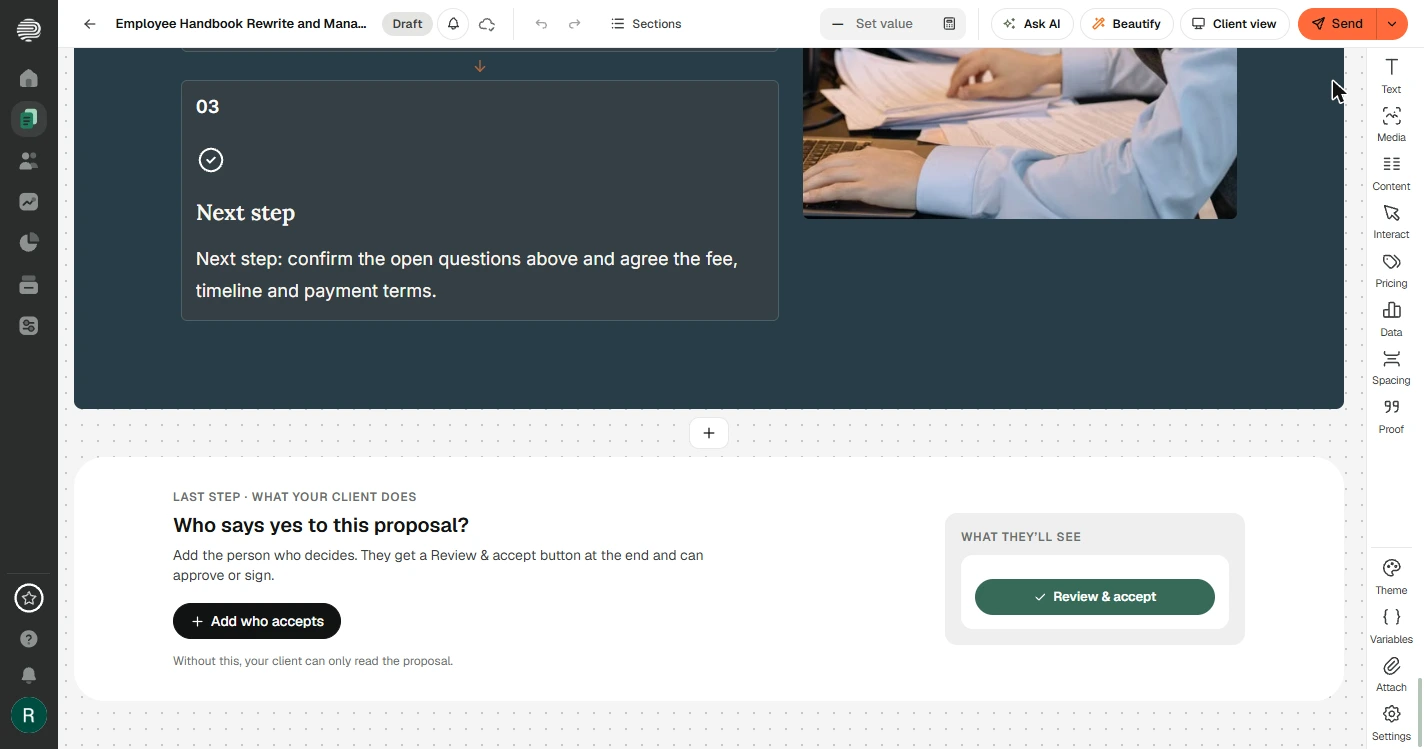
- Add who says yes. Scroll to the end of the document. It says it plainly: without this, your client can only read the proposal. Click Add who accepts.
At the very end, add the person who decides. Without this, your client can only read it.
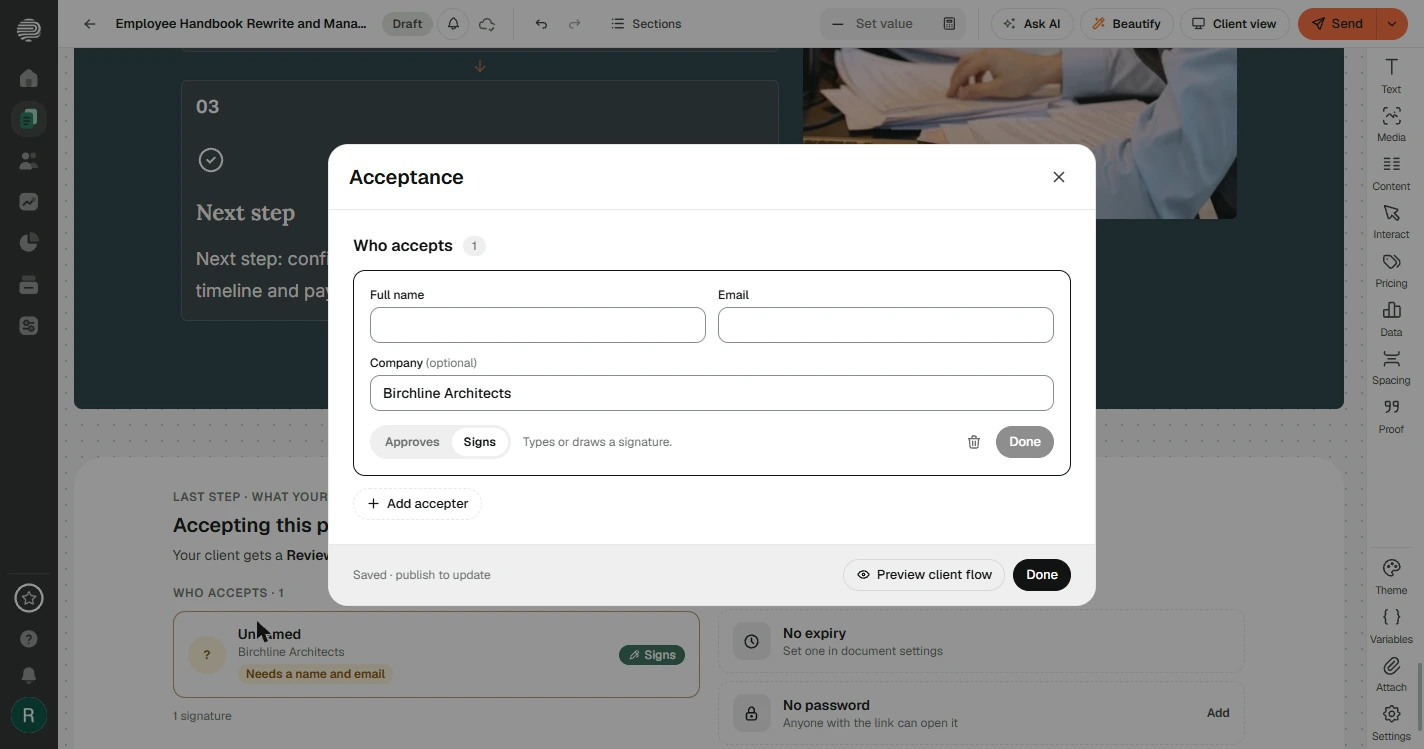
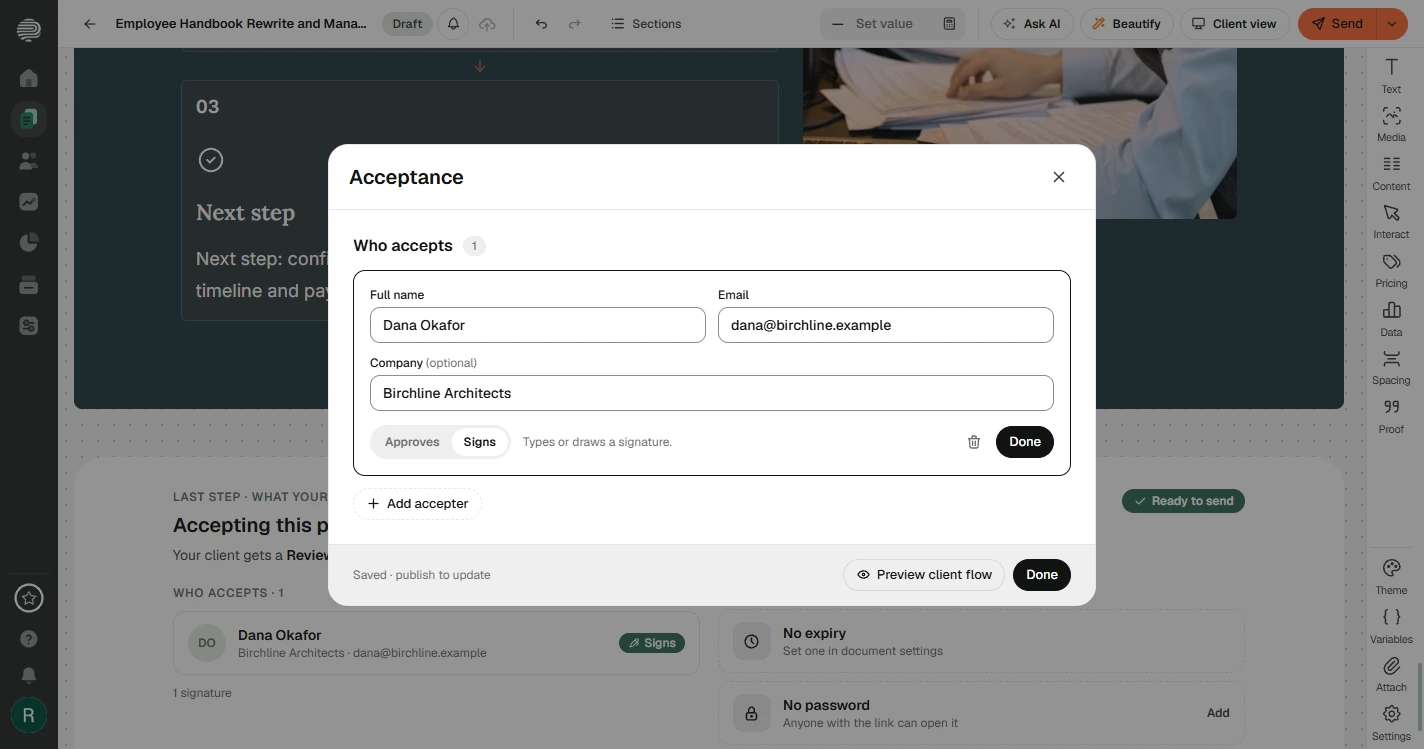
- Name the decision maker. Enter the full name here. Then under Email, enter theirs; ours is dana@birchline.example, a made-up address. Leave Signs selected, which asks for a typed or drawn signature. Approves is the lighter option.
Enter the name and email of the person who decides. Leave Signs selected.
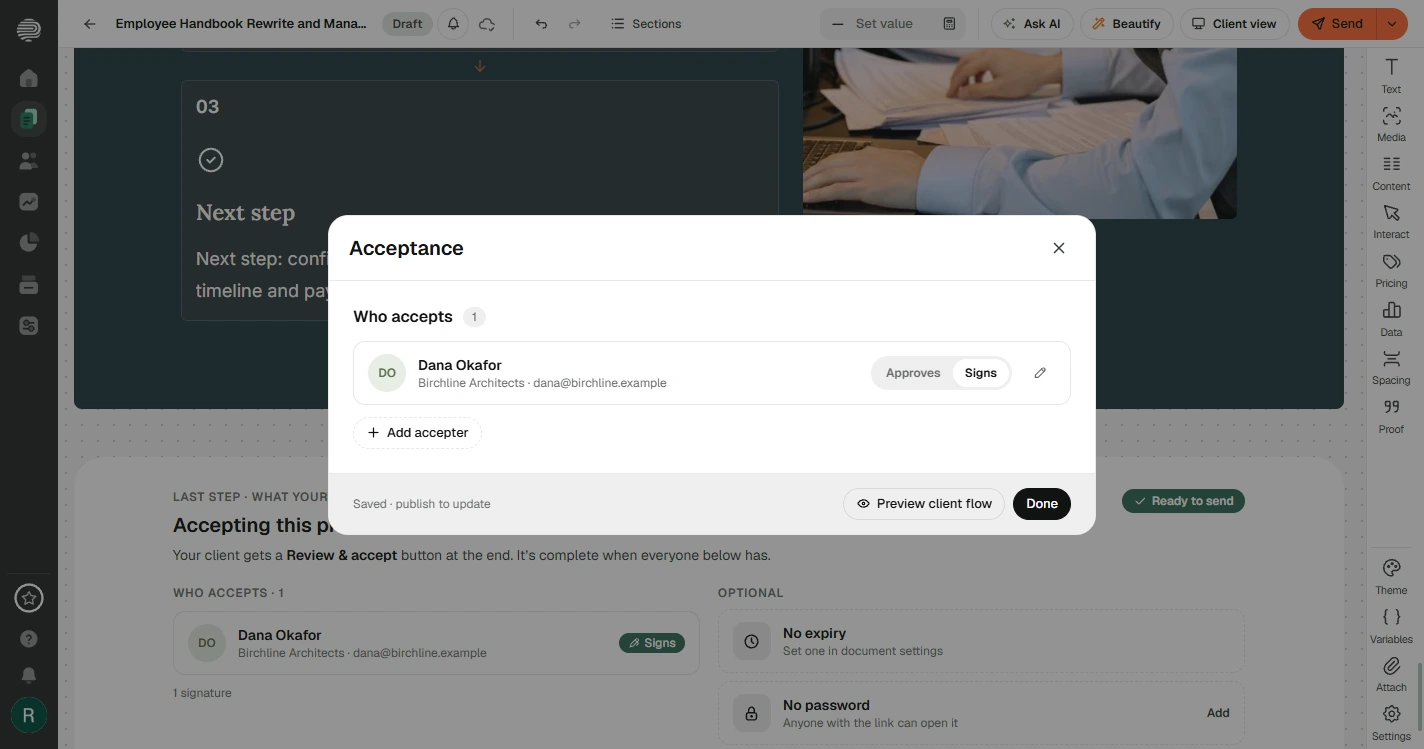
- Save the person. Click Done on the row.
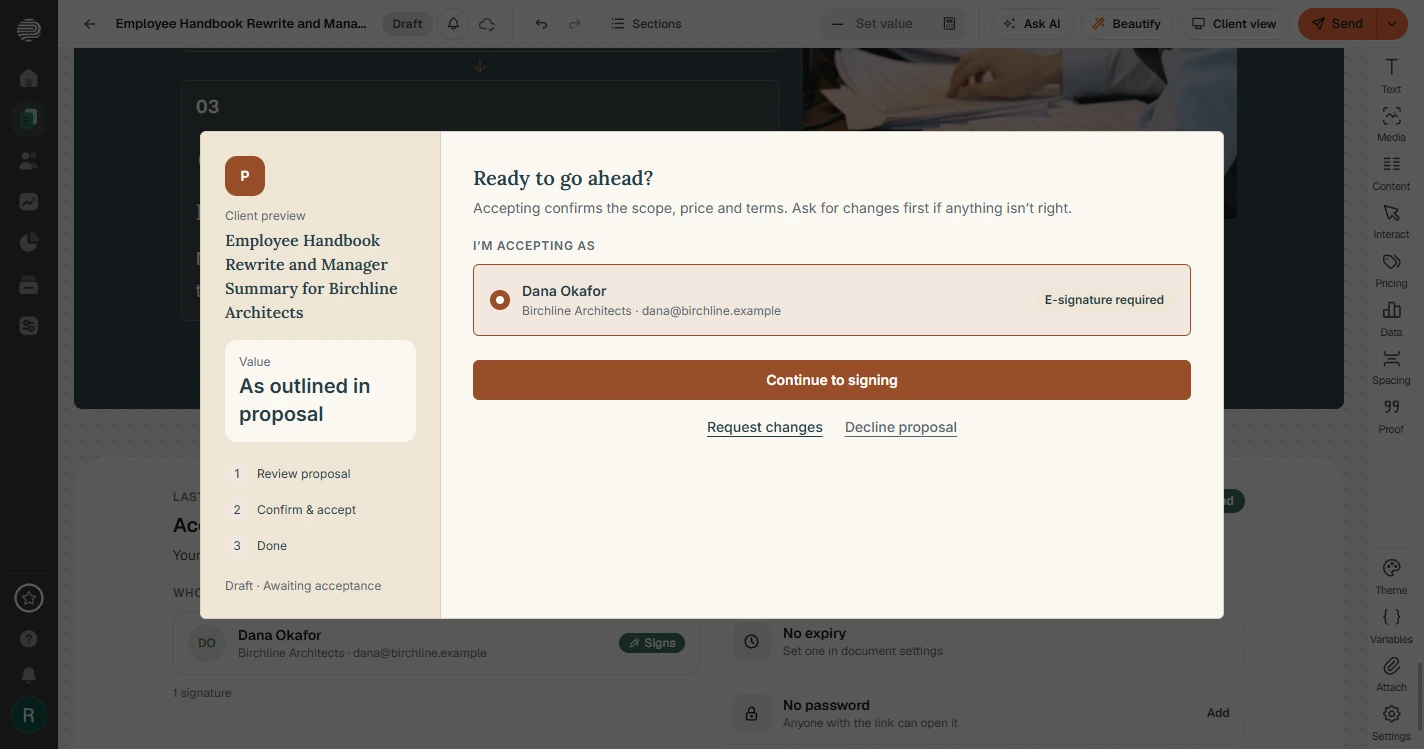
- Preview the client flow. Click Preview client flow. This is a preview. Nothing is sent.
Nothing is sent.
- Look at what your client sees. Dana sees the proposal name, Accepting confirms the scope, price and terms, and three choices: continue to signing, request changes or decline. Close the preview and the Acceptance box, then click Send again. With every value filled in, the check passes.
This is your client's view. They can sign, ask for changes or decline. Close the preview and click Send again. The check passes now.
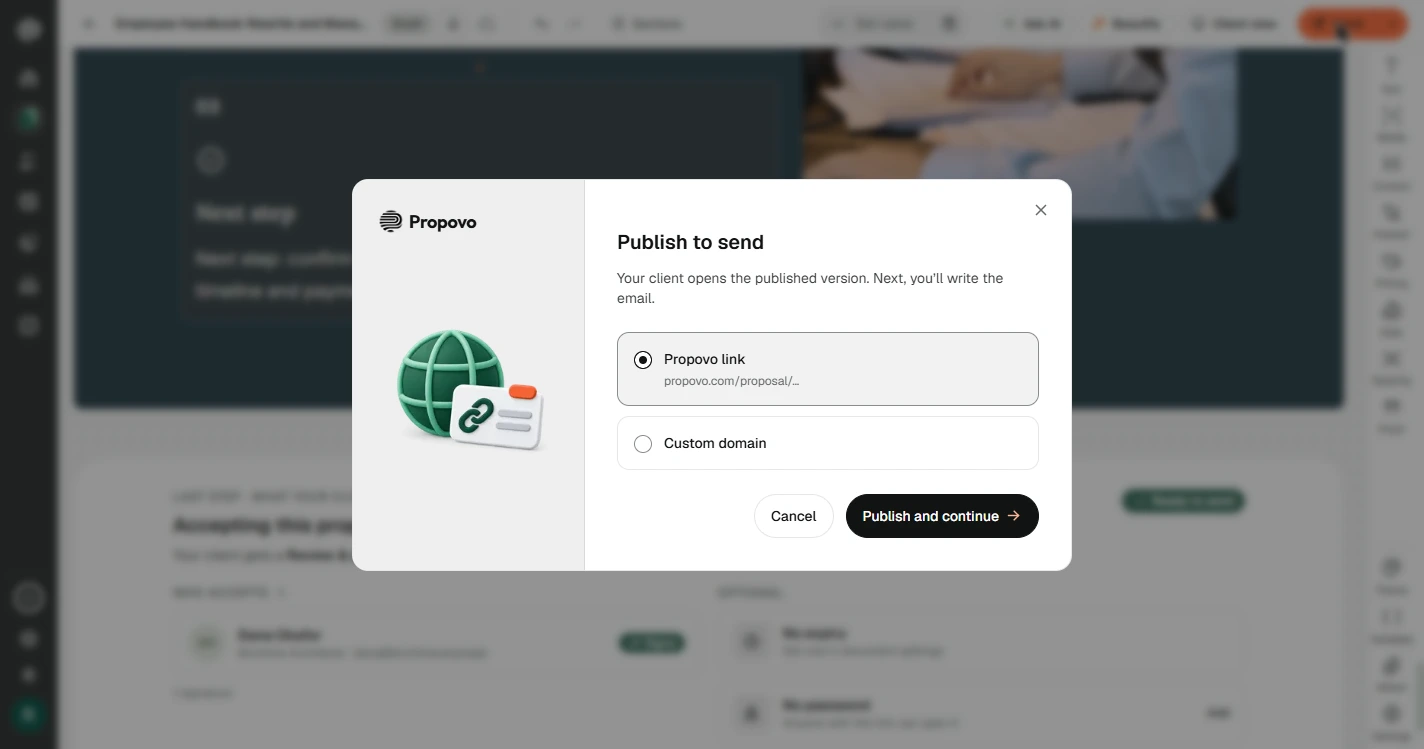
- Publish when it is really yours. Publish to send is where a real proposal goes out: your client opens the published version, and next you write the email. We stopped here, because Birchline is made up. On a real proposal, read it once more, click Publish and continue, and send it. Click it here to finish.
This is where a real proposal goes out. We stopped here, because our client is made up. On a real one, read it once more, then publish and send it.
Screenshots



More in Business Automations
 AI Receipt Extractor: Receipts to Google Sheets with n8n
Drop a photo of a receipt into an n8n chat. An AI agent reads it, pulls out the date, vendor and amount, picks a category, and adds a row to Google Sheets.
Free · Live ~12 min Intermediate
 n8n AI Email Responder: Draft Gmail Replies Automatically
Build an n8n agent that watches your Gmail, reads each new customer email, and writes a reply as a draft in the same thread, ready for you to check and send.
Free · Live ~12 min Intermediate
 Daily Job Alerts: Email Each Tech Their Jobs from Google Sheets with n8n
Every morning at 7, n8n reads a plumbing company's jobs sheet, skips anything not assigned yet, and emails each job to the tech it's assigned to — customer, address…
Free · Live ~10 min Intermediate
 Gmail AI Triage: Auto-Label Every Email and Draft Replies
Build an n8n workflow that reads each new email, sorts it as a lead, a client or an invoice with a Text Classifier, adds the matching Gmail label, and drafts a reply to…
Free · Live ~18 min Advanced
 A Support Agent That Answers from Your Own Docs
Turn an n8n chat agent into a support agent that answers only from your policies in a Google Doc, refuses what it should, and hands off to a person by email.
Free · Live ~13 min Advanced
 Chatbase: Answer Customer FAQs with an AI Agent
A business case for a small firm that answers the same customer questions every week: build a Chatbase AI agent on your FAQ in the real app, make it say when it does…
Free · Live ~15 min Beginner
All 26 modules in Business Automations
Terms in this lesson
Plain-English definitions, each with an example from a free lesson.