Copilot in Outlook vs Gemini in Gmail for work email
Quick answer
The honest answer: use the one built into the email you already have. If your company's mail runs on Microsoft 365 and you read it in Outlook, use Copilot in Outlook. If it runs on Google Workspace and you read it in Gmail, use Gemini in Gmail. Both can draft a reply, summarize a long thread and help you catch up, so switching email platforms to get one or the other rarely makes sense.
Last updated
This page is for office managers, accountants, law and insurance staff, recruiters, and sales and marketing teams who spend hours a day in their inbox. Features come from Microsoft's and Google's own help pages as of October 2026. Free Stepthrough lessons for Copilot and Gemini are coming; today, the free Reply Faster: Customer Emails lesson teaches the reply method that works in either one.
How do they compare at a glance?
| Copilot in Outlook | Gemini in Gmail | |
|---|---|---|
| Made by | Microsoft | |
| Works in | Outlook for Microsoft 365 (Windows and Mac), new Outlook for Windows, Outlook on iOS and Android | Gmail on desktop and mobile |
| Draft a reply | Draft with Copilot, with adjustable tone and length | Help me write, plus contextual Smart Reply suggestions |
| Improve your own draft | Coaching by Copilot gives feedback on tone, sentiment and clarity | Refine a draft for tone and clarity |
| Summarize a thread | Summary by Copilot at the top of a thread, with numbered citations to the emails | Summarize this email at the top of a thread, or ask in the side panel |
| Ask about your inbox | Copilot Chat in Outlook; more of your work data with a Microsoft 365 Copilot license | Ask Gemini in the side panel to find details in your inbox |
| Use other files | Work data such as chats and files with a Copilot license | Mention Google Drive files with @ in the side panel |
| Who can use it | Work or school accounts on a qualifying Microsoft 365 business or enterprise plan | Google Workspace business plans, or a personal account with an eligible Google AI plan |
| Free Stepthrough lesson | Coming | Coming |
Which is better for work email, Copilot or Gemini?
Neither one wins on its own. The deciding factor is your email platform. Copilot in Outlook works on the mailbox your company runs in Microsoft 365, and Gemini in Gmail works on the mailbox your company runs in Google Workspace. Each can read the thread you have open, so you don't copy and paste anything, and that convenience only exists inside its own suite.
So the real choice is usually made already, by whoever picked your company's email. If you are on Microsoft 365, compare Copilot with doing nothing, not with Gemini. If you are on Google Workspace, the same is true for Gemini. If your company uses a different email system, a separate assistant like ChatGPT or Claude, with copy and paste, is the practical route; our ChatGPT vs Claude vs Gemini vs Copilot comparison covers that choice.
How does each one draft a reply?
In Outlook, you open Draft with Copilot from the Copilot button on the ribbon, or by typing a slash in the message, then describe what you want. Microsoft says Copilot builds the draft from your prompt and the thread, and you can adjust tone and length before you keep it. Coaching by Copilot goes the other way: you write the email, and Copilot suggests changes for tone, sentiment and clarity, which you can apply all at once.
In Gmail, the Help me write icon in the compose window turns a short prompt into a full draft, and Google notes that more detailed prompts give more detailed drafts. Gmail also offers contextual Smart Reply, longer suggested replies based on the thread, and Gemini can refine a draft you've written for tone and clarity.
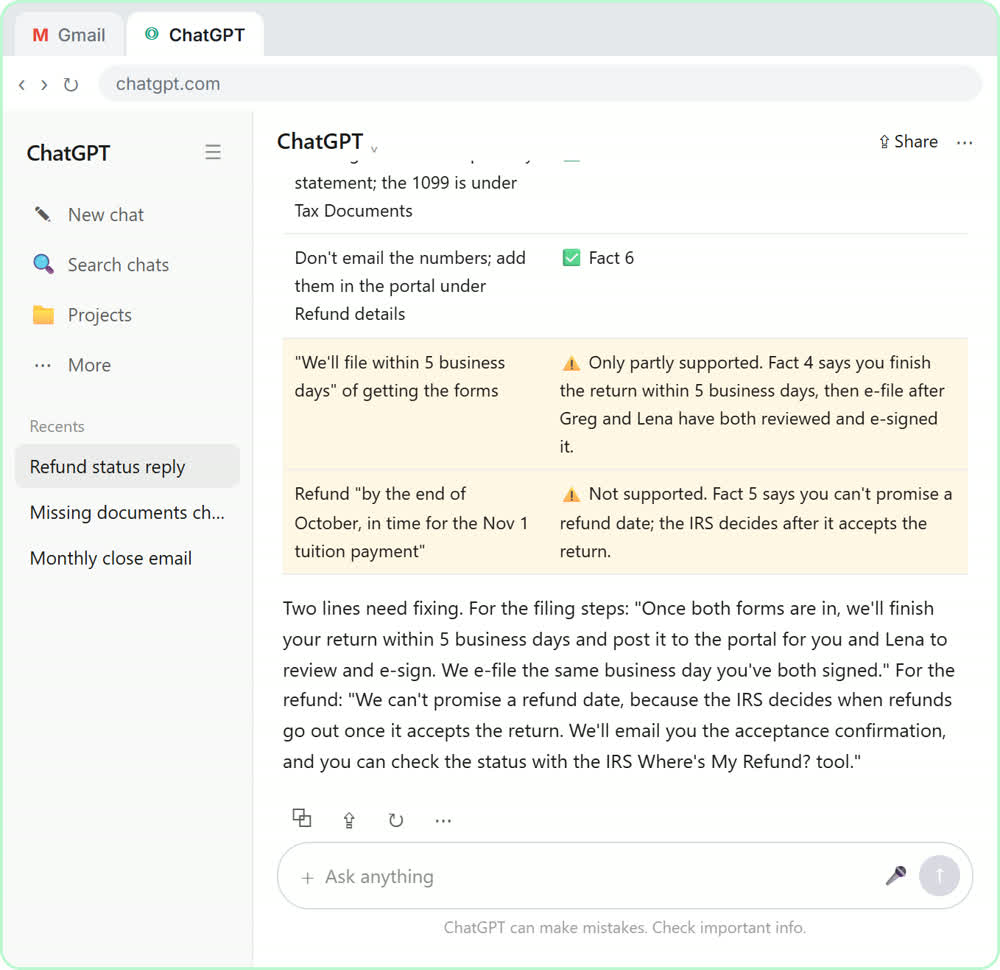
In both, the draft is only as good as the facts you give it. The free Northgate Tax & Bookkeeping lesson, with a made-up firm, shows why: a client named Greg wants a refund date, two tax forms are still missing, and the job is to write a kind reply that doesn't promise a date nobody can promise. The check reply promises prompt does the same check in any assistant, and the email shortener prompt trims a draft that runs long.
How does each one summarize a long email thread?
In Outlook, you select Summary by Copilot (it may say Summarize) at the top of a thread. Microsoft says Copilot scans the thread for key points, shows a summary at the top of the email, and may add numbered citations that take you to the email each point came from. Those AI citations are the quickest way to check a summary before you act on it.
In Gmail, you click Summarize this email at the top of a thread, or open Ask Gemini in the side panel and ask what the email is about. Google describes the result as long threads turned into concise bullet points. Either way, read the latest message yourself before replying, because a summary can miss a change of plan in the last line. The email thread and AI summarization glossary entries explain the basics.
Can they help me catch up after time away?
Yes, within limits. Copilot Chat in Outlook lets you ask about your inbox and calendar, for example to summarize emails about a project or draft an update. Microsoft says that without a Microsoft 365 Copilot add-on license, Copilot Chat in Outlook covers basic tasks like summarizing emails, checking calendar availability and drafting messages; with the license it can also draw on enterprise data and chats and pull related context from several sources together. Microsoft's FAQ also lists a Prioritize feature that reviews emails as they arrive.
In Gmail, the Ask Gemini side panel can find details buried in your inbox, reference Google Drive files you mention with @, and propose meeting times from your Google Calendar. For a big backlog, ask either assistant for a list of threads that need a reply from you, then open each one and check it. The email thread summary prompt gives you a structure to ask for.
Do I need a paid plan for either one?
It depends on your plan, and pricing varies by plan, so check the official pages: Microsoft 365 Copilot pricing and Google Workspace pricing. As of October 2026, Microsoft says Copilot Chat in Outlook is available to work accounts on qualifying Microsoft 365 business and enterprise plans, with more features when your admin assigns a Microsoft 365 Copilot add-on license. Google's pricing page lists the Gemini AI assistant in Gmail on every Workspace business edition, from Business Starter up, with fuller Gemini features on the higher editions. Personal Gmail users need an eligible Google AI plan.
Is it safe to use Copilot or Gemini on client email?
Using the assistant built into your company's email is usually safer than pasting client mail into a personal AI account, because the work stays inside the system your IT team already manages. Pasting it elsewhere without approval is shadow AI. Still, ask your admin what your plan's terms say, including the data processing agreement, before you use either one on client, patient or case details.
For accounting, law, insurance and HR mail, keep a person reading every draft before it goes out. Neither tool sends a reply for you unless you send it, and that review step is where wrong dates, fees and promises get caught. If you want drafts written automatically but never sent, the free AI email responder lesson builds that with n8n and Gmail drafts.
Who is each one for?
Microsoft 365 Copilot in Outlook
For offices whose email runs on Microsoft 365 and who read it in Outlook, especially firms where Copilot Chat is already included in the plan. Coaching by Copilot suits anyone who writes their own replies and wants a second read on tone. A free Stepthrough lesson on Copilot is coming.
Gemini in Gmail
For offices on Google Workspace who live in Gmail, Google Drive and Google Calendar. Help me write and Summarize this email cover the daily jobs, and the side panel helps you find details across the inbox. A free Stepthrough lesson on Gemini is coming.
Which of these tools have a free Stepthrough lesson?
- Microsoft 365 Copilot in Outlook: a free Stepthrough lesson is coming.
- Gemini in Gmail: a free Stepthrough lesson is coming.
Practice it free, step by step
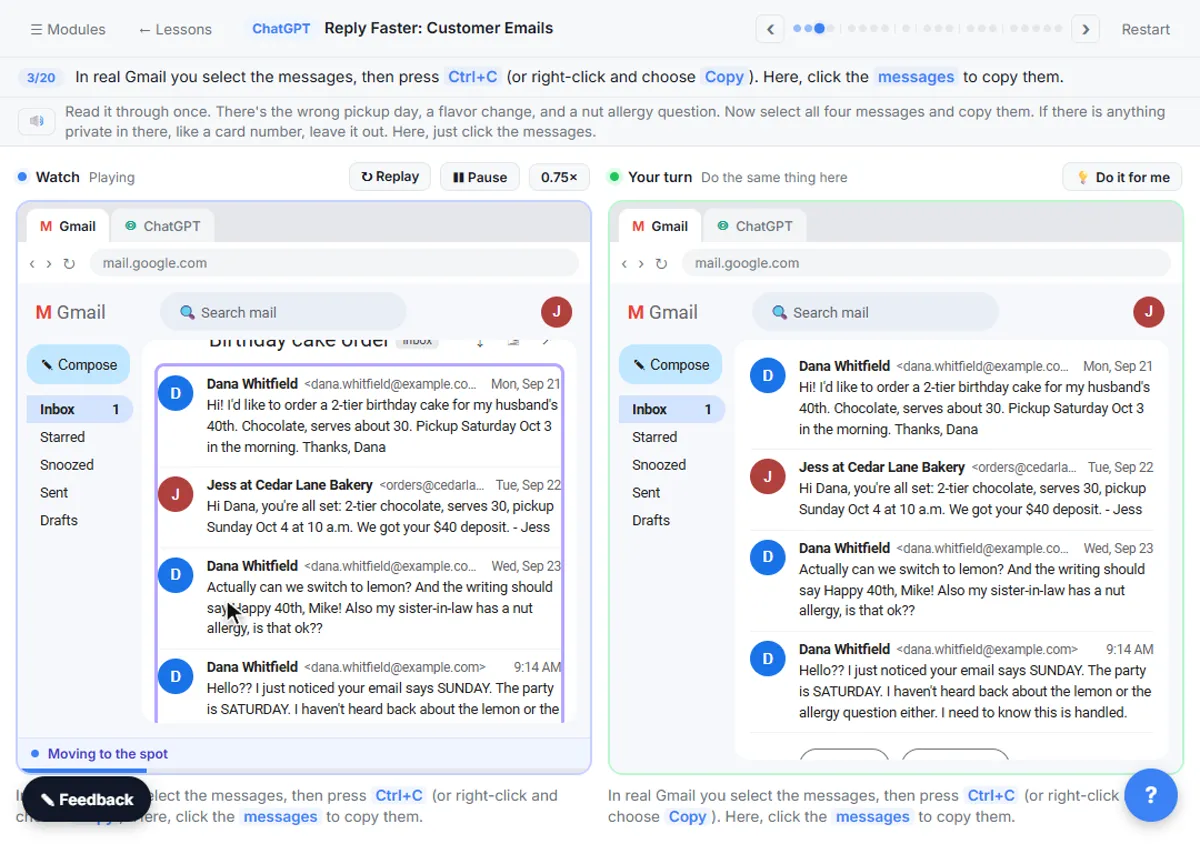
Reply Faster: Turn a Messy Customer Email Thread into a Clear, Friendly Reply. Turn a messy customer email thread into a clear, friendly reply: give ChatGPT the thread and your facts, check every promise, fix the tone, and send it from Gmail. You do every step yourself in a practice copy of ChatGPT, it checks your work as you go, and “Do it for me” finishes any step you get stuck on. Free, and nothing touches your real accounts.
Start the free lessonKey takeaways
- Pick the assistant built into your email platform: Copilot for Microsoft 365 and Outlook, Gemini for Google Workspace and Gmail.
- Both draft replies and summarize threads; Copilot's thread summaries can include numbered citations back to each email.
- Copilot Chat in Outlook covers basic email tasks on qualifying Microsoft 365 plans, and a Copilot add-on license adds work data; Gemini in Gmail is listed on every Workspace business edition.
- Pricing varies by plan, so check each vendor's pricing page, and keep a person reviewing every draft before it is sent.
Frequently asked questions
Can I use Copilot on a Gmail account?
Microsoft's Copilot in Outlook help pages are written for work or school accounts on Microsoft 365, and they don't describe support for Gmail accounts added to Outlook. If your company email is in Google Workspace, Gemini in Gmail is the built-in option. Check Microsoft's Copilot in Outlook FAQ for the latest on other account types.
Can I use Gemini in Outlook?
Gemini in Gmail works inside Gmail, so it doesn't help with mail you read in Outlook. If your company is on Microsoft 365, Copilot is the built-in choice, or you can paste a thread into the Gemini app if your company allows it.
Does Copilot in Outlook work in classic Outlook for Mac?
No. As of October 2026, Microsoft says Copilot in Outlook is only available in the latest version of Outlook for Mac and legacy Outlook isn't supported. Microsoft's FAQ also says chatting with Copilot in Outlook needs a work or school account.
Will Copilot or Gemini send emails for me?
They write drafts and summaries; you decide what to send. That is the right habit for work email: read each draft, check names, dates and amounts, and only then press send.
Where do these prices and features come from?
Every price and feature on this page was checked against the vendor's own page, as of October 2026. No numbers here are estimates or third-party figures. The example businesses in the Stepthrough lessons are made up.
- Microsoft Support: Welcome to Copilot in Outlook
- Microsoft Support: Summarize an email thread with Copilot in Outlook
- Microsoft Support: Frequently asked questions about Copilot in Outlook
- Microsoft Support: Chat with Copilot in Outlook
- Microsoft Support: Copilot Chat with and without a Microsoft 365 Copilot license
- Microsoft 365 Copilot plans and pricing
- Gmail Help: Collaborate with Gemini in Gmail
- Google Workspace: Gemini in Gmail
- Google Workspace pricing
- Google: Gemini subscriptions