Updated . Built against the tool’s current screens and checked step by step. How we check this lesson
Turn a 5.6 MB phone photo into a 142 KB, branded, website-sized listing photo with three free browser tools: Image Resizer, Watermark Adder and Image Compressor. No sign-up, nothing uploaded.
At a glance
| Question | Answer |
|---|---|
| What you build | Turn a 5.6 MB phone photo into a 142 KB, branded, website-sized listing photo with three free browser tools: Image Resizer, Watermark Adder and Image Compressor. No sign-up, nothing uploaded. |
| Tools | Anwaar Digital |
| Time | About 7 minutes, 16 steps in 3 parts |
| Level | Beginner, no coding needed |
| Cost | Free |
| Ways to learn it | Practice it step by step |
The 3 parts, in short
- Resize for the web: Search for the resizer, Open Image Resizer, Select the photo, Set the width to 1600, and 2 more steps.
- Add your brand: Search for the watermark tool, Open Watermark Adder, Select the resized photo, Type your brand, and 2 more steps.
- Shrink it last: Open Image Compressor, Select the watermarked photo, Pick a quality, Download a small JPG.
Start here first: Write Listing Descriptions and Just-Listed Posts in Your Own Voice with ChatGPT (Real Estate) (module 1 of AI Automation for Real Estate)
Part of: AI for Real Estate (step 15 of 15)
Part of: AI Apps Worth Knowing (step 161 of 164). Next up: Anwaar Digital: Clean a Messy Volunteer Email List Before You Import It for Marketing
What you'll build
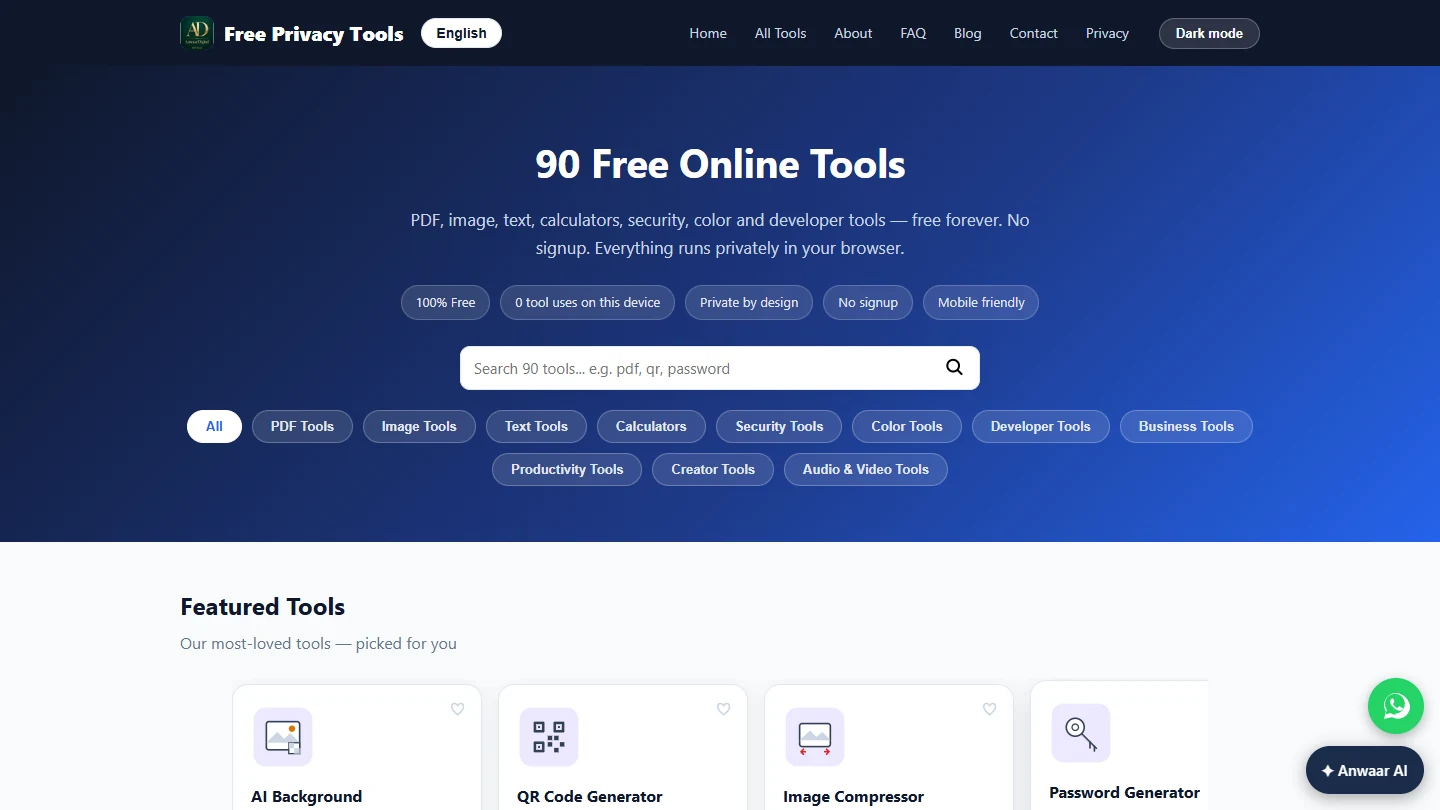
You do marketing at Lakeside Realty Group, a made-up 12-agent brokerage. An agent just sent 24 phone photos of a new listing, each about 5.6 MB. Uploaded as they are, the listing page crawls on a phone, and copied photos end up on rental-scam ads with no name on them. In this lesson you prepare one photo the way you will do all of them, with three free tools on Free Privacy Tools by Anwaar Digital: Image Resizer, Watermark Adder and Image Compressor, in that order. The screens are real, captured while doing it with a made-up photo.
You resized the photo to 1600 x 1200 with the aspect ratio locked, added a half-opacity Lakeside Realty Group watermark at size 56, and compressed the result to a quality 75 JPG: 142 KB, about 40 times smaller than the original. The order matters, because the resizer and the watermark tool save PNG files, so compress last. Next, do the other photos the same way, and check one on your phone before the listing goes live.
- Tools: Anwaar Digital
- Time: about 7 minutes, 16 steps in 3 chapters
- Level: beginner, no coding needed
- Price: free
Practice first, then build it for real
Practice copy built from real Free Privacy Tools screens (freetools.anwaardigital.com), captured 14 November 2026 while resizing, watermarking and compressing a made-up sample photo. Nothing here touches your files. Lakeside Realty Group and the house are made up. To build it for real you need your own Anwaar Digital account, and some services charge once you use them for real work, so check each tool's current pricing.
Try it yourself, free
Reading the steps is a start. Doing them is how it sticks. The interactive module walks you through every click in a practice copy of Anwaar Digital, checks each step, and never touches your real accounts.
Start “Anwaar Digital: Get a Listing Photo Website-Ready (Resize, Watermark, Compress) for Real Estate”Step by step: Anwaar Digital: Get a Listing Photo Website-Ready (Resize, Watermark, Compress) for Real Estate
All 16 steps of the interactive module, in order. In the module you watch each one, then do it yourself in a practice copy that checks your work.
1. Resize for the web
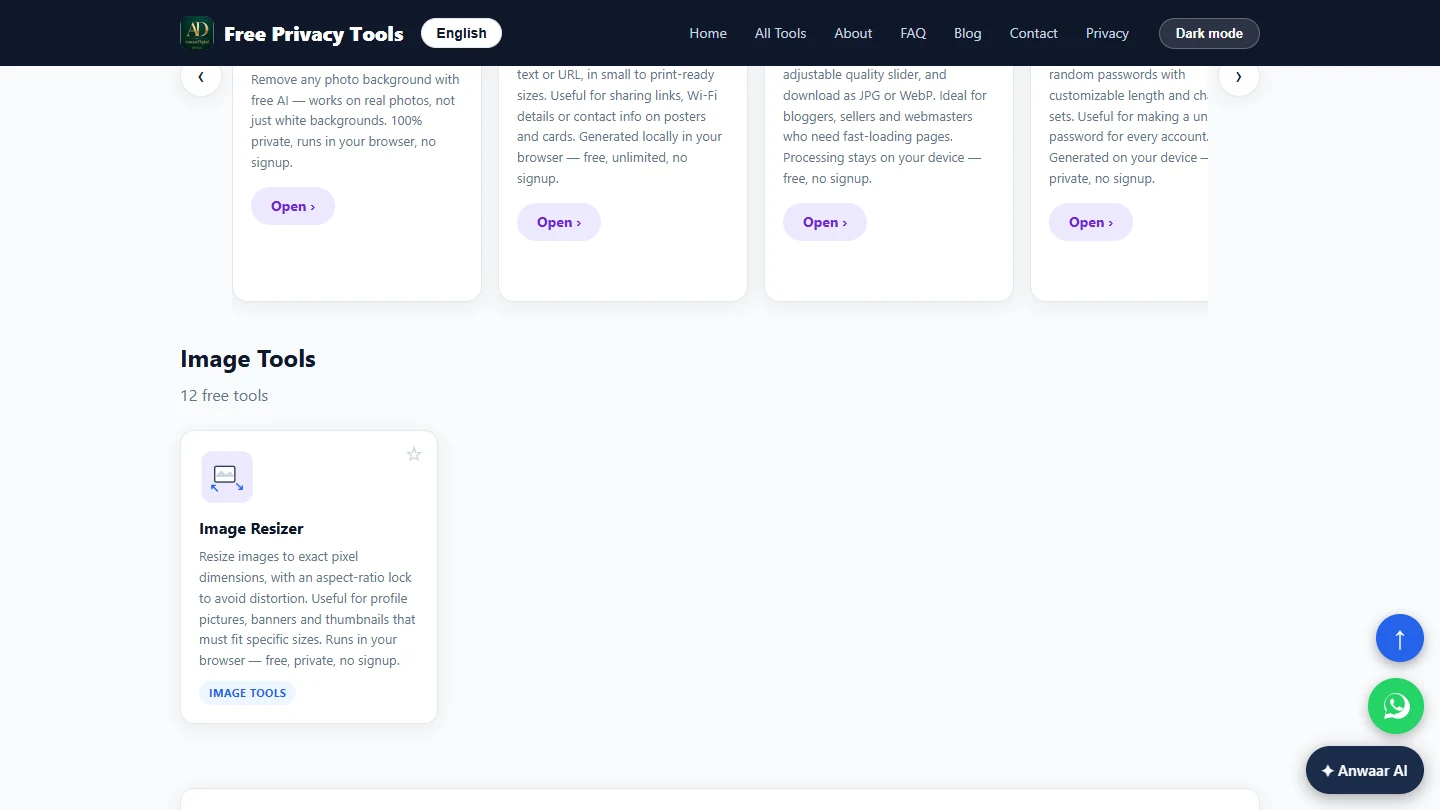
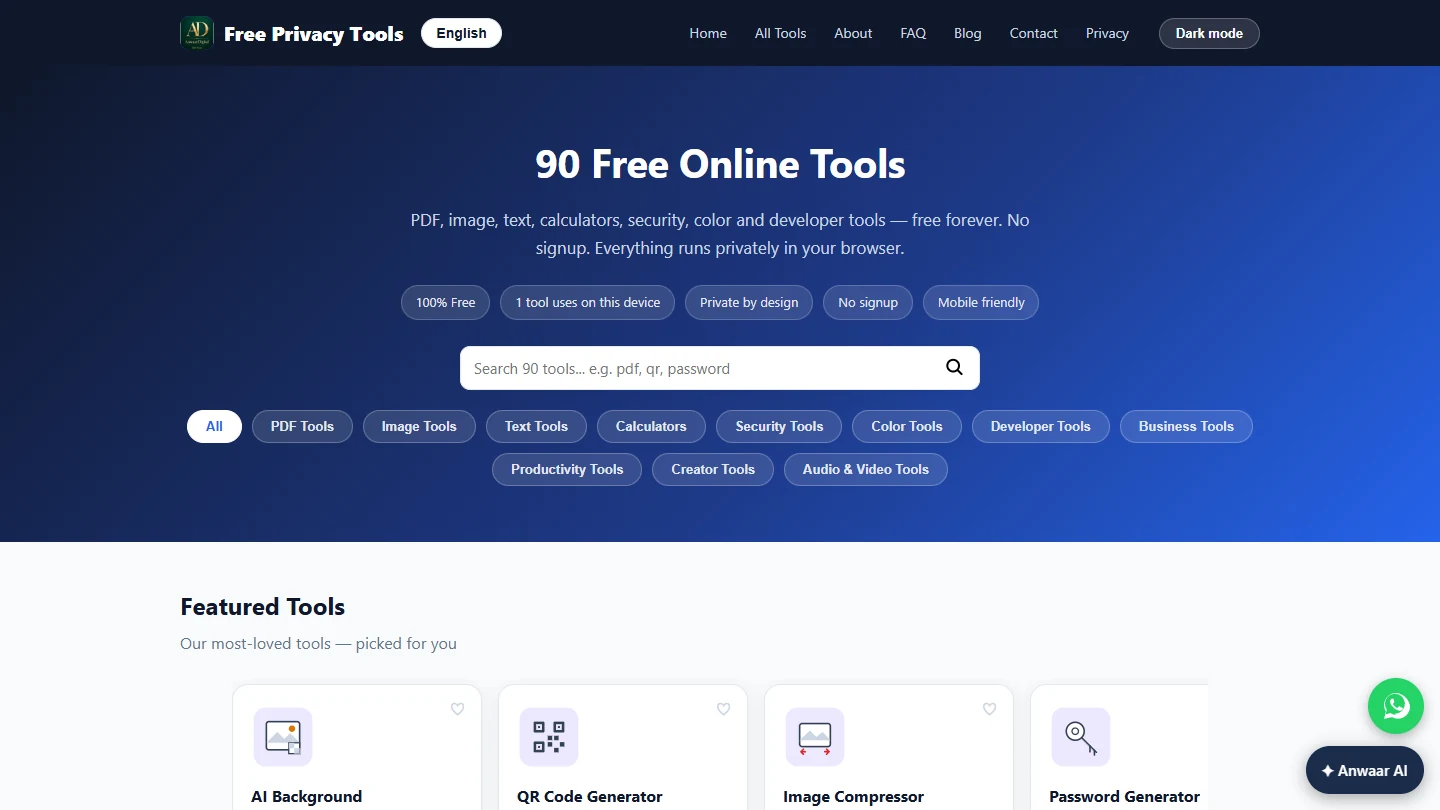
- Search for the resizer. You do marketing at Lakeside Realty Group (made up). The agent sent 24 phone photos of 48 Orchard Lane, each 4032 x 3024 pixels and about 5.6 MB. Uploaded as they are, the listing page loads slowly on phones and portals squash them. Copied photos also turn up on rental-scam ads without your name. You fix one photo here, the same way for every photo: resize, watermark, compress. Type resize in the search box.
Phone photos are huge, and copied photos turn up on scam ads. Resize, watermark, then compress.
- Open Image Resizer. Click the Image Resizer card.
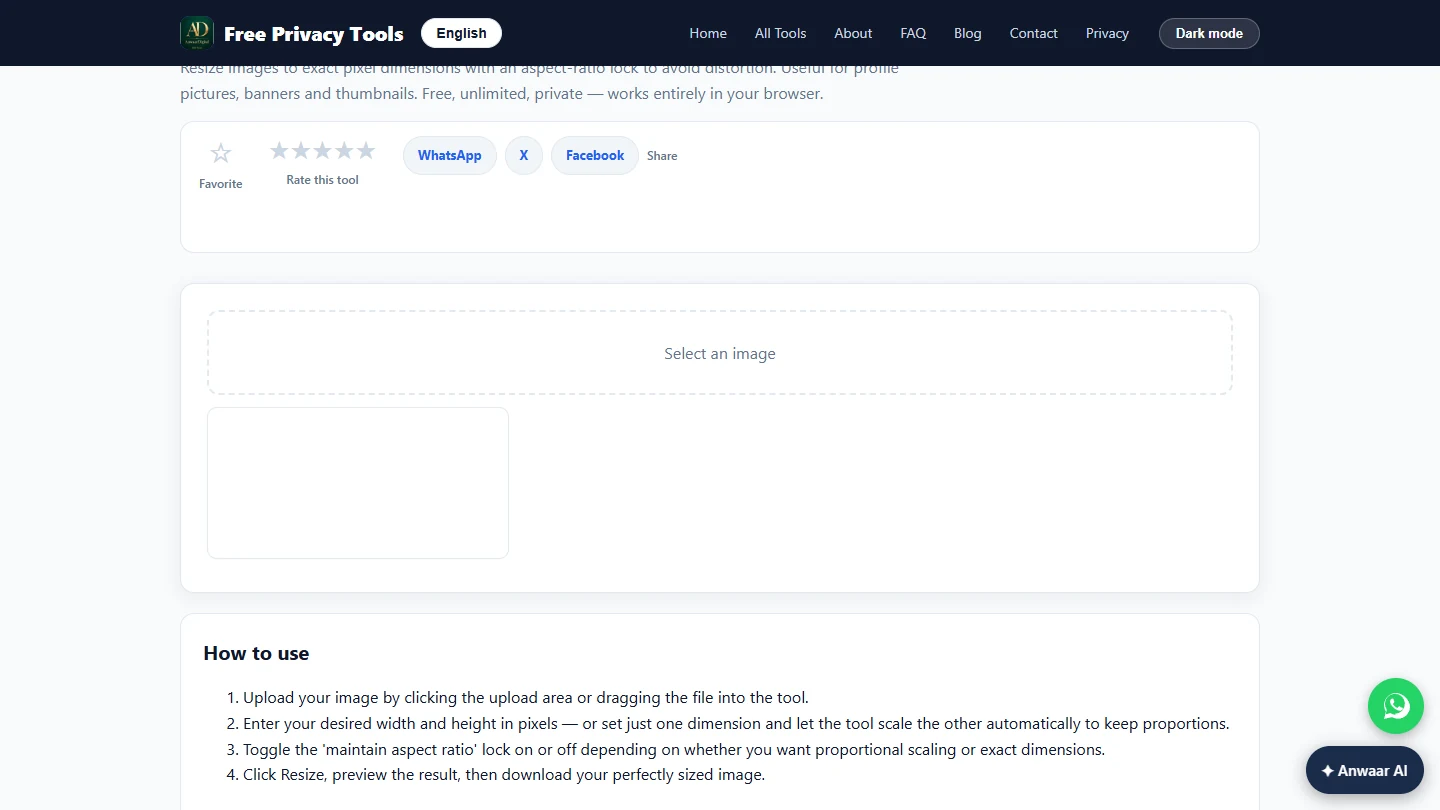
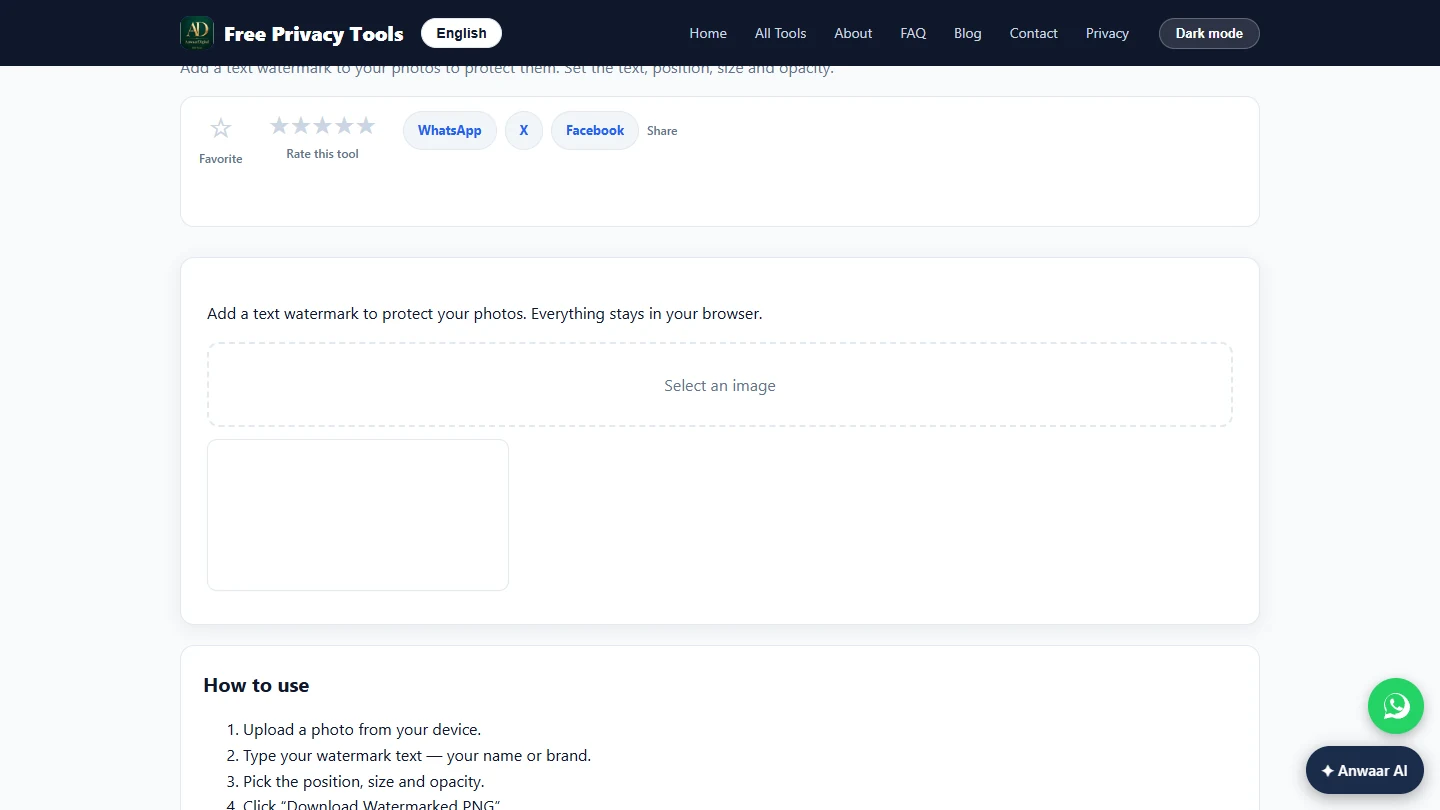
- Select the photo. Click Select an image and pick 48-orchard-lane-front.jpg. A preview appears, and the boxes below show its real size.
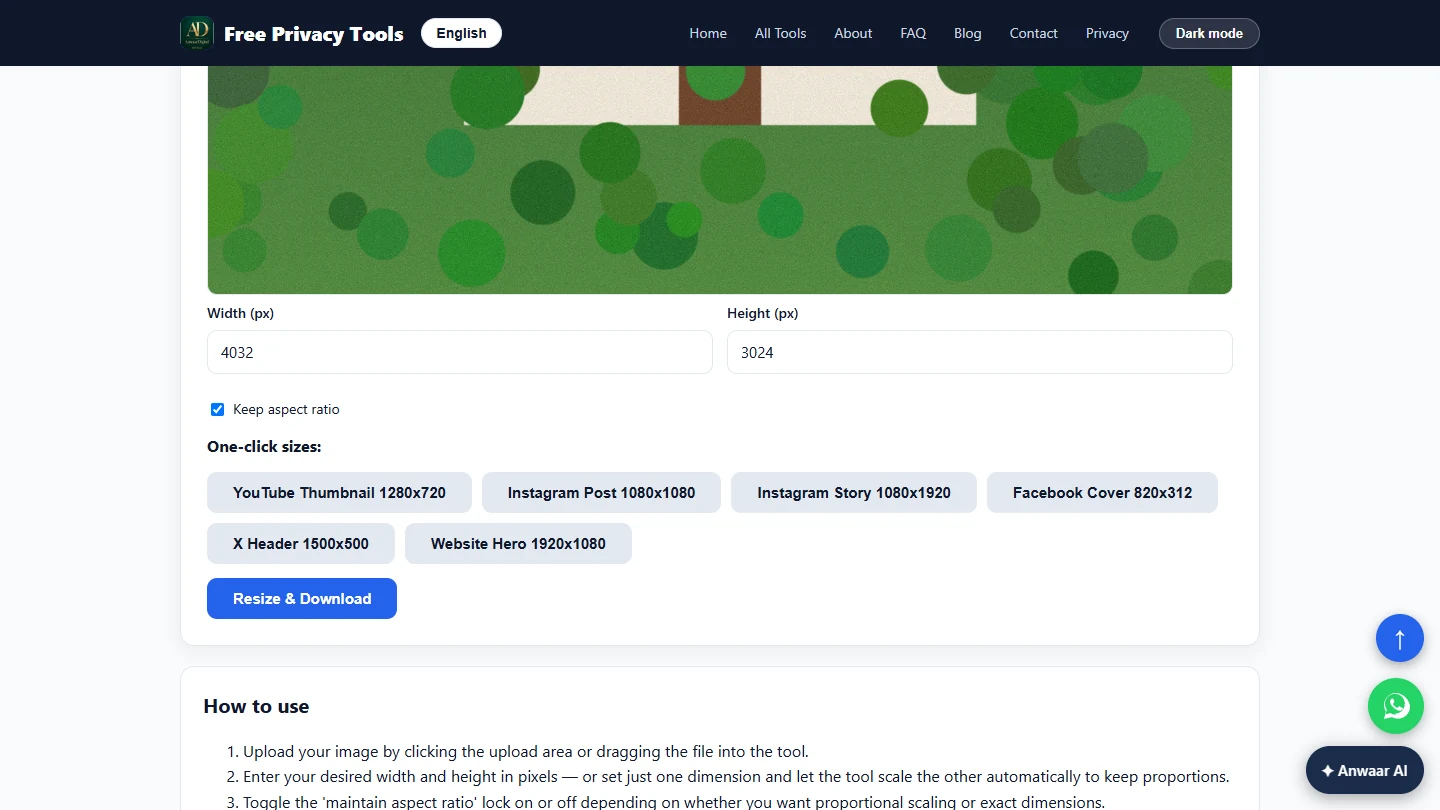
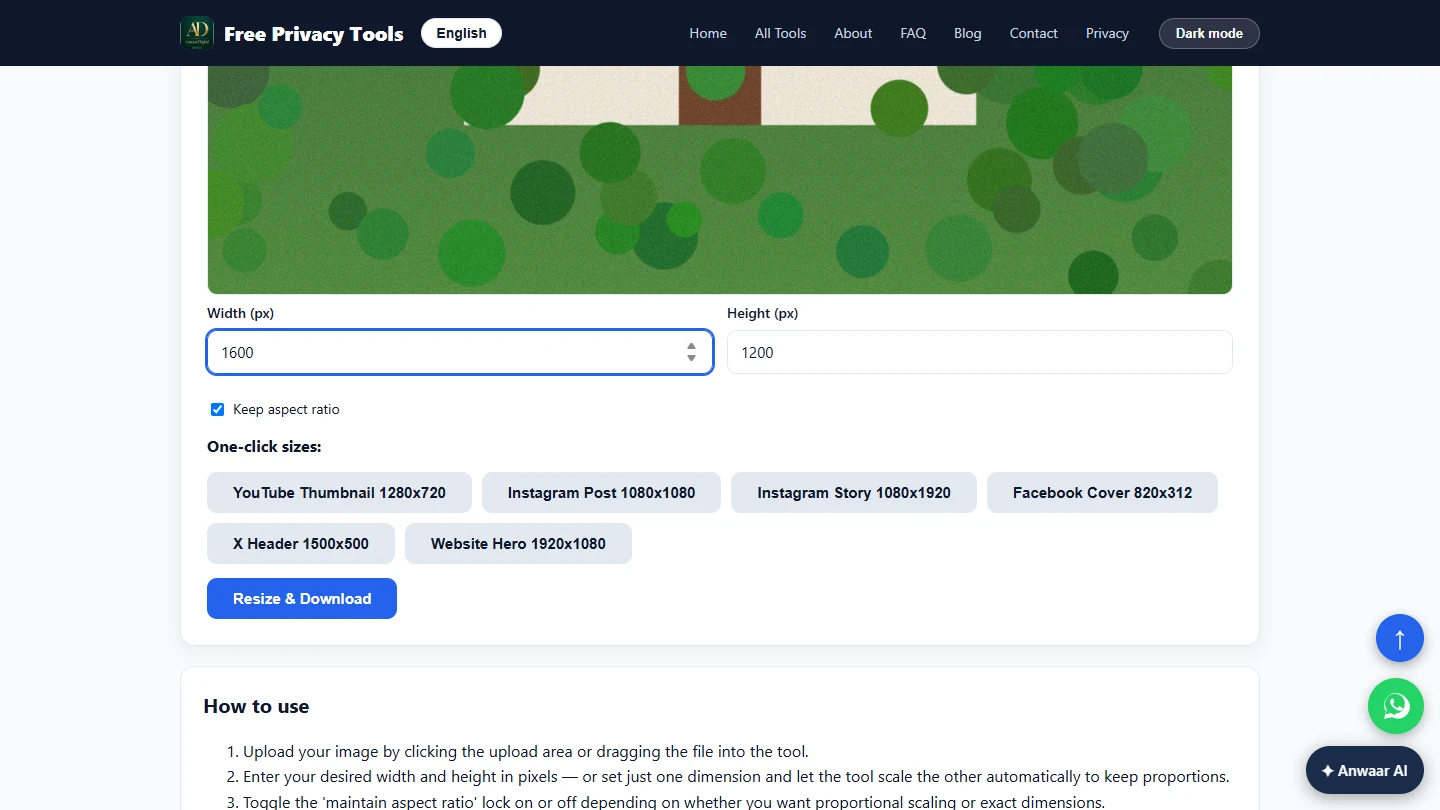
- Set the width to 1600. Width (px) shows 4032 and Height (px) 3024. Most website and listing templates show photos at up to about 1600 pixels wide, so anything bigger is wasted weight. Keep aspect ratio is ticked, so set only the width. Replace the width with 1600.
Most sites show photos at about sixteen hundred pixels wide. Keep aspect ratio is ticked, so set the width to sixteen hundred.
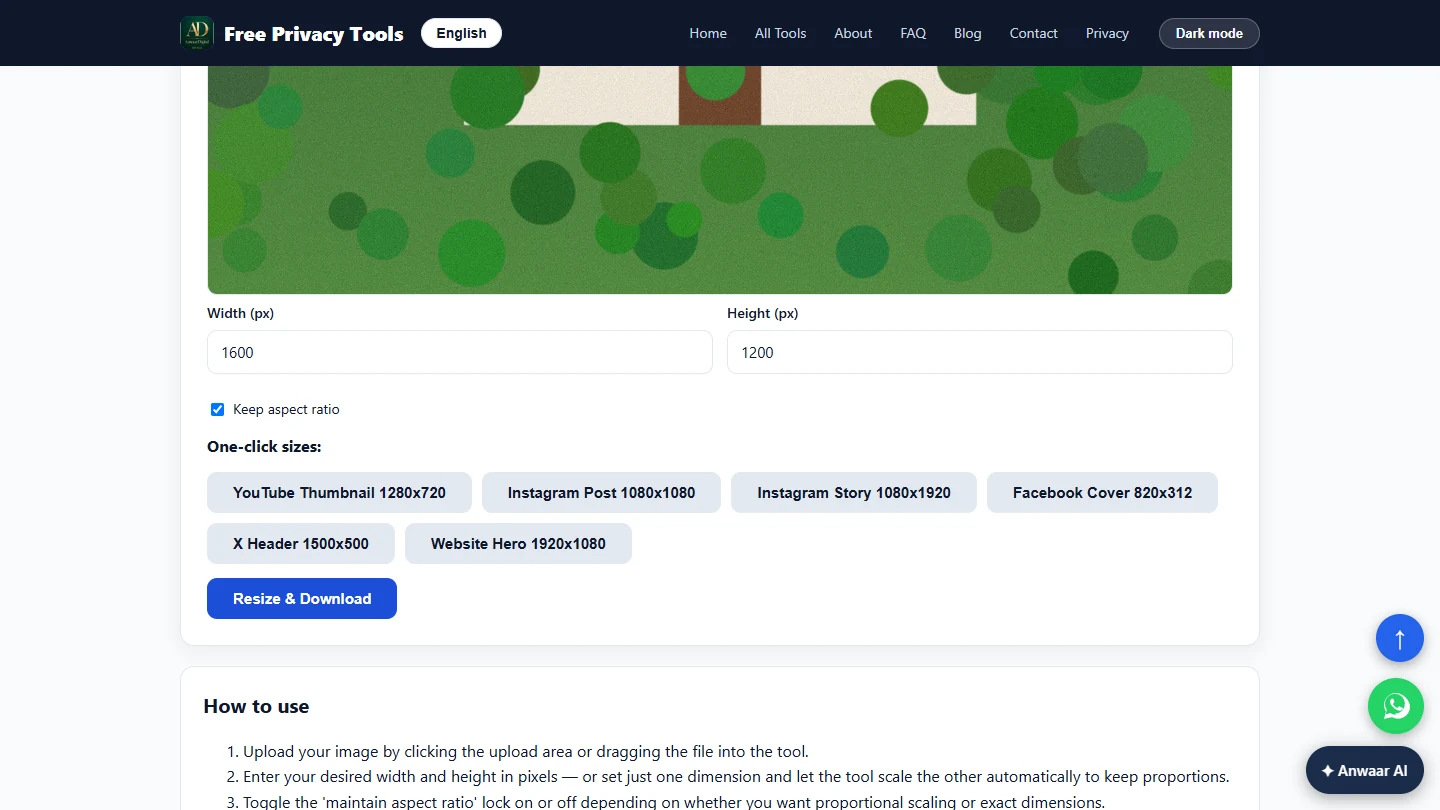
- Resize and download. The height changes to 1200 by itself, so the house is not stretched. The one-click sizes (Instagram Post, Website Hero and others) crop to a fixed shape instead, so skip them for listing photos. Click Resize & Download.
The height follows to twelve hundred.
- A PNG, not a JPG. The file downloads as 48-orchard-lane-front-1600x1200.png. Note the .png: in our test it was still 4.6 MB, because PNG does not compress photos well. That is why compression comes last. Click Home in the top menu.
The resized file is a P N G, still four point six megabytes. Compression comes last.
2. Add your brand
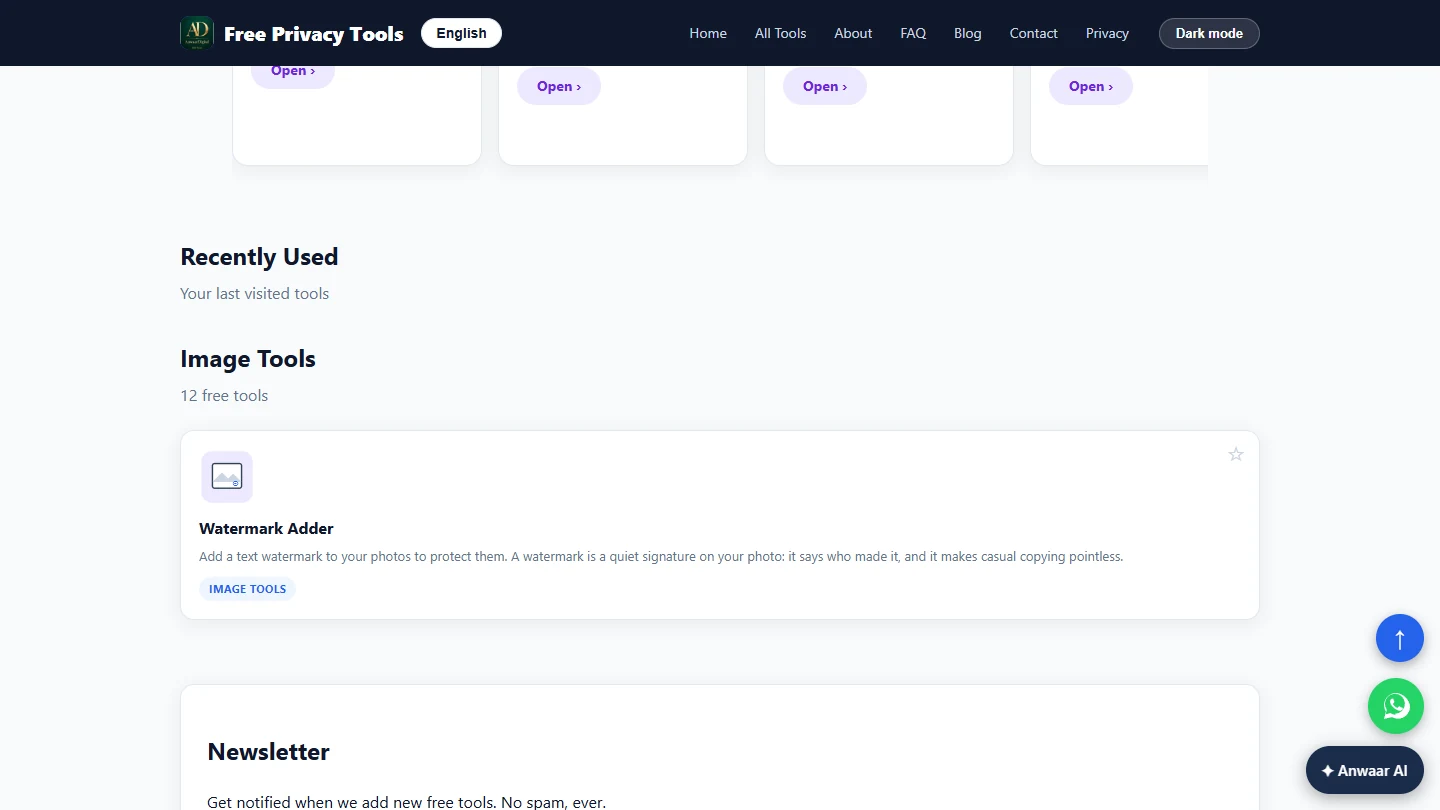
- Search for the watermark tool. Type watermark in the search box.
- Open Watermark Adder. Click the Watermark Adder card.
- Select the resized photo. Click Select an image and pick the resized file, 48-orchard-lane-front-1600x1200.png. Watermark the resized copy, not the original, so the text size suits the final photo.
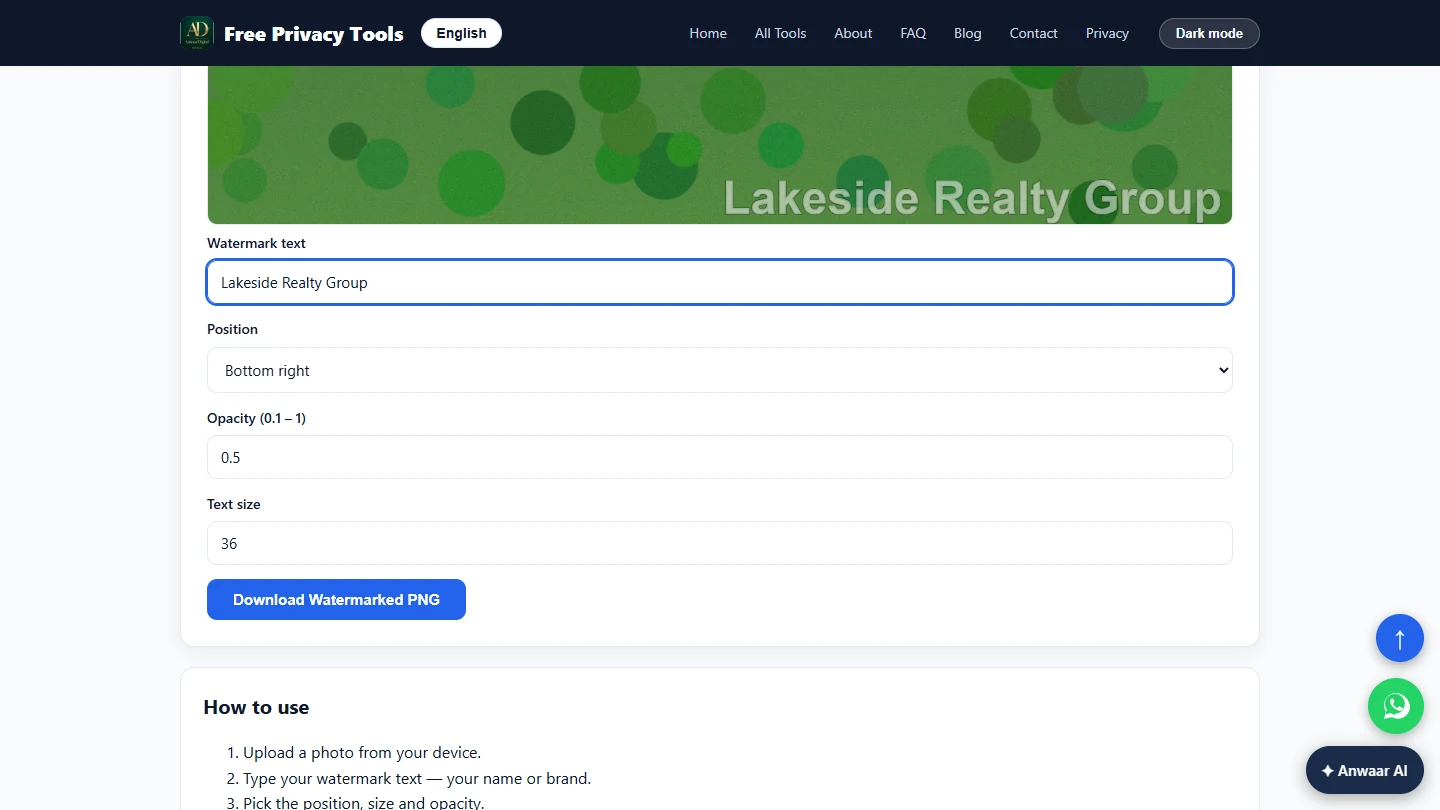
- Type your brand. In Watermark text, type the name buyers will recognise: Lakeside Realty Group.
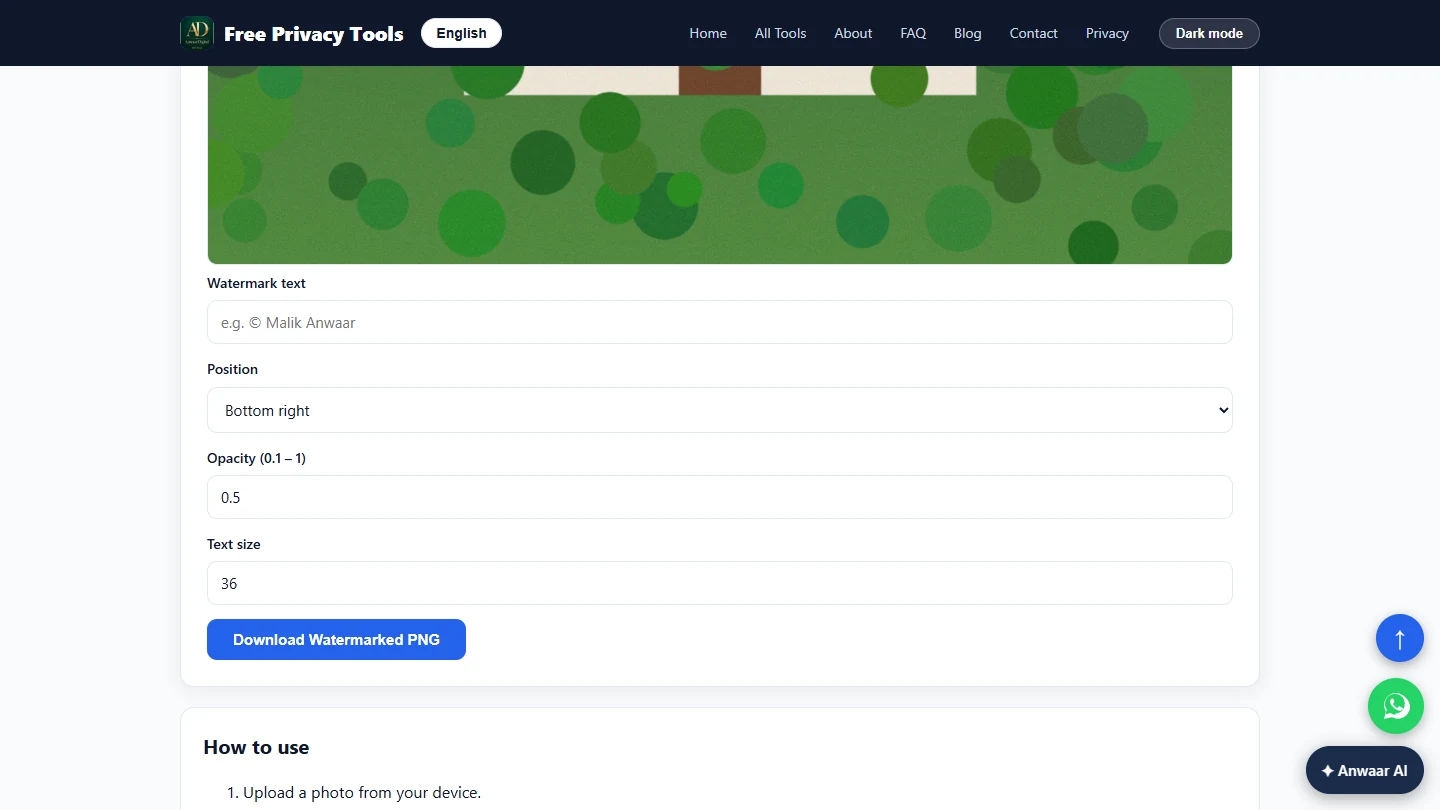
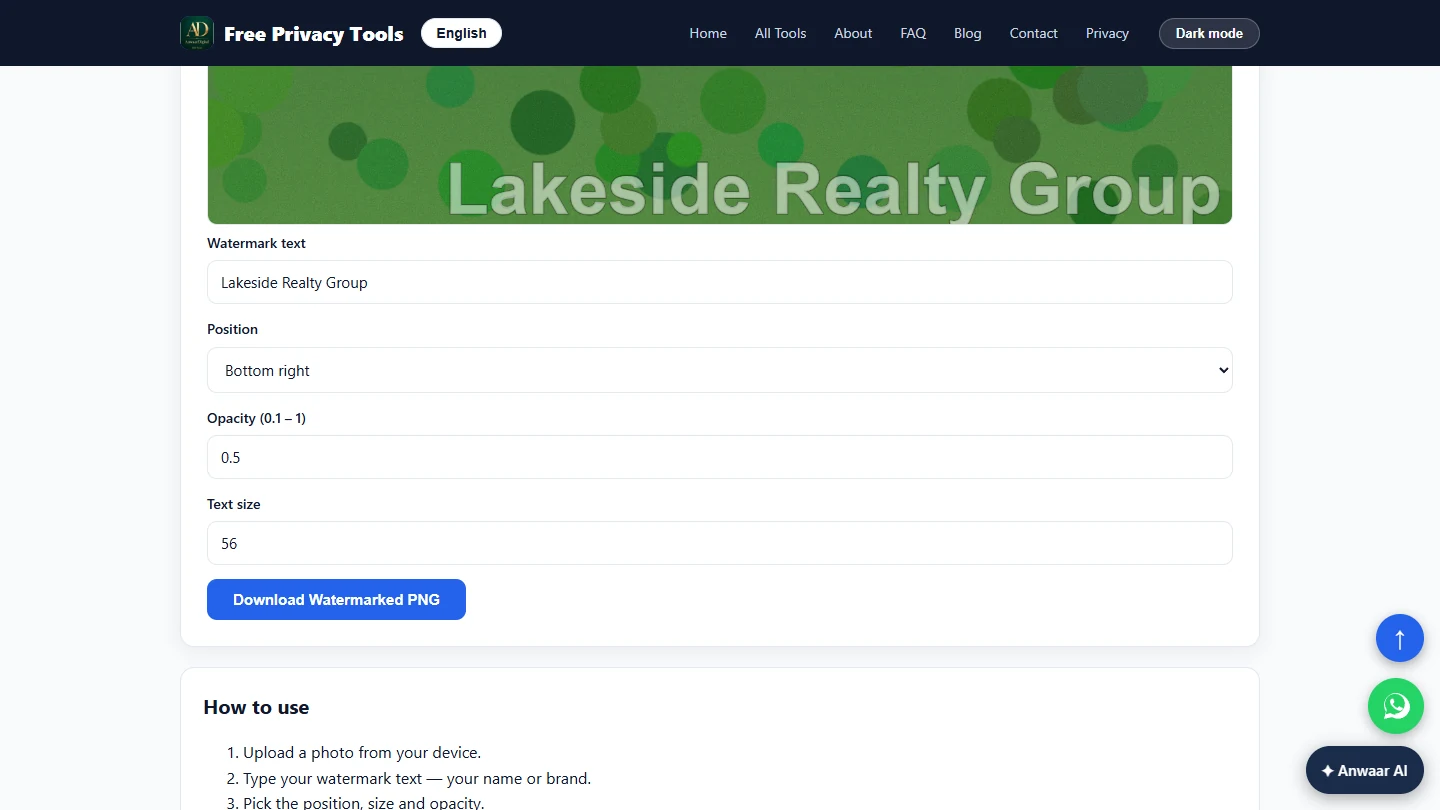
- Make it readable. The preview above already shows the name in the bottom-right corner. Position is Bottom right and Opacity 0.5, which keeps it readable without hiding the house. At 1600 pixels wide the default size is small, so set Text size to 56.
Bottom right at half opacity is a good default. Set the text size to fifty six.
- Download the watermarked photo. Check the preview: Lakeside Realty Group across the lawn, the house clear above it. Click Download Watermarked PNG. It saves as another 4.6 MB PNG.
Check the preview, then click Download Watermarked P N G.
3. Shrink it last
- Open Image Compressor. Now shrink it. Scroll down to Related tools and click Image Compressor.
In Related tools, click Image Compressor.
- Select the watermarked photo. Click Select an image and pick 48-orchard-lane-front-1600x1200-watermarked.png.
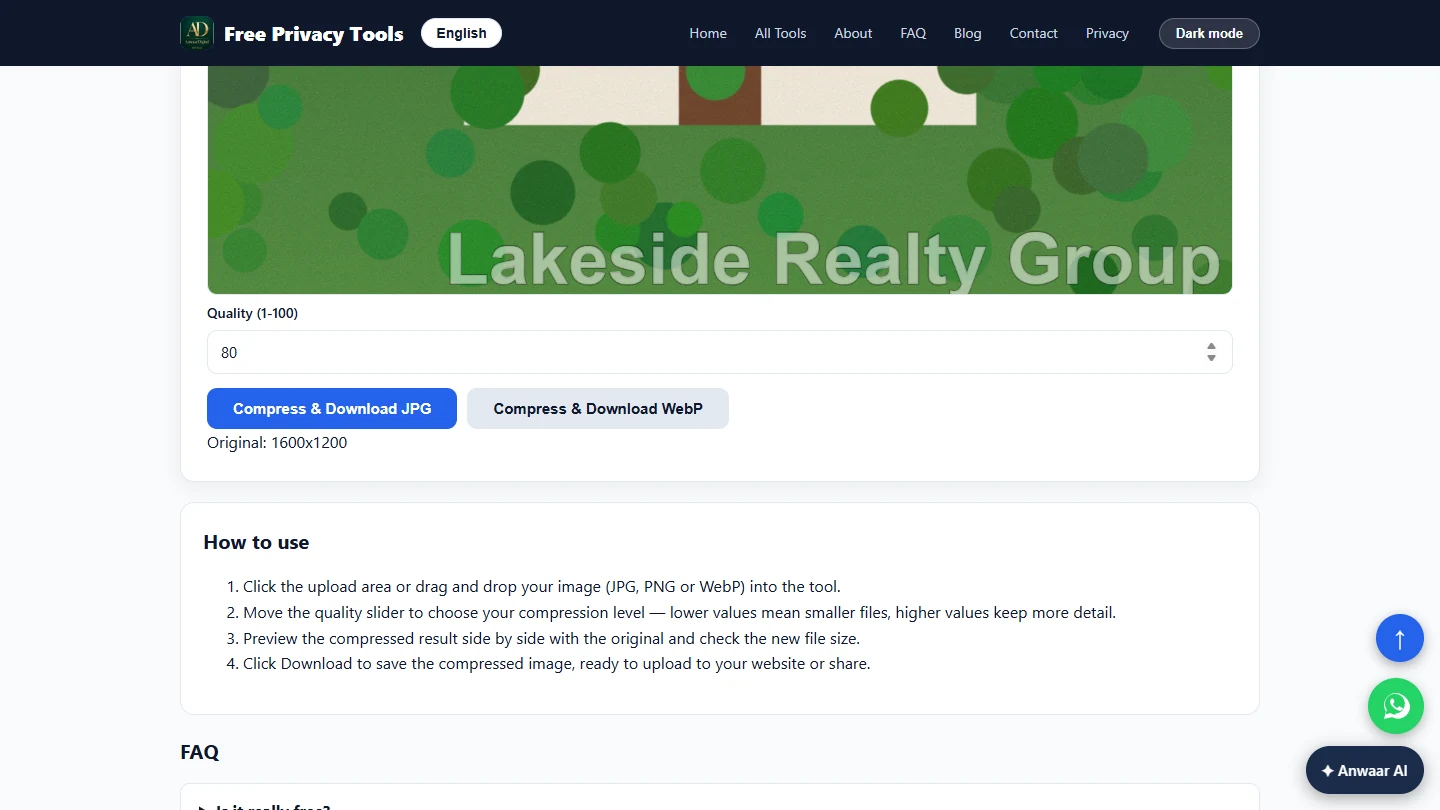
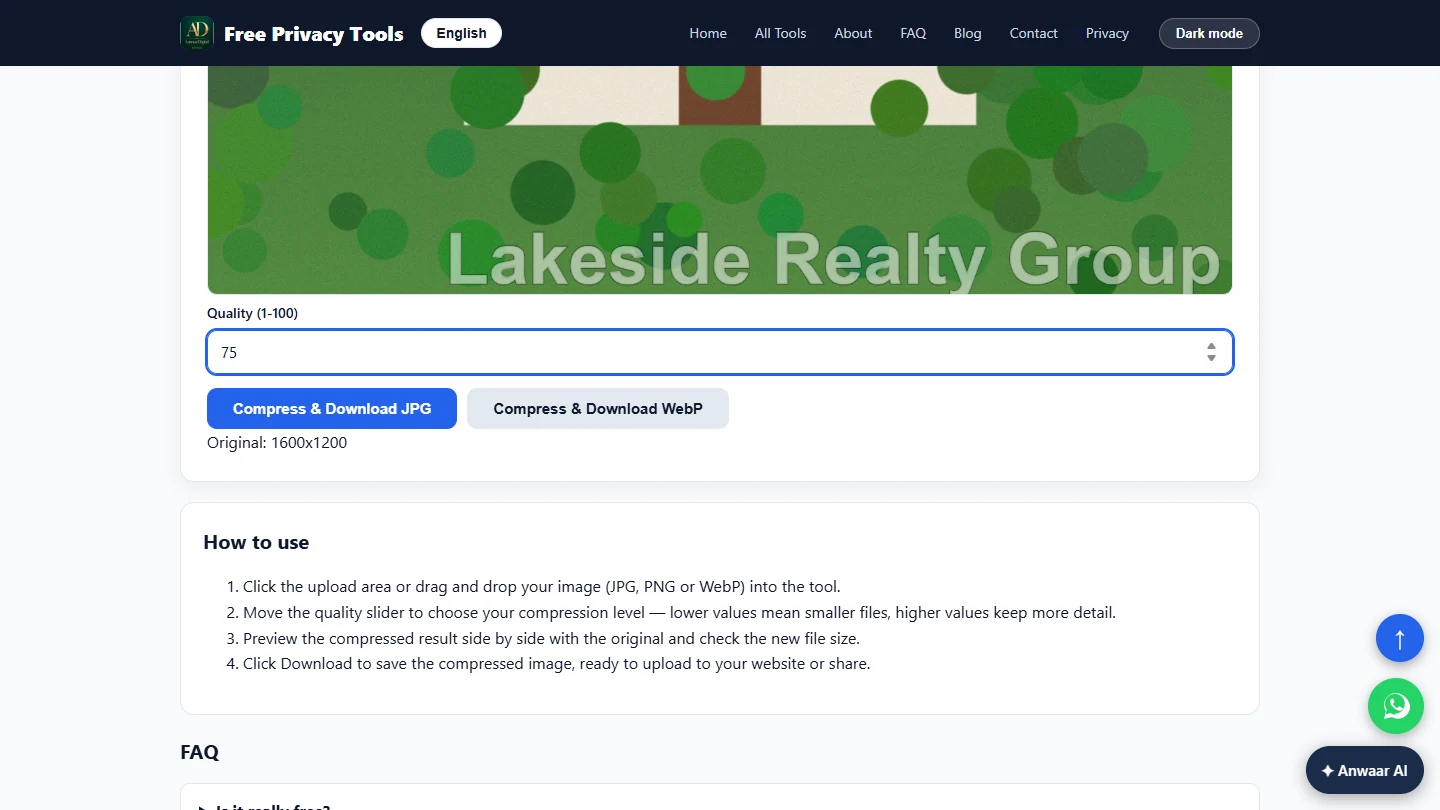
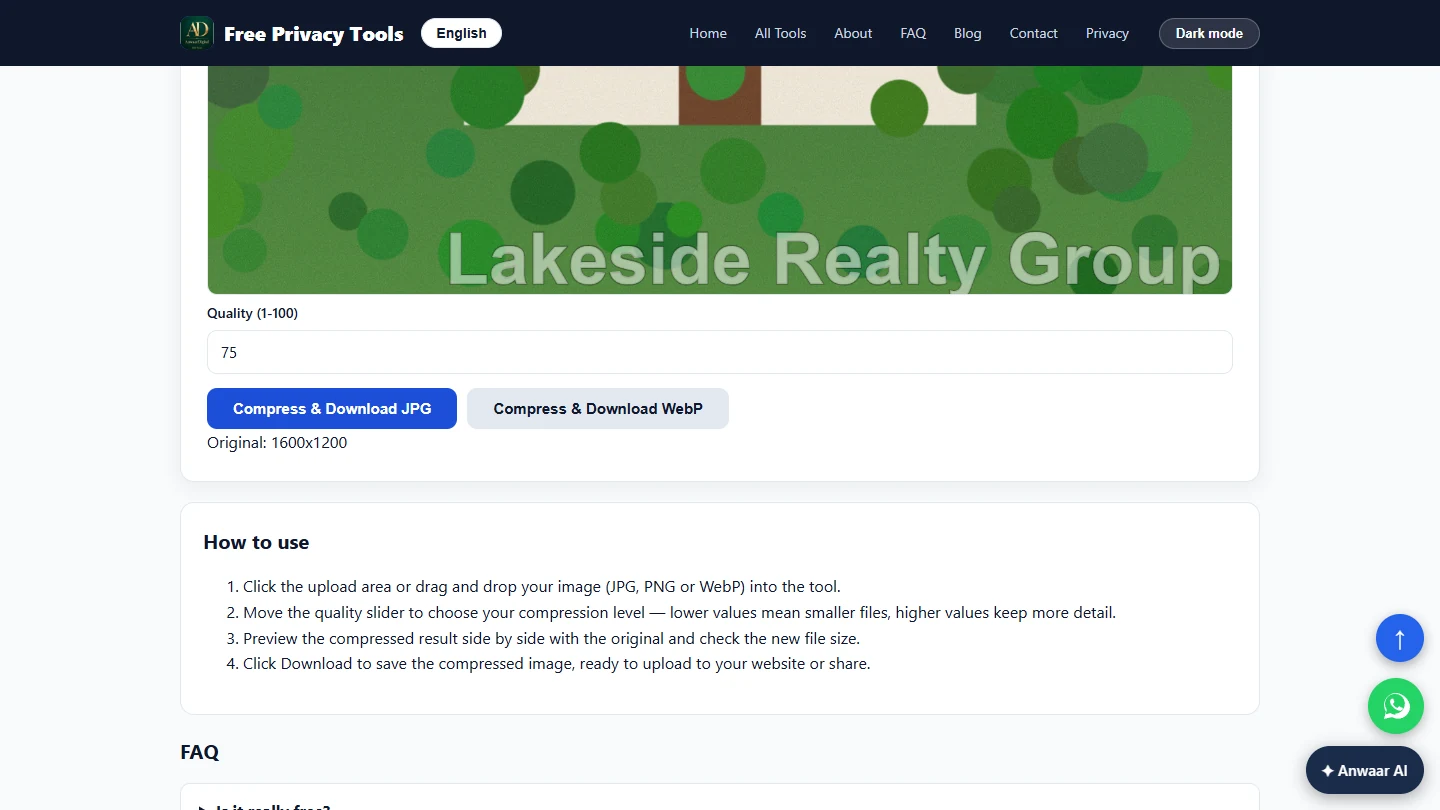
- Pick a quality. The tool shows Original: 1600x1200, so the size is right. Quality (1-100) starts at 80. For listing photos, 75 looks the same on a screen and saves more. Set it to 75.
Quality seventy five looks the same on screen and saves more. Set it to seventy five.
- Download a small JPG. Click Compress & Download JPG. Use JPG for listing portals and email; WebP is smaller still, but some portals and MLS uploads do not accept it.
Portals accept J P G everywhere.
Screenshots
More in AI Automation for Real Estate
 Write Listing Descriptions and Just-Listed Posts in Your Own Voice with ChatGPT (Real Estate)
Paste three of your own past listing descriptions into ChatGPT and get new listings and just-listed posts that sound like you, with only the facts of the new home.
Free · Live ~7 min Beginner
◷Answer Anxious Buyers Without Overpromising using ChatGPTA buyer under contract wants to know about the roof, the closing date and his rate. Give ChatGPT the thread and the deal facts, catch the promises only the seller or…
Free · Live ~9 min Beginner
◷Turn Every Buyer Consultation into a Written Search Plan using ChatGPTTurn a buyer consultation transcript into the buyers' criteria, the next steps with owners and dates, notes for your CRM and a same-day follow-up, with nothing in…
Free · Live ~7 min Beginner
◷Build an n8n AI Agent That Turns Showing Feedback into a Seller UpdateBuild an AI agent in n8n for Meridian Realty Group that turns buyer agents’ showing feedback into one row per showing in Google Sheets, with interest, price feedback…
Free · Live ~12 min Intermediate
All 6 modules in AI Automation for Real Estate
More Anwaar Digital tutorials
 Anwaar Digital: Clean a Messy Volunteer Email List Before You Import It for Marketing
Trim stray spaces, lowercase every address and remove duplicate sign-ups before the list goes into your email tool, then check a text reminder fits in one message. Four…
Free · Live ~6 min Beginner
 Anwaar Digital: Check a Suspicious Payroll Link, Then Replace a Weak Shared Password for Operations
A "your payroll password expires today" email lands at the front desk. Check the link without opening it, score the shared password, and generate a strong replacement…
Free · Live ~6 min Beginner
 Anwaar Digital: Send a Client One Small, Signed Engagement Packet for Consulting & Agencies
Turn a client's 3.3 MB phone photo of a signed page into one small PDF packet, letter, scope and signature in order, with Image Compressor, Images to PDF and PDF…
Free · Live ~7 min Beginner
Terms in this lesson
Plain-English definitions, each with an example from a free lesson.