Updated . Built against the tool’s current screens and checked step by step. How we check this lesson
Building a quarterly business review deck in slide software takes an afternoon of copying last quarter's file and nudging boxes. Slidev builds slides from one Markdown text file, so ChatGPT can write the deck and you can reuse it every quarter. In this free lesson on real Slidev screens, you are a customer success manager at Larkspur Data Systems, a made-up B2B software company, preparing a Q3 review for a customer. You open Slidev's online playground, paste ChatGPT's Markdown into slides.md, check the slides and your speaker notes, then create the project on your own computer. 16 steps, about eight minutes, nothing to install to practice.
At a glance
| Question | Answer |
|---|---|
| What you build | A quarterly business review deck takes an afternoon of dragging boxes around in slide software. Ask ChatGPT to turn your outline into Slidev Markdown, paste it into slides.md in the real Slidev playground, check every slide and your speaker notes, then start the same deck on your own computer with one command. |
| Tools | Slidev |
| Time | About 8 minutes, 16 steps in 4 parts |
| Level | Beginner, no coding needed |
| Cost | Free |
| Ways to learn it | Practice it step by step |
The 4 parts, in short
- Open Slidev in your browser: Open the Slidev playground.
- Let ChatGPT write the deck: Ask ChatGPT for Slidev Markdown, Read ChatGPT's answer, then copy it, Paste it over the demo deck.
- Check every slide: Open the deck in its own tab, Find the navigation bar, See all the slides at once, Open slide 2, and 4 more steps.
- Start it on your own computer: Create a project on your computer, Name the project, Answer the install question, Read the three commands.
Start here first: How to Do OCR in n8n: Read Receipt Photos into Google Sheets with AI (module 1 of Business Automations)
In the course: Part 9 · n8n Automation Toolkit (Module 168 of the full course)
Part of: AI Apps Worth Knowing (step 180 of 182). Next up: Mermaid: Turn a Purchase Approval Policy into a Flowchart with ChatGPT
Part of: AI Presentations & Client Decks (step 12 of 12)
The business case: an afternoon per customer, every quarter
Picture Priya, a customer success manager at Larkspur Data Systems, a made-up B2B software company. She runs a quarterly business review with each of her key customers. Each deck starts as a copy of last quarter's slide file and takes an afternoon of moving boxes, fixing fonts and retyping numbers.
With Slidev, the deck is one Markdown text file. ChatGPT turns her outline into that file, Slidev lays out the slides, and next quarter she copies the file, changes the numbers and presents again.
Who this is for, and what you need
Customer success, account management and sales staff who build the same kind of review deck again and again. The practice runs in your browser with nothing to install. To try the real thing you need only a browser: sli.dev/new opened Slidev in StackBlitz with no sign-in. To keep a deck on your own computer you need Node.js: Slidev's Getting Started page says it requires Node.js 22.12.0 or newer. Slidev's site says it is released under the MIT License and shows no price.
The prompt we sent to ChatGPT
Turn this QBR outline into a Slidev slides.md file. Put a headmatter block at the top with theme: default. Separate slides with --- on its own line. Make slide 2 layout: two-cols with ::right:: before the second column. Make slide 3 layout: center. Put a short presenter note in an HTML comment at the end of each slide. Return only the Markdown. Outline: Tidewell Freight Q3 review. Went well: 212 active users, up from 160; average ticket time down 30%. To fix: reports used by 2 of 9 teams. Next quarter: train 7 teams on reports by March.
ChatGPT returned 42 lines that followed every rule. It also added three things we did not give it: a 32.5% growth figure, a line saying reporting adoption remains a key opportunity, and a goal. The figure is right (52 more users on 160 is 32.5%), but it shows why you read the Markdown before you present it.
How Slidev reads your file
- A line with --- padded by blank lines starts a new slide.
- The first frontmatter block is the headmatter and configures the whole deck, for example theme: default.
- layout: in a slide's own frontmatter picks a layout such as two-cols or center; ::right:: starts the second column.
- A comment block at the end of a slide is its presenter note, shown in Presenter Mode.
What we found in the playground
The playground applied our pasted Markdown by itself after a few seconds, and Slidev restarted once because the theme changed from seriph to default. When we pressed Ctrl+S instead, the playground's code formatter reported 4 formatting edits and rewrote the two layout blocks, so slide 2 showed the words layout: two-cols as a heading and lost its second column. Pasting again without saving gave the correct two-column slide. Saving also made StackBlitz ask us to sign in to keep the changes, which is one reason to move a real deck to your own computer.
Starting the same deck on your own computer
We ran npm init slidev@latest on Windows. Slidev Creator v53.1.0 asked for a project name (it suggests slidev), made the folder, then asked: Install and start it now using npm? (Y/n). Answering n printed the three commands to run later: cd larkspur-qbr, npm install and npm run dev. The project's dev script is slidev --open, and its README says to visit http://localhost:3030. Slidev's docs give npm run export for a PDF, which needs playwright-chromium installed once, and the navigation bar's Browser Exporter offers PDF, PPTX and PNG export in the browser.
What this saves you
- Most of an afternoon per customer deck, every quarter.
- Retyping the same structure: next quarter you copy slides.md and change the numbers.
- What it does not do: it does not check your numbers. ChatGPT can add or change figures, so compare every number with your own data.
How this lesson was built
Every Slidev screen is a capture of real Slidev running in its online playground (sli.dev/new, StackBlitz, @slidev/cli 52.14.2 there), taken on 24 November 2026 with no sign-in. The Markdown is what ChatGPT returned for the prompt above that day, unchanged; ChatGPT's own screens are not shown. The terminal text is copied from our real run of npm init slidev@latest and shown in our own terminal window. Two things we did not get to run: on our busy test computer npm install stalled twice and the copy it left would not start, so there is no local dev-server screen, and we did not run an export, so no PDF is shown. Those parts come from Slidev's docs. Larkspur Data Systems, Tidewell Freight and their numbers are made up.
Links
- Slidev online playground: opens Slidev's starter project in StackBlitz. No install and no sign-in.
- Slidev docs: Getting Started: the create command, slides.md and the dev, build and export scripts.
- Slidev docs: Syntax Guide: slide separators, headmatter, layouts and presenter notes.
- Slidev docs: Exporting: slidev export, playwright-chromium and the Browser Exporter.
- Slidev docs: User Interface: the Quick Overview, the navigation bar and Presenter Mode.
Try it yourself, free
Reading the steps is a start. Doing them is how it sticks. The interactive module walks you through every click in a practice copy of Slidev, checks each step, and never touches your real accounts.
Start “Slidev: Build a Quarterly Business Review Deck in 20 Minutes”Step by step: Slidev: Build a Quarterly Business Review Deck in 20 Minutes
All 16 steps of the interactive module, in order. In the module you watch each one, then do it yourself in a practice copy that checks your work.
1. Open Slidev in your browser
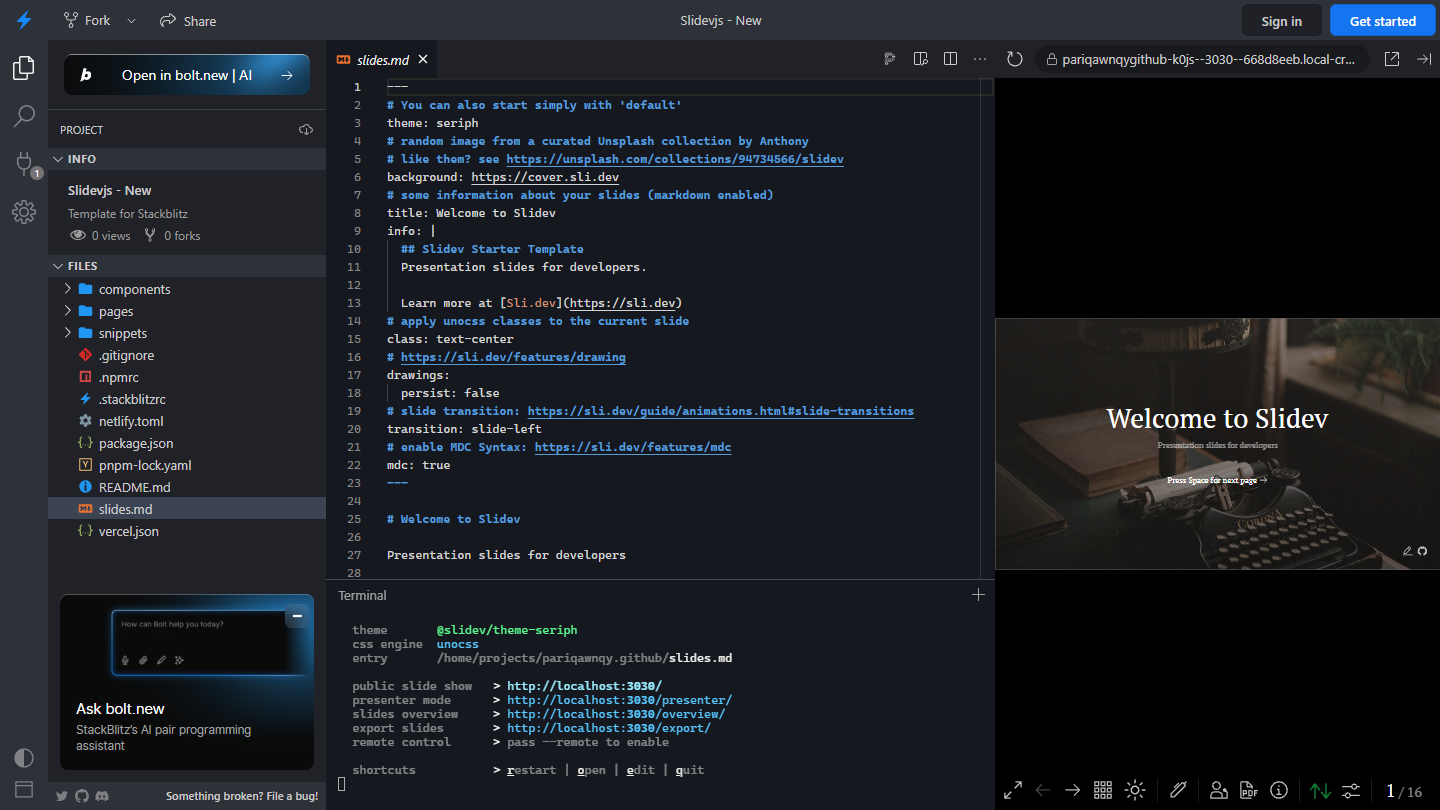
- Open the Slidev playground. You are a customer success manager at Larkspur Data Systems, a made-up B2B software company. Your Q3 business review with Tidewell Freight is Thursday and the deck is not started. Go to sli.dev/new. It opens Slidev's starter project in StackBlitz, an online code editor, with nothing to install and no sign-in. After about a minute you see slides.md in the middle, a Terminal below it running Slidev, and the demo deck, Welcome to Slidev, on the right. Click the slide.
Your quarterly business review is Thursday and the deck is not started. Go to sli dot dev slash new. It opens Slidev in your browser, with nothing to install.
2. Let ChatGPT write the deck
- Ask ChatGPT for Slidev Markdown. The whole deck is that one text file, slides.md, so ChatGPT can write it. Give it your outline and the Slidev rules: a block at the top with theme: default, slides split by ---, a two-cols layout with ::right:: for the second column, a center layout, and a speaker note in a comment at the end of each slide. Click the prompt to send it.
The whole deck is one text file, so ChatGPT can write it. Give it your outline and the Slidev rules.
- Read ChatGPT's answer, then copy it. ChatGPT returned 42 lines. Read them before you use them. It followed the rules, but it also added things you did not give it: 32.5% growth, a line that says reporting adoption remains a key opportunity, and a Goal. You will check the number on the slide. Click the Markdown to copy it.
Read the answer before you use it. ChatGPT added a growth figure and two lines you did not give it.
- Paste it over the demo deck. Click in slides.md, select everything and paste ChatGPT's Markdown over the demo. Then wait and do not press Ctrl+S. The playground applies your change by itself. When we did press Ctrl+S, the playground's formatter rewrote two lines and slide 2 lost its two-column layout.
Then wait. Do not press Control S here: the playground's formatter broke our layouts when we did.
---
theme: default
---

# Tidewell Freight

## Q3 Quarterly Business Review

<!-- Introduce the Q3 review and summarize the key business outcomes. -->

---
layout: two-cols
---

# What Went Well

- **212 active users**, up from 160
- **32.5% growth** in active users
- **30% reduction** in average ticket time

::right::

# What Needs Improvement

- Reports are used by only **2 of 9 teams**
- Reporting adoption remains a key opportunity

<!-- Highlight strong user growth and improved support efficiency, while addressing low reporting adoption. -->

---
layout: center
---

# Next Quarter

## Increase Reporting Adoption

Train **7 teams** on reports by March.

**Goal:** Expand reporting adoption across the organization.

<!-- Emphasize team training as the primary initiative for next quarter. -->
3. Check every slide
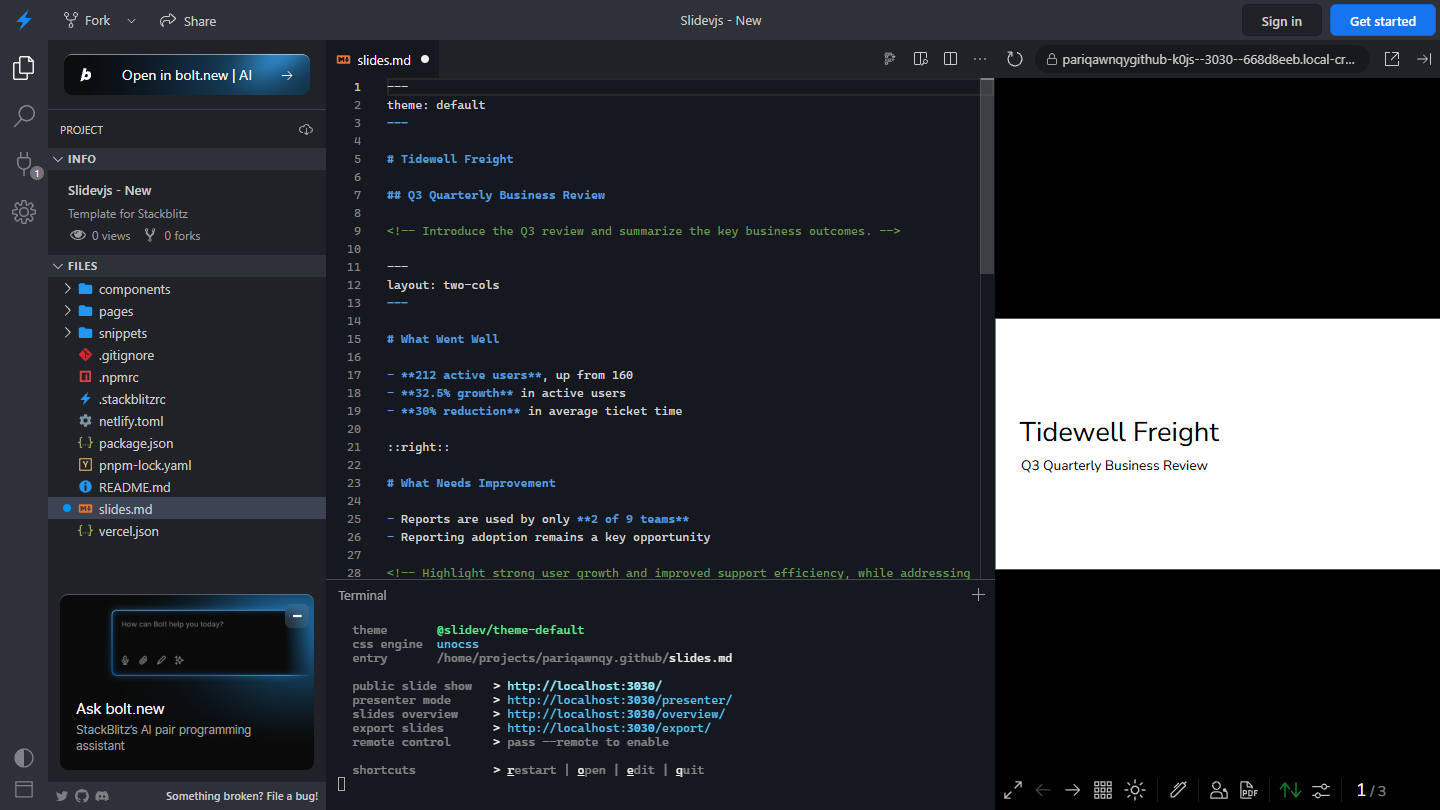
- Open the deck in its own tab. Slidev restarts, because the deck now uses the default theme: the Terminal printed restarting on theme change and now shows @slidev/theme-default. After a few seconds the slide on the right shows Tidewell Freight. It is small there. Click Open Preview in new tab, the arrow at the top right. If the new tab says it cannot connect, Slidev is still restarting: wait a few seconds and click Reload.
After a few seconds the slide on the right shows your title. It is small, so click Open Preview in new tab, at the top right.
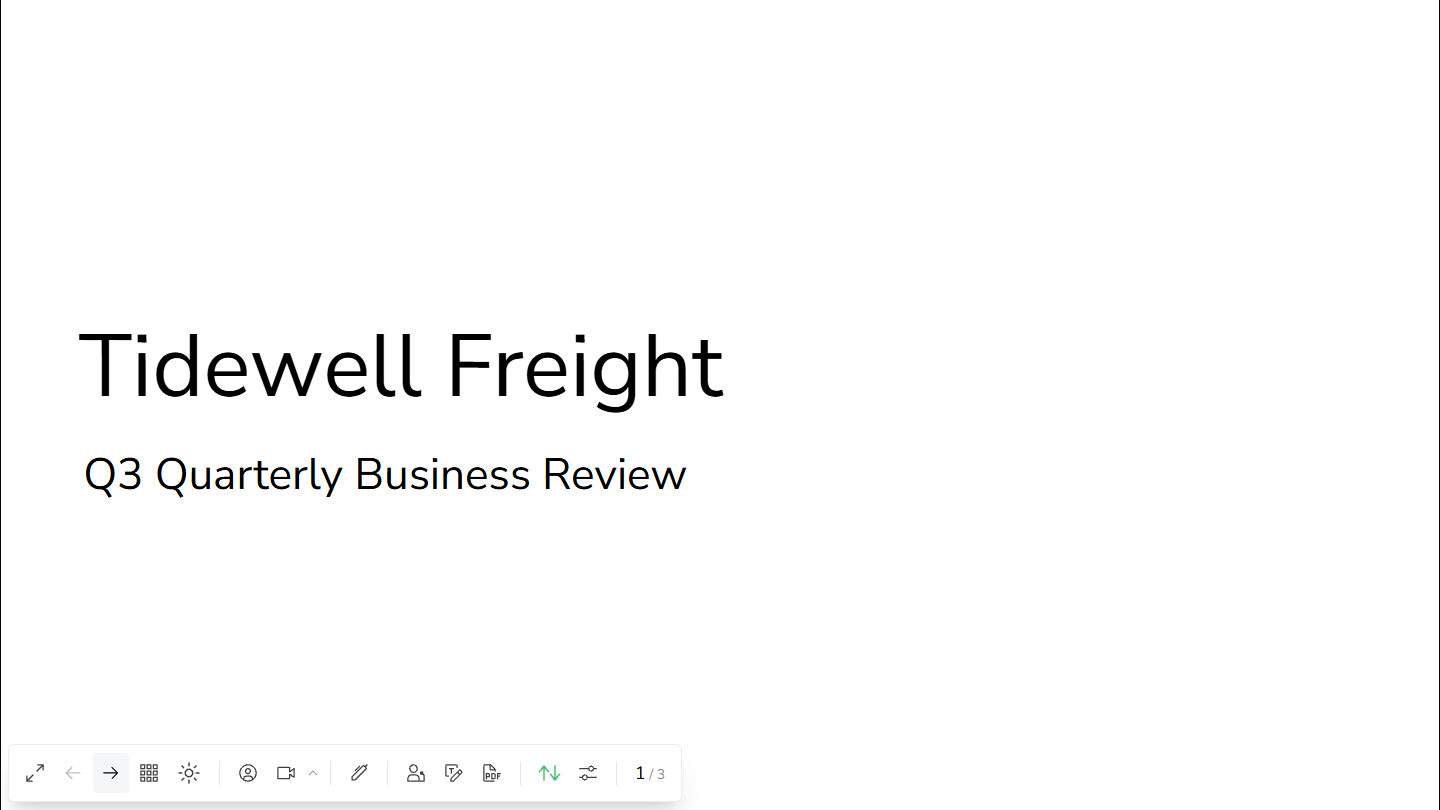
- Find the navigation bar. This is slide 1 at full size. You gave it no layout; by default the first slide of a Slidev deck uses the cover layout. The right arrow or the space bar goes to the next slide. Slidev keeps its buttons out of the way: move your mouse to the bottom left corner.
This is slide one at full size. Slidev hides its buttons. Move your mouse to the bottom left corner.
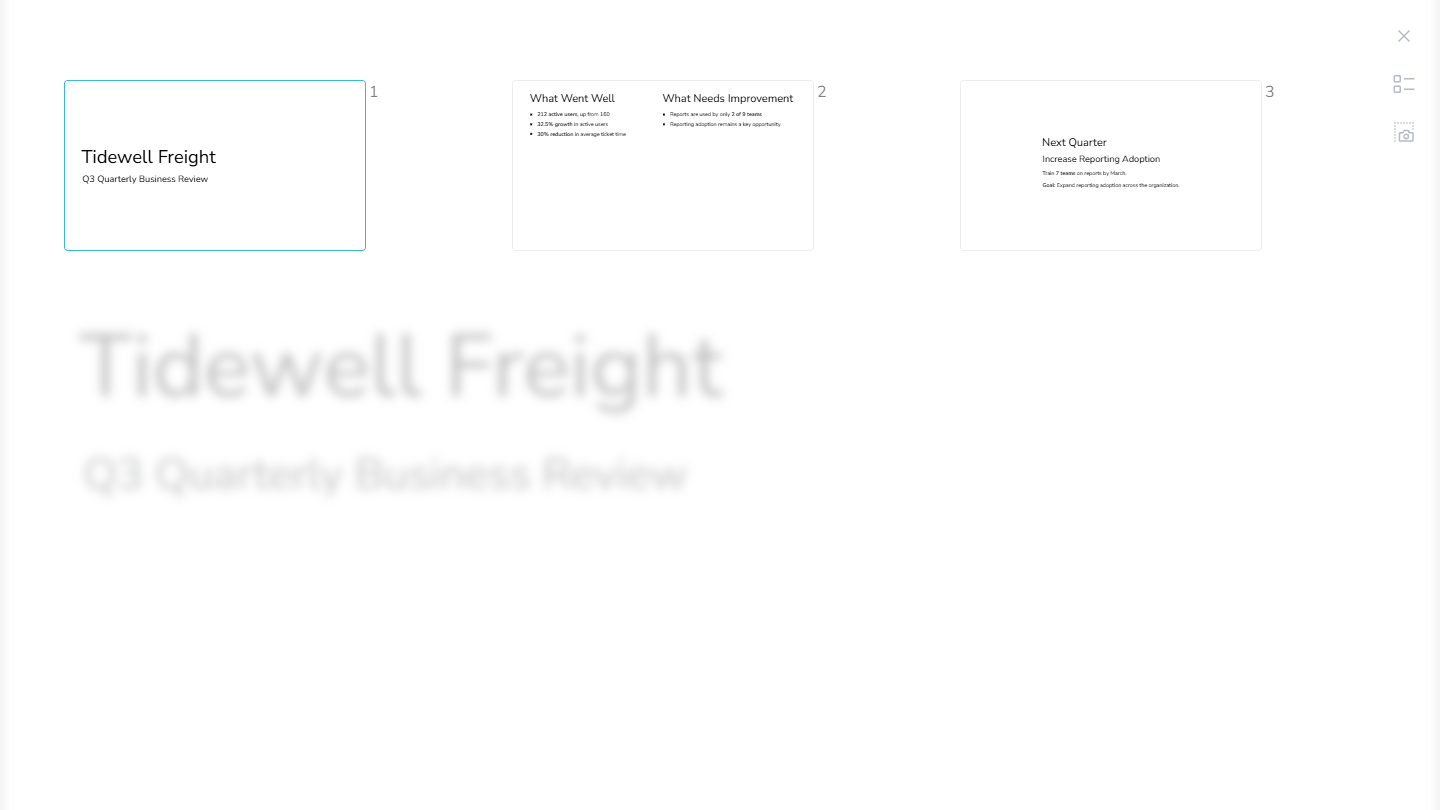
- See all the slides at once. The navigation bar appears. Click Show slide overview, the grid icon. The o key does the same.
The navigation bar appears. The O key does the same.
- Open slide 2. All three slides: the title, the two-column slide and the plan. This is the fastest way to spot a slide that came out wrong. Click slide 2.
All three slides at a glance. This is the fastest way to spot one that came out wrong.
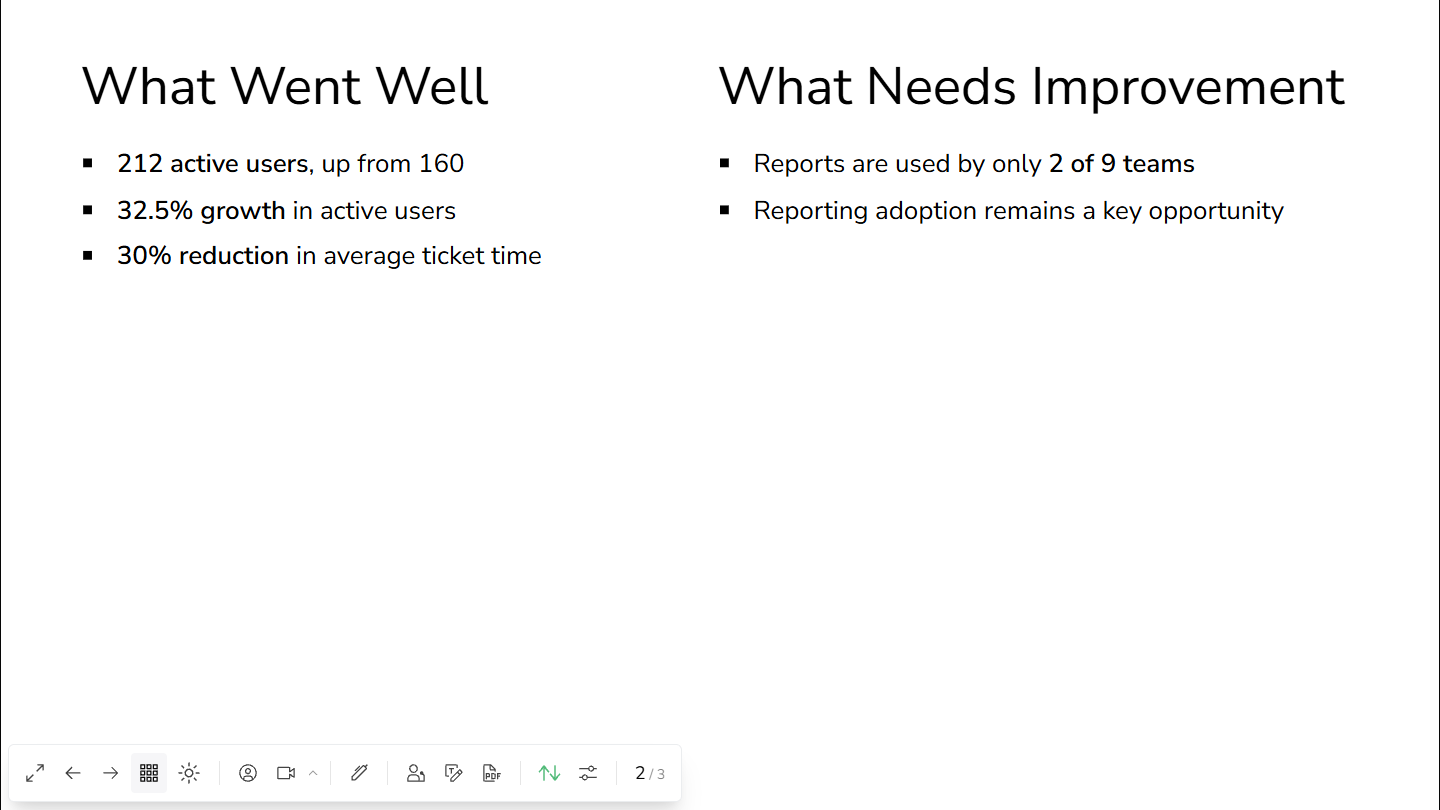
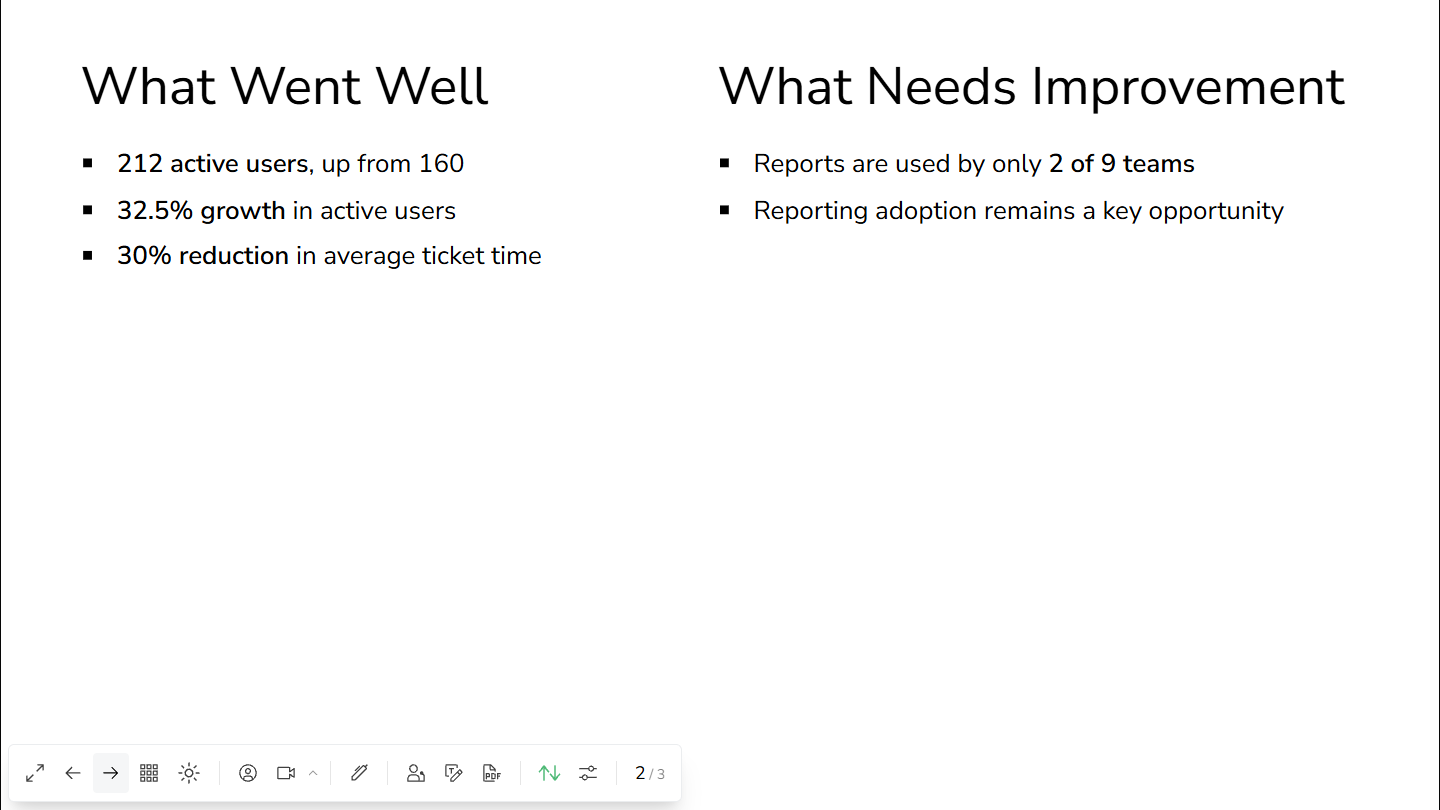
- Check the number ChatGPT added. layout: two-cols put What Went Well on the left and What Needs Improvement on the right, split at ::right::. Now the figure you did not supply: 32.5% growth. From 160 to 212 is 52 more users, and 52 divided by 160 is 32.5%, so it is right this time. Check every number against your own data before a customer sees it. Click the growth line.
Two columns, split where the Markdown says right. Now check the number ChatGPT added. Fifty two more users, divided by one sixty, is thirty two point five percent. It is right this time.
- Open Presenter Mode. Your speaker notes are not on the slide. Move to the bottom left corner again and click Presenter Mode.
Your speaker notes are not on the slide.
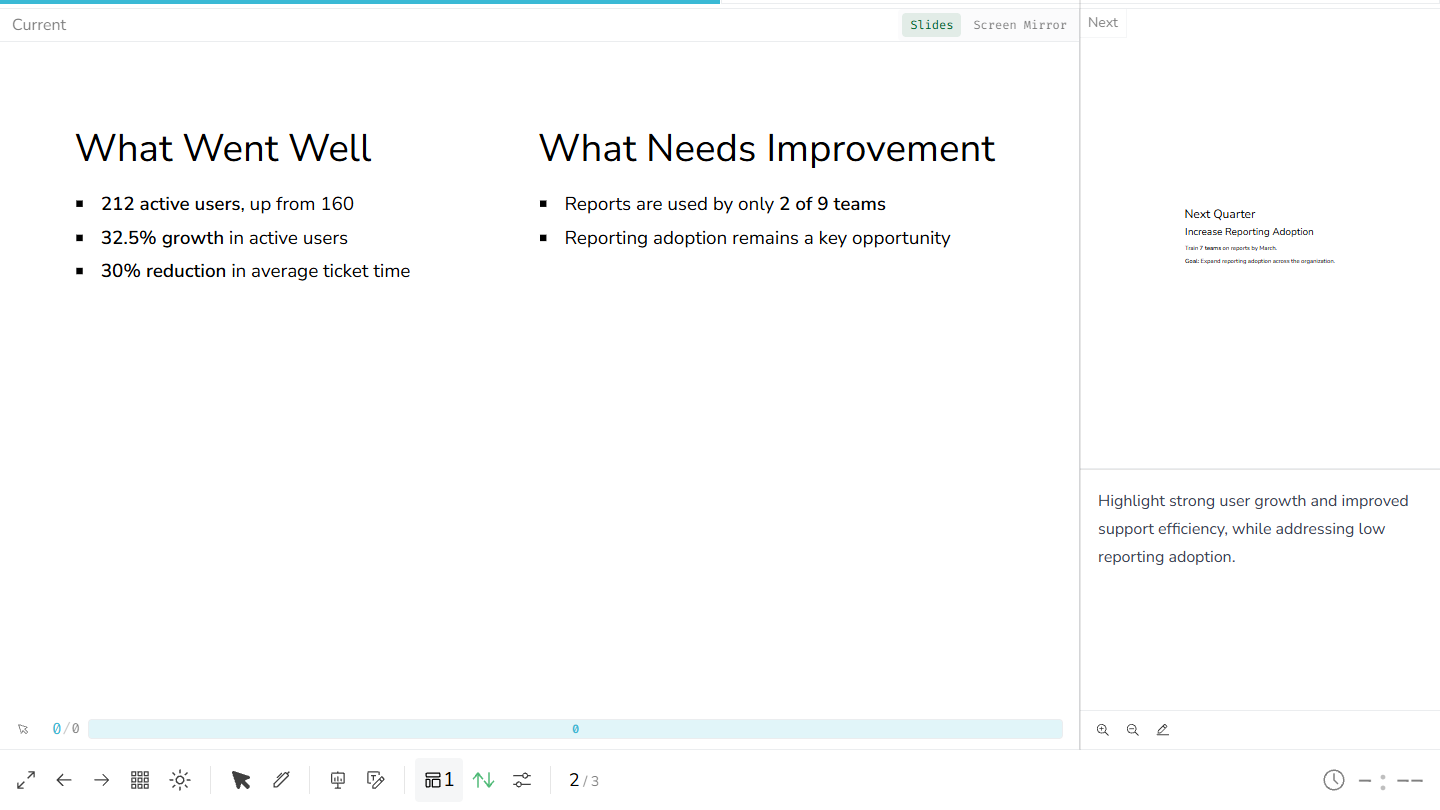
- Read your notes. Presenter Mode shows the current slide, the Next slide, and under it the note from the comment at the end of slide 2. The customer sees only the slide; you see this. Click the note.
Presenter Mode shows the current slide, the next slide, and your note. The customer sees only the slide.
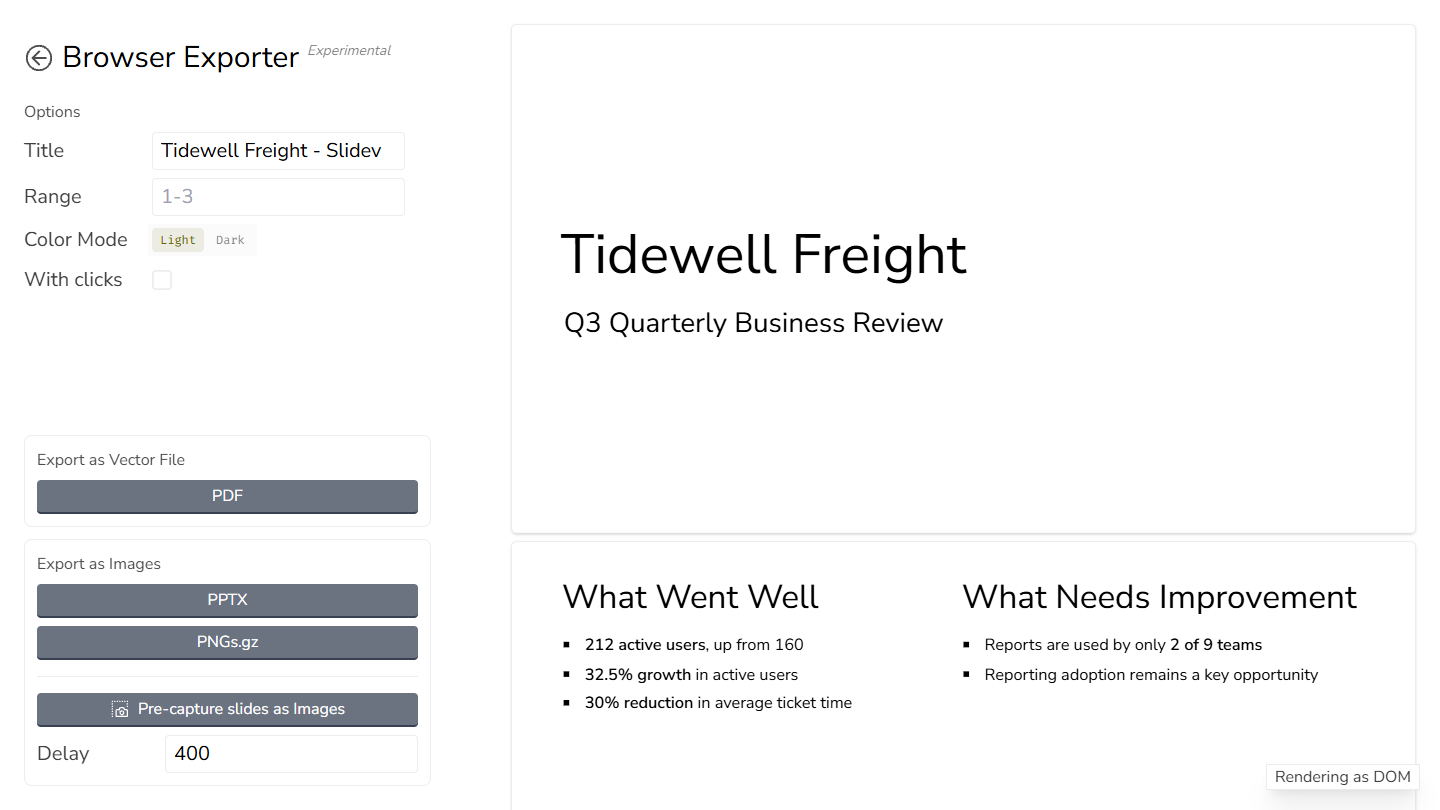
- Find the export page. The customer wants the deck before the call. Back in the slide view, the navigation bar has Browser Exporter, which opens this page. It is marked Experimental and offers PDF, PPTX and PNGs.gz, with all three slides previewed on the right. On your own computer, Slidev's docs also give npm run export, which needs playwright-chromium installed once. We did not run either export, so no file is shown. Click PDF to finish the tour.
To send the deck ahead, the navigation bar has Browser Exporter, with P D F, P P T X and images. We did not run an export, so no file is shown.
4. Start it on your own computer
- Create a project on your computer. The playground is for trying things. When we saved there, StackBlitz asked us to sign in to keep our changes. For a deck you will reuse every quarter, run Slidev on your own computer. Slidev's docs say it needs Node.js 22.12.0 or newer. Open a terminal in the folder where you keep decks and type the create command.
For a deck you will reuse every quarter, run Slidev on your own computer. In a terminal, type npm init slidev at latest.
- Name the project. The Slidev Creator asks for a Project name and suggests slidev. Type a name for this customer deck and press Enter.
The creator asks for a project name.
- Answer the install question. It made the folder and asks Install and start it now using npm? (Y/n). Press Enter for yes and it installs and starts the deck for you. We typed n so you can see the commands it would run.
It asks whether to install and start it now. We typed N, so you can see the commands.
- Read the three commands. These are the three commands: cd larkspur-qbr, npm install, then npm run dev, which the project sets to slidev --open. Then open slides.md in any text editor, paste the same Markdown and save. Next quarter, copy the file, change the numbers and present again. Our own install took a long time on a busy test computer and that copy did not start, so every slide screen in this lesson comes from the playground. Click the commands.
Three commands: C D into the folder, npm install, then npm run dev. Next quarter, copy the file and change the numbers.
Screenshots

Frequently asked questions
- What is Slidev?
- Slidev is a tool that builds presentation slides from a Markdown file called slides.md. You write the slides as text, preview them in your browser with a dev server and export them to PDF, PPTX or PNGs.
- Can I try Slidev without installing anything?
- Yes. sli.dev/new opens Slidev's starter project in StackBlitz, in your browser. In our test it needed no sign-in and showed the demo deck after about a minute. One tip: do not press Ctrl+S there, because the playground's formatter rewrote our slide layouts.
- How do I start a Slidev project?
- Run npm init slidev@latest (Slidev's docs also list pnpm, yarn and bun). It asks for a project name, then whether to install and start it now. It requires Node.js 22.12.0 or newer. The slides are in slides.md.
- How do I export Slidev slides to PDF?
- Slidev's docs say to install playwright-chromium (for example npm i -D playwright-chromium), then run npm run export, which runs slidev export. There is also a Browser Exporter in the navigation bar with PDF, PPTX and PNG options. We did not run an export for this lesson.
- How do I add speaker notes in Slidev?
- Put a comment block at the end of the slide, such as <!-- your note -->. Slidev treats it as that slide's note and shows it in Presenter Mode, next to the current and next slide.
- Was this lesson tested in real Slidev?
- Partly. The slide screens are real Slidev in its online playground, and we ran the project creator on our own computer. Our local install stalled, so the local dev server and the PDF export are described from Slidev's docs, not from our own run.
More in Business Automations
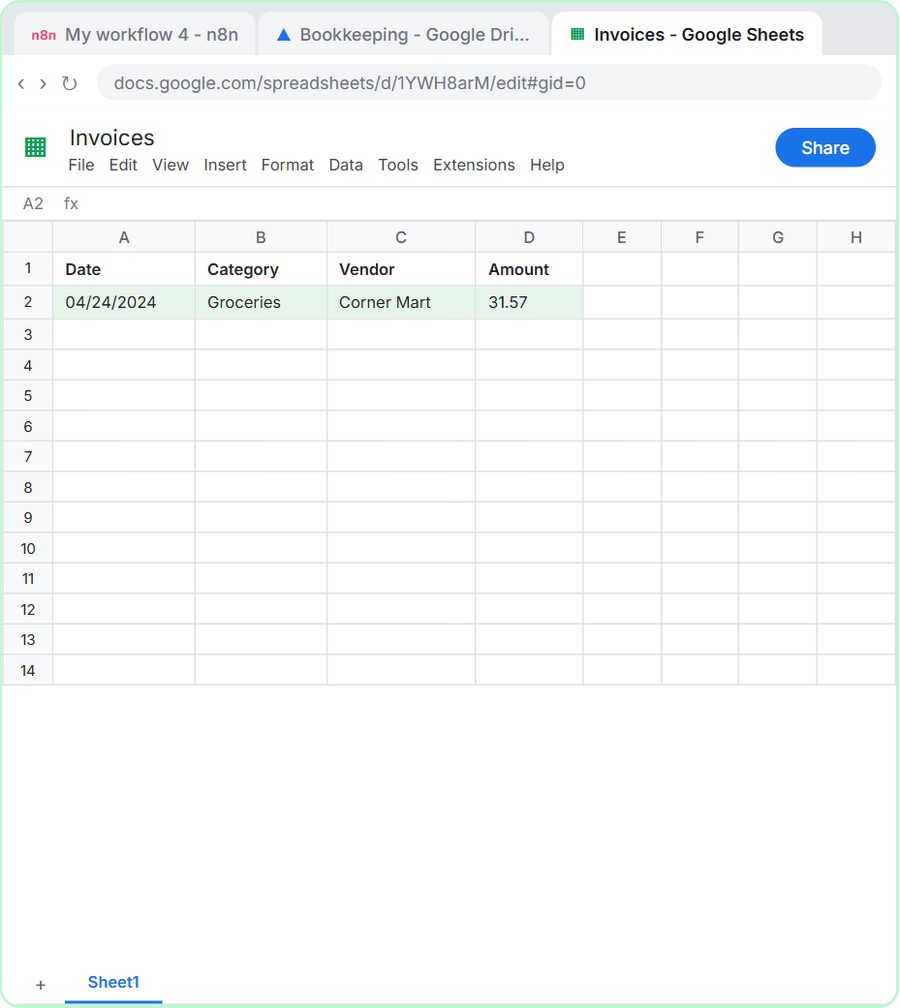 How to Do OCR in n8n: Read Receipt Photos into Google Sheets with AI
Drop a photo of a receipt into an n8n chat. An AI agent reads it, pulls out the date, vendor and amount, picks a category, and adds a row to Google Sheets.
Free · Live ~12 min Intermediate
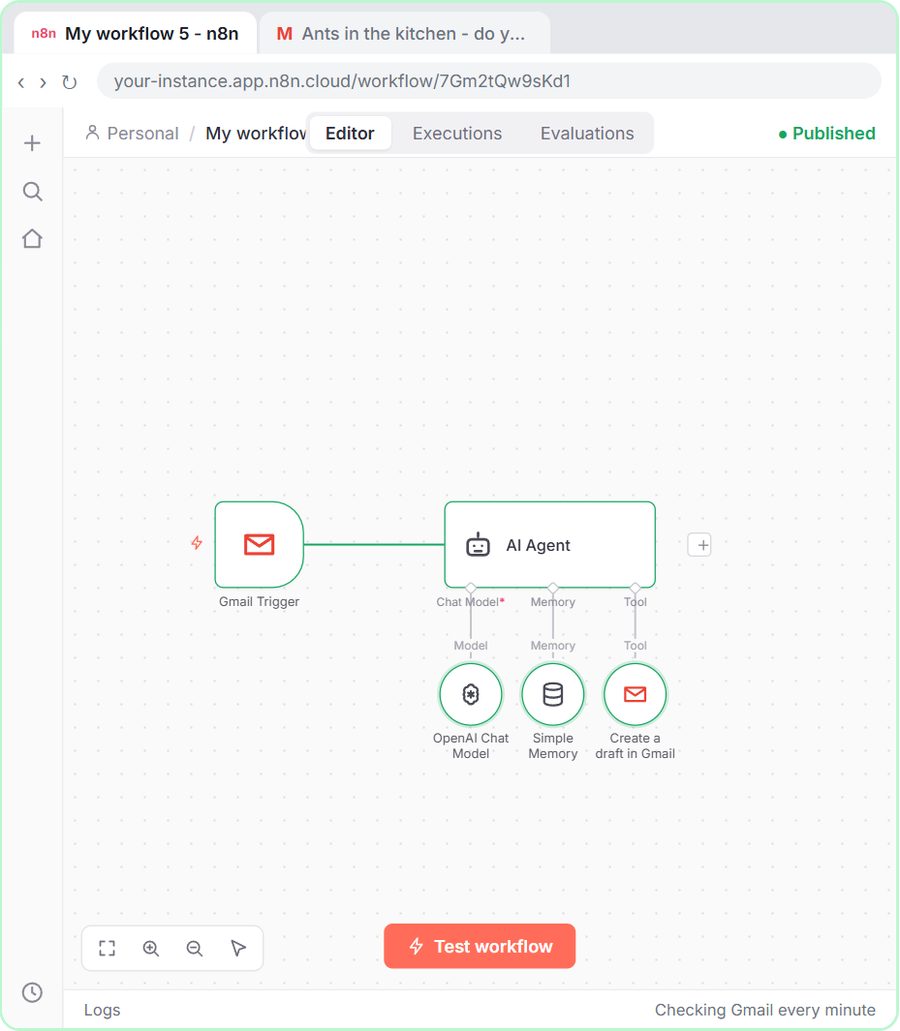 n8n AI Email Responder: Draft Gmail Replies Automatically
Build an n8n agent that watches your Gmail, reads each new customer email, and writes a reply as a draft in the same thread, ready for you to check and send.
Free · Live ~12 min Intermediate
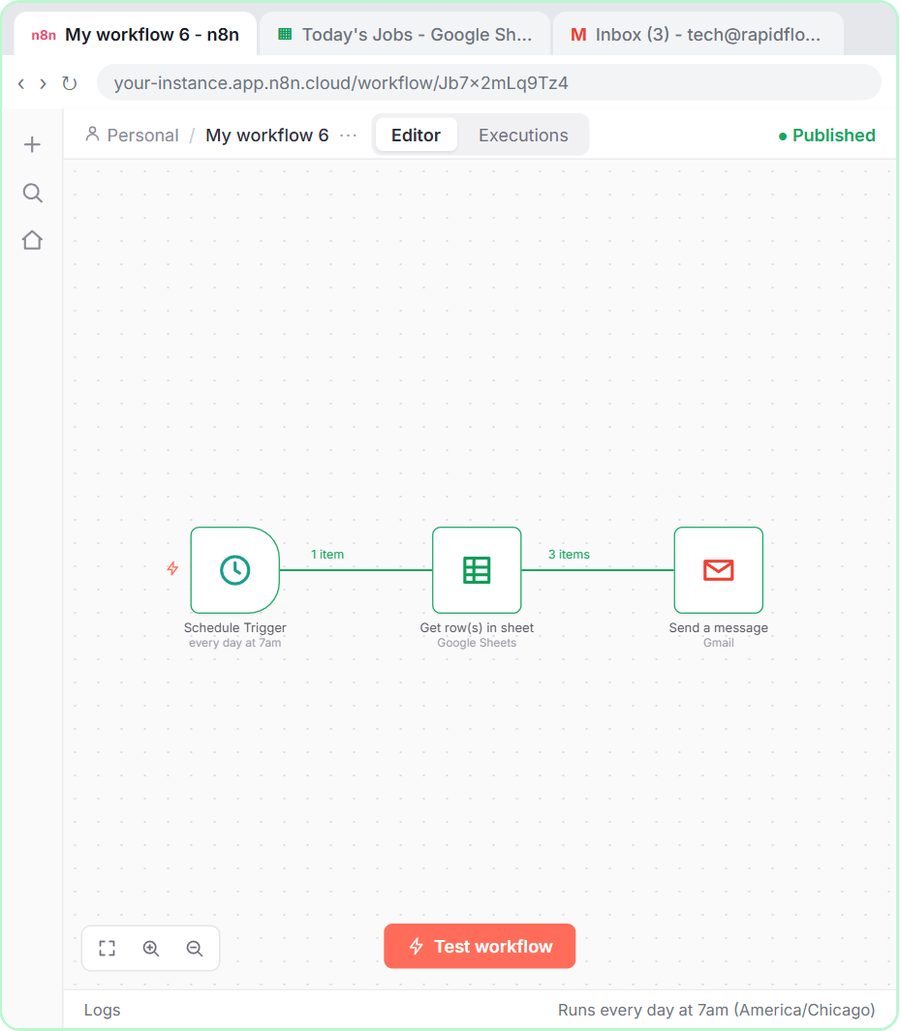 How to Make an n8n Workflow That Emails Each Tech Their Jobs from Sheets
Every morning at 7, n8n reads a plumbing company's jobs sheet, skips anything not assigned yet, and emails each job to the tech it's assigned to — customer, address…
Free · Live ~10 min Intermediate
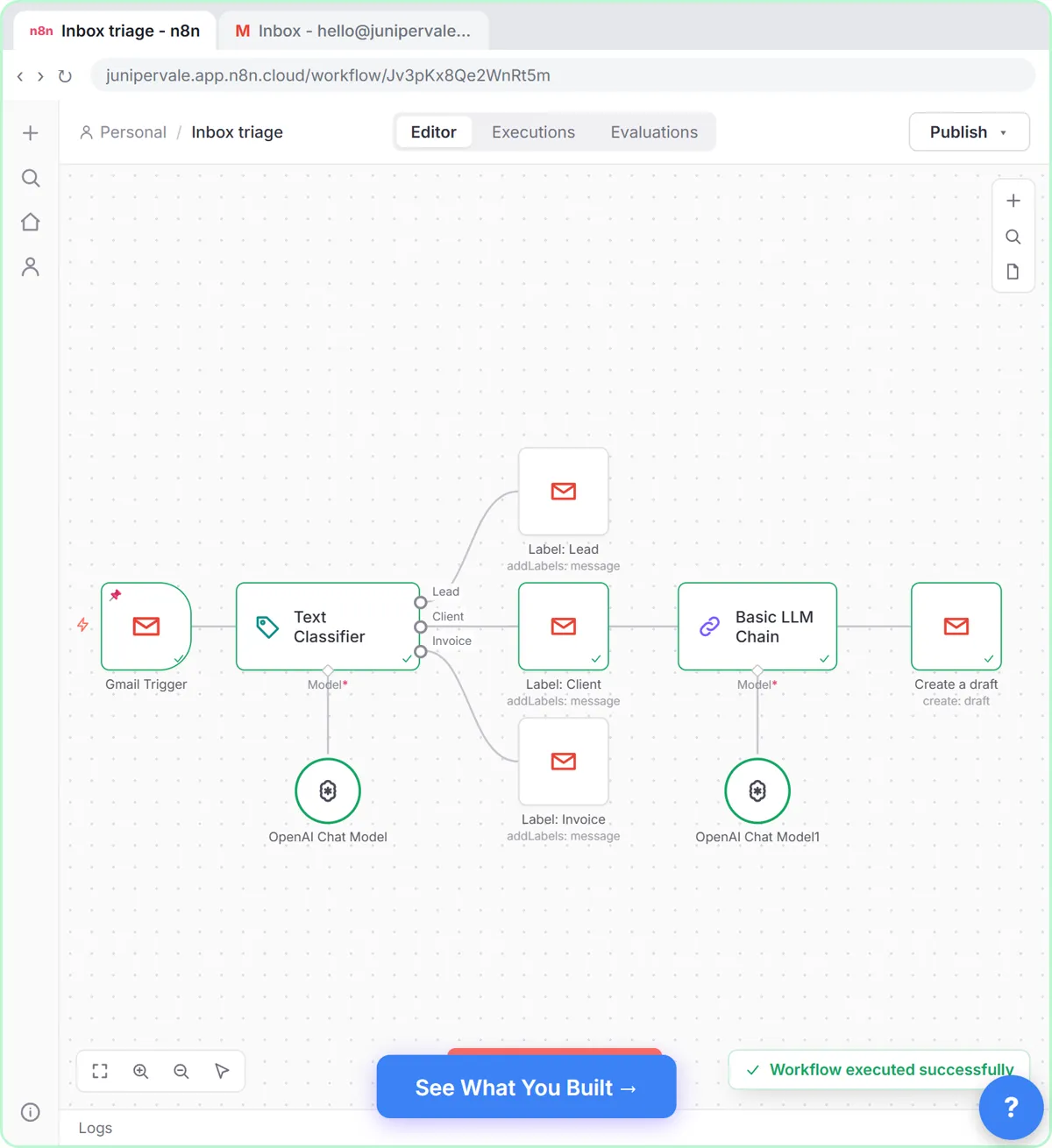 Gmail AI Triage: Auto-Label Every Email and Draft Replies
Build an n8n workflow that reads each new email, sorts it as a lead, a client or an invoice with a Text Classifier, adds the matching Gmail label, and drafts a reply to…
Free · Live ~18 min Advanced
 How to Use n8n to Build AI Agents: A Support Agent That Answers from Your Docs
Turn an n8n chat agent into a support agent that answers only from your policies in a Google Doc, refuses what it should, and hands off to a person by email.
Free · Live ~13 min Advanced
 Chatbase: Answer Customer FAQs with an AI Agent
A business case for a small firm that answers the same customer questions every week: build a Chatbase AI agent on your FAQ in the real app, make it say when it does…
Free · Live ~15 min Beginner
All 61 modules in Business Automations
Terms in this lesson
Plain-English definitions, each with an example from a free lesson.