What is the Information Extractor node in n8n?
Quick answer
The Information Extractor is an n8n AI node that reads text and returns the specific fields you ask for, such as vendor, invoice number and total, in a fixed shape. You describe the fields, attach a chat model, and every item comes out with the same named fields under output, ready to map into a sheet or check with a rule.
Last updated
Take the free module →Module 13 of the free AI for Accounting & Bookkeeping Firms course, about 14 minutes. No account needed.
Updated · By Robert Breen
Why it matters for a small business
Free text is hard for a workflow to use. An If node can't compare a total that sits somewhere inside a paragraph. The Information Extractor turns that text into clean fields, so the next steps can log, compare and route it with plain rules.
You set the fields with Schema Type: From Attribute Descriptions, Generate From JSON Example, where you paste one sample answer and it copies the shape, or a full JSON Schema. A System Prompt Template option holds standing rules for every item. The fields can also be judgments, not just copies: a score, a tier or a short reason.
In a real lesson: Invoices from Your Inbox to Google Sheets, with Approval
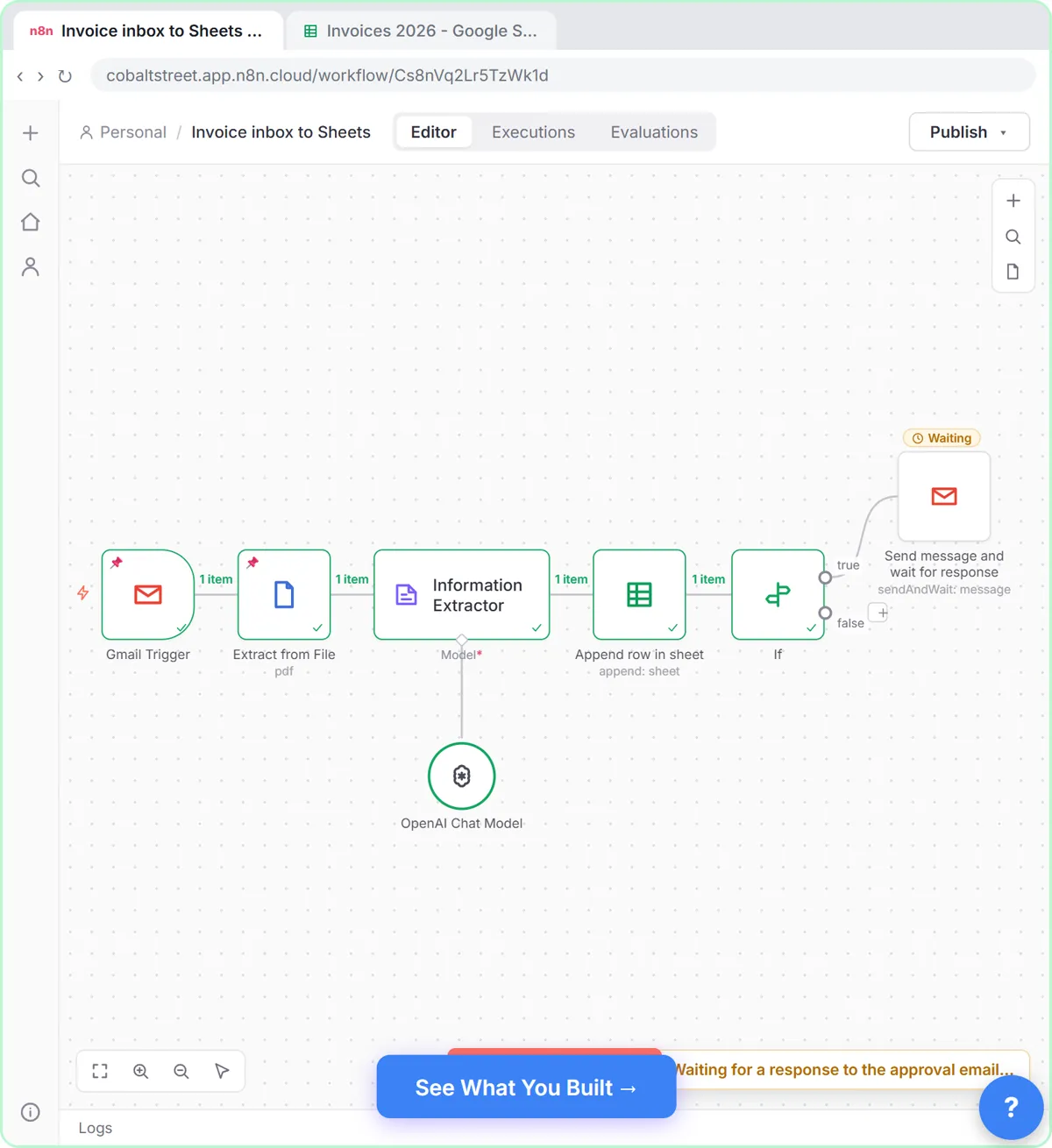
In Invoices from Your Inbox to Google Sheets, with Approval, you keep the books at Cobalt Street Architects, a made-up firm. The workflow already turns each invoice PDF into text. You add an Information Extractor after Extract from File with an instruction to copy what is printed and never calculate or guess, choose Generate From JSON Example, and paste a sample with vendor, invoice_number, invoice_date, due_date and total as a number.
Append row in sheet then logs it in Invoices 2026 using expressions like {{ $json.output.vendor }}. An If node checks whether total is greater than 1000, and only those invoices go to Gmail's Send message and wait for response, so the owner approves before anything moves on.
Try this lesson free or read the step-by-step guide.
Common confusions
Information Extractor vs Text Classifier
The extractor returns fields you define. The Text Classifier picks one category and sends the item down that category's branch.
Information Extractor vs OCR
OCR turns a scanned image into text. The extractor works on text that already exists and picks out the fields you need.
Tips
- Tell it to leave a field empty when it isn't in the text, so it doesn't guess.
- Make number fields numbers in your example, like 250.75, so an If node can compare them.
- Spot-check the first ten rows against the source documents before you trust it.
Related terms
More n8n and automation terms
Where you use it: free lessons
- Invoices from Your Inbox to Google Sheets, with Approval (n8n, 14 min)
- Speed-to-Lead Agent: Answer Every Web Lead in 60 Seconds (n8n, 15 min)
- An AI Resume Screener, with a Fairness Step (Recruiting & HR) (n8n, 14 min)
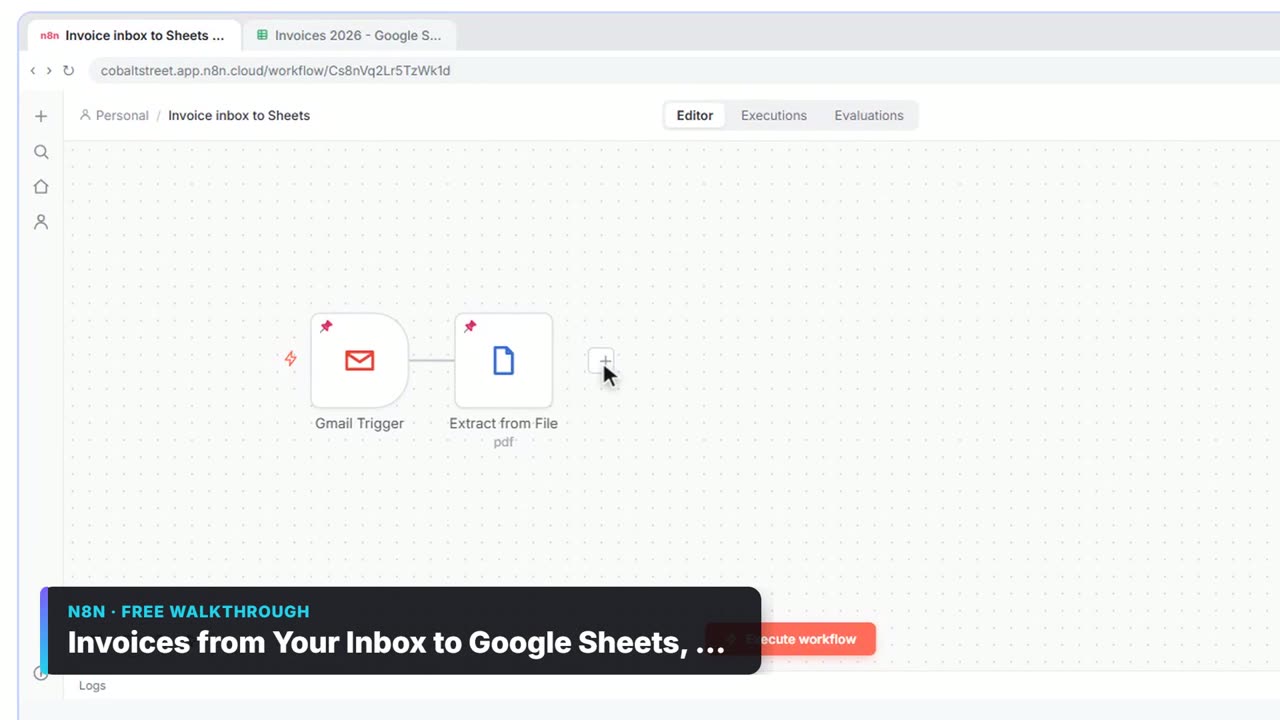
Watch it in a free lesson: Invoices from Your Inbox to Google Sheets, with Approval
 2:31
2:31Invoices from Your Inbox to Google Sheets, with Approval: video walkthrough
Build an n8n workflow that reads each vendor invoice PDF from Gmail with AI, logs the vendor, invoice number and total in Google Sheets, and emails the owner an Approve button for anything over $1,000. The whole lesson narrated step by step, recorded in Stepthrough’s simulated practice environment.
Frequently asked questions
- Can the Information Extractor score or judge, not just copy?
- Yes. The speed-to-lead lesson uses it to return a score from 1 to 10, a tier, a reason, a subject and a reply for each web lead.
- Where do the extracted fields appear?
- Under output in each item, so you map them with expressions like {{ $json.output.total }}.
- Does it read PDFs directly?
- It reads text. Put Extract from File before it to turn the PDF into text first.