Updated . Built against the tool’s current screens and checked step by step. How we check this lesson
A new vendor agreement hides an 8% yearly increase and a 60-day auto-renewal. Highlight the clauses in Foxit PDF Editor, comment with what to ask for, and hand the owner one marked-up PDF instead of a long email.
At a glance
| Question | Answer |
|---|---|
| What you build | A new vendor agreement hides an 8% yearly increase and a 60-day auto-renewal. Highlight the clauses in Foxit PDF Editor, comment with what to ask for, and hand the owner one marked-up PDF instead of a long email. |
| Tools | Foxit |
| Time | About 7 minutes, 9 steps in 3 parts |
| Level | Beginner, no coding needed |
| Cost | Free |
| Ways to learn it | Practice it step by step |
The 3 parts, in short
- Open the agreement: Open File.
- Flag the fee clause: Highlight, Highlight the fee increase, Comment on it.
- Note the renewal trap: Comment tab, Note, Stick it on the clause, See every comment, and 1 more step.
Start here first: Foxit for Beginners: Workspace, AI Assistant and PDF Editor Explained (module 1 of AI Automation for Operations)
What you'll build
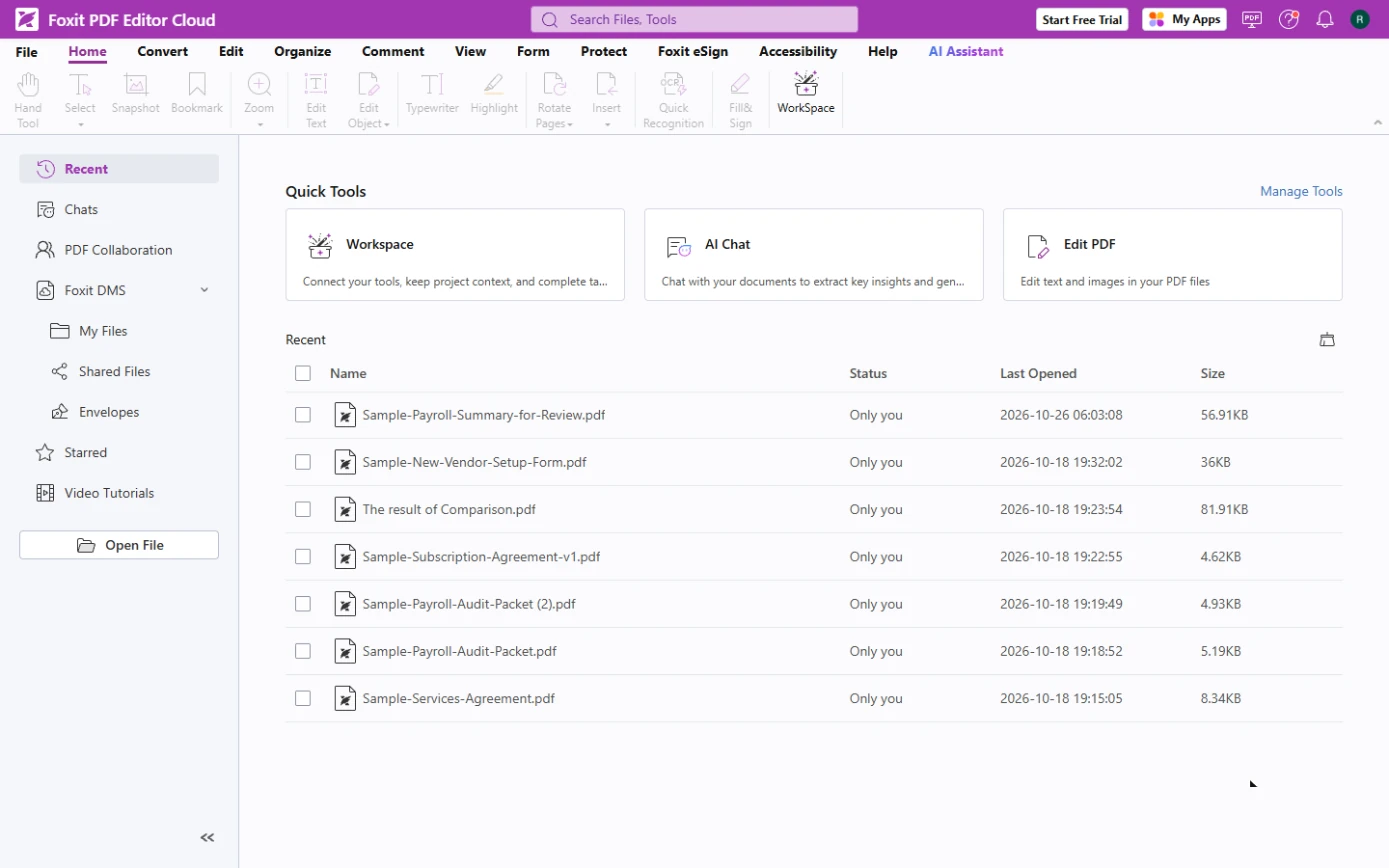
Harbor & Pine Design Studio (made up) is about to sign a bookkeeping agreement at $1,200 a month. The office manager reads it first and finds two problems: fees rise 8% every year, and it renews automatically unless someone gives notice 60 days early. An email saying "see section 2 and 4" gets lost. In this lesson you mark up the PDF in Foxit PDF Editor online: highlight the fee clause and comment on it, put a sticky note on the renewal clause, and check every comment in one list. Every screen is a real Foxit screen; the agreement and both companies are made up.
You opened the agreement in Foxit PDF Editor, highlighted the 8% yearly increase and commented on it, put a sticky note on the auto-renewal clause, and checked both in the Comments panel. The owner now sees two clear asks on the exact words, and the vendor can reply in the same file. What it saves: a back-and-forth email thread and the risk of signing a clause nobody read. Try it on the next contract you receive: highlight the price change, the renewal and the exit cost before anyone signs. Foxit's plans and trials change; check foxit.com for what yours includes.
- Tools: Foxit
- Time: about 7 minutes, 9 steps in 3 chapters
- Level: beginner, no coding needed
- Price: free
Practice first, then build it for real
Practice copy built from real Foxit PDF Editor Cloud screens (pdfonline.foxit.com), captured 26 October 2026. Nothing here touches a Foxit account. Harbor & Pine Design Studio, Ledgerline Bookkeeping and the agreement are made up; this is not legal advice. To build it for real you need your own Foxit account, and some services charge once you use them for real work, so check each tool's current pricing.
Try it yourself, free
Reading the steps is a start. Doing them is how it sticks. The interactive module walks you through every click in a practice copy of Foxit, checks each step, and never touches your real accounts.
Start “Foxit PDF Editor: Mark Up a Contract Before You Sign It for Operations”Step by step: Foxit PDF Editor: Mark Up a Contract Before You Sign It for Operations
All 9 steps of the interactive module, in order. In the module you watch each one, then do it yourself in a practice copy that checks your work.
1. Open the agreement
- Open File. Download the sample agreement from this lesson (made up), then open pdfonline.foxit.com and click Open File to upload it. Foxit opens it in a new tab next to Start.
2. Flag the fee clause
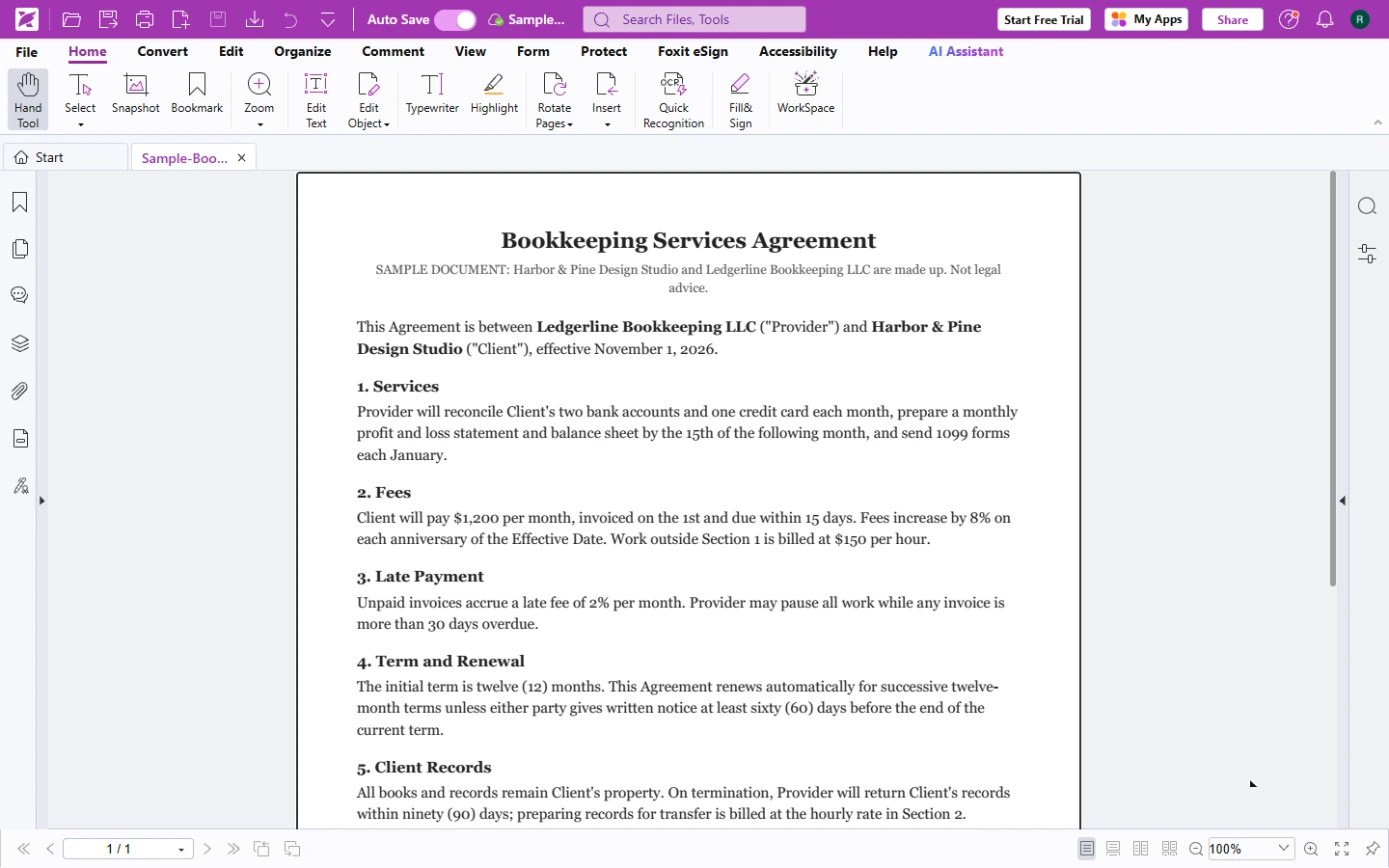
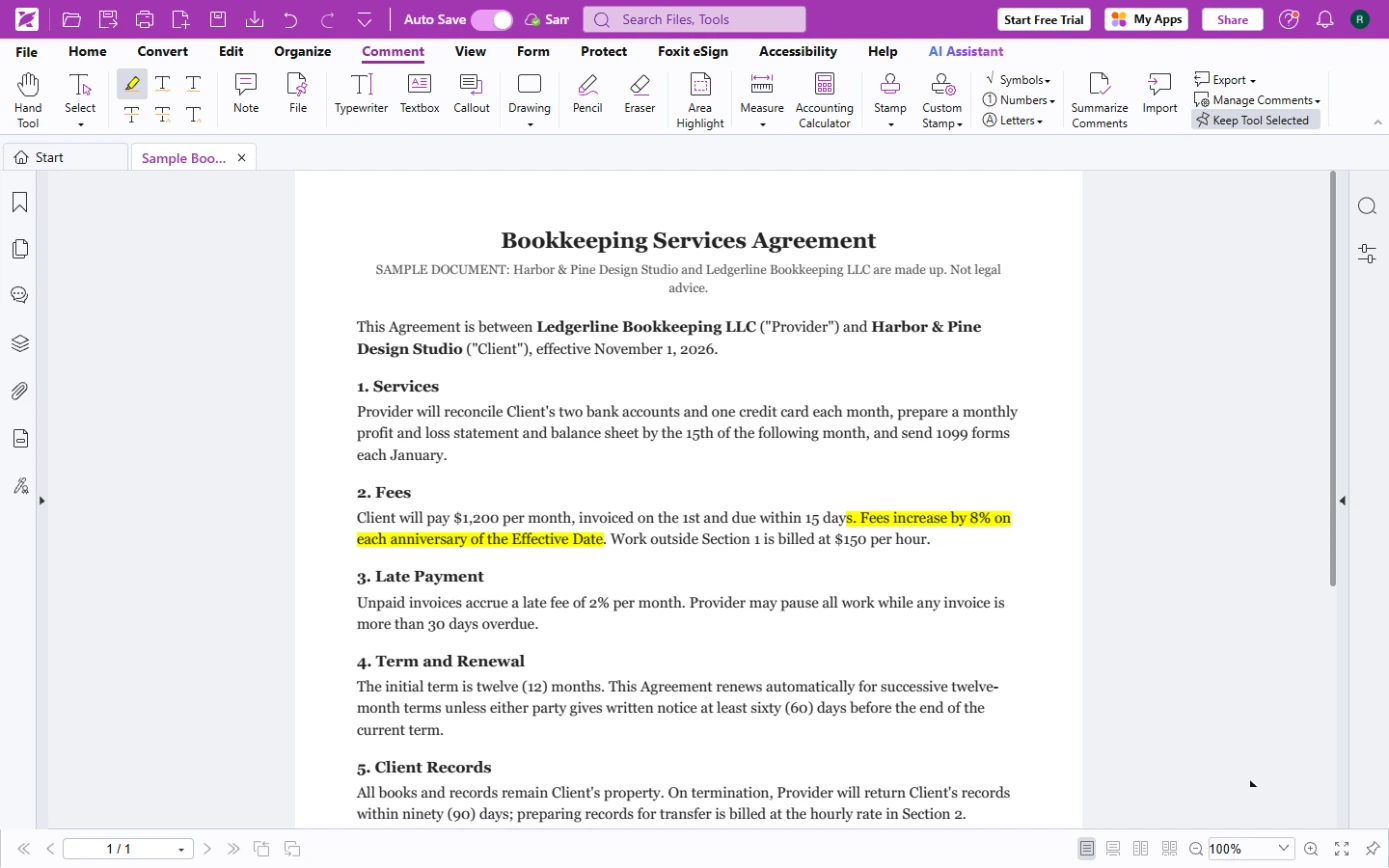
- Highlight. The agreement opens on the Home ribbon (we set the zoom to 100% at the bottom right so a whole section fits). Click Highlight.
The agreement is open.
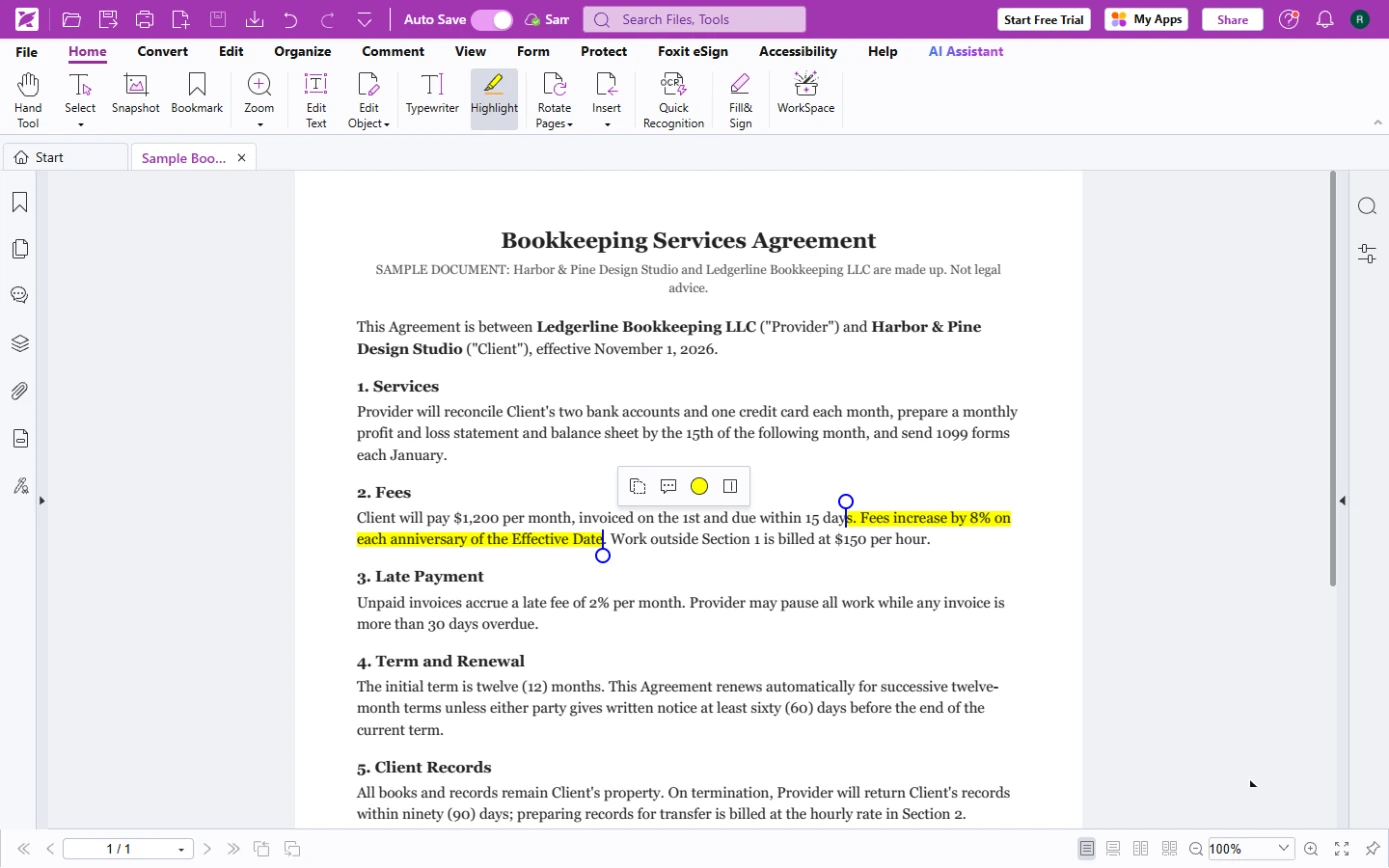
- Highlight the fee increase. In 2. Fees, drag across "Fees increase by 8% on each anniversary of the Effective Date". It turns yellow, and a small toolbar appears above it.
In Fees, drag across the eight percent yearly increase.
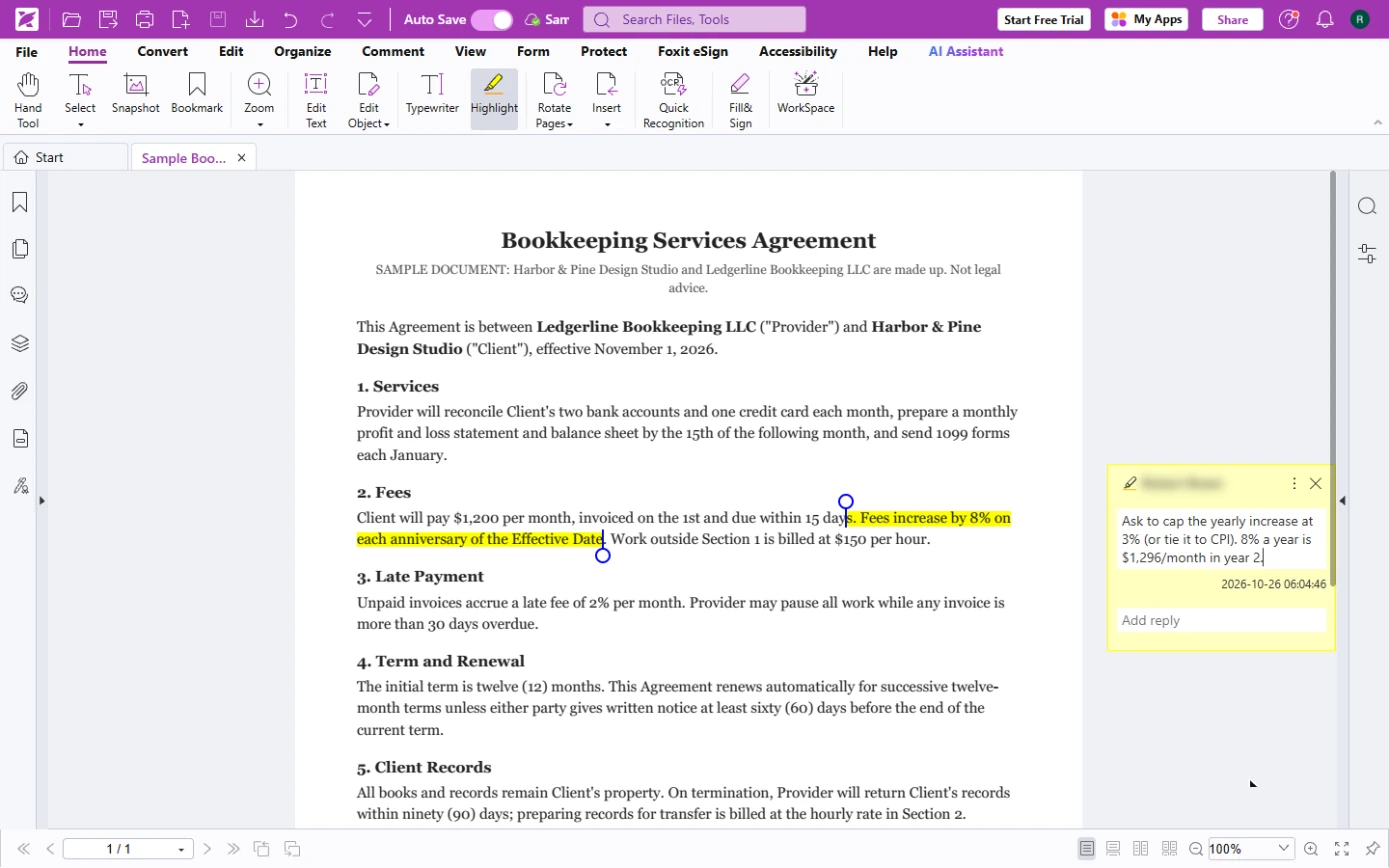
- Comment on it. Click the speech bubble in that small toolbar. A comment box opens on the right: type why it matters and what to ask for, e.g. "Ask to cap the yearly increase at 3% (or tie it to CPI). 8% a year is $1,296/month in year 2."
Cap the increase at three percent.
3. Note the renewal trap
- Comment tab. Your comment is saved on the highlight (Auto Save is on). Close the box with the X, press Esc to put the highlighter down, and open the Comment tab for more markup tools.
Close the comment box, and open the Comment tab.
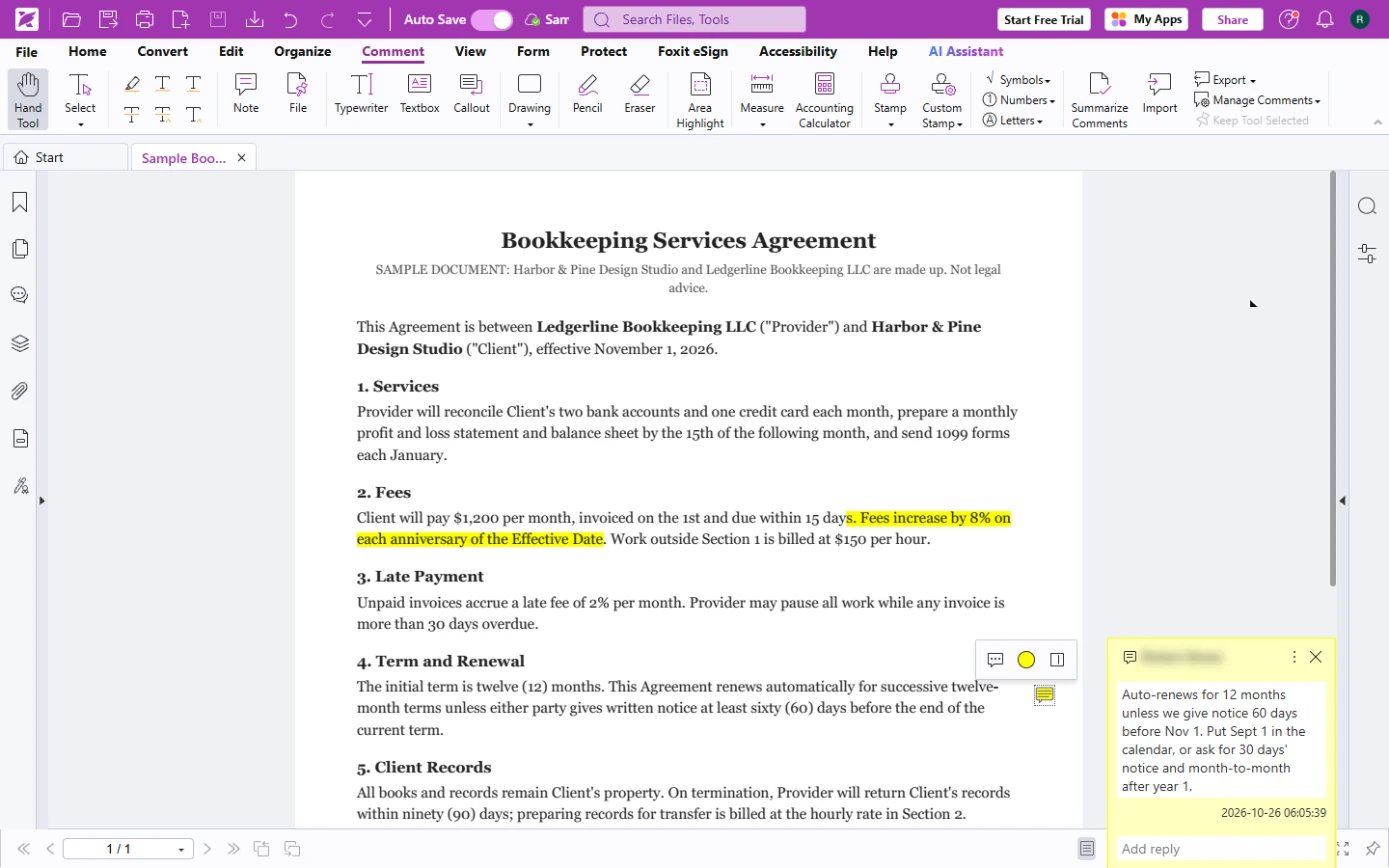
- Note. The Comment tab has notes, text boxes, callouts, drawing and stamps. Click Note (a sticky note).
It is a sticky note.
- Stick it on the clause. Click in the margin next to 4. Term and Renewal. Type the risk and the fix, e.g. "Auto-renews for 12 months unless we give notice 60 days before Nov 1. Put Sept 1 in the calendar, or ask for 30 days' notice and month-to-month after year 1."
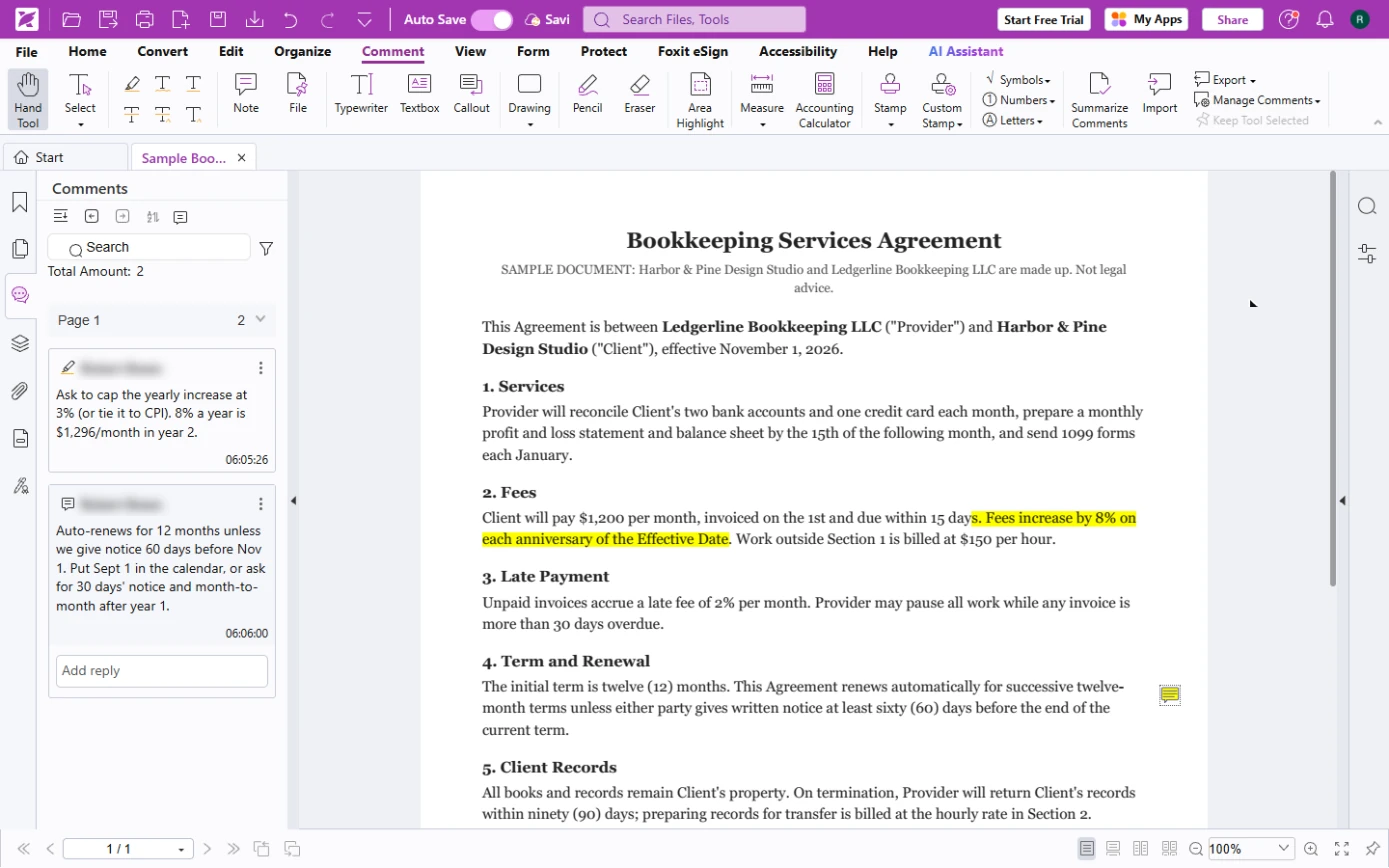
- See every comment. Close the note and click the Comments icon in the left bar (the speech bubble).
- Review the list. The Comments panel lists every comment on the page with its author and time, and has a reply box for each. The person who signs reads two clear asks instead of a long email. Add one for 5. Client Records too (they charge $150 an hour to hand back your own books).
Every comment in one list, with a reply box. Add one more for the records clause.
Screenshots
More in AI Automation for Operations
A five-minute map of Foxit before you use it: Foxit Workspace, the PDF AI Assistant and PDF Editor, which one fits a contract review, a revised contract, a flat form or…
Free · Live ~5 min Beginner
◷AI Contract Review in 10 Minutes using Foxit AISkimmed contracts hide auto-renewals, late fees and liability caps. Upload one to Foxit Workspace, get a plain-English summary and every renewal and exit date, check…
Free · Live ~10 min Beginner
 Foxit PDF Editor: Catch Every Change in a Revised Contract
A vendor sends "version 2, just small cleanups". Compare both PDFs in Foxit PDF Editor, see every changed fee, date and clause, and reply with a list.
Free · Live ~8 min Beginner
All 33 modules in AI Automation for Operations