Updated . Built against the tool’s current screens and checked step by step. How we check this lesson
Filter urgent requests in Results, link the form to a Zite database, add a Status field that starts at Open, assign vendors, and keep a Still open view that hides finished jobs.
At a glance
| Question | Answer |
|---|---|
| What you build | Filter urgent requests in Results, link the form to a Zite database, add a Status field that starts at Open, assign vendors, and keep a Still open view that hides finished jobs. |
| Tools | Fillout |
| Time | About 9 minutes, 35 steps in 4 parts |
| Level | Beginner, no coding needed |
| Cost | Free |
| Ways to learn it | Practice it step by step |
The 4 parts, in short
- Find the urgent ones: Requests pile up, Filter on the danger question, Pick the question, Urgent only, and 2 more steps.
- Link a database: A new database, Your requests come too, Publish so new requests follow, Open it.
- Add a Status: Your requests as a table, Find the field type, Single select, Name the field, and 4 more steps.
- Run the jobs: Book the heating job, Vendor booked, Make a working view, Create a view, and 13 more steps.
Start here first: How to Do OCR in n8n: Read Receipt Photos into Google Sheets with AI (module 1 of Business Automations)
In the course: Part 9 · n8n Automation Toolkit (Module 158 of the full course)
Part of: AI Apps Worth Knowing (step 174 of 175). Next up: ListingLift: Audit and Fix an Etsy Listing with the Free Tools for Marketing
What you'll build
This finishes the Fillout course (a made-up property company). Your maintenance form collects requests and routes emergencies, but a list of submissions is not a plan. In this lesson you filter the urgent requests in Results, then link the form to a free Zite database so each request becomes a work order. You add a Status field (Open, Vendor booked, Done) that new requests fill in automatically, assign a vendor, and make a Still open view that hides finished jobs. Then a new request arrives from the live form, already marked Open.
Requests flow from the form into a database, start as Open, and leave your Still open view when they are Done. Check that view each morning instead of your inbox. From here you can share the database with your maintenance coordinator or add a date-booked field.
- Tools: Fillout
- Time: about 9 minutes, 35 steps in 4 chapters
- Level: beginner, no coding needed
- Price: free
Practice first, then build it for real
Practice copy built from real Fillout and Zite screens (app.zite.com), captured 16 November 2026 on the Free plan. Nothing here touches a Fillout account. The property company, tenants and vendor are made up. To build it for real you need your own Fillout account, and some services charge once you use them for real work, so check each tool's current pricing.
Try it yourself, free
Reading the steps is a start. Doing them is how it sticks. The interactive module walks you through every click in a practice copy of Fillout, checks each step, and never touches your real accounts.
Start “Fillout: Turn Maintenance Requests into a Work-Order Tracker”Step by step: Fillout: Turn Maintenance Requests into a Work-Order Tracker
All 35 steps of the interactive module, in order. In the module you watch each one, then do it yourself in a practice copy that checks your work.
1. Find the urgent ones
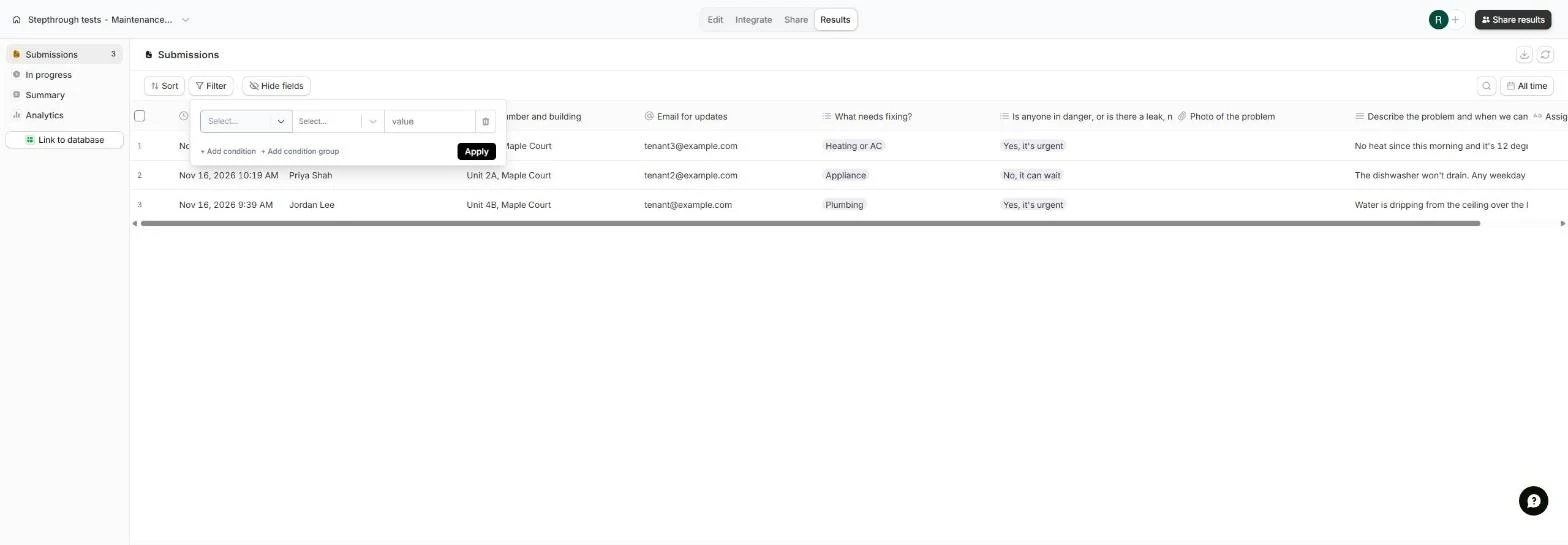
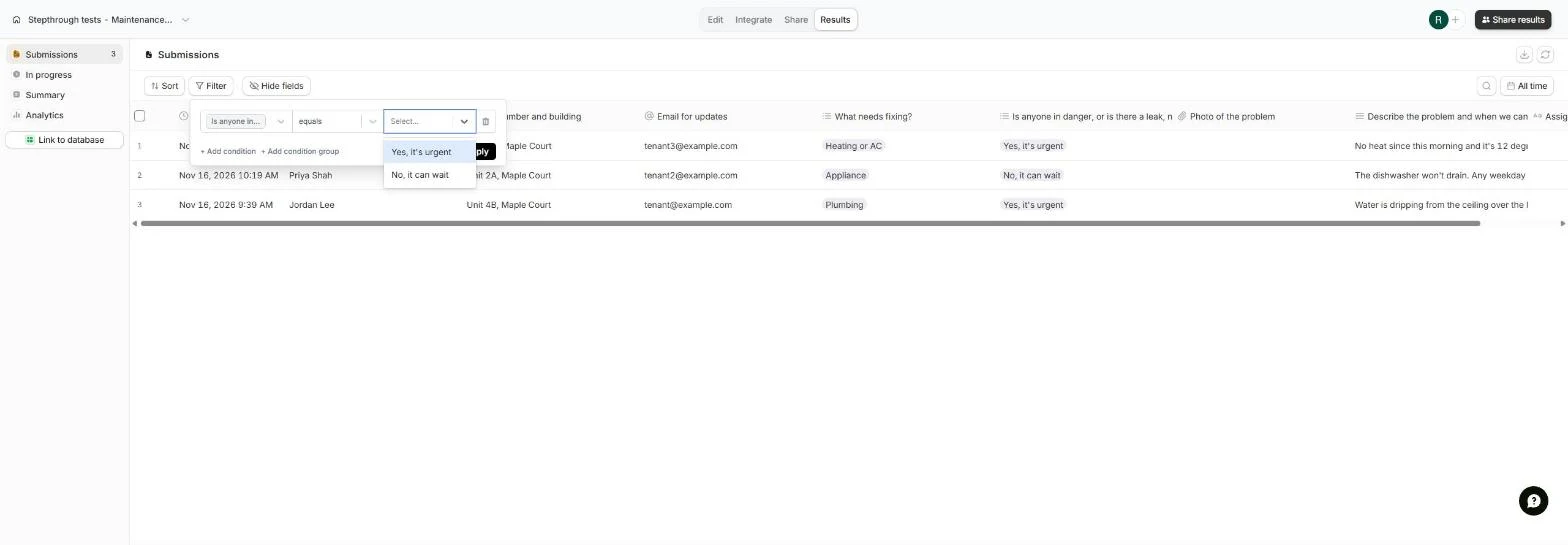
- Requests pile up. Your form from lessons 1 and 2 has collected three requests. A list is not a plan: you need to see the urgent ones first, then track each job until it is fixed. In Results, click Filter. (We then clicked + Add condition.)
Requests pile up. First, find the urgent ones.
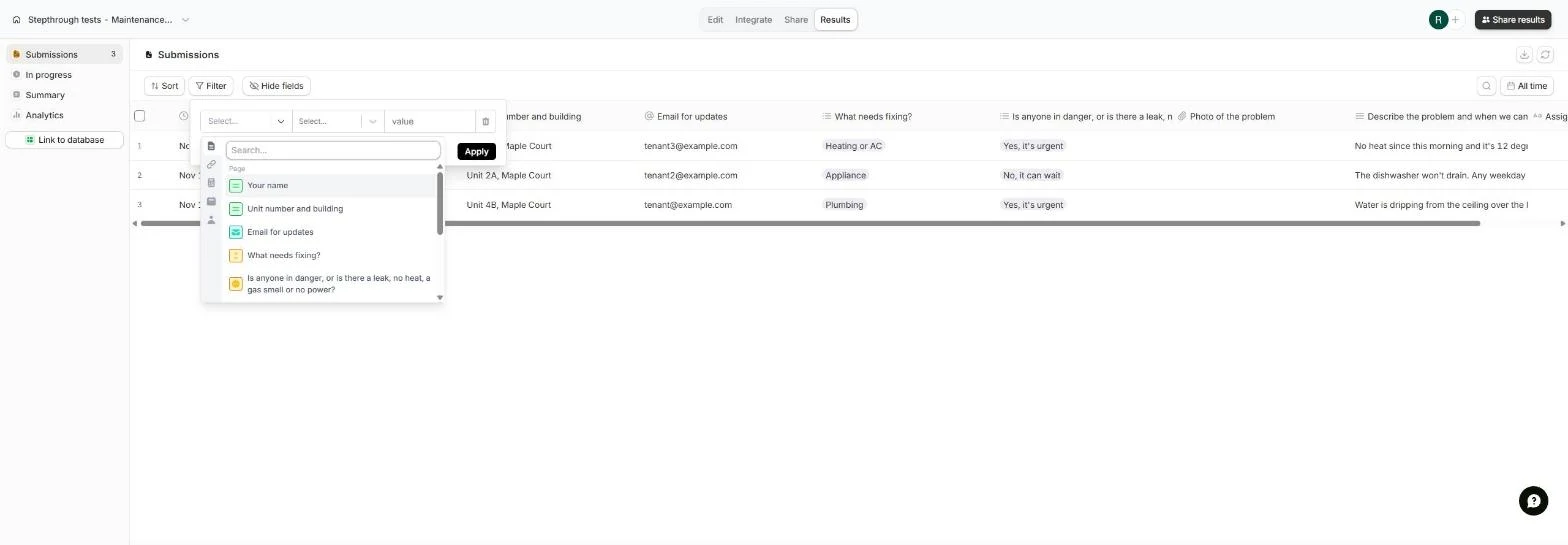
- Filter on the danger question. Open the first Select....
- Pick the question. Click Is anyone in danger, or is there a leak.... We then opened the answer list.
Pick the danger question.
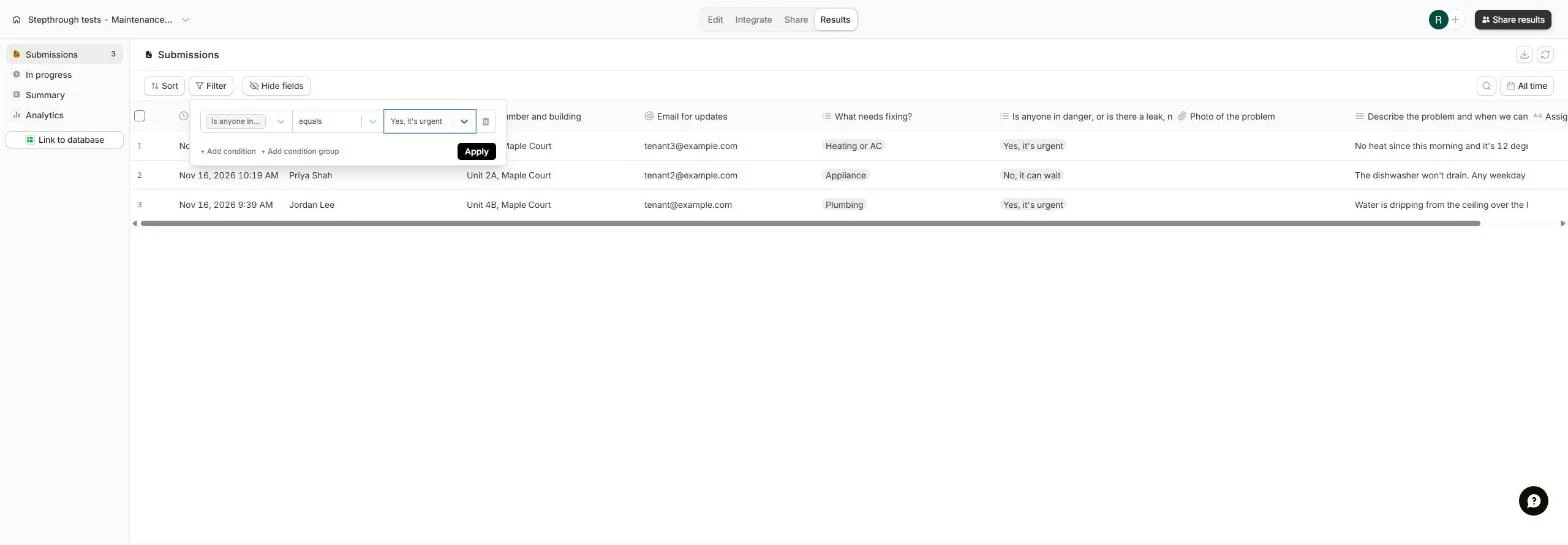
- Urgent only. Click Yes, it's urgent.
Pick Yes, it's urgent.
- Apply it. Click Apply.
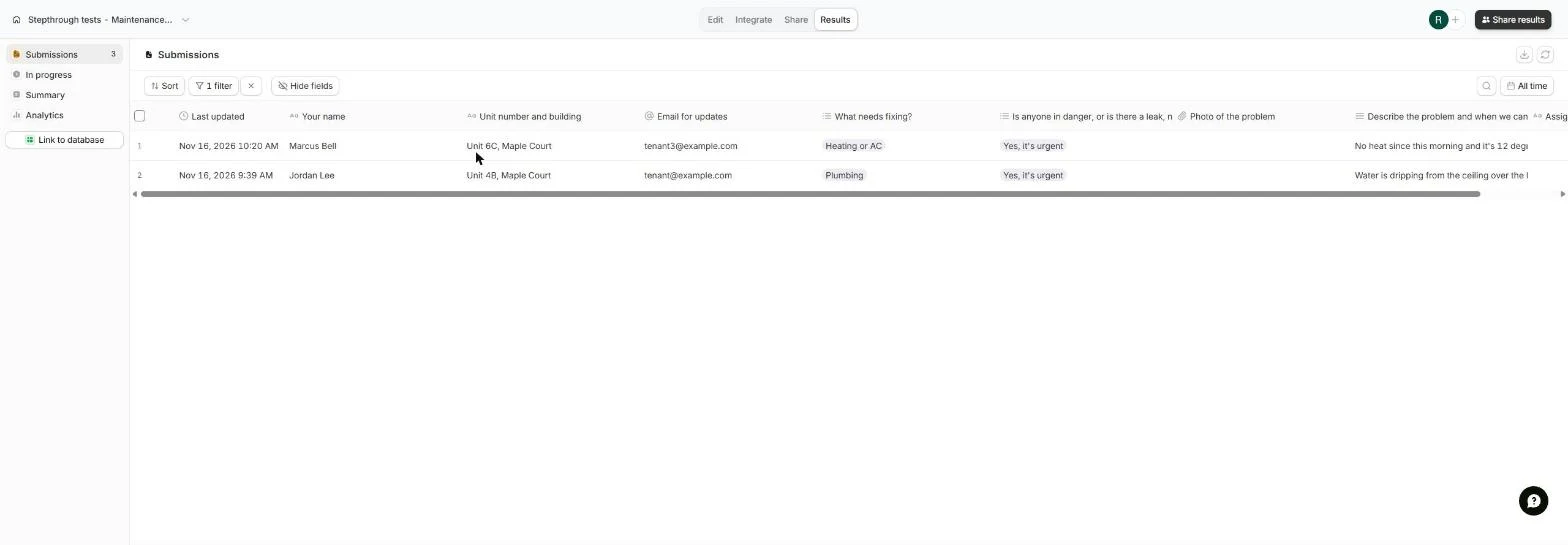
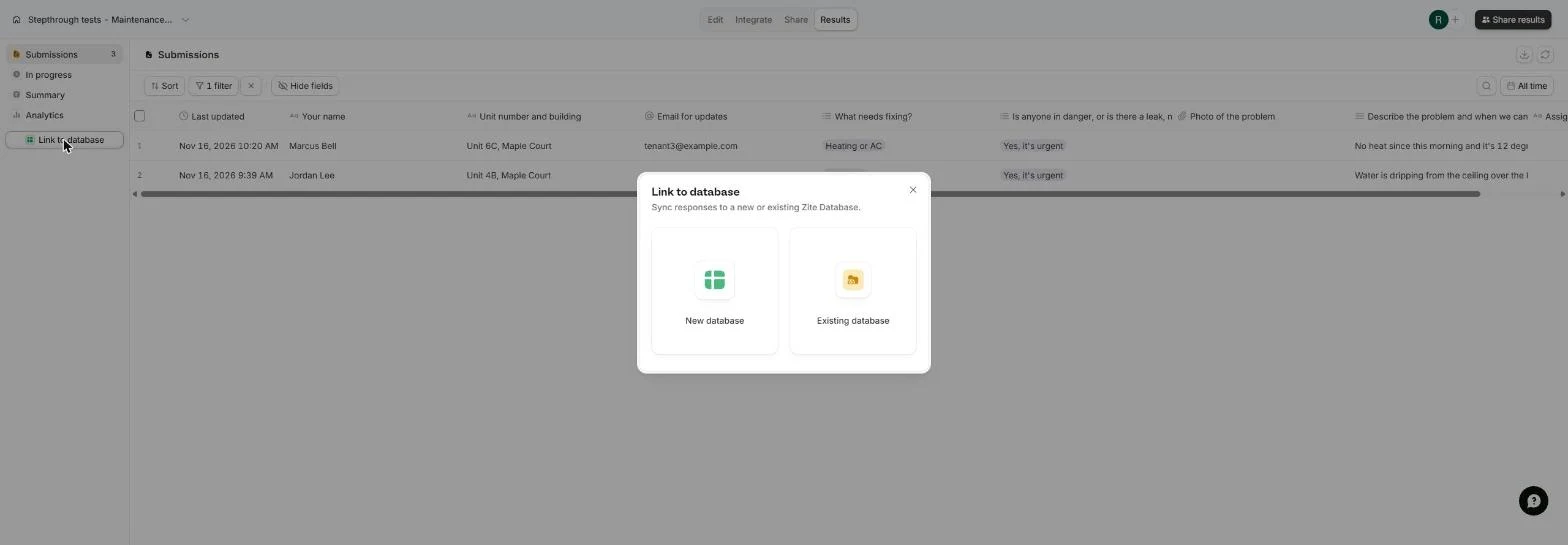
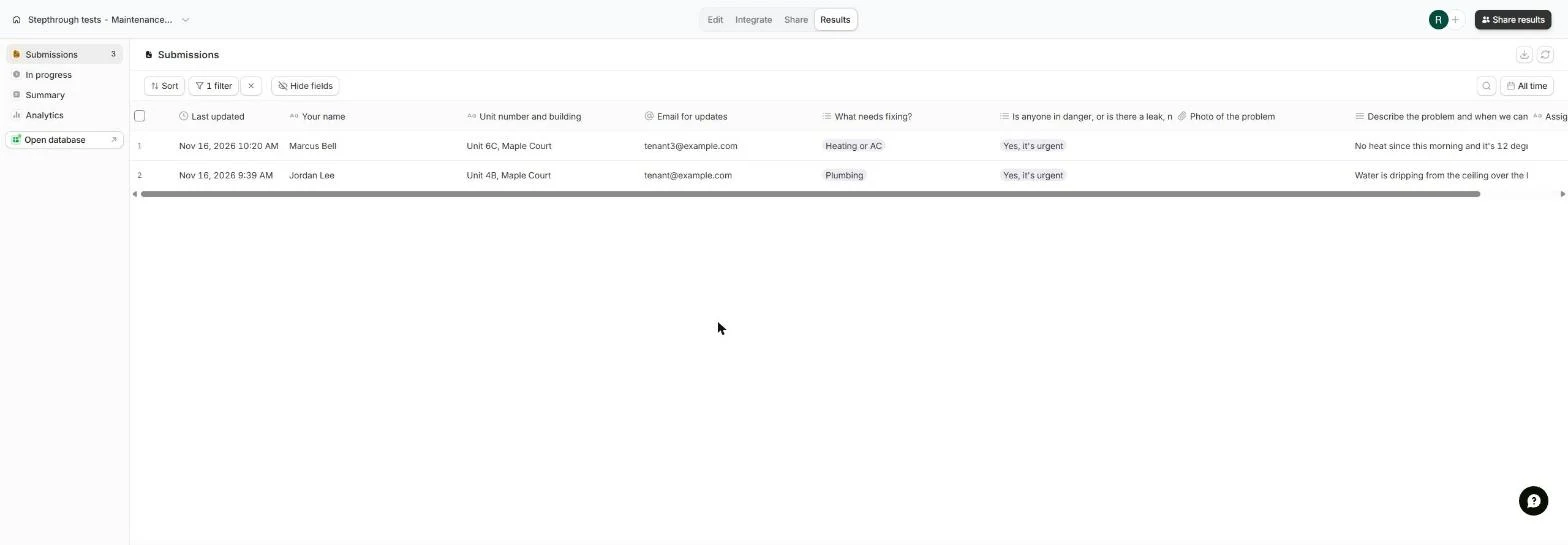
- Now make it a tracker. Two urgent requests, and the button reads 1 filter. Results can filter and export, but you can't add your own columns like a status. A Zite database can. Click Link to database.
Results can filter, but not track. Link a database to add your own columns.
2. Link a database
- A new database. Sync responses to a new or existing Zite Database. Click New database.
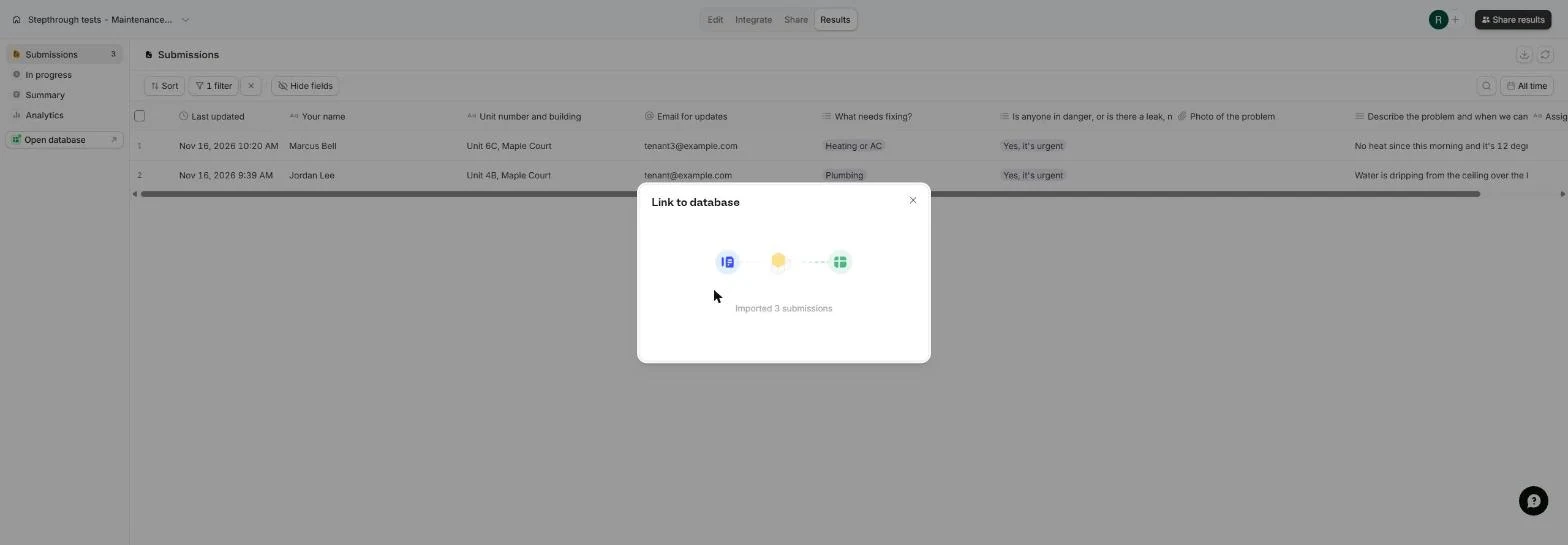
- Your requests come too. Fillout copies every existing submission into the new database: Imported 3 submissions. Wait a moment.
Every existing request is copied in. Wait a moment.
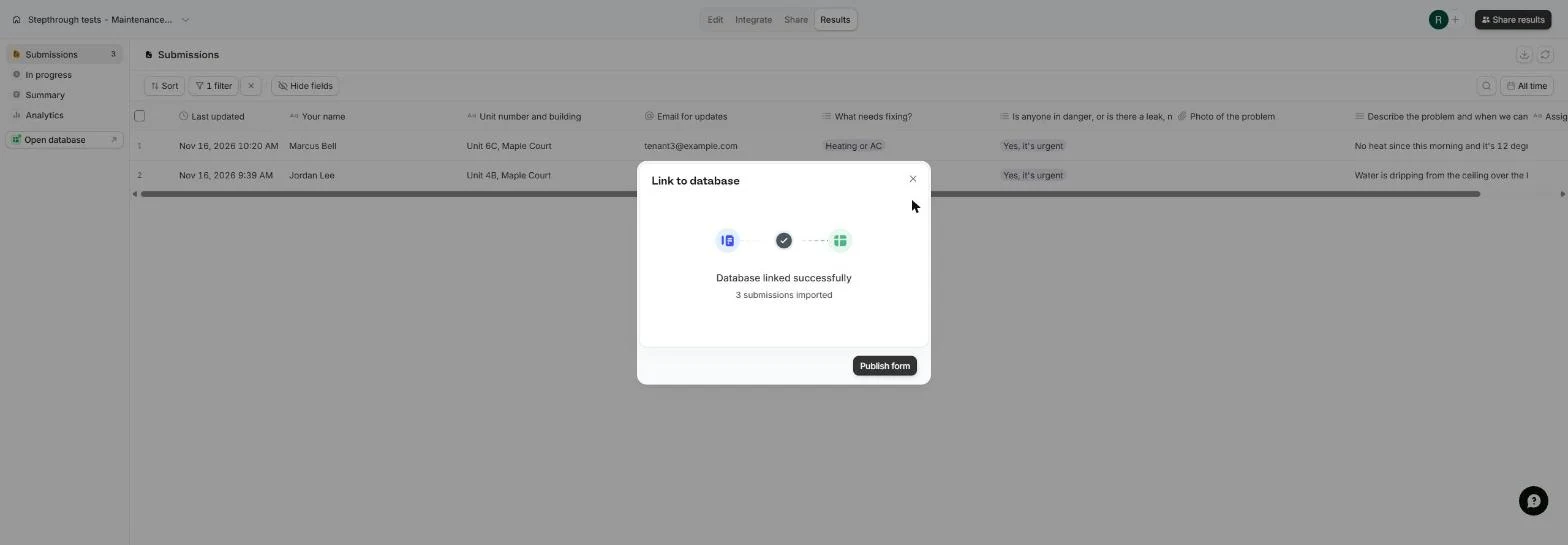
- Publish so new requests follow. Database linked successfully. New requests only flow into the database once the form is published again. Click Publish form.
Publish the form, so new requests go to the database too.
- Open it. The side menu now has Open database. Click it. It opens in a new tab.
3. Add a Status
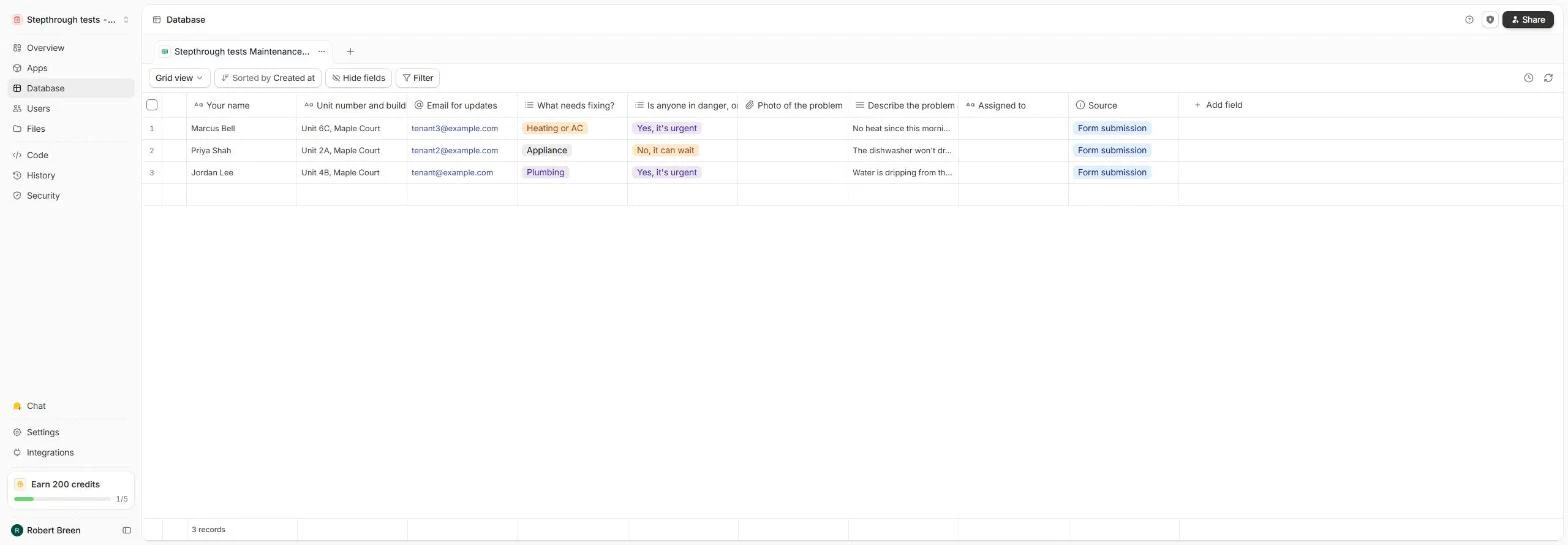
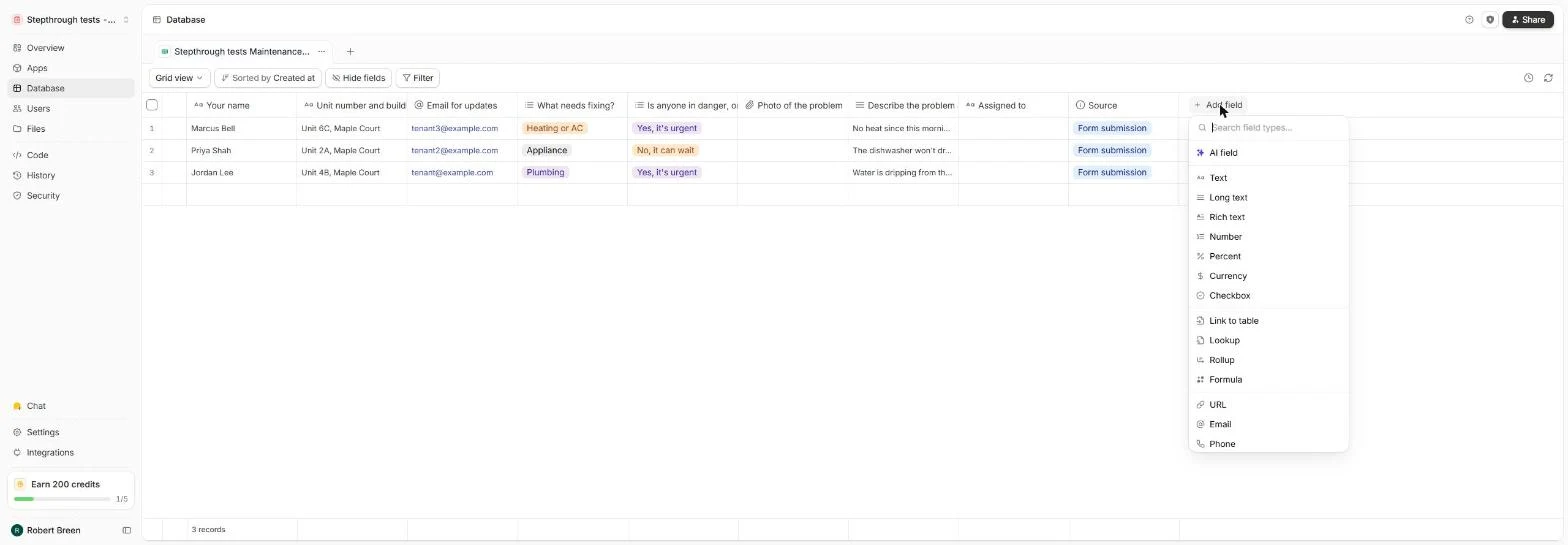
- Your requests as a table. One row per request, one column per question, plus Source: Form submission. Ours also has an Assigned to column for the vendor's name (add one the same way with + Add field, Text). Add a status: click + Add field.
Every request is a row. Now add a status.
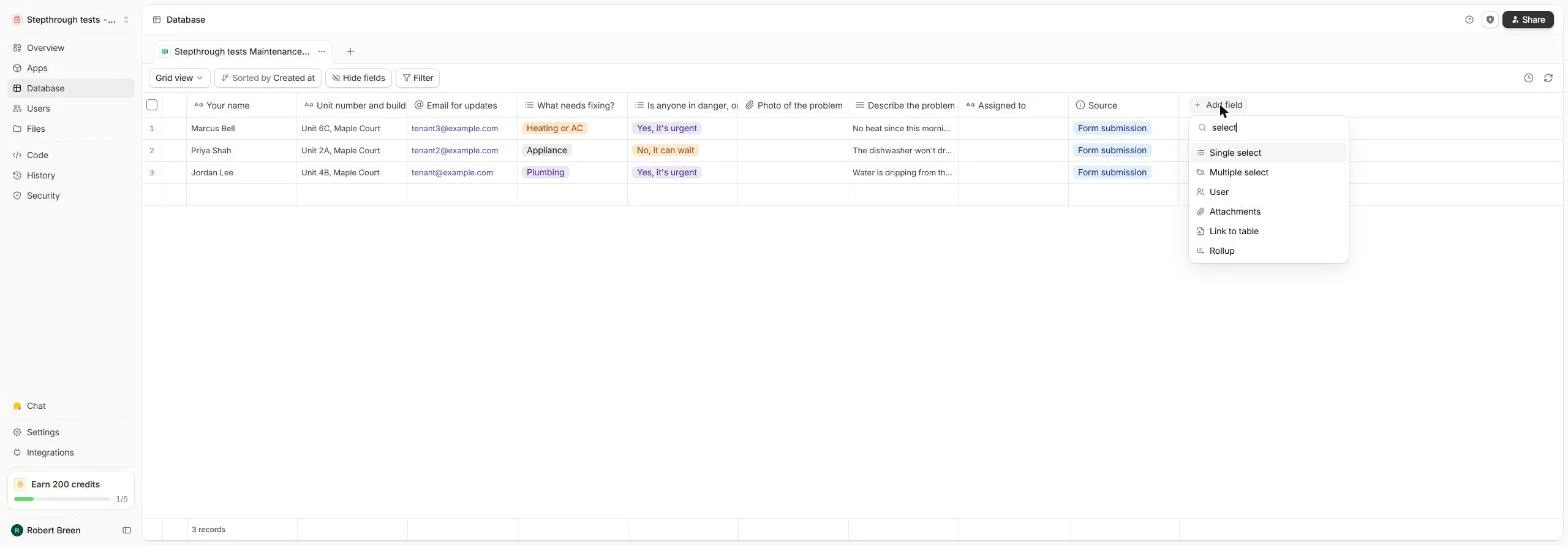
- Find the field type. Search the field types for select.
Search for select.
- Single select. A job has one status at a time, so click Single select.
A job has one status at a time.
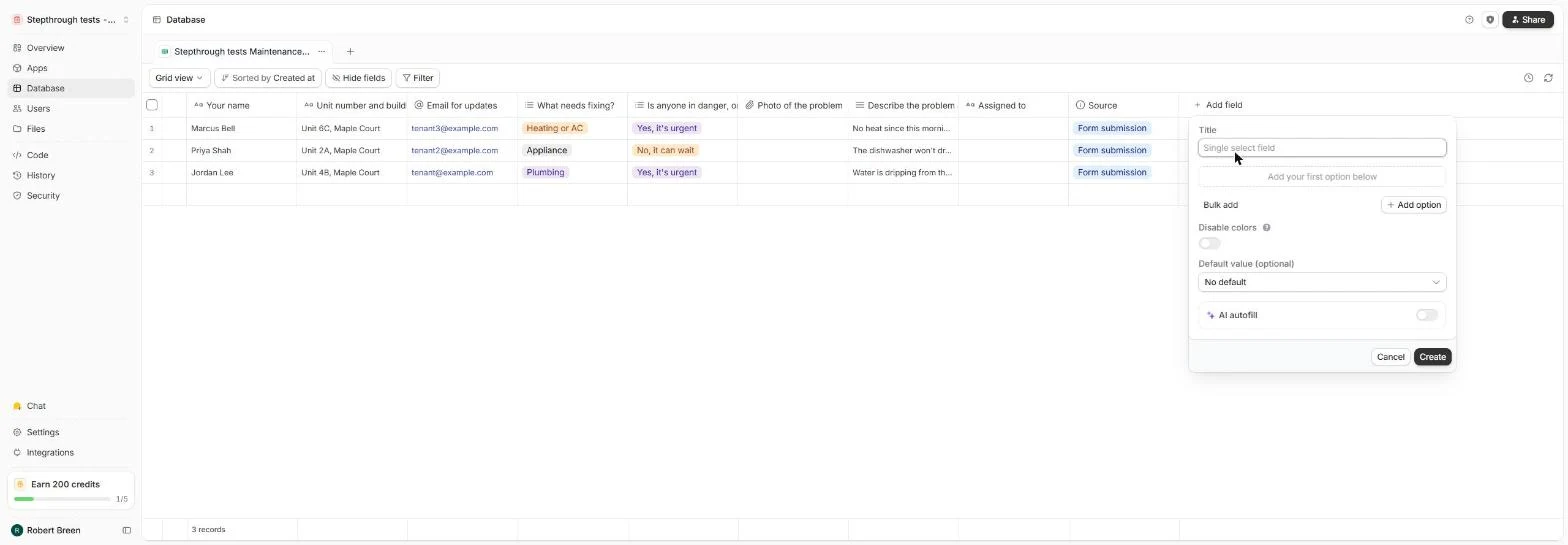
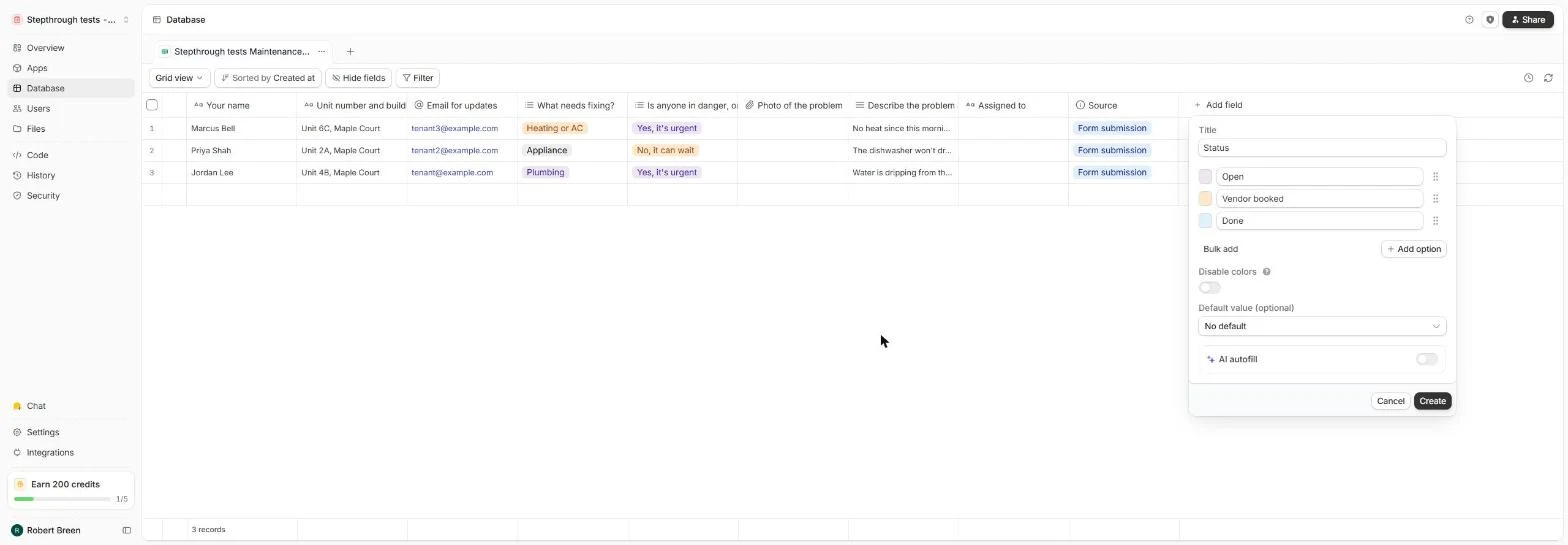
- Name the field. Type the field title.
Name the field Status.
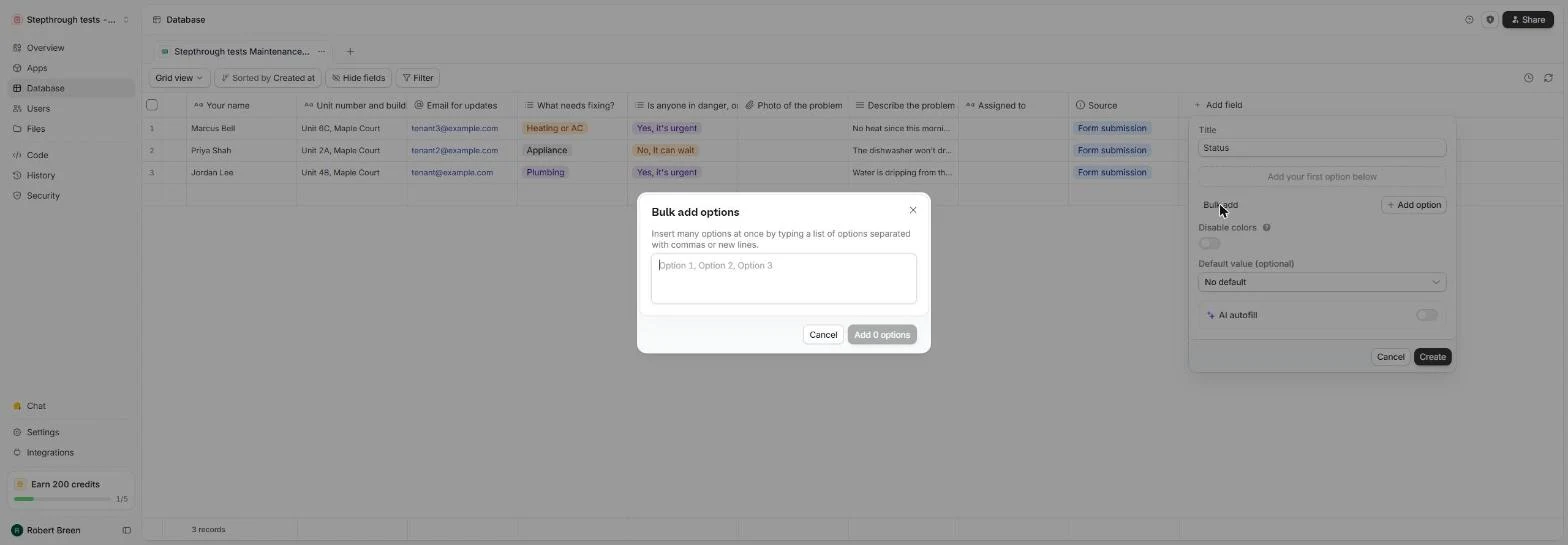
- Three stages. We clicked Bulk add. Type the three stages a repair goes through.
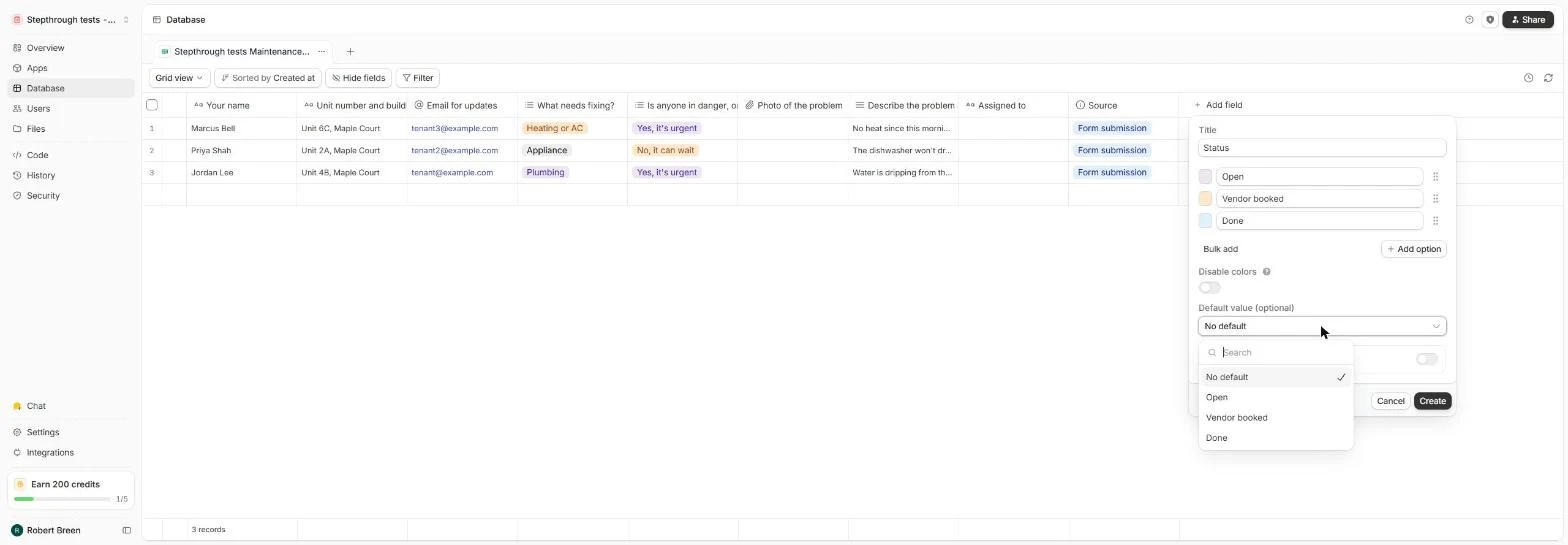
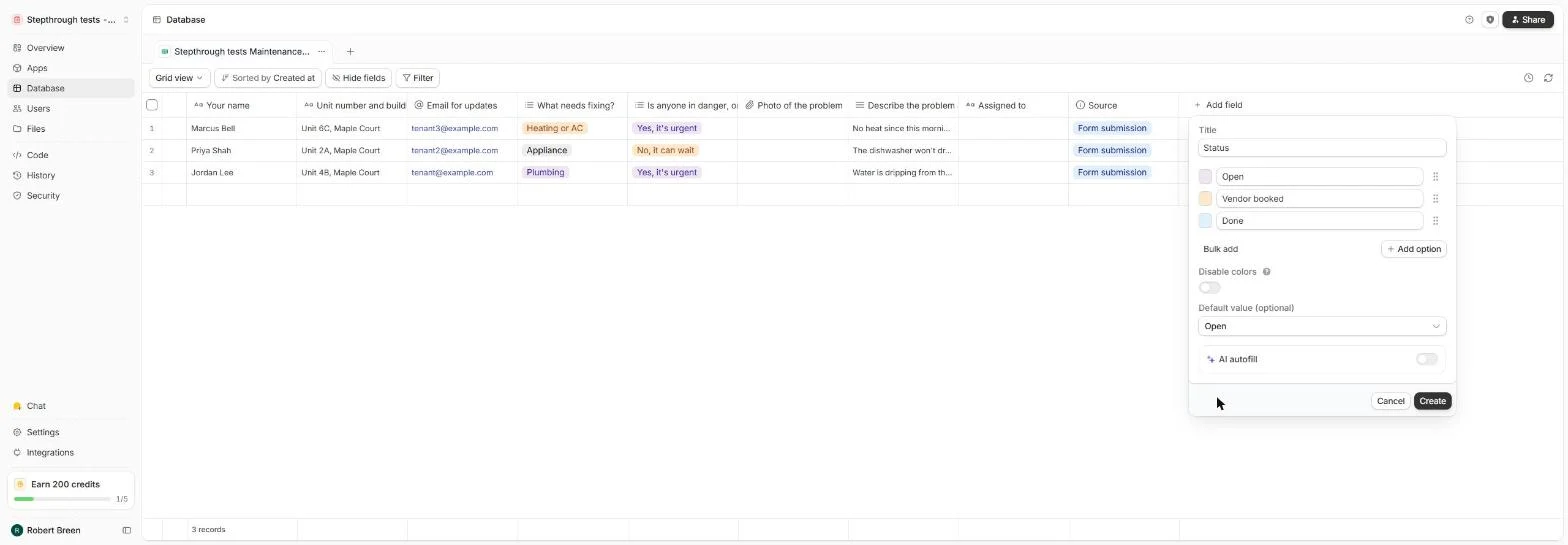
- New jobs start Open. Three colored options. Every new request should start as Open without anyone touching it. Open Default value.
New requests should start as open.
- Pick Open. Click Open.
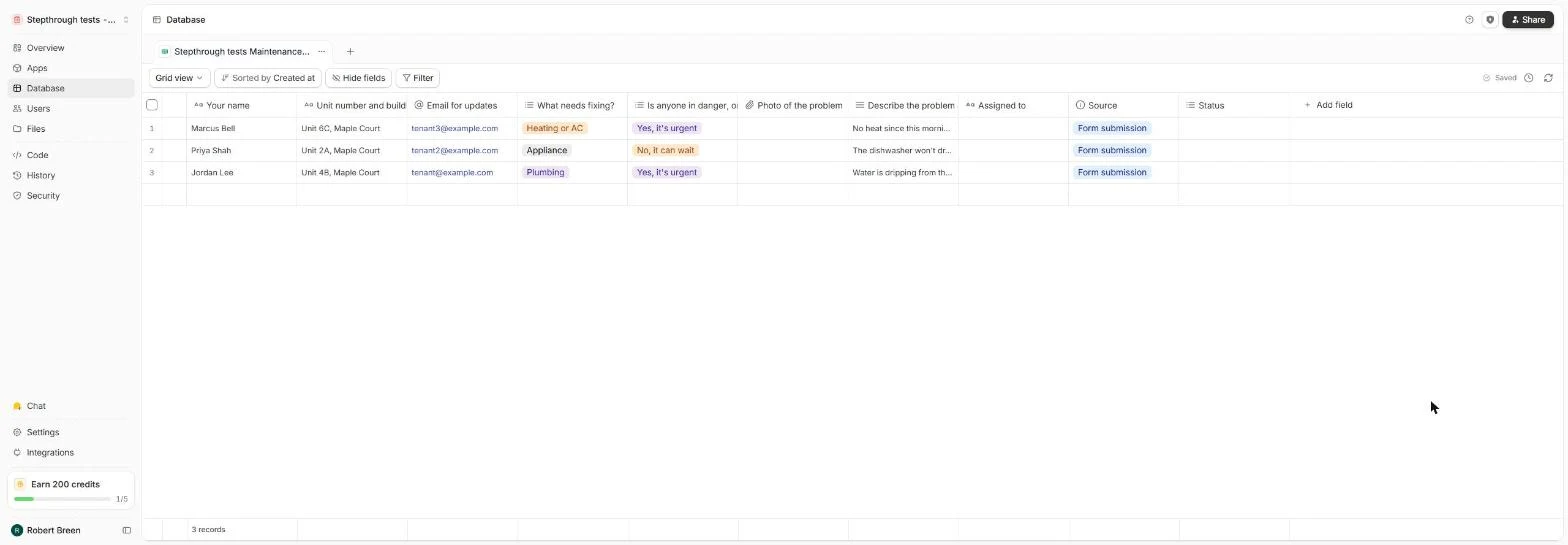
- Create the field. Click Create.
4. Run the jobs
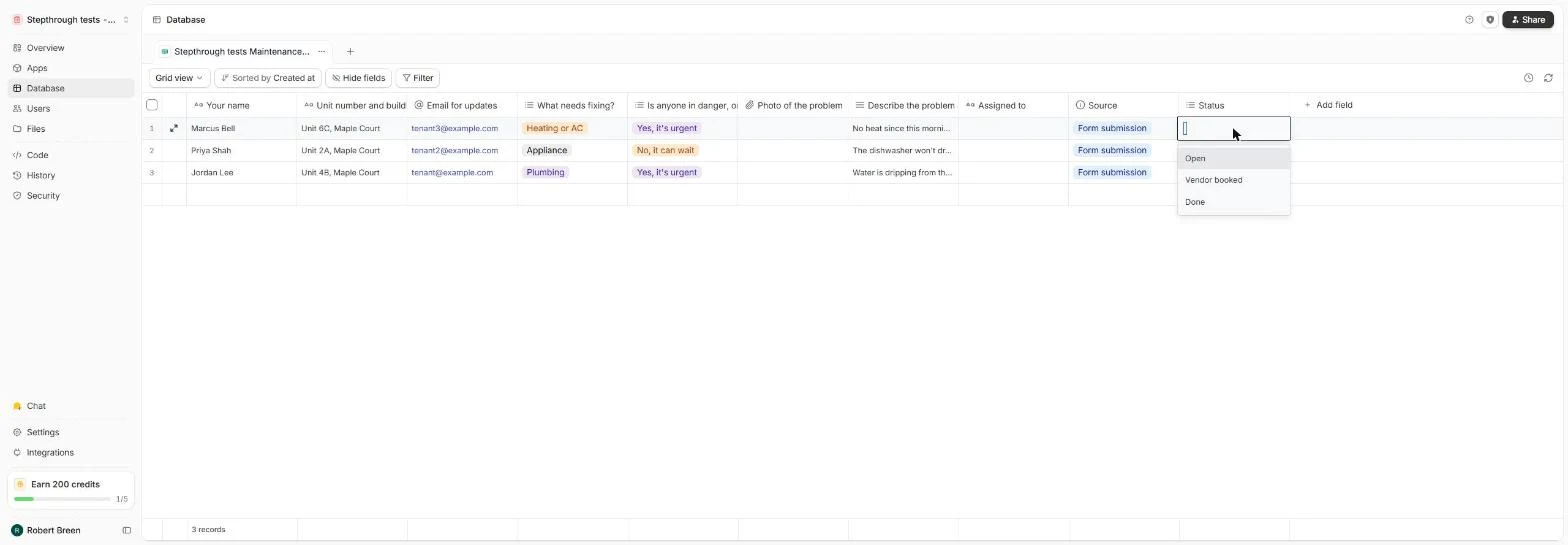
- Book the heating job. The Status column is there. The default applies to new rows, so set these three yourself. Marcus has no heat: double-click his Status cell.
Set the existing jobs yourself. Double click the status for the heating job.
- Vendor booked. Click Vendor booked.
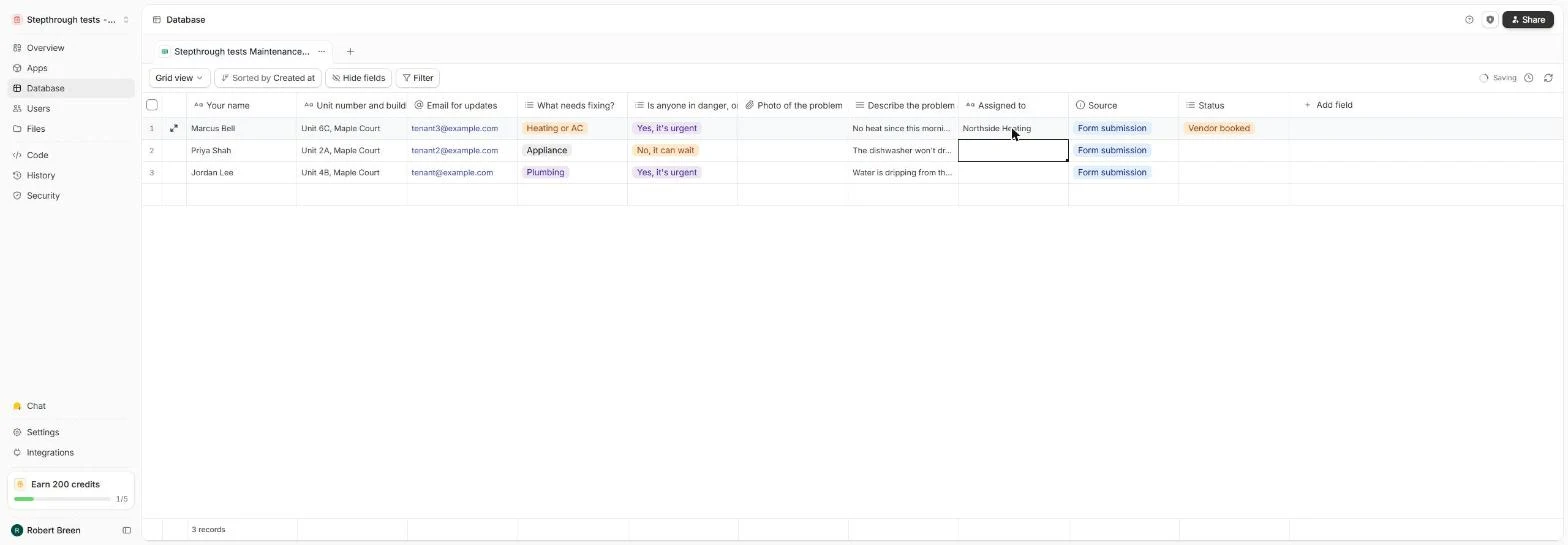
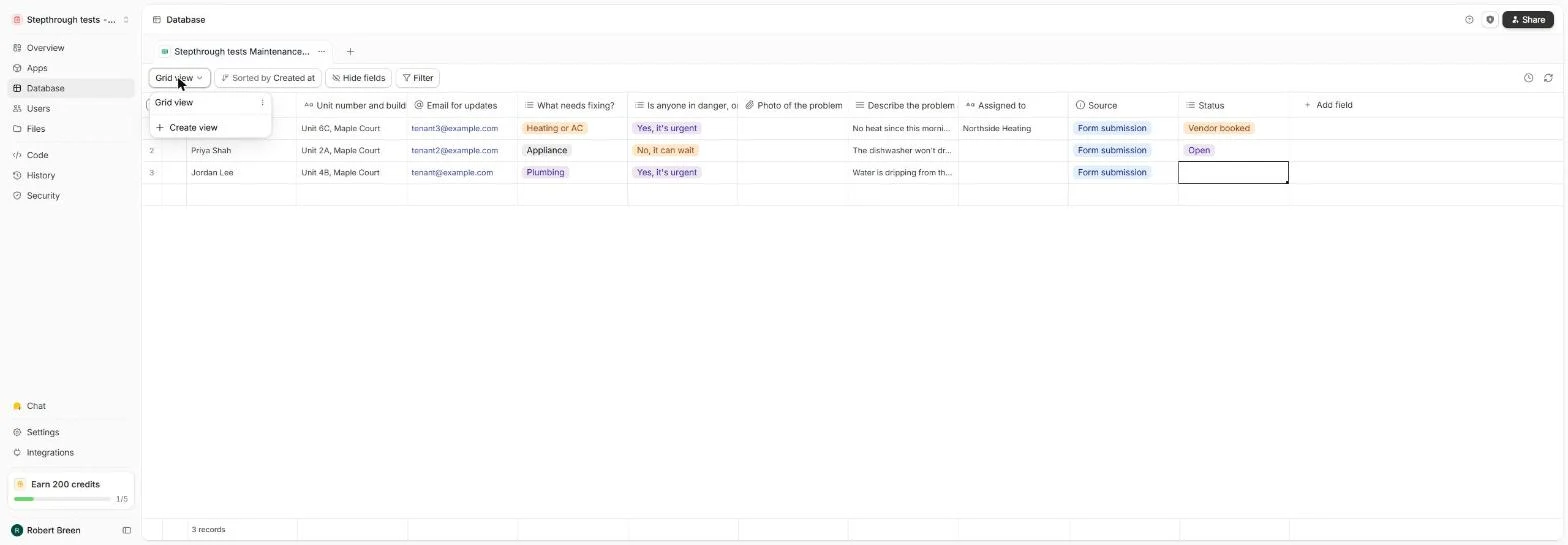
- Make a working view. We also typed Northside Heating (a made-up vendor) under Assigned to, and set Priya's dishwasher to Open. Now a view that hides finished jobs: click Grid view.
We assigned the vendor. Now make a view that hides finished jobs.
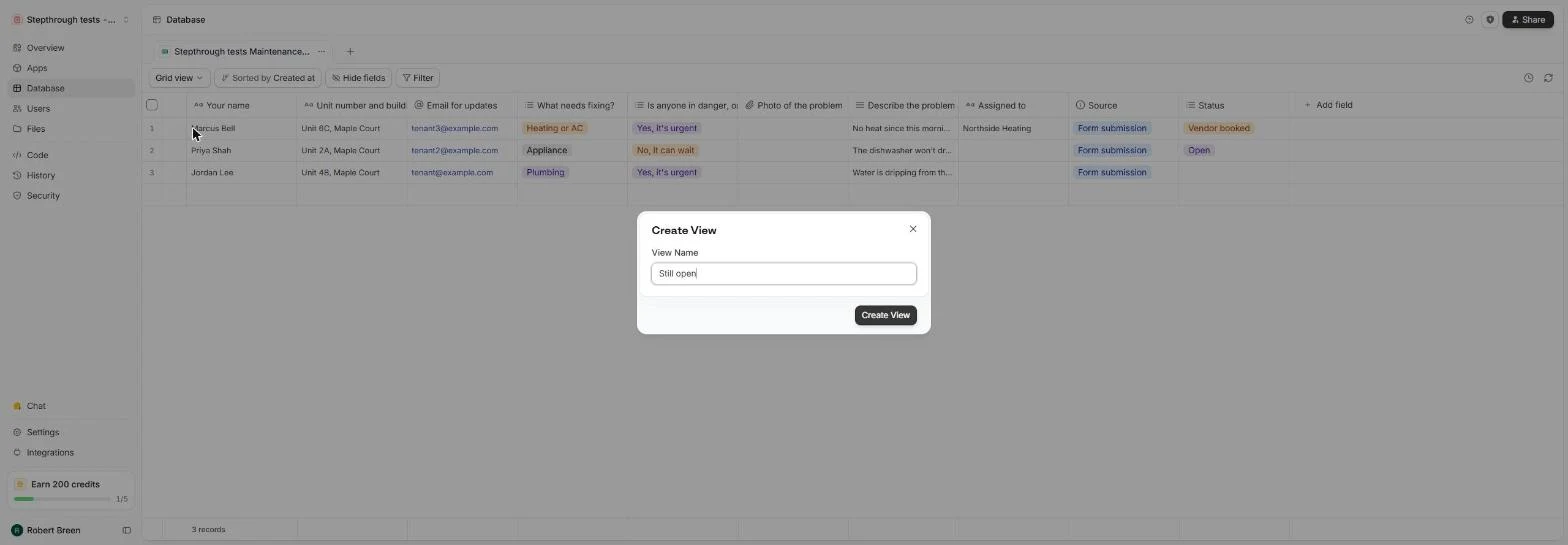
- Create a view. Click + Create view.
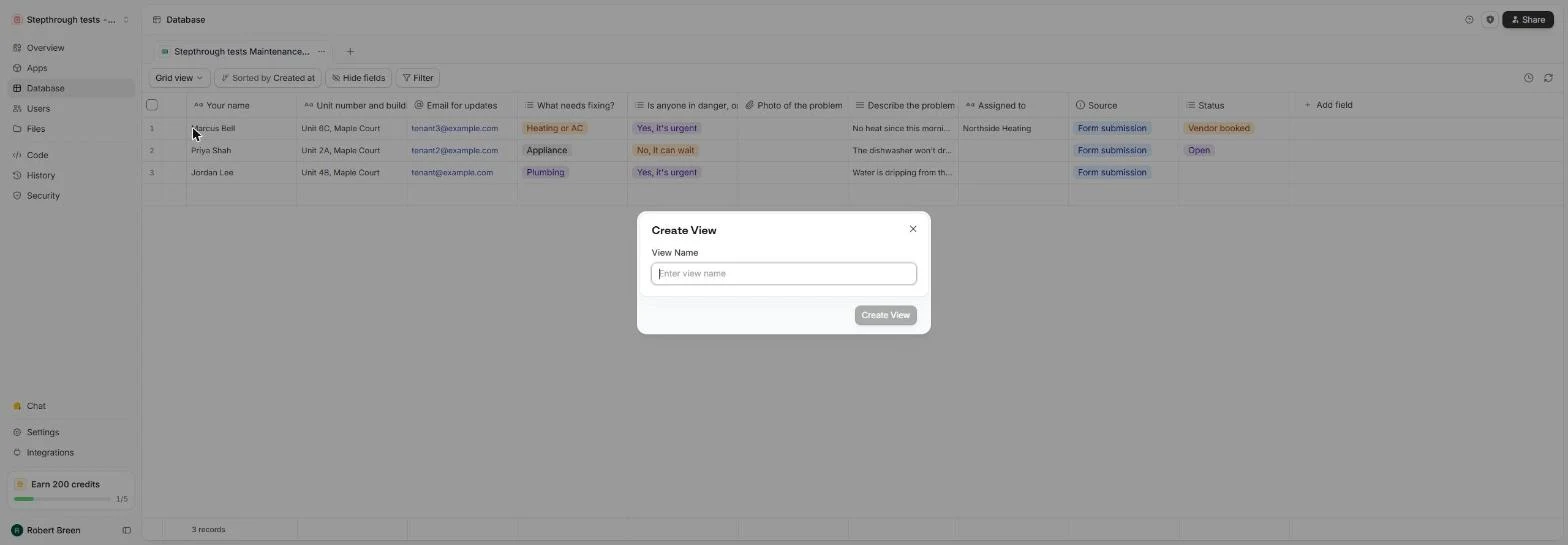
- Name the view. Name it for what it shows.
Name the view.
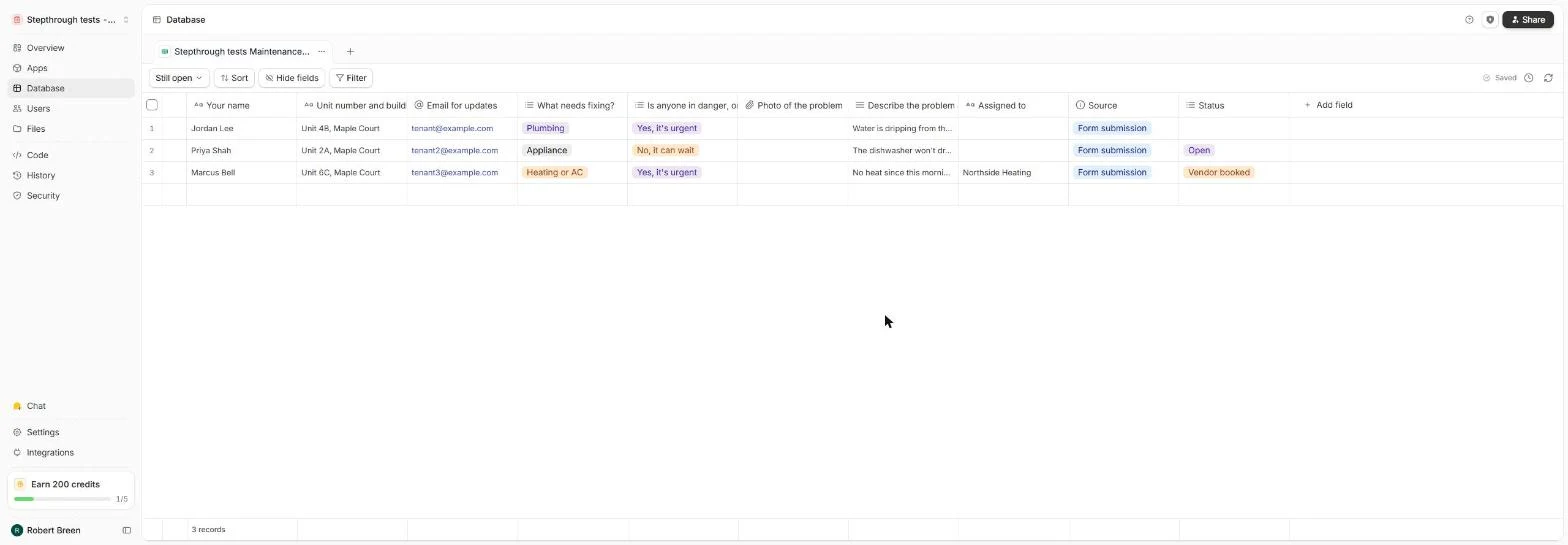
- Create it. Click Create View.
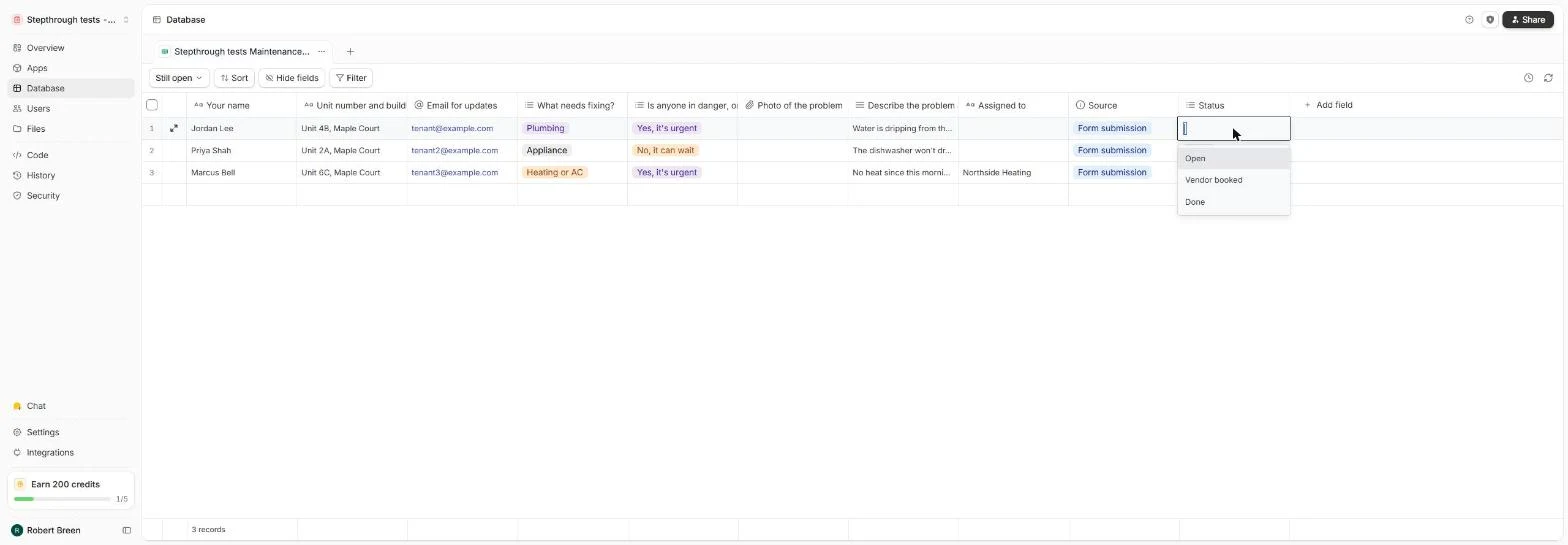
- The leak is fixed. The new view shows all three jobs. Jordan's leak was fixed this morning: double-click Jordan's Status cell.
The leak is fixed. Double click Jordan's status.
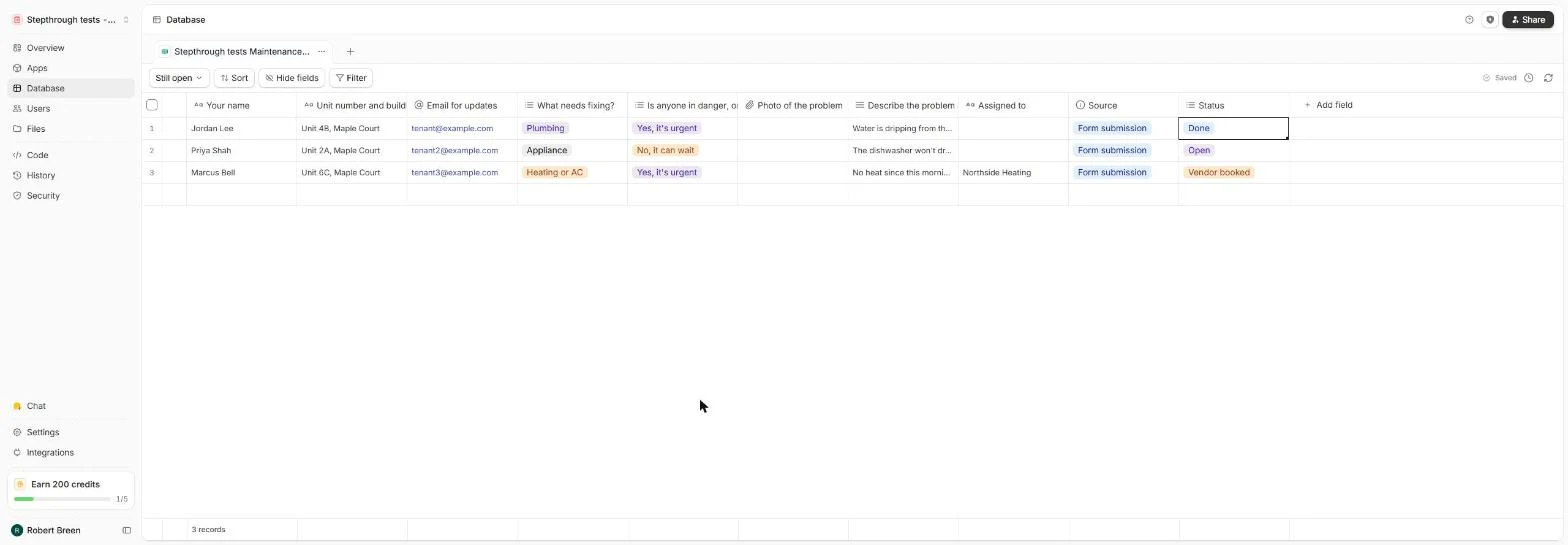
- Done. Click Done.
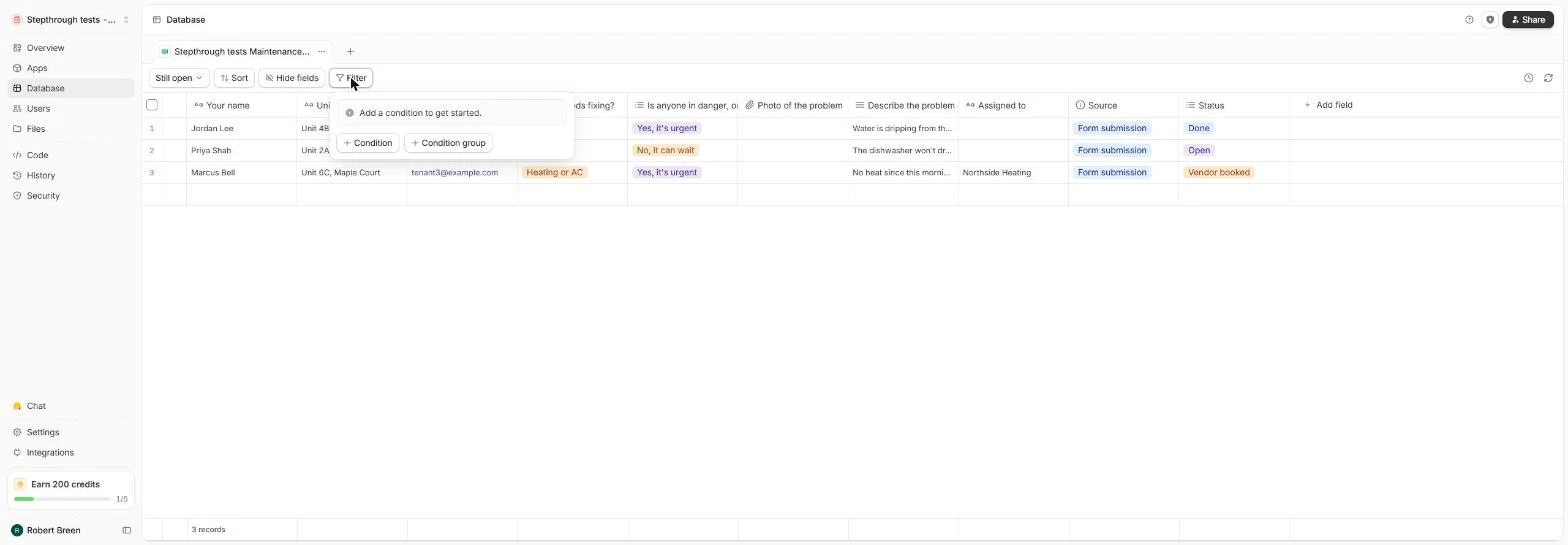
- Hide what's finished. Done, Open and Vendor booked. Now hide finished jobs in this view: click Filter.
Now hide finished jobs.
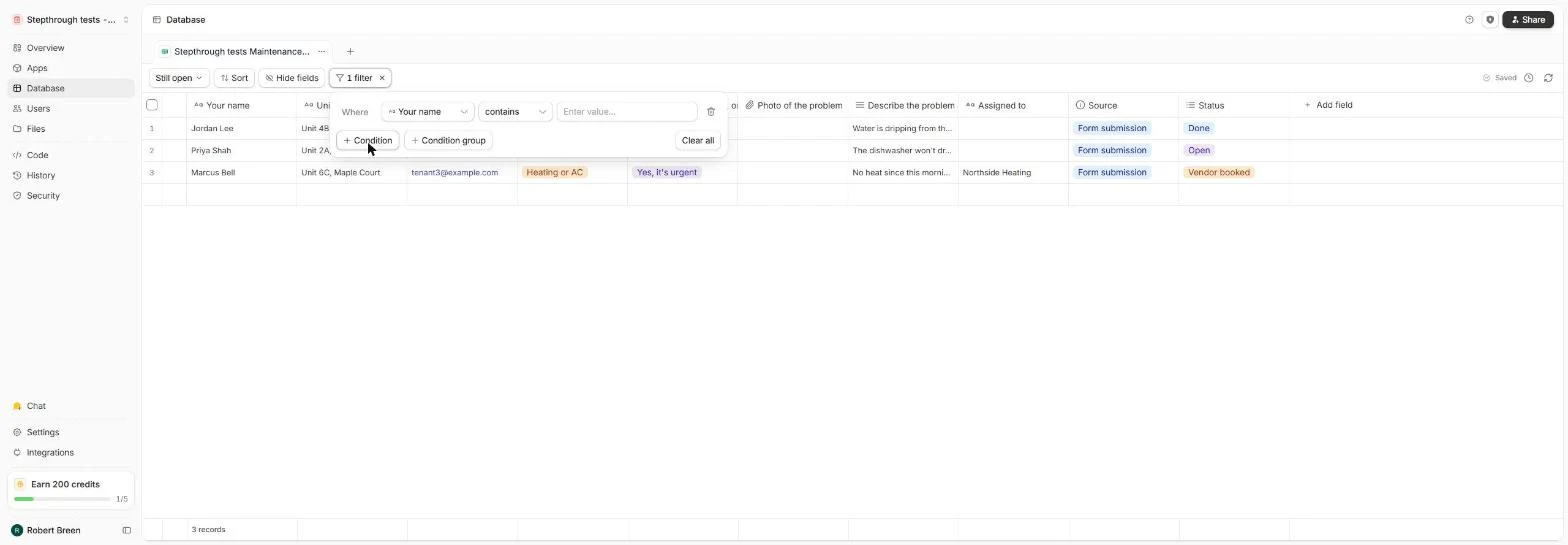
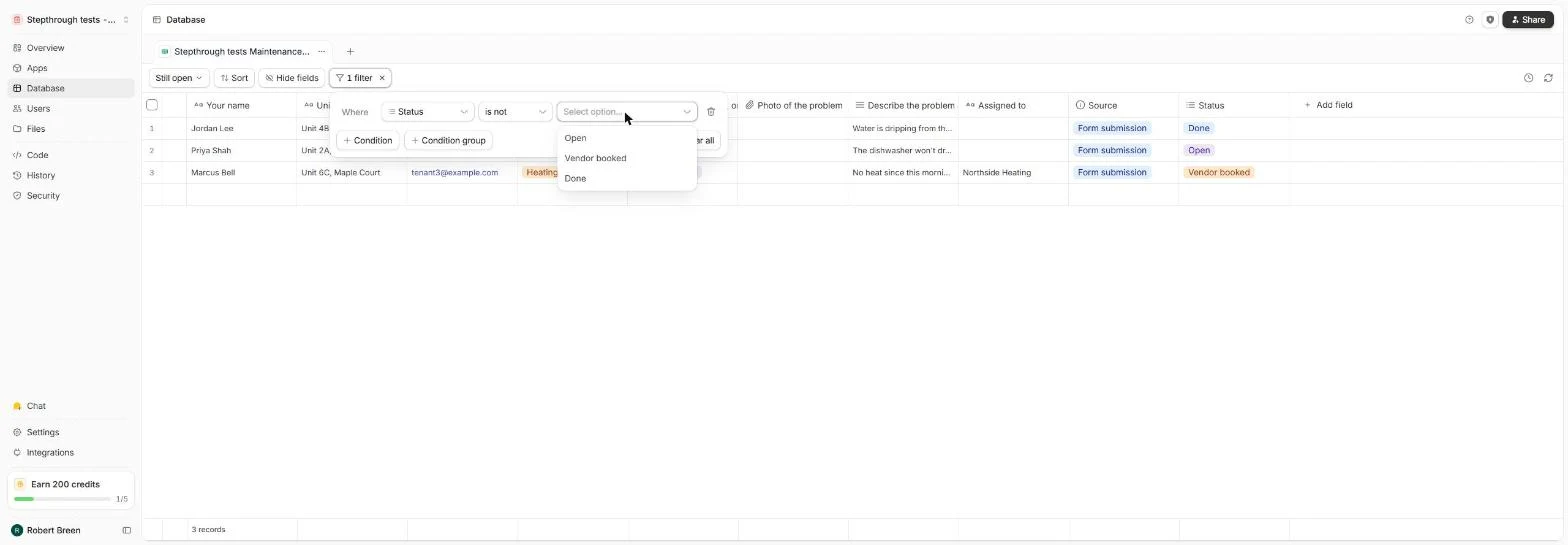
- Add a condition. Click + Condition.
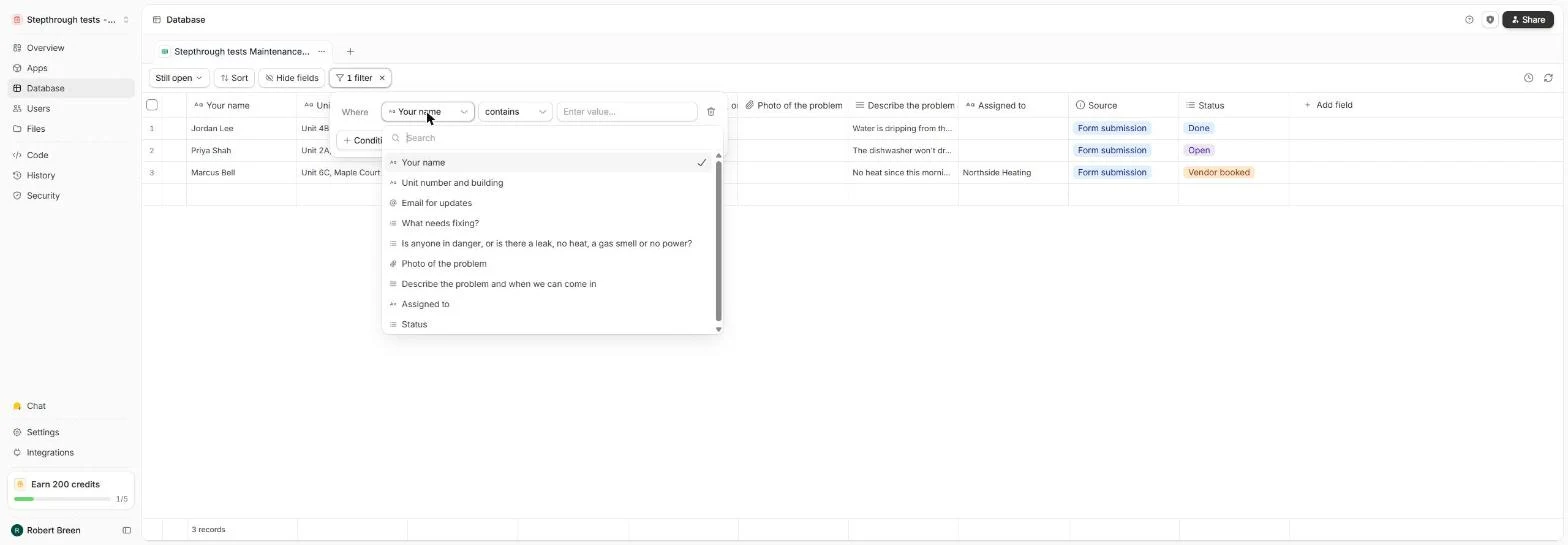
- Which field. It starts with Your name contains. Open the field menu.
- Status. Click Status. We then opened the operator menu.
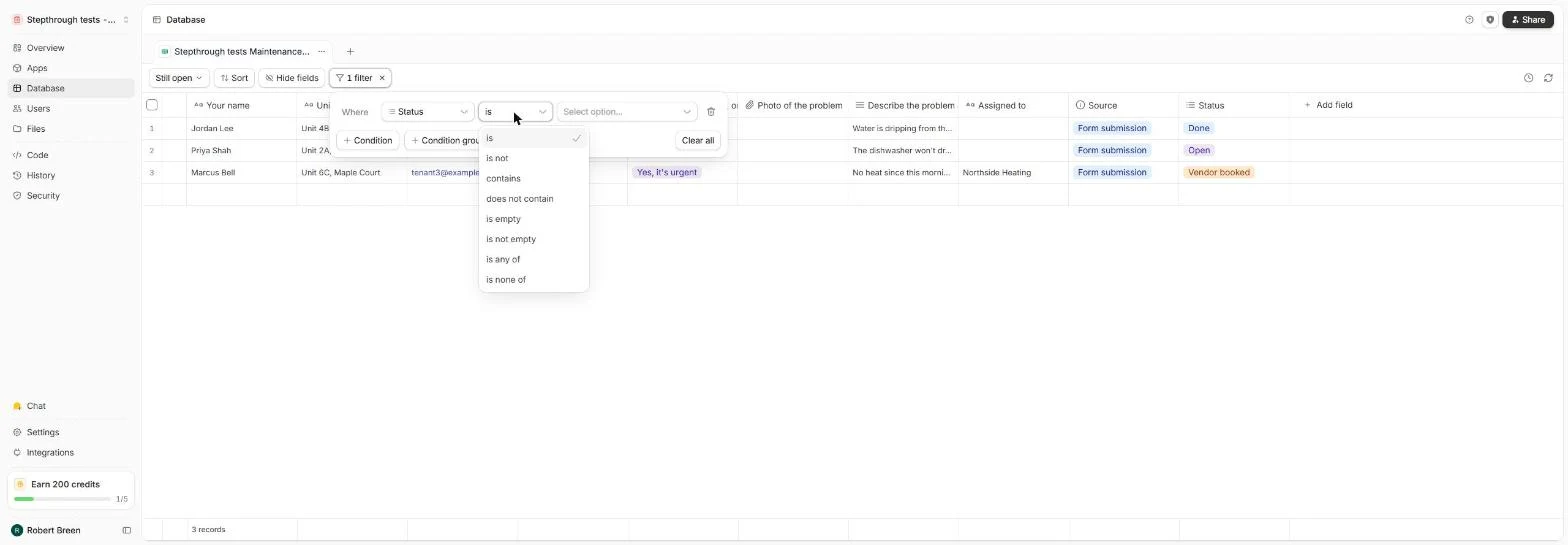
- Is not. Click is not. We then opened the option list.
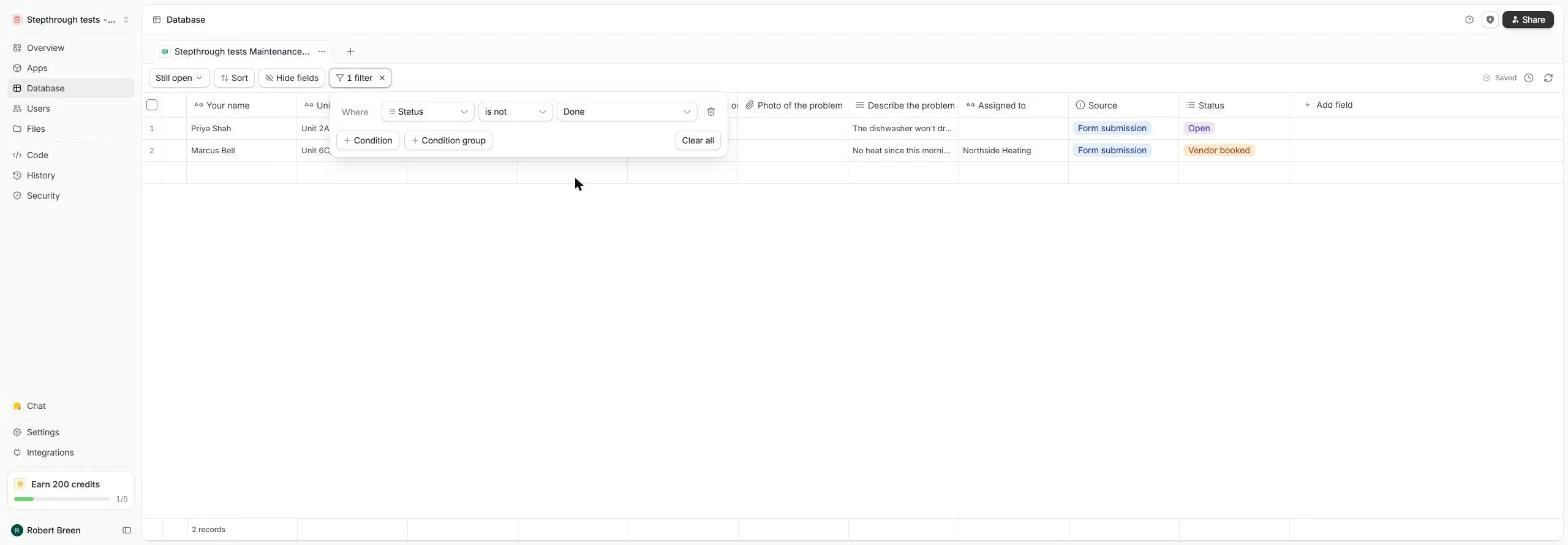
- Done. Click Done.
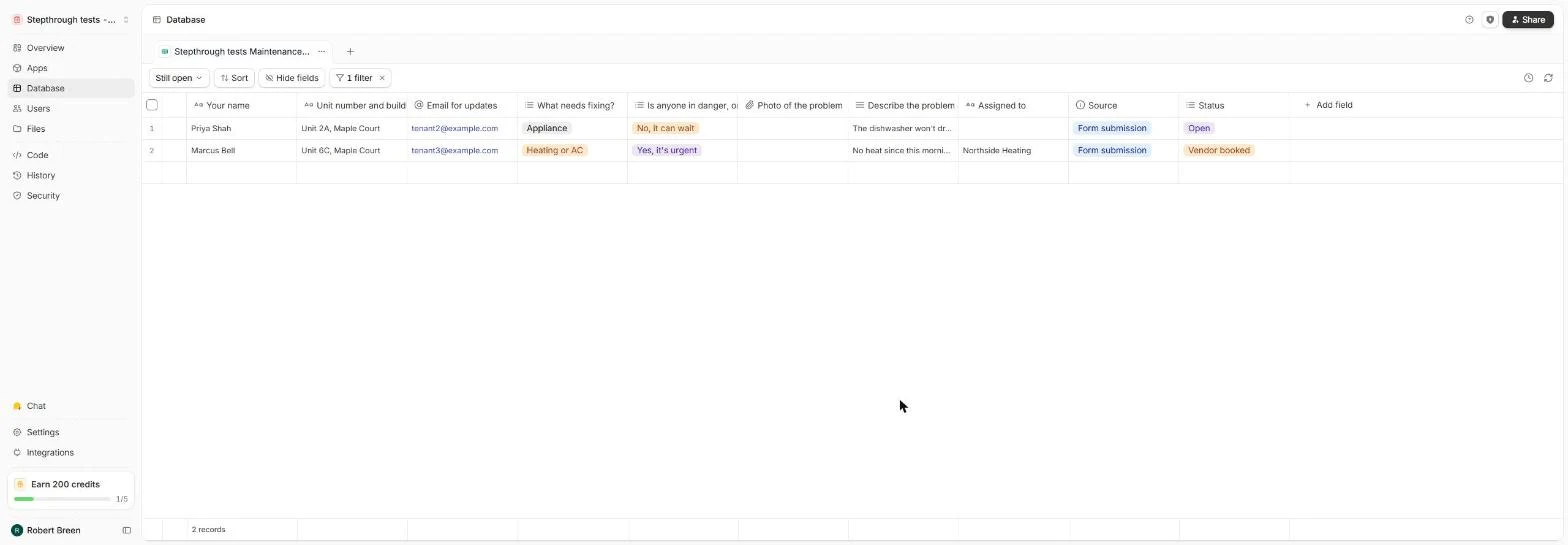
- Only open work. The rule reads Status is not Done, and the view drops to 2 records. Click outside the panel to close it.
Status is not done. Close the panel.
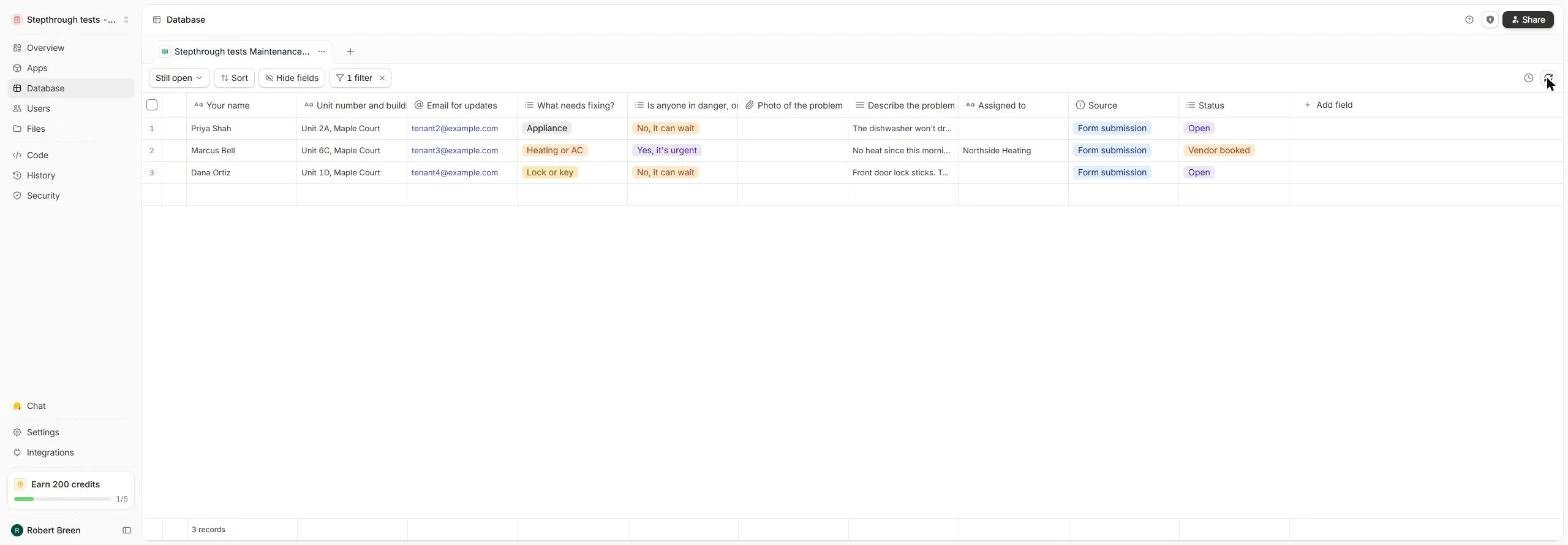
- A new request arrives. Still open shows the two jobs to chase. Meanwhile a tenant submitted a new request on the live form (a sticking lock). Click the refresh icon.
A tenant just sent a new request.
- It arrives as Open. Dana's Lock or key request arrived on its own, already marked Open, in the Still open view. That's the whole loop: form in, emergencies routed, every job tracked until it's Done.
The new request arrives on its own, already open. That's the whole loop.
Screenshots
More in Business Automations
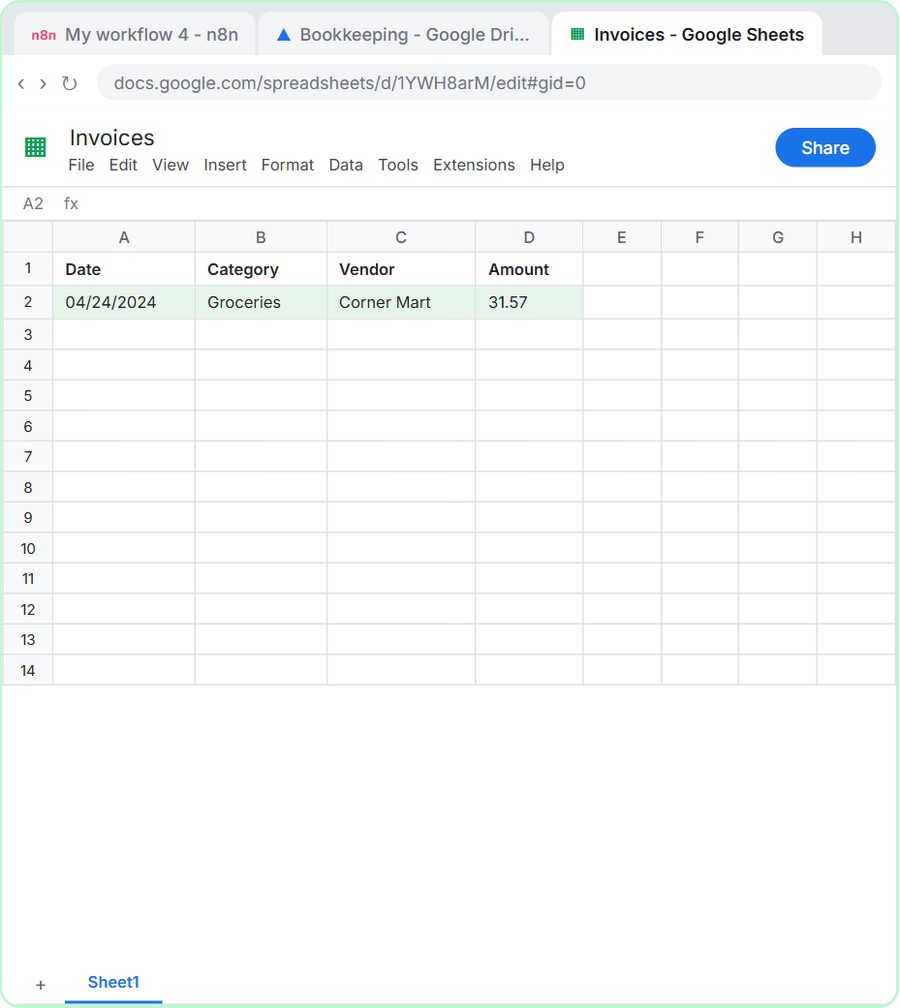 How to Do OCR in n8n: Read Receipt Photos into Google Sheets with AI
Drop a photo of a receipt into an n8n chat. An AI agent reads it, pulls out the date, vendor and amount, picks a category, and adds a row to Google Sheets.
Free · Live ~12 min Intermediate
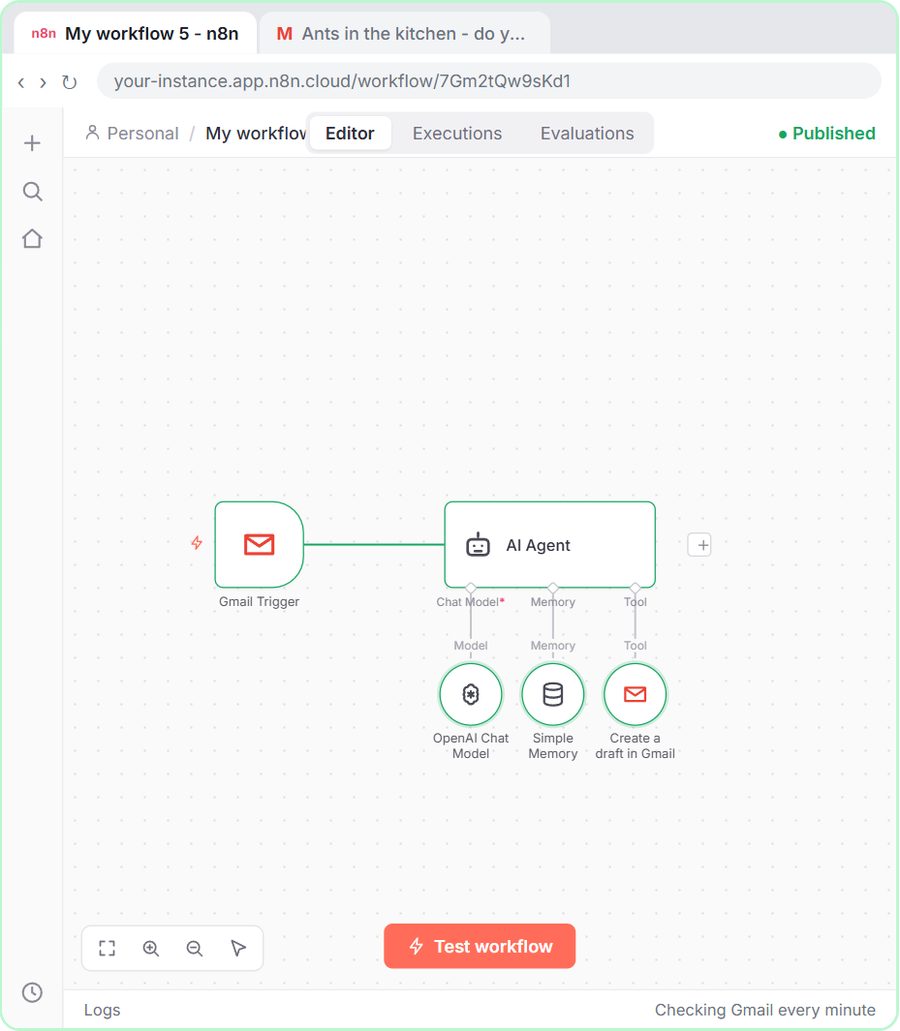 n8n AI Email Responder: Draft Gmail Replies Automatically
Build an n8n agent that watches your Gmail, reads each new customer email, and writes a reply as a draft in the same thread, ready for you to check and send.
Free · Live ~12 min Intermediate
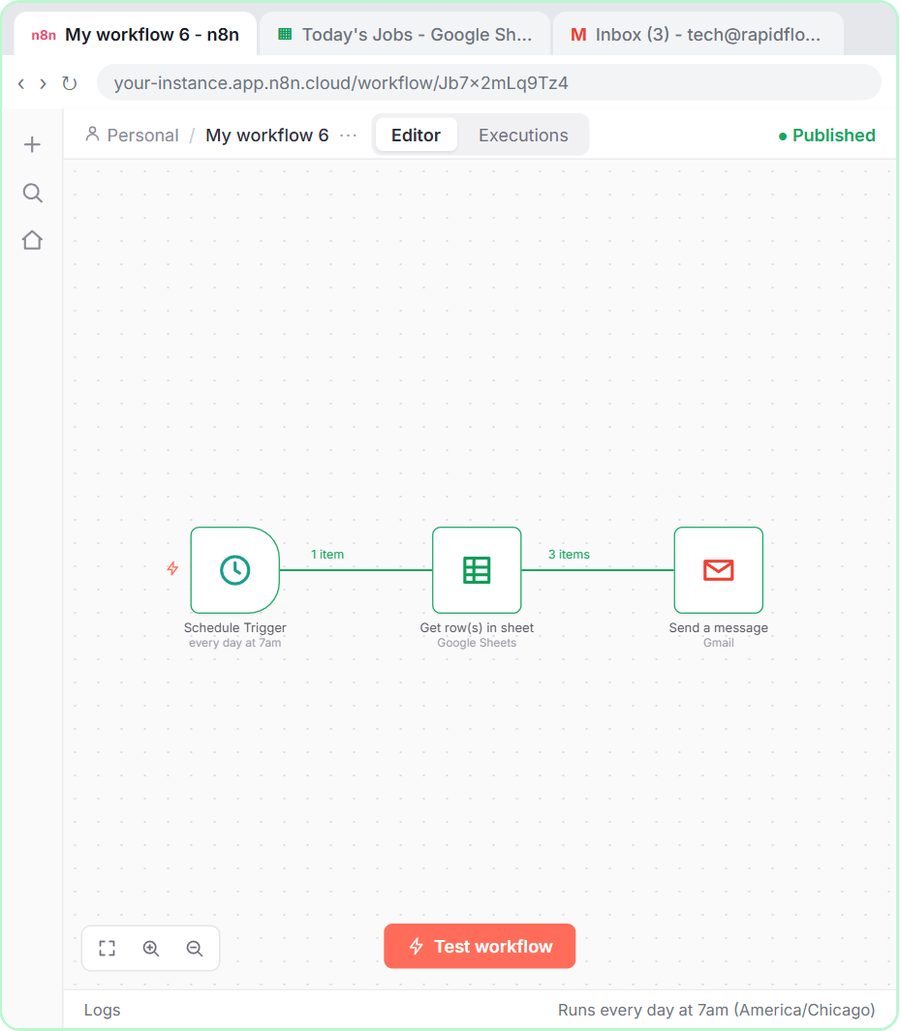 How to Make an n8n Workflow That Emails Each Tech Their Jobs from Sheets
Every morning at 7, n8n reads a plumbing company's jobs sheet, skips anything not assigned yet, and emails each job to the tech it's assigned to — customer, address…
Free · Live ~10 min Intermediate
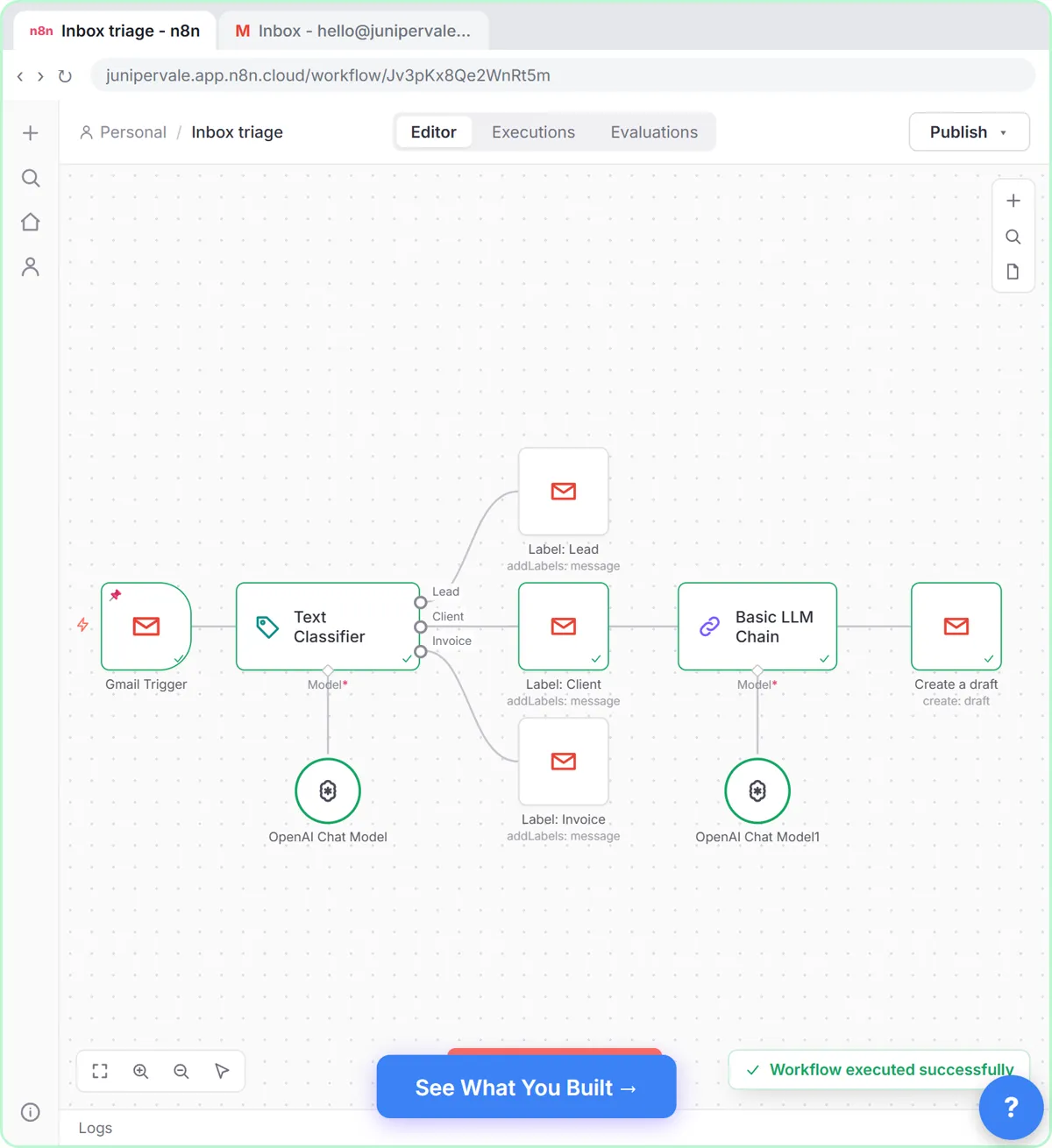 Gmail AI Triage: Auto-Label Every Email and Draft Replies
Build an n8n workflow that reads each new email, sorts it as a lead, a client or an invoice with a Text Classifier, adds the matching Gmail label, and drafts a reply to…
Free · Live ~18 min Advanced
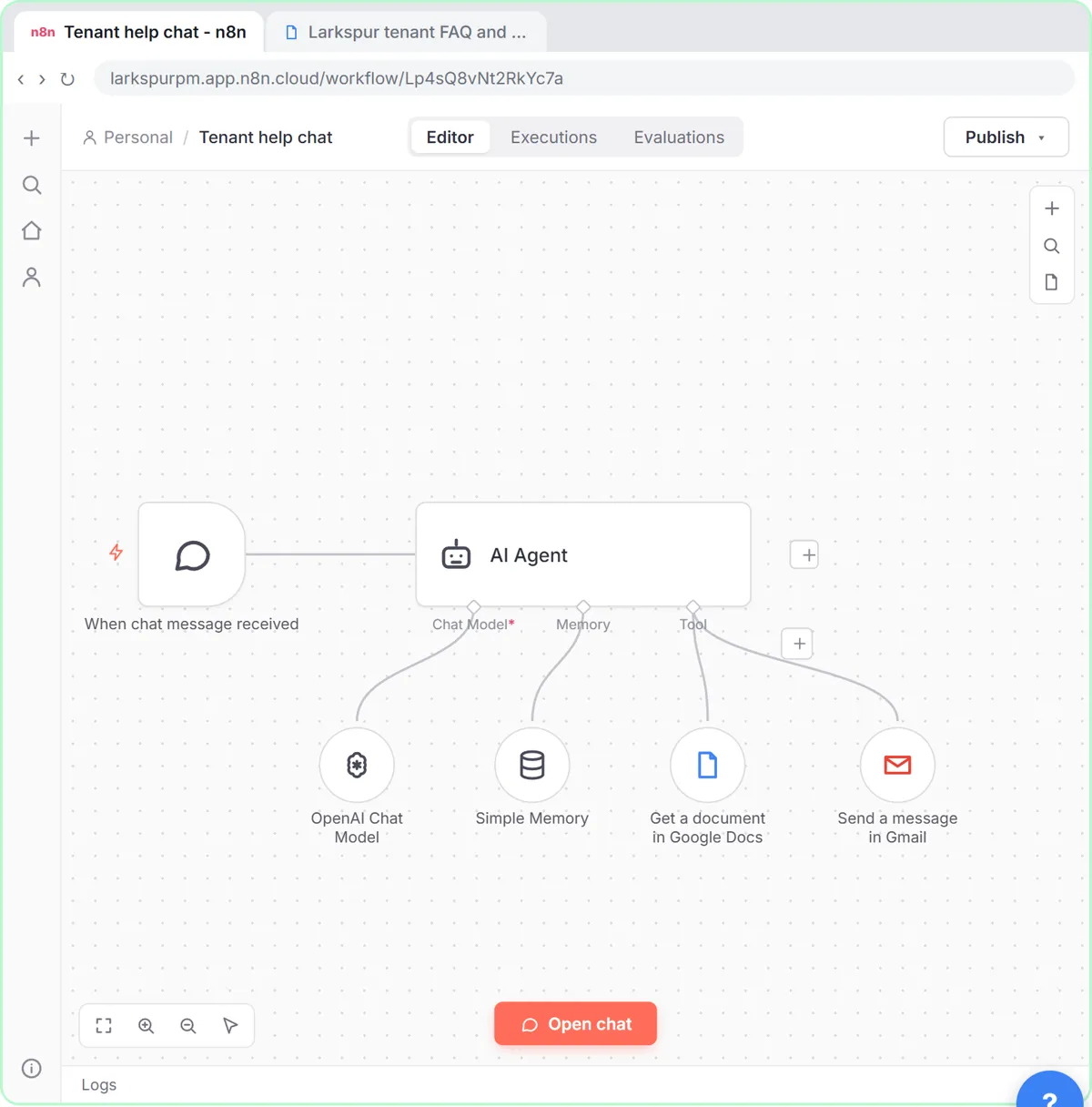 How to Use n8n to Build AI Agents: A Support Agent That Answers from Your Docs
Turn an n8n chat agent into a support agent that answers only from your policies in a Google Doc, refuses what it should, and hands off to a person by email.
Free · Live ~13 min Advanced
 Chatbase: Answer Customer FAQs with an AI Agent
A business case for a small firm that answers the same customer questions every week: build a Chatbase AI agent on your FAQ in the real app, make it say when it does…
Free · Live ~15 min Beginner
All 56 modules in Business Automations