Updated . Built against the tool’s current screens and checked step by step. How we check this lesson
Add a second ending page for emergencies, give routine requests a clear promise, and route each tenant to the right one with page logic. Then test both paths on the live form.
At a glance
| Question | Answer |
|---|---|
| What you build | Add a second ending page for emergencies, give routine requests a clear promise, and route each tenant to the right one with page logic. Then test both paths on the live form. |
| Tools | Fillout |
| Time | About 7 minutes, 25 steps in 3 parts |
| Level | Beginner, no coding needed |
| Cost | Free |
| Ways to learn it | Practice it step by step |
The 3 parts, in short
- Add an emergency ending: One thank-you page is not enough, Pick the Ending type, Name it, Save the name, and 6 more steps.
- Route with page logic: The page map, Draw the branch, When should it branch, Add a condition, and 5 more steps.
- Test both paths: Publish the change, Open the live form, Test a routine request, The routine ending, and 2 more steps.
Start here first: How to Do OCR in n8n: Read Receipt Photos into Google Sheets with AI (module 1 of Business Automations)
In the course: Part 9 · n8n Automation Toolkit (Module 157 of the full course)
Part of: AI Apps Worth Knowing (step 173 of 175). Next up: Fillout: Turn Maintenance Requests into a Work-Order Tracker
What you'll build
This builds on the maintenance request form from module 1 (a made-up property company). Right now every tenant sees the same Thank you page, with confetti, even one with water coming through the ceiling. In this lesson you add an Emergency ending that tells them to call the 24/7 line, change the routine ending to promise a reply within one business day, and use page logic so anyone who answers Yes, it's urgent lands on the emergency page. Then you test both paths on the live form.
Urgent requests land on an Emergency page that repeats the number to call, and routine ones get a clear promise. Page logic does the routing, so you can add more endings later, for example one for pest jobs that asks tenants to prepare the unit. Next: turn the requests into a work-order tracker.
- Tools: Fillout
- Time: about 7 minutes, 25 steps in 3 chapters
- Level: beginner, no coding needed
- Price: free
Practice first, then build it for real
Practice copy built from real Fillout screens (app.zite.com), captured 16 November 2026 on the Free plan. Nothing here touches a Fillout account. The property company, tenants and phone number are made up. To build it for real you need your own Fillout account, and some services charge once you use them for real work, so check each tool's current pricing.
Try it yourself, free
Reading the steps is a start. Doing them is how it sticks. The interactive module walks you through every click in a practice copy of Fillout, checks each step, and never touches your real accounts.
Start “Fillout: Send Emergency Requests to Their Own Thank-You Page with Page Logic”Step by step: Fillout: Send Emergency Requests to Their Own Thank-You Page with Page Logic
All 25 steps of the interactive module, in order. In the module you watch each one, then do it yourself in a practice copy that checks your work.
1. Add an emergency ending
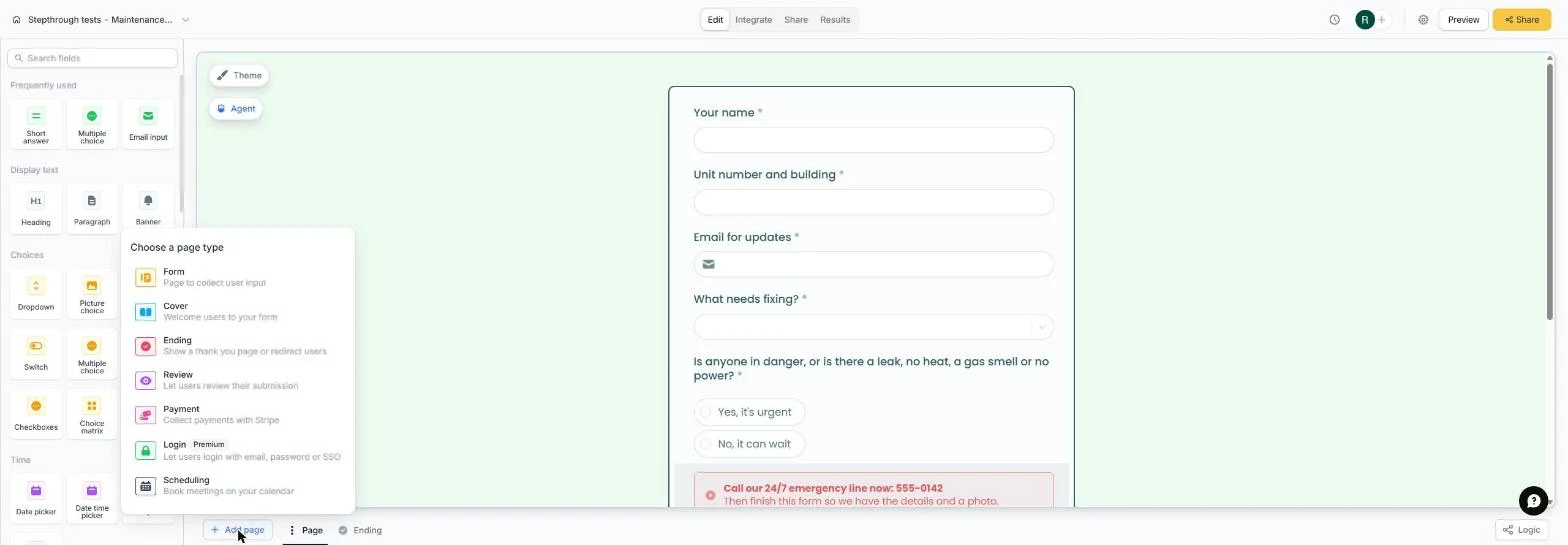
- One thank-you page is not enough. This is the maintenance form from lesson 1. Today every tenant sees the same Thank you, with confetti, even the one with water coming through the ceiling. You will give emergencies their own ending page. At the bottom of the editor, click Add page.
Right now every tenant sees the same thank you, with confetti, even in an emergency.
- Pick the Ending type. Choose a page type lists Form, Cover, Ending, Review, Payment, Login and Scheduling. Click Ending.
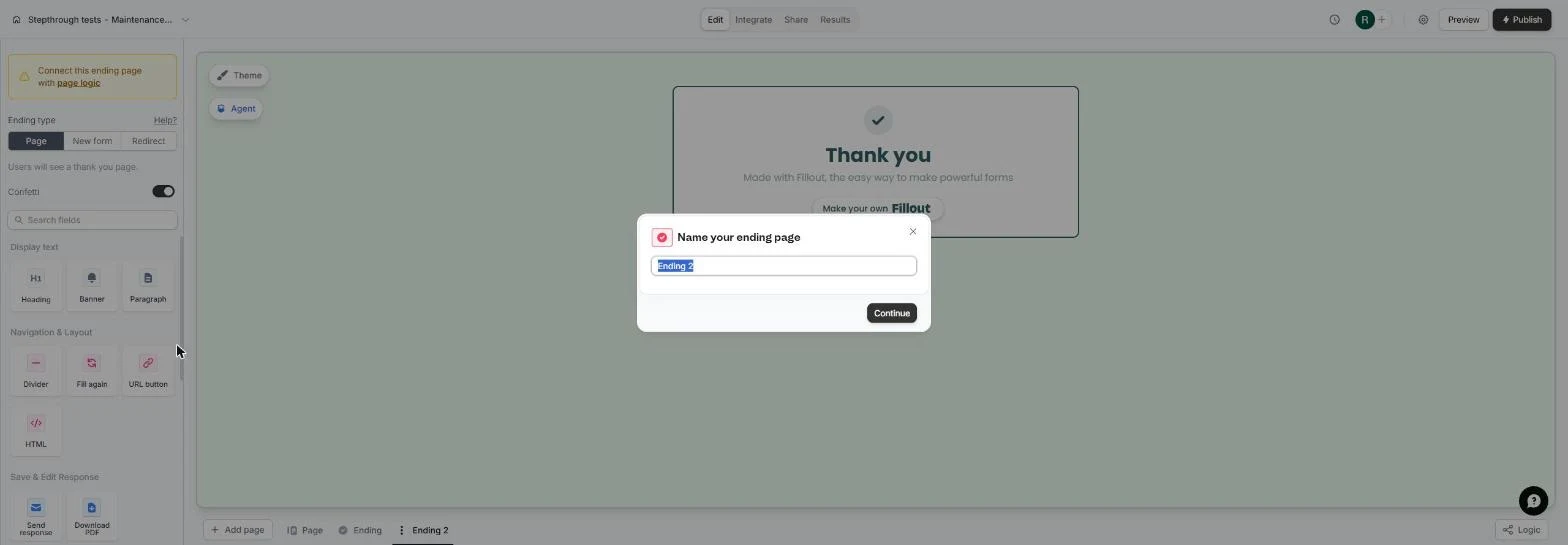
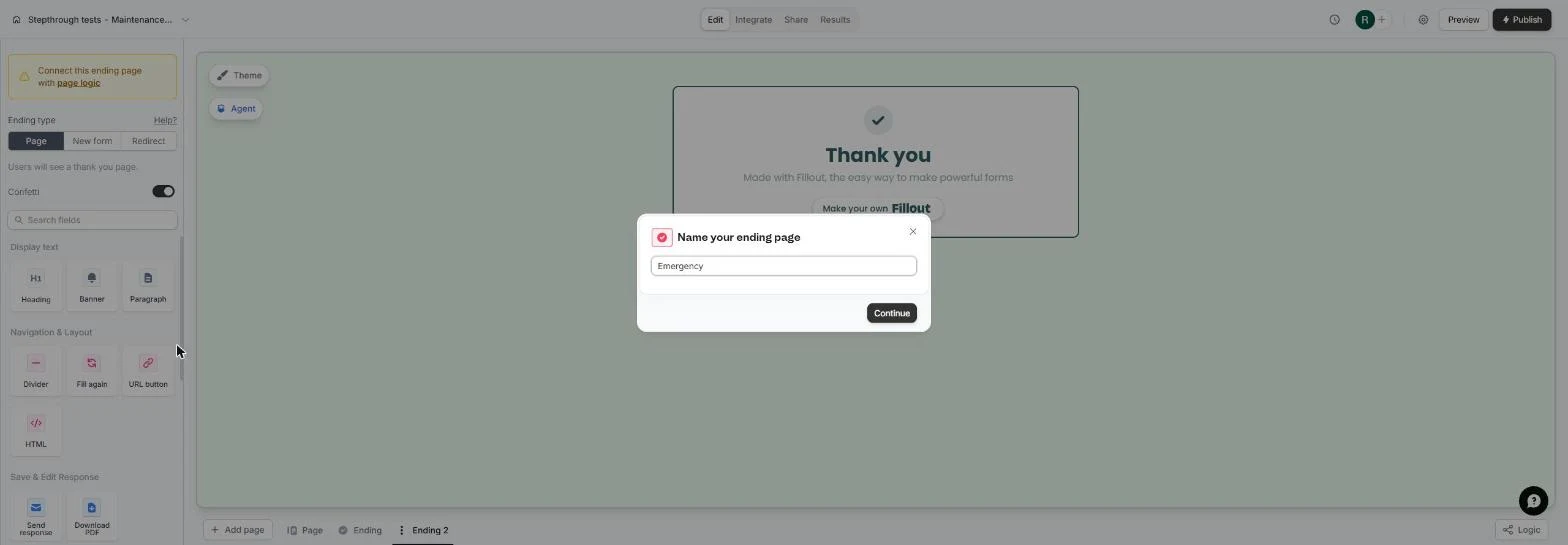
- Name it. Name the page so you can find it on the logic map.
Name the new ending page.
- Save the name. Click Continue.
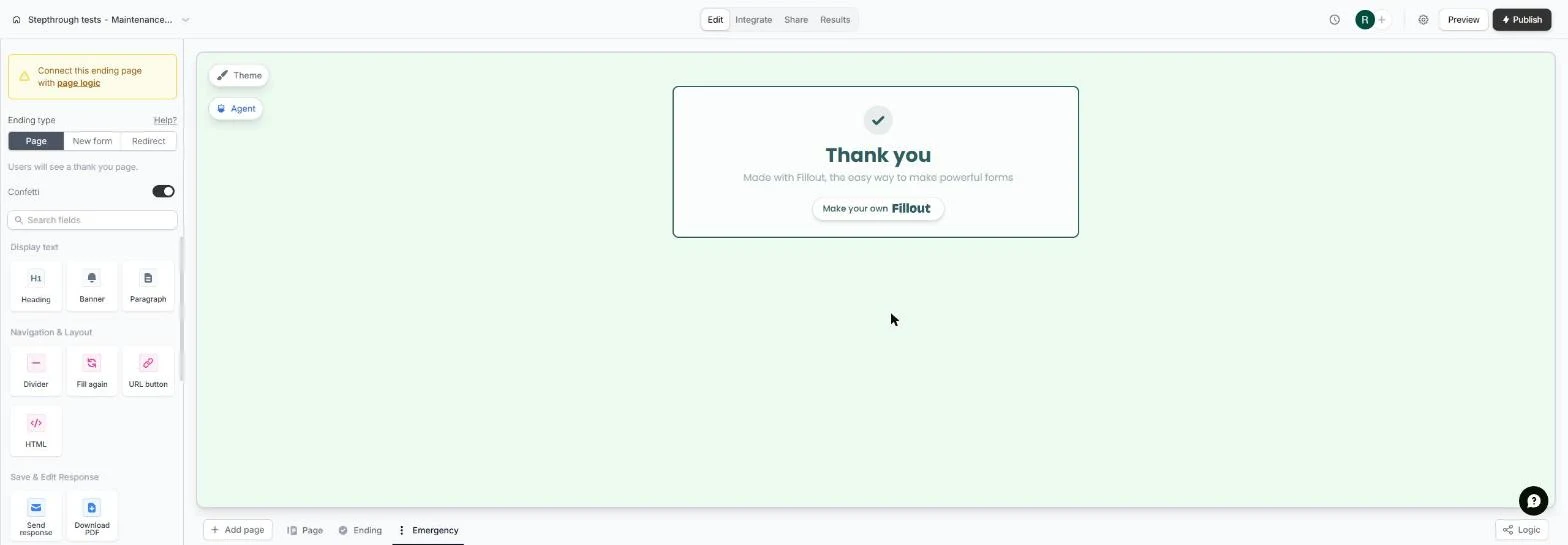
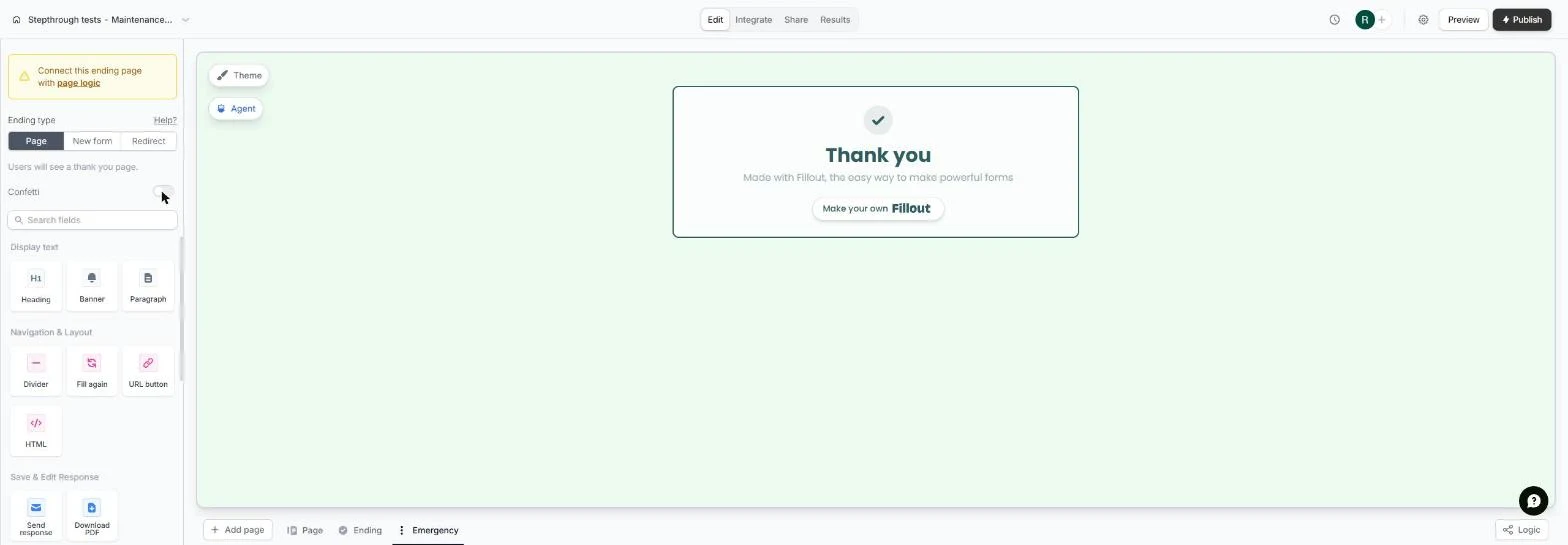
- No confetti for a flood. The new page opens with a yellow note: Connect this ending page with page logic. You will do that next. First, confetti is the wrong mood for an emergency. Turn Confetti off.
Confetti is the wrong mood for an emergency. Turn it off.
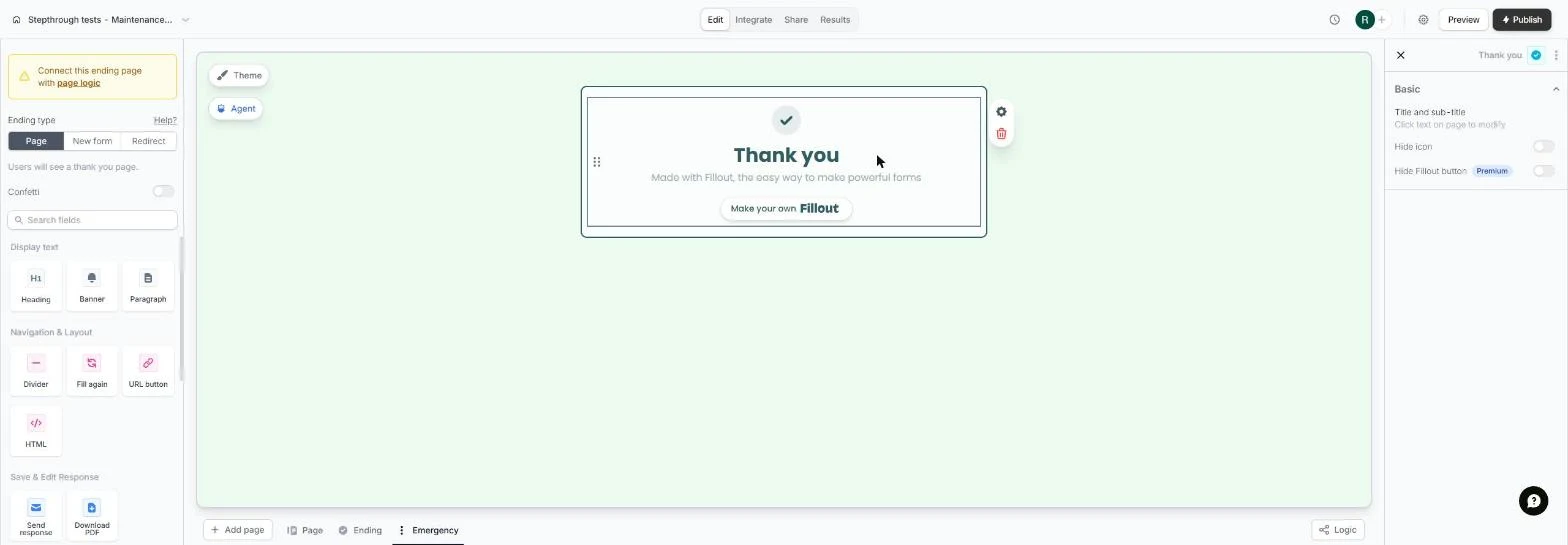
- Change the title. Click the Thank you title to edit it.
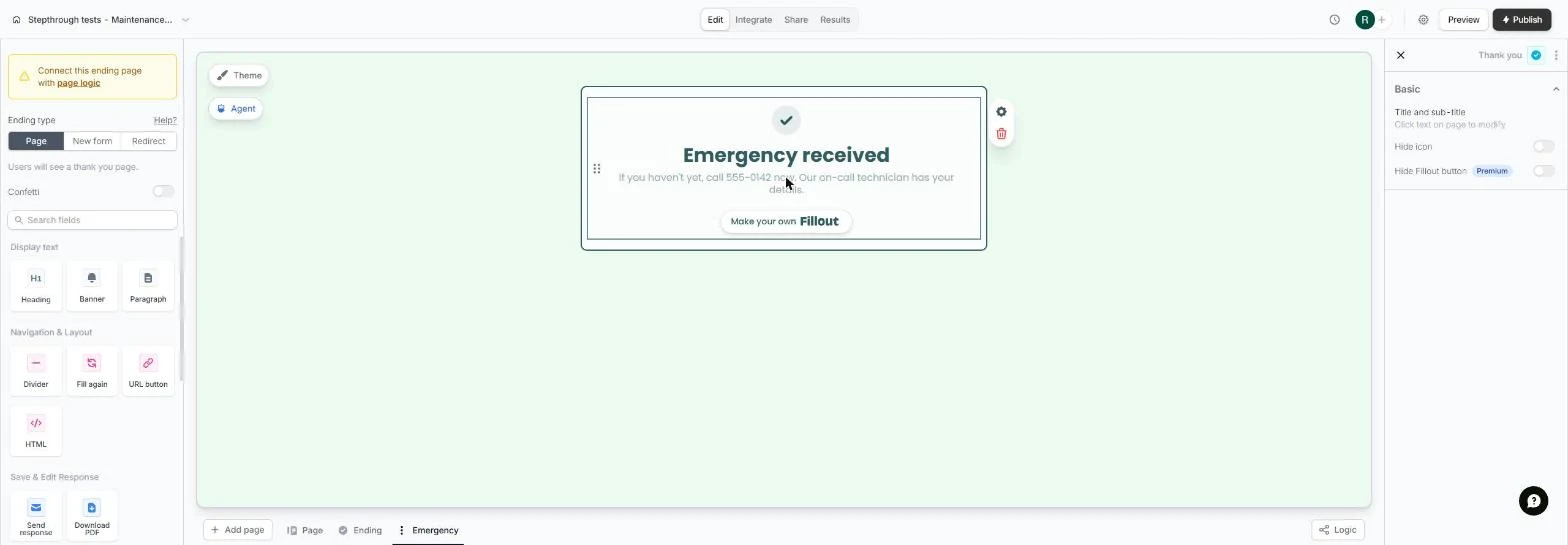
- Say what happens next. Select the title and type the new one. On the line under it we typed If you haven't yet, call 555-0142 now. Our on-call technician has your details.
Under it, tell them to call the emergency line.
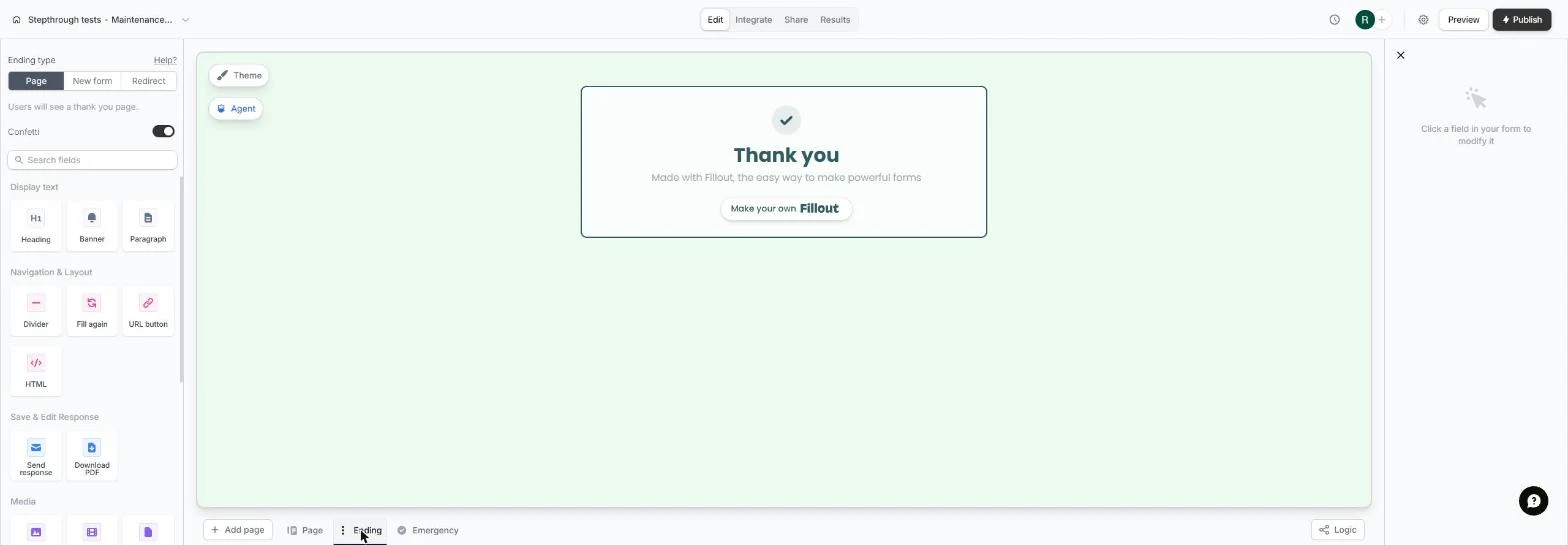
- Now the routine ending. The emergency page is ready. Routine requests still get the default Thank you. In the page bar, click Ending.
Now fix the routine ending.
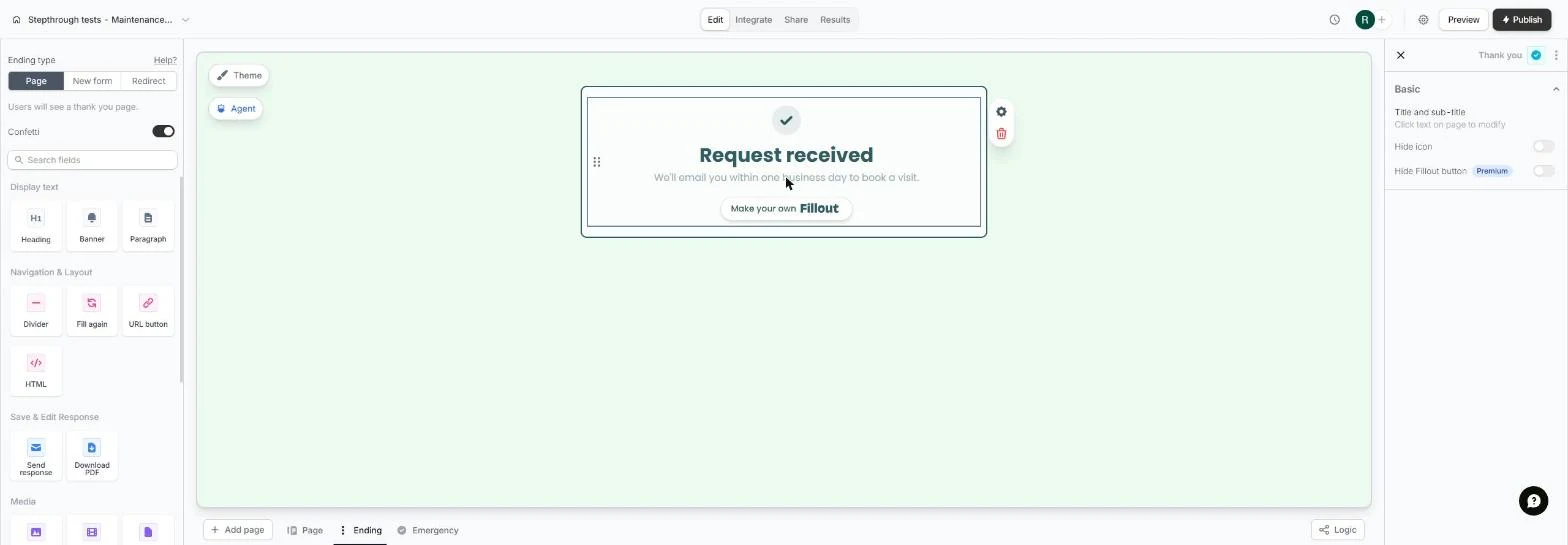
- Set expectations. Click the title and type the new one. Under it we typed We'll email you within one business day to book a visit. Confetti can stay on here.
Give routine requests a clear promise.
- Open the logic map. Two endings, but nothing sends anyone to Emergency yet. Click Logic at the bottom right.
Nothing sends anyone to the emergency page yet.
2. Route with page logic
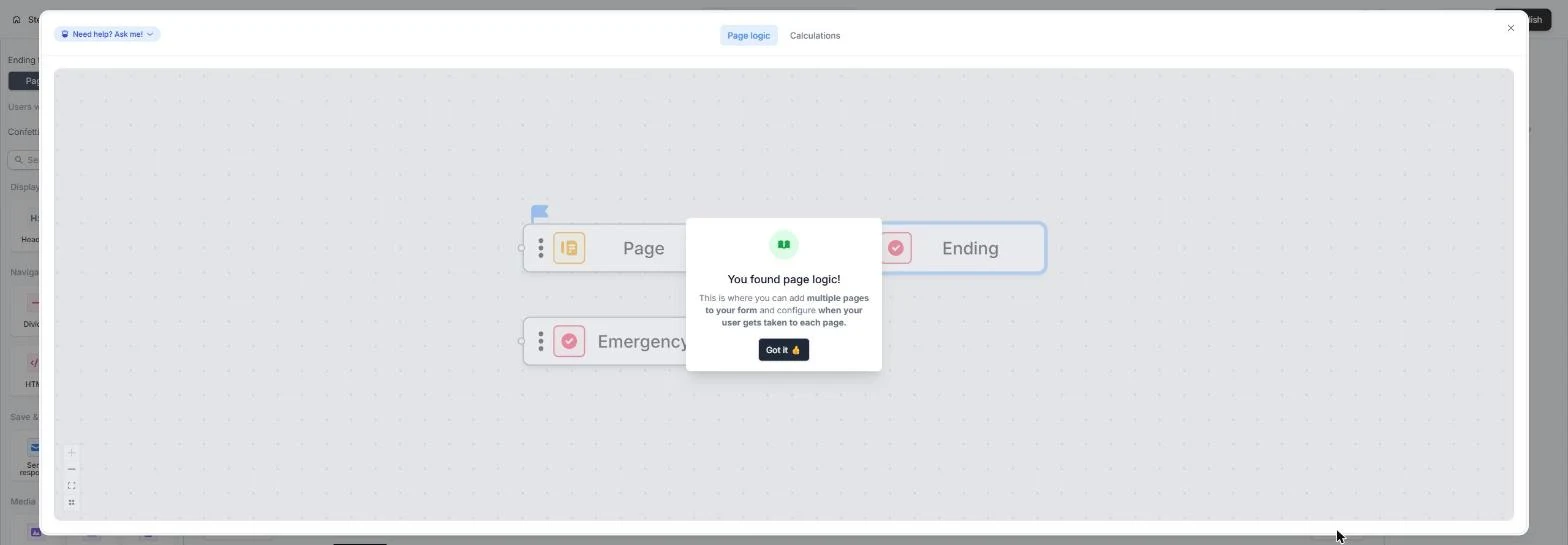
- The page map. You found page logic! This map shows every page and where each one leads. Click Got it.
This map shows every page and where it leads.
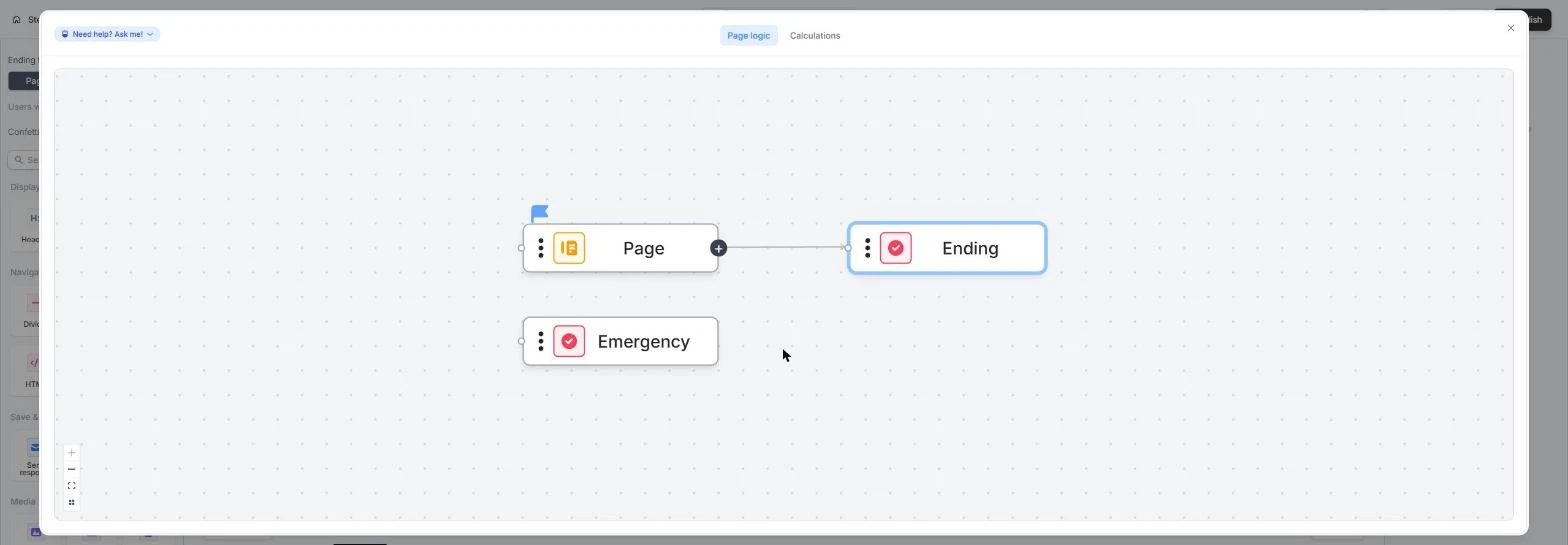
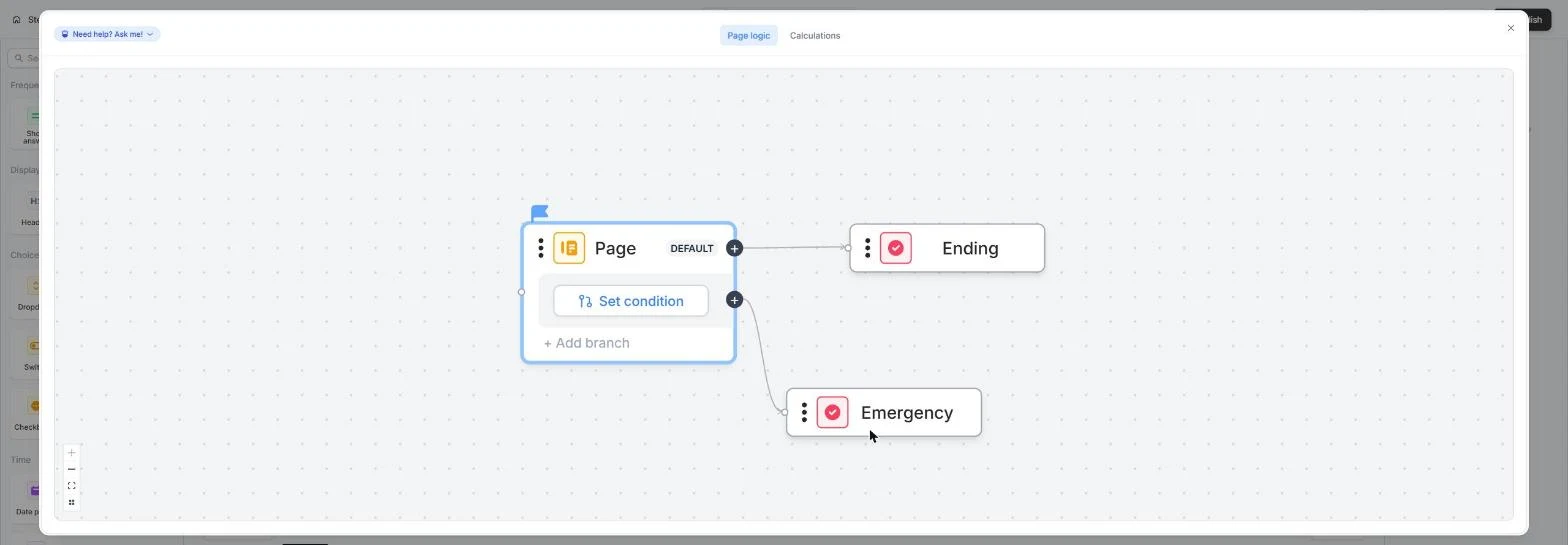
- Draw the branch. Your form Page leads to Ending. Emergency is not connected. Drag from the + on Page and drop it on Emergency. (We then dragged the Emergency box down by its dots so the map stays tidy.)
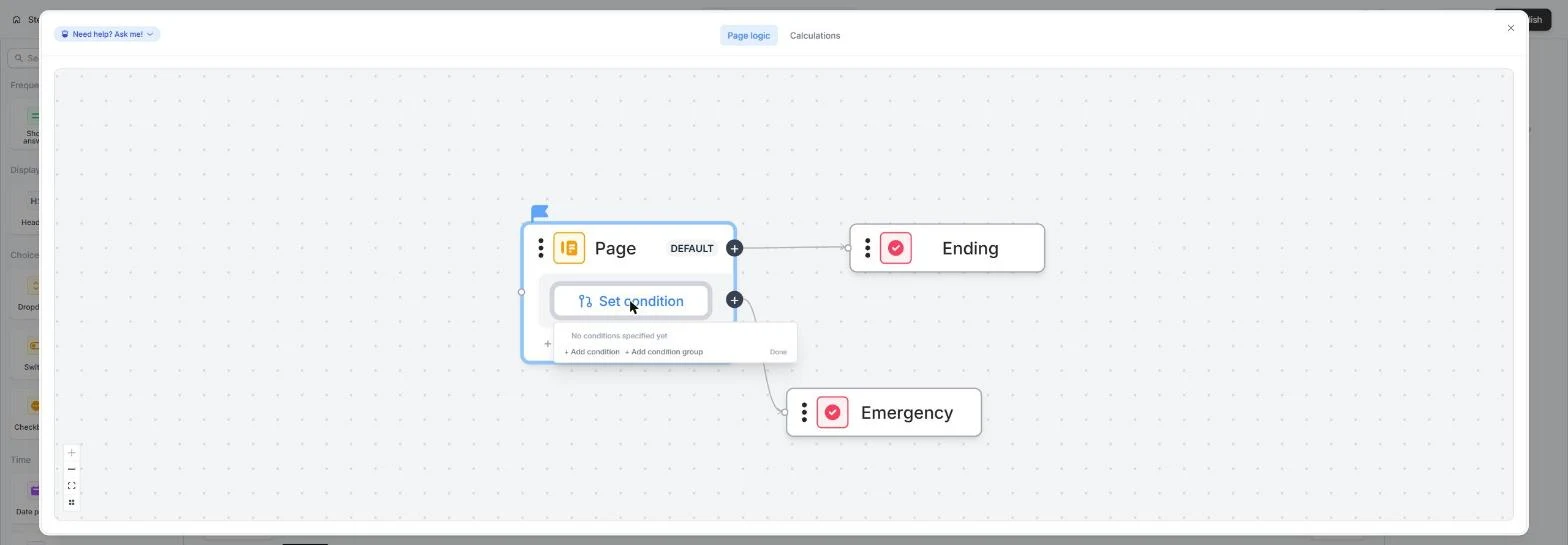
- When should it branch. Page now has two exits. The top one is DEFAULT and goes to Ending. The new one goes to Emergency. Click Set condition.
The default path goes to Ending. Set the condition for the new path.
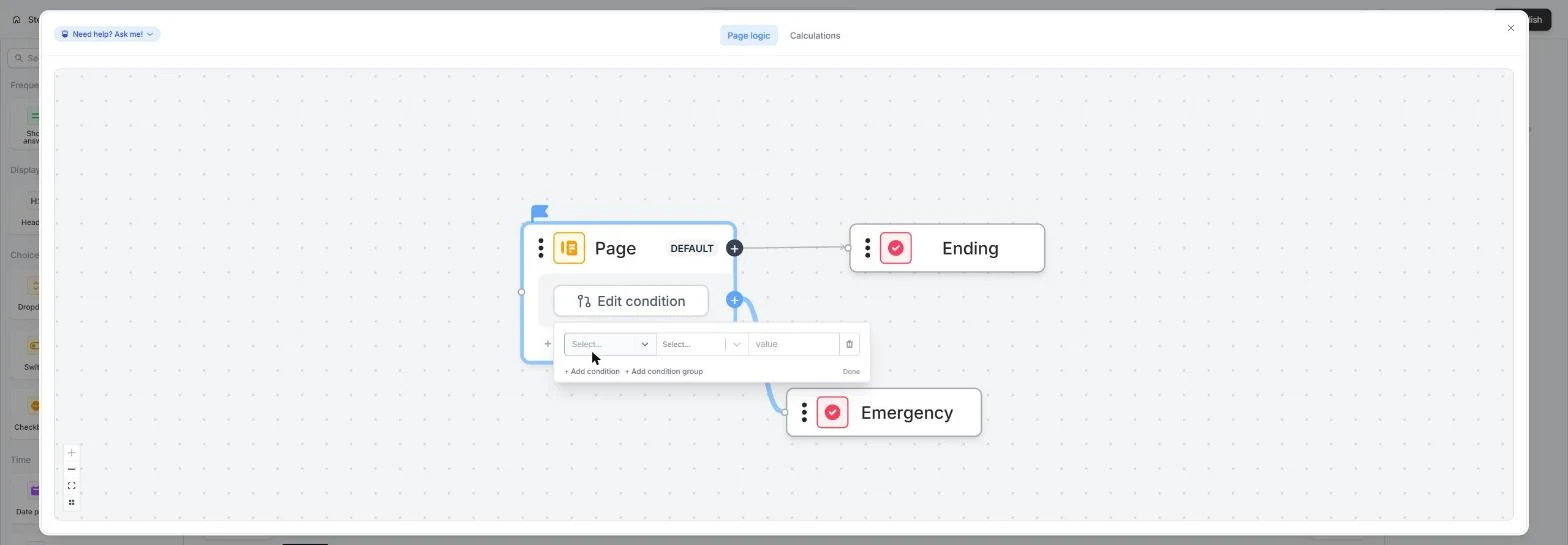
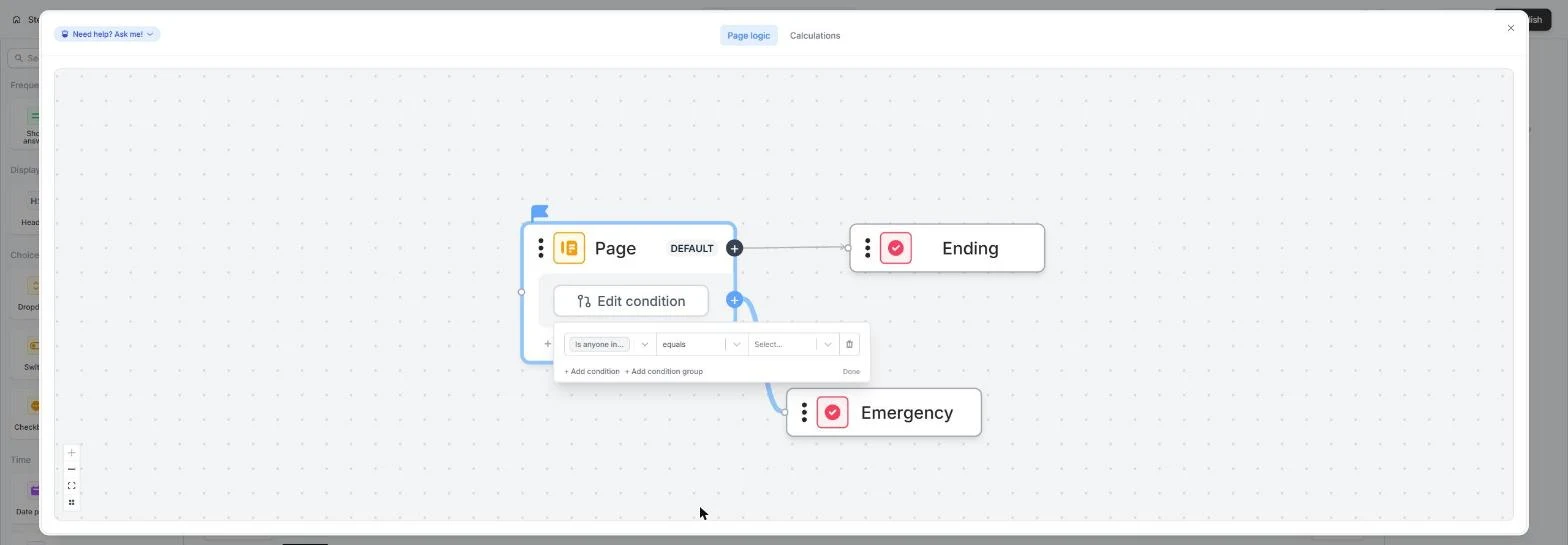
- Add a condition. Click + Add condition.
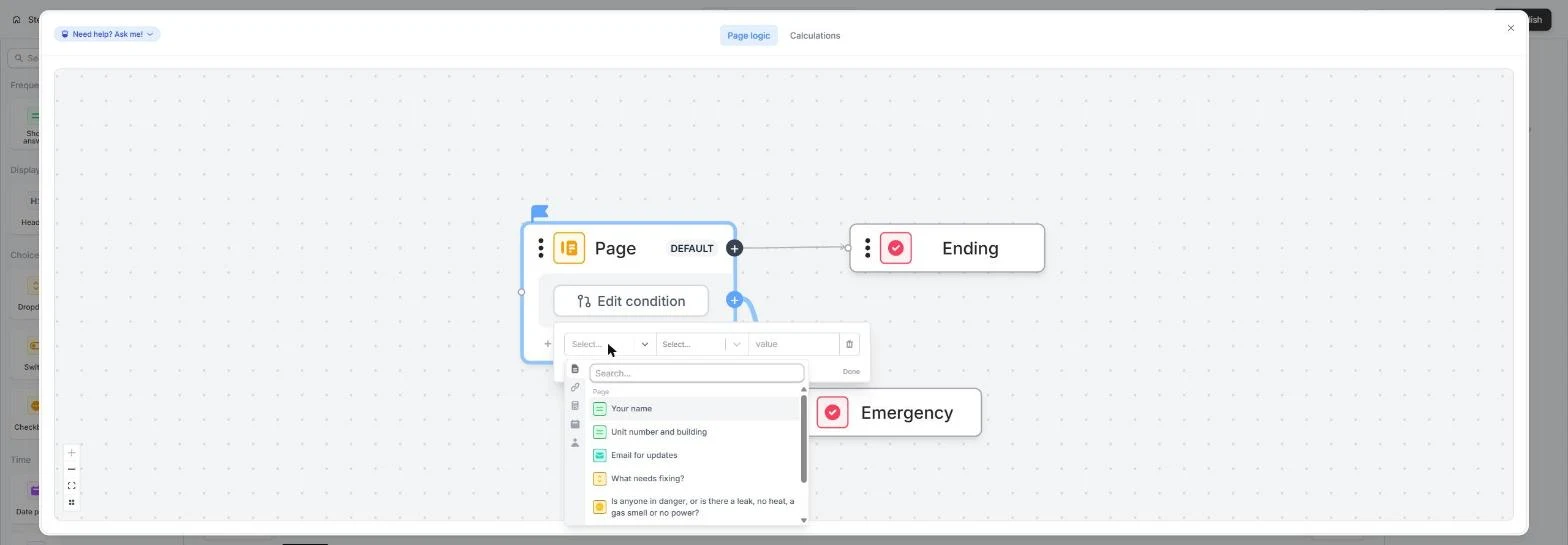
- Which question. Open the first Select....
- The danger question. Click Is anyone in danger, or is there a leak, no heat, a gas smell or no power?
Pick the danger question.
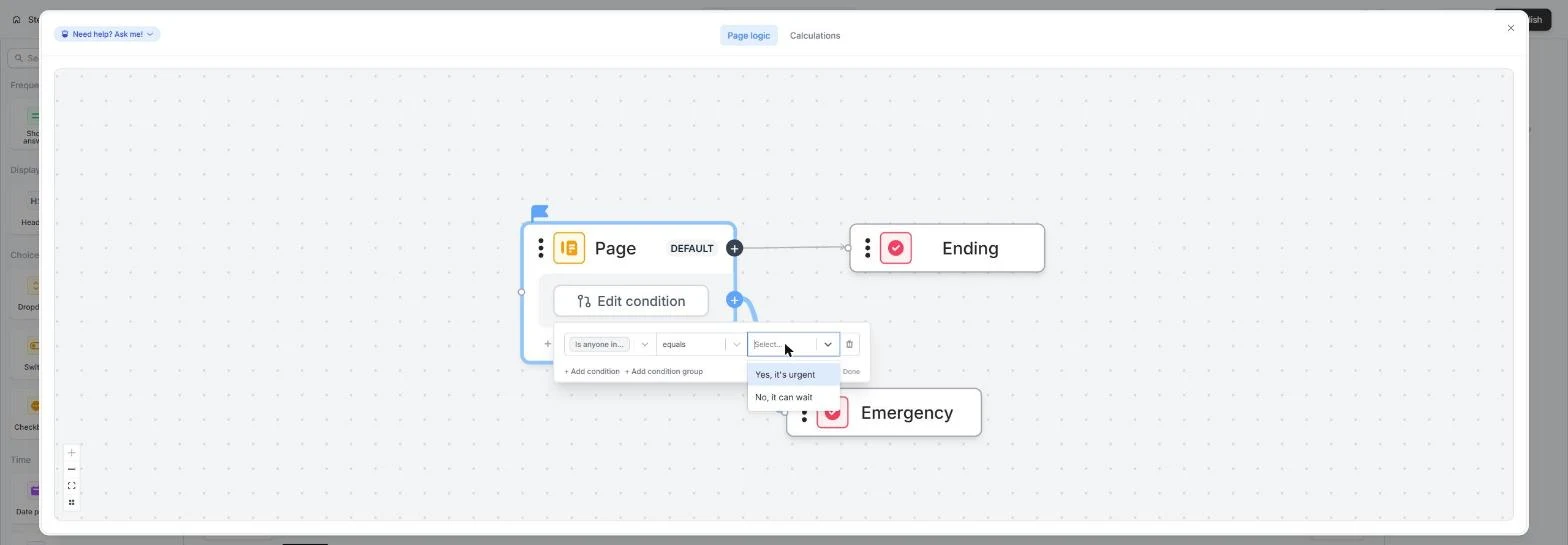
- Equals which answer. The test is equals. Open the last Select....
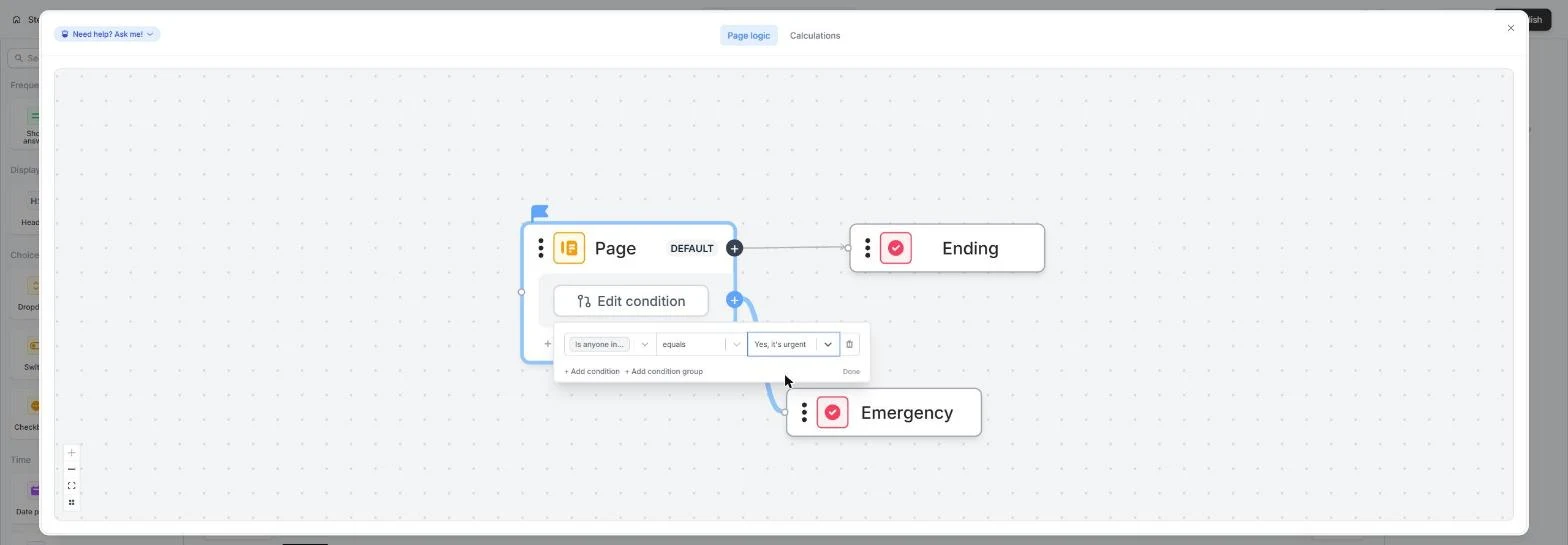
- Only real emergencies. Click Yes, it's urgent.
Pick Yes, it's urgent.
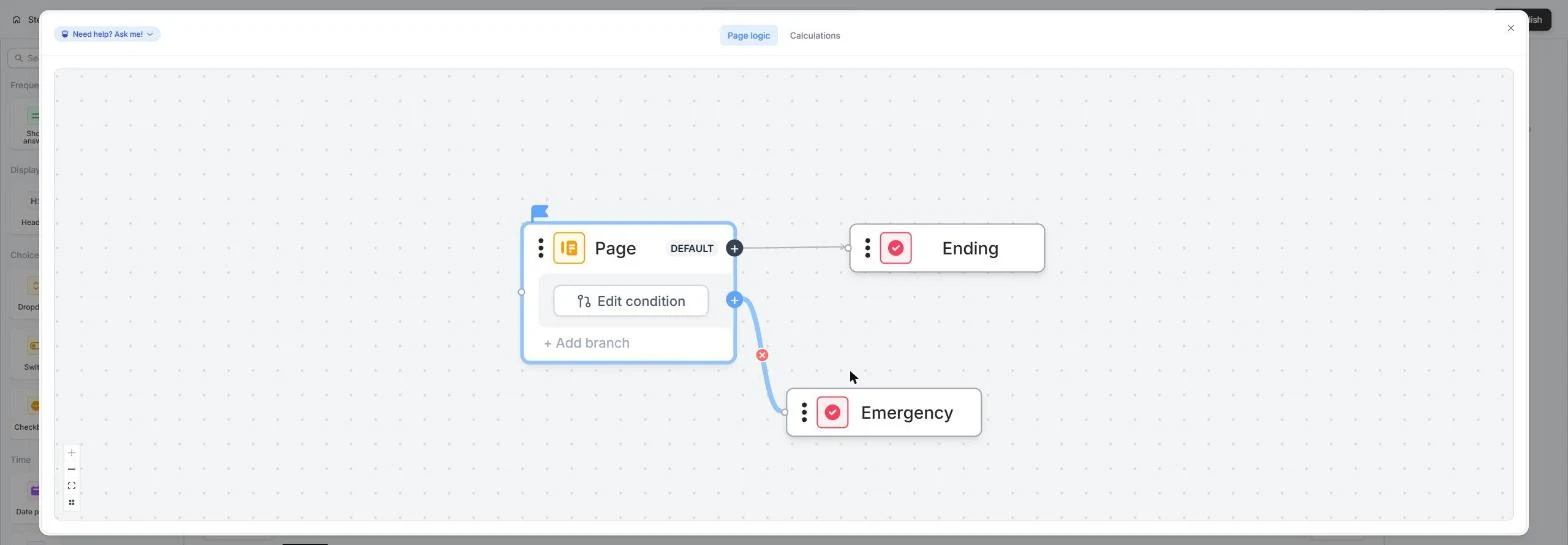
- Save the rule. The rule reads: go to Emergency when the danger question equals Yes, it's urgent. Everyone else takes the default path. Click Done.
Yes goes to Emergency. Everyone else takes the default.
3. Test both paths
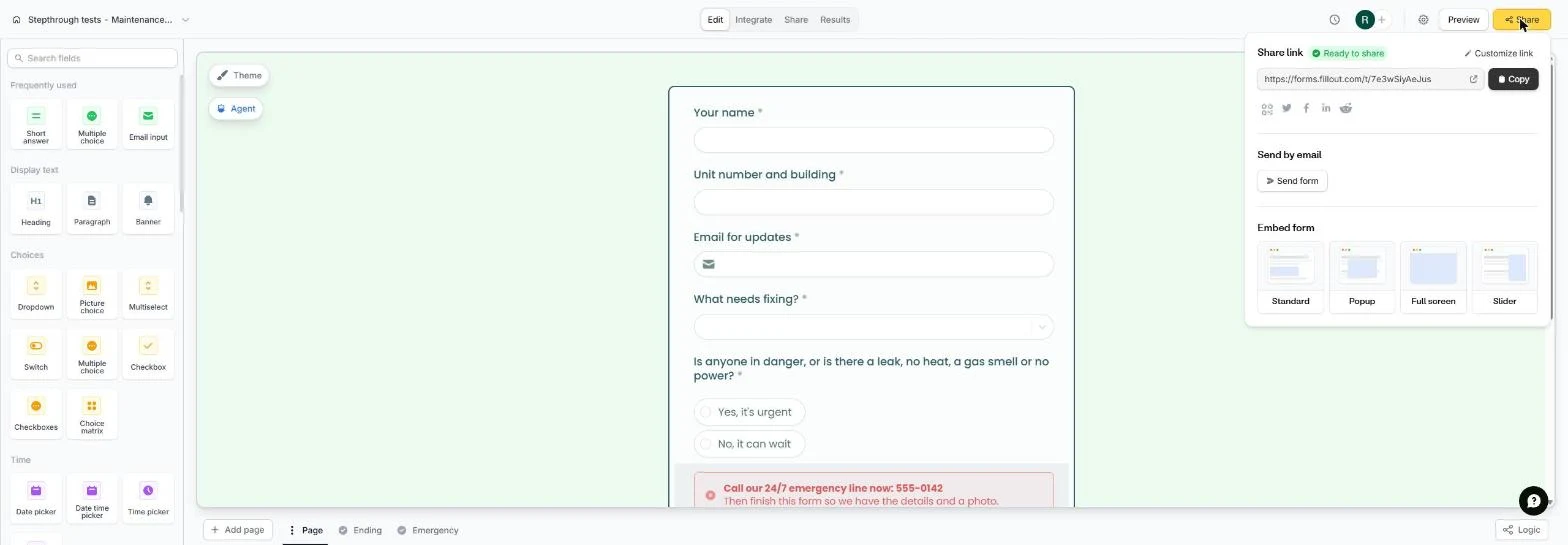
- Publish the change. The blue line now runs from Page to Emergency. Close the map with the X, then click Publish at the top right. Changes don't reach tenants until you publish.
Close the map, then click Publish. Tenants only see changes after you publish.
- Open the live form. Ready to share. Open the live form with the arrow icon next to the link.
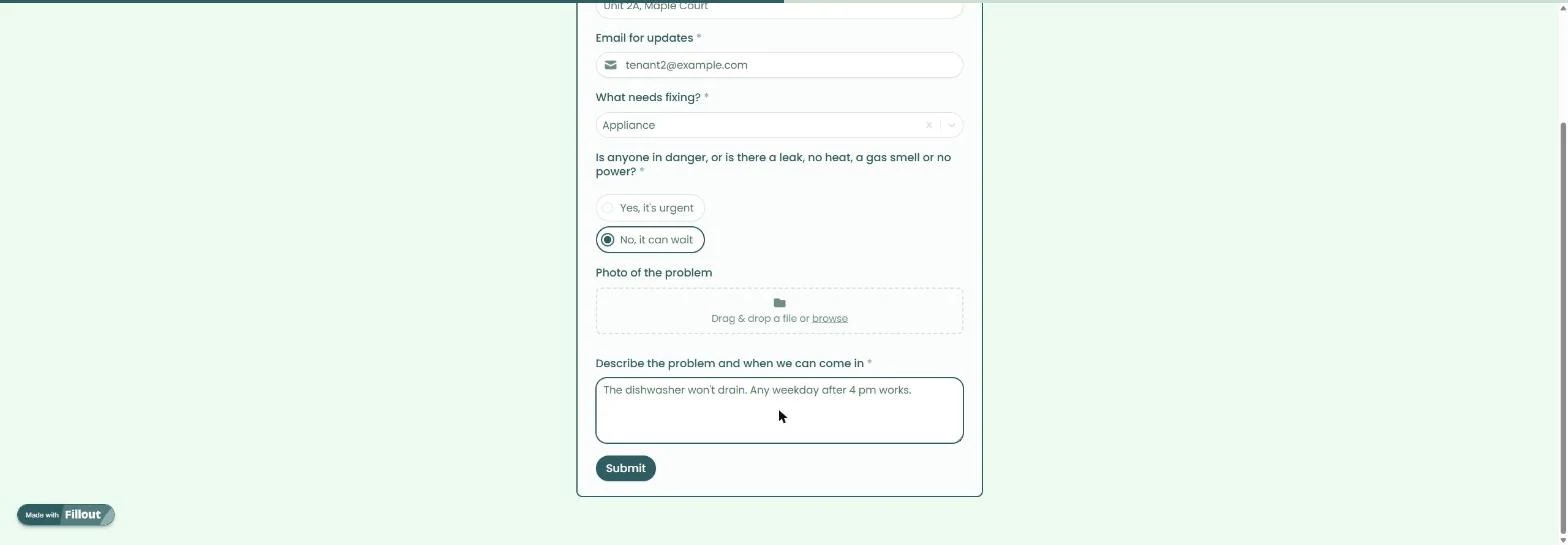
- Test a routine request. We filled in a made-up tenant with a broken dishwasher: Appliance and No, it can wait. Click Submit.
Test a routine request first.
- The routine ending. Request received, with the one-business-day promise. Now test an emergency: click the card to start another request.
Routine requests get the one business day promise. Now test an emergency.
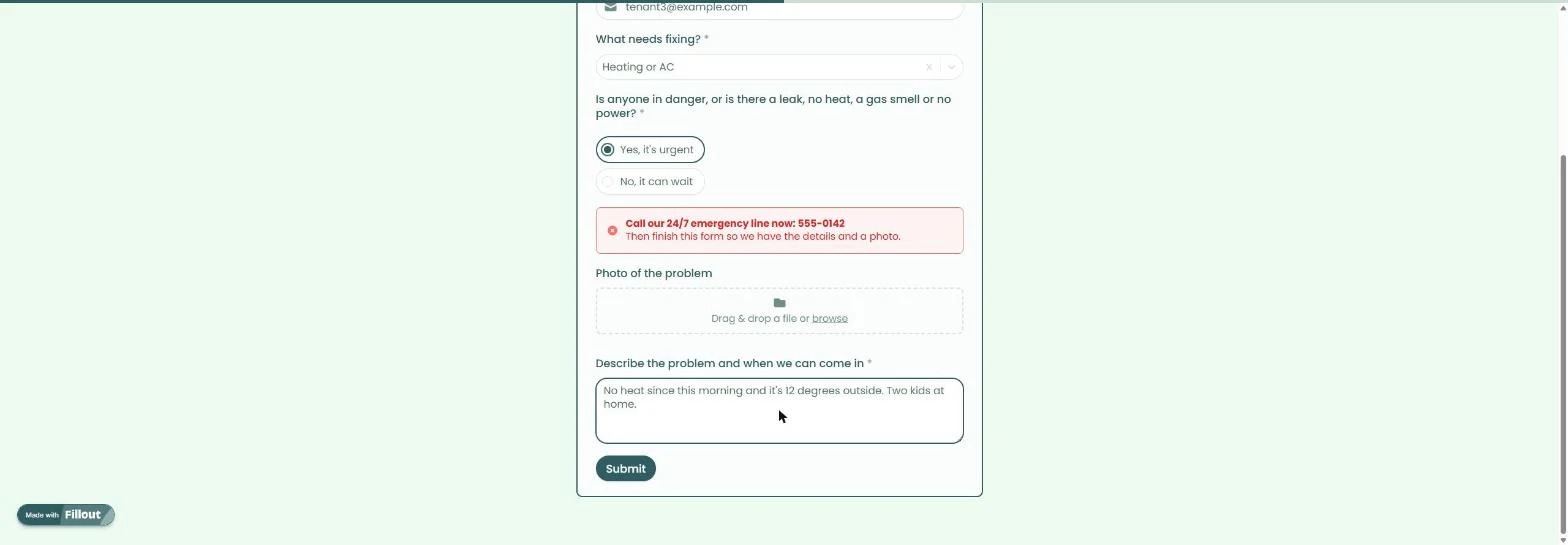
- Test an emergency. A new tenant: Heating or AC and Yes, it's urgent, so the red banner from lesson 1 shows. We described the problem. Click Submit.
This time, no heat and Yes, it's urgent.
- The emergency ending. Emergency received: no confetti, and it repeats the number to call. Both requests are in Results, ready for lesson 3.
The emergency gets its own page, with the number to call. Both requests are in Results.
Screenshots


More in Business Automations
 How to Do OCR in n8n: Read Receipt Photos into Google Sheets with AI
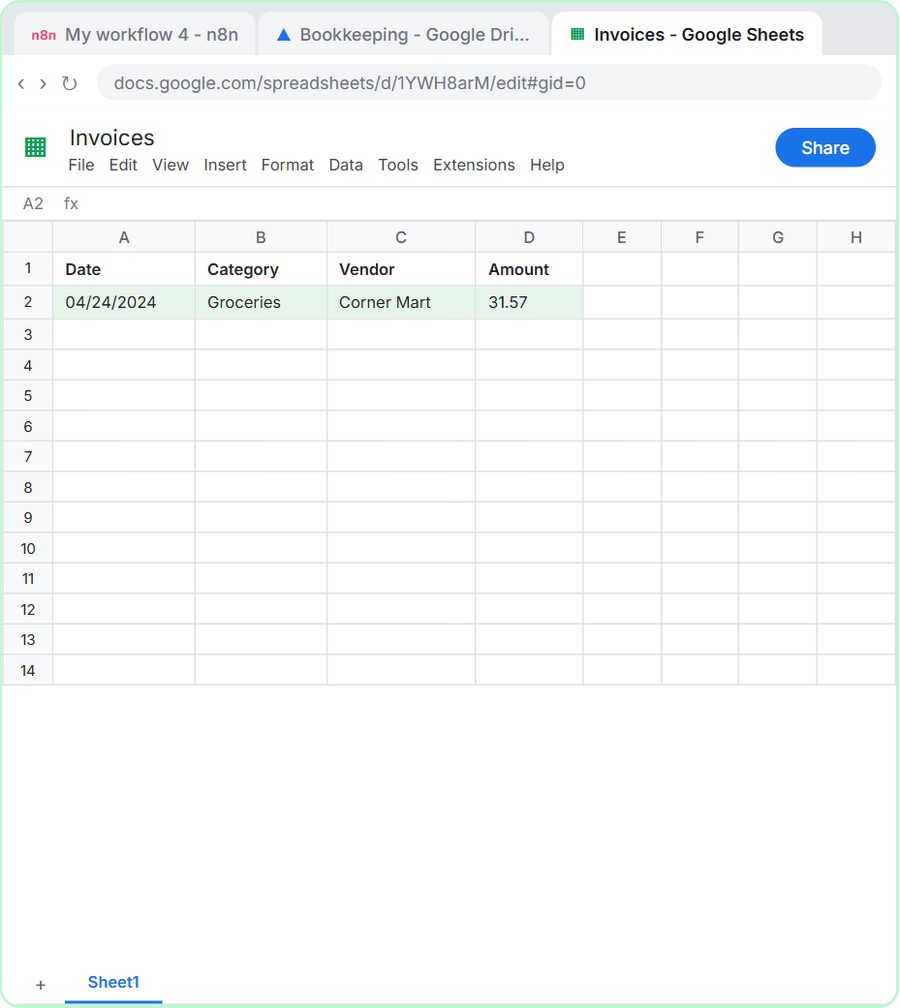
Drop a photo of a receipt into an n8n chat. An AI agent reads it, pulls out the date, vendor and amount, picks a category, and adds a row to Google Sheets.
Free · Live ~12 min Intermediate
 n8n AI Email Responder: Draft Gmail Replies Automatically
Build an n8n agent that watches your Gmail, reads each new customer email, and writes a reply as a draft in the same thread, ready for you to check and send.
Free · Live ~12 min Intermediate
 How to Make an n8n Workflow That Emails Each Tech Their Jobs from Sheets
Every morning at 7, n8n reads a plumbing company's jobs sheet, skips anything not assigned yet, and emails each job to the tech it's assigned to — customer, address…
Free · Live ~10 min Intermediate
 Gmail AI Triage: Auto-Label Every Email and Draft Replies
Build an n8n workflow that reads each new email, sorts it as a lead, a client or an invoice with a Text Classifier, adds the matching Gmail label, and drafts a reply to…
Free · Live ~18 min Advanced
 How to Use n8n to Build AI Agents: A Support Agent That Answers from Your Docs
Turn an n8n chat agent into a support agent that answers only from your policies in a Google Doc, refuses what it should, and hands off to a person by email.
Free · Live ~13 min Advanced
 Chatbase: Answer Customer FAQs with an AI Agent
A business case for a small firm that answers the same customer questions every week: build a Chatbase AI agent on your FAQ in the real app, make it say when it does…
Free · Live ~15 min Beginner
All 56 modules in Business Automations