This guide explains what these tools do, the two main types, and the checks that keep their notes accurate.
What does an AI note-taker actually do?
It does three jobs in a row: record, transcribe, summarize. The AI note-taker glossary entry describes it as a tool that records a meeting, turns the audio into a meeting transcript, and writes a summary with decisions and action items.
The transcript part is plain speech-to-text. The summary is where the AI makes judgment calls: what counts as a decision, who owns a task, which date was agreed. That's also the part that needs a person to check it.
What's the difference between a bot and a bot-free note-taker?
A bot joins the call as an extra participant; a bot-free tool listens through your own computer. Most meeting note-takers show up in the participant list under a name like "Notetaker." Tools such as Fathom, Fireflies.ai and Otter.ai join or record meetings on platforms like Zoom, Google Meet and Microsoft Teams, as the Fathom vs Fireflies vs Otter comparison shows.
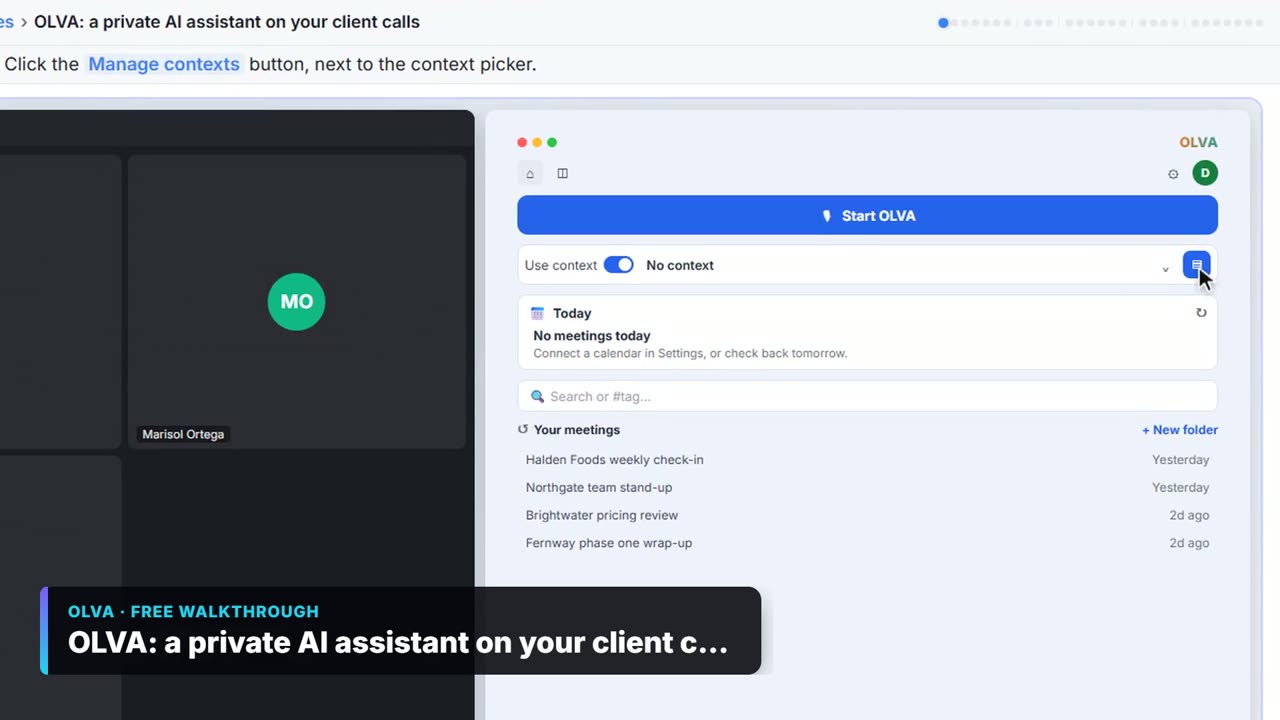
OLVA, the third-party tool in the free lesson, doesn't join the call. It listens through your own device and opens its window beside the meeting, so nobody sees a bot in the participant list. According to OLVA's own how-to video, it works alongside Zoom, Google Meet, Microsoft Teams, Slack Huddles and Webex, and with phone calls and in-person conversations.
Bot-free has one big catch: because nobody sees a bot, telling people is on you. OLVA's video says you are responsible for giving notice or getting consent before you transcribe a conversation. How to Tell Clients You Use an AI Note-Taker covers what to say.
What can a note-taker do during the call?
Some tools only take notes; others also help you while you talk. In the OLVA lesson you play Dana, a consultant at Northgate Advisory (a made-up firm), pitching phase two of a project to Fernway Logistics (also made up). During the call:
- Auto-answer this call spots a question from the client, marks it Question Detected and shows an answer in the Chat tab that only you can see.
- Coaching buttons under the chat (Say next, Clarify, Follow-up and Recap) suggest what to say or ask.
- The AI Assist tab shows private cards, such as a Fact Check that rates the client's "about fifty thousand" as Partly True because your notes say $48,000.
- Live Translation adds English under the client's Spanish lines, with the original still visible.
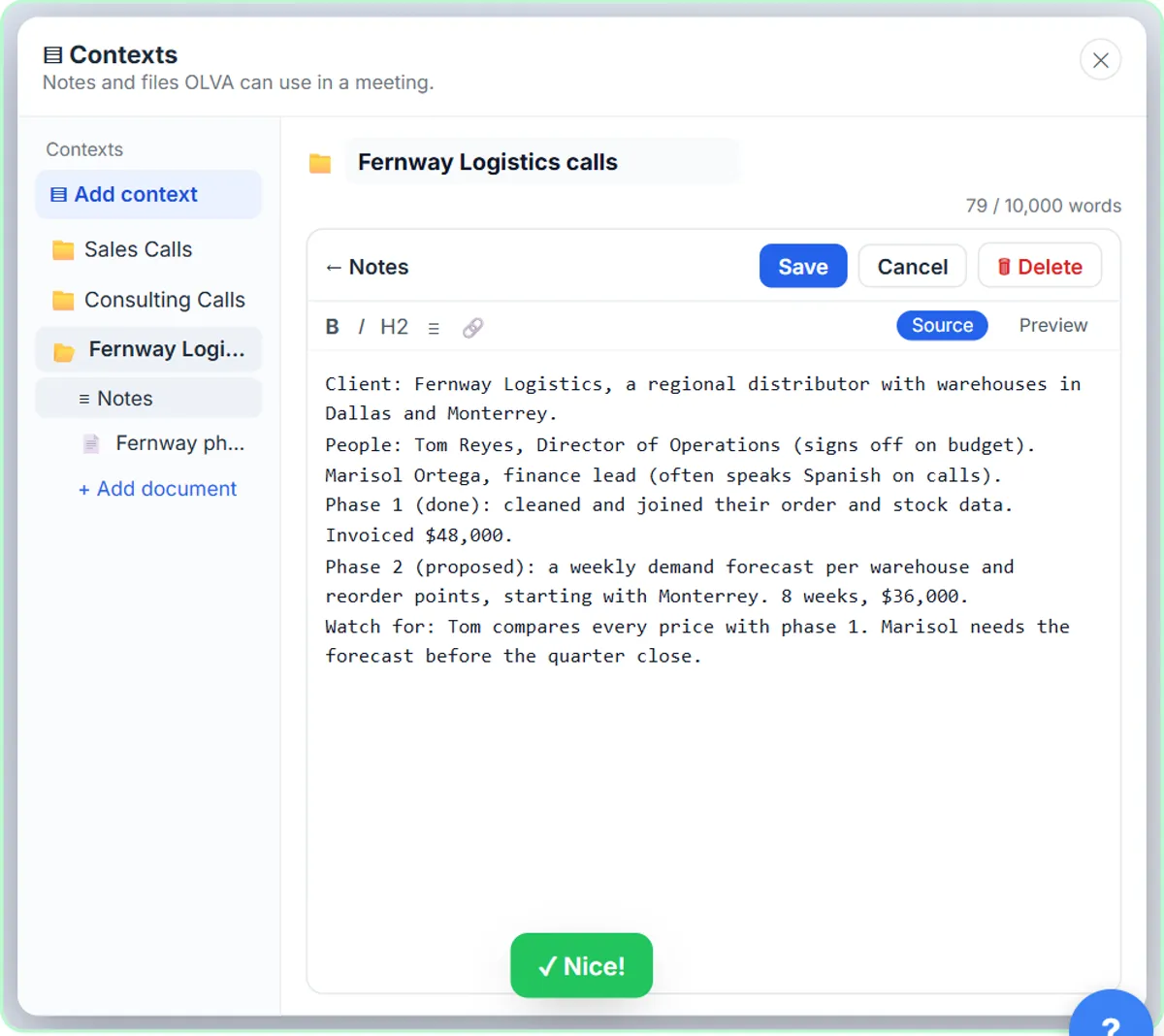
Those answers are only as good as the notes you give the tool first, which OLVA calls a context. How to Prepare for a Client Call with AI Context Notes explains that step.
Try it free, step by step
OLVA: A Private AI Assistant on Your Client Calls. Give OLVA your client notes, get private answers and fact checks during a Zoom call, then turn the meeting into minutes, a follow-up email and a PowerPoint deck. You do every step yourself in a practice copy of OLVA, it checks your work as you go, and “Do it for me” finishes any step you get stuck on. Free, and nothing touches your real accounts.
Start the free lessonWhat do you get after the meeting?
A transcript plus whatever documents you ask for. When you click End in the lesson, the meeting is saved under Your meetings with its transcript. A Try asking OLVA panel offers ready-made requests such as Generate meeting minutes, What action items?, What decisions were made? and Draft a follow-up email. The Create menu can also build an editable PowerPoint deck, a Google Doc or a Notion page. OLVA shows the cost in credits before it creates a deck.
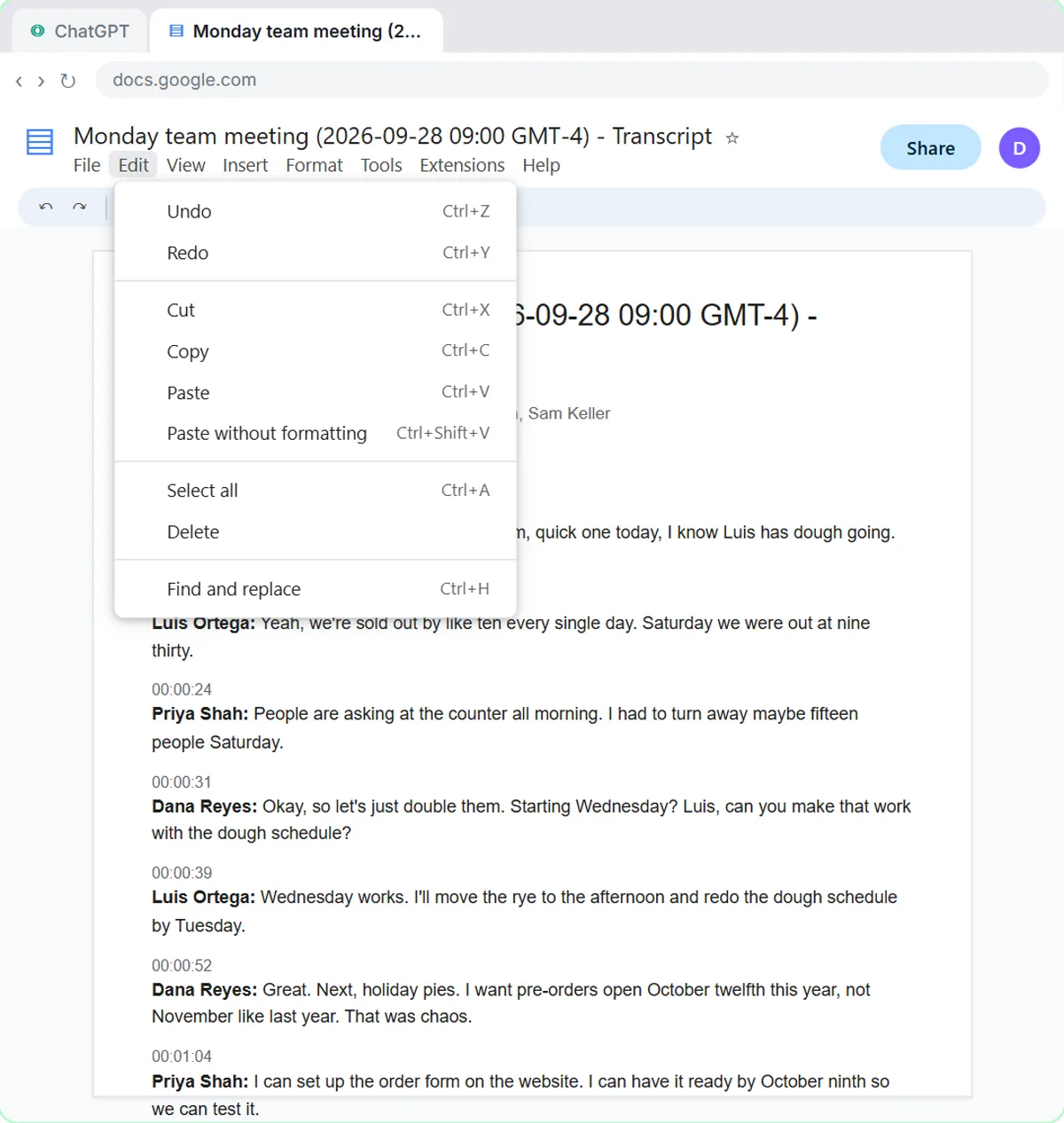
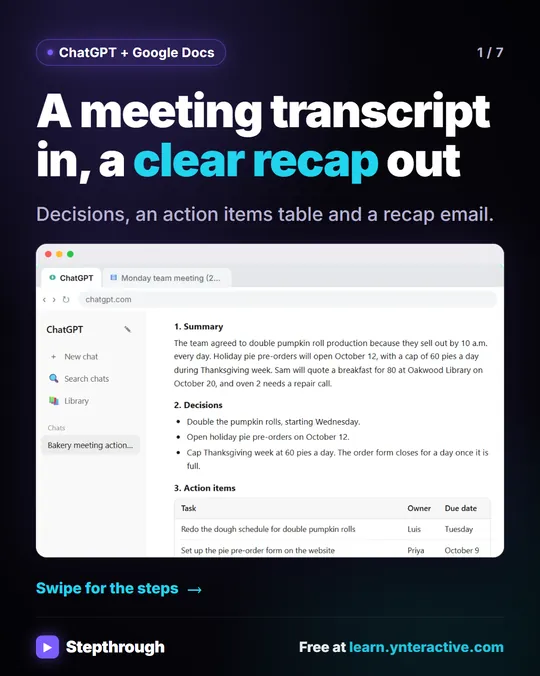
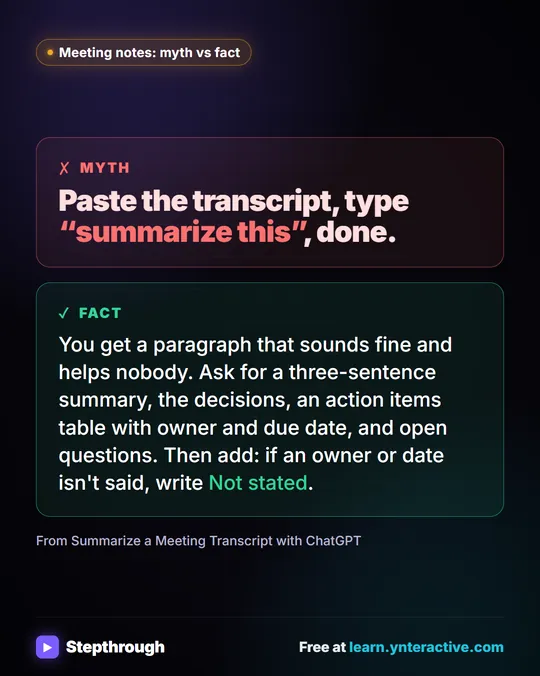
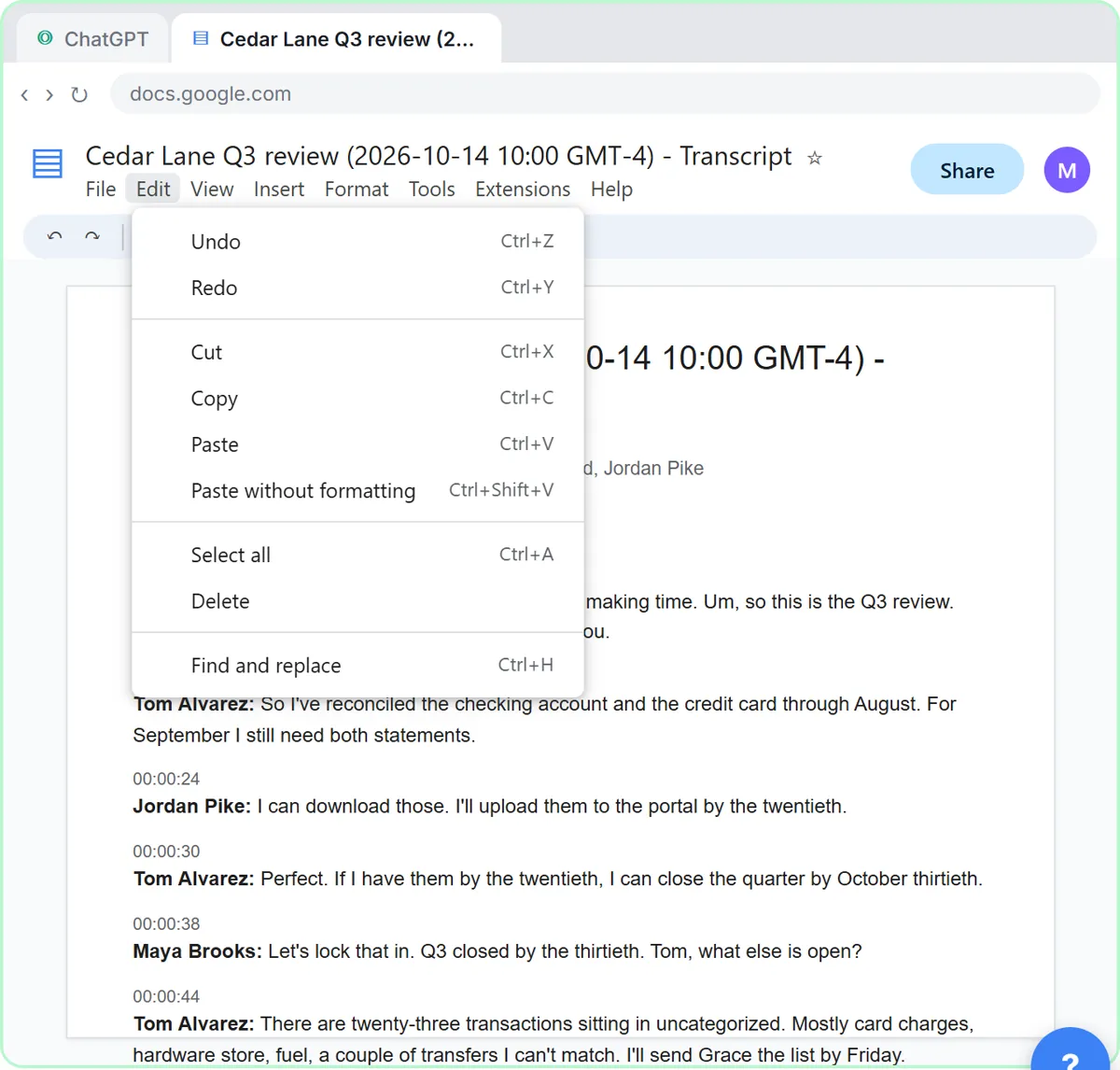
You don't need a dedicated note-taker to get most of this. In Summarize a Meeting Transcript, you copy the transcript Google Meet saved for a Monday meeting at Harbor Street Bakery (made up) and paste it into ChatGPT with a request for:
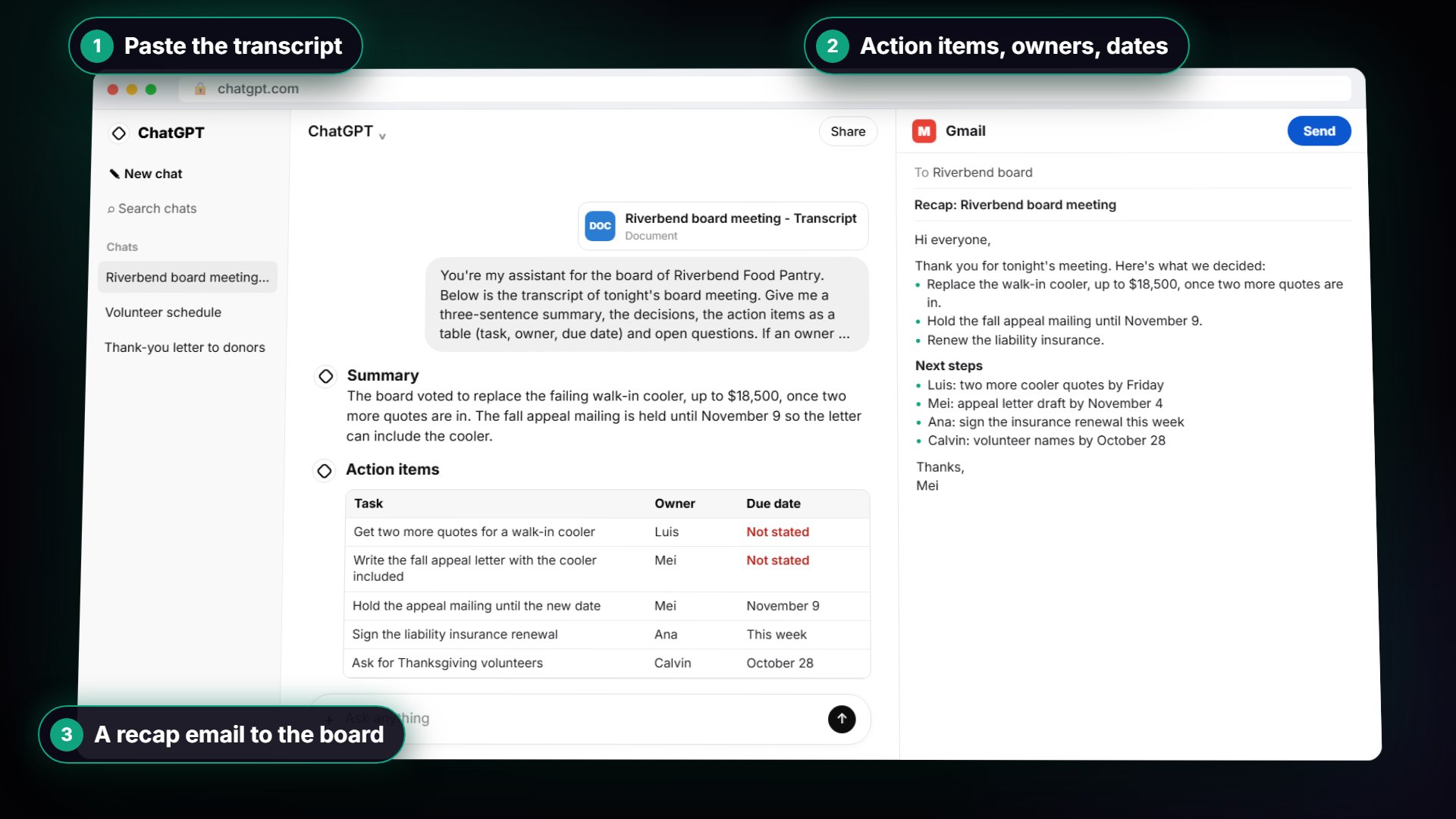
A three-sentence summary, the decisions, an action items table (task, owner, due date) and open questions. Only use what's in the transcript. If an owner or date isn't said, write "Not stated".
You get three decisions, four action items and two open questions, and you write the follow-up email in the same chat.
Why do AI meeting notes still need checking?
Because summaries get facts wrong in ordinary ways. The glossary entry lists the usual ones: speakers get mixed up, numbers get misheard, and "we should" becomes a firm decision nobody actually made.
The ChatGPT lesson shows the fix. Two due dates come back as Not stated because nobody said them out loud, so you type them in yourself: "The library quote is due Wednesday, and Luis will call about the oven today." An automatic note-taker hits the same gaps and may fill them with a guess. Make it a habit to read the action items, fix owners and dates, and compare any number or promise with the transcript before anything goes to a client.
Is an AI note-taker safe for client meetings?
It can be, if the tool is approved and people know it's running. Three checks before the first real call:
- Consent. Announce the note-taker at the start of every call and let people say no. Recording laws differ by state and country, so ask whoever handles legal questions at your firm.
- Approval. Put the tool on your company's approved list with known data settings. An unapproved app on a personal account is a form of shadow AI.
- Data. Read what the vendor keeps. OLVA's how-to video says it doesn't store meeting audio, video, voice recordings or voiceprints; transcripts and generated content are saved to your account, and deleting a meeting removes them.
Glossary terms used in this post: AI note taker, meeting transcript and action items.
Key takeaways
- An AI note-taker records a meeting, writes a transcript and drafts a summary with decisions and action items.
- Most note-takers join the call as a visible bot; bot-free tools such as OLVA listen through your own computer, so you must tell people yourself.
- OLVA can also answer questions privately during the call, fact-check numbers against your notes and translate, then generate minutes, a follow-up email or a PowerPoint deck.
- A saved transcript pasted into ChatGPT with a clear request, including "write 'Not stated'" for missing owners and dates, gives you most of the same recap for free.
- Always check owners, dates and numbers in AI meeting notes before they go to a client.
Frequently asked questions
- Do I need a paid tool to get AI meeting notes?
No. Google Meet, Zoom and Microsoft Teams can create transcripts, depending on your plan and settings, and ChatGPT can turn a transcript into a summary and action items. Dedicated note-takers automate the steps and add features, and they have their own plans.
- Is OLVA part of Stepthrough?
No. OLVA is a separate, third-party product from olva.ai with its own account, plans and credits. The Stepthrough lesson is free and uses a practice copy, so you don't need an OLVA account to take it.
- Can an AI note-taker join meetings automatically?
Some can join meetings from your calendar. Check that setting, and turn it off for confidential calls where you'd rather decide each time.
- Are AI meeting minutes the same as official minutes?
No. Meeting minutes are a record someone reviews and approves. A note-taker's output is a draft of them, and Meeting Minutes vs Meeting Summary explains when you need which.