Updated . Built against the tool’s current screens and checked step by step. How we check this lesson
Plenty of small service companies already keep their jobs and customers in a database, then make the team update a spreadsheet copy because nobody has time to build an app. PHPRunner is a desktop application for Windows, macOS and Linux that generates a web app from an existing database, and Cody is the AI assistant inside its Event Editor. In this free lesson, captured from the real PHPRunner 11.3 trial, Nov 10, 2026, you name a project, connect it to the SQLite jobs database of Northpine IT Services, a made-up IT support company, pick the customers and jobs tables, walk the wizard, and ask Cody for a Before record updated rule that blocks marking a job Completed without notes. You read Cody's code before you paste it in, build the project, open the generated app in your browser and prove the rule on a real-shaped job. 30 steps, about twelve minutes, no install needed to practice.
At a glance
| Question | Answer |
|---|---|
| What you build | Your jobs and customers already live in a database; your team still updates them in spreadsheets. In the real PHPRunner desktop app, connect that database, walk the wizard, and have Cody, its AI assistant, draft one business rule you read before it goes live. Then build the app and test the rule in your browser. |
| Tools | PHPRunner |
| Time | About 12 minutes, 30 steps in 4 parts |
| Level | Intermediate |
| Cost | Free |
| Ways to learn it | Practice it step by step |
The 4 parts, in short
- Start a project on your own database: Name the project, Create it, Pick the database type, Go on, and 2 more steps.
- Walk the wizard: Choose the tables, Go to the jobs query, See the SQL it wrote, Pages to build, and 5 more steps.
- Ask Cody for one rule: Open the jobs Edit page events, Pick Before record updated, Ask Cody, Describe the rule in plain words, and 2 more steps.
- Build it and test it in the browser: Build the project, View in browser, Open Jobs, Edit the email migration job, and 5 more steps.
The business case: jobs marked done with nothing to bill
Picture Dana, who runs operations at Northpine IT Services, a made-up managed IT support company with three technicians. Every support visit is a row in the jobs table of the company's database, but the technicians update a spreadsheet copy. With example numbers you should replace with your own, four or five jobs a week get marked done with no completion notes, and Dana spends Friday afternoon chasing technicians so the visits can be billed.
PHPRunner builds a web app directly on the database Northpine already has, so the team edits the real jobs instead of a copy. One event rule, drafted by Cody and read by Dana, refuses to save a job as Completed until someone writes what was done.
Who this is for, and what you need
Operations managers, office managers and in-house IT people at small service businesses that keep jobs, customers or orders in a database. The practice runs in your browser with nothing installed. To do it for real you need PHPRunner on a Windows, macOS or Linux computer (this walkthrough uses the Windows version; its trial installs to your user folder and activates with no account), access to your database (PHPRunner connects to MySQL, Microsoft SQL Server, PostgreSQL, Oracle, SQLite, MS Access, DB2, Informix, ODBC sources and spreadsheet files), and someone who can read a few lines of PHP to check what Cody writes.
What the real PHPRunner looks like
PHPRunner 11.3 is a desktop application for Windows, macOS and Linux; this walkthrough uses the Windows version. It opens on a New project screen with a Project name box and template tiles, then walks a wizard with Back and Next buttons along the bottom: the datasource tiles (MySQL/MariaDB, Oracle, Microsoft Access, Microsoft SQL Server, PostgreSQL, SQLite and more), a tables screen with a tick box per table and a diagram of their fields, the generated SQL query for each table, Pages to build, Choose fields to appear on each page, Project settings, Security, the Page Designer, Style and Events.
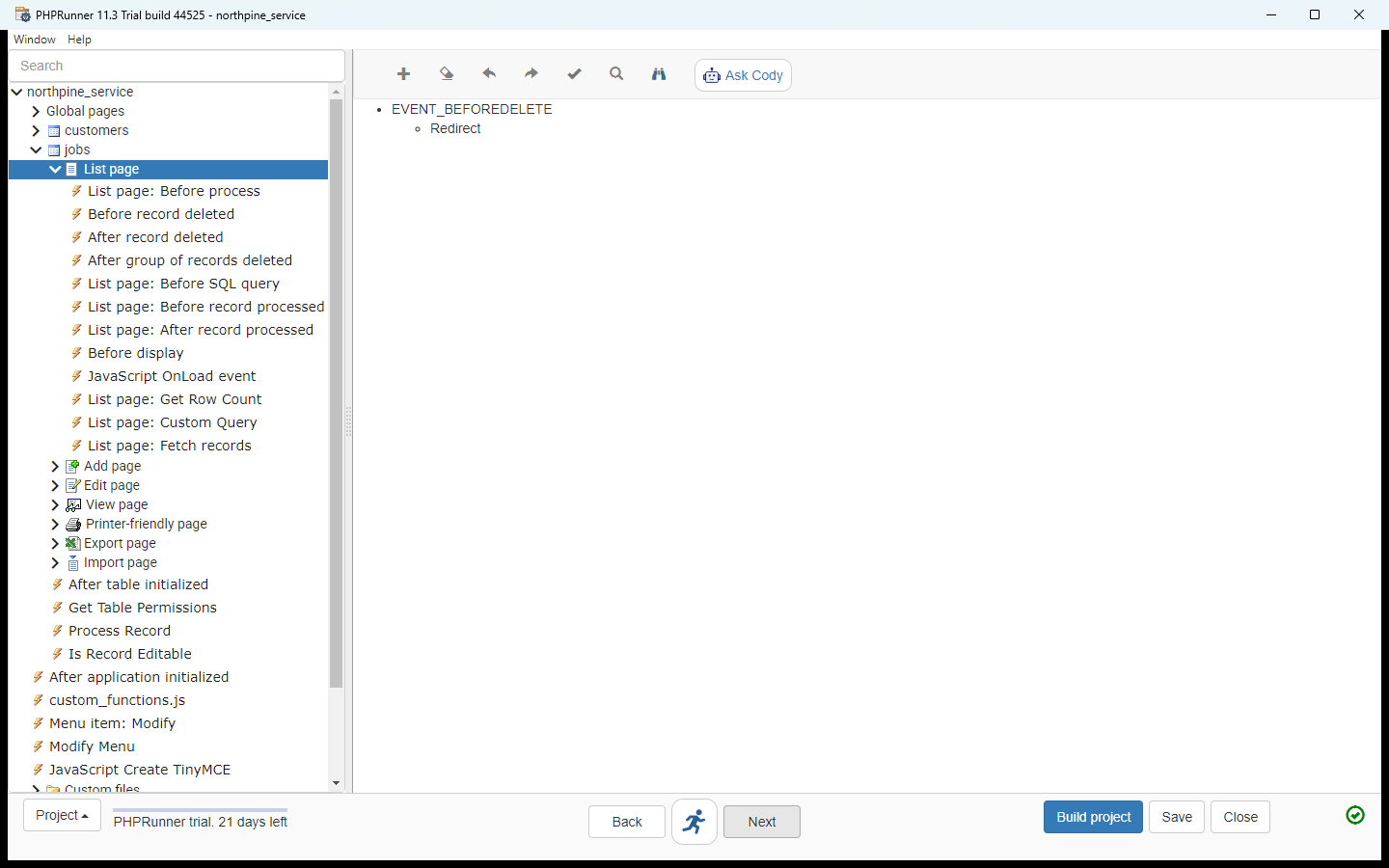
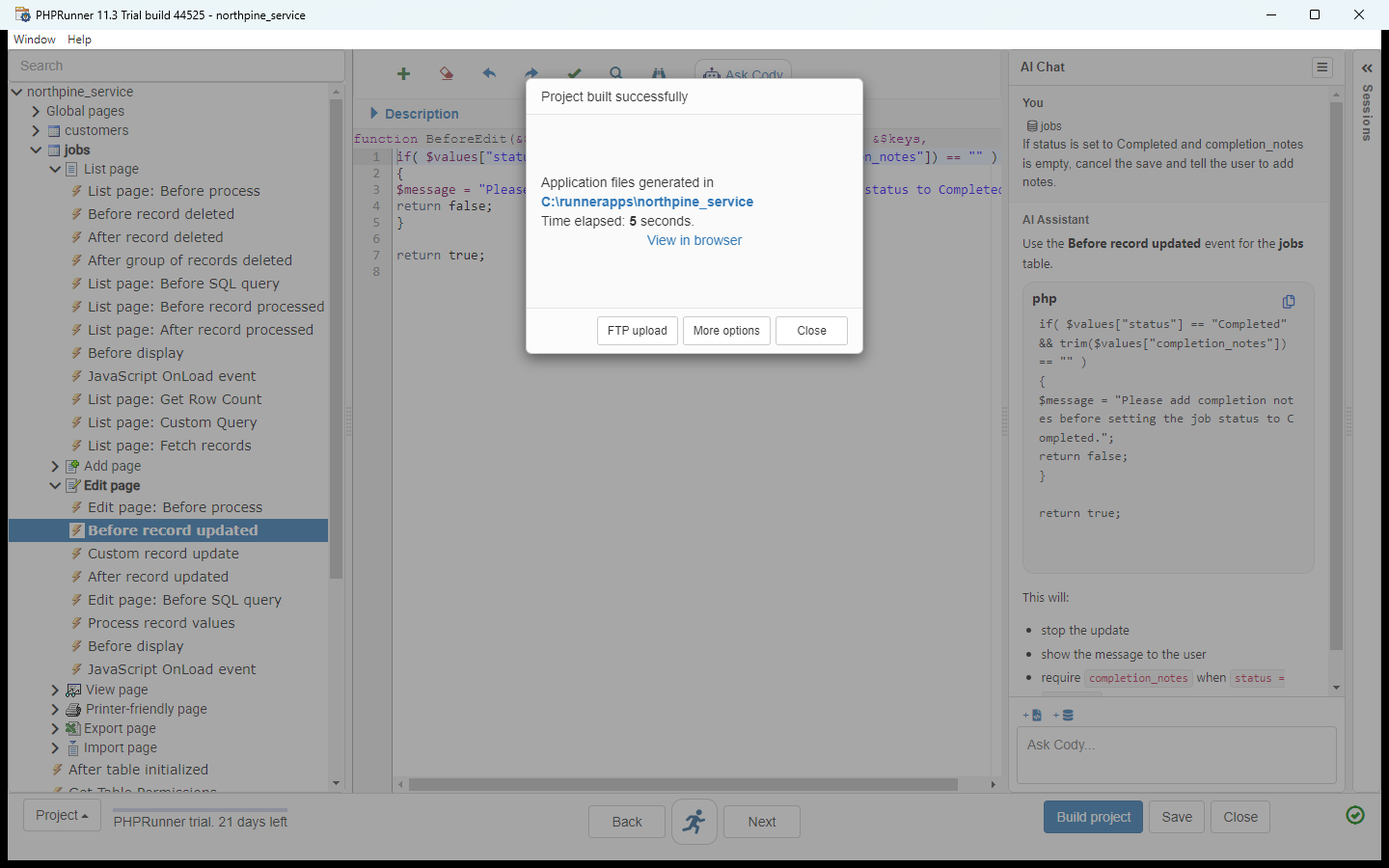
The Events screen is a tree: every table has List, Add, Edit, View, Printer-friendly, Export and Import pages, and each page has its events. Selecting one opens a code editor with the event's PHP function; the toolbar has Ask Cody. Build project generates the PHP files into a folder under C:\runnerapps and offers View in browser, which starts PHPRunner's own local web server and opens the app in your default browser. In our run the build took five seconds.
What Cody did in our run
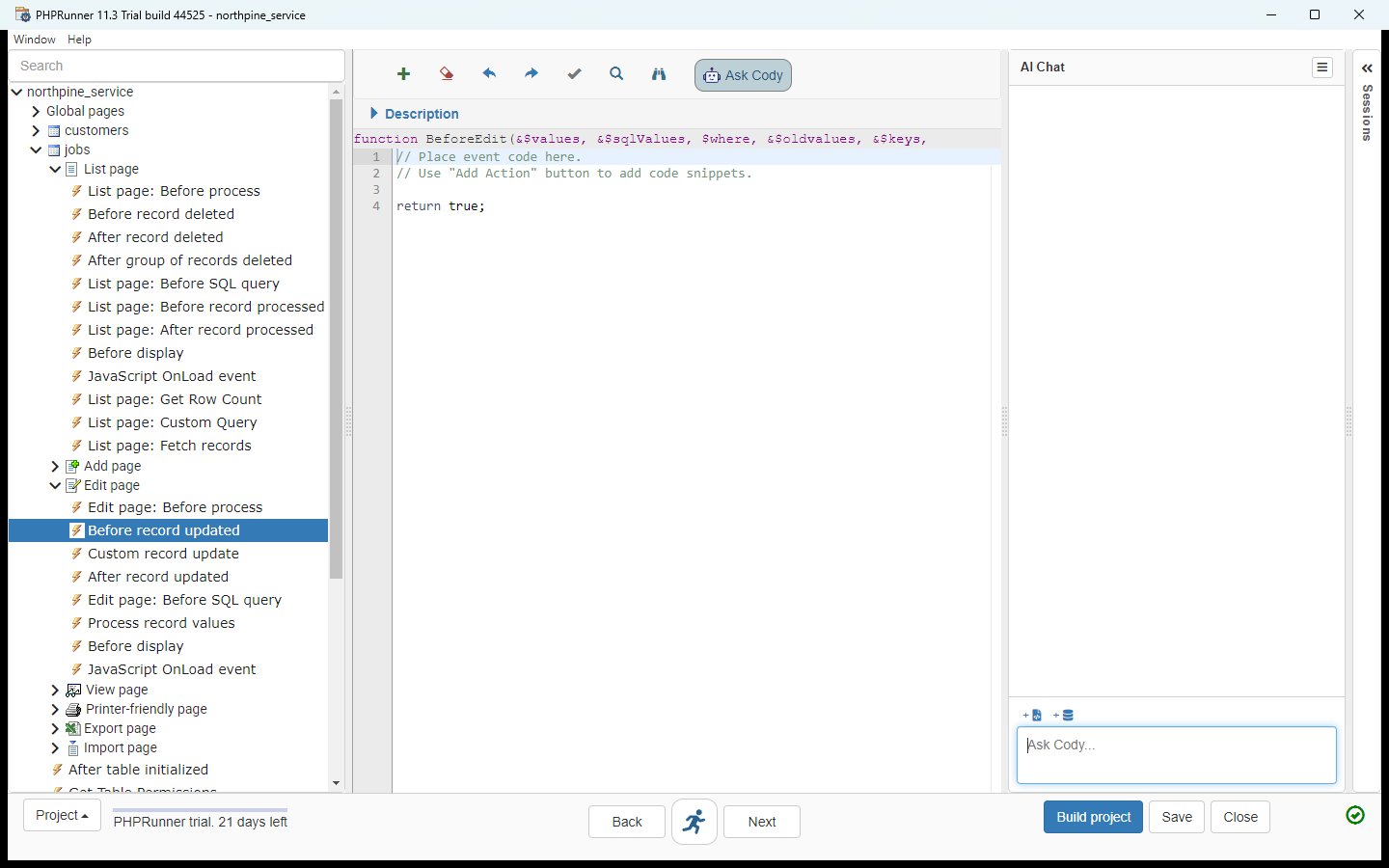
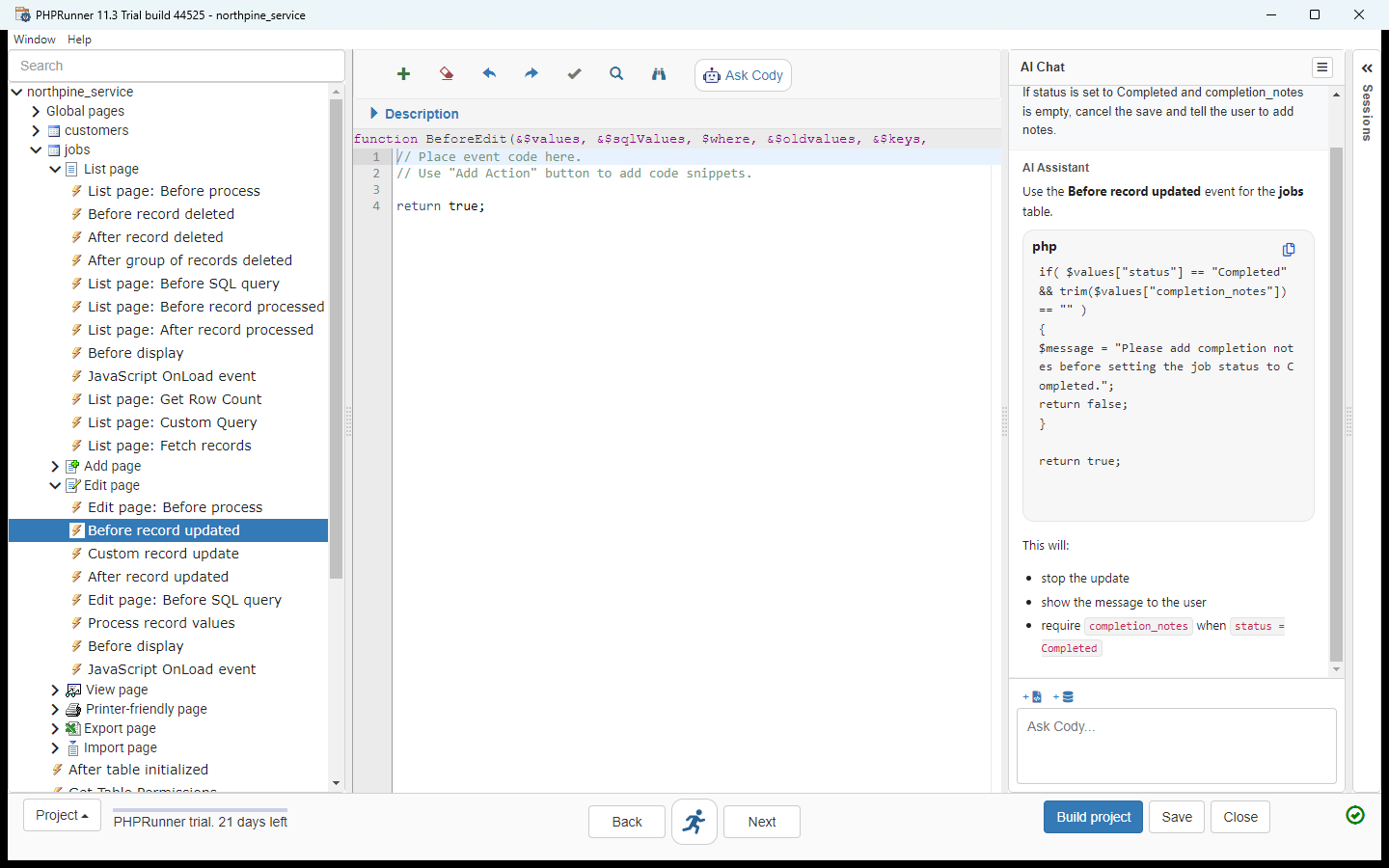
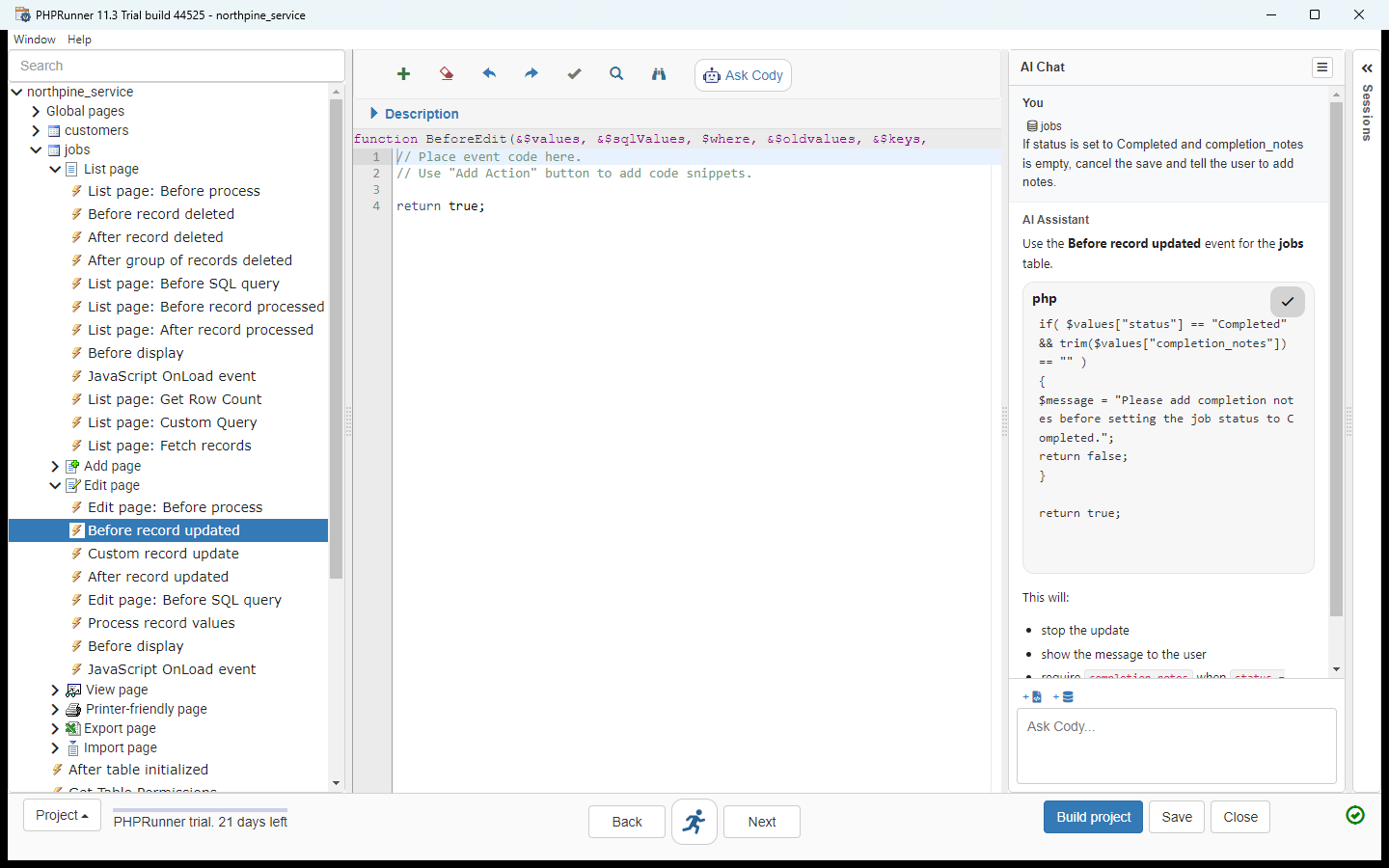
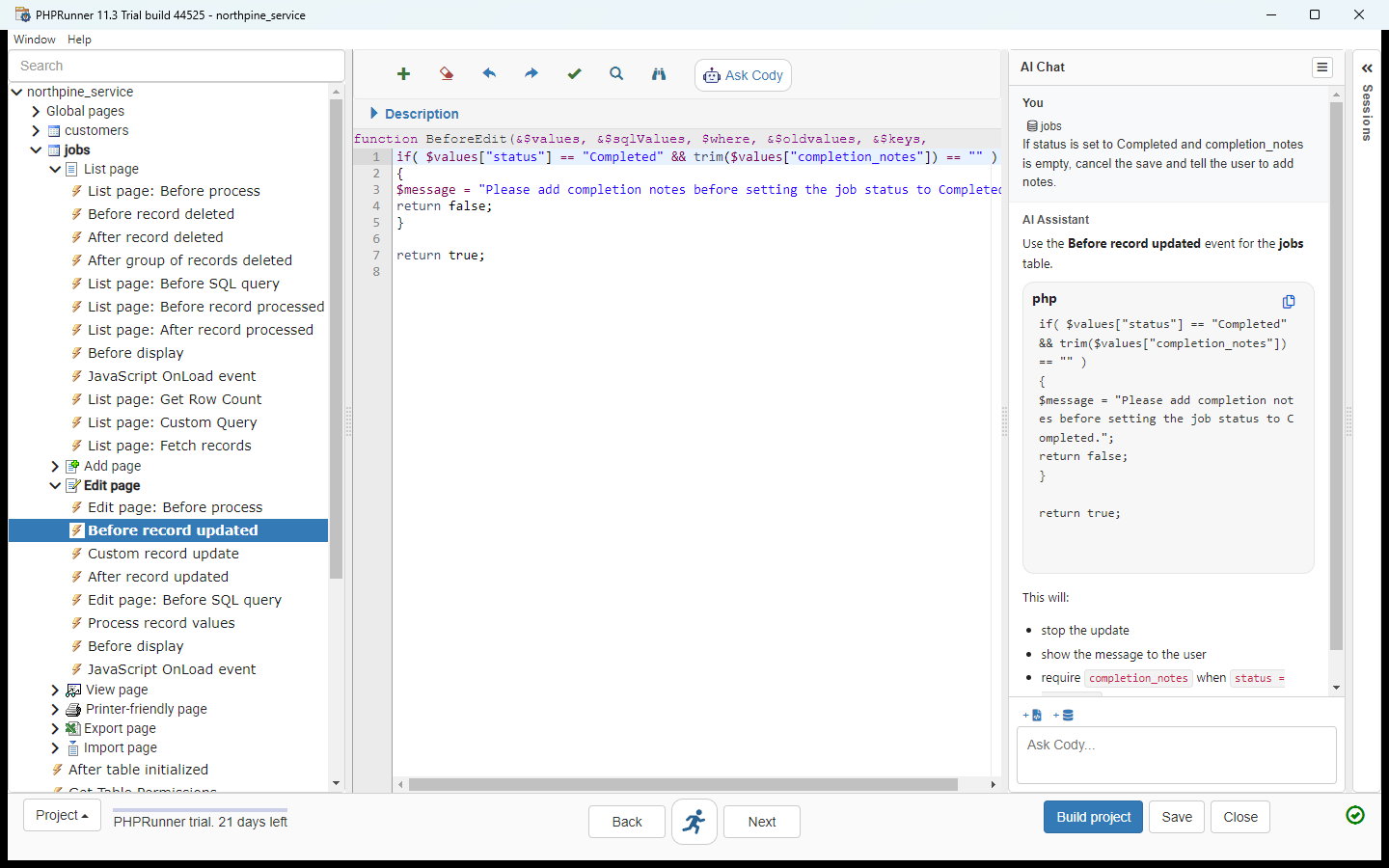
Ask Cody opens an AI Chat panel on the right of the editor, with the jobs table attached automatically. We typed one sentence: if status is set to Completed and completion_notes is empty, cancel the save and tell the user to add notes. Seconds later Cody replied: use the Before record updated event for the jobs table, with seven lines of PHP that compare $values["status"] with Completed, trim $values["completion_notes"], set $message and return false, and otherwise return true. A copy icon on the code block puts it on the clipboard.
The free AI help needed no account, key or credits in the trial. The manual notes daily limits on it, and AI settings let you use your own OpenAI, Claude AI or Gemini key instead. The manual's workflow is the one this lesson follows: open the event, ask, read the suggested code, copy and paste it in, build, and test it in the browser.
What this saves you
- The weekly chase for missing job notes, because the app will not save Completed without them: we proved it in the generated app, where the save came back with the message and nothing was written.
- A team that edits the real data instead of a spreadsheet copy, with list, search, add, edit, view, print, export and import pages generated for them.
- What it does not do: Cody drafts the code, it does not decide whether the rule is right. You read and test every line before it goes live, The Before record updated event also covers inline editing, so the same rule applies there.
How this lesson was built
Captured from the real PHPRunner 11.3 trial, Nov 10, 2026: PHPRunner 11.3 (build 44525) installed from the official download on Windows 11, run at a 1440 by 900 window, with a SQLite database we created for Northpine IT Services (six customers, twelve jobs, three technicians, all made up). Every practice screen and every screenshot on this page is a lossless capture of the desktop app or of the web app it generated, opened in Chrome at the same size, and every step was clicked through in that run. Cody's reply is the one it really gave.
Links
- PHPRunner free trial: the Windows installer this lesson was captured from (PHPRunner 11.3); the trial activates over the internet with no account and runs for 21 days.
- PHPRunner manual: Cody AI assistant: the Ask Cody button, the prompt box, attaching event code or other tables, AI settings (OpenAI, Claude AI or Gemini) and the daily limits on free help.
- PHPRunner manual: Connecting to the database: the supported databases, including MySQL, SQL Server, PostgreSQL, Oracle, Access and SQLite.
- PHPRunner manual: Before record updated: the event's parameters ($values, $oldvalues, $message) and what returning true or false does.
- PHPRunner manual: After you are done: View in browser and the other ways to test and deploy the built app.
Try it yourself, free
Reading the steps is a start. Doing them is how it sticks. The interactive module walks you through every click in a practice copy of PHPRunner, checks each step, and never touches your real accounts.
Start “PHPRunner: Turn Your Jobs Database into a Team App, with Cody Writing One Custom Rule”Step by step: PHPRunner: Turn Your Jobs Database into a Team App, with Cody Writing One Custom Rule
All 30 steps of the interactive module, in order. In the module you watch each one, then do it yourself in a practice copy that checks your work.
1. Start a project on your own database
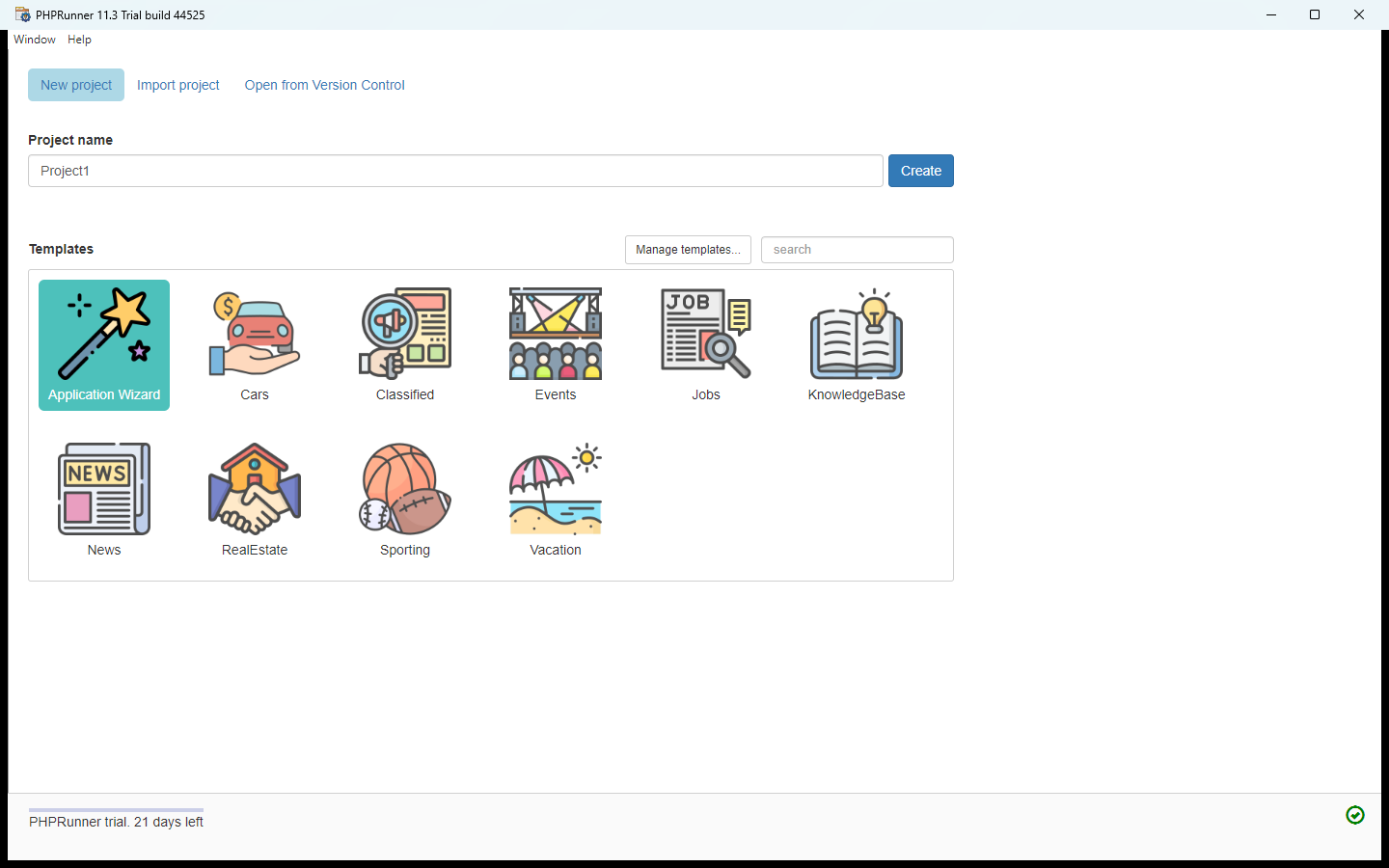
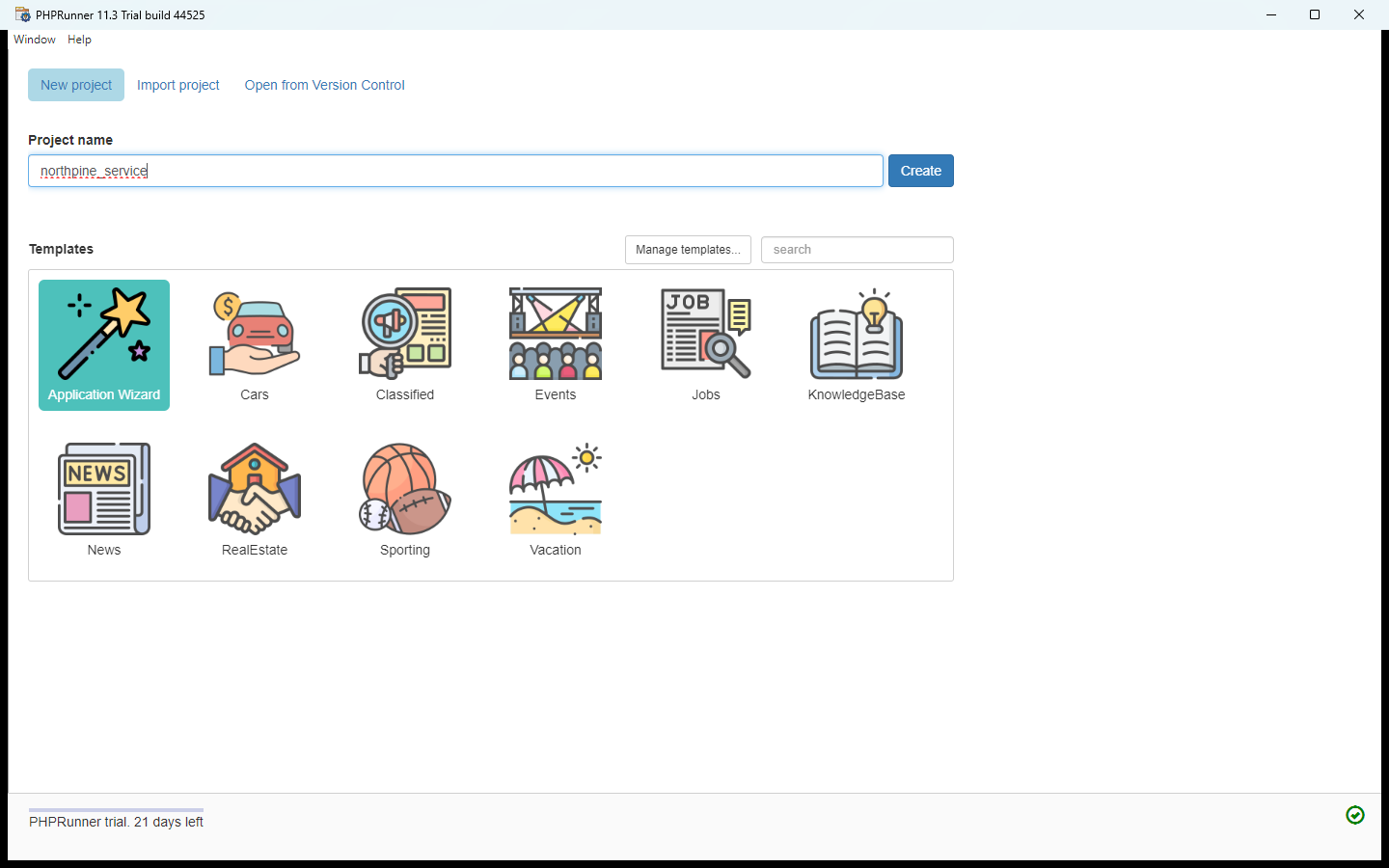
- Name the project. You run operations at Northpine IT Services, a made-up IT support company with 3 technicians. Every visit is already a row in your jobs database, but the team edits a spreadsheet copy. This is PHPRunner, a desktop app for Windows, macOS and Linux (shown here on Windows), on its New project screen. Type the project name northpine_service over Project1.
You run operations at Northpine IT Services. Every visit is already a row in your jobs database, but the team edits a spreadsheet copy. This is PHPRunner, a Windows desktop app.
- Create it. Leave Application Wizard selected under Templates: the other tiles are sample apps. Click Create.
Leave Application Wizard selected.
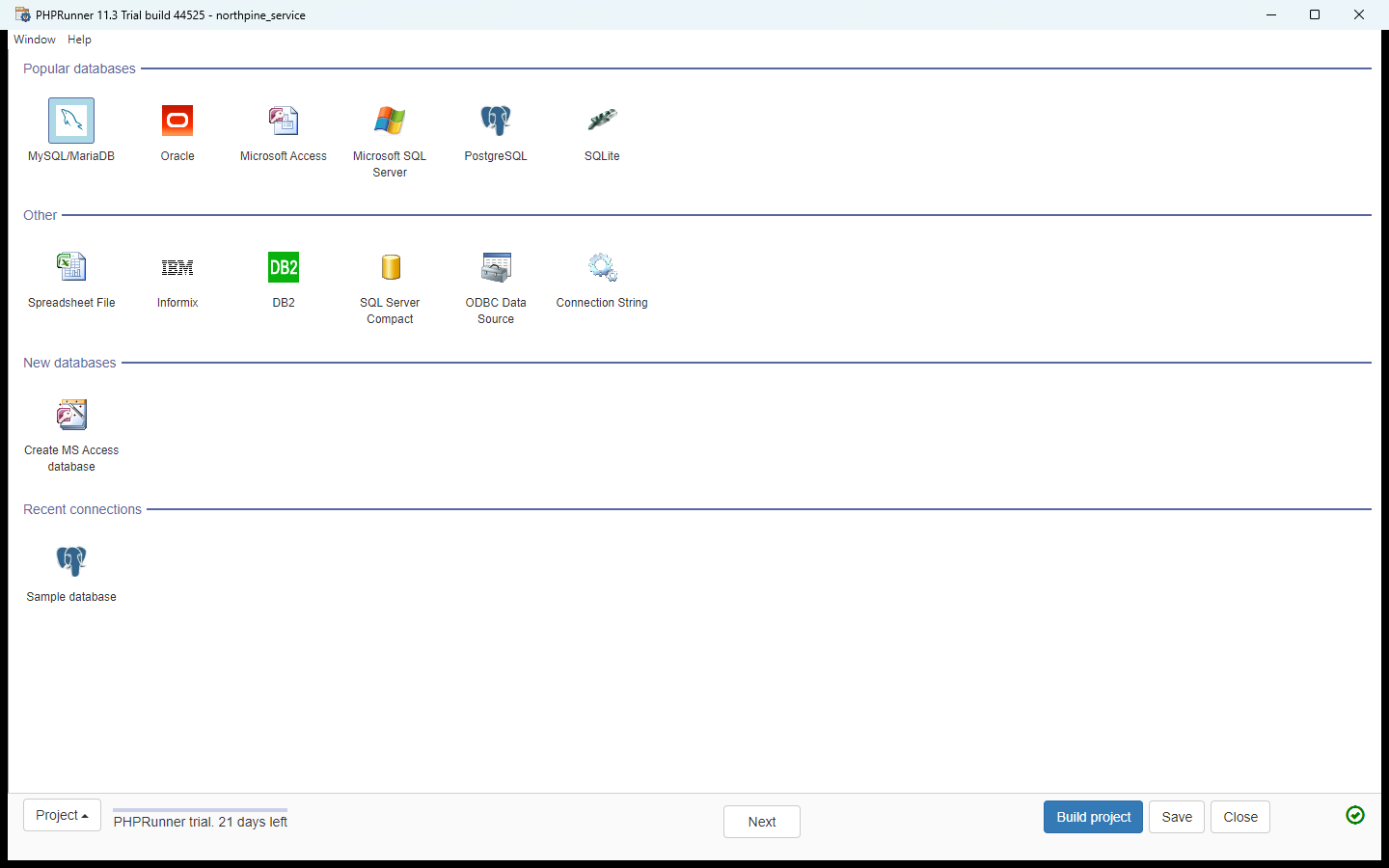
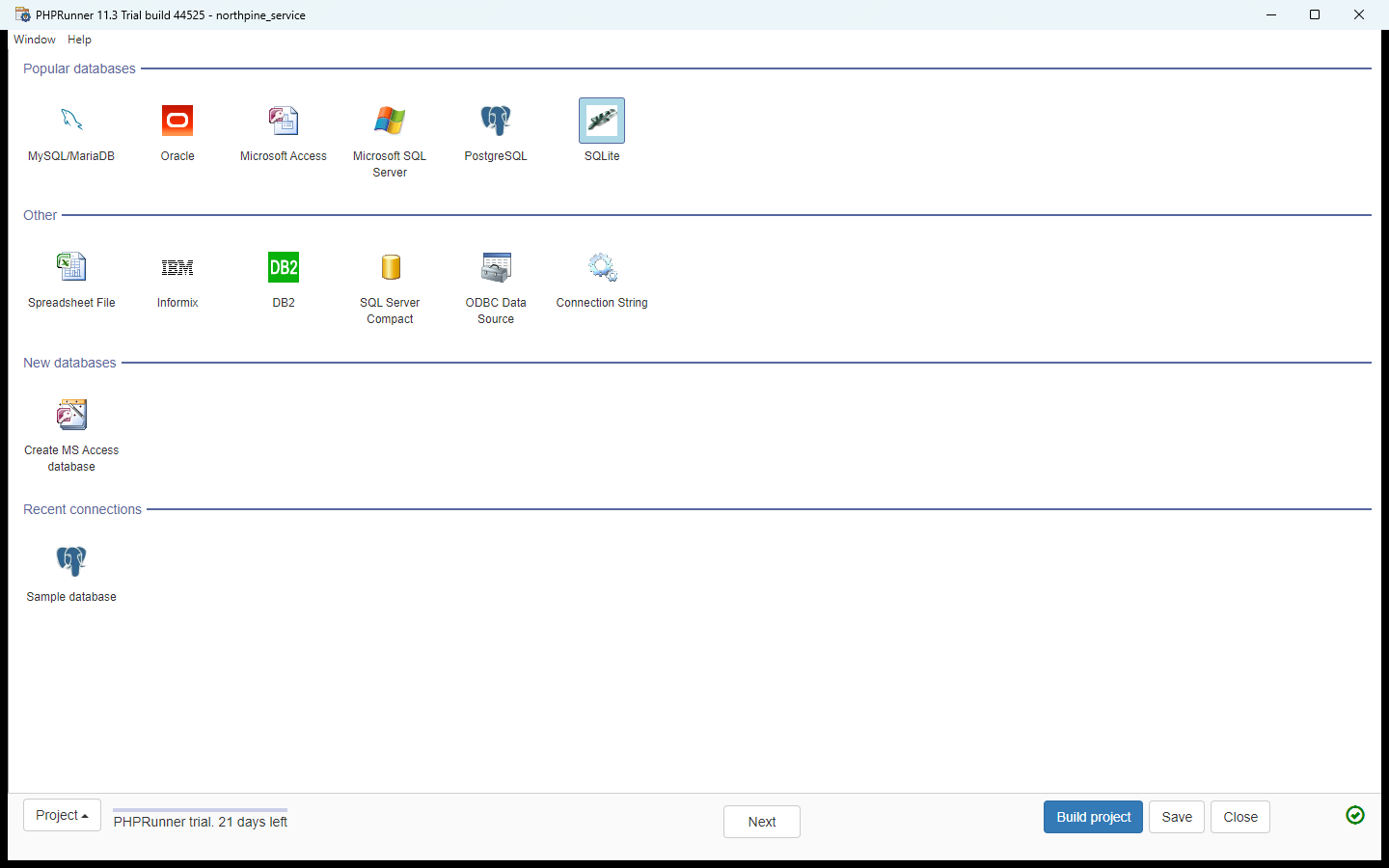
- Pick the database type. PHPRunner asks where the data lives. It connects to MySQL, SQL Server, PostgreSQL, Oracle, Access and more. Northpine keeps its jobs in a SQLite file, so click the SQLite tile.
PHPRunner asks where the data lives. Northpine keeps its jobs in a SQLite file.
- Go on. The tile is highlighted. Click Next at the bottom.
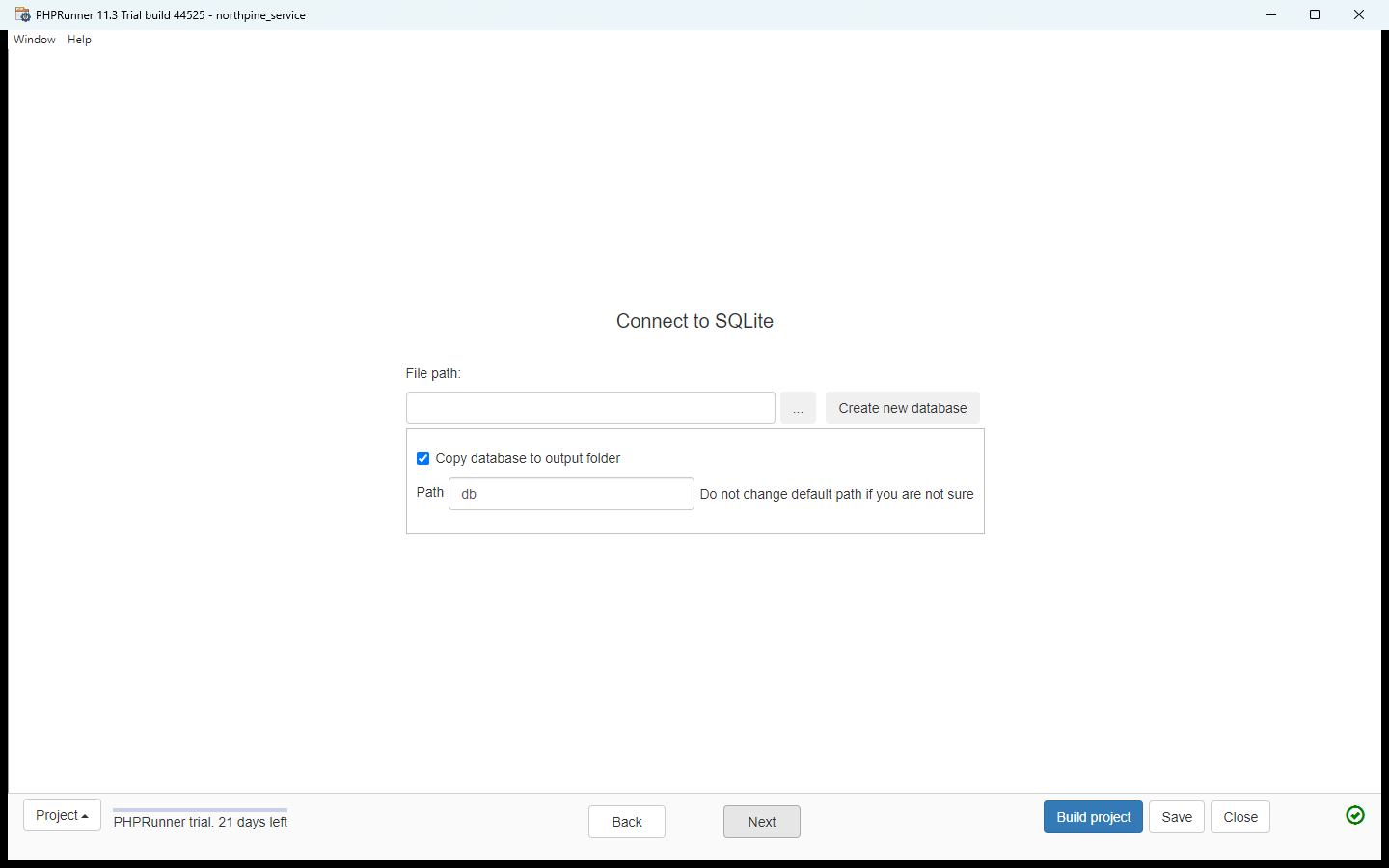
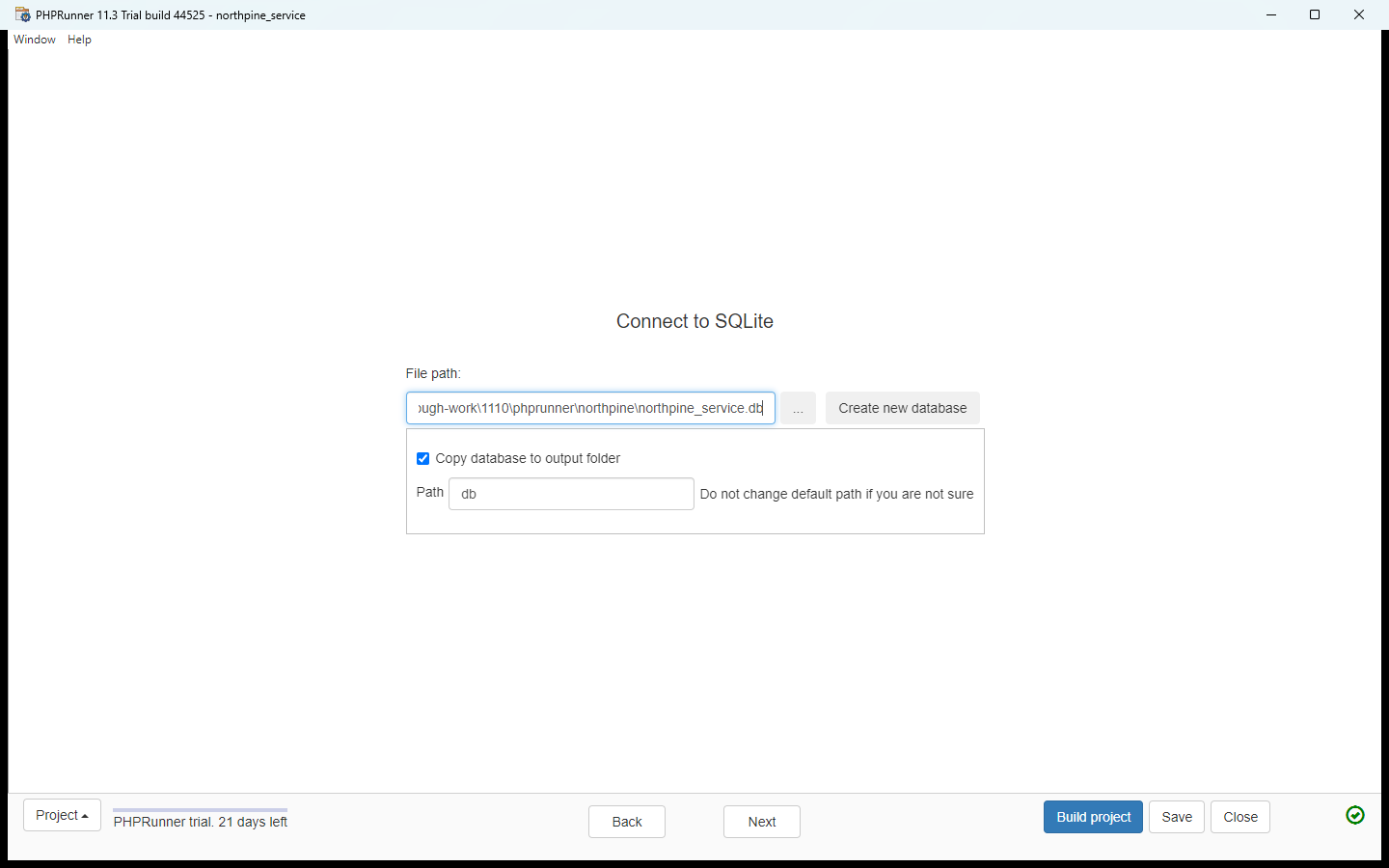
- Point it at the file. Connect to SQLite wants the file path. Type the path to the Northpine database: D:\stepthrough-work\northpine\northpine_service.db. "Copy database to output folder" stays ticked, so the built app ships with a copy of the file.
Connect to SQLite wants the file path.
- Connect. Click Next. PHPRunner opens the file and reads its tables.
PHPRunner reads the tables.
2. Walk the wizard
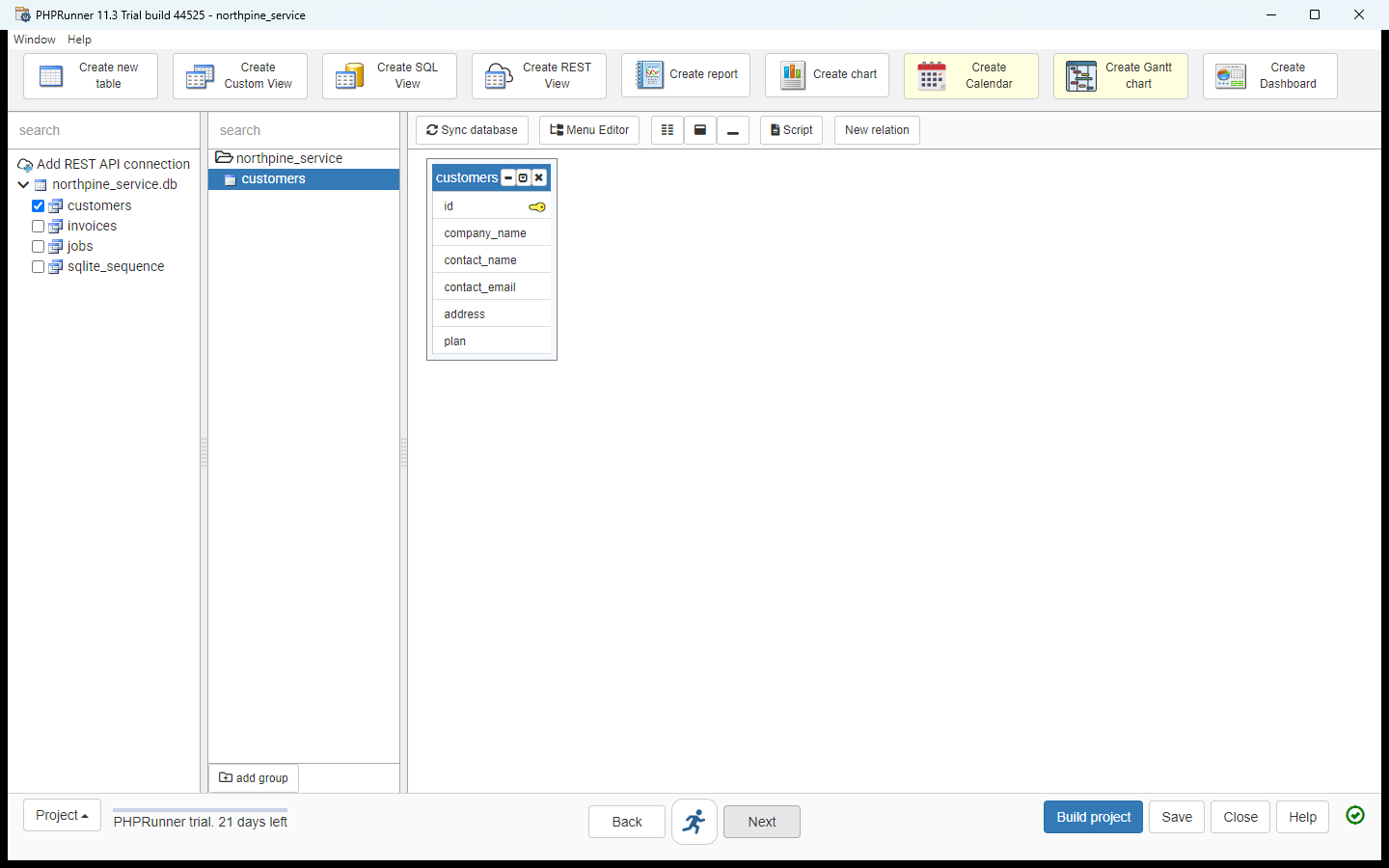
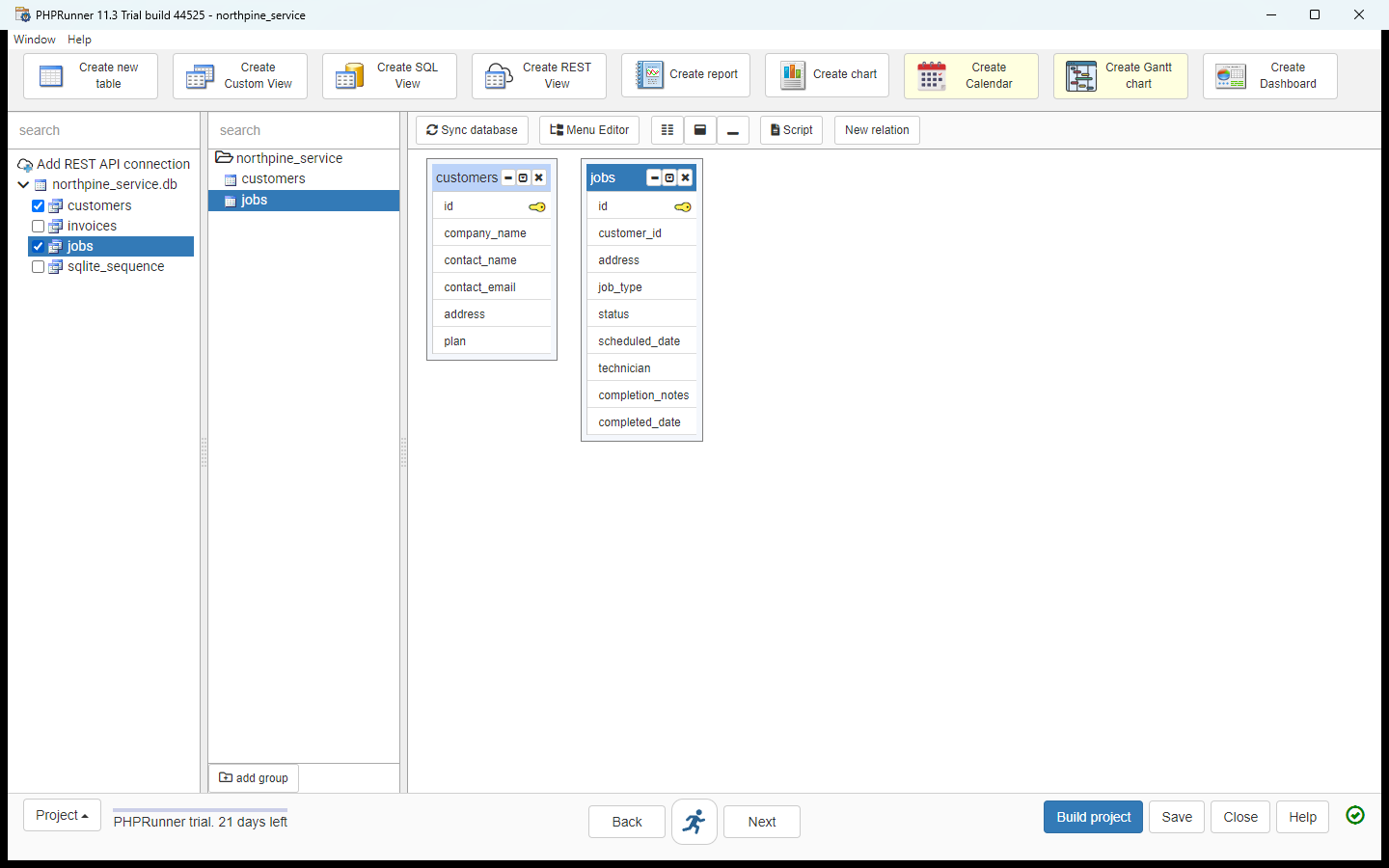
- Choose the tables. The database has customers, invoices, jobs and SQLite's own sqlite_sequence. PHPRunner ticked customers already, and the diagram on the right shows its fields. Tick jobs. Leave invoices and sqlite_sequence out.
The database has customers, invoices and jobs. Customers is ticked already. Tick jobs. Leave the rest out.
- Go to the jobs query. Both tables are ticked and jobs is on the diagram. Click Next.
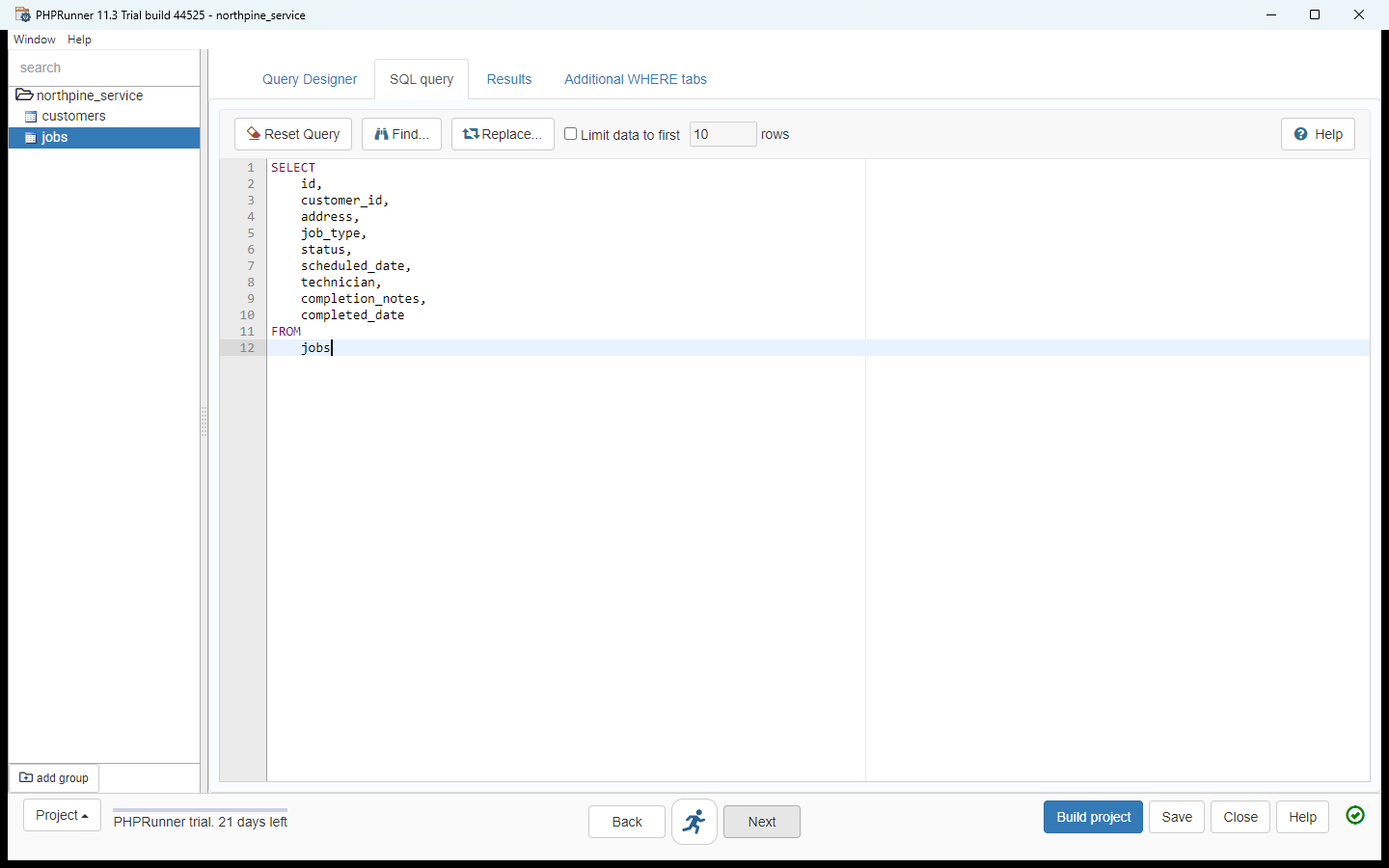
- See the SQL it wrote. For each table PHPRunner writes the SELECT it will use: every column of jobs. You could trim columns or add a WHERE here; Northpine needs them all. Click Next.
For each table PHPRunner writes the select it will use. Northpine needs every column.
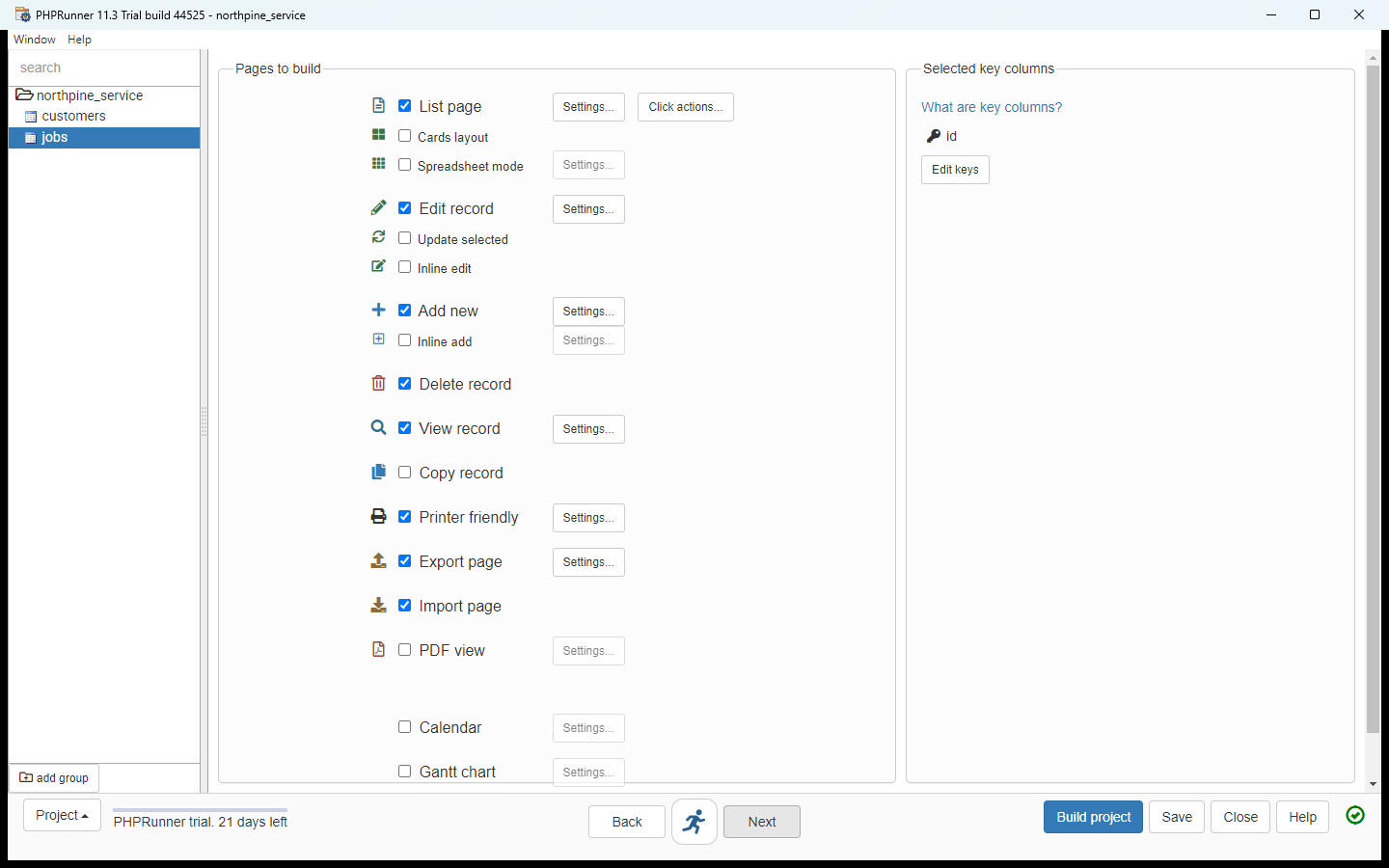
- Pages to build. Pages to build is where the app takes shape: List, Edit record, Add new, Delete, View, Printer friendly, Export and Import are ticked by default, and id is the key column. That is the whole team app. Click Next.
Pages to build. List, Edit, Add, Delete, View, Print, Export and Import are ticked by default.
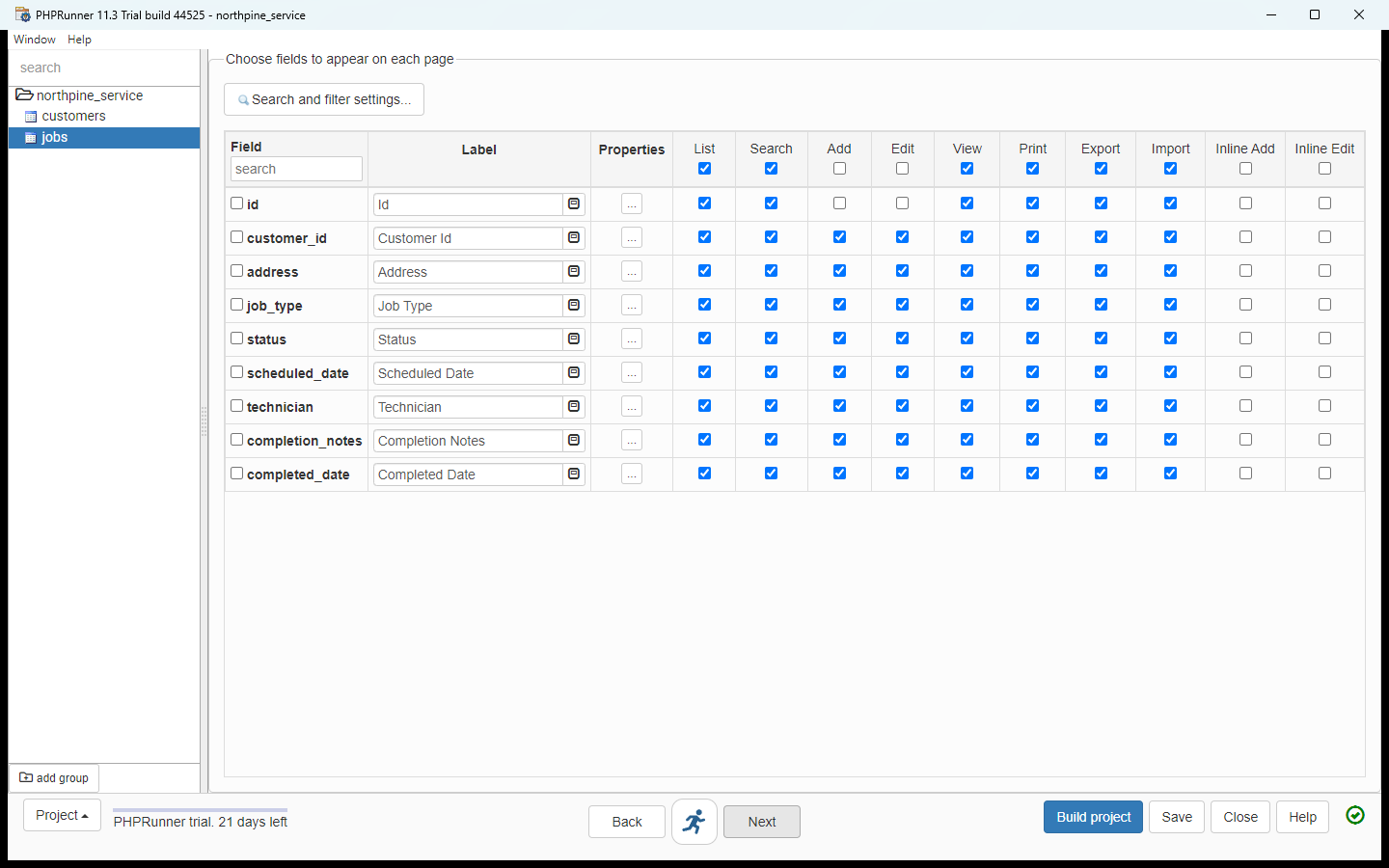
- Fields on each page. Choose fields to appear on each page: one row per column, one tick per page. PHPRunner turned completion_notes into the label Completion Notes and left id off the Add and Edit pages, since the database fills it in. Click Next.
One row per column, one tick per page. PHPRunner left id off the Add and Edit pages.
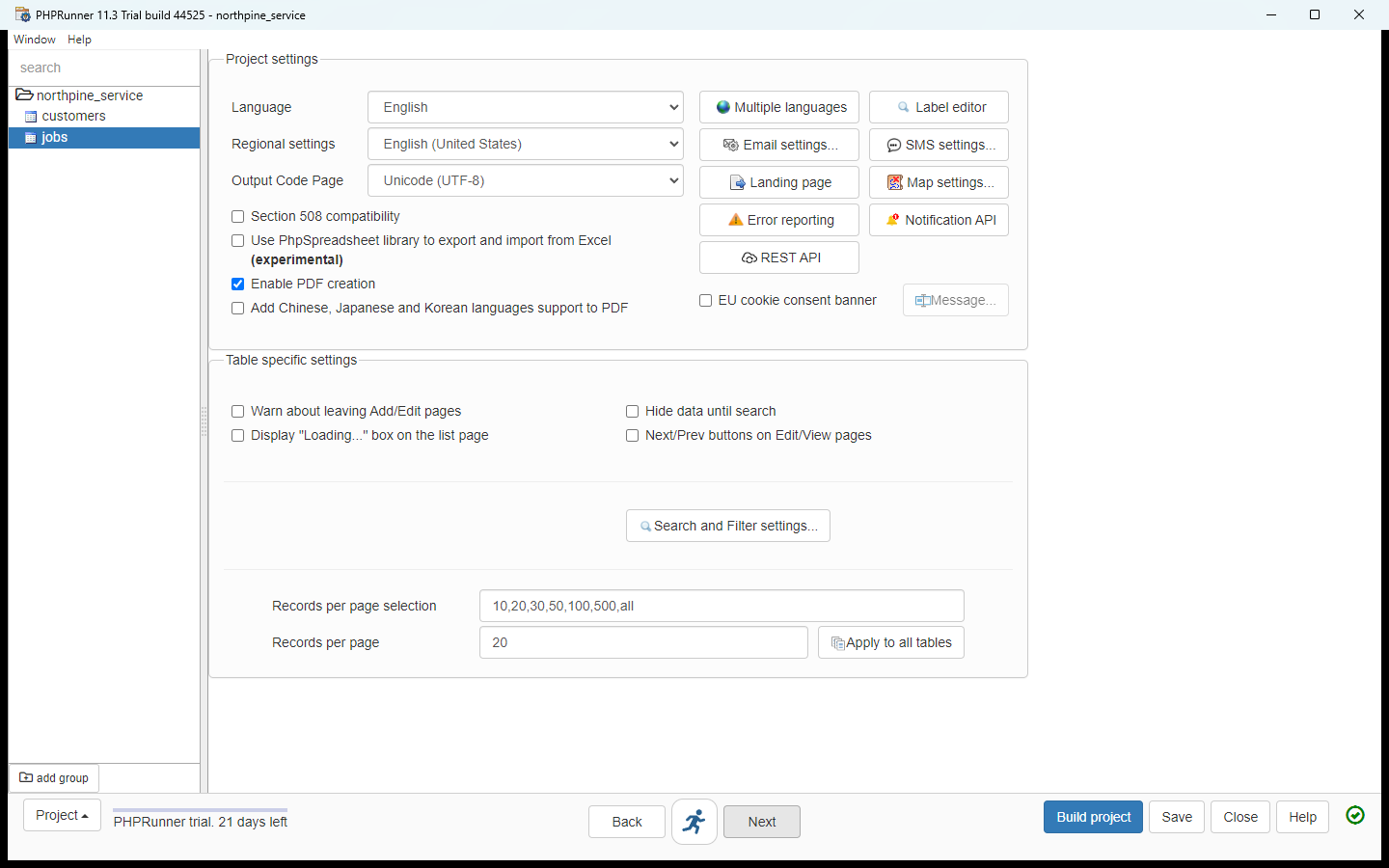
- Project settings. Project settings: the app's language and regional format. English stays. Click Next.
Project settings. English stays.
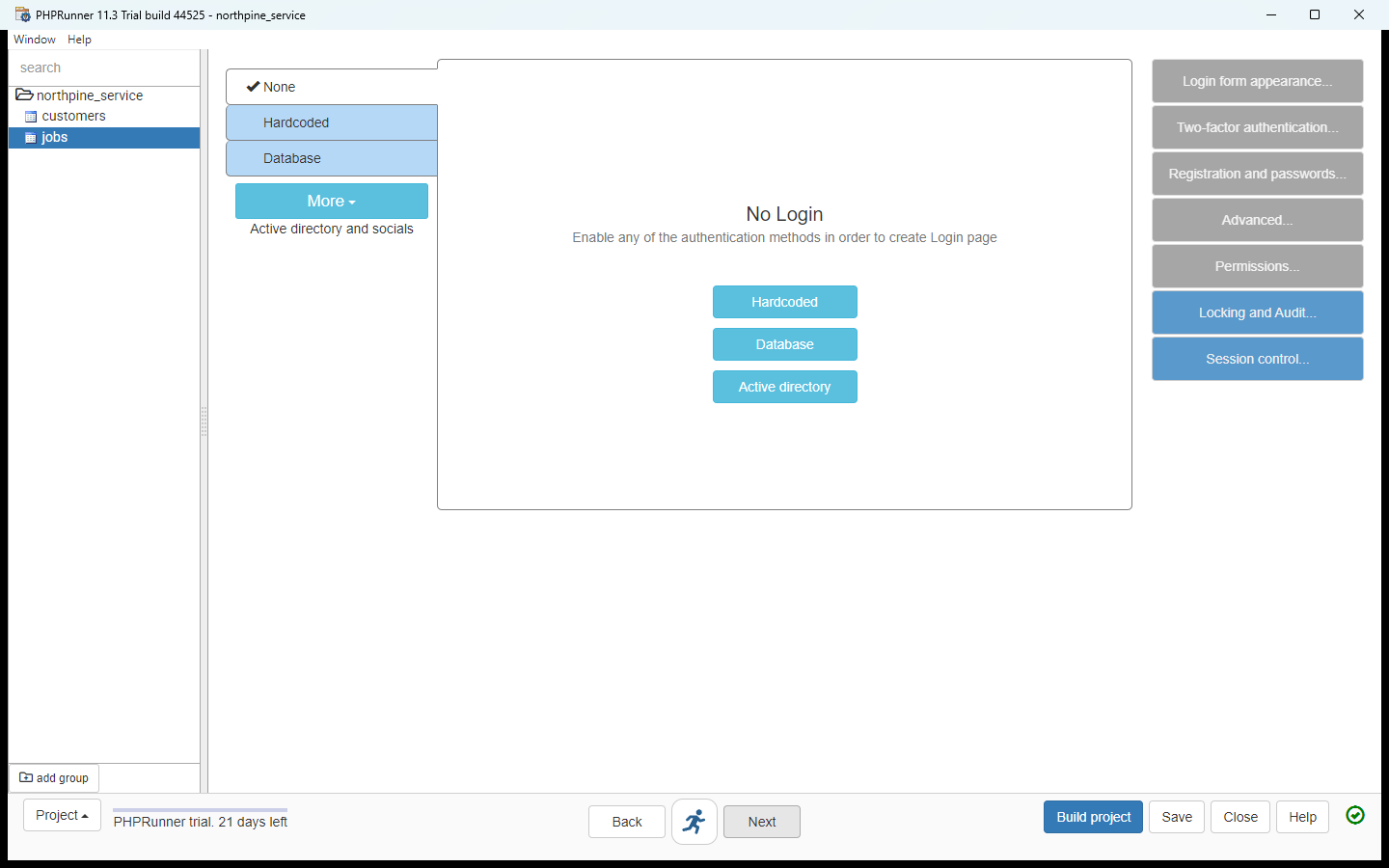
- Security. No Login is selected. For a real rollout you would pick Database here so each technician signs in; for this first build, keep it open. Click Next.
No Login is selected. For a real rollout you would pick Database. For now, click Next.
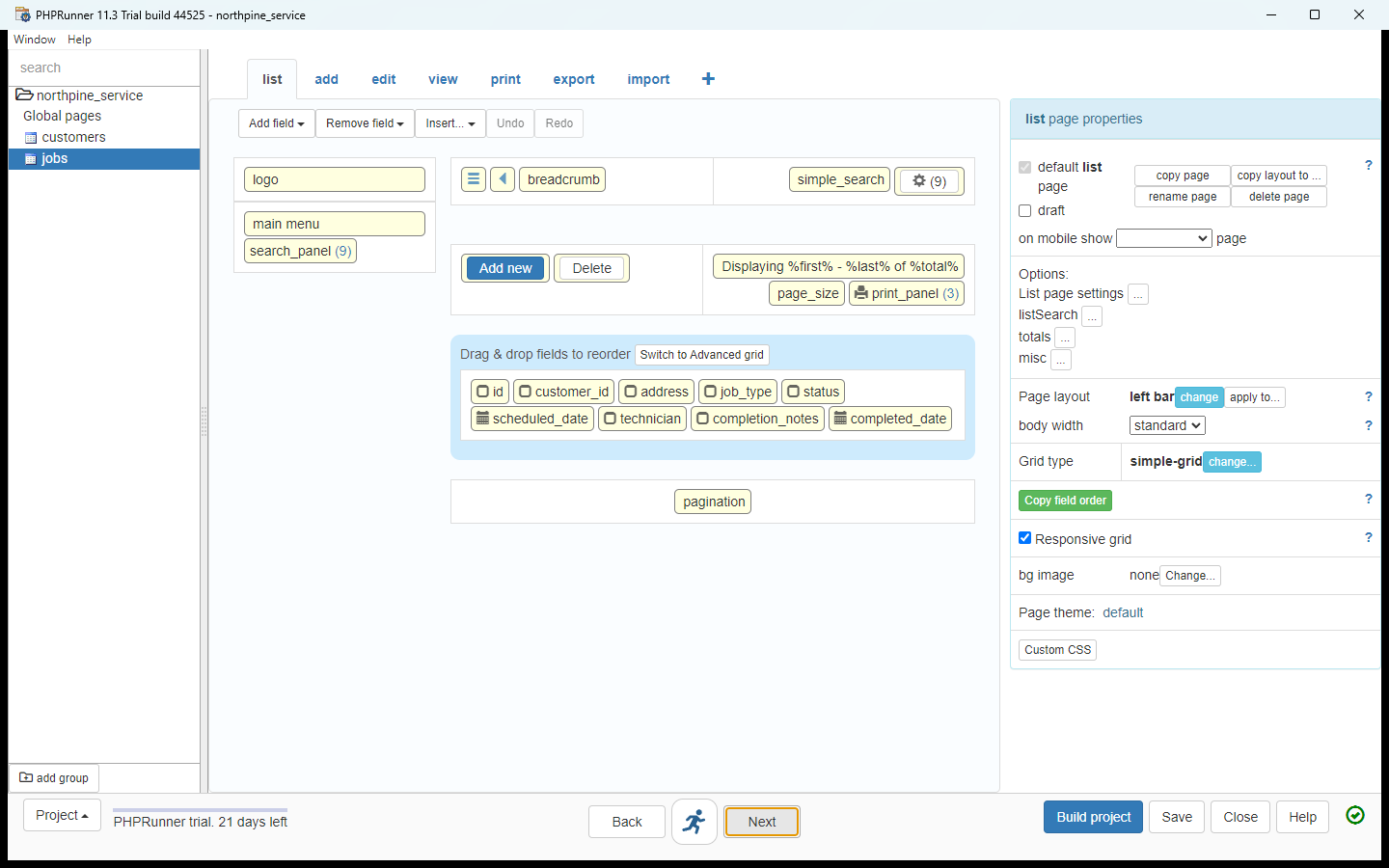
- Page Designer. The Page Designer shows the jobs list page as it will be built: logo, menu, search panel, the grid with every field. Nothing to move today. Click Next.
The Page Designer shows the list page as it will be built.
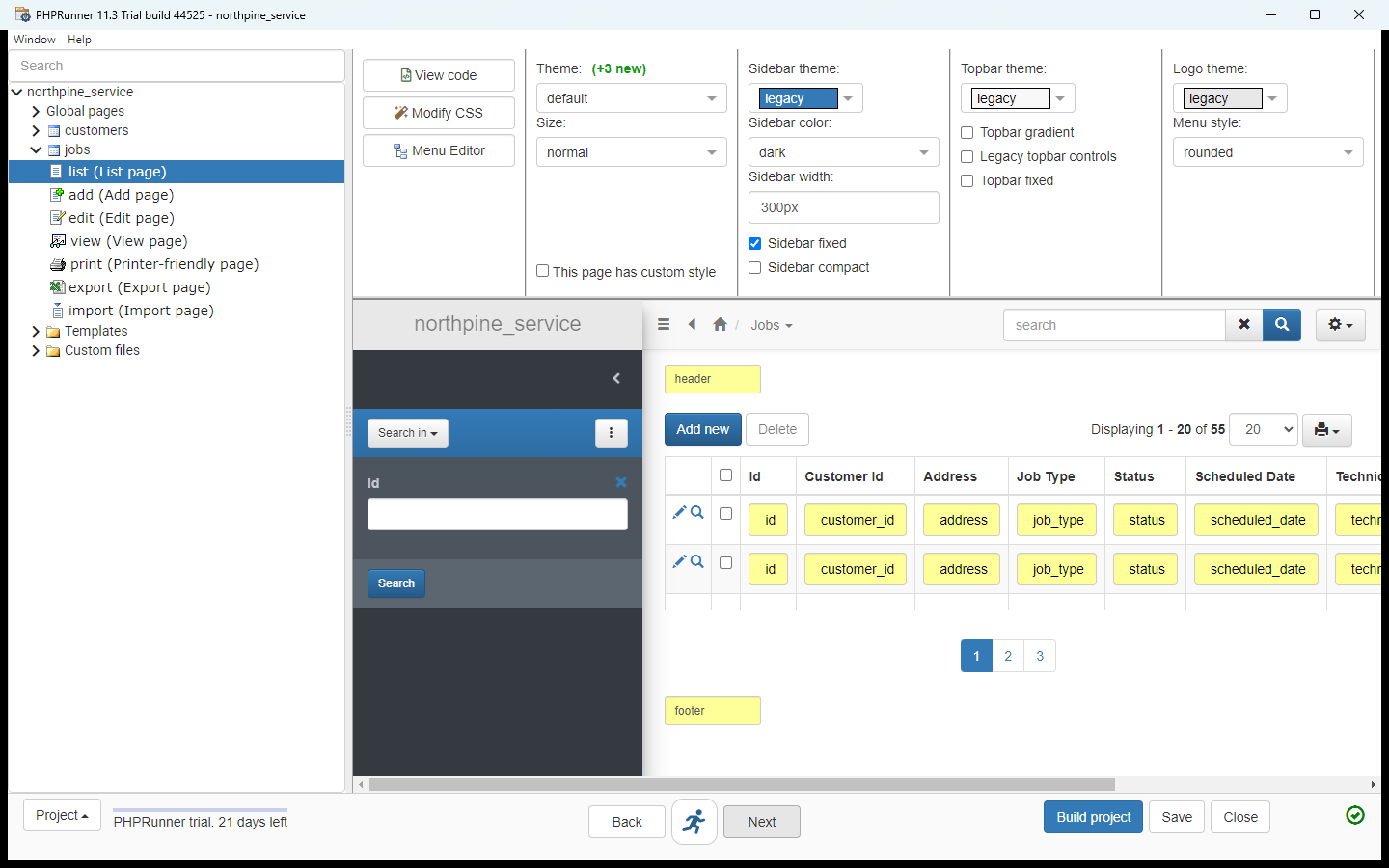
- Style. Style picks the theme and colours. Default is fine. Click Next to reach Events, where the rule lives.
Style. Default is fine.
3. Ask Cody for one rule
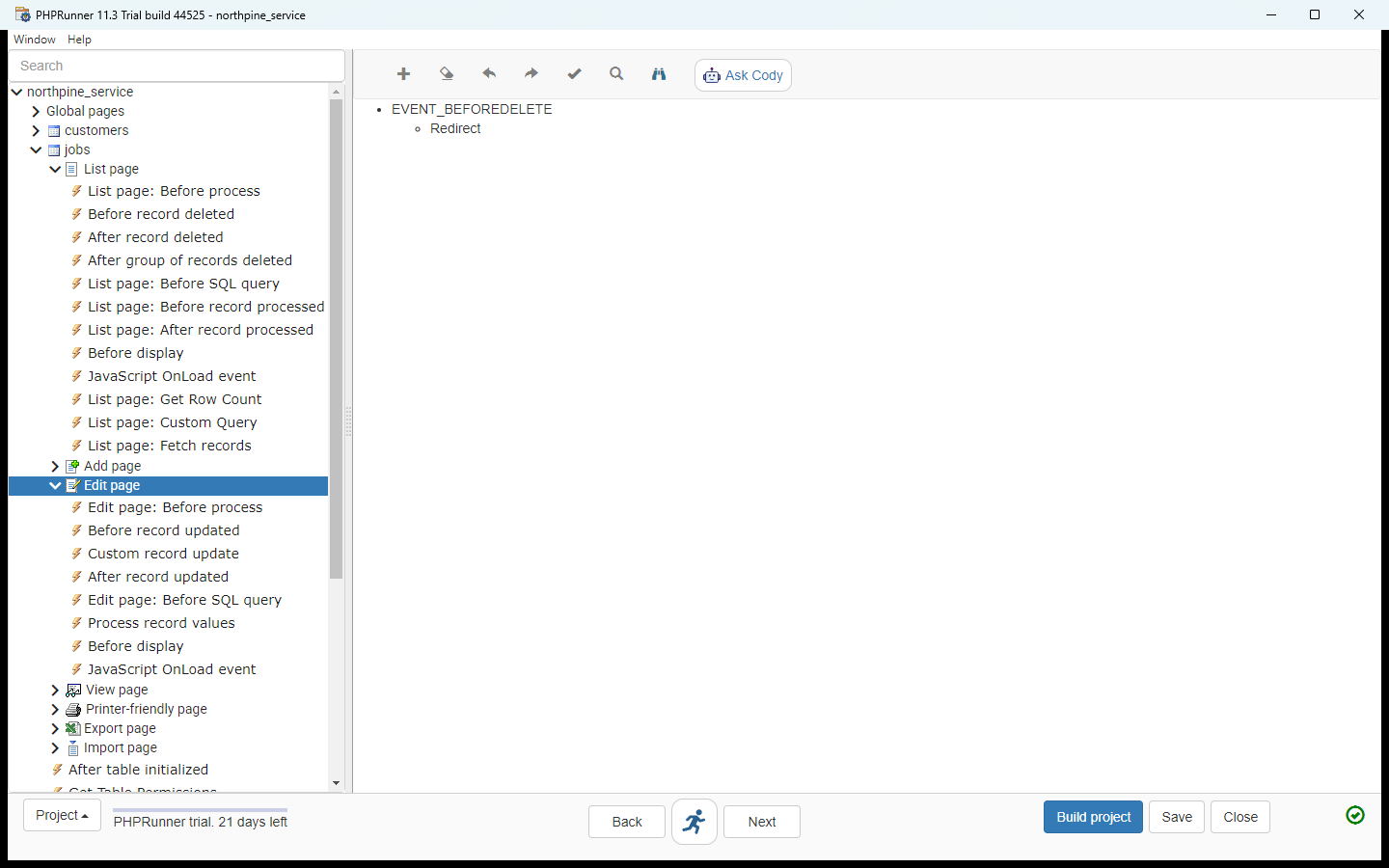
- Open the jobs Edit page events. The Events screen lists every hook in the app, grouped by table and page. Under jobs, click Edit page to expand its events.
The Events screen lists every hook in the app. Under jobs, click Edit page.
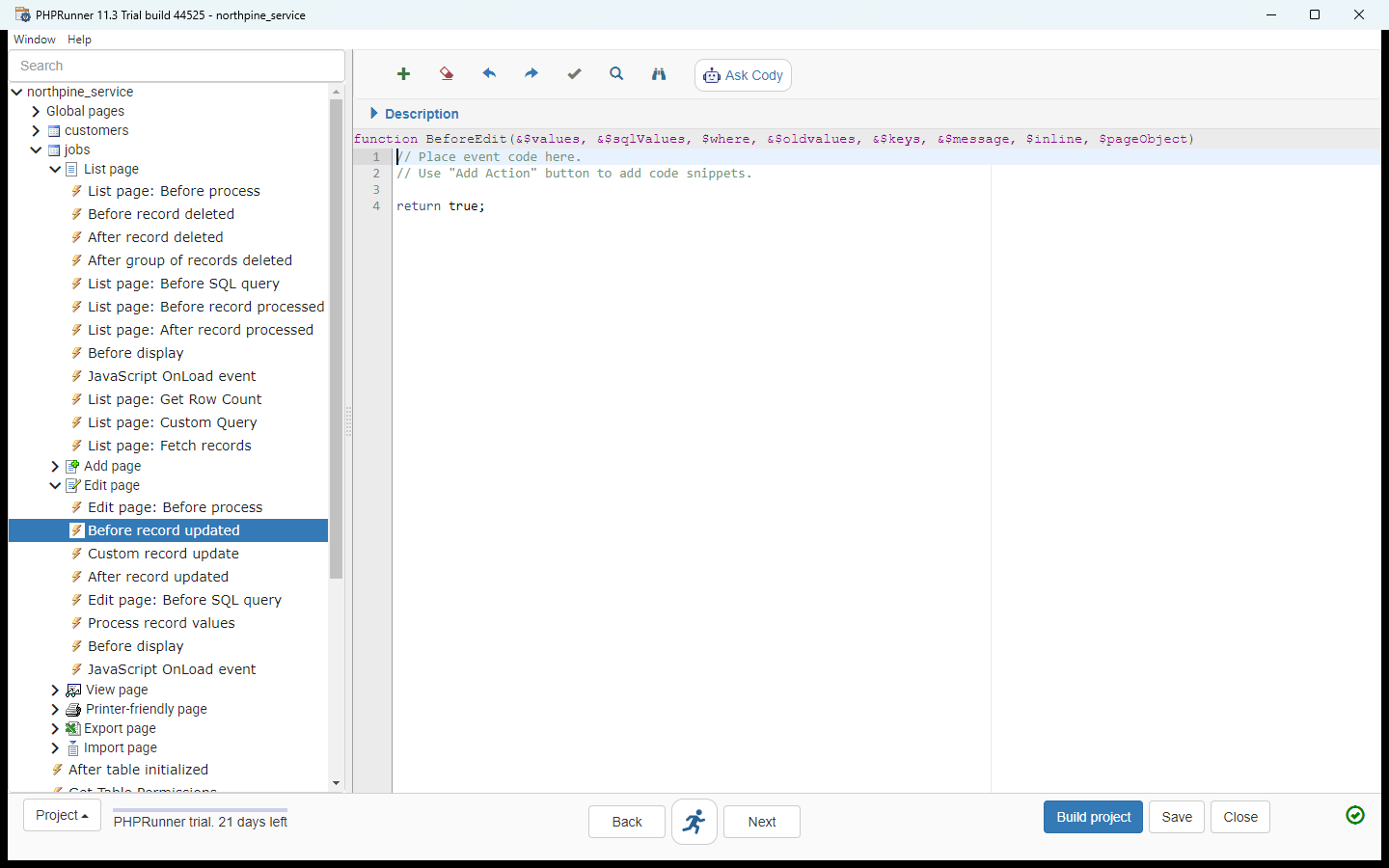
- Pick Before record updated. Eight events for the Edit page. Before record updated runs after someone clicks Save and before the row is written, and returning false cancels the save. Click it.
Before record updated runs after Save and before the row is written. Returning false cancels the save.
- Ask Cody. The editor opens with the event's PHP function and a placeholder that returns true. On the toolbar, click Ask Cody. PHPRunner attaches the jobs table definition for you.
The editor opens with the event function. PHPRunner attaches the jobs table for you.
- Describe the rule in plain words. An AI Chat panel opens on the right. In the Ask Cody box, type the rule and press Enter: If status is set to Completed and completion_notes is empty, cancel the save and tell the user to add notes.
An AI Chat panel opens. If status is set to Completed and completion notes is empty, cancel the save and tell the user to add notes.
- Read it, then copy it. Seconds later Cody answers: use the Before record updated event, with seven lines of PHP. Read them before you touch anything. It checks $values["status"] against "Completed", trims completion_notes, sets $message and returns false; every other save returns true. Field names match the table. Click the copy icon on the code block.
Cody answers with seven lines. Read them first. It checks status, trims completion notes, sets the message and returns false. Every other save returns true.
- Paste it into the event. The icon turns into a tick: the code is on your clipboard. Click into the editor, select the placeholder lines and paste. The function now has Cody's seven lines and nothing else.
The icon turns into a tick.
4. Build it and test it in the browser
- Build the project. Click Build project. PHPRunner generates the PHP files for every page you ticked, with your event inside.
- View in browser. Project built successfully in 5 seconds, into C:\runnerapps\northpine_service. Click View in browser: PHPRunner starts its own local web server and opens the app.
Built in five seconds. PHPRunner starts a local web server and opens the app.
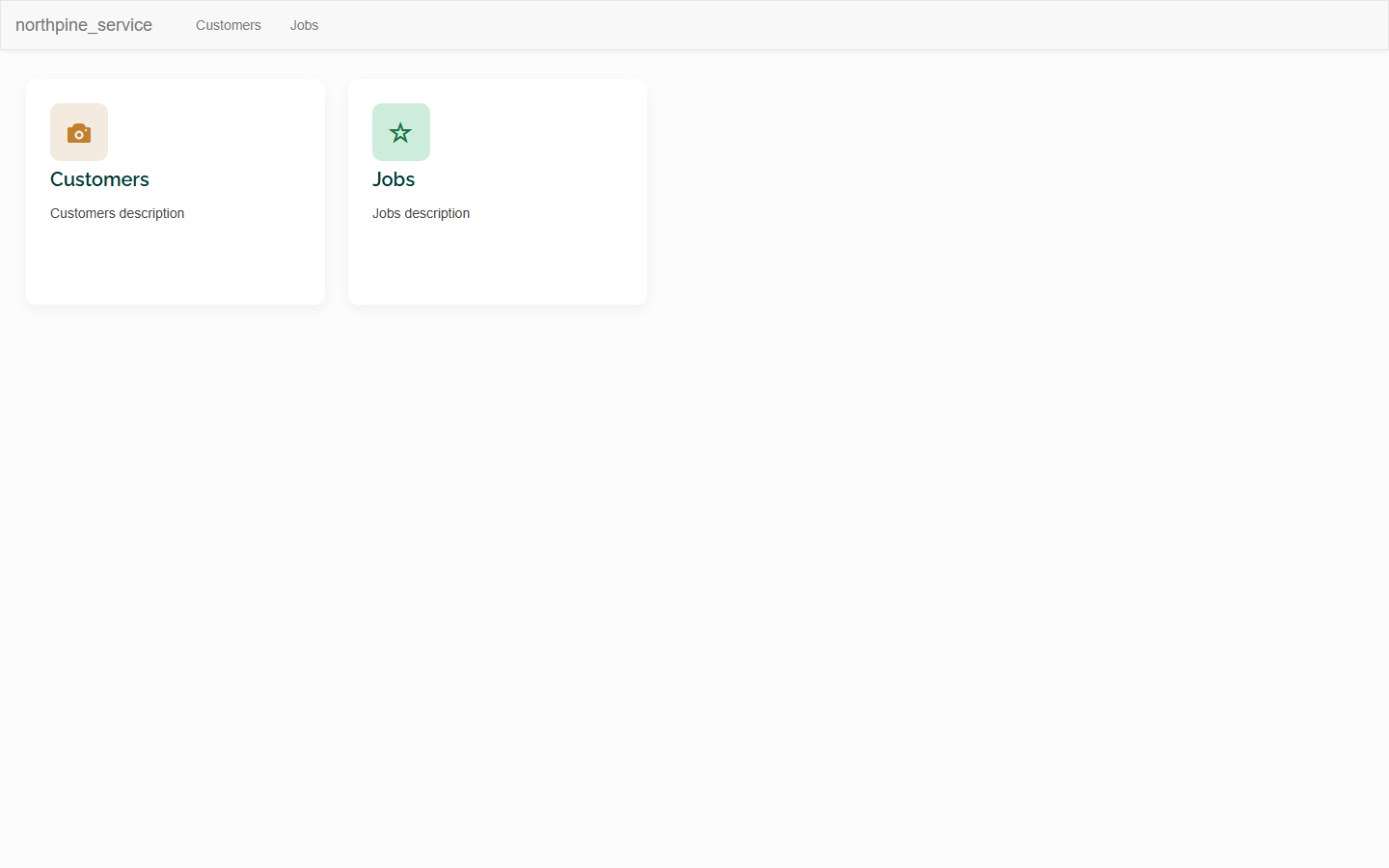
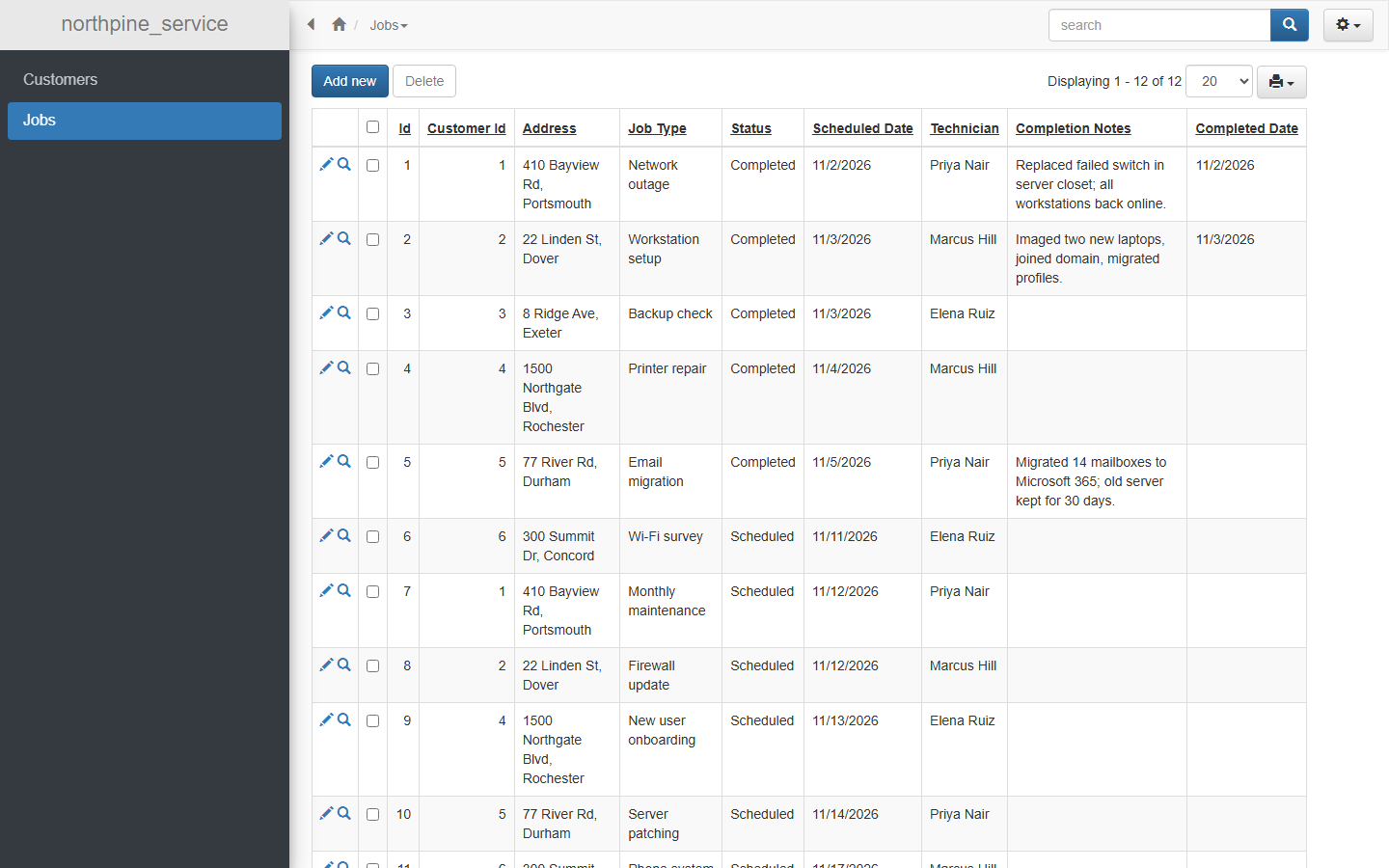
- Open Jobs. This is the generated app, in Chrome: a menu with a card per table. Click Jobs.
This is the generated app, in Chrome.
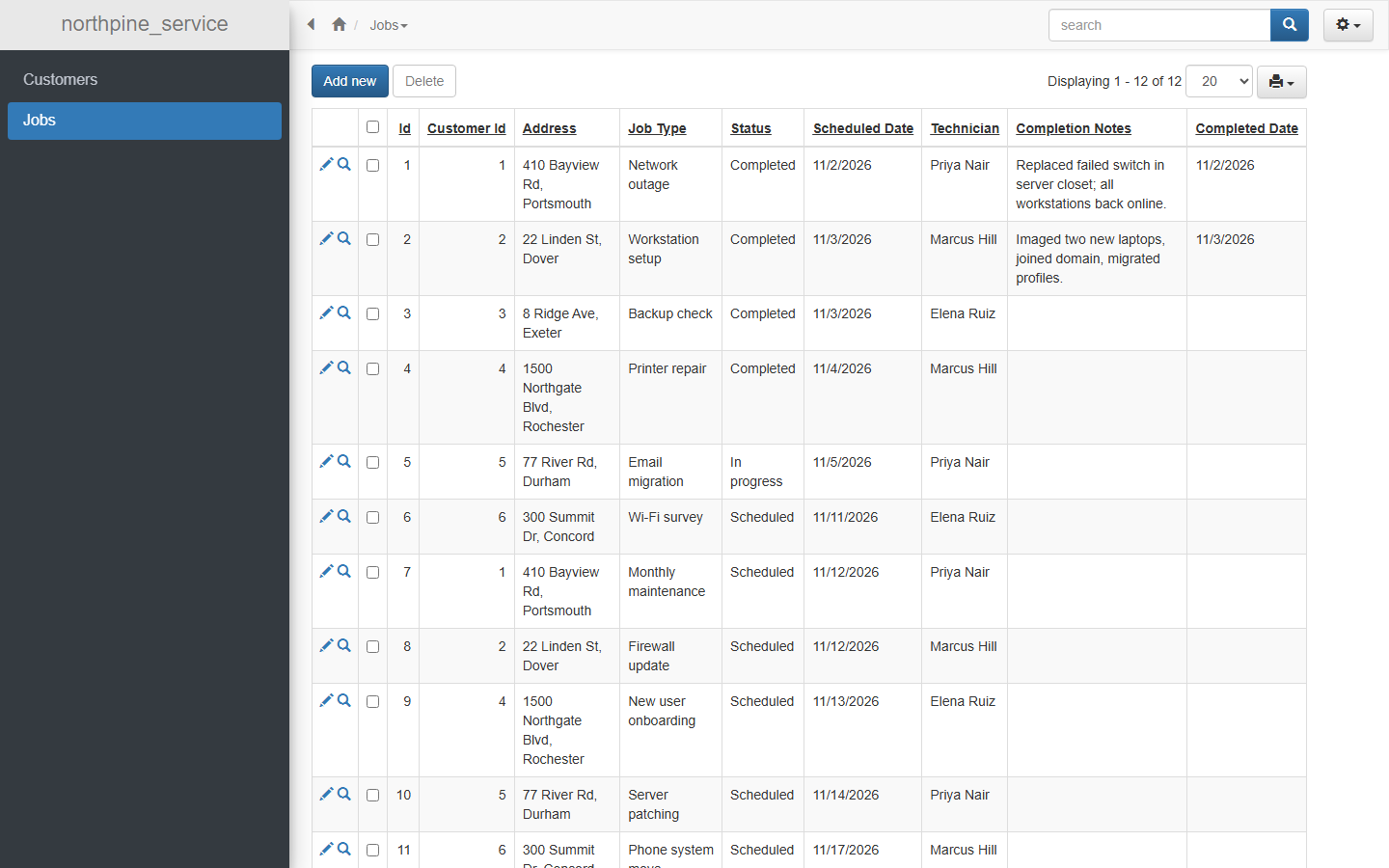
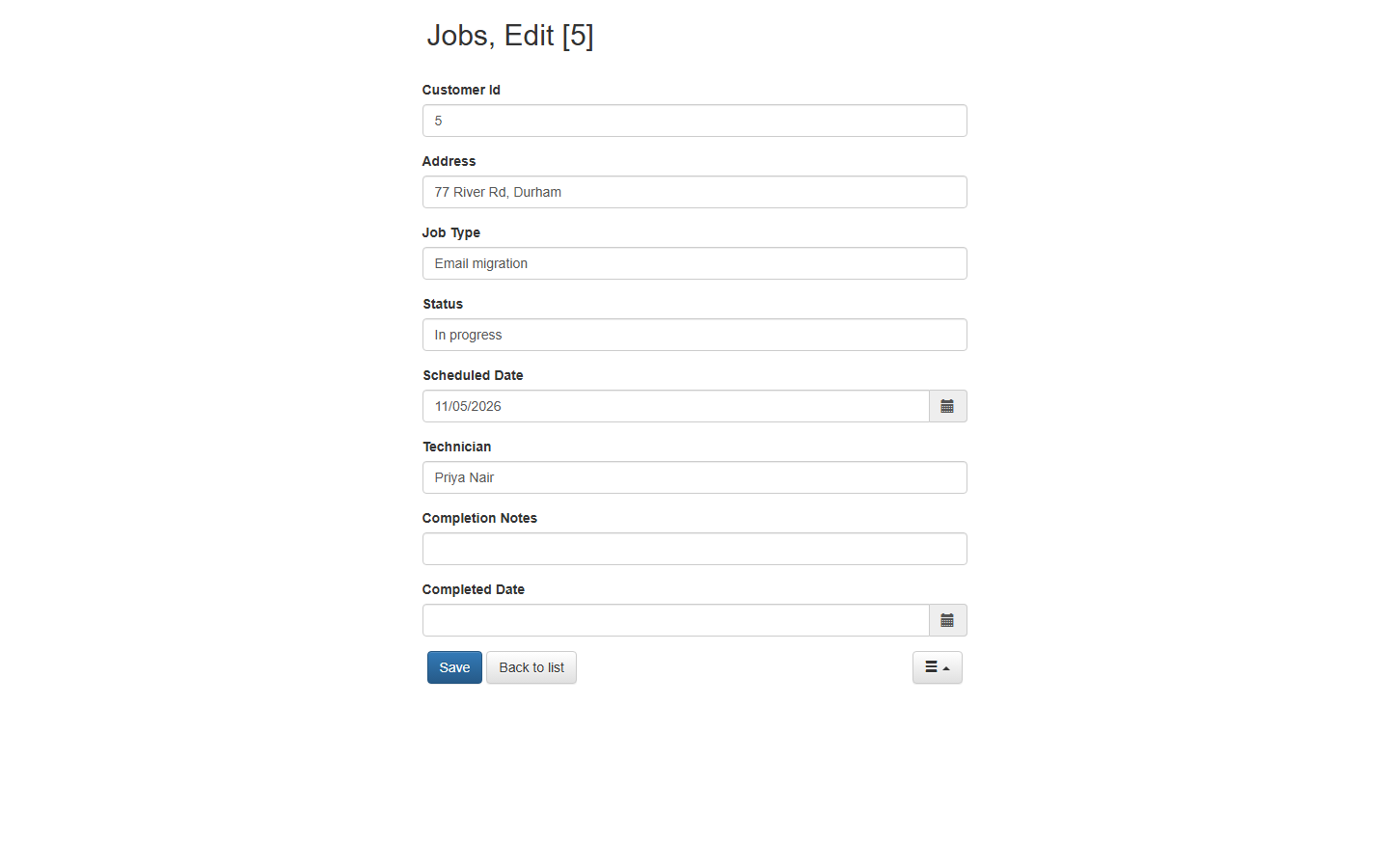
- Edit the email migration job. Twelve jobs from the database, with search, Add new, Delete, export and print already working. Row 5, Email migration for Riverside Veterinary at 77 River Rd, Durham, is In progress. Click its pencil to edit it.
Twelve jobs from the database. Row five, Email migration, is in progress.
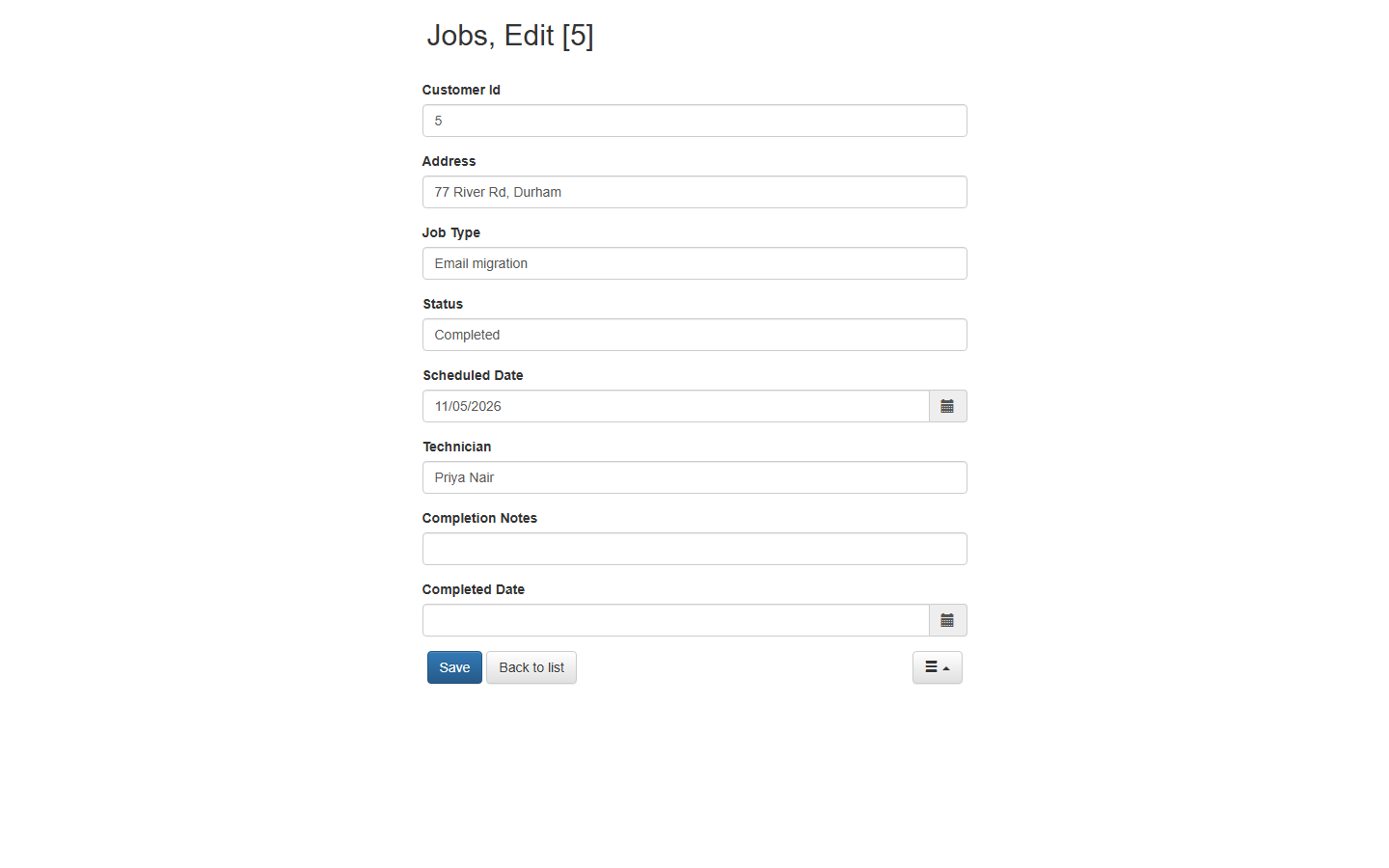
- Mark it Completed with no notes. Do what a technician in a hurry does: in Status, replace In progress with Completed and leave Completion Notes empty.
Do what a technician in a hurry does. Set Status to Completed, and leave the notes empty.
- Try to save. Click Save.
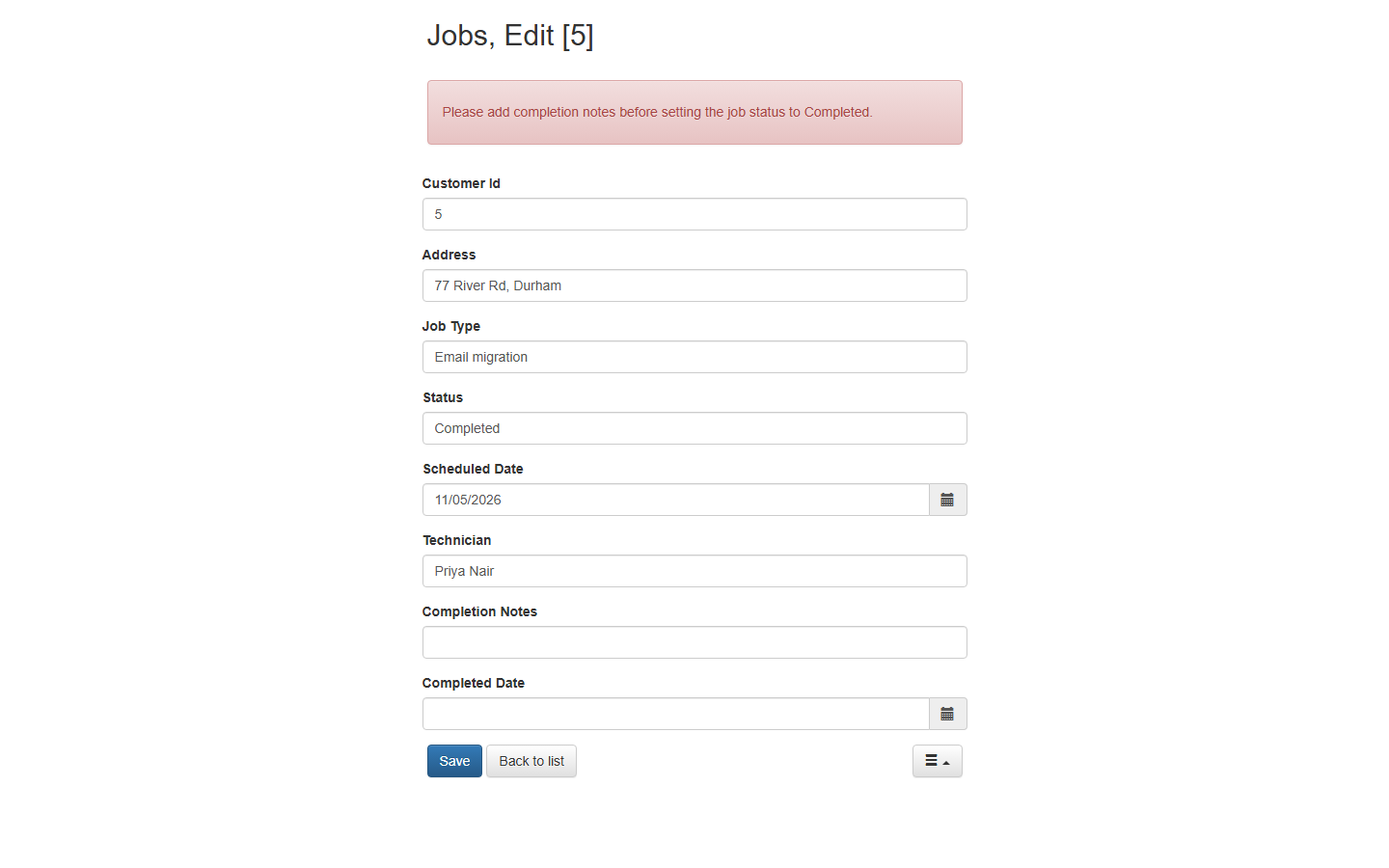
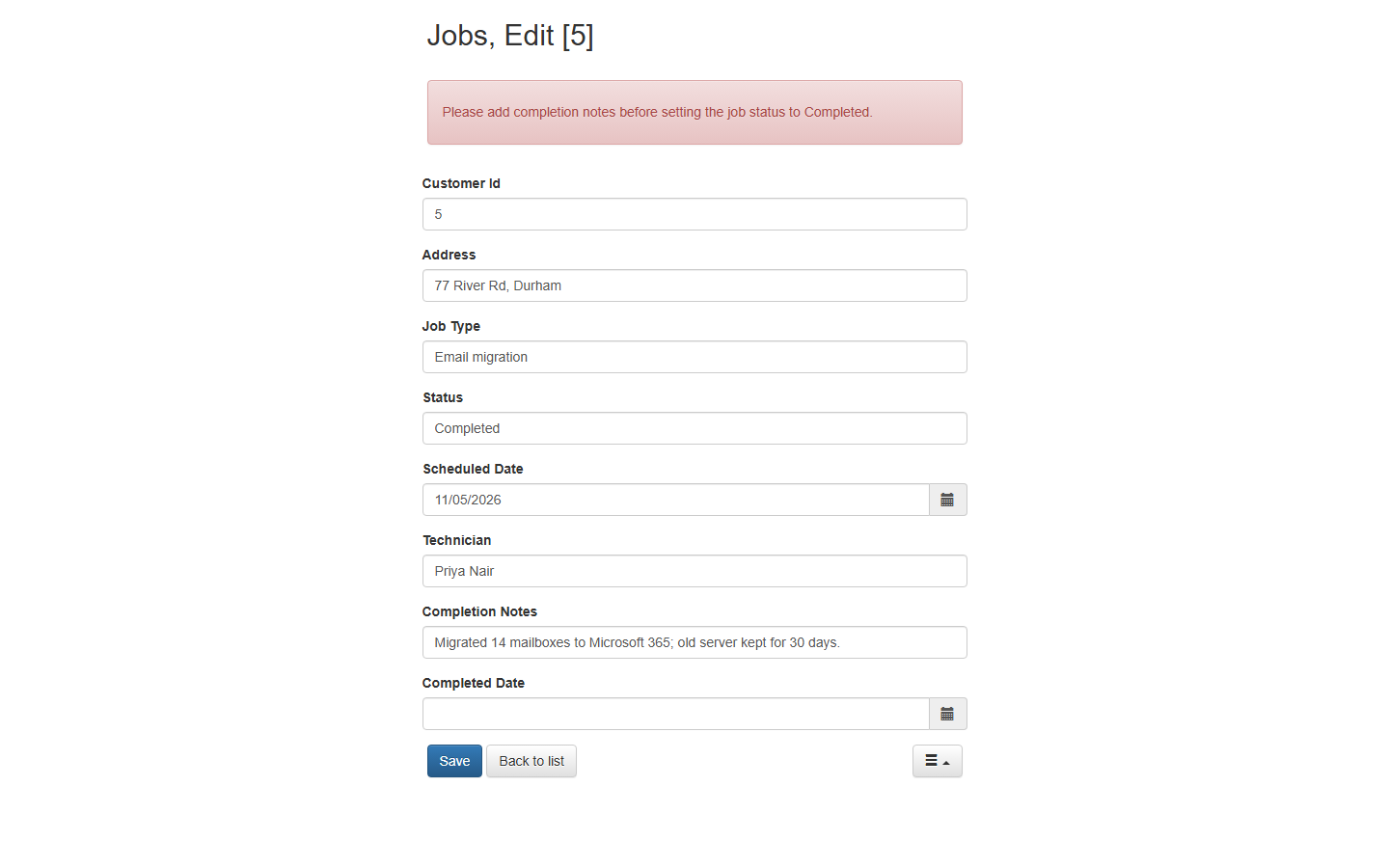
- The rule holds. The page comes back with the message from the event: Please add completion notes before setting the job status to Completed. Nothing was written. Now type the notes: Migrated 14 mailboxes to Microsoft 365; old server kept for 30 days.
The page comes back with the message from the event, and nothing was written.
- Save again. Click Save.
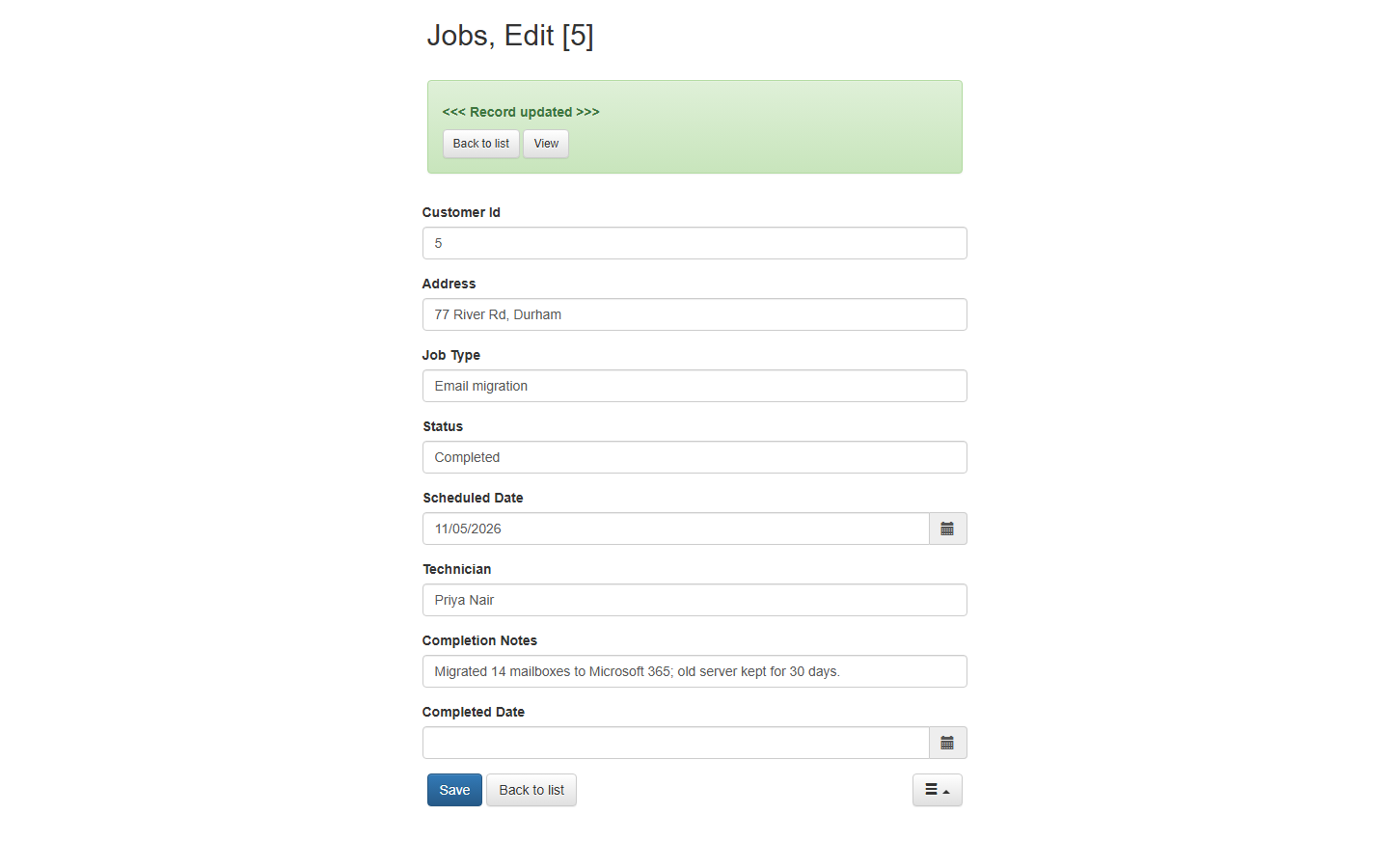
- Check the list. Record updated. Click Back to list.
Record updated.
Screenshots
Frequently asked questions
- Is PHPRunner a web app or a desktop app?
- A desktop application for Windows, macOS and Linux (this walkthrough uses the Windows version). You install it from xlinesoft.com, build the project in its wizard, and it generates a PHP web app that runs on a web server. View in browser starts a local server on your PC so you can test the generated app straight away; for your team you then upload the files to your own host.
- What is Cody in PHPRunner?
- Cody is the AI assistant in PHPRunner's Event Editor. You click Ask Cody, describe what the event should do in plain words, and Cody suggests code with a copy icon. In our trial run it worked with no account, key or credits; AI settings let you use OpenAI, Claude AI or Gemini with your own API key, and the free help has daily limits.
- Can PHPRunner build an app on a database I already have?
- Yes. On the datasource screen you click the tile for your database type (MySQL/MariaDB, Microsoft SQL Server, PostgreSQL, Oracle, Microsoft Access, SQLite, DB2, Informix, ODBC or a spreadsheet file), enter the server details or file path, click Next and tick the tables you want pages for. PHPRunner generates the pages for those tables.
- How do I stop a record being saved in PHPRunner unless a field is filled in?
- Use the table's Before record updated event under the Edit page (and Before record added under the Add page for new records). Check the field in $values, set $message to explain the problem and return false to cancel the save; return true to let it through. The manual's Before record updated page lists the parameters.
- Was this lesson tested in PHPRunner?
- Yes. It was built by installing the PHPRunner 11.3 trial, creating the project on a sample SQLite database, asking Cody for the rule, building the project and testing the rule in the generated app. Every screen in the practice copy is a capture from that run, taken on 10 November 2026.
More in AI Automation for Operations
 Build an AI Maintenance and IT Request Form
Build an internal maintenance and IT request form in Lovable for Ridgeline Supply Co. and connect it to n8n — the AI agent sets the priority, assigns a team, saves the…
Free · Live ~15 min Advanced
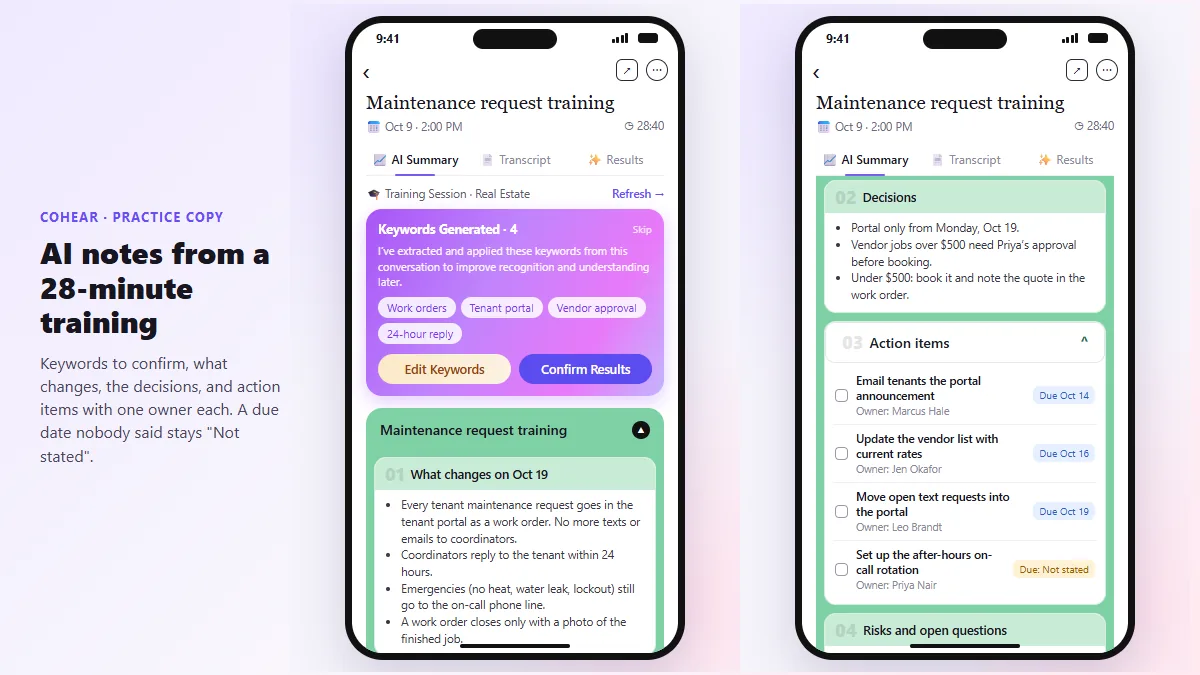 CoHear: AI Meeting Notes from a Team Training Session
Record a team training session on your iPhone with CoHear, check the AI notes and action items against the transcript, make a one-page handout and share it behind a…
Free · Live ~8 min Intermediate
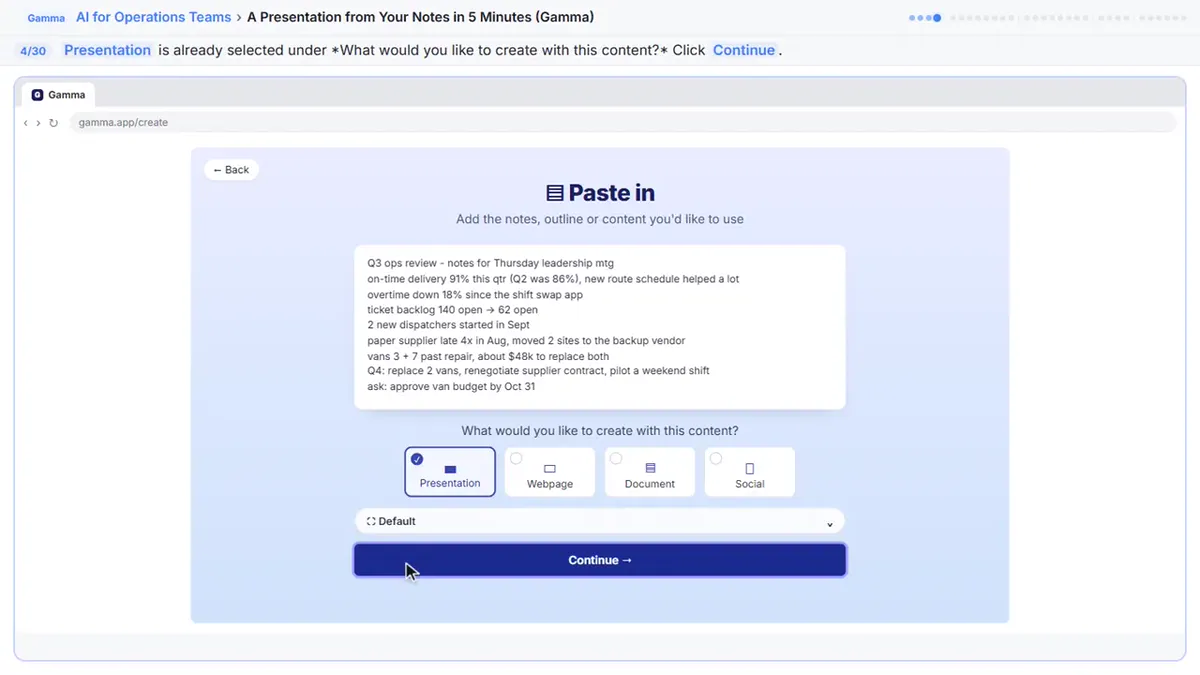 How to Use Gamma to Create a PowerPoint Presentation from Notes
Paste rough meeting notes into Gamma, pick a theme, fix one slide by chatting with its AI, and export the deck to PowerPoint and PDF.
Free · Live ~9 min Intermediate
◷Airia for Beginners: What an AI Agent Is Made OfA five-minute map of Airia before you build: the four parts of an agent (model and instructions, data sources, Playground, Publish), three office jobs that suit one…
Free · Live ~5 min Beginner
◷How to Use Foxit: Workspace, AI Assistant and PDF Editor for BeginnersA five-minute map of Foxit before you use it: Foxit Workspace, the PDF AI Assistant and PDF Editor, which one fits a contract review, a revised contract, a flat form or…
Free · Live ~5 min Beginner
◷AI Contract Review in 10 Minutes using Foxit AISkimmed contracts hide auto-renewals, late fees and liability caps. Upload one to Foxit Workspace, get a plain-English summary and every renewal and exit date, check…
Free · Live ~10 min Beginner
All 36 modules in AI Automation for Operations
Terms in this lesson
Plain-English definitions, each with an example from a free lesson.