Updated . Built against the tool’s current screens and checked step by step. How we check this lesson
A webinar gets watched once, and cutting clips by hand takes hours. Turn one recording into captioned vertical Shorts in Klap, review them, plan a week of posts, and see how n8n can automate the handoff.
At a glance
| Question | Answer |
|---|---|
| What you build | A webinar gets watched once, and cutting clips by hand takes hours. Turn one recording into captioned vertical Shorts in Klap, review them, plan a week of posts, and see how n8n can automate the handoff. |
| Tools | Klap |
| Time | About 14 minutes, 31 steps in 8 parts |
| Level | Intermediate |
| Cost | Free |
| Ways to learn it | Practice it step by step |
The 8 parts, in short
- The webinar nobody rewatches: Price the clips, Let Klap find the moments.
- Give Klap the recording: Paste the recording link, Click Generate.
- Tell it what to clip: Check the settings, Open Moments, Ask for key takeaways, Generate the shorts.
- Read the scores: Let it run, Read the score, Open the editor.
- Review before it goes out: Open Captions, Read every line, Fix what it misheard, Download the clip, and 1 more step.
- A week of Shorts: Choose your five, Plan the week.
- Automate it with n8n: The API is billed separately, Pick your n8n route, See the workflow, Open the workflow menu, and 7 more steps.
- What it saves: See what you have now, Your turn.
Start here first: Build an n8n AI Agent That Plans Your Content Calendar (module 1 of AI Automation for Marketing)
Part of: AI for Marketing Teams (step 44 of 45)
Part of: AI Apps Worth Knowing (step 129 of 132)
What you'll build
Dana Ortiz (made up) runs marketing at a small benefits brokerage. Her monthly webinar is watched once and then forgotten, because cutting clips by hand takes three hours. In this lesson you clip a real video in Klap, read the scores, fix a caption it got wrong, and plan a week of Shorts. Then you import the n8n workflow that runs the handoff, add your Klap key and send it a recording, so five clips land in your review sheet.
You pasted a link, asked for key takeaways, read the scores as predictions, fixed a caption Klap misheard, and exported a clip. You also planned five posts, then imported the n8n workflow, added your key and sent it a recording, so the same review sheet fills itself. The API is billed separately. Nothing posted, because you stayed in charge of that.
- Tools: Klap
- Time: about 14 minutes, 31 steps in 8 chapters
- Level: intermediate
- Price: free
Practice first, then build it for real
Practice copy built from real Klap screens (captured 30 October 2026) and the lesson's n8n workflow. Nothing here touches your account or uses your clips. The video is my own training video. Brightwell Benefits, Dana Ortiz and the cost example are made up. This is my own lesson, not an official Klap course. To build it for real you need your own Klap account, and some services charge once you use them for real work, so check each tool's current pricing.
Try it yourself, free
Reading the steps is a start. Doing them is how it sticks. The interactive module walks you through every click in a practice copy of Klap, checks each step, and never touches your real accounts.
Start “Klap + n8n: Turn a Webinar into a Week of Shorts for Marketing”Step by step: Klap + n8n: Turn a Webinar into a Week of Shorts for Marketing
All 31 steps of the interactive module, in order. In the module you watch each one, then do it yourself in a practice copy that checks your work.
1. The webinar nobody rewatches
- Price the clips. Dana Ortiz (made up) runs marketing at a small benefits brokerage. Her monthly webinar is watched once, then sits in a folder. Cutting clips by hand takes about 3 hours. Click the last row.
Dana's monthly webinar gets watched once. Cutting clips by hand takes three hours. So nobody does it.
- Let Klap find the moments. Klap finds the strongest moments in a long video, reframes them to vertical and adds captions. Dana's job shrinks to reviewing them. Click the Klap card.
Klap finds the best moments, makes them vertical, and adds captions. Dana just reviews them.
2. Give Klap the recording
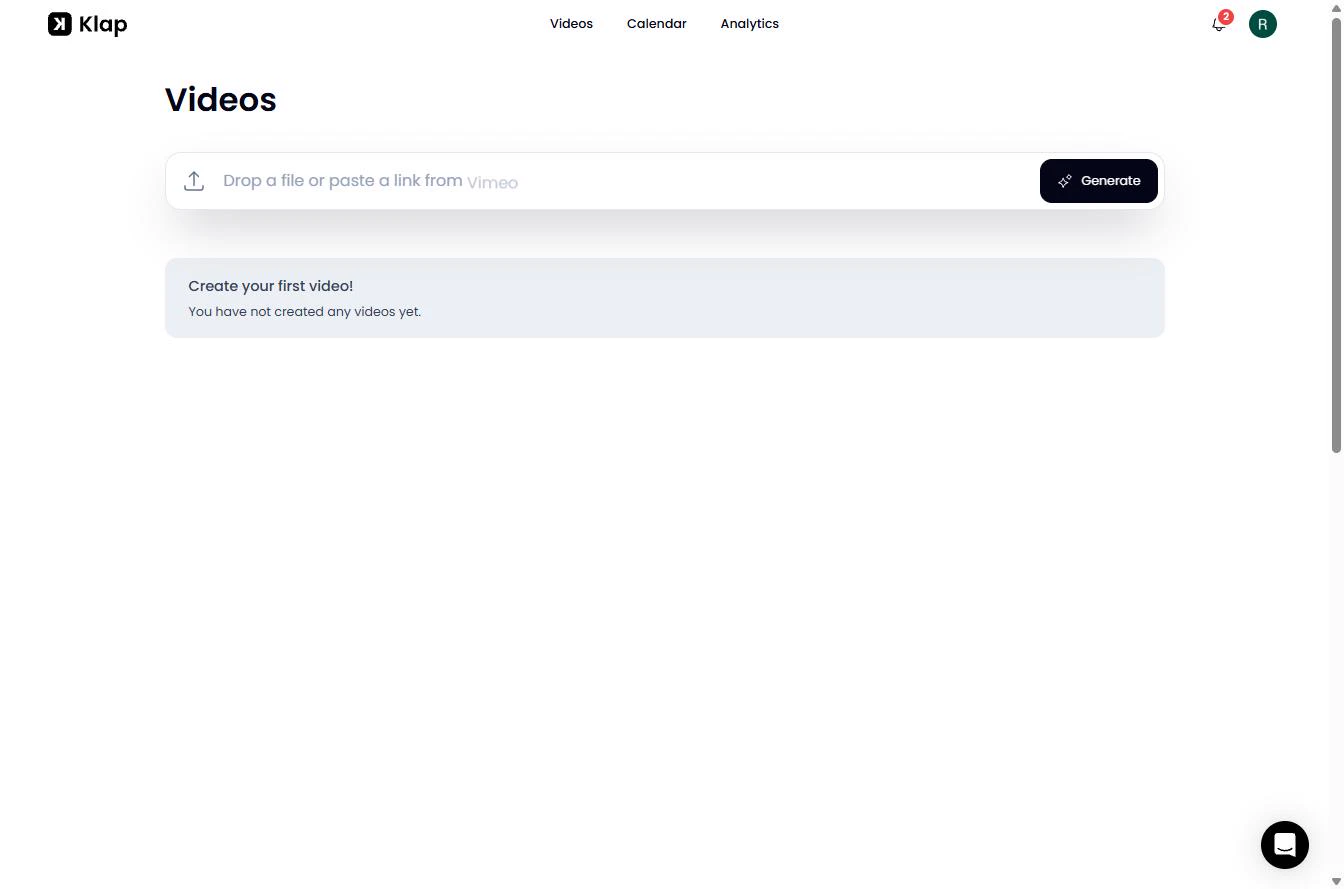
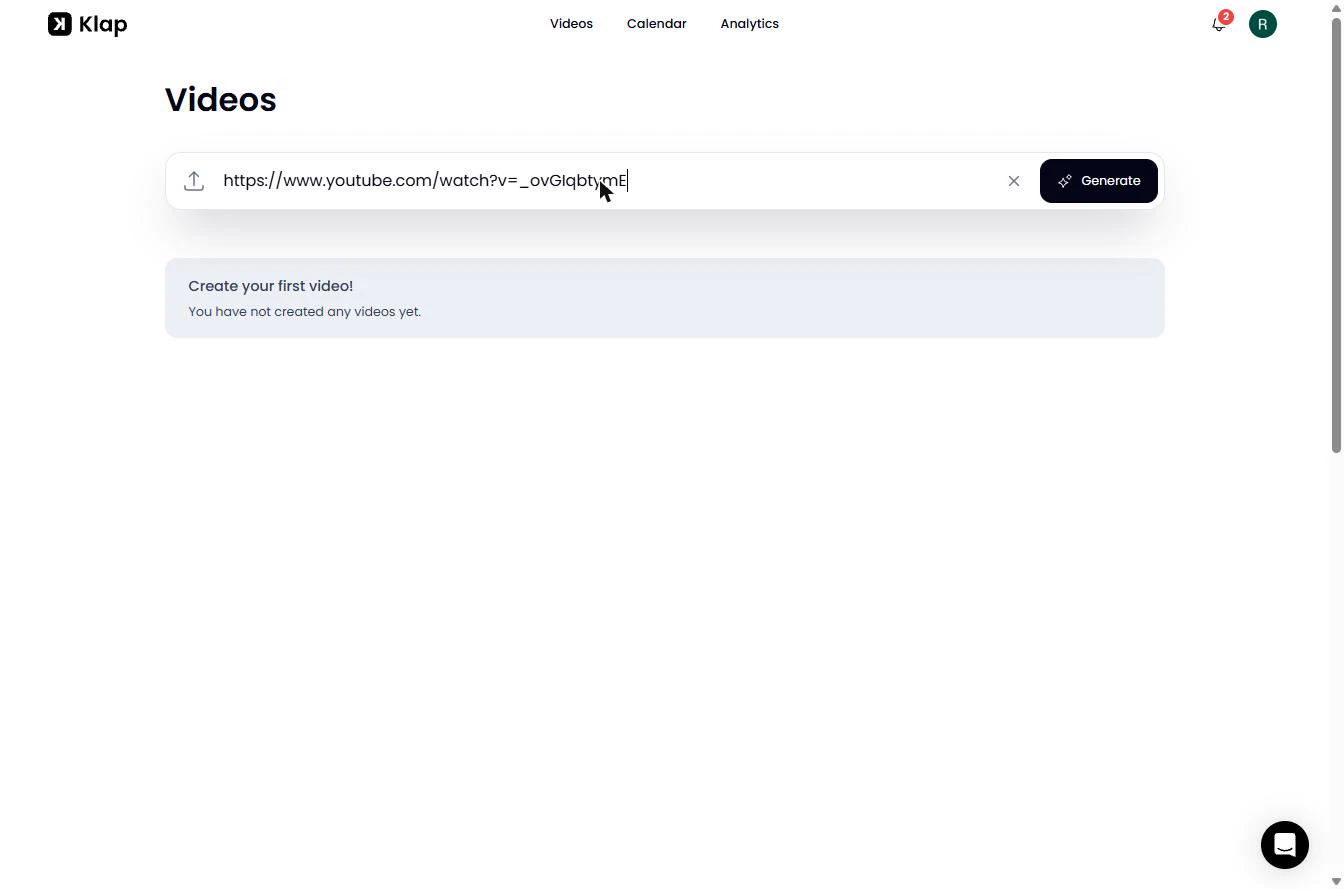
- Paste the recording link. This is Videos in Klap (klap.app). You can drop a file or paste a link. We use a 10-minute training from my own channel; you would use your webinar. Only clip video you own. Paste the link.
This is Klap. Drop in a file, or paste a link. We're using a training video from my own channel.
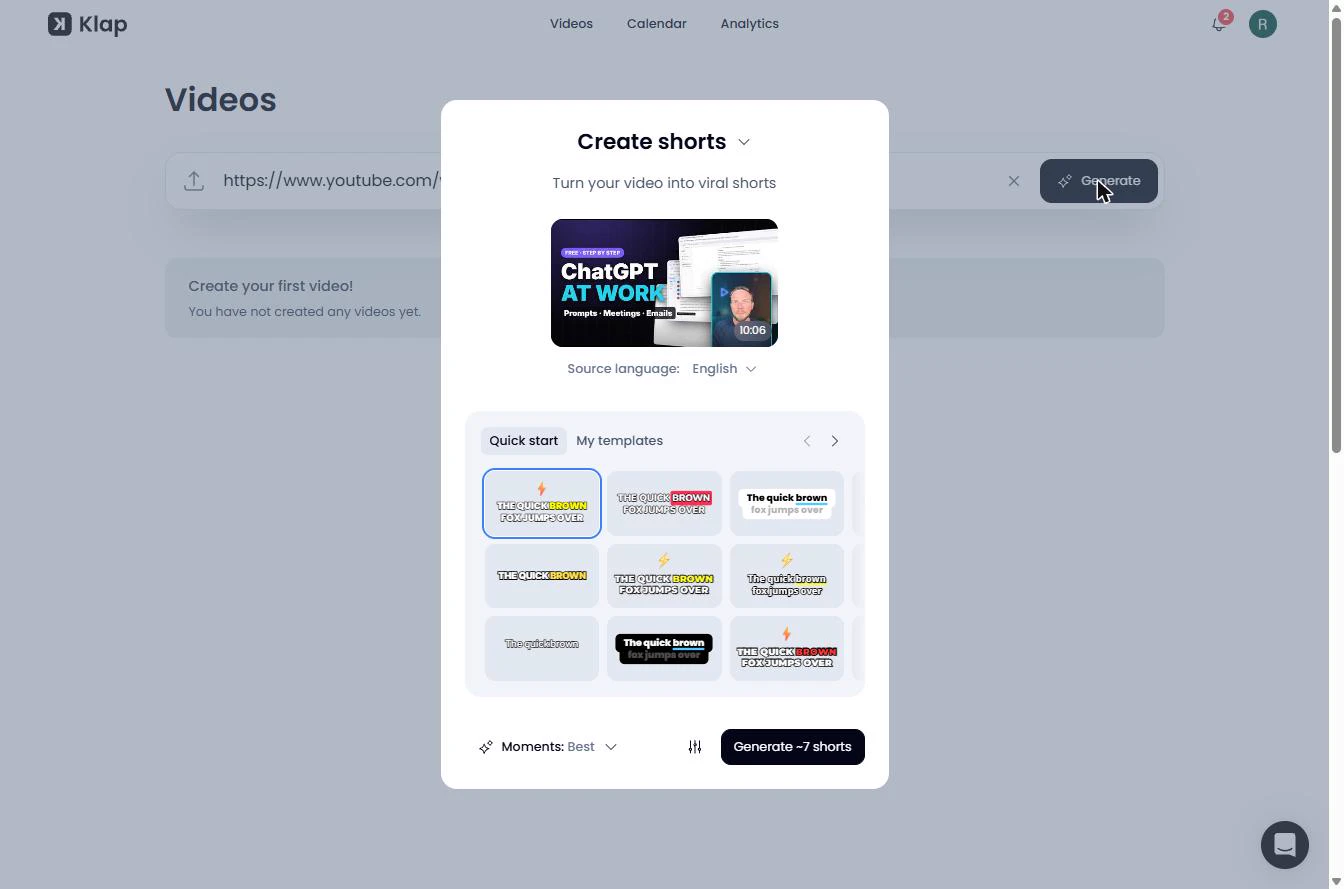
- Click Generate. Click Generate. Nothing is spent yet: this opens the settings.
Nothing is spent yet.
3. Tell it what to clip
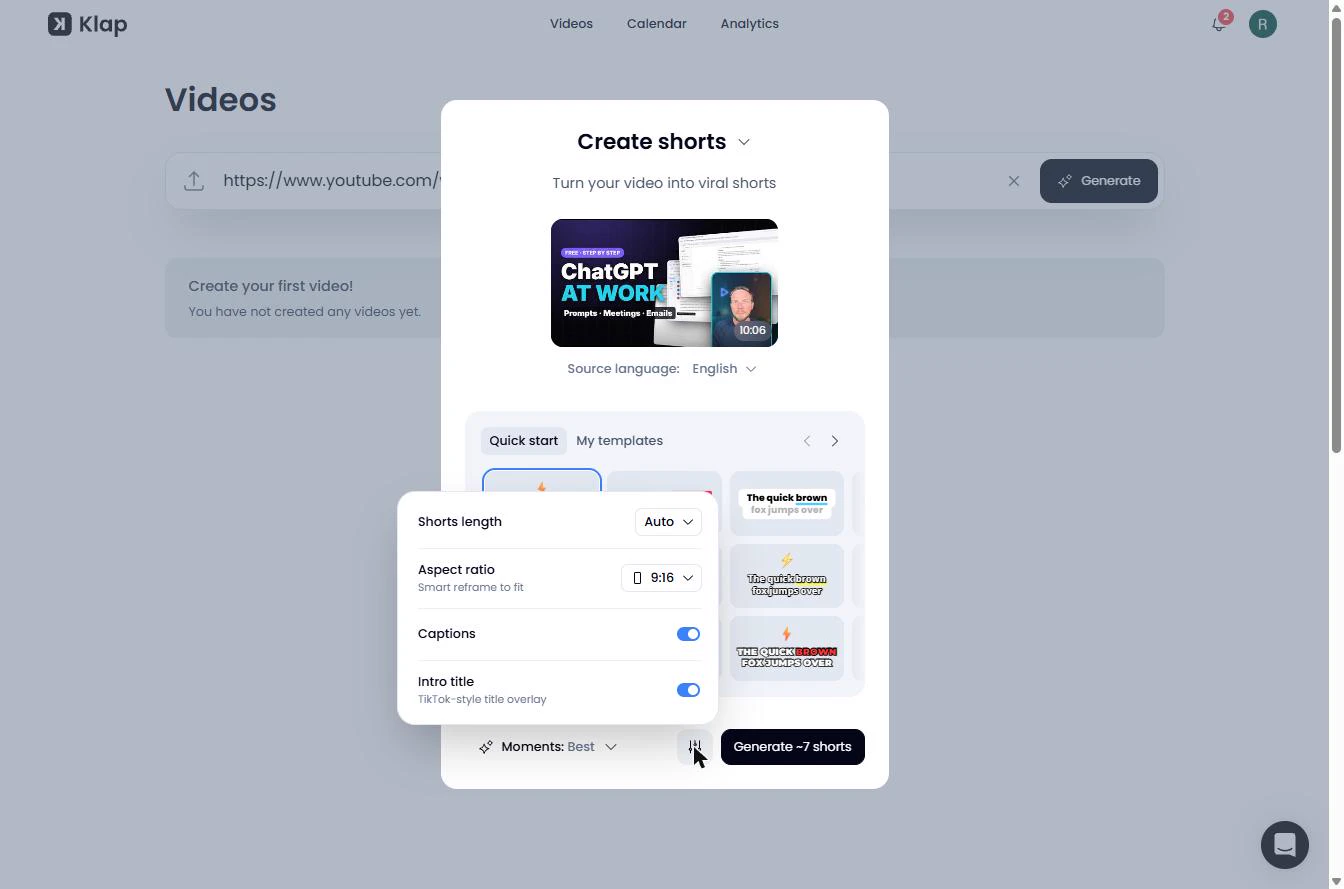
- Check the settings. Create shorts shows the video, the language and the caption styles. Klap estimates about 7 shorts. Click the sliders icon next to the button to see the settings.
Klap estimates about seven shorts.
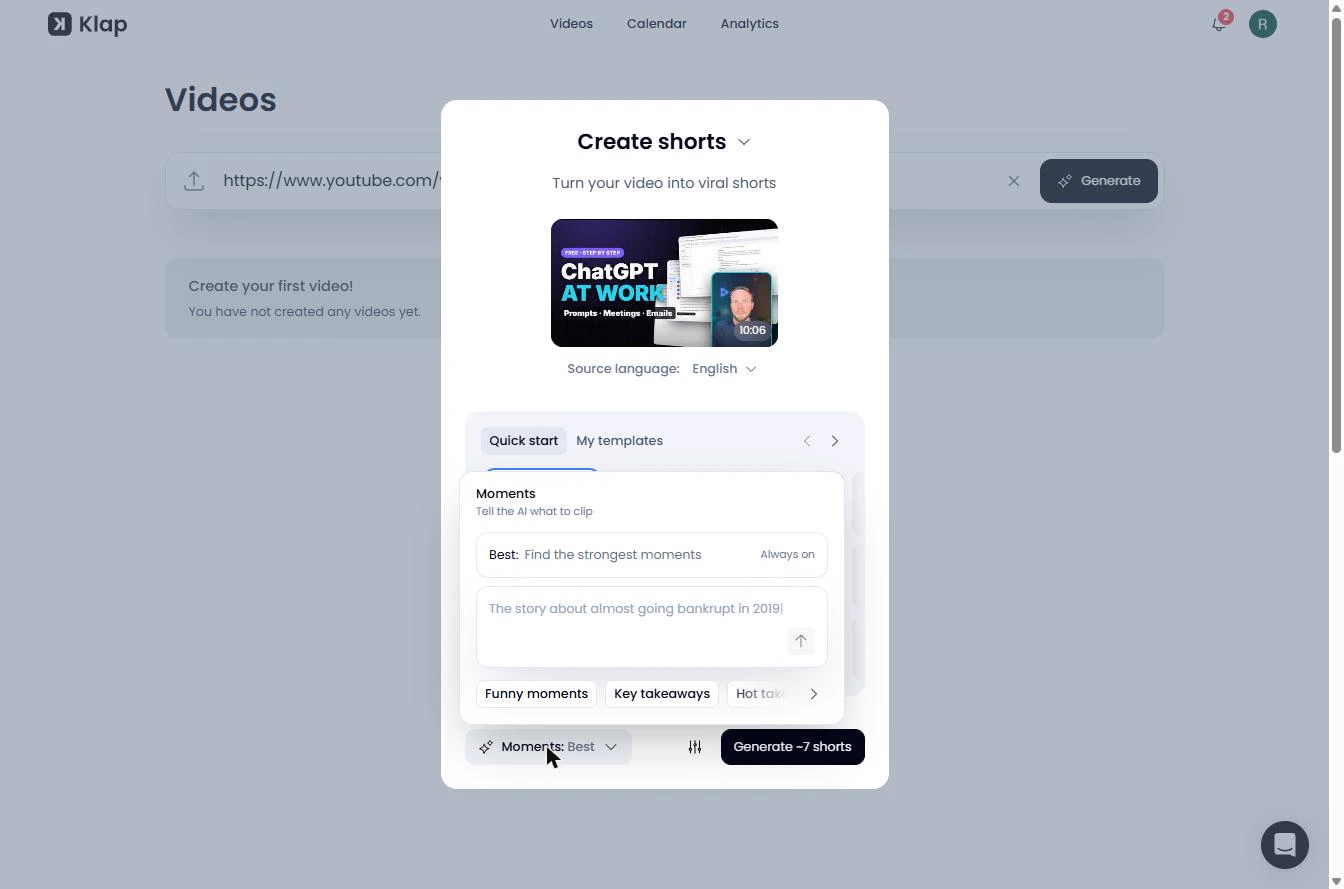
- Open Moments. Shorts length is Auto and the shape is 9:16, with Captions and an Intro title on. Those defaults suit Shorts and Reels. Now click Moments.
Auto length, nine by sixteen, captions on. Good defaults.
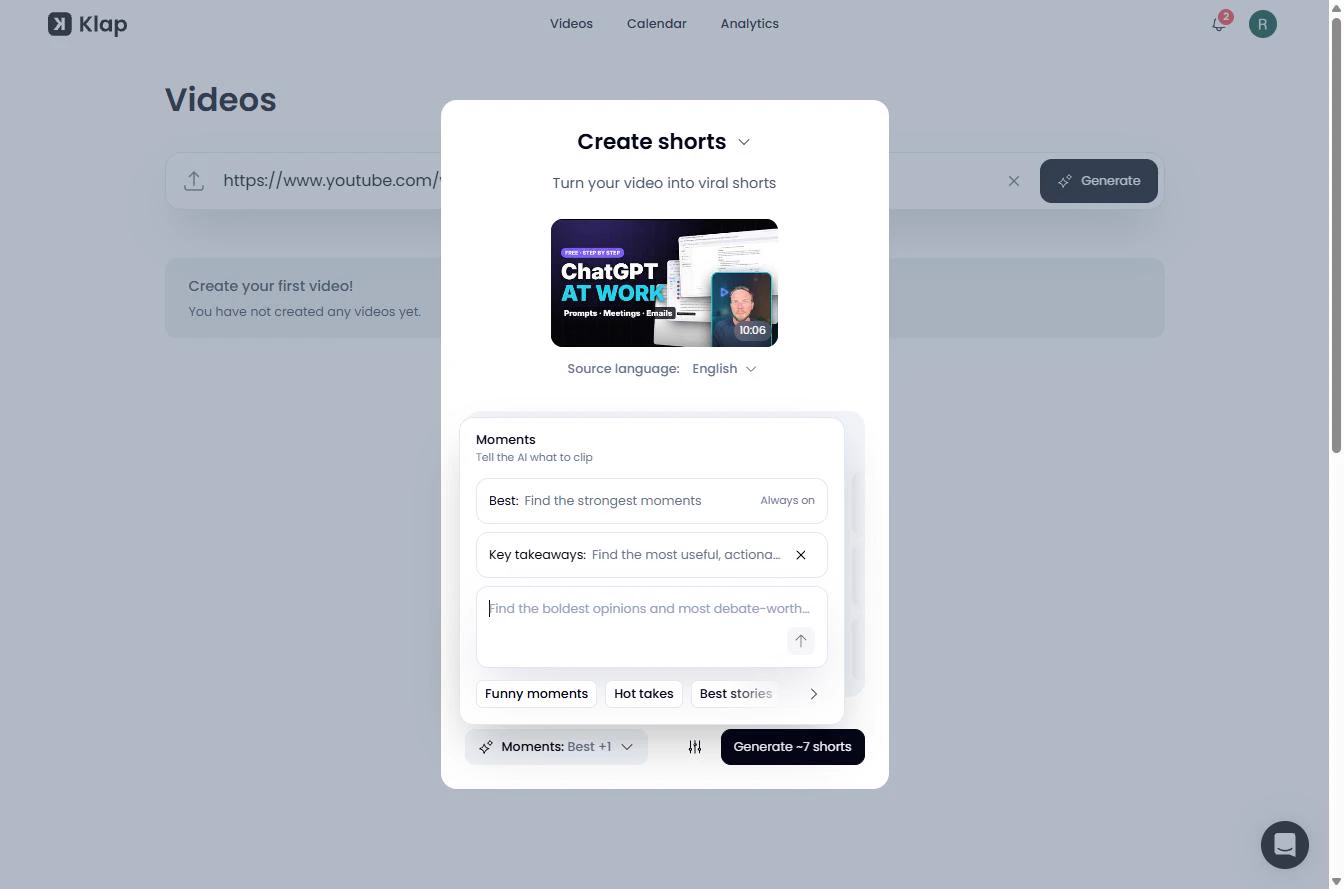
- Ask for key takeaways. Moments tells the AI what to clip. Best is always on. For a business webinar, add Key takeaways: useful and actionable beats funny. You can also type your own, like a product name. Click Key takeaways.
Moments tells the AI what to clip. For a business webinar, pick key takeaways.
- Generate the shorts. Click an empty spot to close Moments, then click Generate ~7 shorts. This is the step that uses your plan's clips. In our run the estimate said 7 and Klap made 10, so 10 of the plan's clips were used.
This is what uses your plan. It said seven. We got ten.
4. Read the scores
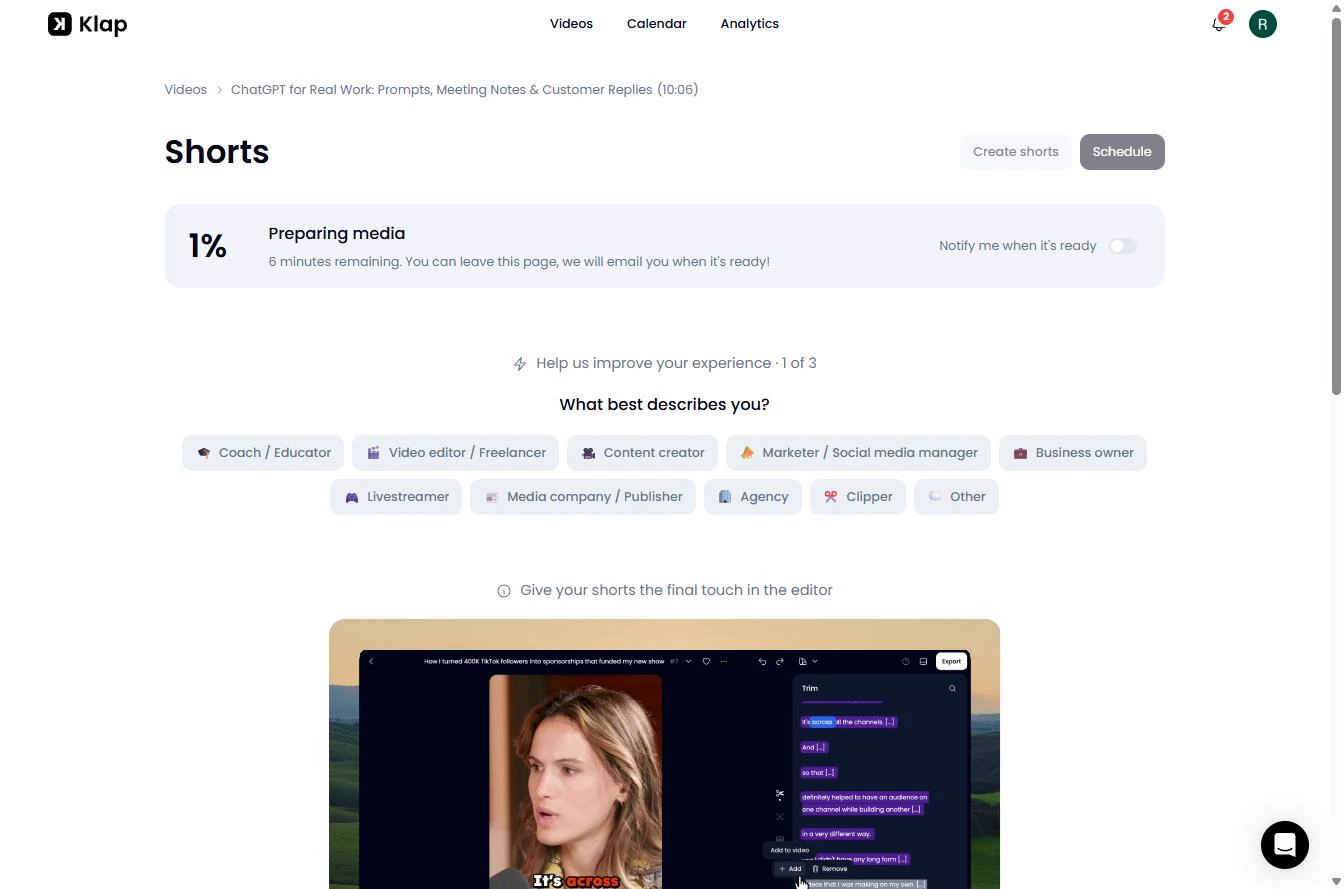
- Let it run. You can leave this page; Klap emails you when it is ready. Our 10-minute video took under 7 minutes. A longer recording will take longer. Click the progress bar.
You can leave this page. Our ten minute video took under seven minutes.
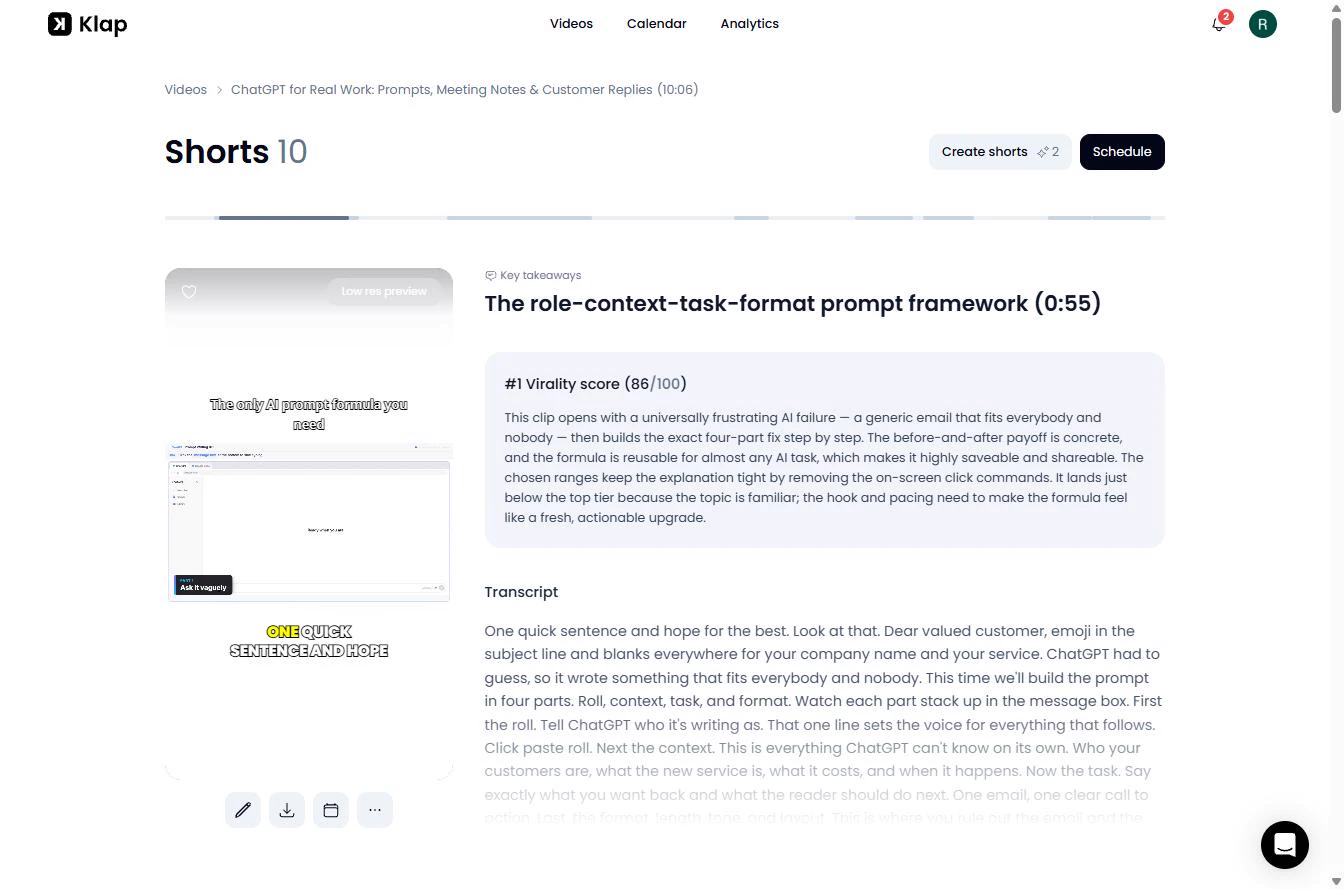
- Read the score. Each clip gets a title, a virality score out of 100 and the reason for it. It is Klap's prediction, not a result. It also isn't strict order: our #5 scored 82, above #4 at 78. Click the score.
Each clip gets a score, and the reason for it. That's a prediction, not a result.
- Open the editor. Our top clip scored 86. Before you trust it, read it. Click the pencil under the clip to open the editor.
Before you trust a clip, read it.
5. Review before it goes out
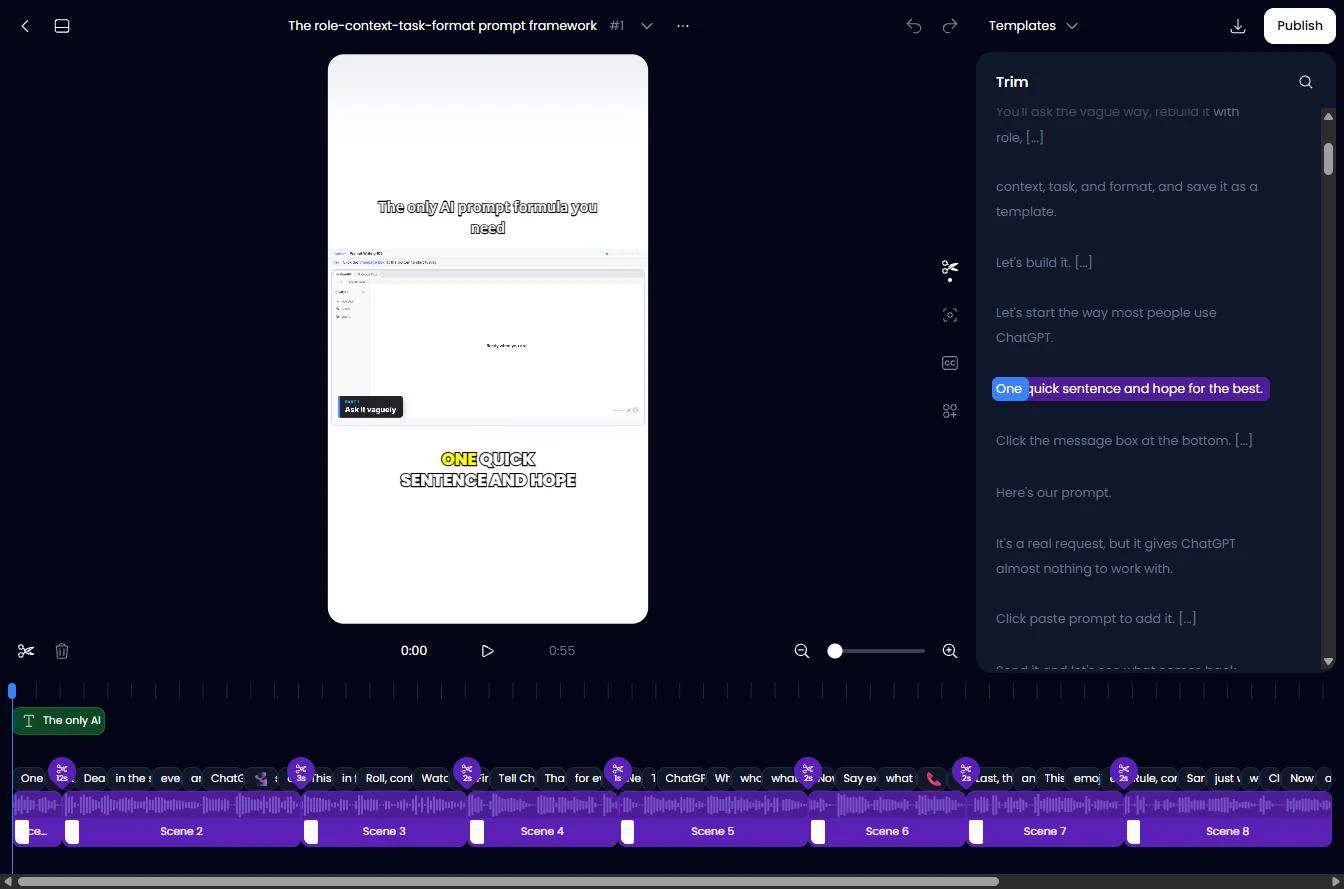
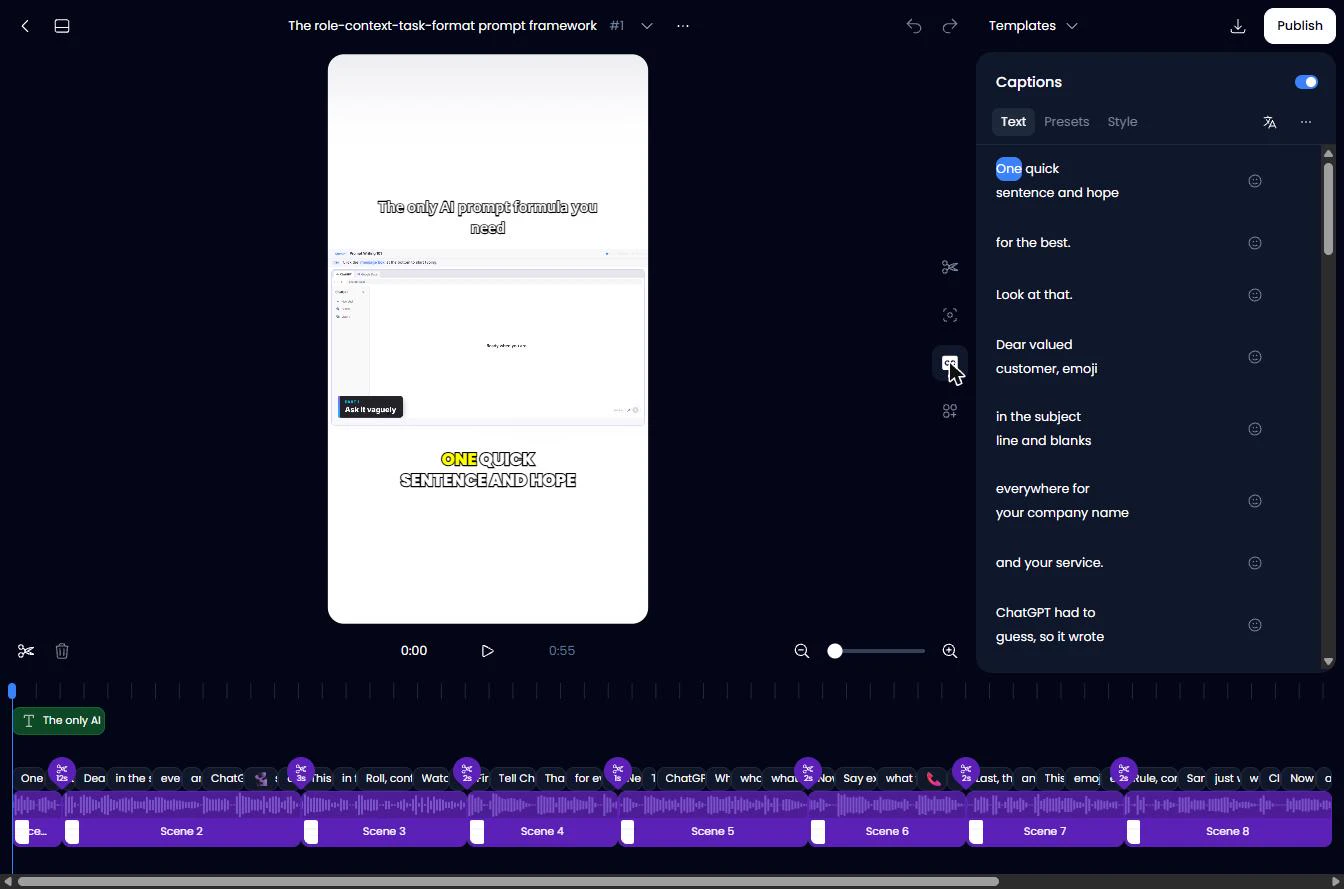
- Open Captions. The editor opens on Trim, where you cut words from the transcript. Click the CC icon to see the captions.
The editor opens on trim.
- Read every line. Captions are split into short lines. Read them with the sound on: the audio is right even when the words are not. Scroll down to the line about the four parts. Click the captions.
Read every line.
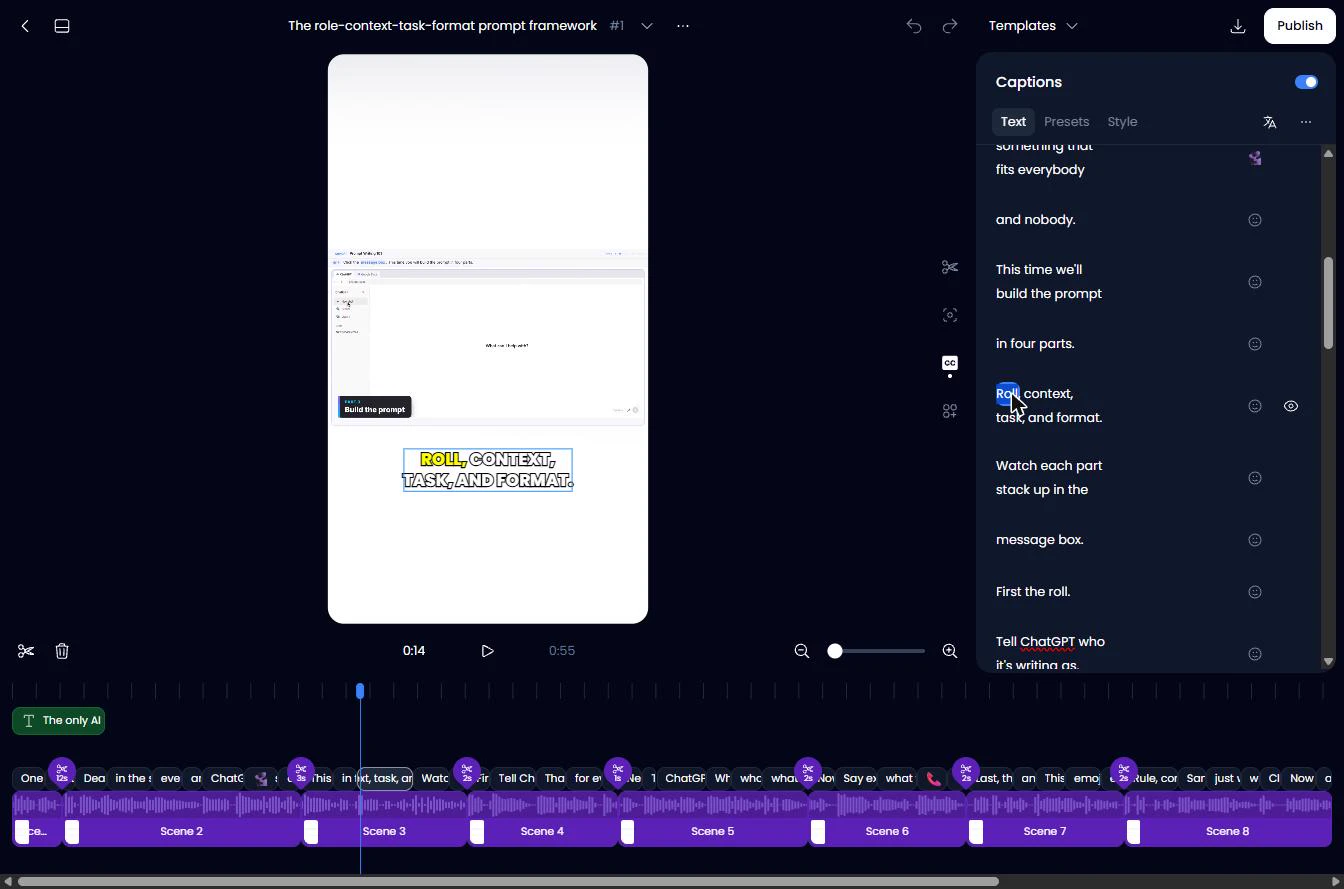
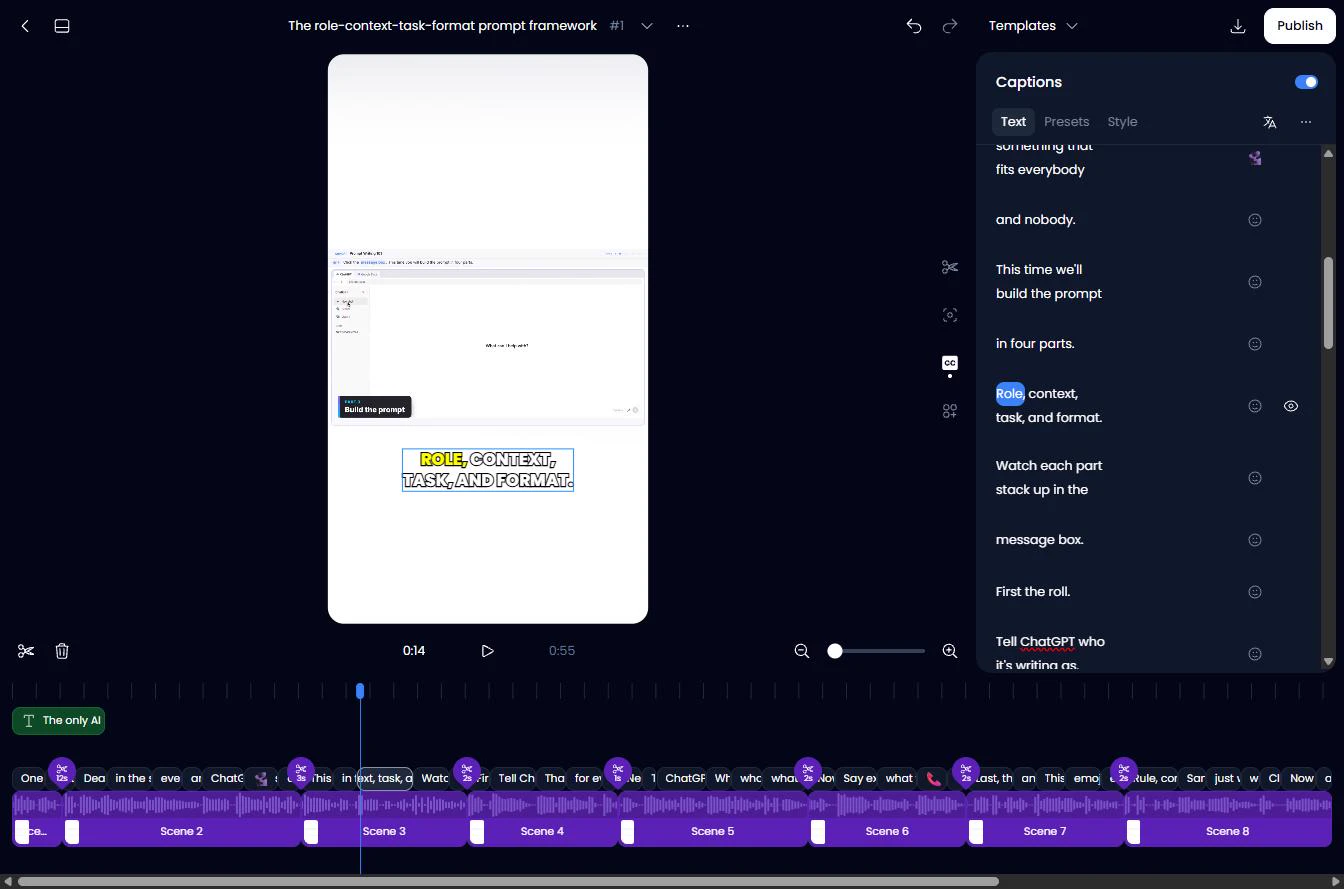
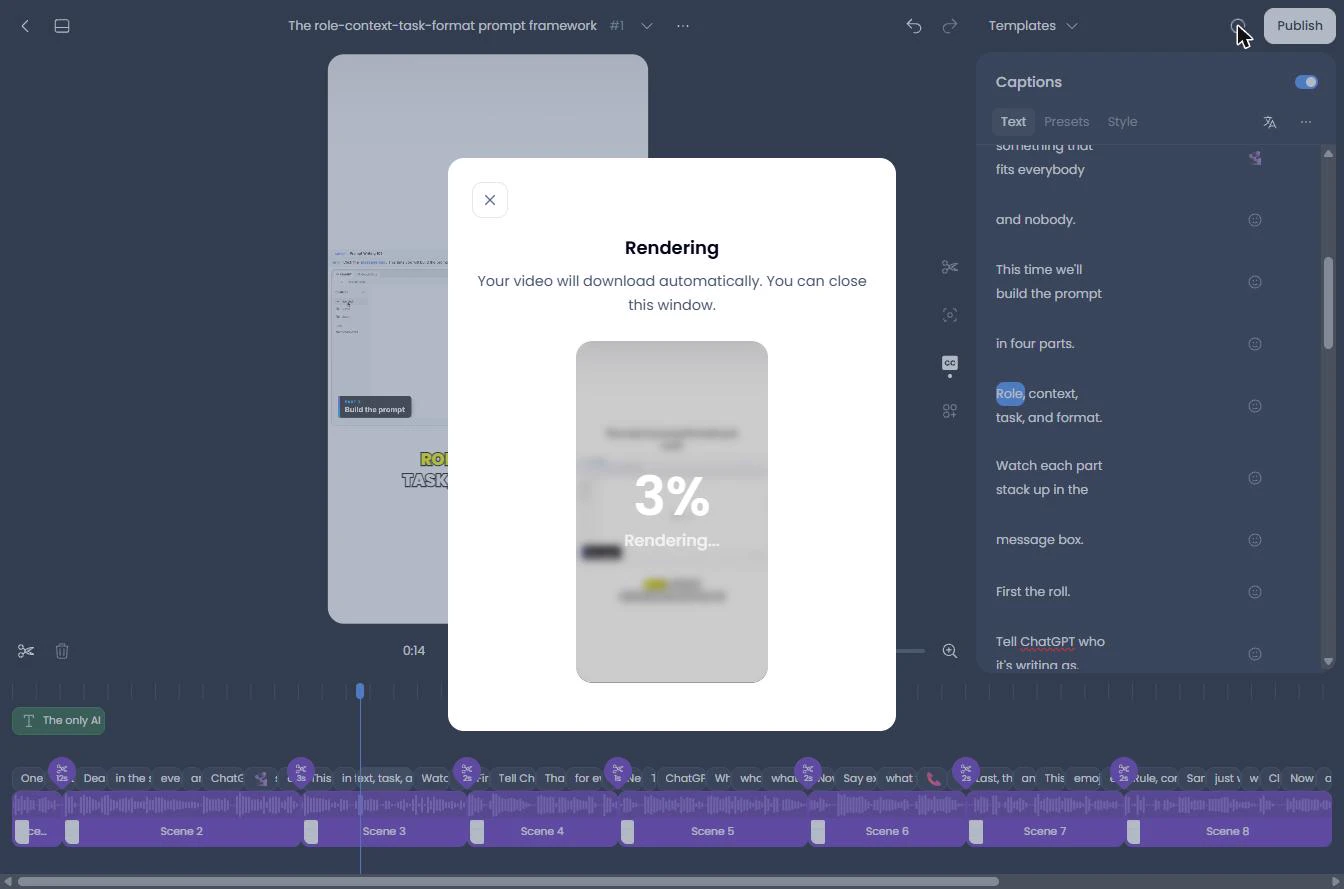
- Fix what it misheard. I said role, and Klap wrote Roll. It's on the screen in big letters, and a client would see it. Double-click Roll and type Role. The preview updates as you type. The same word is wrong on later lines, so keep reading. Click Roll.
I said role. Klap wrote roll. A client would see that. Double-click it, and type the right word.
- Download the clip. Fixed. Klap keeps the edit. Click the download icon at the top right. Publish, next to it, is for posting: leave it alone for now.
Fixed. Leave publish alone.
- Let it render. Our 55-second clip rendered in about a minute. Then this window closed by itself and the MP4 downloaded. Exporting used none of the plan's clips. You don't have to wait: click the X.
It renders, then downloads by itself. That used none of your clips.
6. A week of Shorts
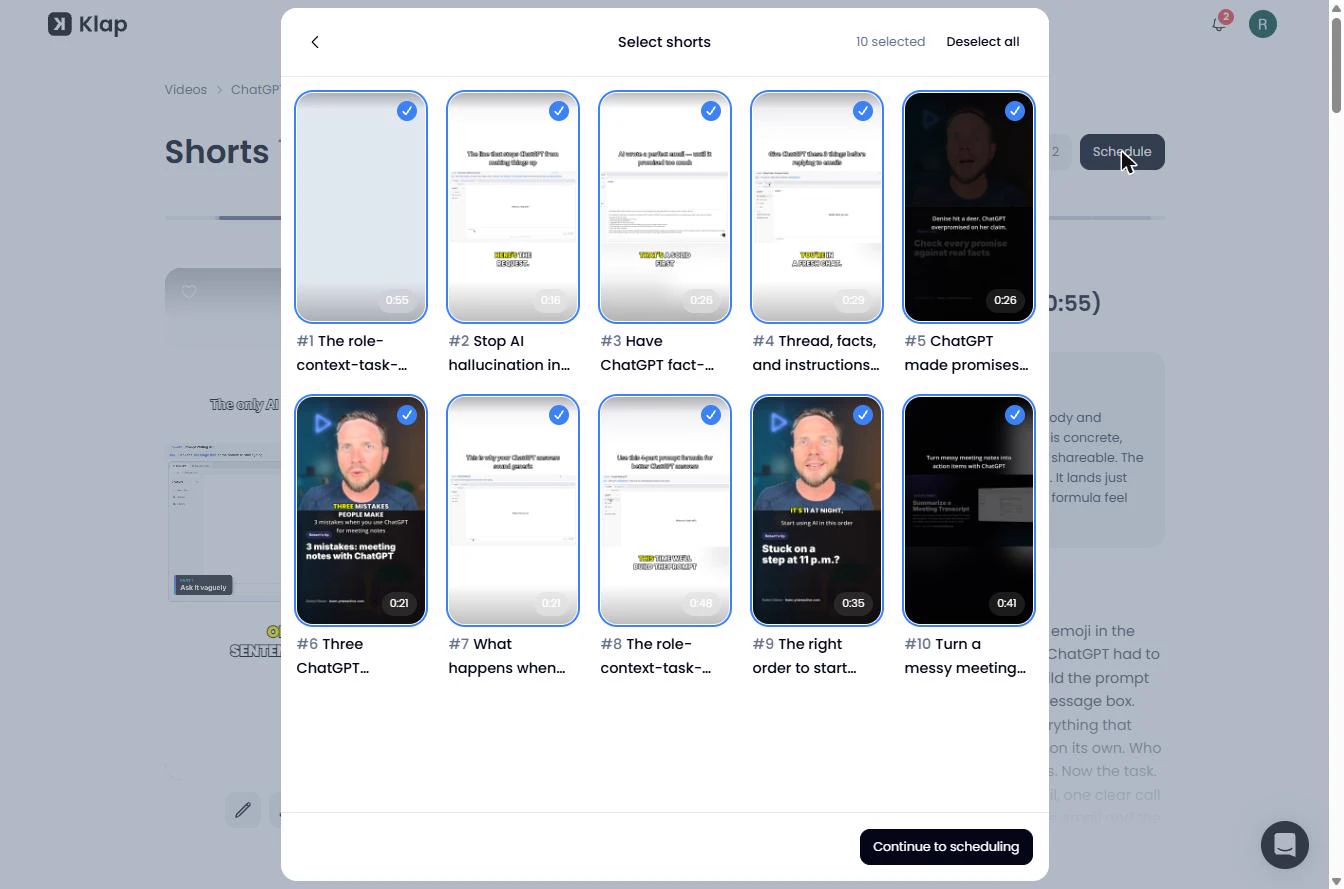
- Choose your five. Back on the list, Schedule starts by asking which shorts to use. We stopped here and connected no accounts, so nothing can post. Three of our ten clips cover the same idea, so don't just take the top of the list. Click Deselect all, then pick your own.
Schedule starts here. We stopped, so nothing can post. Three of our clips cover the same idea. So pick your own.
- Plan the week. Five clips, Monday to Friday, each marked Needs review until someone has read it. That's a week of posts from one recording. Your copy of the sheet is on this page. Click the table.
Five clips, Monday to Friday. Each one needs review. That's a week of posts from one recording.
7. Automate it with n8n
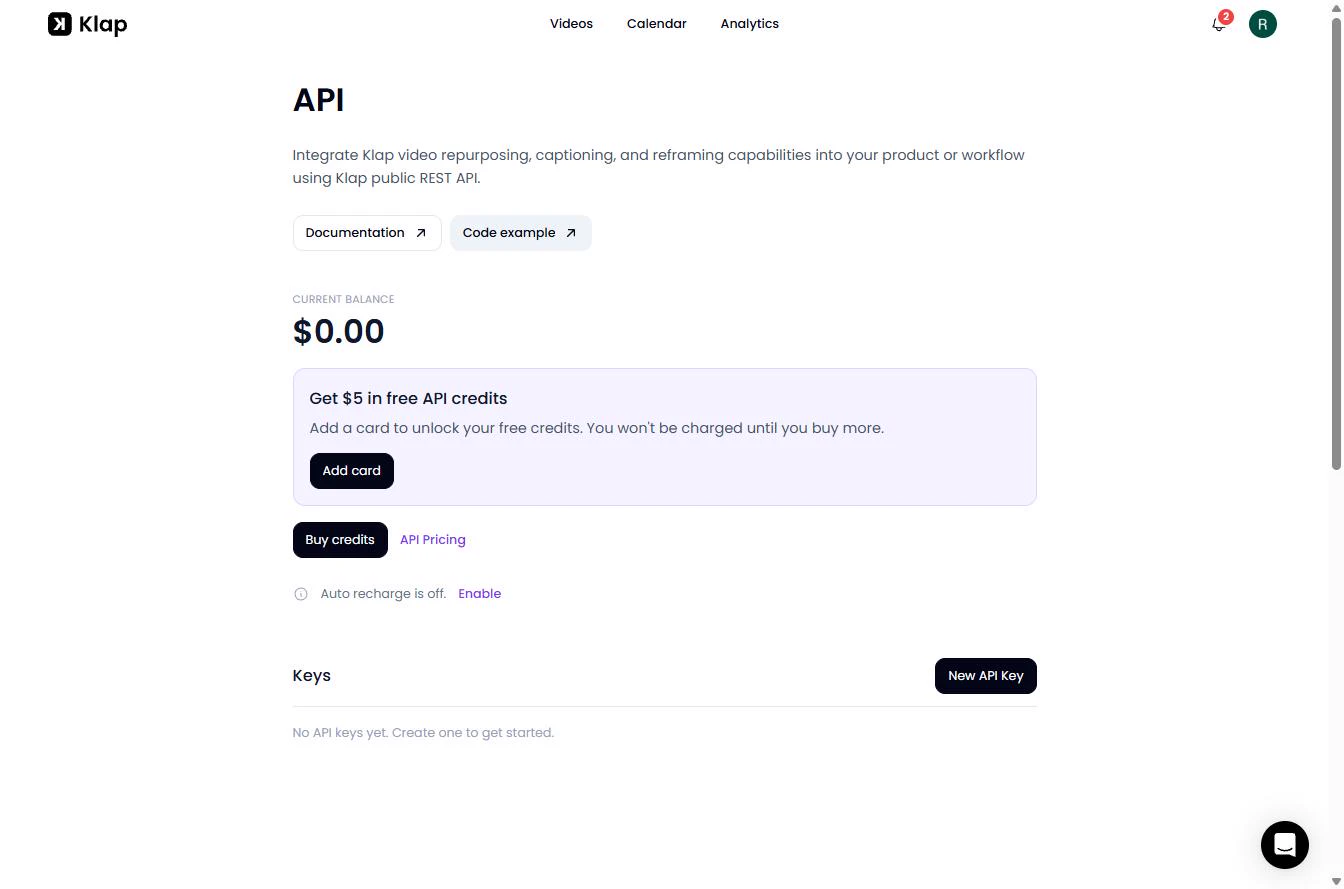
- The API is billed separately. Clicking is fine for one webinar a month. To automate it, n8n talks to Klap's API, and that isn't part of your plan. On API in the account menu, the balance starts at $0.00, and $5 in free credits needs a card. By the price list, one recording to 5 exports is about $4.44. Click the balance.
To automate this, n8n talks to Klap's A P I. That's billed separately from your plan. About four dollars and forty cents per recording.
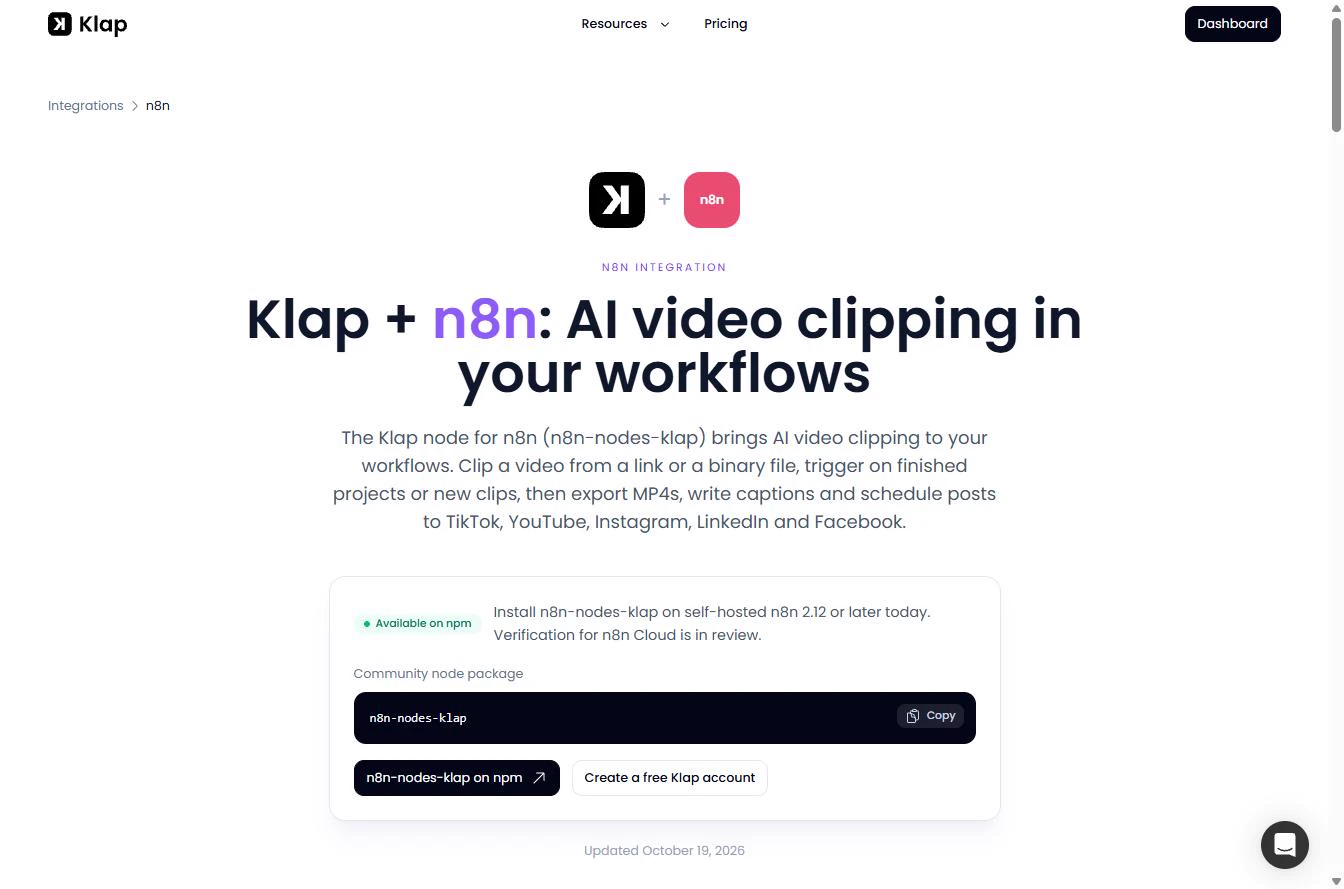
- Pick your n8n route. Klap has its own n8n node, n8n-nodes-klap, for self-hosted n8n. On this page, its verification for n8n Cloud is still in review. So on Cloud, use HTTP Request nodes and an API key instead. Click the box.
Klap has its own n8n node for self-hosted n8n. On n8n Cloud, it's still in review. So on Cloud, use H T T P Request nodes.
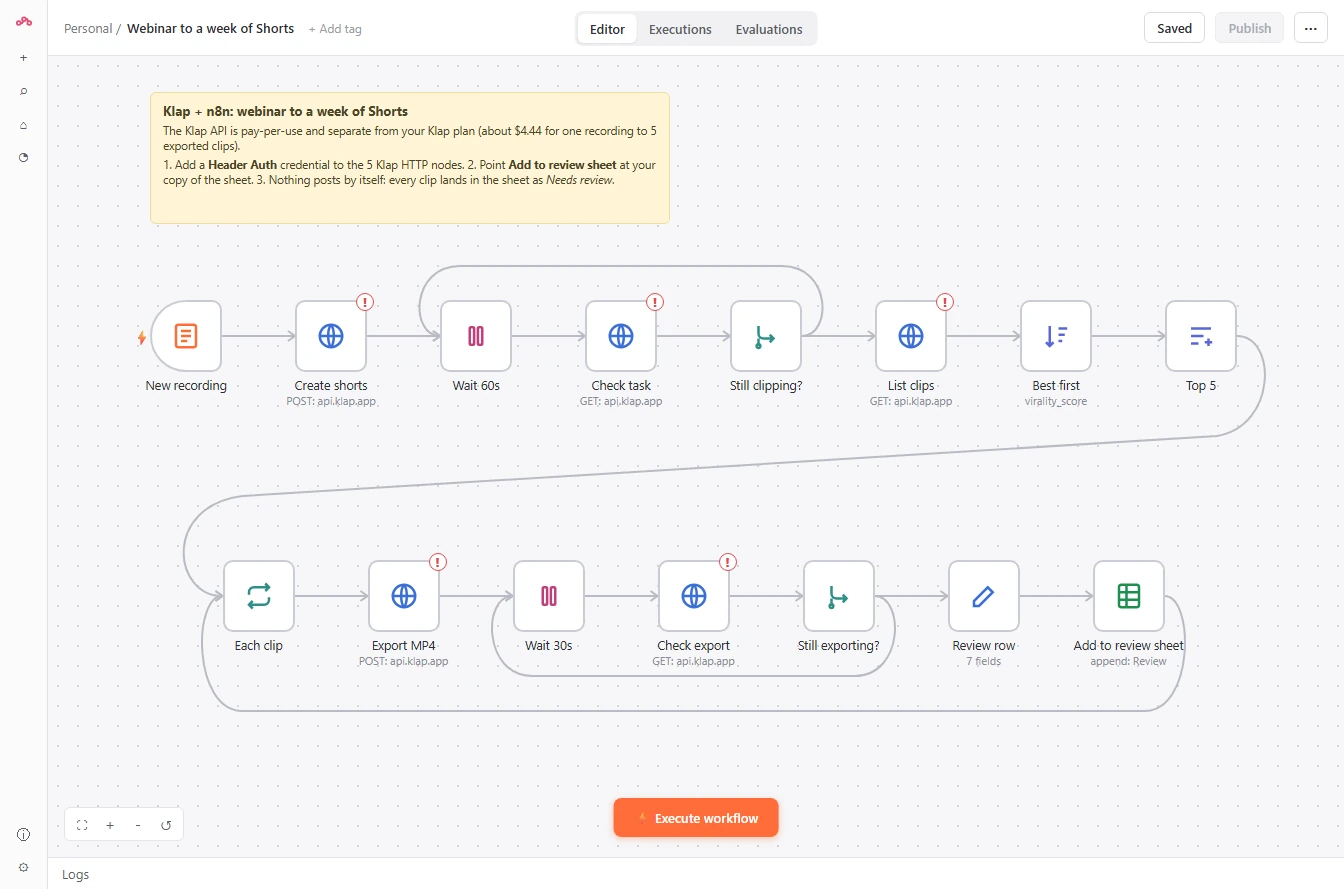
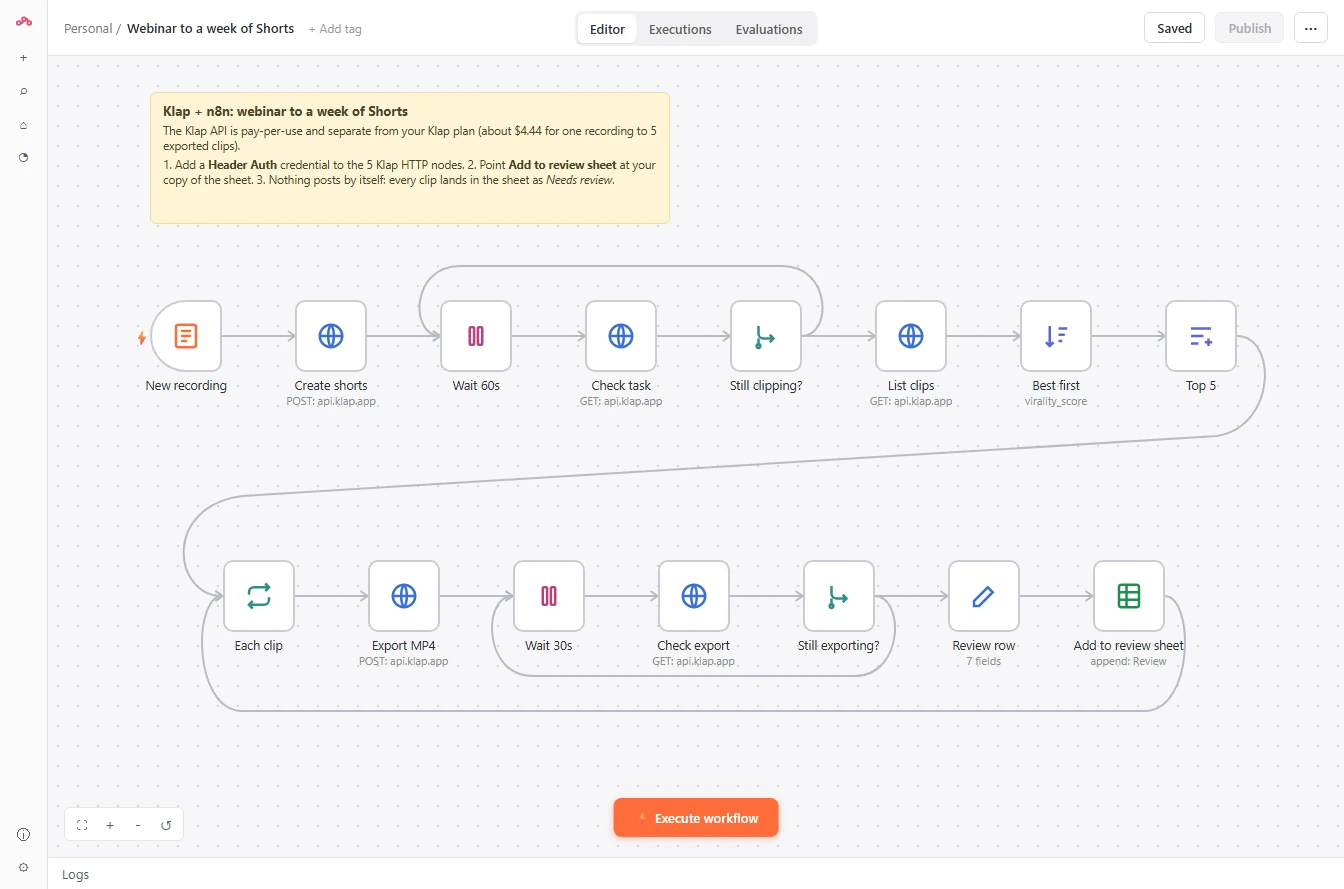
- See the workflow. Submit a link, and the workflow clips it, waits, keeps the top 5 by score, exports them and writes one row per clip to your sheet. It posts nothing. Download your copy with the link on this page, then click the map.
The workflow clips the video, keeps the top five, exports them, and fills your sheet. It posts nothing. Download your copy, then click the map.
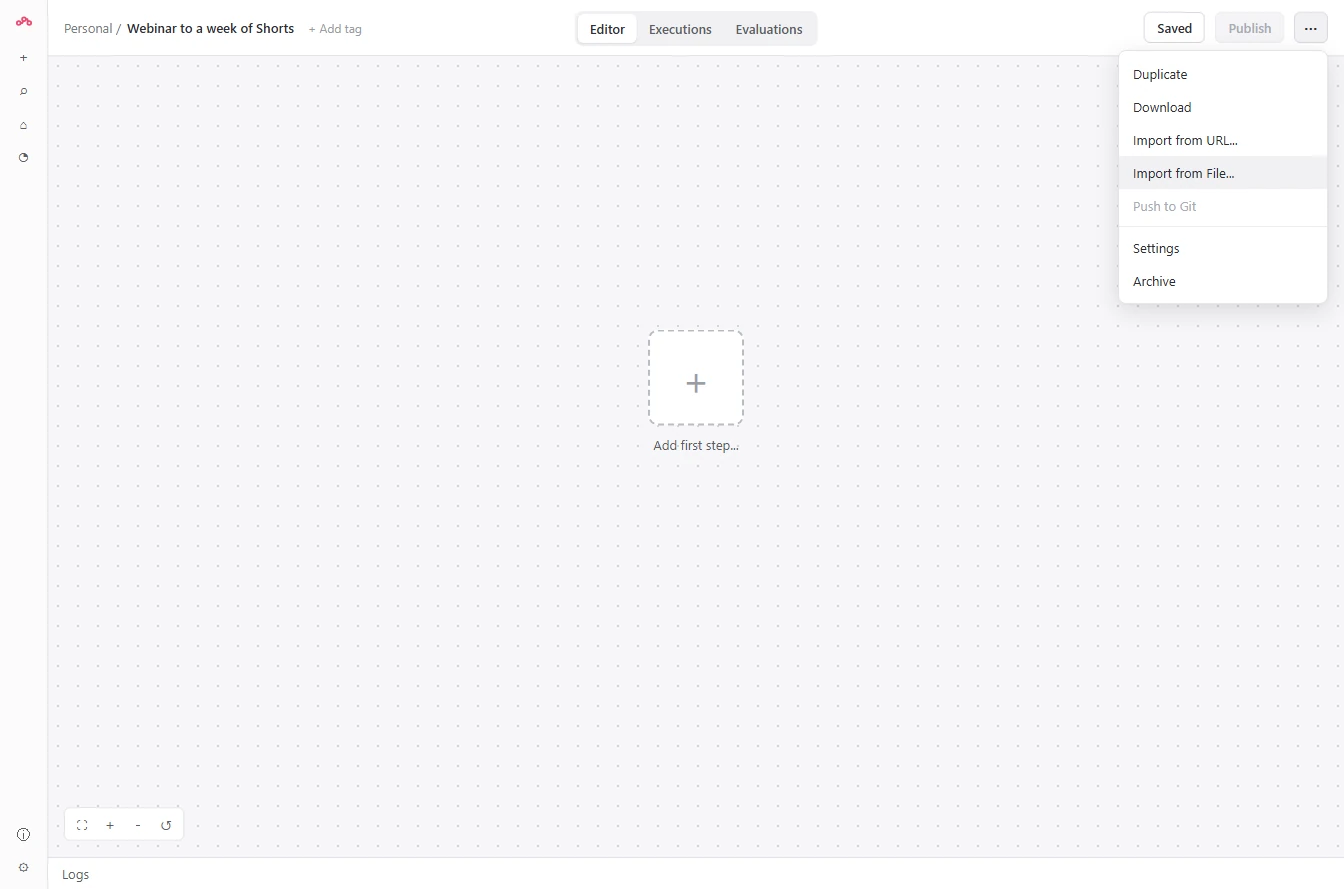
- Open the workflow menu. In n8n, create a new workflow and name it Webinar to a week of Shorts. Then click the three dots at the top right.
In n8n, create a new workflow and give it a name.
- Import the file. Click Import from File... and choose the JSON you downloaded.
- Open a Klap node. Fifteen nodes land on the canvas, with the setup notes on top. The five Klap nodes show a red mark: they have no key yet. Double-click Create shorts.
Fifteen nodes land on the canvas. The five Klap nodes show a red mark. They have no key yet. Double-click create shorts.
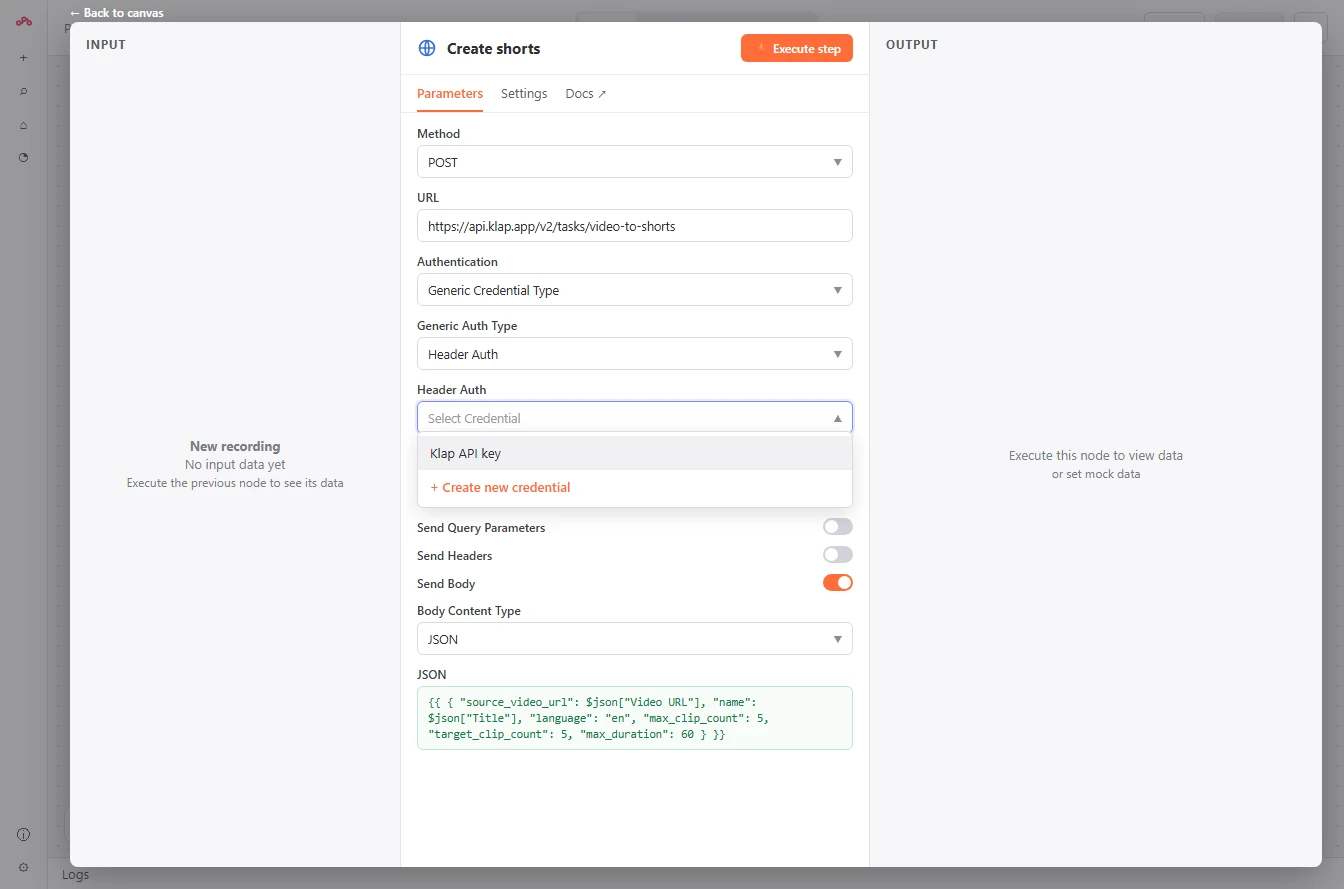
- Add your Klap key. It's an HTTP Request to Klap's API, using Header Auth. The first time, choose Create new credential: Name
Authorization, ValueBearerplus your key from klap.app/rest-api. After that, pick Klap API key. Do the same on the other four Klap nodes.This node calls Klap's A P I. The first time, create a credential with your key. After that, just pick Klap A P I key. Do the same on the other four Klap nodes.
- Run a test. No red marks left. Open Add to review sheet and point it at your copy of the sheet, then click Execute workflow. Test with one short video first: every run uses API credit.
No red marks left. Point the last node at your sheet, then click execute workflow. Test with one short video first.
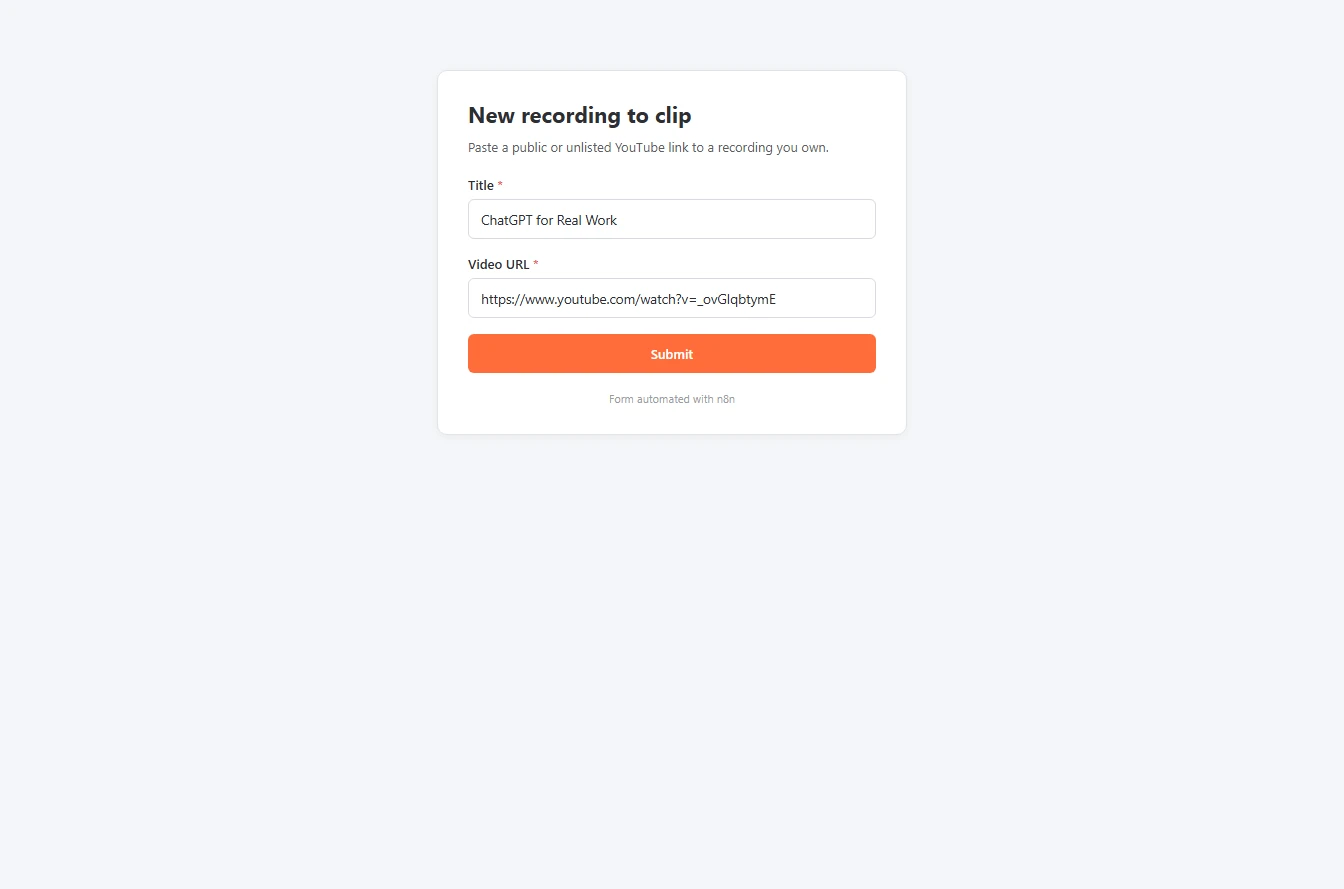
- Send it a recording. The test opens the workflow's form. Type a title and the link to a recording you own, then click Submit.
The test opens the form.
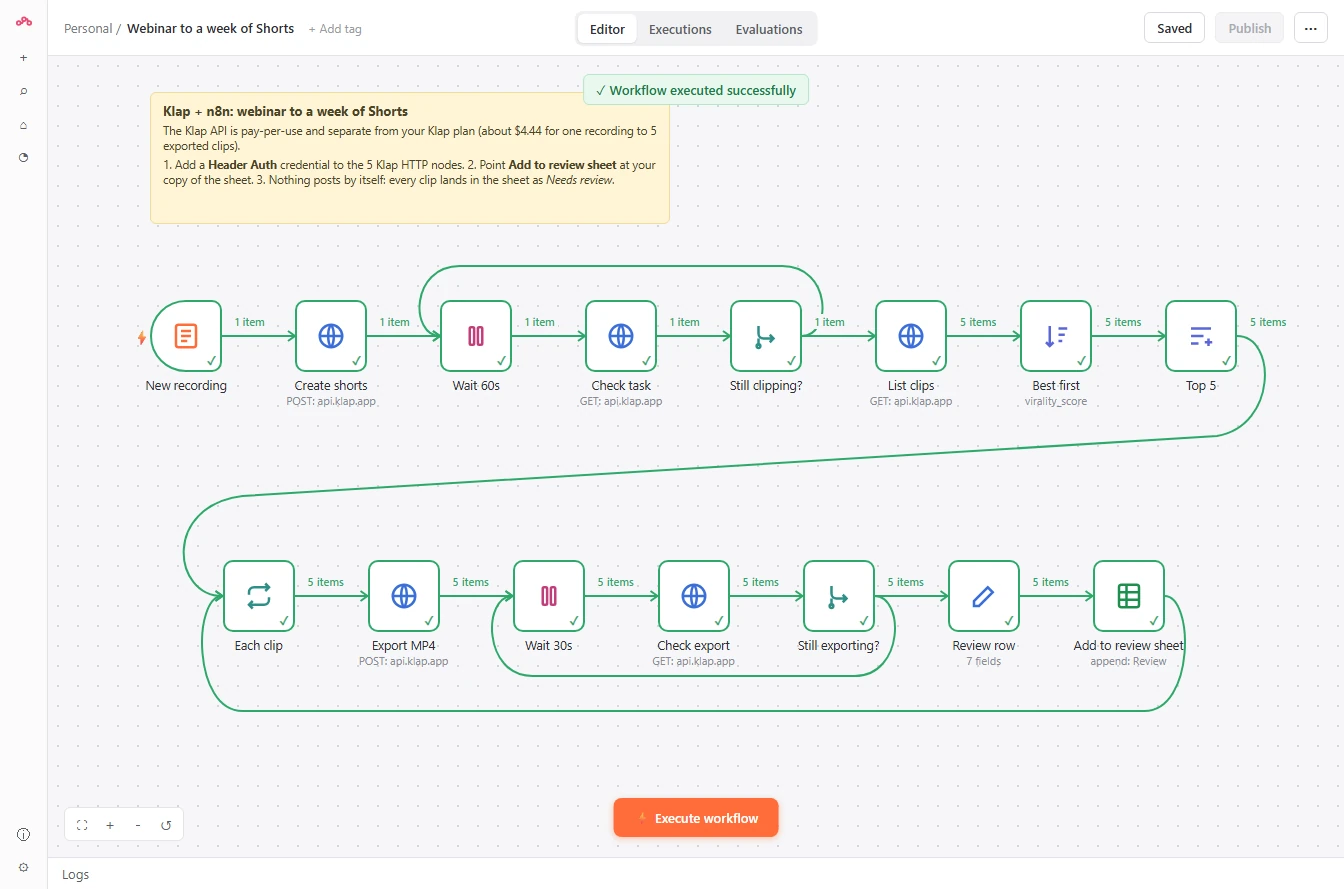
- Check every node. Clipping takes a few minutes. The Wait nodes loop until Klap is done, so you don't have to watch. Every node is green, and 5 clips went through the export loop. Click Add to review sheet.
Clipping takes a few minutes. The wait nodes loop until Klap is done. Every node is green.
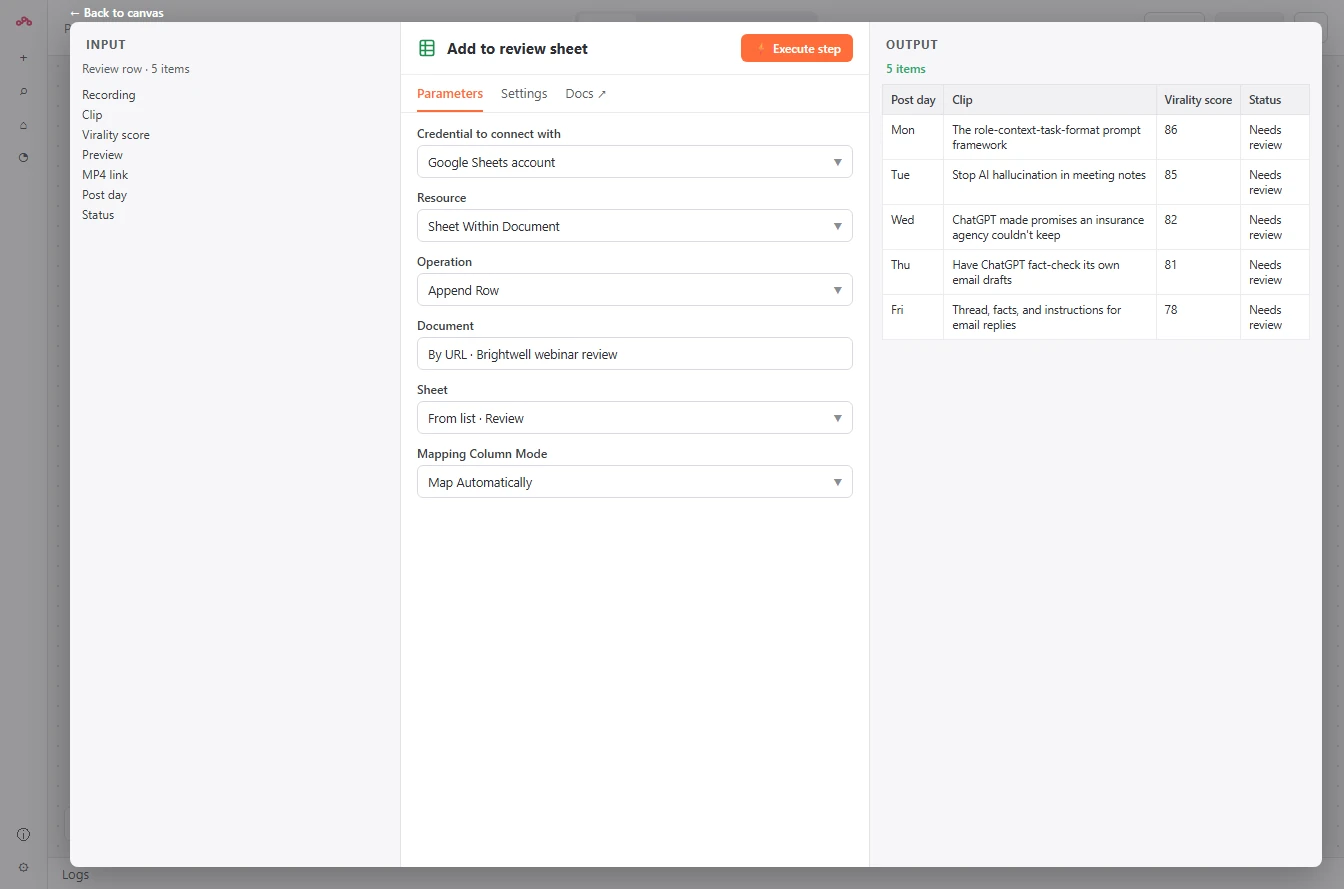
- Read the rows. Five rows, Monday to Friday, best score first, each one Needs review. Same week of Shorts, with no clicking in Klap. Nothing posts until someone reads them. Click the output.
Five rows, Monday to Friday. Each one needs review. Nothing posts until someone reads them.
8. What it saves
- See what you have now. Ten clips from one video, a way to review them, and a plan for the automation. The review is the part you keep. Click What you have now.
Ten clips from one video, and a way to review them.
- Your turn. Try it on a recording you own. Click Your turn.
Now try it on a recording you own.
Screenshots
More in AI Automation for Marketing
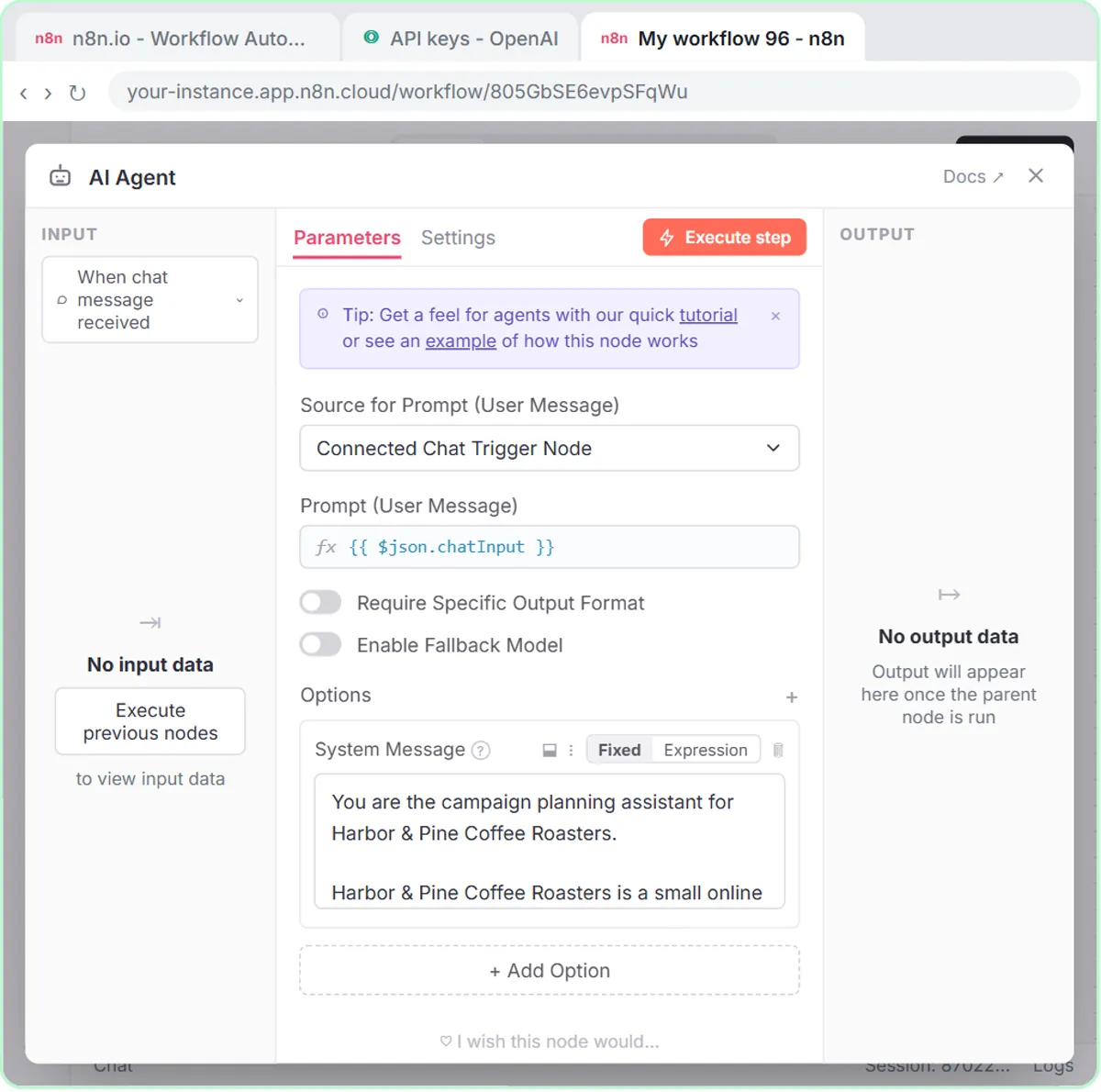 Build an n8n AI Agent That Plans Your Content Calendar
Build an AI agent for Harbor & Pine Coffee Roasters that turns one campaign theme into a two-week email and content calendar in Google Sheets — chat trigger, AI Agent…
Free · Live ~12 min Intermediate
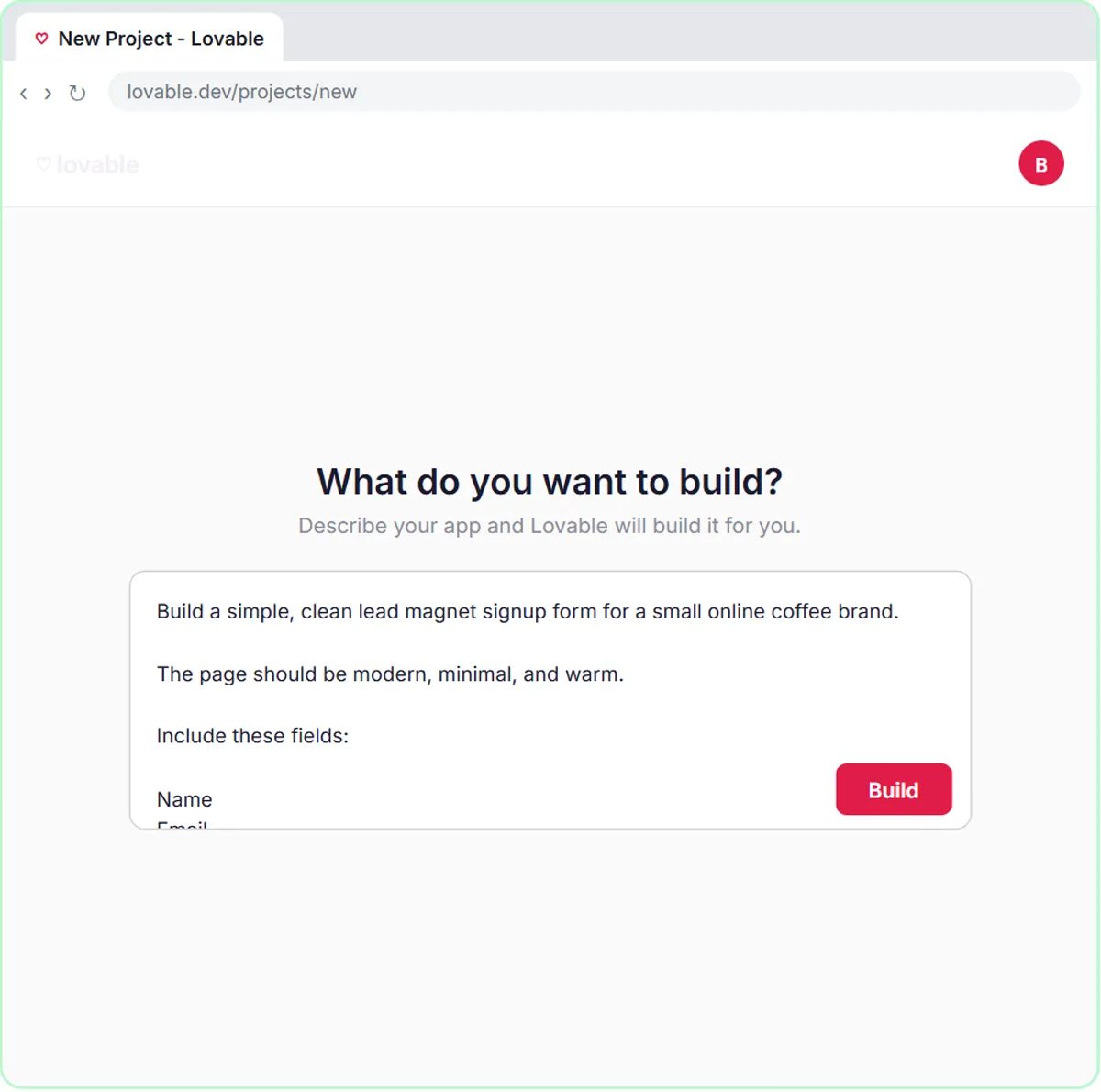 Build a Lead Magnet Signup Form with an AI Welcome Email
Build a "Get the free guide" signup form in Lovable for Harbor & Pine Coffee Roasters and connect it to n8n — the AI agent tags each lead by interest, saves it to…
Free · Live ~15 min Advanced
All 25 modules in AI Automation for Marketing
Terms in this lesson
Plain-English definitions, each with an example from a free lesson.