What is the Loop Over Items node in n8n?
Quick answer
The Loop Over Items node, formerly called Split in Batches, sends a workflow's items through the following nodes a few at a time, set by Batch Size, and loops back until every item is done. Its two outputs are loop, for the batch being worked on, and done, for when all batches are finished.
Last updated
Take the free module →Module 4 of the free n8n for Beginners: Your First Automations course, about 9 minutes. No account needed.
Updated · By Robert Breen
Why it matters for a small business
Most n8n nodes already run once for every item they receive, so a beginner rarely needs a loop. You reach for Loop Over Items in a few real cases: an app with a rate limit that rejects 200 calls at once, a step that must finish for one record before the next starts, or a node that only handles the first item it gets.
Batching also makes failures smaller. If a workflow sends 500 emails in batches of 20 with a short wait between, one bad batch does not sink the whole run, and the app sees a steady pace instead of a spike.
Where you'll use it: add Loop Over Items from the node panel, set Batch Size, connect the nodes that should repeat to its loop output, and connect the last of them back into the loop node. Connect whatever should run at the end to done. A Wait node inside the loop spaces out the batches.
In a real lesson: n8n: Items, JSON and Expressions, Explained by Doing
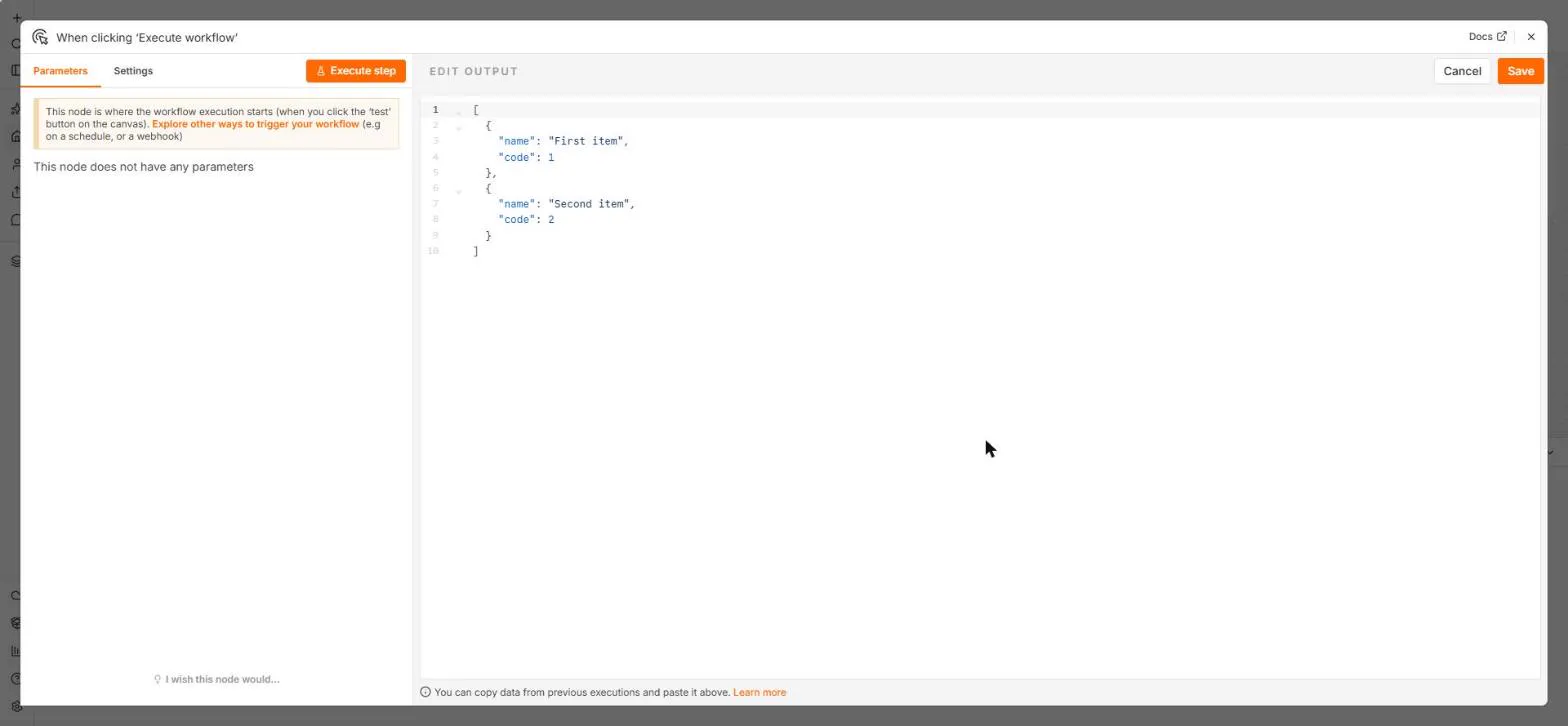
In the free n8n Items, JSON and Expressions lesson, Clearview Bookkeeping loads five fake invoices as five items. When you build the reminder line with Edit Fields, n8n writes it for all five at once, with no loop node, because the node runs once per item on its own.
If the firm had 2,000 invoices and its email app accepted only a few messages a second, you would put Loop Over Items before the email step with a batch size of 20 and a Wait node inside the loop, so the reminders go out at a pace the app accepts.
Try this lesson free or read the step-by-step guide.
Common confusions
Loop Over Items vs Split Out
Split Out turns one item holding a list into many items. Loop Over Items takes many items and processes them a batch at a time.
n8n looping vs Make iterator
A Make iterator splits a list into bundles. n8n's equivalent is Split Out; Loop Over Items is about pacing.
Tips
- Check whether the node already handles every item before adding a loop.
- Always connect the end of the loop back into the loop node.
- Put any summary or final email on the done output, not inside the loop.
Related terms
More n8n and automation terms
Where you use it: free lessons
- n8n: Items, JSON and Expressions, Explained by Doing (n8n, 9 min)
- n8n: Read, Add and Update Google Sheets Rows with an AI Step (n8n, 12 min)
Frequently asked questions
- Do I need a loop to process every row of a sheet?
- Usually not. A Google Sheets read returns one item per row, and the next node runs for each one.
- What batch size should I pick?
- Start with what the app's docs allow per second or minute, then add a Wait node to stay under it.