Updated . Built against the tool’s current screens and checked step by step. How we check this lesson
Most operations managers don't need help knowing what to say in a quarterly review. They need help getting it onto slides before Thursday. In this free lesson you paste a page of rough notes into Gamma, let it tighten them into an outline, pick a theme, change one slide just by asking its AI, fix a number by hand, and export the deck to PowerPoint and PDF.
At a glance
| Question | Answer |
|---|---|
| What you build | Paste rough meeting notes into Gamma, pick a theme, fix one slide by chatting with its AI, and export the deck to PowerPoint and PDF. |
| Tools | Gamma |
| Time | About 9 minutes, 27 steps in 5 parts |
| Level | Intermediate, no coding needed |
| Cost | Free |
| Ways to learn it | Practice it step by step, watch the video, read the guide with screenshots |
The 5 parts, in short
- Paste your notes: Open the classic generator, Paste in text, Paste your notes, Summarize, and 1 more step.
- Shape the outline: Condense, Click the first line, Give it a real title, Pick a theme, and 4 more steps.
- Edit a card by chatting: Go to the Q4 plan, Open Agent, Ask for the change, Compare with the original, and 1 more step.
- Fix a detail by hand: Check the numbers, Click the Backlog line, Put the real numbers in.
- Export it: Open the menu, Export, Export to PowerPoint, Export to PDF, and 2 more steps.
Start here first: Build an AI Vendor Follow-Up Agent in n8n (module 1 of AI Automation for Operations)
A Presentation from Your Notes in 5 Minutes (Gamma): step-by-step guide with screenshots
About the screenshots. They come from Stepthrough’s simulated practice environment (a practice copy of Gamma), not the live tool, so no real account appears. The buttons and labels match the real screens the lesson was built against. Practice it yourself free at learn.ynteractive.com.
- Tools: Gamma
- Time: about 9 minutes, 27 steps in 5 parts
- Level: beginner, no coding needed
Part 1: Paste your notes
Step 1: Open the classic generator
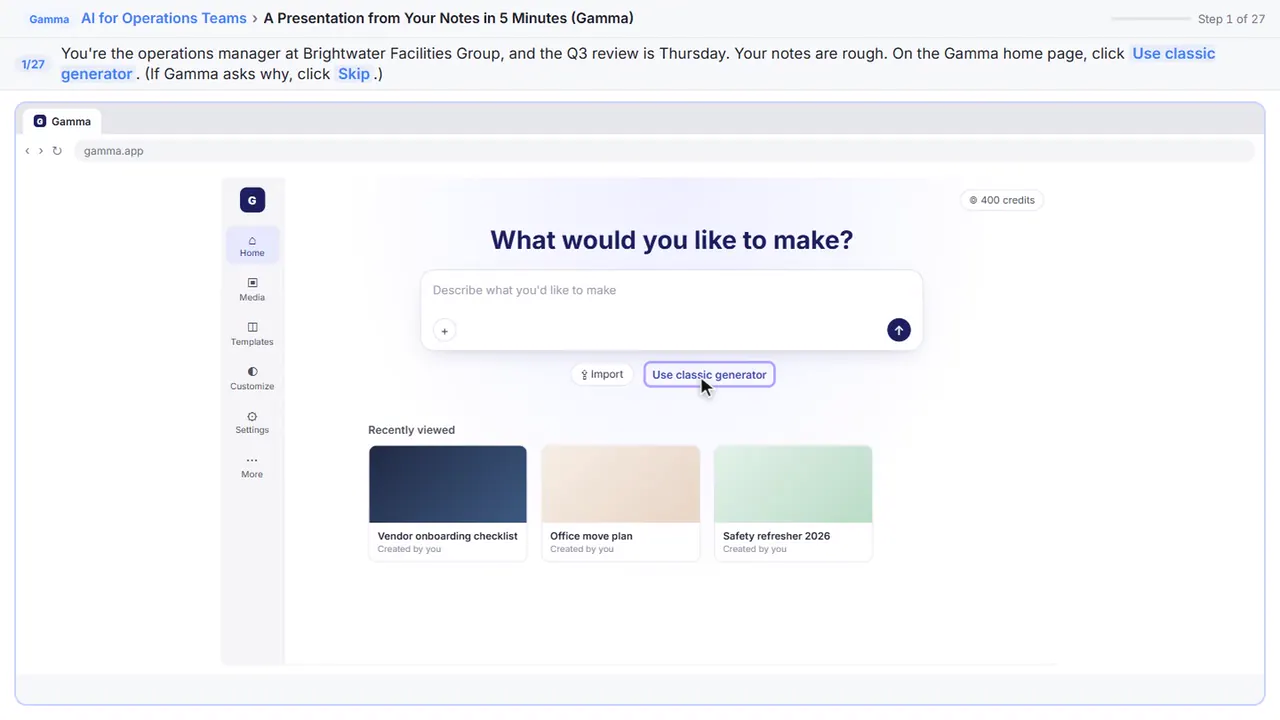
You run operations at Brightwater Facilities Group, and the quarterly review with leadership is on Thursday. All you have is a page of rough notes. Let's turn them into a clean deck in about five minutes. Gamma's home page starts with a chat agent, but for notes you already have, the classic generator is the quickest.
Step 2: Paste in text
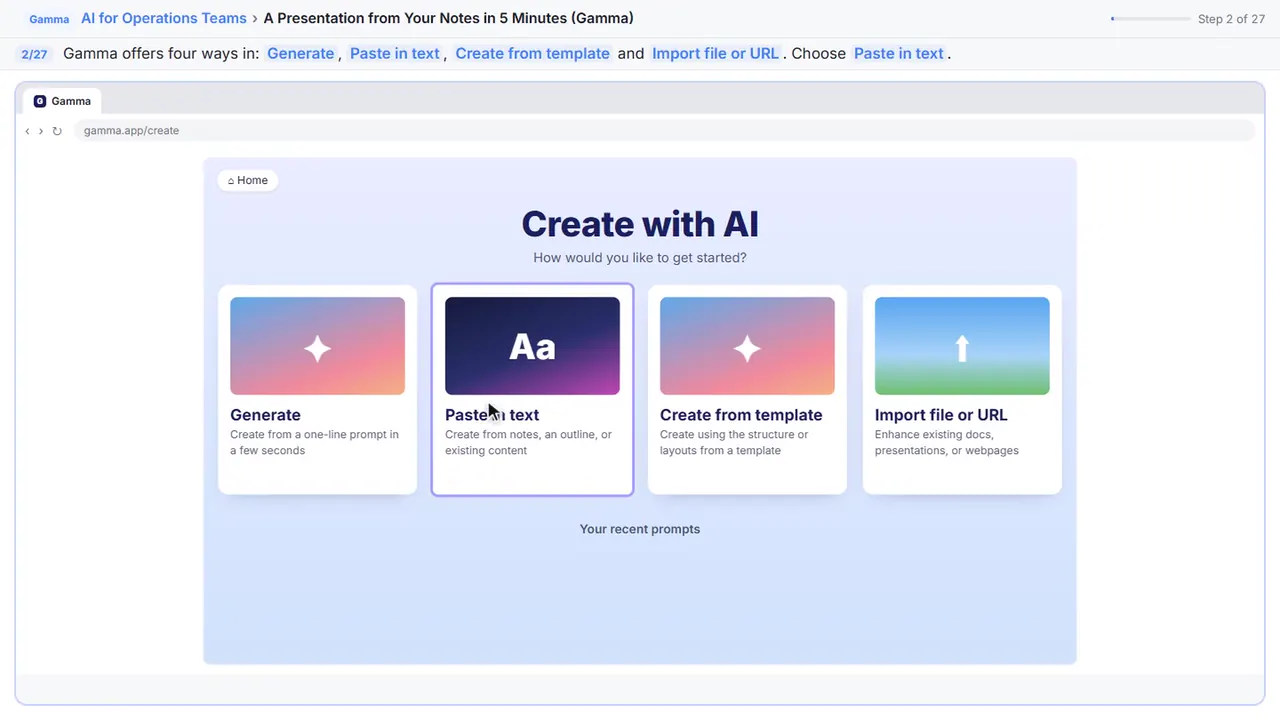
There are a few ways to start. Generate writes from a one-line prompt.
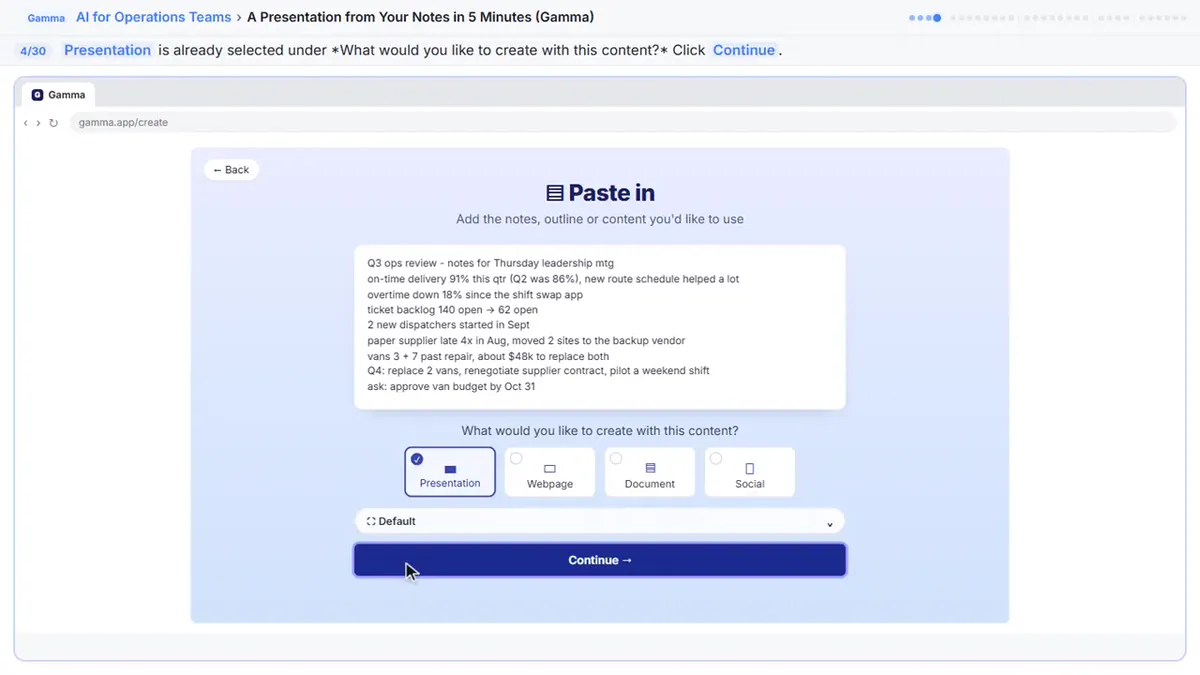
Step 3: Paste your notes
Don't tidy them up first. Abbreviations and half sentences are fine, as long as the numbers are right.
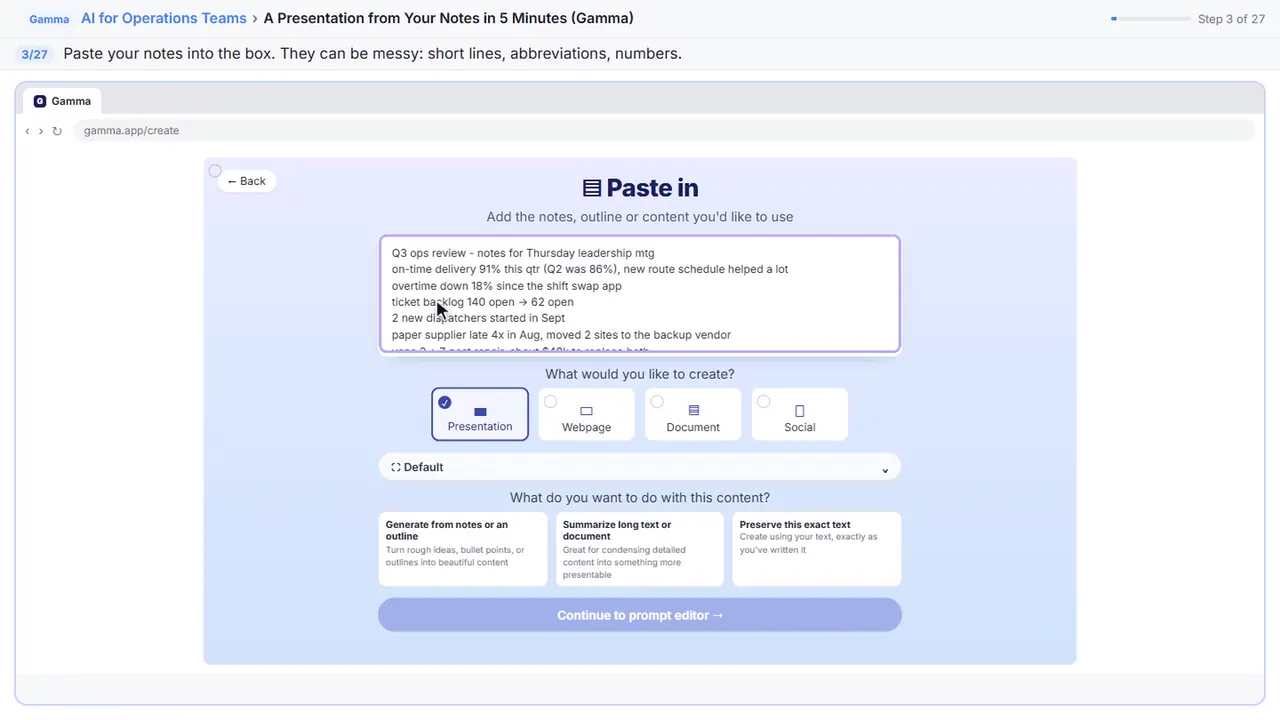
Q3 ops review - notes for Thursday leadership mtg
on-time delivery 91% this qtr (Q2 was 86%), new route schedule helped a lot
overtime down 18% since the shift swap app
ticket backlog 140 open -> 62 open
2 new dispatchers started in Sept
paper supplier late 4x in Aug, moved 2 sites to the backup vendor
vans 3 + 7 past repair, about $48k to replace both
Q4: replace 2 vans, renegotiate supplier contract, pilot a weekend shift
ask: approve van budget by Oct 31
Step 4: Summarize
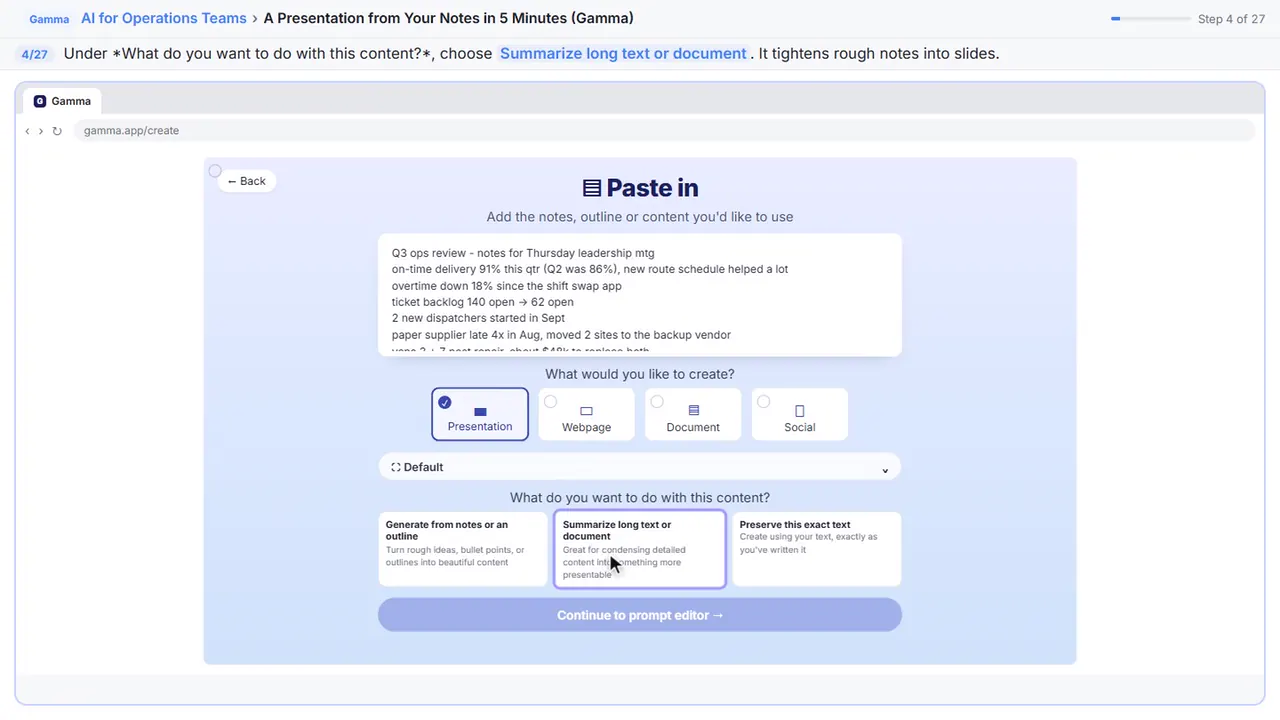
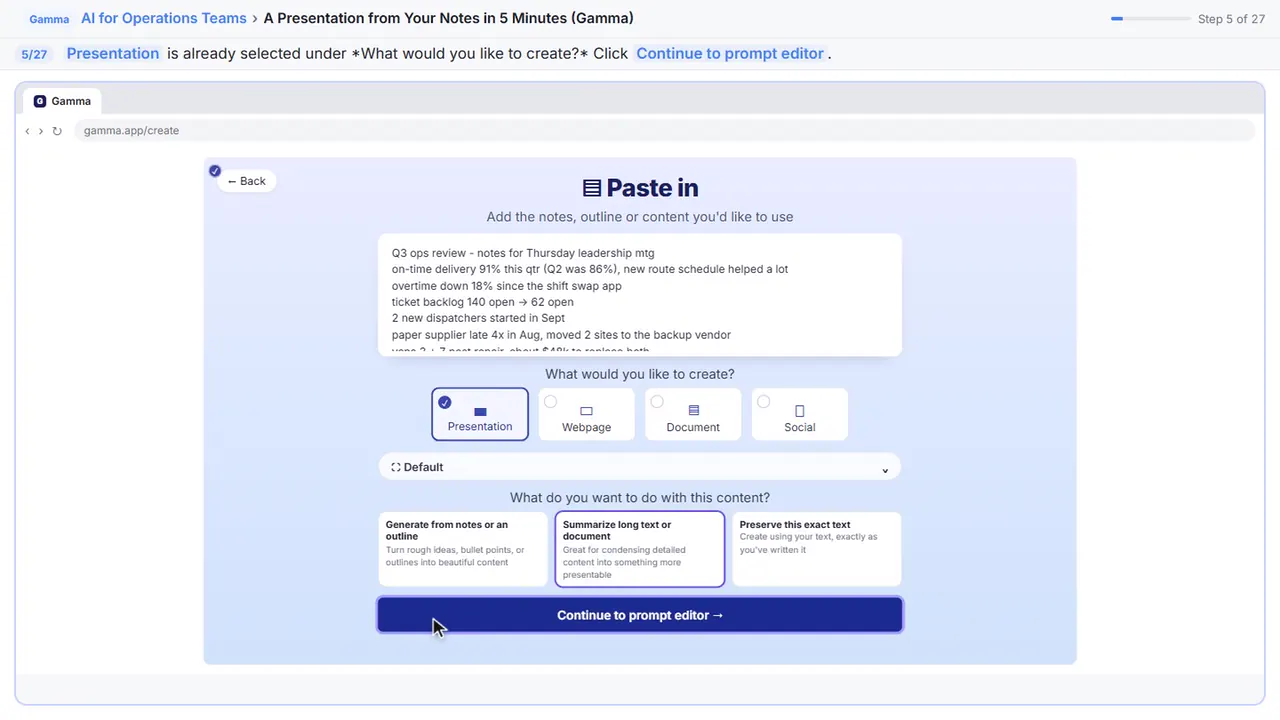
Now tell Gamma what to do with your notes. Generate adds to them, Preserve keeps them word for word, and Summarize tightens them up. Rough notes need tightening, so click Summarize long text or document.
Step 5: Continue
Presentation is already picked, and Default is the normal slide size.
Part 2: Shape the outline
Step 6: Condense
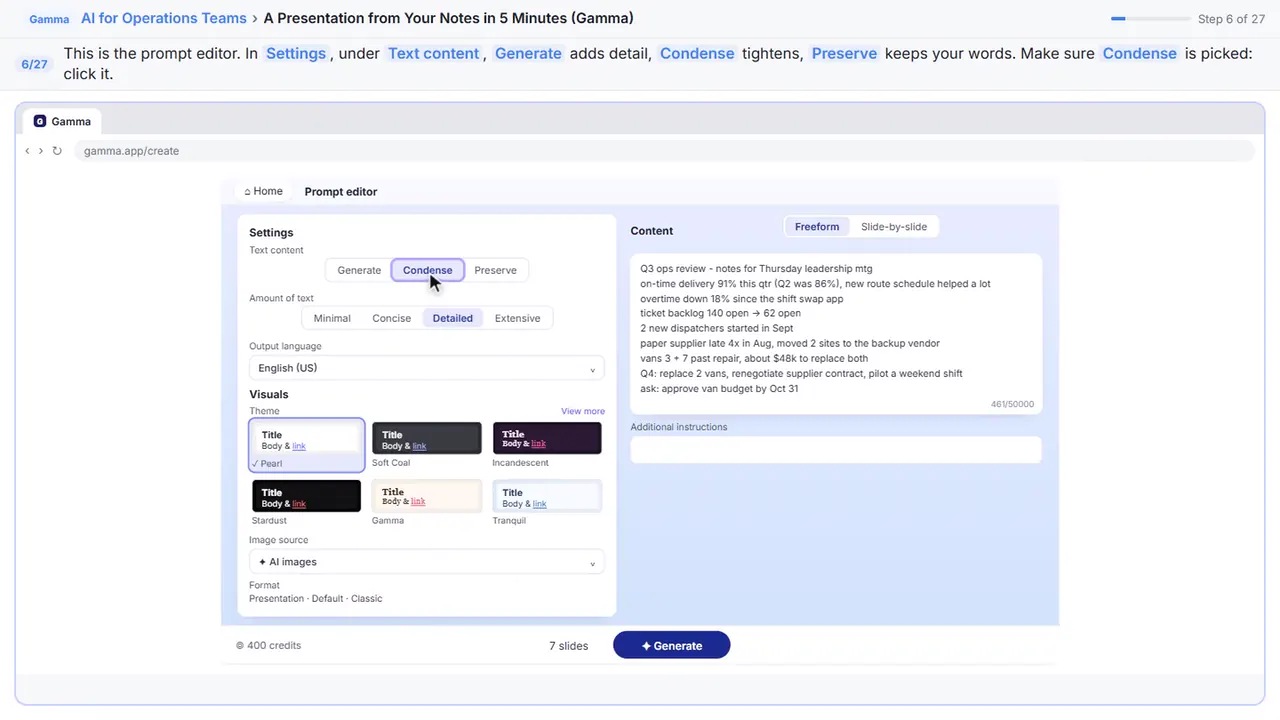
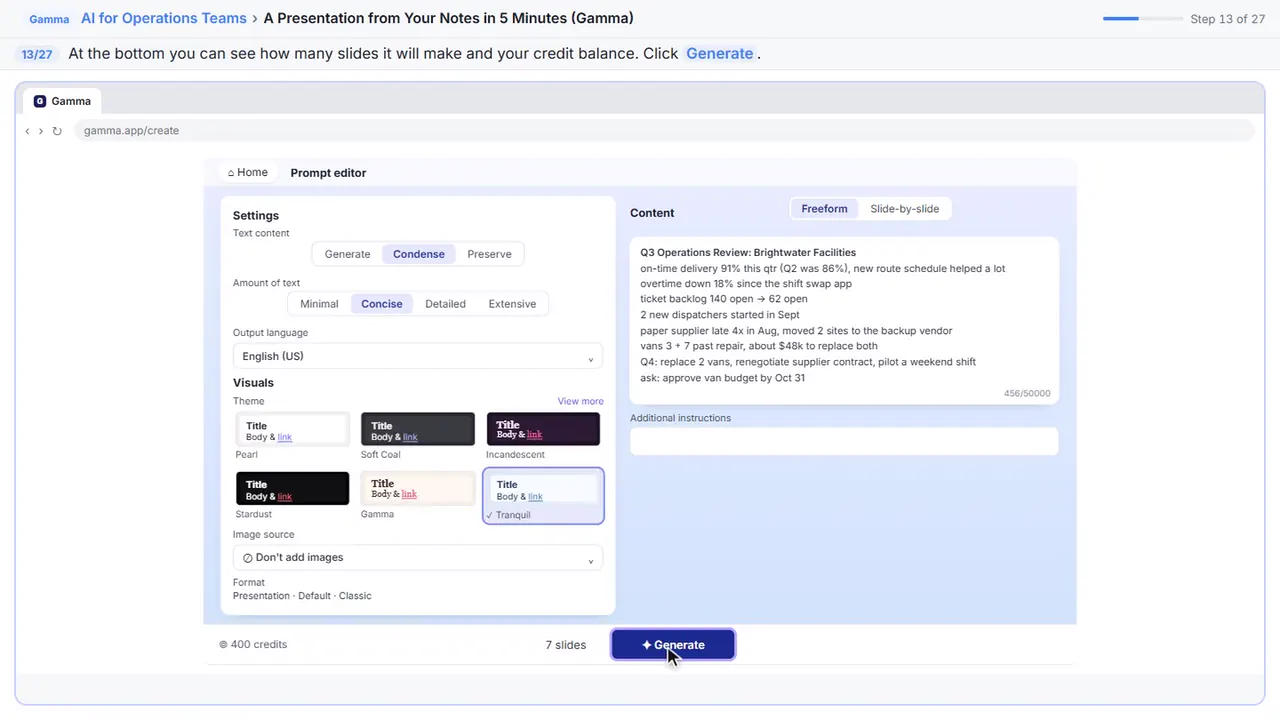
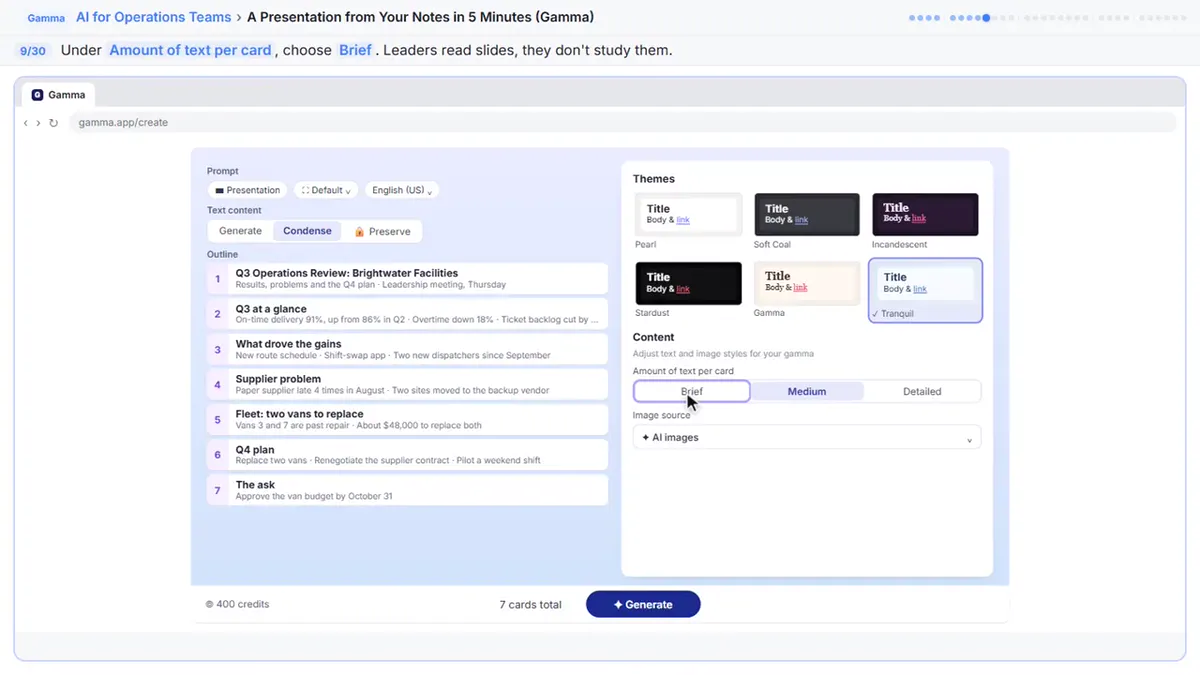
This is the prompt editor, with the settings and your notes side by side. Under Text content, Condense matches the Summarize choice you just made.
Step 7: Click the first line
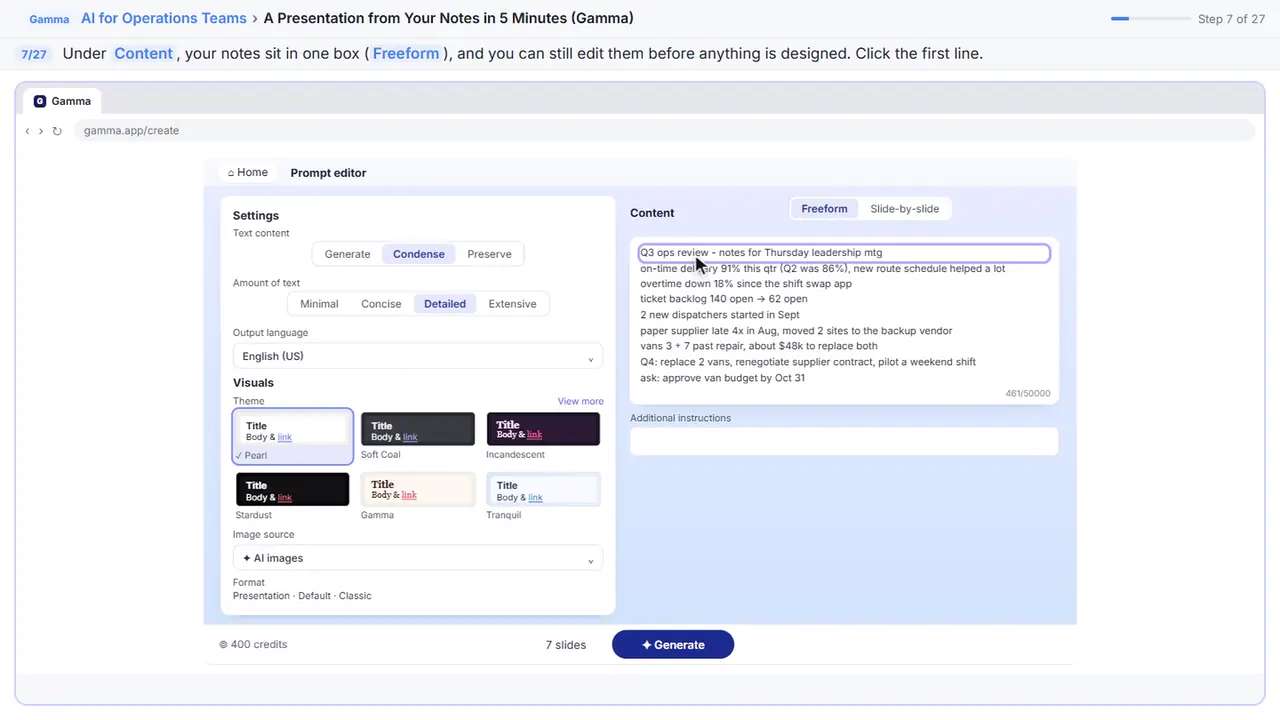
Your notes sit in the Content box, and you can still edit them before Gamma designs a thing.
Step 8: Give it a real title
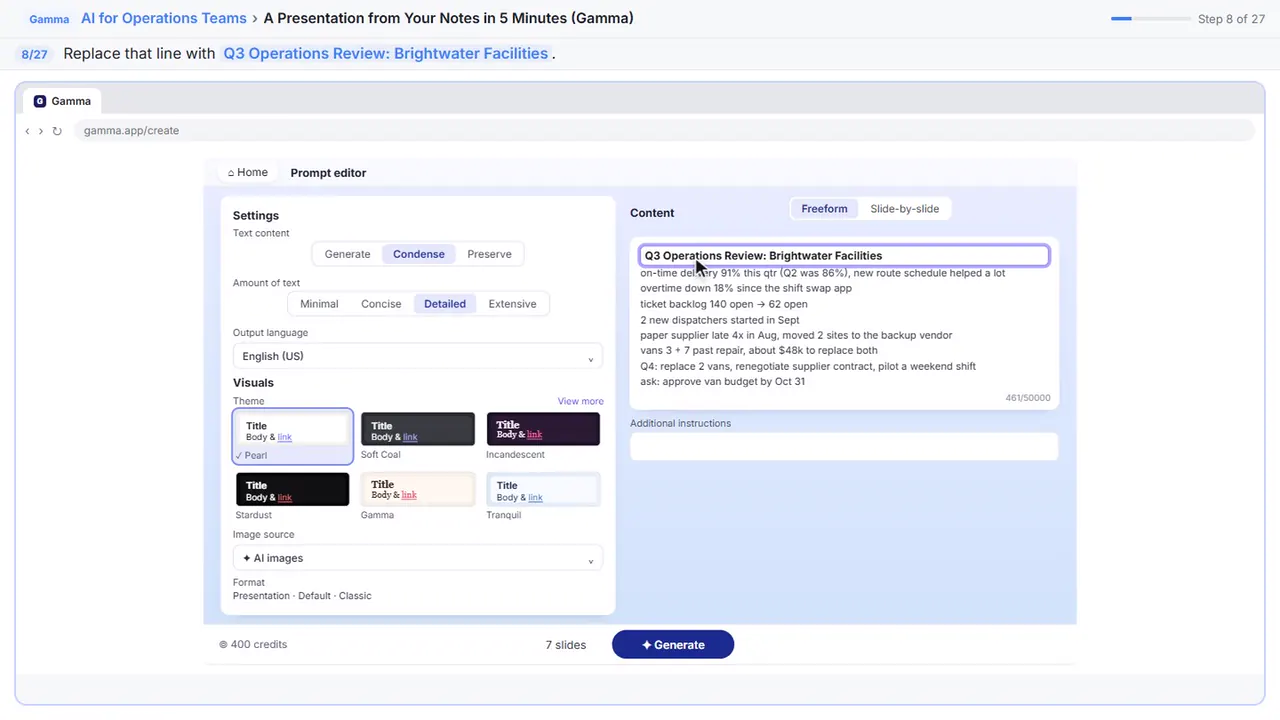
Give it the full name, so anyone who gets the file later knows what it is.
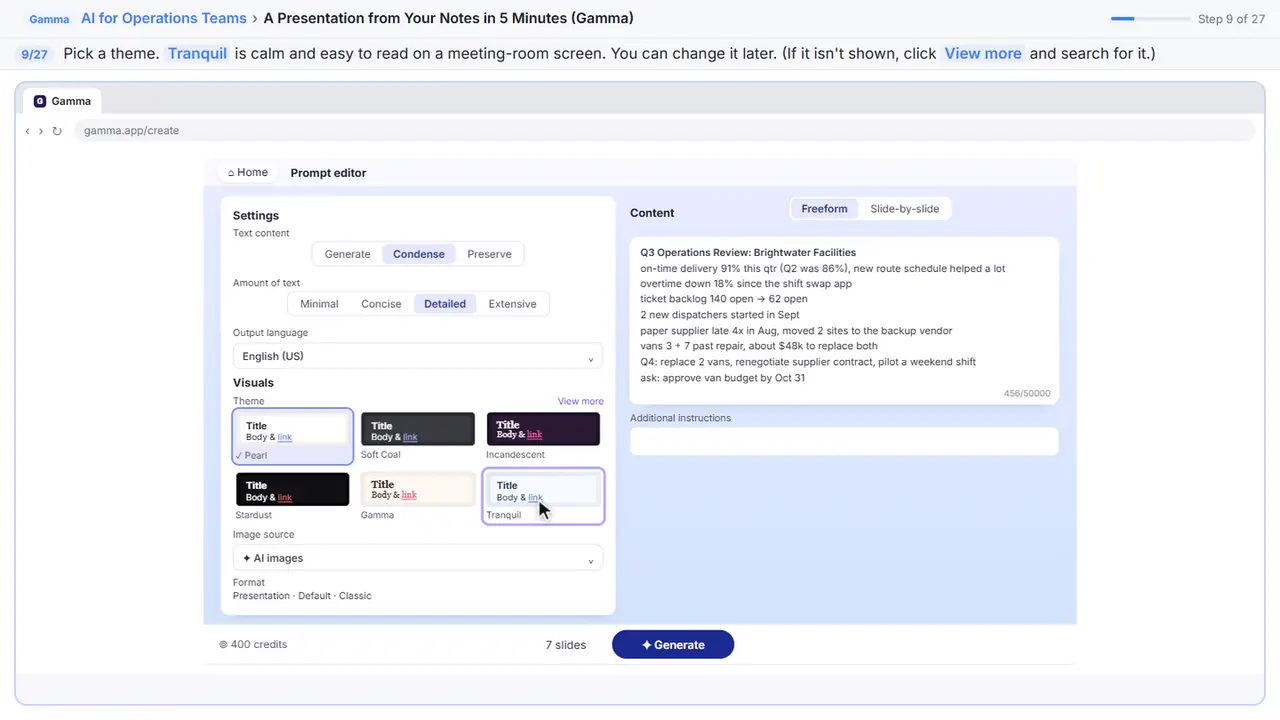
Step 9: Pick a theme
Now the look. Pick a theme. Tranquil is calm and easy to read on a meeting room screen, and you can switch it any time later.
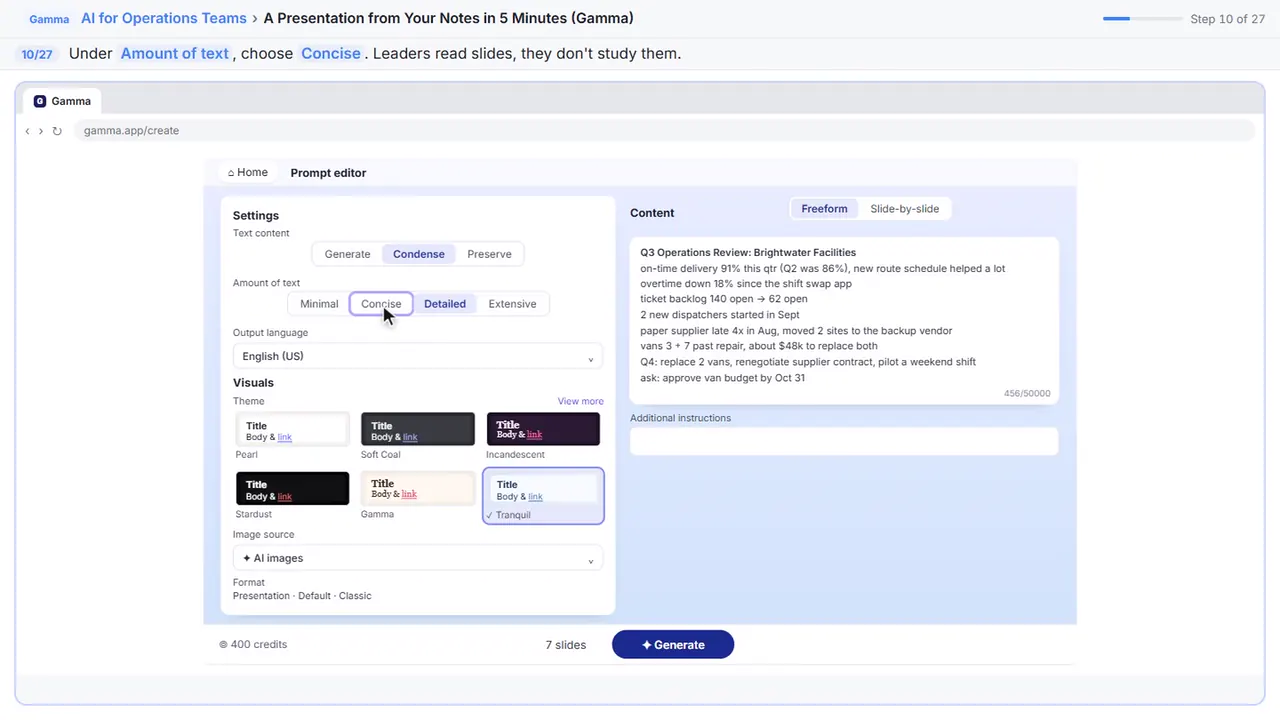
Step 10: Concise text
Under Amount of text, pick Concise. You will be talking, so the slides only need the headline and the numbers.
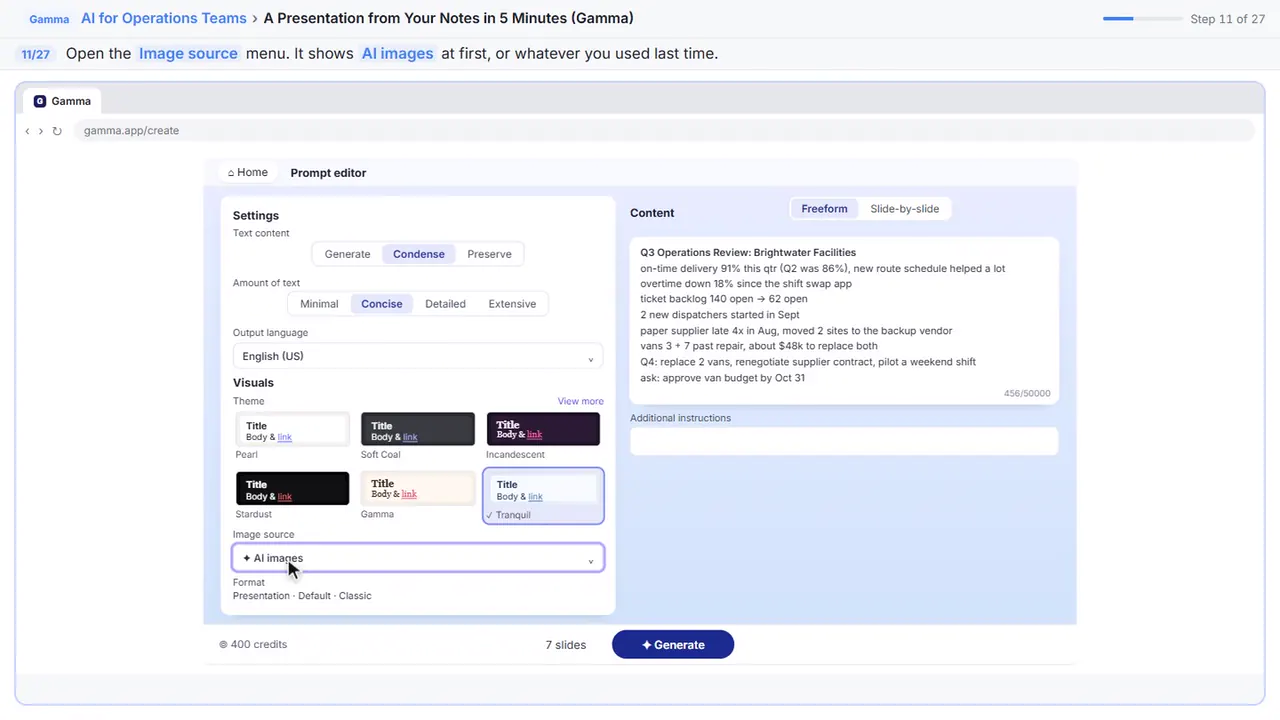
Step 11: Image source
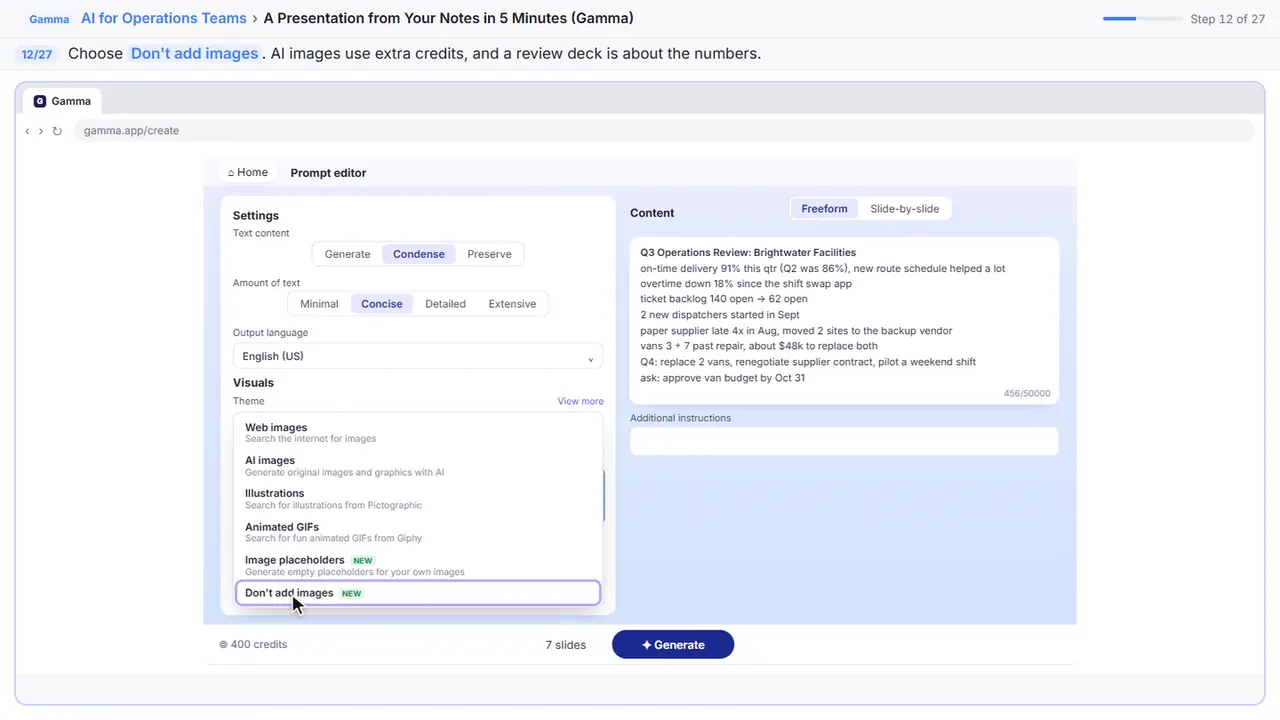
Step 12: Don't add images
Every AI picture uses credits, and an operations review is about the numbers anyway. You can add a photo of the vans later.
Step 13: Generate
The slide count and your credits show at the bottom.
Part 3: Edit a card by chatting
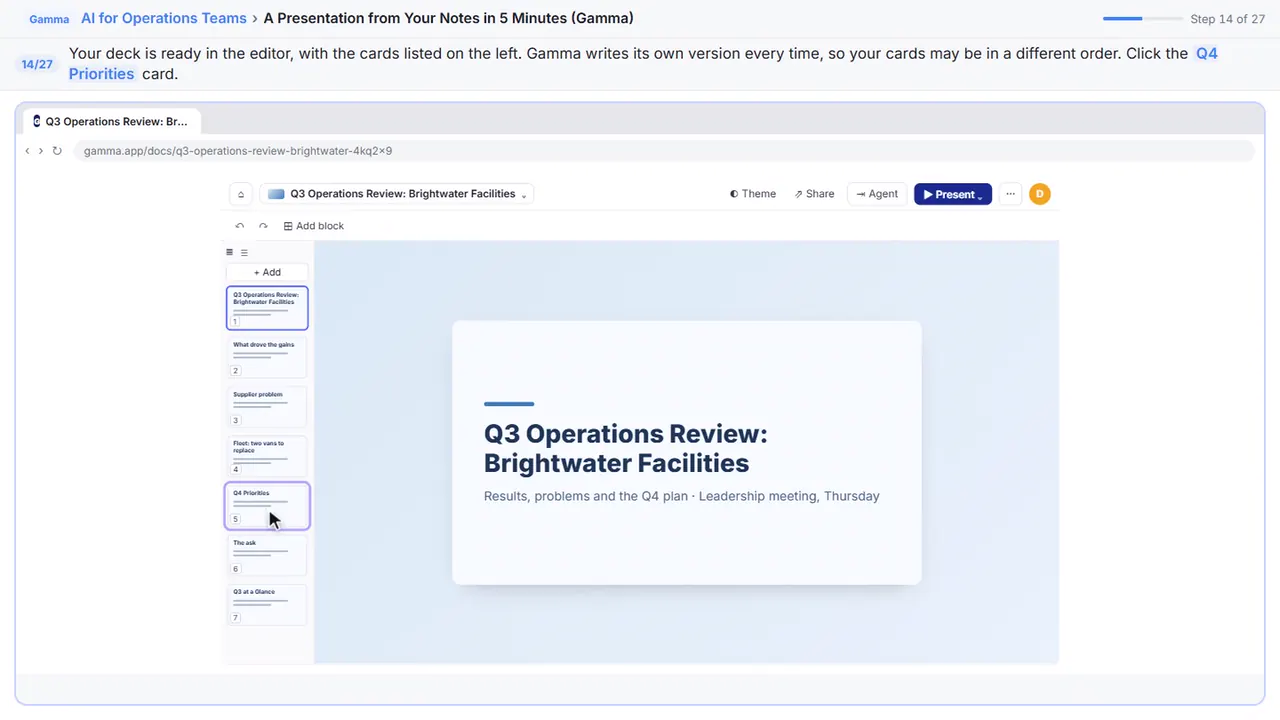
Step 14: Go to the Q4 plan
There's your deck, designed and on theme. The cards down the left are your slides. Gamma writes its own version each time, so yours may differ a little. Find the Q4 plan and click it.
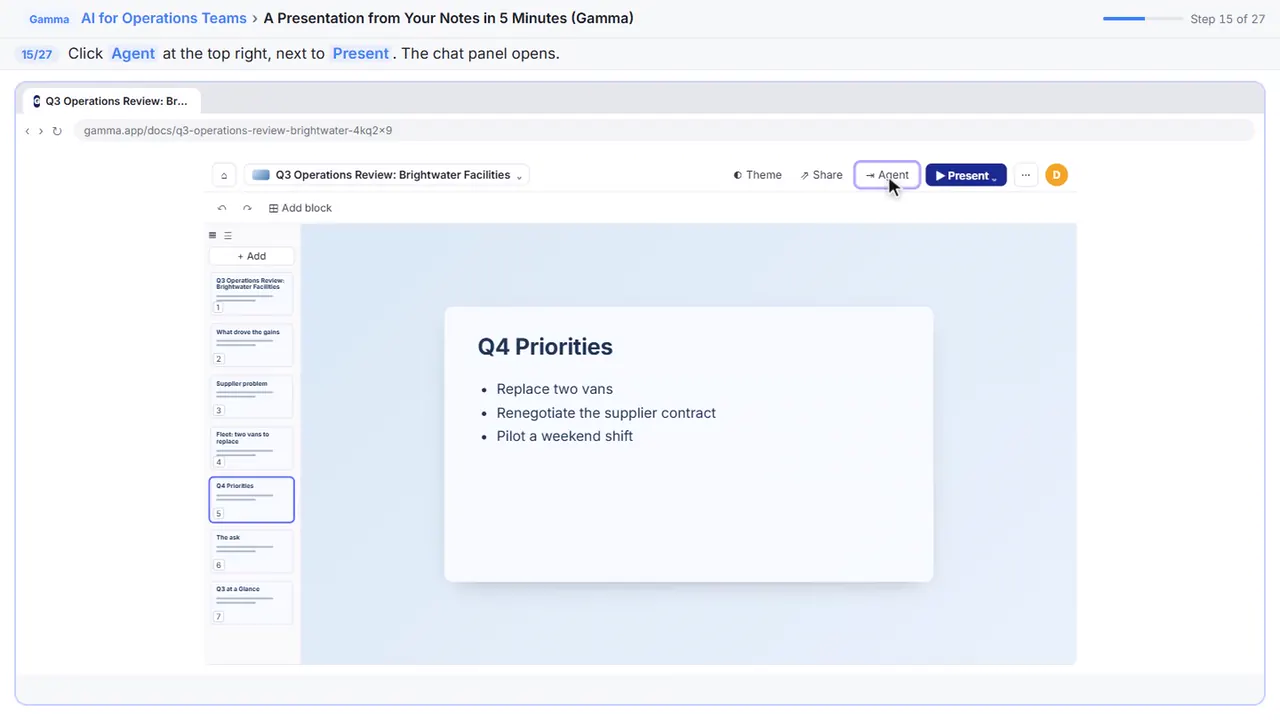
Step 15: Open Agent
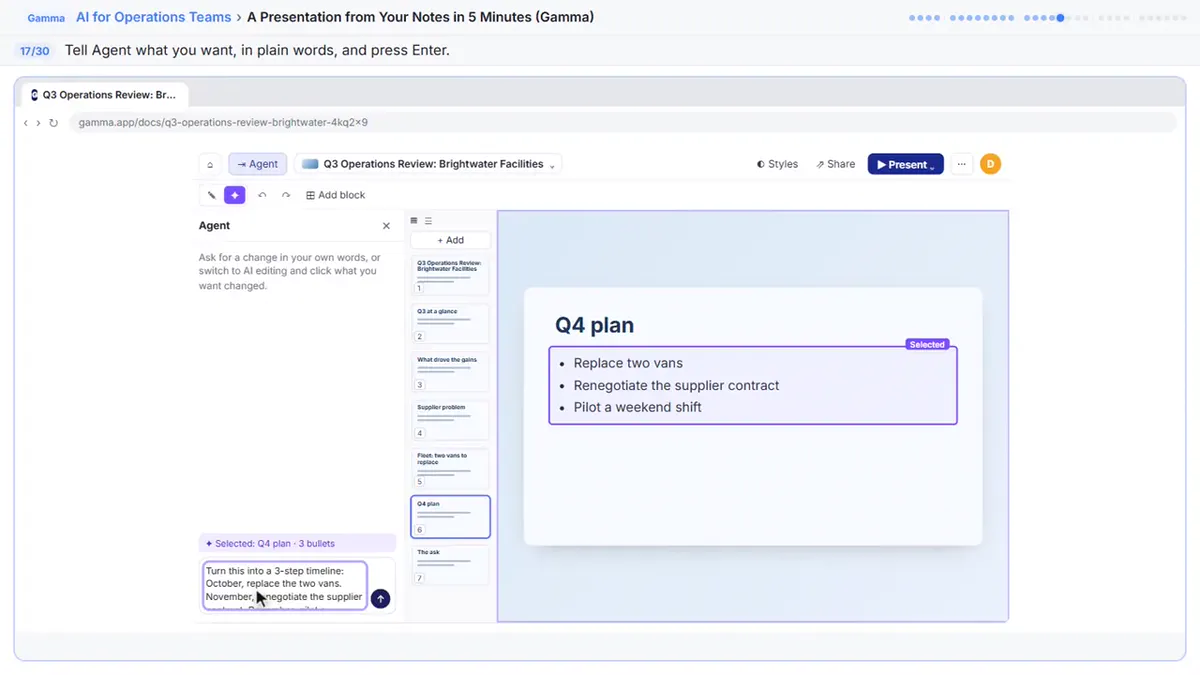
Instead of rebuilding it by hand, you'll ask Gamma's AI.
Step 16: Ask for the change
Now just say what you want, the way you'd ask a colleague. Name the slide, ask for a timeline with one month per step, and keep my wording.
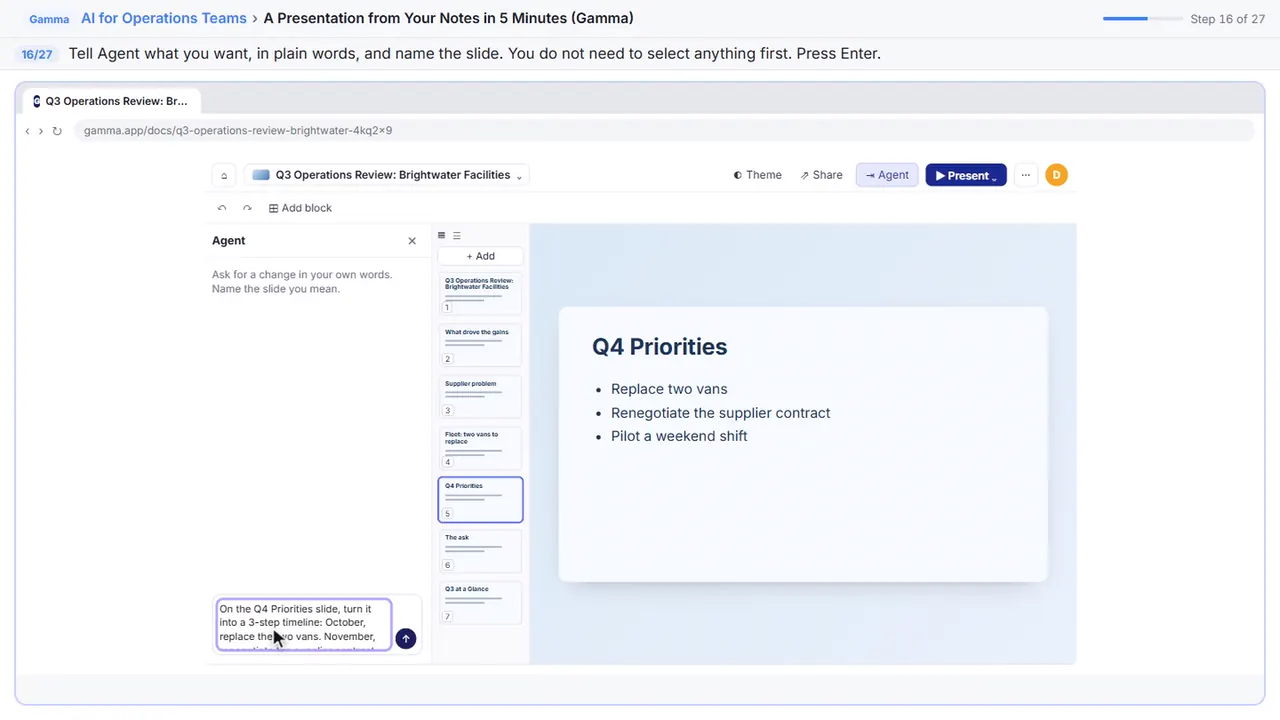
On the Q4 Priorities slide, turn it into a 3-step timeline: October, replace the two vans. November, renegotiate the supplier contract. December, pilot a weekend shift. Keep my wording.
Step 17: Compare with the original
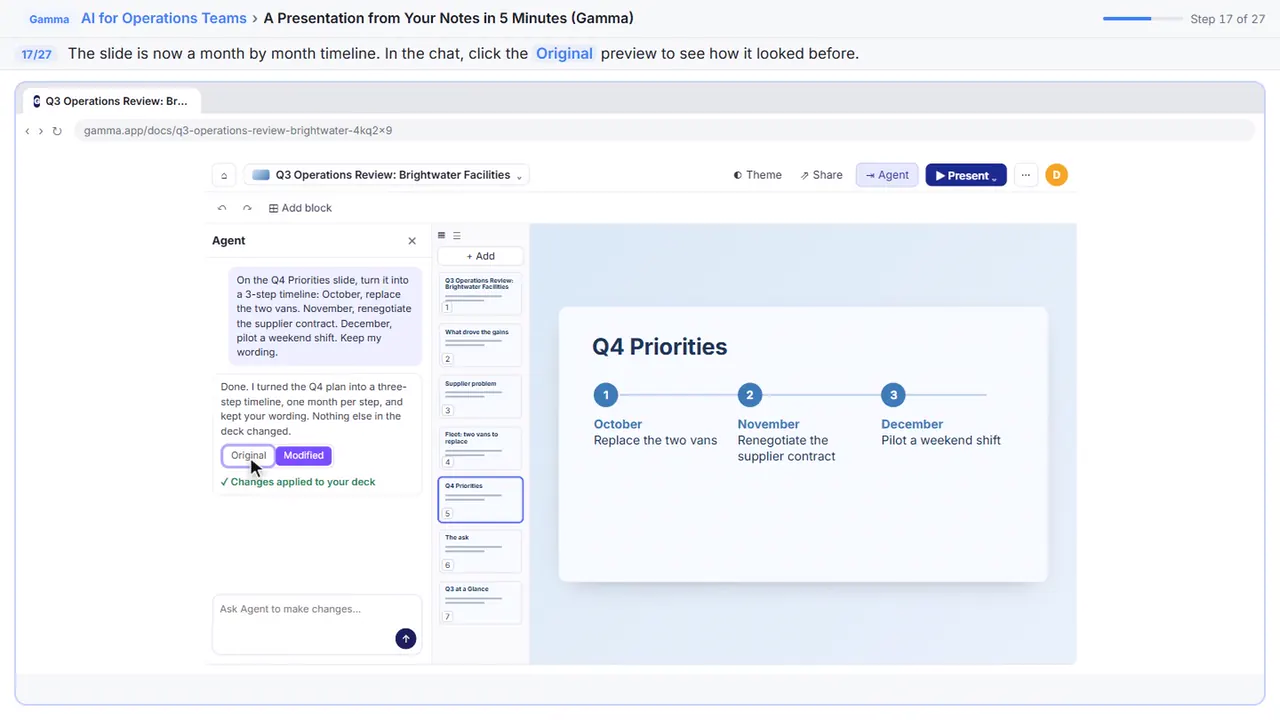
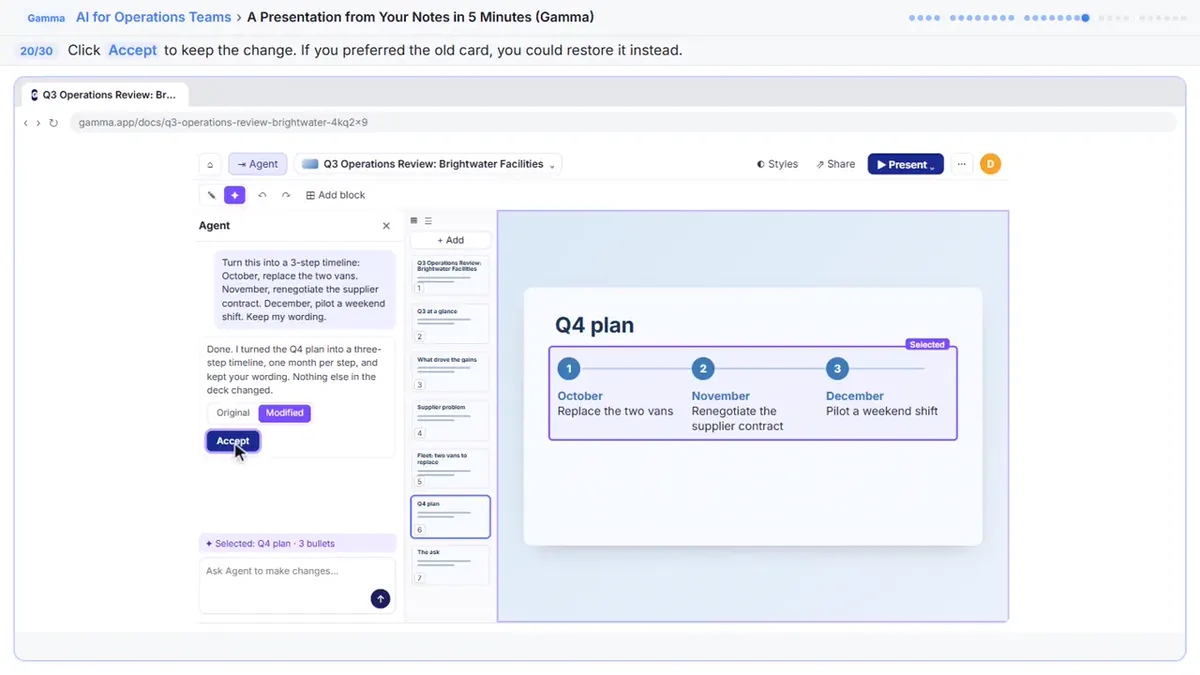
The slide became a month by month timeline.
Step 18: Back to the new version
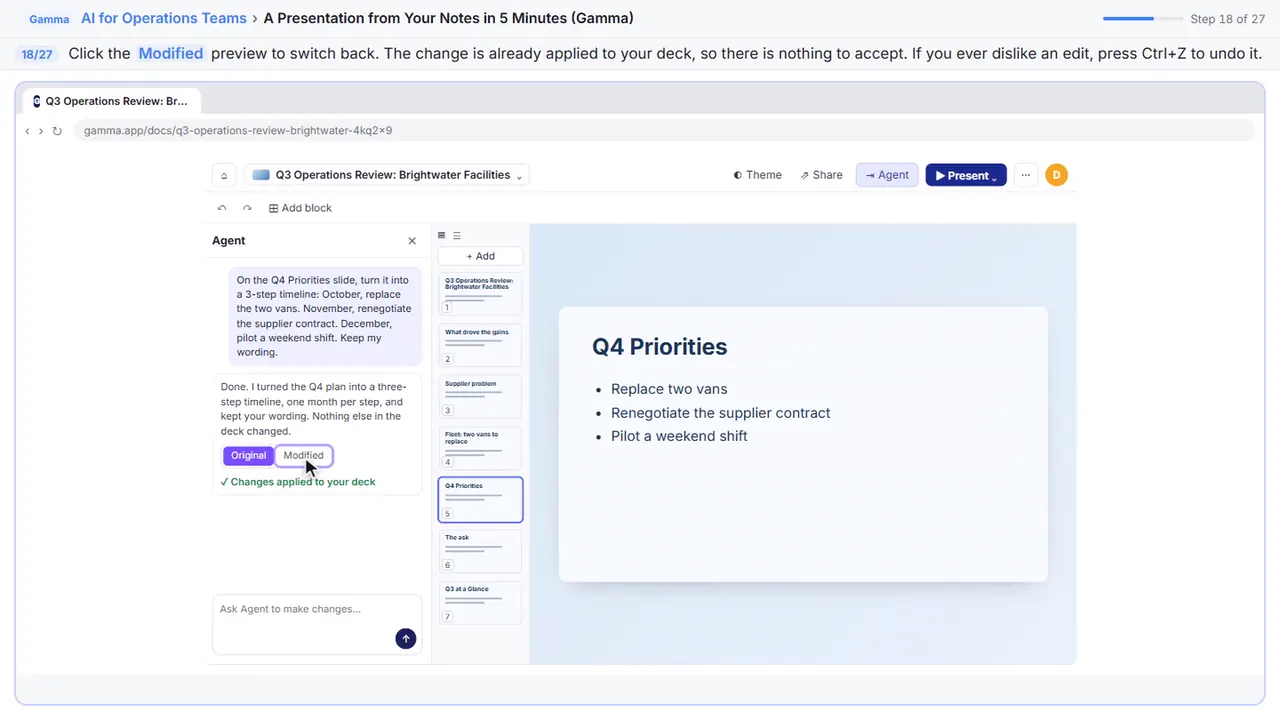
The change is already in your deck, so there's nothing to confirm. If you ever dislike an edit, undo it.
Part 4: Fix a detail by hand
Step 19: Check the numbers
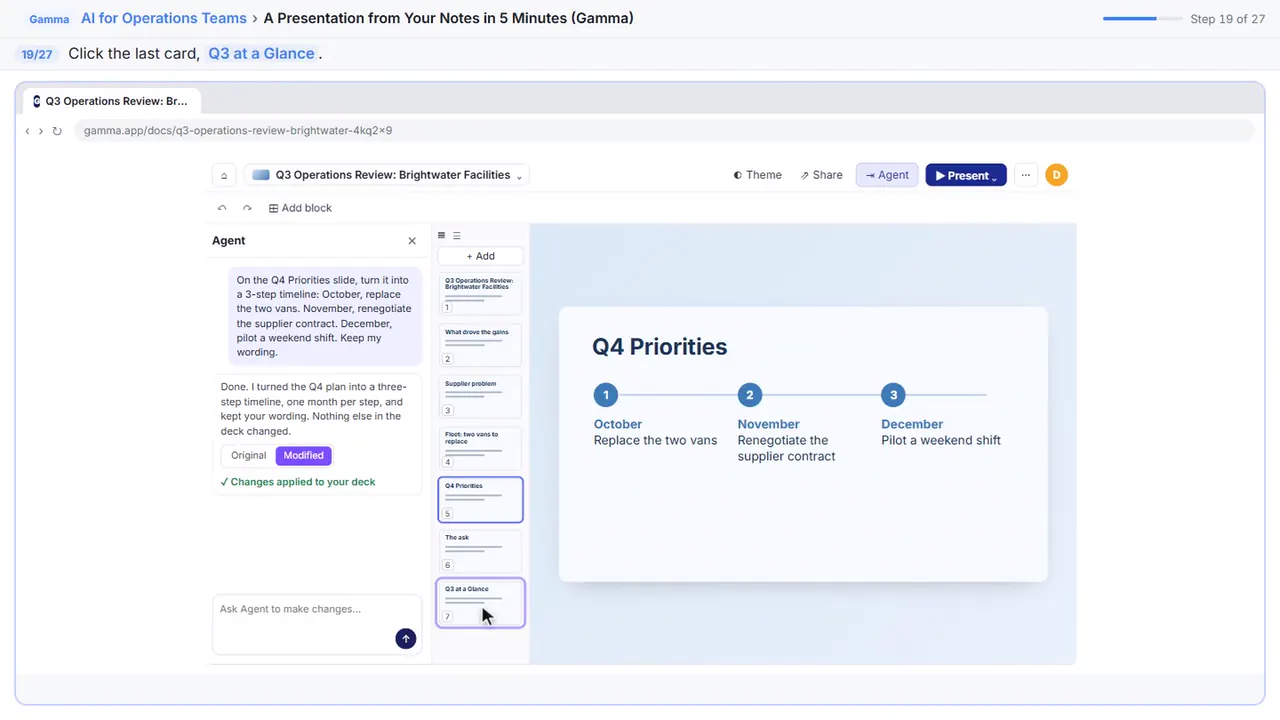
Always check the numbers before a deck goes to leadership.
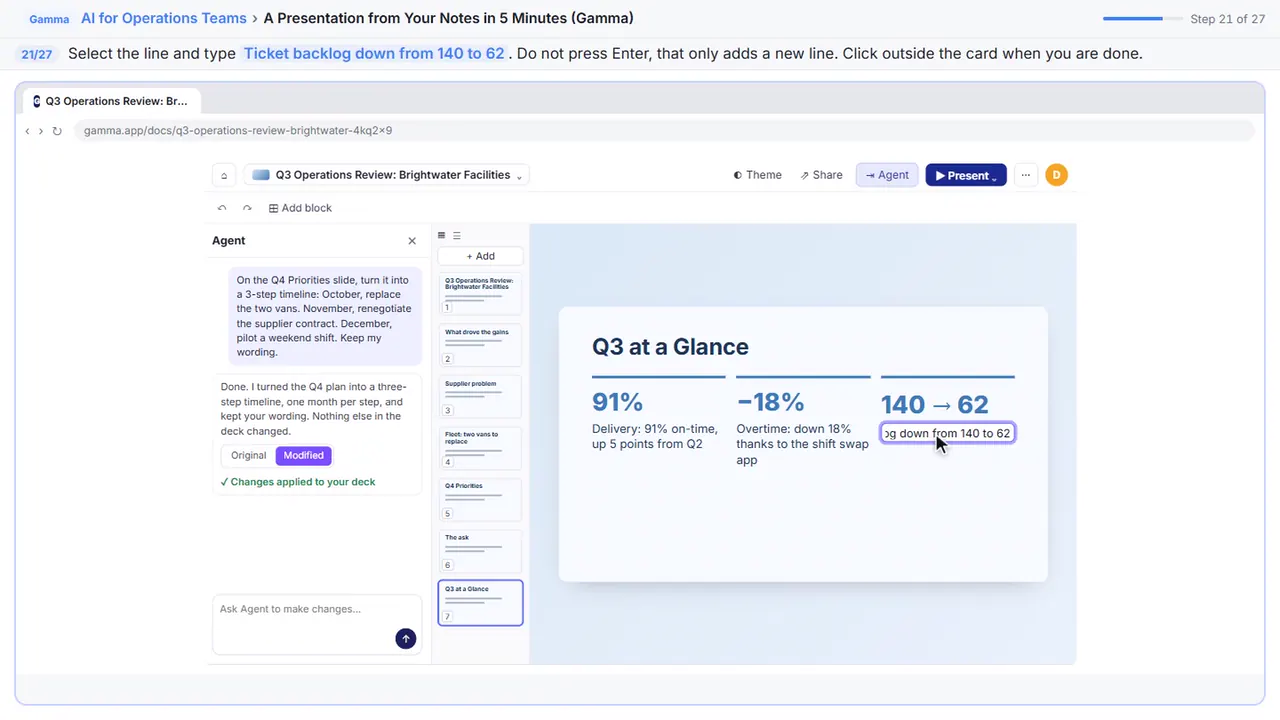
Step 20: Click the Backlog line
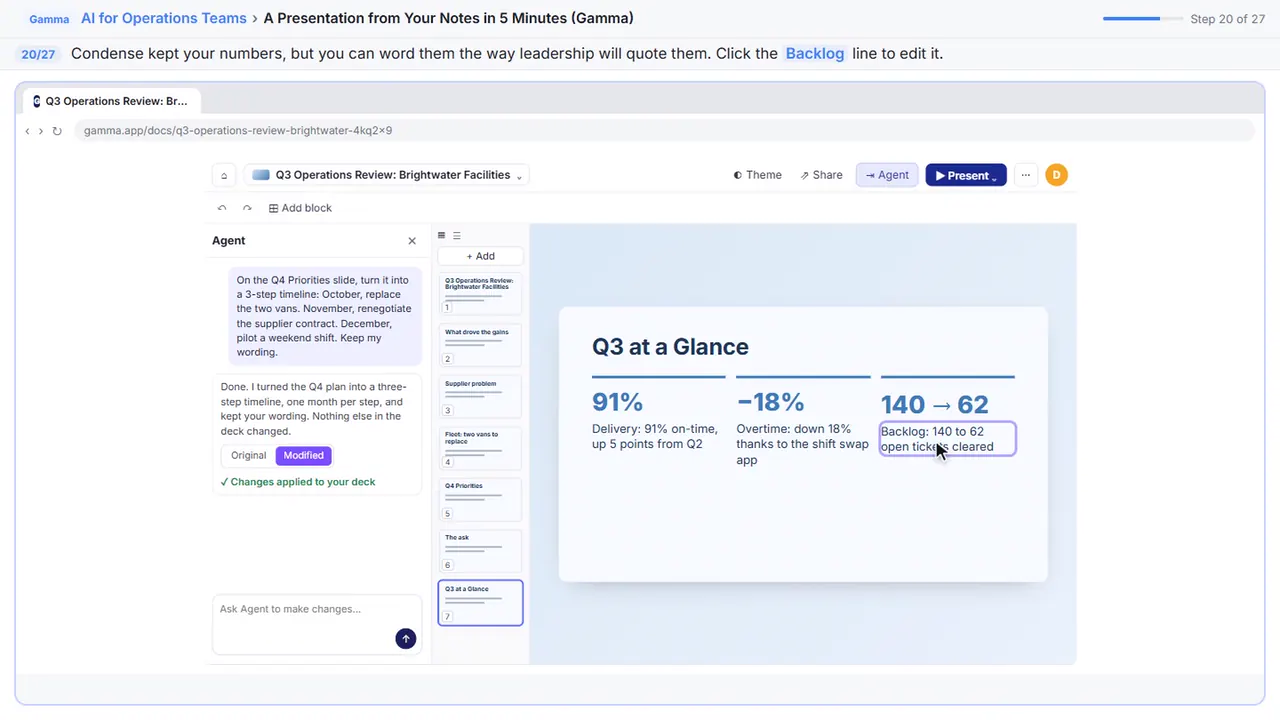
Condense kept your backlog numbers, but let's word the line the way leadership will quote it.
Step 21: Put the real numbers in
Replace the line with the clear version. The layout adjusts by itself. Don't press Enter, that only starts a new line.
Part 5: Export it
Step 22: Open the menu
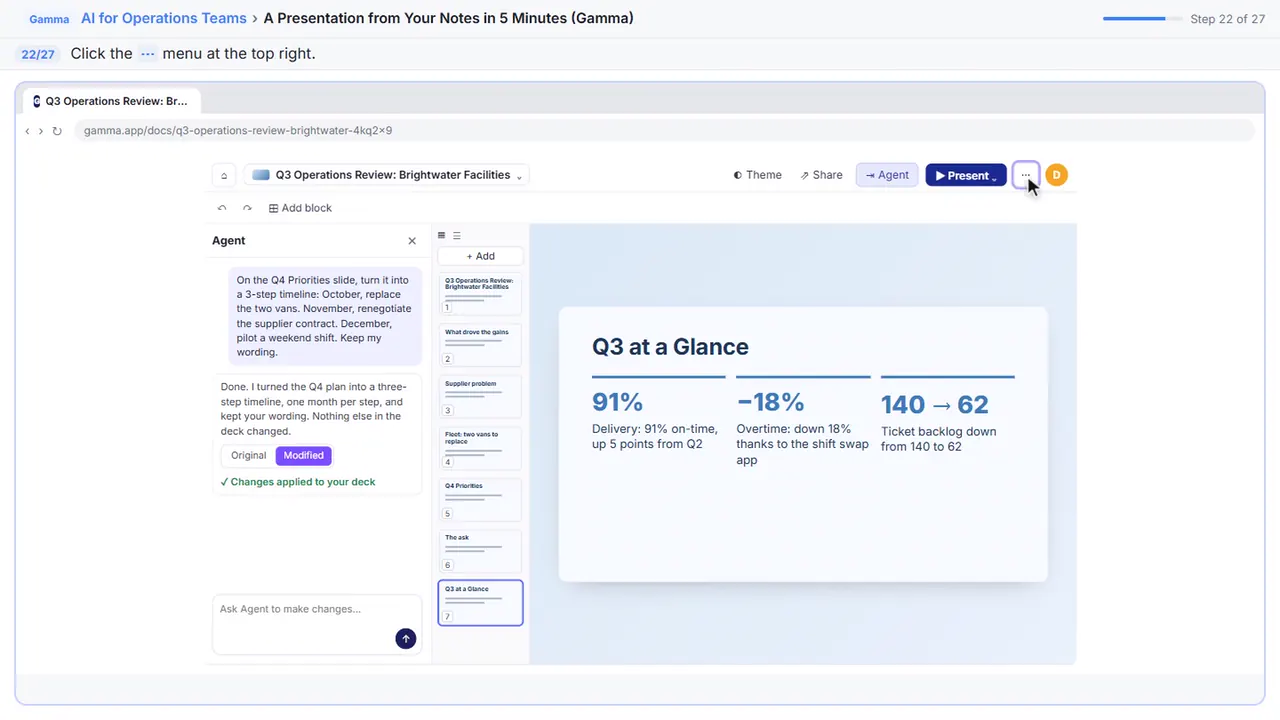
Your deck is ready. Some people will want it as a PowerPoint file, so open the three dot menu at the top right.
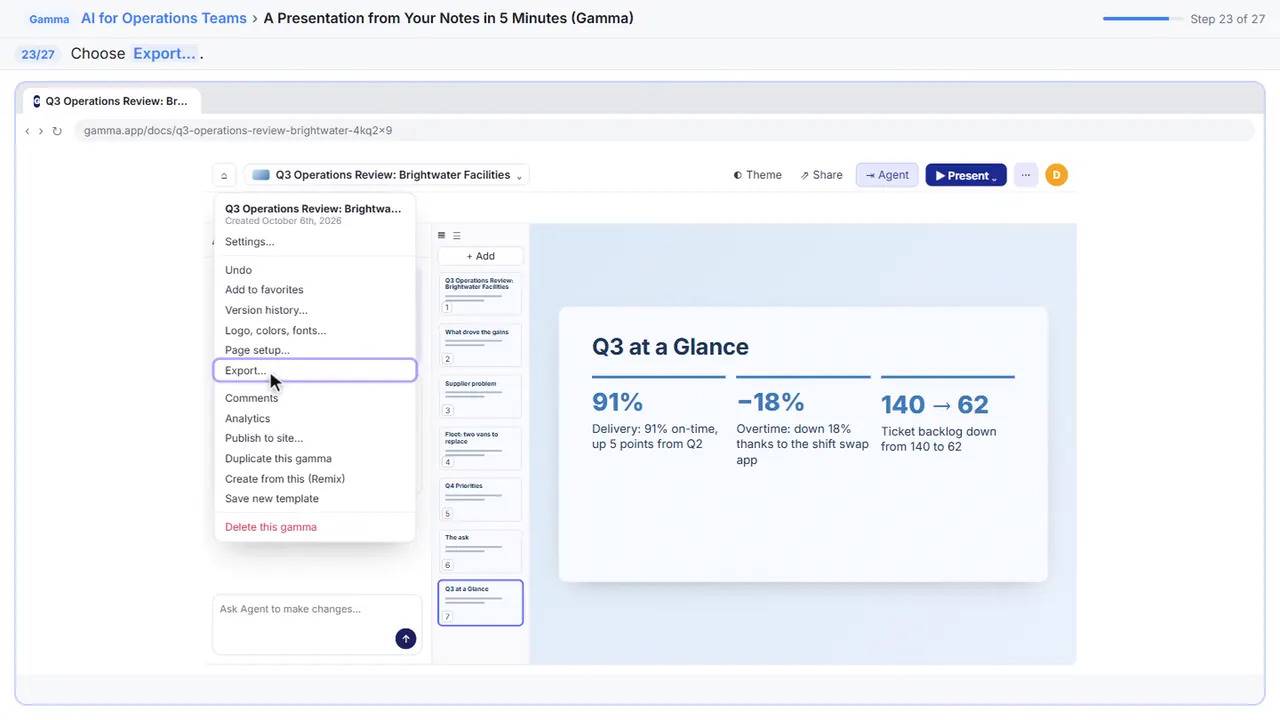
Step 23: Export
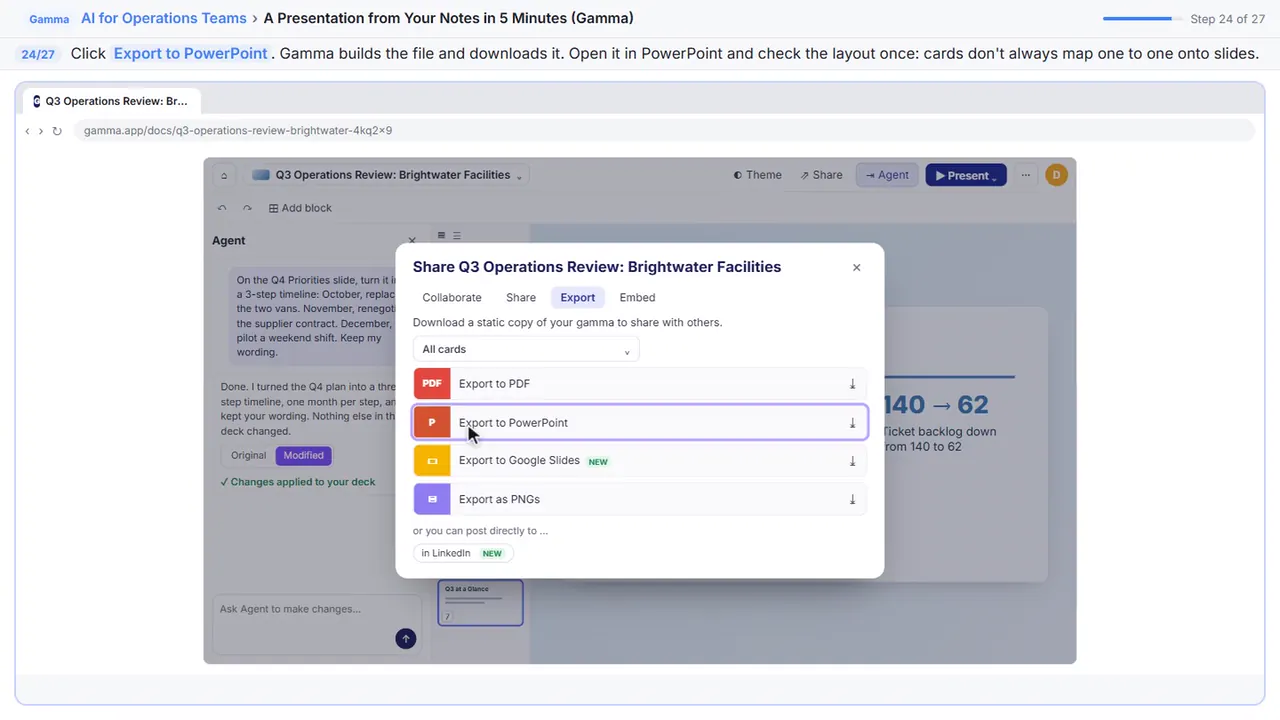
Step 24: Export to PowerPoint
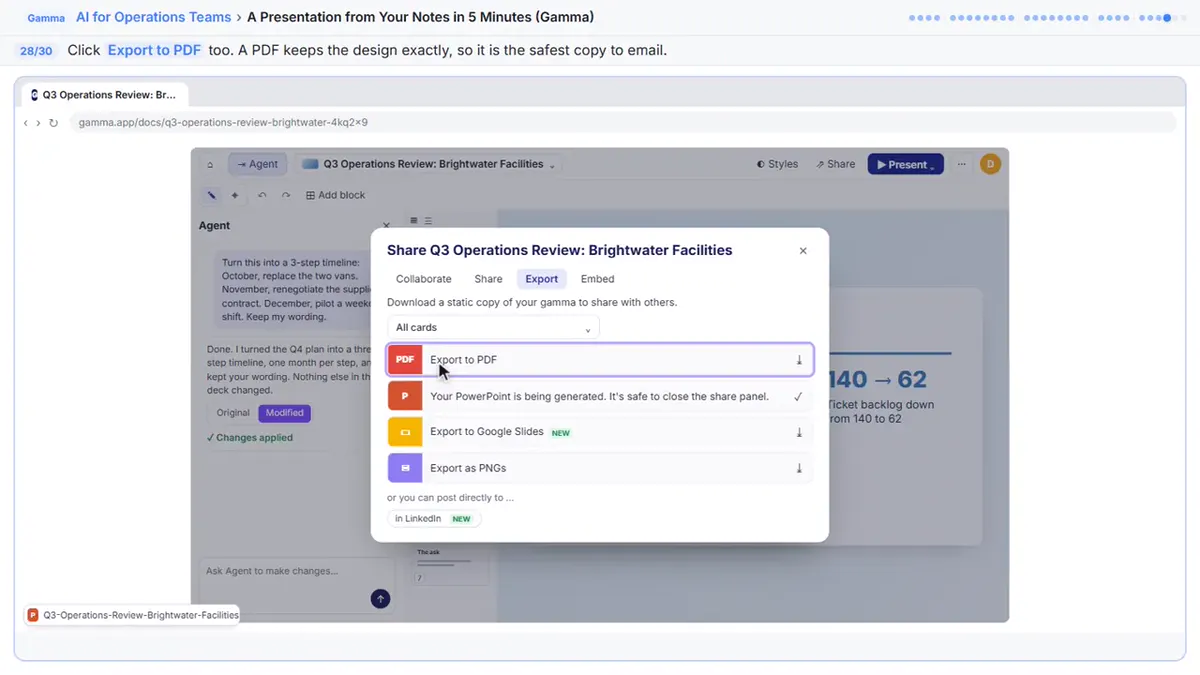
Gamma builds the file and downloads it, and it's safe to close the panel while it works.
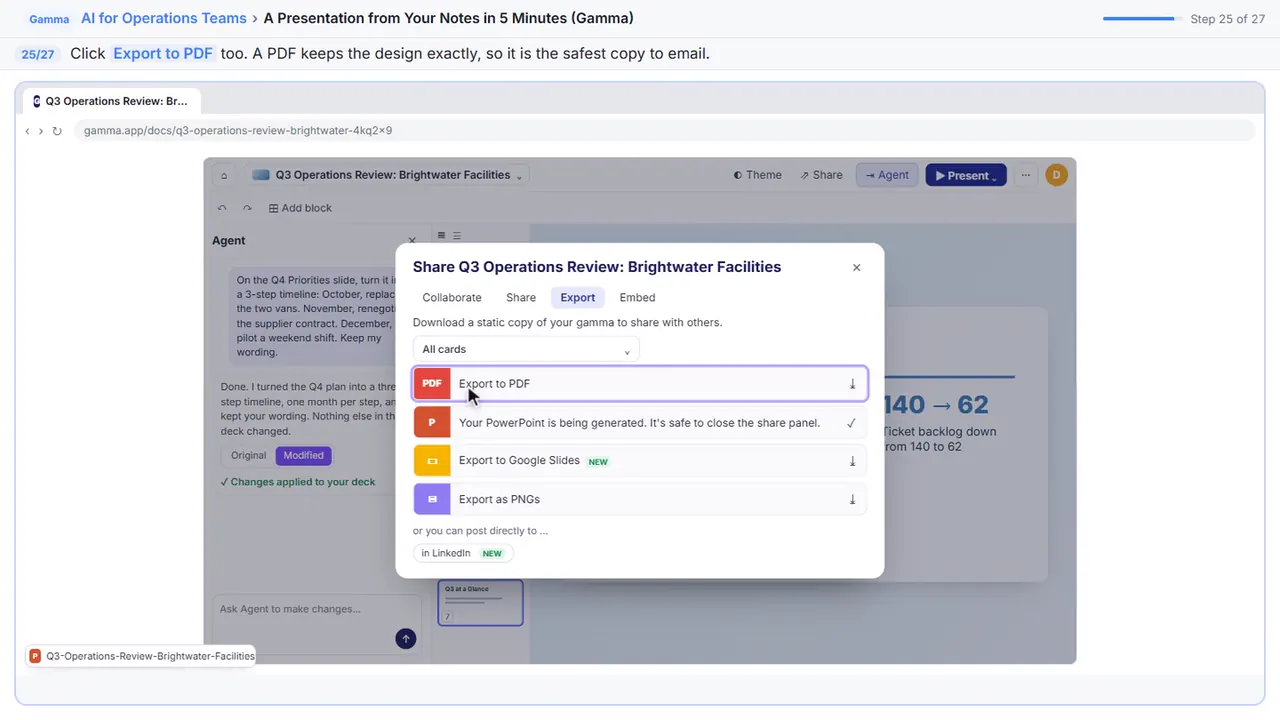
Step 25: Export to PDF
Export a PDF too. It keeps the design exactly, so it's the safest file to email before the meeting. On the free plan, both files carry a small Made by Gamma badge.
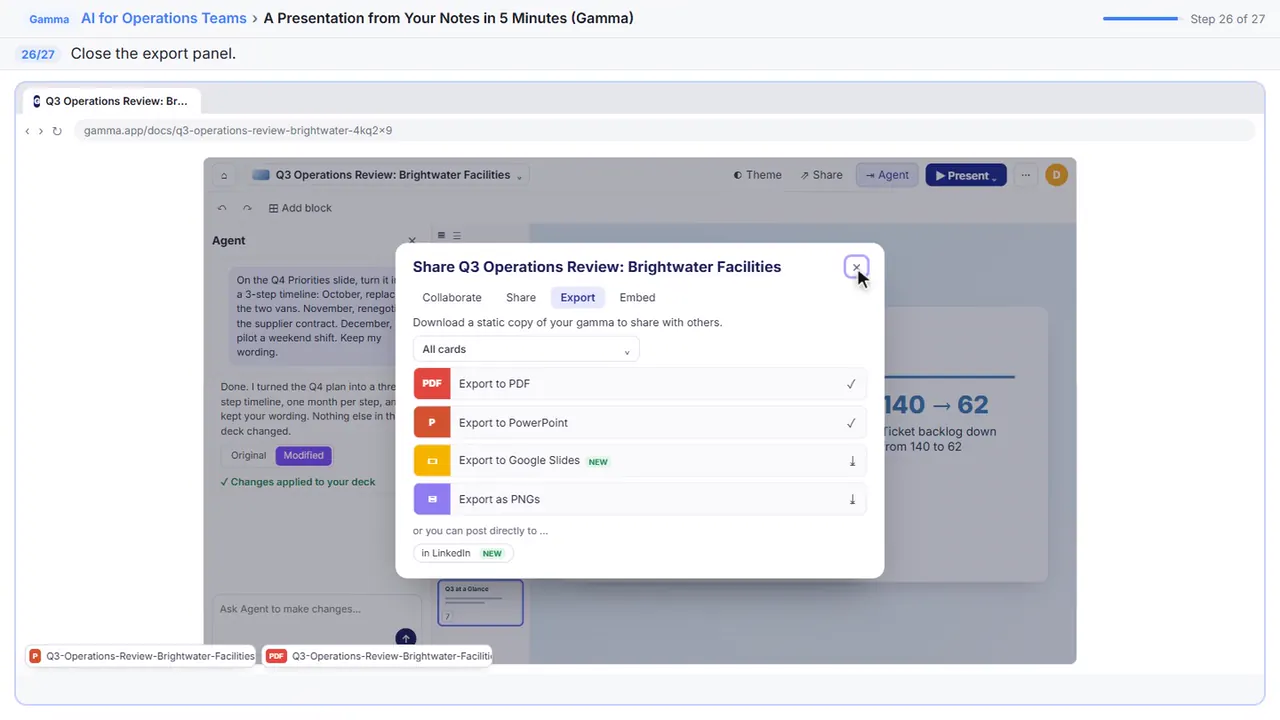
Step 26: Close
Close the panel.
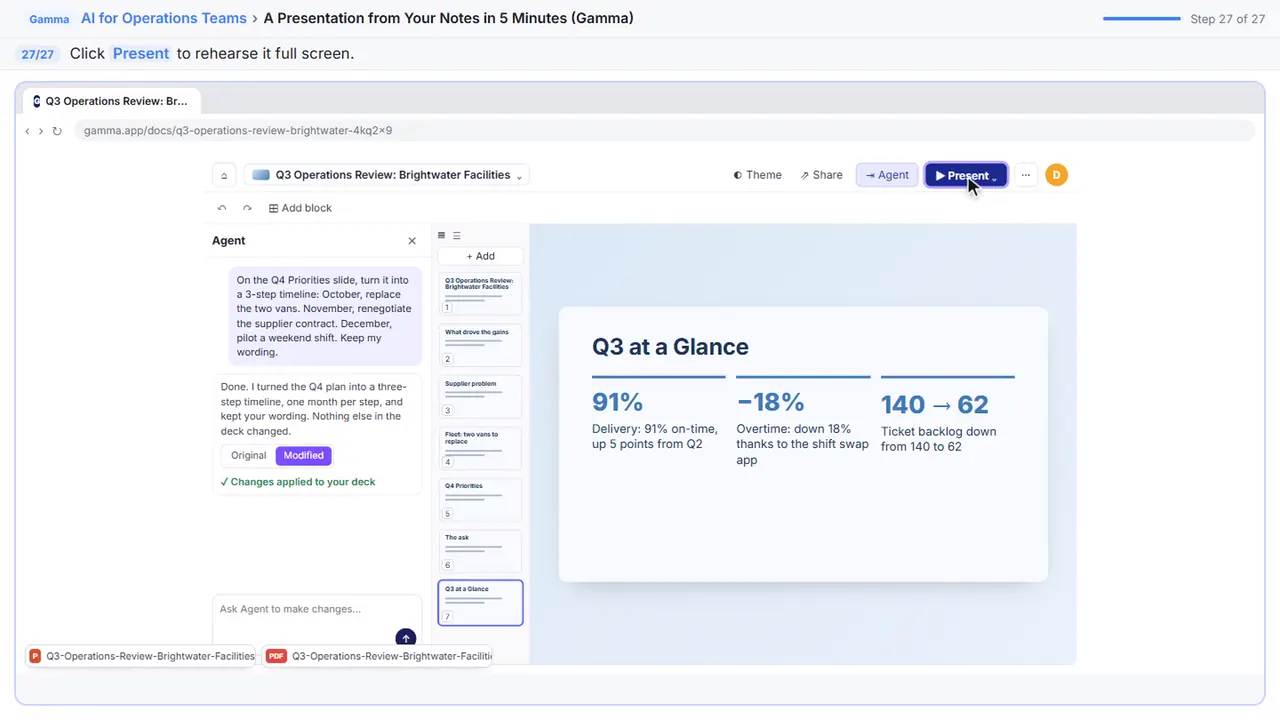
Step 27: Present
And on Thursday, click Present to show it straight from Gamma. Rough notes to a finished deck, in about five minutes.
Now do it yourself, free
Reading the steps is a start. Doing them is how it sticks. The interactive lesson puts you in a practice copy of Gamma: you do every step yourself, it checks your work, and “Do it for me” finishes any step you get stuck on. Nothing touches your real accounts.
Practice “A Presentation from Your Notes in 5 Minutes (Gamma)” step by stepA Presentation from Your Notes in 5 Minutes (Gamma): video walkthrough
The whole lesson in 3:03, narrated step by step.
Simulated practice environment. Recorded in Stepthrough’s simulated practice environment, not the live tool. Practice it yourself free at learn.ynteractive.com.
Chapters
Click a chapter to jump the video there.
- 0:00 Paste your notes
- 0:46 Shape the outline
- 1:31 Edit a card by chatting
- 2:05 Fix a detail by hand
- 2:23 Export it
Now do it yourself, free
Watching is the warm-up. The interactive lesson puts you in a practice copy of Gamma: you do every step yourself, it checks your work, and “Do it for me” finishes any step you get stuck on. Nothing touches your real accounts.
Practice “A Presentation from Your Notes in 5 Minutes (Gamma)” step by stepFull transcript
Paste your notes
0:00 You run operations at Brightwater Facilities Group, and the quarterly review with leadership is on Thursday. All you have is a page of rough notes. Let's turn them into a clean deck in about five minutes. Gamma's home page starts with a chat agent, but for notes you already have, the classic generator is the quickest. Click Use classic generator.
0:16 There are a few ways to start. Generate writes from a one-line prompt. Paste in text builds from your own notes, so the deck says what you actually said. Click Paste in text.
0:25 Paste your notes. Don't tidy them up first. Abbreviations and half sentences are fine, as long as the numbers are right.
0:31 Now tell Gamma what to do with your notes. Generate adds to them, Preserve keeps them word for word, and Summarize tightens them up. Rough notes need tightening, so click Summarize long text or document.
0:40 Presentation is already picked, and Default is the normal slide size. Click Continue to prompt editor.
Shape the outline
0:46 This is the prompt editor, with the settings and your notes side by side. Under Text content, Condense matches the Summarize choice you just made. Click Condense, to be sure.
0:55 Your notes sit in the Content box, and you can still edit them before Gamma designs a thing. Click the first line.
1:01 Give it the full name, so anyone who gets the file later knows what it is.
1:05 Now the look. Pick a theme. Tranquil is calm and easy to read on a meeting room screen, and you can switch it any time later.
1:11 Under Amount of text, pick Concise. You will be talking, so the slides only need the headline and the numbers.
1:18 Open Image source.
1:19 Choose Don't add images. Every AI picture uses credits, and an operations review is about the numbers anyway. You can add a photo of the vans later.
1:27 The slide count and your credits show at the bottom. Click Generate.
Edit a card by chatting
1:30 There's your deck, designed and on theme. The cards down the left are your slides. Gamma writes its own version each time, so yours may differ a little. Find the Q4 plan and click it.
1:41 Instead of rebuilding it by hand, you'll ask Gamma's AI. Click Agent at the top right to open the chat.
1:46 Now just say what you want, the way you'd ask a colleague. Name the slide, ask for a timeline with one month per step, and keep my wording.
1:53 The slide became a month by month timeline. Click Original to see it before the change.
1:58 Now click Modified, to switch back. The change is already in your deck, so there's nothing to confirm. If you ever dislike an edit, undo it.
Fix a detail by hand
2:05 Always check the numbers before a deck goes to leadership. Click the last card, Q3 at a glance.
2:10 Condense kept your backlog numbers, but let's word the line the way leadership will quote it. Click the Backlog line.
2:16 Replace the line with the clear version. The layout adjusts by itself. Don't press Enter, that only starts a new line.
Export it
2:23 Your deck is ready. Some people will want it as a PowerPoint file, so open the three dot menu at the top right.
2:29 Choose Export.
2:30 Click Export to PowerPoint. Gamma builds the file and downloads it, and it's safe to close the panel while it works. Open it once in PowerPoint, because cards don't always land perfectly on slides.
2:40 Export a PDF too. It keeps the design exactly, so it's the safest file to email before the meeting. On the free plan, both files carry a small Made by Gamma badge.
2:49 Close the panel.
2:50 And on Thursday, click Present to show it straight from Gamma. Rough notes to a finished deck, in about five minutes.
2:56 Simple as that. We show you and you do it. Sign up below to learn AI automation for free.
What you will build
You're the operations manager at Brightwater Facilities Group, a made-up company that looks after office buildings. The quarterly review with leadership is on Thursday, and all you have is nine lines of notes: on-time delivery up from 86% to 91%, overtime down 18%, the ticket backlog down from 140 to 62, a supplier that was late four times in August, two vans that are past repair at about $48,000, and a three-part plan for Q4 with one ask: approve the van budget by October 31.
By the end you have a clean-theme deck of around ten cards (Gamma writes its own version each time): a title card, the key results, the supplier problem, the fleet, a Q4 plan laid out as a three-month timeline, the ask and a Q3 at a Glance summary. You also have it as a PowerPoint file for people who want to edit it and a PDF for people who just want to read it.
Paste in text vs. Generate vs. the agent
Gamma gives you several ways to start. Generate writes a whole deck from a one-line topic, which is fast but fills slides with general statements you then have to check. Paste in text starts from your own notes, so the slides say what you actually said, and the outline page lets you choose how much Gamma rewrites: Generate adds detail, Condense tightens, Preserve keeps your text exactly.
Gamma's newer home page starts with a chat agent that asks a few questions about your goal and audience, shows you a plan and then builds the deck. It's a good choice when you're starting from an idea or several sources. For a page of notes you already trust, the classic generator's Paste in text is quicker and more predictable, and you can still use Agent afterwards to edit.
Editing one card by chatting
After the deck is built, you don't need to regenerate it to change one slide. Open Agent and name the slide you mean. Ask the way you'd ask a colleague: "On the Q4 Priorities slide, turn it into a 3-step timeline, keep my wording." Gamma applies the change straight away, and the Original and Modified previews in the chat let you compare. If you don't like it, undo it.
Small fixes are quicker by hand. Switch back to manual editing, click the text and type. Gamma adjusts the layout around it.
Gotchas worth knowing
- Condense is great for rough notes, but it can blur numbers into phrases like "cut by more than half". Read every figure before the deck goes to leadership, and put exact numbers back by hand.
- PowerPoint export is handy, but Gamma's cards don't always map one to one onto slides. Open the .pptx once and check the layout. A PDF keeps the design exactly, so it's the safest file to email.
- Every AI generation, Agent edit and AI image uses credits. Choosing Don't add images keeps a numbers-heavy deck light on credits; you can add your own photos later.
- If your notes contain anything confidential, check your company's rules before pasting them into any AI tool.
What you need
- A Gamma account. The Free plan starts with 400 credits that don't refresh each month (you can earn more by referring friends), and its PDF and PowerPoint exports carry a small Made by Gamma badge. Paid plans add monthly credits and remove the badge.
- Your notes, in any shape: short lines and abbreviations are fine, as long as the numbers are right.
- PowerPoint, Keynote or Google Slides if you want to edit the exported file.
Try it yourself, free
Reading the steps is a start. Doing them is how it sticks. The interactive module walks you through every click in a practice copy of Gamma, checks each step, and never touches your real accounts.
Start “A Presentation from Your Notes in 5 Minutes (Gamma)”Screenshots
Frequently asked questions
- How does the interactive lesson work?
- Each step is shown to you first on the left (Watch). Then you do it yourself in a practice copy on the right (Your turn), and every click is checked. If you get stuck, press Do it for me. It is a practice copy, so no real accounts are touched.
- Is this free?
- Stepthrough is completely free. Gamma has a Free plan with 400 starting credits; its PDF and PowerPoint exports include a Made by Gamma badge, which paid plans remove.
- Can I keep my exact wording?
- Yes. On the outline page choose Preserve instead of Condense, and Gamma keeps your text as written while it designs the slides. When you ask Agent for a change, add "keep my wording" to your request.
- Can I export to Google Slides?
- Yes. The Export panel also has Export to Google Slides and Export as PNGs, next to PDF and PowerPoint.
- What if I don't like the theme?
- Change it any time. Restyling changes the look and keeps your content, so you never have to regenerate the deck just to try a different design.
More in AI Automation for Operations
 Build an AI Vendor Follow-Up Agent in n8n
Build an AI agent for Ridgeline Supply Co. that writes follow-up messages for late or pending purchase orders and saves them to Google Sheets — chat trigger, AI Agent…
Free · Live ~12 min
 Build an AI Maintenance and IT Request Form
Build an internal maintenance and IT request form in Lovable for Ridgeline Supply Co. and connect it to n8n — the AI agent sets the priority, assigns a team, saves the…
Free · Live ~15 min
All 4 modules in AI Automation for Operations
Terms in this lesson
Plain-English definitions, each with an example from a free lesson.