Updated . Built from Staff Scheduling’s official docs and help center. Screens may differ slightly in your account. How we check this lesson
Whoever builds the rota for a multi-location cafe or shop loses an evening to it every week, then spends days fixing swaps by text. Staff Scheduling is a workforce scheduling app for Canadian and North American teams with AI Auto-Scheduling, shift swaps and multi-location support. In this free starter lesson, built from Staff Scheduling's public feature pages, you check staff availability for Juniper Lane Coffee, a made-up cafe with two Ontario locations, let AI Auto-Scheduling fill next week against a 30% labor target, publish it, and approve one shift swap between the two sites. 7 steps, about six minutes, no account needed to practice.
At a glance
| Question | Answer |
|---|---|
| What you build | Stop losing Sunday night to the rota. Check who is available, let Staff Scheduling's AI Auto-Scheduling fill a week across two cafe locations against a labour target, publish it, and approve one shift swap, all from the product's own feature pages. |
| Tools | Staff Scheduling |
| Time | About 6 minutes, 7 steps in 3 parts |
| Level | Beginner, no coding needed |
| Cost | Free |
| Ways to learn it | Practice it step by step |
The 3 parts, in short
- Check who can work: Open the availability map.
- Let AI fill the week: Go back to the schedule and open AI Auto-Scheduling, Set a labour target, Auto-assign the shifts.
- Publish and handle a swap: Publish the week, Open the swap request, Approve it, then try it in your own account.
Start here first: Build an AI Vendor Follow-Up Agent in n8n (module 1 of AI Automation for Operations)
The business case: a Sunday evening lost to the rota
Picture Rosa, the operations manager at Juniper Lane Coffee, a made-up cafe with locations on King Street and the Waterfront. Every Sunday she rebuilds next week's rota for 14 baristas and two shift leads in a spreadsheet, chasing people by text for when they can work. With example numbers you should replace with your own, that is three to four hours a week, and the week then brings five or six swap requests she has to check by hand for hours, skills and rest time.
Staff Scheduling moves that work into the app: staff mark their own availability, AI Auto-Scheduling fills the week against a labor target, and swap requests arrive already checked. Rosa reads the draft, publishes it, and approves swaps with one tap.
Who this is for, and what you need
Operations managers, owners and area managers at cafes, restaurants, shops and other shift-based businesses, especially with more than one location. The practice runs in your browser with no account. To do it for real you need a Staff Scheduling account with your team roster imported, and staff who have set their availability in the app.
What the feature pages say the scheduler checks
Staff Scheduling's pages say AI Auto-Scheduling works from staff availability and preferred hours, required certifications and skill categories, and budget constraints against forecasted sales. The scheduler shows green Preferred and red Unavailable as you build and stops you from assigning someone where they marked Unavailable. Labor compliance rules come pre-configured for Ontario, BC and Alberta, with mandatory rest periods and daily and weekly overtime.
For multiple locations, each employee keeps one profile across sites, and branch-level managers can be limited to their own location's schedule. For swaps, the system checks the colleague's skills, weekly hours and rest periods, and the manager gets a final Approve or Decline once both staff agree.
What this saves you
- The weekly evening of rota building, and the texts to find out who can work.
- Swap requests that reach you already checked for skills, overtime and rest time.
- What it does not do: it does not know about the regular who always comes in at 7. Read the draft before you publish.
How this lesson was built
This is a starter lesson based on Staff Scheduling's public feature pages (AI Auto-Scheduling, Staff Availability, Multi-Location Scheduling and Shift Swaps), read on 10 November 2026; the product does not publish a separate help centre. The practice screen is a plain frame that uses the names from those pages; it is not a copy of Staff Scheduling's own screens, some button labels are our shorthand for the features those pages describe, and the lesson was not run in a Staff Scheduling account. A full lesson on real Staff Scheduling screens is planned.
Links
- Staff Scheduling: AI Auto-Scheduling: what the scheduler uses (availability, skills, budget and forecasted sales), Automated Roster Generation and One-click Publishing.
- Staff Scheduling: Staff Availability: Recurring Availability, one-off Unavailables, the Live Availability Map and the Preferred and Unavailable indicators.
- Staff Scheduling: Multi-Location Scheduling: one profile per employee across sites, branch-level access and per-location labor reporting.
- Staff Scheduling: Shift Swaps: the Swap Request flow, the skills, hours and rest-period checks, and manager Approve or Decline.
Try it yourself, free
Reading the steps is a start. Doing them is how it sticks. The interactive module walks you through every click in a practice copy of Staff Scheduling, checks each step, and never touches your real accounts.
Start “Staff Scheduling: Build Next Week's Rota for Two Cafe Locations with AI”Step by step: Staff Scheduling: Build Next Week's Rota for Two Cafe Locations with AI
All 7 steps of the interactive module, in order. In the module you watch each one, then do it yourself in a practice copy that checks your work.
1. Check who can work
- Open the availability map. You are the operations manager at Juniper Lane Coffee, a made-up cafe with two Ontario locations. Next week's schedule is empty. Before anything is assigned, see who can work: in the left menu, click Availability.
You are the operations manager at Juniper Lane Coffee, a cafe with two locations. Next week's schedule is empty. Before anything is assigned, see who can work.
2. Let AI fill the week
- Go back to the schedule and open AI Auto-Scheduling. Staff marked green Preferred and red Unavailable windows themselves. Maya cannot work weekends, and Theo is set up for both locations. Click Schedule in the left menu, then click AI Auto-Scheduling. Keep Location on All locations so both cafes are filled together.
Staff marked their own preferred and unavailable windows. Go back to the schedule and click AI Auto-Scheduling. Keep both locations selected, so both cafes are filled together.
- Set a labour target. The feature pages say the scheduler works from availability, skills and your budget against forecasted sales. In Target labor %, type 30 and press Enter.
The scheduler works from availability, skills and your budget. In Target labor percent, type thirty.
- Auto-assign the shifts. Click Auto-Assign. The draft fills both locations, puts a shift lead on every opening shift, and shows the checks it ran: nobody where they marked Unavailable, Ontario rest periods respected, no overtime, and labour at 29.4%.
The draft fills both locations, puts a shift lead on every opening shift, and shows the checks it ran.
3. Publish and handle a swap
- Publish the week. Read the draft, move a shift by hand if you know something the system doesn't, then click Publish. The feature pages say staff receive push notifications as soon as you publish.
Read the draft, and change anything you know better. Staff get a push notification straight away.
- Open the swap request. On Thursday, Ana asks to give away her Saturday opening shift at King Street. Theo, who works both locations, accepted it. Click Shift Swaps in the left menu.
On Thursday, Ana asks to give away her Saturday shift. Theo, who works both locations, accepted it.
- Approve it, then try it in your own account. Both staff members agreed, and the system already checked Theo's skills, weekly hours and rest period. Click Approve. This lesson was built from Staff Scheduling's public feature pages, not run in an account: in your own account, open one location's schedule, check availability, run AI Auto-Scheduling for next week and publish. The AI Auto-Scheduling and Shift Swaps pages describe the rest.
Both staff agreed, and the system already checked skills, hours and rest. In your own account, open one location's schedule, run AI Auto-Scheduling for next week, and publish.
Frequently asked questions
- What is Staff Scheduling's AI Auto-Scheduling?
- A feature that fills a weekly or monthly rota for you. Staff Scheduling's pages say it works from staff availability and preferred hours, required certifications and skill categories, and budget constraints against forecasted sales, and that you can publish the result so staff get a push notification.
- Can Staff Scheduling handle more than one location?
- Yes. Its multi-location page says each employee has one profile that travels across sites, staff see one calendar for every location they work at, branch managers can be limited to their own location, and labor percentages can be compared location by location.
- How do shift swaps work in Staff Scheduling?
- An employee posts a Swap Request, a qualified colleague accepts, and the system checks skills, weekly hour limits and rest periods. Once both agree, the manager gets a final Approve or Decline; an approved swap updates the roster on every device.
- Was this lesson tested in a real Staff Scheduling account?
- No. It is a free starter lesson built from Staff Scheduling's public feature pages. The practice frame is generic and the labels come from those pages; check them against your own account.
More in AI Automation for Operations
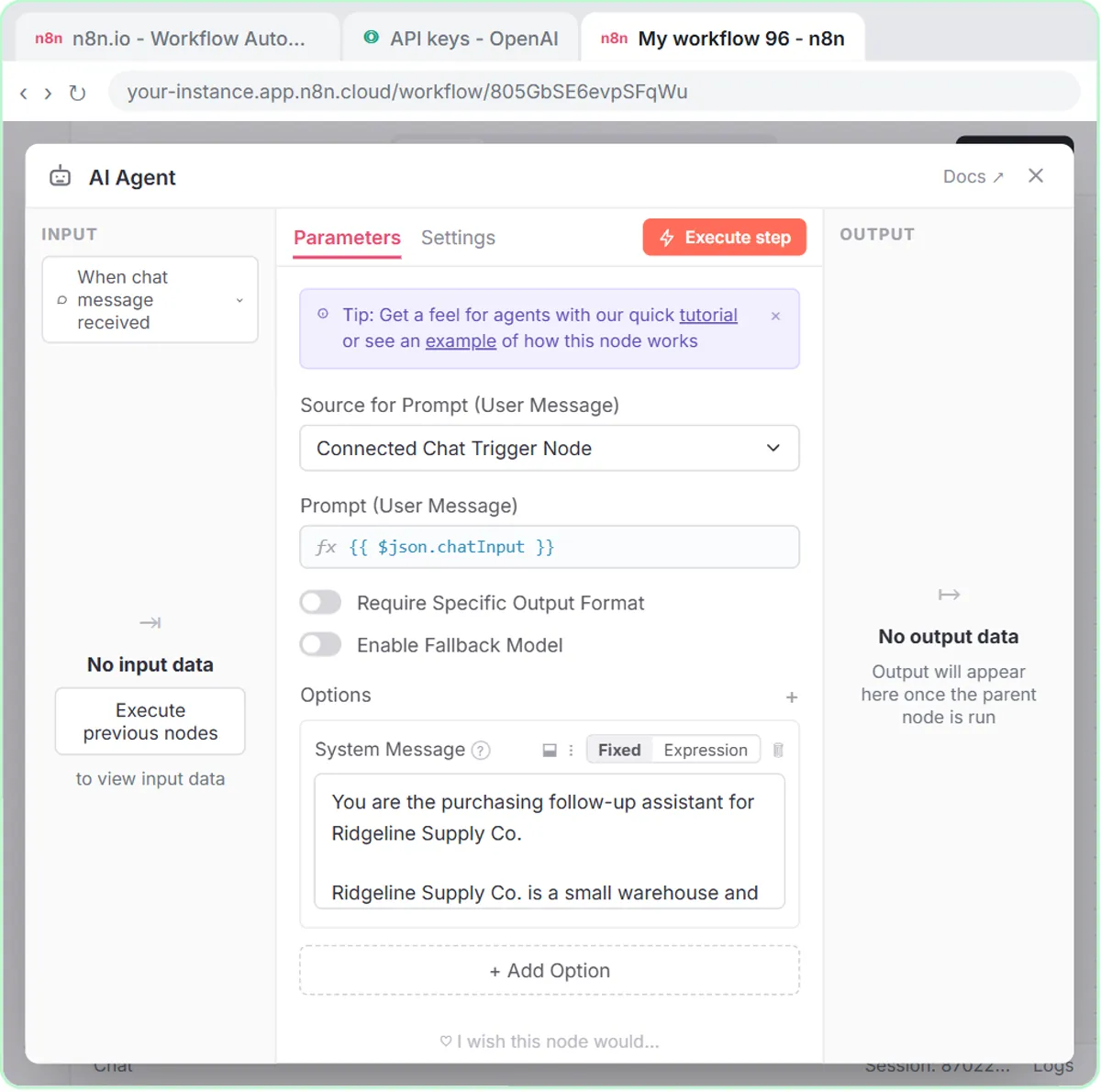 Build an AI Vendor Follow-Up Agent in n8n
Build an AI agent for Ridgeline Supply Co. that writes follow-up messages for late or pending purchase orders and saves them to Google Sheets — chat trigger, AI Agent…
Free · Live ~12 min Intermediate
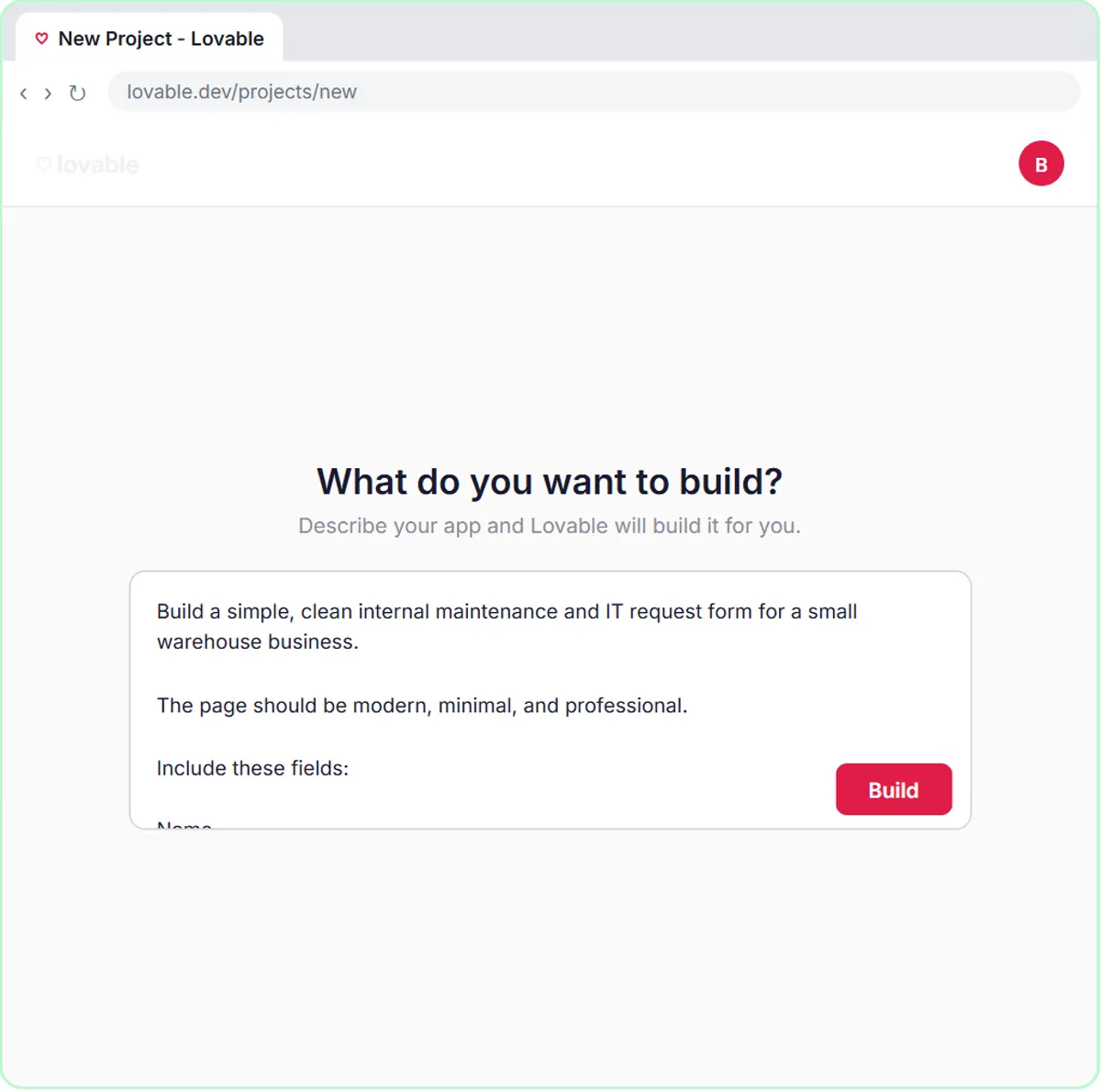 Build an AI Maintenance and IT Request Form
Build an internal maintenance and IT request form in Lovable for Ridgeline Supply Co. and connect it to n8n — the AI agent sets the priority, assigns a team, saves the…
Free · Live ~15 min Advanced
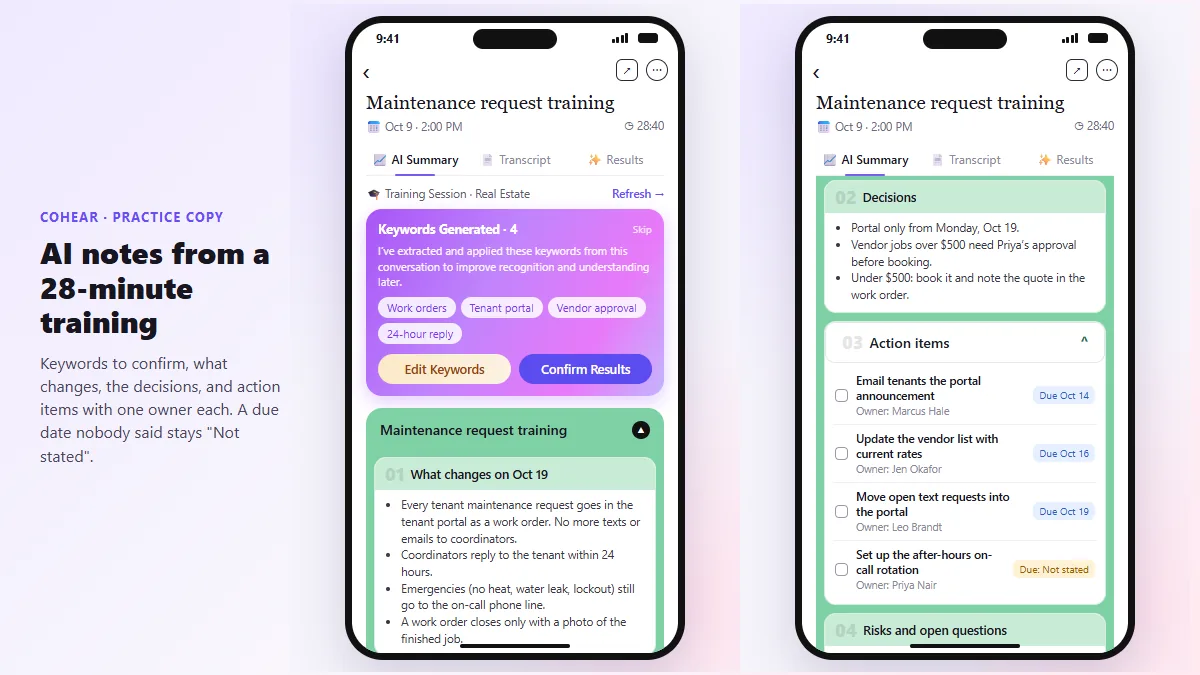 CoHear: AI Meeting Notes from a Team Training Session
Record a team training session on your iPhone with CoHear, check the AI notes and action items against the transcript, make a one-page handout and share it behind a…
Free · Live ~8 min Intermediate
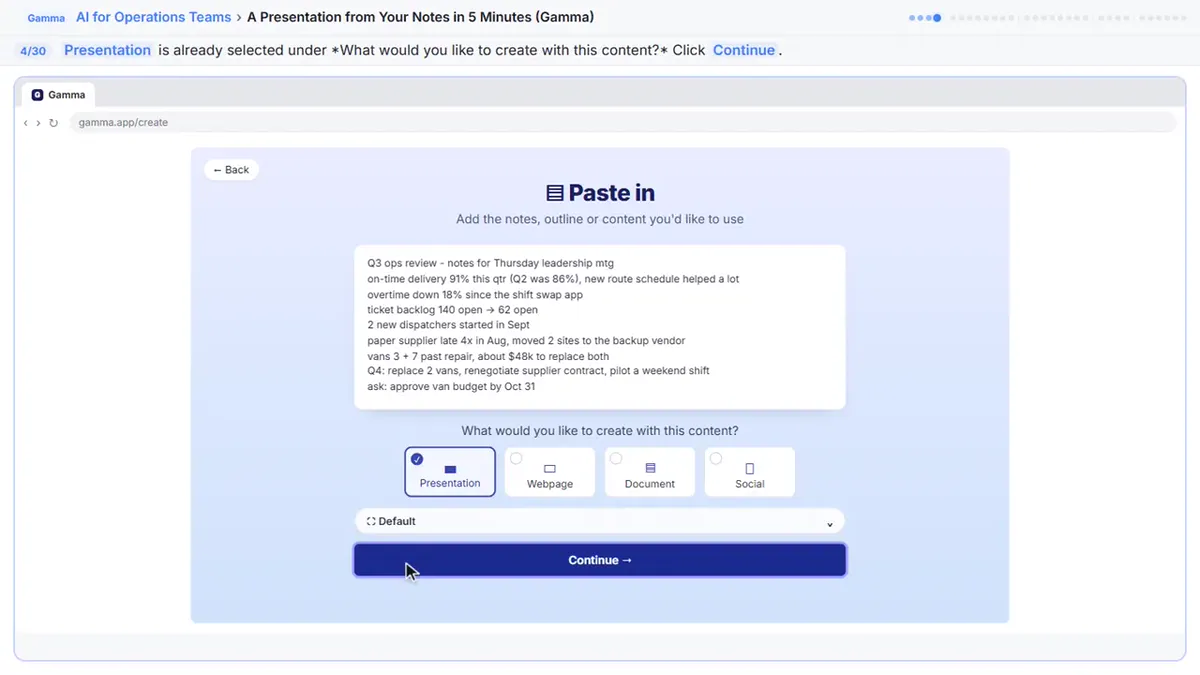 How to Use Gamma to Create a PowerPoint Presentation from Notes
Paste rough meeting notes into Gamma, pick a theme, fix one slide by chatting with its AI, and export the deck to PowerPoint and PDF.
Free · Live ~9 min Intermediate
◷Airia for Beginners: What an AI Agent Is Made OfA five-minute map of Airia before you build: the four parts of an agent (model and instructions, data sources, Playground, Publish), three office jobs that suit one…
Free · Live ~5 min Beginner
◷How to Use Foxit: Workspace, AI Assistant and PDF Editor for BeginnersA five-minute map of Foxit before you use it: Foxit Workspace, the PDF AI Assistant and PDF Editor, which one fits a contract review, a revised contract, a flat form or…
Free · Live ~5 min Beginner
All 36 modules in AI Automation for Operations