Updated . Built against the tool’s current screens and checked step by step. How we check this lesson
OLVA is a third-party AI meeting assistant that runs on your computer instead of joining the call as a bot. In this free lesson you use a practice copy of it on a consulting client call: you save your client notes as a reusable context, get a private answer when the client asks a hard question, catch a wrong number with a fact check, translate the Spanish parts, and then turn the meeting into minutes, a follow-up email and an editable PowerPoint deck.
At a glance
| Question | Answer |
|---|---|
| What you build | Give OLVA your client notes, get private answers and fact checks during a Zoom call, then turn the meeting into minutes, a follow-up email and a PowerPoint deck. |
| Tools | OLVA |
| Time | About 9 minutes, 27 steps in 5 parts |
| Level | Beginner, no coding needed |
| Cost | Free |
| Ways to learn it | Practice it step by step, watch the video, read the guide with screenshots |
The 5 parts, in short
- Give OLVA your client notes: Open Manage contexts, Add a context, Name it, Write the notes, and 3 more steps.
- Start OLVA on the call: Open the context picker, Choose the client, Start OLVA.
- Get answers during the call: Turn on Auto-answer, Read the private answer, Ask what to say next, Click Ask about this call, and 2 more steps.
- Fact checks and translation: Check the insights, Back to the transcript, Translate the Spanish lines, End the meeting.
- After the call: Generate the minutes, Draft the follow-up email, Copy the email, Open Create, and 3 more steps.
Start here first: Turn a Client Kickoff Call into a Proposal Outline with ChatGPT (Agencies & Consultants) (module 1 of AI Automation for Consulting & Agencies)
Part of: AI for Consulting & Agencies (step 2 of 2)
Part of: AI Apps Worth Knowing (step 1 of 8). Next up: iMini AI Agent: Turn a Rough Idea into a Launch Kit
OLVA: A Private AI Assistant on Your Client Calls: step-by-step guide with screenshots
About the screenshots. They come from Stepthrough’s simulated practice environment (a practice copy of OLVA), not the live tool, so no real account appears. The buttons and labels match the real screens the lesson was built against. Practice it yourself free at learn.ynteractive.com.
- Tools: OLVA
- Time: about 9 minutes, 27 steps in 5 parts
- Level: beginner, no coding needed
Part 1: Give OLVA your client notes
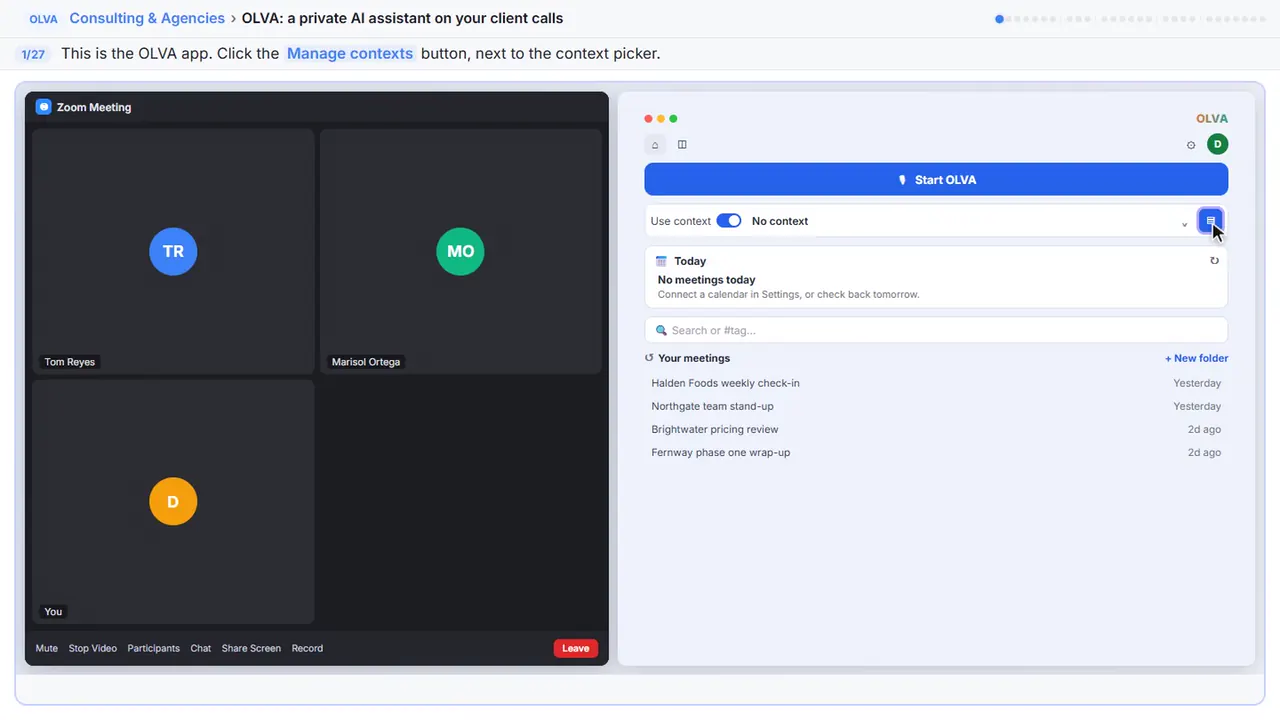
Step 1: Open Manage contexts
This is the OLVA app on your computer. Before a client call, give OLVA some background. Then its answers fit this client.
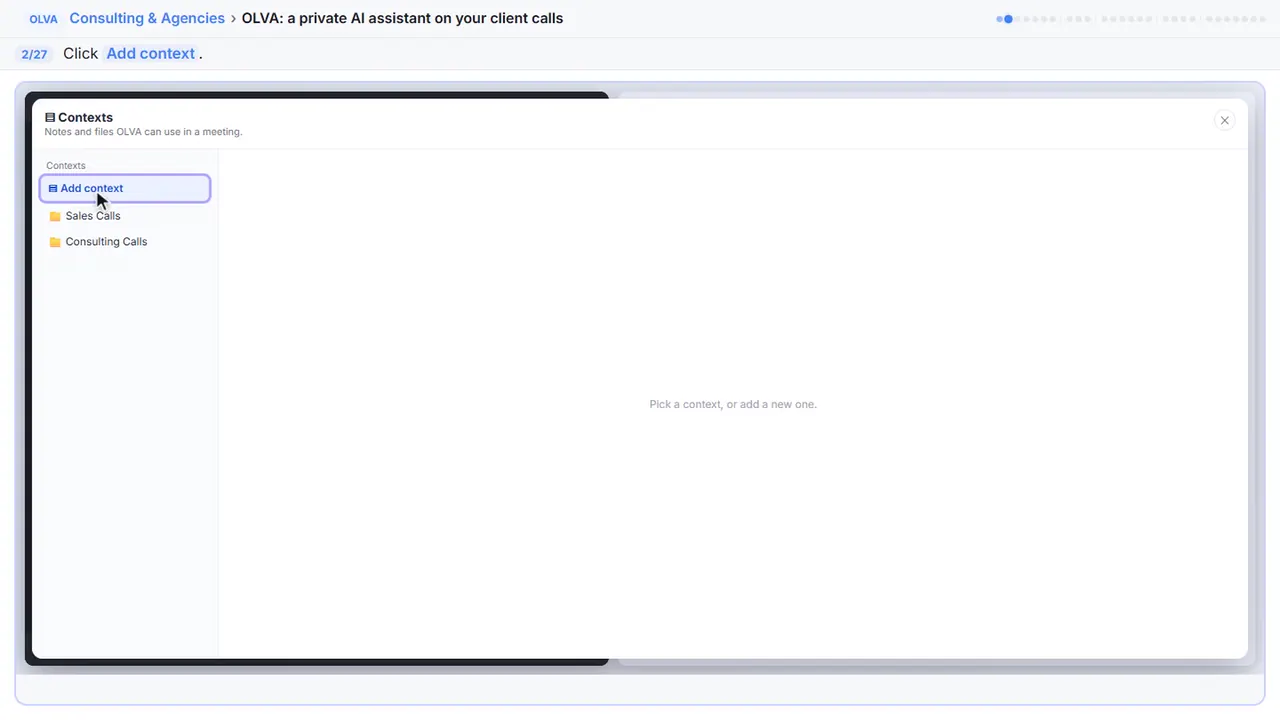
Step 2: Add a context
A context is a set of notes and files that OLVA can use in a meeting. Make one for each client.
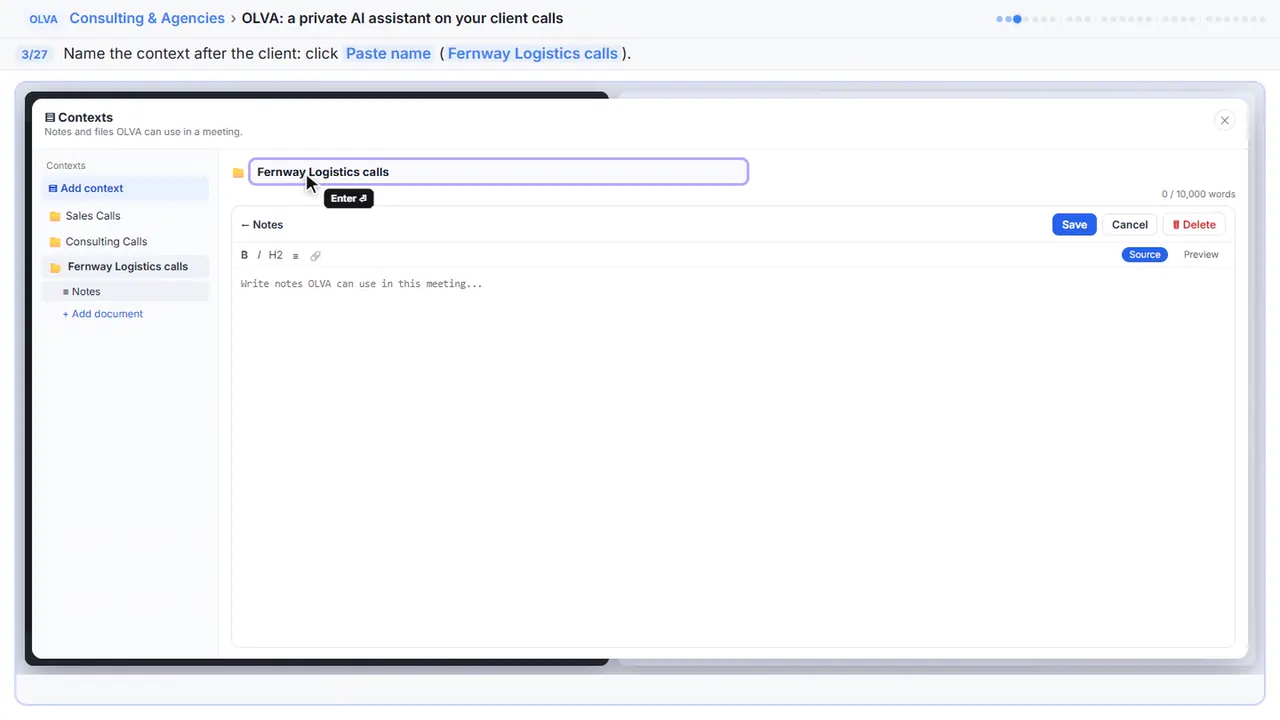
Step 3: Name it
Name it after the client. Then you can pick it before every call with them.
Step 4: Write the notes
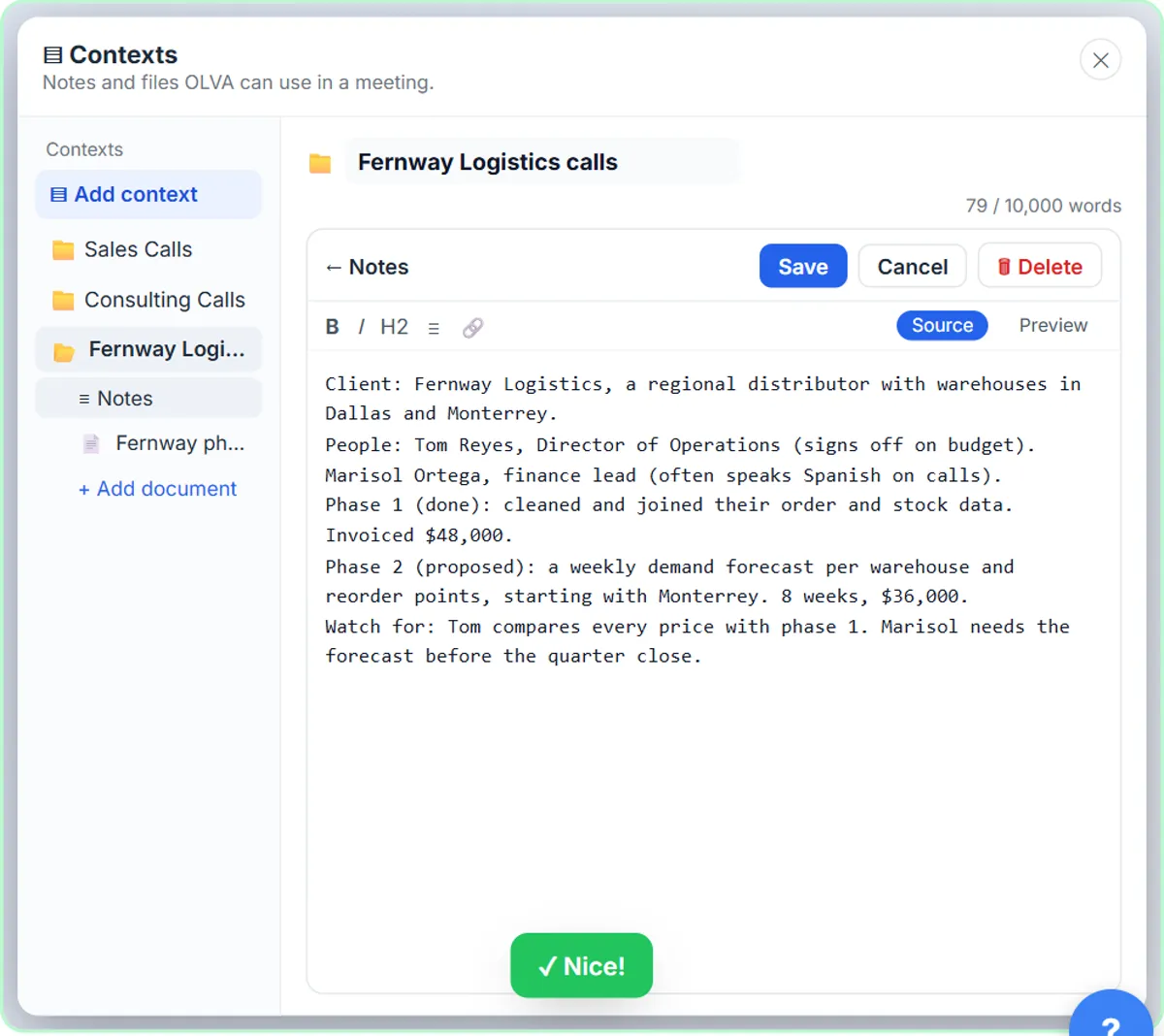
Now the notes. Who's on the call, and what you already did for them. What you're proposing, and what to watch for. Plain sentences are fine.
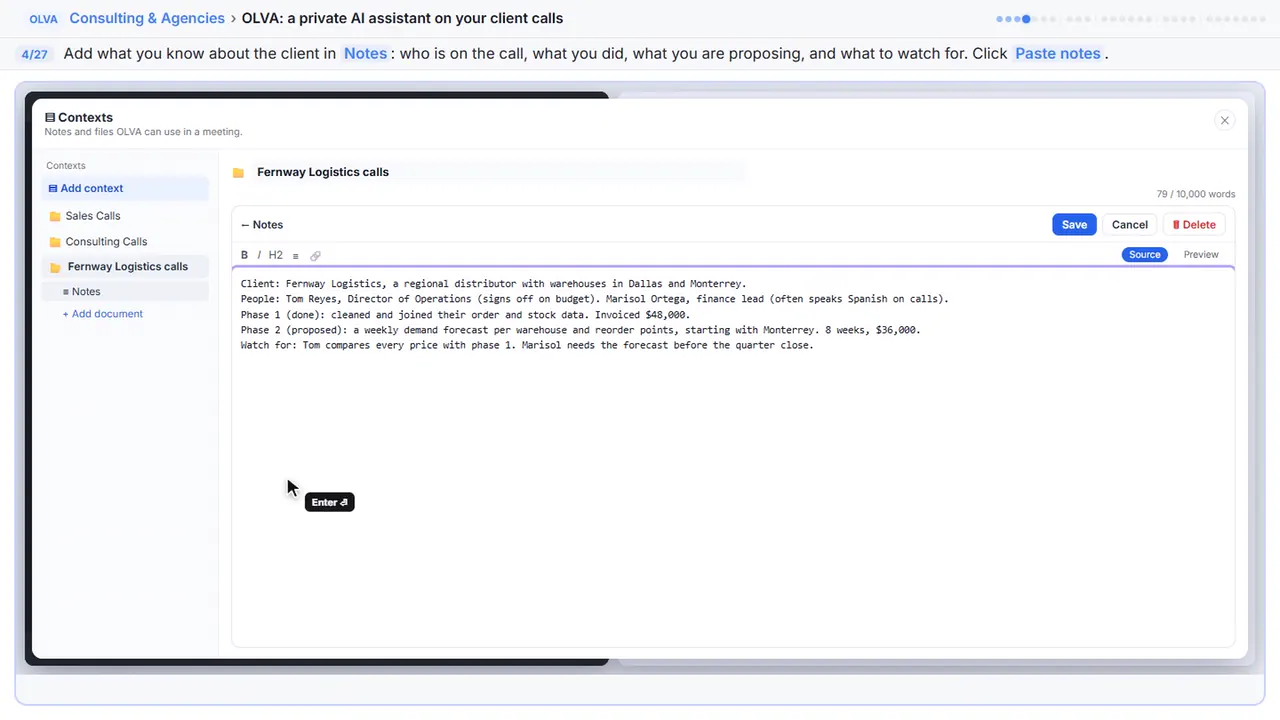
Client: Fernway Logistics, a regional distributor with warehouses in Dallas and Monterrey.
People: Tom Reyes, Director of Operations (signs off on budget). Marisol Ortega, finance lead (often speaks Spanish on calls).
Phase 1 (done): cleaned and joined their order and stock data. Invoiced $48,000.
Phase 2 (proposed): a weekly demand forecast per warehouse and reorder points, starting with Monterrey. 8 weeks, $36,000.
Watch for: Tom compares every price with phase 1. Marisol needs the forecast before the quarter close.
Step 5: Attach the proposal
You can attach files too. PDF, Word, PowerPoint, text or Markdown.
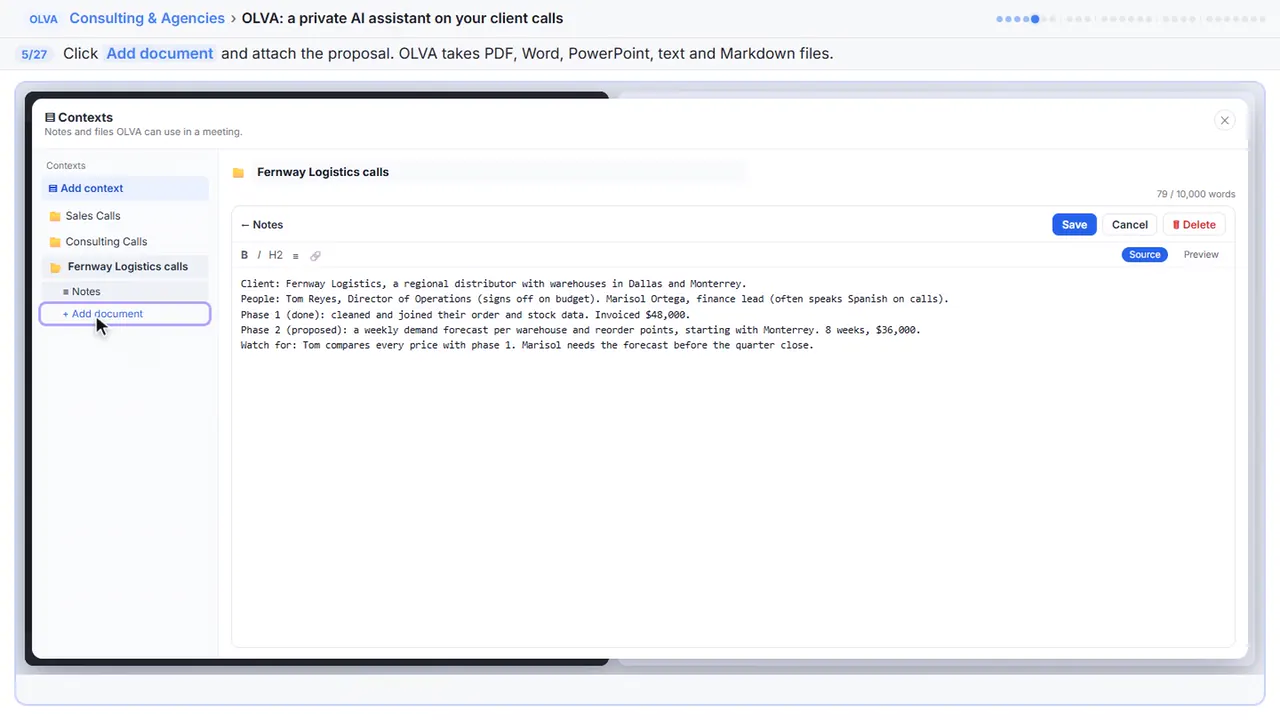
Step 6: Save it
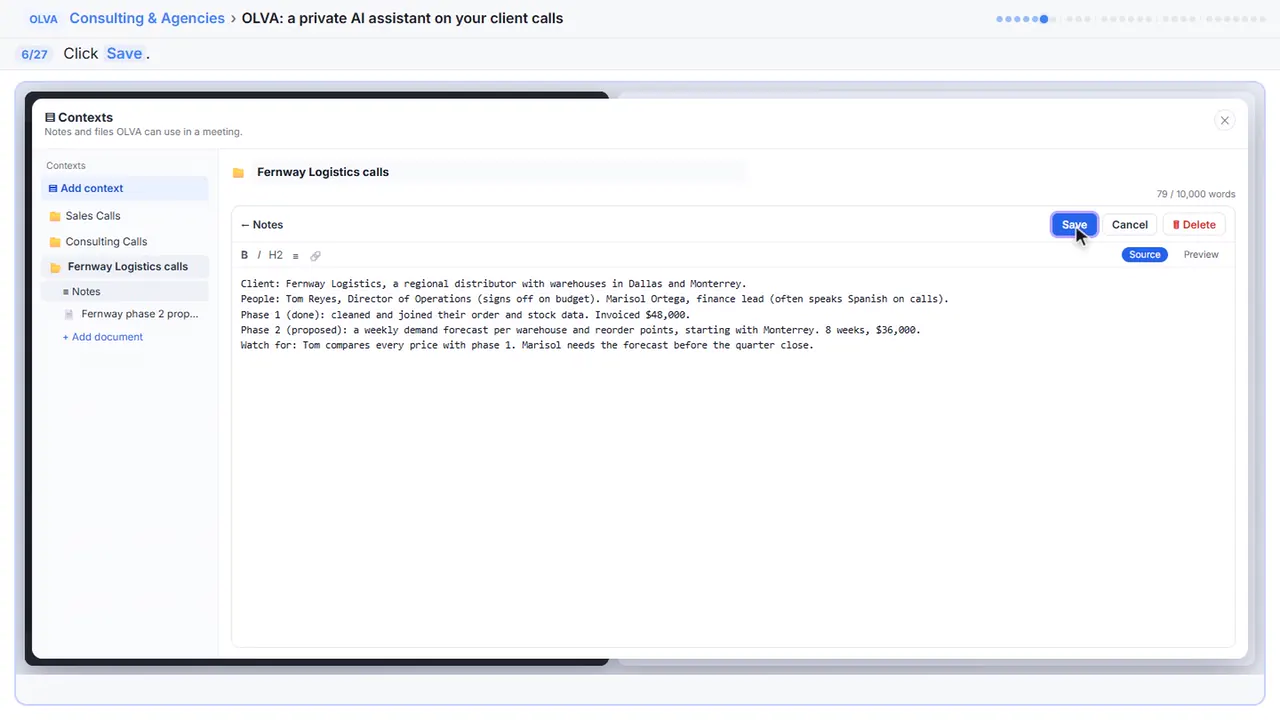
Step 7: Close Contexts
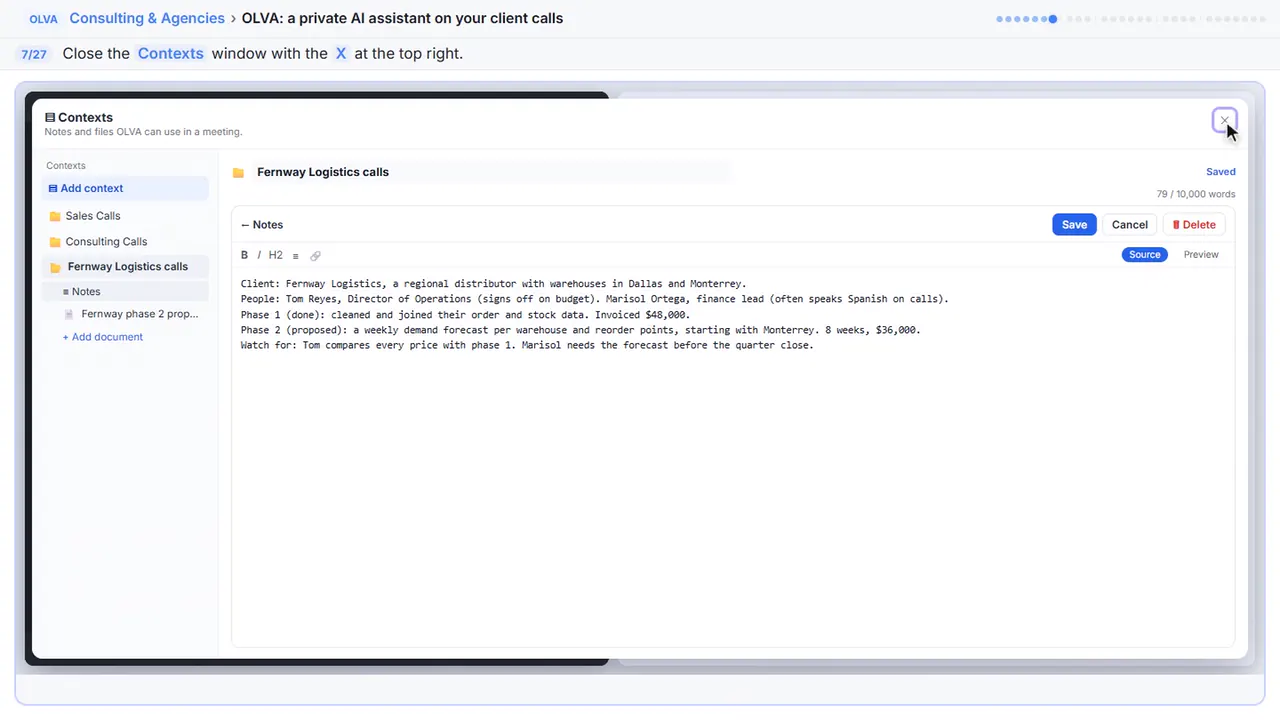
That's saved for every call with this client. Close the Contexts window.
Part 2: Start OLVA on the call
Step 8: Open the context picker
Your call with Fernway is starting in Zoom. Use context is switched on. Now tell OLVA which context to use.
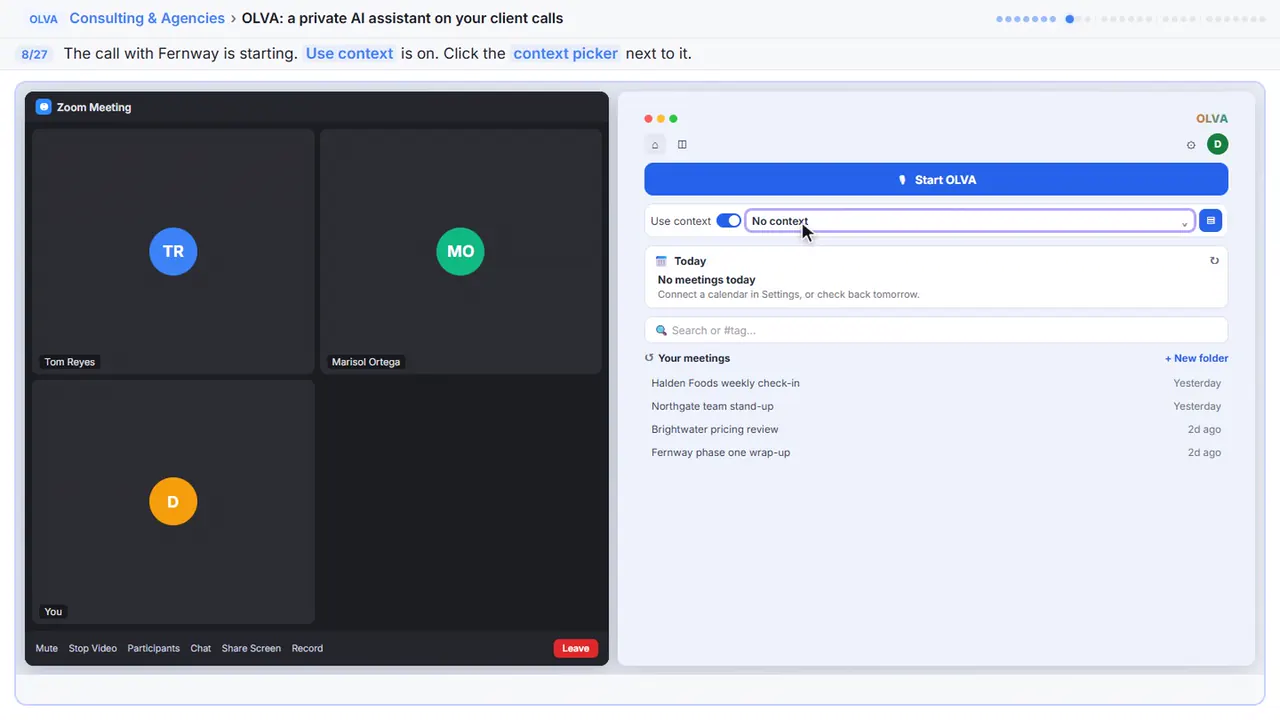
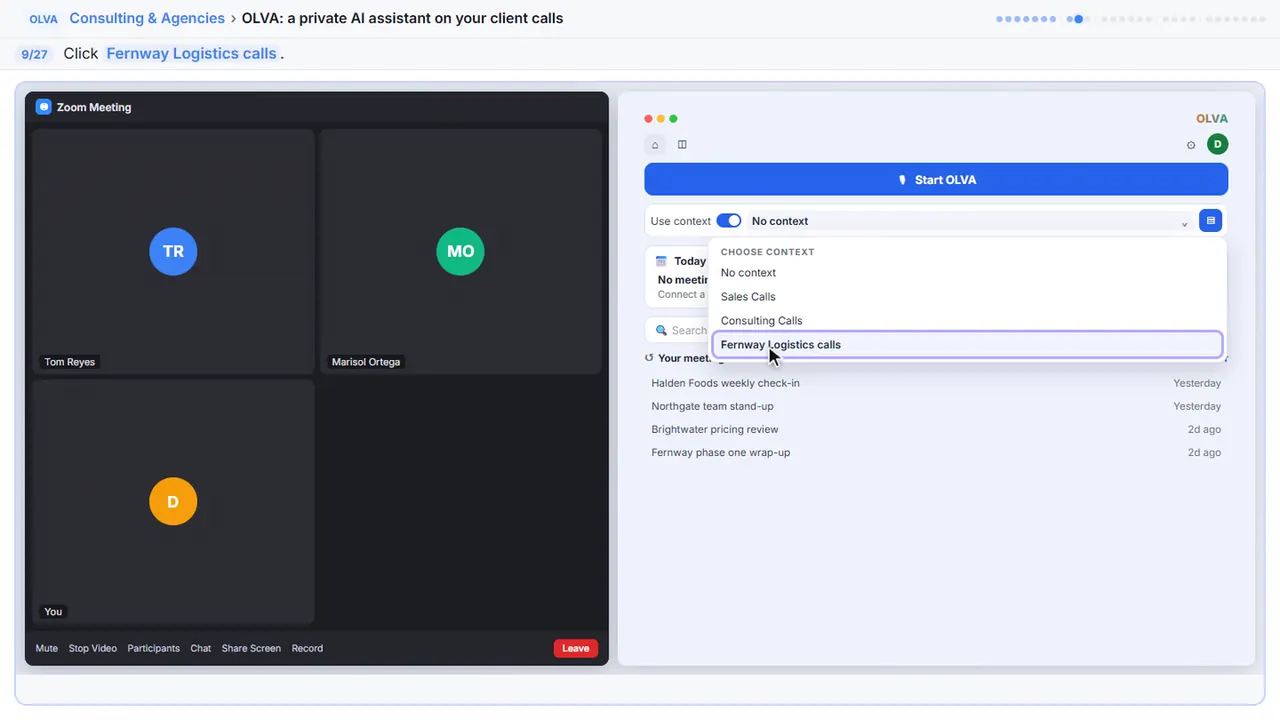
Step 9: Choose the client
Pick the Fernway context you just made.
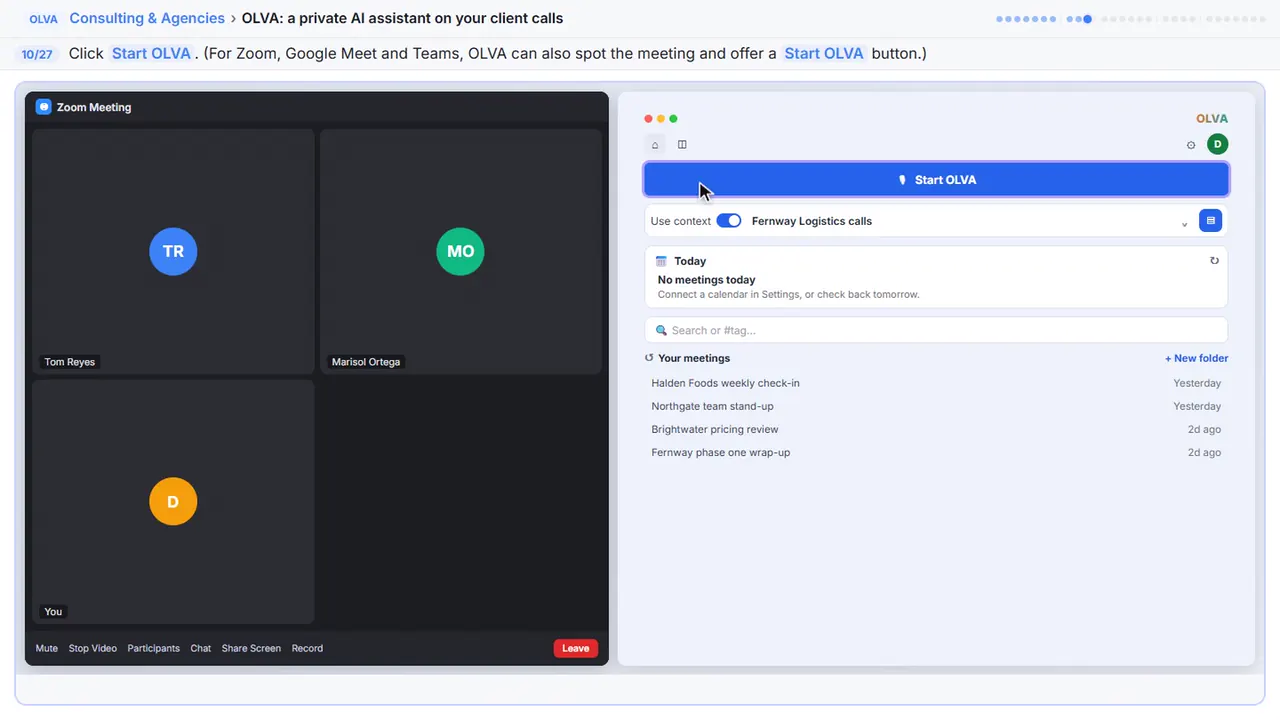
Step 10: Start OLVA
It doesn't join the call as a bot. It listens through your computer, and sits beside your meeting. For Zoom, Google Meet and Teams, it can also spot the meeting and offer to start. Before you start, tell everyone you're transcribing, or get their consent.
Part 3: Get answers during the call
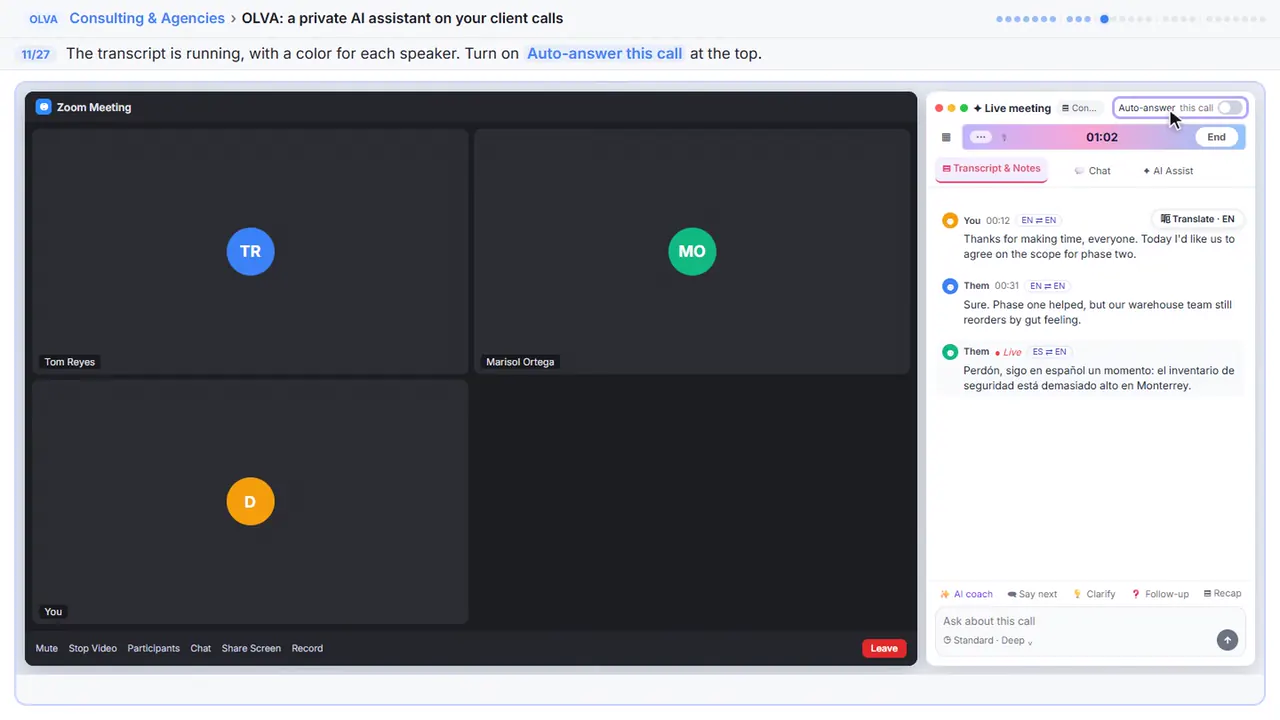
Step 11: Turn on Auto-answer
The transcript starts right away. Each speaker gets a different color. Now switch on Auto-answer this call. When someone asks a question, OLVA prepares an answer. Only you can see it.
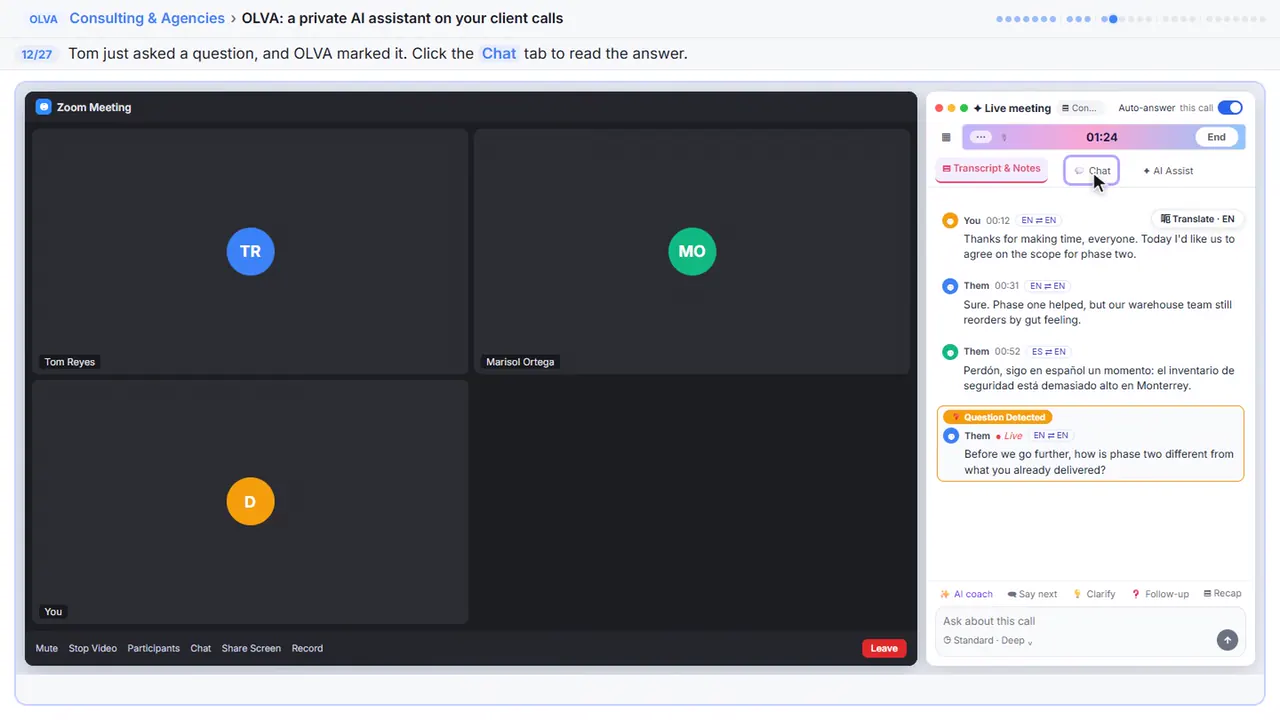
Step 12: Read the private answer
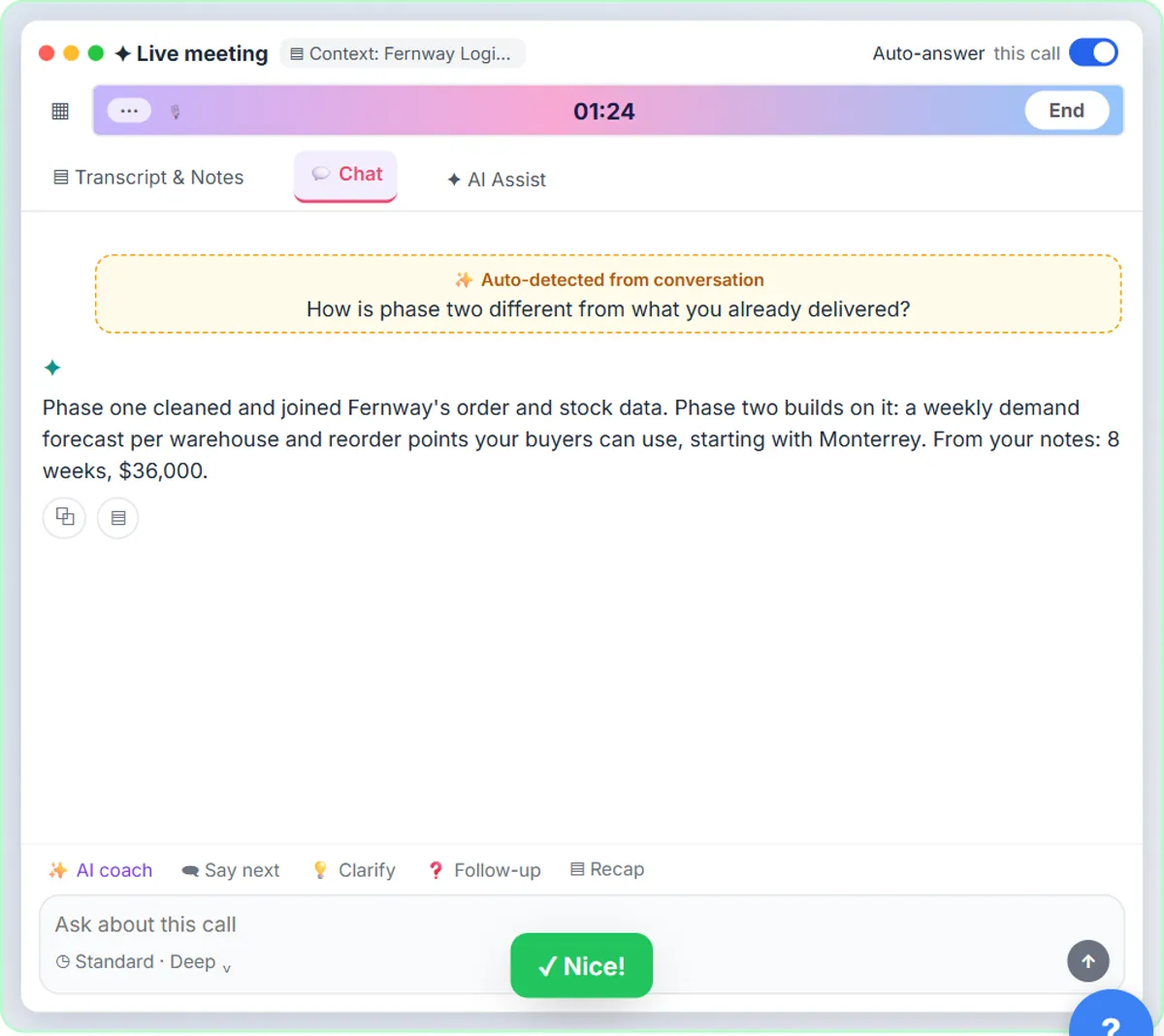
Tom just asked how phase two is different. OLVA flagged the question. Its answer is in the Chat tab.
Step 13: Ask what to say next
It used your notes. The scope, eight weeks, and the price. Want help with the wording? It suggests a reply, based on what was just said.
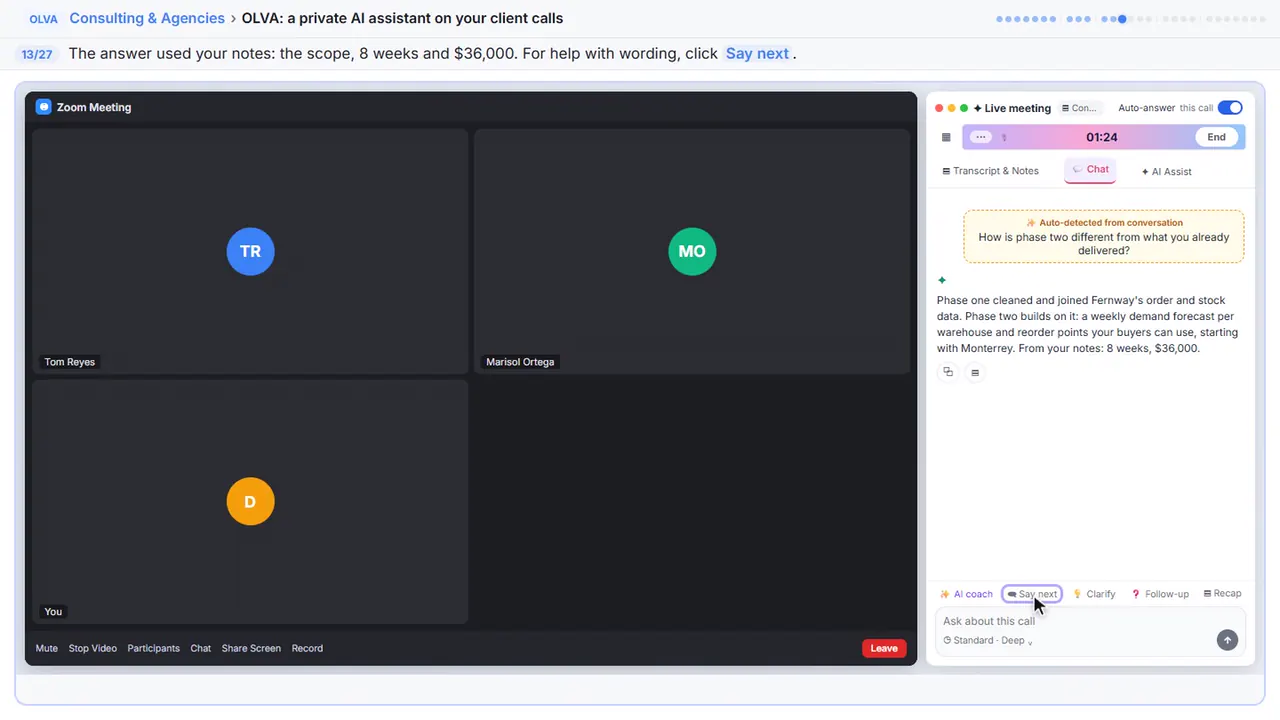
Step 14: Click Ask about this call
You can ask OLVA your own question while the call is still going.
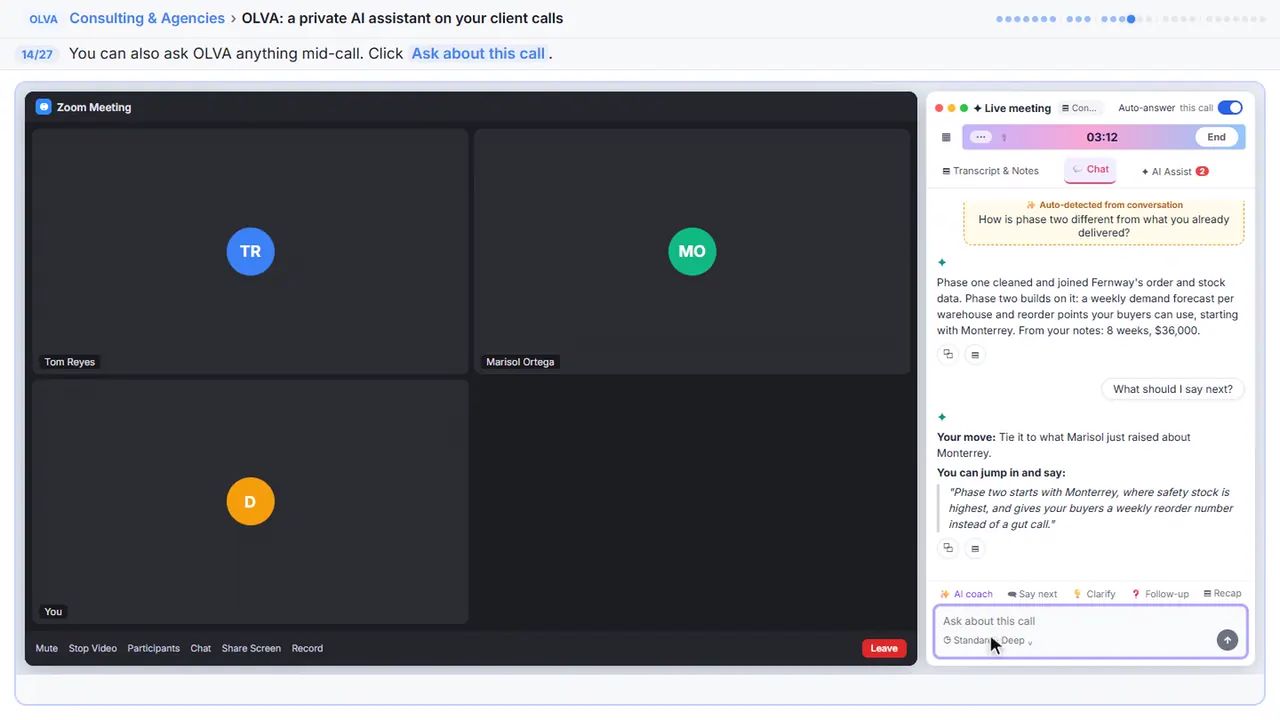
Step 15: Ask your question
Ask what Tom has pushed back on so far.
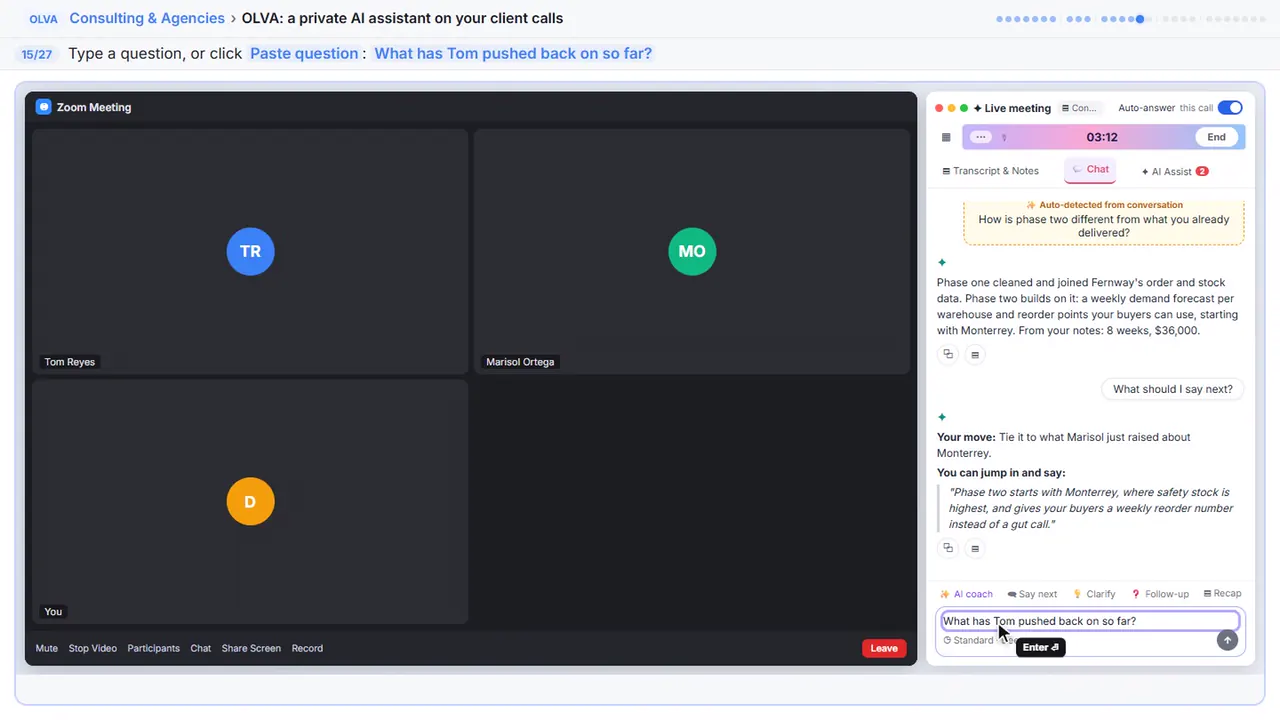
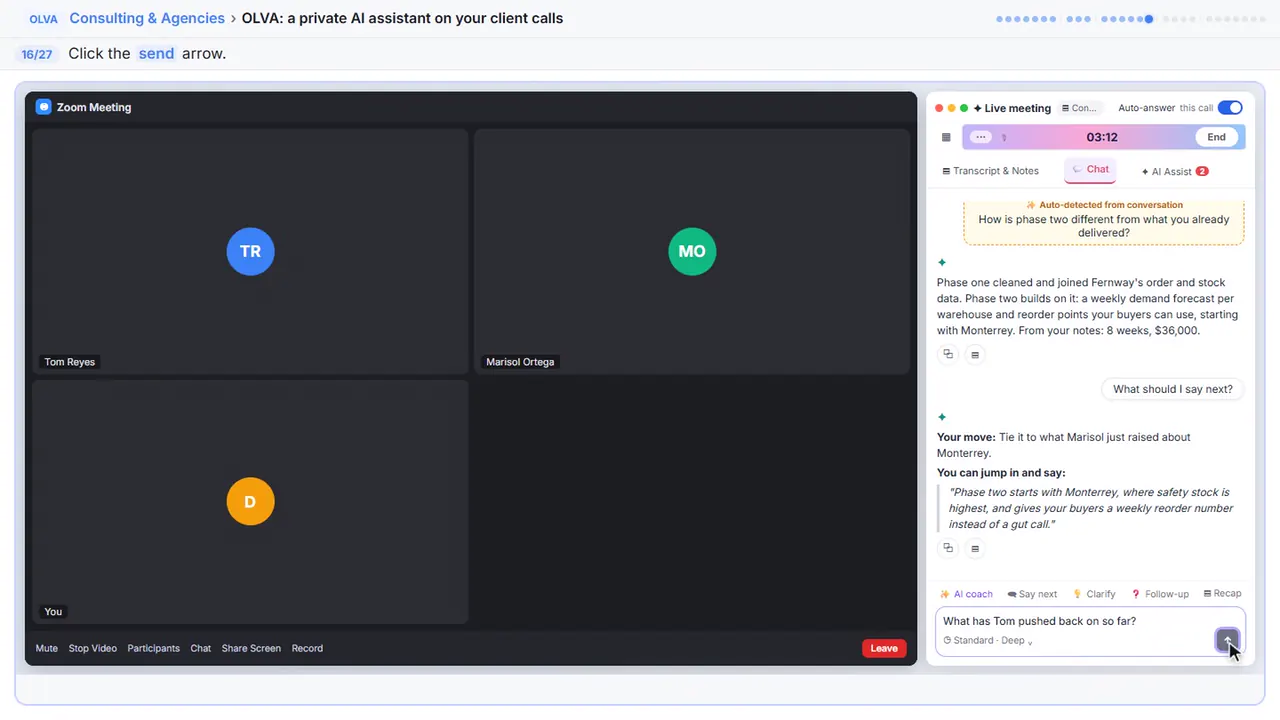
Step 16: Send it
OLVA answers from the live transcript and your notes. Nobody on the call sees any of this.
Part 4: Fact checks and translation
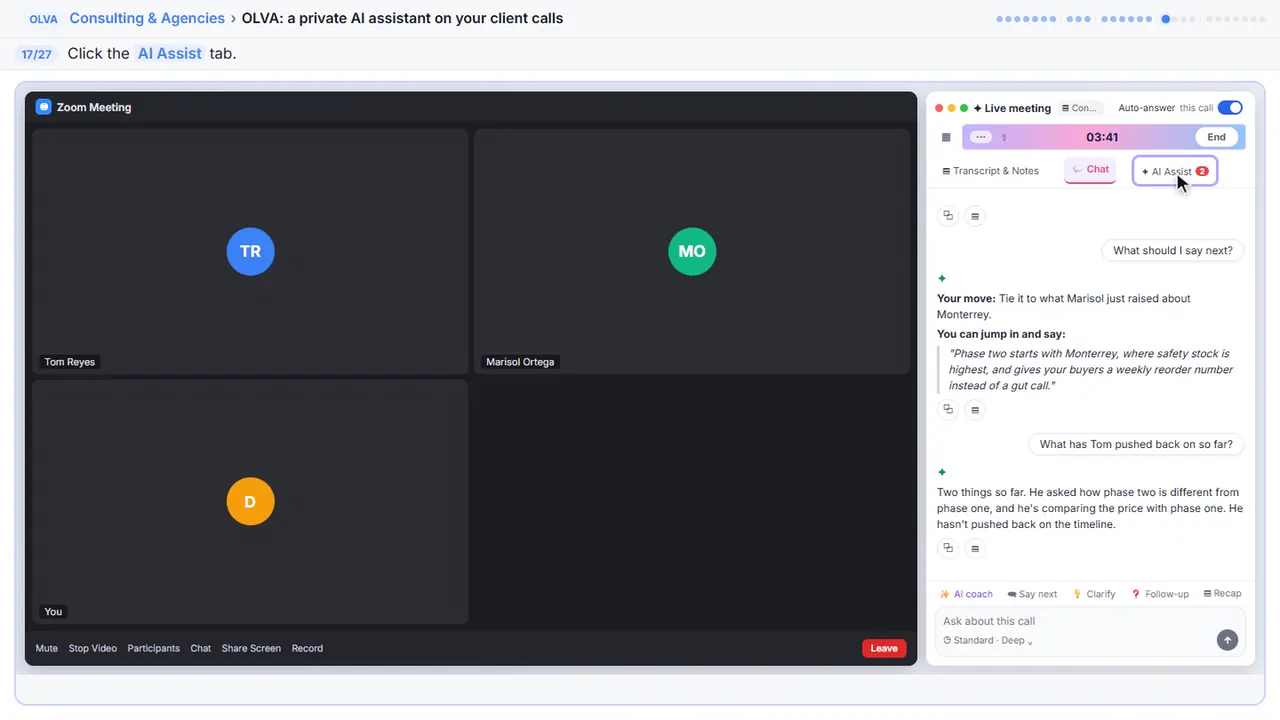
Step 17: Check the insights
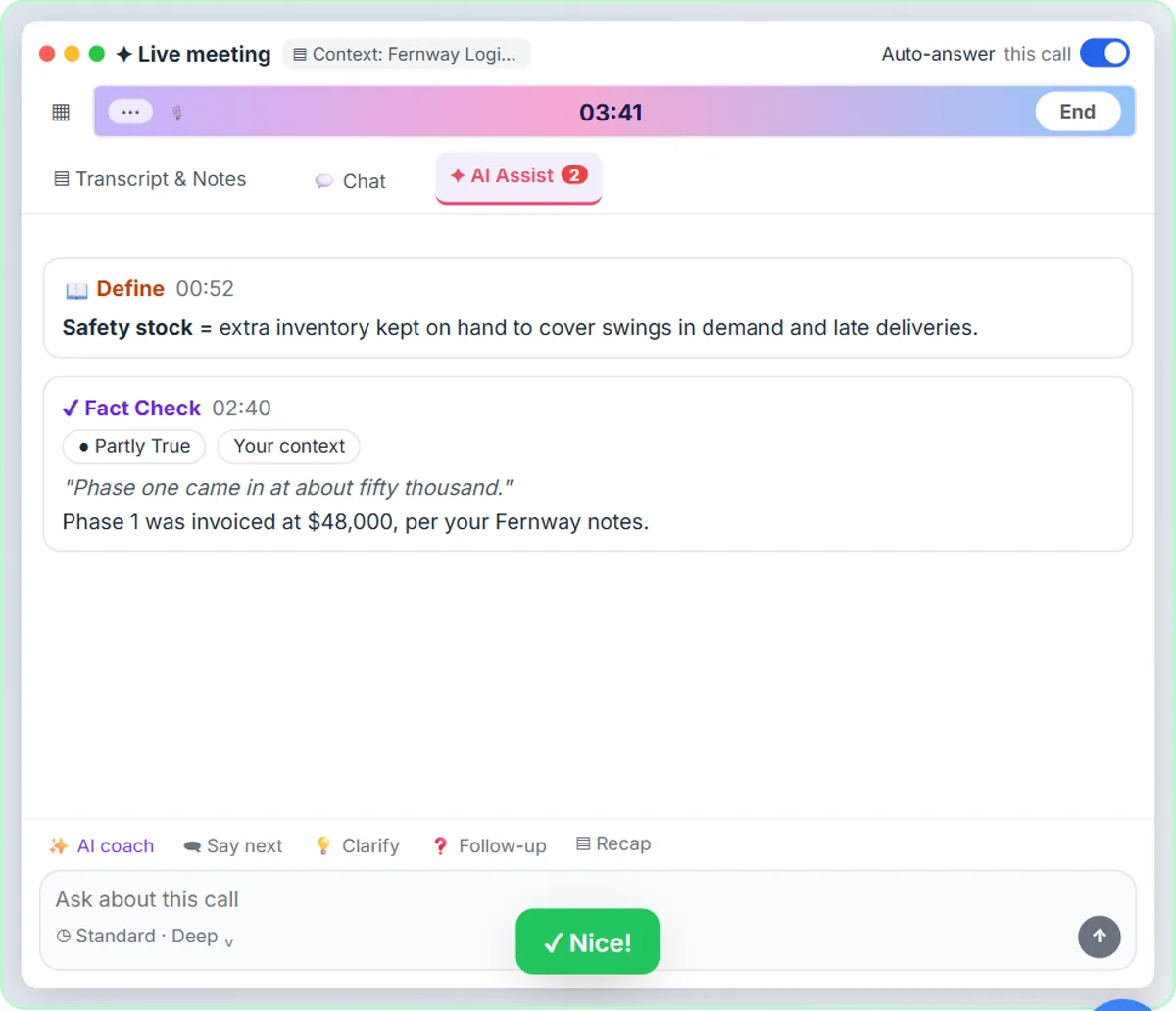
Tom just said phase one cost about fifty thousand. Is that right?
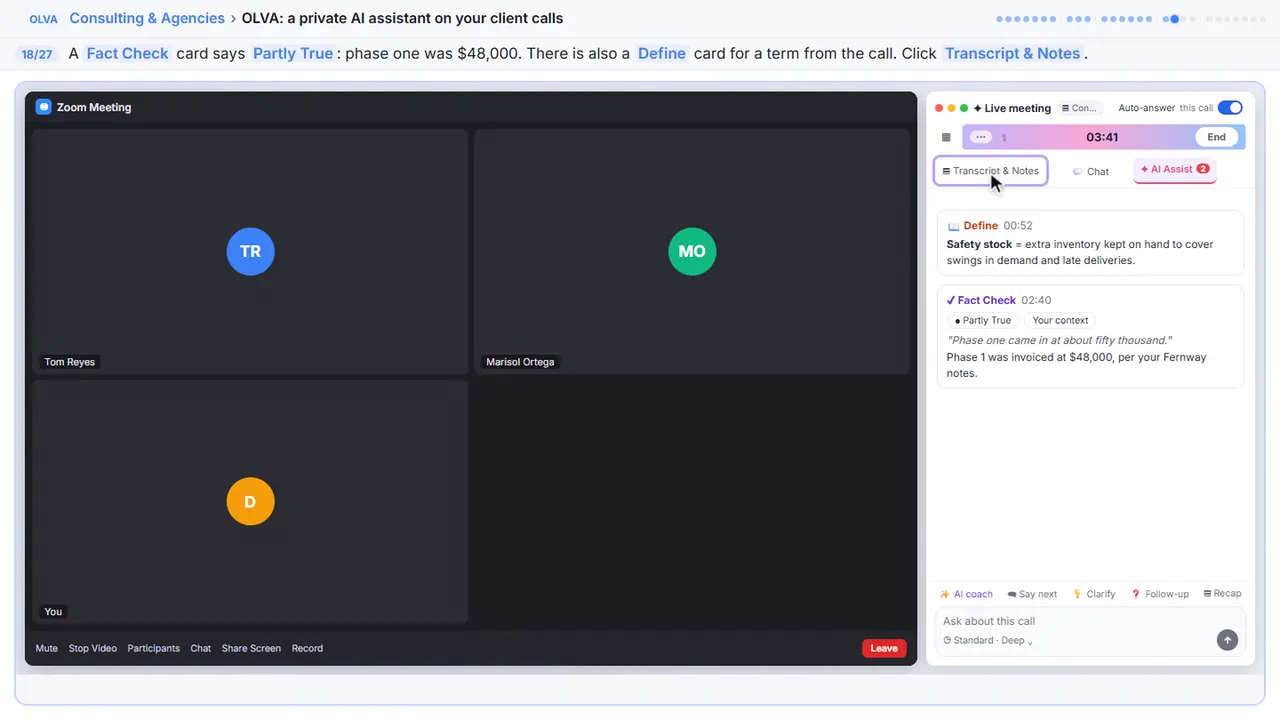
Step 18: Back to the transcript
Here's a fact check. Partly true. Phase one was forty eight thousand, not fifty. And a Define card explains safety stock, in case the term is new to you. Now go back.
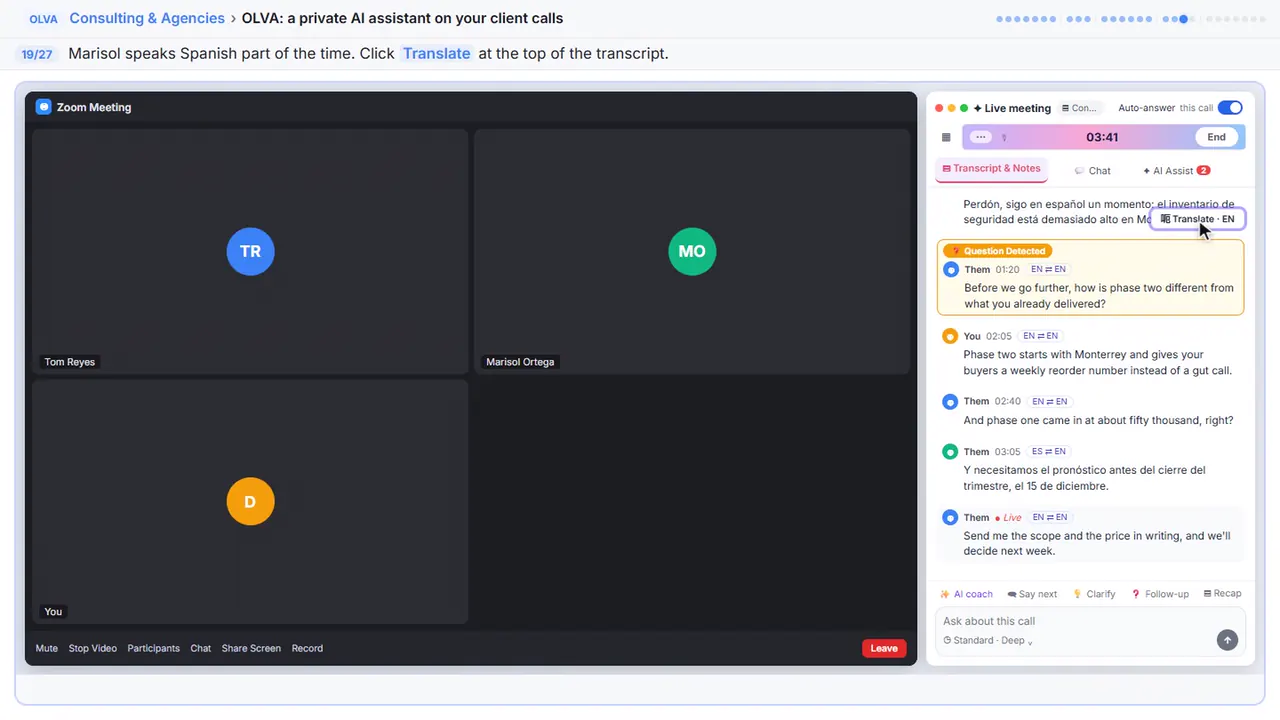
Step 19: Translate the Spanish lines
Marisol switches to Spanish now and then. OLVA keeps transcribing in both languages. Her lines get an English translation. The original stays right above it.
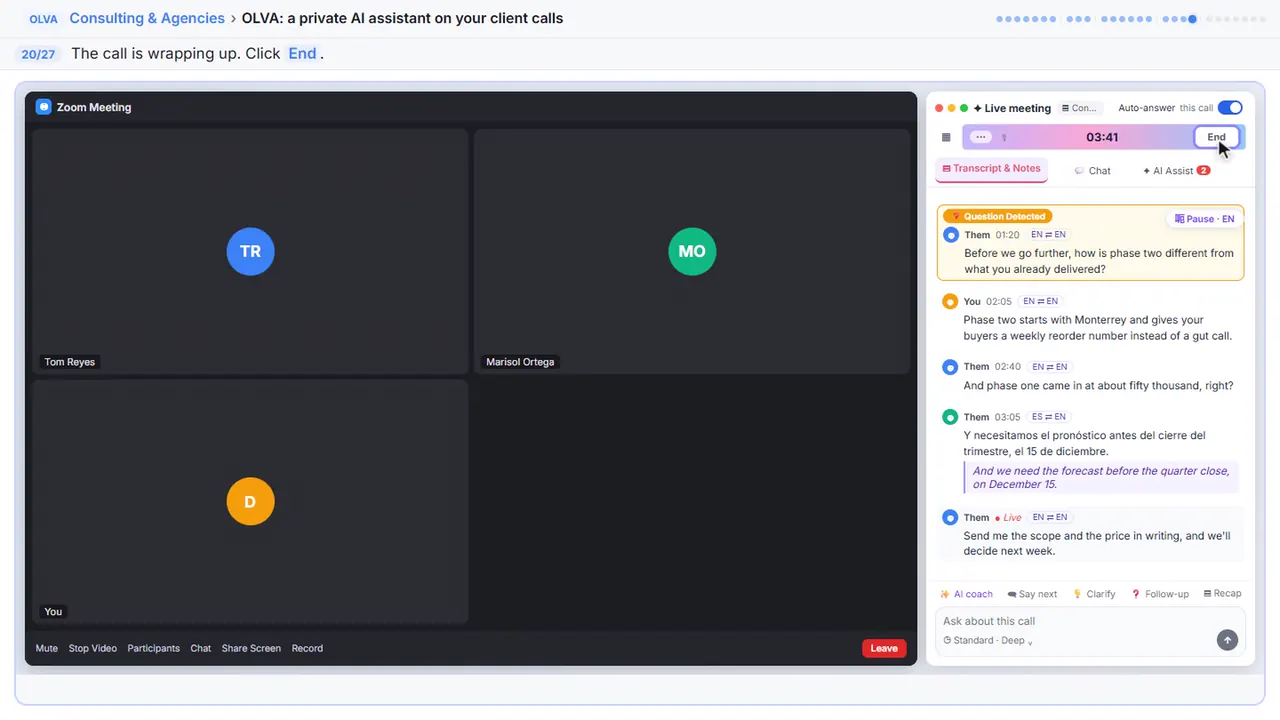
Step 20: End the meeting
Tom wants the scope in writing. The call is done, so click End.
Part 5: After the call
Step 21: Generate the minutes
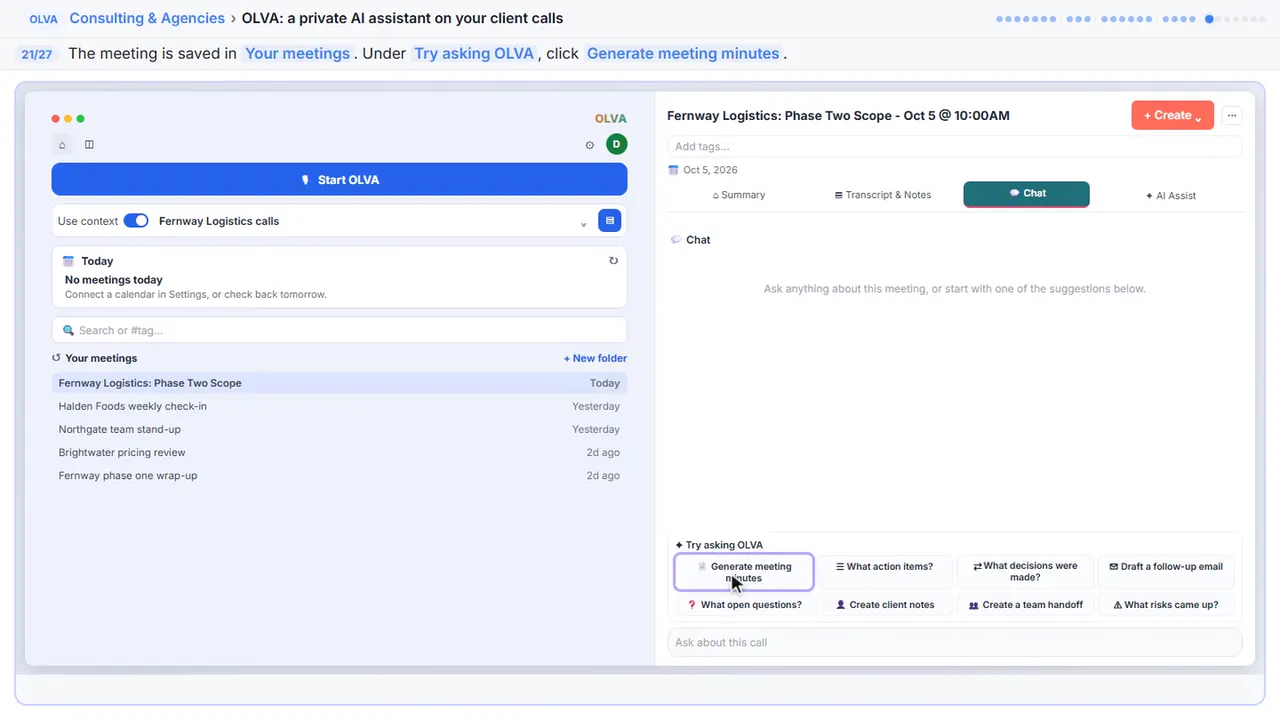
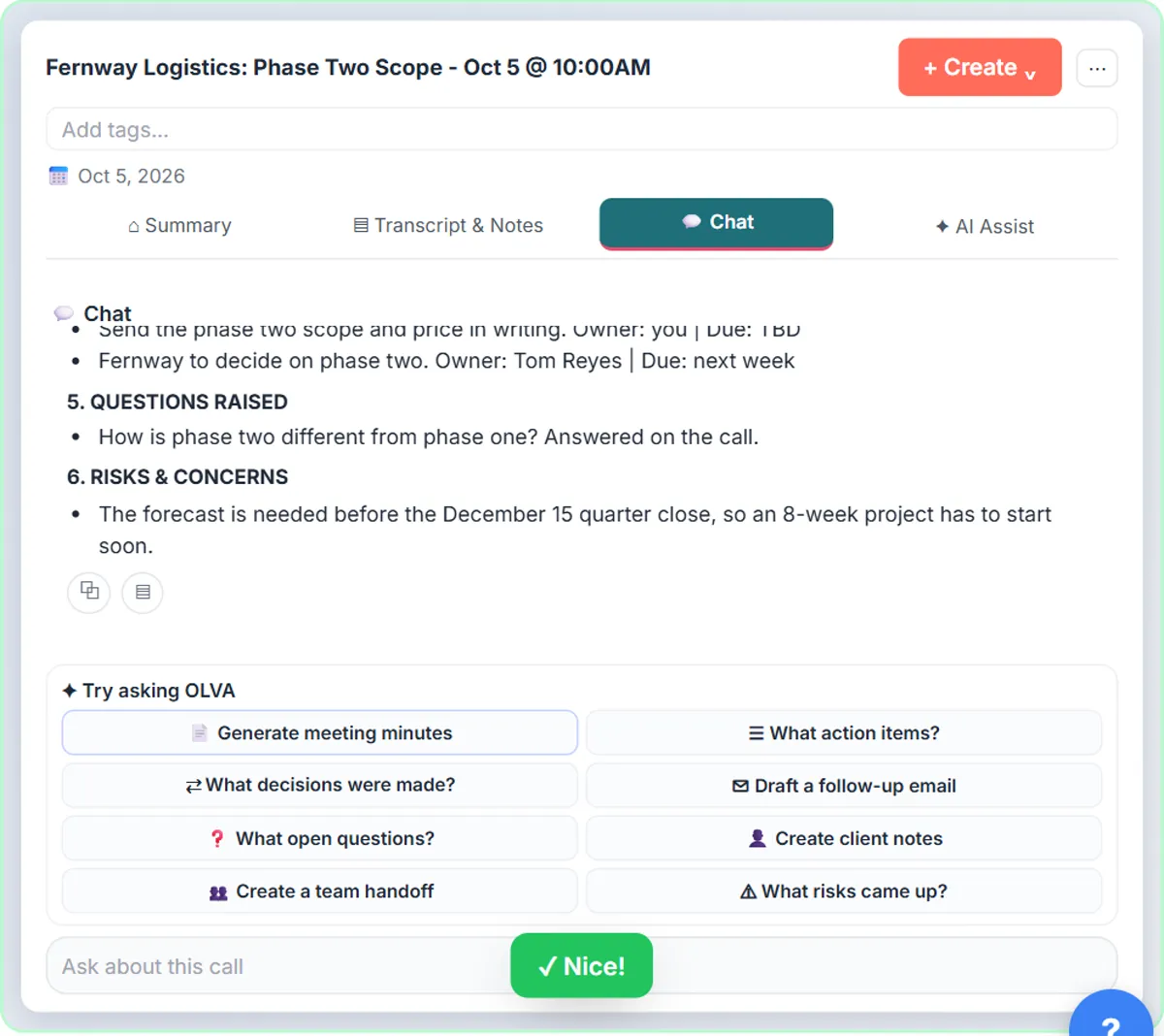
The meeting is saved in your list, with the transcript. Under Try asking OLVA, click Generate meeting minutes.
Step 22: Draft the follow-up email
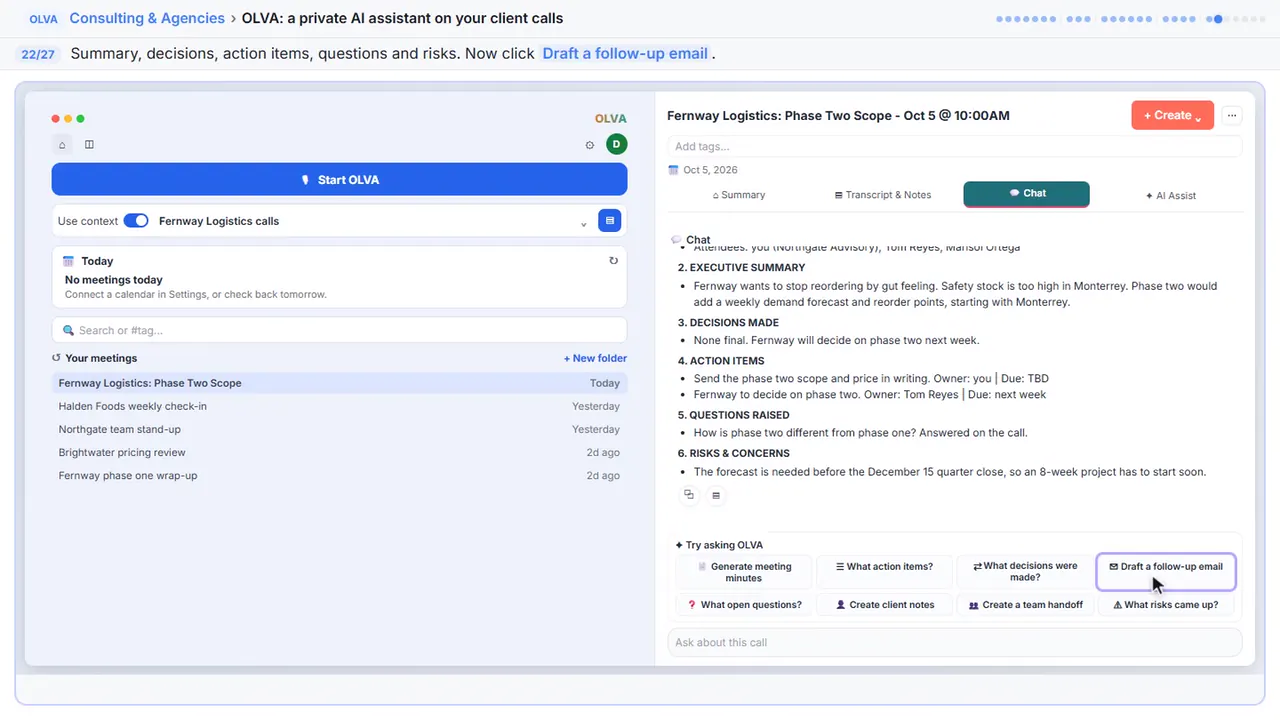
There are your minutes. Summary, decisions, action items, questions and risks.
Step 23: Copy the email
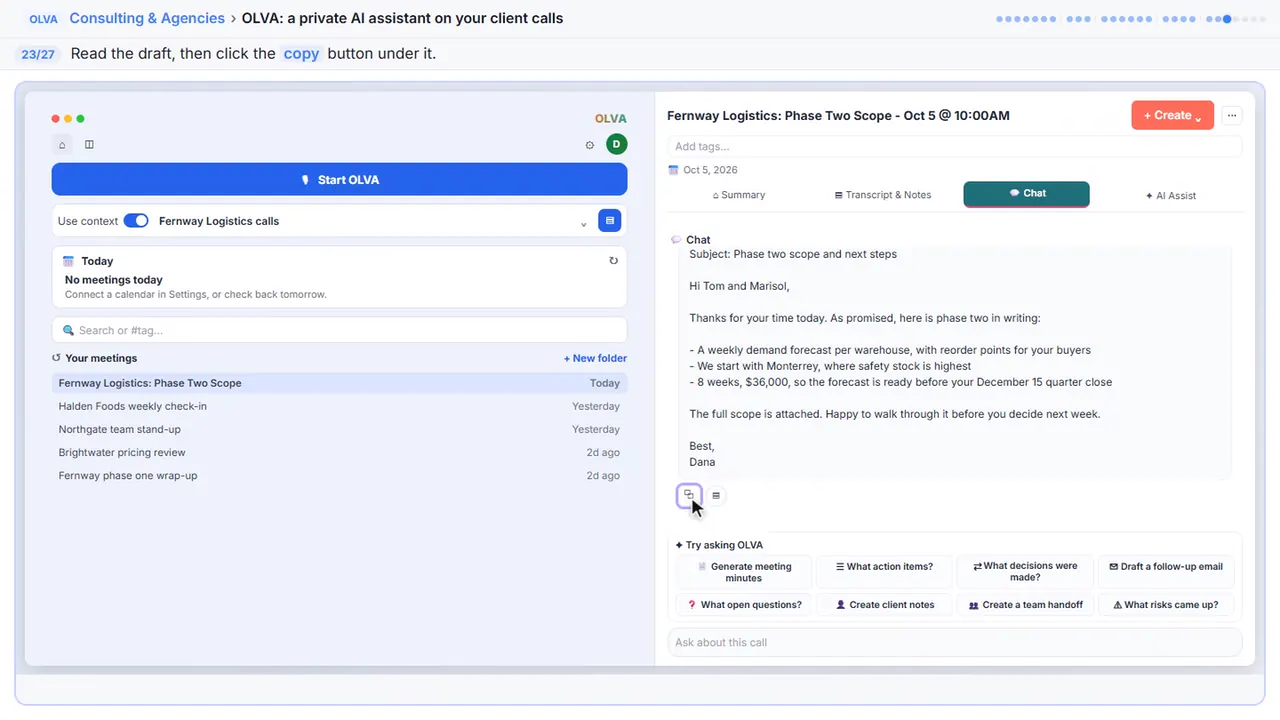
It's written from what was actually said. Read it. Change anything that doesn't sound like you.
Step 24: Open Create
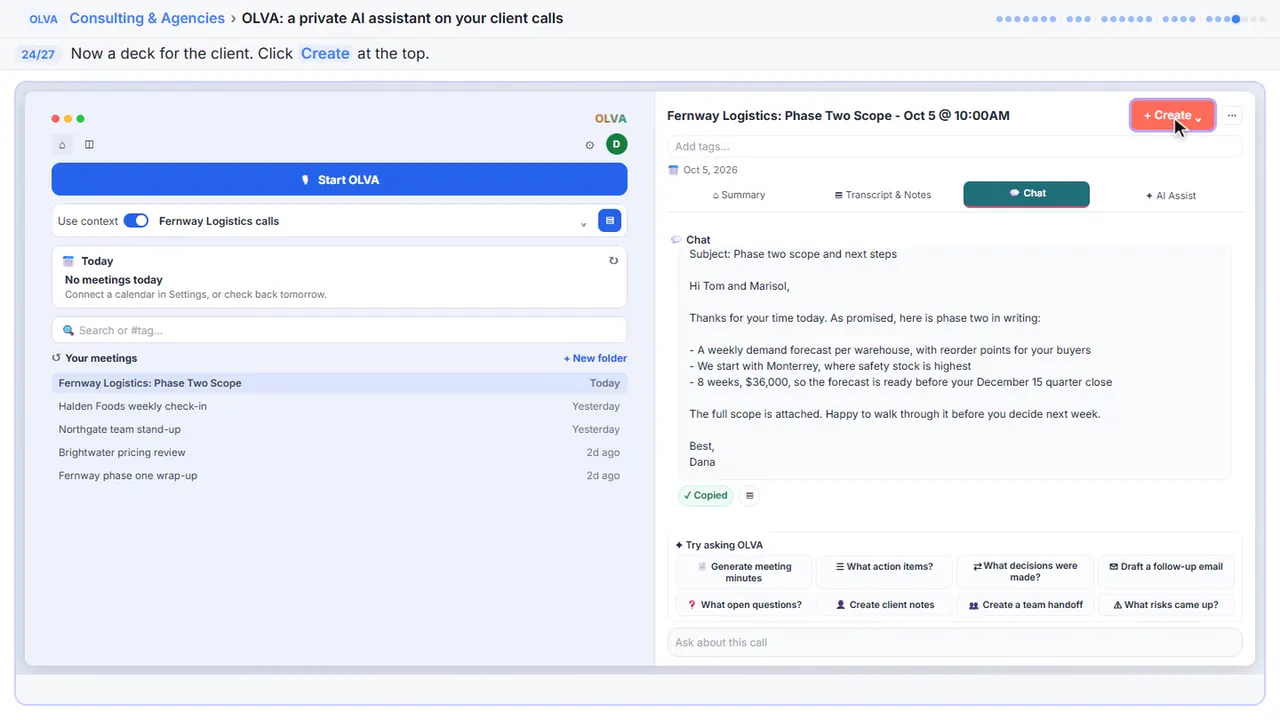
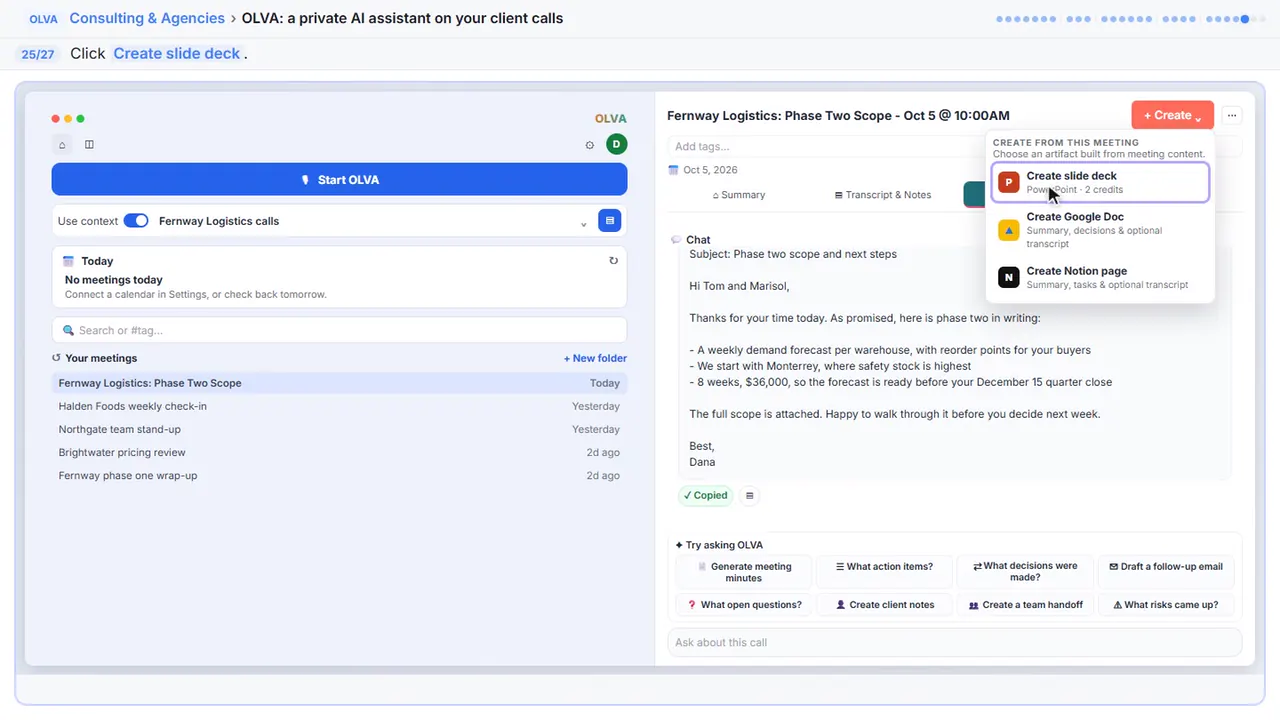
Tom asked for the scope in writing. OLVA can turn the meeting into a slide deck.
Step 25: Create slide deck
The same menu can also make a Google Doc or a Notion page.
Step 26: Write the instructions
Leave Transcript, Insights and Meeting Q and A switched on. Then say who the deck is for, and what goes in it.
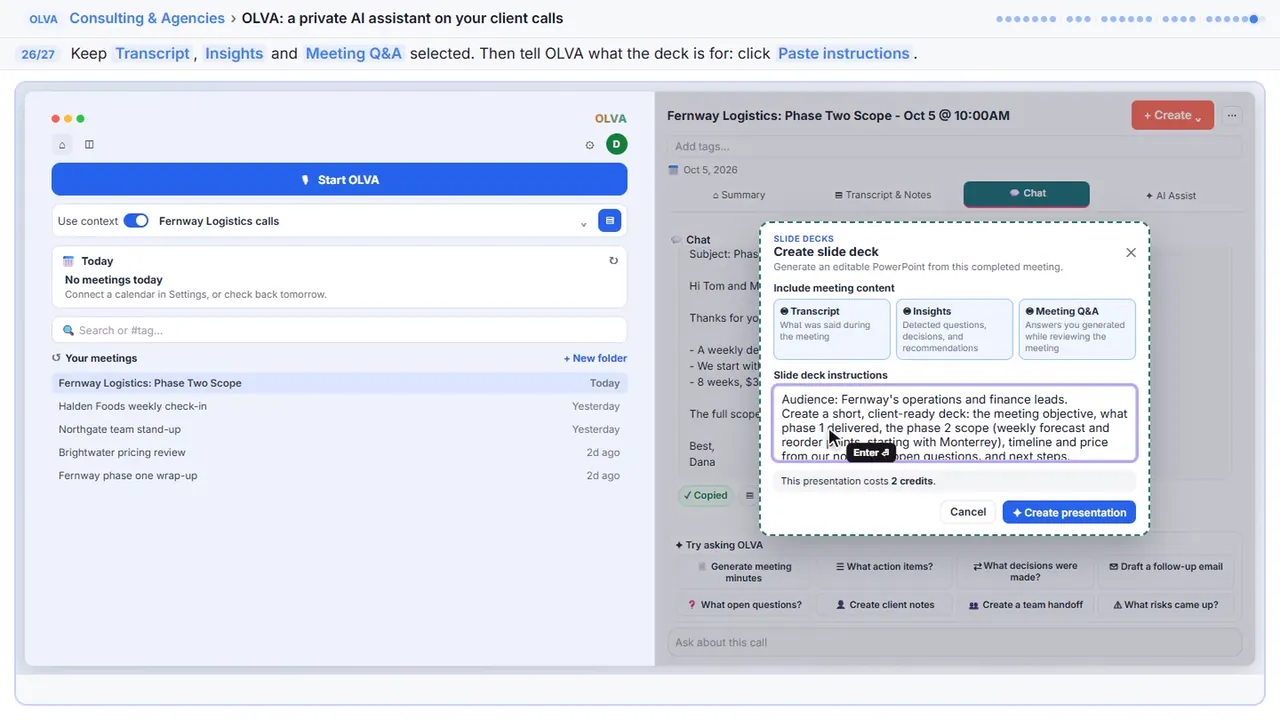
Audience: Fernway's operations and finance leads.
Create a short, client-ready deck: the meeting objective, what phase 1 delivered, the phase 2 scope (weekly forecast and reorder points, starting with Monterrey), timeline and price from our notes, the open questions, and next steps.
Step 27: Create the presentation
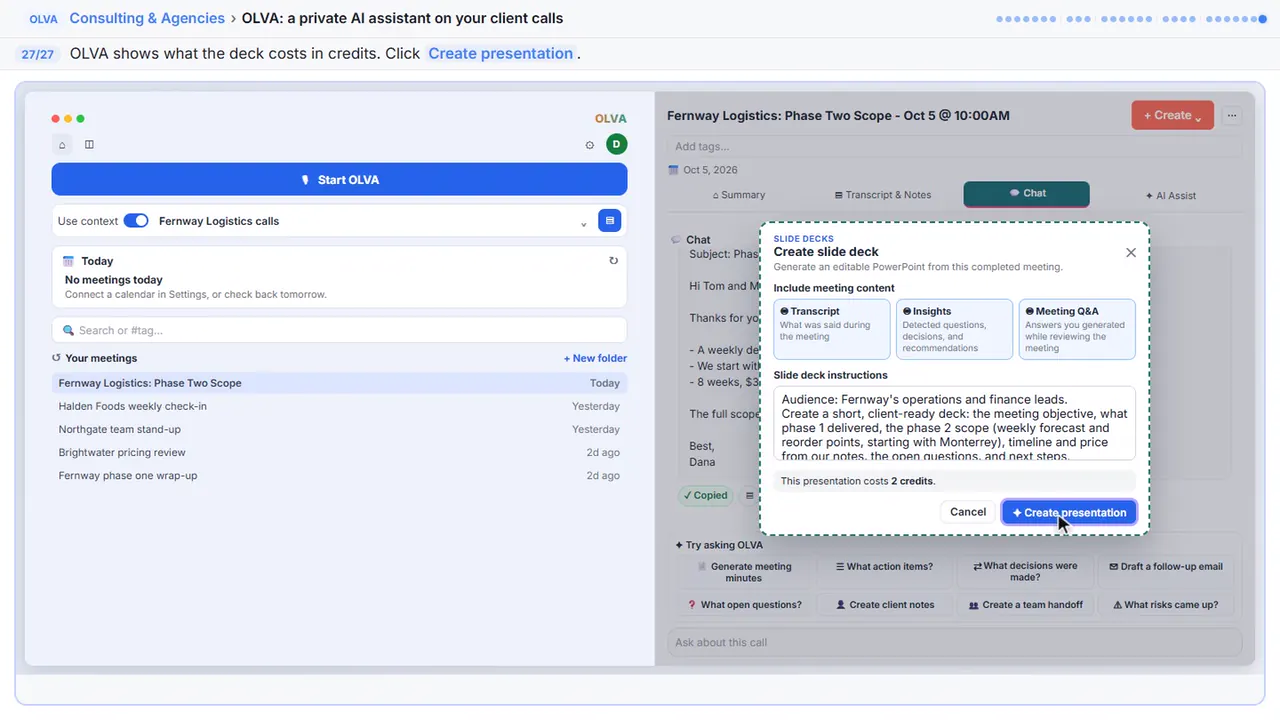
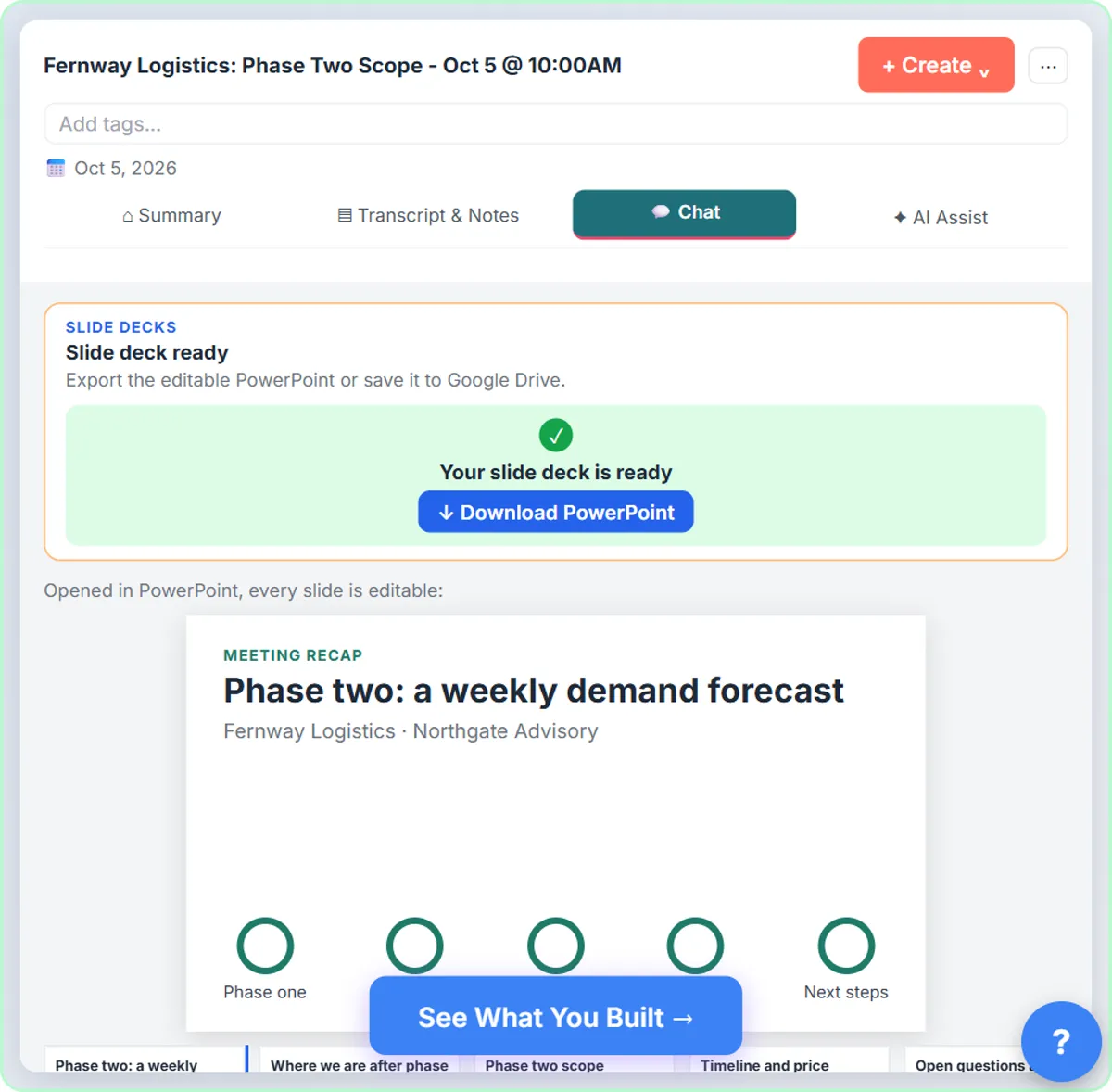
OLVA shows what the deck costs in credits, before you make it. You get an editable PowerPoint. Fix any slide before it goes to the client.
Now do it yourself, free
Reading the steps is a start. Doing them is how it sticks. The interactive lesson puts you in a practice copy of OLVA: you do every step yourself, it checks your work, and “Do it for me” finishes any step you get stuck on. Nothing touches your real accounts.
Practice “OLVA: A Private AI Assistant on Your Client Calls” step by stepOLVA: A Private AI Assistant on Your Client Calls: video walkthrough
The whole lesson in 3:06, narrated step by step.
Simulated practice environment. Recorded in Stepthrough’s simulated practice environment, not the live tool. Practice it yourself free at learn.ynteractive.com.
Chapters
Click a chapter to jump the video there.
- 0:00 Give OLVA your client notes
- 0:43 Start OLVA on the call
- 1:07 Get answers during the call
- 1:45 Fact checks and translation
- 2:14 After the call
Now do it yourself, free
Watching is the warm-up. The interactive lesson puts you in a practice copy of OLVA: you do every step yourself, it checks your work, and “Do it for me” finishes any step you get stuck on. Nothing touches your real accounts.
Practice “OLVA: A Private AI Assistant on Your Client Calls” step by stepFull transcript
Give OLVA your client notes
0:00 This is the OLVA app on your computer. Before a client call, give OLVA some background. Then its answers fit this client. Click Manage contexts, next to the context picker.
0:10 A context is a set of notes and files that OLVA can use in a meeting. Make one for each client. Click Add context.
0:16 Name it after the client. Then you can pick it before every call with them. Click Paste name.
0:21 Now the notes. Who's on the call, and what you already did for them. What you're proposing, and what to watch for. Plain sentences are fine. Click Paste notes.
0:29 You can attach files too. PDF, Word, PowerPoint, text or Markdown. Click Add document, and pick the proposal you sent the client.
0:37 Click Save.
0:38 That's saved for every call with this client. Close the Contexts window.
Start OLVA on the call
0:42 Your call with Fernway is starting in Zoom. Use context is switched on. Now tell OLVA which context to use. Click the context picker.
0:50 Pick the Fernway context you just made.
0:53 Click Start OLVA. It doesn't join the call as a bot. It listens through your computer, and sits beside your meeting. For Zoom, Google Meet and Teams, it can also spot the meeting and offer to start. Before you start, tell everyone you're transcribing, or get their consent.
Get answers during the call
1:06 The transcript starts right away. Each speaker gets a different color. Now switch on Auto-answer this call. When someone asks a question, OLVA prepares an answer. Only you can see it.
1:16 Tom just asked how phase two is different. OLVA flagged the question. Its answer is in the Chat tab. Click Chat.
1:22 It used your notes. The scope, eight weeks, and the price. Want help with the wording? Click Say next. It suggests a reply, based on what was just said.
1:31 You can ask OLVA your own question while the call is still going. Click Ask about this call.
1:35 Ask what Tom has pushed back on so far. Click Paste question.
1:38 Click send. OLVA answers from the live transcript and your notes. Nobody on the call sees any of this.
Fact checks and translation
1:44 Tom just said phase one cost about fifty thousand. Is that right? Click the AI Assist tab.
1:49 Here's a fact check. Partly true. Phase one was forty eight thousand, not fifty. And a Define card explains safety stock, in case the term is new to you. Now go back. Click Transcript and Notes.
2:00 Marisol switches to Spanish now and then. OLVA keeps transcribing in both languages. Click Translate. Her lines get an English translation. The original stays right above it.
2:10 Tom wants the scope in writing. The call is done, so click End.
After the call
2:13 The meeting is saved in your list, with the transcript. Under Try asking OLVA, click Generate meeting minutes.
2:20 There are your minutes. Summary, decisions, action items, questions and risks. Now click Draft a follow-up email.
2:26 It's written from what was actually said. Read it. Change anything that doesn't sound like you. Then click the copy button under it.
2:32 Tom asked for the scope in writing. OLVA can turn the meeting into a slide deck. Click Create at the top.
2:38 Click Create slide deck. The same menu can also make a Google Doc or a Notion page.
2:43 Leave Transcript, Insights and Meeting Q and A switched on. Then say who the deck is for, and what goes in it. Click Paste instructions.
2:51 OLVA shows what the deck costs in credits, before you make it. Click Create presentation. You get an editable PowerPoint. Fix any slide before it goes to the client.
2:59 Simple as that. We show you and you do it. Sign up below to learn AI automation for free.
Watch the 30-second version
2 short videos from this lesson. Watch, then do it yourself in the free practice copy.
 0:16
0:16Turn a client call into a PowerPoint
After a client call you paste notes into ChatGPT for a recap. OLVA (olva.ai) already has the whole transcript: one click for meeting minutes, one for the follow-up email, then Create slide deck makes an editable…
Transcript
After a client call you paste notes into ChatGPT for a recap. OLVA (olva.ai) already has the whole transcript: one click for meeting minutes, one for the follow-up email, then Create slide deck makes an editable PowerPoint. Read it and fix any slide before it goes out. Practice it in our free lesson.
 0:20
0:20Private AI answers on a client call
You paste call notes into ChatGPT after the meeting. OLVA (olva.ai) helps during the call instead: it listens from your computer, no bot joins. Give it your client notes once as a context, and when the client asks a…
Transcript
You paste call notes into ChatGPT after the meeting. OLVA (olva.ai) helps during the call instead: it listens from your computer, no bot joins. Give it your client notes once as a context, and when the client asks a question it drafts an answer only you can see. It even fact checks a wrong number from your notes. Practice it in our free lesson.
What you will do: one client call, start to finish
You are Dana, a consultant at Northgate Advisory (a made-up firm), about to pitch phase two of a forecasting project to Fernway Logistics, a made-up distributor. Tom Reyes, their Director of Operations, is skeptical about price. Marisol Ortega, their finance lead, switches to Spanish now and then. The call runs in Zoom, and OLVA sits beside it.
Before the call you save what you know about Fernway as a context: who is on the call, what phase one delivered and cost, what phase two costs and what to watch for, plus the proposal PDF. During the call OLVA transcribes everyone, flags Tom's question and answers it privately from your notes. You ask it what Tom has pushed back on, get a suggested line to say next, see a fact check on a price Tom gets wrong, and turn on translation for Marisol's Spanish. After the call you generate minutes, draft the follow-up email, and create a slide deck for the client.
Who this is for
Consultants, account managers, salespeople and accountants who spend their day on client calls and then lose an hour writing them up. You do not need any AI experience. The lesson is a practice copy, so nothing listens to a real call and you do not need an OLVA account to take it.
How OLVA works without a bot in the meeting
Most meeting note takers join the call as an extra participant. OLVA does not. It listens through your own device and opens its window beside the meeting, so nobody sees a bot in the participant list. According to OLVA's how-to video it works alongside Zoom, Google Meet, Microsoft Teams, Slack Huddles and Webex, and with phone calls and in-person conversations. For Zoom, Meet and Teams it can detect an active meeting and offer a Start OLVA button; otherwise you click Start OLVA yourself.
OLVA separates your voice from the meeting audio and gives each other speaker a different color, so you can follow who said what. Its video says it supports 87 spoken languages and regional variants and detects the language automatically, or you can pick a primary language in Settings for better accuracy.
Because nobody sees a bot, telling people is on you. OLVA's own video says you are responsible for giving notice or getting consent before you transcribe a conversation. Do that at the start of every call, as the rules where you work require.
Step 1: save your client notes as a context
A context is a set of notes and files OLVA can use in a meeting. In the OLVA app you click Manage contexts next to the context picker, then Add context. You name it after the client, write plain notes, and attach documents with Add document: OLVA takes PDF, Word, PowerPoint, text and Markdown files. Click Save, and the context is ready for every call with that client.
The notes matter more than anything else in the lesson. OLVA combines them with the live conversation, so a line like 'Phase 1 invoiced $48,000; phase 2 is 8 weeks, $36,000' is what lets it answer a pricing question correctly and fact-check a wrong number. Before the call you switch on Use context, pick the client's context from the picker, and click Start OLVA.
Step 2: private answers and coaching during the call
With Auto-answer this call switched on, OLVA spots questions in the conversation. When Tom asks how phase two is different, the line is marked Question Detected and an answer built from the transcript and your notes appears in the Chat tab, where only you can see it. Below the chat are coaching buttons: Say next suggests a reply, Clarify explains what someone just said, Follow-up suggests a question to ask, and there is a Recap button too.
You can also type your own question in Ask about this call, for example 'What has Tom pushed back on so far?', and OLVA answers from the call and your context while the meeting is still going.
Step 3: fact checks, definitions and Live Translation
The AI Assist tab collects insight cards as you talk. A Fact Check card quotes what was said and rates it, for example Partly True when Tom says phase one cost about fifty thousand and your notes say $48,000. A Define card explains a term from the call, such as safety stock. They appear as private cards, so you can glance at them without stopping the conversation.
Live Translation translates finished transcript lines into your language during the meeting. You can turn on automatic translation or translate single messages, the original text stays visible so you can compare, and you can pause it at any time. In the lesson, Marisol's Spanish lines get an English translation under each one.
Step 4: minutes, a follow-up email and a slide deck
When you click End, the meeting is saved in Your meetings with its transcript. The meeting page has Summary, Transcript & Notes, Chat and AI Assist tabs, and a Try asking OLVA panel with ready-made requests: Generate meeting minutes, What action items?, What decisions were made?, Draft a follow-up email, What open questions?, Create client notes, Create a team handoff and What risks came up?. You use the first one for minutes with a summary, decisions, action items, questions and risks, then Draft a follow-up email, and copy the email to edit and send yourself.
The Create menu builds things from the meeting: Create slide deck (an editable PowerPoint), Create Google Doc and Create Notion page. For the deck you choose what to include (Transcript, Insights and Meeting Q&A), write who it is for and what it should cover, and click Create presentation. OLVA shows the cost in credits before it creates the deck.
Mistakes to avoid
- Starting without a context. Without your notes OLVA can only use what is said on the call, so answers about your scope and prices are guesses.
- Reading an answer out word for word. The answer is private and fast, but it can be wrong. Check numbers against your own records before you say them.
- Skipping consent. A bot-free assistant is invisible to the other side, so say at the start that you are transcribing, and follow your firm's and your client's rules.
- Sending the draft as is. The follow-up email and the deck come from the transcript. Read them, fix the tone and any detail OLVA got wrong, then send.
Privacy and what OLVA keeps
OLVA's how-to video says it does not store meeting audio, video, voice recordings or voiceprints. Transcripts and the content it generates are saved to your account so you can review, search, export or delete them, and deleting a meeting also removes its transcript, summary, insights, notes, chat history and meeting memory. If your firm has rules about client data in AI tools, check them before you use OLVA on a client call.
Links
- OLVA (olva.ai): the meeting assistant this lesson teaches. It is a separate product with its own account, plans and credits.
- OLVA how-to guides: OLVA's own short lessons, from the basic meeting flow to slide decks and integrations.
Try it yourself, free
Reading the steps is a start. Doing them is how it sticks. The interactive module walks you through every click in a practice copy of OLVA, checks each step, and never touches your real accounts.
Start “OLVA: A Private AI Assistant on Your Client Calls”Screenshots
Frequently asked questions
- How does the interactive lesson work?
- Each step is shown to you first (Watch). Then you do it yourself in a practice copy that checks every click (Your turn). If you get stuck, press Do it for me. It is a practice copy, so nothing listens to a call and no OLVA account is touched.
- Is OLVA part of Stepthrough?
- No. OLVA is a separate, third-party product from olva.ai. This lesson is free, and it teaches the steps shown in OLVA's own how-to video. To use OLVA for real you need your own OLVA account; check olva.ai for its current plans.
- Does OLVA join my Zoom or Teams call as a bot?
- No. OLVA listens through your own computer and opens beside the meeting, so it does not appear as a participant. You still need to tell people you are transcribing, or get their consent, before you start.
- Can OLVA answer questions about my own clients and prices?
- Yes, if you give it a context first: notes and files such as a proposal. OLVA combines that context with the live transcript for its answers, coaching and fact checks. Without a context it only knows what was said on the call.
- Can OLVA make a PowerPoint from a meeting?
- Yes. After the meeting, Create, then Create slide deck builds an editable PowerPoint from the meeting. You choose whether to include the transcript, insights and Q&A history, and add instructions about the audience. Decks cost credits in OLVA.
More in AI Automation for Consulting & Agencies
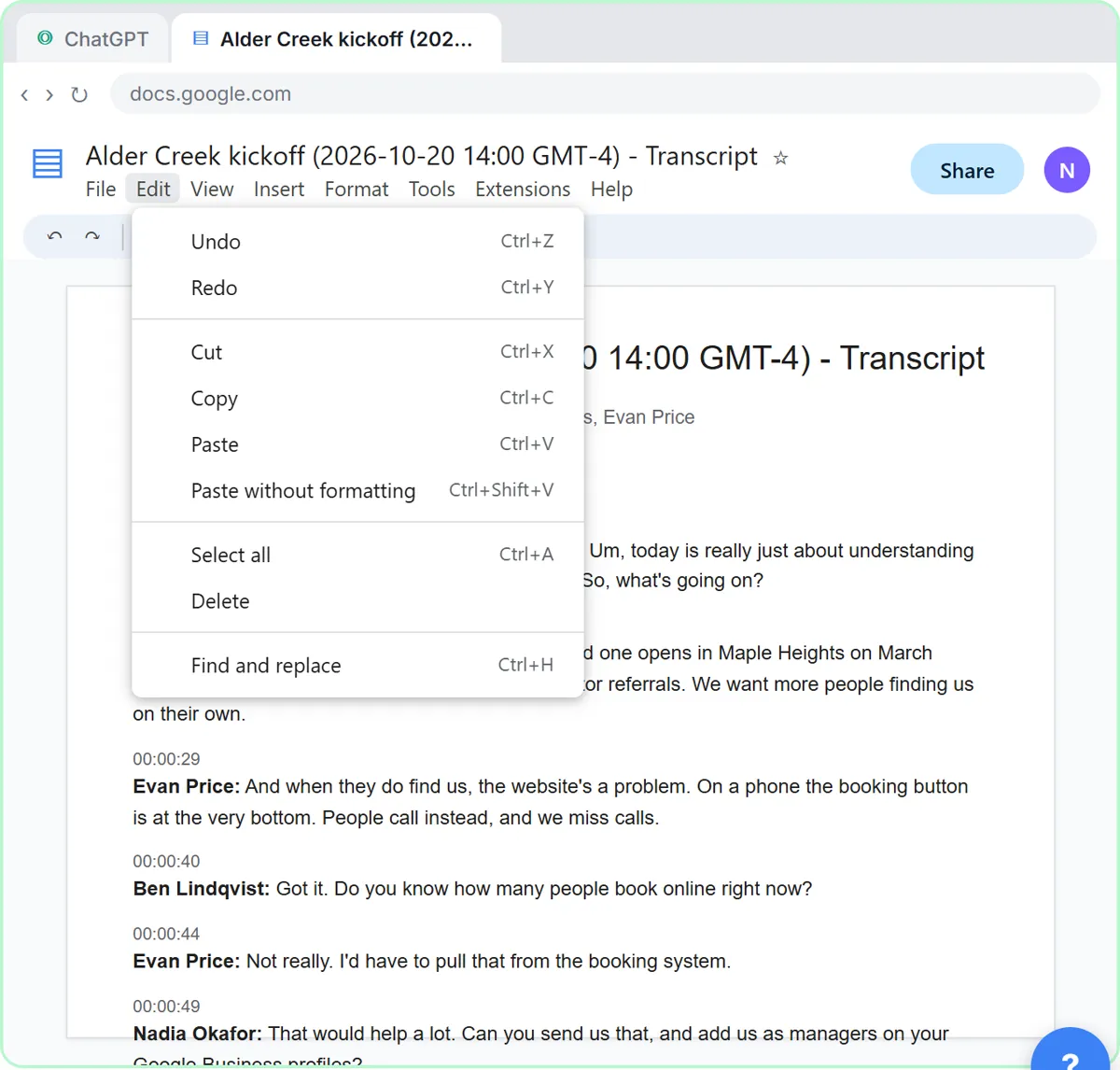 Turn a Client Kickoff Call into a Proposal Outline with ChatGPT (Agencies & Consultants)
Turn the transcript of a client kickoff call into the scope, budget and timeline the client stated, an action items table, open questions, and a recap email with a…
Free · Live ~10 min
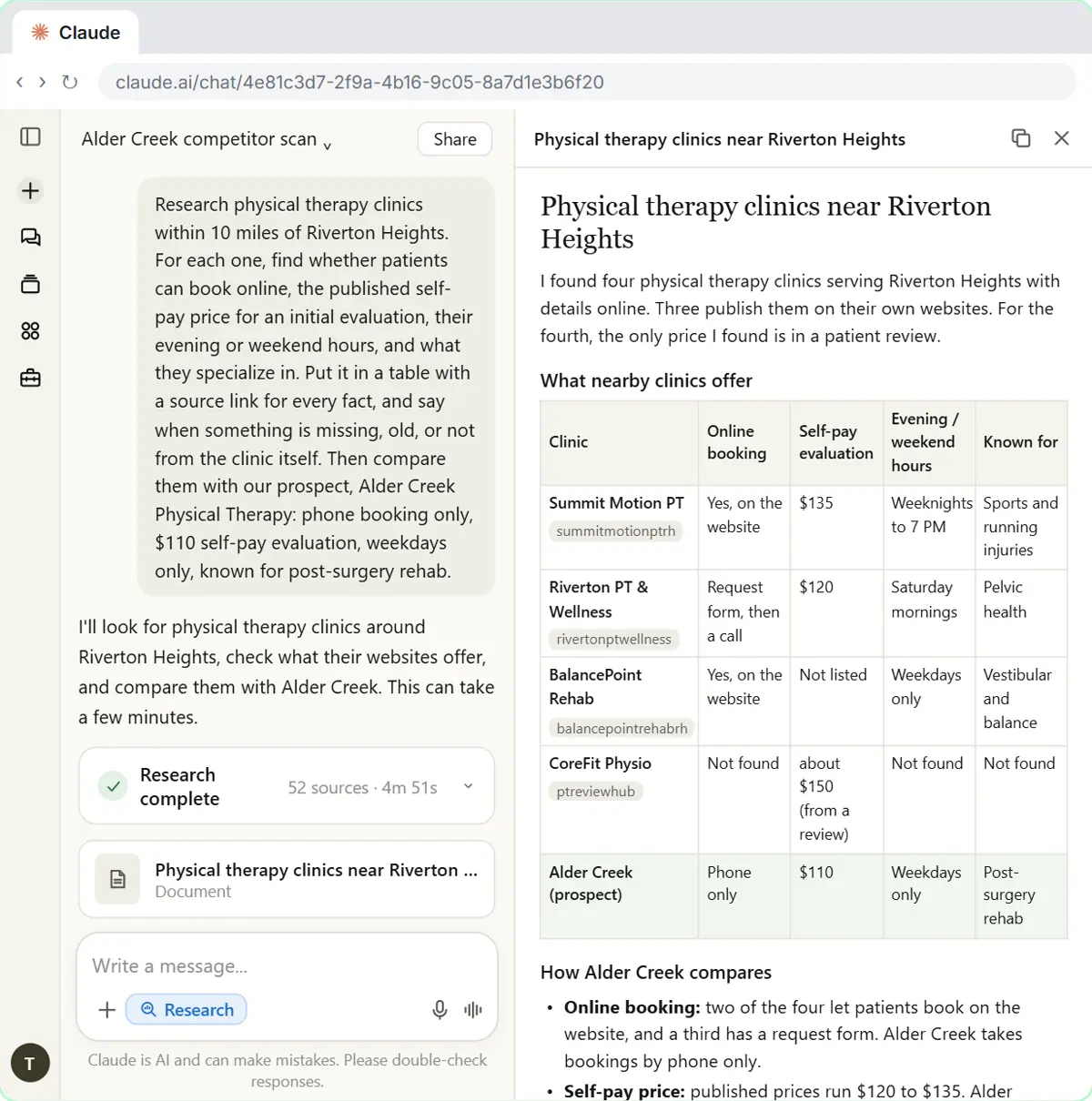 Research a Prospect's Market with Claude Research Before a Pitch (Consultants & Agencies)
Turn on Research before a pitch, have Claude check what a prospect's competitors offer online, read the cited report, check a source and turn it into talking points for…
Free · Live ~7 min
All 4 modules in AI Automation for Consulting & Agencies
Terms in this lesson
Plain-English definitions, each with an example from a free lesson.