Updated . Built from ElyxAI’s official docs and help center. Screens may differ slightly in your account. How we check this lesson
Duplicate bookings, dates stored as text and one event type spelled four ways make every total wrong. In Excel, ask the ElyxAI add-in to clean the export and keep what it removed on its own sheet, check the counts, then total the deposits still owed. Built from ElyxAI's own pages.
At a glance
| Question | Answer |
|---|---|
| What you build | Duplicate bookings, dates stored as text and one event type spelled four ways make every total wrong. In Excel, ask the ElyxAI add-in to clean the export and keep what it removed on its own sheet, check the counts, then total the deposits still owed. Built from ElyxAI's own pages. |
| Tools | ElyxAI |
| Time | About 6 minutes, 8 steps in 3 parts |
| Level | Beginner, no coding needed |
| Cost | Free |
| Ways to learn it | Practice it step by step |
The 3 parts, in short
- Open Elyx: Open the ElyxAI sidebar.
- Clean the export: Choose Advanced mode, Ask for the cleanup, and to keep what it removes, Send it and read the actions.
- Check, then total: Check that the counts add up, Switch to Fast for the total, Ask for deposits owed by event type, Send it, then try it in your own Excel.
What you'll build
You are Dana, events coordinator at Harbor Hall Events, a made-up venue that hosts weddings, corporate dinners and private parties. Every month you total the deposits still owed from the booking system's export, and every month the total is off: the export repeats bookings that were edited, stores some dates as text, and spells the same event type four different ways. In this starter lesson you open the ElyxAI sidebar in Excel, choose Advanced mode, ask for the cleanup with every removed row kept on its own sheet, check the row counts, then ask for deposits owed by event type. Every label comes from ElyxAI's own pages; the frame is a practice copy, not the real add-in.
You opened the ElyxAI sidebar from its button in the Excel toolbar, chose Advanced mode for a multi-step cleanup, asked Elyx to remove duplicate bookings, fix text dates and standardise event types while keeping the removed rows on their own sheet, checked that the counts added up, and then asked for deposits owed by event type in Fast mode. What this saves you: the hour of hunting duplicates by hand, and a deposit total that was quietly wrong. ElyxAI's pages say every action is visible as it happens and you can ask for a change, refine or rerun; check the cells before you rely on them. To try it in your own Excel, install ElyxAI from Microsoft AppSource (Excel 2021, Microsoft 365 and Mac); the 7-day trial needs no card and includes about 25 Advanced requests. This lesson was built from ElyxAI's pages, not run in an account, so check each label against your own screen.
- Tools: ElyxAI
- Time: about 6 minutes, 8 steps in 3 chapters
- Level: beginner, no coding needed
- Price: free
Practice first, then build it for real
Starter lesson based on ElyxAI's public documentation (ElyxAI: The AI agent that does the work in Excel, ElyxAI Help, ElyxAI Modes & plans, ElyxAI: AI for Excel, ElyxAI Pricing), read 20 November 2026. This is a plain practice frame, not ElyxAI's own screens; nothing here touches a ElyxAI account. Harbor Hall Events and its data are made up. To build it for real you need your own ElyxAI account, and some services charge once you use them for real work, so check each tool's current pricing.
Try it yourself, free
Reading the steps is a start. Doing them is how it sticks. The interactive module walks you through every click in a practice copy of ElyxAI, checks each step, and never touches your real accounts.
Start “ElyxAI: Clean a Messy Booking Export Before You Count the Deposits”Step by step: ElyxAI: Clean a Messy Booking Export Before You Count the Deposits
All 8 steps of the interactive module, in order. In the module you watch each one, then do it yourself in a practice copy that checks your work.
1. Open Elyx
- Open the ElyxAI sidebar. You are Dana, events coordinator at Harbor Hall Events, a made-up venue. You total the deposits still owed every month, and the export makes the total wrong: HH-1041 appears twice, some dates are text and Corporate dinner is spelled four ways. ElyxAI's Help page says to click the ElyxAI button in the Excel toolbar to open it in the sidebar. Click ElyxAI.
You run events at a small venue. The booking export repeats bookings, stores dates as text, and spells one event type four ways.
2. Clean the export
- Choose Advanced mode. ElyxAI's Modes & plans page says Advanced is for multi-step requests, and its first example is cleaning an export. Removing duplicates, fixing dates and standardising names is three jobs in one, so click Advanced.
Cleaning an export is a multi-step job, and it is ElyxAI's own example of Advanced mode.
- Ask for the cleanup, and to keep what it removes. Name each fix, and ask for the removed rows on their own sheet so you can check them. Type: Clean the Export sheet: move exact duplicate rows to a new sheet called Removed, convert Event date to real dates, standardise Event type to Wedding, Corporate dinner or Private party and trim spaces. At the top of Removed, write how many rows came in, how many were kept and how many were removed.
Name each fix, and ask for the removed rows on their own sheet, with a count, so you can check them.
- Send it and read the actions. Click Send. ElyxAI's home page says every action is visible as it happens. Read the list: 14 duplicates moved to Removed, 23 text dates converted, 31 event types standardised.
Every action shows as it happens. Fourteen duplicates moved, twenty-three dates fixed, thirty-one event types standardised.
3. Check, then total
- Check that the counts add up. 198 kept plus 14 removed must equal the 212 rows you started with. If it does, nothing vanished. ElyxAI's finance page says to check the cells before you rely on them. Click the check.
One hundred and ninety-eight kept, plus fourteen removed, must equal two hundred and twelve. If it does, nothing vanished.
- Switch to Fast for the total. The total is a single formula, which the Modes & plans page puts in Fast mode. Fast is unlimited on paid plans; on the trial it still counts toward your allowance. Click Fast.
A single total is a Fast job.
- Ask for deposits owed by event type. Type: On a new sheet called Deposits owed, show the number of bookings and the sum of Deposit due where Paid is No, by Event type, with a total row.
Ask for the number of bookings and the deposits still owed, by event type, with a total row.
- Send it, then try it in your own Excel. Click Send. 28 bookings owe $48,200 in deposits, split by event type, and no booking is counted twice. This lesson was built from ElyxAI's pages, not run in an account: in your own Excel, install ElyxAI from Microsoft AppSource, open it from the toolbar, sign in for the 7-day trial (no card) and try it on your own export.
Twenty-eight bookings owe forty-eight thousand two hundred dollars, and none is counted twice. In your own Excel, install ElyxAI from AppSource and try it on your own export.
More in Business Automations
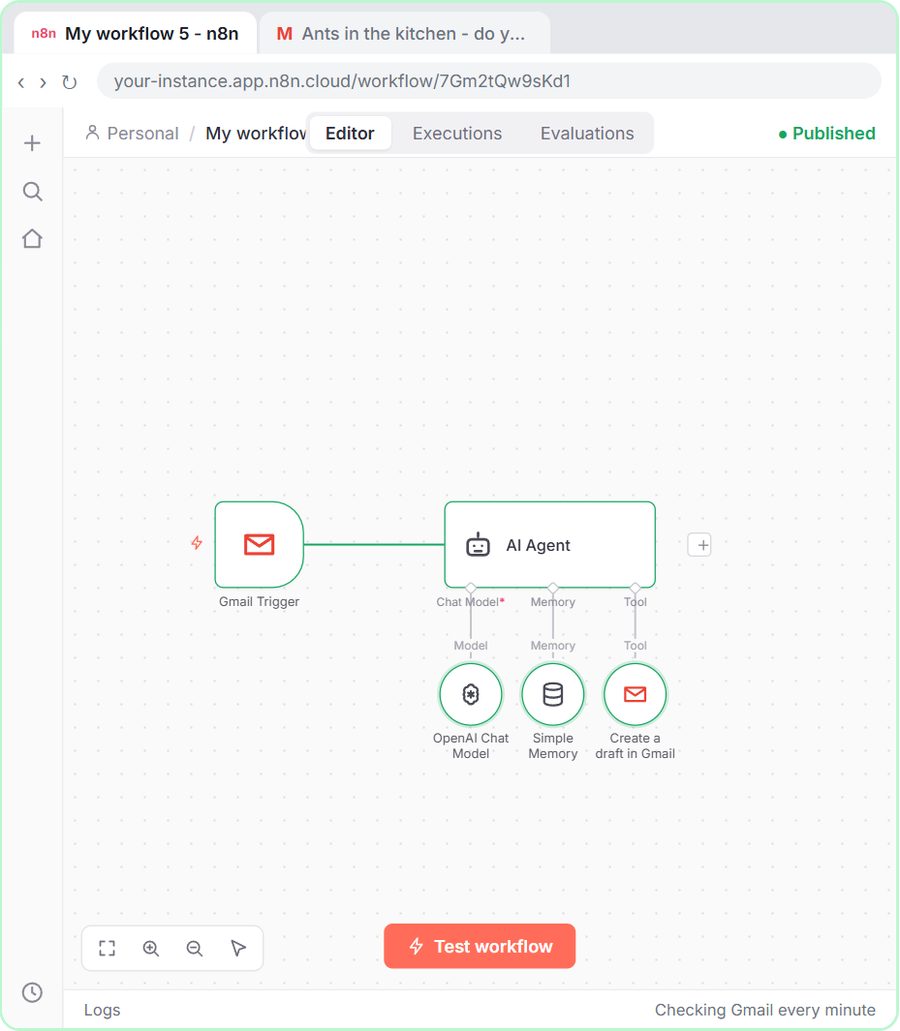 n8n AI Email Responder: Draft Gmail Replies Automatically
Build an n8n agent that watches your Gmail, reads each new customer email, and writes a reply as a draft in the same thread, ready for you to check and send.
Free · Live ~12 min Intermediate
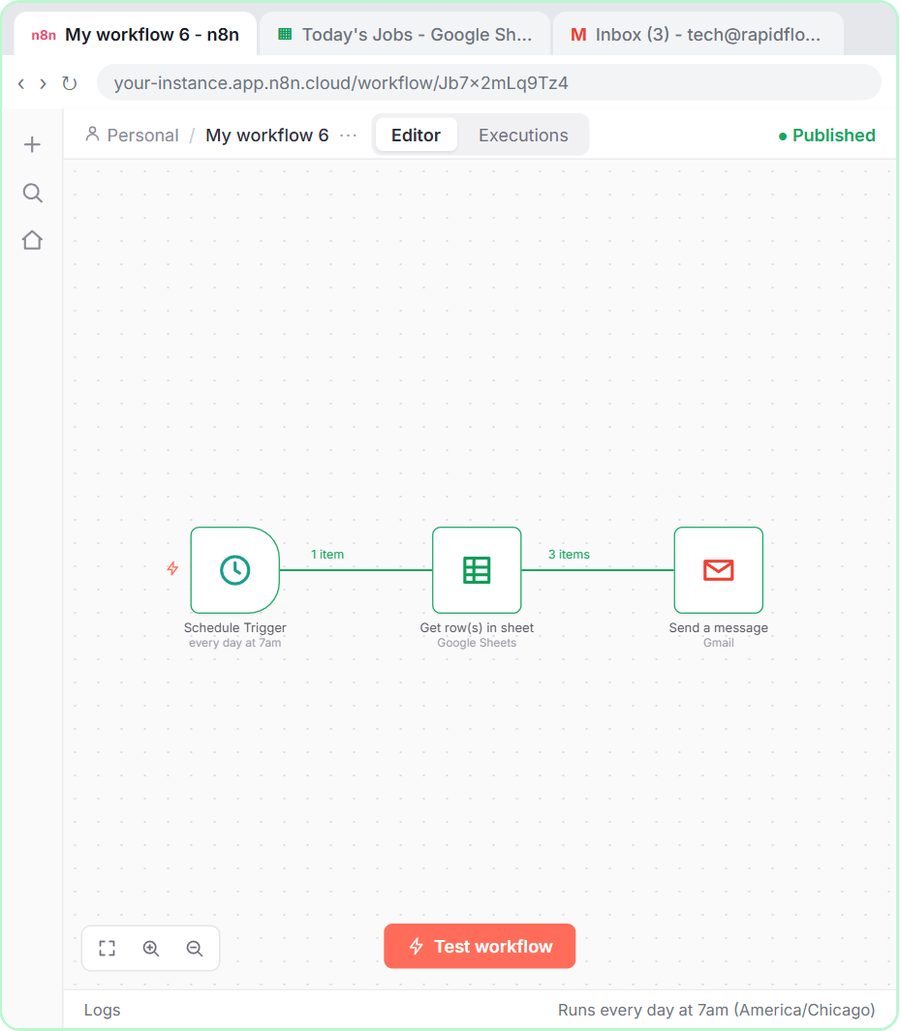 How to Make an n8n Workflow That Emails Each Tech Their Jobs from Sheets
Every morning at 7, n8n reads a plumbing company's jobs sheet, skips anything not assigned yet, and emails each job to the tech it's assigned to — customer, address…
Free · Live ~10 min Intermediate
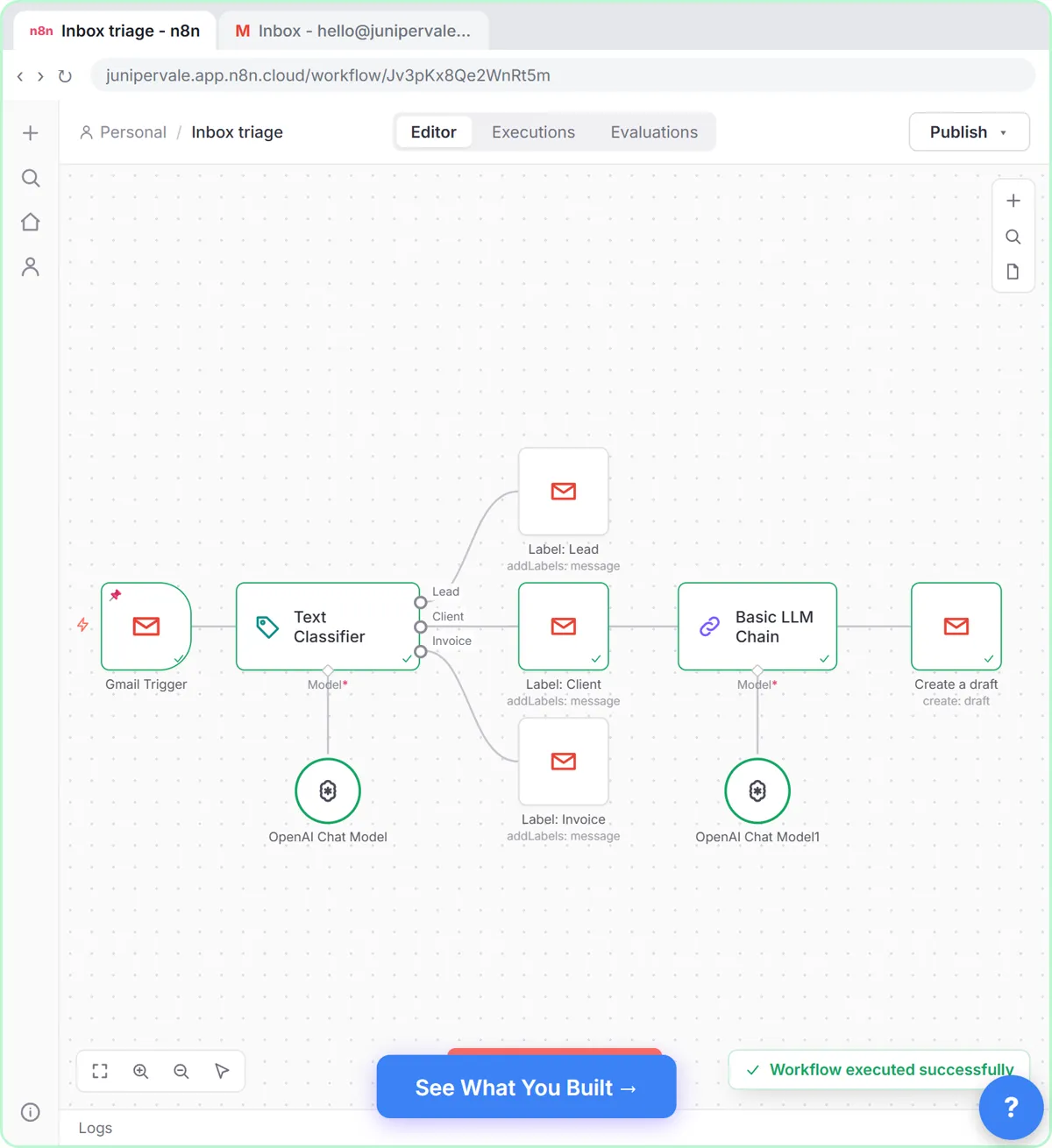 Gmail AI Triage: Auto-Label Every Email and Draft Replies
Build an n8n workflow that reads each new email, sorts it as a lead, a client or an invoice with a Text Classifier, adds the matching Gmail label, and drafts a reply to…
Free · Live ~18 min Advanced
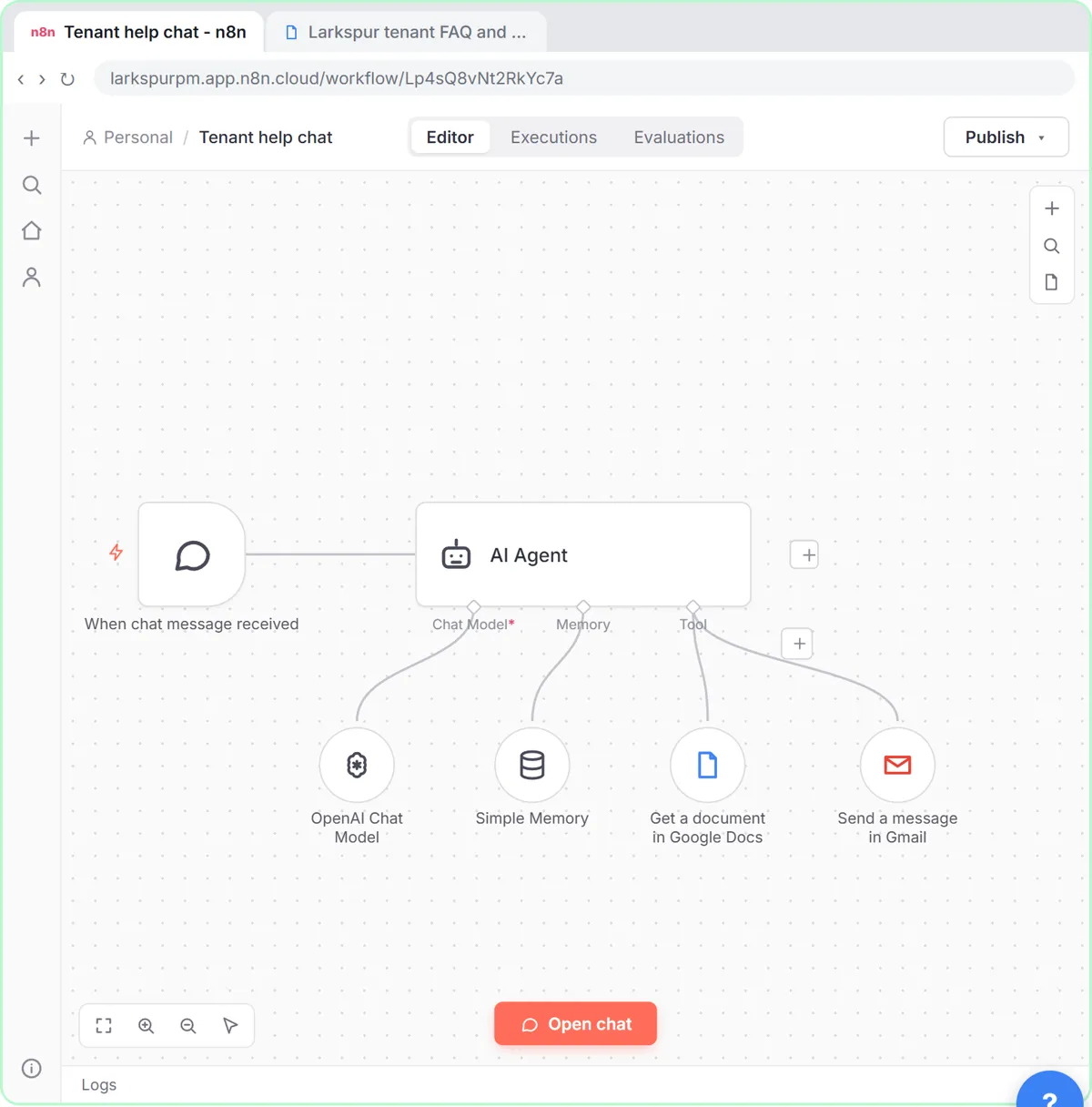 How to Use n8n to Build AI Agents: A Support Agent That Answers from Your Docs
Turn an n8n chat agent into a support agent that answers only from your policies in a Google Doc, refuses what it should, and hands off to a person by email.
Free · Live ~13 min Advanced
 Chatbase: Answer Customer FAQs with an AI Agent
A business case for a small firm that answers the same customer questions every week: build a Chatbase AI agent on your FAQ in the real app, make it say when it does…
Free · Live ~15 min Beginner
 Mixo: Launch a Landing Page and Collect Early Sign-ups
A business case for a firm testing a new service before building it: describe the idea in one sentence, let Mixo build the page, turn on a sign-up form, publish it free…
Free · Live ~12 min Beginner
All 58 modules in Business Automations
Terms in this lesson
Plain-English definitions, each with an example from a free lesson.