Updated . Built against the tool’s current screens and checked step by step. How we check this lesson
A beginner Wave accounting walkthrough on real screens: find the chart of accounts, record and categorize a transaction, then run a Profit & Loss and a Balance Sheet. Free Starter plan.
At a glance
| Question | Answer |
|---|---|
| What you build | A beginner Wave accounting walkthrough on real screens: find the chart of accounts, record and categorize a transaction, then run a Profit & Loss and a Balance Sheet. Free Starter plan. |
| Tools | Wave |
| Time | About 10 minutes, 13 steps in 3 parts |
| Level | Beginner, no coding needed |
| Cost | Free |
| Ways to learn it | Practice it step by step |
The 3 parts, in short
- Find the chart of accounts: Open Accounting, Chart of Accounts, Five tabs.
- Record a transaction: Go to Transactions, Add manual transactions, Describe it, Pick the category, and 1 more step.
- Run the reports: Open Reports, Profit & Loss, Read it, Balance Sheet, and 1 more step.
What you'll build
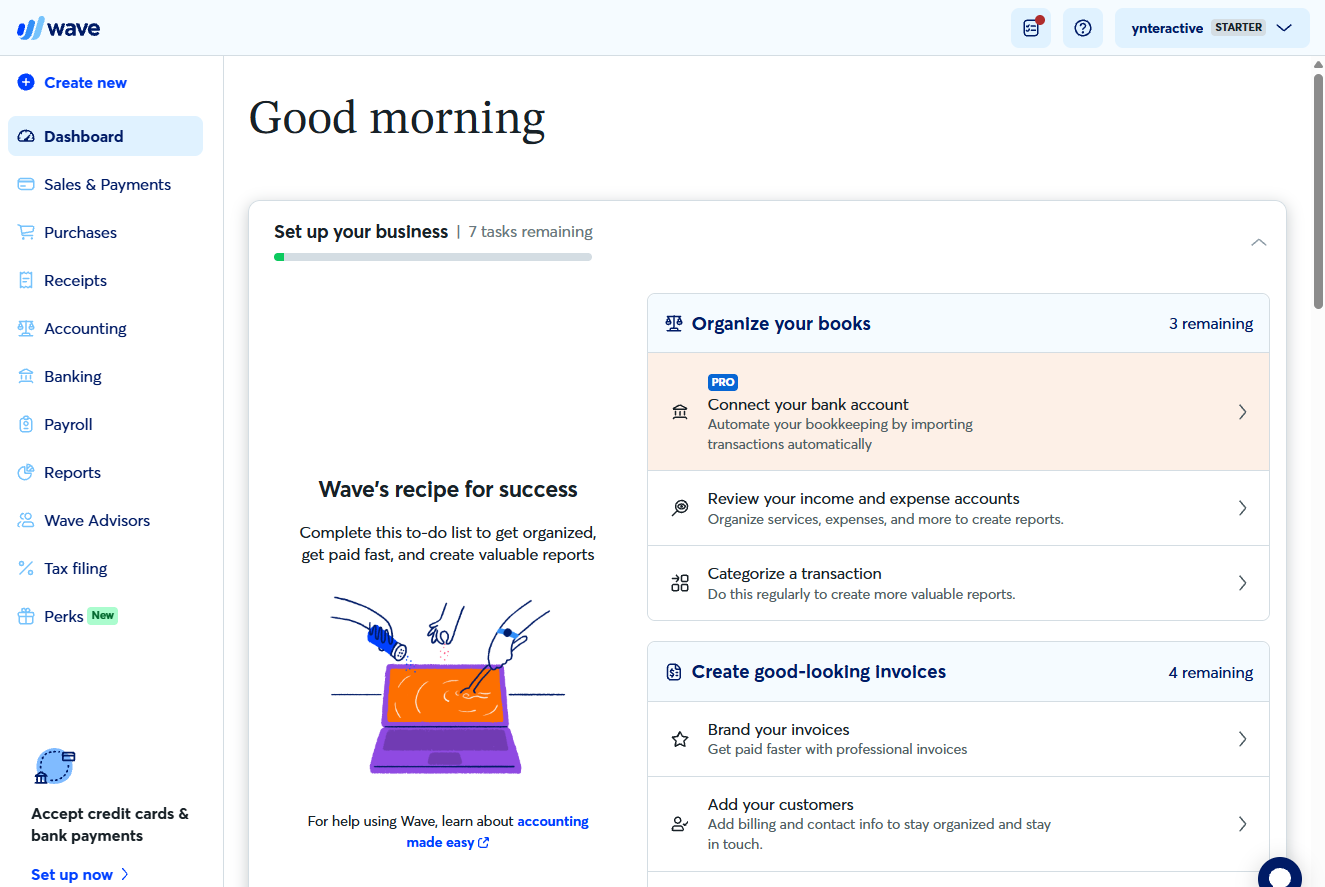
Maya (made up) has outgrown her spreadsheet, and her accountant wants every transaction categorized so reports can be pulled any time. In this lesson you find the chart of accounts in Wave, record a $64.20 office-supplies purchase with the right category, and see it land in the Profit & Loss and the Balance Sheet. Every screen is a real Wave screen.
You found the chart of accounts and its five tabs, recorded a $64.20 withdrawal as Office Supplies, and saw it as an operating expense in the Profit & Loss and as less cash on the Balance Sheet. Now try it in your own Wave account: the lesson page has the checklist.
- Tools: Wave
- Time: about 10 minutes, 13 steps in 3 chapters
- Level: beginner, no coding needed
- Price: free
Practice first, then build it for real
Practice copy built from real Wave screens (free Starter plan, captured 22 October 2026). Nothing here touches your Wave account. The customer, vendor and amounts are practice data. To build it for real you need your own Wave account, and some services charge once you use them for real work, so check each tool's current pricing.
Try it yourself, free
Reading the steps is a start. Doing them is how it sticks. The interactive module walks you through every click in a practice copy of Wave, checks each step, and never touches your real accounts.
Start “Wave: Chart of Accounts, Transactions and Reports”Step by step: Wave: Chart of Accounts, Transactions and Reports
All 13 steps of the interactive module, in order. In the module you watch each one, then do it yourself in a practice copy that checks your work.
1. Find the chart of accounts
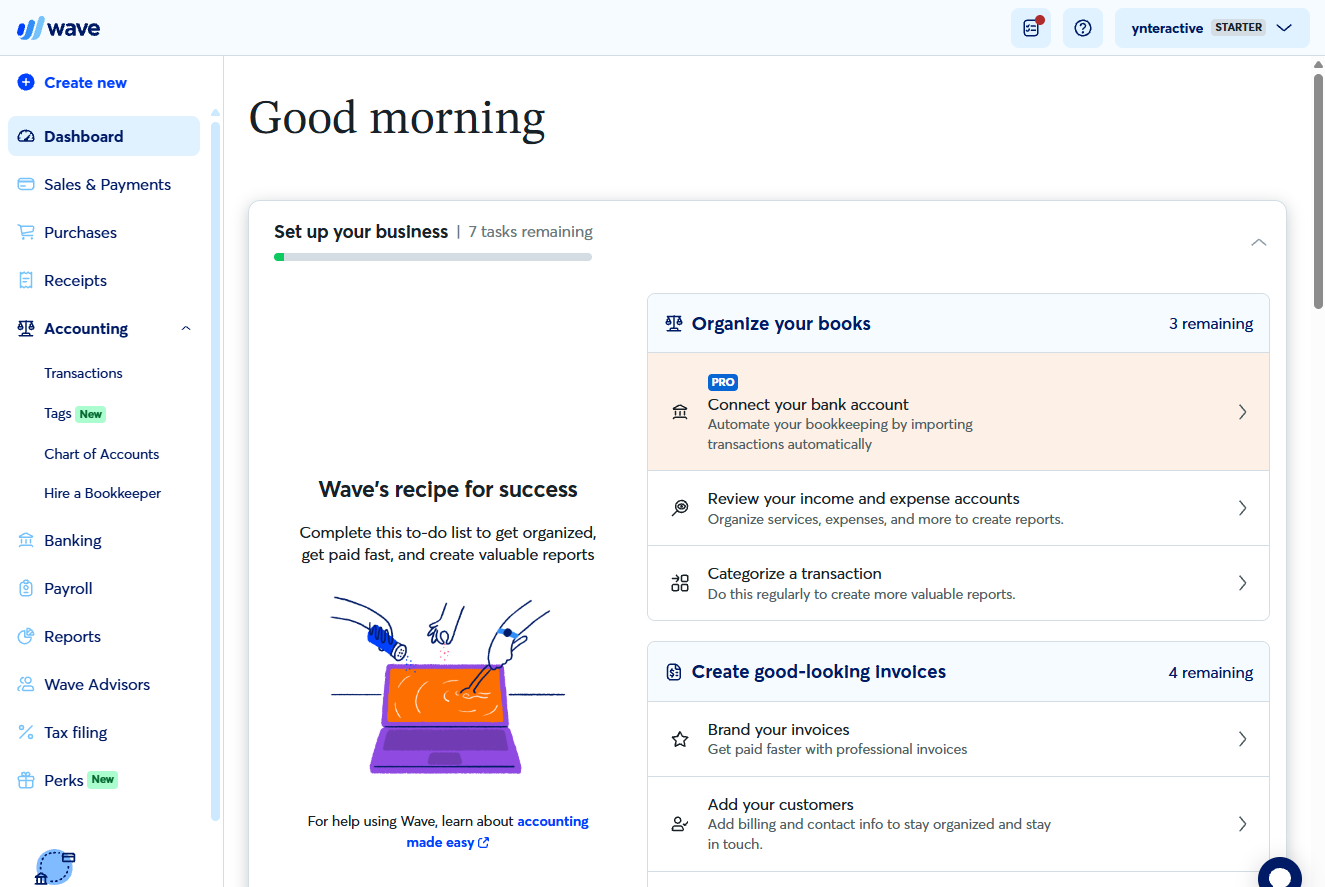
- Open Accounting. Wave’s free Starter plan opens on the Dashboard. In the left menu, click Accounting.
In the left menu, click Accounting.
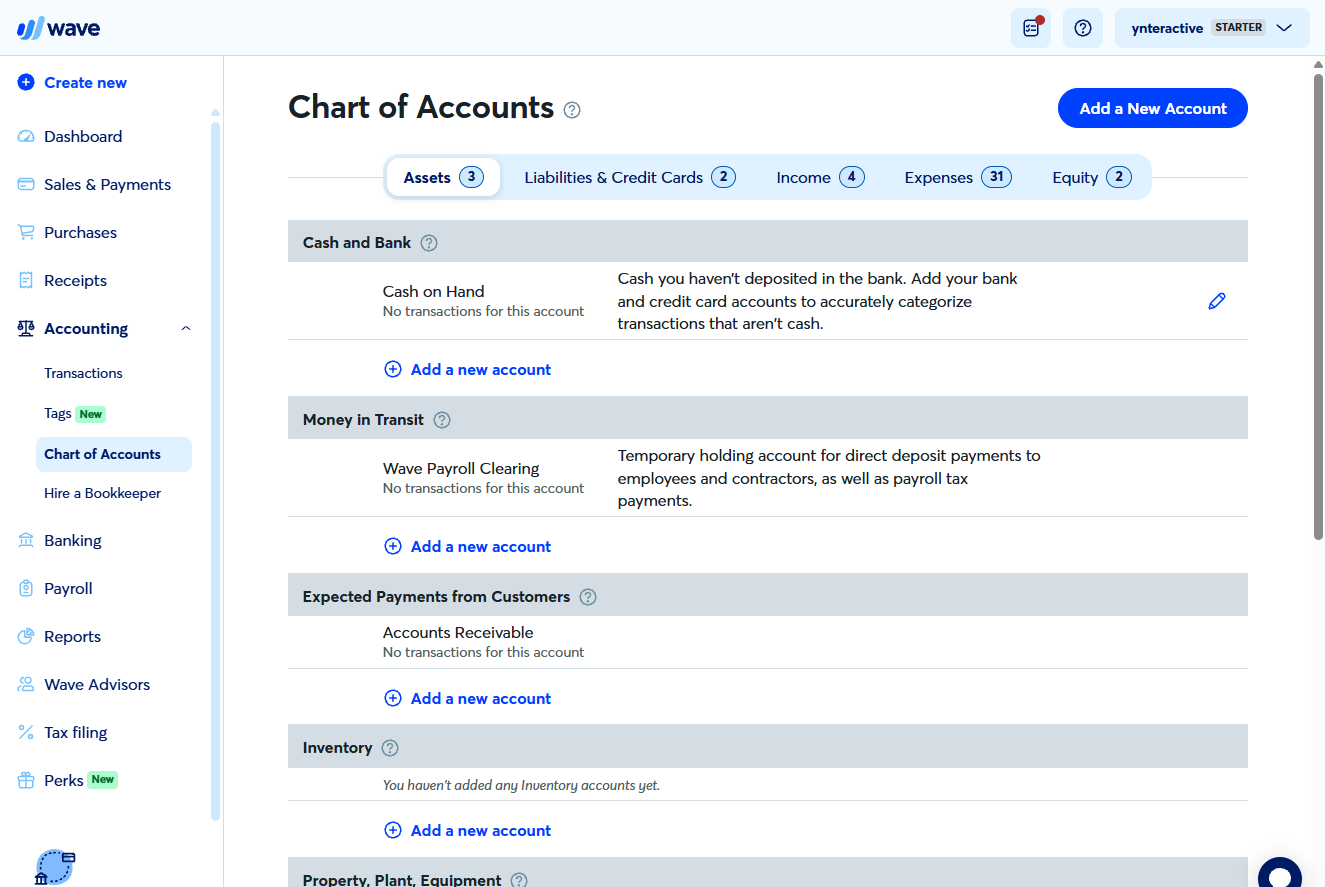
- Chart of Accounts. Click Chart of Accounts.
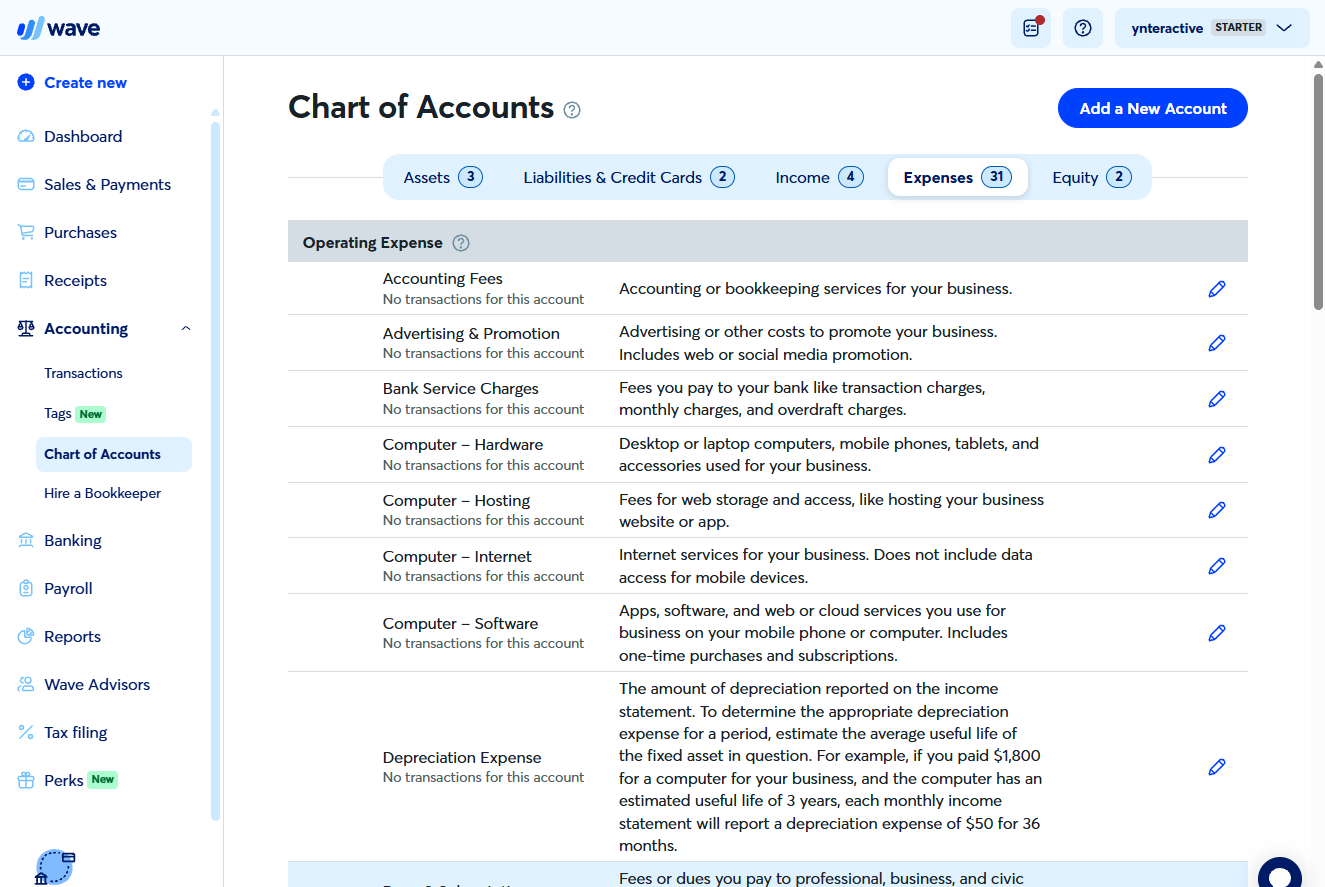
- Five tabs. Accounts sit on five tabs: Assets, Liabilities & Credit Cards, Income, Expenses and Equity, the groups of the accounting equation. Click Expenses.
Five tabs, the groups of the accounting equation.
2. Record a transaction
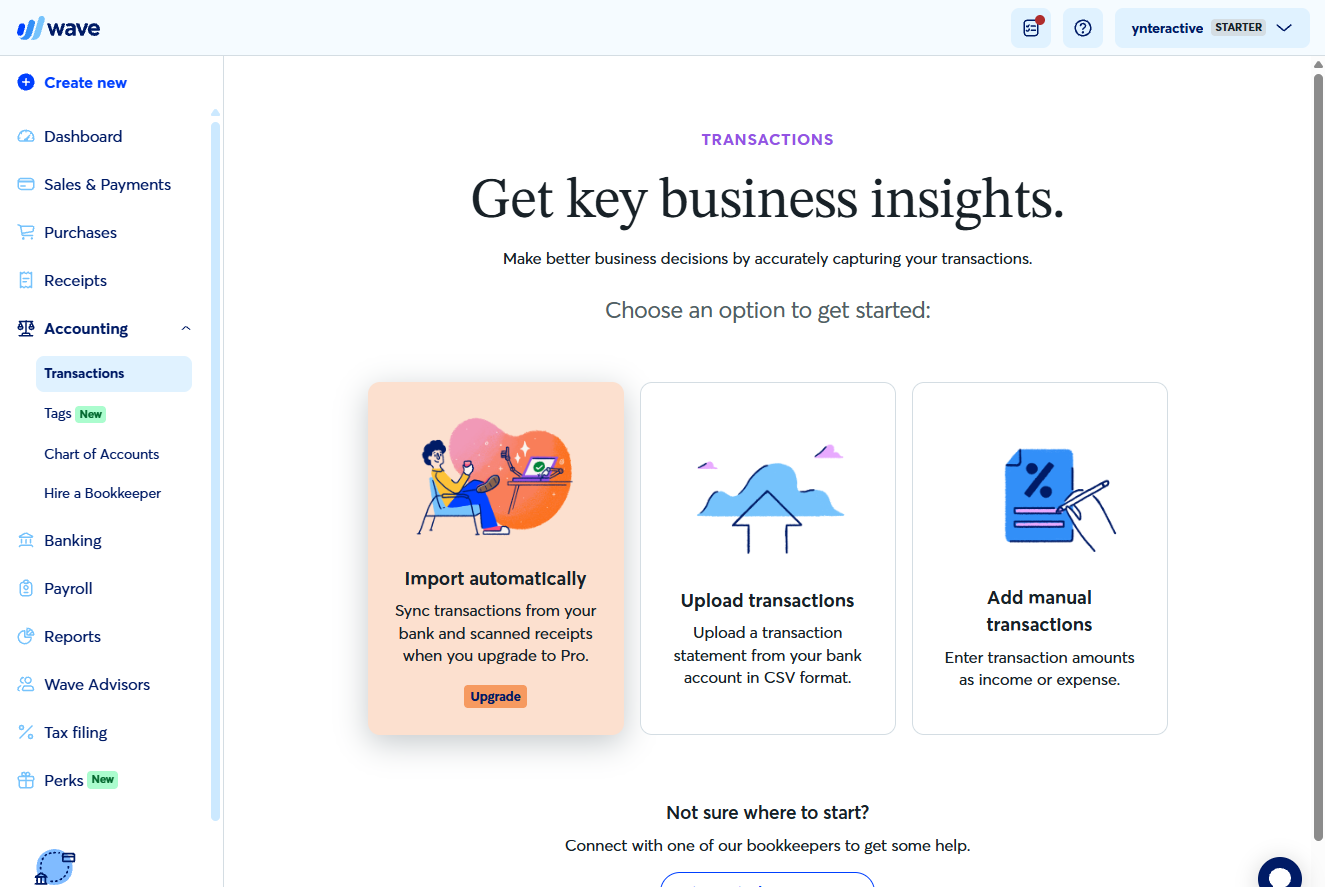
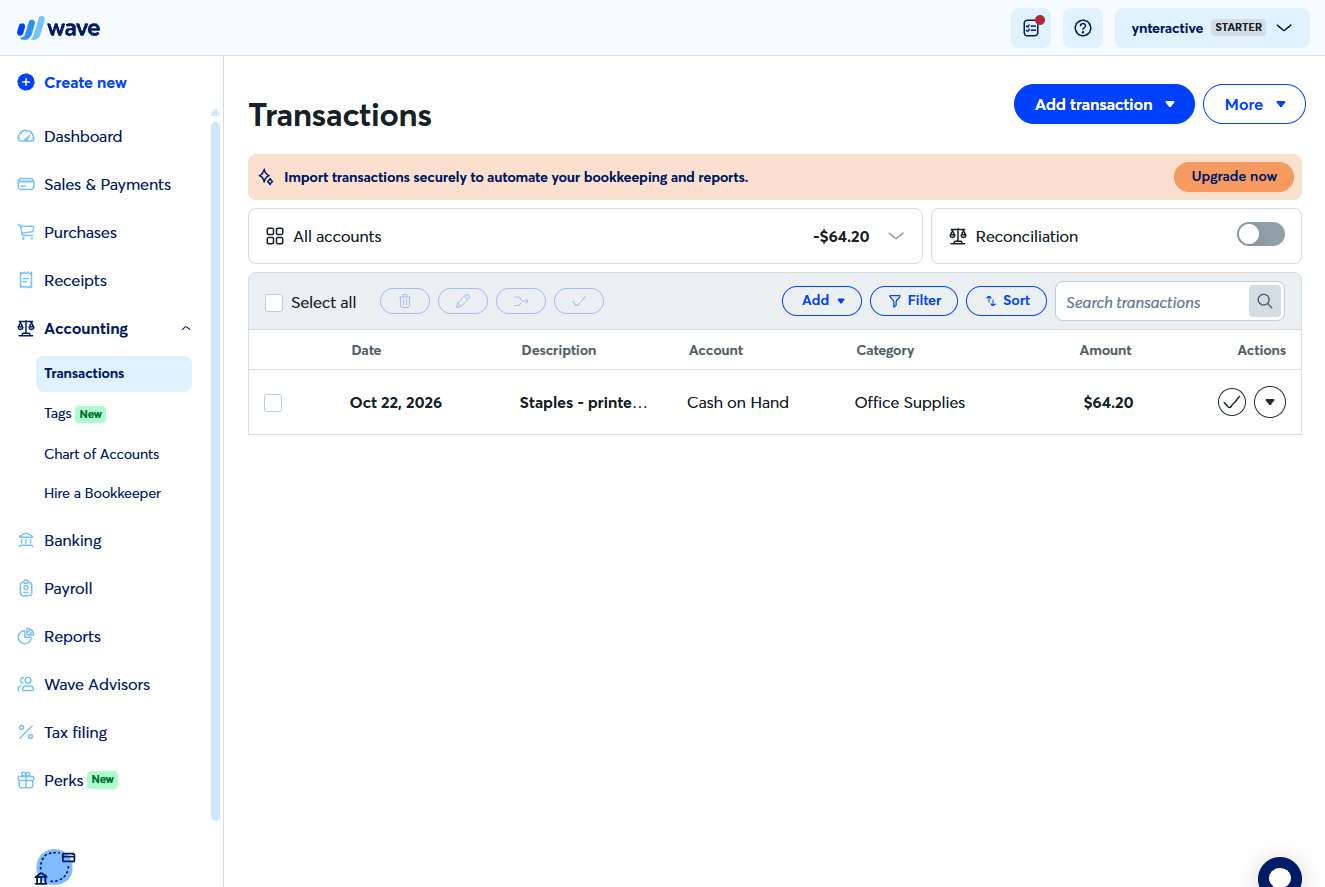
- Go to Transactions. Wave starts you with about 30 expense accounts, each with a plain-English description. Now click Transactions.
About thirty expense accounts to start.
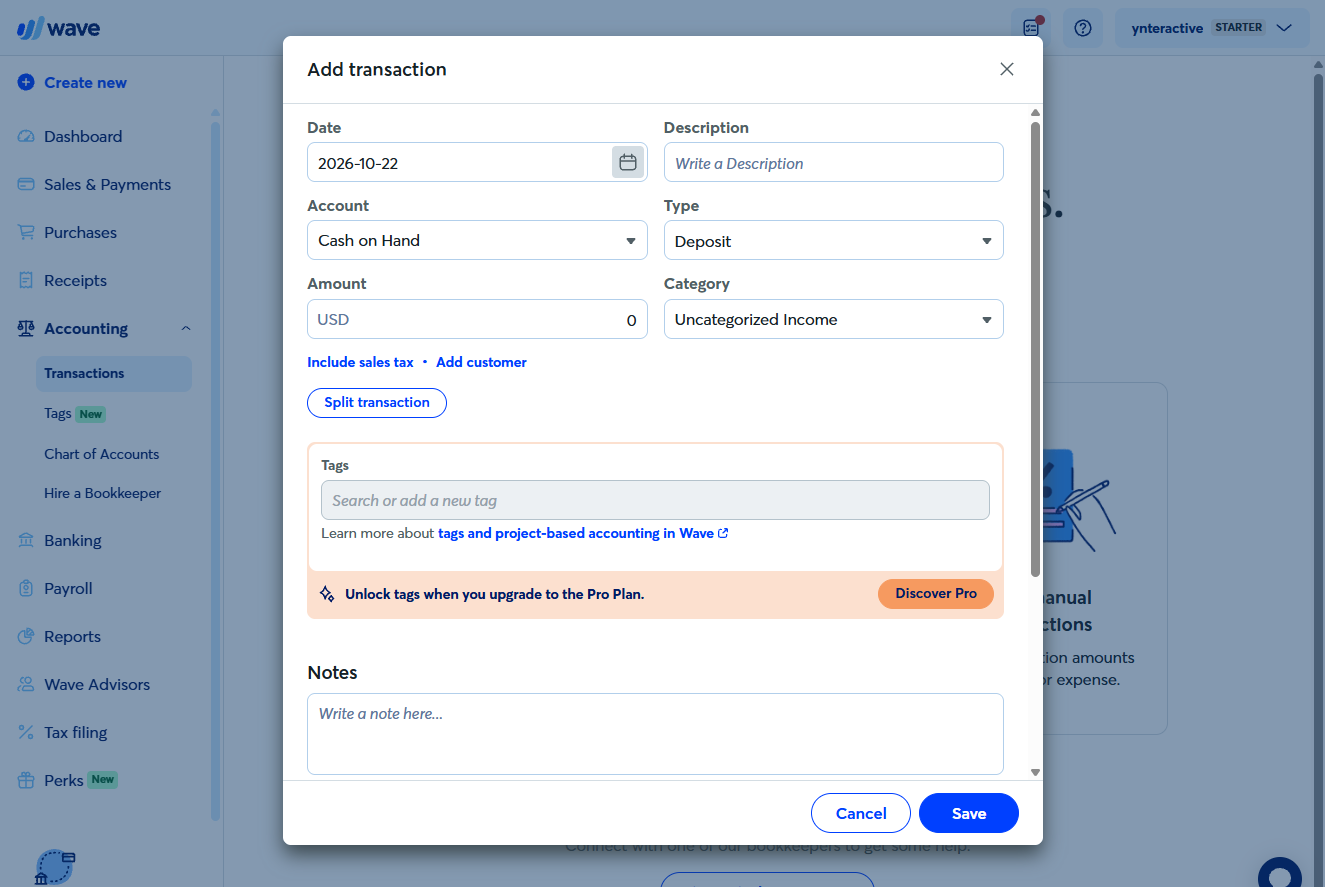
- Add manual transactions. On the free plan you add transactions by hand or upload a bank CSV; automatic import is Pro. Click Add manual transactions.
Automatic bank import is a Pro feature.
- Describe it. Type a description such as Staples, printer paper, set Type to Withdrawal (money out) and Amount to 64.20. Then open Category.
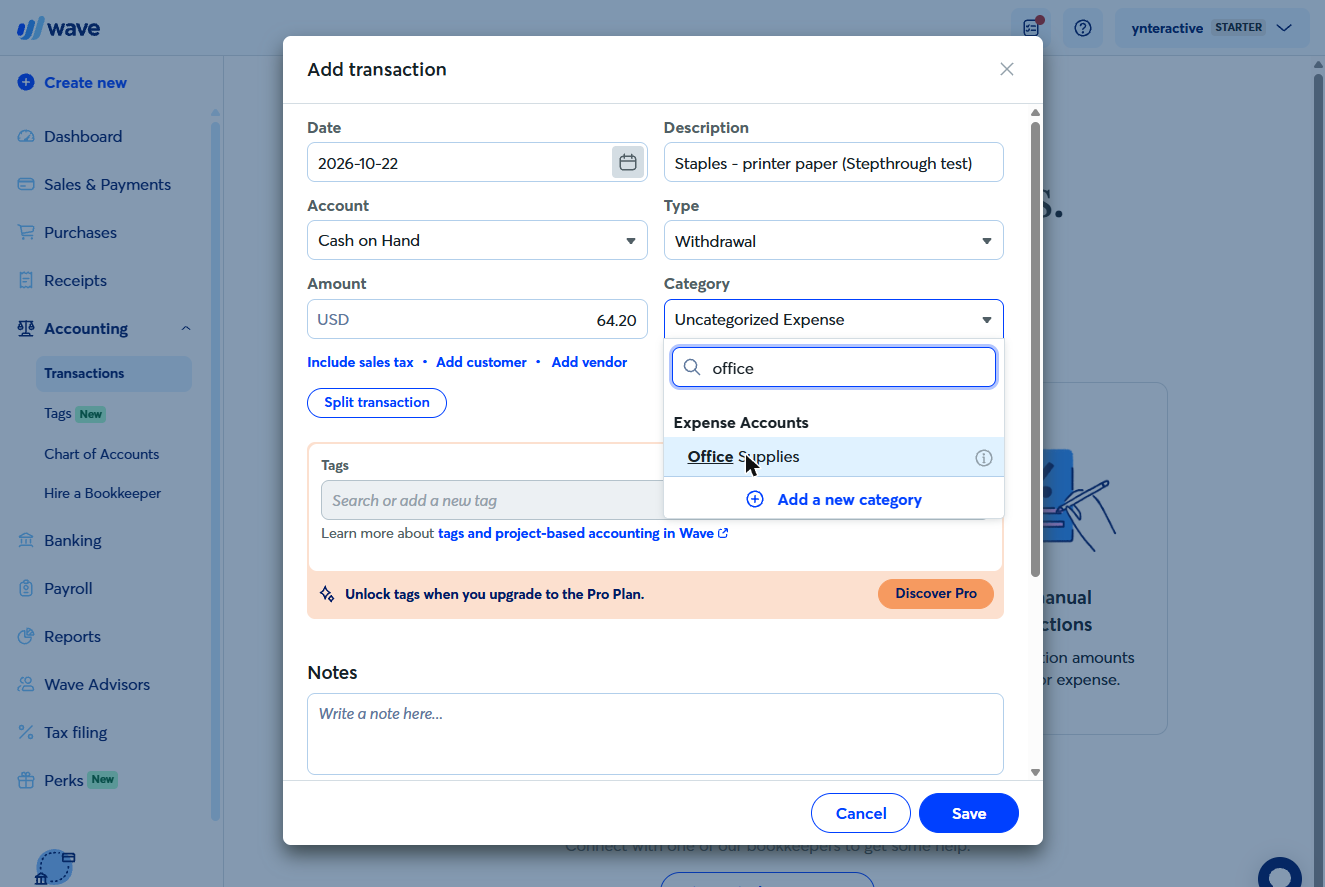
- Pick the category. Search "office" and click Office Supplies.
Search office, and pick Office Supplies.
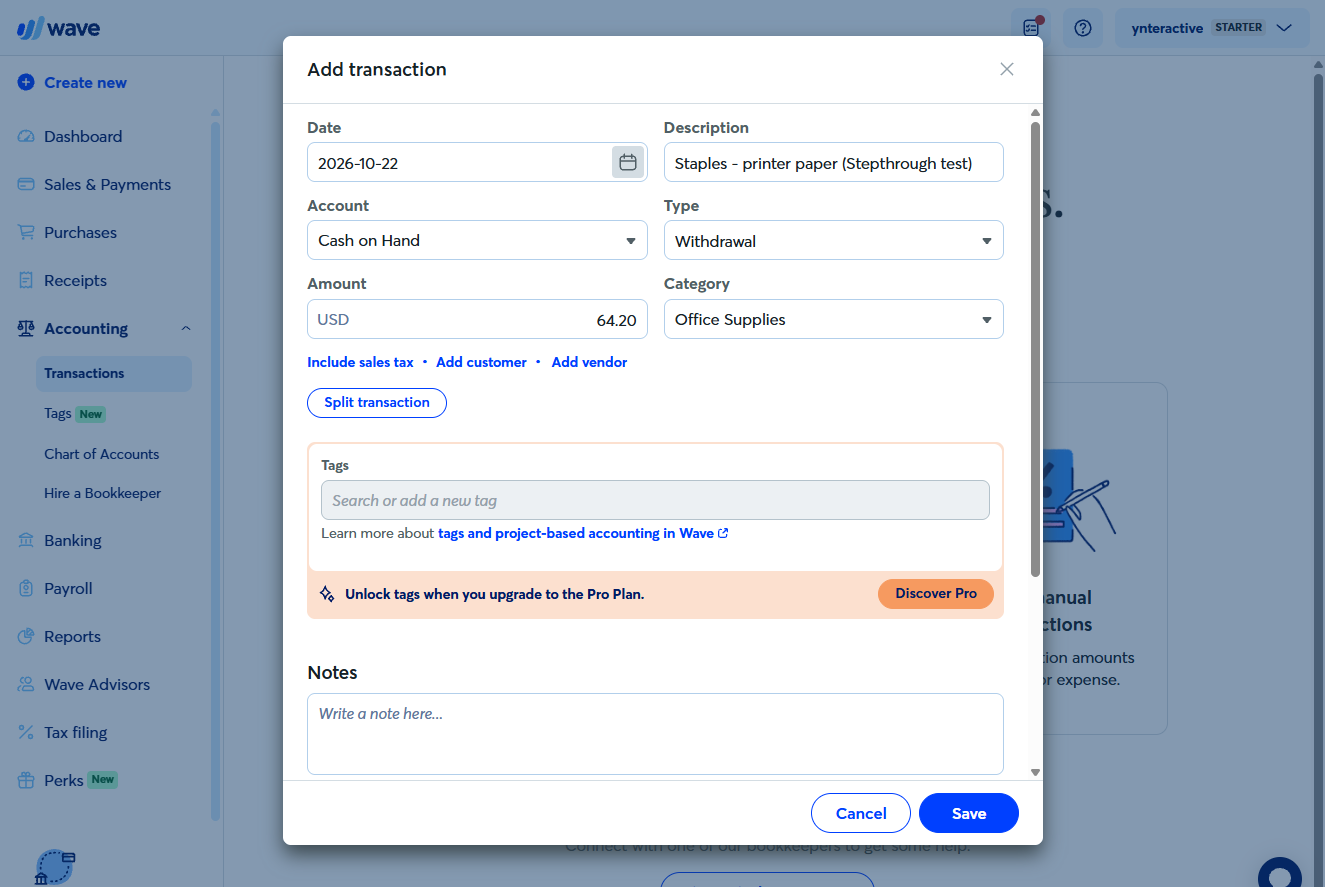
- Save. Date, description, Withdrawal, $64.20, Office Supplies. Click Save.
3. Run the reports
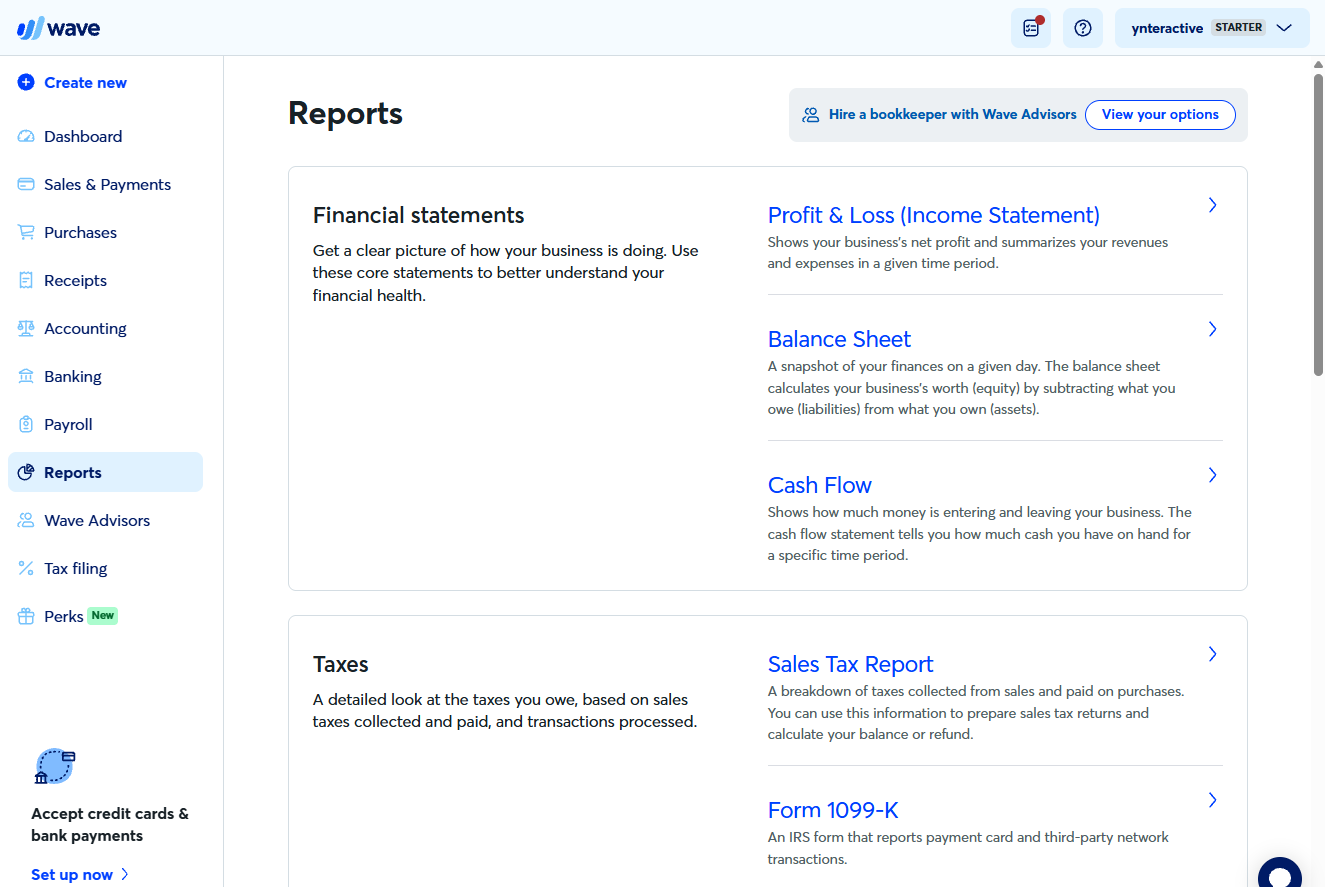
- Open Reports. The transaction is in the list with its category. Click Reports.
It is in the list, with its category.
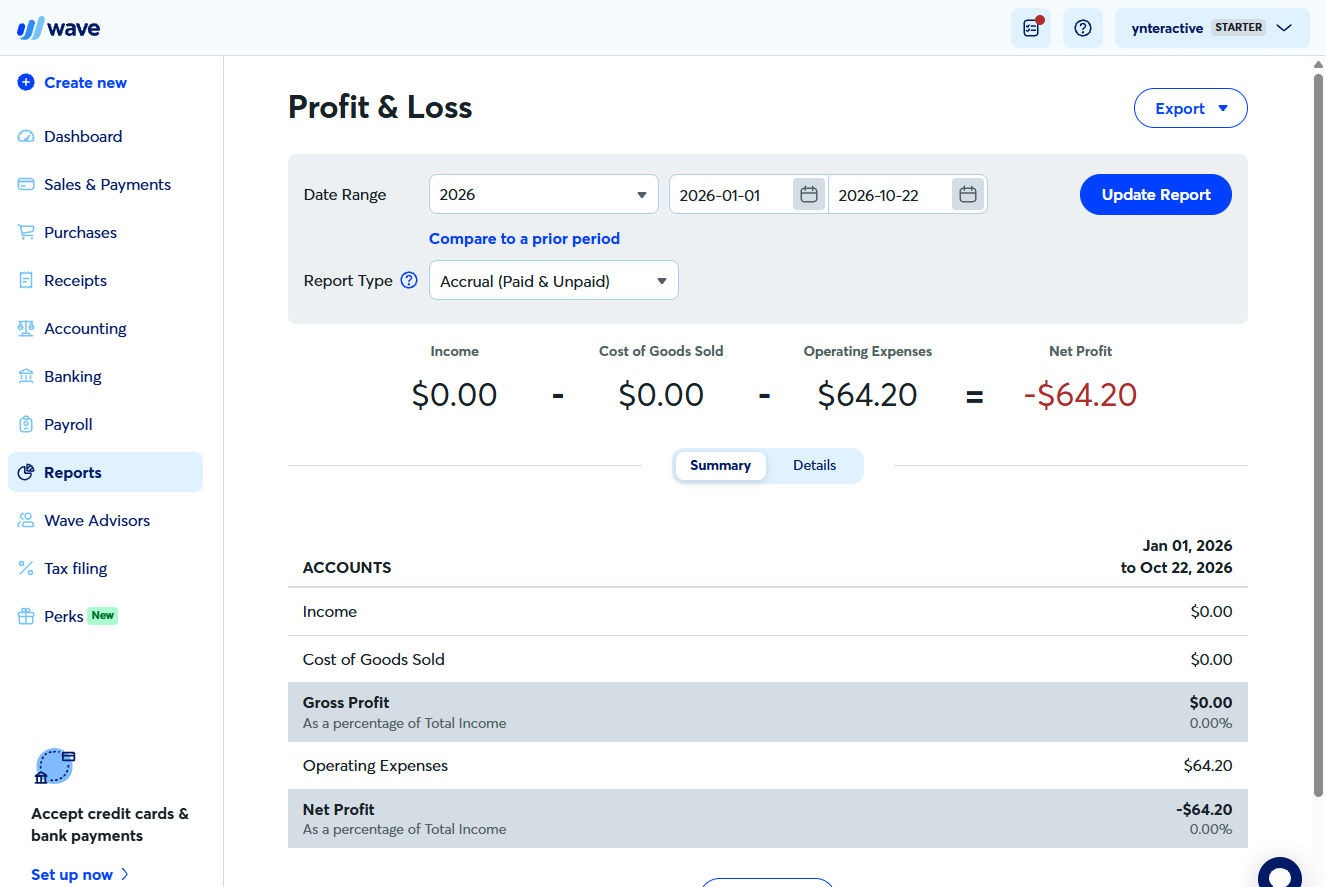
- Profit & Loss. Under Financial statements, click Profit & Loss (Income Statement).
- Read it. Income $0.00, Operating Expenses $64.20, Net Profit −$64.20. Report Type switches between Accrual and Cash. Go back to Reports.
Operating expenses, sixty-four twenty. Report Type switches between accrual and cash. Go back to Reports.
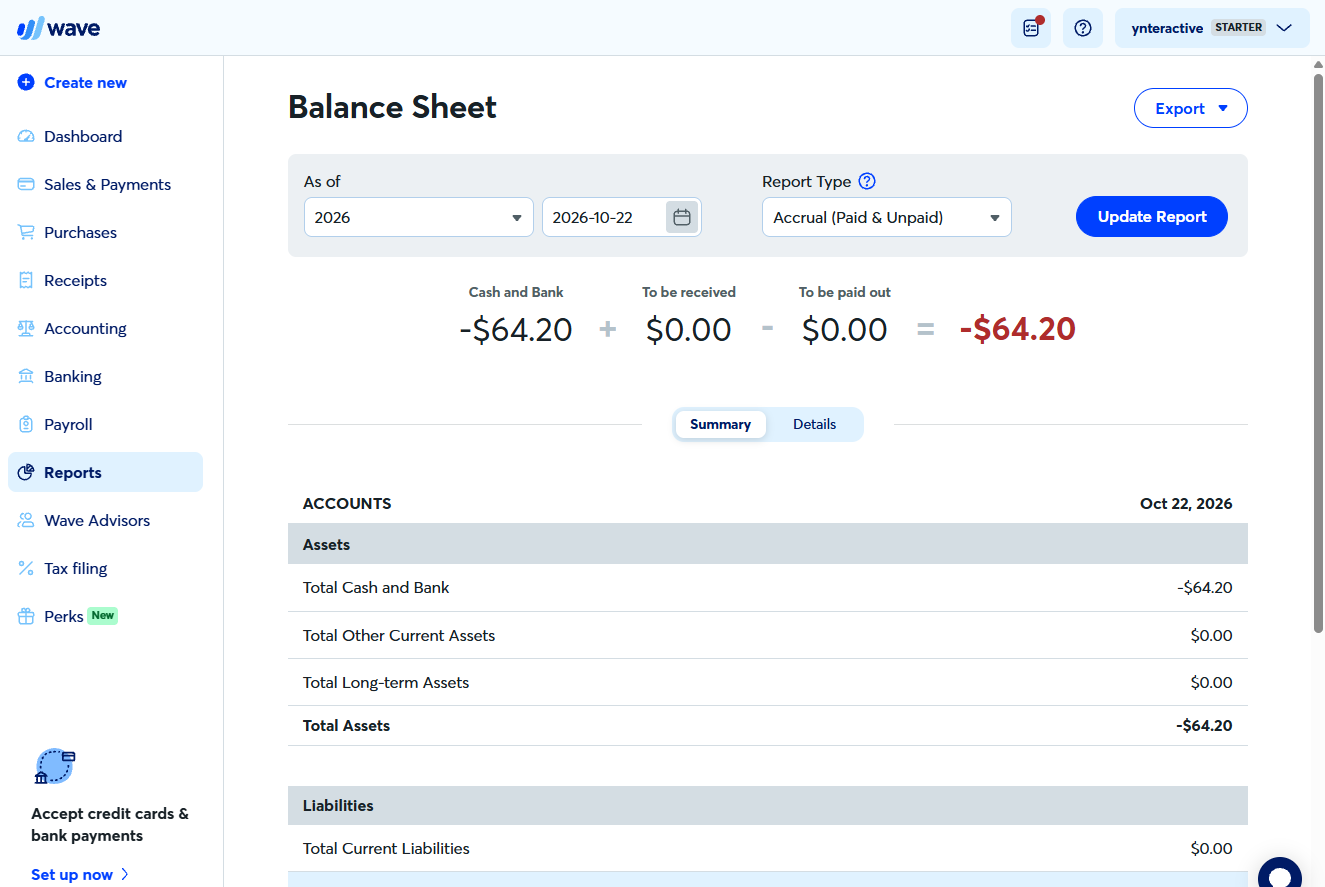
- Balance Sheet. Click Balance Sheet.
- Check the balance. Cash and Bank is −$64.20: the same purchase, seen as less cash. Click Total Assets.
The same purchase, seen as less cash.
Screenshots
More in Accounting
Free cheat sheet
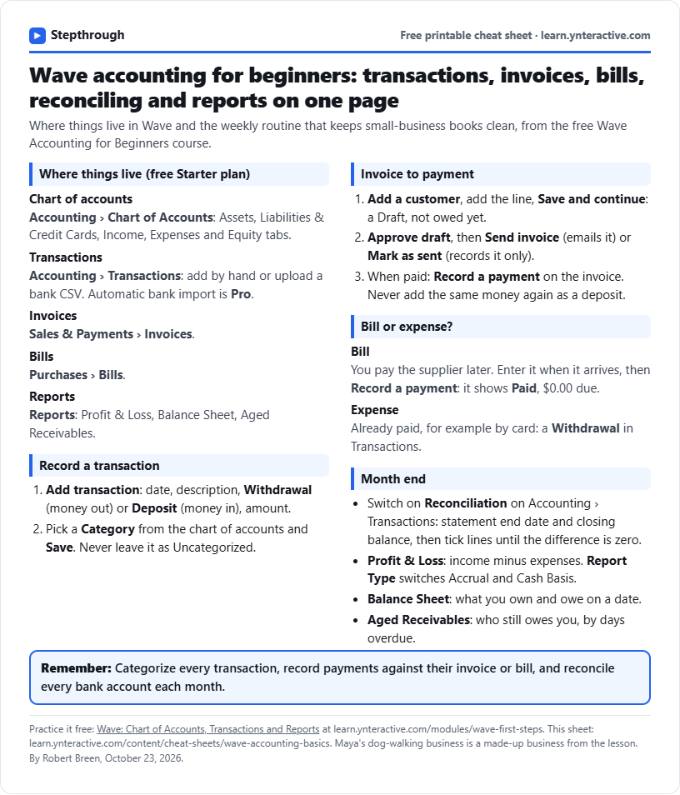
Print it or save the PDF: the key steps and checks from this lesson on one page, free.
All free printable cheat sheets
Terms in this lesson
Plain-English definitions, each with an example from a free lesson.